
When creating a work order, Latner applies a structured workflow to ensure a consistent and repeatable process.
Every work order carries four statuses: the Work Order Status, the Tech Status, the Parts Status and, for equipment, the Equipment Status. The first three track the job. The Equipment Status decides whether the machine can still be hired while the job is open, so it's the one to check when you can't select equipment on a rental contract.
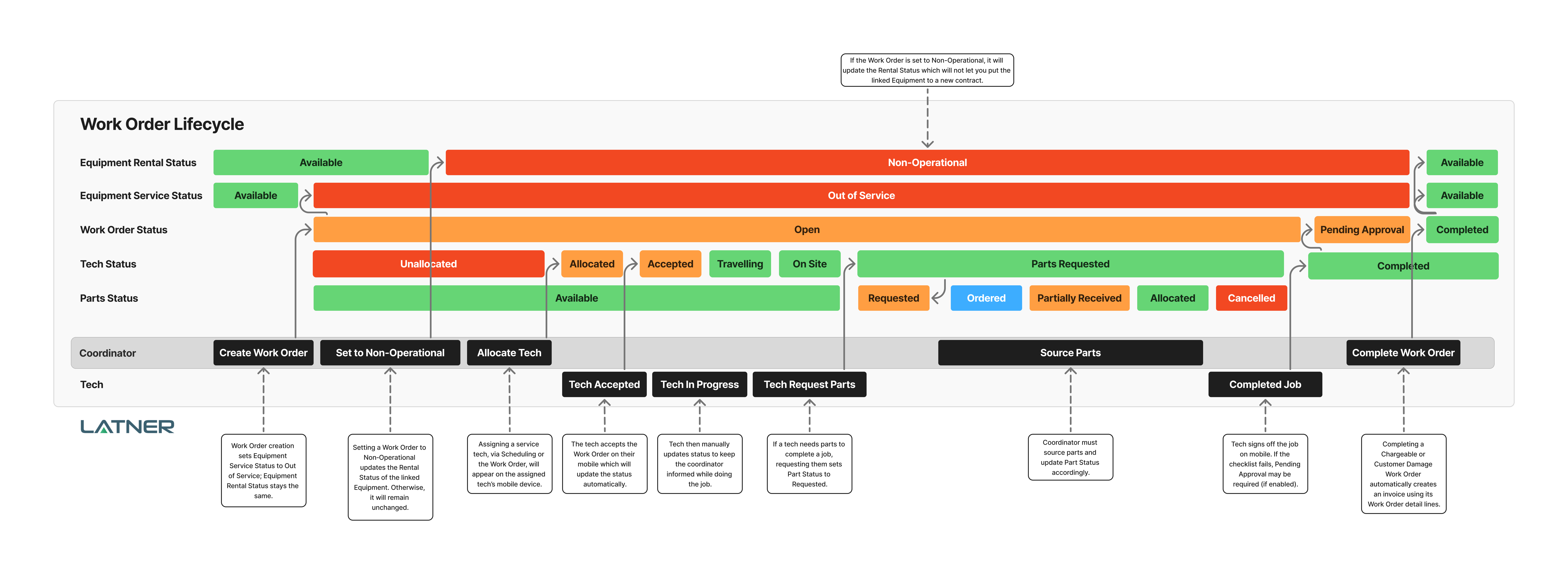
Work Order Status
Represents the overall progress of a job from creation through to completion.
Open
Indicates that a work order is created and currently active.
Pending Approval
Indicates that the technician failed a checklist and approval is required from the appropriate person (provided the setting is enabled)
Completed
Indicates that the work order is completed and final invoicing has been processed if it’s a chargeable work order.
Tech Status
Tracks the technician’s involvement and progress on the assigned job.
Unallocated
Indicates that the work order has been created but not yet assigned to a technician
Allocated
Indicates that the job has been assigned to a technician, but they haven’t acknowledged it yet.
Accepted
Indicates that the technician has confirmed they will take on the job
Travelling
Indicates that the technician is en route to the job location
On Site
Indicates that the technician has arrived at the job site and is working on it.
Parts Requested
Indicates that the technician requires additional parts to complete the job; work is paused until parts are available. This will automatically update the Parts Status to Requested.
Completed
Indicates that the job has been finished and marked as complete by the technician.
Parts Status
Represents the cycle of parts required for a job, from availability through allocation or cancellation.
Available
Indicates that the part is in stock and ready to be used.
Requested
Indicates that a technician or user has flagged the need for the part, but it hasn’t been ordered yet.
Ordered
Indicates that the part has been formally ordered from the supplier.
Partly Received
Indicates that some, but not all, of the ordered parts have been delivered.
Allocated
Indicates that the part has been assigned to the Work Order and ready to be picked.
Cancelled
Indicates that the request or order for the part has been cancelled and will not proceed.
Equipment Status
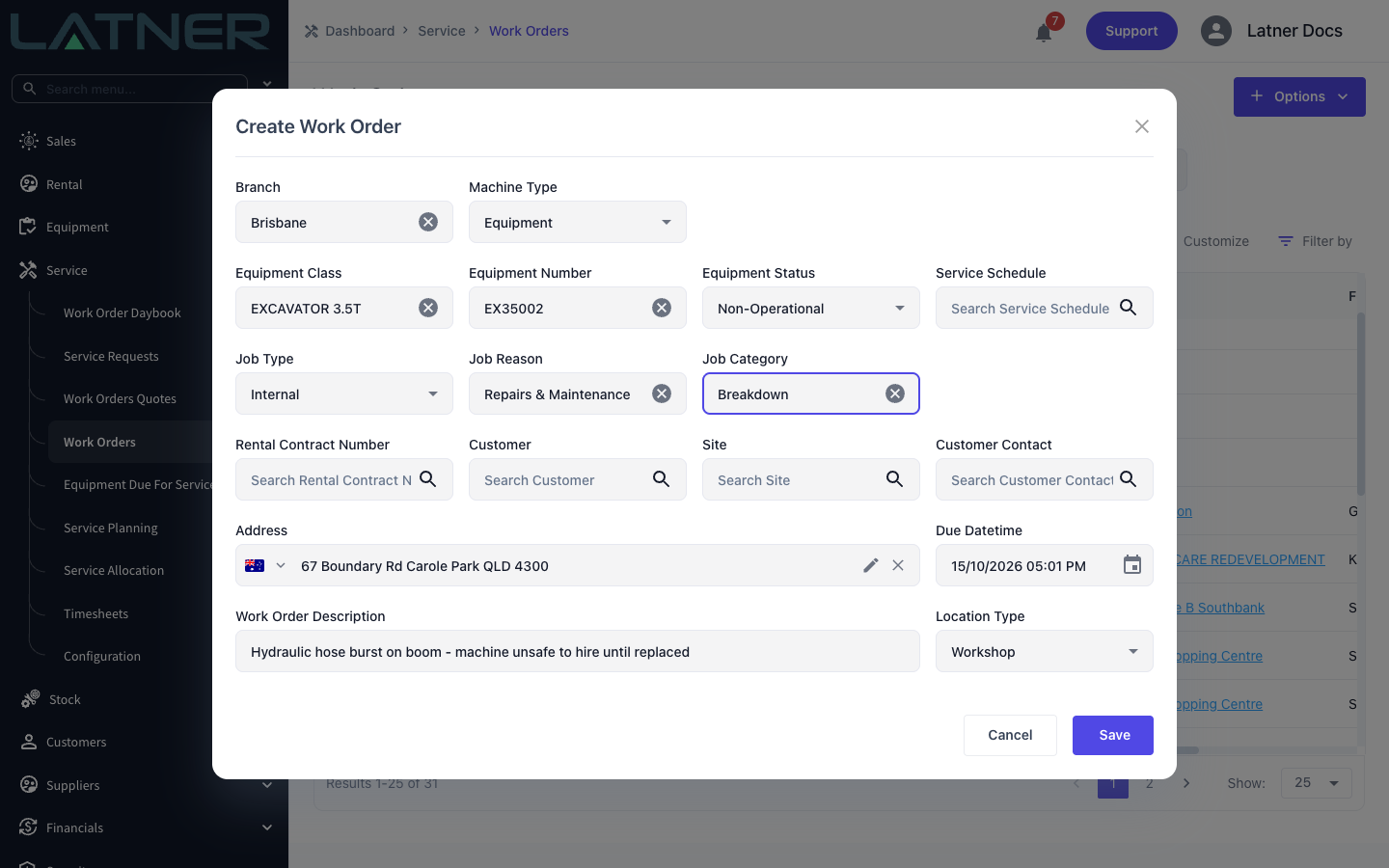
Records whether the machine on the work order can go on hire while the job is open. You choose it in the Equipment Status field when you create a work order for equipment. On the work order itself, and as a column on the Work Orders list, the same field is called Operational Status.
Operational
Indicates that the machine is fit to hire while the work is done. Its Service Status shows Out of Service while the work order is open, but that doesn't stop it being added to a rental contract.
Non-Operational
Indicates that the machine isn't fit to hire until the job is finished. While the work order is Open or Pending Approval, Latner sets the machine's Rental Status to Non-Operational and blocks it from rental contracts:
-
It no longer appears in the Equipment list when you add a line to a rental contract.
-
If your business allows pre-allocated equipment, it can't be pre-allocated either. Saving the line gives the error Equipment <number> not available to rent.
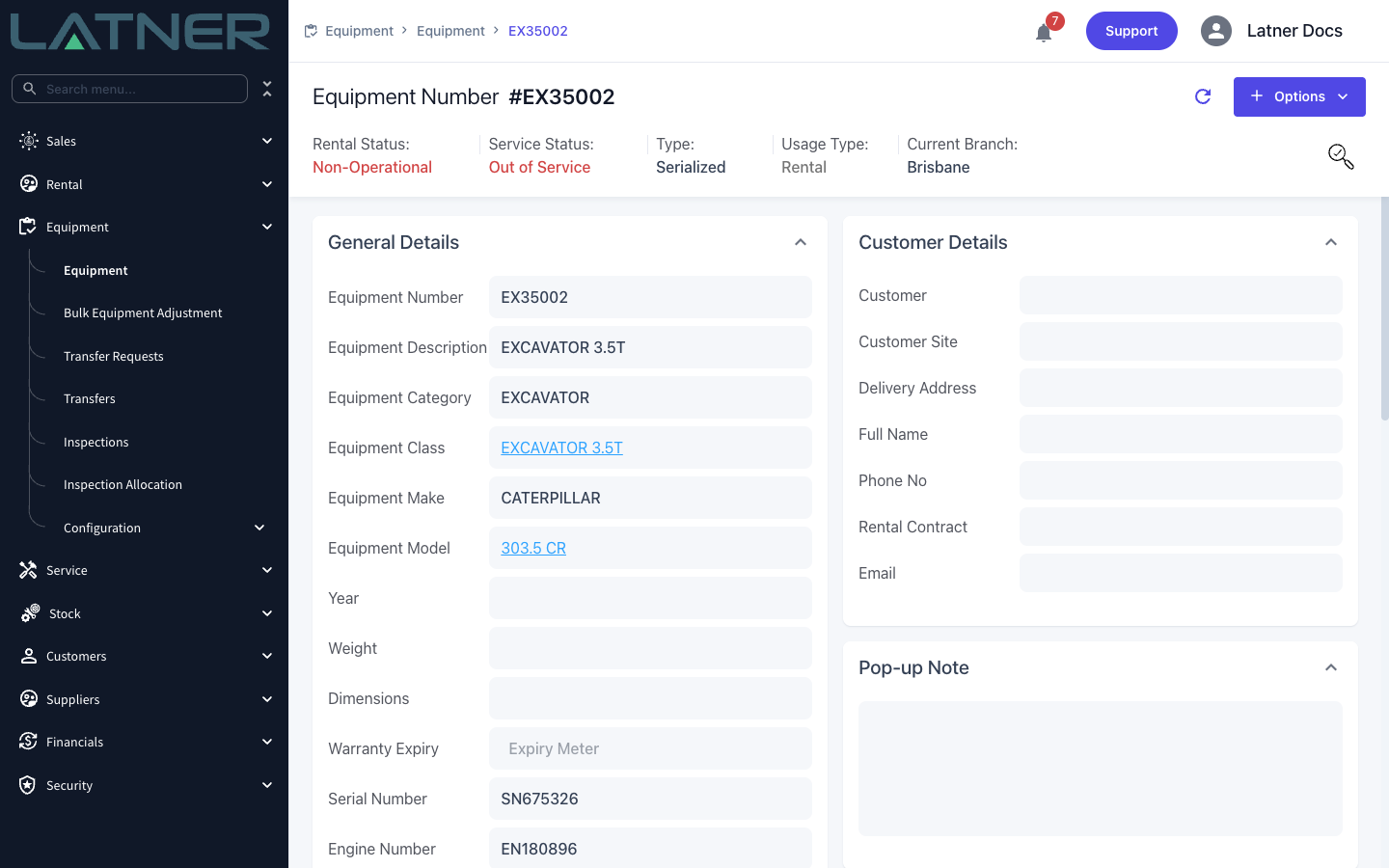
Releasing a machine that's still in the workshop
Sometimes a machine flagged non-operational is actually safe to hire before the job is finished, for example when the remaining work is cosmetic or can wait until it comes back. If you can't select the equipment on a rental contract because of an open work order, release it in one of two ways:
-
Change the work order's Equipment Status to Operational. Open the work order, click the Operational Status field in General Details, choose Operational and click Save. The work order stays open, and Latner recalculates the machine's Rental Status from everything else it's doing - usually back to Available, or to a status such as Reserved or Return Inspection if that applies.
-
Complete the work order. Completing it (or cancelling it) recalculates the Rental Status the same way. Once the machine has no other open work orders, its Service Status also returns to Available.
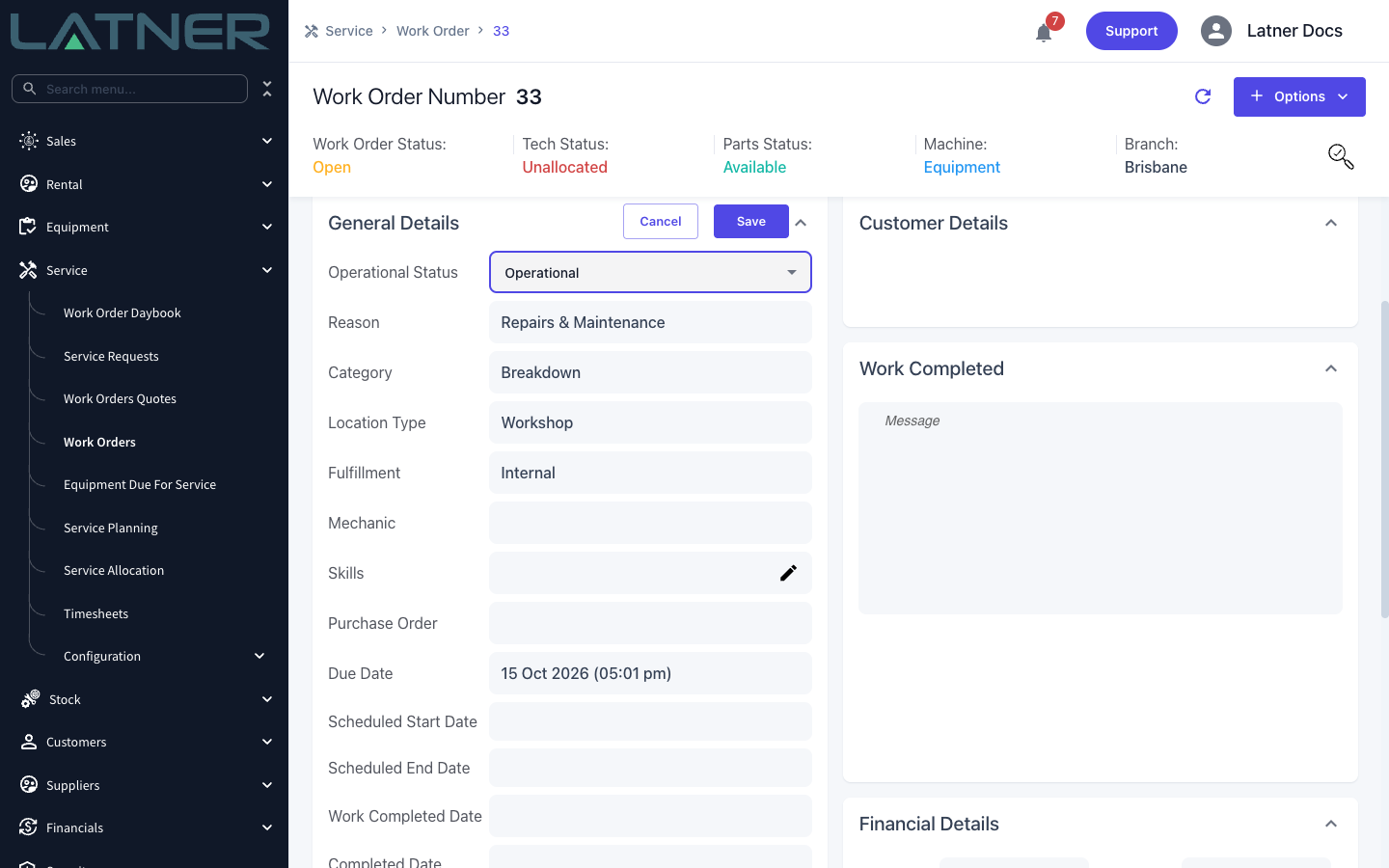
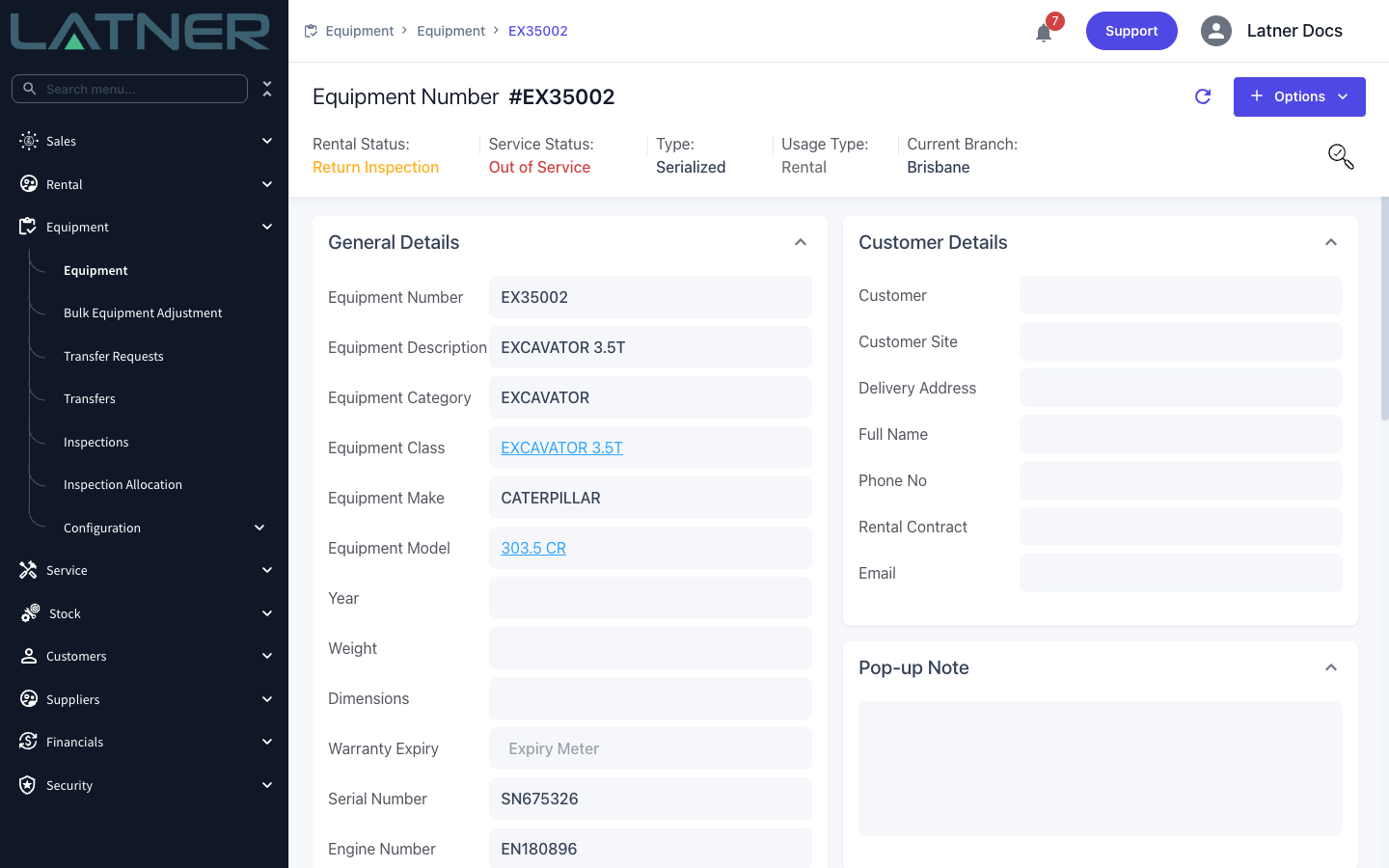
A machine stays non-operational while any of its open work orders is set to Non-Operational. If it still won't release after you change one work order, check the machine's other open and Pending Approval work orders.
Operational Status can only be changed while the work order's status is Open. A work order that's Pending Approval releases the machine when its completion is approved.