
A picking list turns the parts on a work order into a job for the store, so whoever is on the counter knows exactly what to pull off the shelf, where to find it and when the mechanic needs it.
Overview
Parts get added to a work order long before anyone walks into the warehouse. A picking list closes that gap: it takes the stock lines you nominate, hands them to a picker with a due date, and reports back to the work order as the parts are gathered.
-
Picking lists are created from the work order, and only ever contain the work order's Stock lines.
-
Each stock line can only be on one picking list at a time, so lines already picked or being picked are hidden from the form.
-
You can pick a subset of the lines. The rest stay Unpicked and can go on a later picking list.
-
The picking list carries its own number, status, picker and due date, and shows the warehouse and bin for every part.
-
A picking list moves through Open, Picking and Completed, and can be cancelled at any point before it completes.
-
Picking does not consume stock. The quantity is only used up when the work order itself is completed.
Before You Begin
Picking lists for work orders are off by default. Check these before you start.
|
Requirement |
Where to Find It |
|---|---|
|
Enable Picking Lists for Work Orders must be on |
Security › Settings › Service |
|
Edit Work Order permission |
Security › Configuration › Permission Groups › Service › Option |
|
Picking Lists permission |
Security › Configuration › Permission Groups › Stock › Screen |
|
A work order in Open status with at least one Stock line |
Service › Work Orders |
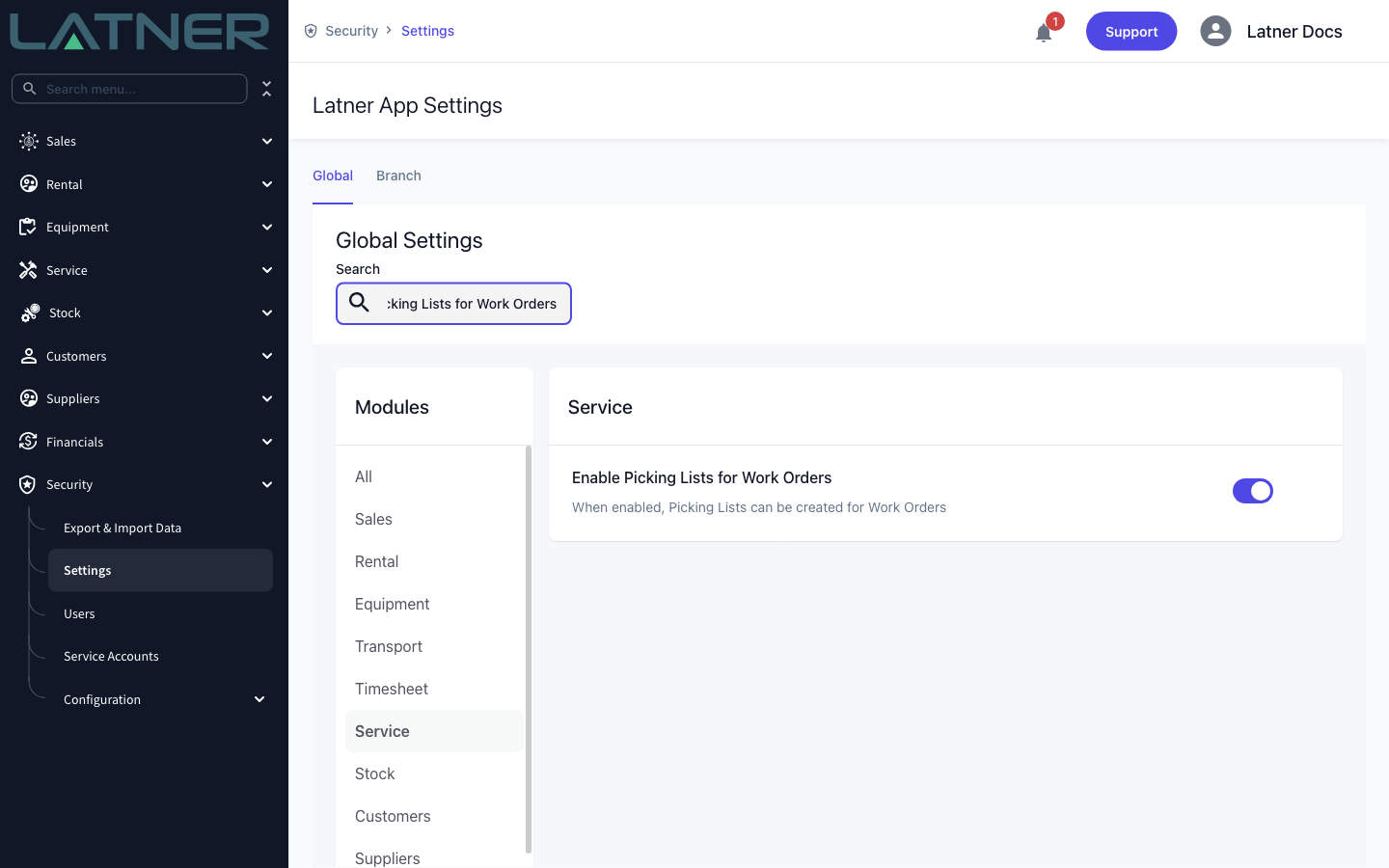
Without the setting, Create Picking List still appears in the work order's Options menu, but it's greyed out and hovering it tells you "Picking Lists can be enabled from System Settings". The Picking Lists tab and the Picking Status column on the work order are hidden as well.
Creating the Picking List
Step 1 - Check the parts on the work order
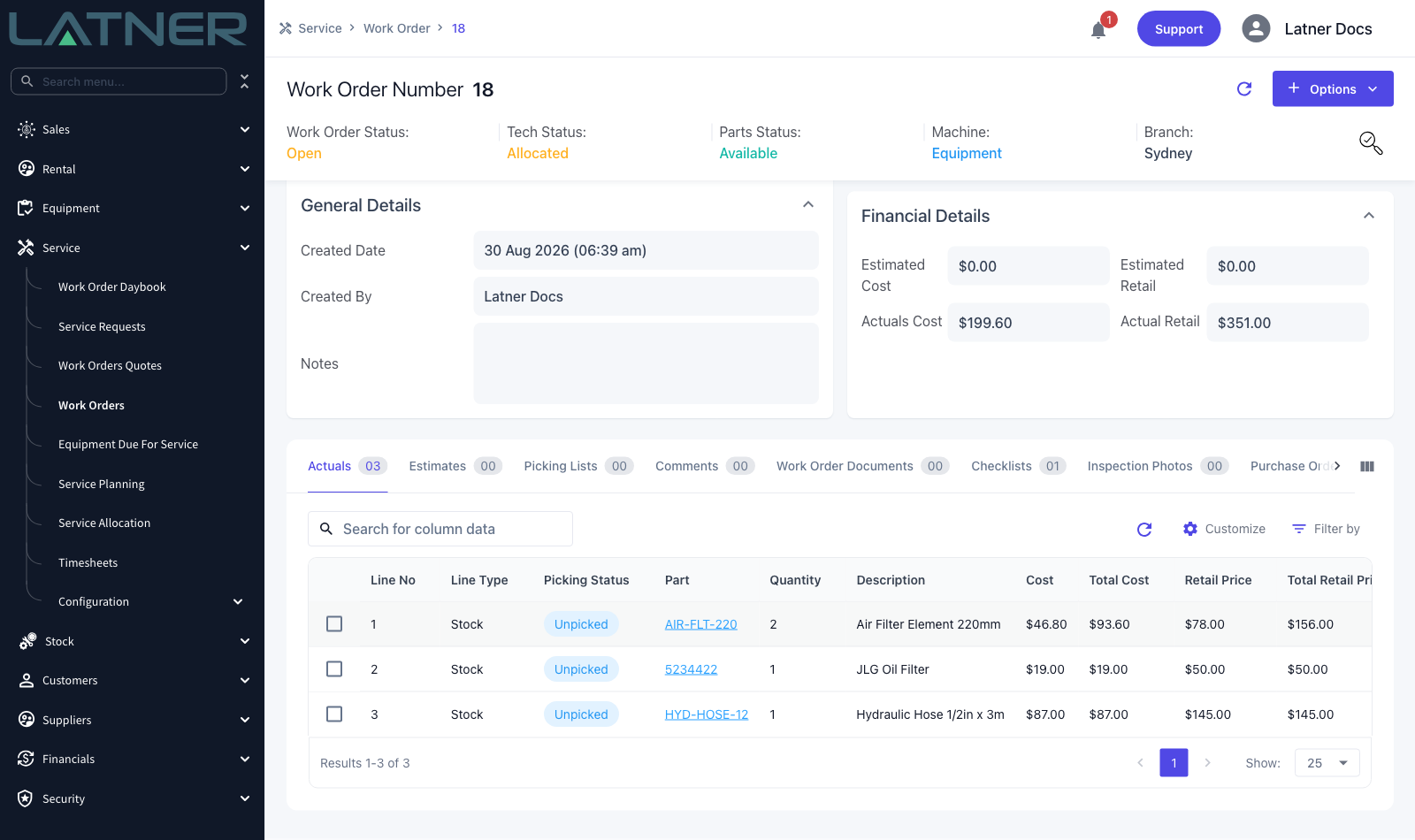
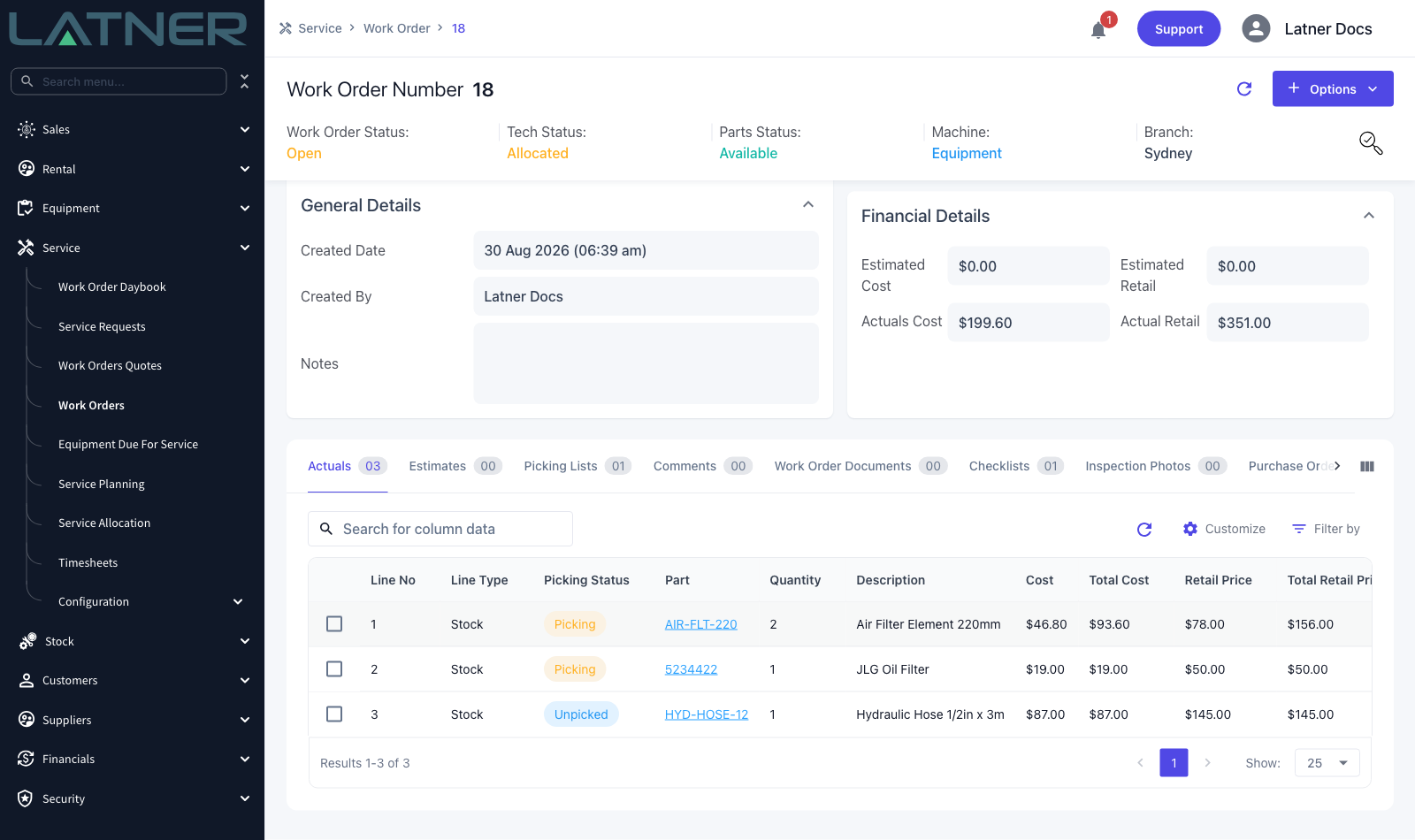
Open the work order from Service › Work Orders and go to the Actuals tab. Every part added to the work order is a Stock line with a Picking Status of Unpicked, Picking or Picked. Only Unpicked stock lines can go on a new picking list, so if a line you expect is missing from the form later, this is the tab that explains why.
If the parts aren't on the work order yet, add them first with Options › Add Parts.
Step 2 - Open Create Picking List
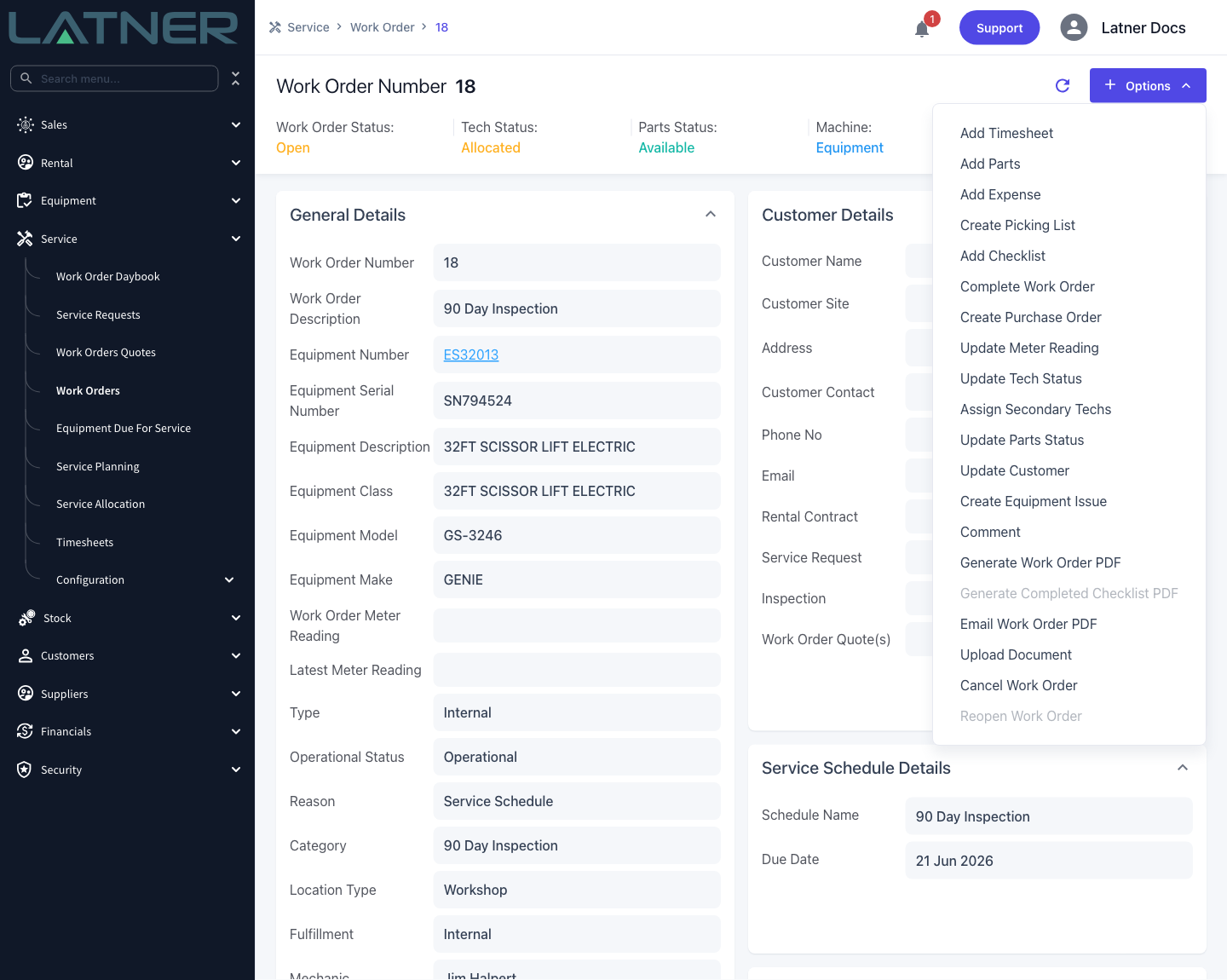
Select Options › Create Picking List in the top right of the work order.
Step 3 - Review the lines Latner offers you
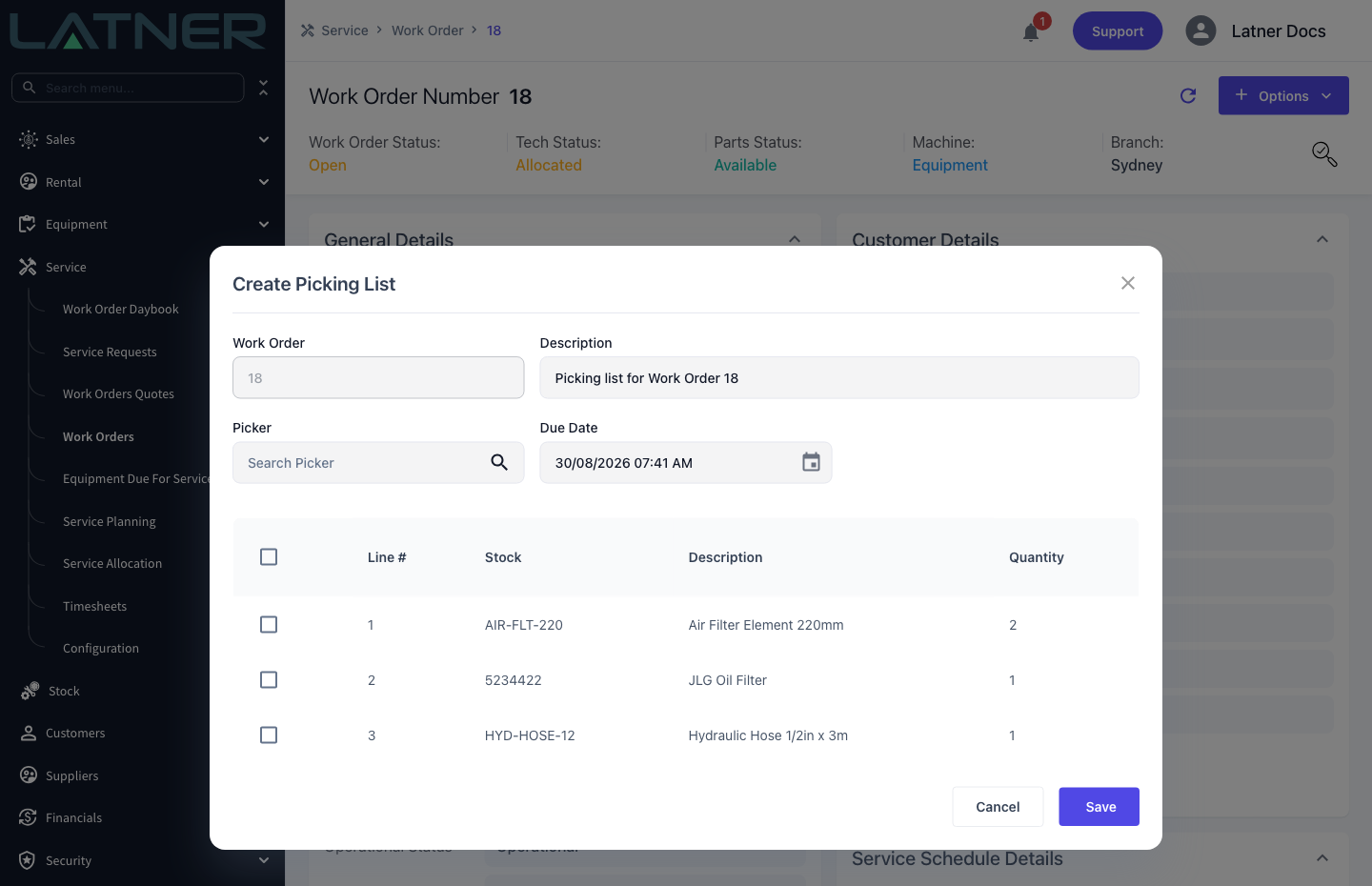
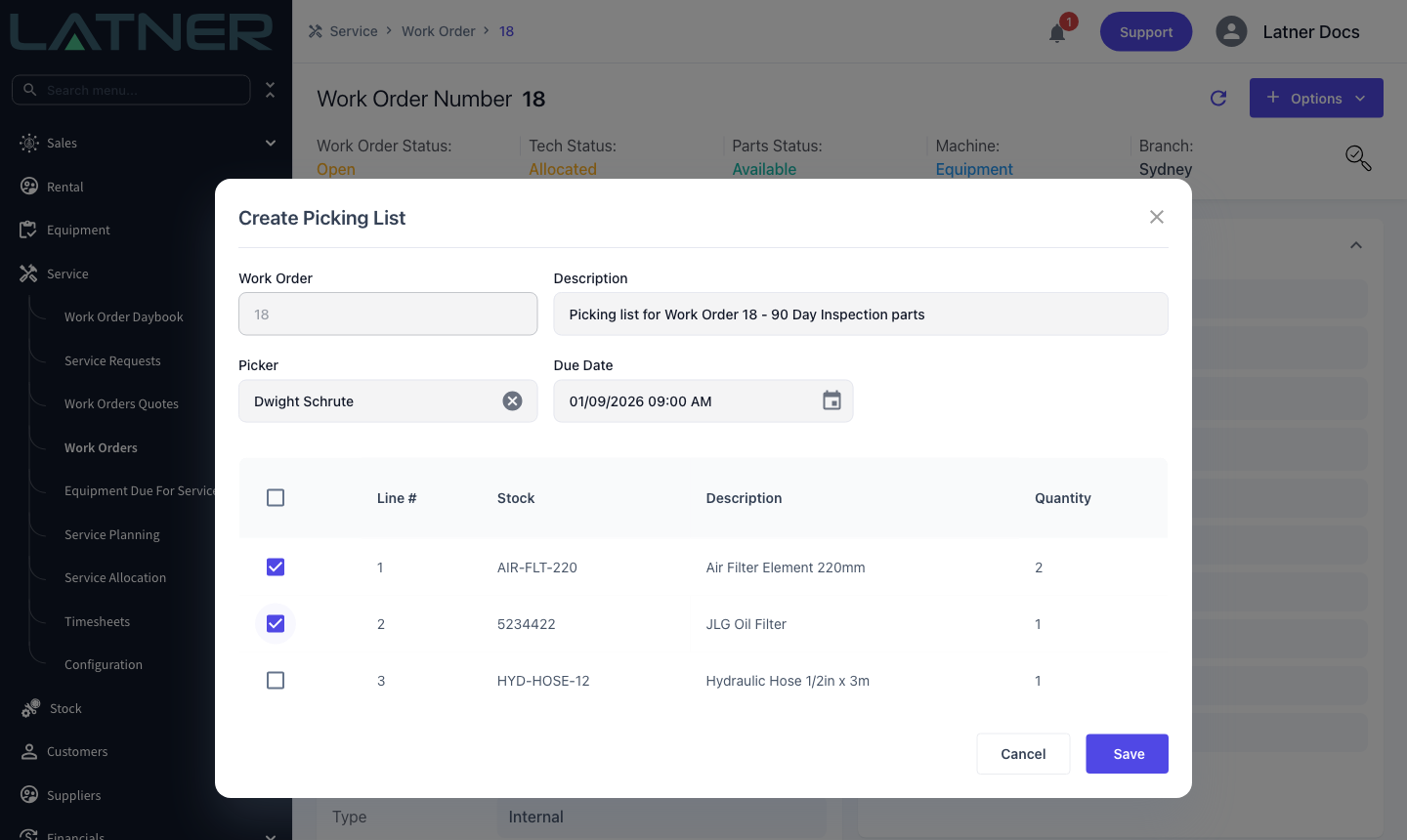
The form opens with every unpicked stock line on the work order already loaded, showing the line number, stock number, description and quantity. The quantity is taken straight from the work order line and cannot be edited here.
Step 4 - Fill in the details and tick the lines you want
Complete the header fields, then tick each line to include. The tickbox in the table header selects and clears every line at once.
-
Work Order - fixed to the work order you started from and cannot be changed.
-
Description - required. Pre-filled as "Picking list for Work Order <number>"; overwrite it with something more useful to the picker if you like.
-
Picker - optional. Any skilled person can be nominated. You can leave it blank now and assign someone later from the picking list itself.
-
Due Date - required, and defaults to the current date and time in the work order branch's timezone.
You don't have to take every line. Anything you leave unticked stays Unpicked on the work order and remains available for a second picking list.
Step 5 - Save
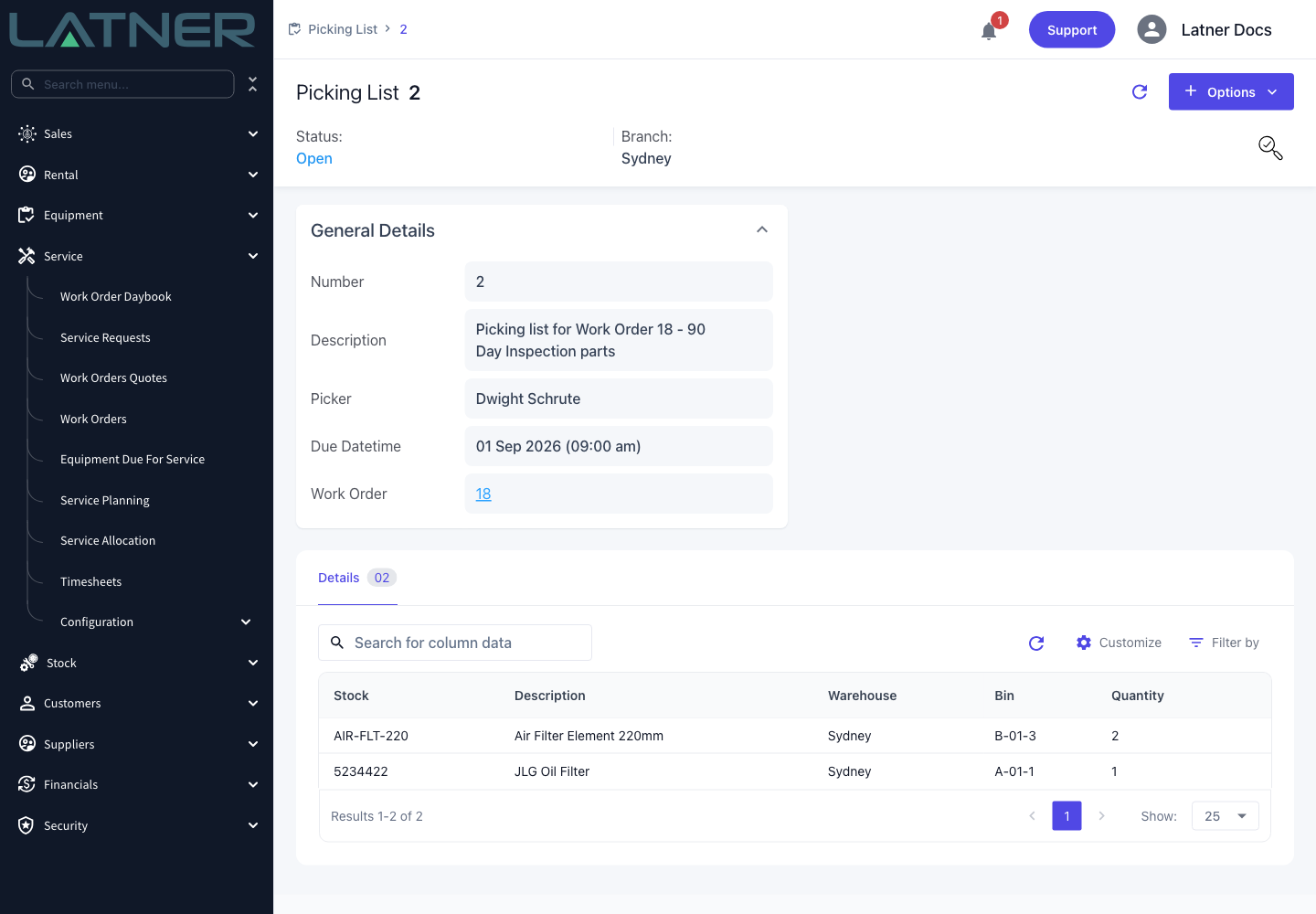
Select Save. Latner creates the picking list against the work order's branch, gives it its own number and takes you straight to it. If you save without ticking anything, you'll get "At least one picking item must be selected" and nothing is created.
After Creation
-
Every line you ticked flips from Unpicked to Picking on the work order's Actuals tab.
-
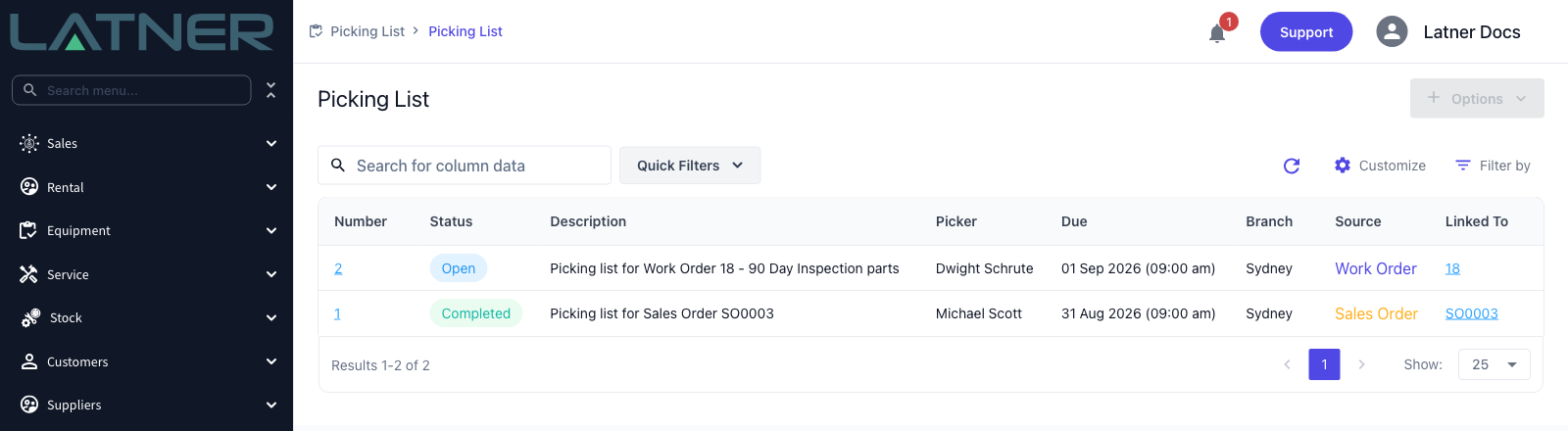
The picking list appears on the work order's Picking Lists tab and on Stock › Picking List, where the Source column reads Work Order and Linked To links back.
-
Description, Picker and Due Datetime stay editable on the picking list's General Details card.
-
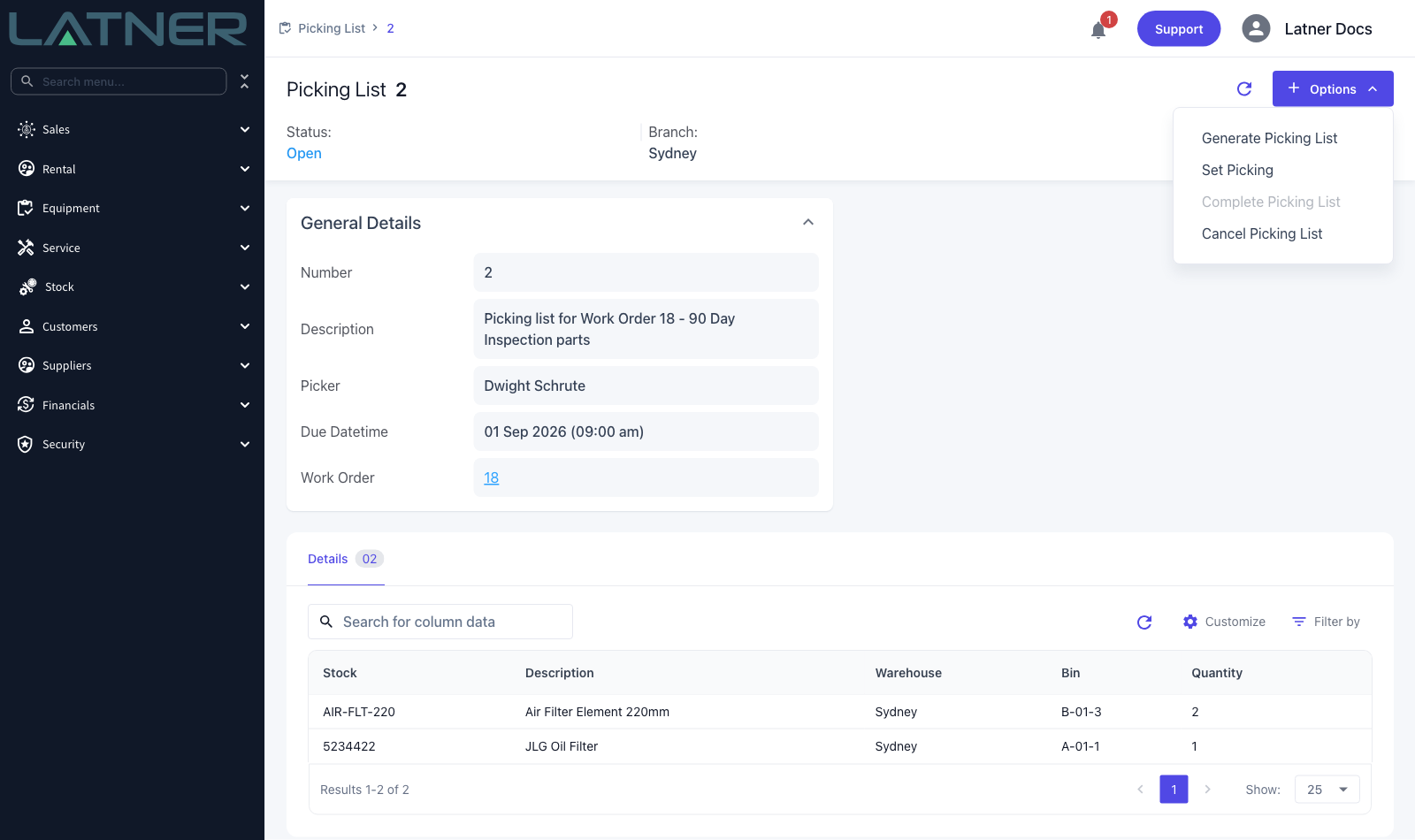
Work through the picking list with Options on the picking list itself: Set Picking moves it from Open to Picking, and Complete Picking List then closes it and sets the work order lines to Picked. Complete Picking List stays greyed out until the list is at Picking.
-
Generate Picking List PDF produces a printable copy for the warehouse.
-
Cancel Picking List is available at Open or Picking and puts every line back to Unpicked, so the parts can be put on a fresh picking list.
A work order cannot be completed or cancelled while any of its picking lists is still Open or Picking - you'll be stopped with "Cannot Completed Work Orders with Open Picking List." Finish the picking list, or cancel it, and the work order will then complete.
FAQs
Watch the Demo
Prefer to watch it? Step through the same flow here.