
Adding a checklist template to a work order gives the mechanic a fixed list of tasks to work through and sign off, so the same checks get done - and get recorded - on every job.
Overview
Not every job can be planned in advance. A work order raised from an equipment service schedule already brings its checklist with it, but for a breakdown, a customer request or an extra safety check you add the checklist yourself, straight from the work order.
-
Adding a checklist copies the template's tasks onto the work order as a working copy - task groups, summaries, descriptions and photo requirements all come across.
-
The copy is a snapshot. Editing the template later creates a new version of the template and leaves checklists that have already been added exactly as they were.
-
Every checklist template is offered, whatever its type - Service, Run Up, Rental Return, Pre Sale, Pre Start or Take 5. The list isn't restricted to Service checklists.
-
You can add as many checklists to a work order as you need, including the same template twice.
-
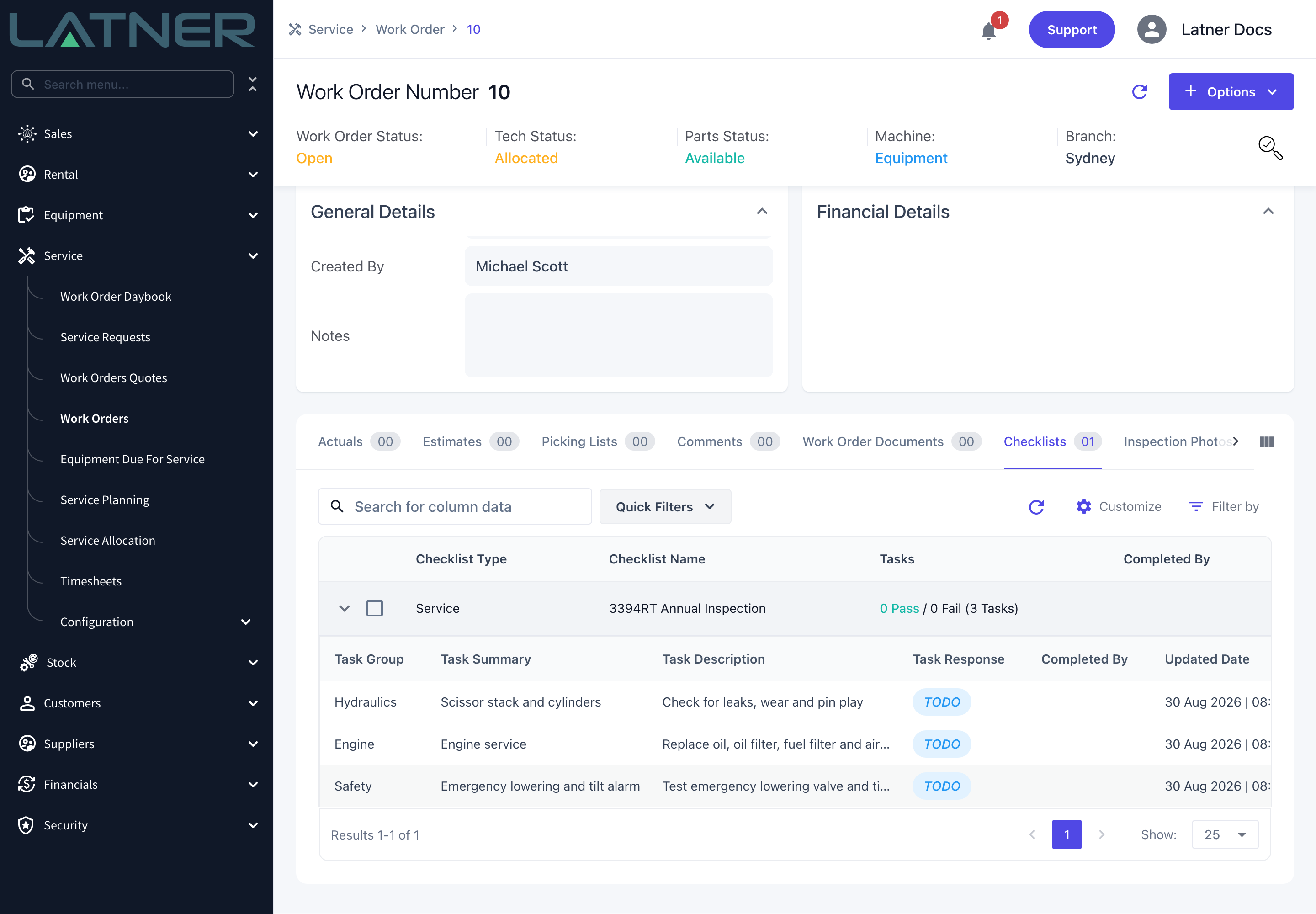
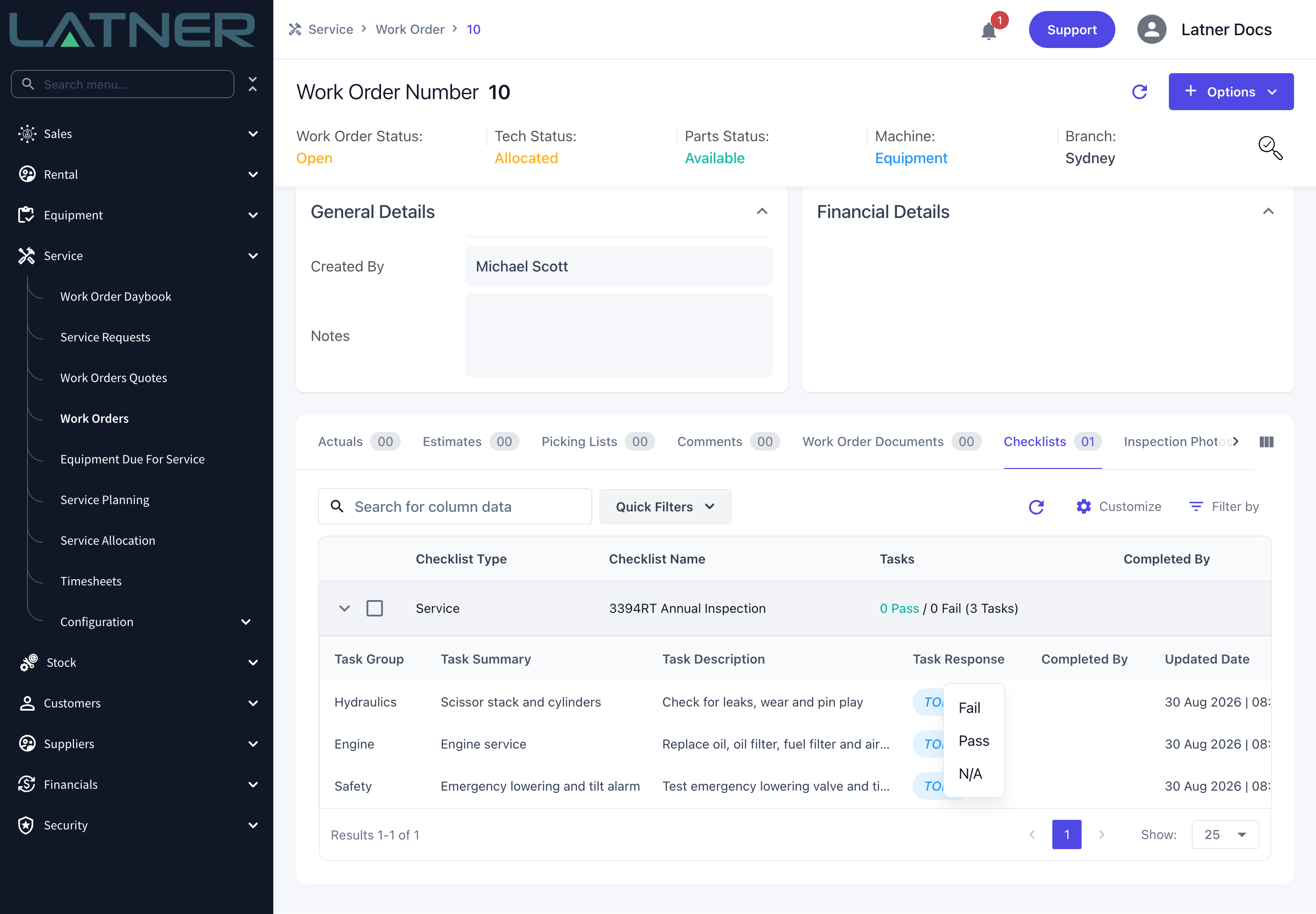
Tasks start as TODO and are answered with the response options attached to the template, which are Pass / Fail / N/A unless someone has set up a different response set.
-
Once every task has an answer the checklist is marked as completed, recording who finished it and when.
Before You Begin
Adding a checklist needs one permission, at least one checklist template to choose from, and a work order that is still live.
|
Requirement |
Where to Find It |
|---|---|
|
Add Checklist to Work Order permission |
Security › Configuration › Permission Groups › Service › Option |
|
At least one checklist template |
Equipment › Configuration › Checklist Templates |
|
A work order that isn't Completed or Cancelled |
Service › Work Orders |
|
Completed Checklists Required for Work Orders (optional) |
Security › Settings › Equipment |
|
Failed Work Order Checklist Points Require Approval (optional) |
Security › Settings › Equipment |
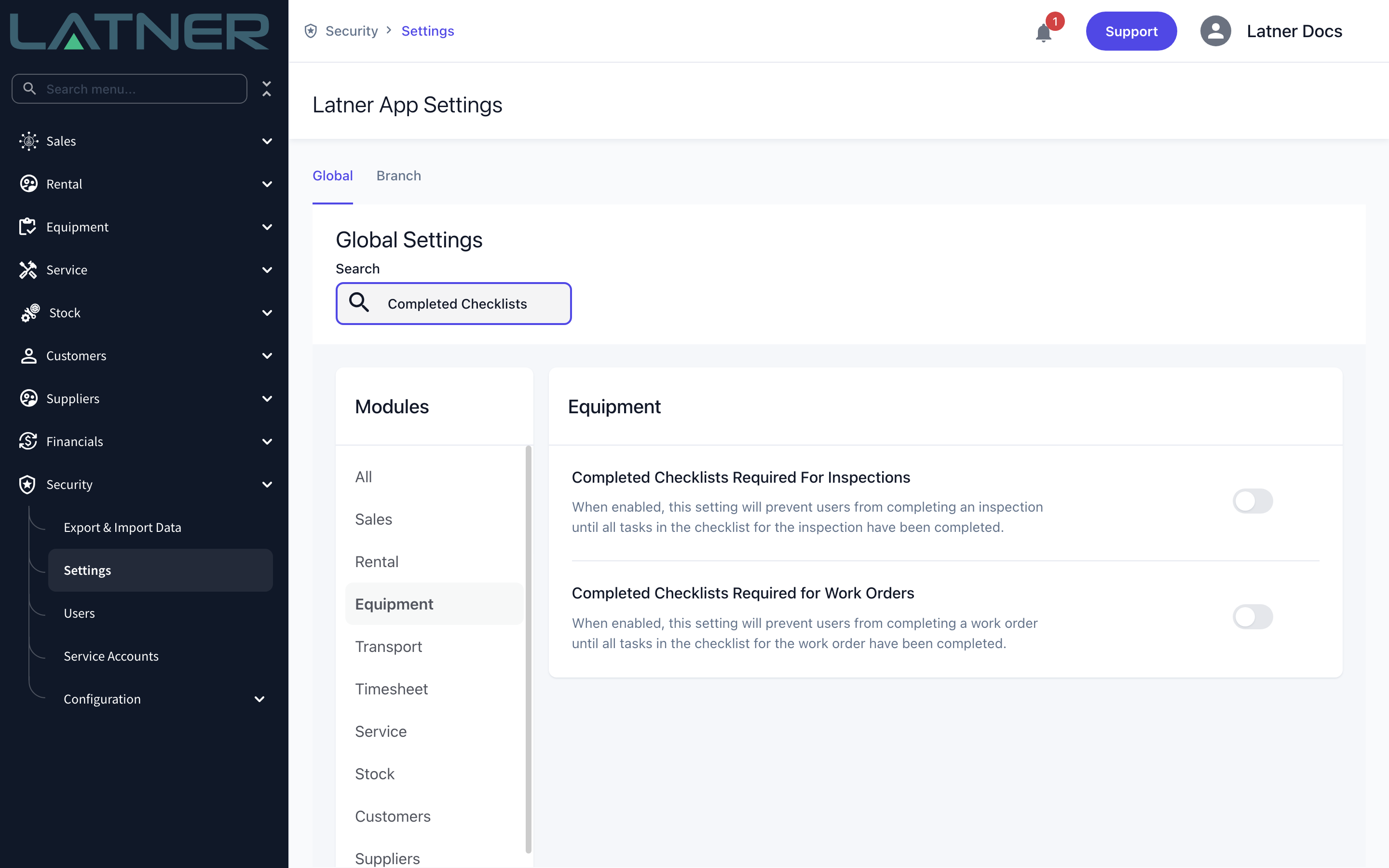
With Completed Checklists Required for Work Orders switched on, every checklist you add becomes a gate: neither the work order nor the mechanic's Tech Status can move to Completed while a single task is still TODO. It's worth knowing before you add a checklist to a job that's nearly finished.
Adding a Checklist to a Work Order
Step 1 - Open the work order
Go to Service › Work Orders and open the work order you want the checklist on. Any status works except Completed and Cancelled, where Add Checklist is greyed out.
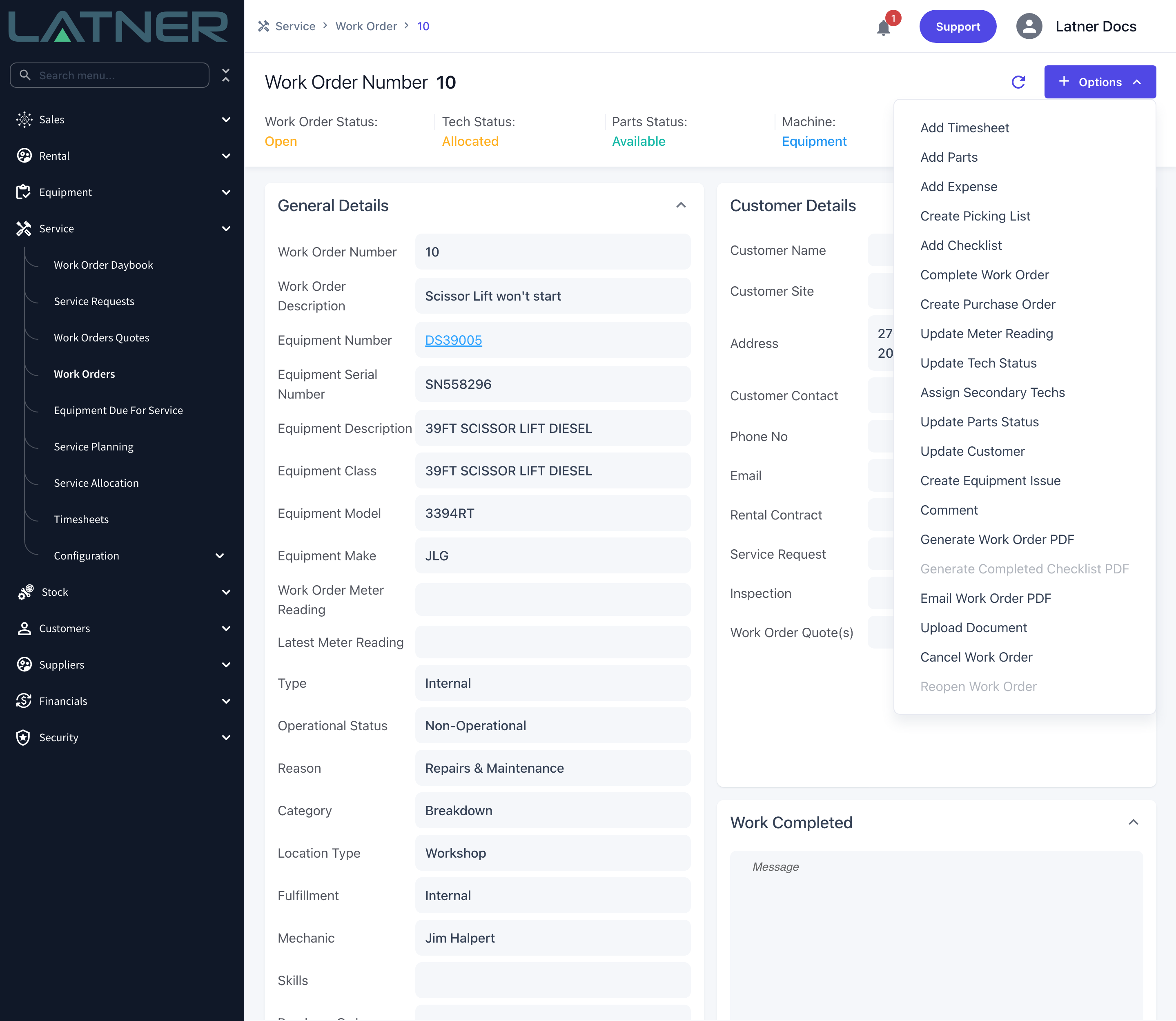
Step 2 - Choose Options › Add Checklist
Select Options at the top right of the work order, then Add Checklist. If you can't see the option at all, you're missing the Add Checklist to Work Order permission rather than looking in the wrong place.
Step 3 - Pick the checklist template
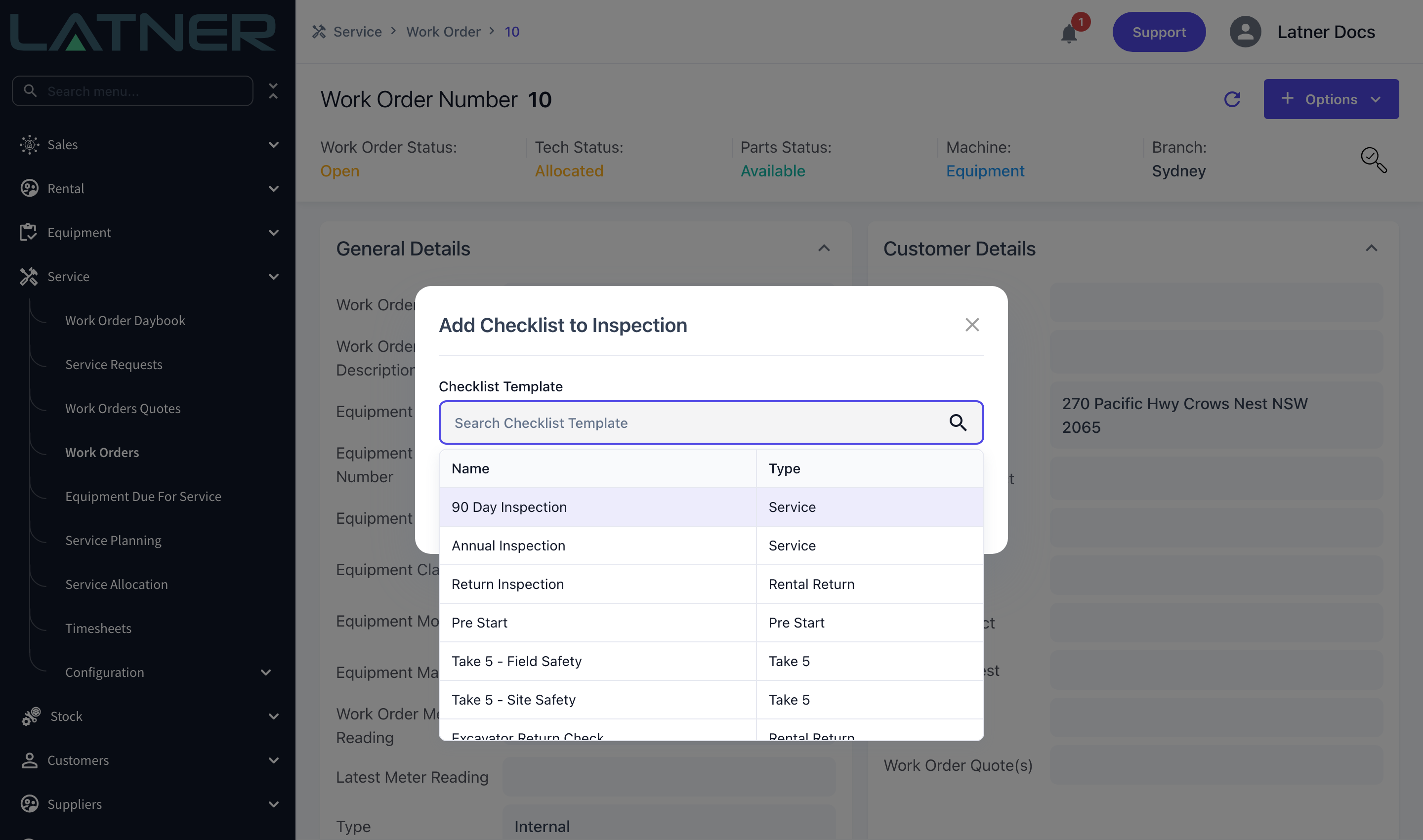
Click into Checklist Template to see every template, or type part of a name to narrow the list down.
-
Checklist Template - required. The template whose tasks are copied onto this work order. This is the only field on the form.
Step 4 - Save
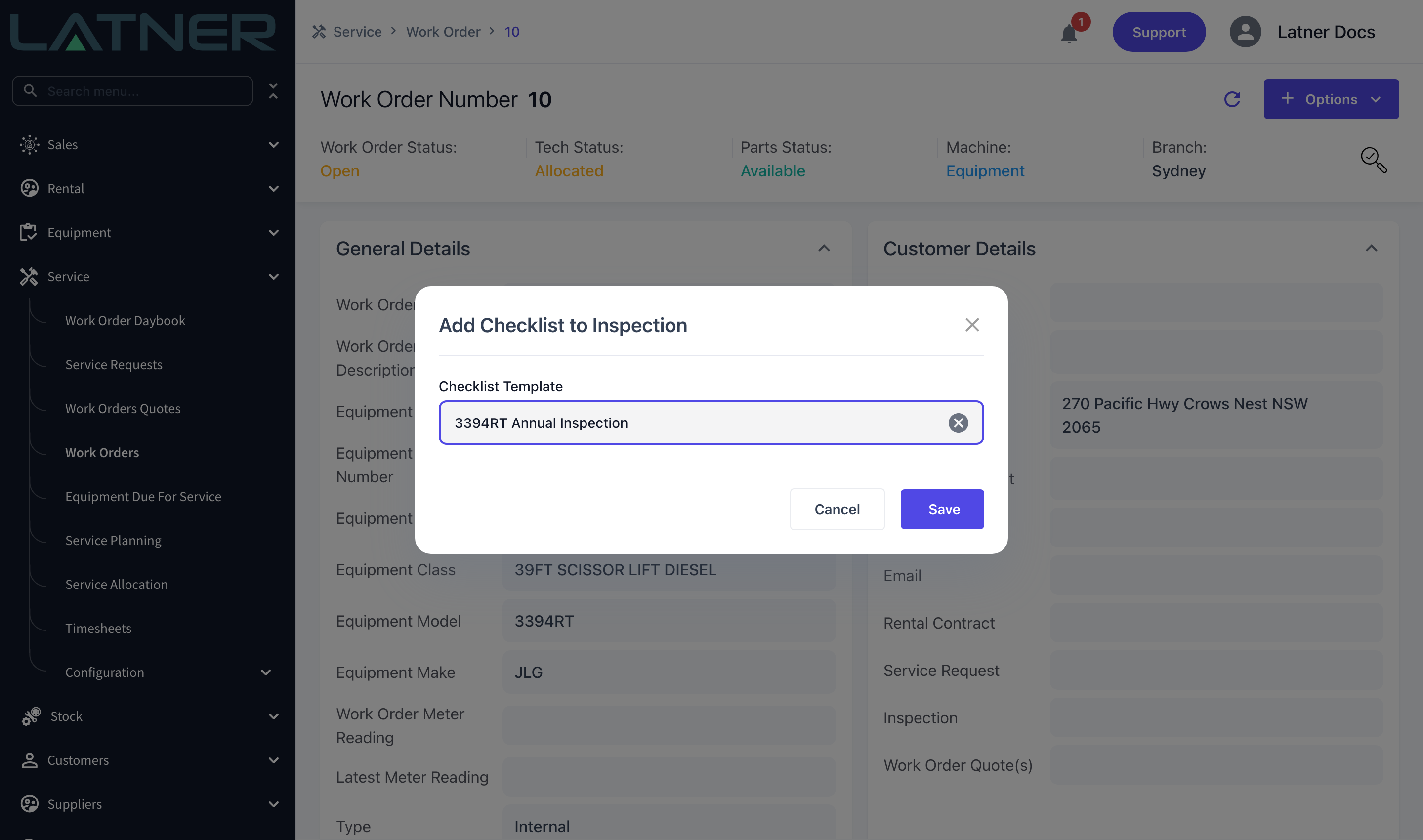
Select Save. Latner confirms with Checklist Added to Work Order and the work order refreshes with the new checklist on it.
After You Add the Checklist
-
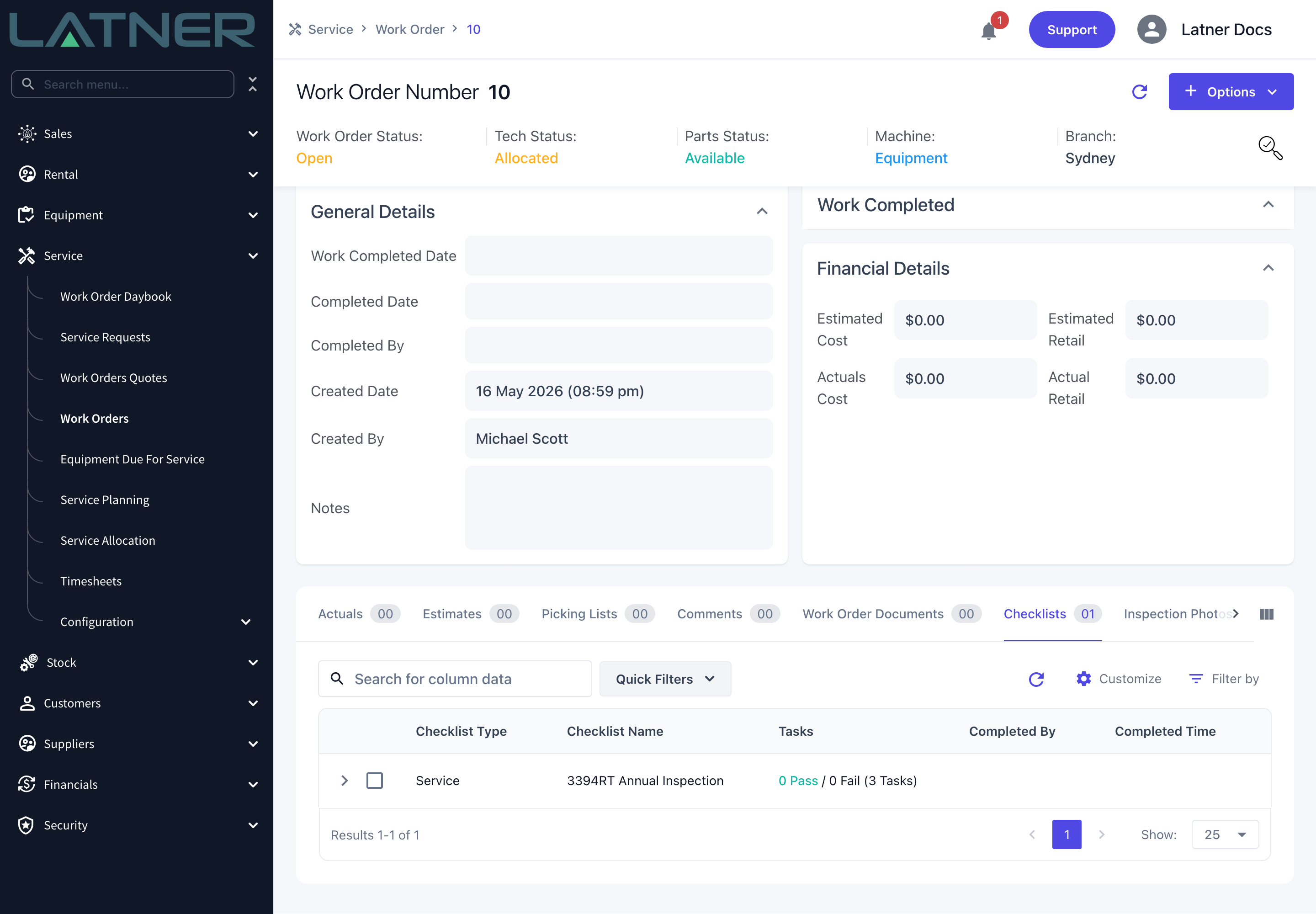
The checklist shows on the work order's Checklists tab, with its type, name and a running tally of passes and fails against the total number of tasks.
-
Expanding the row lists the copied tasks in template order, grouped exactly as they were set up.
-
To answer a task from the desktop, right-click its Task Response badge and pick a response. The task's Completed By and Updated Date fill in as you go.
-
When the last task is answered, the checklist itself is marked as completed and stamps the Completed By and Completed Time on the checklist row.
-
Out in the field, the checklist appears on the mechanic's mobile work order as a Complete Service Checklist button once they've accepted the job - and, on field service work orders, once they've arrived on site and finished any required Take 5.
-
Quick Filters › Failed Tasks on the Checklists tab narrows the tab to checklists with a failed point, and the expanded rows to the failed tasks themselves.
-
Once the work order is Completed, Options › Generate Completed Checklist PDF produces a PDF of the answered checklists, which is filed on the Checklist PDF History tab.
A checklist can't be taken off a work order once it's been added - selecting the row offers no delete. If you add the wrong one, add the right one alongside it and answer the unwanted checklist's tasks as N/A, which clears it out of the way and stops it blocking completion.
FAQs
Watch the Demo
Prefer to watch it? Step through the same flow here.