
Reopening a work order puts a Completed or Cancelled job back into Open status, so you can add the parts, labour and expenses that were missed, fix a mistake, or pick the work back up when it turns out it wasn't finished after all.
Overview
Work gets signed off early more often than anyone likes to admit. A mechanic finds one more fault, a part gets fitted after the paperwork is done, or a job is cancelled and then goes ahead anyway. Rather than raising a second work order and splitting the history of the machine across two records, you reopen the original one.
-
Reopen Work Order is only available on work orders in Completed or Cancelled status. On an Open or Pending Approval work order the option is greyed out.
-
The work order goes back to Open. Its Tech Status goes back to Allocated if a mechanic or supplier is still assigned, or Unallocated if not.
-
Reopening a Completed work order clears the completion and approval stamps, and moves any parts on the job from Used back to Allocated, reversing the stock movement.
-
Reopening a Cancelled work order clears the cancellation date, the user who cancelled it and the cancellation notes, and allocates the parts to the job again.
-
If the work order has a machine on it, the machine is put back Out of Service. A serialized stock item goes back to Capital Preparation.
-
If the work order came from a service schedule, that schedule is reopened and the next service that was generated when the job was completed is removed.
-
Invoices are left alone. Reopening never cancels, reverses or credits an invoice.
Before You Begin
There is no setting to switch on for this. Reopening is controlled by a permission and by the status of the work order.
|
Requirement |
Where to Find It |
|---|---|
|
Reopen Work Order permission |
Security › Configuration › Permission Groups › [your group] › Service › Option |
|
Access to the work order's branch |
The permission has to be granted for the branch the work order belongs to, shown as Branch on the work order header |
|
A work order in Completed or Cancelled status |
Work Order Status on the work order header |
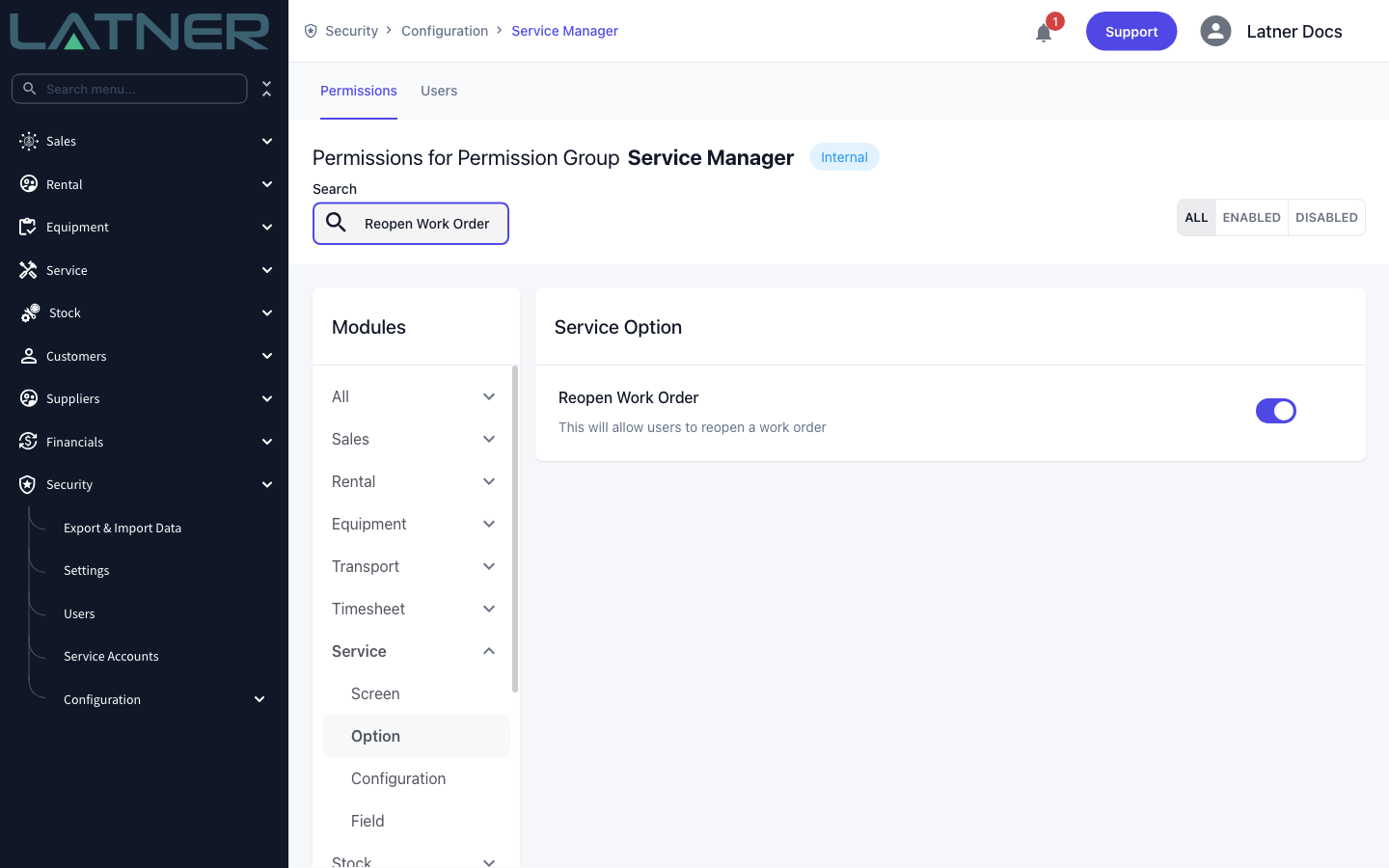
Without the permission the Reopen Work Order option doesn't appear in the Options menu at all. If you can see it but it's greyed out, the work order isn't in a status that can be reopened.
Reopening a Work Order
Step 1 - Find the work order
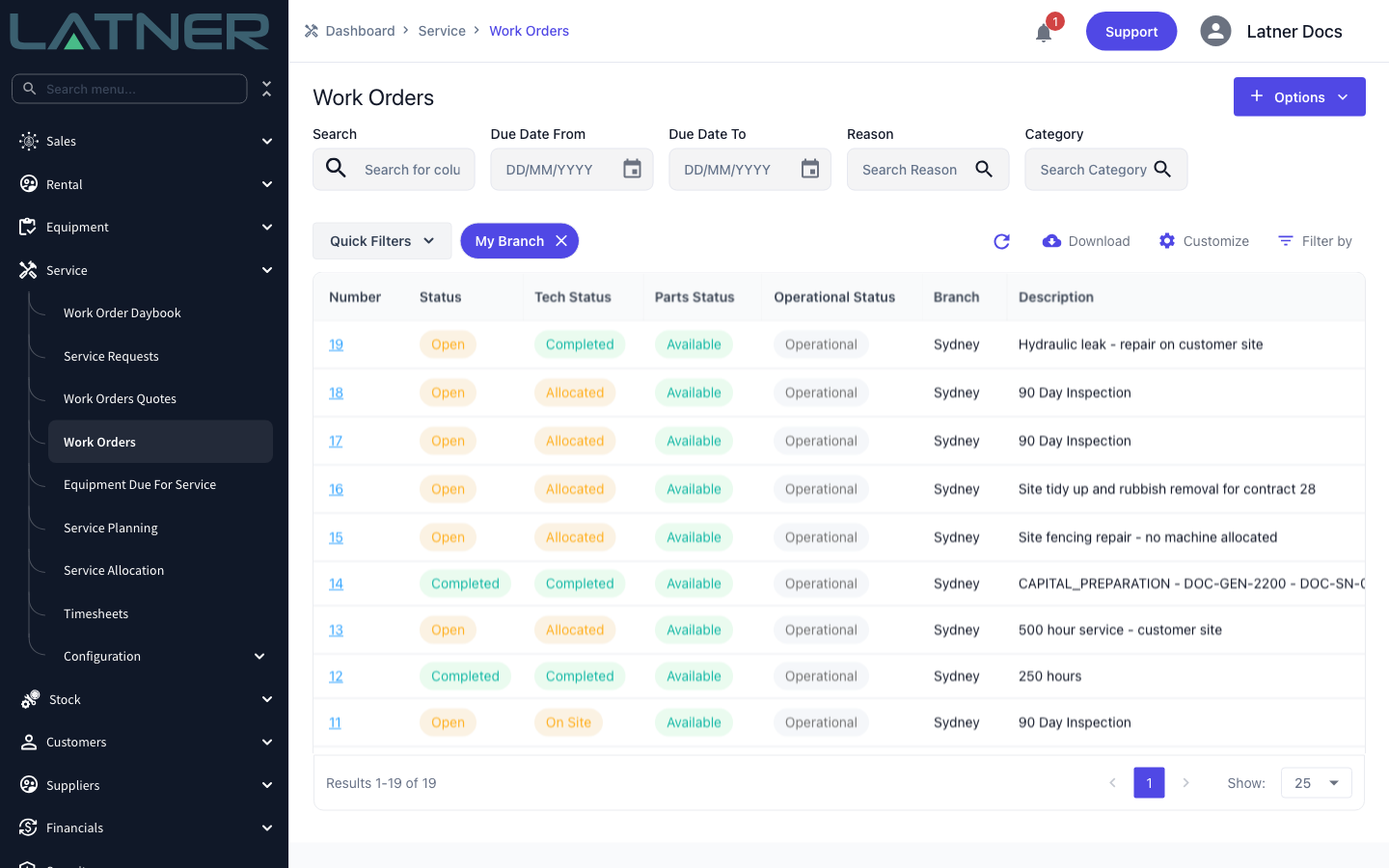
Go to Service › Work Orders and find the job you need. The Status column tells you straight away which work orders can be reopened - look for Completed or Cancelled. You can also get there from Service › Work Order Daybook, or from the Work Orders tab on the machine.
Step 2 - Open the work order and check its status
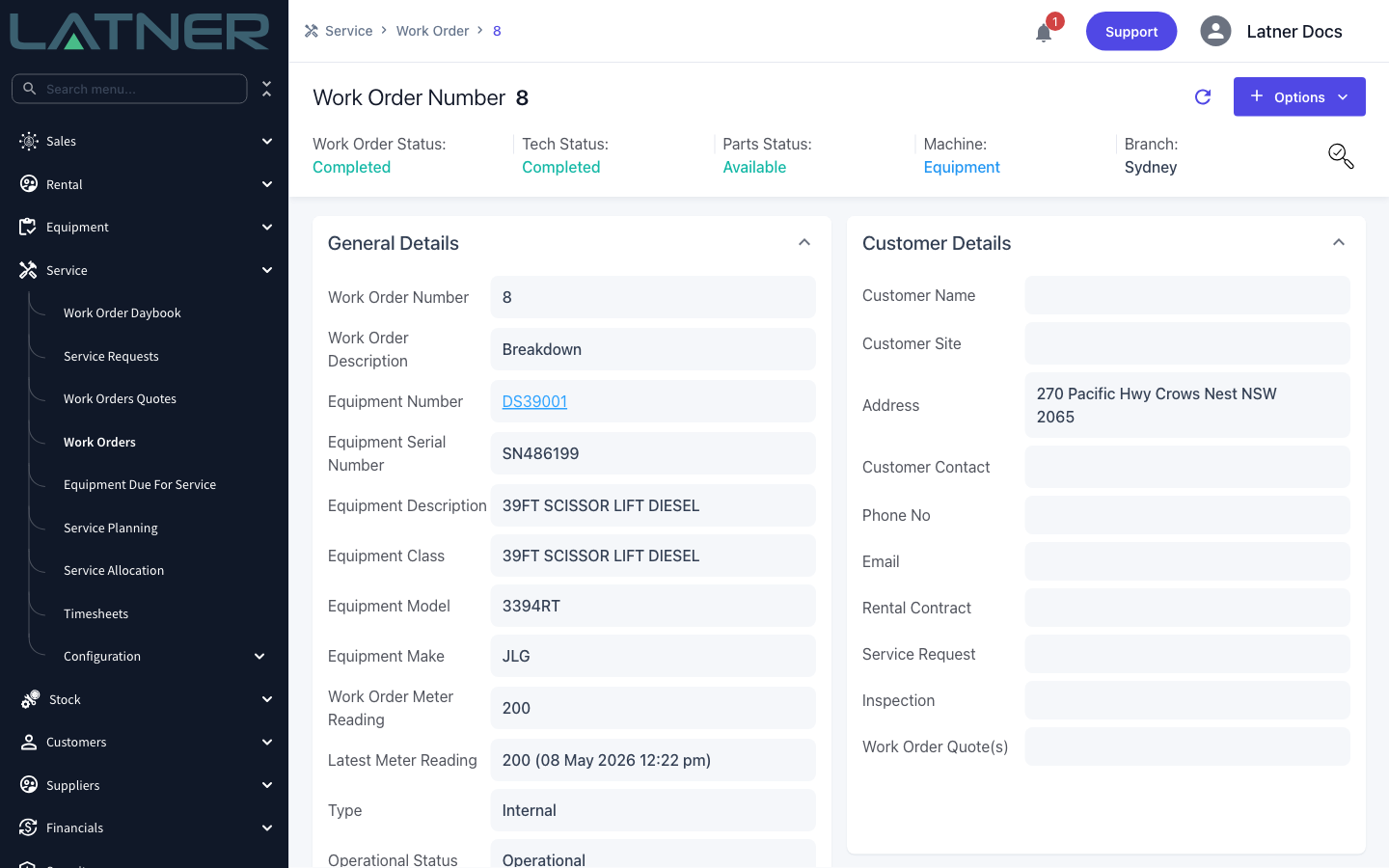
Click the work order number to open it. The header strip shows Work Order Status, Tech Status, Parts Status and Branch. Confirm the status reads Completed (or Cancelled) before you go any further.
Step 3 - Choose Reopen Work Order
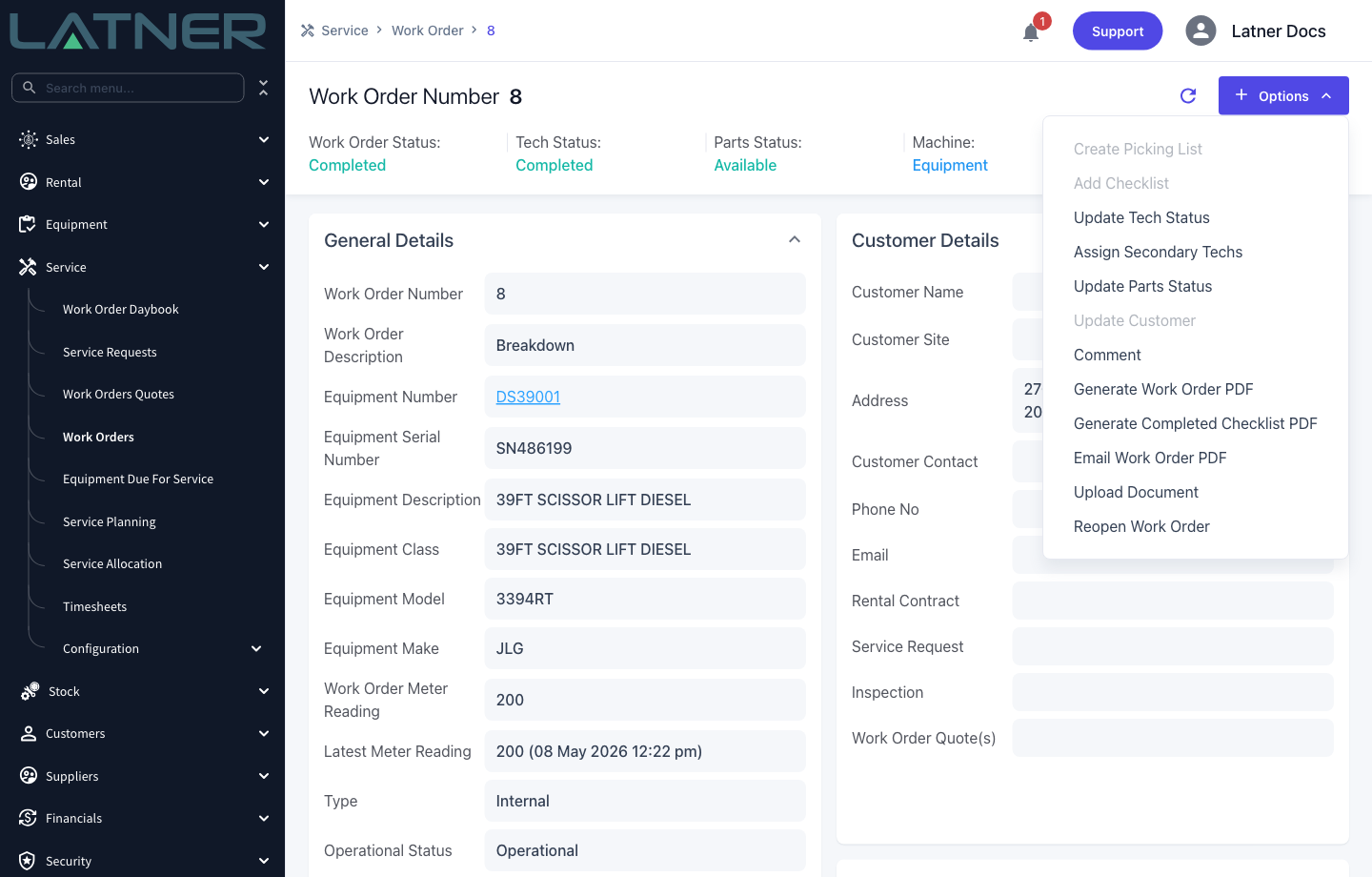
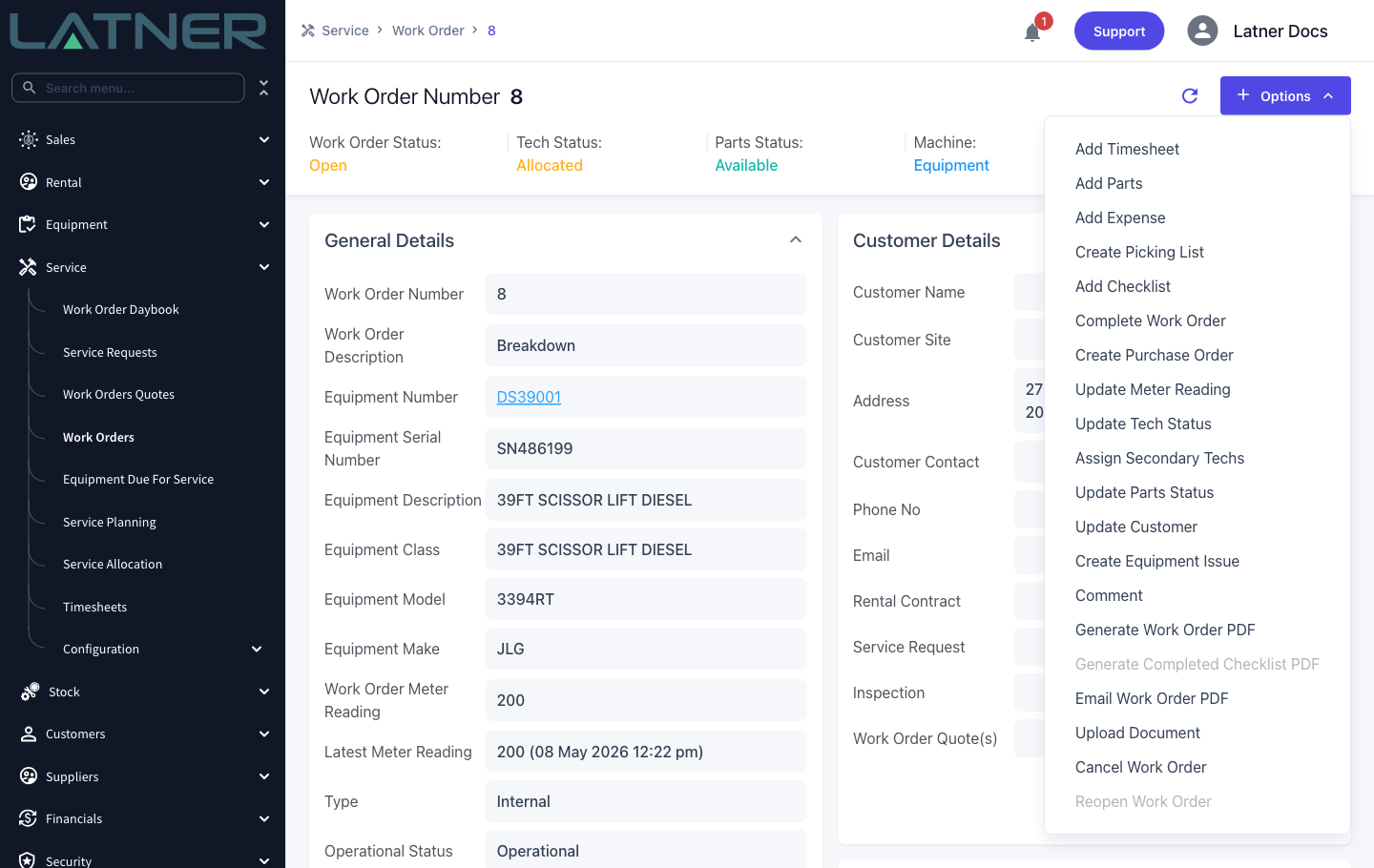
Click Options in the top right and choose Reopen Work Order. On a completed work order this is the only option that changes the status - the actions that add cost to a job, such as Add Parts, Add Timesheet and Add Expense, aren't in the list yet, which is exactly why you're reopening it.
Step 4 - Confirm
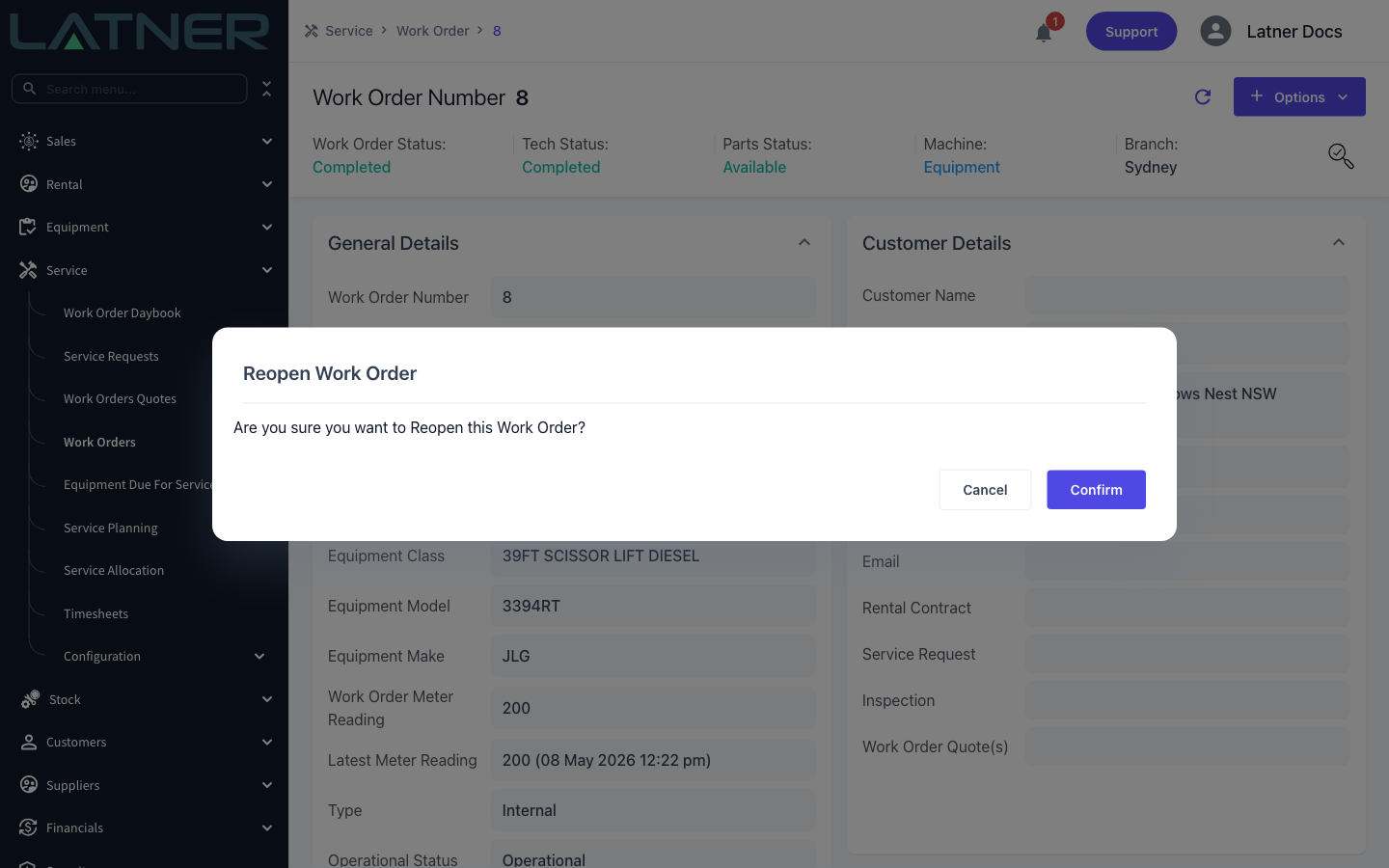
A confirmation prompt appears. Click Confirm to reopen the work order, or Cancel to back out.
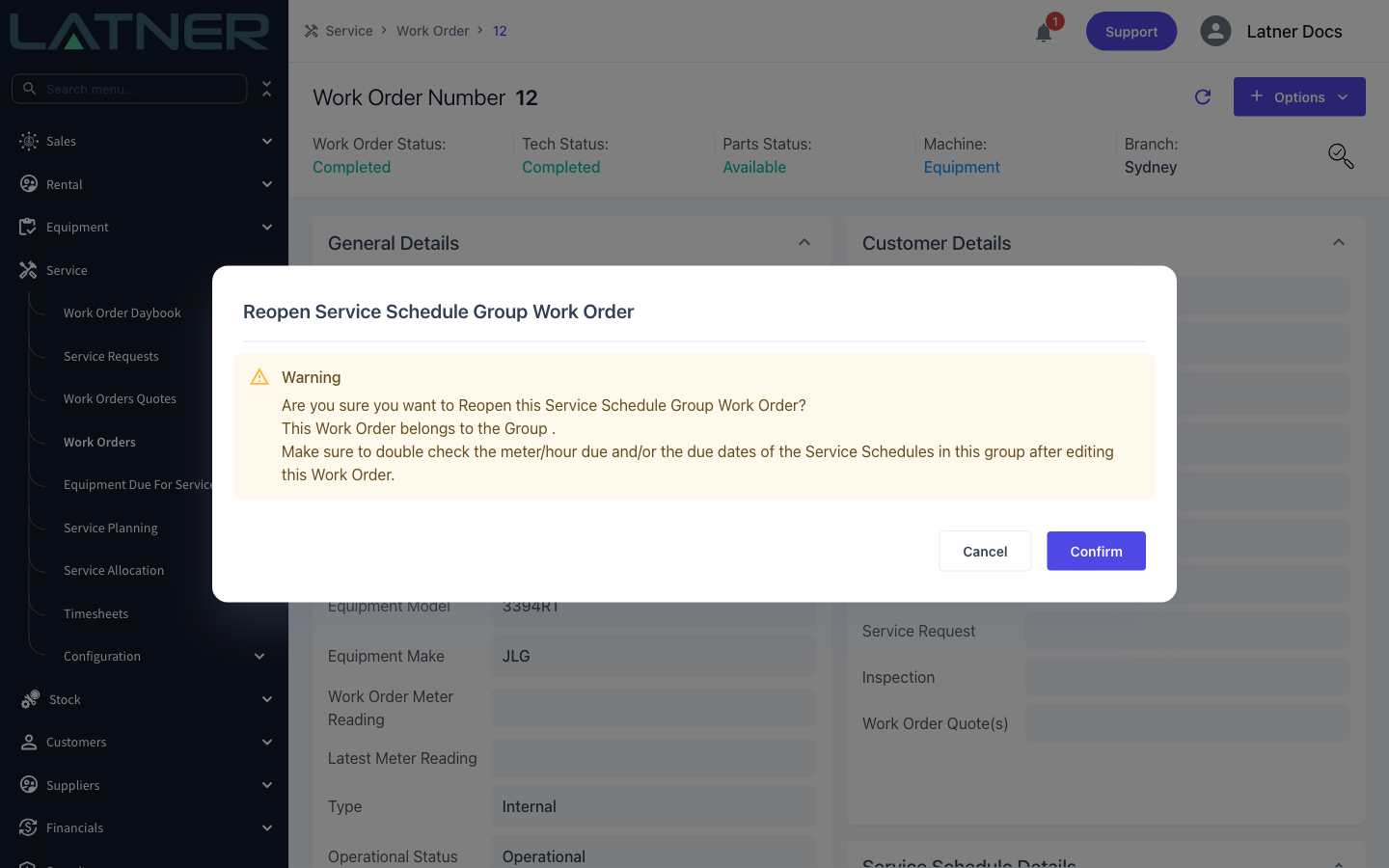
If the work order came from a service schedule that belongs to a Service Schedule Group, you get a longer warning instead. Reopening one service in a group can shift the due dates and meter readings of the others, so check the group's schedules afterwards.
Step 5 - Check the reopened work order
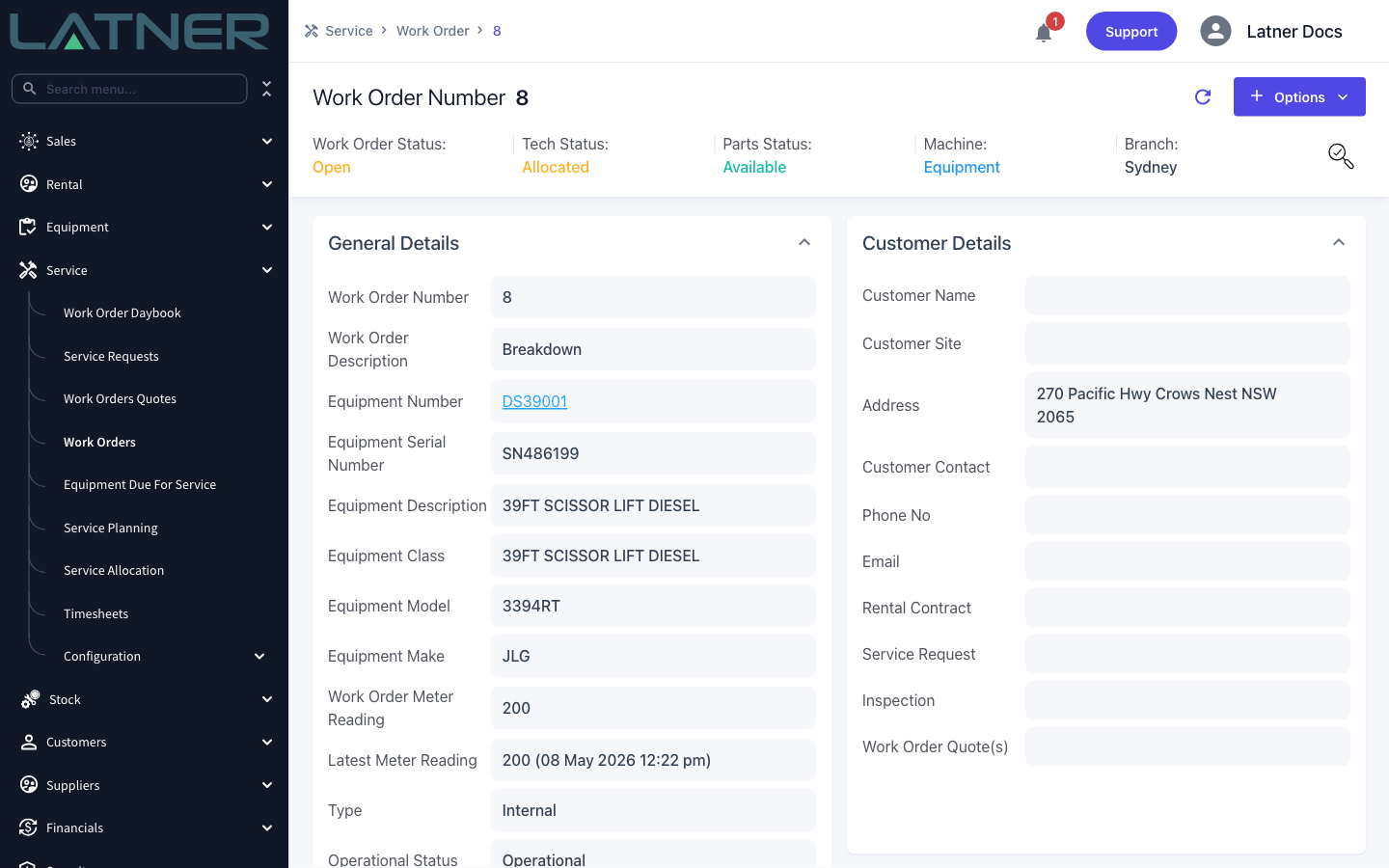
The header updates immediately. Work Order Status reads Open, and Tech Status drops back to Allocated if a mechanic or supplier is still on the job, or Unallocated if nobody is assigned. The completed and approved stamps are cleared, so the job no longer counts as finished in reporting.
Reopening a Cancelled Work Order
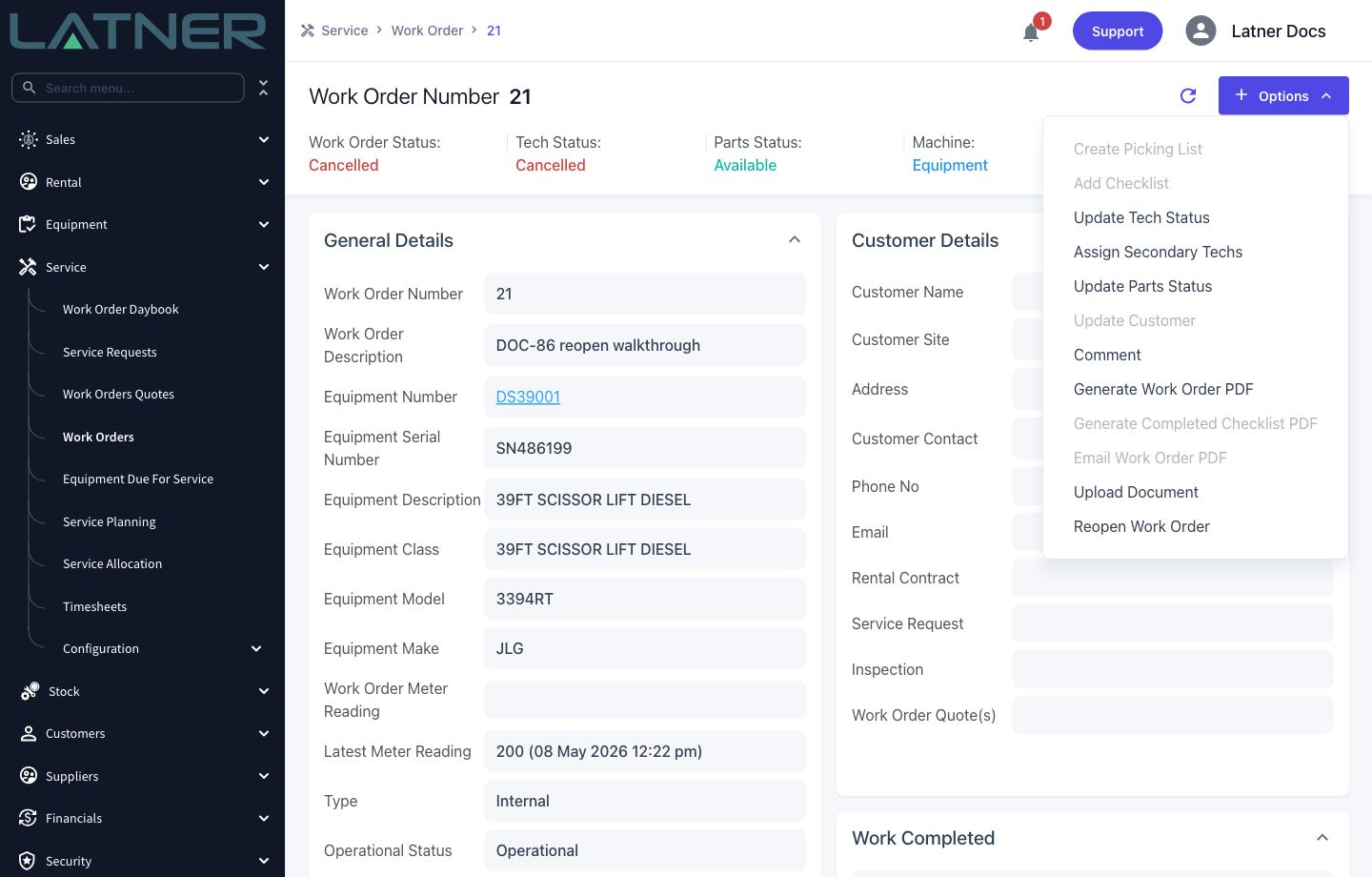
The steps are identical for a cancelled work order. Options › Reopen Work Order is available in exactly the same place, and confirming puts the job back into Open with a Tech Status of Unallocated.
The difference is what gets cleared. Reopening a cancelled work order wipes the Cancellation Notes, the date it was cancelled and the user who cancelled it, so the record reads as though it was never cancelled. If you need to keep that reason on file, copy it into the work order notes or add a comment before you reopen.
After Reopening
-
The full set of costing actions comes back in the Options menu: Add Timesheet, Add Parts, Add Expense, Create Purchase Order, Update Meter Reading and Create Equipment Issue.
-
Existing detail lines can be edited and deleted again. Work order lines can only be changed while the work order is Open, which is the main reason to reopen a job.
-
Complete Work Order and Cancel Work Order are both available again, and Reopen Work Order is greyed out until the job is completed or cancelled once more.
-
Parts that were used on a completed job are back in the Allocated state against the work order, so the warehouse figures reflect a job in progress rather than one that's finished.
-
The machine shows as Out of Service again, and if the work order was flagged Non-Operational the machine's rental status is set back to Non-Operational too. Completing the work order returns the machine to service.
Reopening a service schedule work order deletes the next scheduled service that was generated when the job was completed. Completing the job again creates a new one, but its due date and due meter are worked out from the new completion date and meter reading, so the whole schedule shifts. On a machine whose schedule belongs to a Service Schedule Group, the other services in the group are recalculated as well - check them before you rely on the next due dates.
Costs Added After Reopening
Anything you add once the job is reopened is an ordinary work order line, and it's invoiced like any other. That covers parts and expenses you add yourself, and the lines a purchase order adds to the work order when it's receipted - backordered parts that turn up after the job was signed off are the classic case. Each line comes in with a Retail Price: a part brings in its retail price from the part record, and an expense from a receipted purchase order is charged at the purchase order's unit cost.
When a cost is yours to absorb and isn't passed on to the customer, don't leave the line off the invoice. Set its Retail Price to 0.00 instead:
-
On the Actuals tab, double-click the line to open it.
-
Change Retail Price to 0.00 and leave Cost as it is.
-
Click Save and Finish.
Do this before you invoice. Once a line is on an invoice it can't be edited unless that invoice is cancelled.
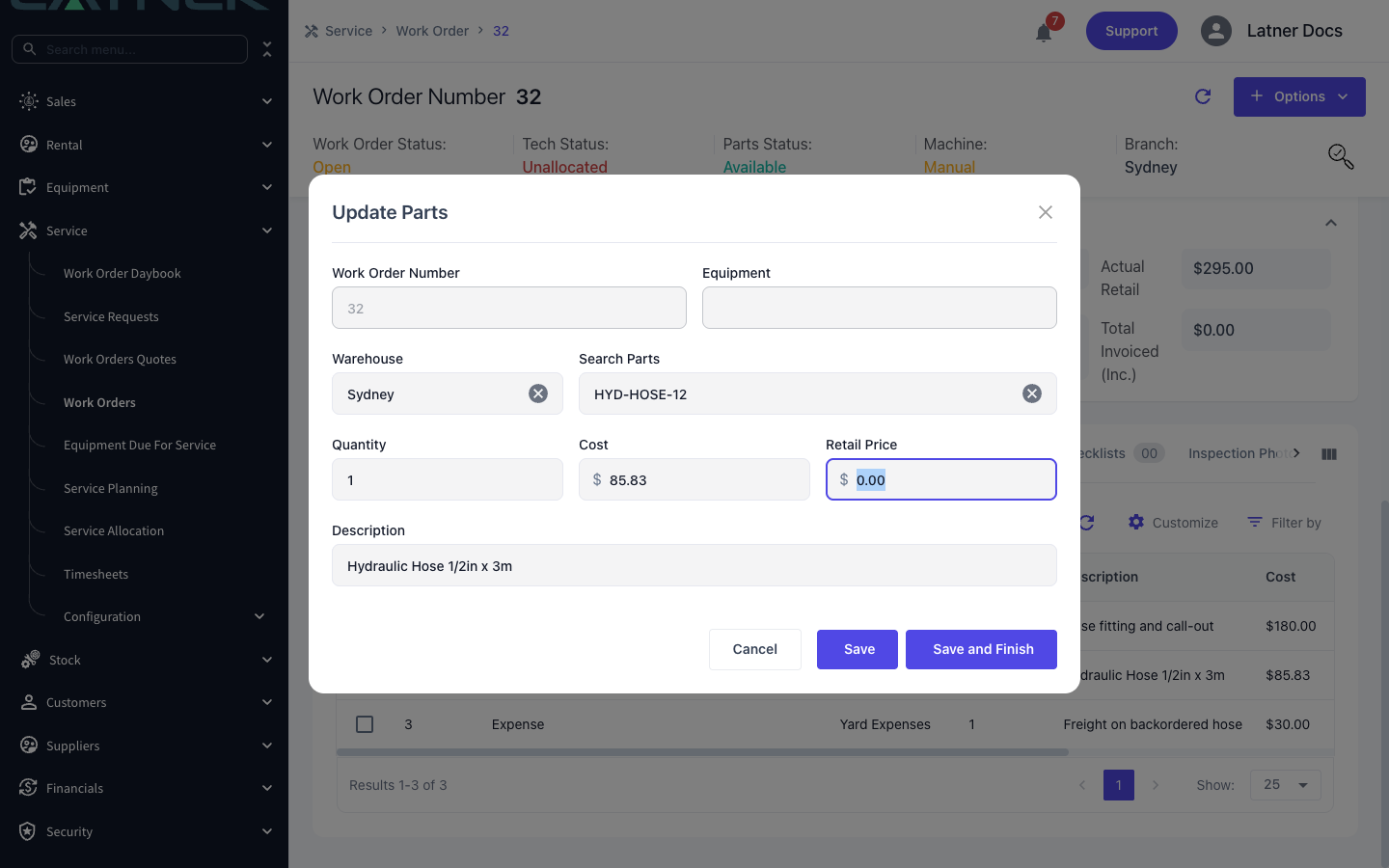
A line with a Retail Price of 0.00:
-
Still captures the cost. The line's Cost stays on the job and counts towards Actuals Cost in Financial Details, so the work order still shows what the job really cost you.
-
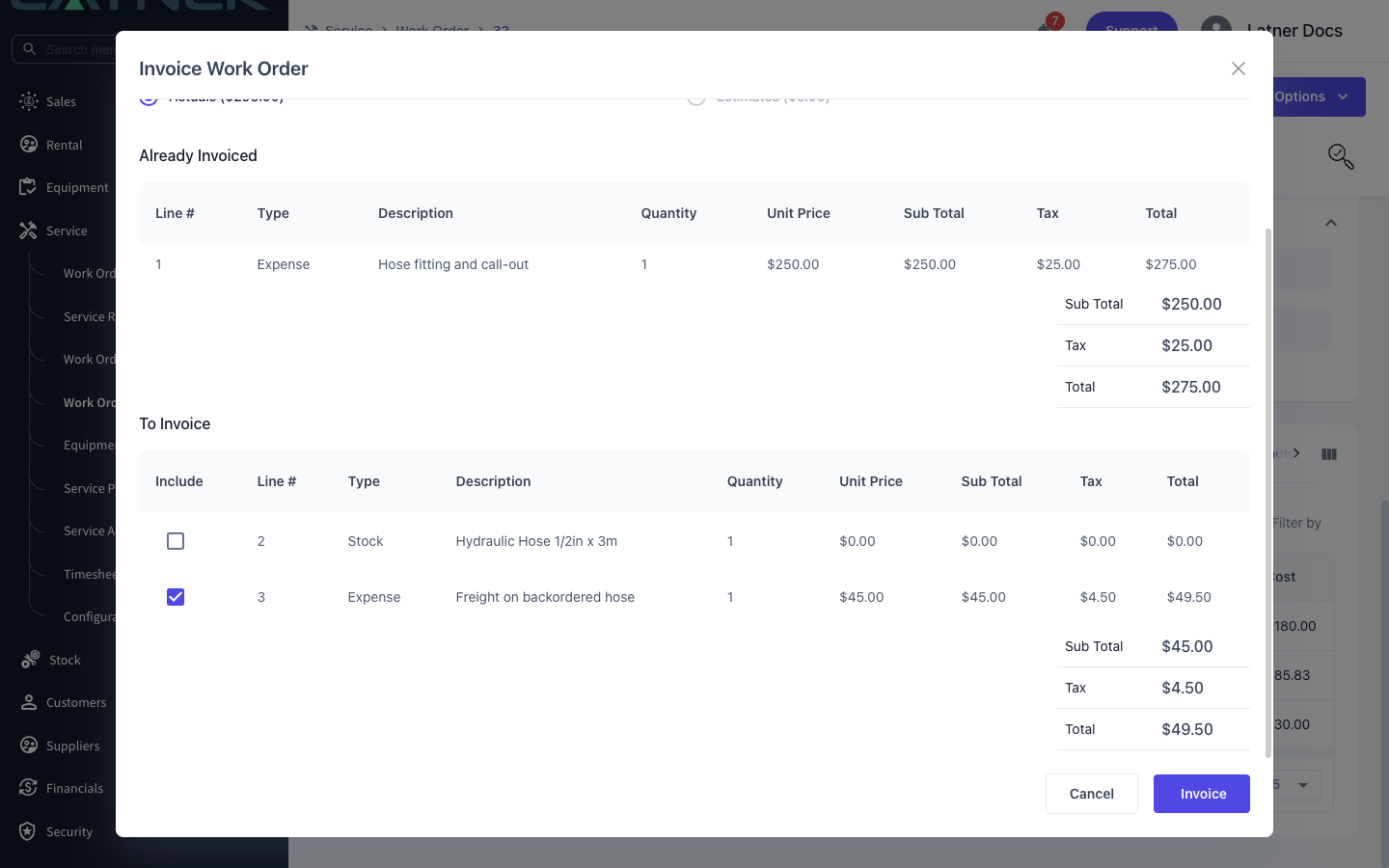
Isn't invoiced. In Invoice Work Order, $0.00 lines are left unticked under To Invoice, so nothing is charged to the customer for it.
-
Doesn't block completion. A chargeable work order can only be completed once every line with a value on it has been invoiced, and $0.00 lines are exempt from that check.
If the work order was first invoiced from its quote (Charge Using set to Estimates), every later invoice has to use Estimates as well. Lines added after reopening are still recorded as costs on the job, but they aren't billed through Invoice Work Order.
Unticking a line with a value in Invoice Work Order (or in Complete Work Order) doesn't absorb the cost. The line still counts as uninvoiced, and the job can't be completed until it's invoiced - you'll see "Cannot complete a Chargeable Work Order with uninvoiced non-zero actuals". To keep a cost off the customer, set the line's Retail Price to 0.00 and the job completes normally.
FAQs
Watch the Demo
Prefer to watch it? Step through the same flow here.