
Invoicing a Work Order turns a job's charges into a customer invoice, so a repair or service can be billed - once the work is done, or up front from an approved quote - without re-keying a single line.
Overview
A chargeable job accumulates charges as it goes: a mechanic's timesheet, the parts issued from the store, an expense for the call out. Invoicing the work order collects those lines, lets you decide which ones the customer actually pays for, and creates the invoice for you.
-
You choose whether to charge the customer the Actuals (what the job really used) or the Estimates (the lines that came across from a Work Order Quote).
-
You tick the individual lines to bill, so a work order can be invoiced in stages rather than all at once.
-
You don't have to wait for the job to finish. A Chargeable or Customer Damage work order can be invoiced while it is still Open, before any work has been done - for example, to bill an approved damage quote up front from its Estimates. When you complete the work order later, lines that are already invoiced aren't invoiced again.
-
Latner creates a customer invoice linked back to the work order, and each invoice line stays linked to the work order line it came from.
-
Once a work order has been invoiced from one source, every later invoice on it must use the same source.
-
A chargeable work order can't be completed while non-zero charges are still uninvoiced.
Before You Begin
Invoicing only becomes available once the work order is in the right shape.
|
Requirement |
Where to Find It |
|---|---|
|
Invoice Work Order permission |
Security › Configuration › Permission Groups › your group › Service › Option |
|
Work order Type is Chargeable or Customer Damage |
The work order's General Details card |
|
Work order status is Open, Completed or Pending Approval |
Work Order Status in the page header |
|
A Customer and Customer Site, and the customer is not on credit hold |
The work order's Customer Details card |
|
At least one charge line that hasn't been invoiced |
The Actuals or Estimates tab |
|
Tax Rounding Method (optional, affects how tax is totalled) |
Security › Settings › Financial |
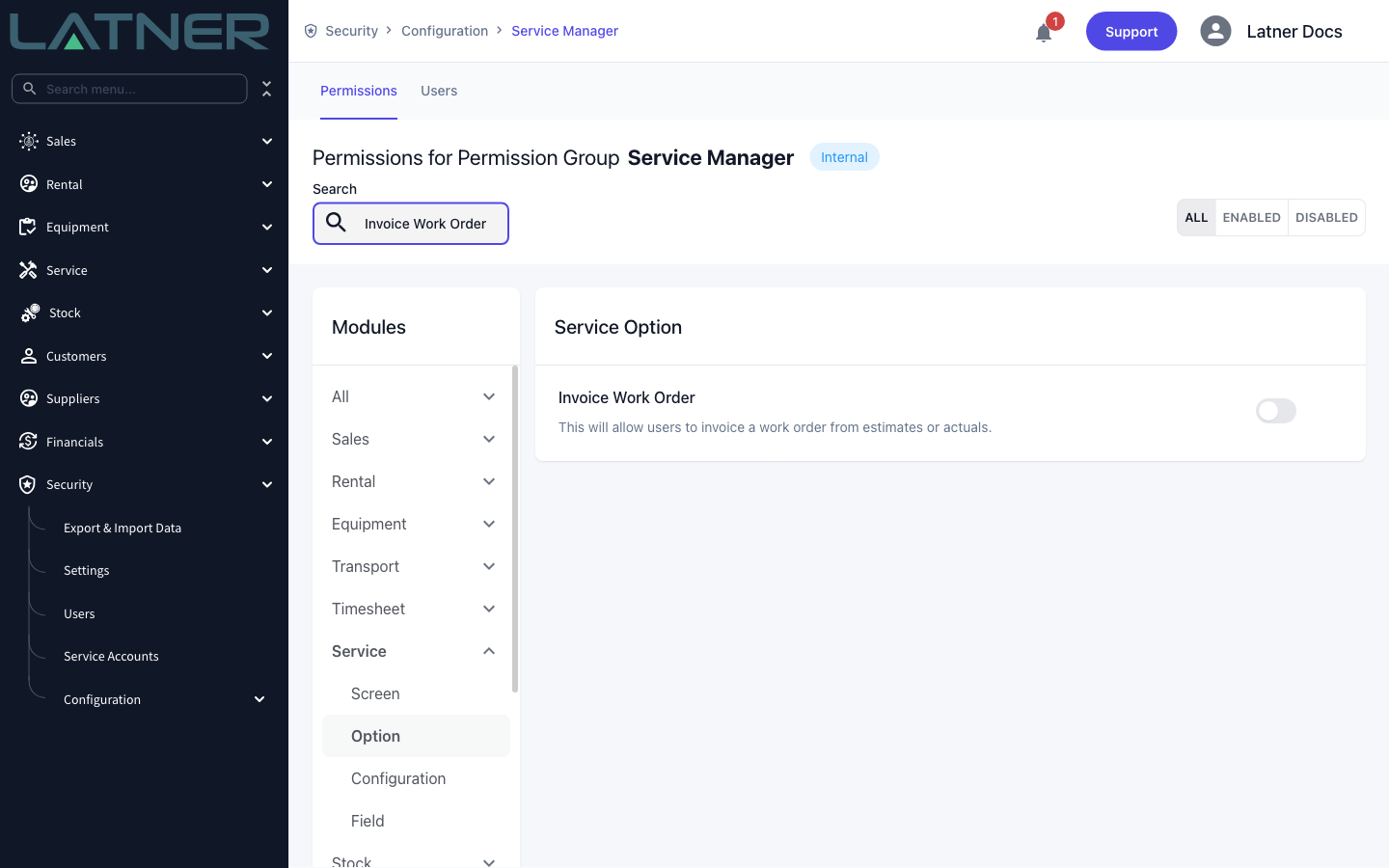
If Invoice Work Order isn't in the Options menu, the work order is either not a chargeable type, has been cancelled, or has nothing left to invoice. Latner hides the option in all three cases rather than showing it greyed out.
Invoicing the Work Order
Step 1 - Open the work order
Go to Service › Work Orders (or the Work Order Daybook) and open the job you want to bill. Check the Actuals tab holds the charges you expect - every timesheet, part and expense you want on the invoice needs to be on the work order first.
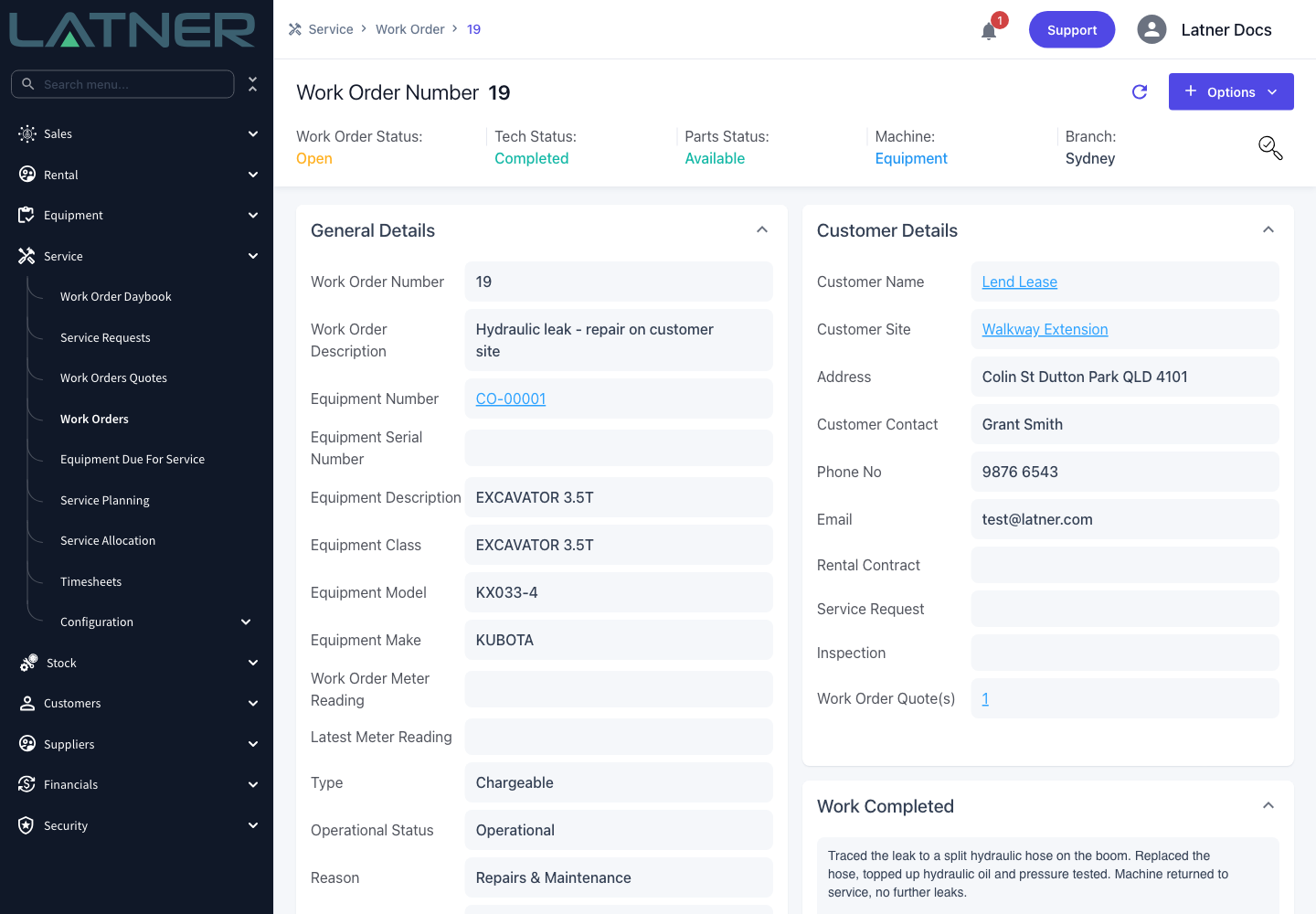
Step 2 - Choose Invoice Work Order
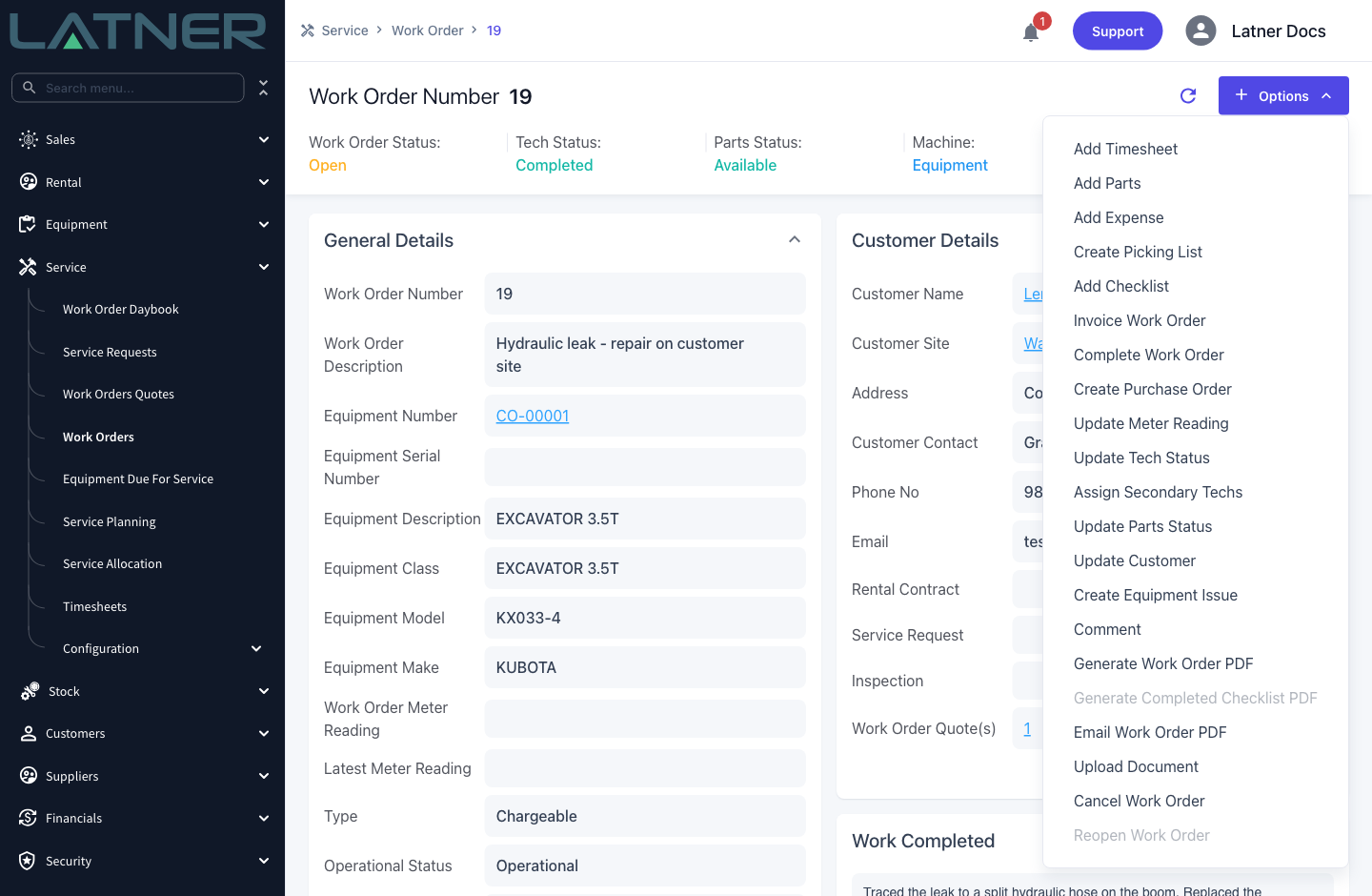
Click Options at the top right and choose Invoice Work Order.
Step 3 - Choose what to charge
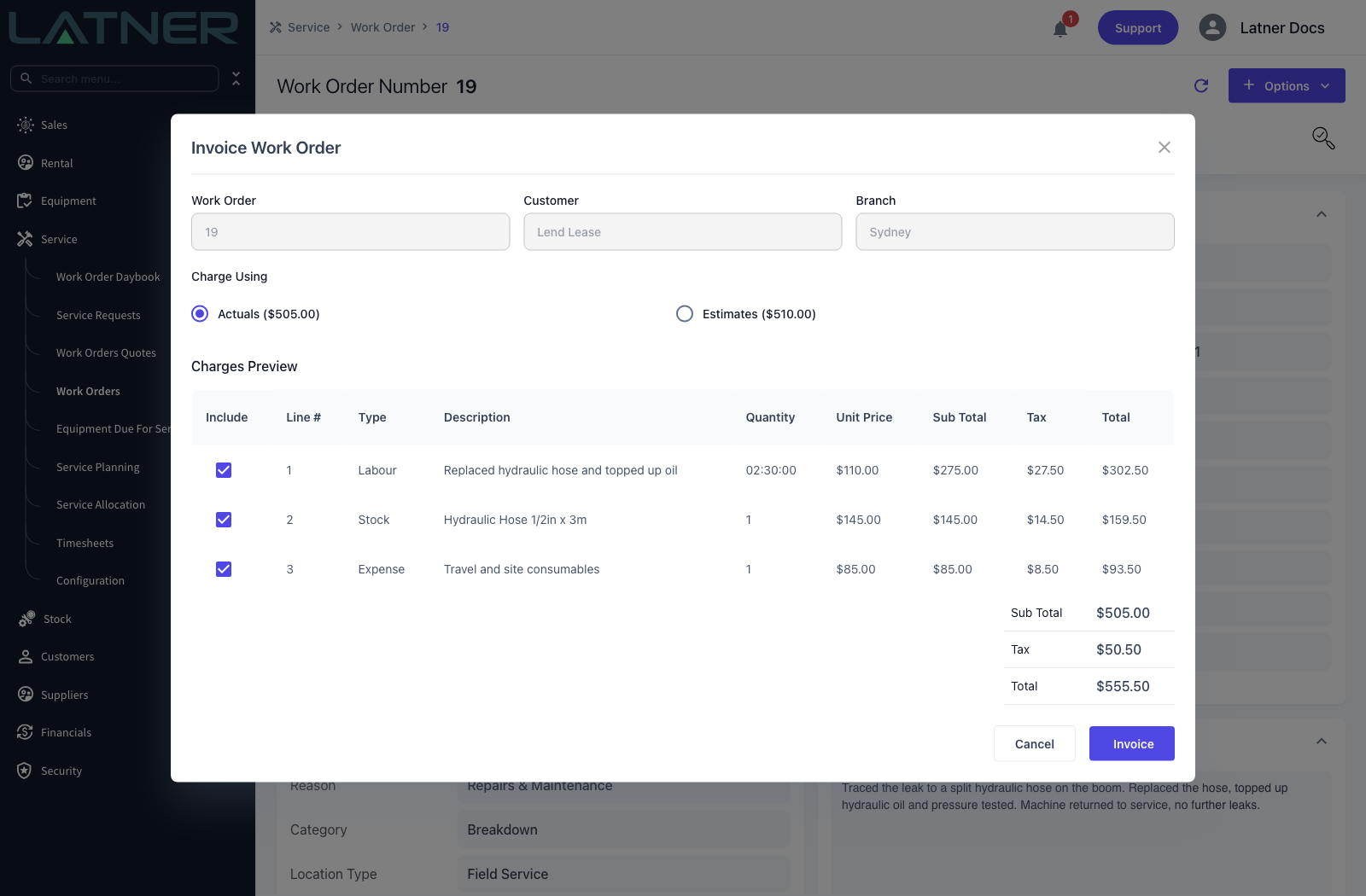
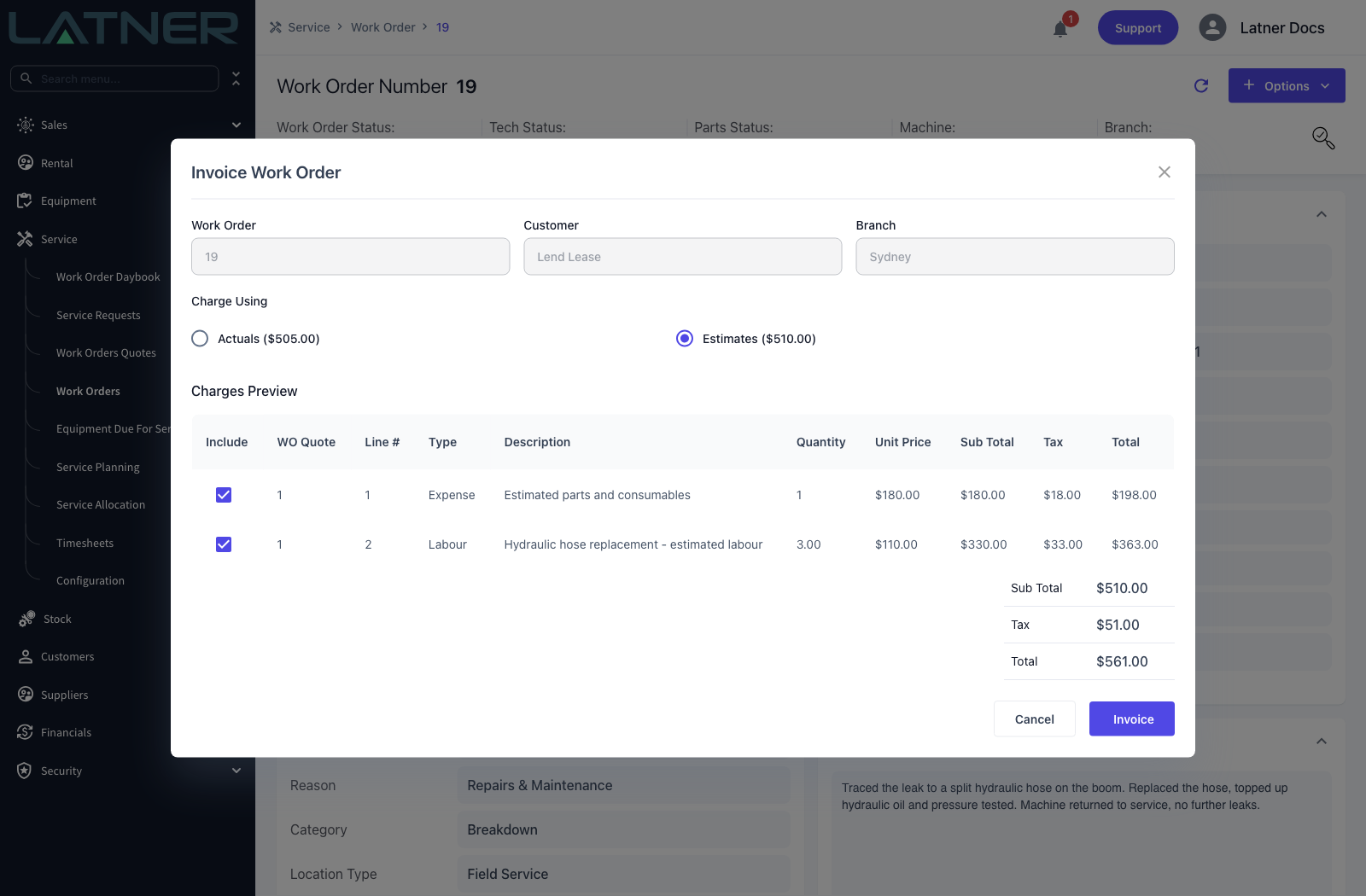
The dialog opens with the work order, customer and branch shown read only, and a Charge Using choice:
-
Actuals - the timesheets, parts and expenses recorded against the work order.
-
Estimates - the lines that came from a Work Order Quote converted into this work order.
Each option shows its own total, so you can see at a glance what the two approaches would bill. An option is greyed out when there are no lines of that kind left to invoice.
Switching to Estimates replaces the preview with the quoted lines and adds a WO Quote column, so you can tell which quote each line came from when more than one has been converted into the work order.
Step 4 - Pick the lines to bill
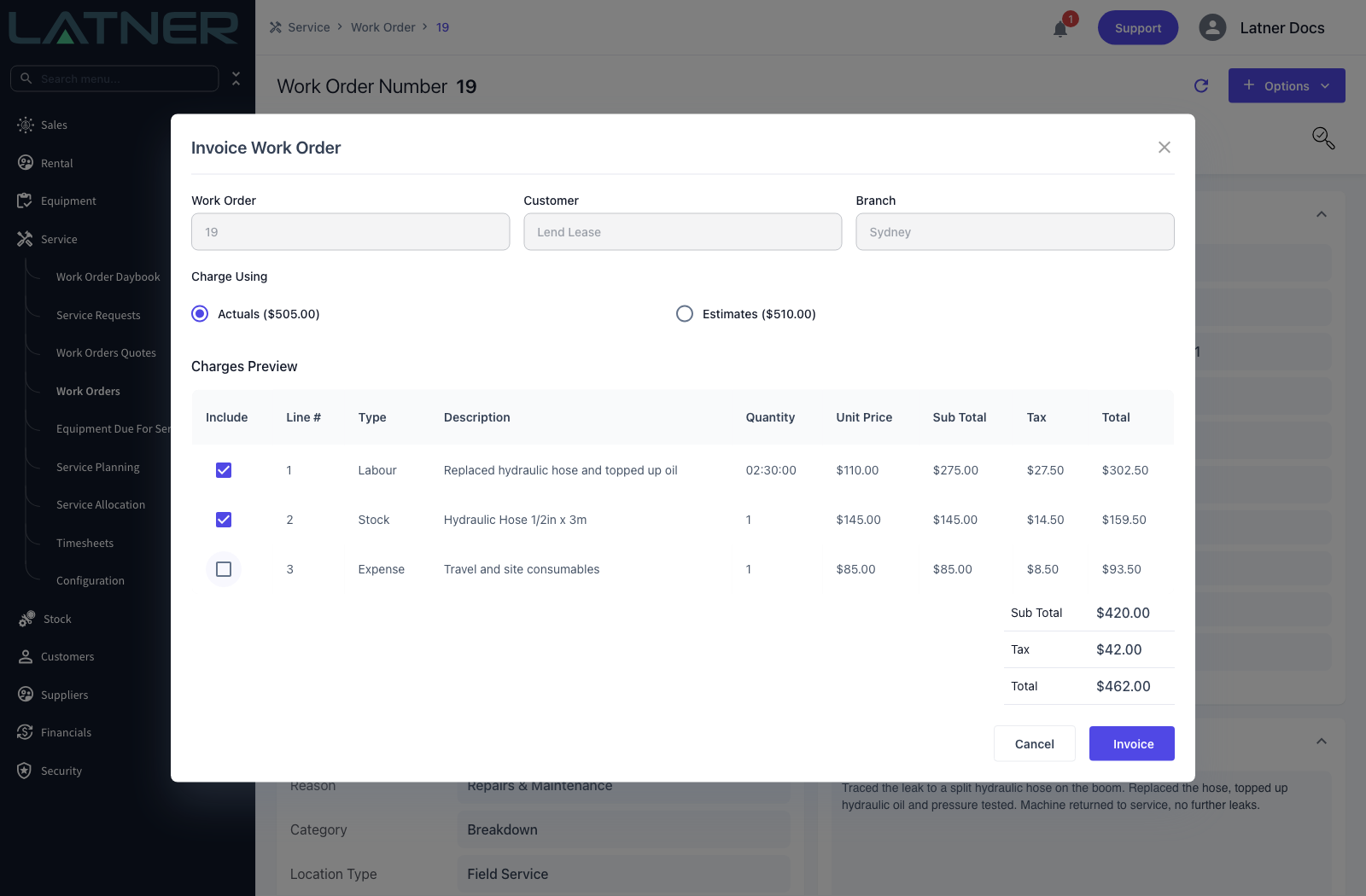
The Charges Preview table has an Include tick box on every line. Lines worth more than $0.00 are ticked for you; $0.00 lines start unticked, so goodwill and no-charge work stays off the invoice unless you deliberately add it. Untick anything you're not billing yet and the totals at the bottom update straight away.
Step 5 - Create the invoice
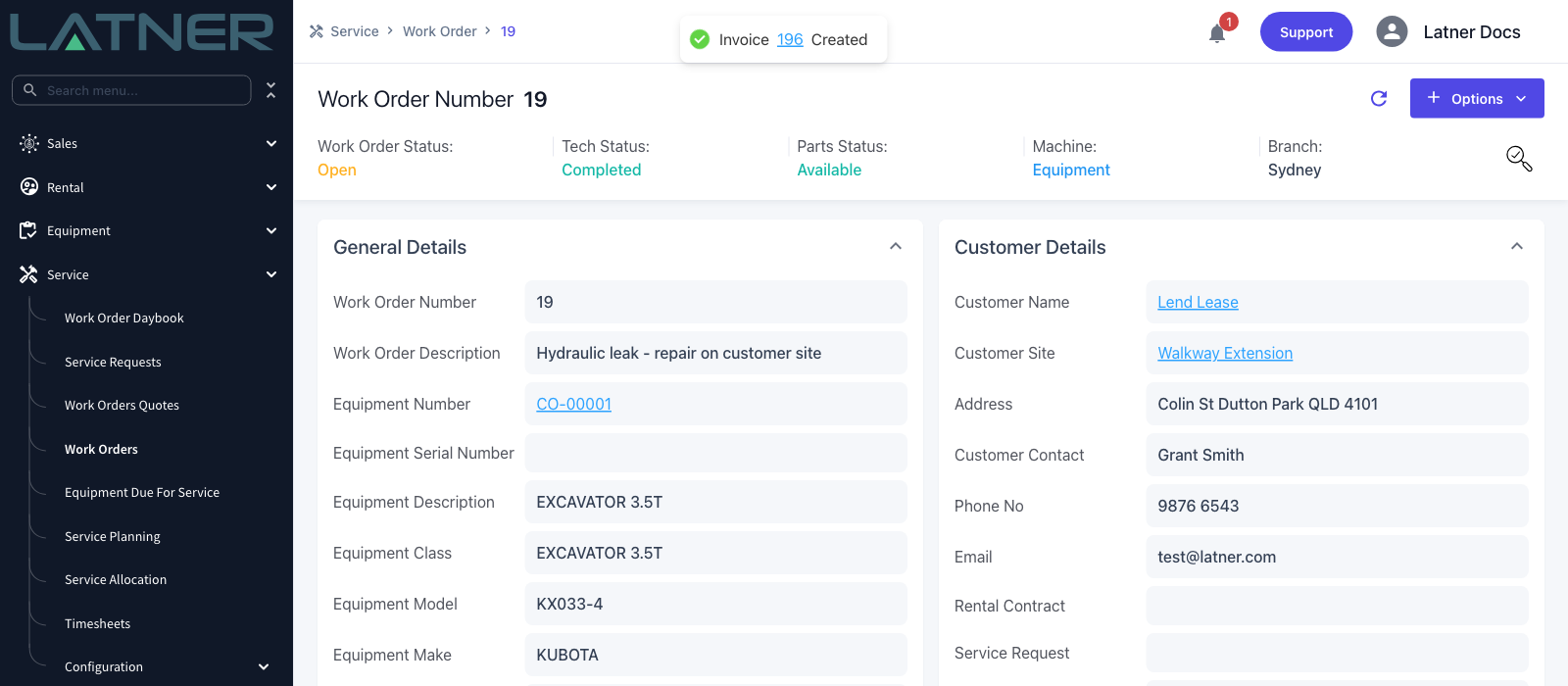
Click Invoice. The button stays disabled until at least one line is ticked. Latner creates the customer invoice and shows a confirmation with a link straight to it.
After You Invoice
-
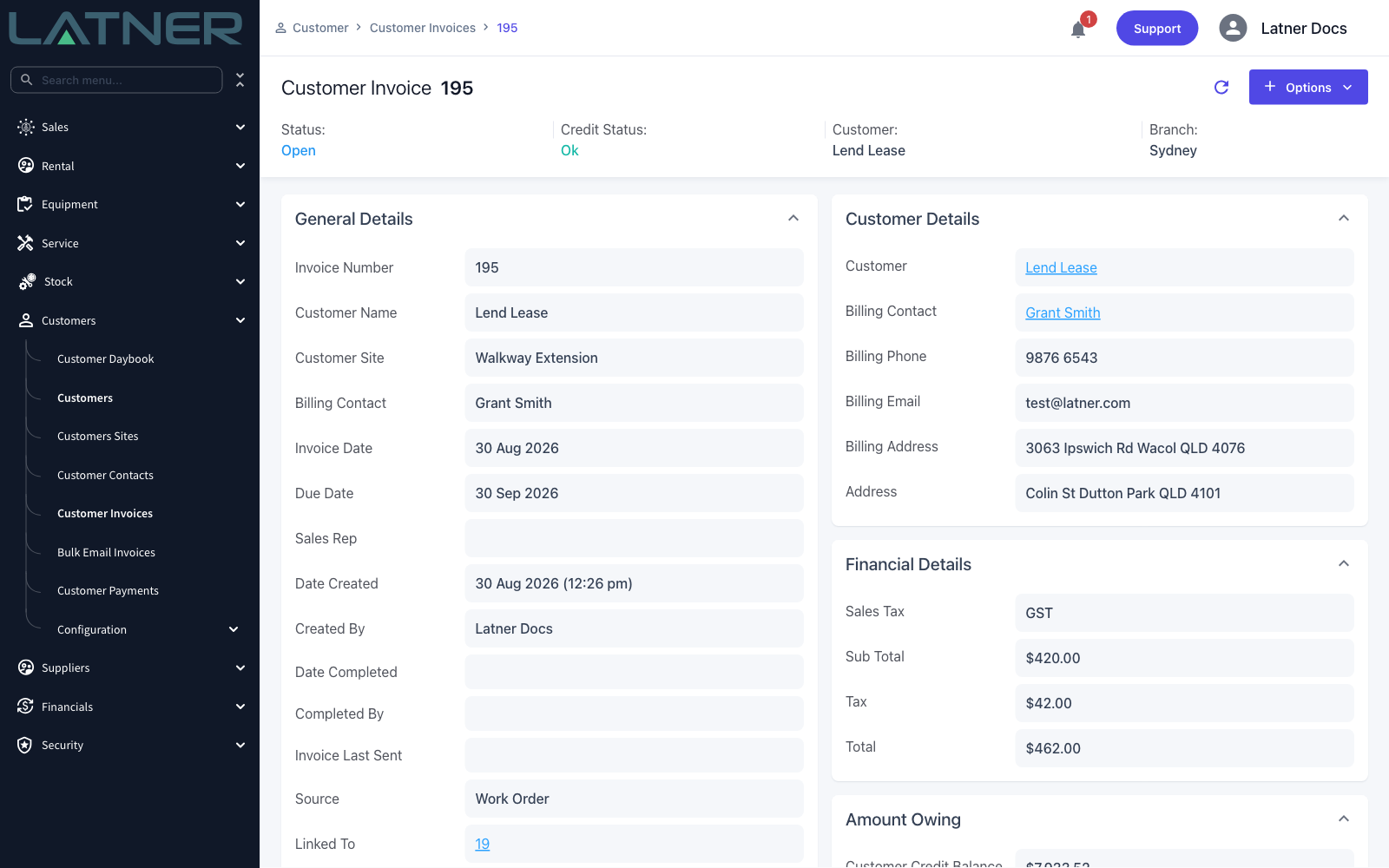
A customer invoice is created with a Source of Work Order and a Linked To link back to the work order. It is dated today in the branch's timezone and picks up the work order's purchase order number.
-
Every invoice line keeps its link to the work order line, and shows as a Work Order Labour, Work Order Stock or Work Order Expense line type.
-
The work order's Invoice Status changes to Invoiced (Actuals) or Invoiced (Estimates), and the invoice appears on the work order's Invoices tab - expand a row there to see the lines that were billed.
-
The invoice is created in Open status, so it still needs to be emailed, paid and synced like any other customer invoice.
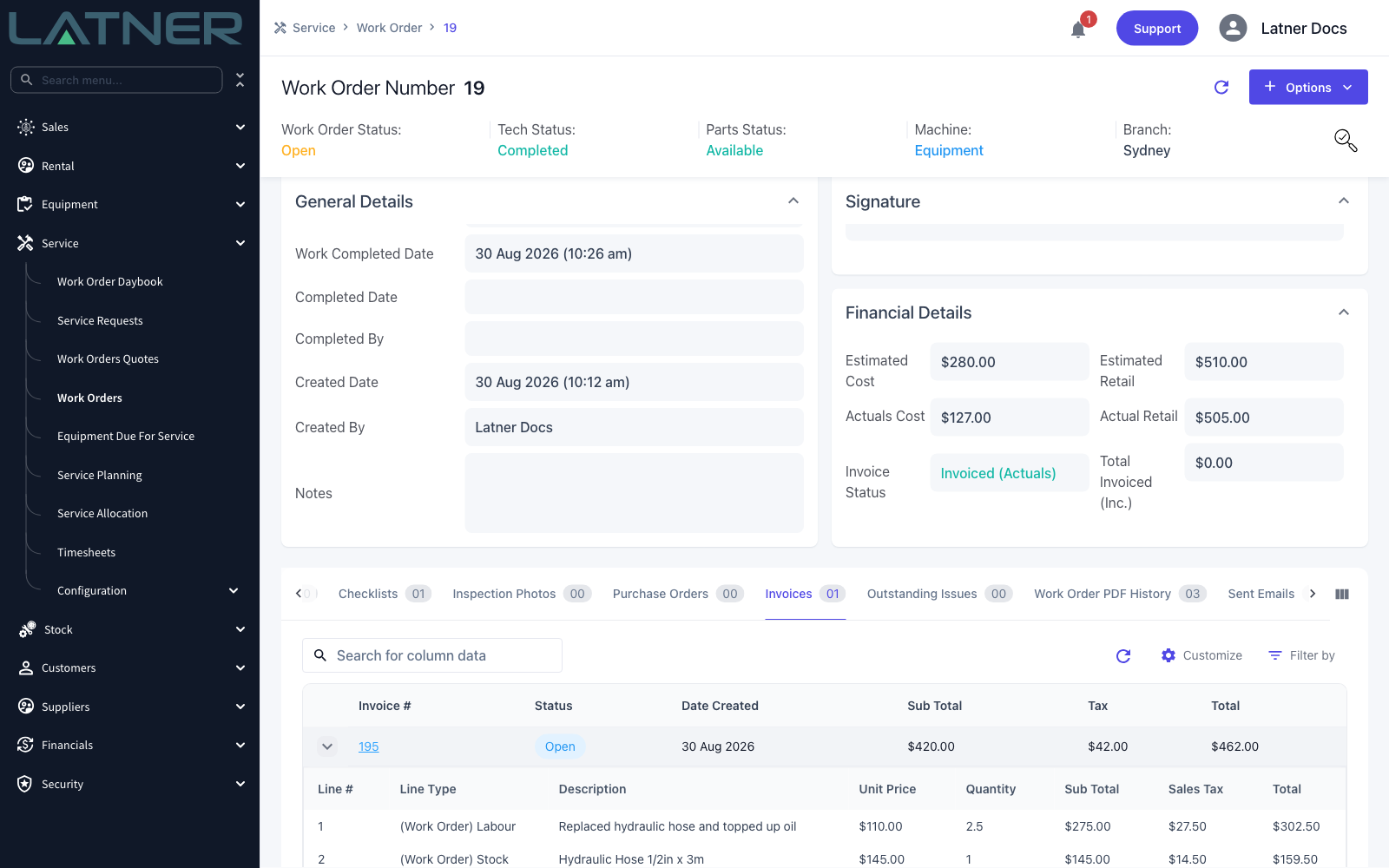
Invoice Status tells you the work order has been invoiced, not that it has been invoiced in full. A part-billed work order still reads Invoiced (Actuals) while lines remain outstanding - the reliable check is whether Invoice Work Order is still in the Options menu.
Invoicing the Rest Later
If you left lines off the first invoice, run Invoice Work Order again. The dialog now splits into two tables: Already Invoiced, which is read only and shows what has been billed, and To Invoice, which holds what is left. The Charge Using option you used the first time is now locked, and the other one is greyed out with a tooltip explaining why.
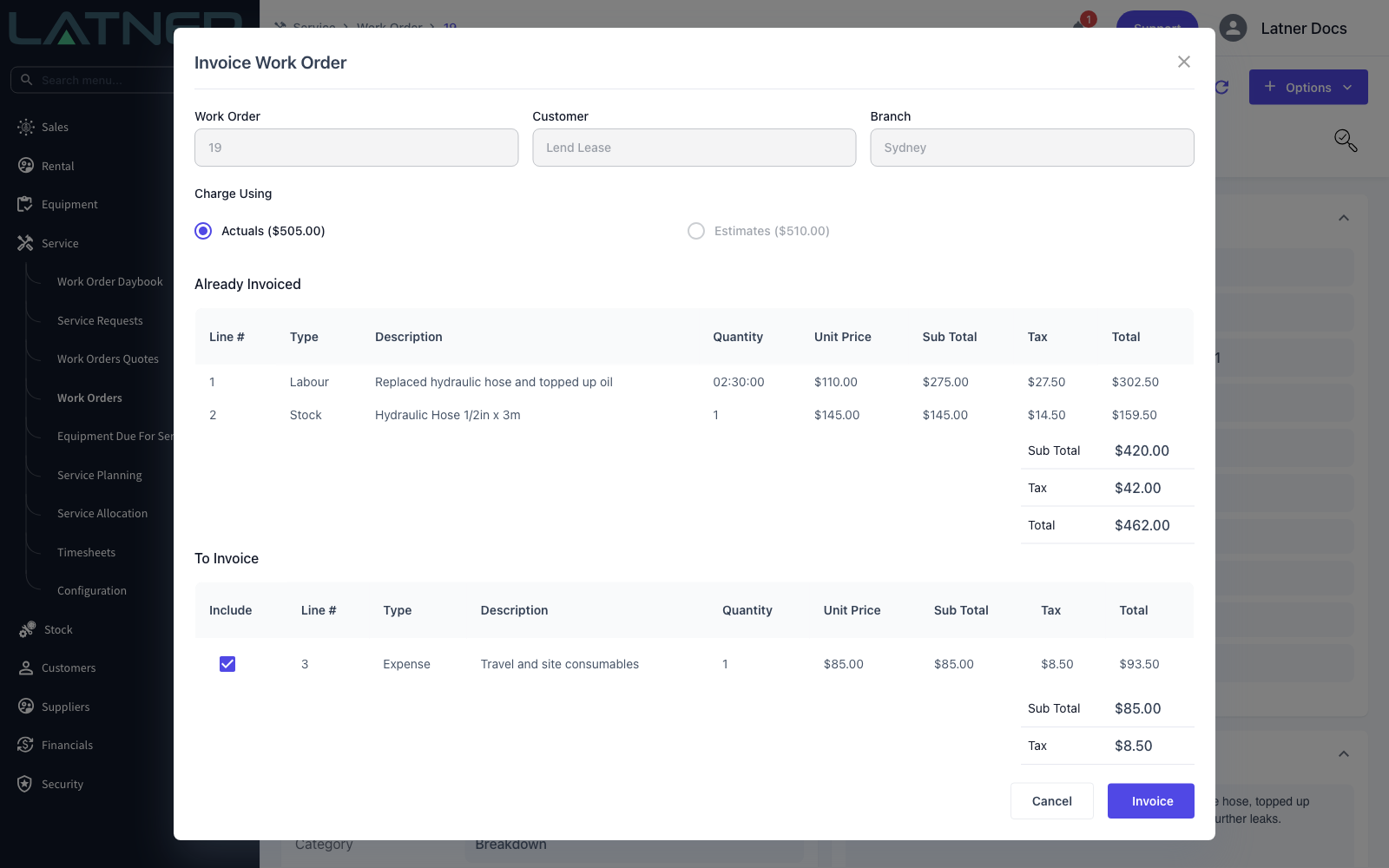
Once every line has been invoiced, Invoice Work Order disappears from the Options menu and the work order is ready to complete.
You don't have to invoice as a separate step. Complete Work Order shows the same charges preview, and its button reads Invoice Actuals & Complete or Invoice Estimates & Complete when lines are ticked, so the last invoice and the completion happen in one action.
FAQs
Watch the Demo
Prefer to watch it? Step through the same flow here.