
A service schedule tells Latner when a machine is due for a recurring service - a 90 day inspection, an annual inspection, a 500 hour engine service - so it shows up on Equipment Due For Service ready to be raised as a work order, with its checklist attached.
Overview
Most of the time you won't add schedules machine by machine. Set them up once on the class or model and every serialized machine underneath picks them up, including new ones as they arrive. Adding a schedule to a single piece of equipment is for the exceptions.
-
A schedule can repeat by days (every 90 days), by hours or meter (every 500 hours or 10,000 km), or both, in which case the service falls due on whichever comes first.
-
Schedules can sit at three levels: Class, Model and Equipment. They stack rather than override, so a machine ends up with its own schedules plus its model's plus its class's.
-
New serialized equipment inherits every class and model schedule at the moment it is created, whether it is added by hand, imported or received on a purchase order. You don't need to add them again.
-
That inheritance happens once. Moving a machine to a different model or class later does not re-evaluate its schedules.
-
Service schedules only apply to serialized equipment. Bulk equipment never gets one.
-
Schedules in the same Service Schedule Group supersede each other: complete the annual inspection and the 90 day inspection in the same group is treated as covered and rescheduled. Keep a schedule in its own group - an electrical test and tag, for example - if it must never be skipped.
-
Nothing is raised on its own. Due services wait on Service › Equipment Due For Service until someone turns them into work orders.
Before You Begin
Check you have these in place.
|
Requirement |
Where to Find It |
|---|---|
|
Create Equipment Service Schedule (plus Update and Delete Equipment Service Schedule to change them later) |
Security › Configuration › Permission Groups, under Equipment › Option. |
|
Equipment Due For Service and Create Service Schedule Work Order |
Security › Configuration › Permission Groups, under Service › Screen and Service › Option. |
|
A Work Order Reason and Work Order Category to raise the service against |
Service › Configuration. Both are required on every schedule. |
|
Serialized equipment |
The equipment's Type shows in the header of the equipment record. On bulk equipment Add Service Schedule is disabled. |
If the schedule should apply to every machine of a type, add it on the class or model rather than here. See How to Assign a Service Schedule Checklist to a Class / Model / Equipment for the class and model steps and for attaching checklists.
Assigning the Service Schedule
Step 1 - Check what the machine already has
Open the equipment from Equipment › Equipment and go to its Service Schedules tab. This tab shows everything the machine has, from all three levels, with the next Service Due Date or Service Due Meter/Hours for each.
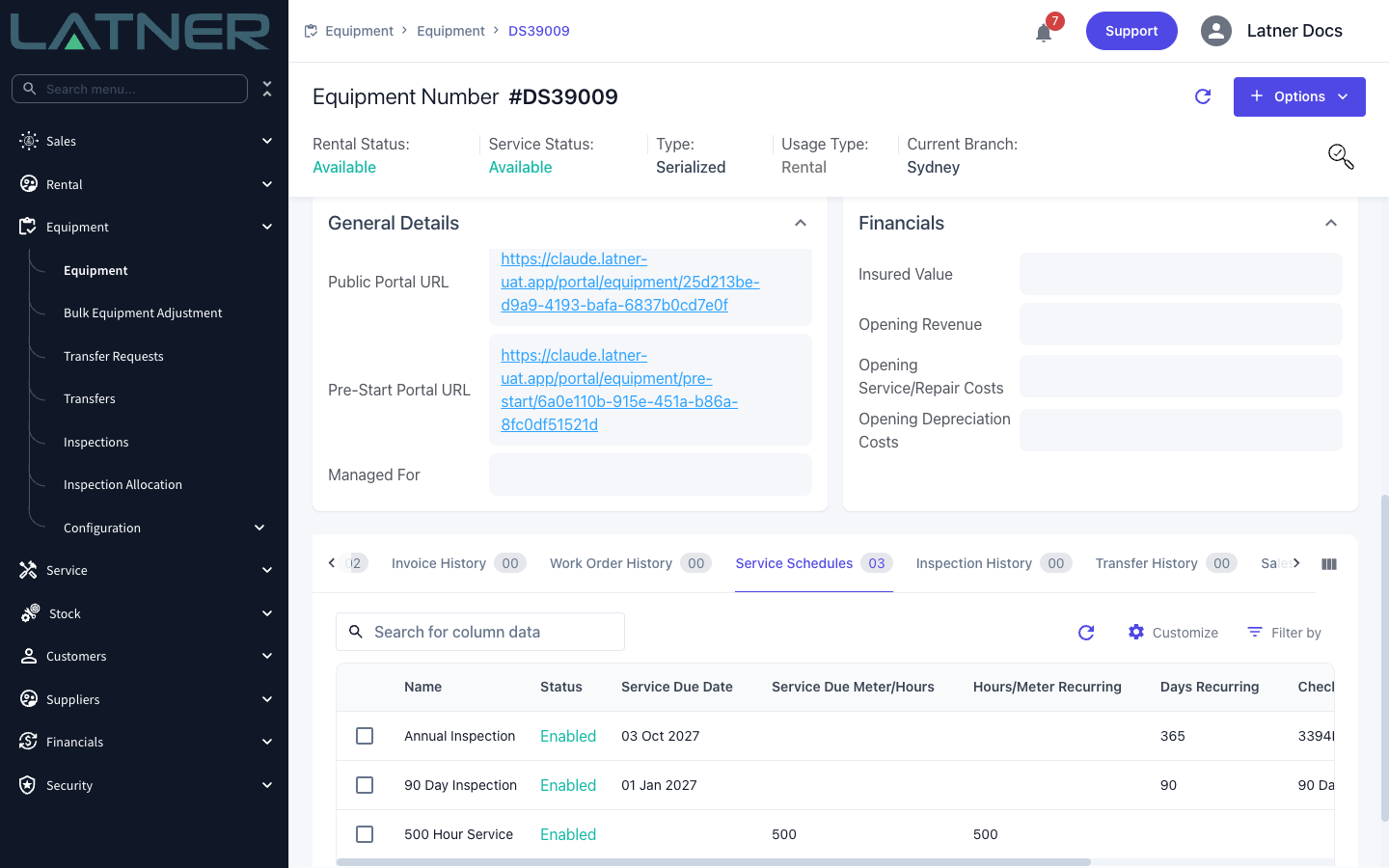
If the service you want is already listed, there's nothing to add - go straight to Step 5 to raise it. If it's missing, check the class and model first (see the FAQs) before adding it here.
Step 2 - Open Add Service Schedule
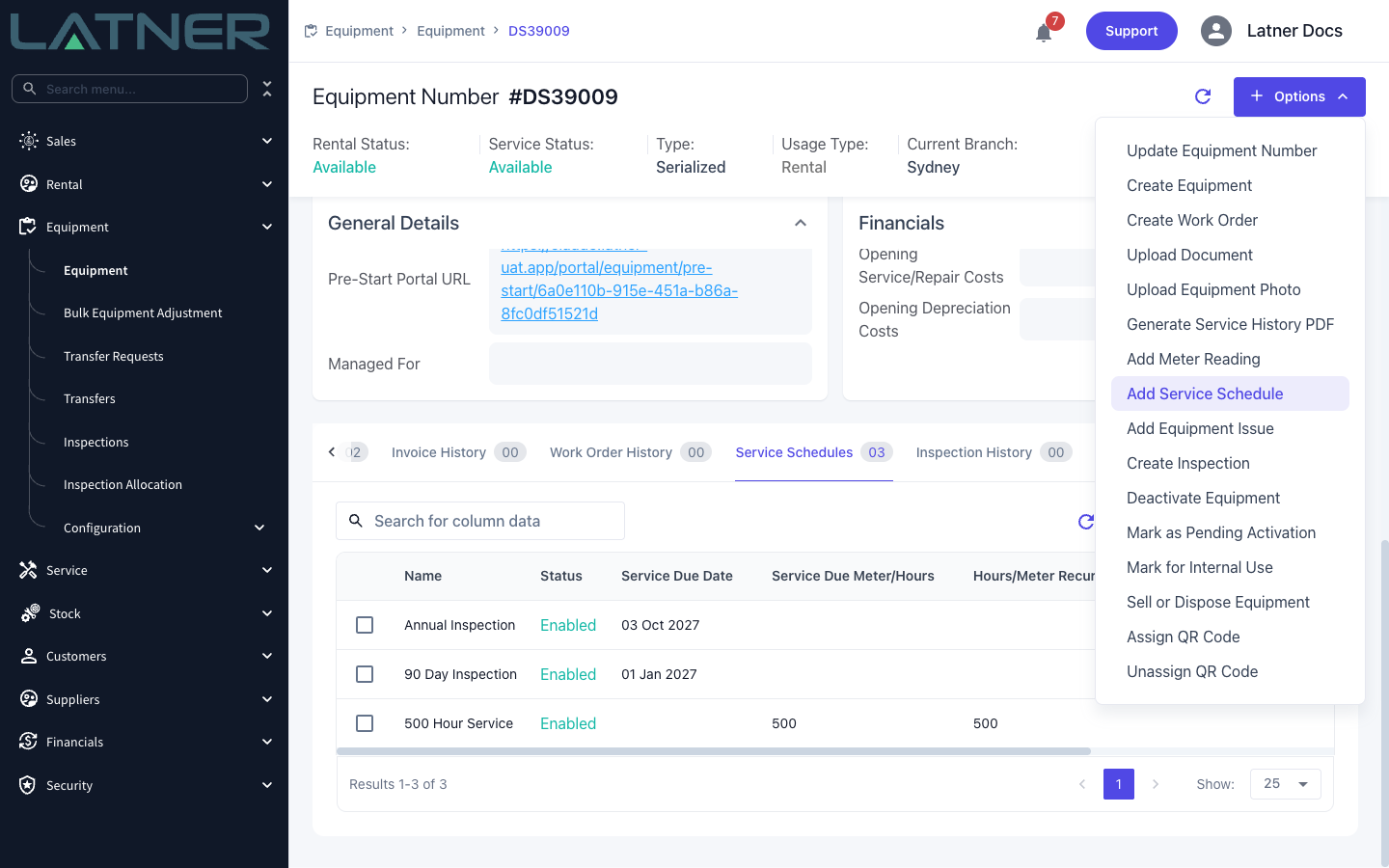
On the equipment record, choose Options › Add Service Schedule.
Step 3 - Fill in the schedule
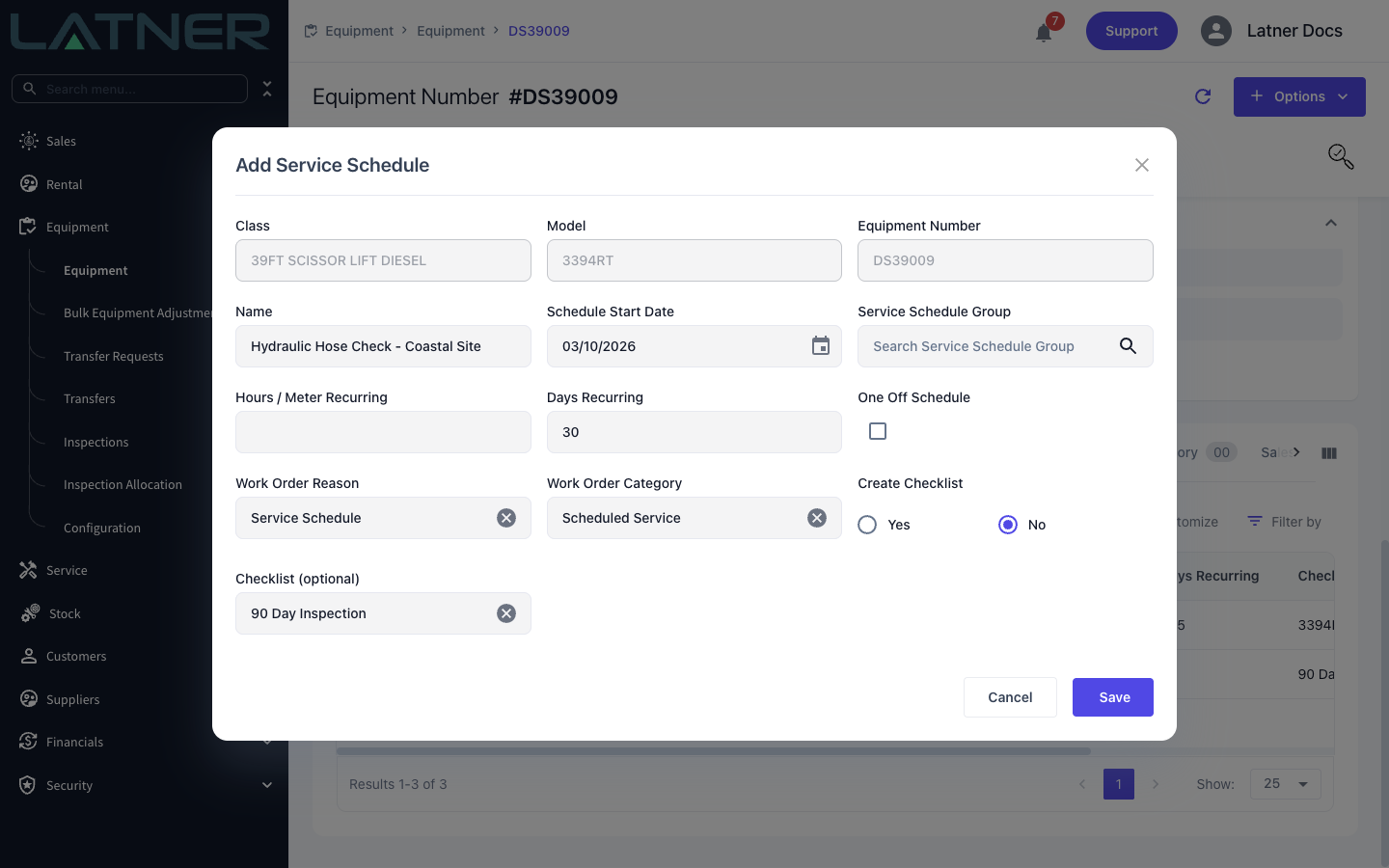
Class, Model and Equipment Number are filled in from the machine and can't be changed. Complete the rest:
-
Name - required. It becomes the description on every work order the schedule raises.
-
Schedule Start Date - required, defaults to today. The first service is due this date plus the recurrence.
-
Service Schedule Group - optional. Put the schedule in a group with the others it should supersede or be superseded by, or leave it out to keep it independent.
-
Hours / Meter Recurring and Days Recurring - fill in at least one. Set both and the service falls due on whichever comes first.
-
One Off Schedule - tick it if the service should happen once and not repeat.
-
Work Order Reason and Work Order Category - both required.
-
Create Checklist and Checklist (optional) - pick a Service checklist template to attach, or set Create Checklist to Yes to build one here.
Step 4 - Save and confirm
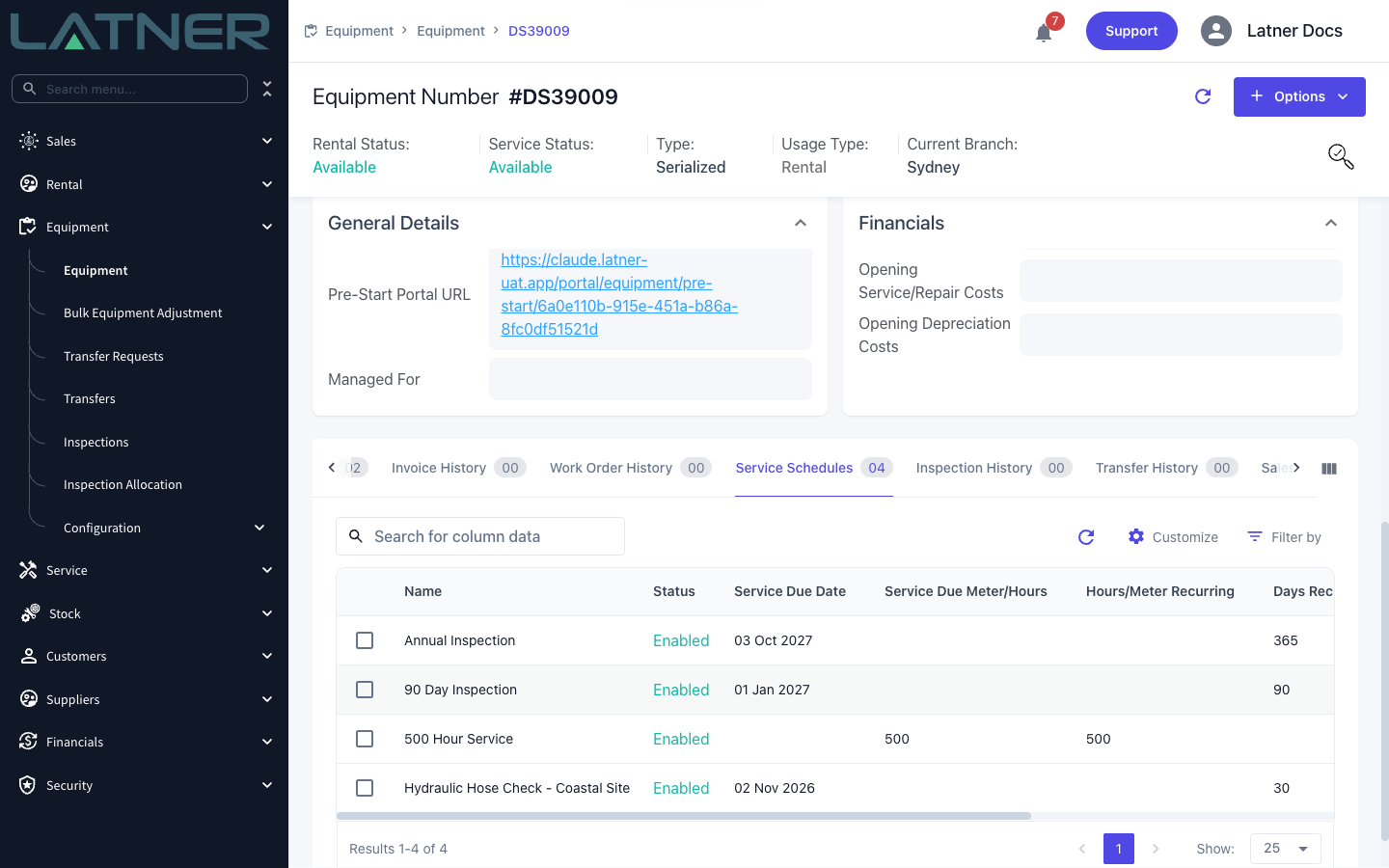
Click Save. The schedule appears on the machine's Service Schedules tab straight away, with its first due date or due meter worked out from the start date and the recurrence.
Step 5 - Raise the service when it's due
Go to Service › Equipment Due For Service. Every enabled schedule that doesn't yet have a work order is listed here, with Days/Meter Until Due showing how close it is. Tick the services you want to raise and choose Options › Create Work Order.
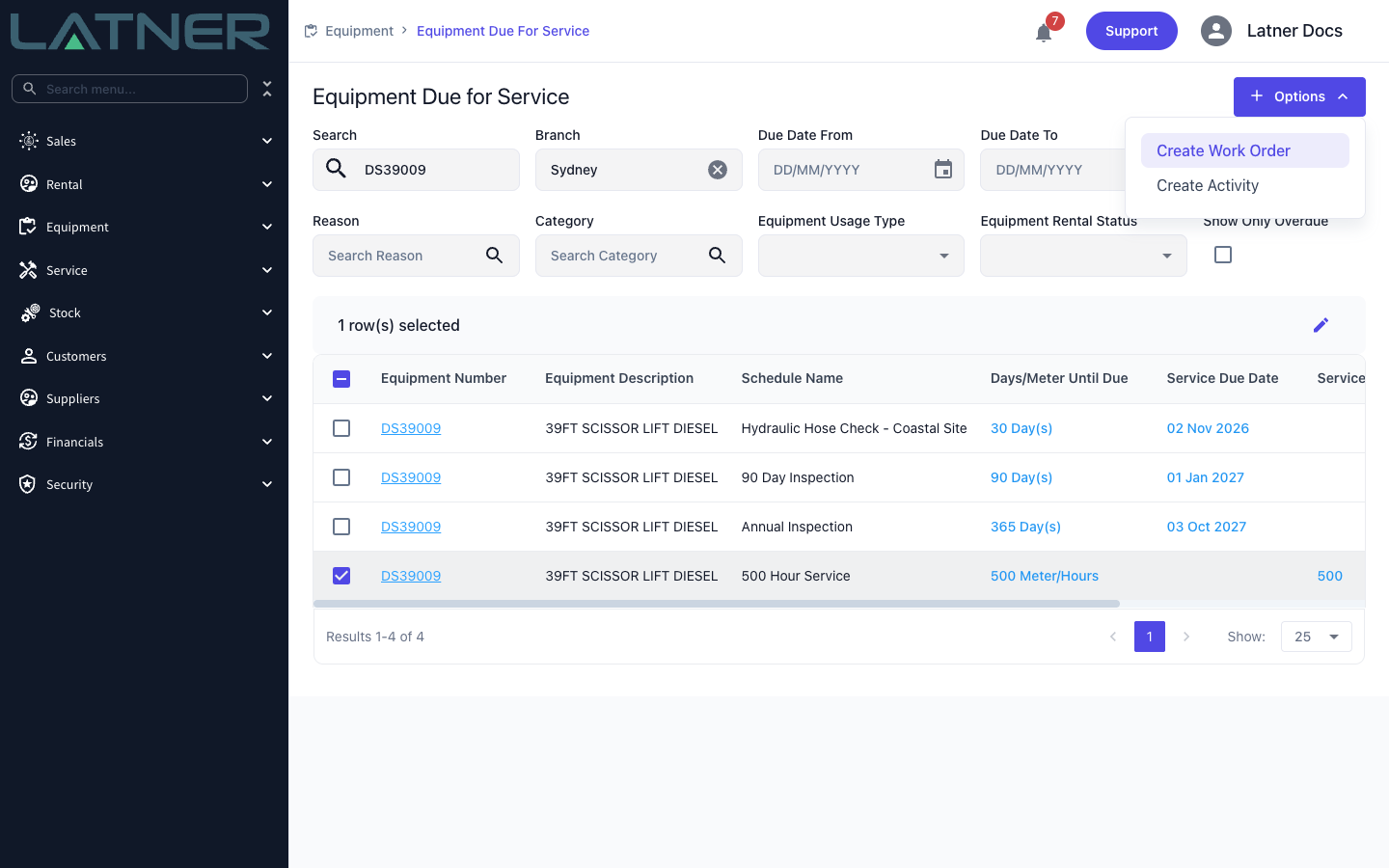
The screen opens filtered to your own branch, so clear the Branch filter to see machines at other branches.
After Creation
-
The work order takes its description from the schedule Name, its reason and category from the schedule, and the attached checklist.
-
Once a work order is raised the service drops off Equipment Due For Service. When the work order is completed, the next occurrence is scheduled automatically, unless it's a One Off Schedule. If the work order is cancelled instead, the service goes back on the list.
-
Schedule Start Date, Hours / Meter Recurring and Days Recurring are locked once saved. To change an interval, add a replacement schedule and delete the old one.
-
A schedule inherited from the class or model can't be edited or deleted from the equipment, but you can switch it off for this one machine: tick it on the Service Schedules tab and choose Disable Schedule. Enable Schedule turns it back on.
Deleting a schedule from a class or model removes it from every machine in that class or model, not just this one, and it can't be undone. The confirmation tells you how many equipment records it covers. To take a class or model schedule off this machine only, tick it on the machine's Service Schedules tab and choose Disable Schedule instead. See How to Assign a Service Schedule Checklist to a Class / Model / Equipment for removing a schedule from a whole class.
Changing a machine's model doesn't swap its schedules over. It keeps the class and model schedules it was created with and doesn't pick up the new model's. After a model change, add the schedules it now needs and disable the ones it no longer does.
FAQs
Watch the Demo
Prefer to watch it? Step through the same flow here.