
The Service Allocation screen only draws a lane for the mechanics it recognises, so a technician has to be set up as a Skilled Person with a technician role before anyone can schedule work to them.
Overview
A new mechanic can be in Latner for weeks and still be invisible to whoever does the scheduling. The board doesn't list users, and it doesn't list everyone you could put on a work order - it lists the people whose Skilled Person record says they do technician work.
-
The board has two groups. Internal lists your own mechanics (Skilled Persons) and External lists subcontractors (Suppliers).
-
A person gets a lane only if their Skilled Person record carries Field Technician or Workshop Technician. The other four roles belong to other boards.
-
The lane's subtitle shows which of the two they hold - Field, Workshop, or Field | Workshop.
-
The Branch filter matches mechanics on the branch of their user record, not the warehouse on their Skilled Person record.
-
Only Active skilled persons are listed, so deactivating a record takes the lane away without touching any history.
-
Adding a role changes nothing about existing work orders. It just opens the lane so you can schedule onto it.
Before You Begin
You'll need the following in place before you start.
|
Requirement |
Where to Find It |
|---|---|
|
The mechanic already has a Skilled Person record |
Service › Configuration › Skilled Persons |
|
Skilled Person permission - opens the Skilled Persons screen and allows the roles to be edited |
Security › Configuration › Permission Groups › Service › Configuration |
|
Service Allocation permission - opens the board itself |
Security › Configuration › Permission Groups › Service › Screen |
|
The mechanic's user record sits in the branch you schedule from |
Security › Users |
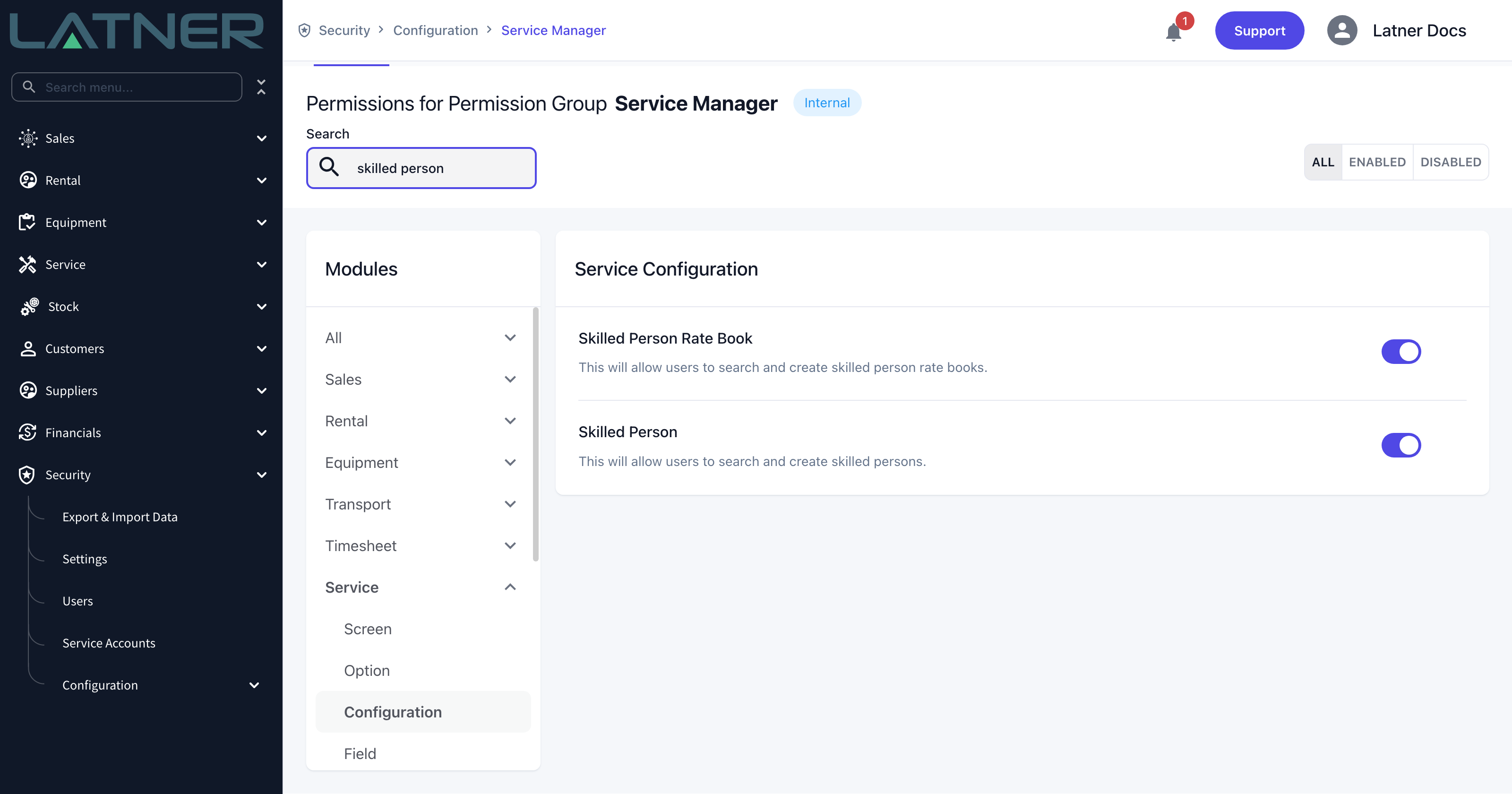
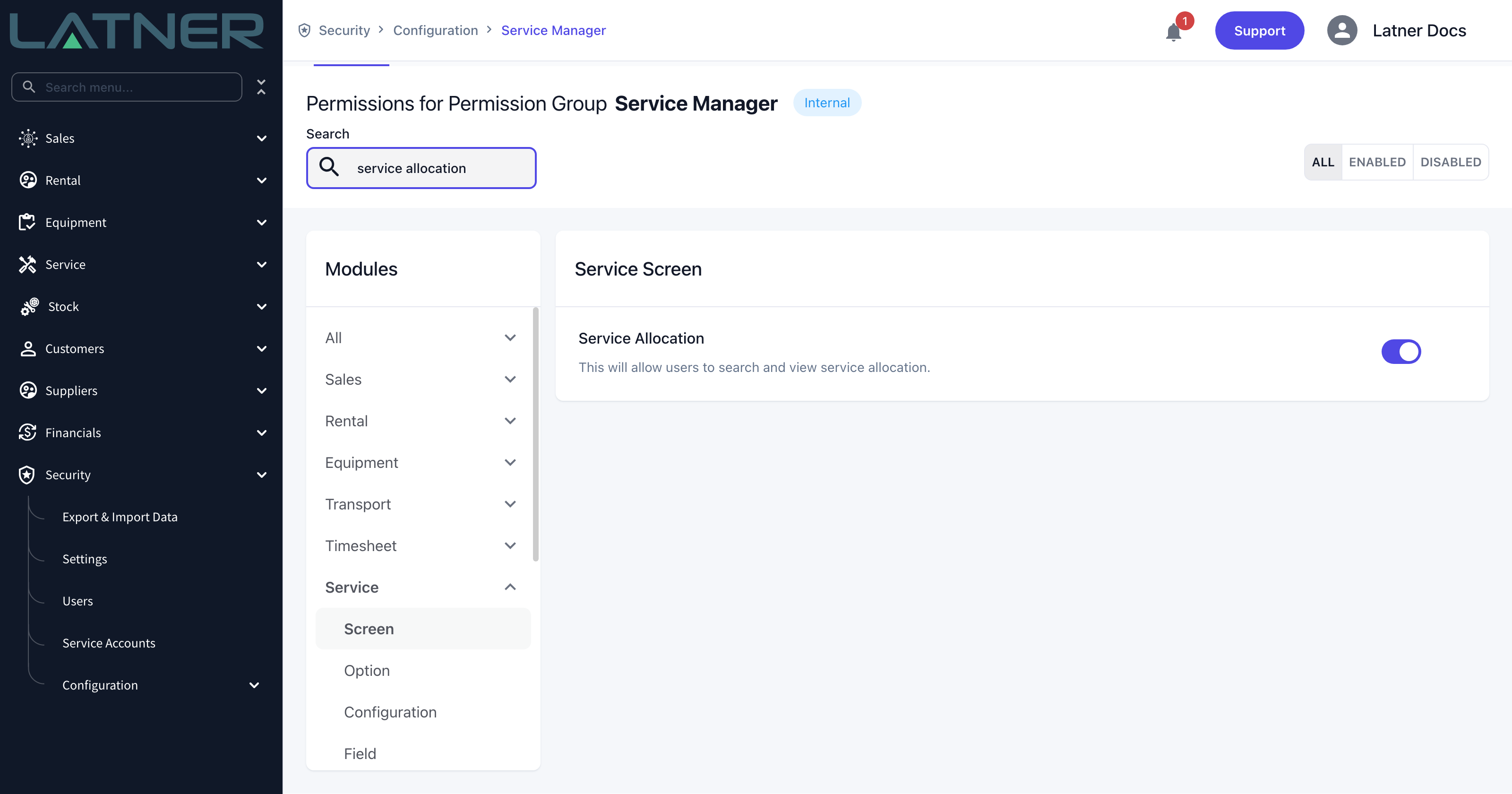
The user's branch is what the board filters on. The Warehouse on the Skilled Person record drives parts and stock, not board visibility, so a mechanic sitting in the wrong branch's lane is fixed by changing the branch on their user record - not the warehouse.
Adding a Mechanic to the Board
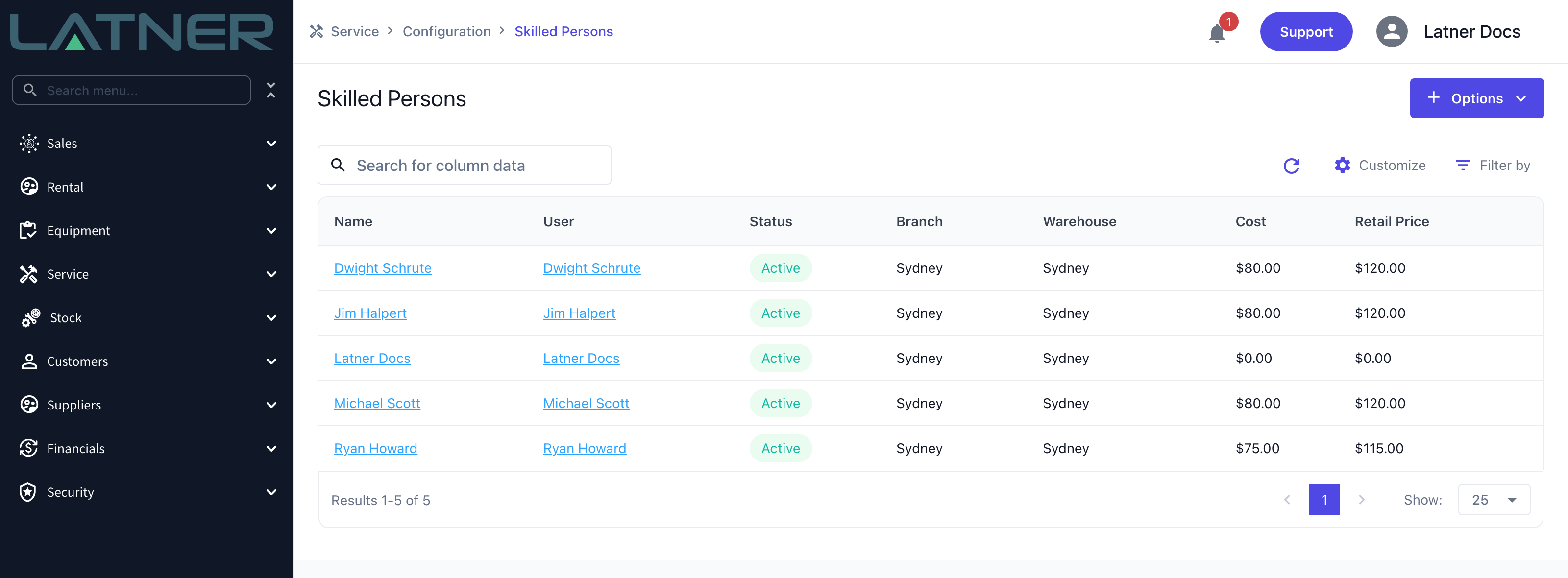
Step 1 - Open the Skilled Persons screen
Go to Service › Configuration › Skilled Persons. Everyone you can schedule anywhere in Latner is on this list, whatever kind of work they do. If your mechanic isn't here yet, create the record first with Options › Create Skilled Person - How to Set Up User as a Skilled Person covers that form field by field - then come back to Step 2.
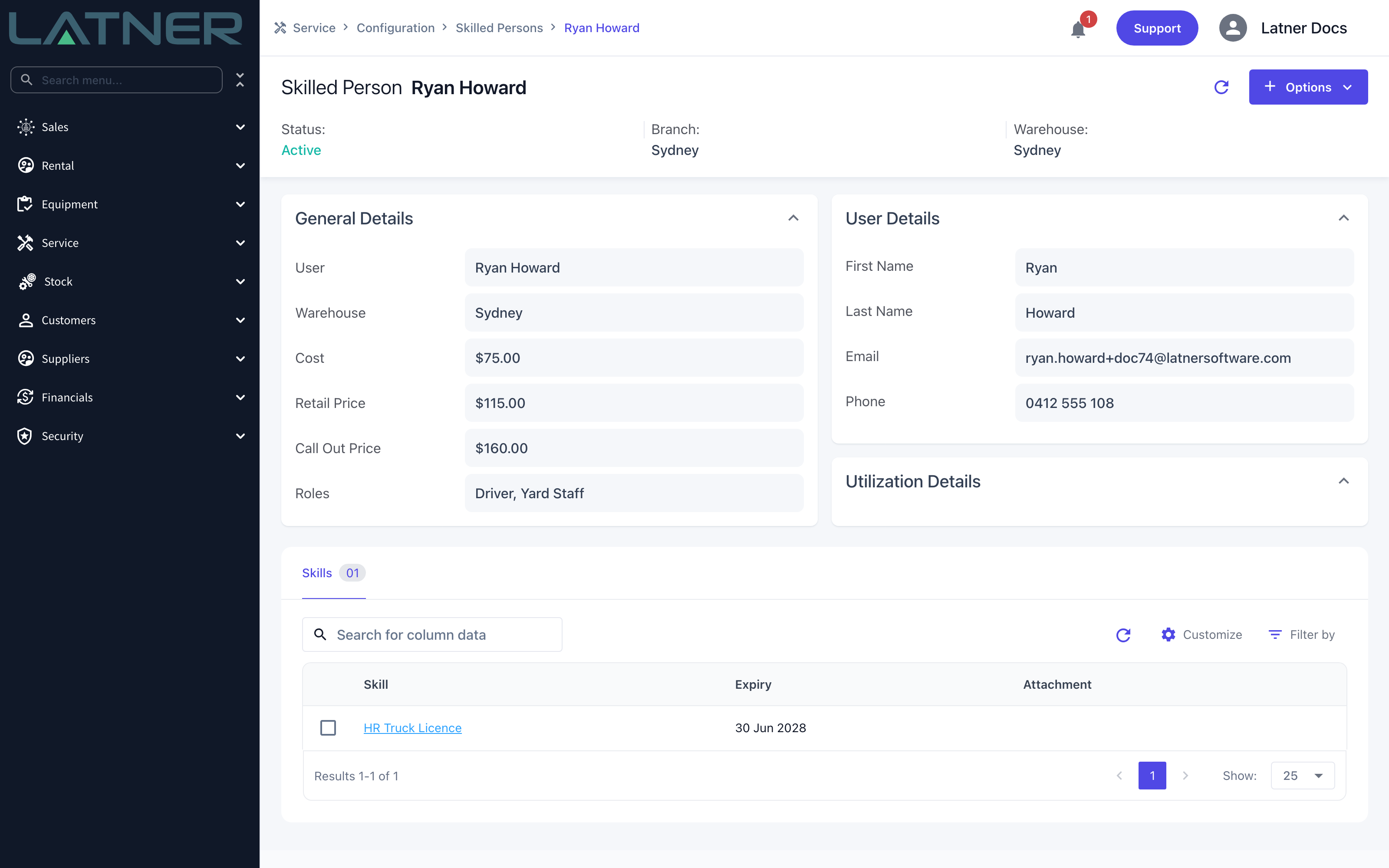
Step 2 - Open the mechanic's record
Double-click the row to open the Skilled Person. The header carries Status, Branch and Warehouse, and Roles sits at the bottom of the General Details card. A record with no technician role, or one that only carries a role like Driver, is exactly why a mechanic goes missing from Service Allocation.
Step 3 - Open the Roles list
Click the Roles value. The card switches into edit mode, Cancel and Save appear in the card header, and the six roles open as a tick list. Each role maps to one allocation screen:
-
Field Technician - Service Allocation, for work done at the customer's site
-
Workshop Technician - Service Allocation, for work done in your own workshop
-
Driver - Transport Allocation
-
Yard Staff - Inspection Allocation
-
Pump Driver - Sanitation Allocation
-
Operator - Operator Allocation
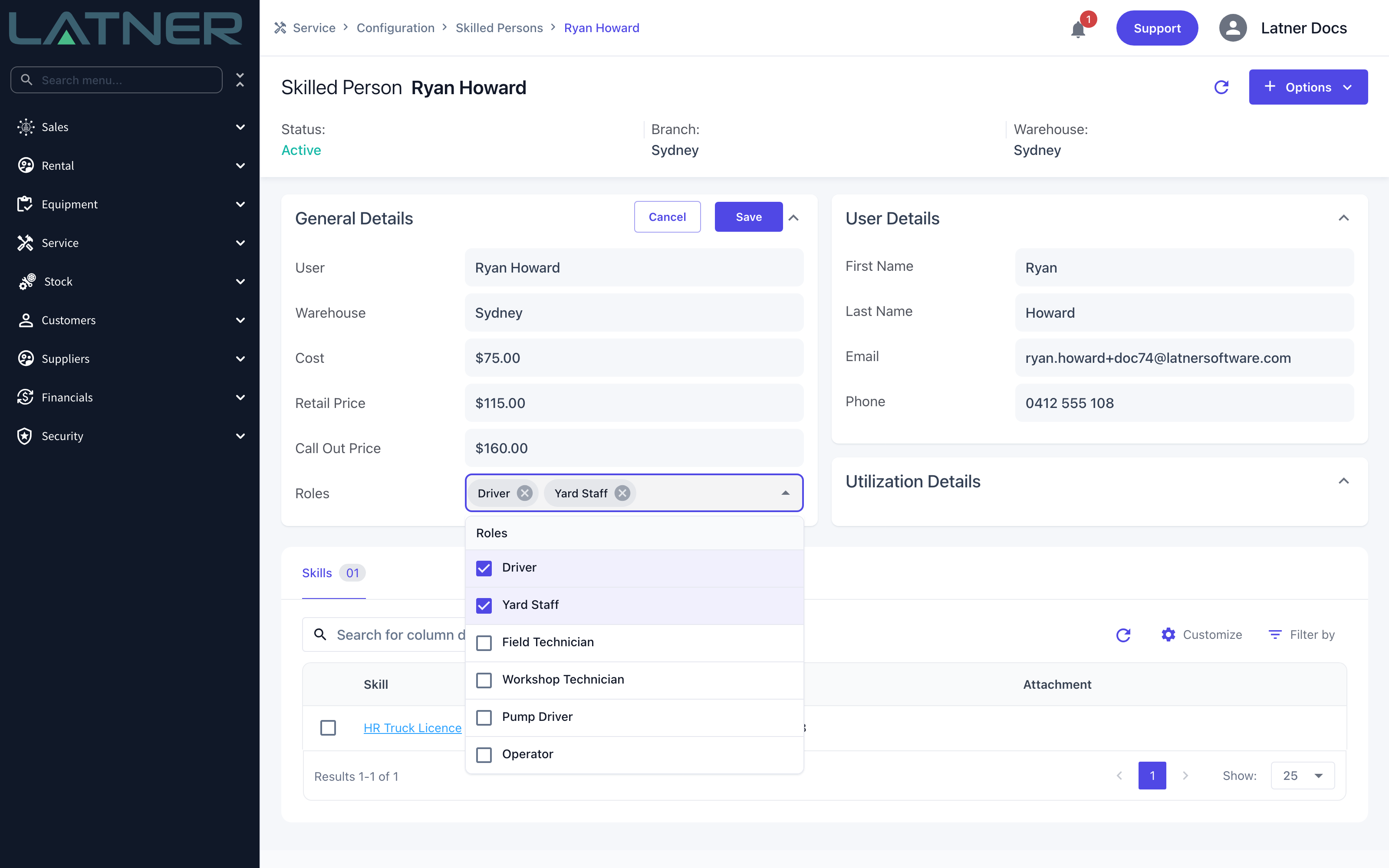
Step 4 - Tick the technician roles
Tick Field Technician, Workshop Technician, or both. Roles add up rather than replace each other, so leave the person's existing roles alone unless they've genuinely stopped doing that work - a mechanic who also drives the truck keeps Driver and stays on the Transport board as well.
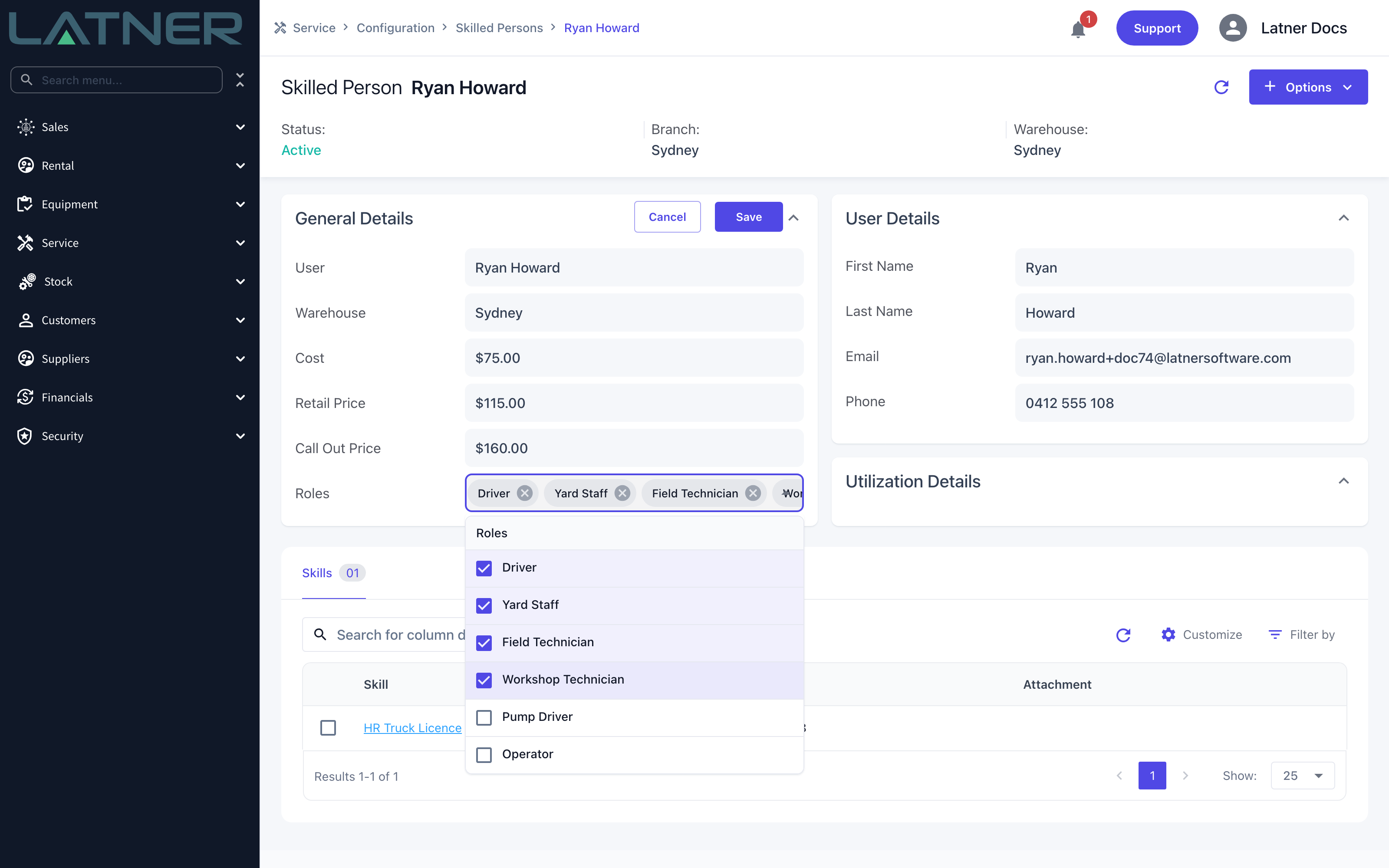
Step 5 - Save
Click Save in the General Details header. The roles are stored on the record straight away; there's nothing to approve and no overnight job to wait for.
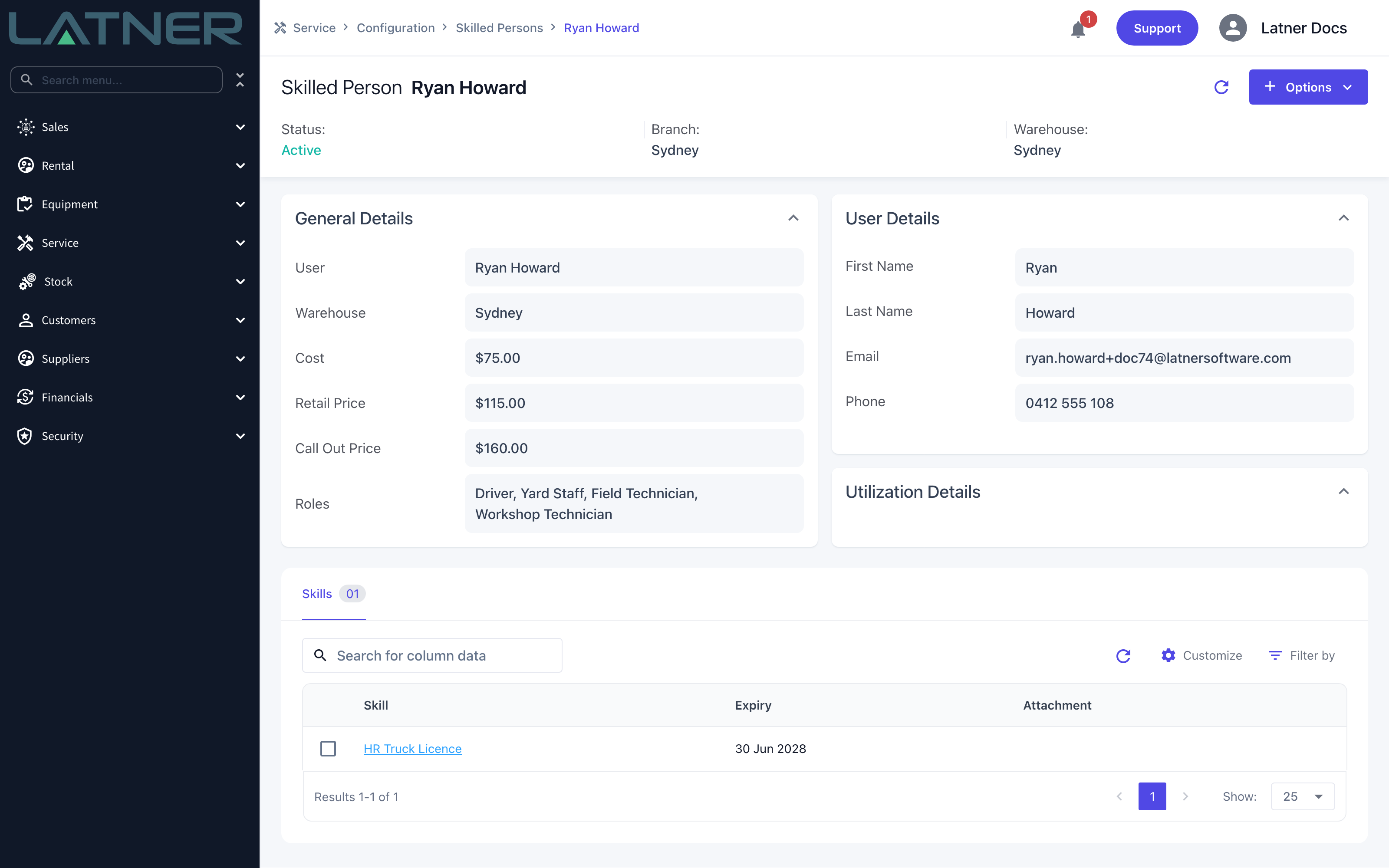
Step 6 - Open Service Allocation
Go to Service › Service Allocation. The mechanic now has their own lane under Internal, with their technician roles shown underneath their name, and you can drag work orders from Unscheduled Work Orders straight onto it. Switch the view to Daily if you want to see the times clearly - in a weekly view a two hour job is only a sliver.
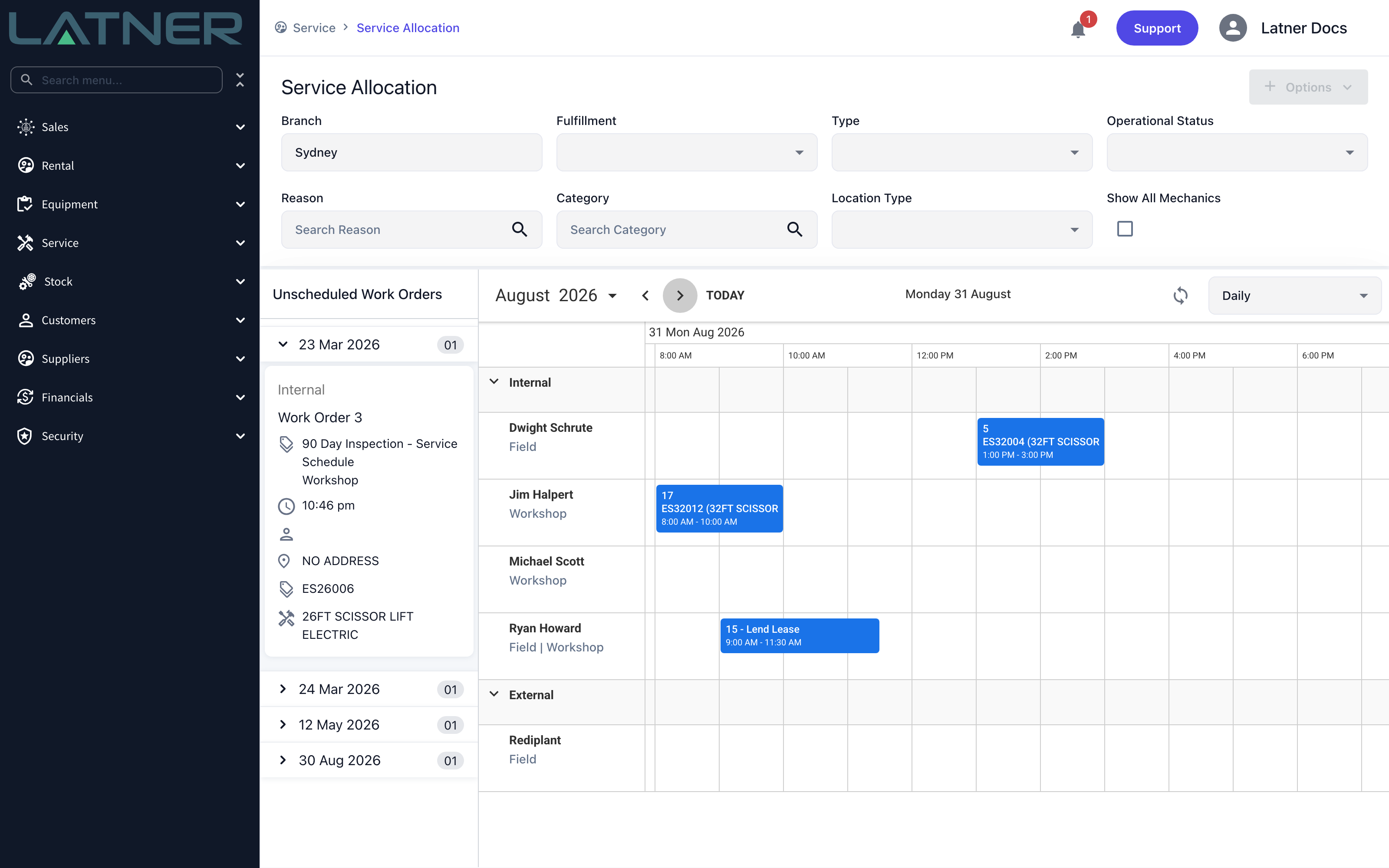
After Adding the Role
-
The mechanic appears on Service Allocation for every branch whose Branch filter matches the branch on their user record, and on every other board their remaining roles qualify them for.
-
Tick Show All Mechanics to drop the branch filter and list every mechanic in the business. Handy when you're lending a technician to another branch, or when you're checking whether someone is missing or just filed under the wrong branch.
-
The work orders on the board are still filtered by Branch, so a borrowed mechanic's lane shows only the jobs belonging to the branch you're looking at.
-
Roles don't gate the work order itself. The Mechanic field on a work order lists every active skilled person whatever their roles, so someone can already be allocated work that has no lane to sit on.
-
Dragging a work order onto a lane sets its scheduled start and end and moves its Tech Status to Allocated.

Taking a technician role off a record removes the lane, and any work orders already scheduled to that person disappear from the board while staying allocated to them on the work order. If someone has simply left, deactivate the whole Skilled Person record with Options › Deactivate instead of stripping roles - it clears them off every board at once and can be reversed.
FAQs
Watch the Demo
Prefer to watch it? Step through the same flow here.