A work order quote lets you price up a repair or service job before any work starts, so the customer can see the labour, parts and expenses you expect to charge and approve them in advance.
Overview
Not every job should start with a mechanic and a hope. When a customer wants a price first, you build the job as a work order quote, send it out as a PDF, and only turn it into a real work order once they say yes.
-
A quote carries the same job details as a work order - branch, equipment, customer, site, job reason and category - plus estimate lines for labour, parts and expenses.
-
Quotes move through four statuses: Open while you build them, Quoted once they have gone to the customer, Converted once they have become a work order, and Cancelled if the customer declines.
-
Each estimate line records a cost and a retail price, both excluding GST, and Latner rolls them up into the quote's Cost and Retail Price totals so you can see the margin before you commit.
-
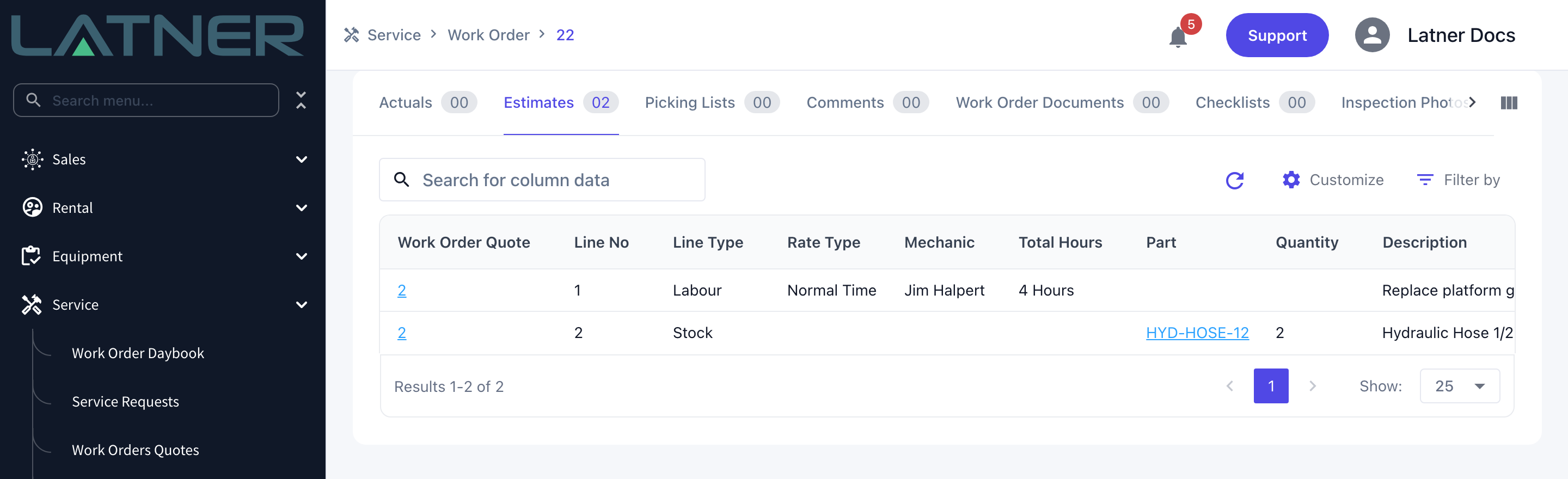
Converting a quote creates a chargeable work order and leaves the quote lines attached to it as the work order's Estimates, so you can later invoice from estimates rather than actuals.
-
Quotes are never deleted. A job the customer knocks back is cancelled, and stays on the list as history.
Before You Begin
Work order quotes are part of the Service module, so make sure the following are in place.
|
Requirement |
Where to Find It |
|---|---|
|
Work Order Quote permission - lets you search and view work order quotes |
Security › Configuration › Permission Groups › Service › Screen |
|
Create Work Order Quote and Edit Work Order Quote permissions - needed to raise a quote and to add or change its estimate lines |
Security › Configuration › Permission Groups › Service › Option |
|
Email Work Order Quote permission - needed to send the quote to the customer |
Security › Configuration › Permission Groups › Service › Option |
|
Work Order Quote Number Format - the prefix and number of digits used for quote numbers |
Security › Settings › Service |
|
Work Order Quote PDF Template ID - the template used when a quote PDF is generated |
Security › Settings › PDF Templates |
|
Work Order Quote Email - Subject, Body, From Name and From Email - the defaults that pre-fill the email |
Security › Settings › Email |
|
Skilled Person Rate Books for your mechanics, so labour estimates price themselves |
Service › Configuration › Skilled Person Rate Books |
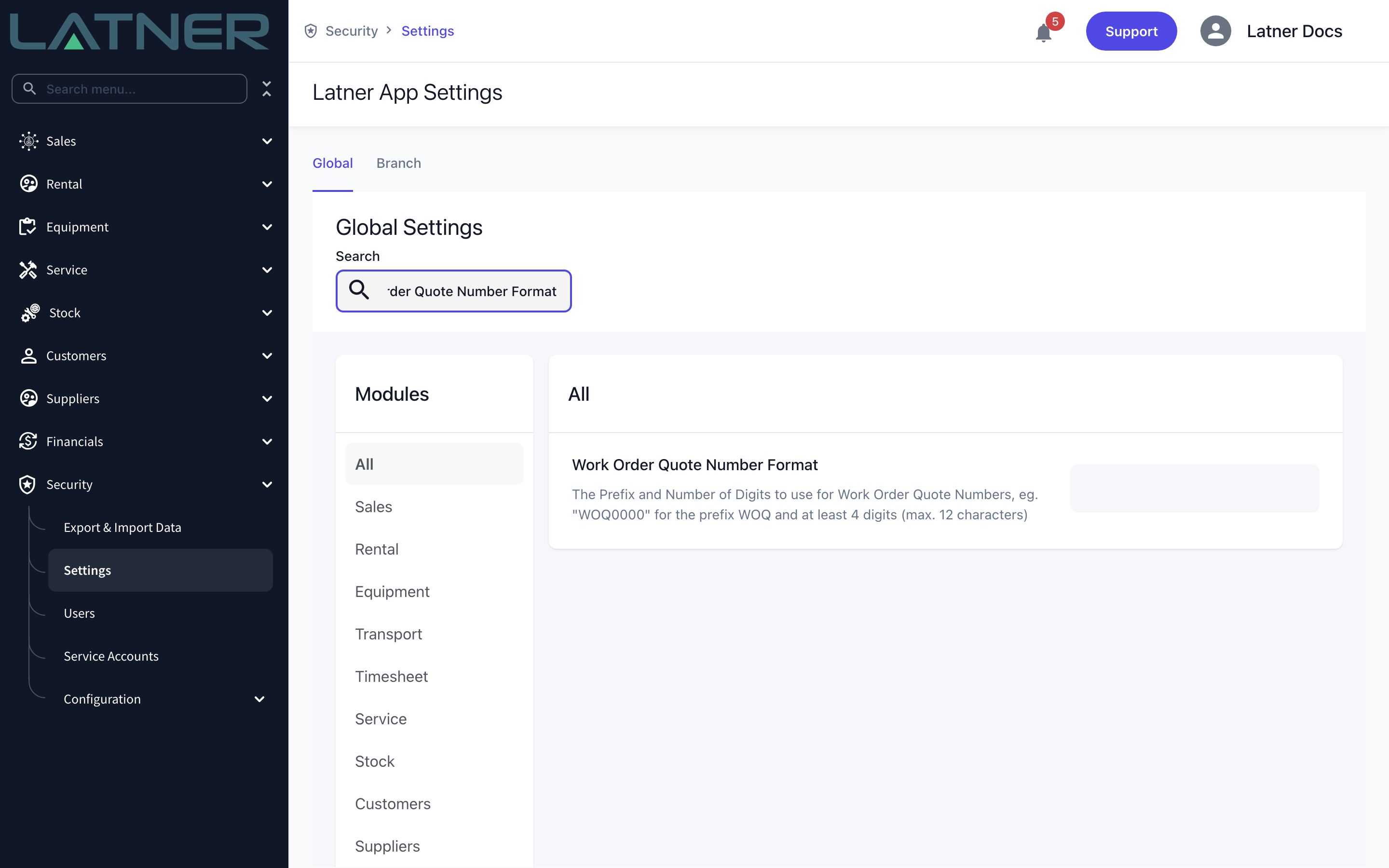
By default a work order quote must be linked to a piece of equipment. If you also need to quote work that isn't tied to a machine, turn on Allow Work Orders that are not linked to a piece of machinery under Security › Settings › Service. That setting adds the Machine Type dropdown to the form and lets you choose Manual.
Creating the Work Order Quote
Step 1 - Open the Work Order Quotes screen
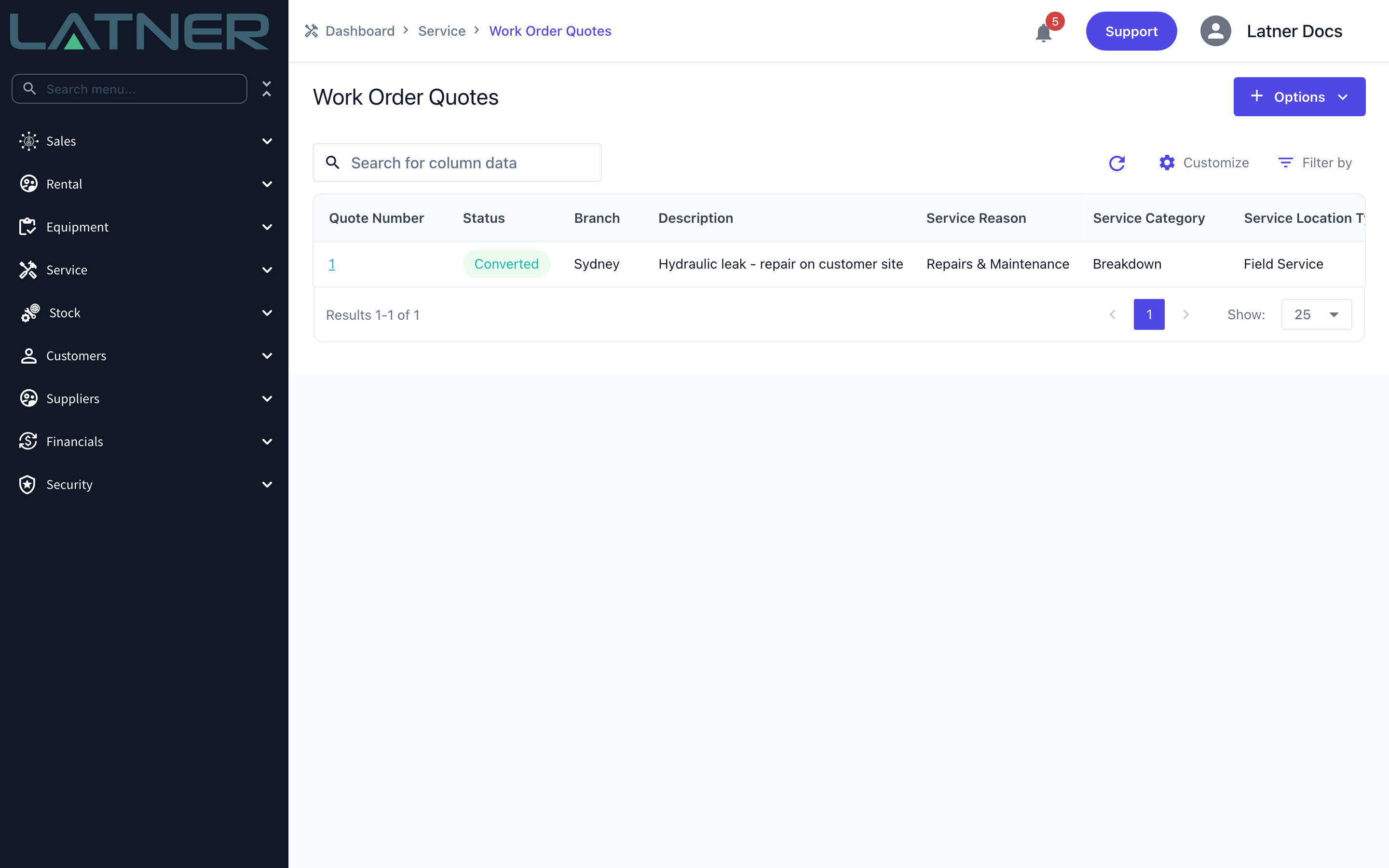
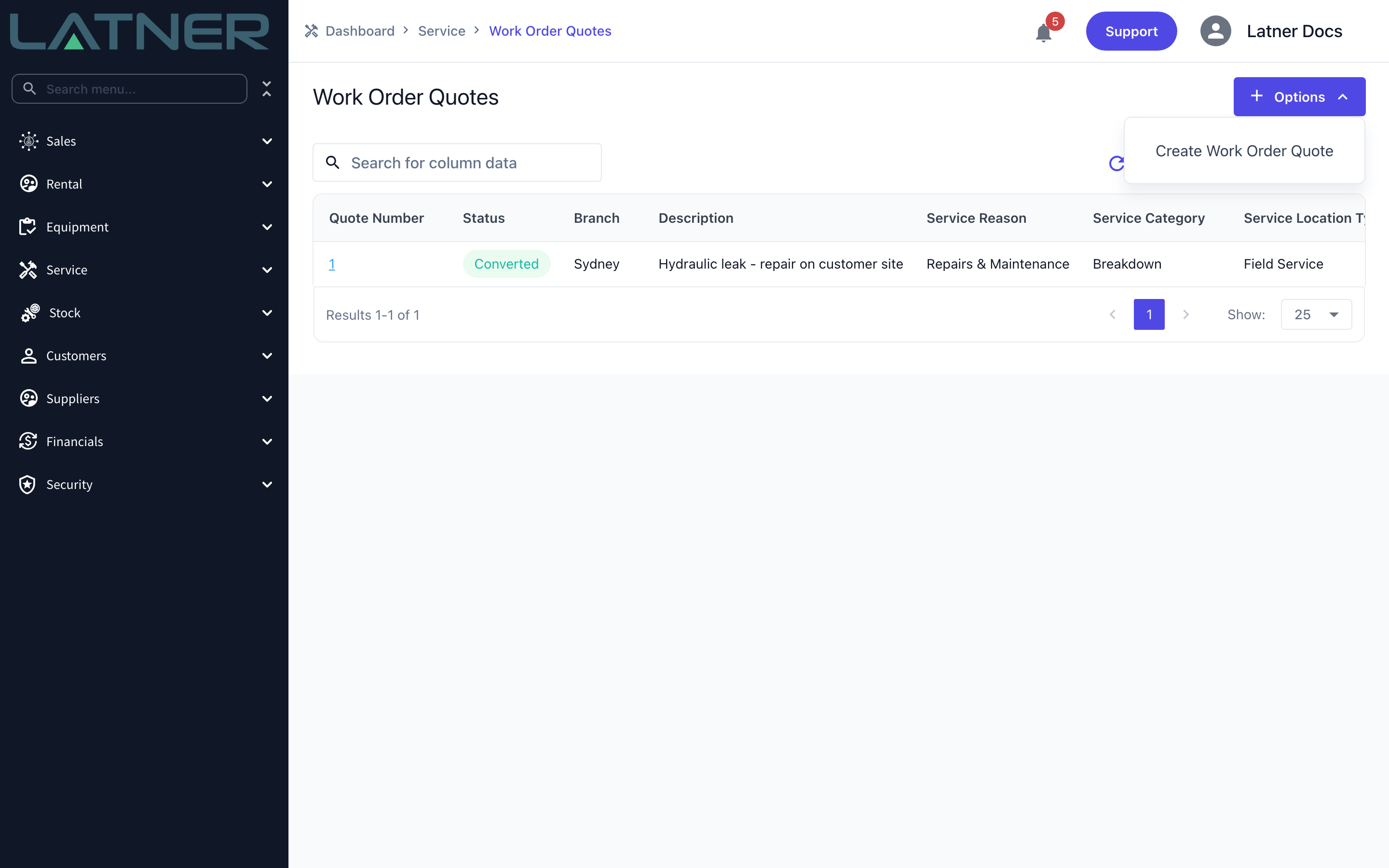
Go to Service › Work Orders Quotes. The list shows every quote for the branches you have access to, with its status, description, job reason and category, and the equipment and customer it relates to.
Step 2 - Start a new quote
Select Options › Create Work Order Quote.
Step 3 - Fill in the job details
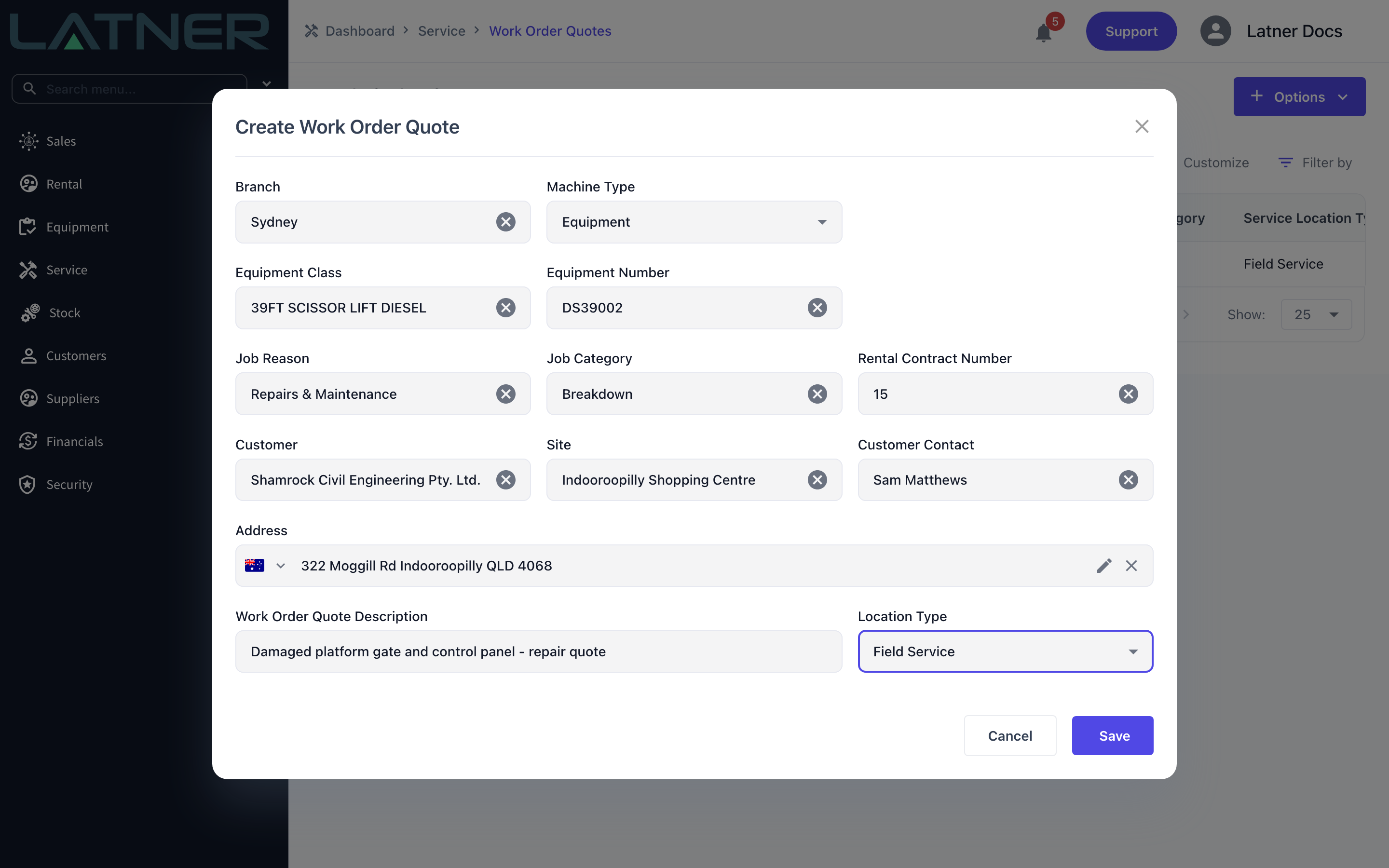
Complete the form. Everything below is required unless it says otherwise.
-
Branch - the branch that will carry the job. It fills itself in from the equipment's current branch once you pick a machine.
-
Machine Type - only appears when Allow Work Orders that are not linked to a piece of machinery is enabled. Leave it on Equipment for a normal quote.
-
Equipment Class and Equipment Number - required whenever Machine Type is Equipment. Only serialized equipment appears, and machines in a non-serviceable rental status are filtered out.
-
Job Reason and Job Category - the reason drives which categories you can pick, and choosing a category fills the reason back in for you.
-
Rental Contract Number - optional. If the machine is out on hire, Latner fills this in automatically from the equipment's current contract.
-
Customer, Site and Customer Contact - these fill themselves in from the rental contract, or from the owner when the machine is customer owned. Change any one of them and the others follow.
-
Address - optional. Defaults to the site's address.
-
Work Order Quote Description - a short summary of the job. This is what shows on the list and carries across to the work order.
-
Location Type - Workshop by default; switch it to Field Service if a mechanic is going to the machine.
Two confirmations can appear when you save. Quoting a machine with no equipment attached asks you to confirm Create Work Order Quote without Equipment?, and quoting a machine still under warranty warns you before the quote is raised - useful, because the manufacturer may be the one paying.
Step 4 - Save
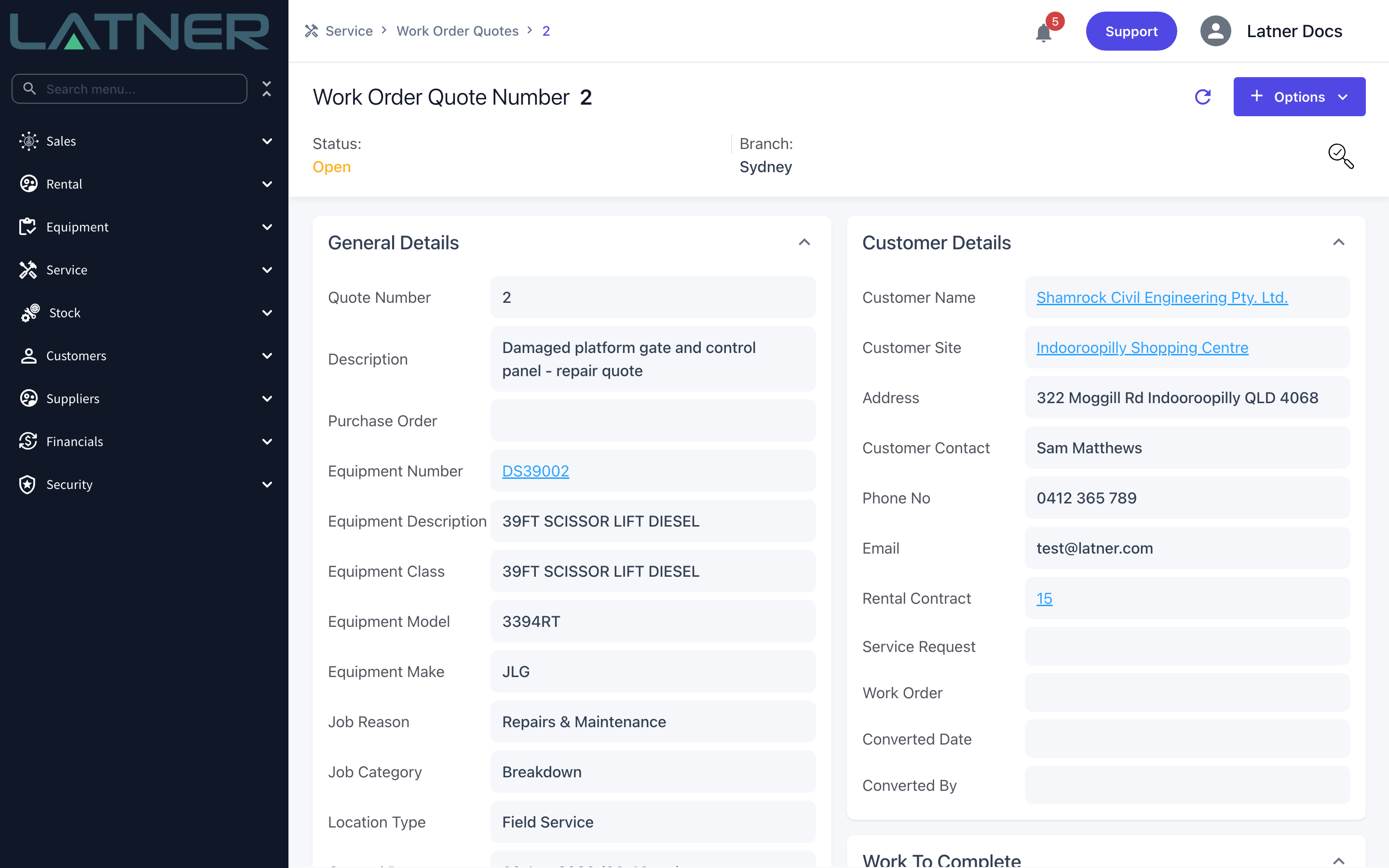
Select Save. Latner allocates the next quote number, sets the status to Open and takes you straight to the new quote.
Step 5 - Add the estimate lines
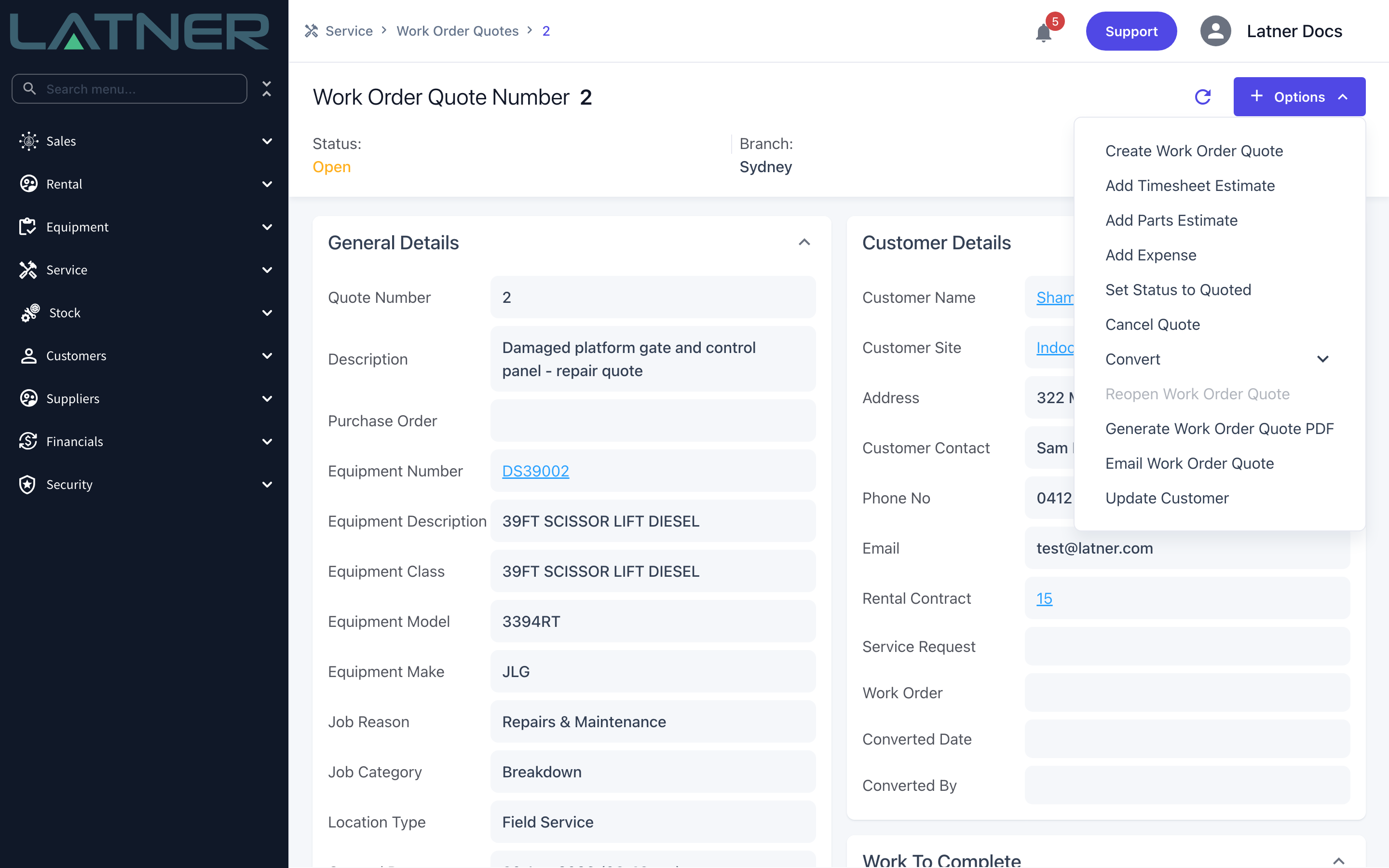
An empty quote is worth nothing, so build up what you expect the job to cost. The Options menu on the quote offers three kinds of line, and you can add as many of each as you need.
-
Add Timesheet Estimate - labour. Pick the mechanic and a Rate Type (Normal Time, Call Out Rate or Overtime Rate) and the Retail Rate comes from that mechanic's rate book entry for the customer, branch and machine. Enter the Estimated Hours and the line prices itself.
-
Add Parts Estimate - stock. Choose the Warehouse and the part, and the cost, retail price and description come from the stock record. Enter the Quantity.
-
Add Expense - anything else you on-charge, priced on quantity the same way.
Enter every price excluding GST. The cost, retail price and Retail Rate on the Add Timesheet Estimate, Add Parts Estimate and Add Expense pop-ups are all GST exclusive. So are the prices they default from, such as the stock item's Retail Price and the mechanic's rate book. Don't add GST to a price yourself, or the customer pays it twice.
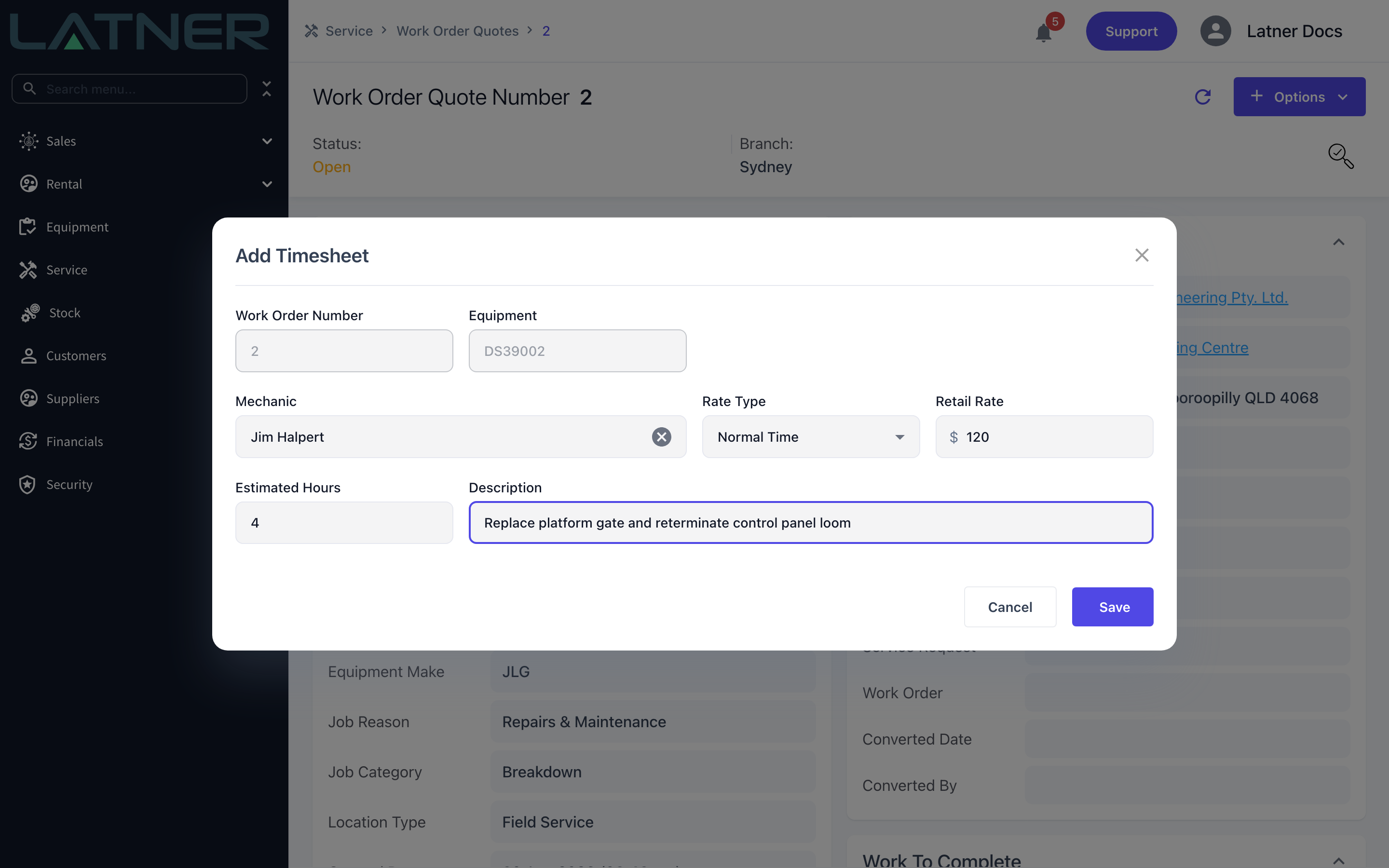
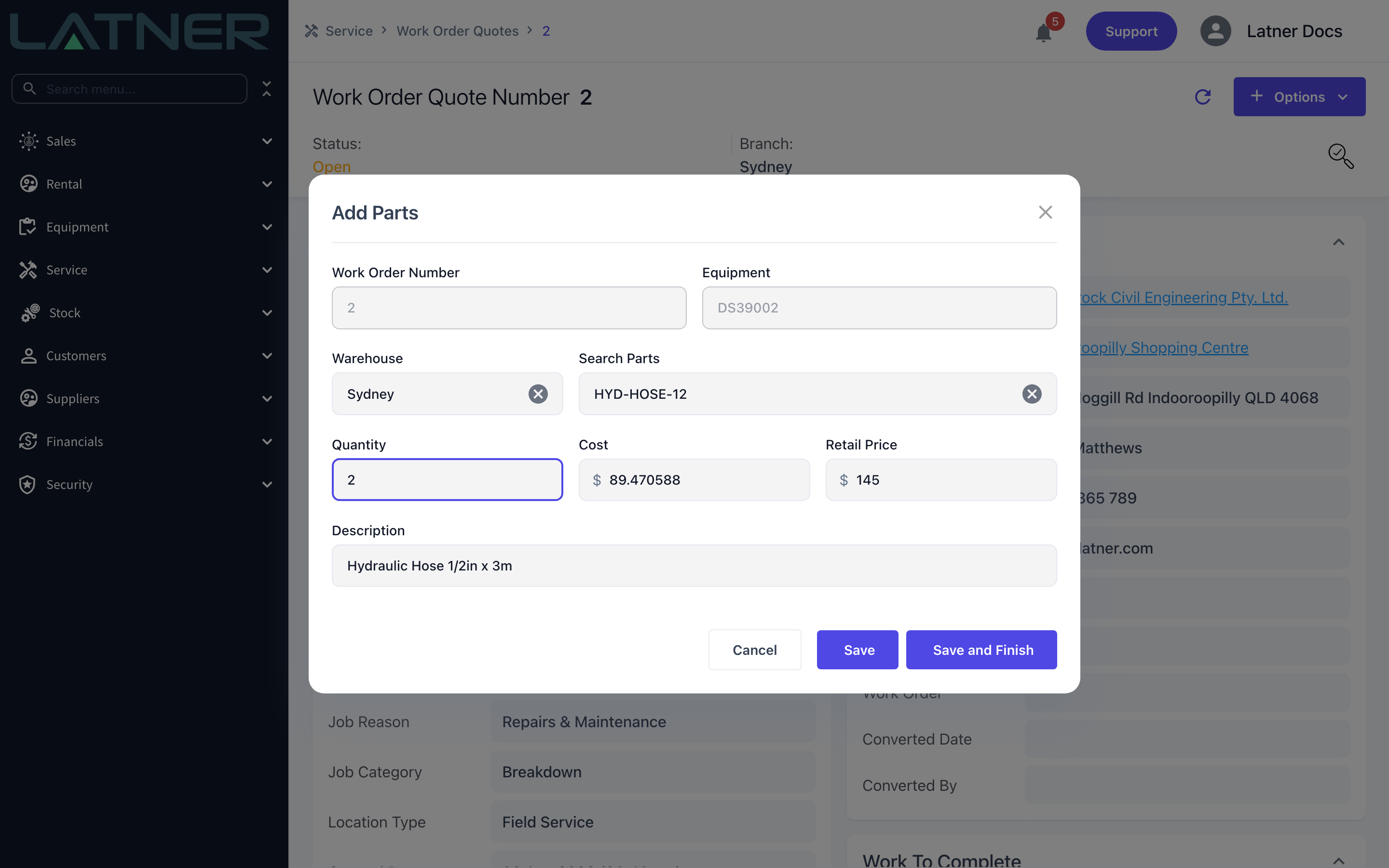
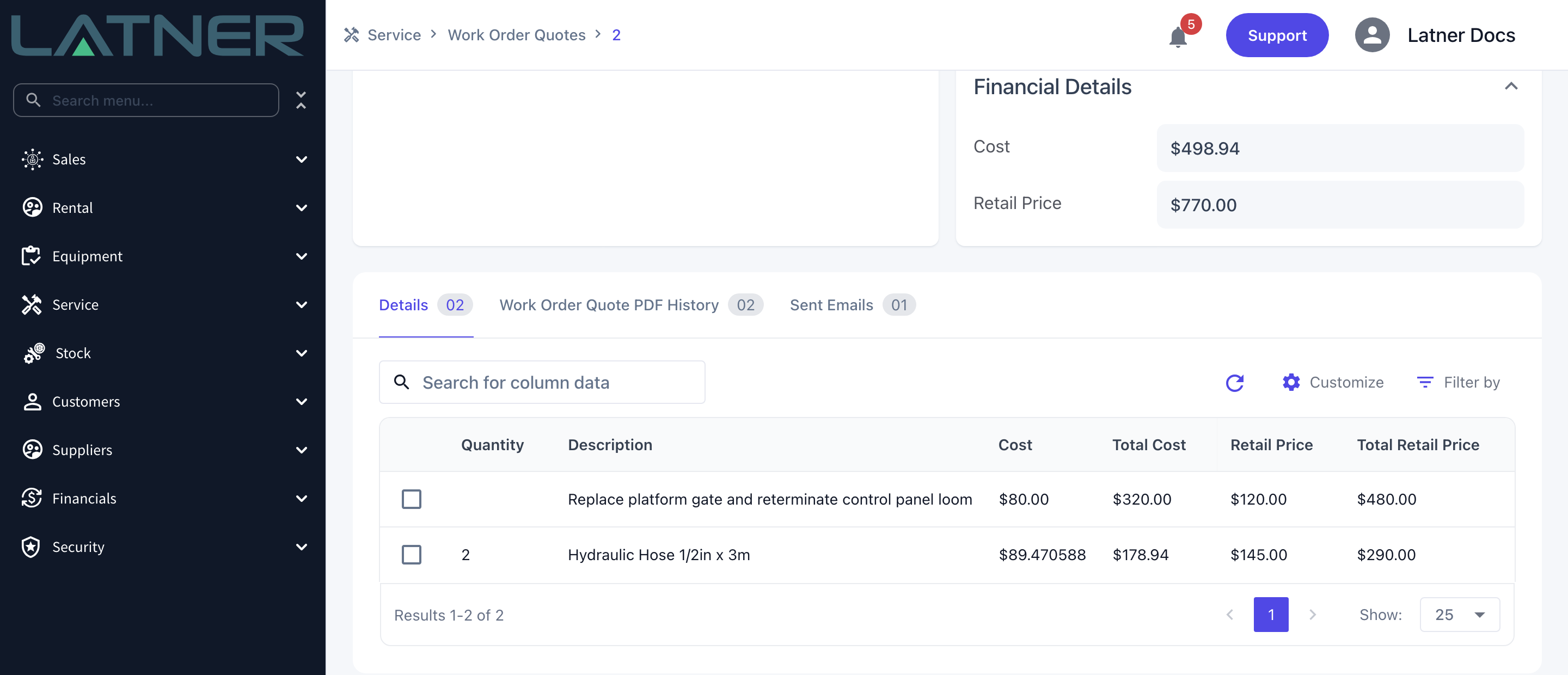
Each line shows its own cost and retail price alongside the line totals, and the Financial Details card adds them all up. All of these figures are GST exclusive: Total Cost and Total Retail Price on each line, and Cost and Retail Price in the Financial Details card. The quote screen doesn't show GST at all.
GST is calculated from the customer's Sales Tax rate, which is set on the customer record. Latner applies it in two places. When the quote PDF is generated, it works out a subtotal, GST and total for your Work Order Quote PDF template. When you invoice the work order, it adds GST to each line. How GST appears on the PDF depends on your template, so check a generated PDF before sending your first quote. The standard layout shows line prices with a Total Ex GST. If you want the GST amount and the GST-inclusive total printed as well, ask Latner Support about adding them to your template.
Step 6 - Describe the work to be done
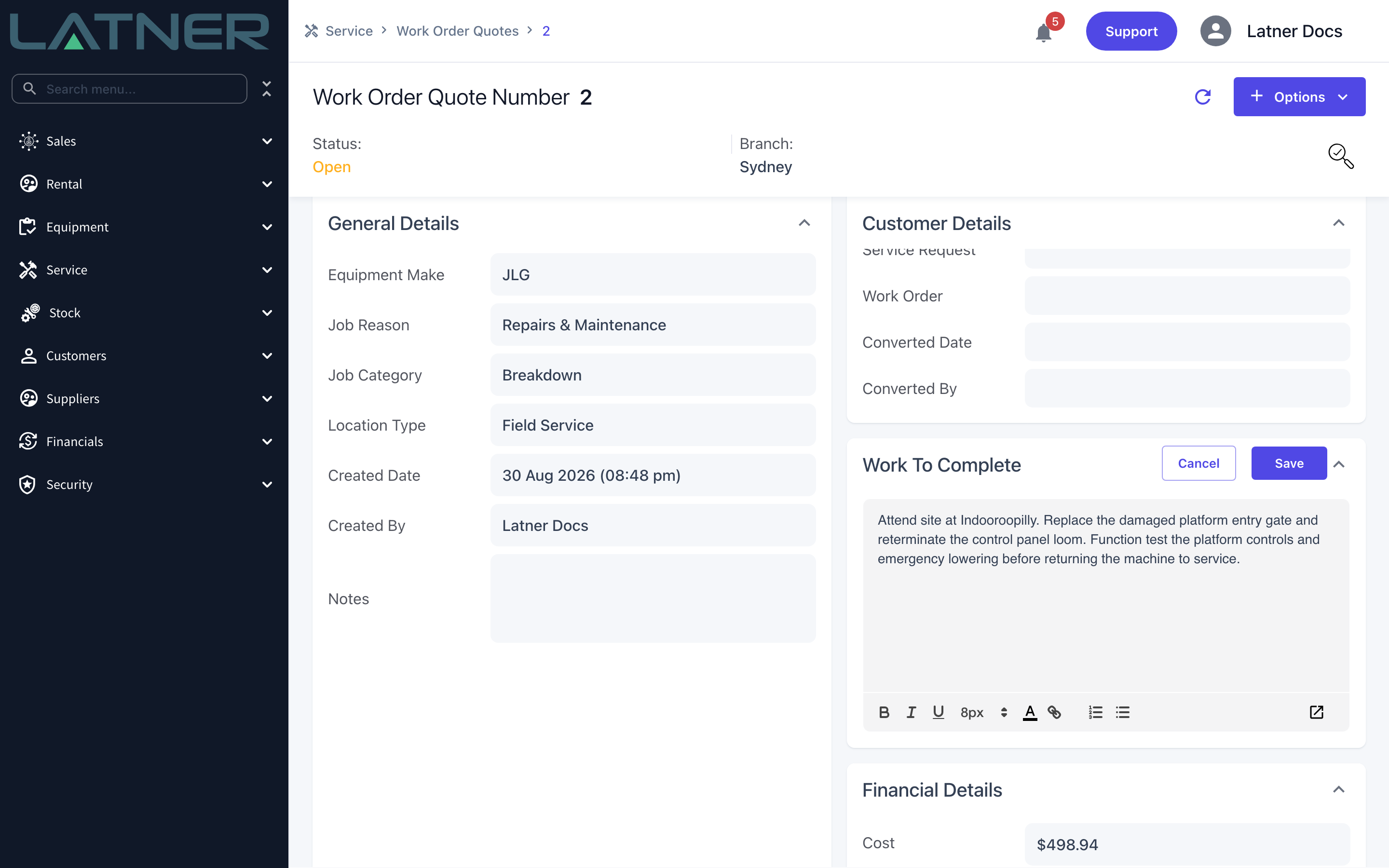
Select into the Work To Complete card and write up what the customer is actually buying, then select Save. This text prints on the quote PDF, so it is worth more than a one-line description.
Step 7 - Send the quote to the customer
Select Options › Generate Work Order Quote PDF if you want to read the quote before it goes out - it appears on the Work Order Quote PDF History tab. Then select Options › Email Work Order Quote.
The dialog pre-fills the customer contact's address, the subject and the message body from your email settings. Leave Work Order Quote PDF blank and Latner generates a fresh PDF and attaches it for you. Sent emails are listed on the Sent Emails tab with their delivery status.
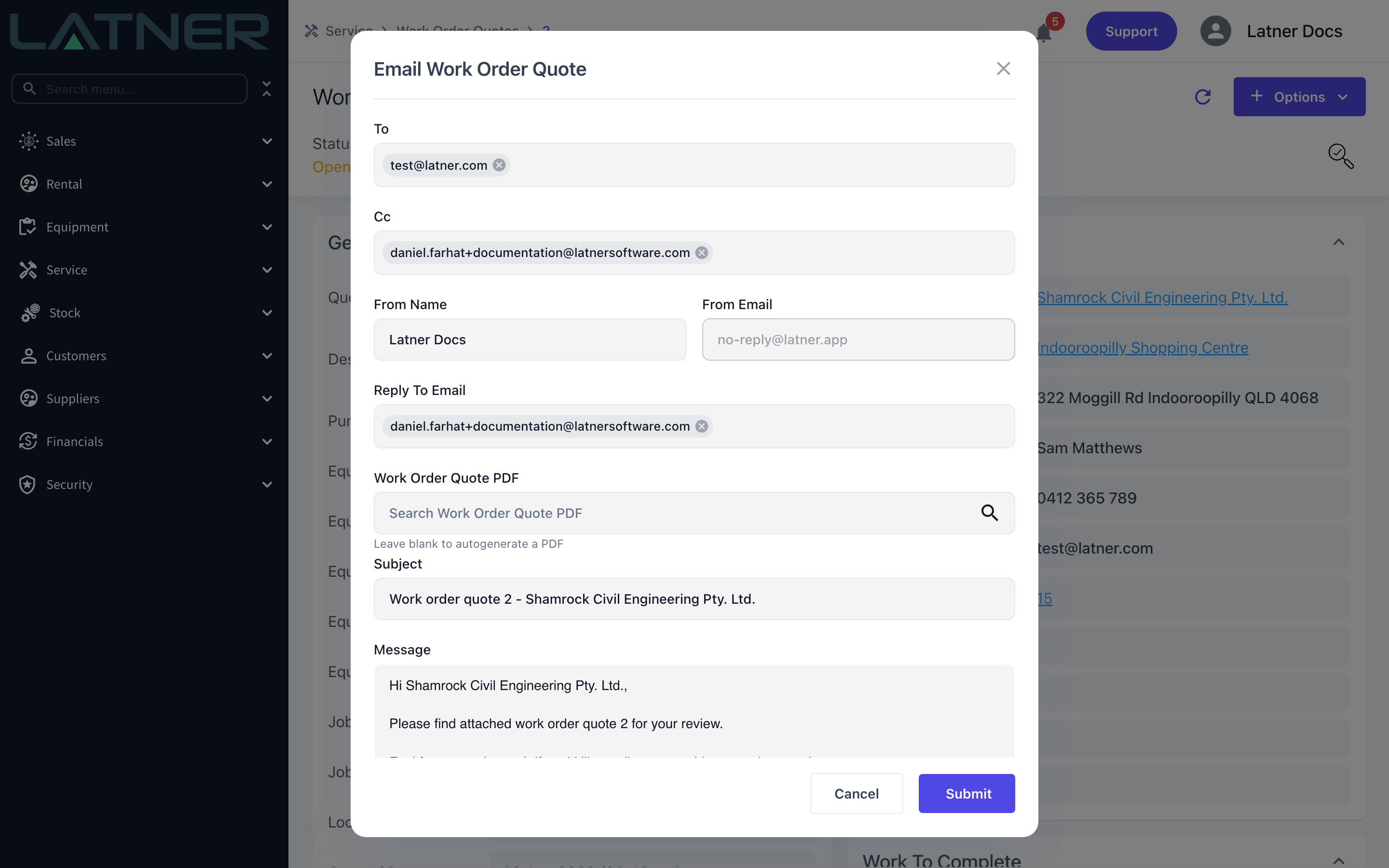
Emailing a quote that is still Open moves it to Quoted by itself once the email sends successfully. If you would rather mark it up front, or you are sending the quote some other way, use Options › Set Status to Quoted instead.
Step 8 - Convert the accepted quote to a work order
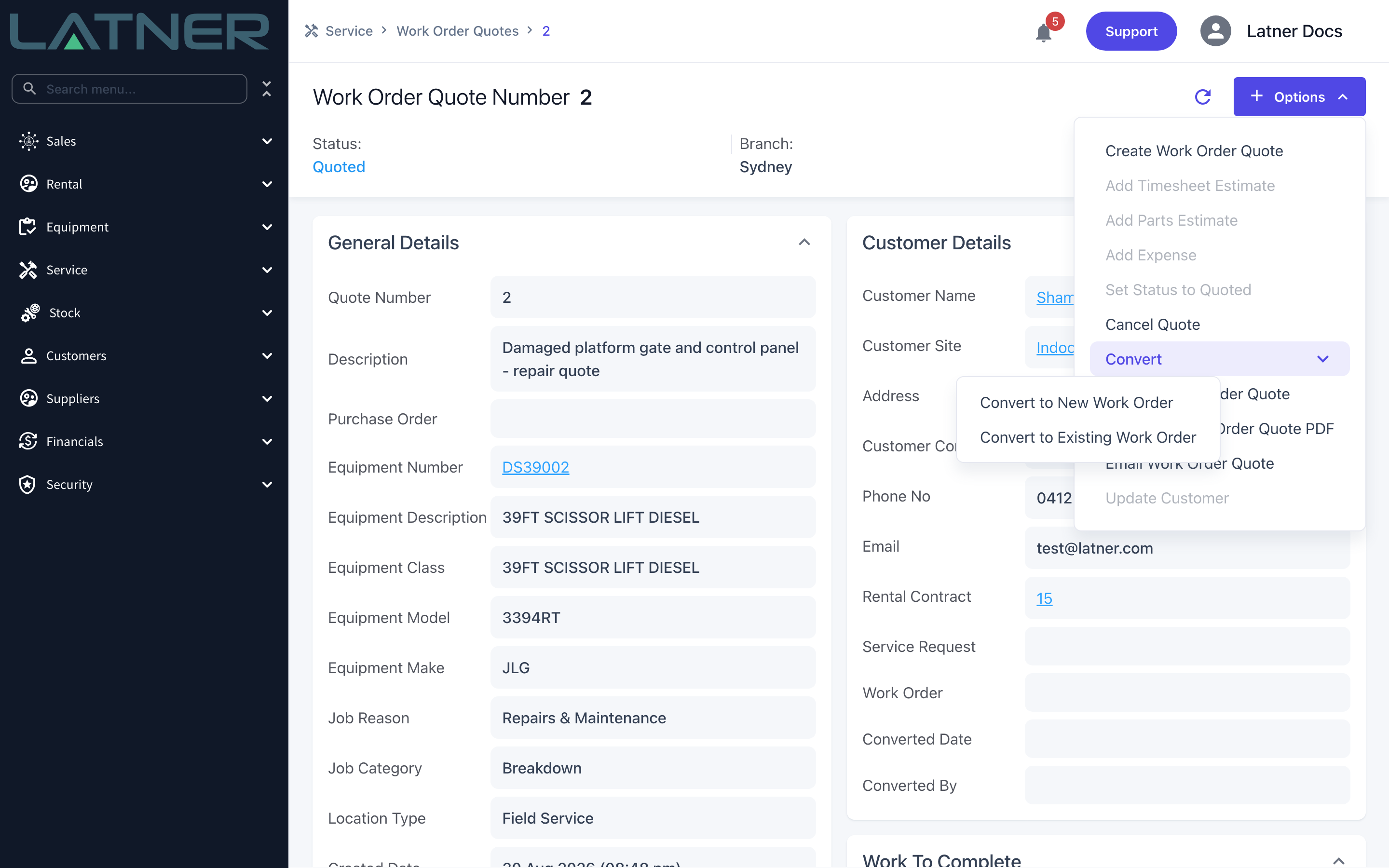
When the customer approves, select Options › Convert and choose one of:
-
Convert to New Work Order - creates a brand new chargeable work order in Open status and Unallocated tech status, carrying the quote's branch, description, equipment, customer, site, contact, purchase order, category, rental contract and notes.
-
Convert to Existing Work Order - attaches the quote to a work order you already have. The target must be in Open status, of type Chargeable, and for the same branch, equipment, customer and site.
Confirm the prompt and Latner opens the work order.
You don't have to wait for the job to finish to bill the price the customer approved. A converted work order can be invoiced from its Estimates while it is still Open, so you can bill the work before it is done. On the work order, select Options › Invoice Work Order and choose Estimates under Charge Using. The invoice adds GST to each line at the customer's Sales Tax rate. Once a work order has been invoiced from Estimates, every later invoice on it must also use Estimates, and completing the work order later won't invoice those lines again. For the full quote-first flow, see Can I invoice the customer before the work is completed? in the FAQs of How to Invoice a Work Order.
After Creation
-
The quote appears on Service › Work Orders Quotes and can be found by quote number, equipment, customer or description.
-
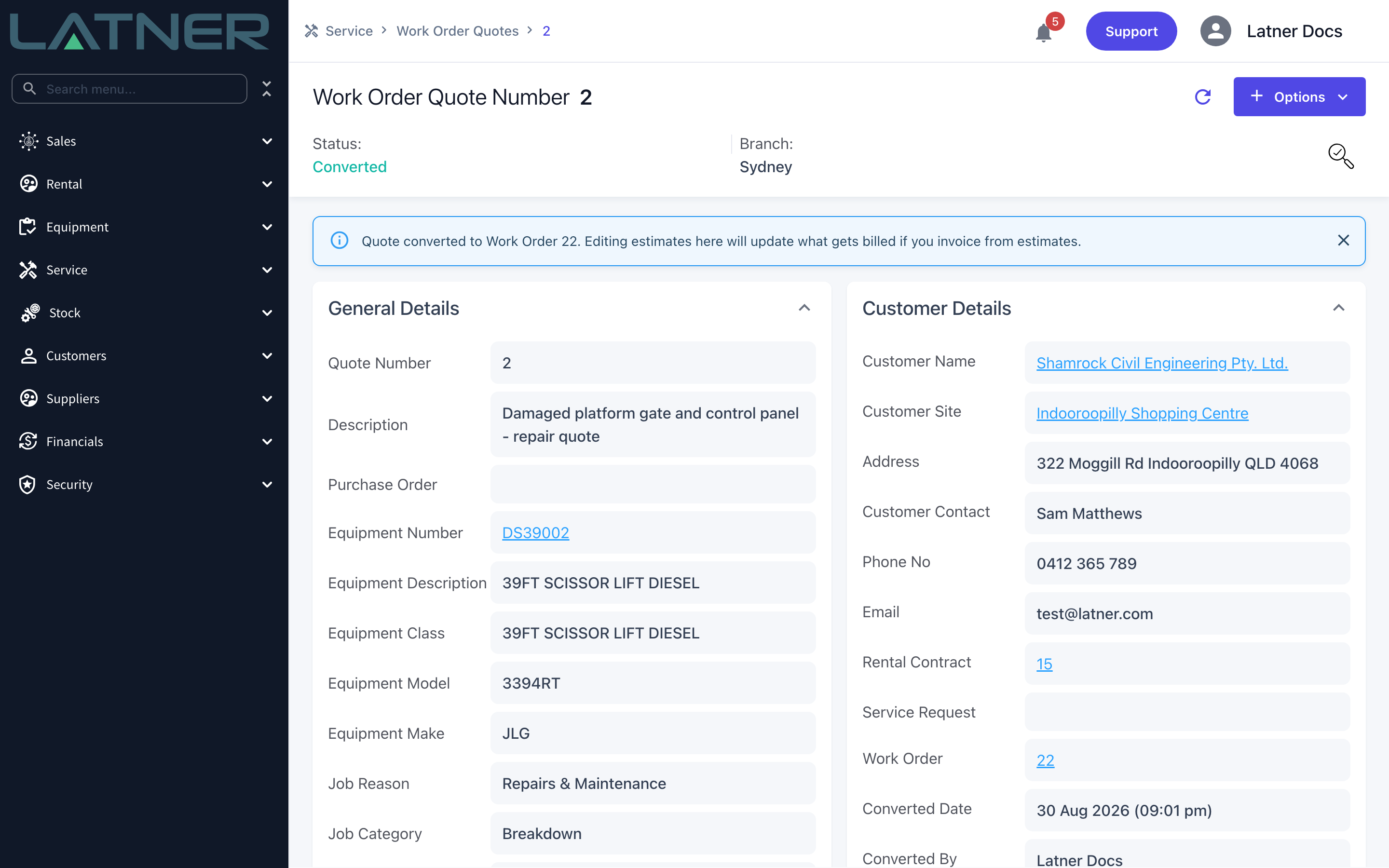
Converting sets the quote to Converted and stamps the Work Order, Converted Date and Converted By fields. A banner on the quote links to the work order.
-
The quote's lines are not copied - they become the work order's Estimates tab, and feed the work order's Estimated Cost and Estimated Retail. Each estimate row still links back to the quote it came from.
-
When you invoice the work order you can charge from Estimates instead of Actuals, which bills exactly what the customer approved. You can do this as soon as the quote is converted, while the work order is still Open.
-
Editing an estimate line on a converted quote changes what gets billed if you invoice from estimates, so the quote stays live rather than becoming a frozen record.
-
Reopen Work Order Quote takes a Quoted quote back to Open so you can re-price it. Cancel Quote is available from both Open and Quoted.
Converting is one-way - there is no "unconvert" on a work order quote, and once it is Converted the quote can no longer be reopened or cancelled. If the job changes shape after conversion, cancel the work order or raise a fresh quote rather than trying to reverse the conversion.