
The Service History report gives you a single PDF of everything the workshop has done to a machine, so you can hand a service record to a customer, a buyer or an auditor without digging through work orders one at a time.
Overview
Every completed work order leaves a trace on the equipment record, but nobody wants to read a machine's life story one screen at a time. The Service History report pulls that trace together into a dated, printable summary you can generate on demand.
-
It is generated from the equipment record itself, through Options › Generate Service History.
-
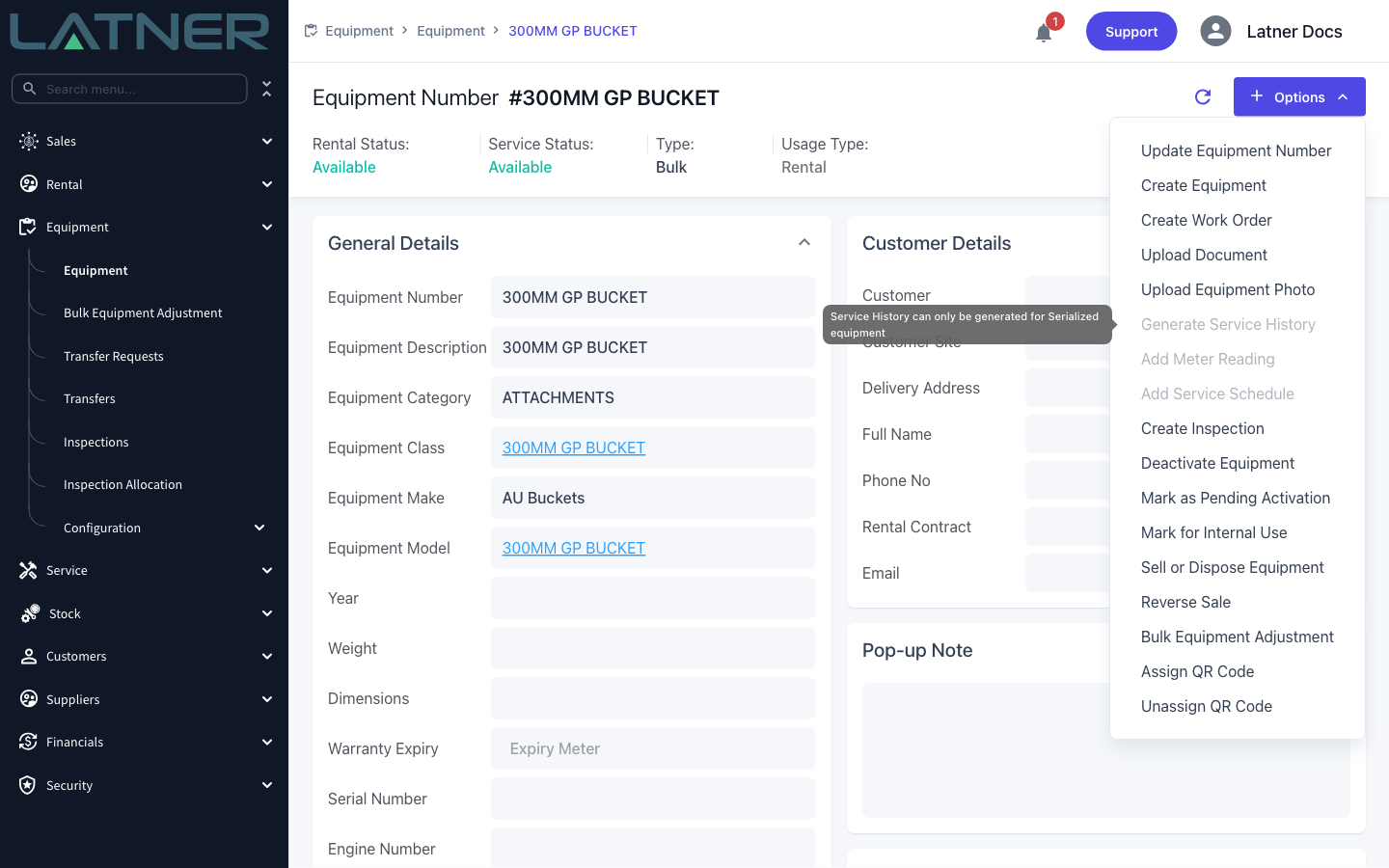
It is available for Serialized equipment only - bulk equipment has no individual service life to report on.
-
The report covers the whole equipment number, not just one branch's copy of it, so transfers between branches don't split the history.
-
Only Completed work orders are listed. Open, in progress and cancelled work stays off the report.
-
Latner builds the PDF in the background and opens it as soon as it's ready, so you can keep working while it runs.
-
The report is built fresh every time, so it always reflects the current state of the equipment.
Before You Begin
There is very little to set up - the report works out of the box - but it's worth knowing what controls it.
|
Requirement |
Where to Find It |
|---|---|
|
Access to the Equipment screen |
Security › Configuration › Permission Groups, then Equipment › Screens › Equipment |
|
The equipment must be Serialized |
The Type field in the header of the equipment record |
|
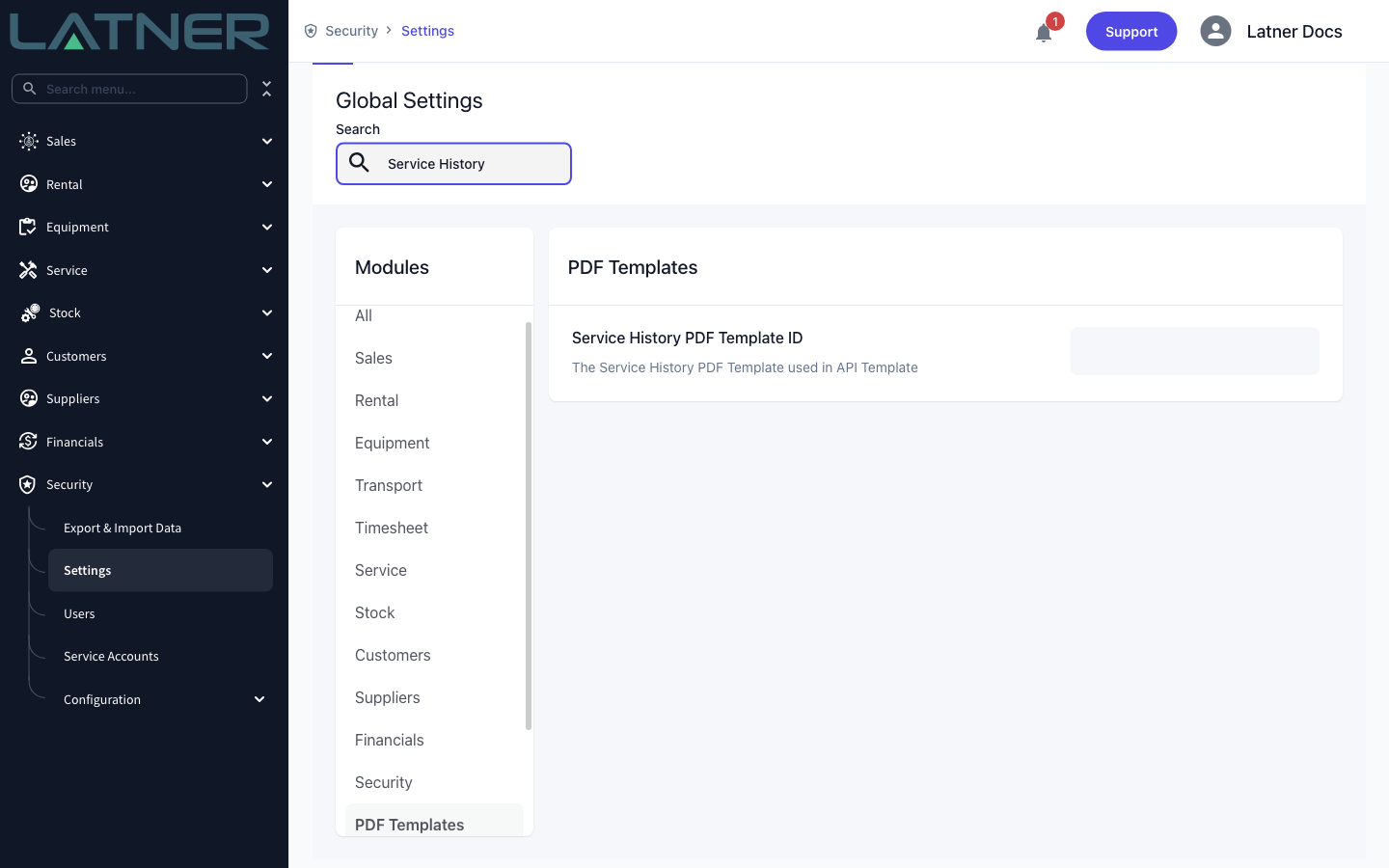
Service History PDF Template ID (optional) |
Security › Settings › PDF Templates |
Leave Service History PDF Template ID blank and Latner uses its standard Service History template. Fill it in only if your business has had a custom template built.
On a bulk equipment record, Generate Service History is greyed out and the tooltip reads "Service History can only be generated for Serialized equipment". That is expected - bulk equipment is tracked as a quantity, so there is no individual machine to report on.
Generating the Report
Step 1 - Open the Equipment screen
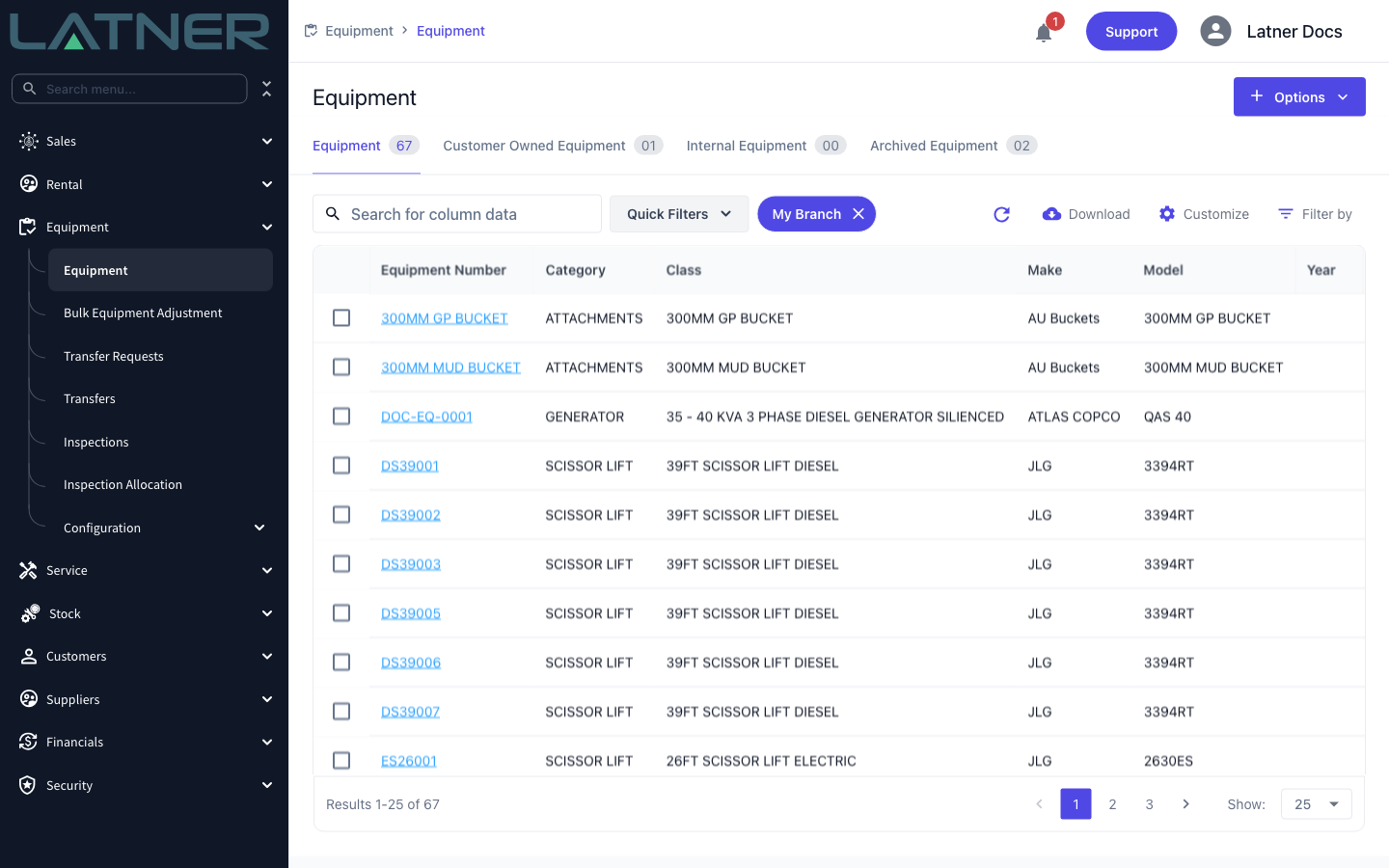
Go to Equipment › Equipment. Use the search box or the column filters to find the machine you want a history for, then click its Equipment Number to open the record.
Step 2 - Check the equipment is Serialized
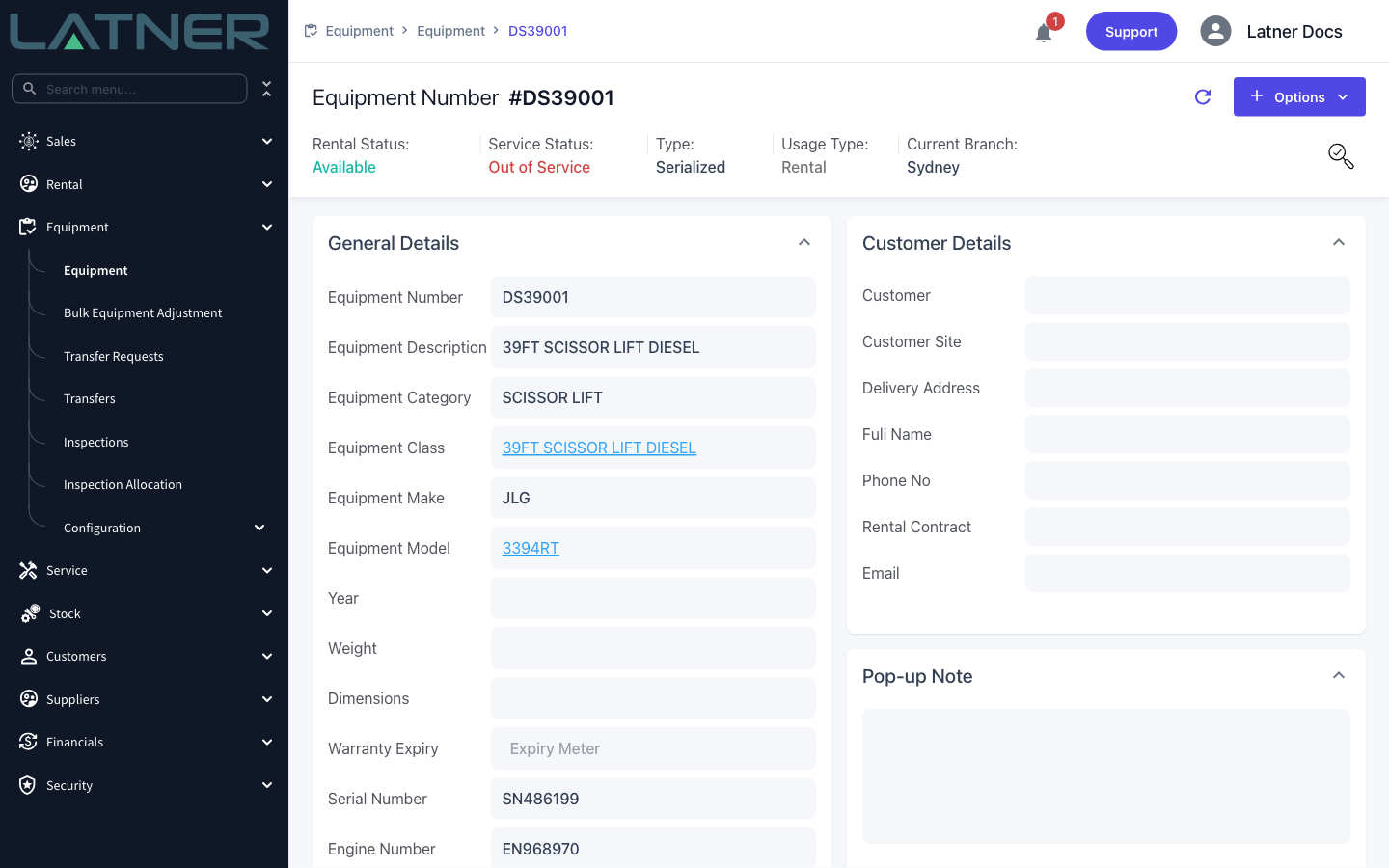
The header strip across the top of the equipment record shows Type. If it reads Serialized you can generate a report; if it reads Bulk, the option will be greyed out.
Step 3 - Choose Generate Service History
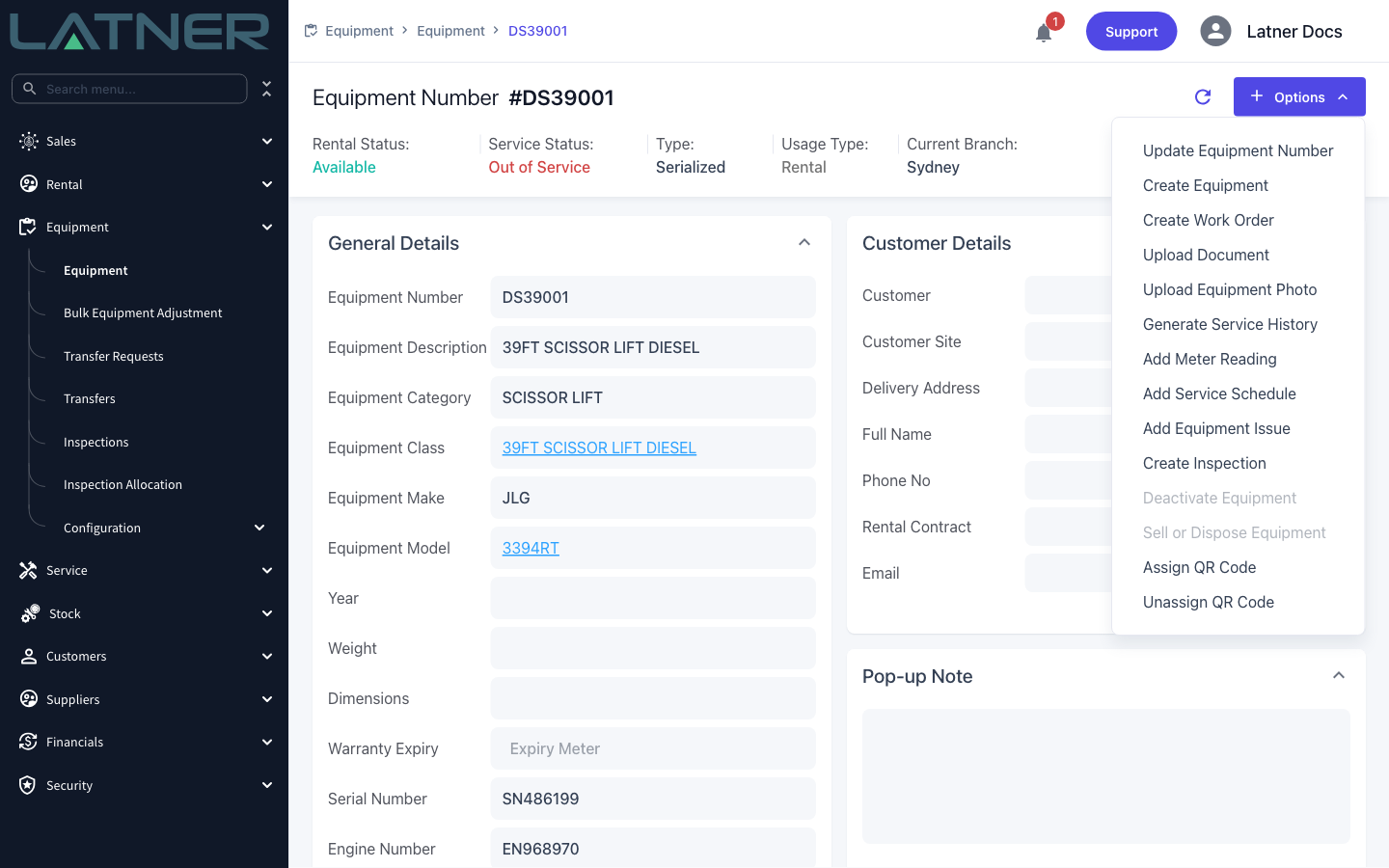
Click Options in the top right of the record and choose Generate Service History. There is no form to fill in - the report always covers the machine's full history, so there are no dates or filters to set.
Step 4 - Wait for the report to build
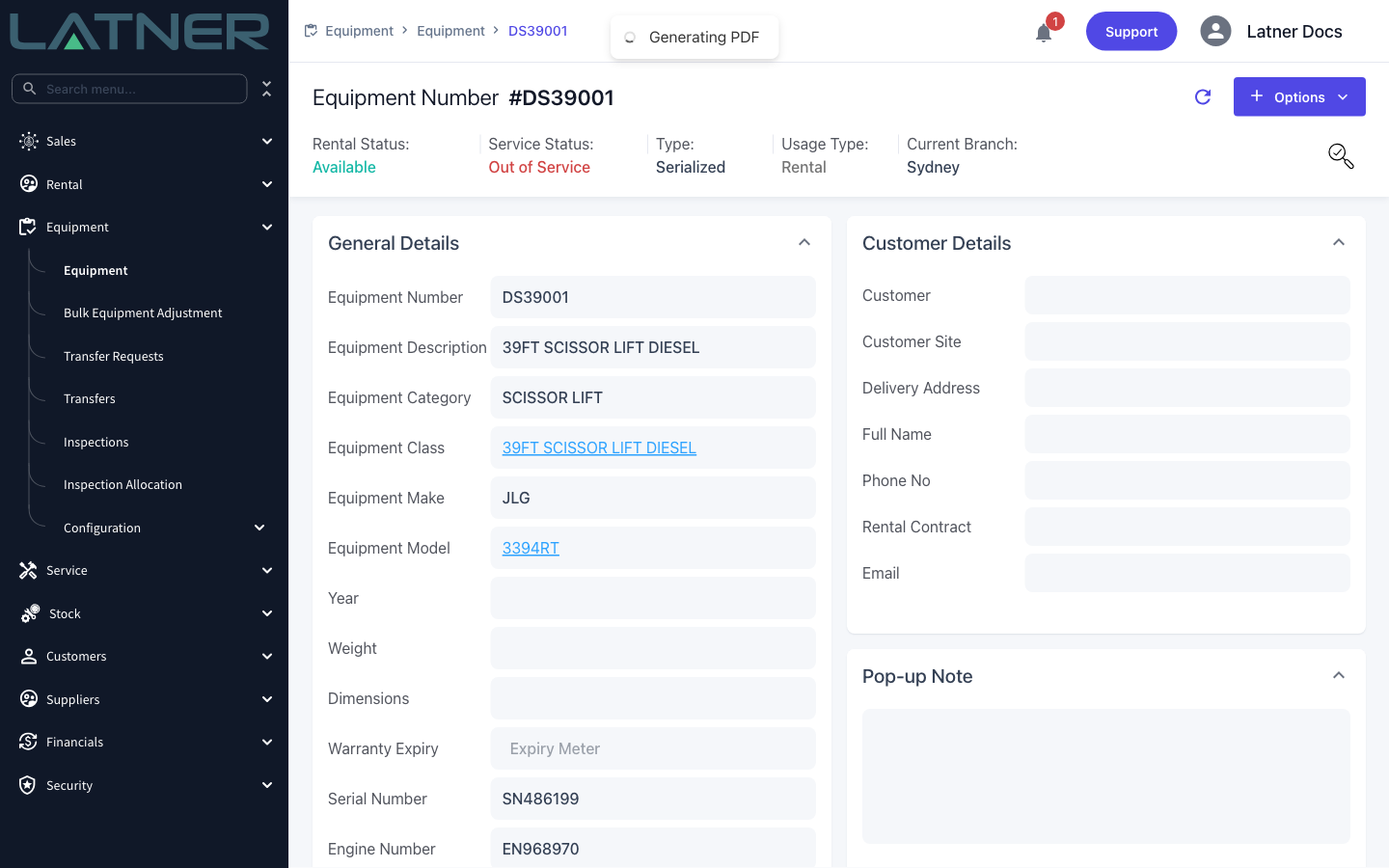
A Generating PDF message appears while Latner assembles the report. This runs in the background, so you can keep scrolling the record while it works. Larger service histories take a few seconds longer.
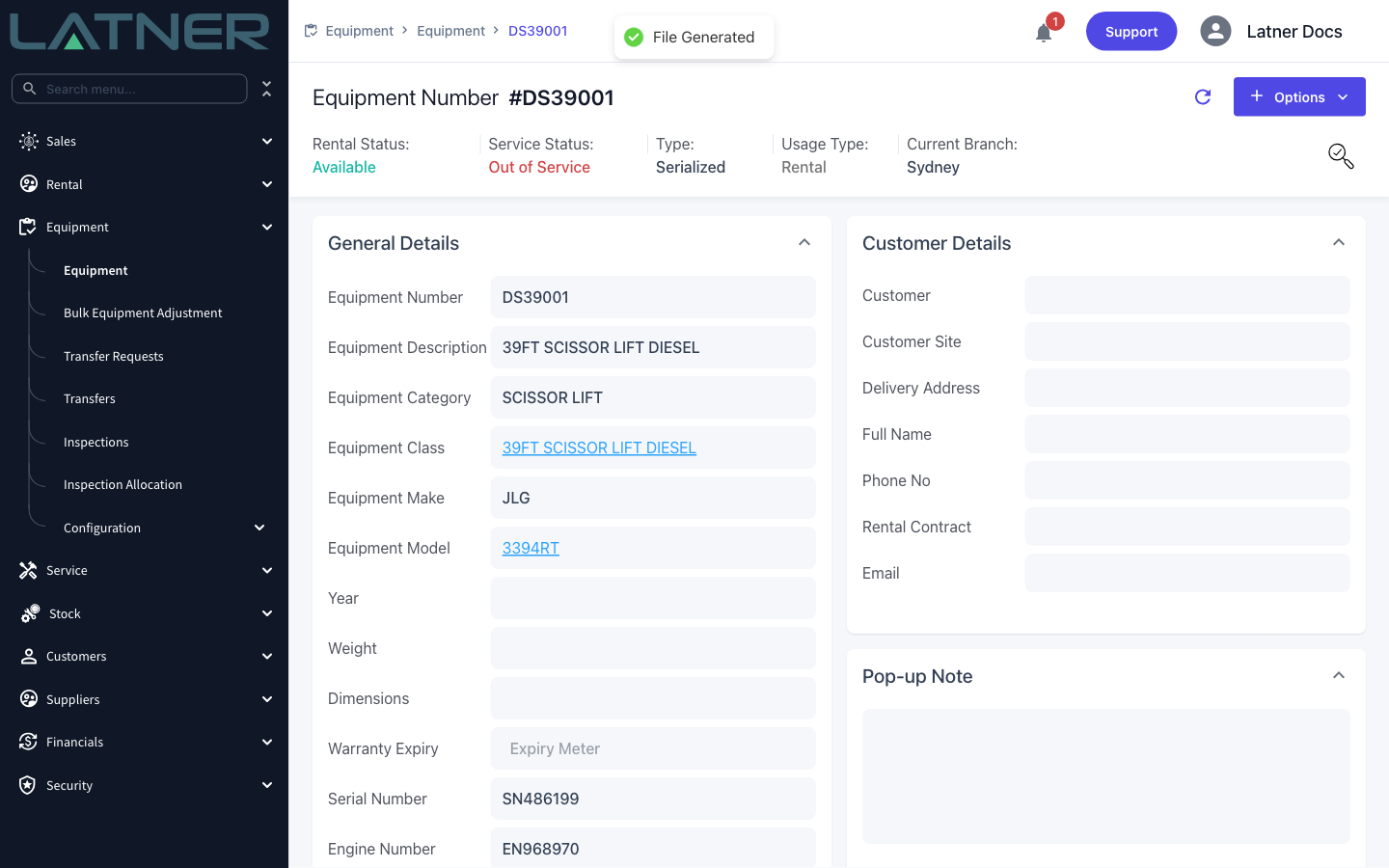
When the message changes to File Generated, the report is ready and Latner has already opened it for you.
Step 5 - Read the report
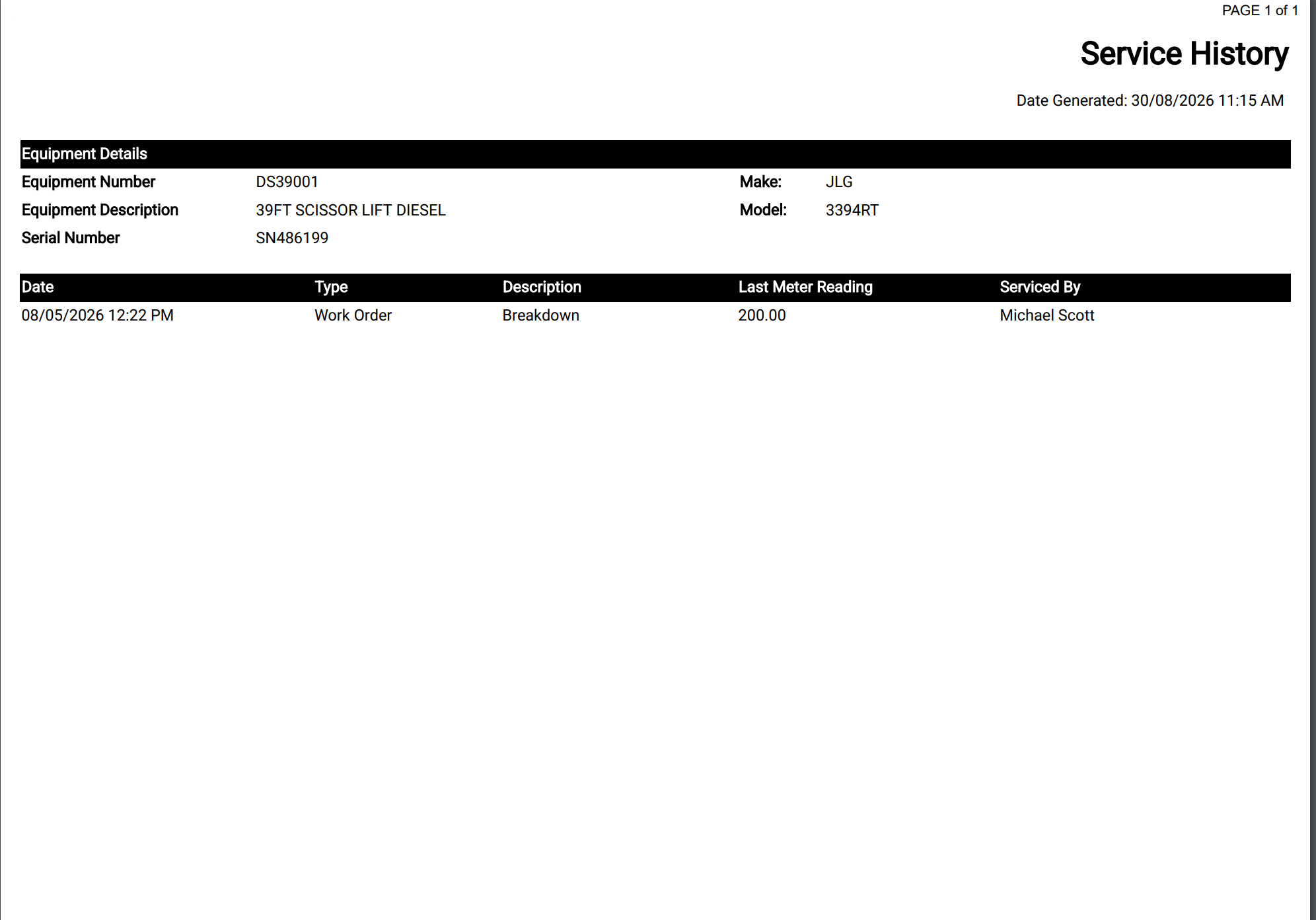
The report opens in a new browser tab. It is laid out in two parts:
-
Equipment Details - Equipment Number, Equipment Description, Serial Number, Make and Model, plus the date and time the report was generated.
-
The service table - one row per completed work order, newest first, showing Date, Type, Description, Last Meter Reading and Serviced By.
Dates and times are shown in the time zone of the equipment's branch, and Serviced By is the mechanic the work order was allocated to.
After Generating
-
The report opens in a new browser tab, where you can print it or save it like any other PDF.
-
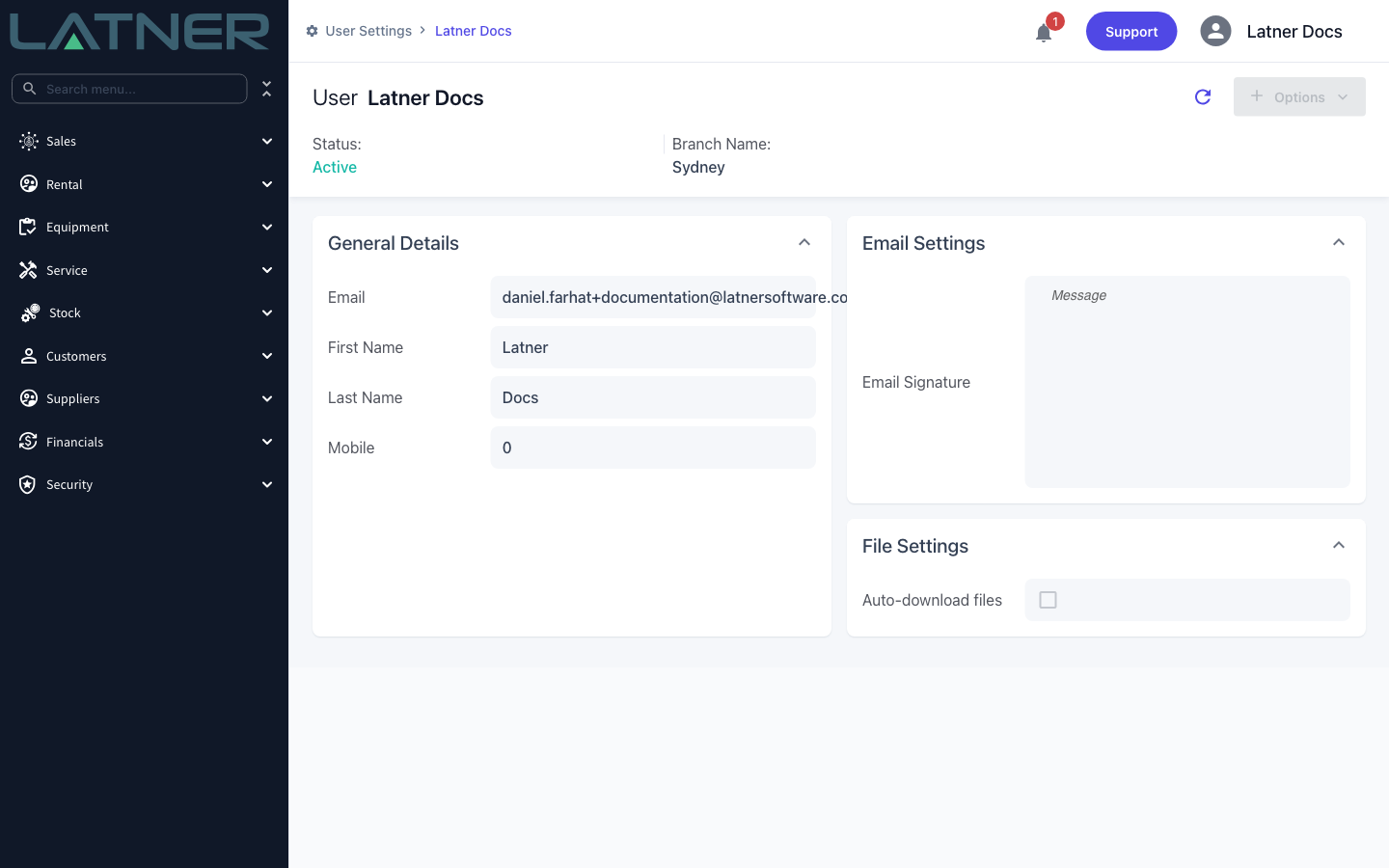
If Auto-download files is ticked on your user settings, the report goes straight to your downloads folder instead of opening in a tab. You'll find it under User Settings › File Settings, reached from your name in the top right corner.
-
Generating a report changes nothing on the equipment record - you can run it as often as you like.
-
Reports are not filed anywhere in Latner for you to open later. If you need the report again, generate a fresh one, which has the advantage of picking up any work completed in the meantime.
The report is a snapshot taken the moment you generate it, not a live document. If you send a copy to a customer and more work is completed afterwards, their copy will be out of date - generate a new one rather than assuming the old file has kept up.
FAQs
Watch the Demo
Prefer to watch it? Step through the same flow here.