
The details of a rental contract change constantly once the job starts, so Latner lets you edit both the contract as a whole and each individual line without cancelling and re-keying anything. To change the machine on a line that's still Reserved, Pre-Allocated, Pending Delivery or Pending Collection, you edit the line here; once a line has been on hire, use Change Equipment On Hire to correct a wrong equipment number, or Equipment Swap to replace the machine on site.
Overview
A rental contract rarely stays exactly as it was written. The customer extends the hire, the site contact changes, a purchase order finally arrives, or the wrong bucket got put on the line. There are two places to make those changes, and which one you use depends on whether the change belongs to the whole contract or to one line.
-
General Details on the rental contract screen holds the contract-wide fields - dates, charge days, delivery address, notes, purchase order, damage waiver and environmental levy. Click a field, change it, then Save.
-
The Details tab holds the lines. Select a line and open the Update Detail Lines dialog to change the equipment, quantity, dates, rates and notes for that line only.
-
Changing a date or the charge days on the contract asks whether you want the change to flow down to the lines as well, so you don't have to edit each one.
-
Customer and Branch can't be typed over. Each has its own function under Options because both have knock-on effects.
-
Fields lock progressively as a line moves forward. Once a line has been invoiced, its quantity, rates and start date are read-only in the dialog. The rate can still be changed from a chosen date with Rate Adjustment - see How to Make a Rental Rate Adjustment.
Before You Begin
You'll need the right permissions, and a contract that is still open.
|
Requirement |
Where to Find It |
|---|---|
|
Edit Rental Contract permission - to edit the General Details panel |
Security › Configuration › Permission Groups, Rental module, Options |
|
Edit Rental Contract Details permission - to edit lines on the Details tab |
Security › Configuration › Permission Groups, Rental module, Options |
|
Change Sales Rep permission - only needed to change the Sales Rep field |
Security › Configuration › Permission Groups, Customers module, Fields |
|
Allow Rates Below Floor Rate permission - only needed to price a line under its floor rate |
Security › Configuration › Permission Groups, Rental module, Fields |
|
Allow Equipment Rentals from Different Branches setting - adds a Branch field to the line |
Security › Settings › Rental |
|
A contract that is not Completed, Cancelled or Lost |
Contract Status on the rental contract screen |
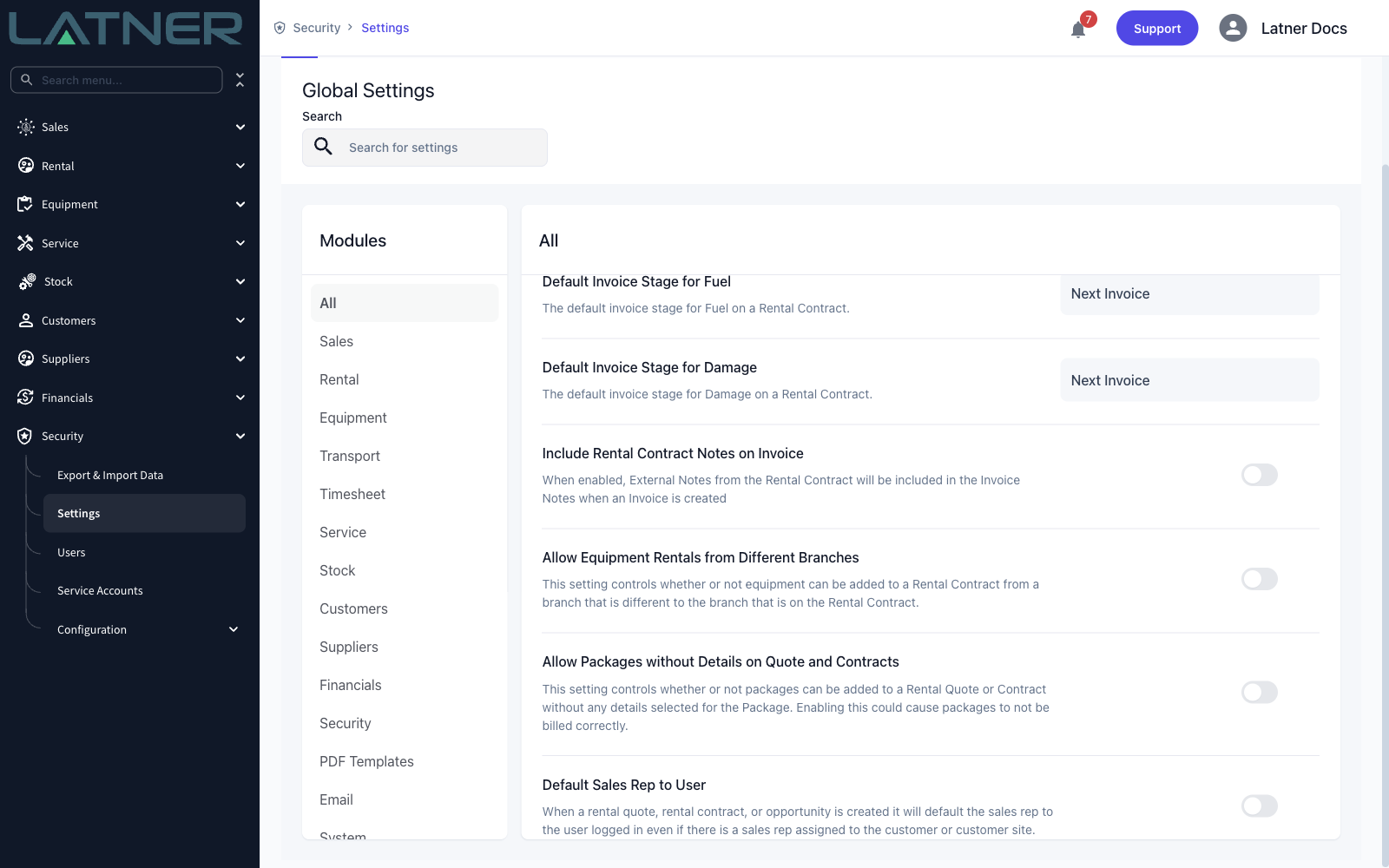
Leave Allow Equipment Rentals from Different Branches off and the Update Detail Lines dialog has no Branch field at all - every line stays on the contract's branch. Turn it on and you can move a line to another branch, but only while the line is still Pending, Reserved, Pending Delivery or Pending Collection and no equipment number has been picked yet. Moving a Pending Delivery line doesn't move the delivery docket it's on - the docket keeps its original branch.
Editing the Contract's General Details
Step 1 - Open the rental contract
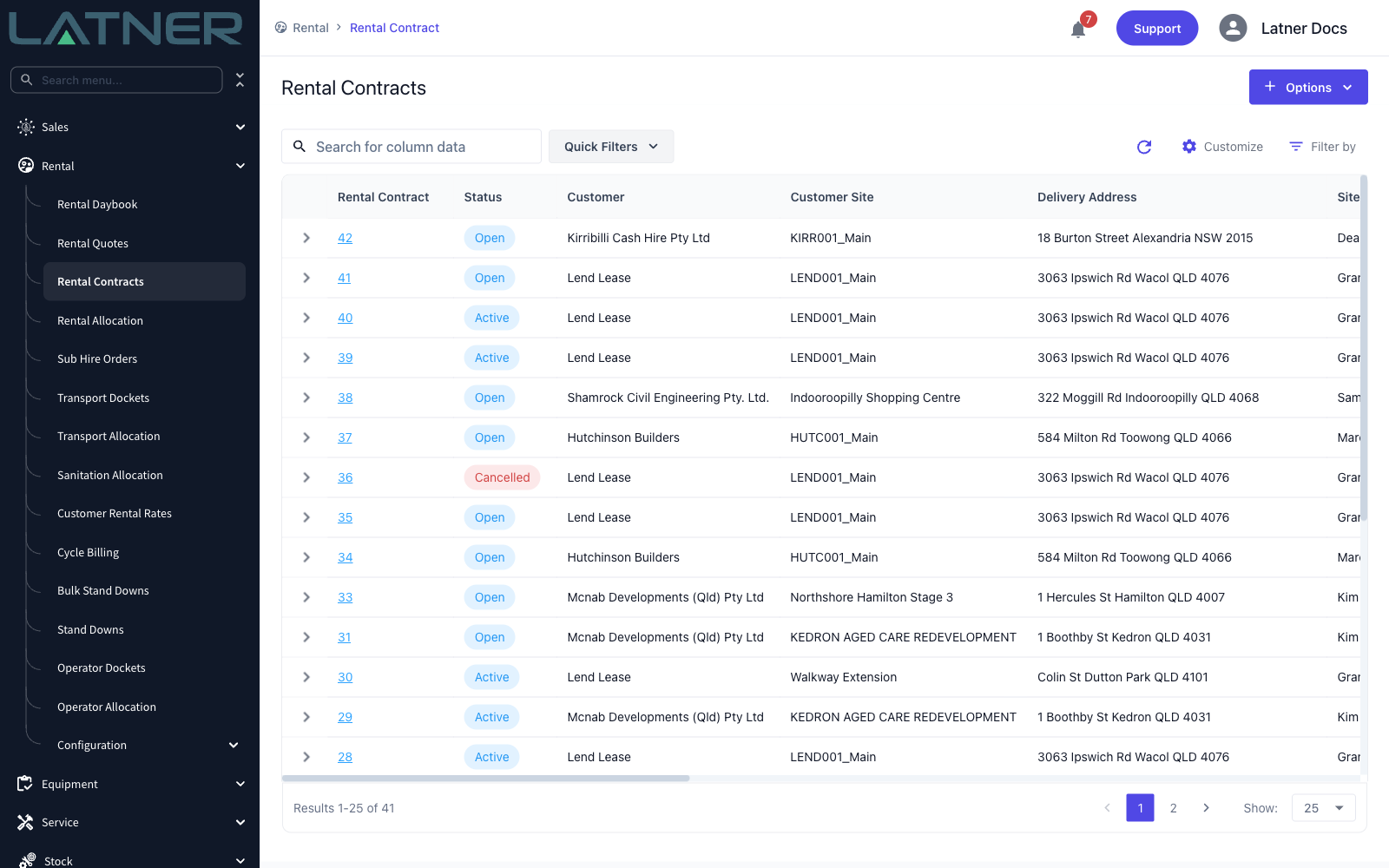
Go to Rental › Rental Contracts and click the contract number.
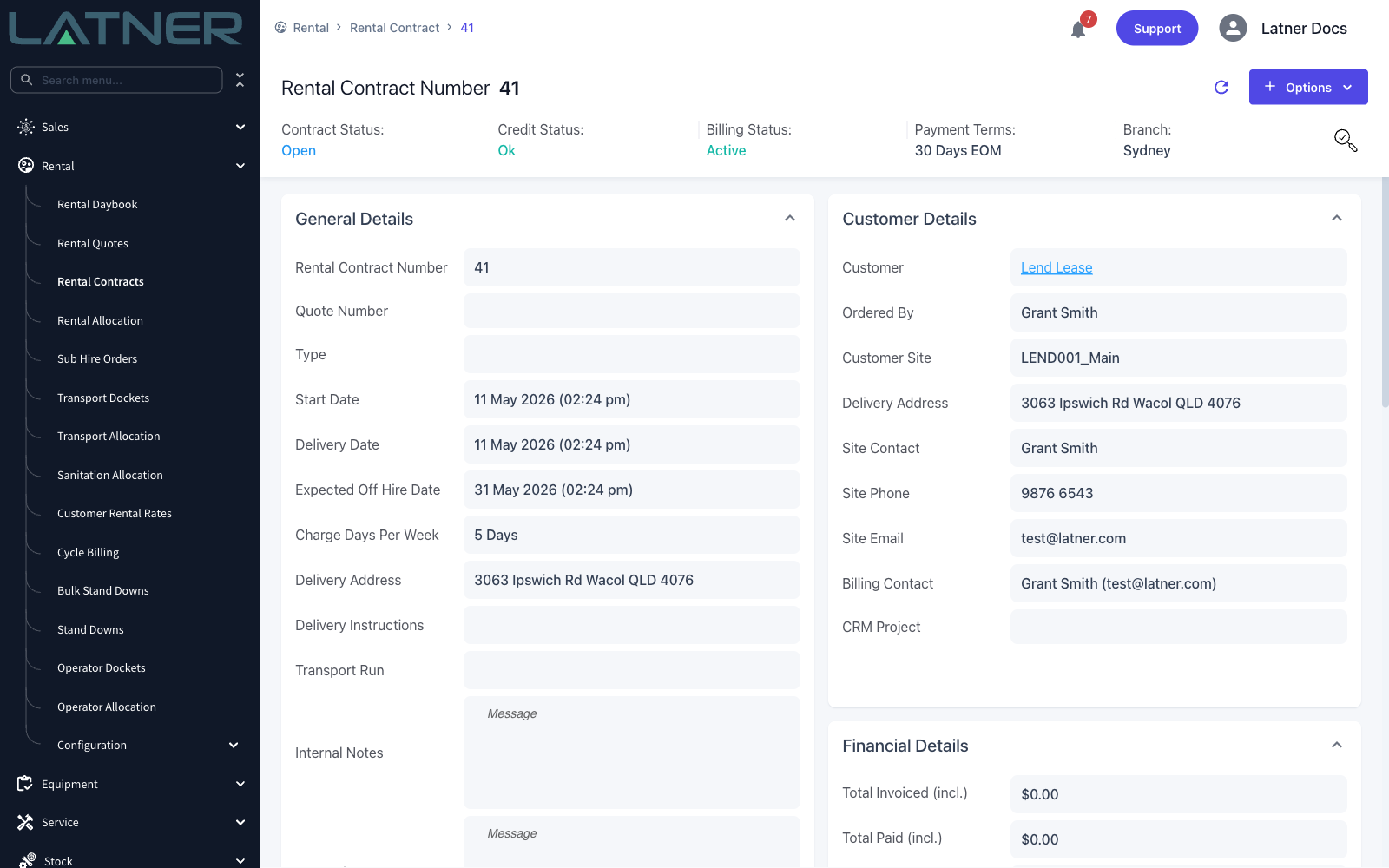
The General Details panel sits at the top left of the contract, with Customer Details and Financial Details beside it. Only the General Details panel is directly editable.
Step 2 - Click the field you want to change
Hover over a value and a pencil appears; click it and the field becomes an input. Save and Cancel buttons appear in the panel header and stay there while you scroll, so you can change several fields in one pass.
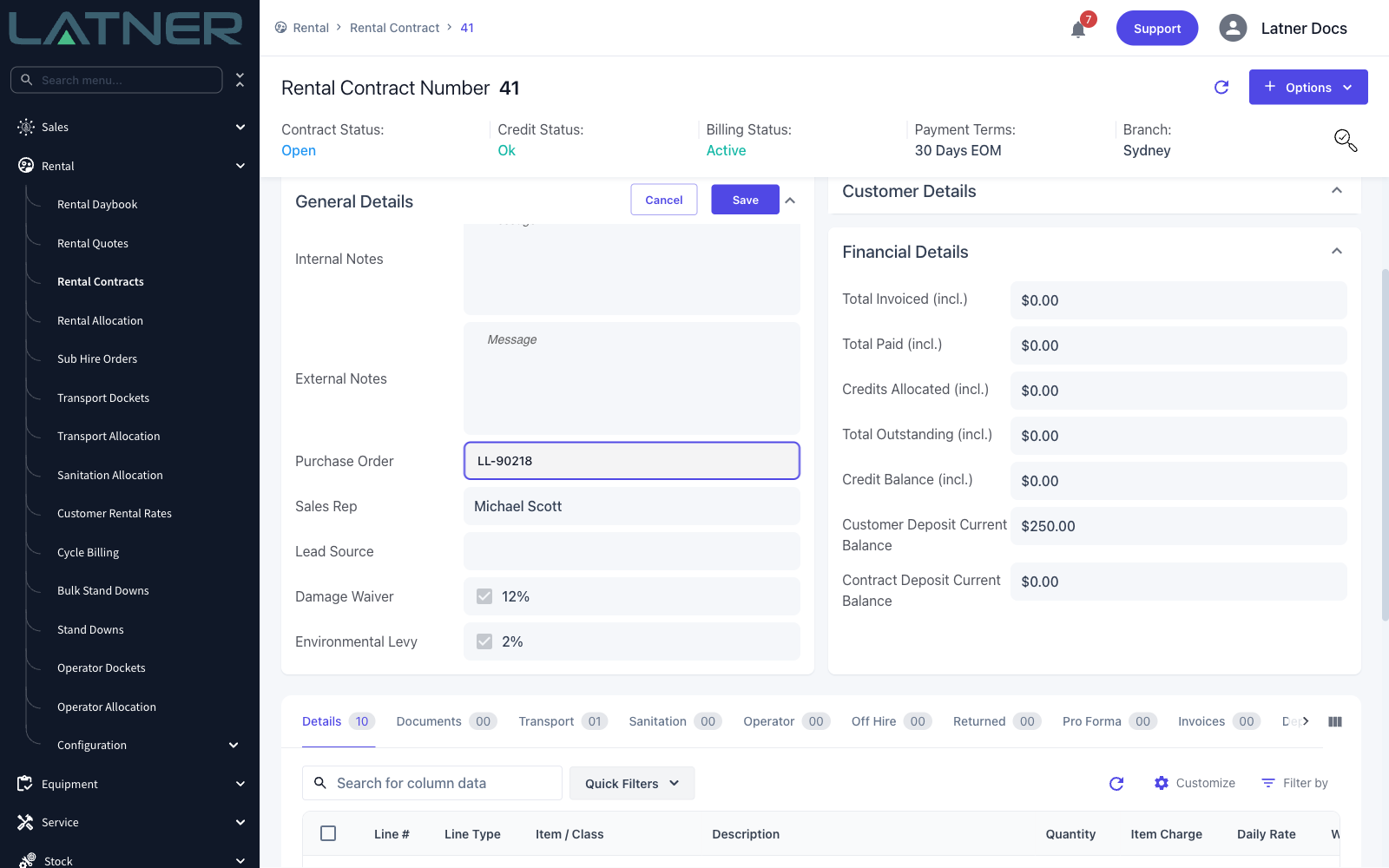
These are the fields worth knowing about:
-
Start Date, Delivery Date, Expected Off Hire Date, Charge Days Per Week - the four fields that can flow down to the lines (see step 3).
-
Purchase Order - free text. On a contract that has already been sent to the customer, recording a purchase order moves its sub status from Sent to Confirmed, and does the same for its lines. Sub statuses only show on screen when Show Rental Sub Statuses is enabled in rental settings. Invoices copy the contract's purchase order when they are created, so changing it here doesn't touch invoices already raised - update those in the General Details of each invoice, which you can do even after the invoice has been completed.
-
Customer Site - changing it asks whether the delivery address should be updated to match the new site.
-
Delivery Contact - changing it asks whether the delivery phone number and email should be updated to match the contact.
-
Damage Waiver and Environmental Levy - each is a tick box plus a percentage. Untick the box to stop charging it on this contract.
-
Internal Notes and External Notes - internal notes stay in Latner; external notes are the ones that can appear on customer paperwork.
-
Rental Contract Number and Quote Number are always read-only.
Step 3 - Decide whether the change flows down to the lines
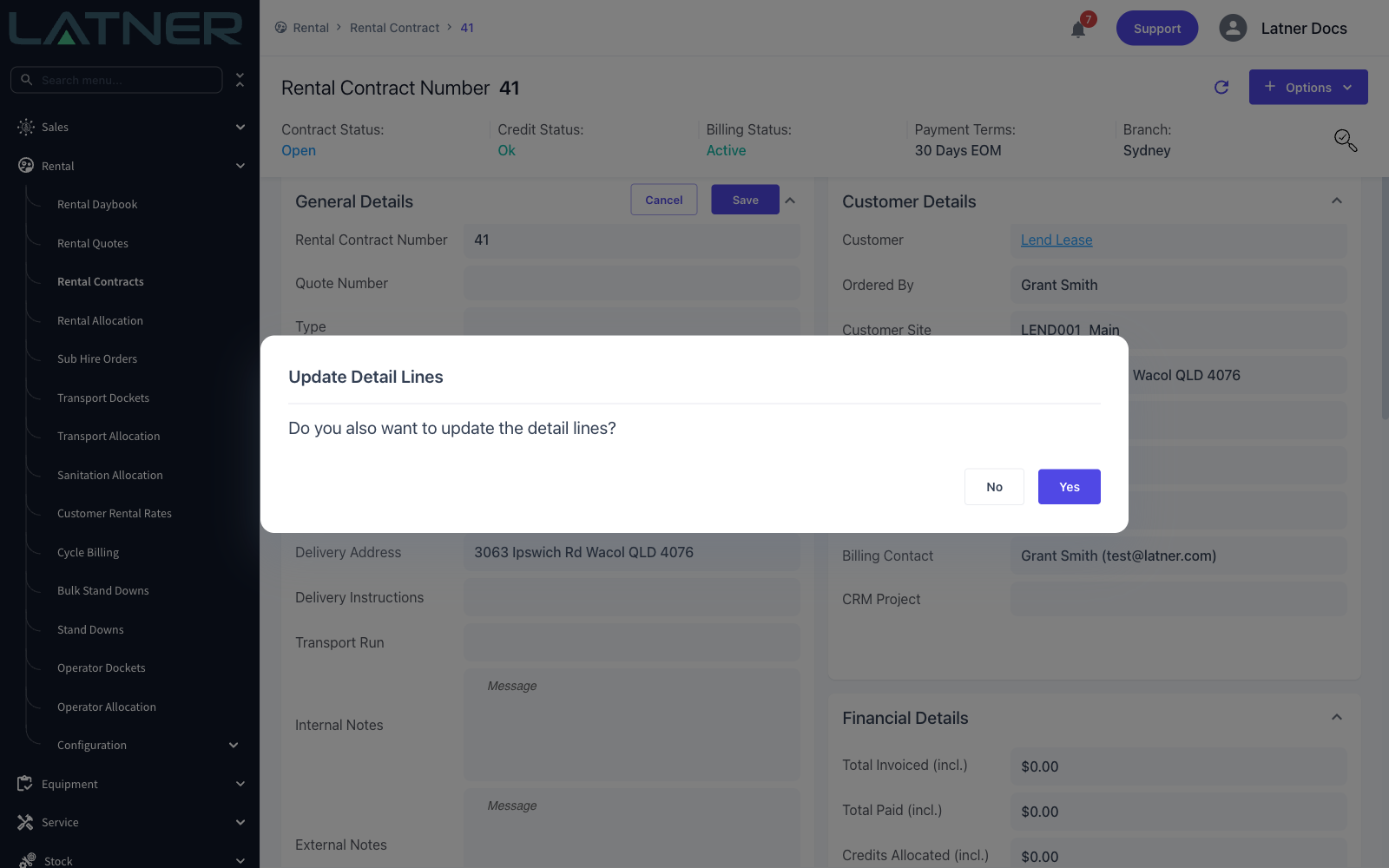
Change the Start Date, Delivery Date, Expected Off Hire Date or Charge Days Per Week and Latner asks Do you also want to update the detail lines? before it saves anything.
-
Yes copies the changed field onto every line that already has a start date and an expected off hire date. Lines with no rental dates of their own - transport charges, admin charges - are left alone.
-
No updates the contract header only and leaves the lines where they are. This is what you want when only some of the equipment is staying on longer.
Step 4 - Save
Click Save in the panel header. The panel returns to read-only and the new values show straight away.
Editing a Line in the Details Tab
Step 1 - Select the line
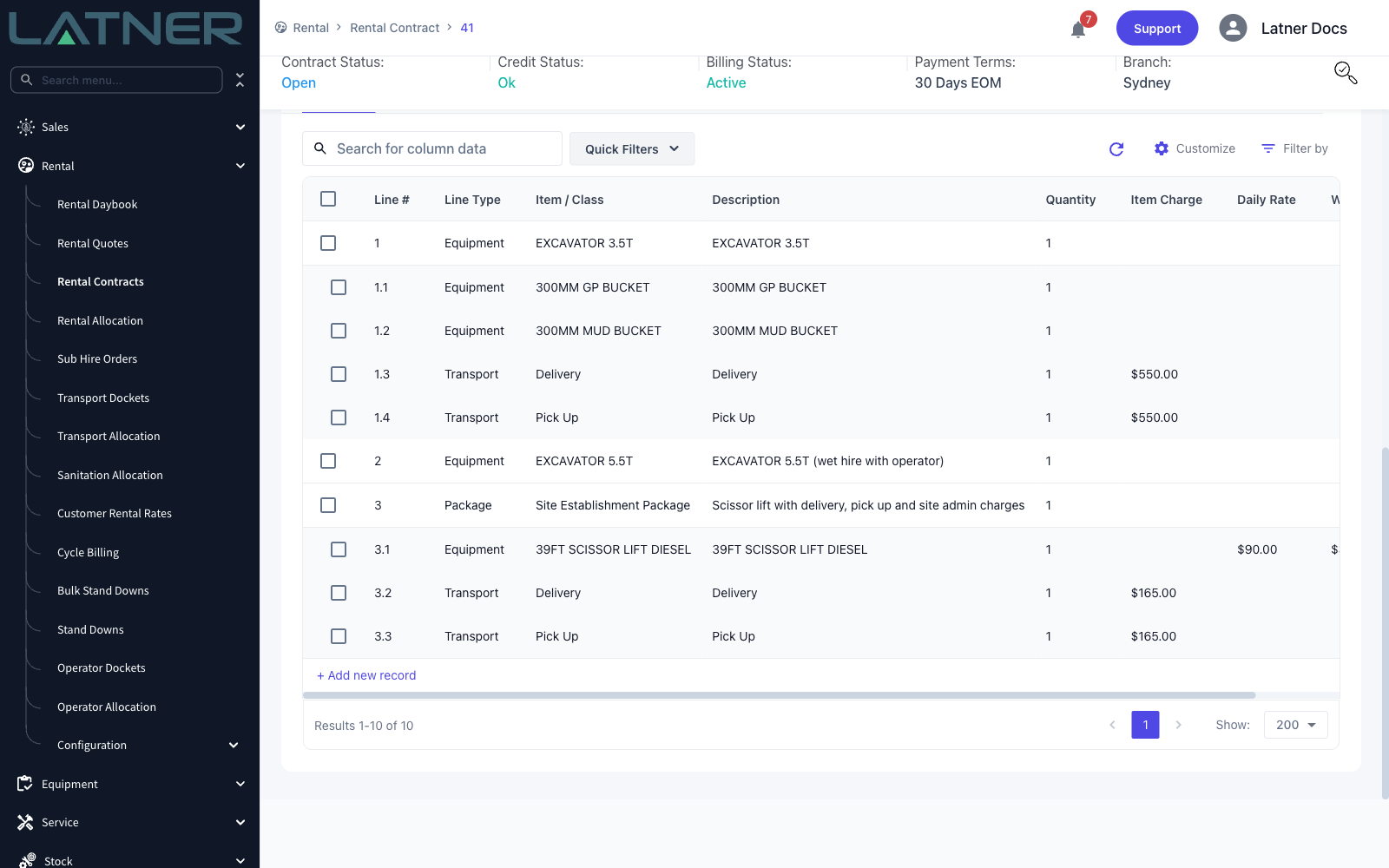
Scroll down to the Details tab and tick the line you want. A toolbar appears above the table; click the pencil icon to open the line. Double-clicking the row does the same thing.
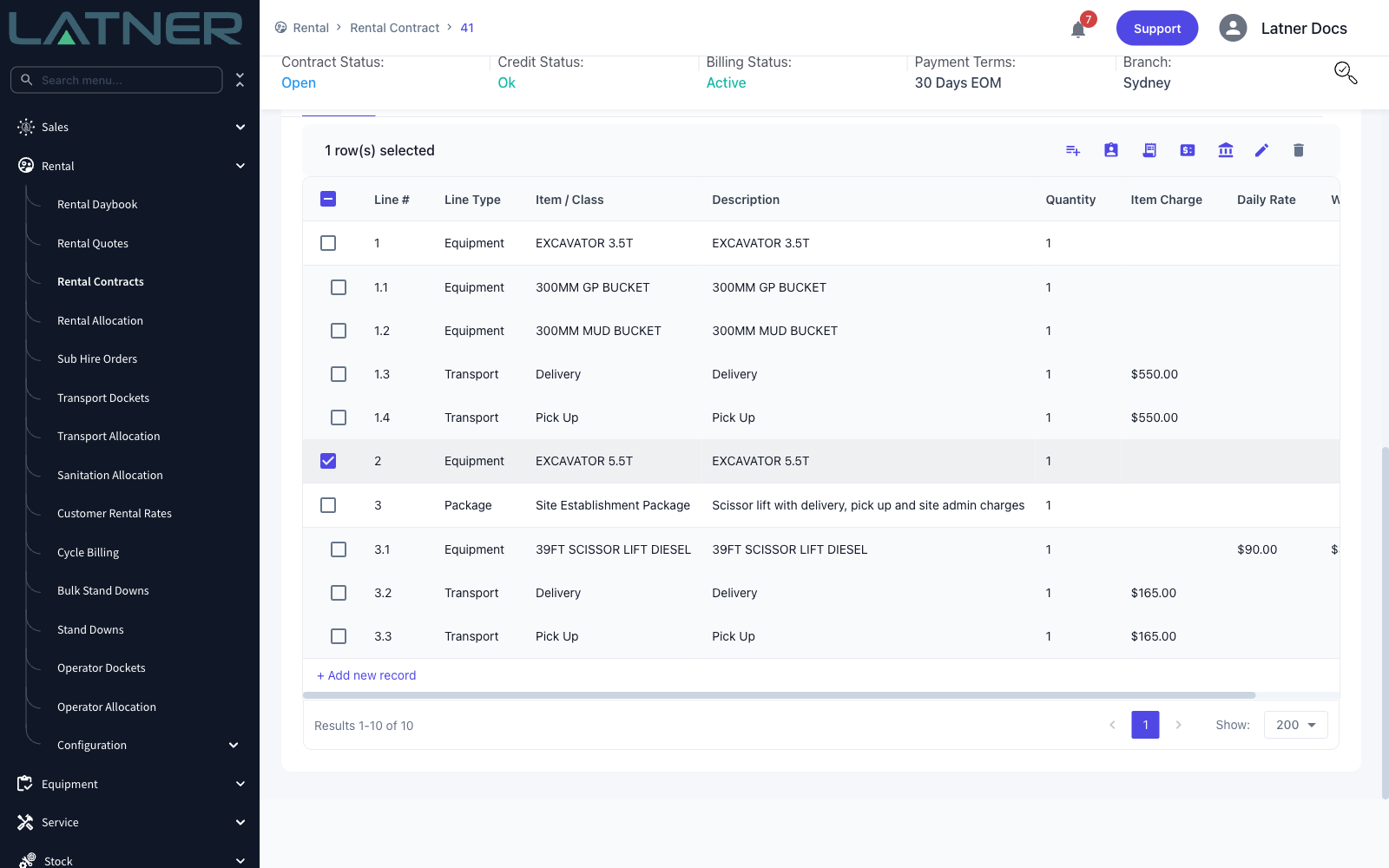
You can only edit one line at a time. Select two or more and the pencil is disabled.
Step 2 - Change what you need
The Update Detail Lines dialog shows the fields that apply to this line's type, so an equipment line looks different from a transport or admin charge line.
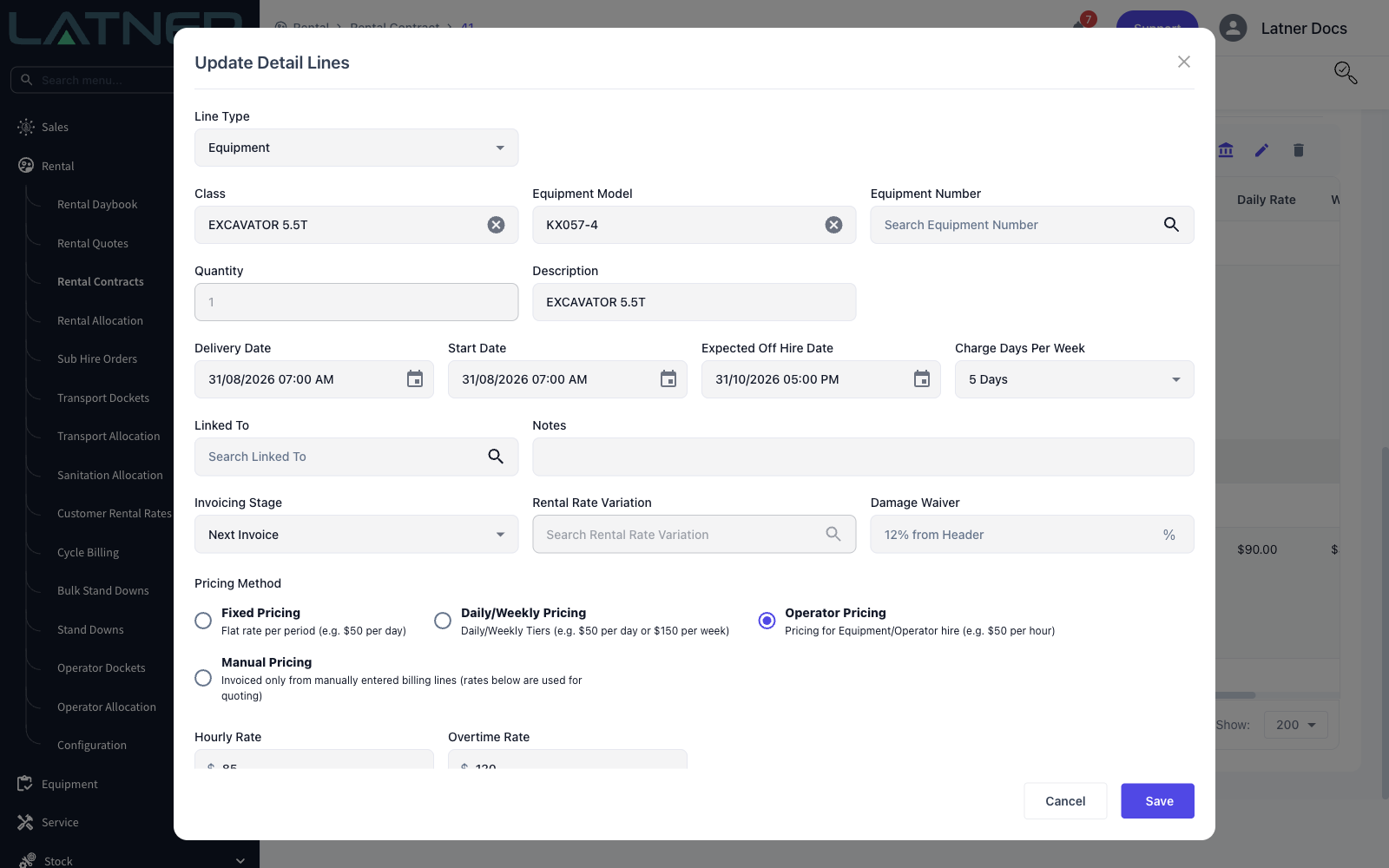
On an equipment line you'll usually be changing:
-
Class, Equipment Model and Equipment Number - the item on hire. Picking a class clears the model and number below it, and picking a specific number pulls its class and model in for you. Latner checks the new item is actually available before it lets you save.
-
Quantity - only editable while the line is Reserved or Pending, and never after the line has been invoiced.
-
Description and Notes - free text, editable for as long as the contract is open.
-
Delivery Date, Start Date, Expected Off Hire Date, Charge Days Per Week - all required. The expected off hire date can't be earlier than the start date.
-
Invoicing Stage - when this line gets billed.
-
Damage Waiver - leave it blank to inherit the contract's rate, which is shown as the placeholder text.
-
Line Type - only appears on equipment lines that haven't gone on rent yet, and only lets you switch between Equipment and Sub Hire Equipment.
-
Branch - only appears when Allow Equipment Rentals from Different Branches is enabled, and can only be changed while the line is Pending, Reserved, Pending Delivery or Pending Collection with no equipment number picked.
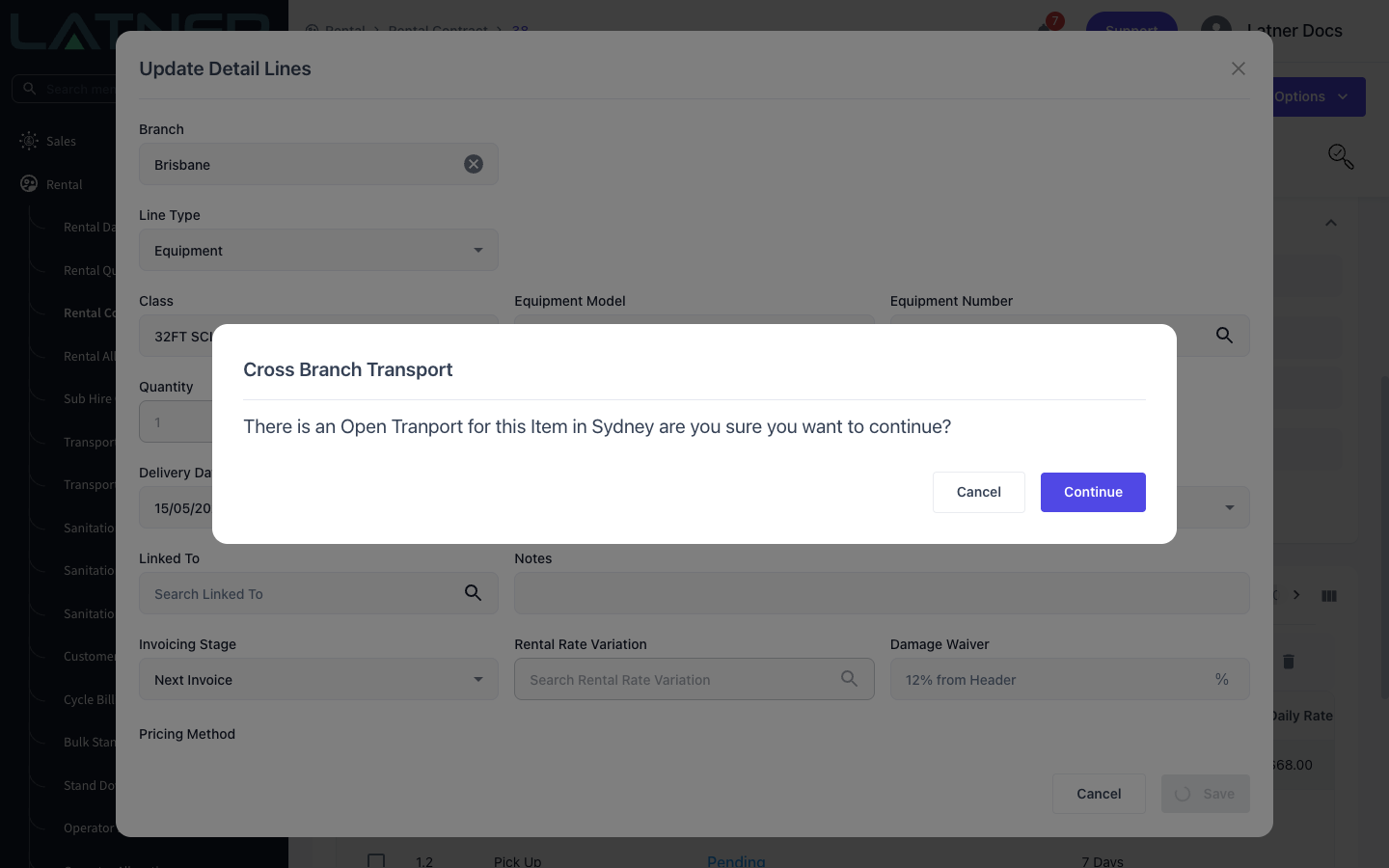
If the line is already on an open delivery docket (Pending Delivery) and you change its Branch to one that differs from the docket's, Latner shows a Cross Branch Transport warning when you save. Click Continue and the line moves, but the docket doesn't - it stays on its original branch. To have the delivery run from the new branch, cancel the docket and create a new delivery from the contract with Branch set to the line's new branch.
Step 3 - Check the rates
The Pricing Method and the rate fields below it sit in the same dialog. Change the pricing method and the rate fields change with it - operator pricing asks for an hourly and an overtime rate, daily/weekly pricing asks for the rate tiers.
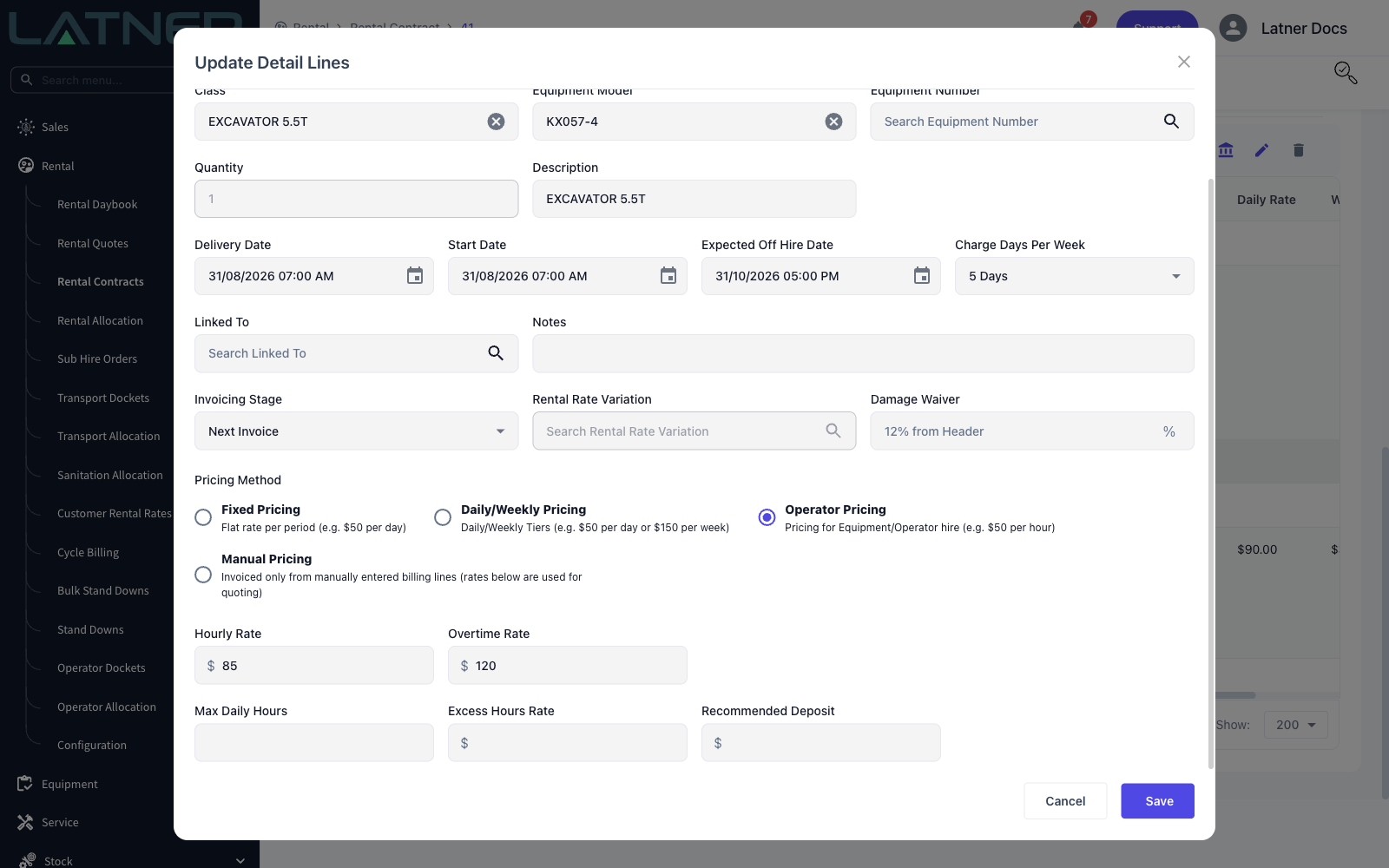
On a sub hire line there are two rate tabs, Customer Rental Rates and Sub Hire Rental Rates, plus a Calculate Markup button that shows you the margin between the two before you save.
Step 4 - Save
Click Save. The dialog closes, the table refreshes and your change is on the line.
After Saving
-
Every change is recorded on the contract's audit trail, so you can see who changed which field and when - see How to View the Audit Trail of a Rental Contract.
-
Moving a line's Delivery Date also moves any open inspection for that line to the weekday before the new delivery date. Latner won't push an inspection date into the past.
-
Changing the charge on a transport line updates the charge on the transport docket the line belongs to.
-
Changing the price or the frequency on a sanitation line updates the open sanitation dockets to match.
-
Changing the supplier, supplier site or branch on a sub hire line updates the matching sub hire order.
-
Changing the branch on a line that's already on an open delivery docket doesn't change the docket's branch. The docket keeps the branch it was created with until it's cancelled and raised again.
-
Switching a line from Sub Hire Equipment to Equipment clears every sub hire field on the line and cancels the line on the sub hire order.
Once a line has been invoiced, Latner refuses to change its Quantity, its rates or its Start Date in the Update Detail Lines dialog - those are the fields the invoice was calculated from. To change the rate, use Rate Adjustment instead: you set the new rate and the date it applies from, and any difference for a date already invoiced is settled on the next invoice. See How to Make a Rental Rate Adjustment. If the Quantity or Start Date really is wrong, credit the invoice first and correct the line afterwards.
FAQs
Watch the Demo
Prefer to watch it? Step through the same flow here.