
Manual Billing Lines let you invoice a fixed, hand-entered charge against a piece of equipment on a Rental Contract, so you can bill milestones, damage recharges and one-off fees without touching the rental rates.
Overview
Not every charge on a hire fits a daily or weekly rate. Sometimes the customer has agreed to milestone payments, sometimes you need to recharge a broken window, and sometimes a contract is priced on a schedule that Latner's rate types simply do not describe. Manual Billing Lines cover all three.
-
A Manual Billing Line is a fixed amount - Quantity x Rate - added to a single Equipment, Sub Hire Equipment or Package line on the contract.
-
They can be added to a line on any pricing method. On Fixed, Daily/Weekly, Tiered and Operator lines they are an extra charge on top of the normal rate based billing.
-
The Manual pricing method turns the rate based billing off entirely, so Manual Billing Lines become the only thing that line ever invoices.
-
Every line still waiting to be billed is invoiced on the next invoice for that contract line, whatever its date range says.
-
A billed line locks. It cannot be edited or deleted until the invoice that billed it is cancelled.
Before You Begin
You will need the following in place before the options described here appear.
|
Requirement |
Where to Find It |
|---|---|
|
Create Manual Billing Lines permission |
Security › Configuration › Permission Groups › Rental › Option |
|
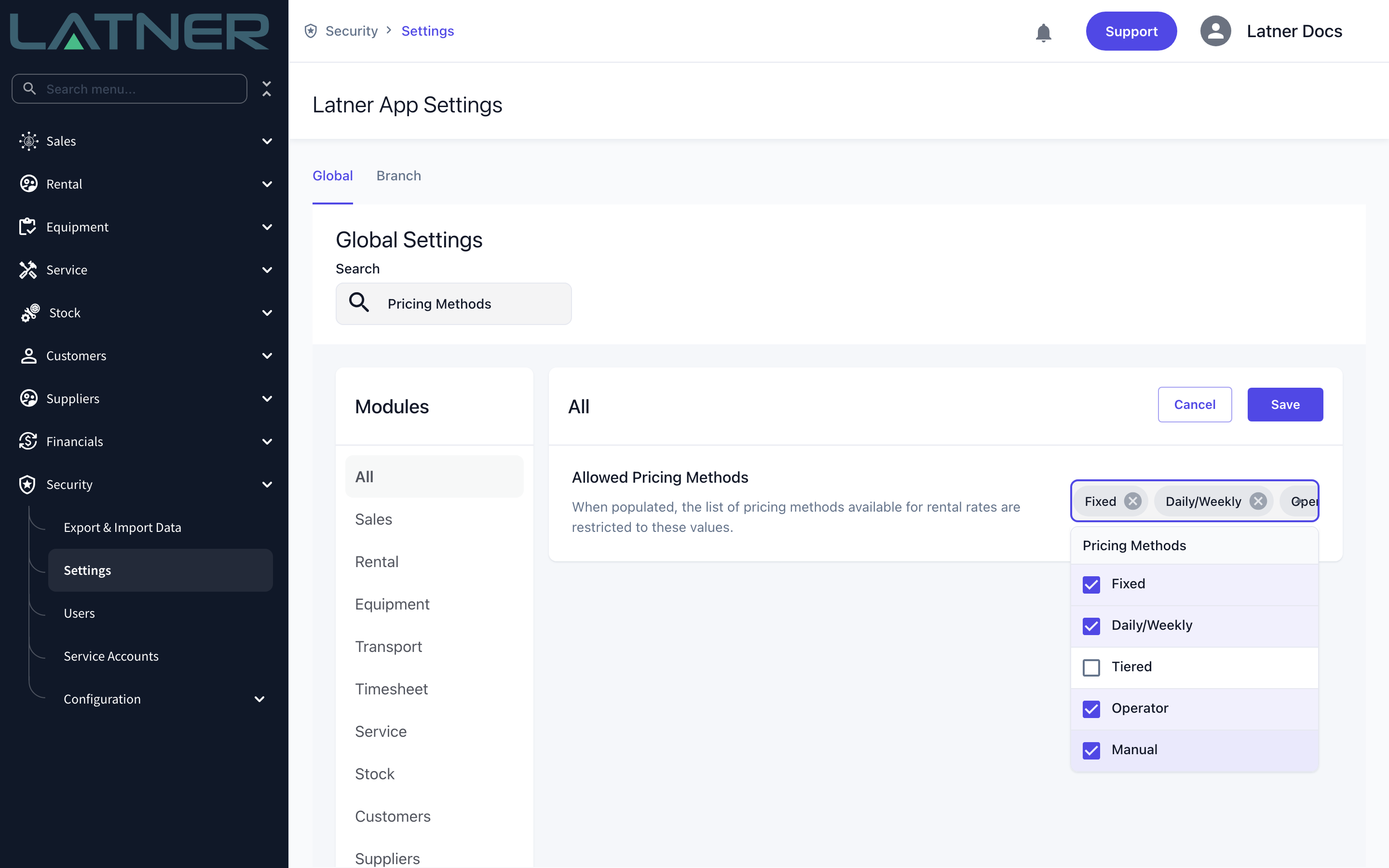
Allowed Pricing Methods includes Manual (only needed for the Manual pricing method) |
Security › Settings › Rental |
|
Enables Crediting of a Rental Contract (only needed if you want to enter a negative, credit style line) |
Security › Settings › Rental |
|
A Rental Contract that is not Completed, Cancelled or Lost |
Rental › Rental Contracts |
You do not need the Manual pricing method to use Manual Billing Lines. If you only want to add an extra charge to a line that already bills at a normal rate, skip straight to Adding Manual Billing Lines below.
Setting a Contract Line to Manual Pricing
Use this when the line should not bill at a rate at all - the customer is paying against milestones or a schedule you will enter by hand. For what the Manual pricing method does to the rest of the line's billing, see Manual Pricing.
Step 1 - Add or edit the equipment line
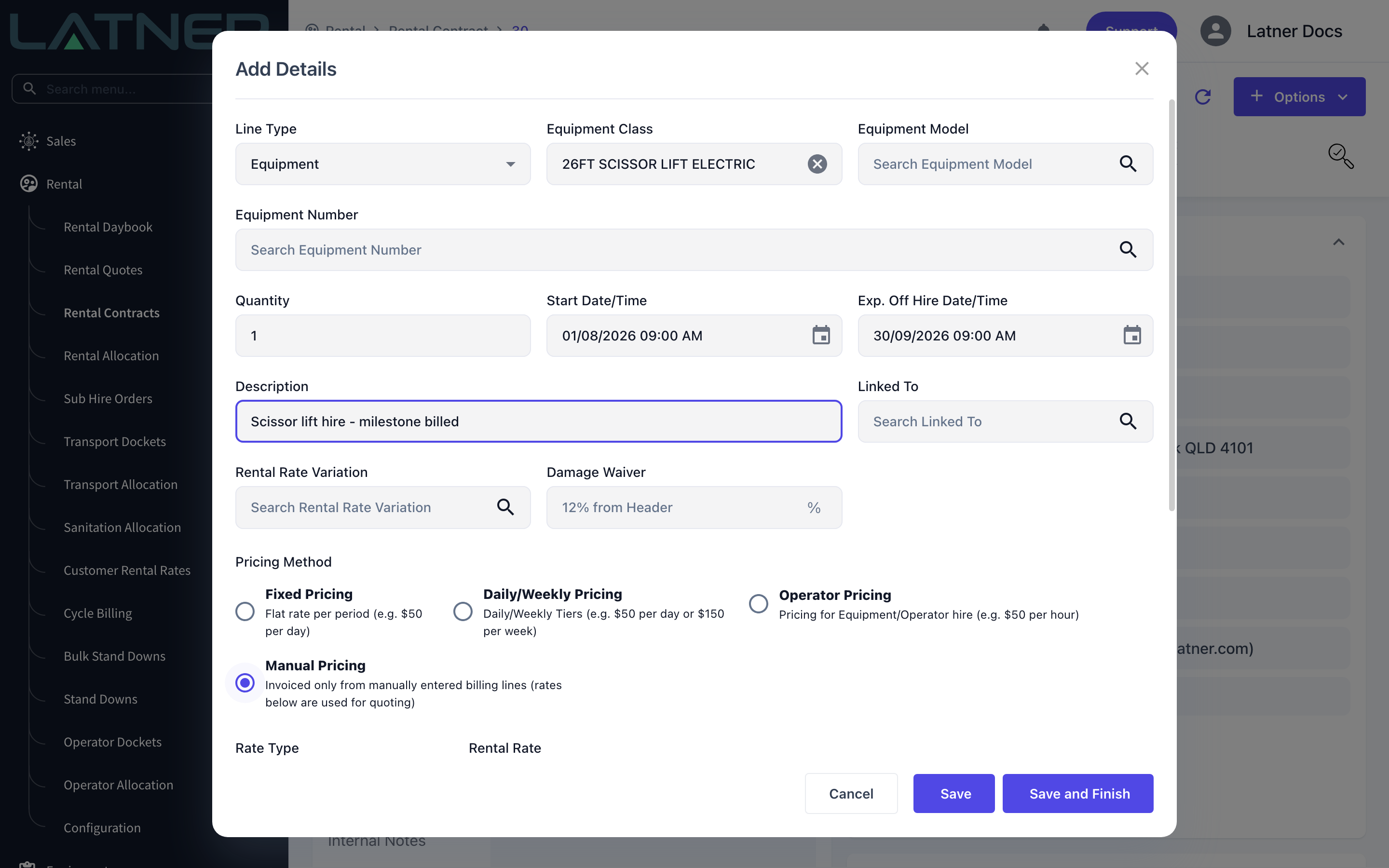
Open the Rental Contract and choose Options › Add Details to add a new line, or tick an existing line in the Details table and click the Edit pencil. Choose your Line Type, Equipment Class and, if you are allocating a specific unit, the Equipment Number.
Step 2 - Choose Manual Pricing
In the Pricing Method group, select Manual Pricing. The option only appears if Manual is one of the Allowed Pricing Methods, and it is not offered for the supplier side of a Sub Hire - a sub hire supplier rate always bills at a rate.
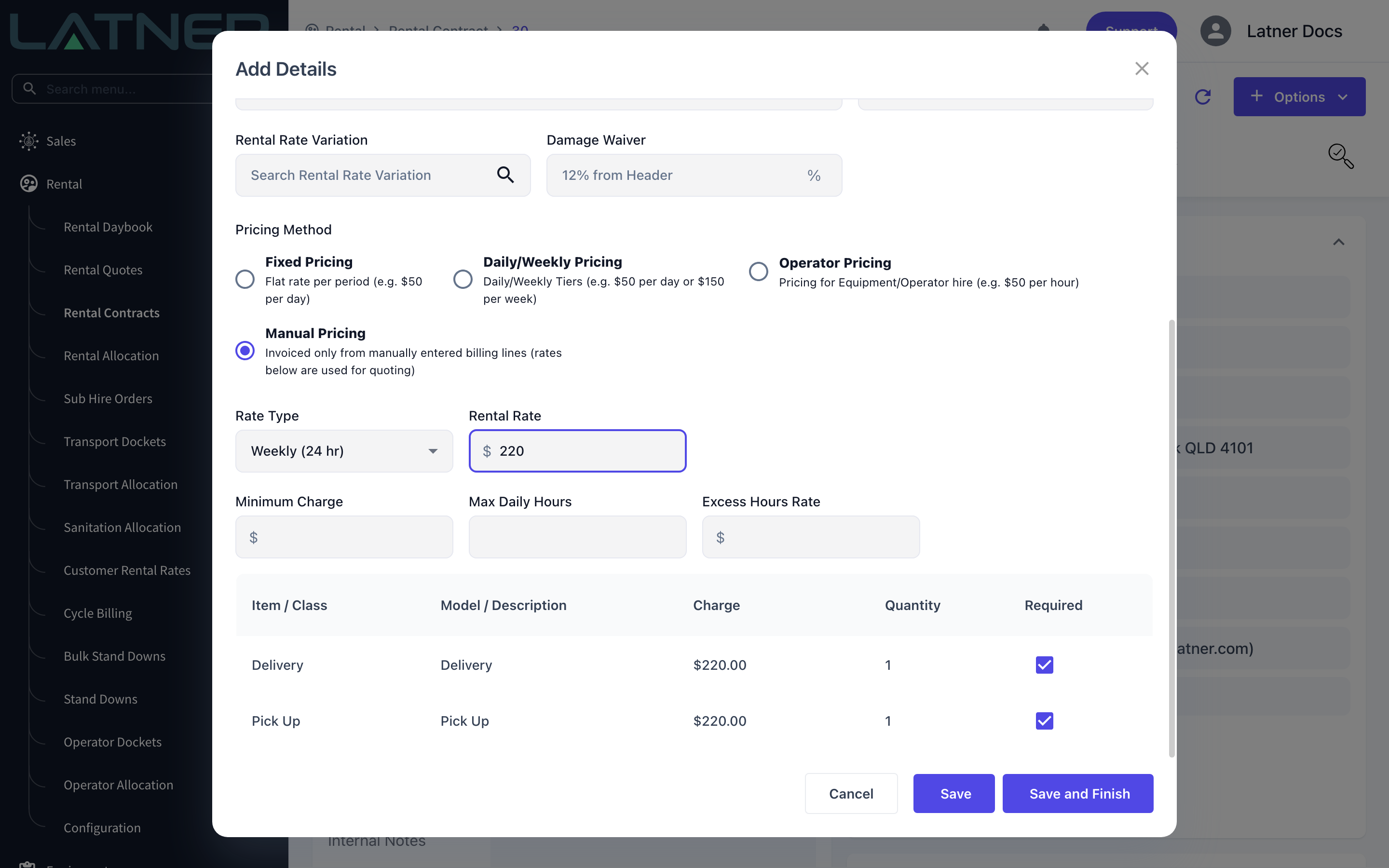
Step 3 - Enter the estimate rate and save
A Rate Type and Rental Rate are still required, but on a Rental Contract they are only an estimate - they appear on quotes and the contract paperwork and are never invoiced. Click Save and Finish.
Adding Manual Billing Lines
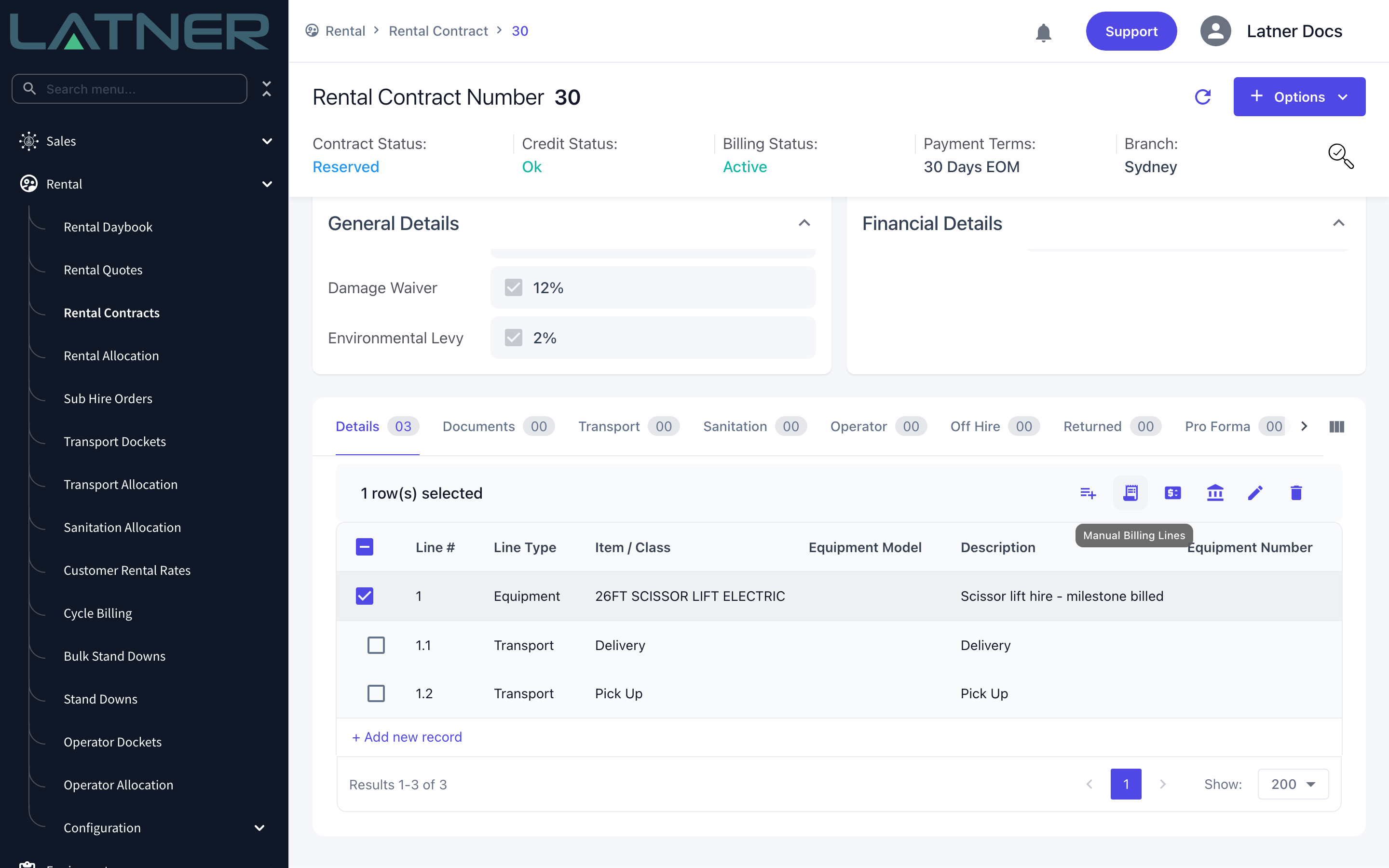
Step 1 - Select the line and open Manual Billing Lines
Scroll to the Details table on the Rental Contract and tick the line you want to charge. In the selection toolbar that appears, click the Manual Billing Lines icon. Only one detail line can be selected at a time, and the icon is only shown for Equipment, Sub Hire Equipment and header priced Package lines.
Step 2 - Check you are on the right line
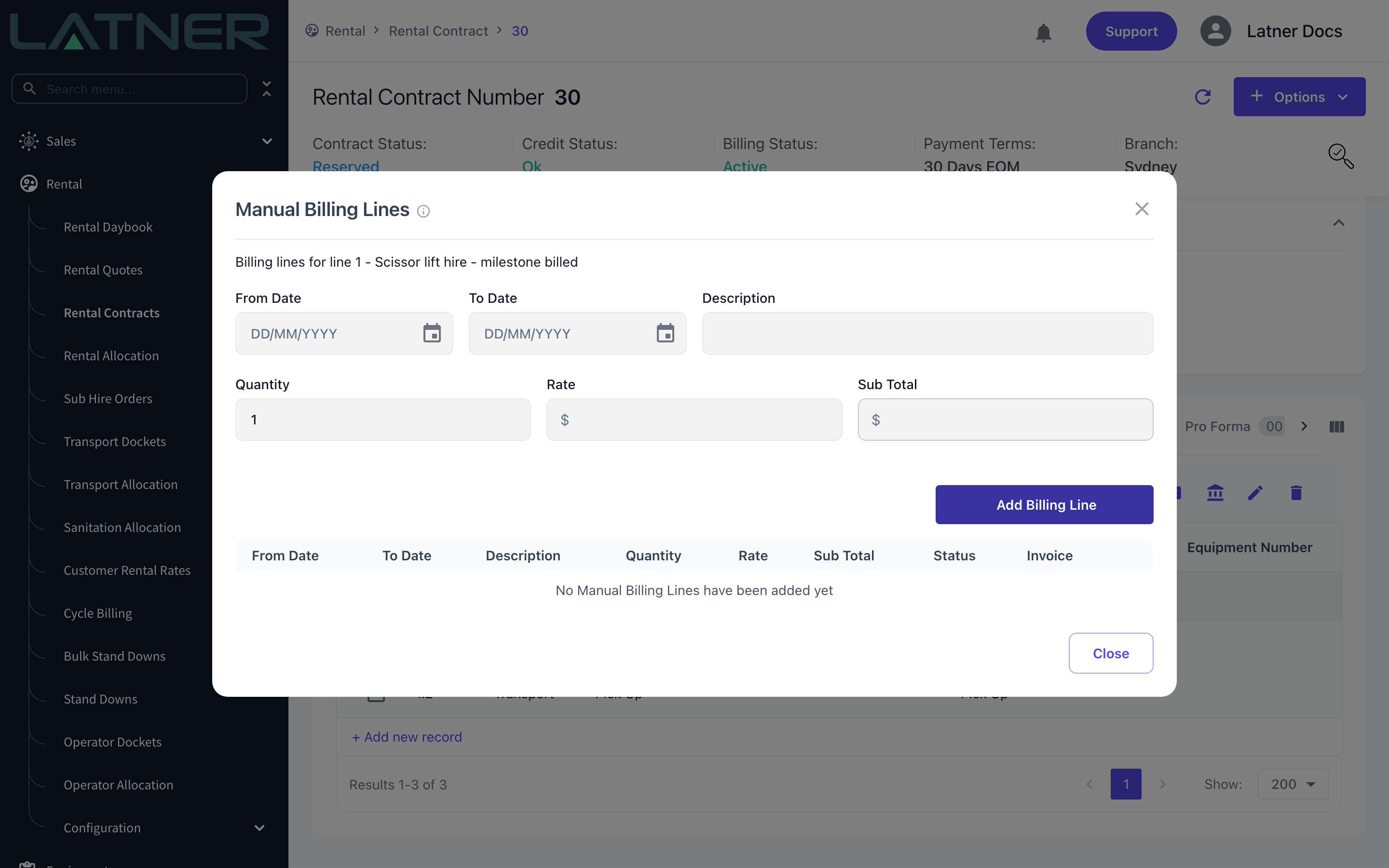
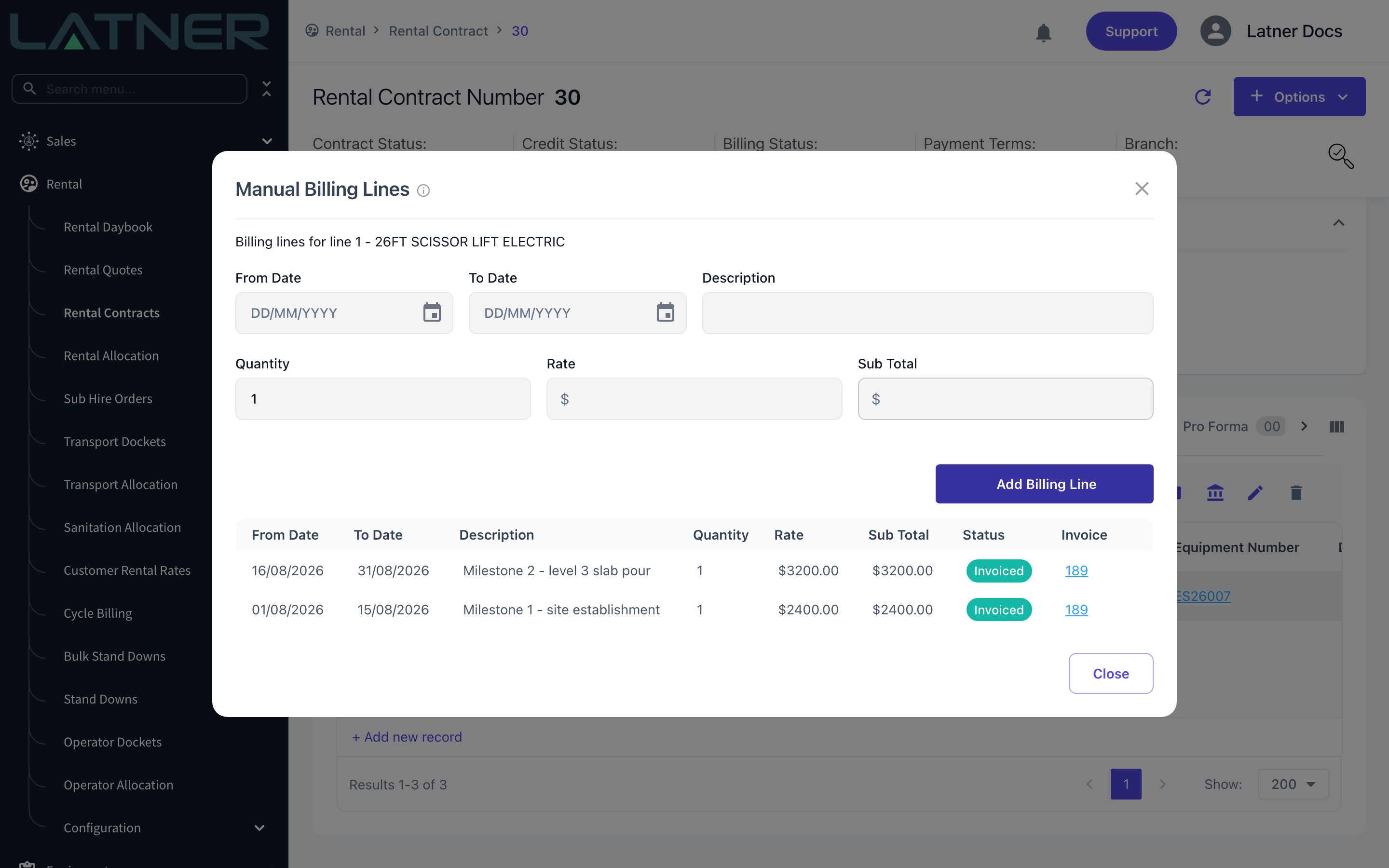
The dialog names the line it is working on - Billing lines for line 1 - ... - and lists every billing line already recorded against it. The information icon beside the title explains what the lines do and when they bill.
Step 3 - Enter the charge
Fill in the form at the top of the dialog. Every field is required.
-
From Date - the start of the period the charge covers.
-
To Date - the end of the period. It must fall on or after the From Date.
-
Description - what the customer sees on the invoice line.
-
Quantity - defaults to 1 and accepts decimals.
-
Rate - the amount per unit. Enter a negative rate to raise a credit style line (this needs Enables Crediting of a Rental Contract switched on).
-
Sub Total - calculated for you as Quantity x Rate, and cannot be typed into.
Neither Quantity nor Rate can be zero - a zero line would never reach an invoice and would sit unbilled forever.
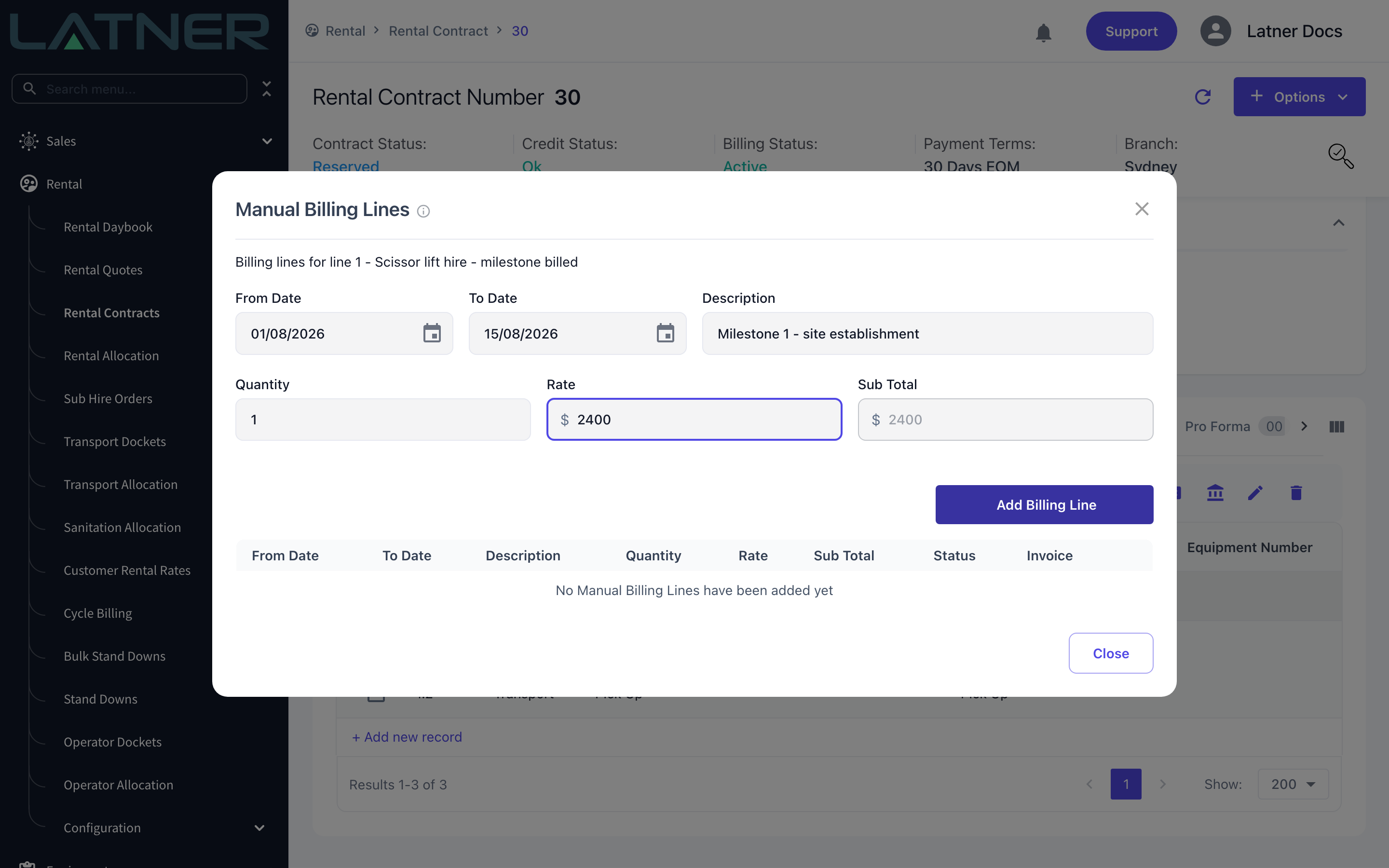
Step 4 - Add the line
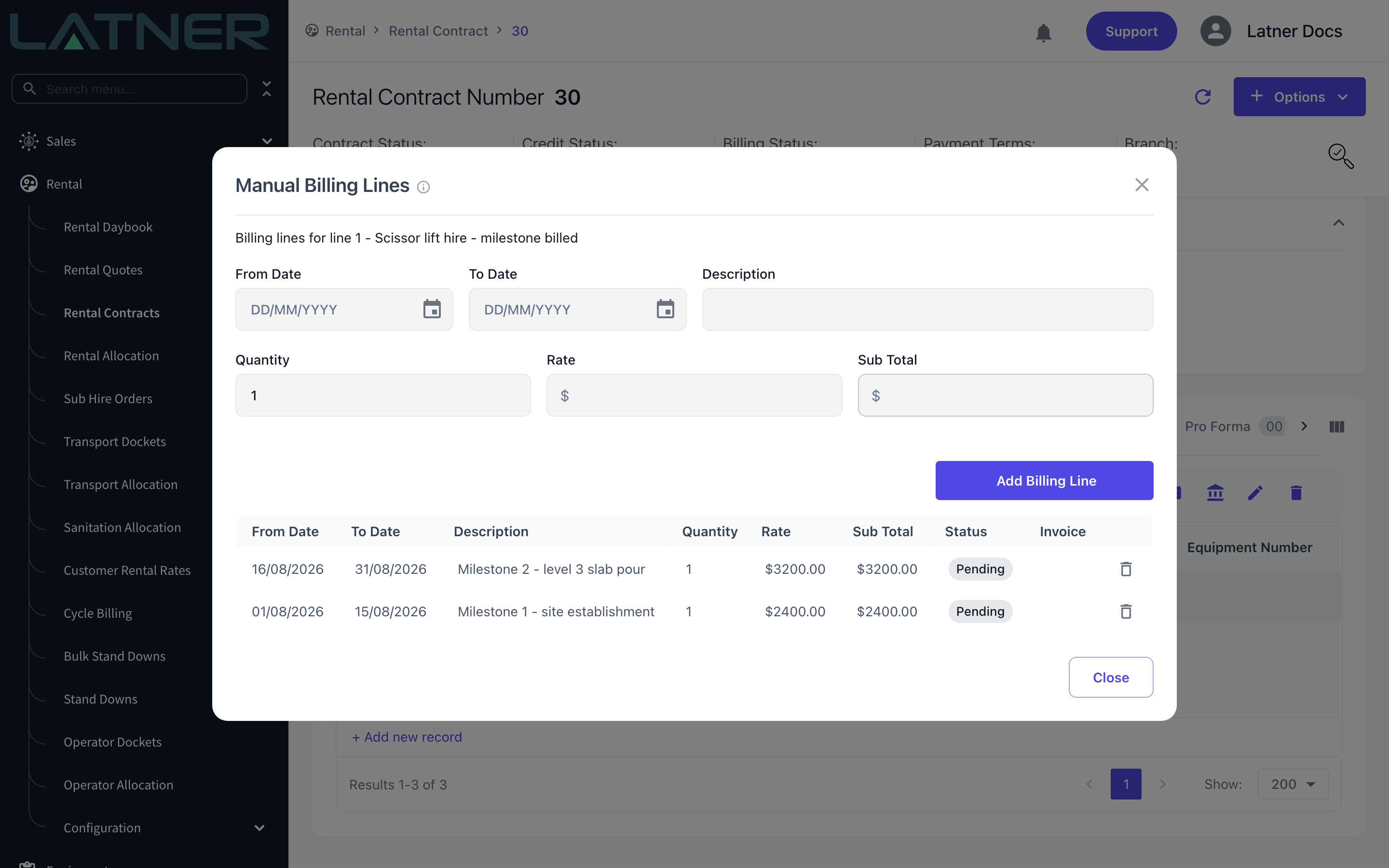
Click Add Billing Line. The line drops into the table below with a status of Pending, newest first. If the dates overlap a billing line already on this detail, Latner asks you to confirm before saving - overlaps are allowed, they are just usually a mistake.
Repeat for as many charges as you need, then click Close.
How They Are Invoiced
Invoice the contract as you normally would - Options › Invoice - and click Preview. Every Pending billing line on the selected detail appears as its own invoice line, regardless of the Bill To date you chose. On a Manual pricing line there is no rate based line at all, so the manual charges are the whole of that line's invoice.
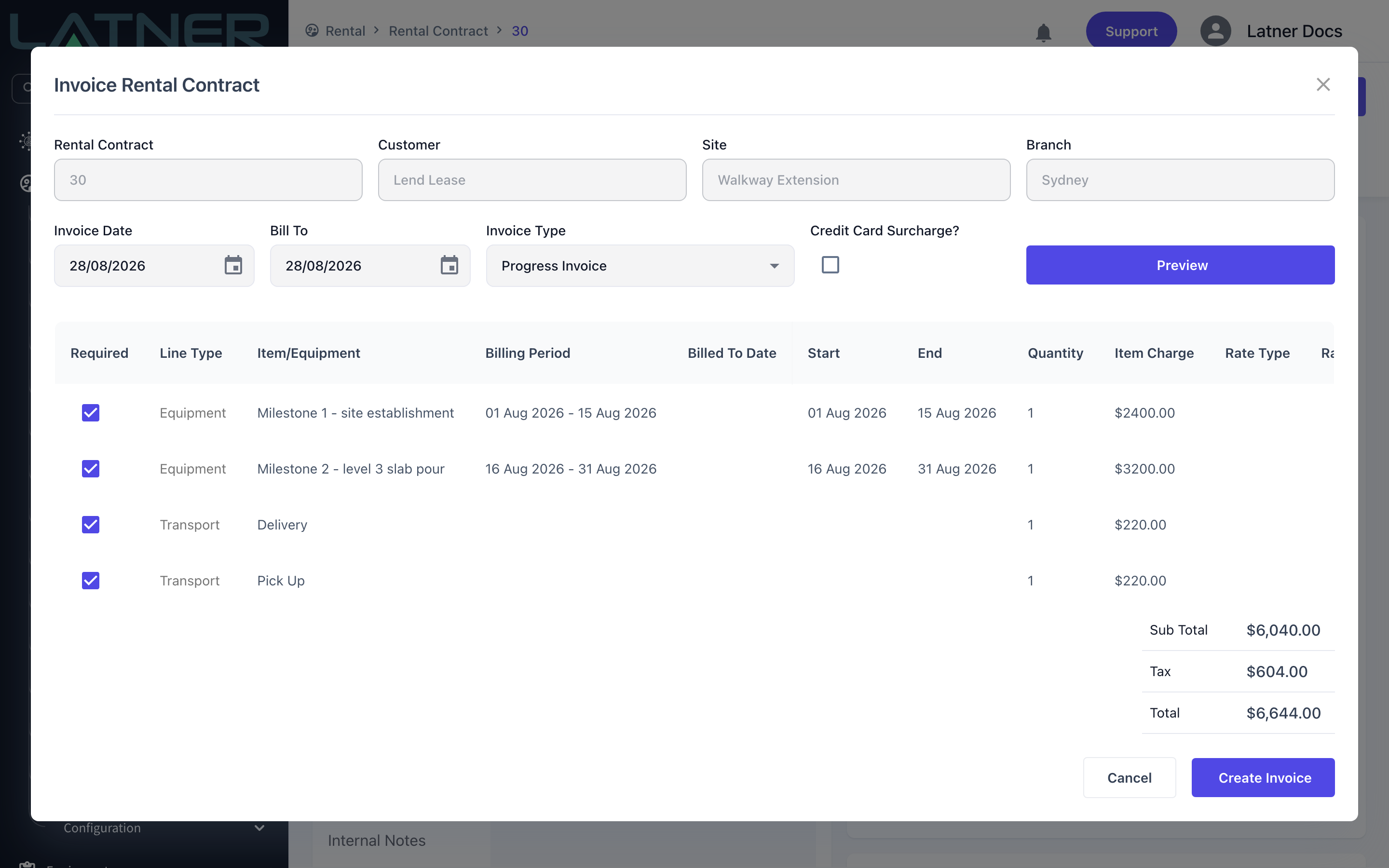
Once the invoice is created:
-
Each billing line moves to Invoiced and links to the invoice that billed it.
-
Invoiced lines lose their delete icon. They can no longer be edited or deleted.
-
The charge is included in the detail line's total invoiced figure, but it does not move the line's billed to date - a back dated damage recharge will never make Latner think you have billed further into the hire than you have.
-
A line whose rate based billing is already up to date can still be invoiced if it has Pending billing lines waiting, so you never have to hold an invoice back to get a late charge onto it.
There is no edit action for a Manual Billing Line. To correct a Pending line, delete it and add it again. To correct a line that has already been invoiced, cancel the invoice - that returns the line to Pending so you can delete it and re-enter it.
Worked example - a credit line on a Fixed pricing line
A credit line is just a Manual Billing Line with a negative Rate, and it behaves the same on every rate based pricing method. Take a line on Fixed Pricing, Daily (24 hr) at $80.00, on rent from 1 August. The customer's machine sat idle off site for three days, so you agree to credit them those days back.
Open Manual Billing Lines on that detail and add:
-
From Date 03/08/2026, To Date 05/08/2026
-
Description Goodwill credit - machine off site 3 days
-
Quantity 3, Rate -80.00
-
Sub Total works out as -$240.00
Progress invoice the contract to 28 August and the preview shows both lines side by side. The Fixed rate bills its full 27 days at $80.00 - the credit has not shortened the hire - and the credit sits underneath it as its own negative line.
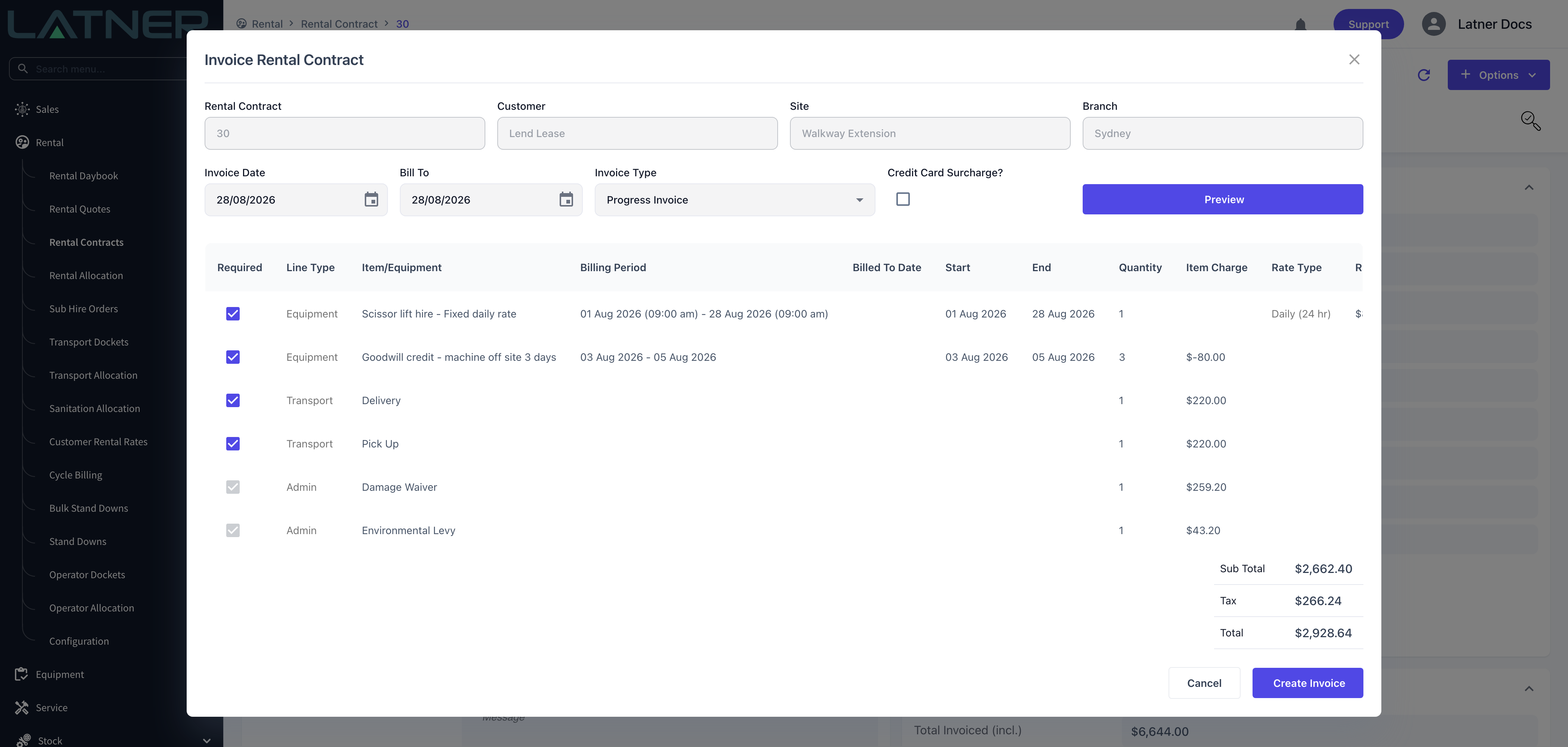
Three things are worth noticing in that preview.
-
The credit reduces this invoice, it does not buy back hire days. The next invoice picks up where the rate based billing left off - 28 August to 4 September is still a full 7 days at $80.00. Latner deliberately leaves manual charges out when it reconciles what the rental rate still owes.
-
Damage Waiver and Environmental Levy ignore manual billing lines. Here they are calculated on the $2,160.00 rate line only, so a credit line does not reduce them either. If you need to credit the waiver as well, add a second line for it.
-
The whole invoice can tip negative. The button under the preview reads Create Invoice while the total is positive. If your credits outweigh the charges, it changes to Create Credit Note and Latner raises a credit note instead.
Credit lines need Enables Crediting of a Rental Contract switched on in Security › Settings › Rental. Without it Latner rejects the line when you add it, because a negative charge would be dropped from the invoice and left Pending forever.