
Equipment Swap replaces a piece of equipment that is already on hire with another one, on the same rental contract, in a single step - so a breakdown on site doesn't turn into a pile of paperwork.
Overview
Machines break down, get called in for a service, or simply aren't coping with the job. The customer still needs a machine on site, and you still need the hire to keep running. Equipment Swap off hires what's there and starts the replacement on the same contract, on one screen.
-
The swap works on a single contract line that is currently On Rent. Both Equipment lines and Sub Hire Equipment lines can be swapped.
-
The Off Hire Date you enter becomes the off hire date for the equipment coming back; the Start Date becomes the start date for the replacement.
-
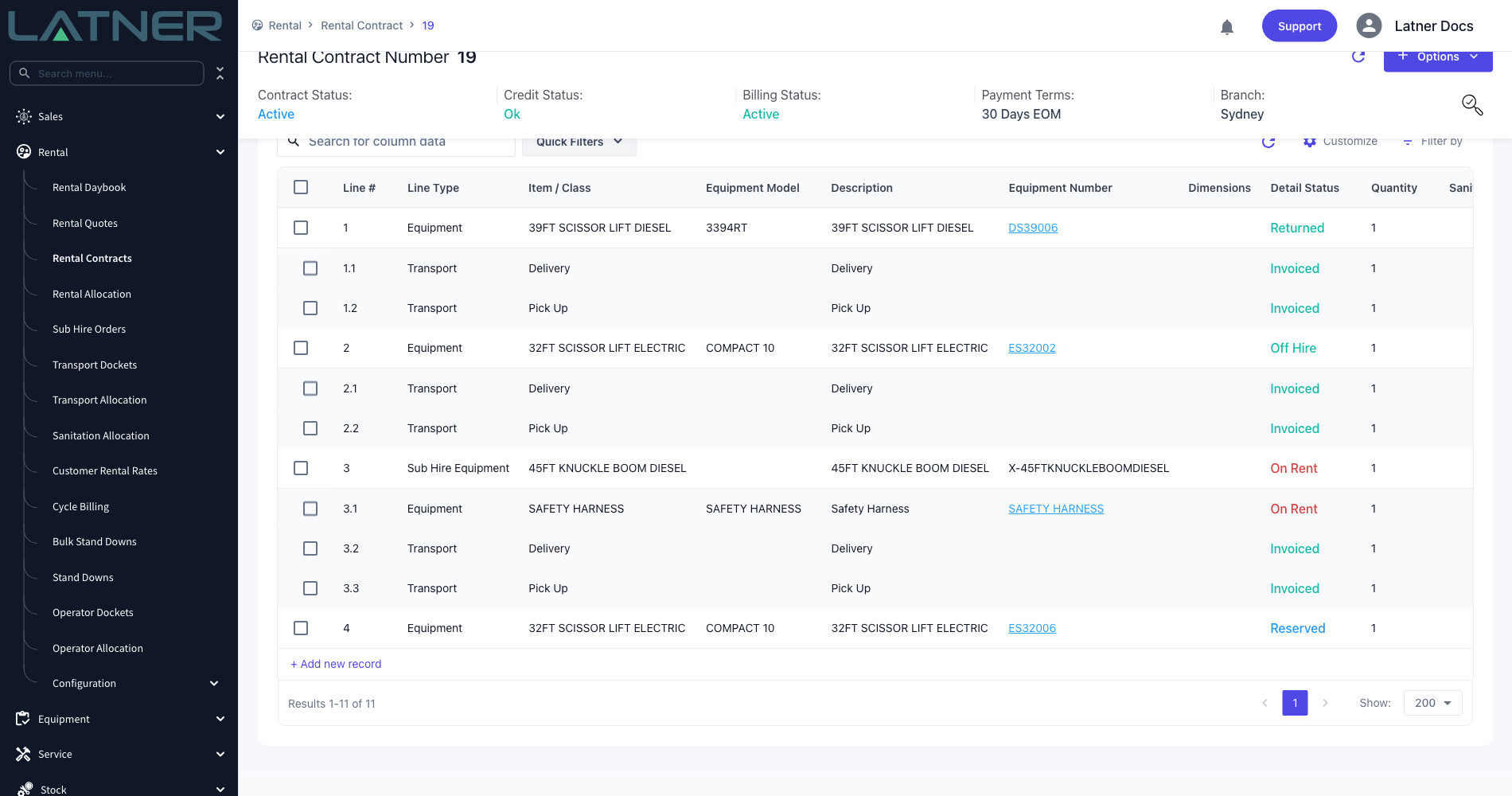
The replacement is added as a new line on the contract in Reserved status. It copies the original line's rates, charge days per week and expected off hire date, and it records which line it replaced.
-
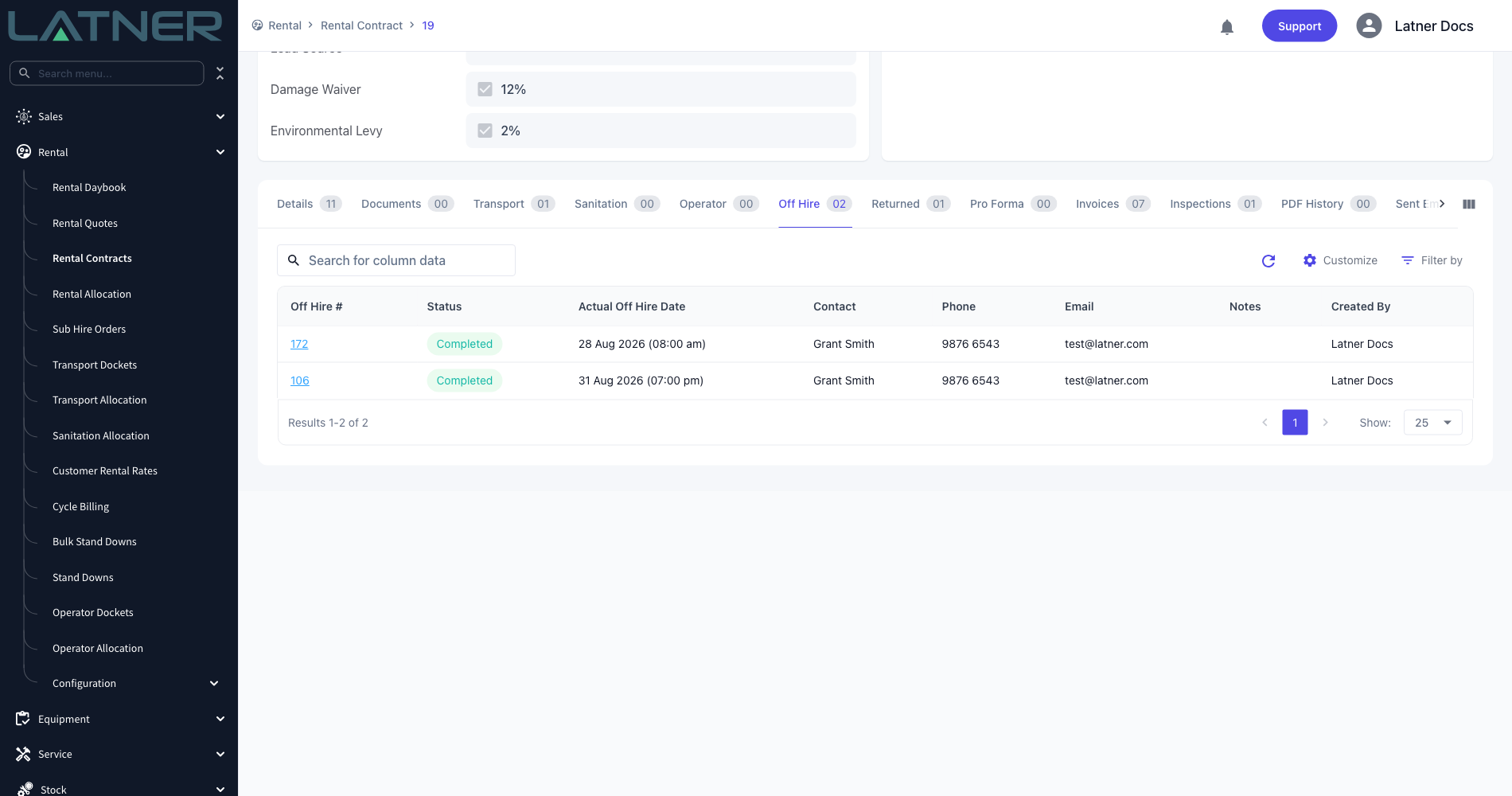
The original line moves to Off Hire and a completed Off Hire record is created on the contract automatically.
-
You can have Latner create the delivery docket for the replacement and the pick-up docket for the returning equipment as part of the same flow.
-
The replacement can be your own equipment or sub hire equipment from a supplier.
Before You Begin
Equipment Swap needs very little set-up - mostly it needs a contract in the right state.
|
Requirement |
Where to Find It |
|---|---|
|
Edit Rental Contract permission |
Security › Configuration › Permission Groups › Rental › Options. Without it, Equipment Swap doesn't appear in the Options menu. |
|
An active rental contract with a line On Rent |
The option is greyed out on contracts that are Completed, Cancelled or Lost, and the Equipment Number search only lists lines that are currently On Rent. |
|
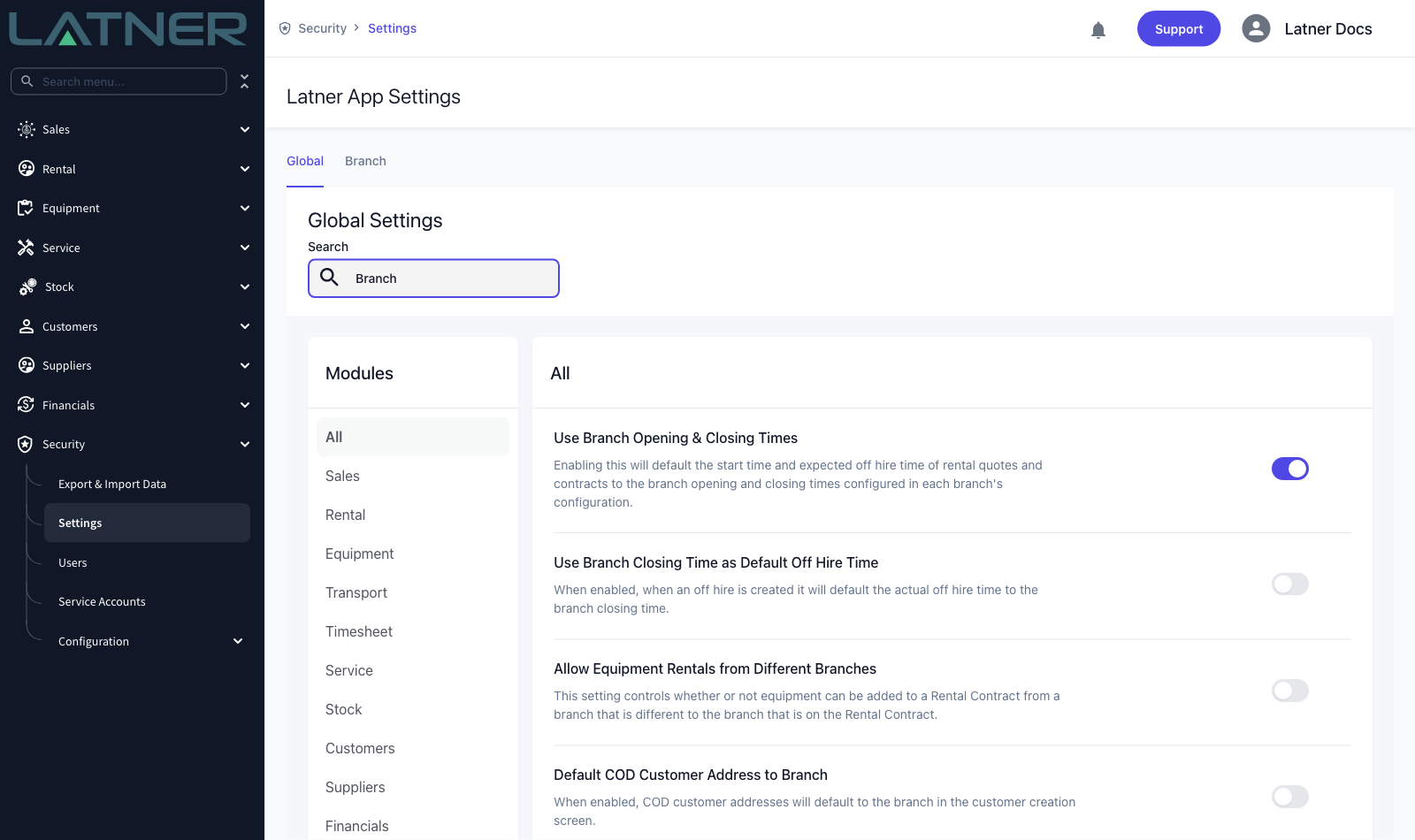
Allow Equipment Rentals from Different Branches (optional) |
Security › Settings › Rental. When it's off, the replacement can only be equipment from the contract's own branch. |
|
Use Branch Closing Time as Default Off Hire Time (optional) |
Security › Settings › Rental. When it's on, the times on the swap default to the branch's closing and opening times. |
|
Allow Rates Below Floor Rate permission (optional) |
Security › Configuration › Permission Groups › Rental › Field. Only needed when the replacement is sub hire equipment and its rates fall below the floor rate. |
Equipment Swap is for equipment that genuinely changes on site. If the machine on site was always the right one and it's the equipment number on the contract that is wrong, use Change Equipment On Hire instead - it corrects the record without off hiring anything or adding a line.
Creating the Equipment Swap
Step 1 - Open the rental contract
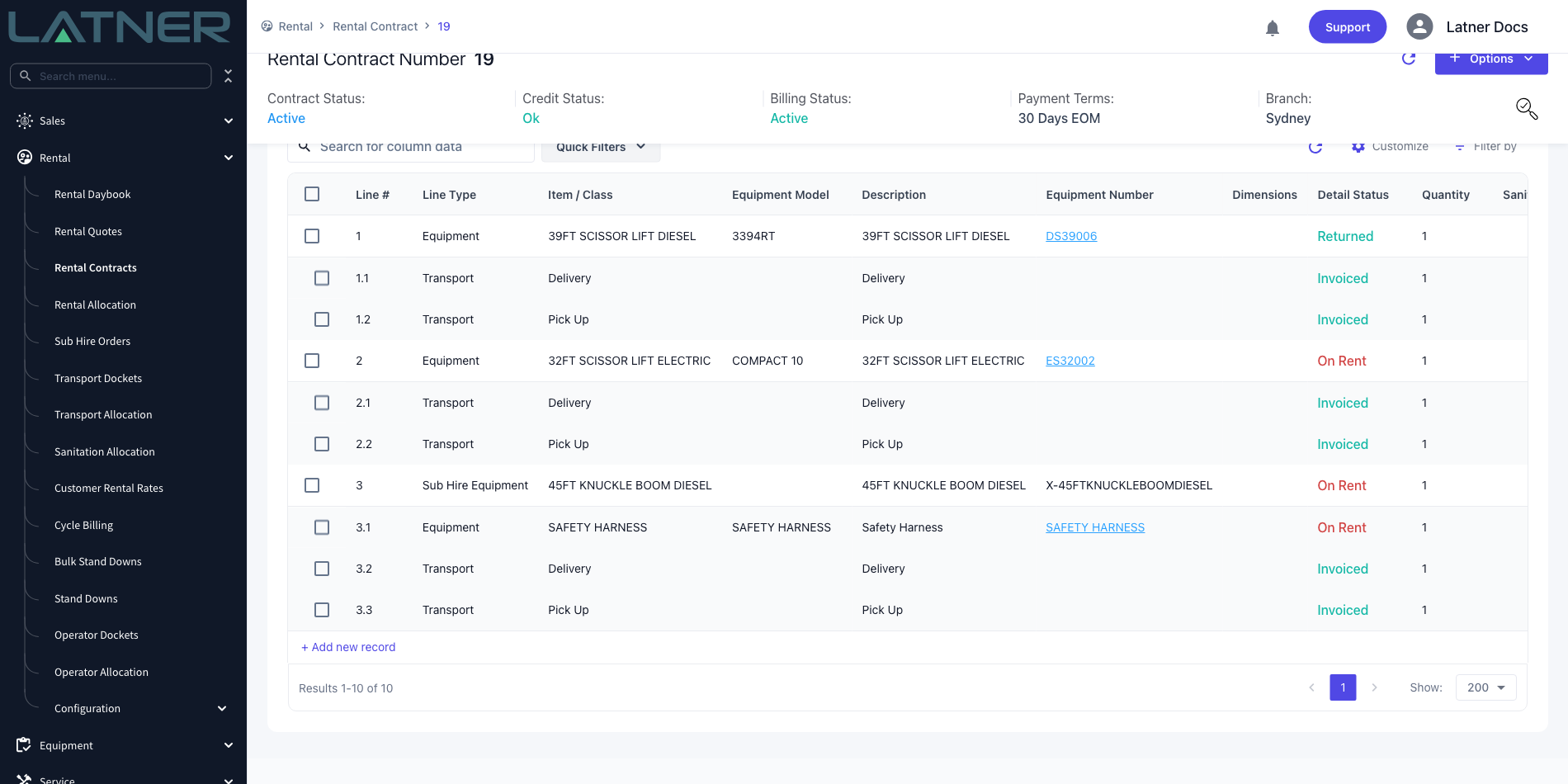
Go to Rental › Rental Contracts and open the contract with the equipment that needs replacing. Check the Details tab and note the line you're swapping - it needs a Detail Status of On Rent.
Step 2 - Choose Options › Equipment Swap
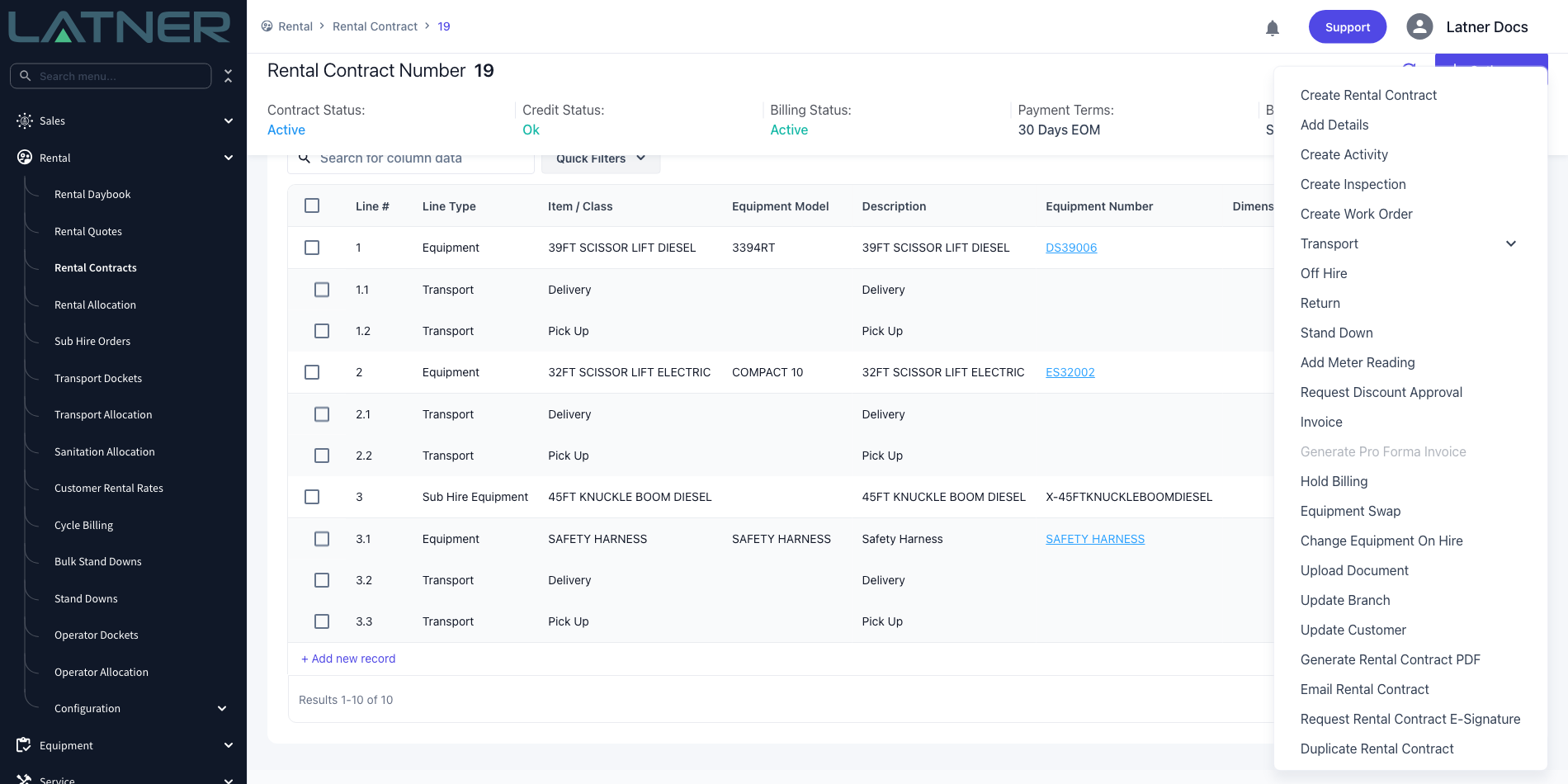
Select Options at the top right of the contract, then Equipment Swap.
Step 3 - Read the two halves of the form
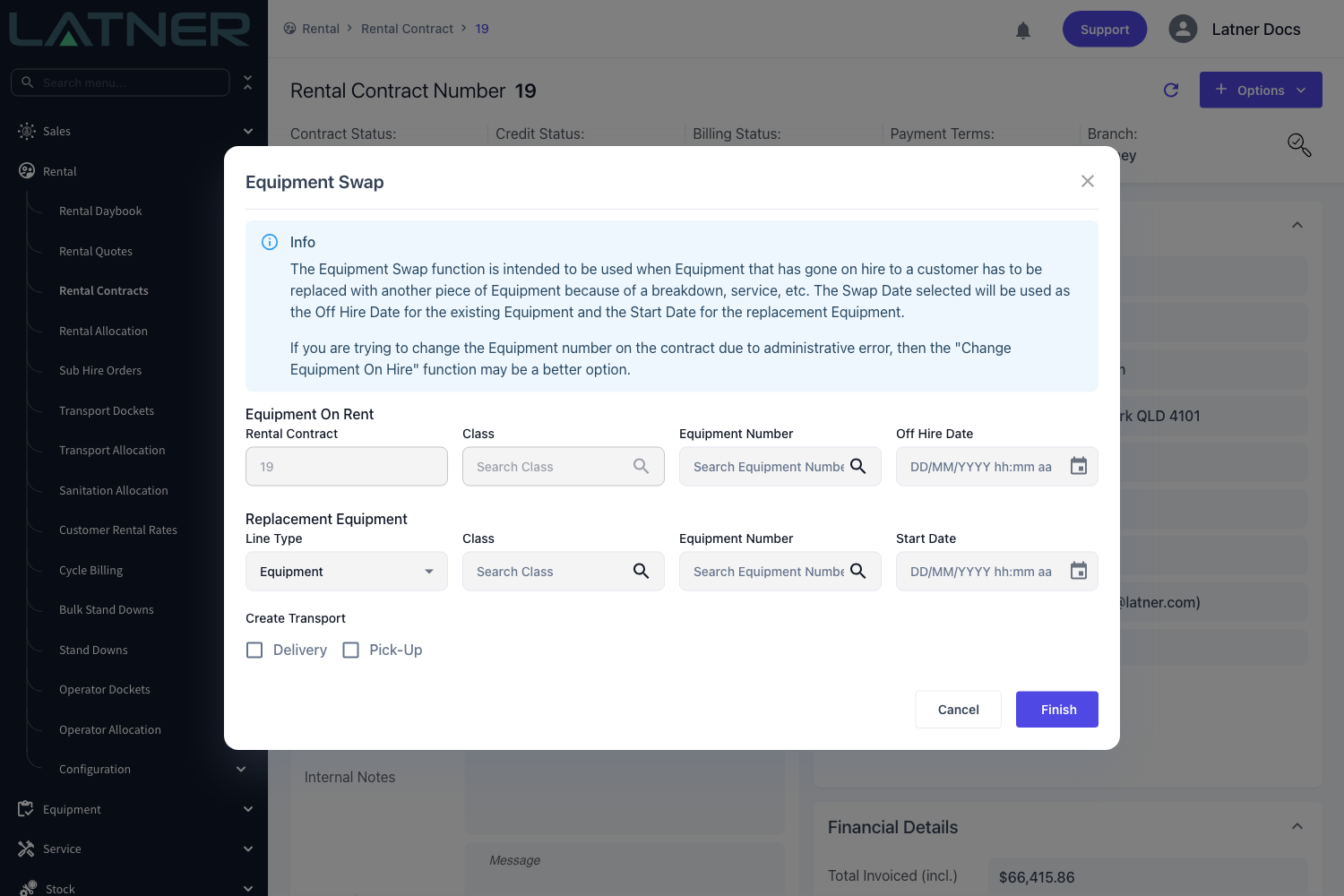
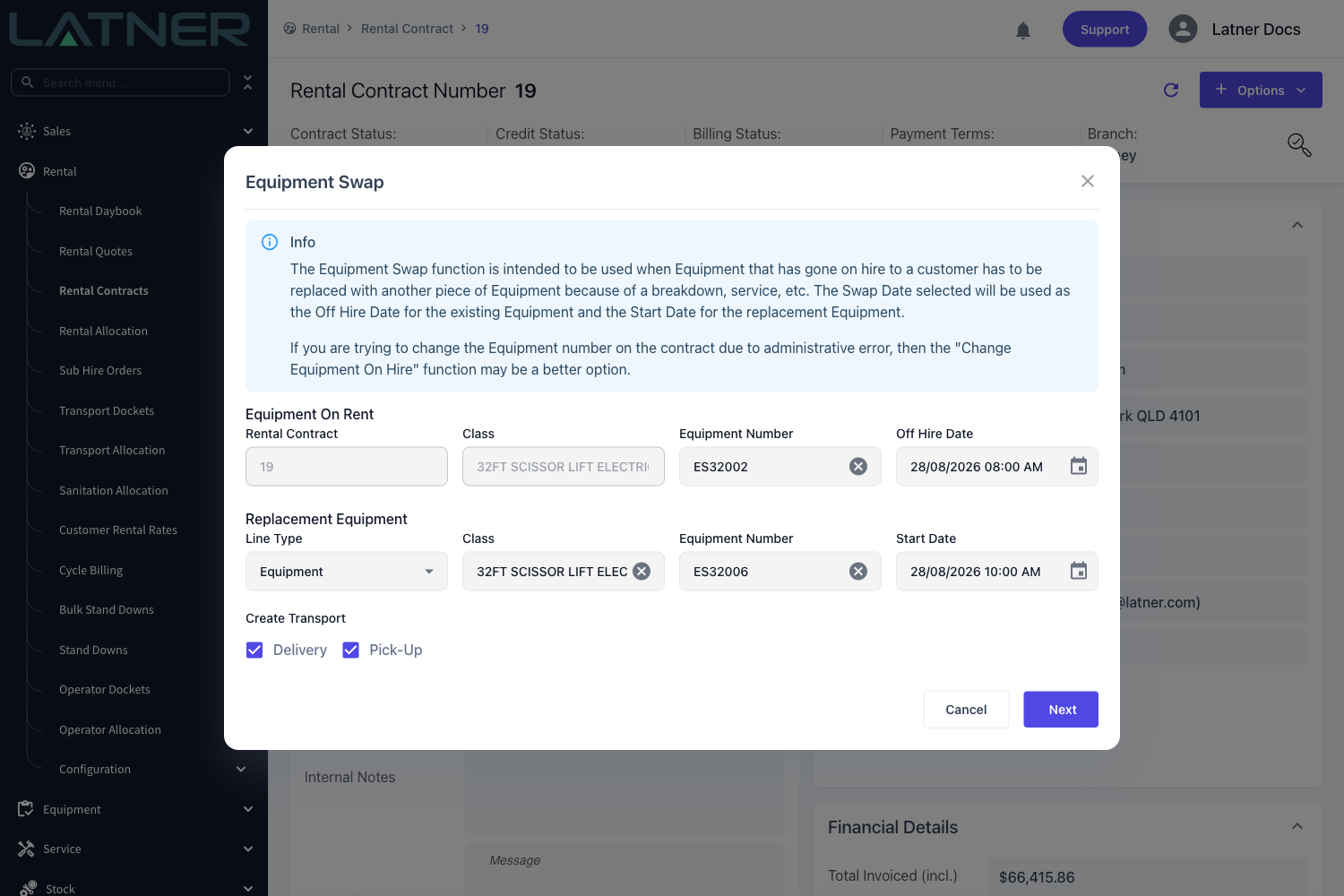
The dialog is in two parts. Equipment On Rent is what's coming back, and Replacement Equipment is what's going out. Every field marked below is required.
Step 4 - Choose the equipment coming off hire
In the Equipment On Rent section, search the Equipment Number field and pick the line you're replacing. The search only offers lines on this contract that are On Rent, so anything already off hire, returned or not yet delivered won't appear.
-
Rental Contract - filled in for you and cannot be changed.
-
Class - fills in from the line you choose and is read-only.
-
Equipment Number - required. The search lists the line number, equipment number and description.
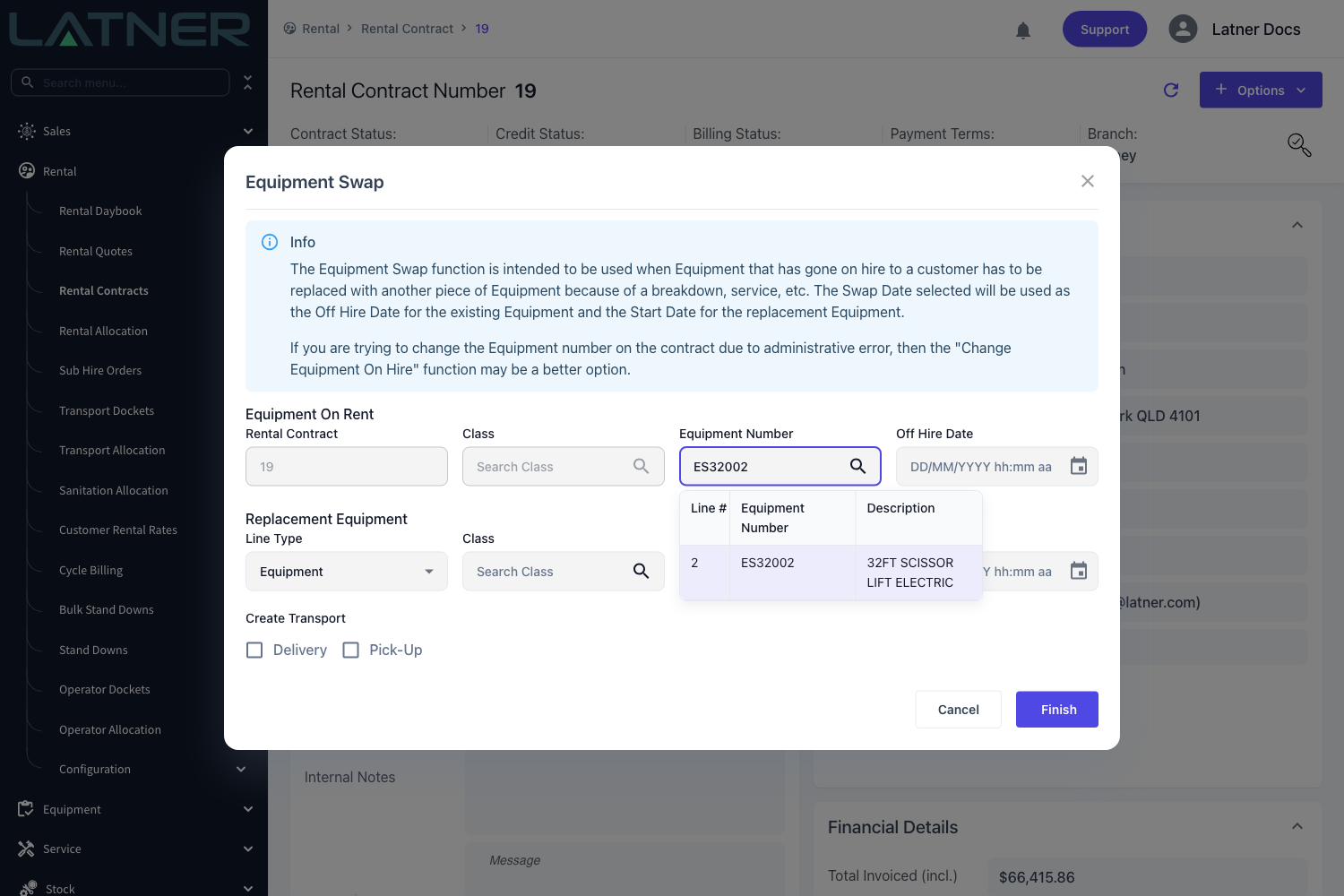
Step 5 - Set the Off Hire Date
Enter the date and time the equipment stops being on hire. This is the date the customer stops being charged for it, so use the time the machine actually came off the job.
Picking the line also fills the Class in the Replacement Equipment section with the same class, which is usually what you want - like for like.
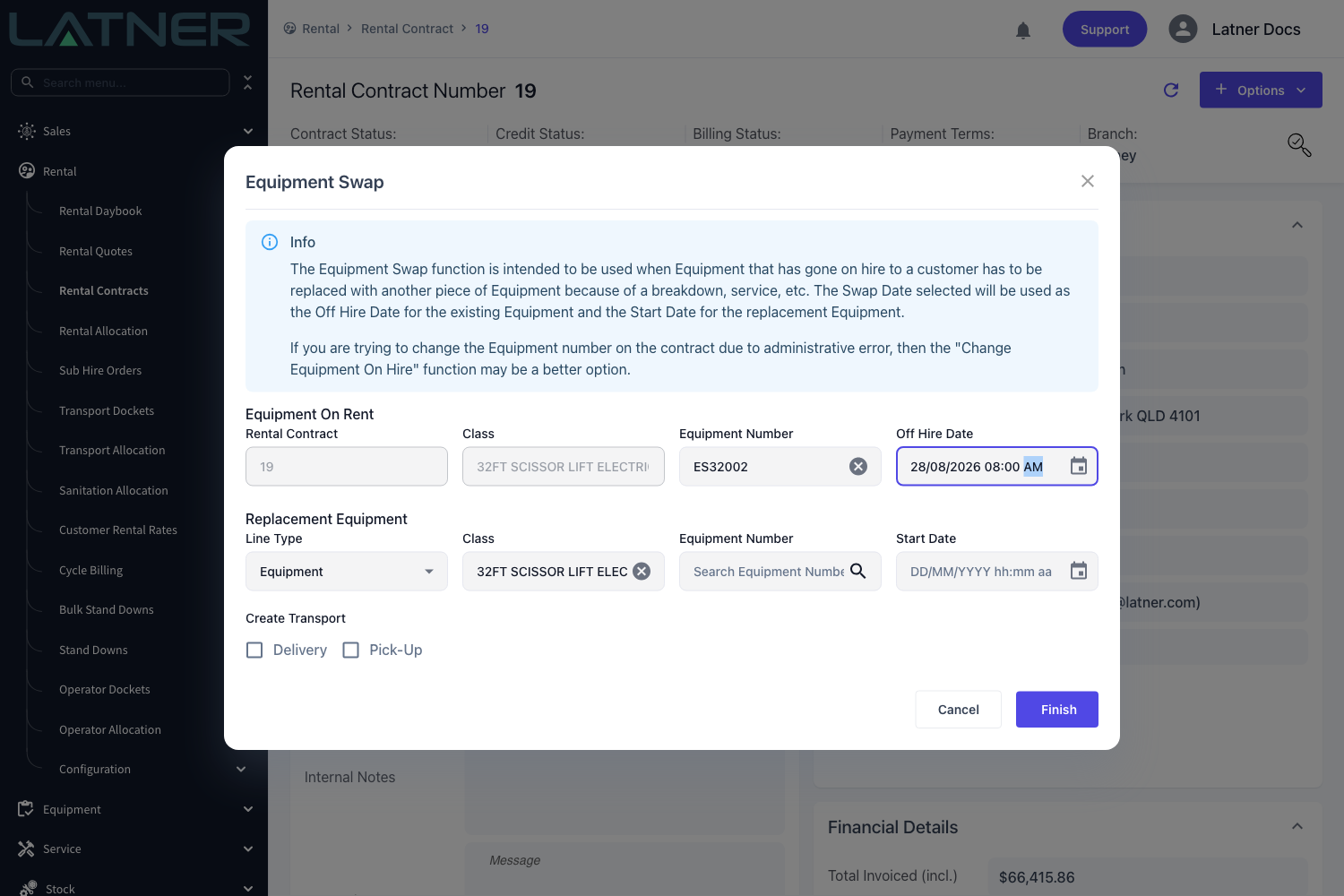
Step 6 - Choose the replacement equipment
Leave Line Type as Equipment to send out one of your own machines, then search the Equipment Number field in the Replacement Equipment section.
-
Line Type - required. Equipment or Sub Hire Equipment.
-
Class - required. Change it if you're replacing with a different class; the Equipment Number clears when you do.
-
Equipment Number - required for an Equipment line. The list is limited to rentable equipment in the chosen class, and to the contract's branch unless Allow Equipment Rentals from Different Branches is enabled.
Rows are highlighted in orange when that machine is sitting in a run up or return inspection, so you can see at a glance which units still have work to clear before they go out.
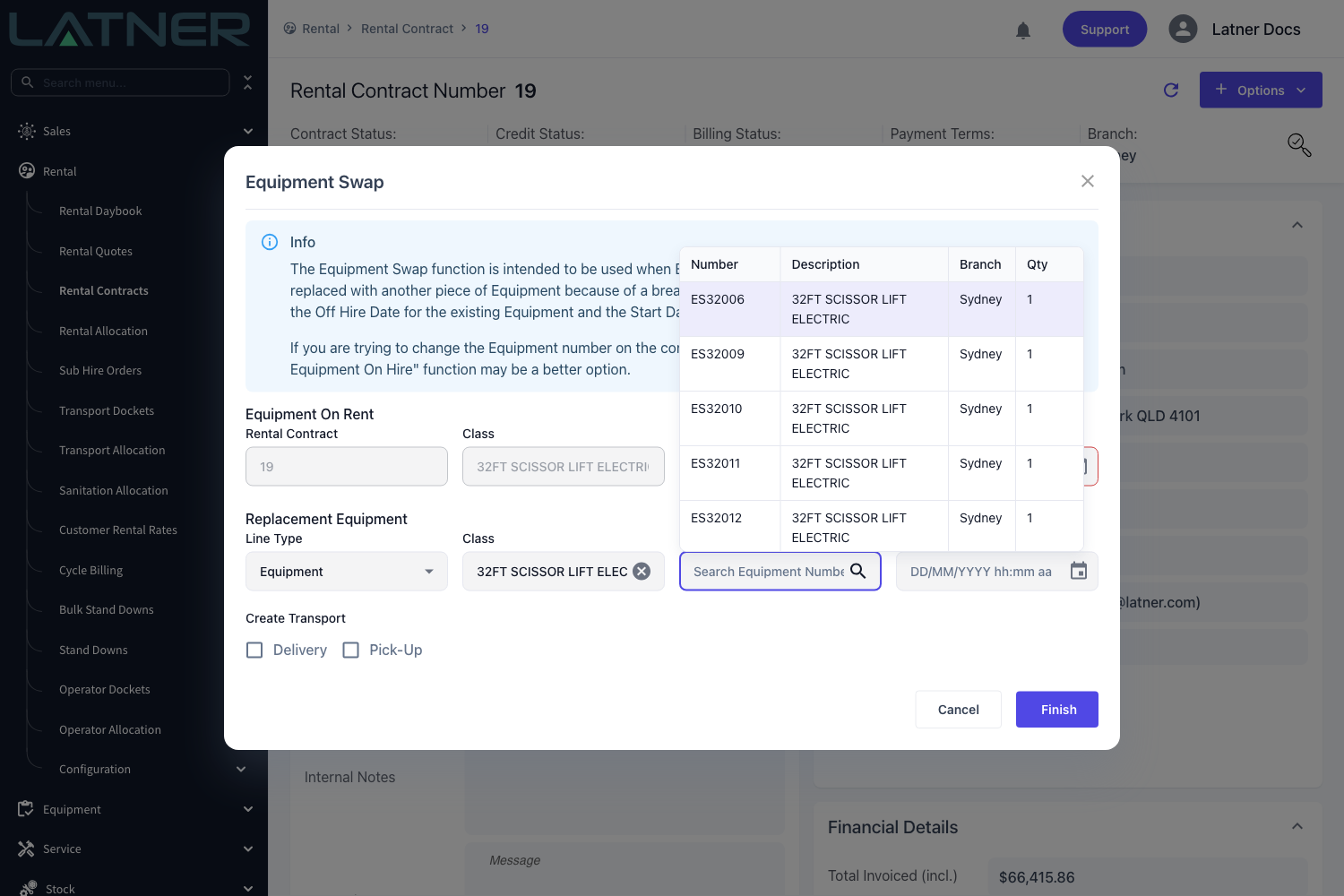
Step 7 - Set the Start Date and check the form
Enter the date and time the replacement starts on hire. It's often the same day as the off hire, but it doesn't have to be - use the real times and the billing follows.
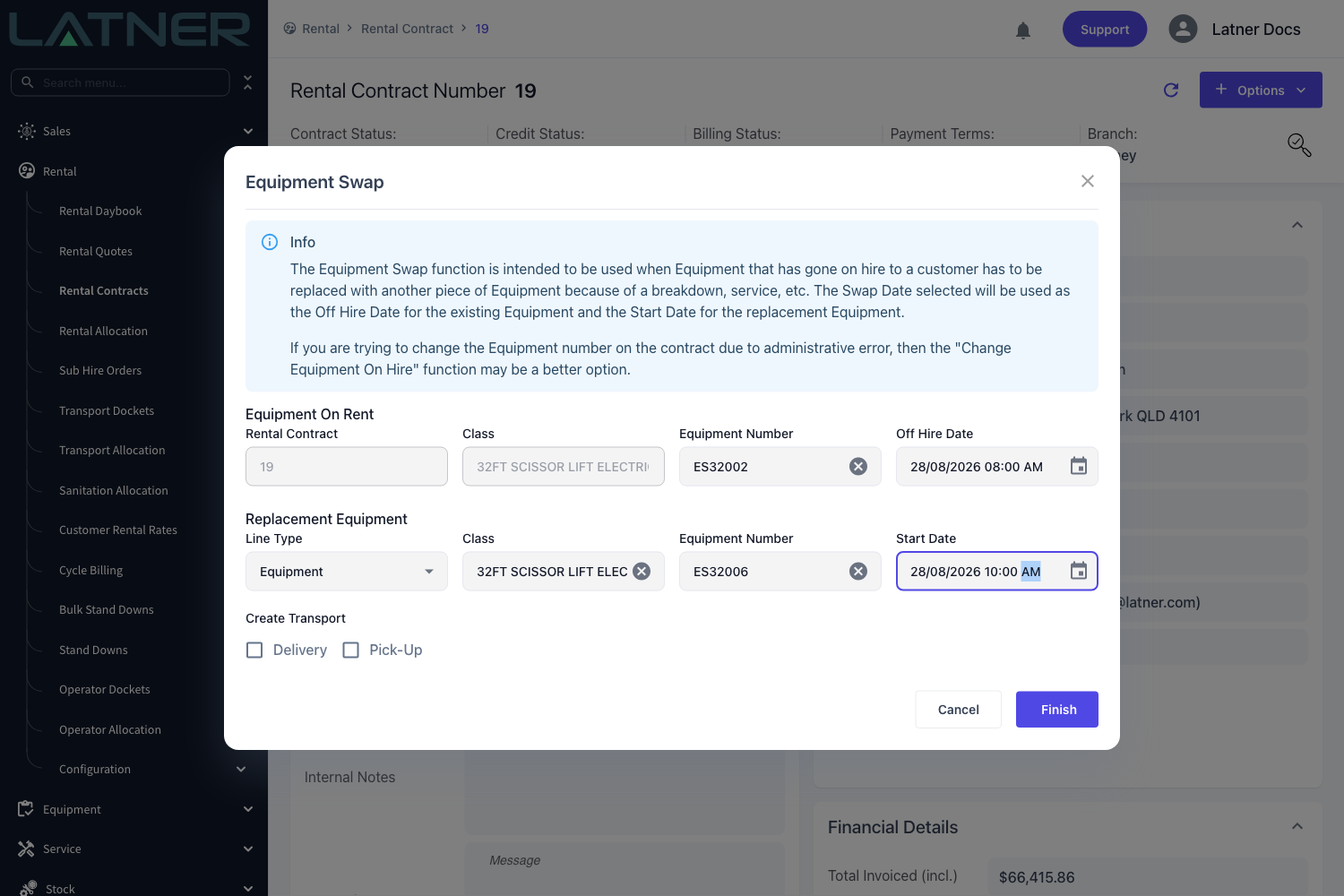
The Start Date can't be later than the line's Expected Off Hire Date. If it is, saving fails with Expected Off Hire Date cannot be before the Start Date, because the replacement line inherits the expected off hire date from the line it replaces. Extend the contract line's expected off hire date first, then run the swap.
Step 8 - Create the transport dockets (optional)
Tick Delivery to raise a delivery docket for the replacement, and Pick-Up to raise a pick-up docket for the equipment coming back. The button at the bottom changes from Finish to Next, and you step through the docket forms before the swap is saved.
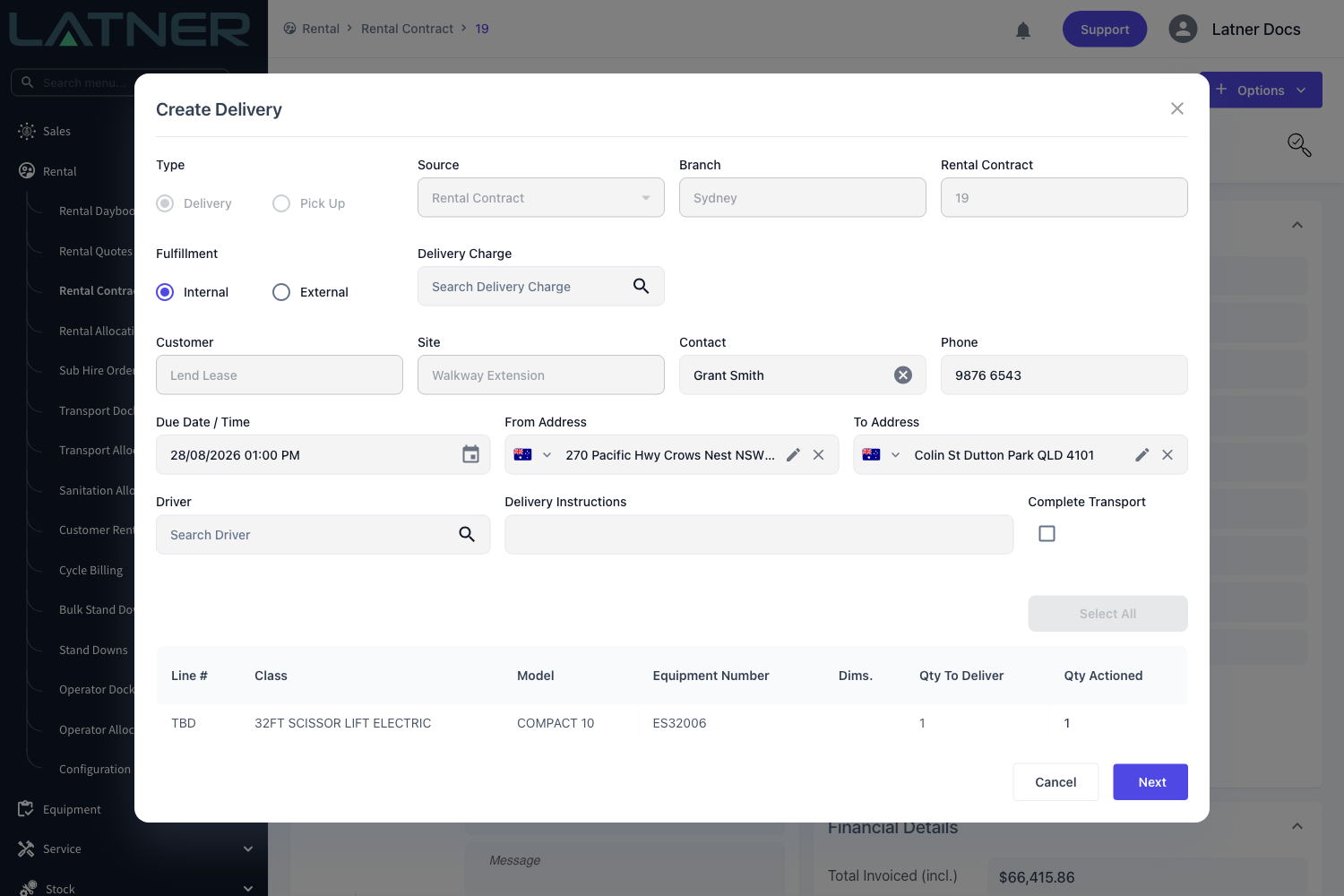
The Create Delivery form opens first, already carrying the customer, site, contact and addresses from the contract, and listing the replacement equipment. The Create Pick Up form follows with the equipment coming off hire. Line numbers show as TBD because the contract line doesn't exist yet, and the quantities are fixed to the quantity on the line being swapped. Check the Due Date / Time and the addresses on each docket before moving on.
Step 9 - Save
Select Finish on the last form. Latner confirms with Equipment Swapped and the contract refreshes with the new line on it.
Swapping To or From Sub Hire Equipment
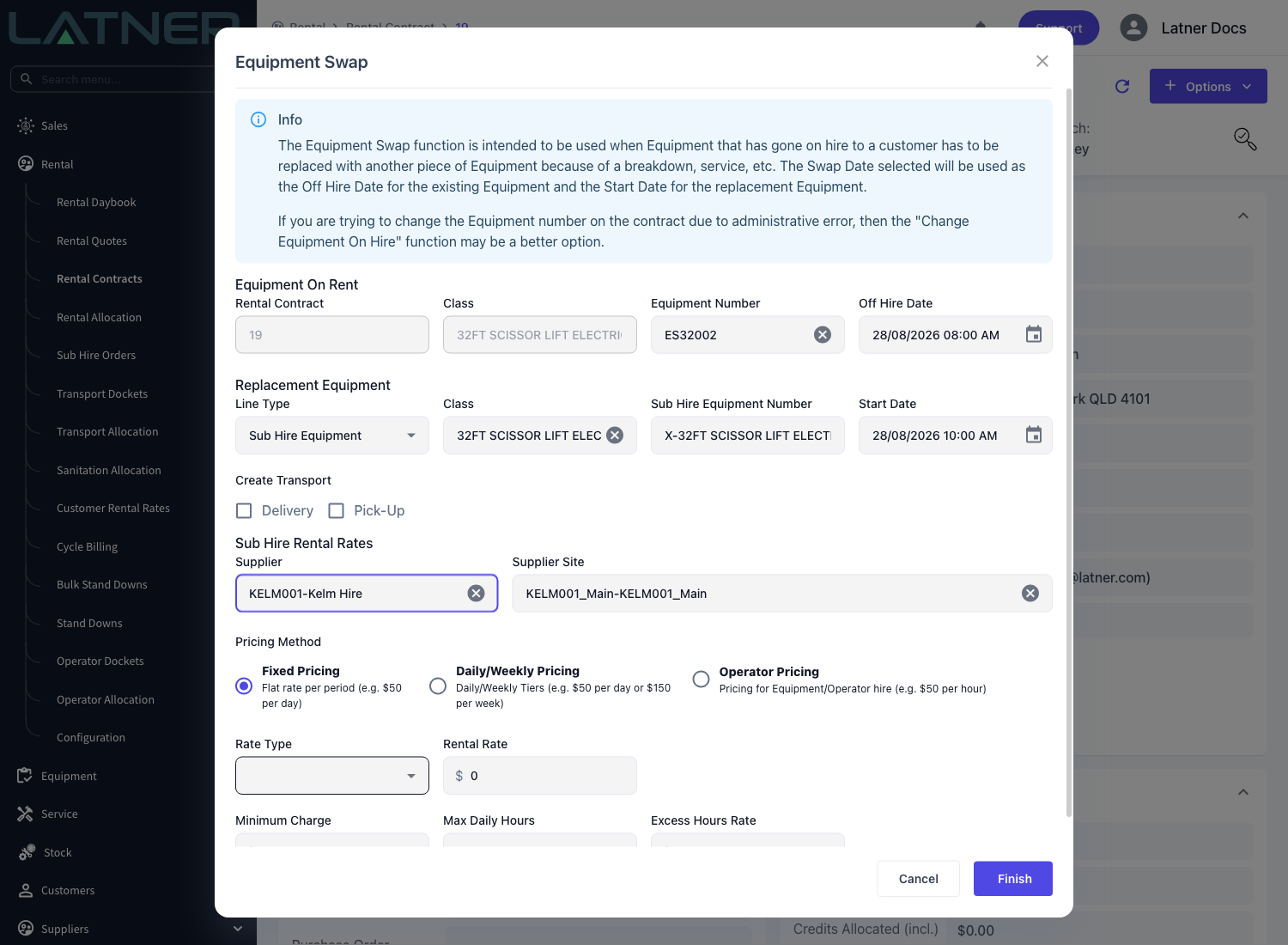
When your own fleet can't cover the replacement, set Line Type to Sub Hire Equipment. The form then asks for the sub hire details instead of an equipment number:
-
Sub Hire Equipment Number - defaults to X- followed by the class name. Replace it with the supplier's unit number once you know it.
-
Supplier and Supplier Site - both required. Choosing a supplier defaults the site to that supplier's first site, and any pop-up note on the supplier is shown.
-
Sub Hire Rental Rates - the pricing method and rates you're paying the supplier for the replacement.
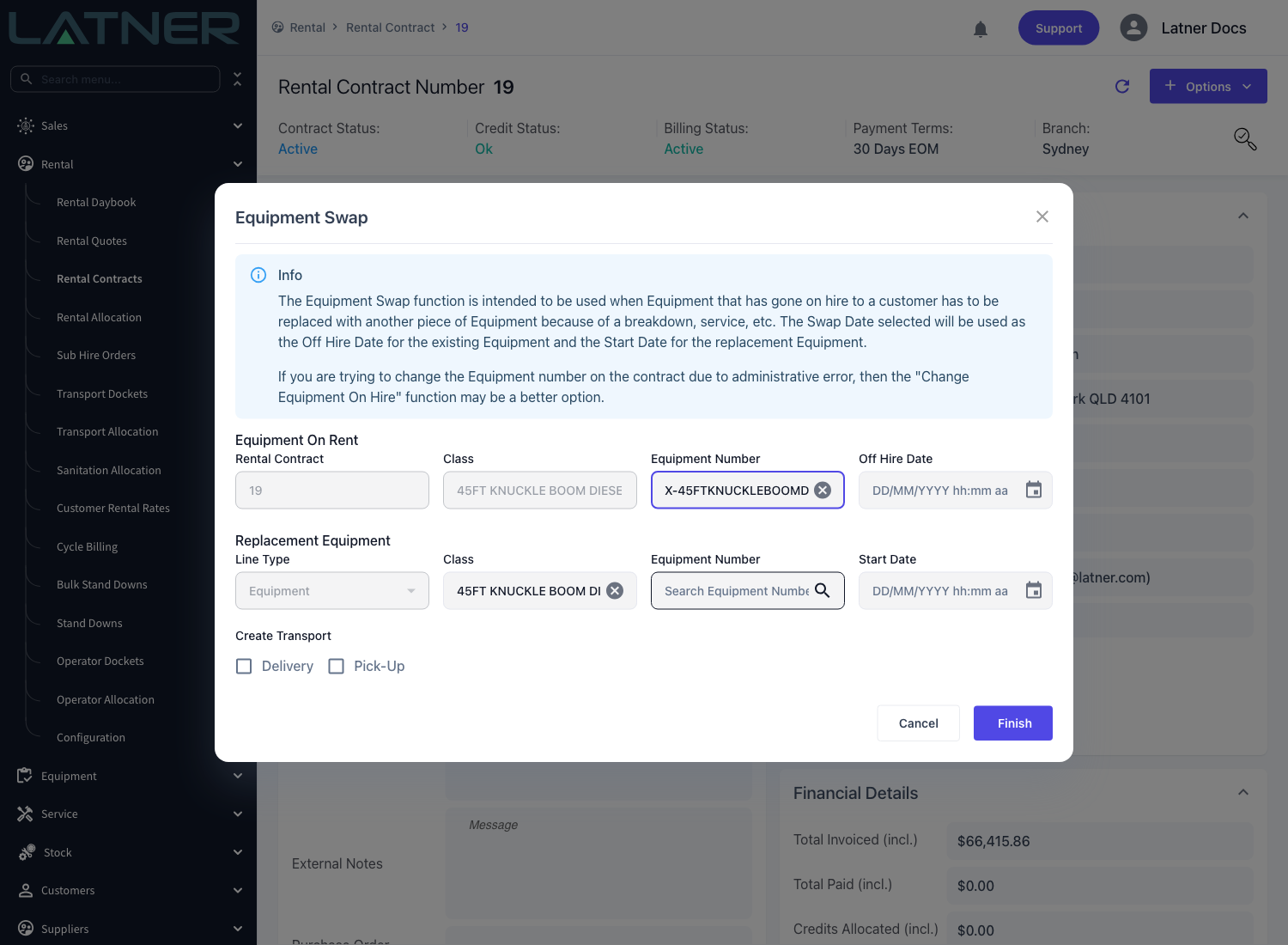
It also works the other way around. If the line coming off hire is a sub hire item, Line Type locks to Equipment - a sub hire line can only be replaced with equipment you own, which is exactly what you want when a supplier's machine goes back and yours takes over.
After the Swap
-
The original line moves to Off Hire with the off hire date you entered, and its equipment's rental status becomes Off Hire.
-
A new line is added at the end of the contract with the next line number, in Reserved status (or Pending Delivery if you created a delivery docket). Its sub status shows what it's waiting on next, such as a purchase order, payment or a delivery docket.
-
The replacement line copies the original line's rates, pricing method, charge days per week, quantity and expected off hire date, and records that it replaced the original line.
-
The replacement equipment's rental status becomes Reserved, so it can't be committed to another contract.
-
A completed Off Hire record appears on the contract's Off Hire tab, using the contract's delivery contact, phone, email and address.
-
Any delivery and pick-up dockets you asked for appear on the Transport tab.
The swap off hires the equipment - it does not return it. The original machine stays on the contract in Off Hire until you process a Return, which is what brings it back into the fleet and closes off its meter reading and inspection. Until then it isn't available to hire to anyone else.
FAQs
Watch the Demo
Prefer to watch it? Step through the same flow here.