
Sub Hire Equipment lets you put a supplier's machine on a customer's rental contract, so you can say yes to a hire even when nothing in your own fleet is free.
Overview
Sooner or later a customer asks for a machine you haven't got. Rather than turn the work away, you hire it in from another supplier and sub hire it to your customer. Some businesses call this cross hire. A Sub Hire Equipment line is how you record both halves of that arrangement on the one contract line.
-
A sub hire line carries two sets of rates: the Customer Rental Rates you charge, and the Sub Hire Rental Rates the supplier charges you.
-
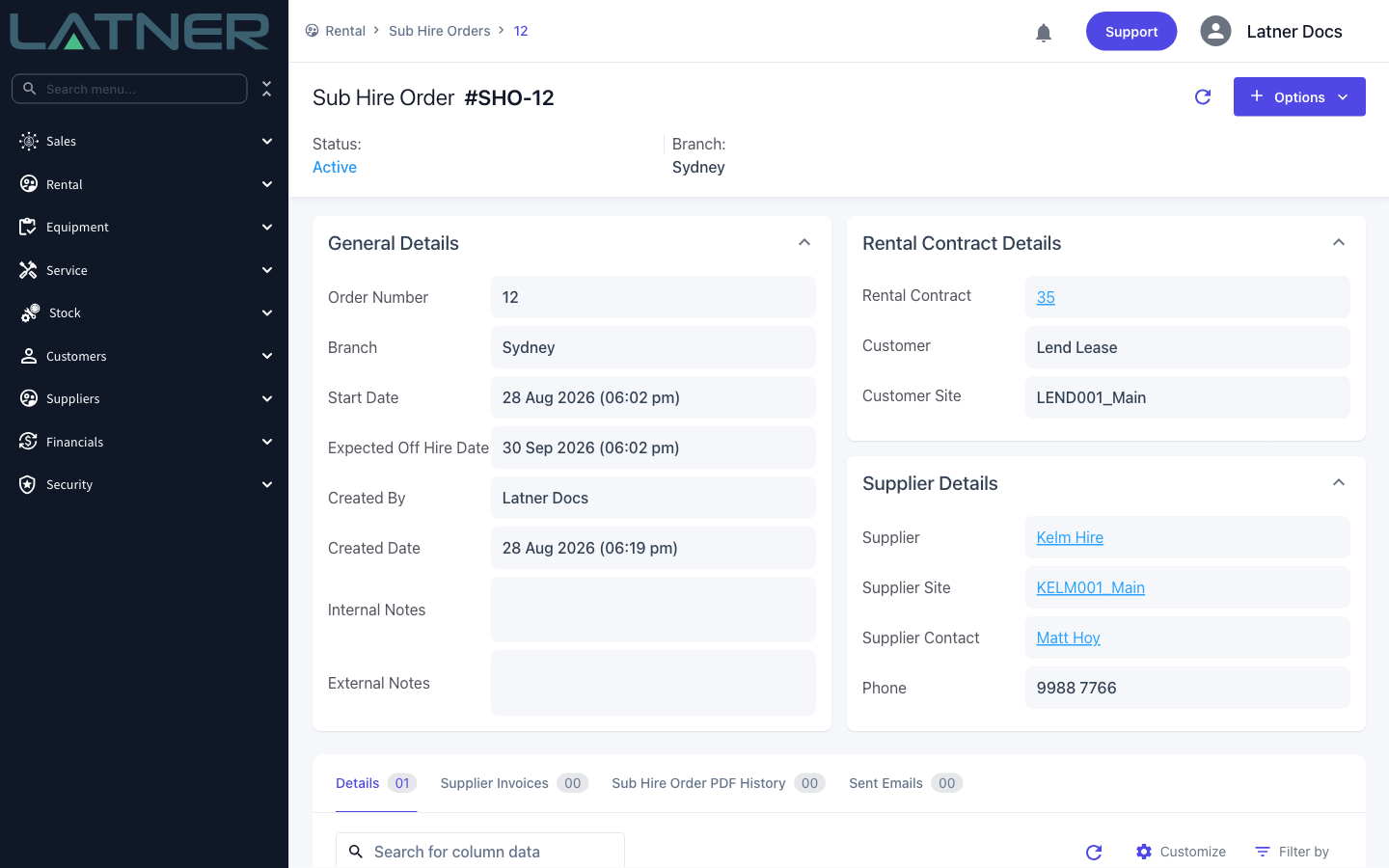
Saving the line creates a Sub Hire Order for that supplier, or adds the line to an existing one. The Sub Hire Order is where you send the order to the supplier and receive their invoice.
-
Latner keeps one active Sub Hire Order per combination of rental contract, supplier, supplier site and branch. Its start and expected off hire dates stretch to cover every line on it.
-
Calculate Markup shows the margin between the two rate sets before you save, and a minimum markup can stop a thin line from being saved at all.
-
Once saved, a sub hire line behaves like any other equipment line for transport, stand downs, off hire, return and invoicing.
Before You Begin
You'll need the following in place before you can add a sub hire line.
|
Requirement |
Where to Find It |
|---|---|
|
Add Rental Contract Details permission |
Security › Configuration › Permission Groups › Rental › Option |
|
Sub Hire Orders permission, to open the order the line creates |
Security › Configuration › Permission Groups › Rental › Screen |
|
An active supplier with an active site and a site contact |
Suppliers › Suppliers |
|
Sub hire rates for that supplier and equipment class (optional, but they save typing) |
Rental › Configuration › Sub Hire Rental Rates |
|
Global Sub Hire Minimum Markup and Auto Create Sub Hire Order Invoices (both optional) |
Security › Settings › Rental |
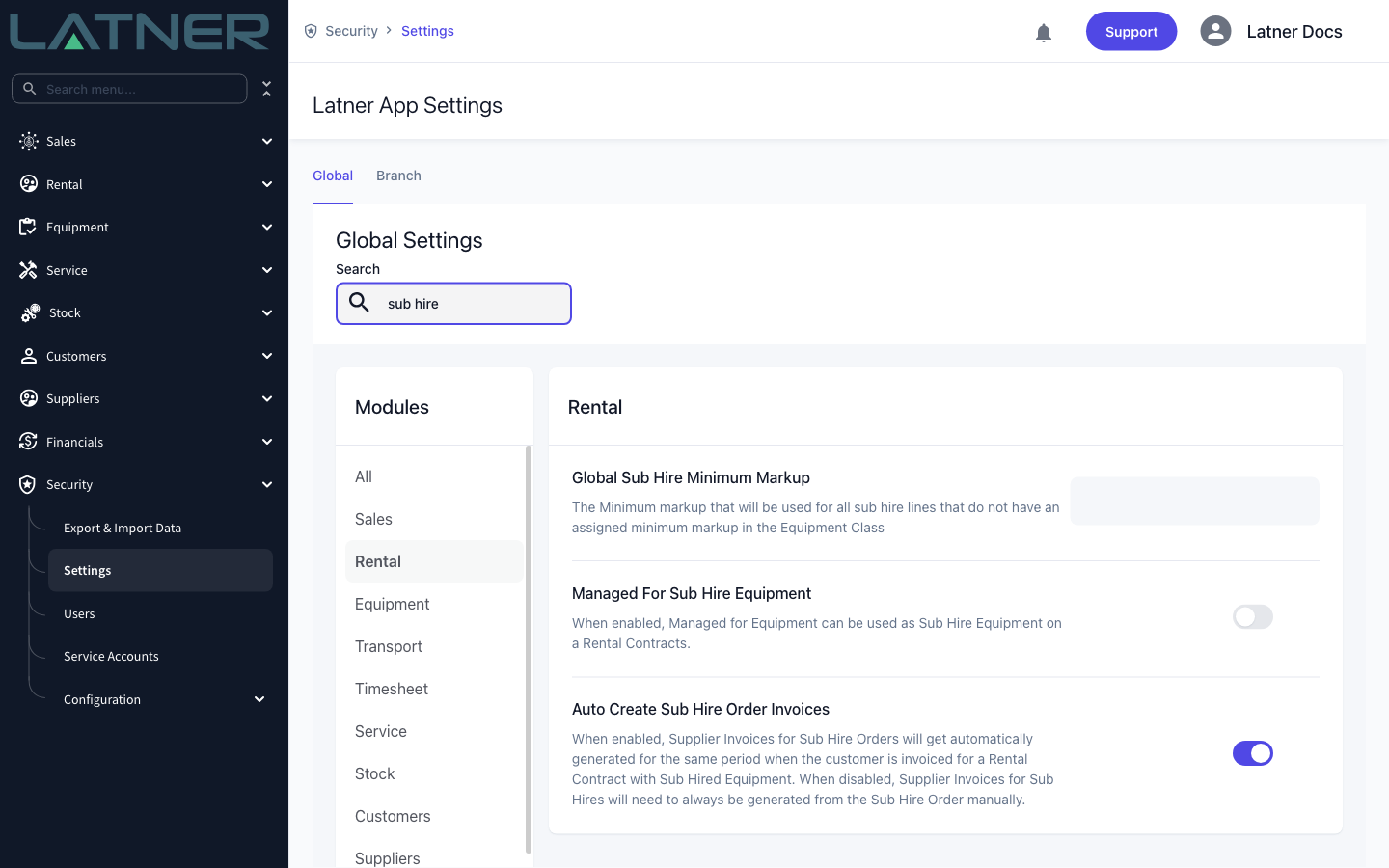
If Global Sub Hire Minimum Markup is set, Latner checks every sub hire line against it and refuses to save one that doesn't clear it: This Sub Hire line does not meet the minimum markup of .... An equipment class can carry its own minimum markup, which takes precedence over the global figure. Users with the Allow Rates below Sub Hire Minimum Markup permission are not checked.
Adding the Sub Hire Line
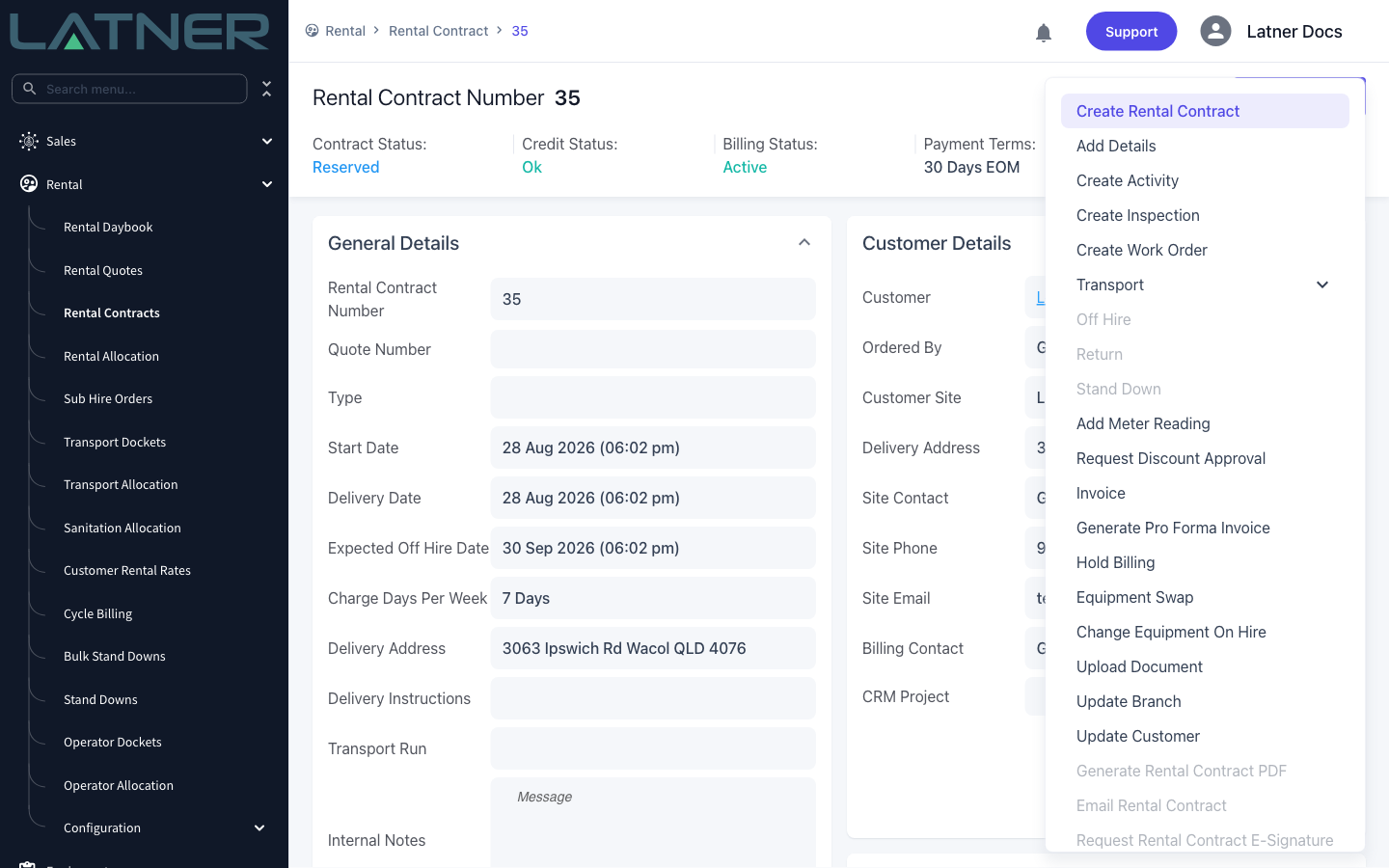
Step 1 - Open the contract and choose Add Details
Open the rental contract from Rental › Rental Contracts, then choose Options › Add Details. The same form opens automatically the first time you land on a brand new contract.
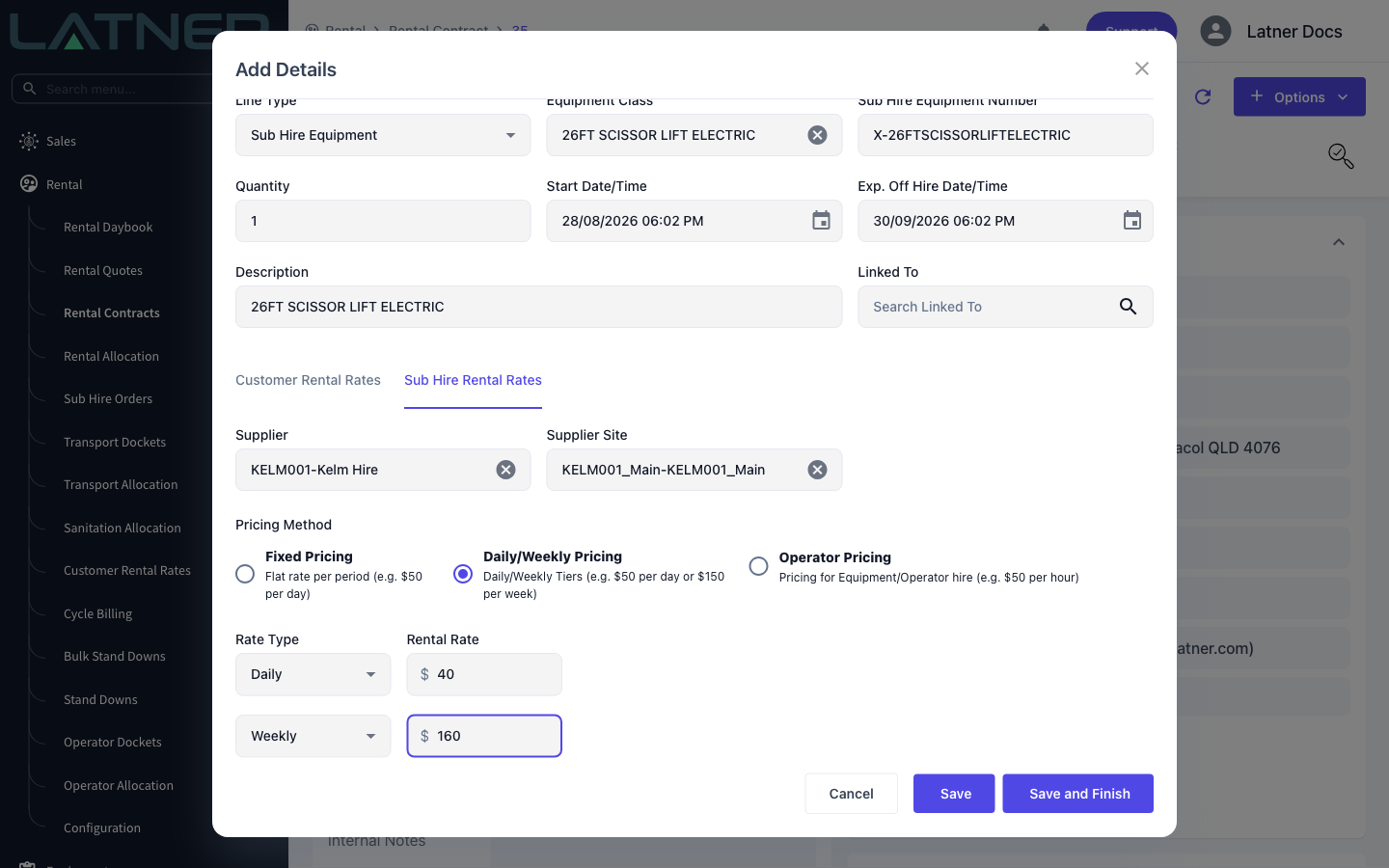
Step 2 - Set the Line Type to Sub Hire Equipment
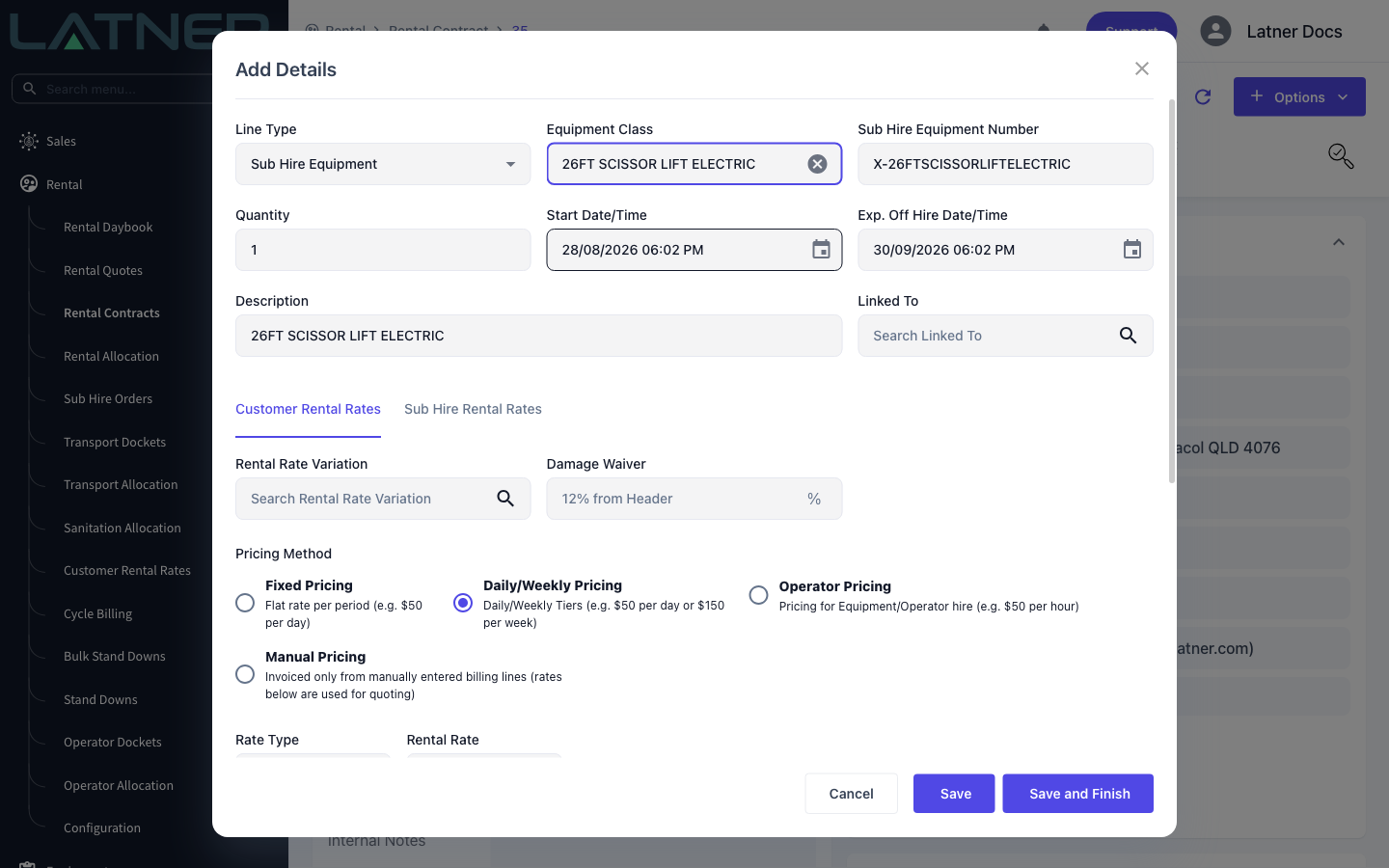
Change Line Type from Equipment to Sub Hire Equipment. The form changes shape: the Equipment Model and Equipment Number pickers disappear, because you aren't allocating a machine out of your own fleet, and a Sub Hire Equipment Number field takes their place.
-
Equipment Class - required. It drives the description, the customer rates and any class-level minimum markup.
-
Sub Hire Equipment Number - free text, pre-filled as "X-" followed by the equipment class name. Replace it with the supplier's fleet number as soon as you know it.
-
Quantity, Start Date/Time and Exp. Off Hire Date/Time - default from the contract header.
-
Description - filled from the equipment class, and editable.
-
Linked To - optional; use it to hang the line off another equipment line.
Step 3 - Set the customer rates
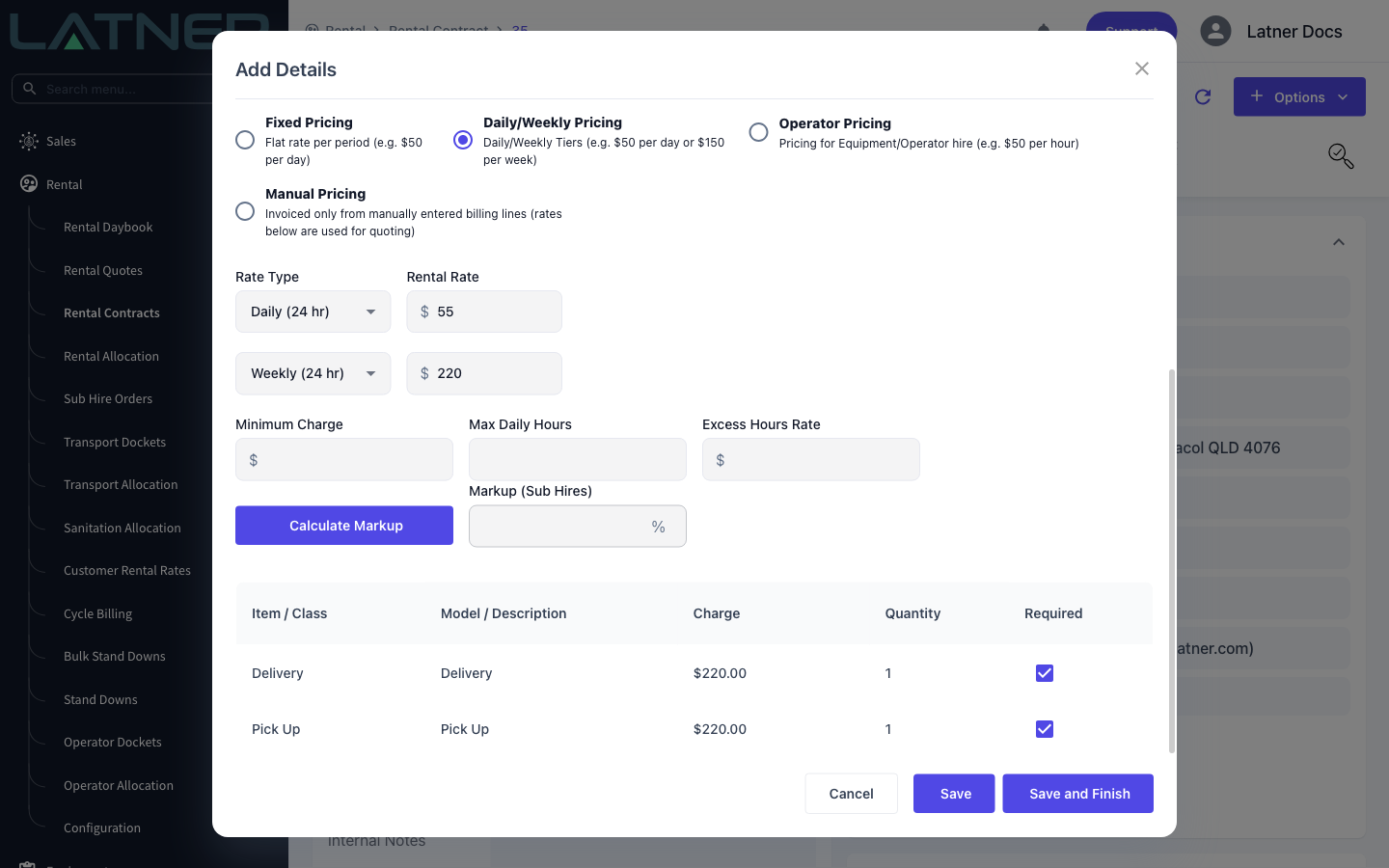
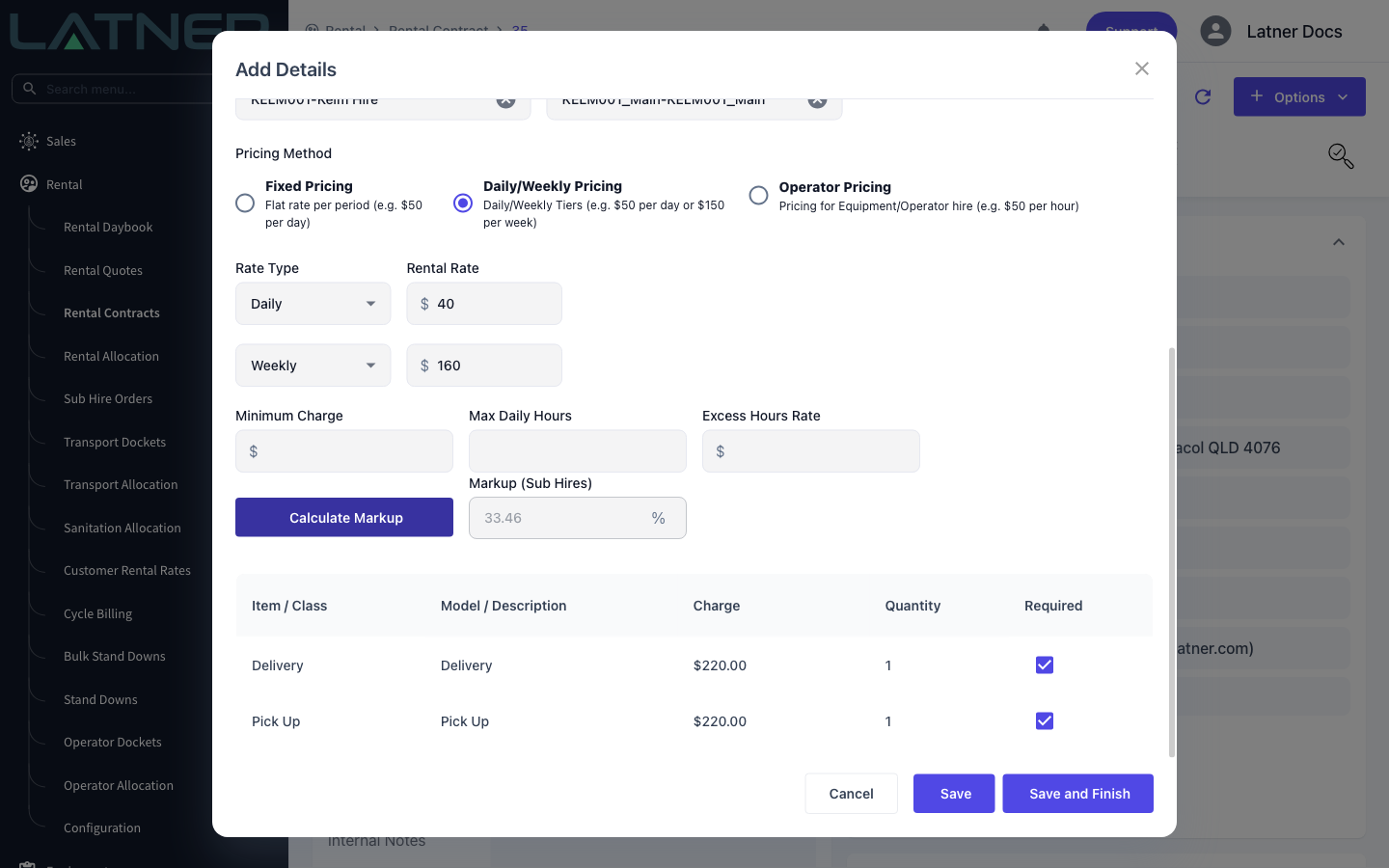
The Customer Rental Rates tab is what your customer pays. Latner fills it from the customer's rate book for that equipment class as soon as you pick the class, so most of the time you only check it. Set the Pricing Method, the rate rows, and any Minimum Charge, Max Daily Hours or Excess Hours Rate. Additional items such as delivery and pick up charges are listed underneath and are ticked as Required by default.
Step 4 - Choose the supplier and enter their rates
Switch to the Sub Hire Rental Rates tab. This is the only place the supplier fields appear, so a sub hire line is never finished on the Customer tab alone.
-
Supplier - required. Only active suppliers are listed.
-
Supplier Site - required, and pre-filled with the supplier's first site. It stays disabled until a supplier is chosen, and you can create a new site from the field if the one you need doesn't exist yet.
-
Pricing Method and rates - if the supplier has Sub Hire Rental Rates for that equipment class, Latner fills them in when you pick the supplier. If they don't, the rates stay as they were and you enter what the supplier quoted.
Step 5 - Check the markup
Select Calculate Markup. Latner prices both sides of the line for the dates on it and shows the difference as a percentage in Markup (Sub Hires). The button and the field are hidden when either side uses Operator Pricing, which markup isn't calculated for.
Step 6 - Save
Save adds the line and reopens the form so you can add the next one. Save and Finish adds the line and closes the form, then offers to create a transport docket if the contract has any reserved equipment or sub hire lines waiting to be delivered.
After Adding the Line
-
The line shows on the contract's Details tab with the line type Sub Hire Equipment and status Reserved. Required additional items are added as their own transport sub lines.
-
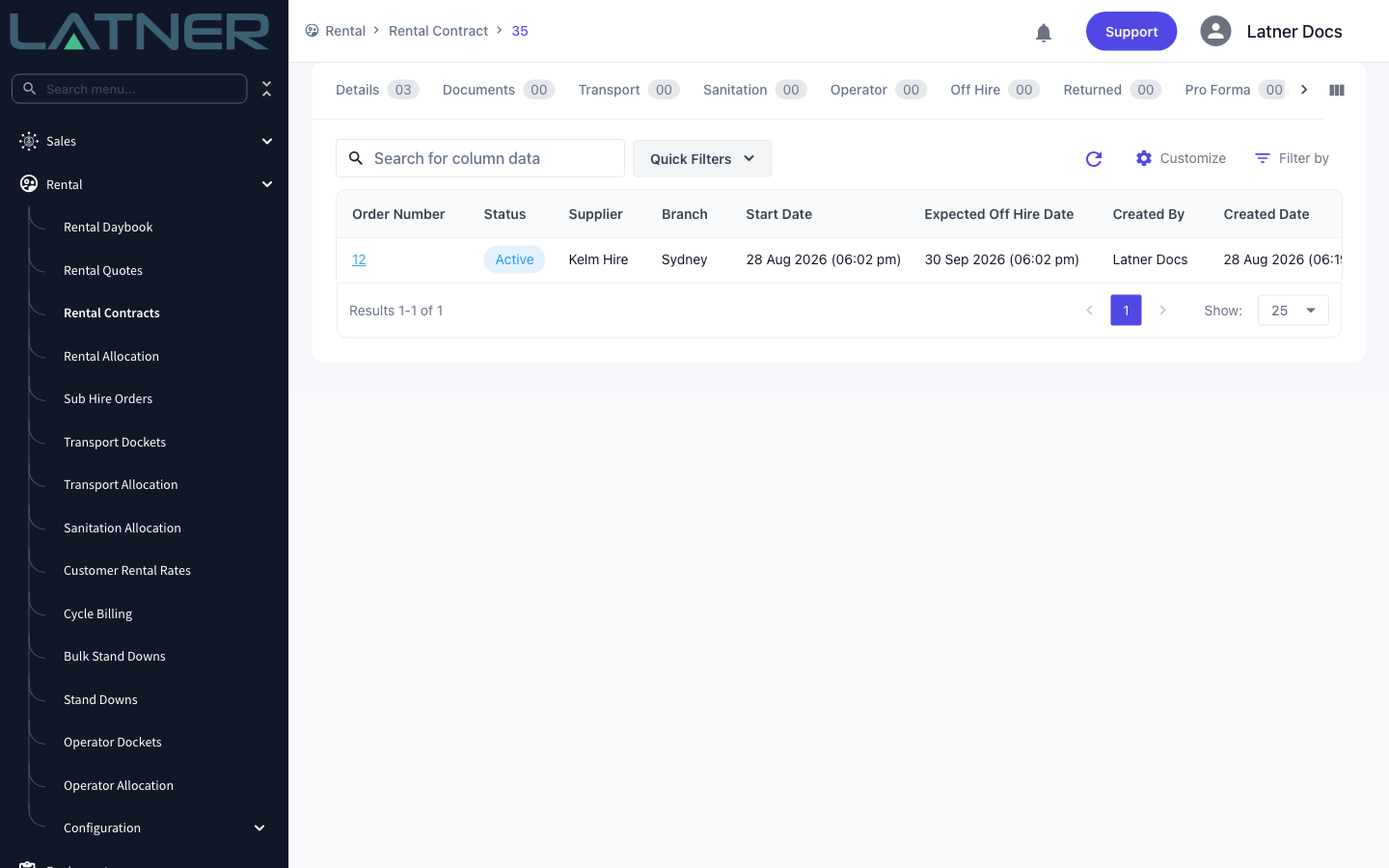
The contract's Sub Hire Orders tab now lists an Active order for that supplier. Add a second sub hire line for the same supplier, site and branch and it joins the same order rather than starting a new one.
-
The order records the supplier, supplier site, supplier contact and branch, and spans the earliest start date and the latest expected off hire date of its lines.
-
From the Sub Hire Order you can Generate Sub Hire Order PDF and Email Sub Hire Order to send it to the supplier, Add Sub Hire Order Expense for costs the supplier passes on, and Invoice Sub Hire Order to record their invoice.
-
With Auto Create Sub Hire Order Invoices enabled, invoicing the customer generates the matching supplier invoice for the same period. With it disabled, you raise every supplier invoice from the Sub Hire Order yourself.
-
Once the equipment has been returned and there's nothing left to invoice, the line on the Sub Hire Order completes; when every line is completed or cancelled, the order completes too.
-
Margins across your sub hires are reported on the Sub Hire Profitability tab of the home screen dashboard.
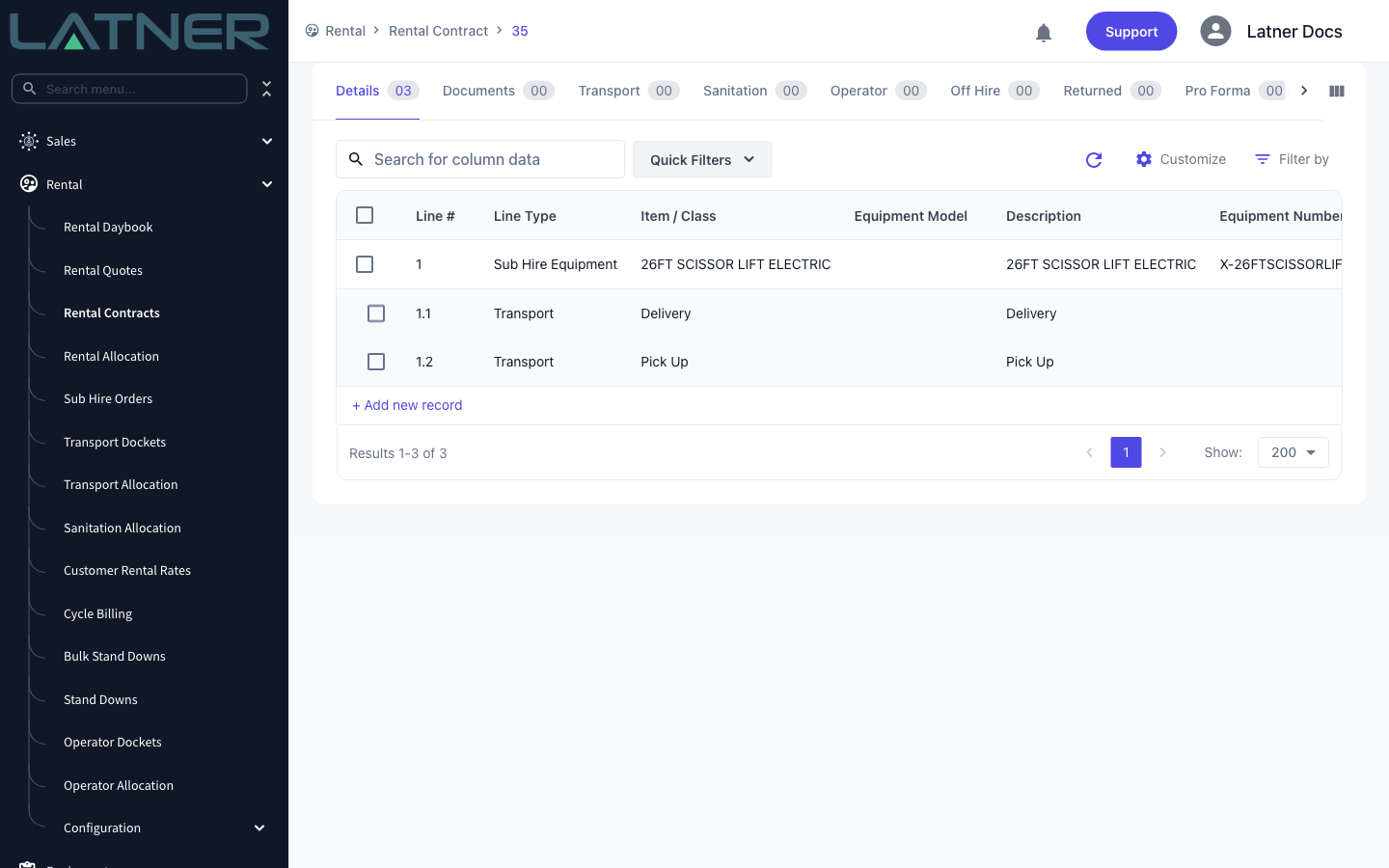
A sub hire line can't go on hire until it has a Sub Hire Equipment Number - Latner stops the delivery with Line N has no Sub Hire Equipment Number. And once the supplier has invoiced a line, that line can no longer be moved off its Sub Hire Order, so if you have picked the wrong supplier, change it on the contract line before the first supplier invoice is raised.
FAQs
Watch the Demo
Prefer to watch it? Step through the same flow here.