
Update Branch moves a rental contract, and the unpaid invoices raised from it, to a different branch in one step, so the hire is managed, reported and invoiced from the branch that's actually running it.
Overview
Jobs move. A contract gets booked at the wrong branch, or a customer's project is handed to the depot closer to site. You don't need to cancel and rebook the contract: Update Branch reassigns it and carries the related open paperwork across with it.
-
The branch on an invoice can't be edited on the invoice itself. Invoices raised from a rental contract follow the contract: when you update the contract's branch, its unpaid invoices move too.
-
"Unpaid" means invoices in Open, Pending Approval or Completed status. Paid and Cancelled invoices keep their original branch.
-
Every detail line on the contract, and every line on the invoices that move, is set to the new branch.
-
Open transport dockets, open run up inspections, open purchase orders, open sub hire orders and open work orders linked to the contract move to the new branch as well.
-
You can update the branch while the contract is Open (Reserved) or Active, but only while none of its lines has an Equipment Number assigned.
Before You Begin
Check you have the permission and that the contract is in a state that can be moved.
|
Requirement |
Where to Find It |
|---|---|
|
Update Rental Contract Branch permission, for the branch the contract currently belongs to |
Security › Configuration › Permission Groups › [group] › Rental › Option |
|
Rental Contracts screen permission |
Security › Configuration › Permission Groups › [group] › Rental › Screen |
|
The contract must be Open or Active - not Completed, Cancelled or Lost |
The Contract Status field at the top of the rental contract |
|
No line on the contract can have an Equipment Number assigned |
The Details tab of the rental contract |
Equipment belongs to a branch, so Latner won't move a contract while specific machines are still assigned to it. If you try, the save is refused with a message listing the lines that still have equipment, for example Cannot update Branch of a Rental Contract with already assigned Equipment Details, lines: 1.0. Remove the Equipment Number from those lines, update the branch, then allocate equipment from the new branch.
Updating the Branch
Step 1 - Open the rental contract
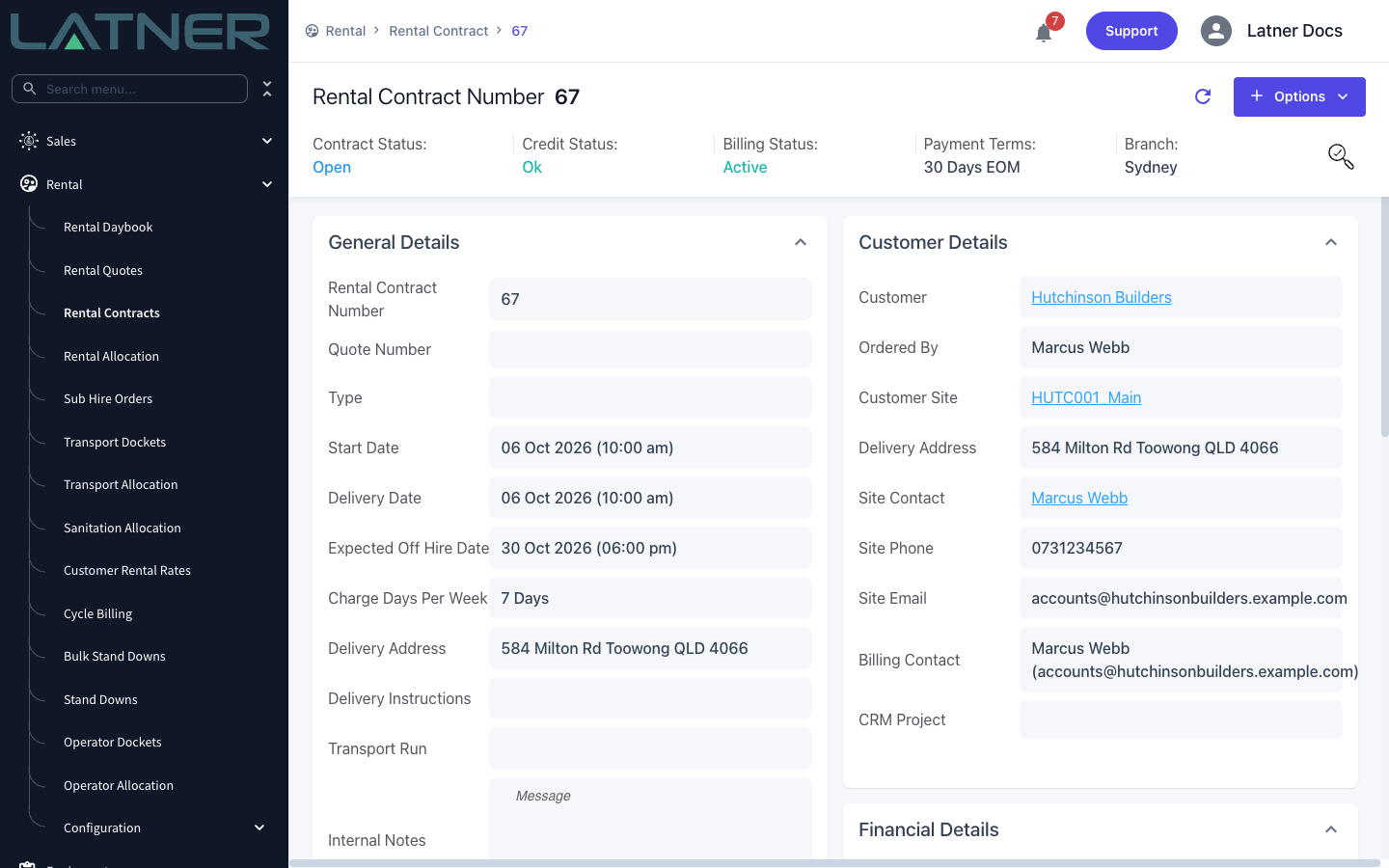
Go to Rental › Rental Contracts and open the contract you want to move. The branch it belongs to now is shown in the header.
Step 2 - Choose Options › Update Branch
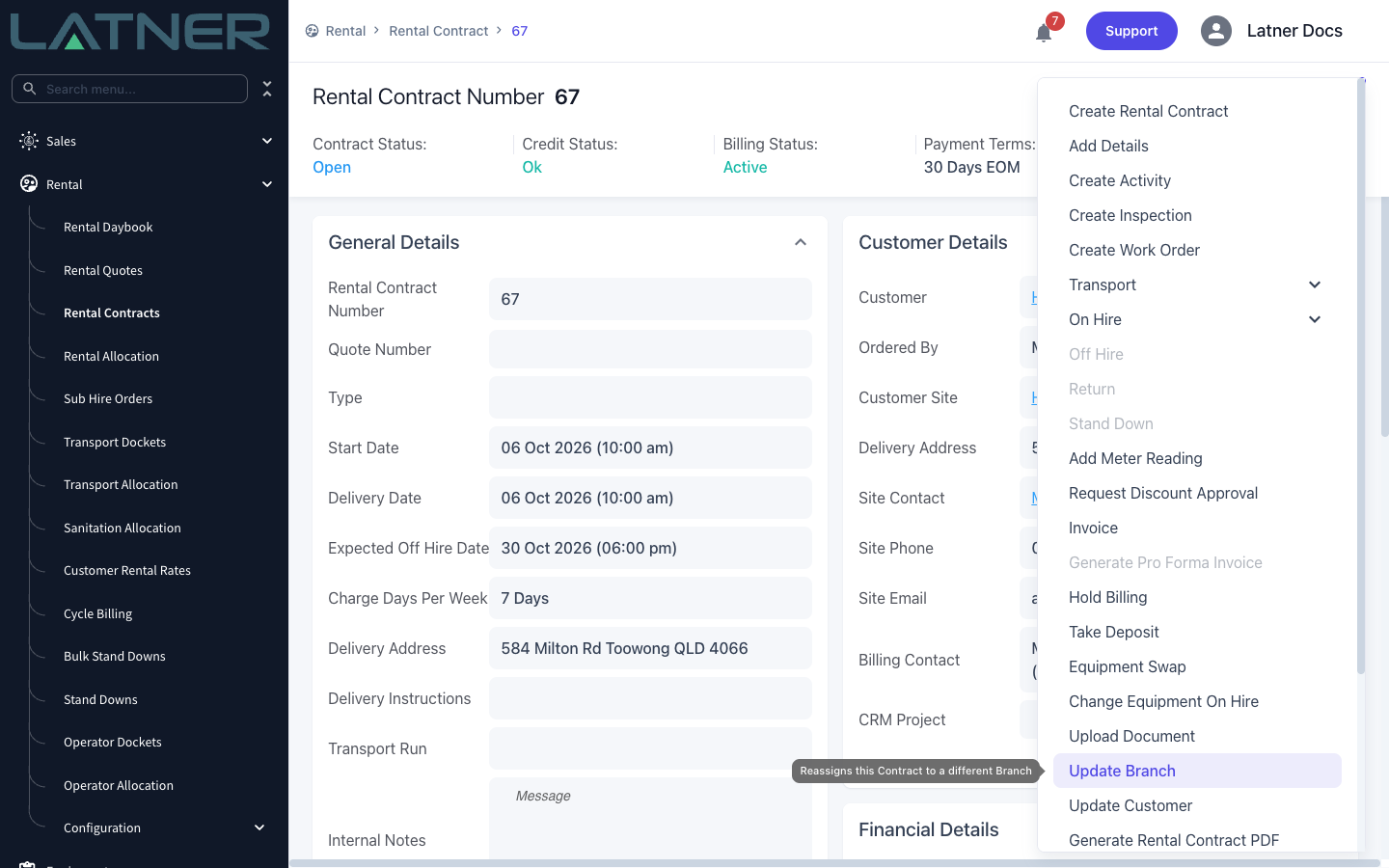
Click Options and choose Update Branch. The option is greyed out on a Completed, Cancelled or Lost contract, and doesn't appear at all if you don't have the Update Rental Contract Branch permission.
Step 3 - Read the warning and pick the new branch
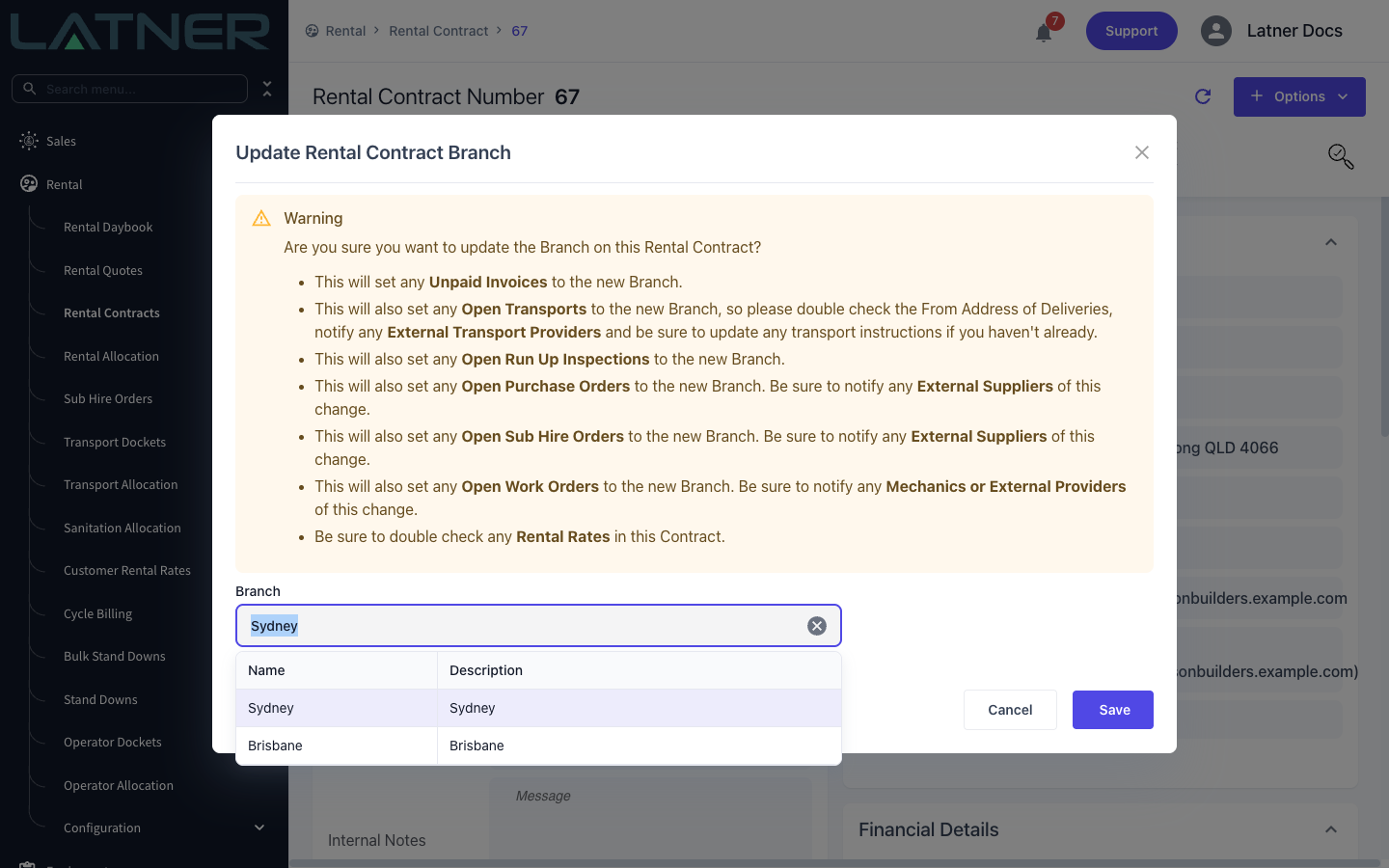
The Update Rental Contract Branch dialog opens with a warning listing everything that will move with the contract. Read it before you continue - it's your checklist of who to tell afterwards. Then pick the new branch:
-
Branch - required. It starts on the contract's current branch; clear it and choose the branch taking over the hire.
Step 4 - Save
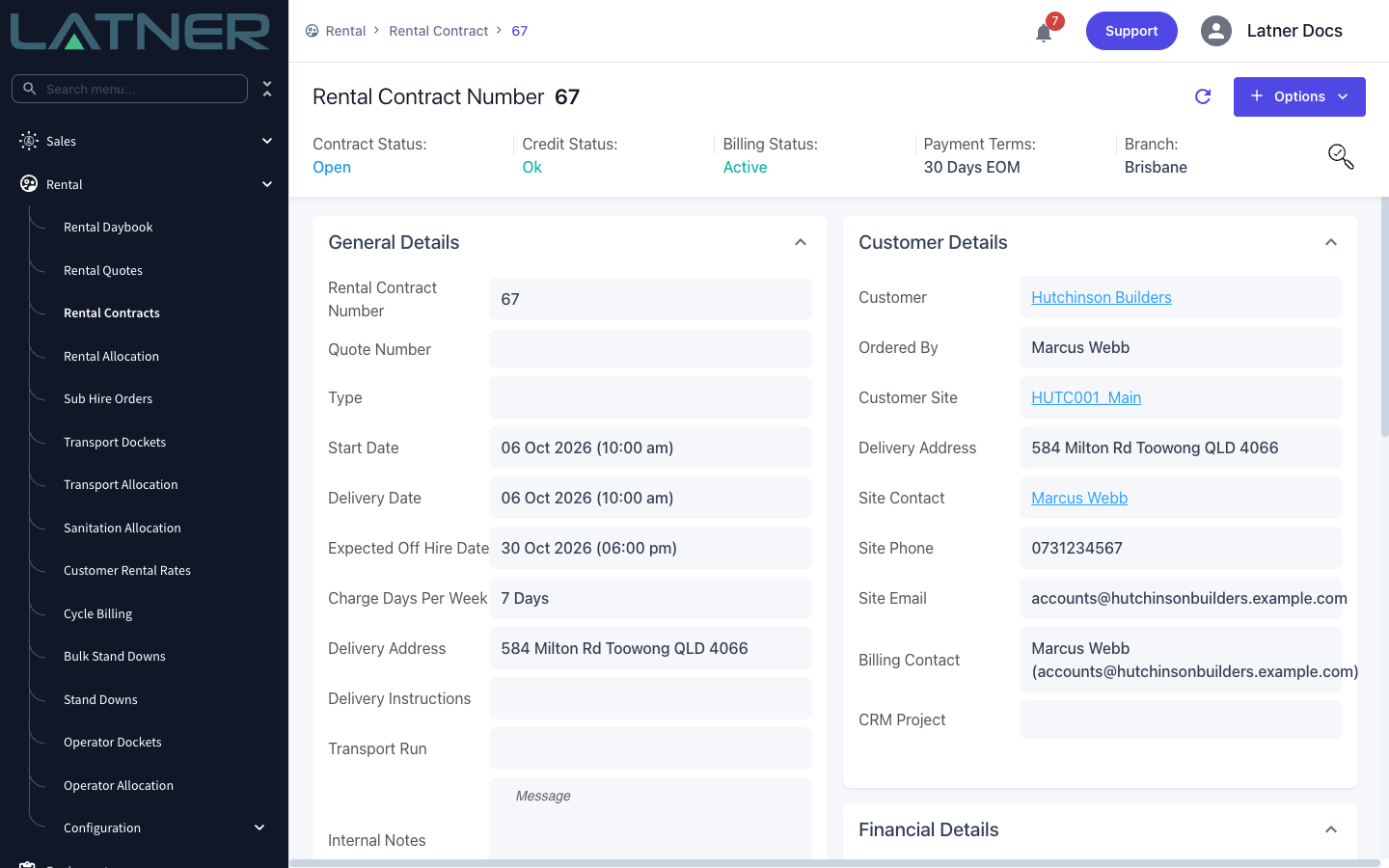
Click Save. A Rental Contract Branch Updated message confirms the change and the contract reloads with the new branch in its header.
Step 5 - Check the invoices
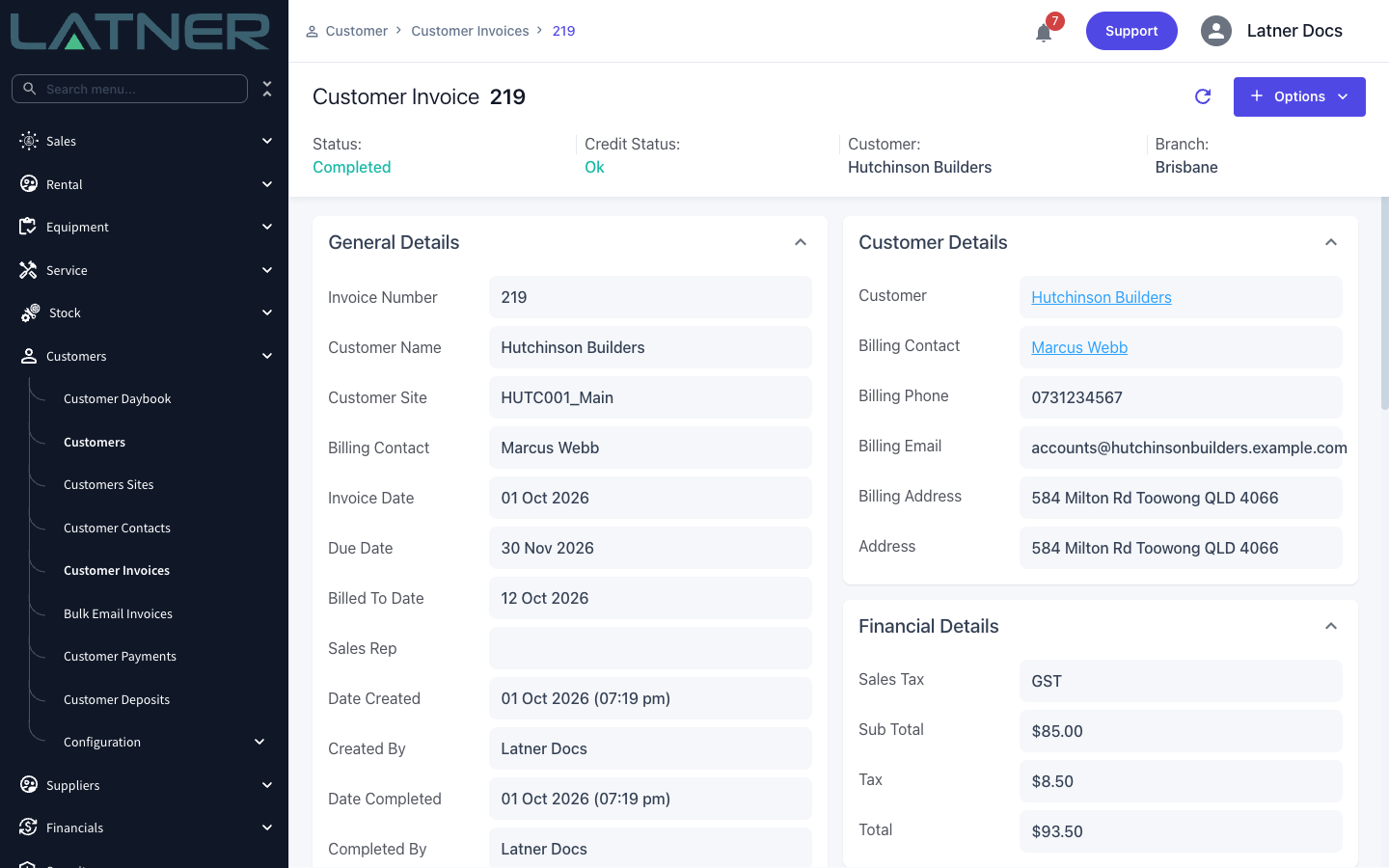
Open the Invoices tab on the contract, or find the invoice under Customers › Customer Invoices. Any invoice that was Open, Pending Approval or Completed now shows the new branch.
After the Update
-
The contract and every one of its detail lines belong to the new branch.
-
Unpaid invoices (Open, Pending Approval and Completed) linked to the contract, and all of their lines, are set to the new branch. Credit notes raised against the contract's invoices follow the same rule.
-
Open transport dockets, open run up inspections, open purchase orders, open sub hire orders and open work orders for the contract are set to the new branch.
-
Equipment lines still waiting for an Equipment Number raise a Rental Contract Equipment Allocation Required notification for the new branch, so anyone subscribed there knows a machine needs allocating.
-
Rental rates on the lines aren't changed, but they're now checked against the new branch's rate book. Review them with the warning's Rental Rates reminder in mind.
Moving the paperwork doesn't tell anyone it has moved. Latner updates the branch on open transports, purchase orders, sub hire orders and work orders, but it doesn't contact your transport providers, suppliers or mechanics. Check the From Address on any deliveries and let external providers know about the change yourself. If you picked the wrong branch, just run Update Branch again - the same rules apply.