
Customer sites record the exact place equipment is going, and Latner lets you create a new one from inside the rental contract you are already working on, so you never have to stop and set the site up somewhere else first.
Overview
Not every job happens at the customer's front door. A builder might run five projects at once, each with its own street address, its own site supervisor and its own phone number, and a rental contract needs to point at exactly one of them. The Customer Site field on a rental contract does that, and it can create the site for you on the spot.
-
A customer site is a permanent record of a delivery location: its name, address, site contact, phone and (optionally) transport run.
-
Every customer starts with one site, named after the customer code with _Main on the end. It is created automatically with the customer and carries the customer's own address and contact, which is why it usually matches the billing address.
-
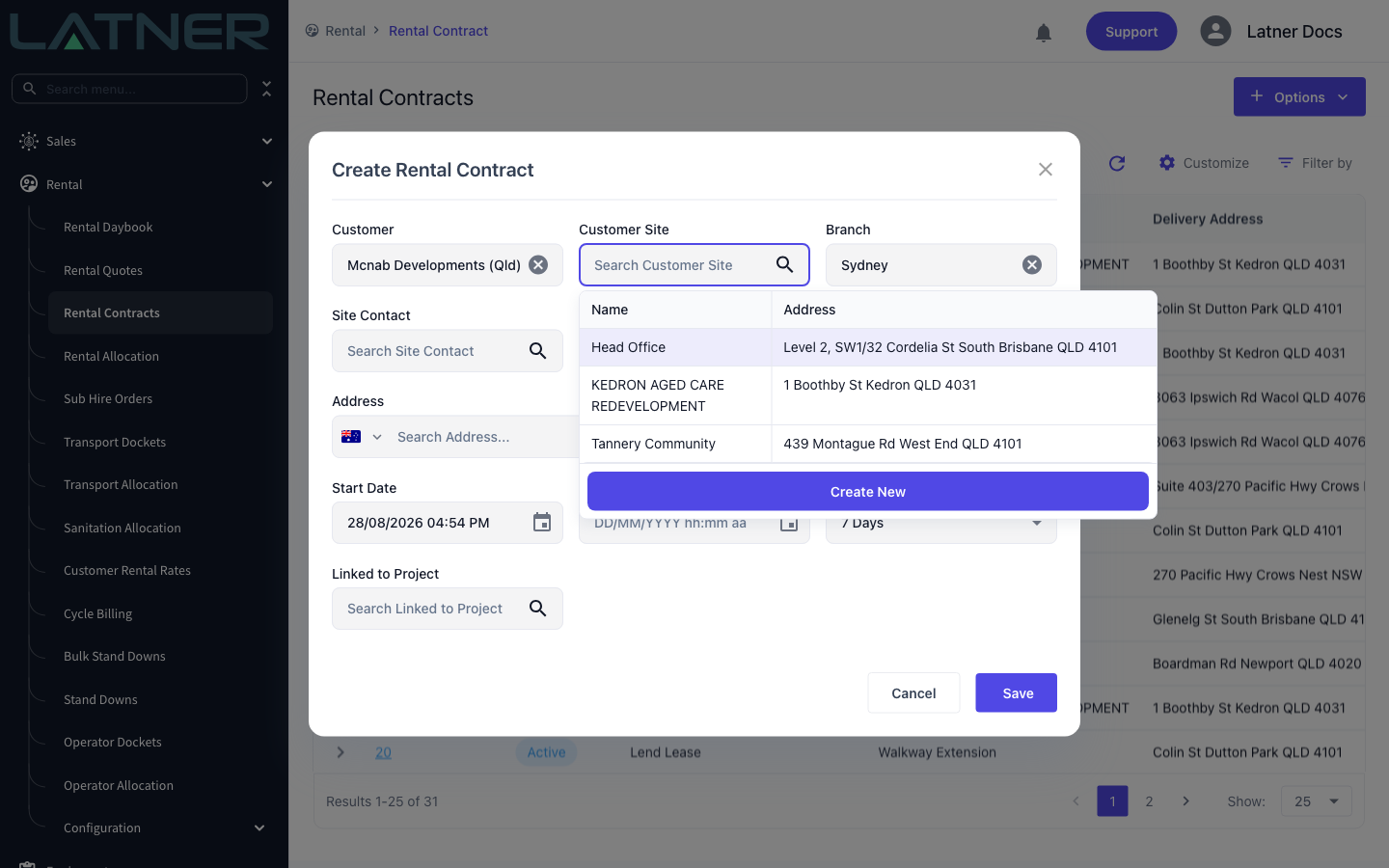
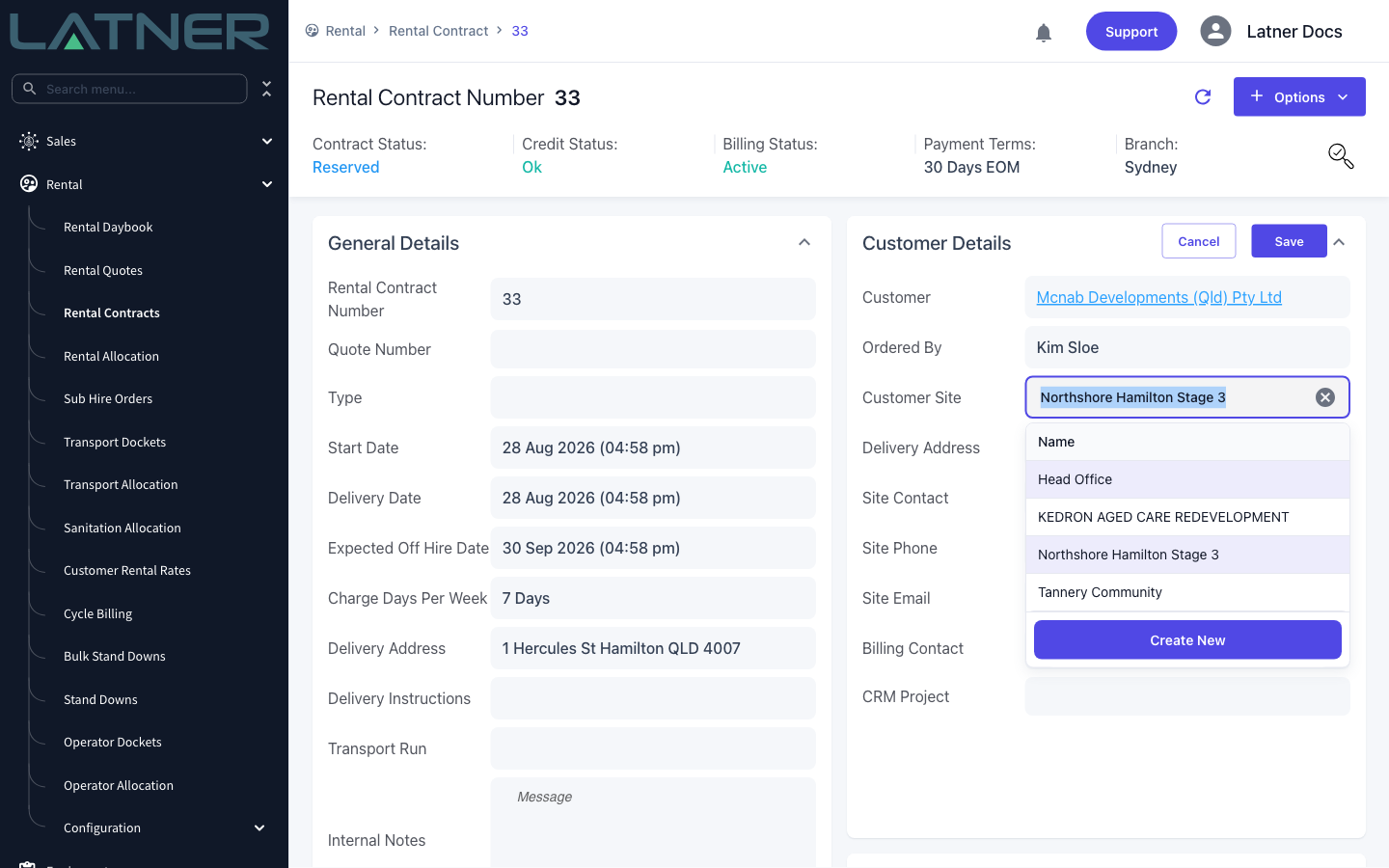
You can create additional sites without leaving the contract, from the Create New button at the bottom of the Customer Site dropdown.
-
As soon as the site is saved it is selected on the contract, and its address, site contact, phone and email are copied onto the contract for you.
-
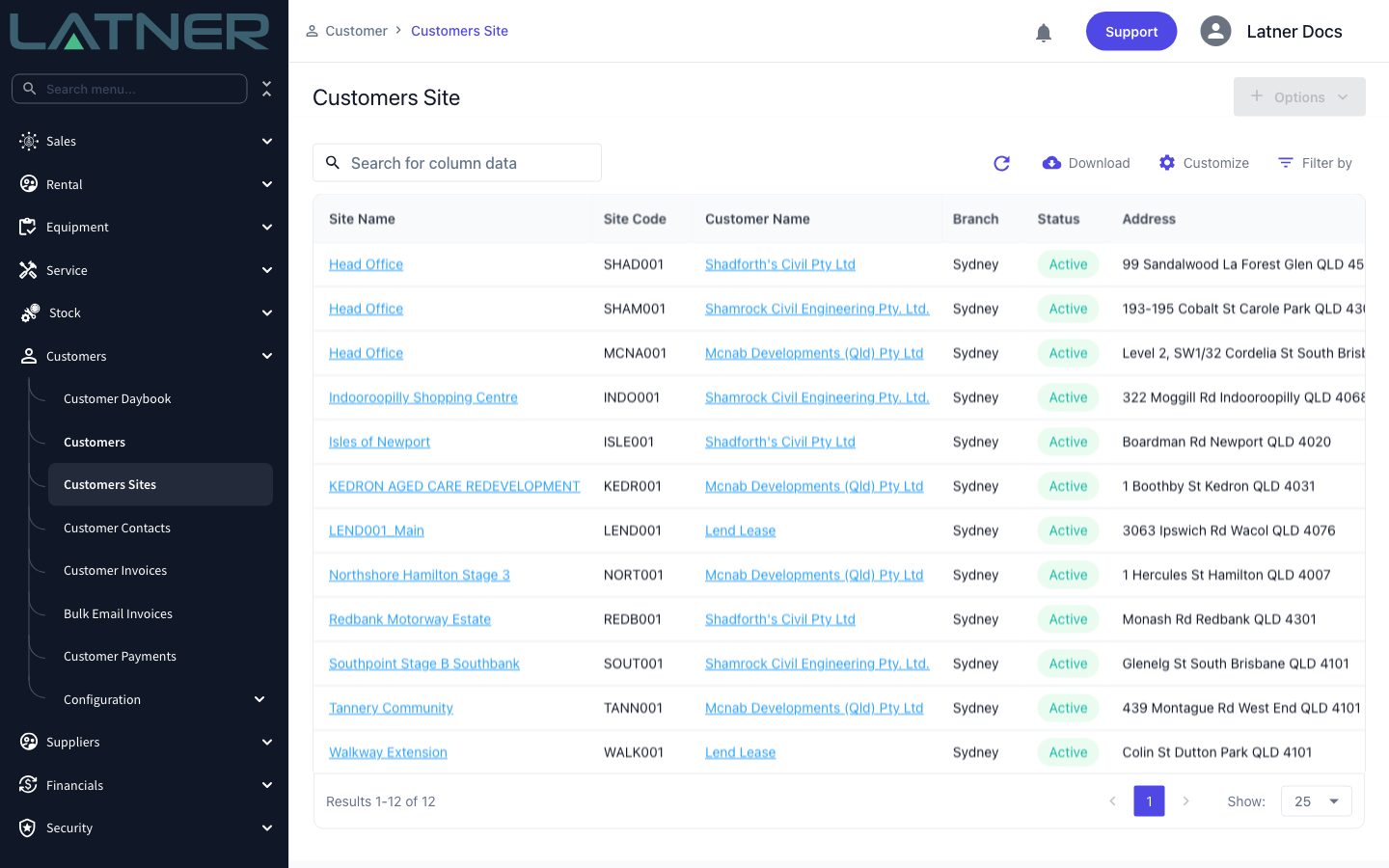
The site is then available for every future contract for that customer, and it shows on Customers › Customers Sites, on the customer's Sites tab and on the CRM map.
-
If you only need a one-off address, you can type over the contract's Address field instead. That address is stored on the contract as its delivery address, but it is not saved as a site and cannot be reused.
Before You Begin
Creating a site from a contract needs a couple of permissions, and one optional setting changes what the site form will accept.
|
Requirement |
Where to Find It |
|---|---|
|
Create Customer Site permission |
Security › Configuration › Permission Groups, under Customers › Options |
|
Create Rental Contract permission |
Security › Configuration › Permission Groups, under Rental › Options |
|
Edit Rental Contract permission (only needed to change the site on a contract that already exists) |
Security › Configuration › Permission Groups, under Rental › Options |
|
Mandatory Customer Site Contact Fields setting (optional) |
Security › Settings › Customers |
|
A customer chosen on the contract |
The Customer field on the rental contract - the site is created against whichever customer is selected |
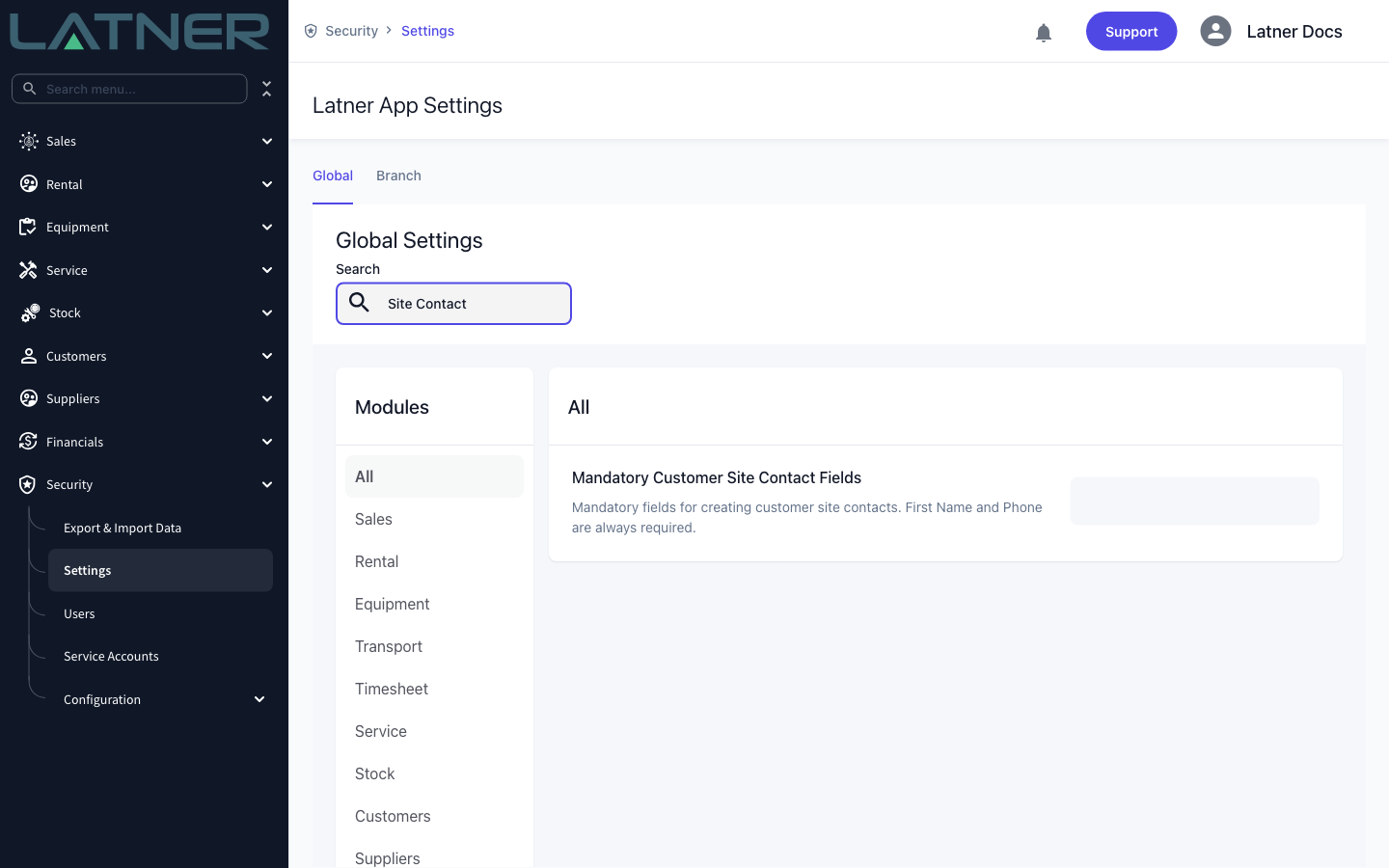
If Mandatory Customer Site Contact Fields includes Email, the site contact you pick has to have an email address on it or the save is refused with email is a mandatory field for contact, and the rental contract itself will also insist on a Site Email. Either edit the contact first or pick one that already has an email.
On the Create Rental Contract dialog the Create New button is shown to everyone, but the save is rejected if your permission group is missing Create Customer Site. On an existing contract's Customer Details card the button is hidden instead, so if it is not there, that permission is the first thing to check.
Creating a Site While Creating a Rental Contract
Step 1 - Open the Create Rental Contract dialog
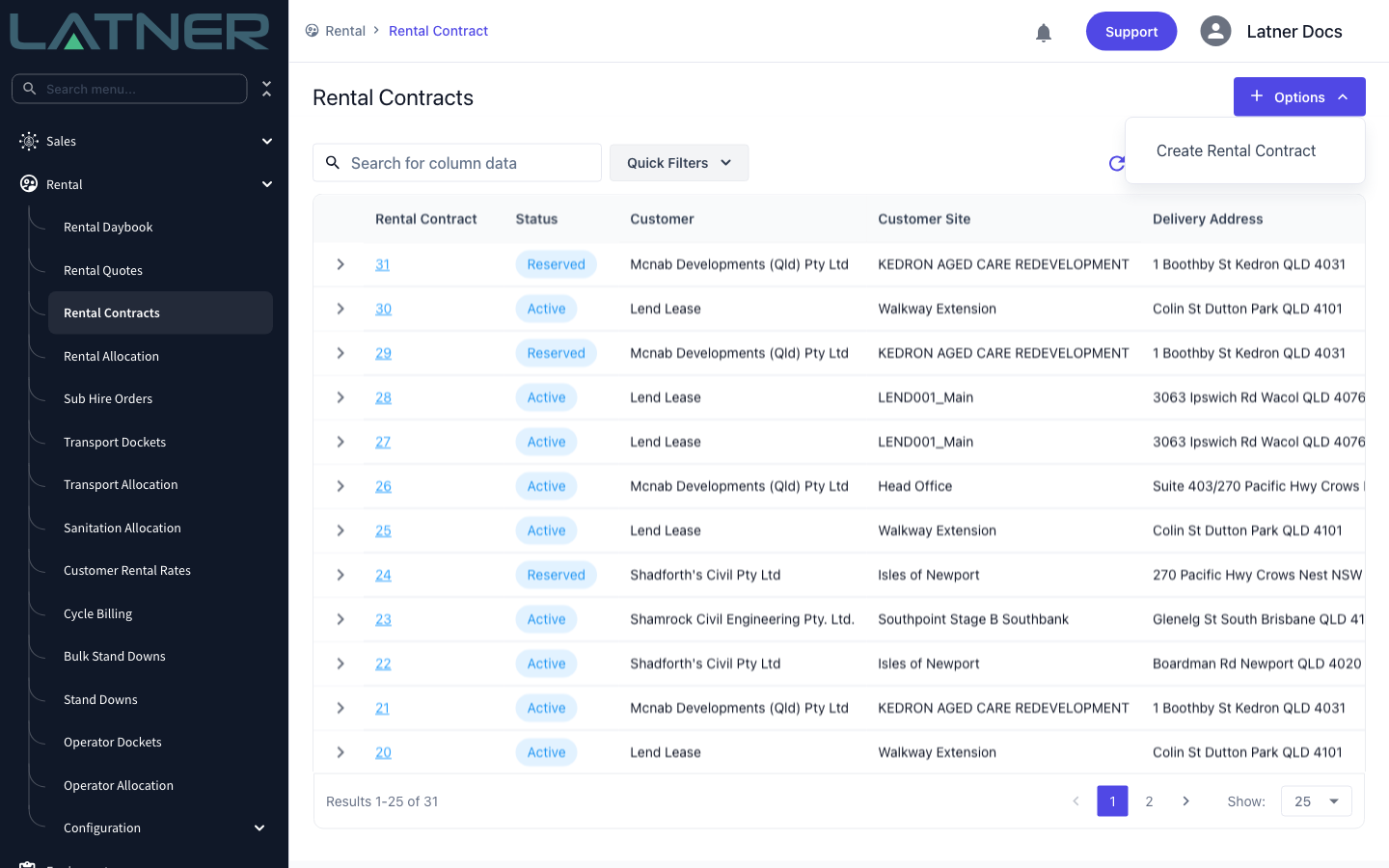
Go to Rental › Rental Contracts and choose Options › Create Rental Contract.
Step 2 - Choose the Customer first
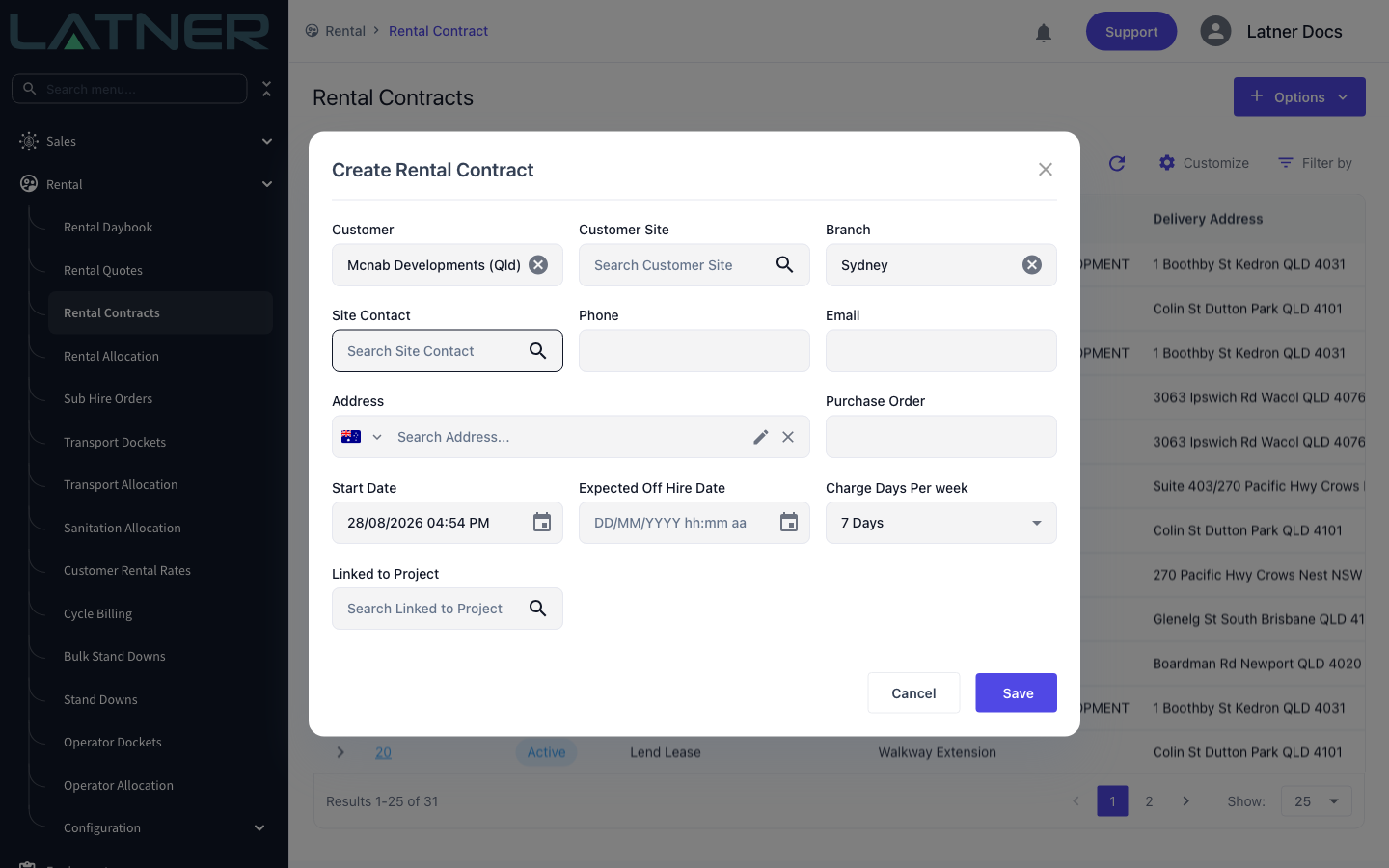
Search for the customer in the Customer field and select them. Do this before you touch Customer Site: the new site is created against the selected customer, so if you open Create New with no customer chosen, Latner tells you No customer is selected to create the site for and closes the form again.
If the customer already has sites, one of them may be filled in for you. Clear it and carry on if the job is at a new address.
Step 3 - Open the Customer Site field and click Create New
Click into Customer Site. The dropdown lists that customer's active sites with their addresses, so you can check the site does not already exist. Create New sits at the bottom of the list.
Step 4 - Fill in the site details
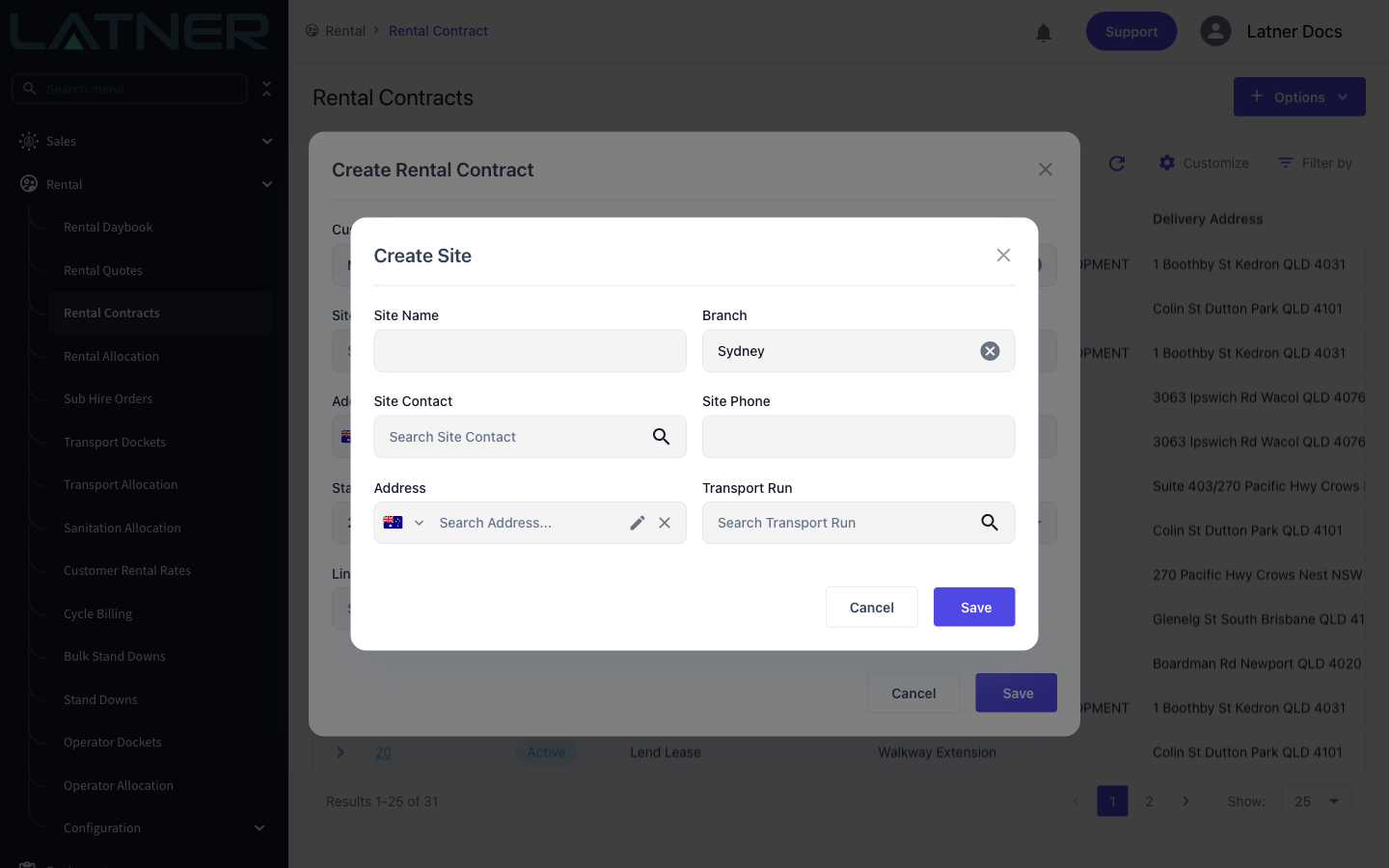
The Create Site dialog opens over the contract. Everything on it except Transport Run is required.
-
Site Name - what everyone will recognise the location by, on contracts, dockets and the sites list. Site names are not unique, so make it specific enough to tell two jobs apart ("Northshore Hamilton Stage 3", not "Stage 3").
-
Branch - pre-filled with the branch on the contract. Change it if the site is serviced out of a different branch.
-
Site Contact - searches the selected customer's contacts. This dropdown has its own Create New button, so you can add a brand new contact here without leaving the form.
-
Site Phone - filled in automatically from the contact you pick. You can type over it if the site has its own number.
-
Address - the delivery address for the site. See the next step.
-
Transport Run - optional. If you set one, it is copied onto every rental contract that uses this site, which saves picking it each time.
Step 5 - Search for the address
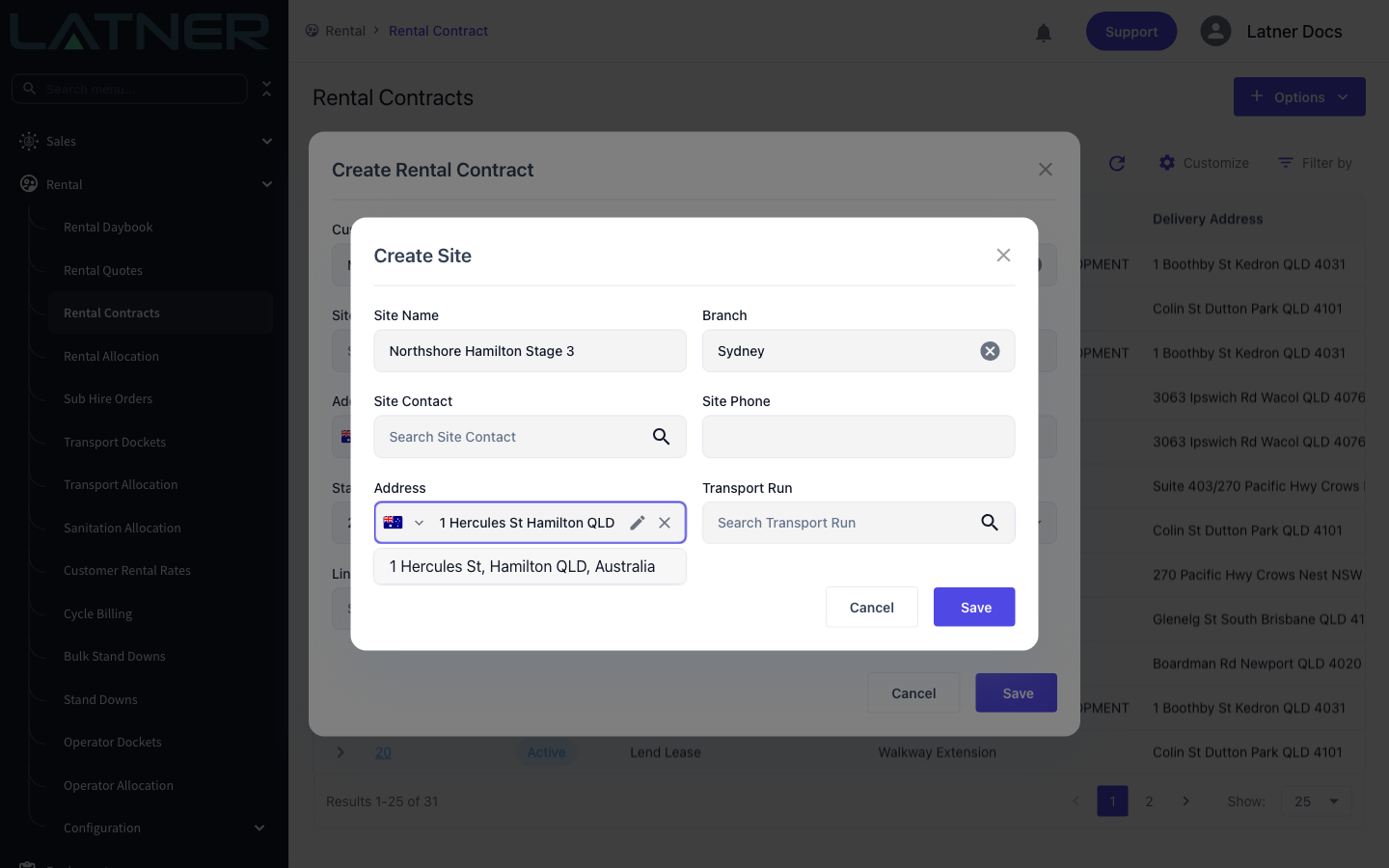
Start typing in Address and pick a match from the suggestions. Choosing a suggestion captures the map coordinates along with the street address, which is what lets the site appear on the CRM map and on the transport screens, so it is worth picking a suggestion rather than typing the address out.
Use the flag on the left to search a different country, and the pencil icon to type an address by hand when there is nothing to match against - a paddock, a lot number or a new estate with no street number yet.
Step 6 - Save the site
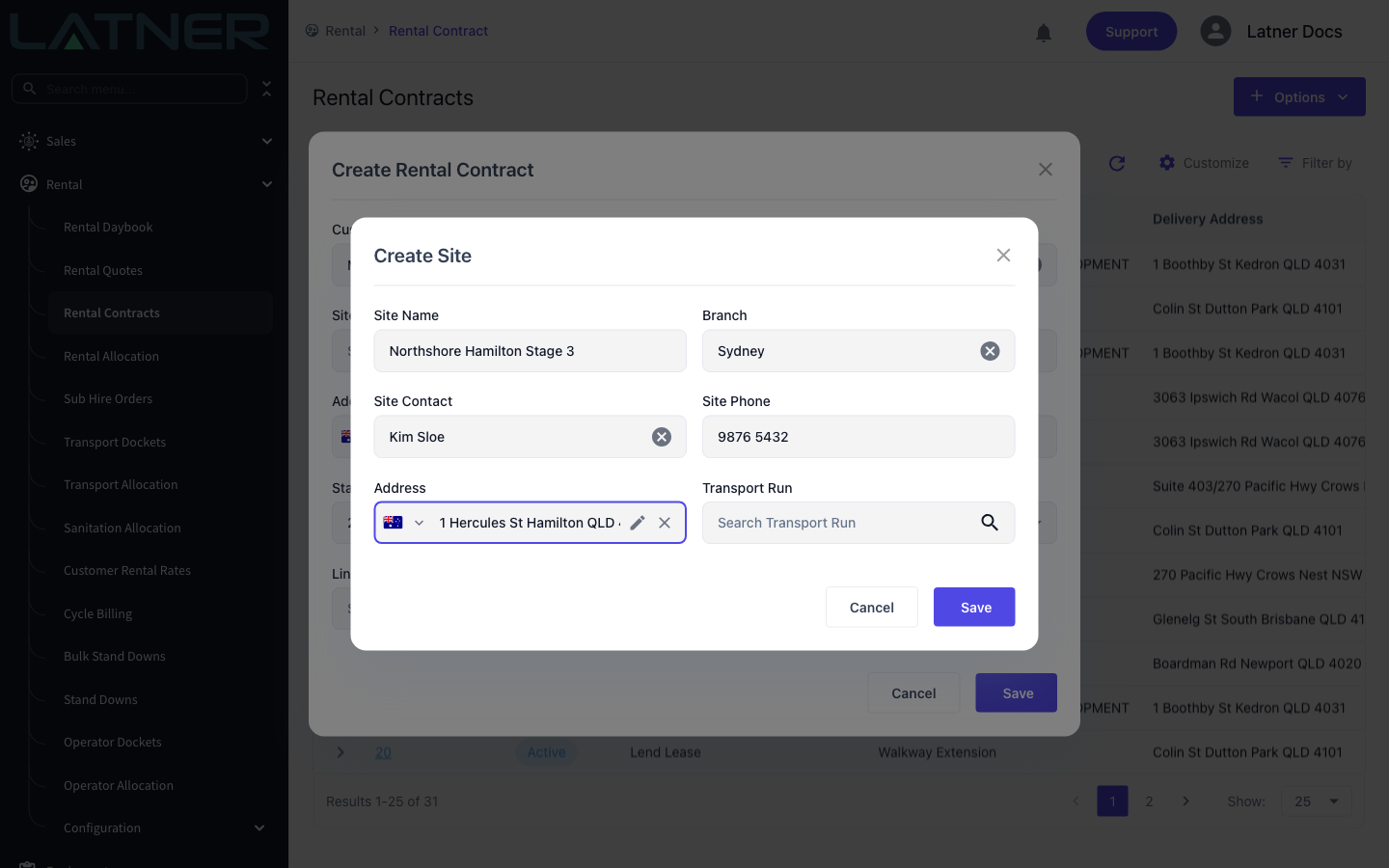
Click Save. Latner confirms with a Site <number> Created message, and the number is a link straight to the new site's page if you want to add anything else to it, such as delivery instructions or a damage waiver.
Step 7 - Check what carried across to the contract
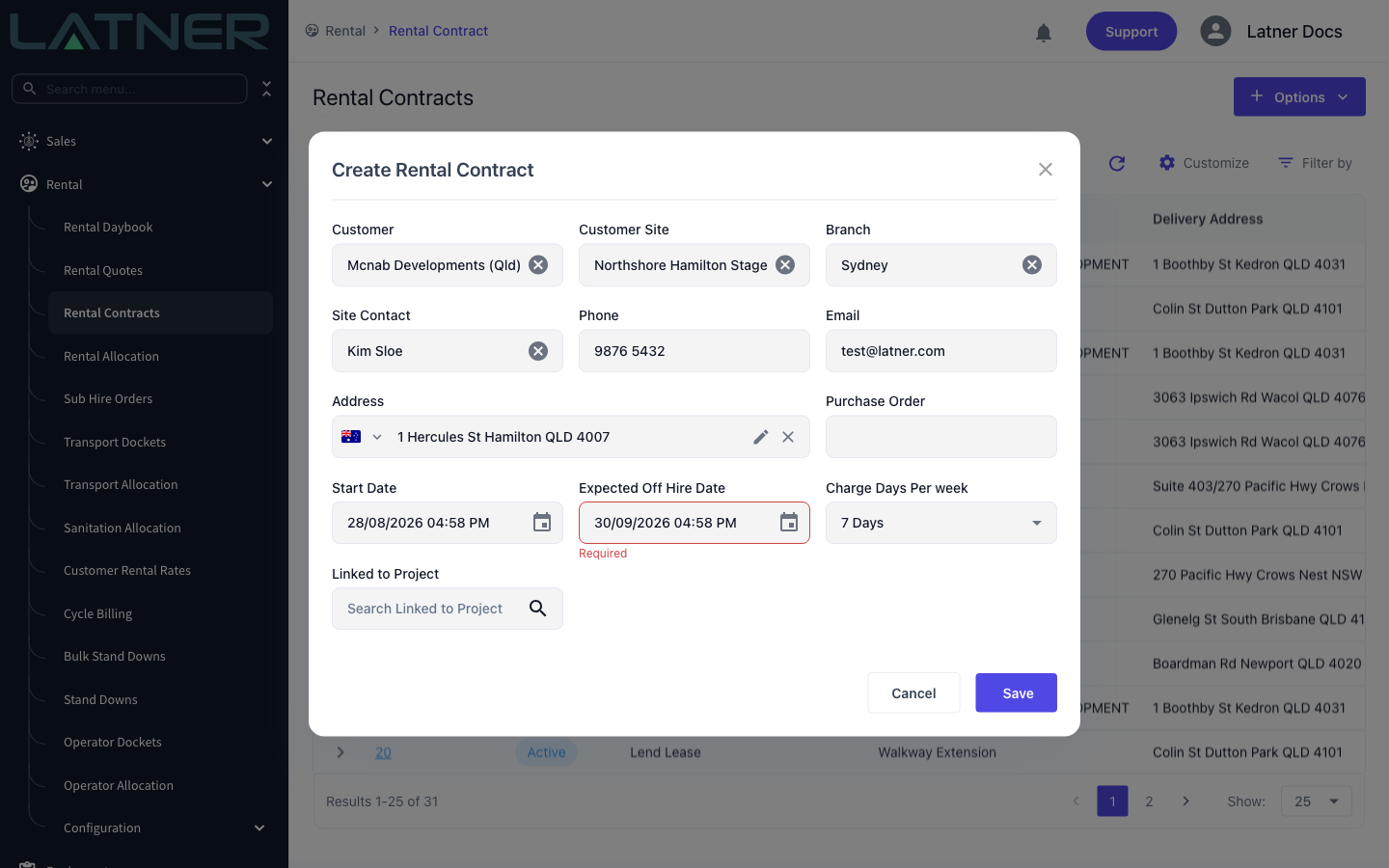
The dialog closes and the new site is already selected in Customer Site. Latner also copies across, from the site:
-
Address - the contract's delivery address, from the site's address.
-
Site Contact, Phone and Email - from the site contact. An existing site contact you had already chosen for the same customer is left alone.
-
Charge Days Per week - only if the site itself has one set.
All of these are still editable, so a one-off change of delivery address on this contract does not affect the site.
Step 8 - Save the rental contract
Fill in the rest of the contract and click Save. Latner opens Add Details so you can go straight on to adding equipment; Cancel that if you want to come back to it later.
Adding a Site to a Contract That Already Exists
The same Create New button is on the Customer Site field everywhere it appears, so you are never stuck once a contract is saved.
-
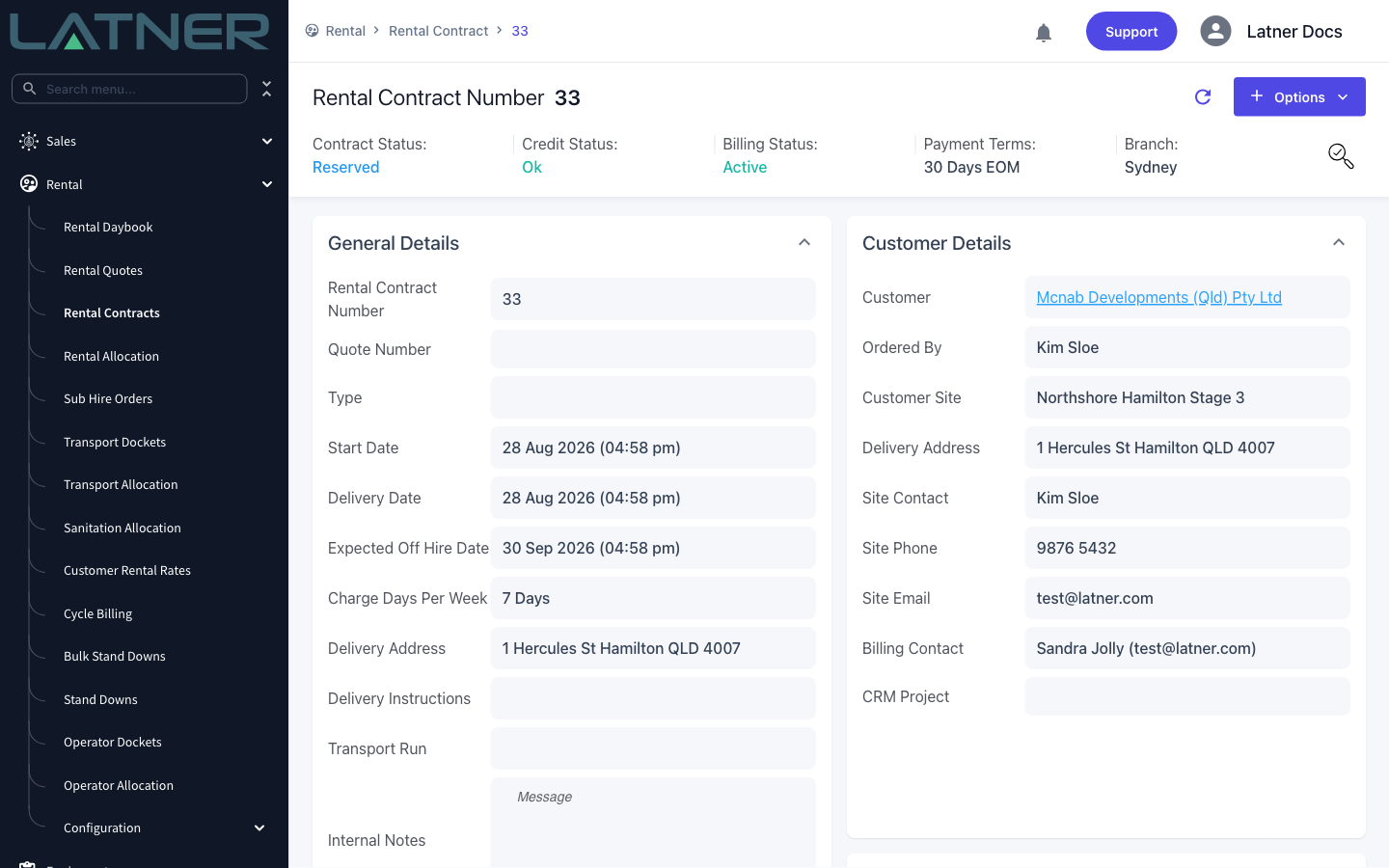
On the contract itself. Open the contract and click the Customer Site value on the Customer Details card. The card switches into edit mode, the combo opens with Create New at the bottom, and Save on the card commits the change. This needs the Edit Rental Contract permission.
-
Options › Update Customer. Use this when the contract is being reassigned to a different customer - the Customer Site field on that dialog has the same Create New.
-
Options › Create Site Move. Use this when equipment that is already on rent is physically relocating. The New Customer Site field there also has Create New, and the site move raises the transport and the charge for the relocation. Editing the site on the Customer Details card only changes the paperwork, so use the site move when something actually has to be shifted.
After Creation
-
The site gets a Site Code automatically: the first four characters of the name with spaces removed, in capitals, plus a three digit sequence. "Northshore Hamilton Stage 3" becomes NORT001. You cannot set it yourself.
-
The site's status is Active, so it appears in the Customer Site dropdown on every later contract for that customer.
-
The site contact you chose is linked to the site automatically and shows on the site's Contacts tab.
-
The site inherits the customer's sales tax.
-
The site is listed on Customers › Customers Sites, on the customer's Sites tab, and - because the address was geocoded - on the CRM map.
-
Anything the create form does not ask for can be added on the site's own page afterwards: delivery instructions, sales rep, damage waiver, environmental levy, charge days per week, billing contact and assigned rental rates.
-
The new site has no Billing Contact, so its invoices go to the customer's main Billing Contact. To send this site's invoices somewhere else, such as a project manager or an invoice-submission mailbox, set Billing Contact on the site's page. See How to Set Up Billing Contacts for Customers and Sites.
Sites cannot be deleted, so a site created by mistake stays on the list. Retire it with Options › Deactivate Site on the site's own page, which takes it out of the dropdowns without touching the contracts that used it. A customer must always keep at least one active site, so deactivating the last one is refused with At least one customer site needs to be active.
FAQs
Watch the Demo
Prefer to watch it? Step through the same flow here.