
Change Equipment On Hire swaps the Equipment Number on a rental contract line that has already gone out on hire, so a contract that was written against the wrong machine can be corrected without unwinding the hire. It's only for lines that have been on hire - if the line is still Reserved, Pre-Allocated, Pending Delivery or Pending Collection, change the machine by editing the line on the Details tab and picking the new Equipment Number instead.
Overview
Sometimes the paperwork and the yard disagree. The contract says EX35001 went out, the driver actually loaded EX35002, and nobody notices until the return inspection. Change Equipment On Hire is the tidy-up for exactly that situation - it rewrites the history so the contract matches what really happened.
-
It changes the Equipment Number on one rental contract line, together with the Class and Model that come with the new machine.
-
It carries the related records across with it - transport details, inspections, off hire details, invoice details, and the meter readings recorded on those records.
-
It moves the on hire quantity back to the old equipment and takes it off the new one, so the old machine returns to Available and the new one shows as On Rent.
-
It is a correction tool, not a hire event. Nothing is off hired, nothing is delivered, and no dates change.
-
If the machine is being replaced on site because of a breakdown or a service, use Equipment Swap instead - that function off hires one machine and starts another.
Before You Begin
This function is deliberately restricted, so check you have the access and that the contract is still open.
|
Requirement |
Where to Find It |
|---|---|
|
Change Equipment Number On Hire permission |
Security › Configuration › Permission Groups - open the group, then Rental › Option |
|
The permission granted for the contract's branch |
Same screen - permissions are granted per branch, so a Sydney contract needs the permission for Sydney |
|
A rental contract that is still open |
Rental › Rental Contracts - the option is greyed out on Completed, Cancelled and Lost contracts |
|
A line that has already been on hire |
The Details tab - only Equipment lines in On Rent, Off Hire, Pending Pick Up, Pending Return or Returned status can be changed |
|
A replacement machine that is Available |
Equipment › Equipment - it needs available quantity in the same branch as the contract |
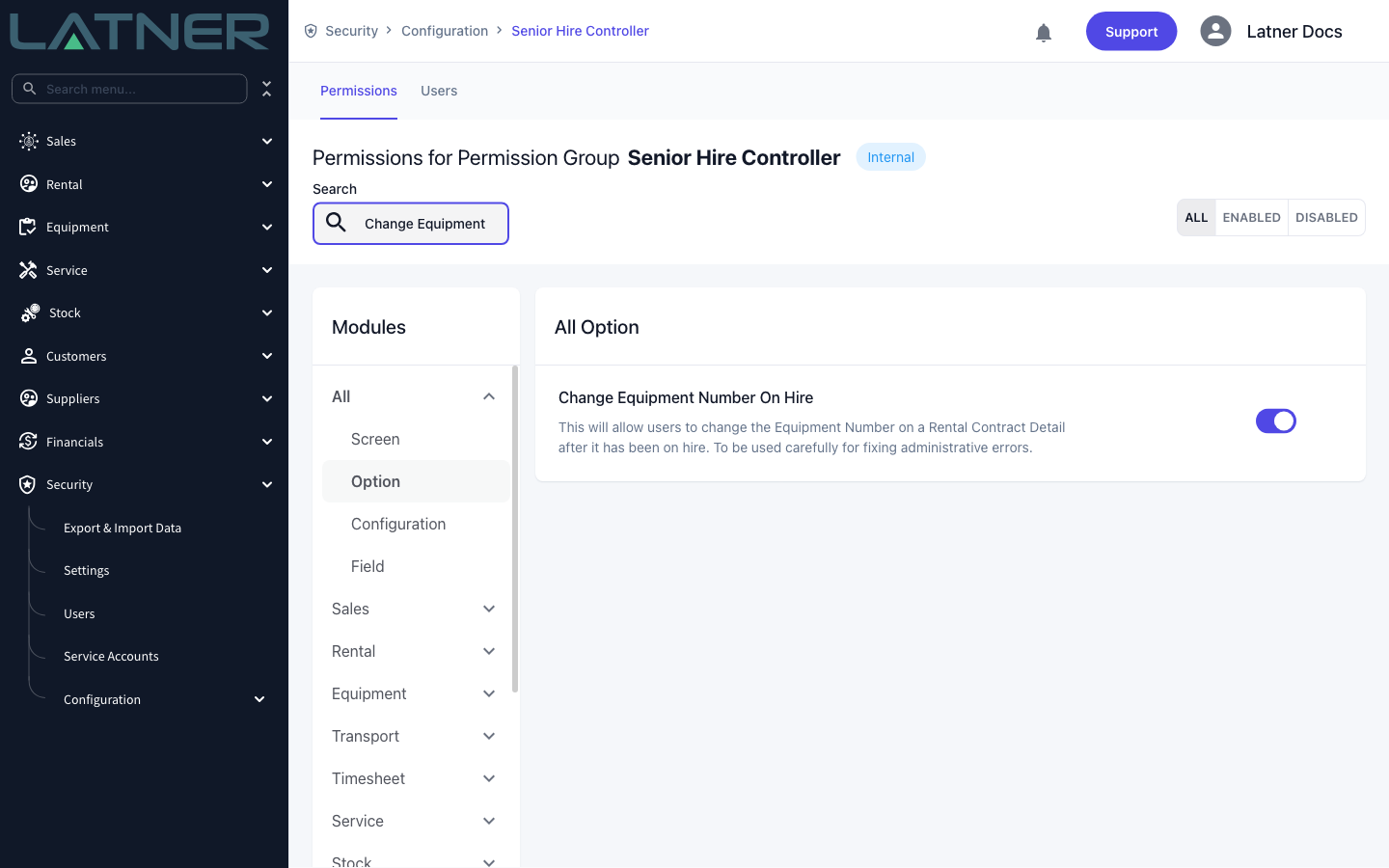
Without the permission the Change Equipment On Hire option does not appear in the Options menu at all. If it is there but greyed out, the contract has been completed, cancelled or lost - reopen it first.
Changing the Equipment
Step 1 - Open the rental contract
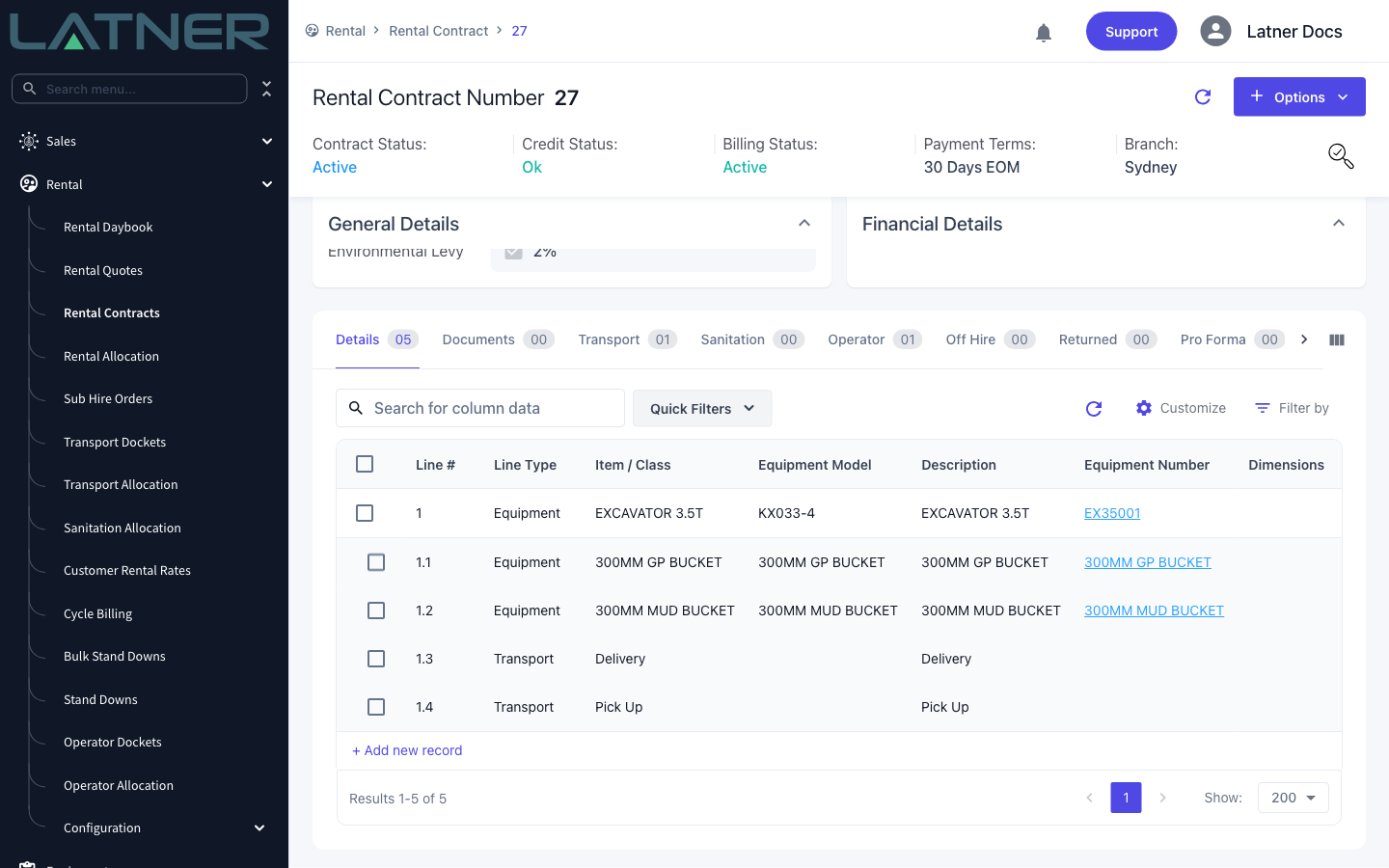
Go to Rental › Rental Contracts and open the contract that has the wrong Equipment Number. On the Details tab, note the Line # and the Equipment Number you need to correct - you will pick the line by its equipment number in a moment.
Step 2 - Choose Change Equipment On Hire
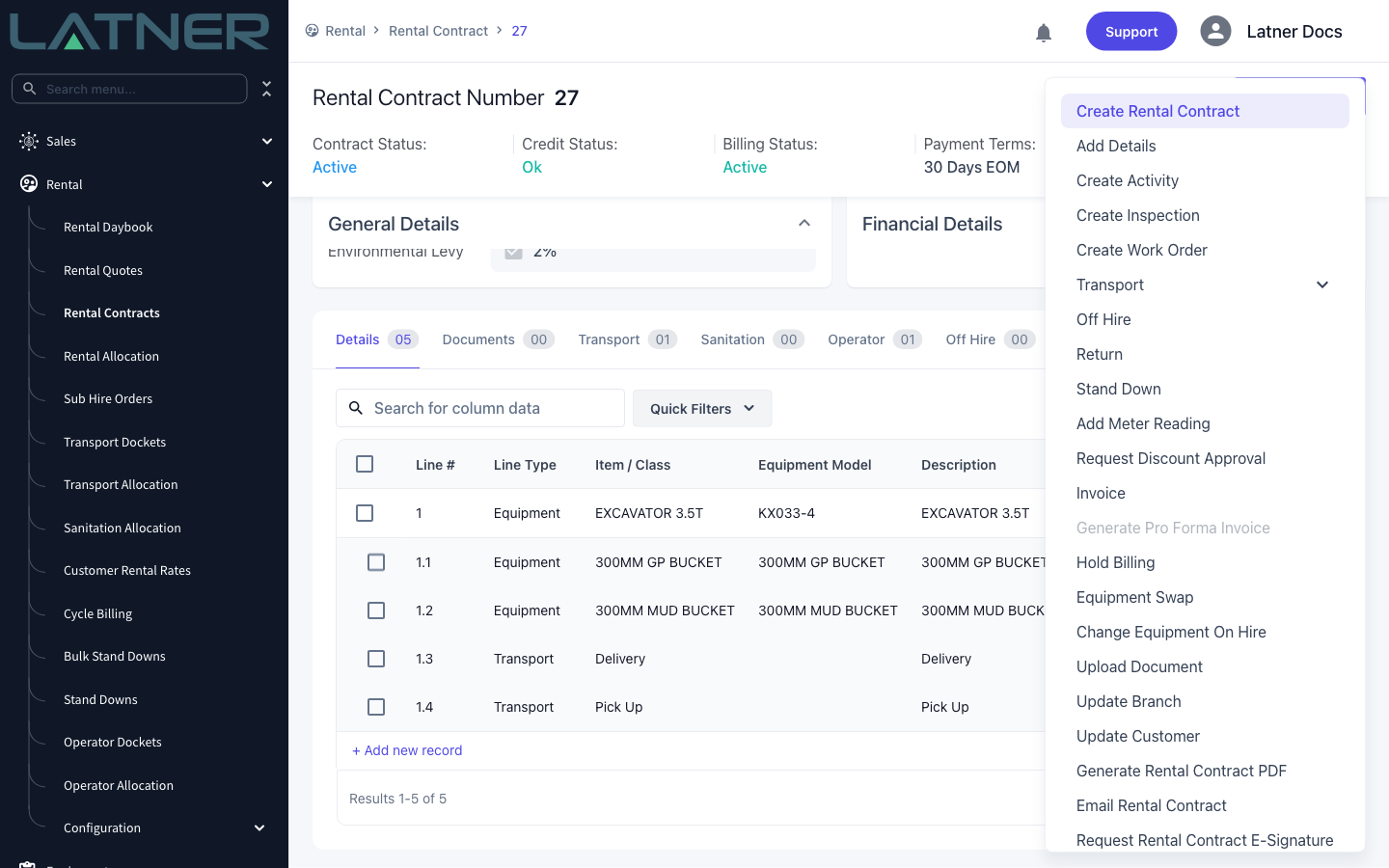
Select Options › Change Equipment On Hire. It sits directly under Equipment Swap, which is the function you want instead if the machine is genuinely being replaced on site.
Step 3 - Read the warning
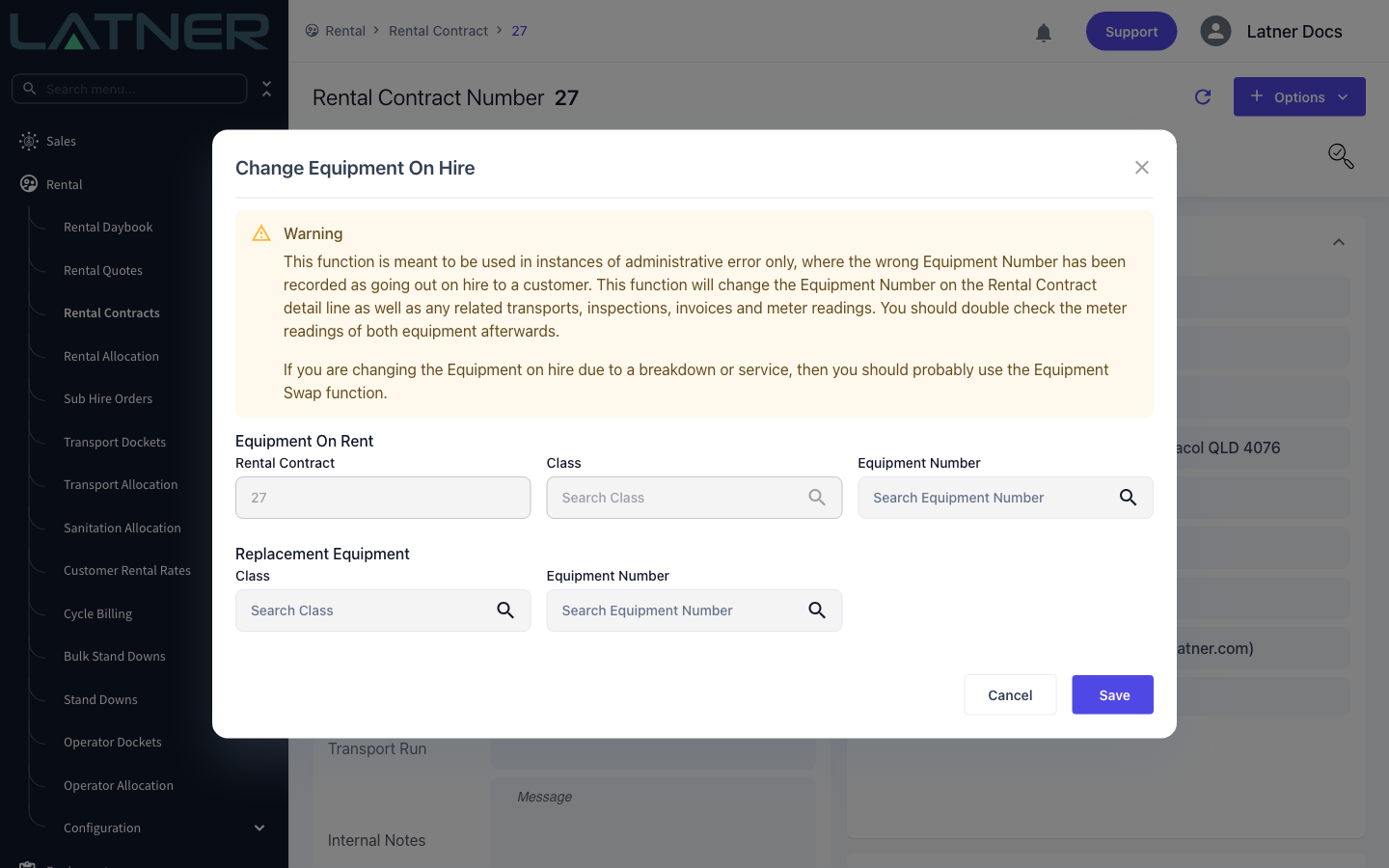
The dialog opens with a warning that spells out the reach of the function. It is worth reading every time: this rewrites related records, and it does not ask you to confirm a second time.
Step 4 - Pick the line with the wrong equipment
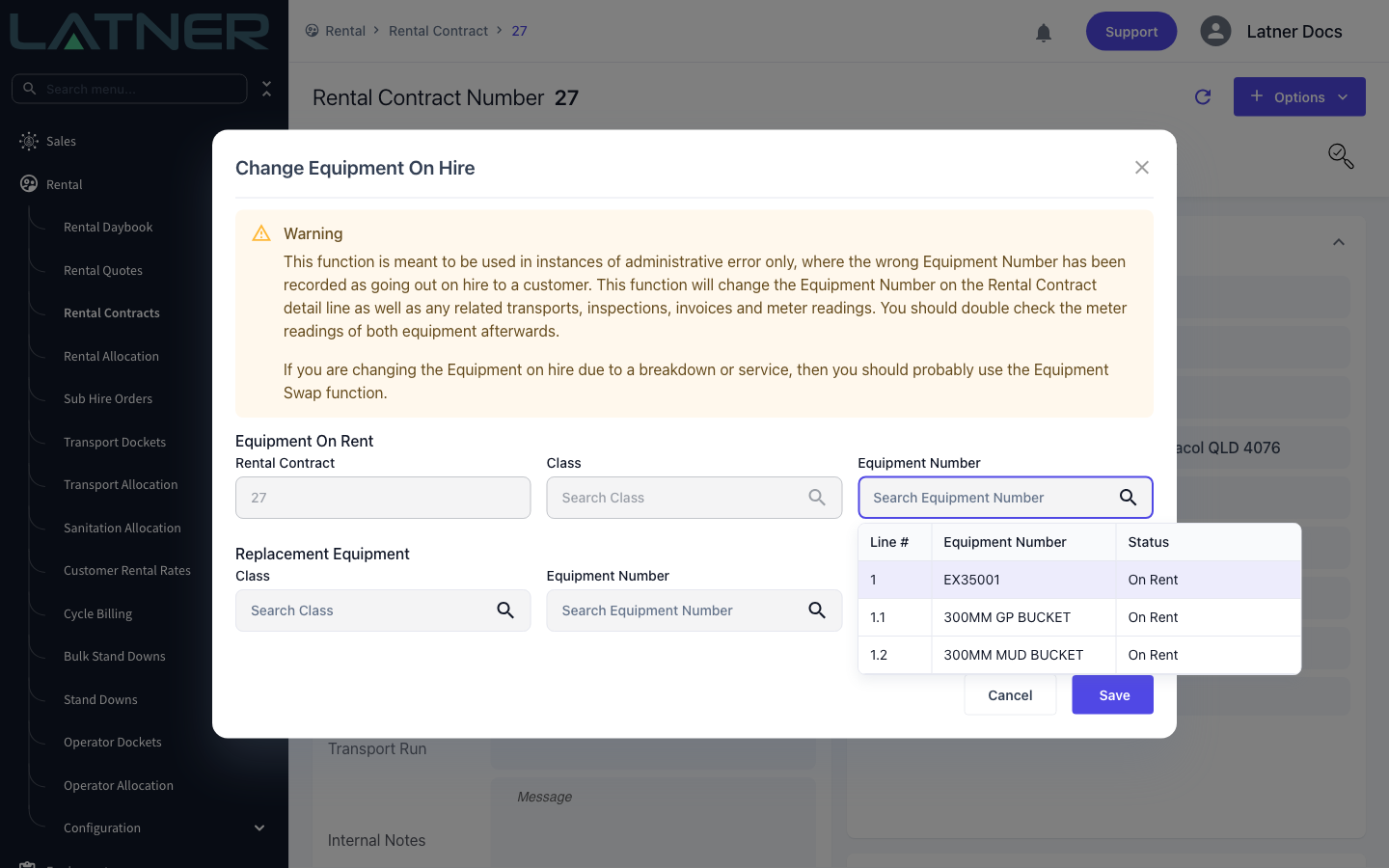
Under Equipment On Rent, click Equipment Number and choose the line you are correcting. The list shows only the equipment lines on this contract that have already been on hire, with their line number and current status.
-
Rental Contract - filled in for you and cannot be changed.
-
Class - filled in from the line you pick, and read only.
-
Equipment Number - required. This is the line being corrected.
Step 5 - Pick the replacement equipment
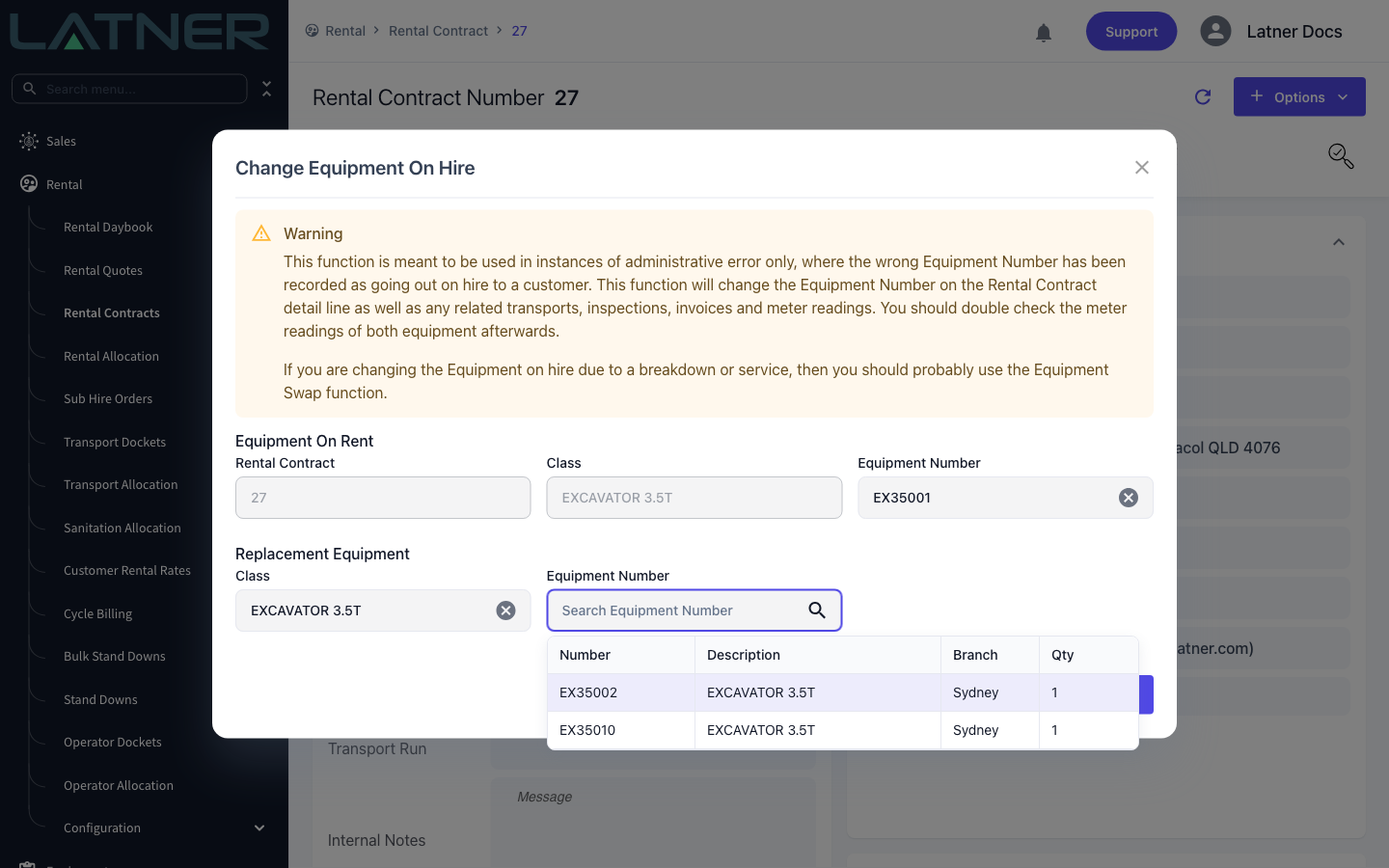
Under Replacement Equipment, the Class is pre-filled from the line you just selected. Click Equipment Number and choose the machine that actually went out.
-
Class - required. Change it if the machine that went out is a different class; that clears the Equipment Number so you can pick again.
-
Equipment Number - required. The list is filtered to the chosen class, the contract's branch, and equipment with available quantity. Picking a machine sets the Class back to that machine's own class.
Step 6 - Save
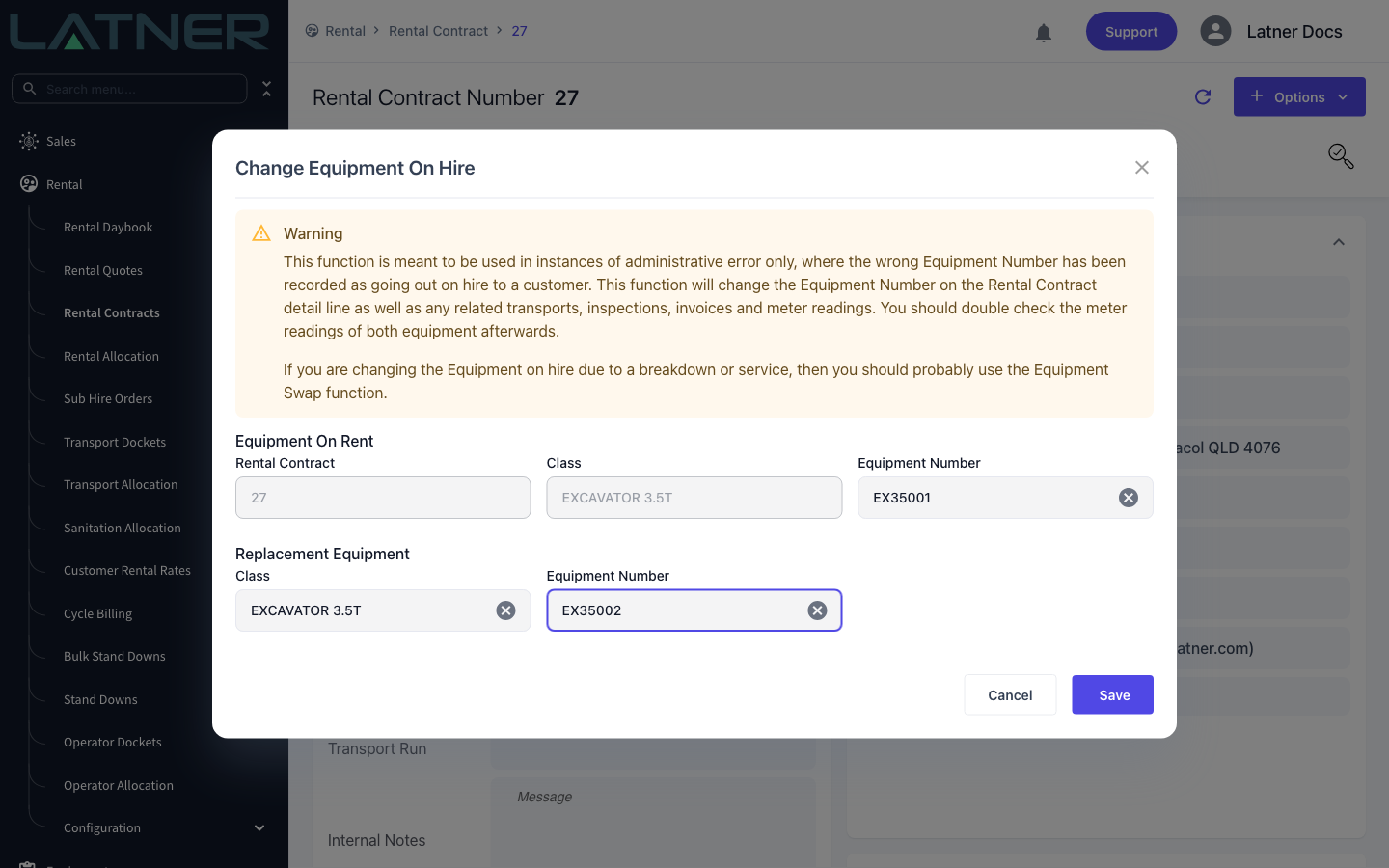
Check both halves of the dialog read the way you expect - the wrong number on top, the right number underneath - then click Save. Latner confirms with Equipment Number Changed and refreshes the contract.
After the Change
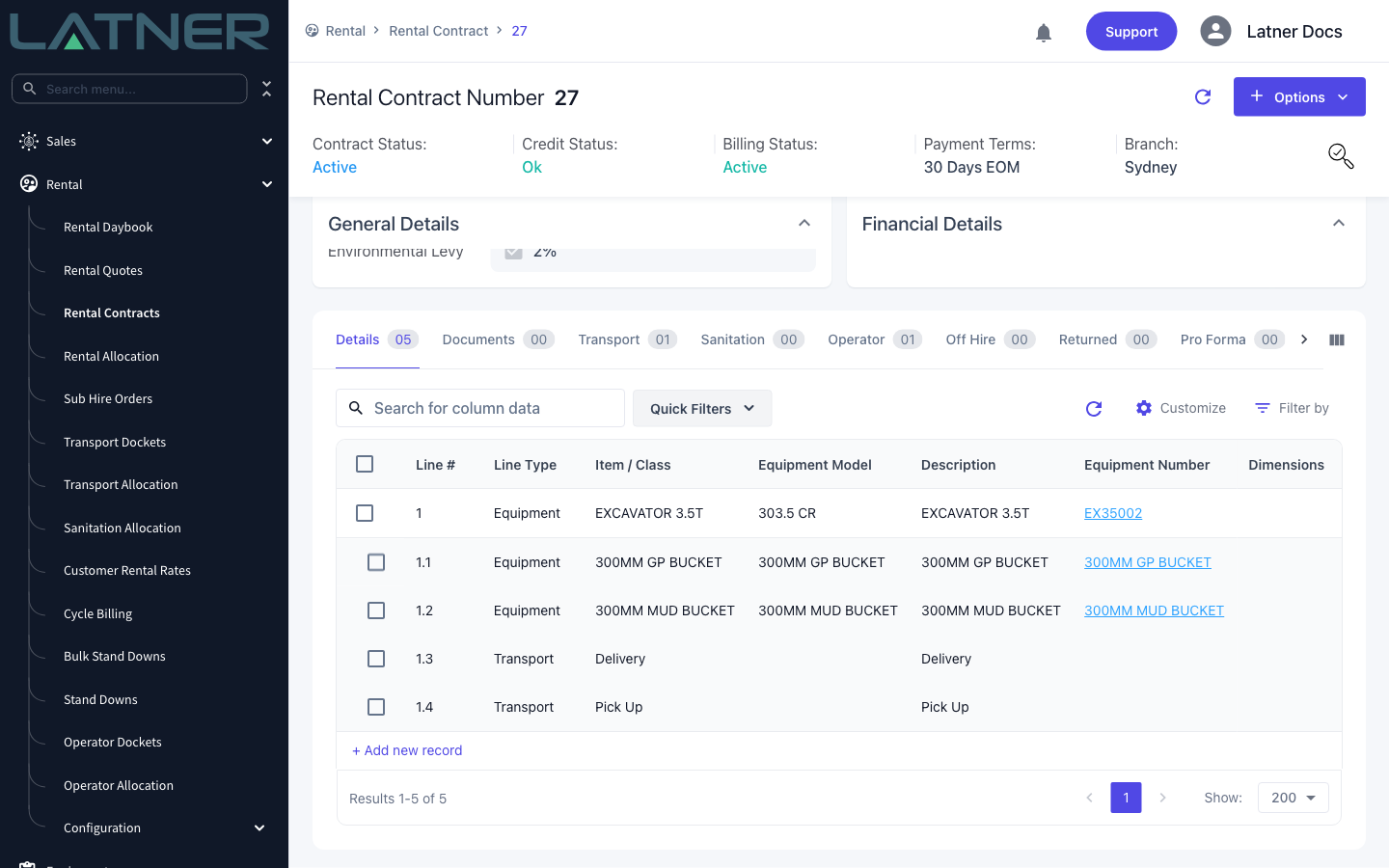
The contract line now carries the new machine, and so does everything hanging off it.
-
The contract line shows the new Equipment Number, and its Item / Class and Equipment Model update to match the new machine.
-
Transport details, inspections, off hire details and invoice details on that line are repointed to the new equipment.
-
Meter readings captured on those inspections, transports and returns move to the new equipment, and the Current Meter Reading on both machines is recalculated from the readings each one is left with.
-
The old machine goes back to Available with its quantity returned, and the new machine goes to On Rent against this contract.
-
The quantity movement on each equipment record is written to that equipment's audit log.
-
Return details and stand down details are not repointed - if the line has either, check them by hand.
There is no undo. Latner does not keep a link back to the machine you replaced, so the only way back is to run Change Equipment On Hire again in the opposite direction - which needs the original machine to be Available. Because meter readings move with the change, check the Current Meter Reading on both machines afterwards and correct either one that now reads wrong.
FAQs
Watch the Demo
Prefer to watch it? Step through the same flow here.