
Additional Items are the accessories and charges that belong with a machine - the bucket that goes with an excavator, the harness that goes with a boom lift, the delivery and pick up fees. Set them up once against your fleet and they are offered, ready to tick, every time that equipment goes on a quote or contract.
Overview
An Additional Item record has two parts:
-
What it applies to - an equipment class, optionally narrowed to a model or a single equipment number.
-
What comes with it - a list of lines: accessories, transport charges, admin fees, fuel and so on, each with a quantity.
Each line carries a Required? flag, which decides whether it arrives pre-ticked when the machine is added to a quote or contract, or is simply offered for the hire controller to choose.
Note: Additional Items live under Rental › Configuration › Additional Items, not under Equipment › Configuration. This is the single most common reason people can't find the screen.
Before You Begin
You need the Additional Items configuration permission to see the screen, Create Additional Items to create a record and Add Additional Items to add lines to it. To use them on a live contract or quote you also need Add Rental Contract Details or Add Rental Quote Details.
The equipment classes, models, transport types, admin charges and fuel types you want to reference should already exist, since you pick them from lists here. You will also want your Rental Rates in place - as the next section explains, that is where most of the pricing actually comes from.
Finding Your Additional Items
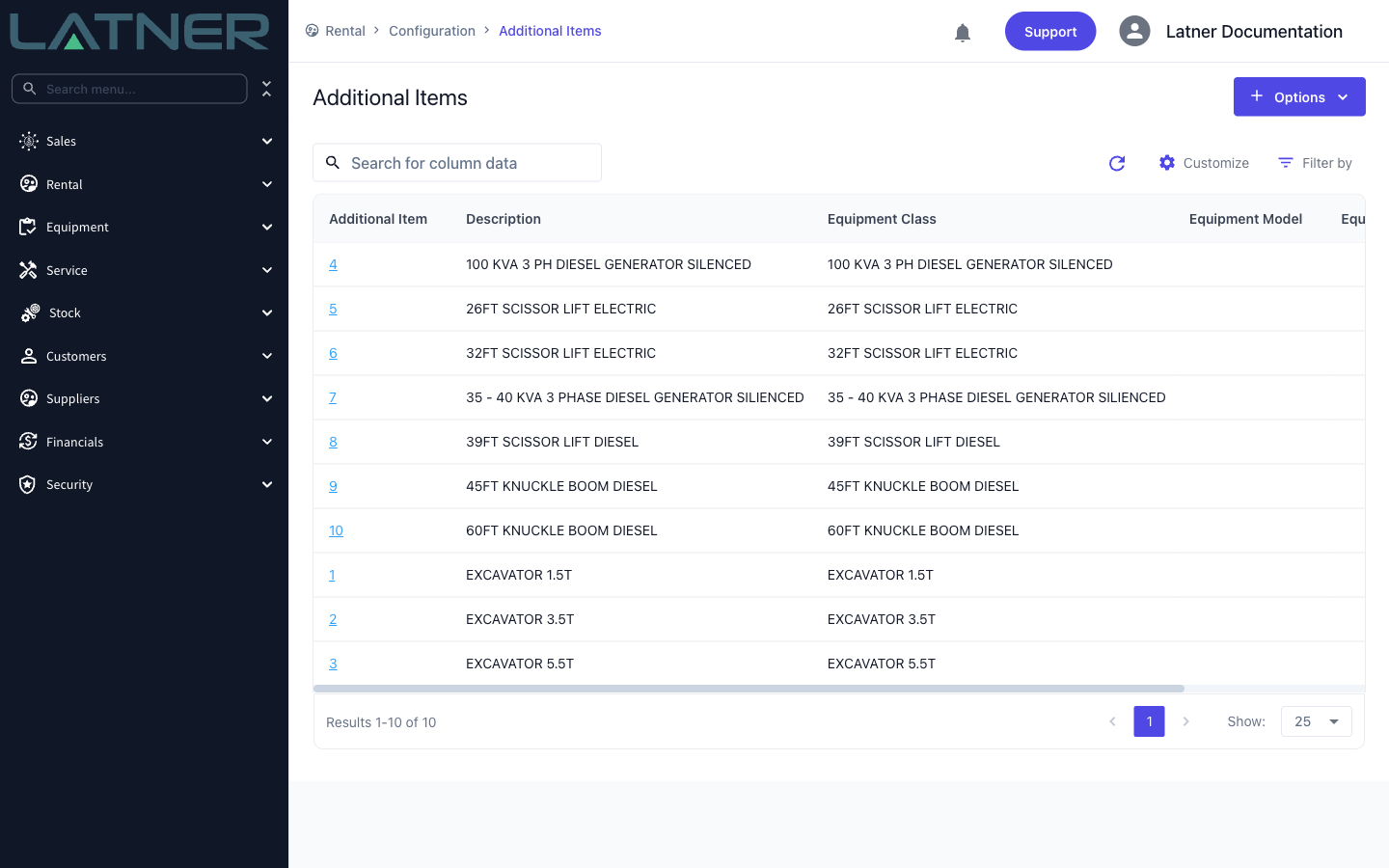
Go to Rental › Configuration › Additional Items. Each row is one set of extras, showing the equipment class, model or equipment number it applies to. Most businesses end up with one record per equipment class.
Choosing What a Record Applies To
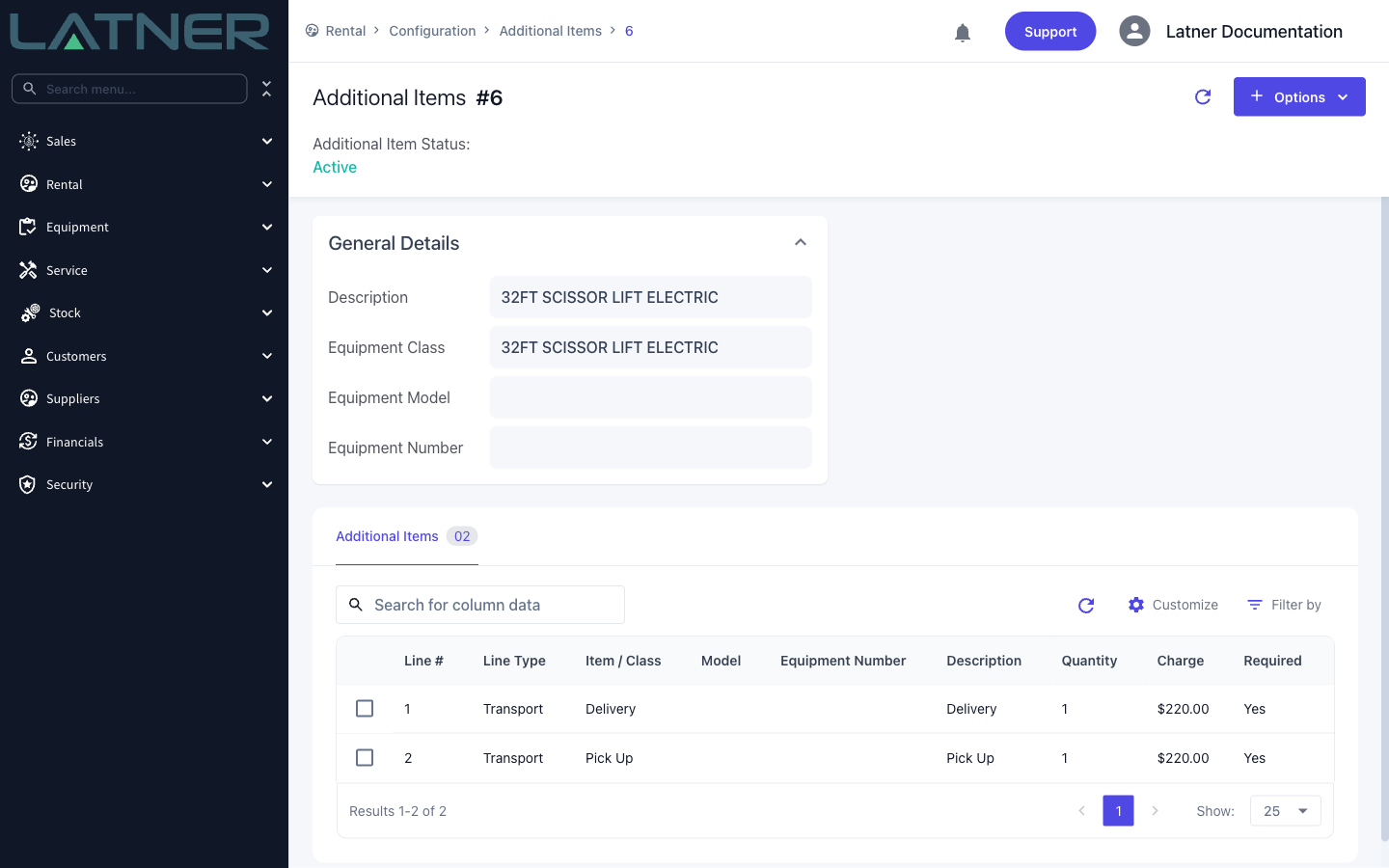
Open a record and its General Details panel shows three targeting fields. Equipment Class is always required; Equipment Model and Equipment Number narrow it further. Latner fills the wider fields in for you, so picking a model sets its class automatically.
-
Class only - applies to every machine in that class. This is the normal choice.
-
Class and model - applies only to that model, for when one model needs different extras from the rest of its class.
-
Down to the equipment number - applies to that one machine. Use this for accessories that physically belong to a single unit, such as a harness that lives with one particular boom lift.
The most specific record wins, and it replaces the broader one rather than adding to it. If you create a record for one equipment number, that machine will offer only the lines on its own record - the class-wide list is ignored for that unit. Repeat any lines you still want, such as delivery and pick up.
Underneath, the Additional Items table lists the lines that come with the machine, showing each line's Line Type, item, Quantity, Charge and whether it is Required. Use the row menu to reorder lines with Move Up and Move Down, or double-click a row to edit it.
Adding a Line
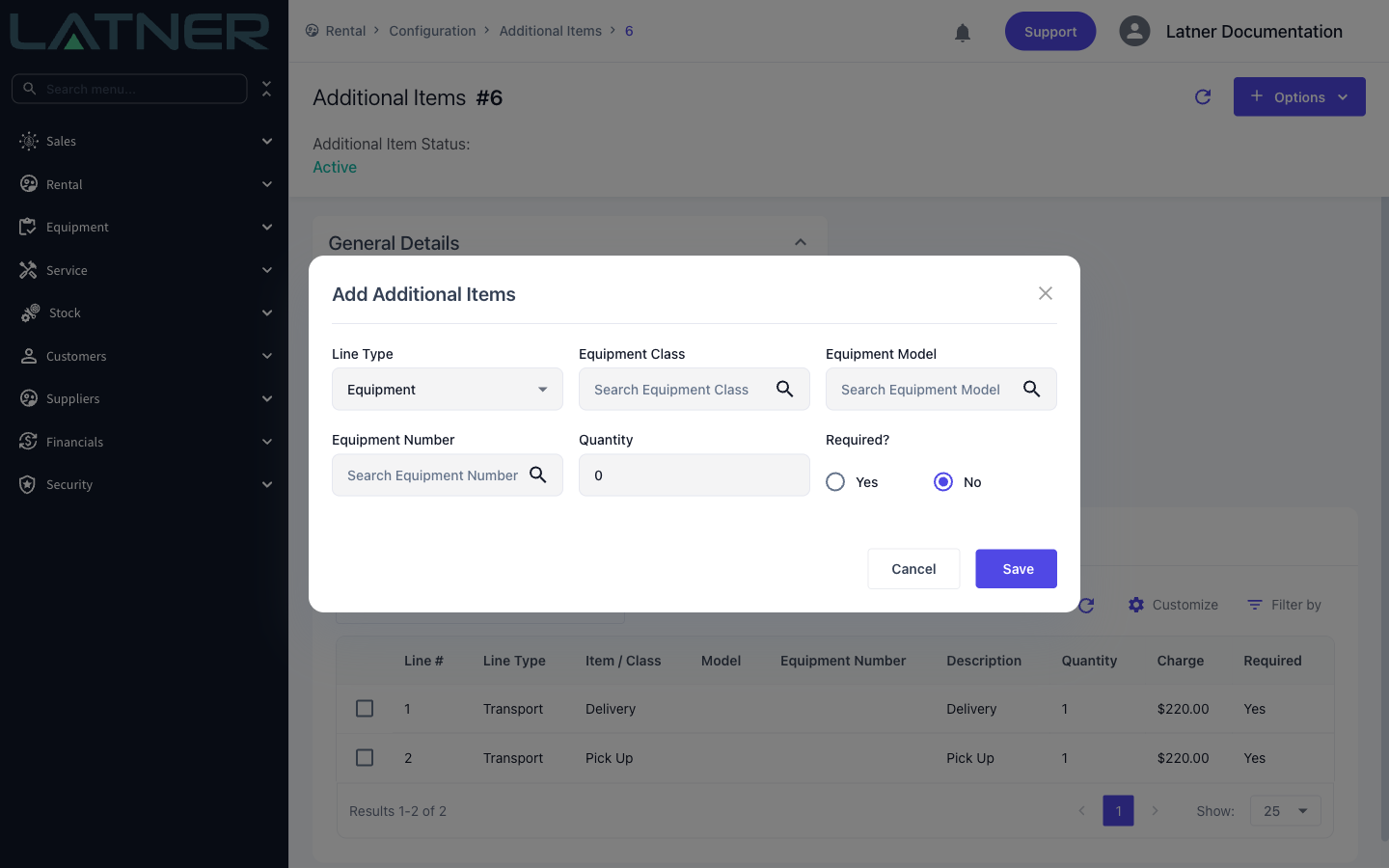
Choose Options › Add Additional Items. Start with Line Type, which decides what kind of extra you are adding - Equipment or Sub Hire Equipment for accessories, Transport for delivery and pick up, plus Package, Admin, Fuel, Sanitation, Damage, Labour and Stock. The rest of the form changes to suit: an accessory asks which equipment class, model or number to add, a transport line asks for the Transport Type, a stock line asks for the Stock Number.
Set the Quantity, then answer Required?:
-
Yes - the line arrives pre-ticked whenever the machine is added to a quote or contract. Use this for things that nearly always apply, like delivery and pick up.
-
No - the line is offered but not selected. Use this for genuinely optional extras.
Where the Charge Comes From
This is the part that catches people out. Configuring an Additional Item decides which lines appear and whether they are pre-ticked. It does not, for most line types, decide the price.
-
Transport, admin and sanitation lines are priced from Rental › Configuration › Rental Rates. Whatever charge is stored against the Additional Item line is replaced by the matching rental rate when the list is loaded, so Rental Rates is where you maintain your standard delivery and pick up charges. Latner looks for a rate by equipment number, then model, then class, preferring a rate assigned to the site, then the customer, then your global rate.
-
Accessory lines (Equipment or Sub Hire Equipment) have no charge field at all here. They are priced from the equipment rental rate for that accessory's class, exactly like any other machine on hire.
-
Fuel and damage lines keep the charge you enter on the line.
You can always overtype the charge on the quote or contract itself before saving.
Note: if an accessory has no rental rate configured for its class, the line is still added but comes across with no price - it is not blocked. If a transport, admin or fuel line has no charge at all, Latner does stop you and names the line that needs a price.
Using Them on a Quote or Contract
There are two moments where the extras appear, and they behave slightly differently.
While you are adding the equipment. As soon as you choose the equipment class, model or number on a new quote or contract line, the configured extras appear underneath with their charge and quantity. Anything marked Required is already ticked - you just leave it ticked and save. Nothing is ever added behind your back.
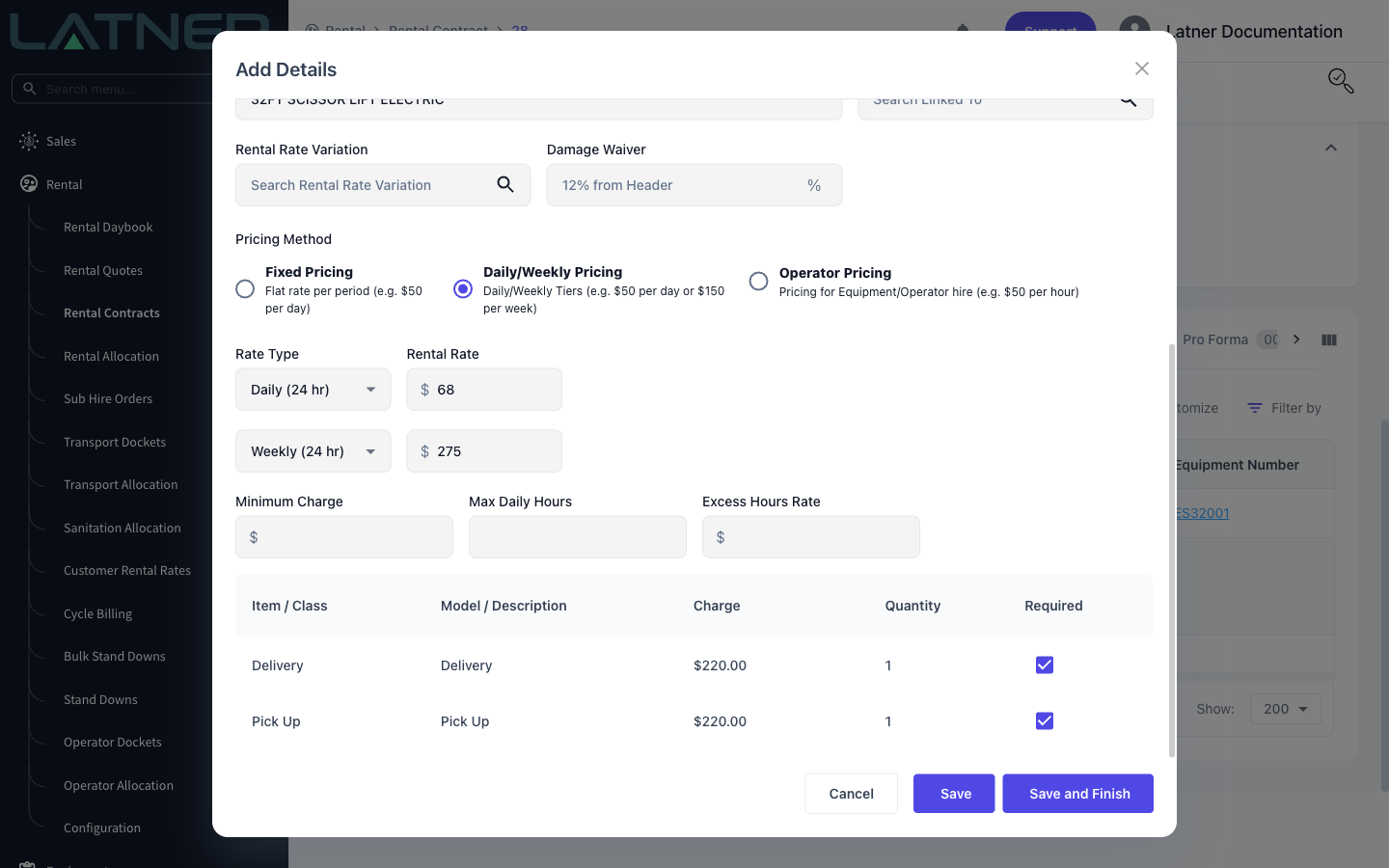
After the line already exists. Open the Details tab, select the equipment line and choose Add Additional Items. The same list appears, but here every box starts empty because you are choosing what to add right now. If you save without ticking anything, Latner reminds you to select at least one item.
Either way the extras are created as sub-lines of the equipment line - so line 1 gains 1.1, 1.2 and so on, keeping each charge attached to the machine it belongs to.
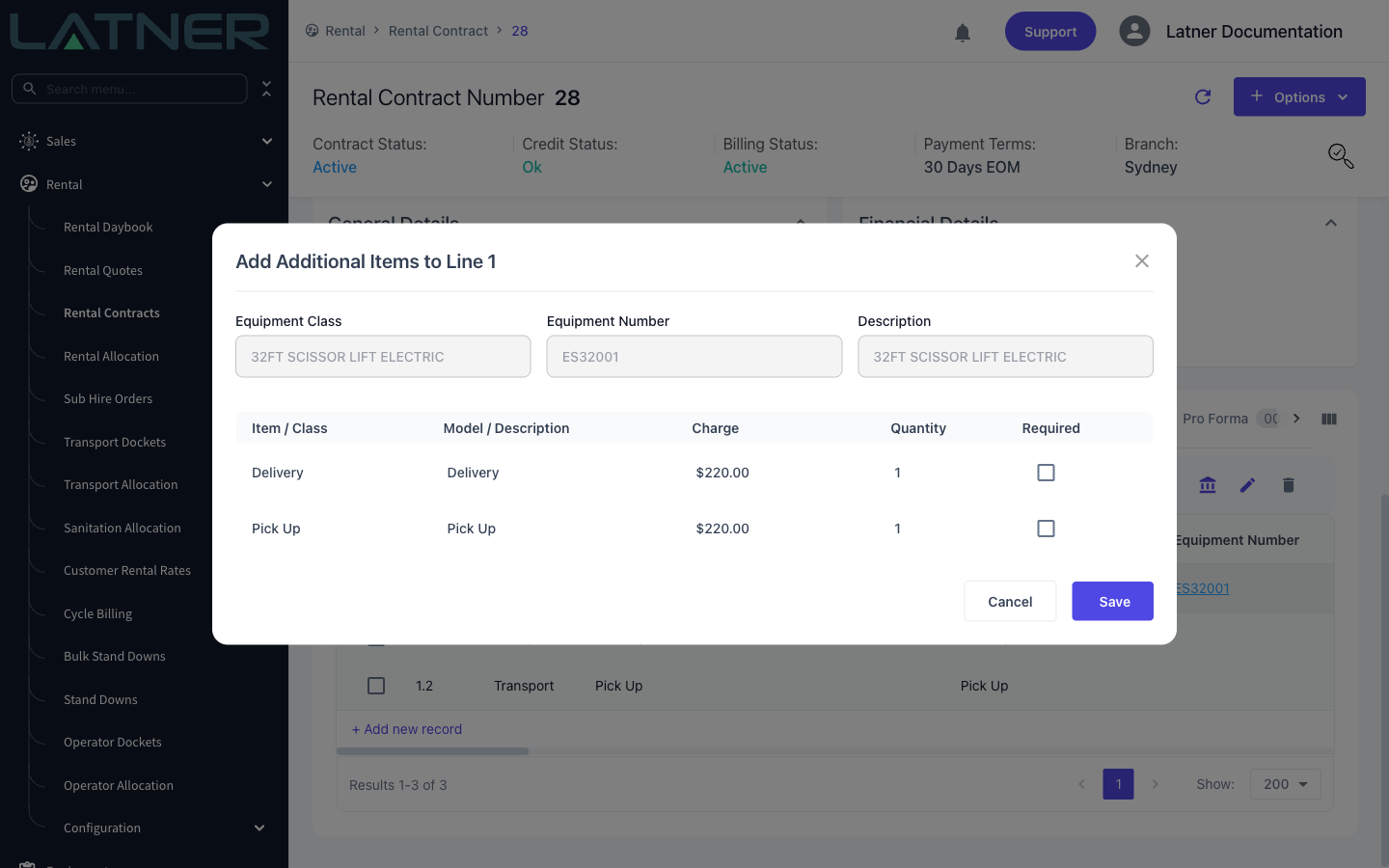
The action is only available on equipment lines, with a single line selected, while the contract is still open (or the quote still in Open status). If it is greyed out, the tooltip tells you which of those applies. If a machine has no extras configured you will see "No additional items are configured for this equipment class."
Packages
Packages behave differently again, and this is a common surprise: a package's component lines only come across if each component has Include By Default? set to Yes. Leave it off and only the package header line lands on the quote or contract. On the add-line dialog these appear as an Include column, pre-ticked from your configuration, and typing a quantity against a component ticks it for you.
How the package is charged is set separately by its Pricing Type, which is fixed once the package is created:
-
Header Only - the package is charged as a single price on the header line, and the components come across as non-chargeable so the customer can see what is included without being billed twice. Default rates for the package header are configured in Rental Rates.
-
Details Only - the header carries no charge and each component is priced in its own right.
So if a package looks short on a quote, check Include By Default? on its components. If the money looks wrong, check the Pricing Type.