
An operator docket records a day of wet hire: which machine worked, who operated it, and for how long, so the hours flow straight through to the customer's invoice instead of being chased up on paper.
Overview
Wet hire is the one case where the rental rate alone can't tell Latner what to charge. The machine is on hire with an operator, the day is billed by the hour, and someone has to say how many hours were actually worked. That's the operator docket.
-
A docket belongs to one rental contract line, for one operator, on one date.
-
Only lines priced with Operator Pricing can have dockets, and Latner will not let you raise two dockets for the same operator, line and date.
-
The hours themselves live on timesheets attached to the docket. A docket with no timesheets cannot be completed.
-
Dockets move through Open, Pending Approval, Approved and Invoiced, and can be cancelled or reopened along the way.
-
Only Approved dockets are picked up by invoicing. Each timesheet becomes its own invoice line.
Before You Begin
Operator dockets need an operator-priced contract line and the right permissions.
|
Requirement |
Where to Find It |
|---|---|
|
A rental contract line using Operator Pricing |
Rental › Rental Contracts › Options › Add Details, then choose Operator Pricing under Pricing Method |
|
Operator Dockets permission (to see the screen) |
Security › Configuration › Permission Groups › Rental › Screen |
|
Create Operator Dockets permission |
Security › Configuration › Permission Groups › Rental › Options |
|
Create Timesheet permission (to record hours) |
Security › Configuration › Permission Groups › Service › Options |
|
Complete Operator Dockets and Approve Operator Dockets permissions |
Security › Configuration › Permission Groups › Rental › Options |
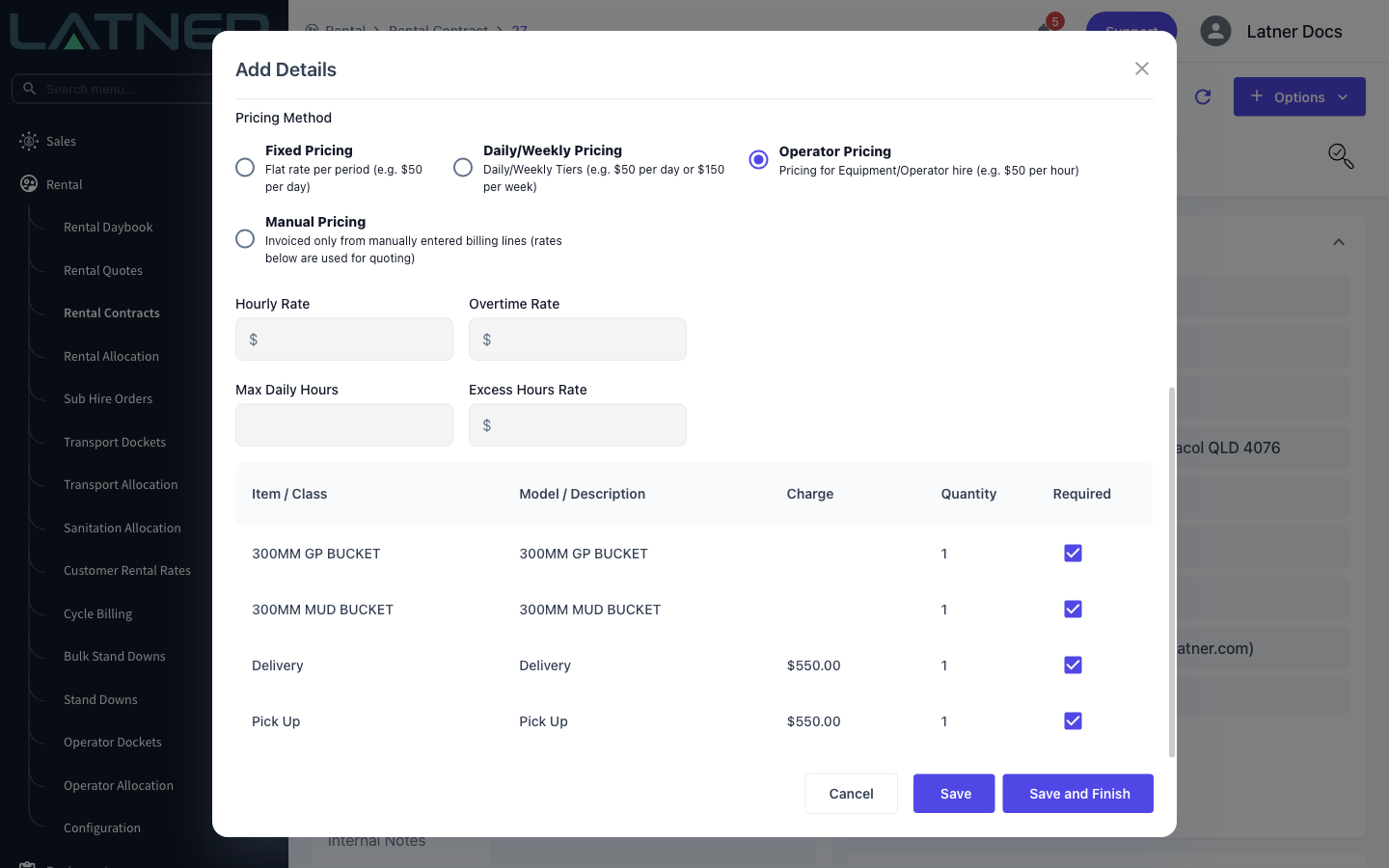
The pricing method is what makes the docket possible, not the line's status. If Create Operator Docket is missing, the line you selected isn't priced with Operator Pricing - change the line's pricing method rather than looking for a setting.
Creating the Operator Docket
Step 1 - Open the rental contract and select the operator line
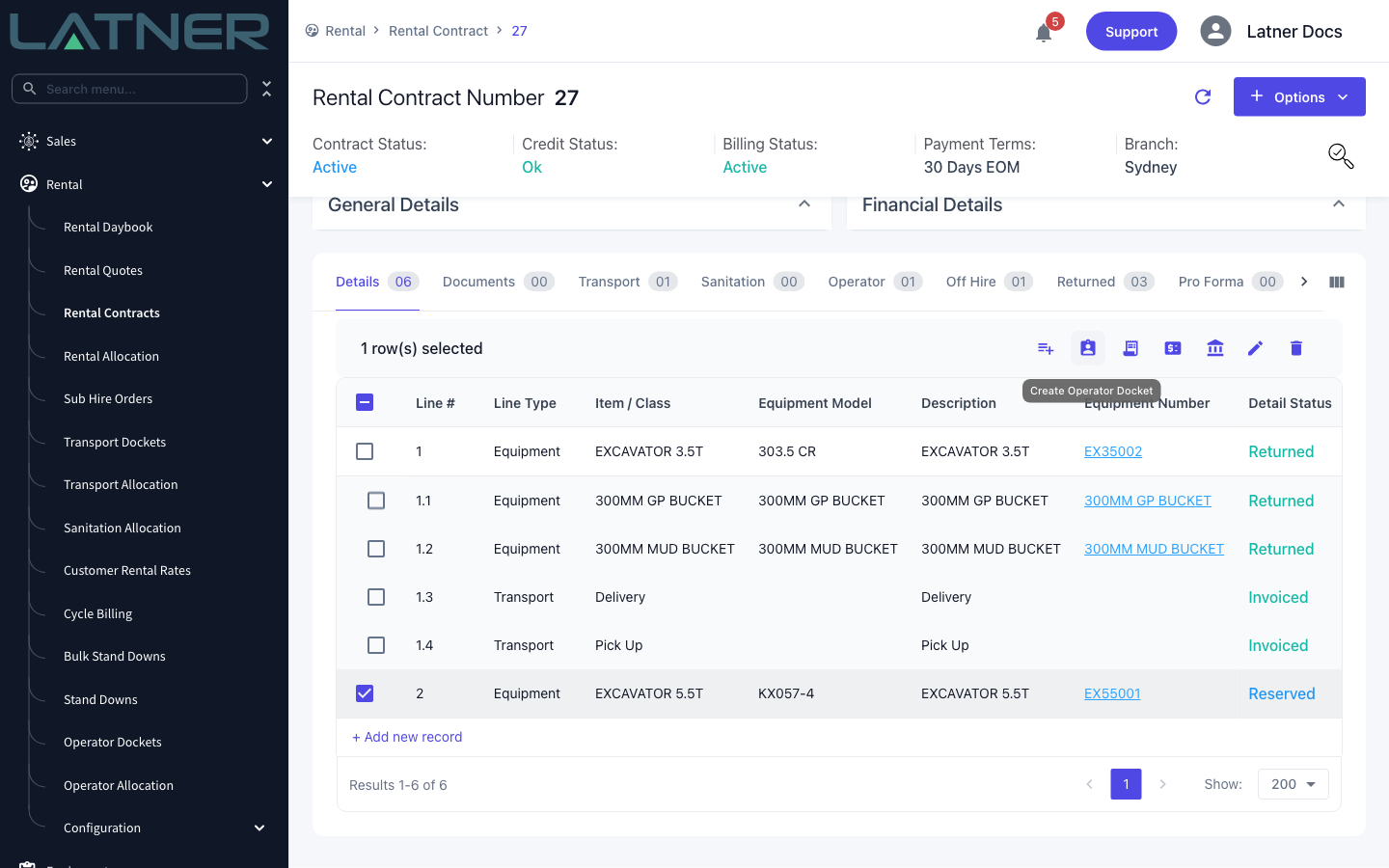
Go to Rental › Rental Contracts, open the contract, and on the Details tab tick the equipment line that is on operator pricing. The toolbar above the table changes as soon as a row is selected, and Create Operator Docket appears among the icons. Only one line can be selected at a time.
Step 2 - Open Create Operator Docket
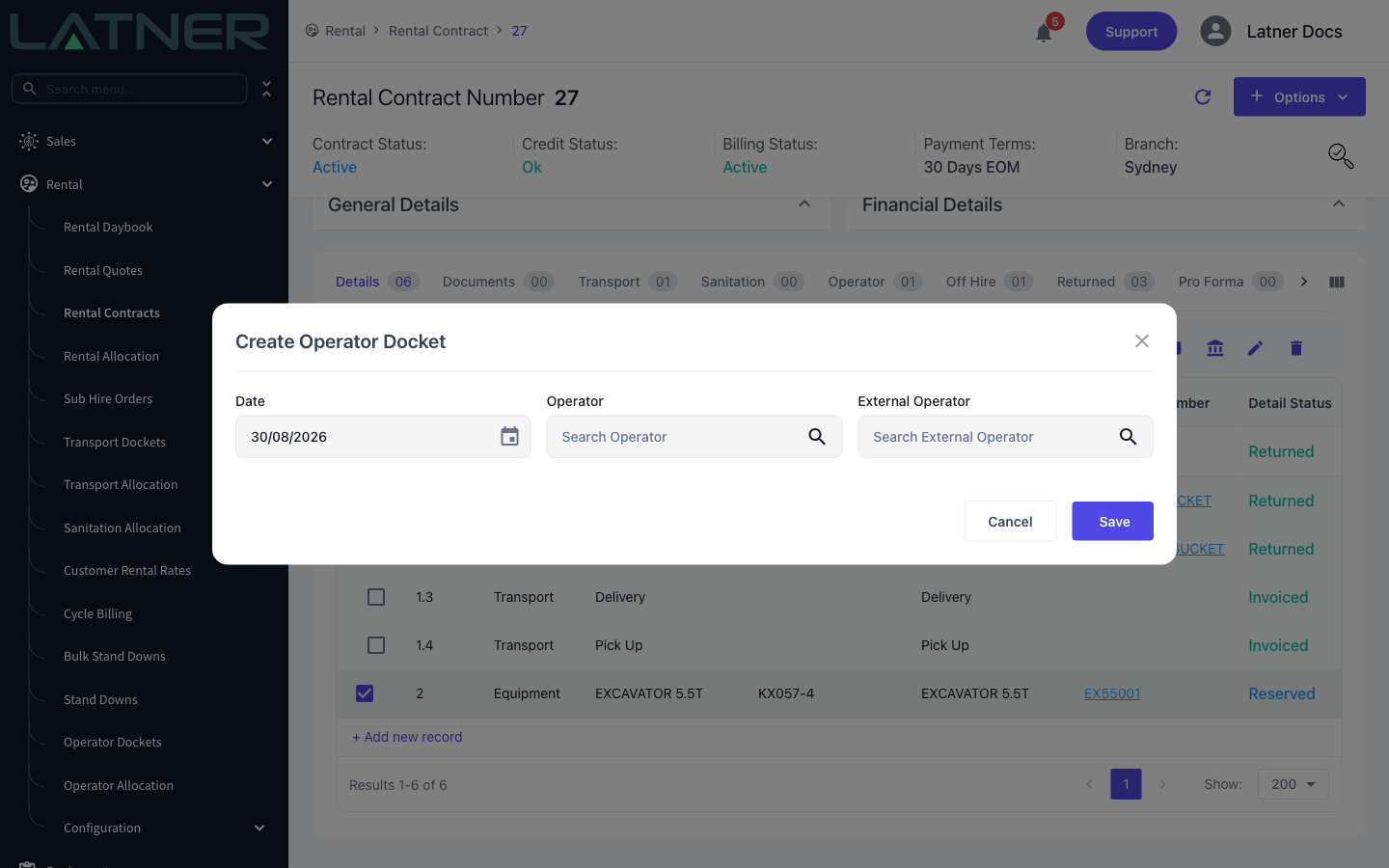
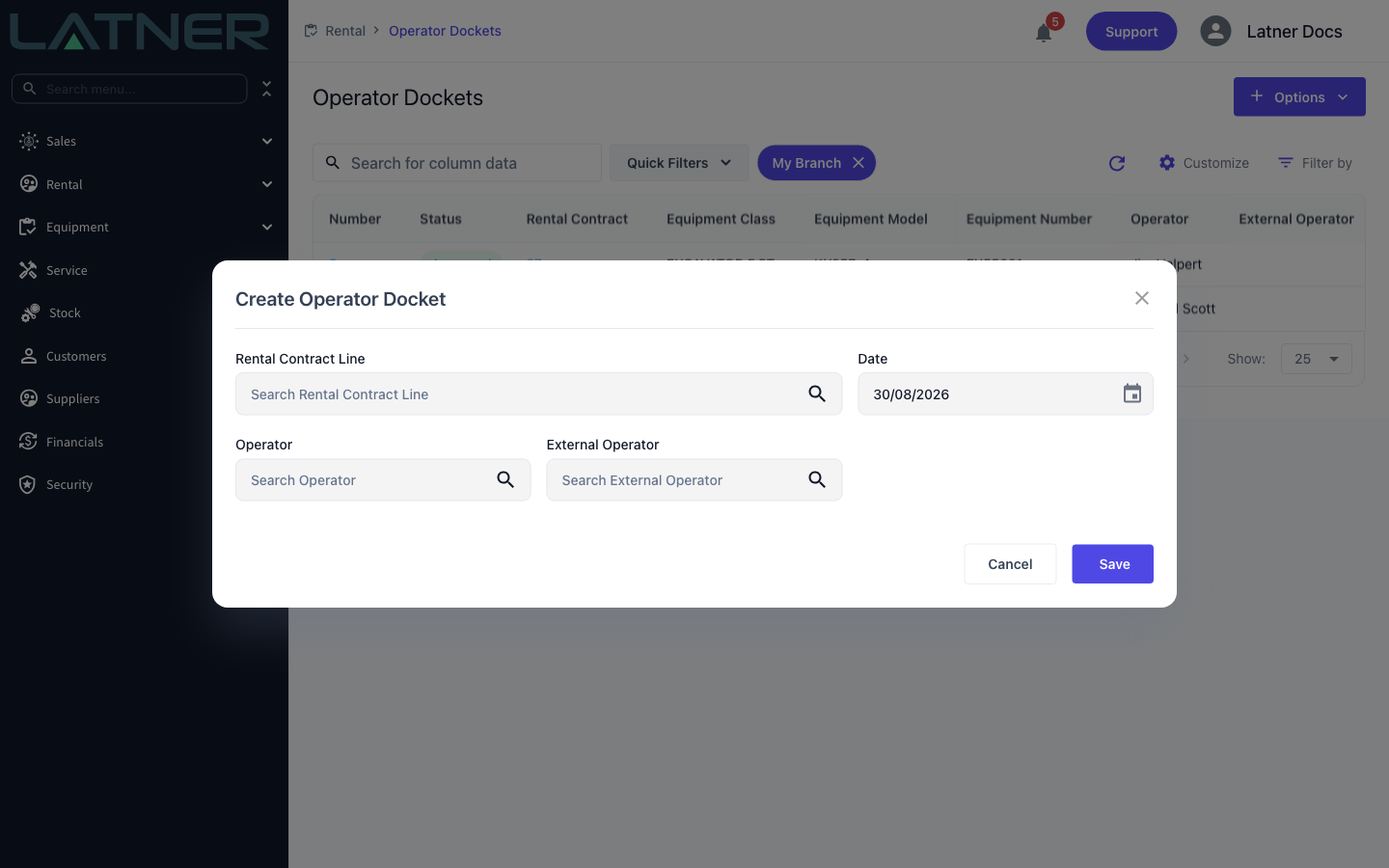
Click the Create Operator Docket icon. Because you started from a contract line, Latner already knows which line the docket is for and only asks for the rest.
-
Date - the day being worked. Defaults to today, and a docket always covers a single date.
-
Operator - one of your skilled people.
-
External Operator - a supplier, when the operator is not yours.
Step 3 - Choose the operator
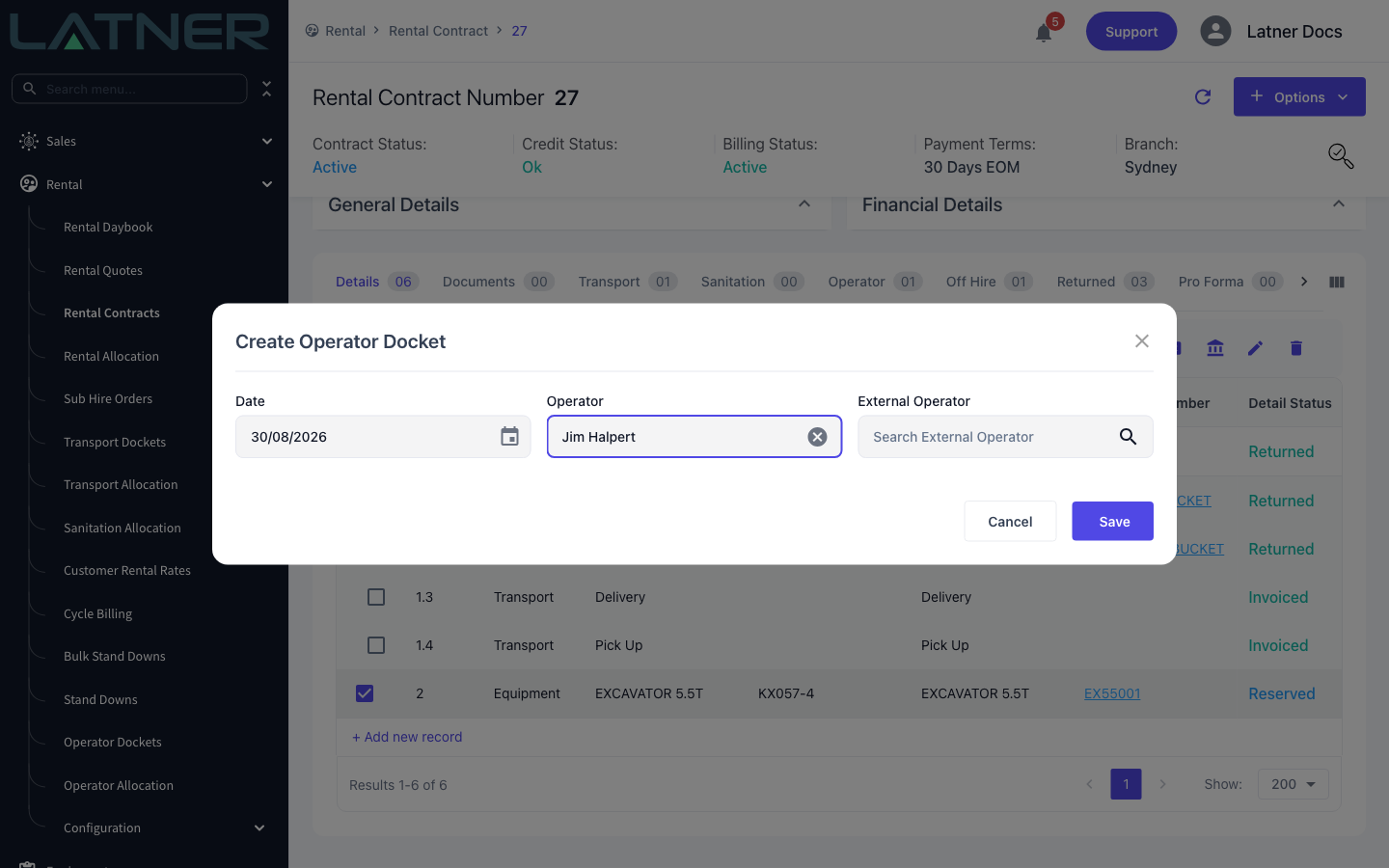
Fill in either Operator or External Operator, not both. Choosing one clears the other, and Latner rejects a docket that has neither or has both.
On a sub hire line where the supplier is providing the operator, External Operator is filled in with that supplier automatically and both fields are locked - the operator on the job is the sub hire supplier's, and there is nothing to choose.
You can also start from Rental › Operator Dockets › Options › Create Operator Docket. It's the same form with one extra field: you pick the Rental Contract Line yourself. The search only offers equipment and sub hire equipment lines that are on operator pricing, so a line that isn't eligible simply won't appear.
Step 4 - Save
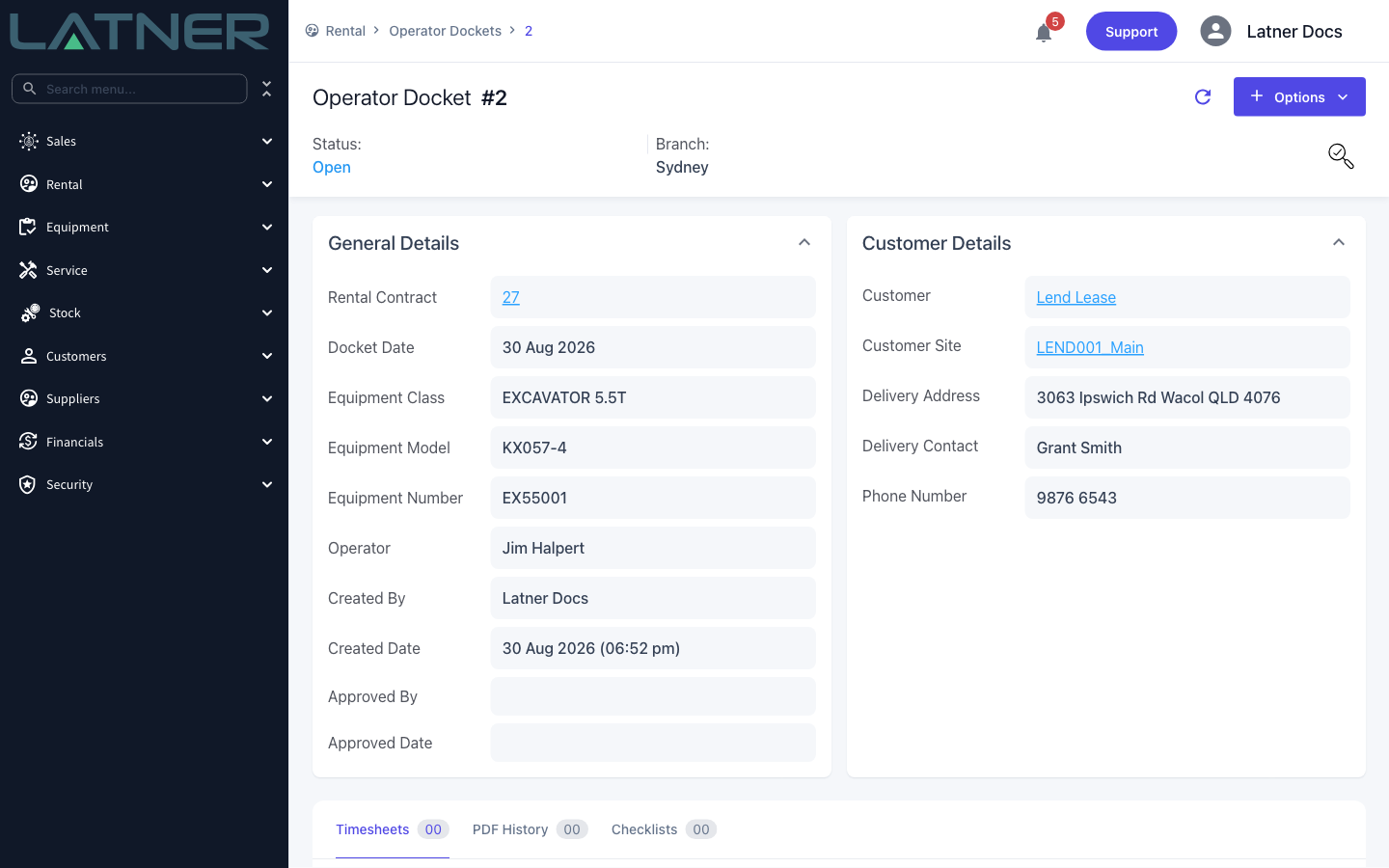
Click Save. The docket is numbered automatically and opens on status Open, carrying the contract, equipment class, model, equipment number and customer details across from the line. Nothing has been charged yet.
Step 5 - Add the hours worked
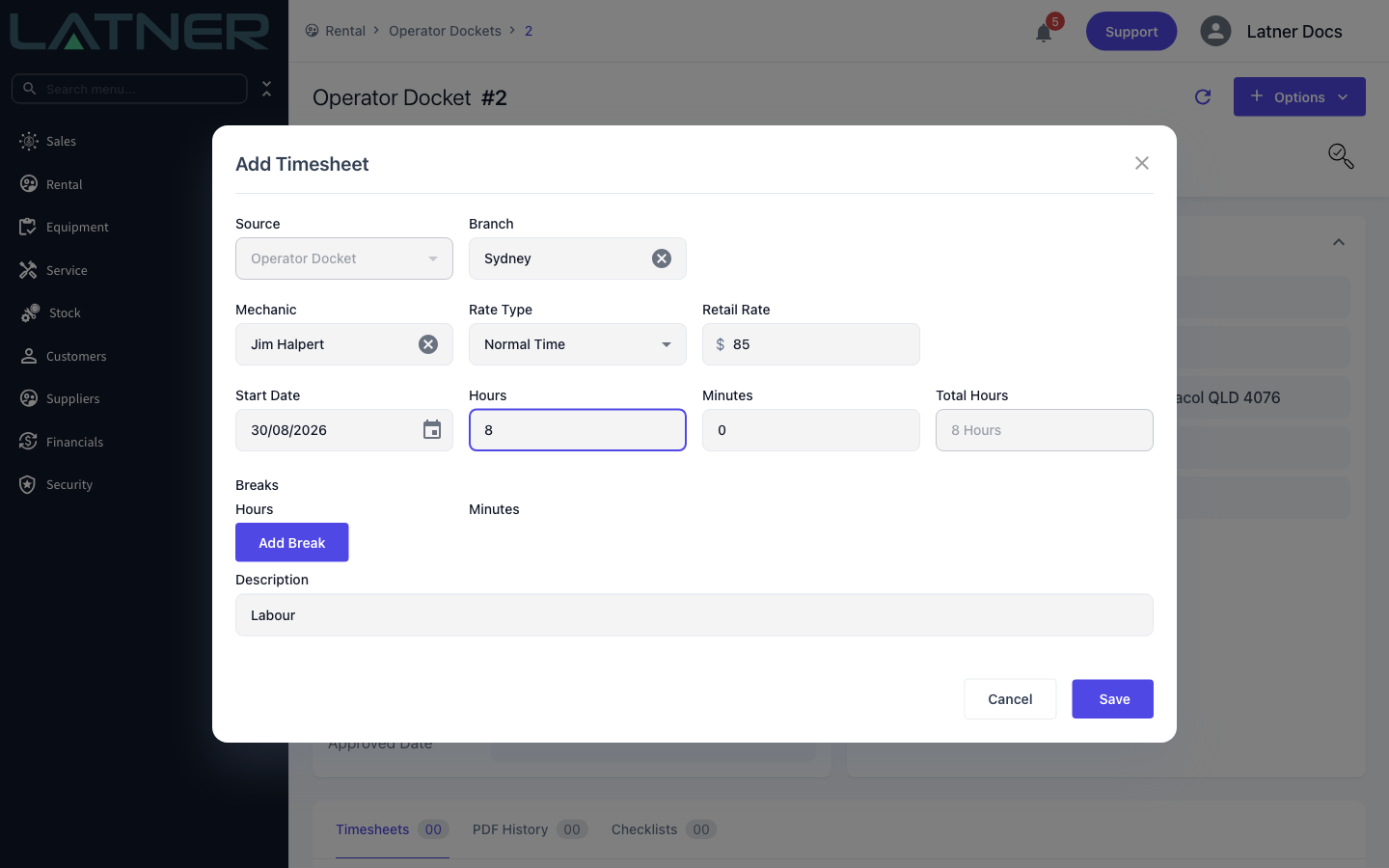
Choose Options › Create Timesheet and record the day's work. The Retail Rate defaults to the hourly rate on the contract line, and the Start Date defaults to the docket's date.
-
Rate Type - Normal Time or Overtime Rate. Call outs don't apply to operator dockets and aren't offered.
-
Retail Rate - what the customer pays per hour. Override it if the day was charged differently.
-
Cost - only shown for an external operator, and defaults to the sub hire rate.
-
Hours and Minutes (or Start Time and Finish Time, depending on your timesheet input setting), plus any Breaks, which are deducted from the total.
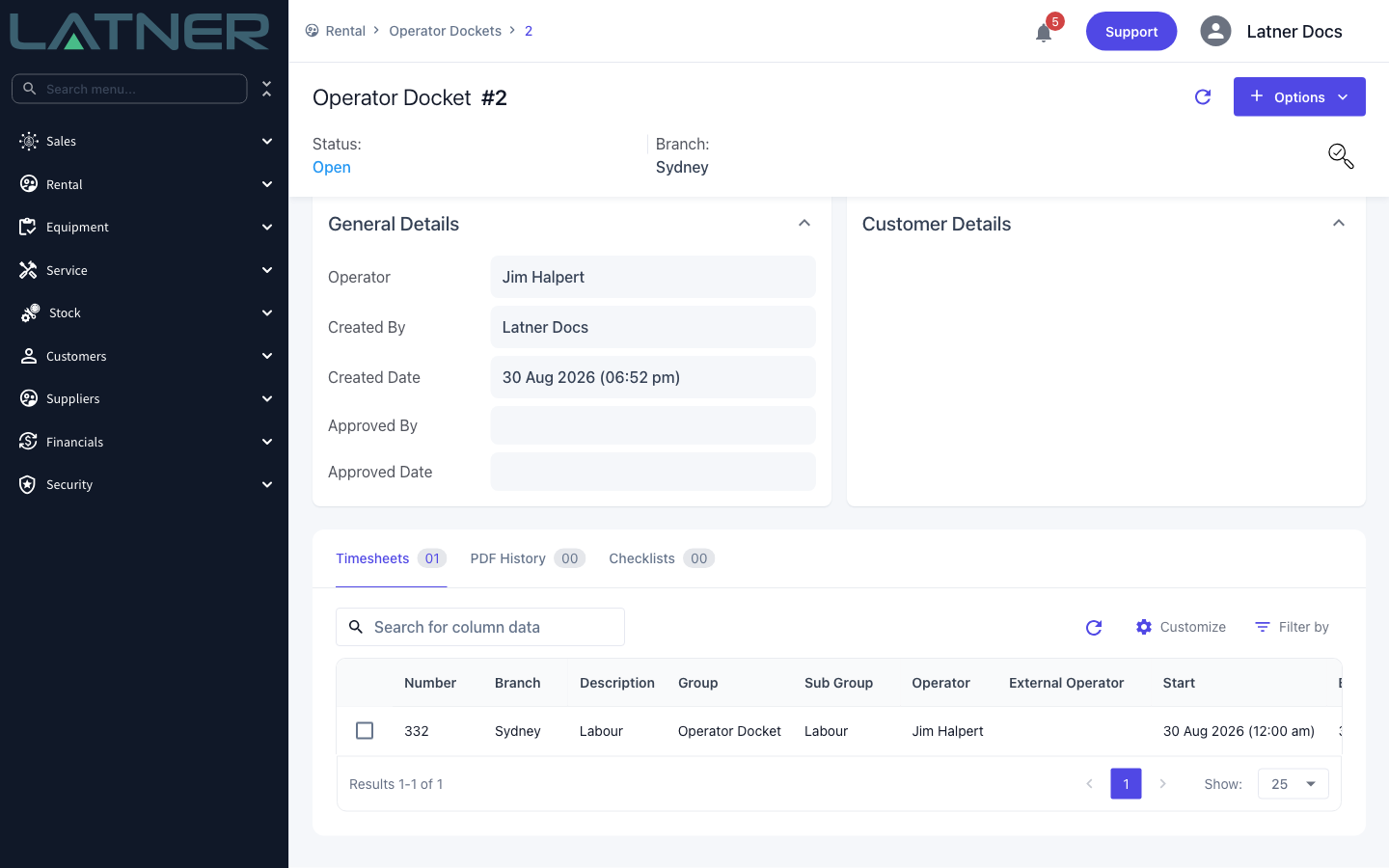
Add as many timesheets as the day needs - a normal-time block and an overtime block, for instance, are two timesheets on the same docket.
Step 6 - Complete the docket
Once the hours are in, choose Options › Complete Docket. The status moves to Pending Approval and the docket's date and operator can no longer be changed. A docket with no timesheets can't be completed.
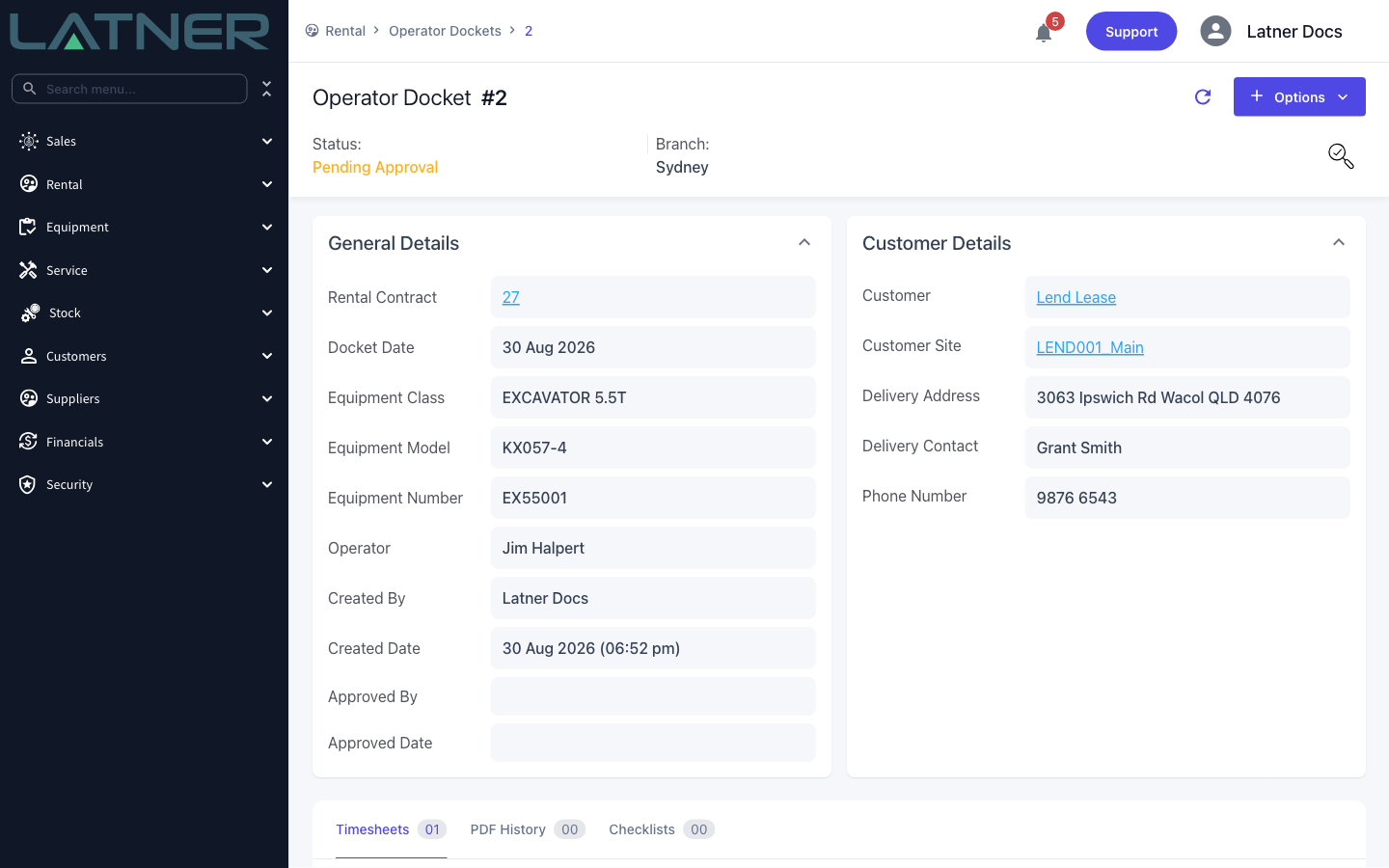
Step 7 - Approve the docket
Choose Options › Approve Docket. Latner stamps Approved By and Approved Date, and generates the docket PDF using your system's operator docket PDF template. Approval is the step that makes the hours billable, so nothing reaches an invoice until it happens.
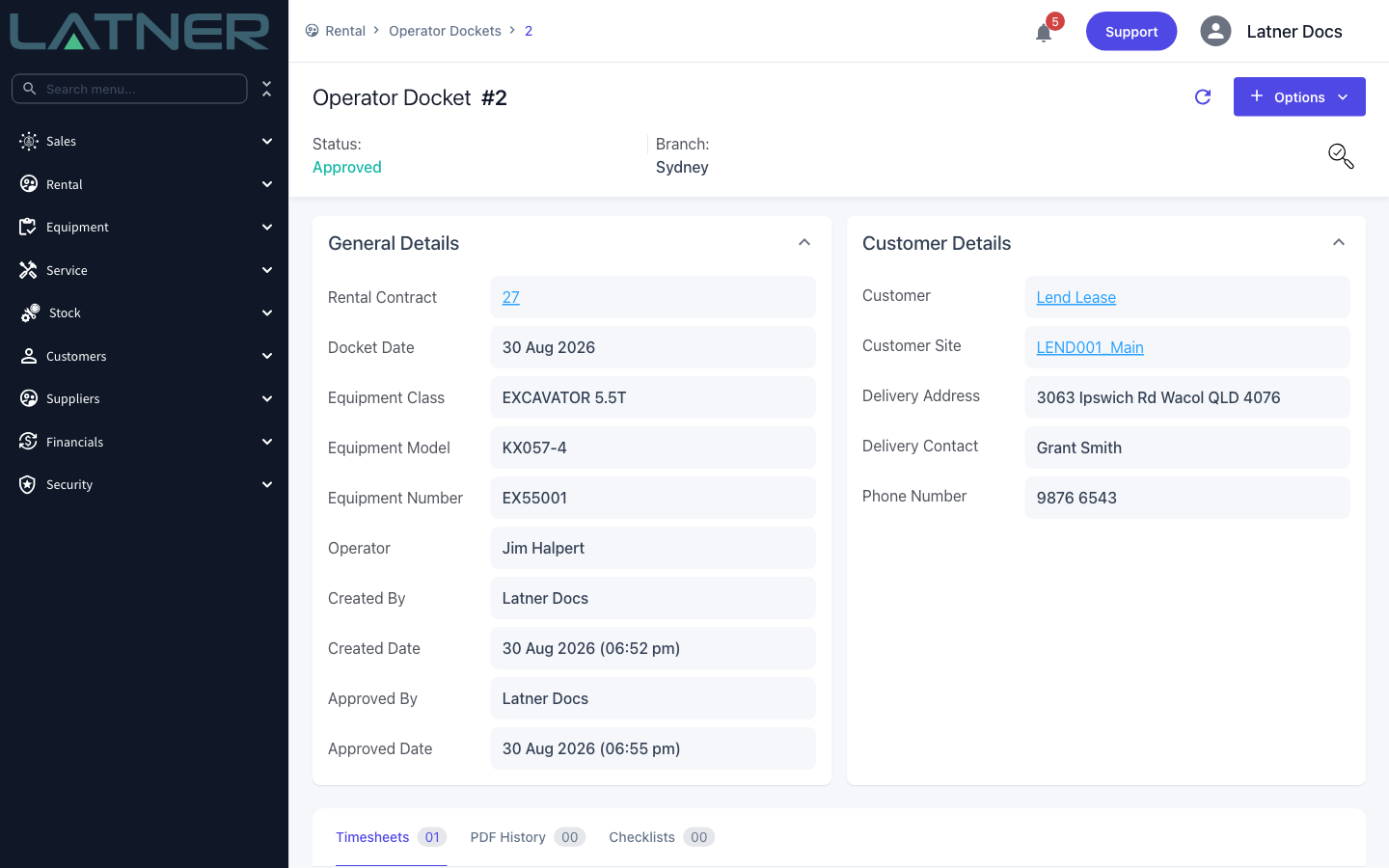
After Approval
-
The docket appears on the contract's Operator tab and on Rental › Operator Dockets, where quick filters for Today, Yesterday, Open, Pending Approval and Approved make the day's chasing easy.
-
The next invoice run on the contract picks up every approved docket dated on or before the billing date, and writes one invoice line per timesheet: the hours as the quantity and the timesheet's retail rate as the unit price.
-
Once that invoice is posted, the docket moves to Invoiced. Cancelling the invoice puts it back to Approved.
-
Timesheets can't be added, edited or deleted once the docket is approved or invoiced.
-
Options › Generate PDF is available from Pending Approval onwards, and every PDF you generate is kept on the PDF History tab.
An invoiced docket can't be cancelled or reopened. If the hours were wrong, cancel or credit the invoice first - that returns the docket to Approved - then reopen it and correct the timesheets.