
A package bundles the equipment, transport and charges that always go out together, so a hire controller adds one line to a rental contract instead of six.
Overview
Sometimes you want to group items together. An portable building goes out with a delivery, a pick up and however you also want to track everything inside the portable building too. A package is that memory written down once, and allows customer to see a single invoice line.
-
A package is a reusable set of detail lines that goes onto a Rental Quote or Rental Contract as a single Package line.
-
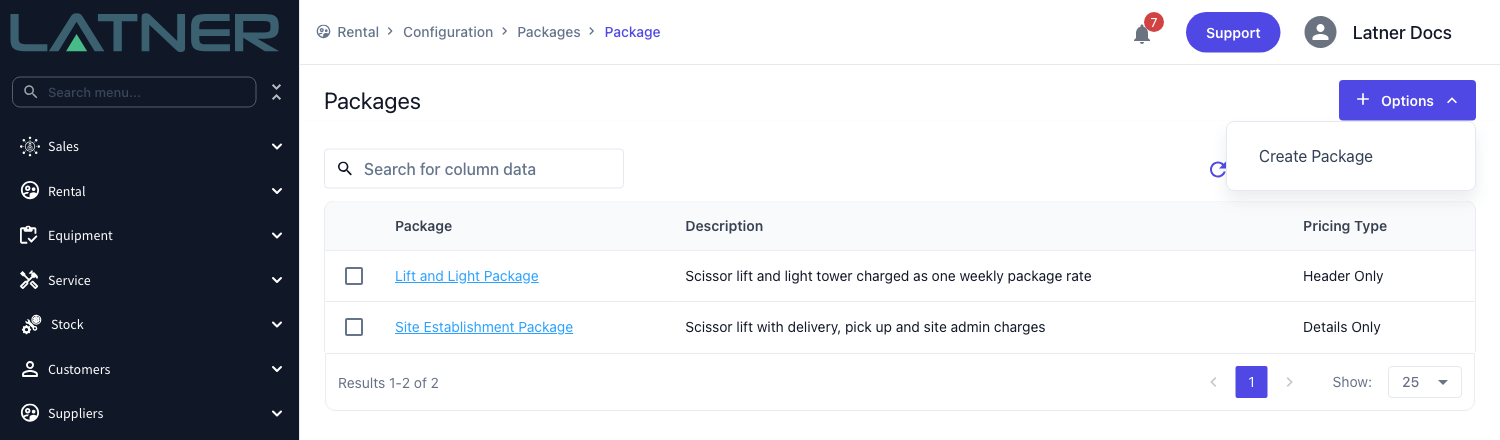
Packages live at Rental › Configuration › Packages. The list shows active packages only, and only an active package can be added to a quote or contract.
-
The Pricing Type is chosen when the package is created and cannot be changed afterwards. Details Only prices every line on its own; Header Only prices the whole bundle at one rate held in Rental › Configuration › Rental Rates.
-
A package line can be Equipment, Transport, Admin, Fuel, Damage, Labour or Stock. Sub hire equipment, sanitation lines and other packages can't go inside a package.
-
Every line carries an Include By Default? flag, so optional extras can live in the package and only get charged when someone ticks them on.
-
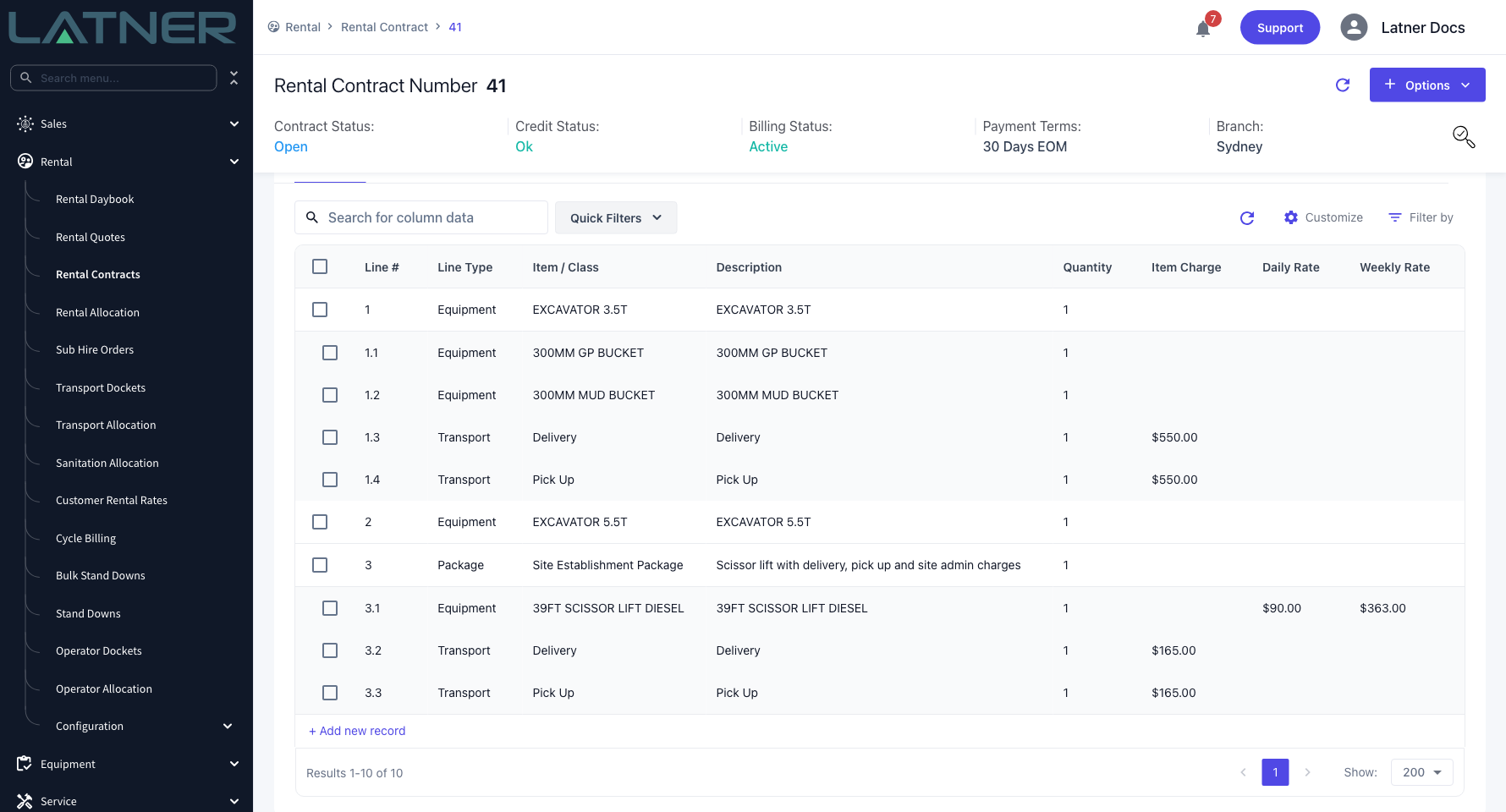
On the contract the package becomes a parent line and the included details become numbered sub-lines beneath it (3, 3.1, 3.2 and so on).
Before You Begin
You need the permissions to see and create packages, and it's worth knowing where the one relevant setting sits before you start.
|
Requirement |
Where to Find It |
|---|---|
|
Packages permission - lets you open the screen at all |
Security › Configuration › Permission Groups, under Rental › Configuration |
|
Create Package permission - lets you create packages and package details |
Security › Configuration › Permission Groups, under Rental › Option |
|
Allow Packages without Details on Quote and Contracts - optional, off by default |
Security › Settings › Rental |
|
Rental rates for the equipment you plan to bundle |
Rental › Configuration › Rental Rates |
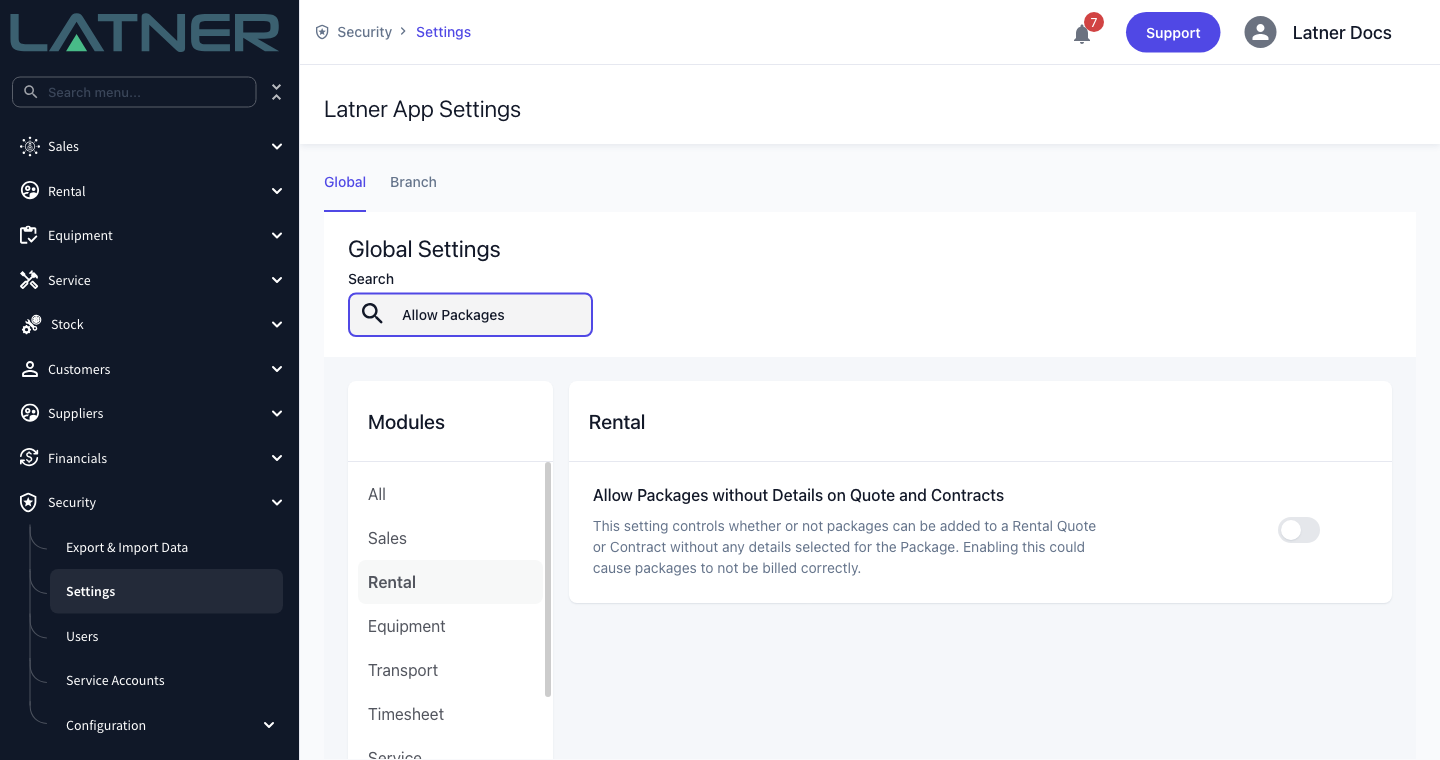
Leaving Allow Packages without Details on Quote and Contracts switched off is the safer choice. With it off, a package added to a quote or contract must have at least one detail line ticked, and a Header Only package must also have at least one line flagged as a main detail. Switch it on and Latner will accept a package with nothing selected, which - as the setting's own description warns - can leave the package billed incorrectly.
Creating the Package
Step 1 - Open the Packages screen
Go to Rental › Configuration › Packages. The list shows each package's name, description and pricing type. Inactive packages are filtered out of this screen entirely.
Step 2 - Create the package header
Click Options › Create Package. All three fields are required.
-
Name - must be unique across every package. Reusing a name is rejected with Duplicate Item already exists.
-
Description - what the hire controller sees against the package line on the contract, so write it for them.
-
Pricing Type - Header Only or Details Only. Choose carefully: once the package is saved the field is greyed out and its tooltip reads Pricing Type cannot be changed.
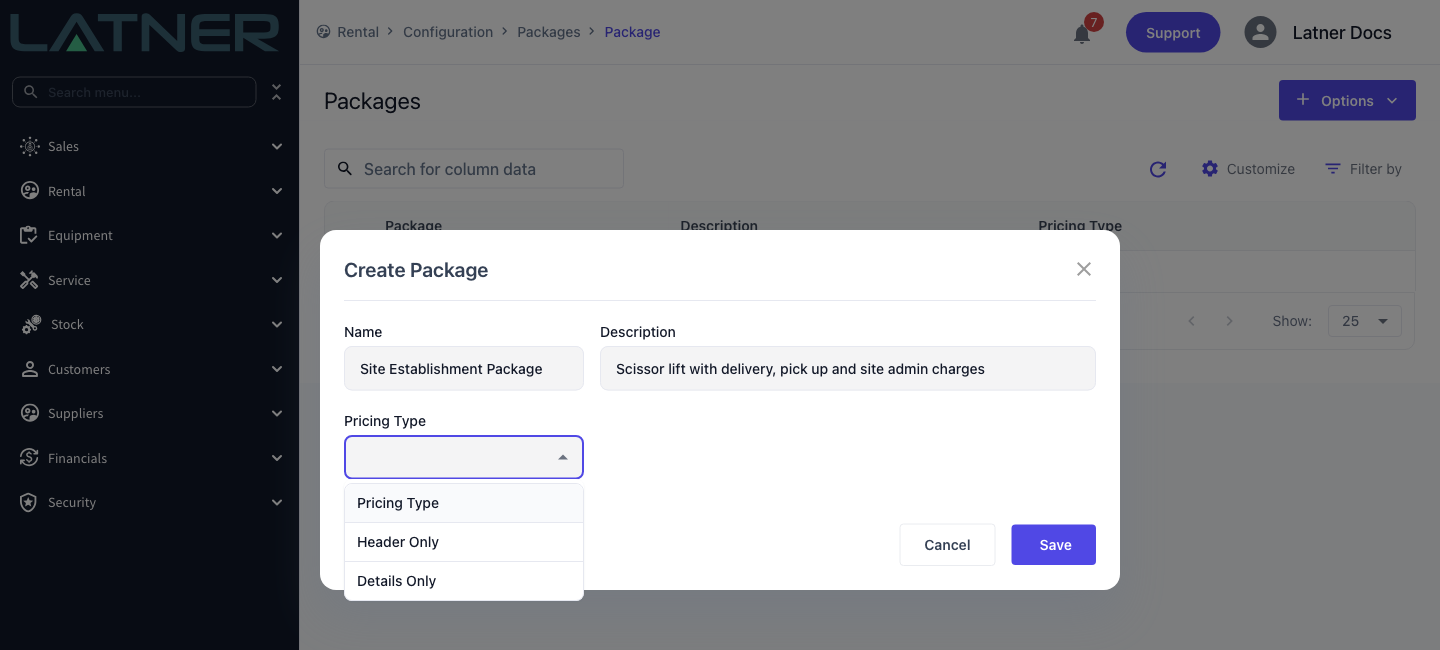
Details Only keeps a rate or a charge on each individual line, and the customer sees the bundle itemised. Use it when the package is a convenience rather than a price. Header Only charges the whole bundle at one package rate and the lines beneath it carry no price of their own. Use it when you sell "the lift and light package" for a single weekly figure.
Step 3 - Add the first detail line
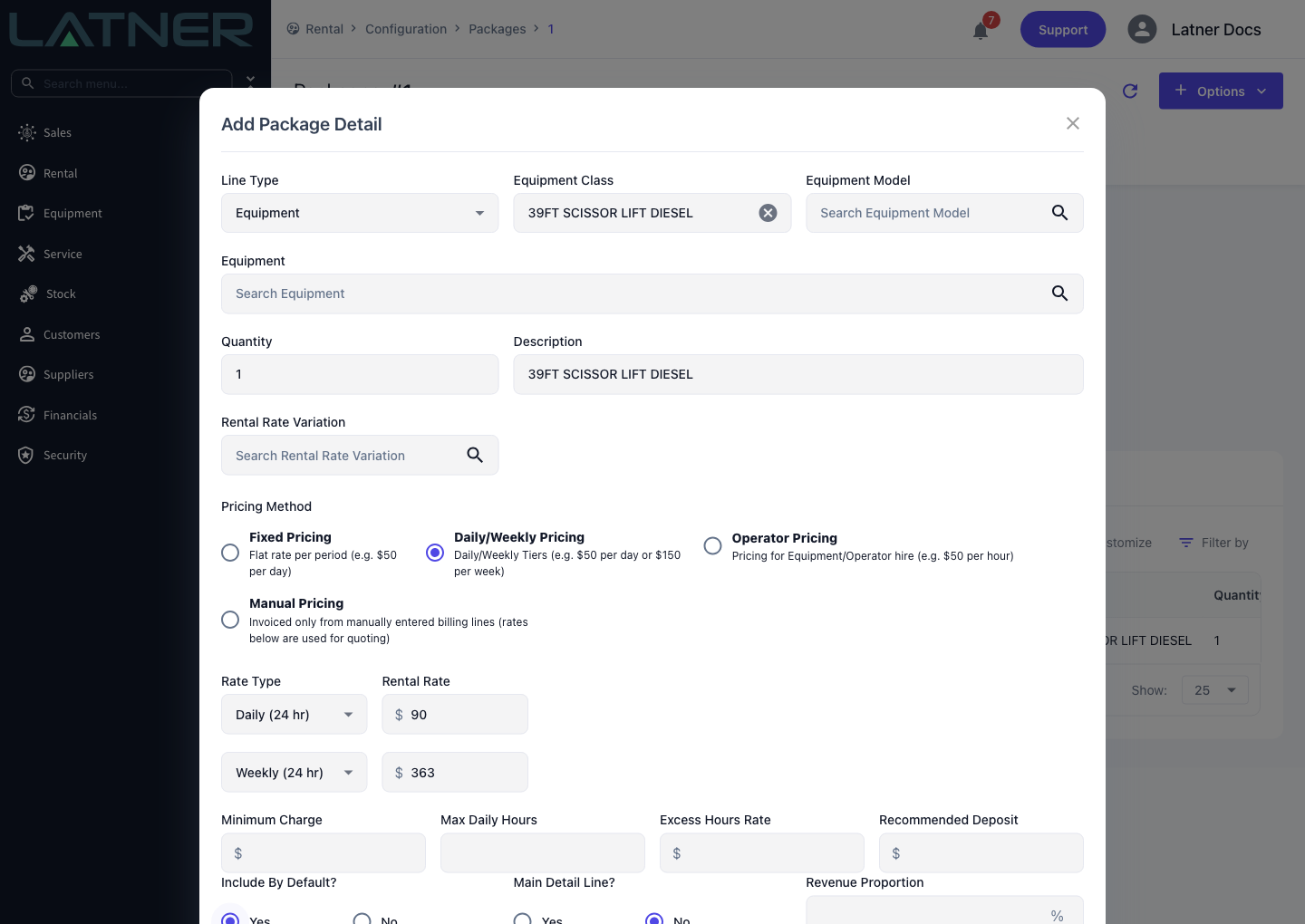
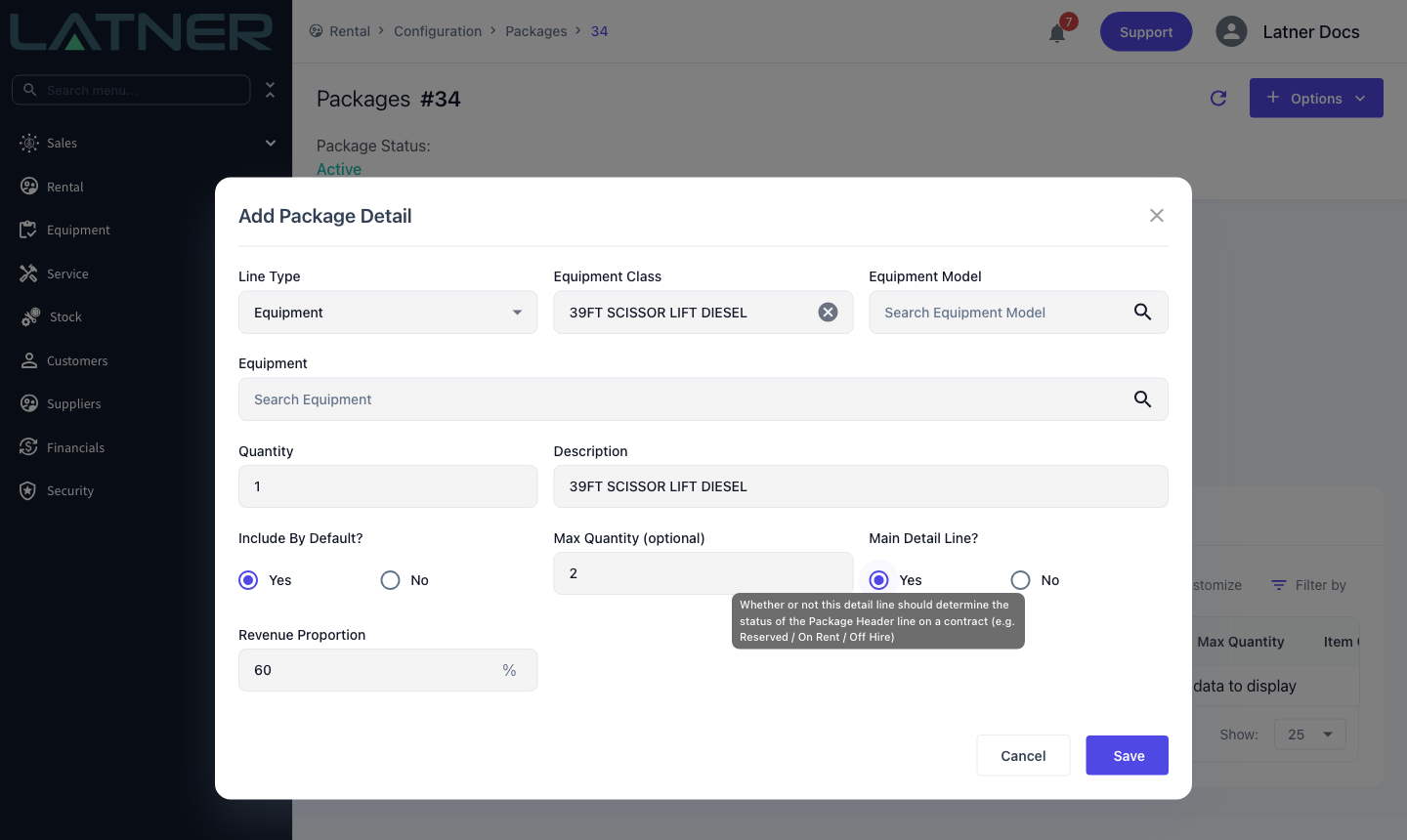
Saving takes you straight to the new package with the Add Package Detail dialog already open. Set the Line Type first, because every other field on the dialog changes with it. For an Equipment line:
-
Equipment Class - required. Choosing it fills in the Description and pulls that class's default rates out of your rental rate configuration, so you rarely have to type a rate at all.
-
Equipment Model and Equipment - optional. Use them to pin the package to a particular model or a particular machine. A model has to belong to the equipment class you picked.
-
Quantity - how many of the item the package puts on the contract.
-
Rental Rate Variation and the rate block below it (Pricing Method, Rate Type, Rental Rate, Minimum Charge and the rest) - these appear on Details Only packages only.
-
Include By Default? - required. Yes puts the line on the contract automatically.
Step 4 - Add the remaining lines
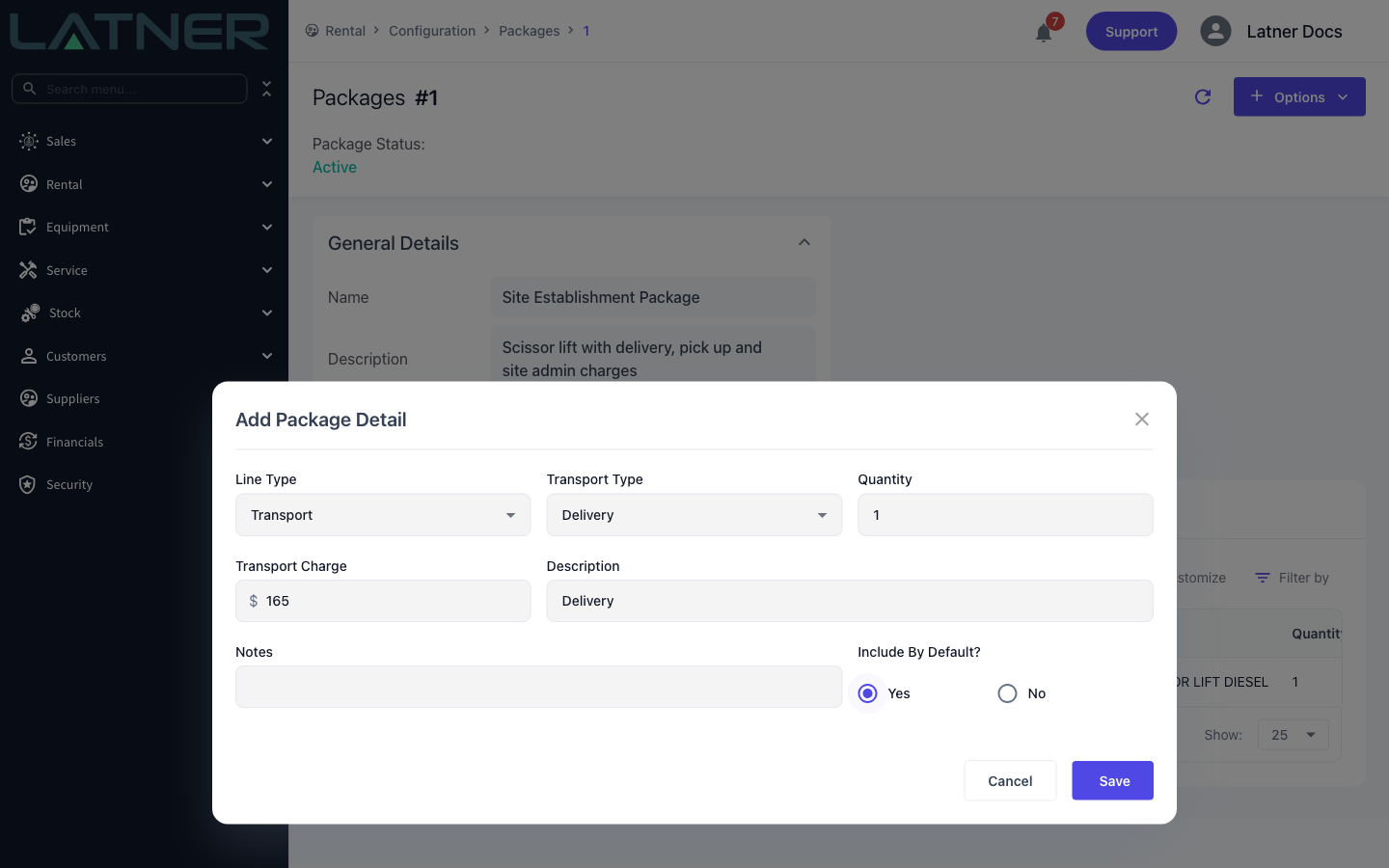
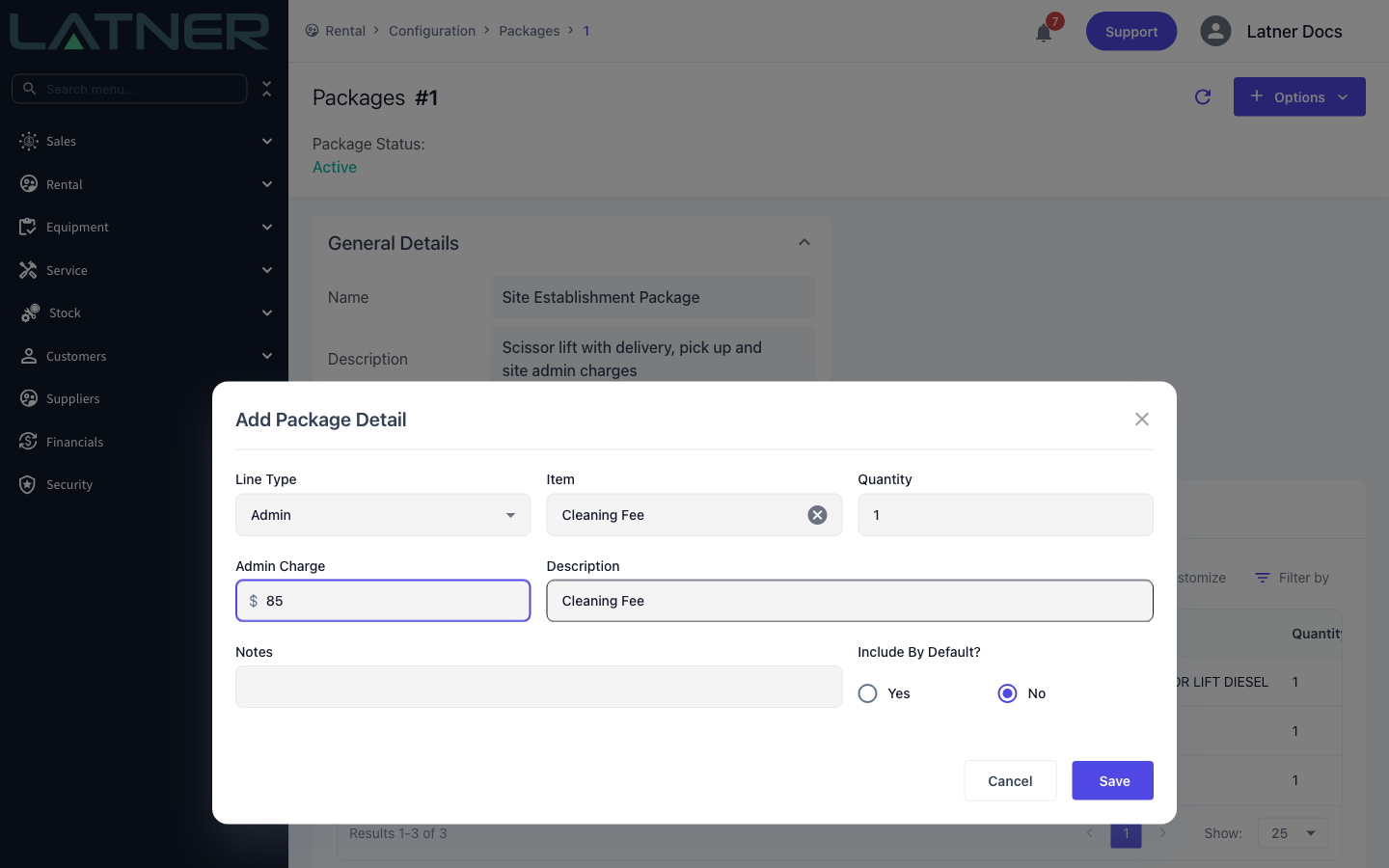
Back on the package, use Options › Add Package Detail for each further line. The line types available are Equipment, Transport, Admin, Fuel, Damage, Labour and Stock. Everything other than equipment takes a flat charge instead of a rental rate:
-
Transport - choose a Transport Type (Delivery, Pick Up, Customer Collection or Site Move) and enter the Transport Charge. Both are required.
-
Admin - choose the Item (an active admin charge) and enter the Admin Charge. Both are required.
-
Labour needs a labour type, Fuel a fuel type, Stock a stock item and Damage a description.
Step 5 - Check the order and the defaults
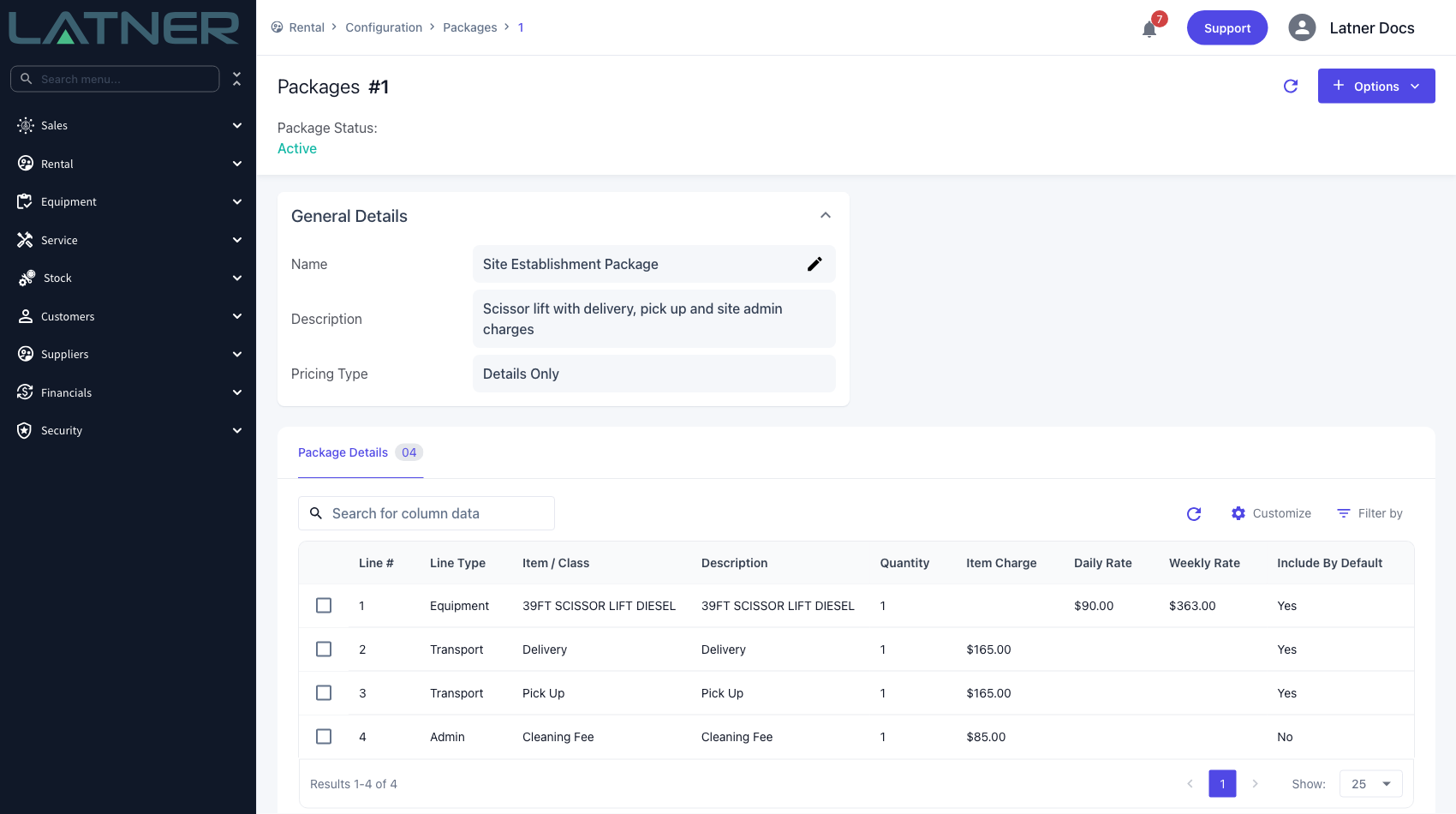
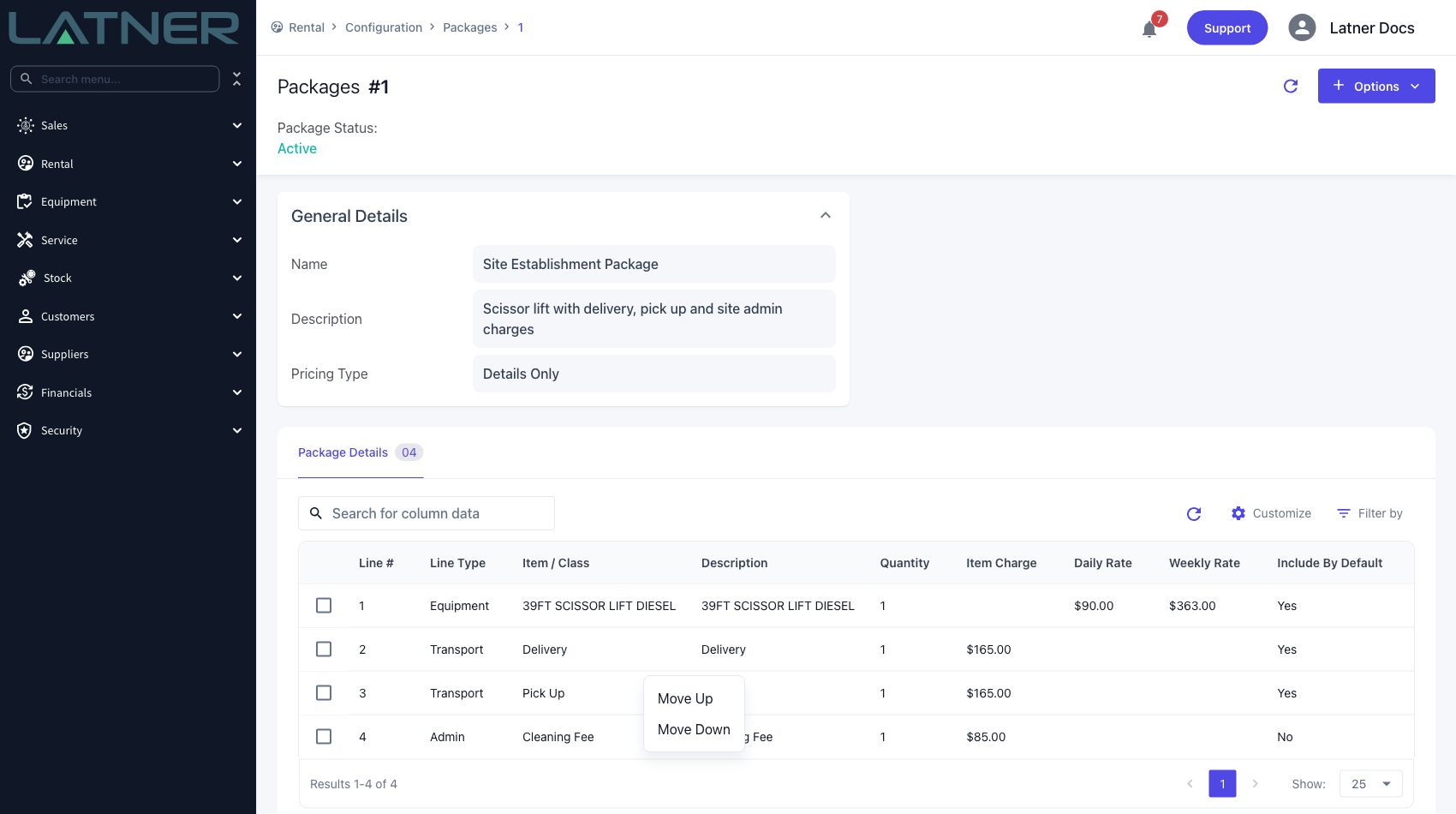
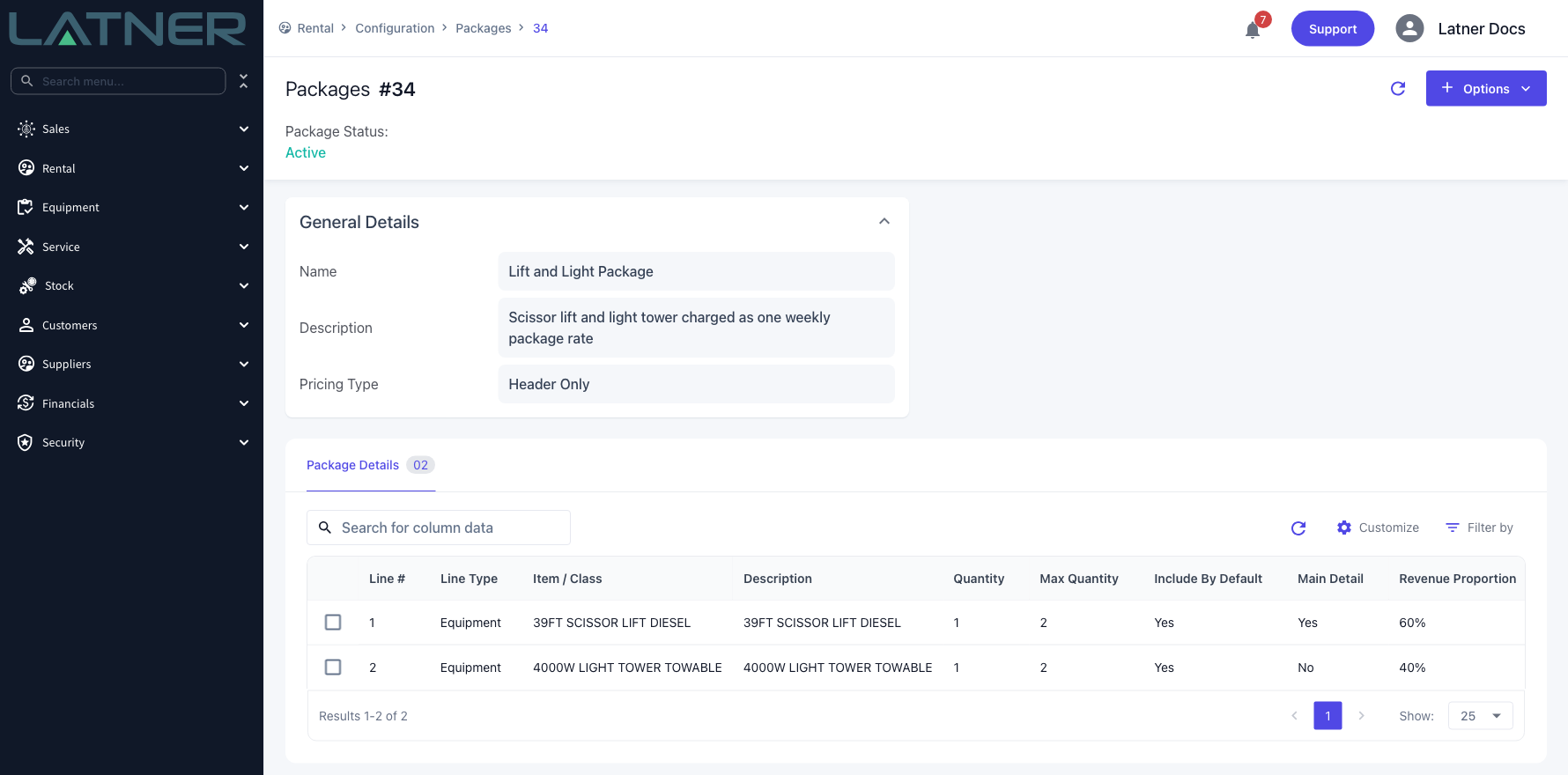
The Package Details tab is what a hire controller effectively sees when they pick the package, so it's worth reading it back once. To reorder lines, right-click a row and choose Move Up or Move Down - the line numbers rewrite themselves. To change a line, double-click it (or tick it and use the pencil) to open Update Detail Lines. Deleting a line removes it for good and renumbers everything below it.
Setting Up a Header Only Package
A Header Only package is priced as a whole, so its detail lines drop the rate block and pick up three fields you won't see on a Details Only package.
-
Max Quantity (optional) - caps how much of this item can go out under the package. Its tooltip puts it plainly: Optional Maximum Quantity that can be added as part of this package. Used to prevent undercharging of packages. A quantity above the cap is flagged as an error on the contract.
-
Main Detail Line? - marks the line that drives the package's status. The package header line reads Reserved, On Rent, Off Hire or Returned from its main detail lines; if no line is flagged, it falls back to all of them.
-
Revenue Proportion - the share of the package's revenue attributed to this line when the package is invoiced.
Give the package a price
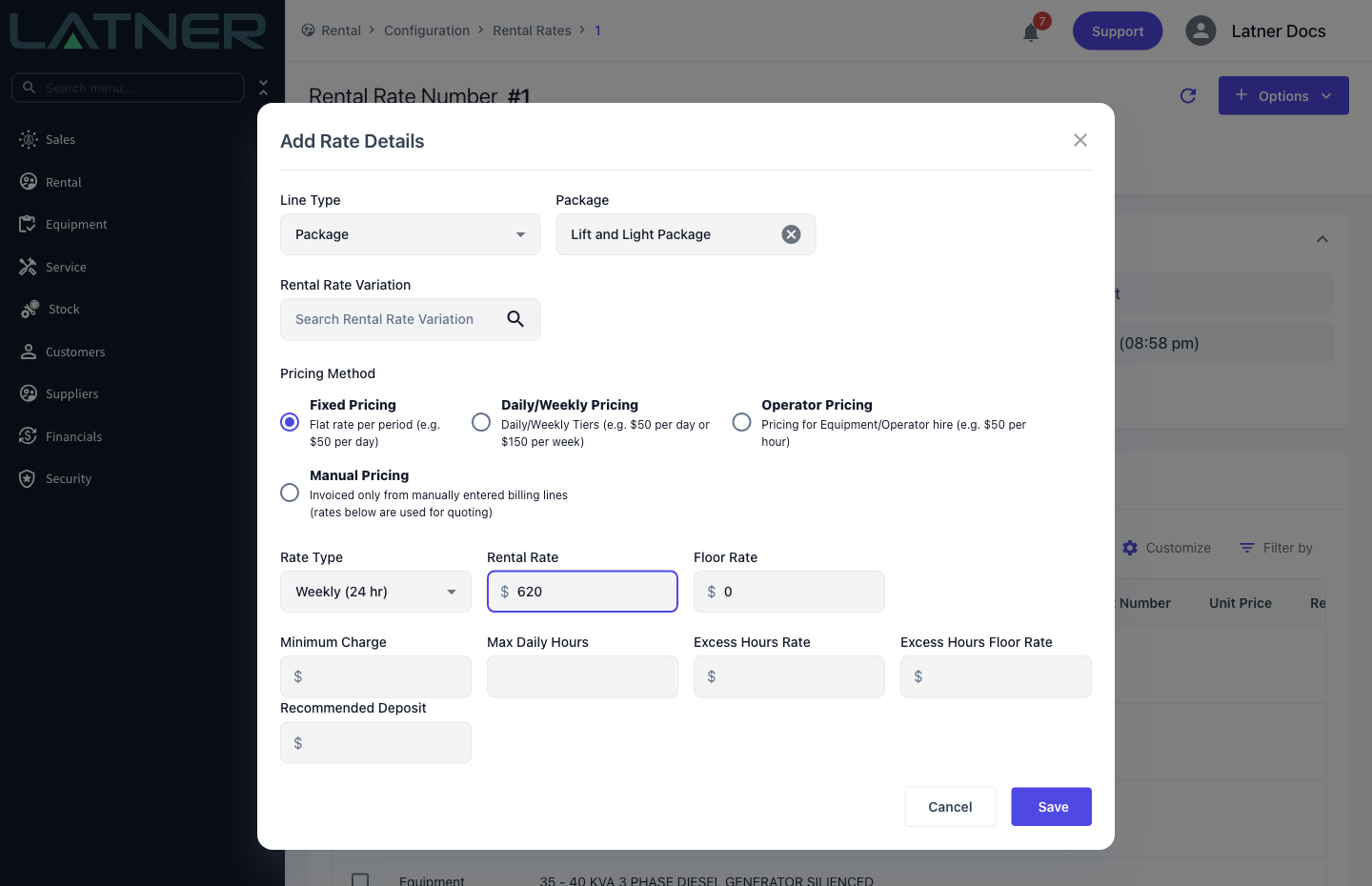
A Header Only package has no price until you give it one in Rental › Configuration › Rental Rates. Open the rate you want it on, click Options › Add Rate Details, set Line Type to Package and pick the package. Only Header Only packages appear in that list - a Details Only package is priced by its own lines and can't be given a package rate.
Using the Package on a Contract
On a rental quote or contract, choose Options › Add Details and set Line Type to Package. Picking the package opens its lines in a Package Details table with the Include boxes already ticked to match the package's defaults. Untick what isn't wanted, adjust a quantity, and use Package Multiplier to put several copies of the same configuration on the contract at once (up to ten).
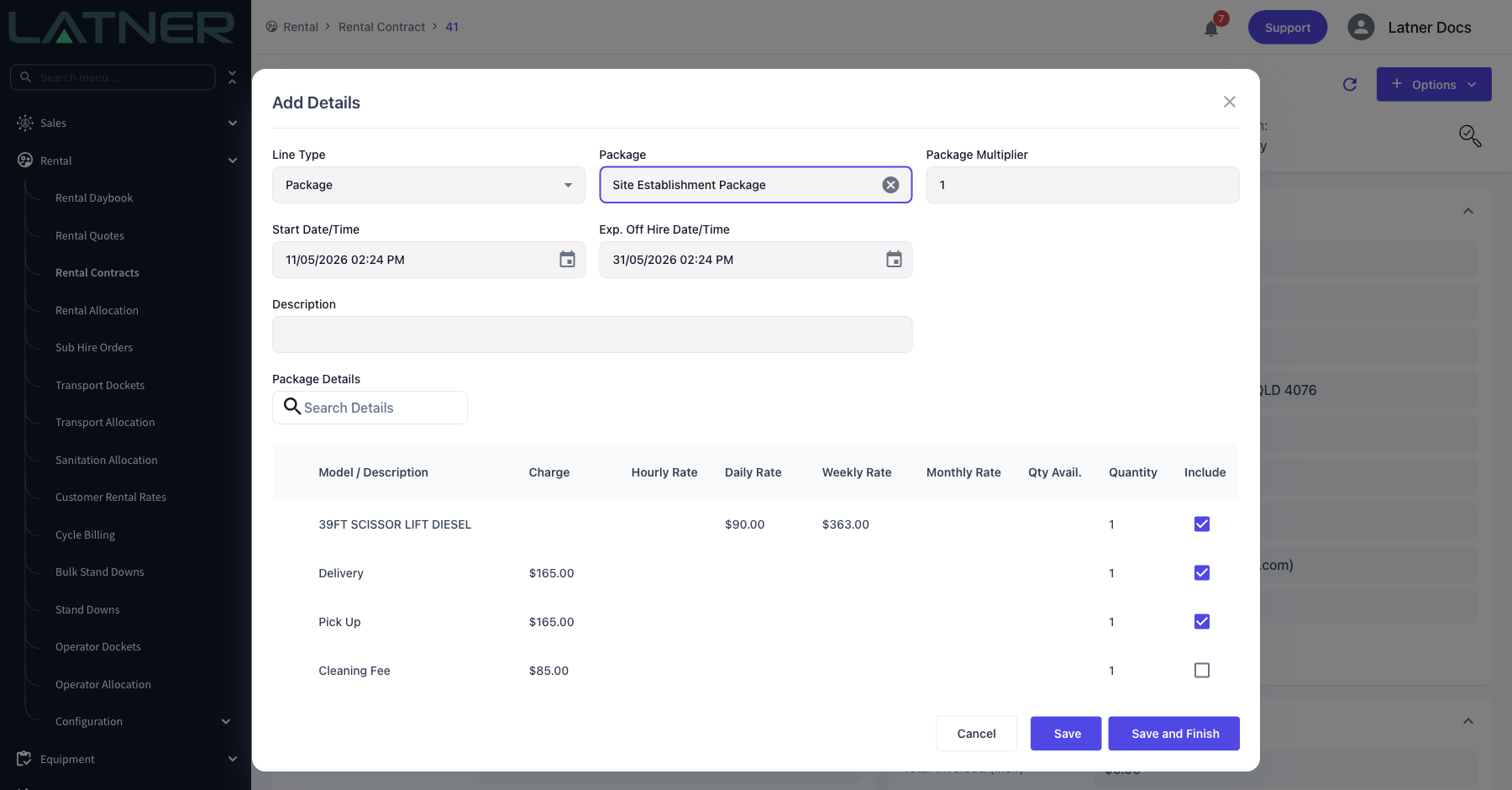
Saving creates the package header line plus one sub-line for every detail you ticked.
After Creation
-
The package is Active straight away and available on every rental quote and rental contract in the tenant - packages aren't branch specific.
-
Nothing is reserved or charged by the package itself. It only does work when someone adds it to a quote or a contract.
-
Changing a package later affects future use only. Contracts that already carry the package keep the lines and prices they were given at the time.
-
A Header Only package still needs its package rate in Rental › Configuration › Rental Rates, otherwise it goes onto a contract with no price.
Deleting a package from the Packages list doesn't delete it - it sets the package to Inactive, which removes it from the list and from the package picker on quotes and contracts. There is no status filter on that screen, so an inactive package can't be found or reactivated from the UI. If a package only needs a change, edit it instead of deleting it, and if you delete one by mistake, ask Latner support to set it back to Active.