
Welcome to the November 2026 Release of Latner! This release is about knowing who did what and getting stock and services out the door: Multi User Mode lets your counter team share one computer while every change is still recorded under the right name, Stock Transfers now create real Picking Lists, Sanitation Routing plans and optimises your service runs from one screen, and CRM activities can be linked to a project. Equipment Transfers have had a big upgrade too, so you can plan a transfer before you know which unit is going and receive it as it arrives. Work Orders and Service Requests also have a new comments panel, so you can tag a colleague and keep the conversation on the job. Comments now go further, onto Rental Quotes, Rental Contracts, Sales Orders, invoices, purchase orders, supplier invoices and equipment. There's also a set of improvements across work order stock, customer imports, document templates and AI Reports. Rental Discounts now let you take a percentage off a whole Rental Contract or Rental Quote or a single line, with standing discounts for your regular customers, and Attached PDFs work on Sales Orders and Rental Contracts as well as Rental Quotes. Our mid-month release brings Fuel Lines to Work Orders, quick calculations in any number field when you type =, and a Pass All option for Work Order checklists, along with a tidier Options menu for everyone and the ability to void customer payments. Below is a full breakdown of what's new in this release.
New Features
Multi User Mode for Shared Counter Computers
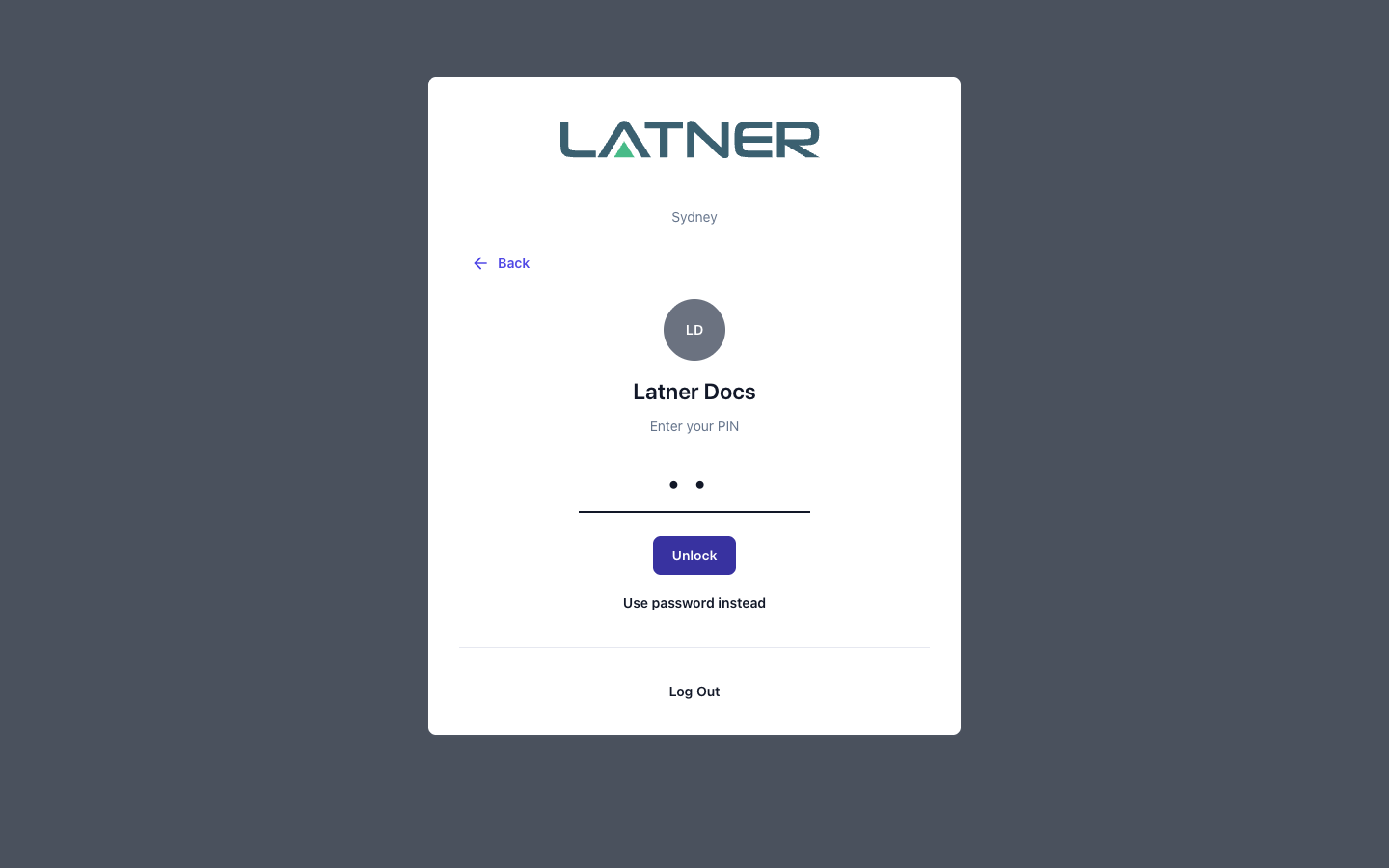
When several people share a computer, tablet, or mobile, it's hard to know who created or changed a rental contract. Multi User Mode fixes that: give each staff member a PIN (User Settings › Options › Set PIN), add them to their branch on the new Counter Users tab in Branch Details, then switch Multi User Mode on from the account menu in the top right. The computer drops to a lock screen listing the branch's counter users, each person unlocks it with their own PIN, and everything they do is recorded under their name. The computer locks itself again after a period of inactivity, set by Multi User Auto Lock (Seconds) under Security › Settings › System (five minutes unless you change it), and only users with the Manage Multi User Mode permission can turn it on or off.
Picking Lists for Stock Transfers
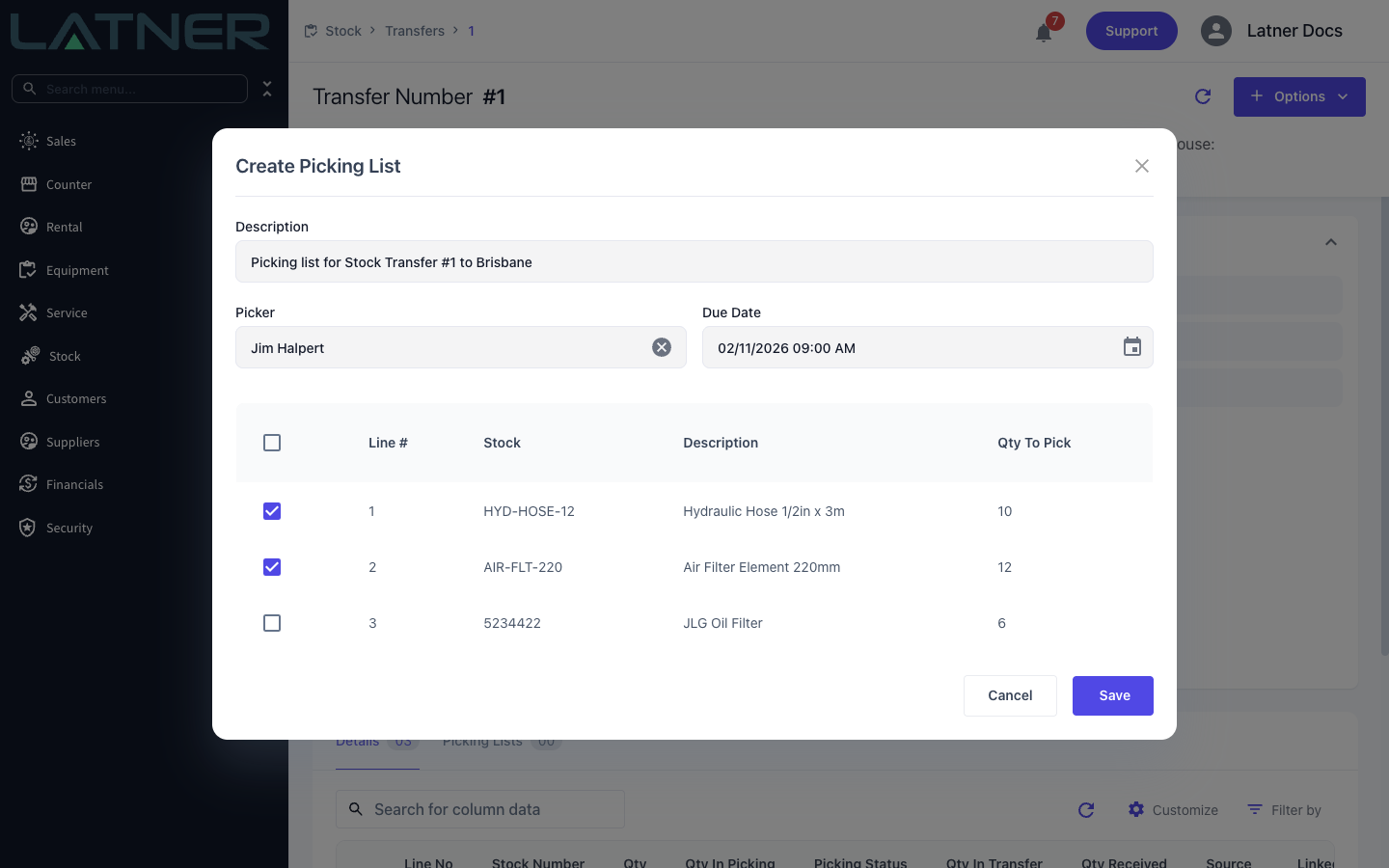
Moving stock between warehouses now follows the same picking process as your sales orders and work orders. On a Stock Transfer, Options › Create Picking List shows the lines that still have stock to send: tick the ones to pick, choose a Picker and Due Date, and Latner raises a Picking List for the branch the stock is leaving from. The transfer moves to Picking, a new Picking Status column shows where each line is up to, and the Picking Lists tab links straight to every list raised for it. Once the pick is completed, the picked lines are ready to send.
Sanitation Routing
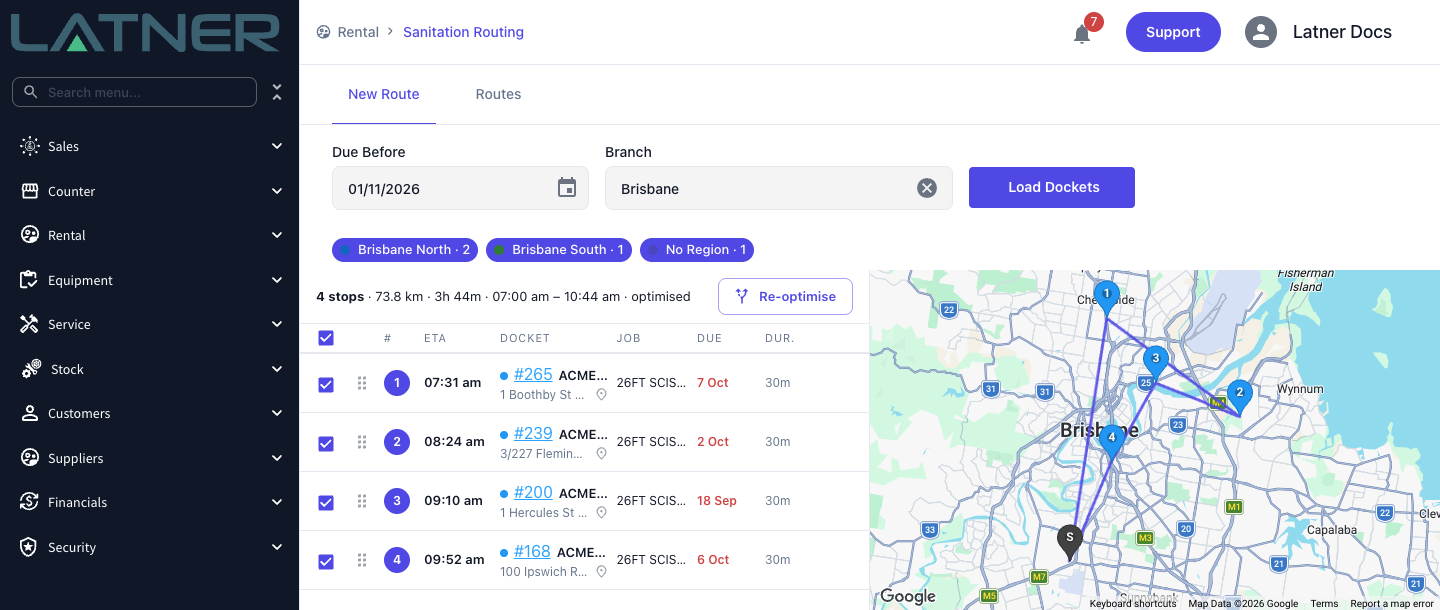
Servicing toilets, tanks and site amenities across dozens of sites is a lot of driving, and Sanitation Routing turns it into a planned run. Under Rental › Sanitation Routing, pick a day and branch, choose a Region (or several), and Load Dockets lays out every open Sanitation Docket due by that day on a map, with search and a Due Before filter to add more stops. Optimise Route works out the best driving order, Assign Driver hands the run to one of your team, and Create & Assign Route allocates every docket on it to them. Drivers then work their route from Sanitation Routes in the mobile app: follow it stop by stop in Google Maps, complete or skip each docket, and add notes on the route as they go. Sanitation Routing is available on request - contact Latner to have it switched on for your company.
Link CRM Activities to a Project
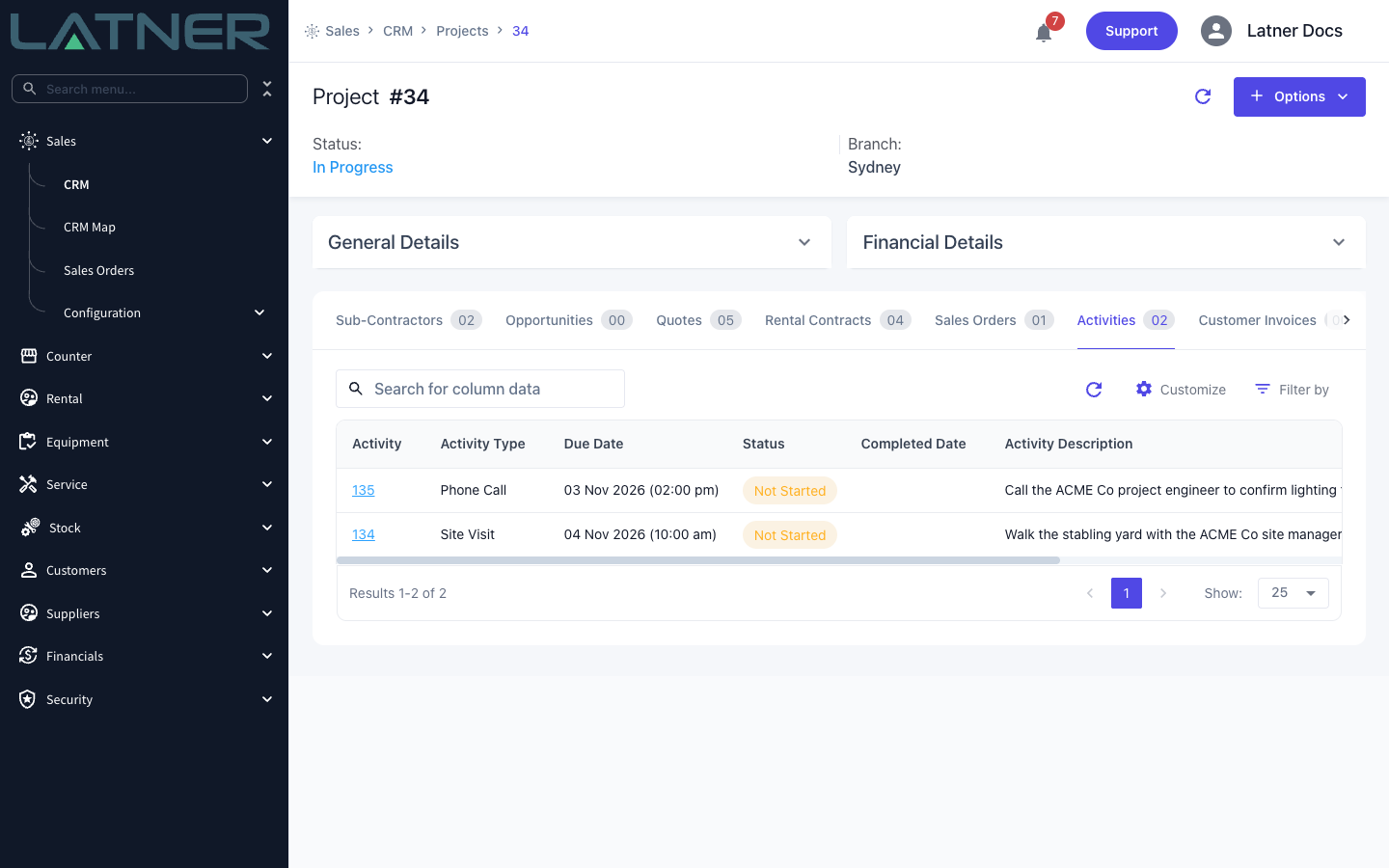
Calls, meetings and follow-ups for a big job no longer get lost among the rest of a customer's activities. Create Activity now has an optional Project field for linking the activity to one of your in-progress CRM projects. Each project has a new Activities tab showing everything logged against it, and a Create Activity option on the project itself so the link is filled in for you. An activity's details show its Linked Project, so you can jump back to the job in one click.
Plan-Ahead Equipment Transfers with Partial Receiving
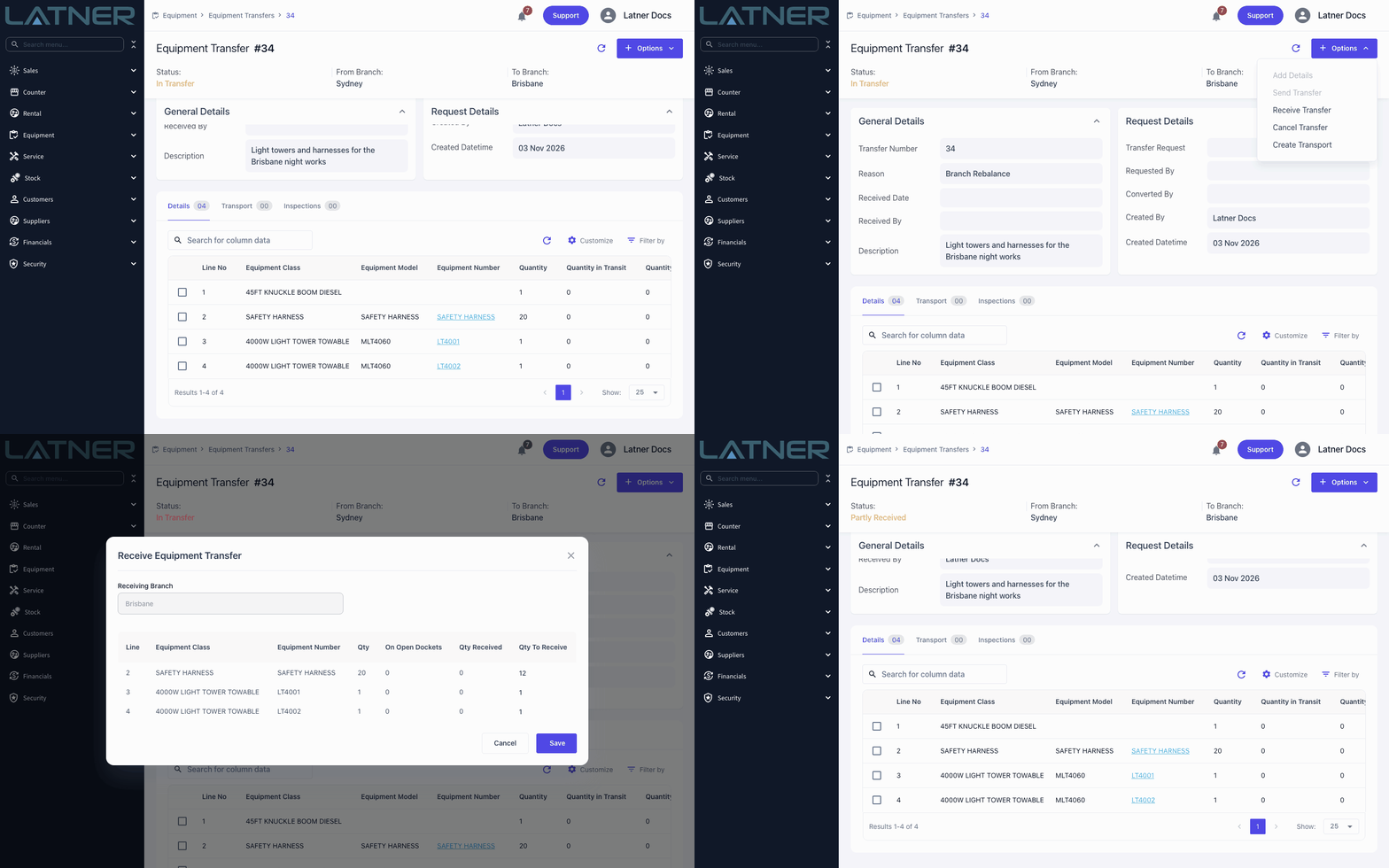
Moving equipment between branches no longer means knowing every unit up front or receiving it all in one go. A transfer line can now name just an Equipment Class or Model, with the Equipment Number added later on the transfer or by the driver on the Transport Docket, and lines can be added, edited and deleted while the transfer is Open, just like Stock Transfers. Completing the Transport Docket sends the transfer for you, and when the equipment arrives, Options › Receive Transfer lets you enter what actually turned up on each line. Anything still to come leaves the transfer Partly Received, ready for the next delivery, and cancelling a part-received transfer cancels only the rest.
Comments on Work Orders and Service Requests
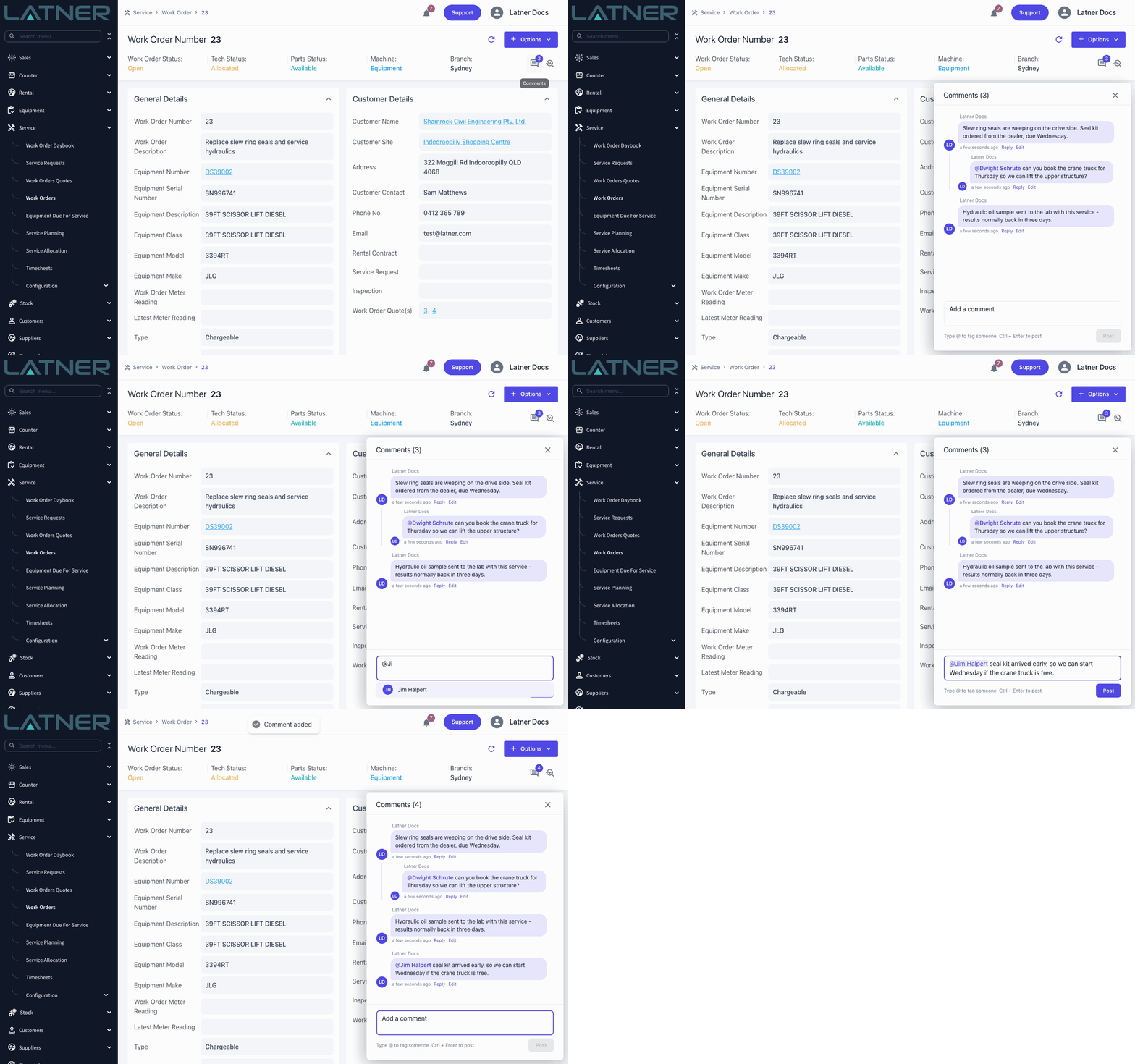
Notes about a job shouldn't get lost in a table nobody opens. Work Orders and Service Requests now have a comments icon in the header that shows how many comments the record has, and clicking it opens the whole conversation in a panel on the right, replacing the old Comments tab. Type @ to tag a colleague and they'll get a notification and an email that takes them straight to the comment, or use Reply to keep a discussion together in its own thread. The same conversation shows on the mobile Work Order page, so technicians in the field can follow along and reply too.
Comments on More Records
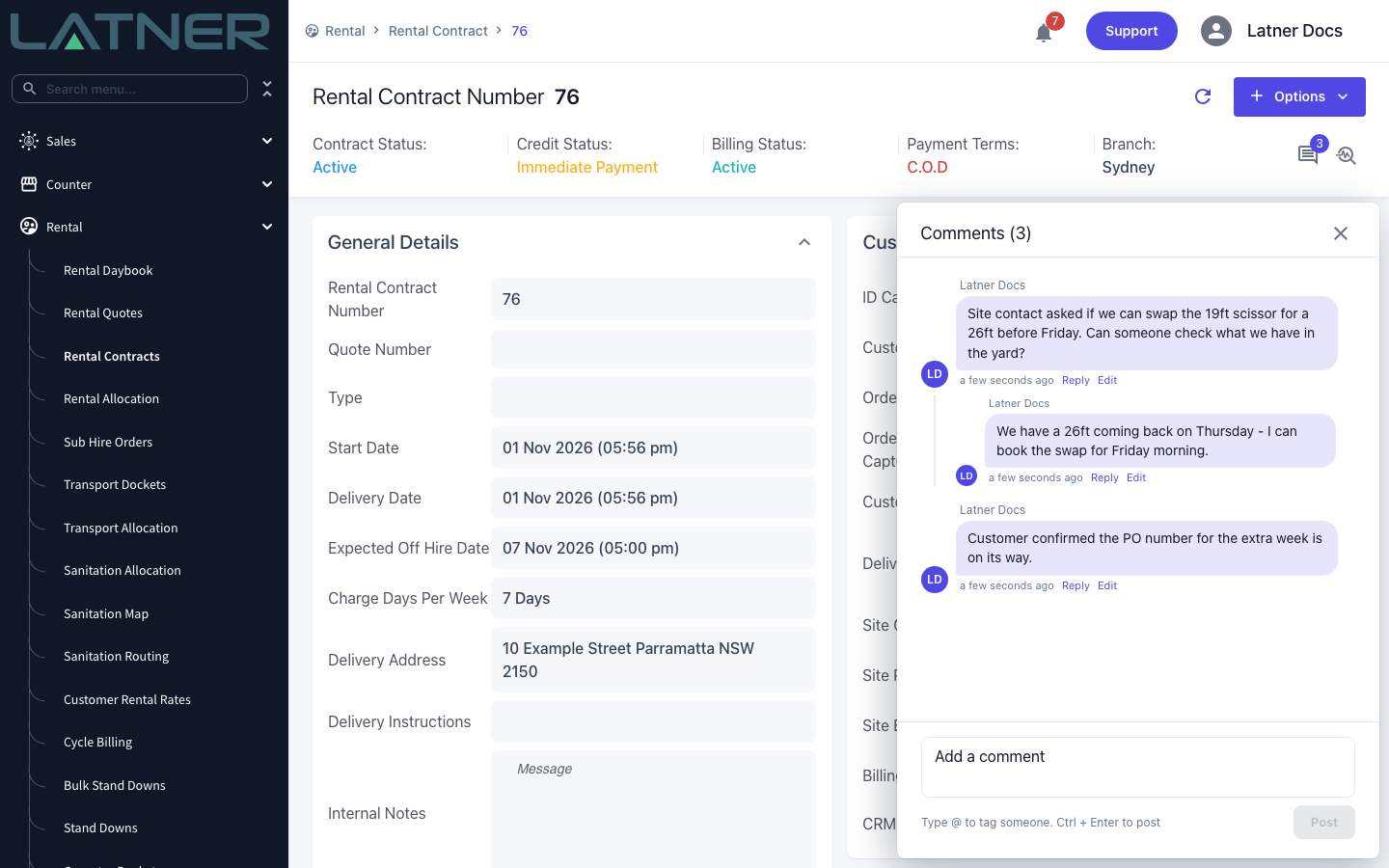
The conversation about a hire, an order or an invoice now lives on the record itself. Rental Quotes, Rental Contracts, Sales Orders, Customer Invoices and Credit Notes, Purchase Orders, Supplier Invoices and Supplier Credit Notes, and Equipment all have the comments icon in the header, showing how many comments the record has. Click it to open the conversation in a panel on the right, type @ to tag a colleague or use Reply to keep a discussion in its own thread, and anyone you tag gets a notification and an email that opens the record with the comment in view. Anyone who can open the record can read and add comments, so there's nothing to switch on.
Rental Discounts
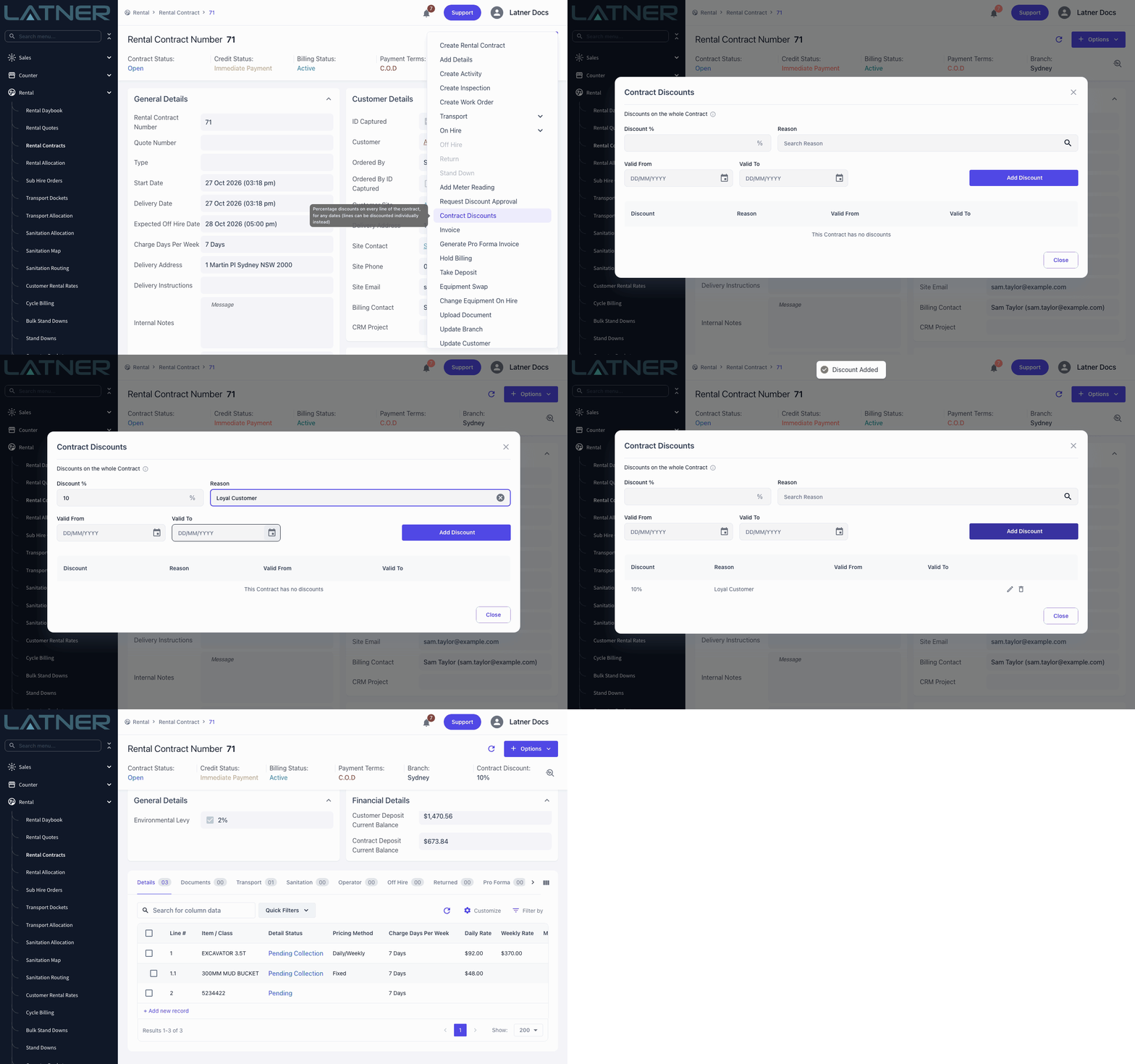
Agreeing a better rate with a customer no longer means rebuilding their rental rates by hand. You can now apply a percentage discount to a Reserved or Active Rental Contract or an Open Rental Quote from Options › Contract Discounts, or to a single line with its Discount action, each with a reason and optional Valid From and Valid To dates. Give your regular customers standing discounts from Options › Rental Discounts on the customer page and they're copied onto every new contract and quote for them, including Quick Hire, and invoices and credit notes show the gross amount, the discount and the price paid. Set up your reasons under Rental › Configuration › Discount Reasons, cap how far each team can go with Discount Approval Groups and the Enforce Discount Approval Limits setting, and switch the whole feature on with Enable Rental Discounts under Security › Settings › Rental when your team is ready - users also need the new Apply Discounts and Manage Customer Discounts permissions.
Attached PDFs on Sales Orders and Rental Contracts
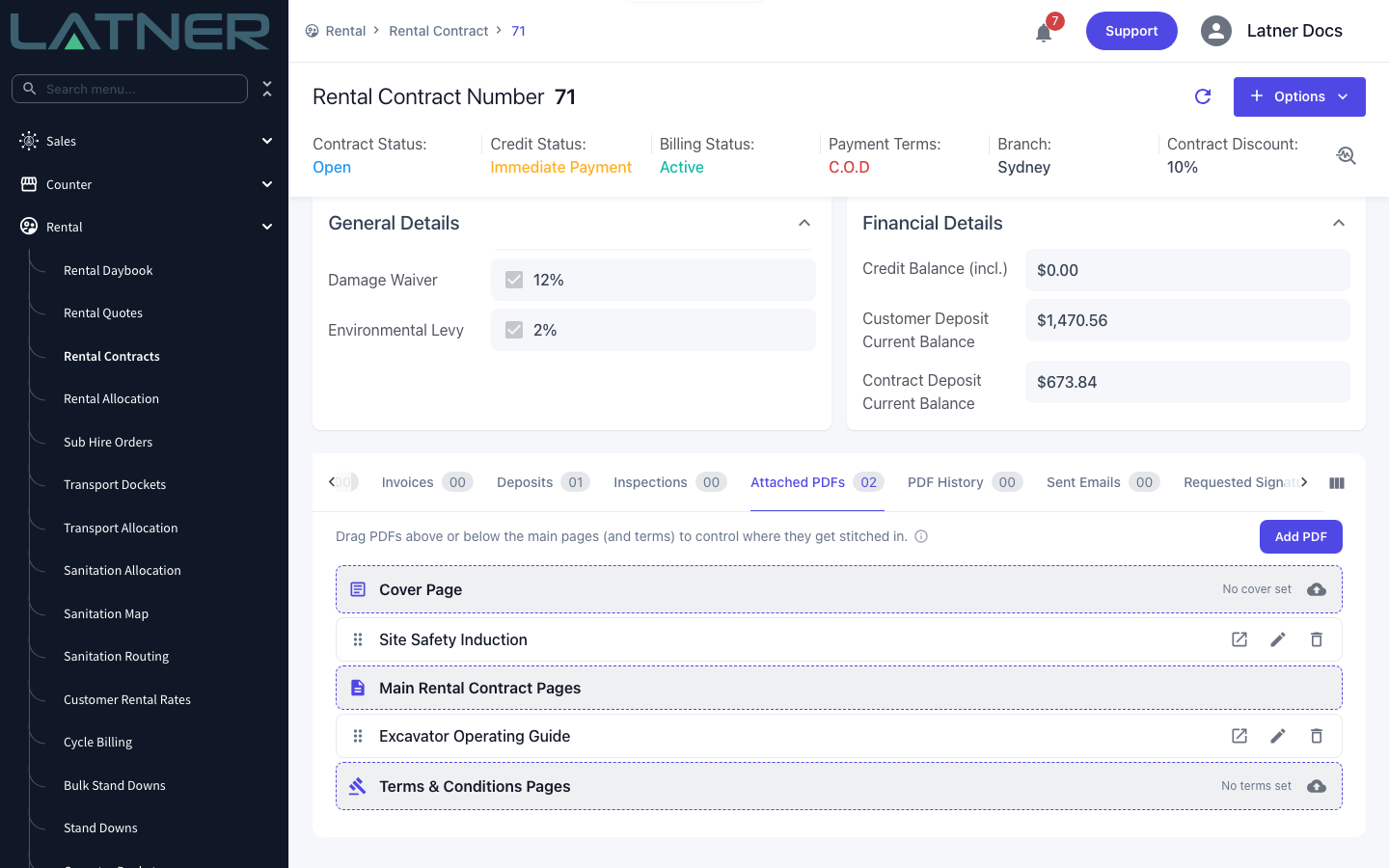
The extra pages your customers need - site inductions, operating guides, your own terms - can now travel with every Sales Order and Rental Contract, not just Rental Quotes. Both now have an Attached PDFs tab where you add PDFs before or after the main pages, and you can replace or remove the cover page and the Terms & Conditions for that one document, or reset them to the default. PDFs on an equipment class or model have new Use on ticks for Rental Quotes, Rental Contracts and Sales Orders, so an operating guide is added automatically to exactly the documents you choose whenever that equipment goes on a line.
Fuel Lines on Work Orders
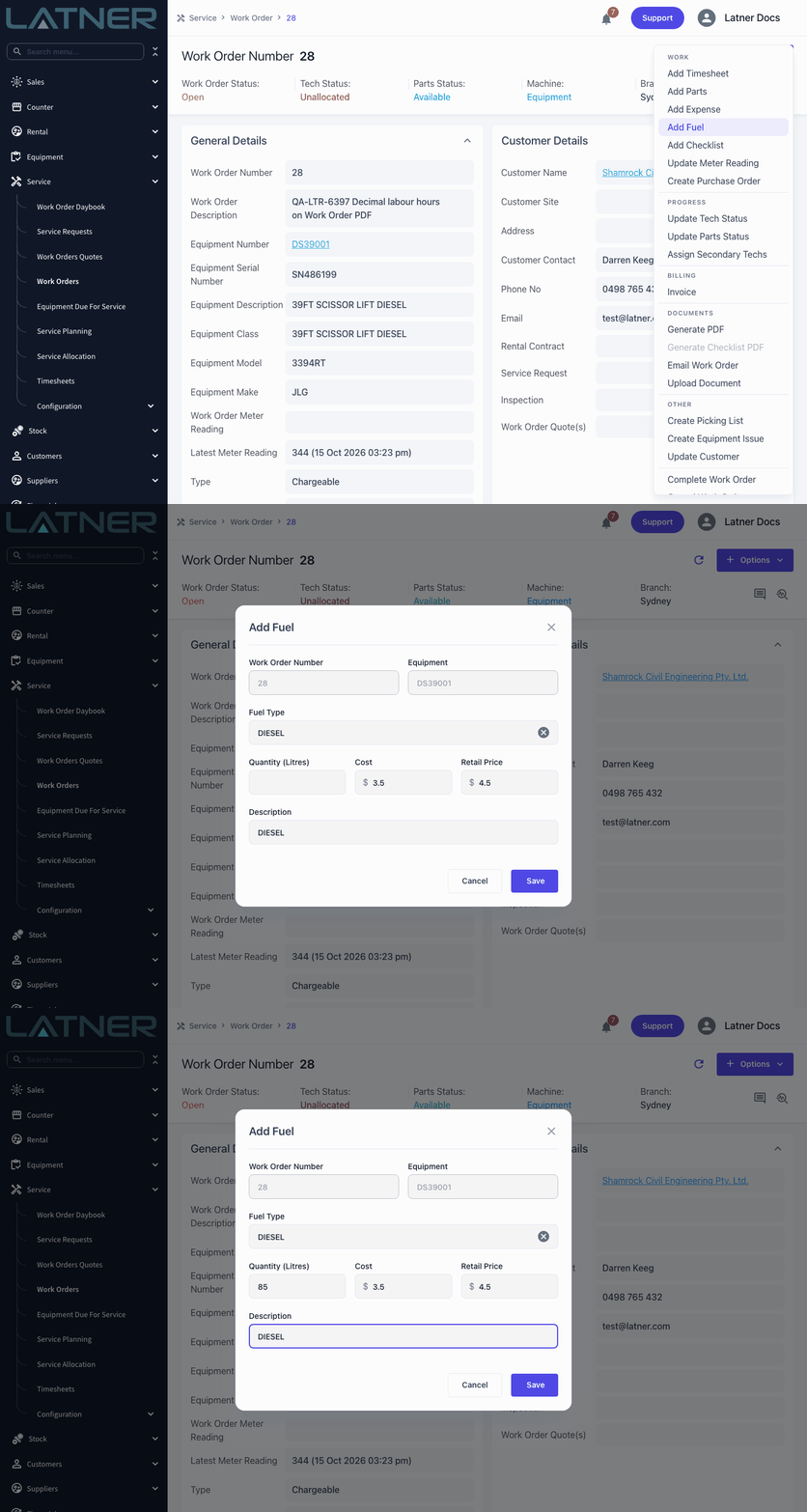
Refuelling a machine is part of the job, and now it sits on the Work Order with everything else. Choose Options › Add Fuel on a Work Order (or Add Fuel Estimate on a Work Order Quote) and Latner fills in the equipment model's Fuel Type along with its Cost and Retail Price per litre, so all you enter is the Quantity (Litres). Fuel lines take part litres, appear with the rest of the work on the Work Order, and carry through to the invoice as fuel. Technicians can add fuel from the mobile app too, and the new Add Fuel to Work Order permission controls who can.
Quick Calculations in Number Fields
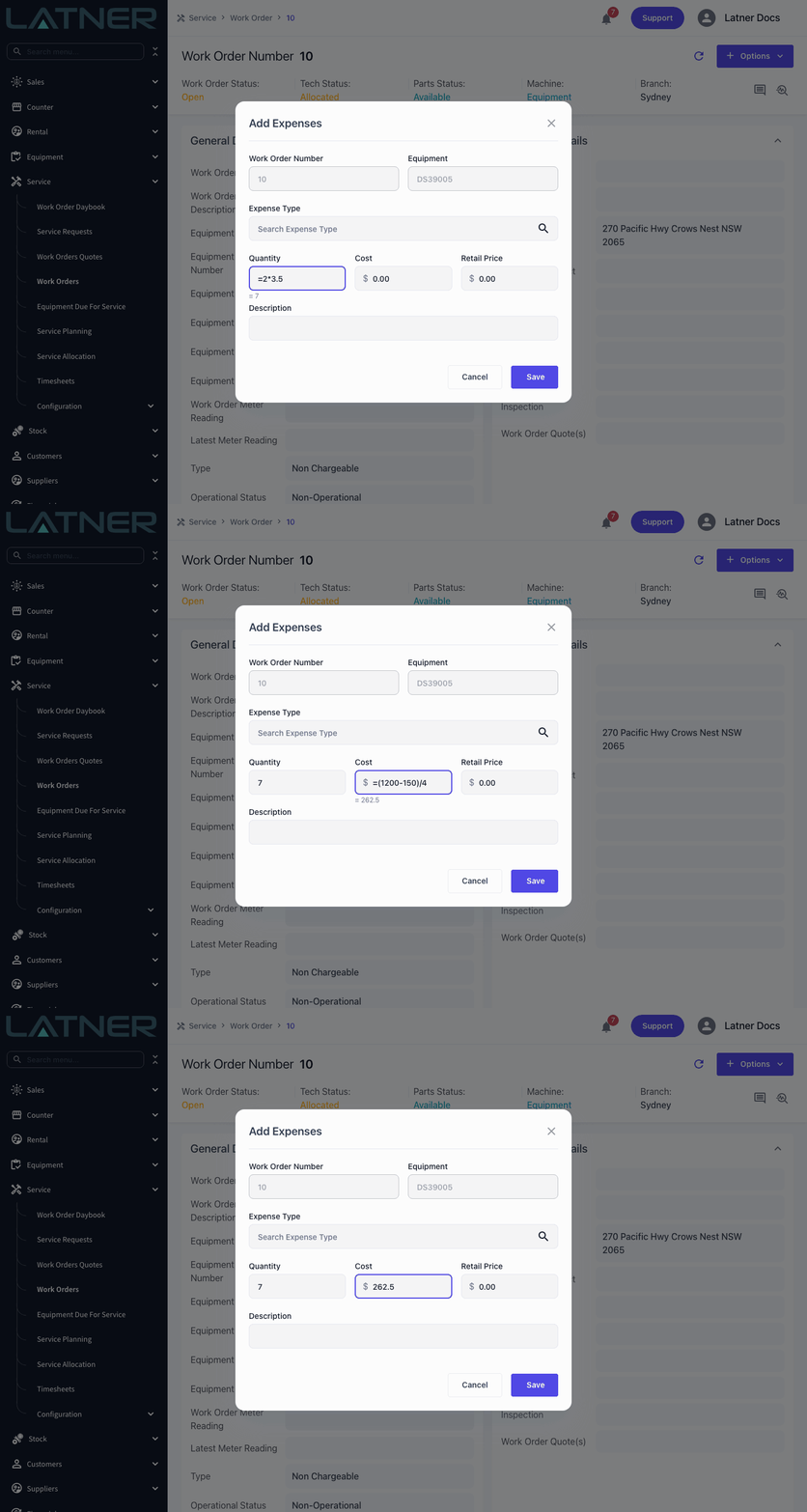
No more reaching for the calculator. In any number, currency or percentage field, type = followed by your sum, the way you would in a spreadsheet: =12*3, =(1200-150)/4 or =200+10%. The answer shows under the field as you type, and pressing Enter or moving to the next field puts it in. Changed your mind? Press Escape to go back to the value you had.
Pass All for Work Order Checklists
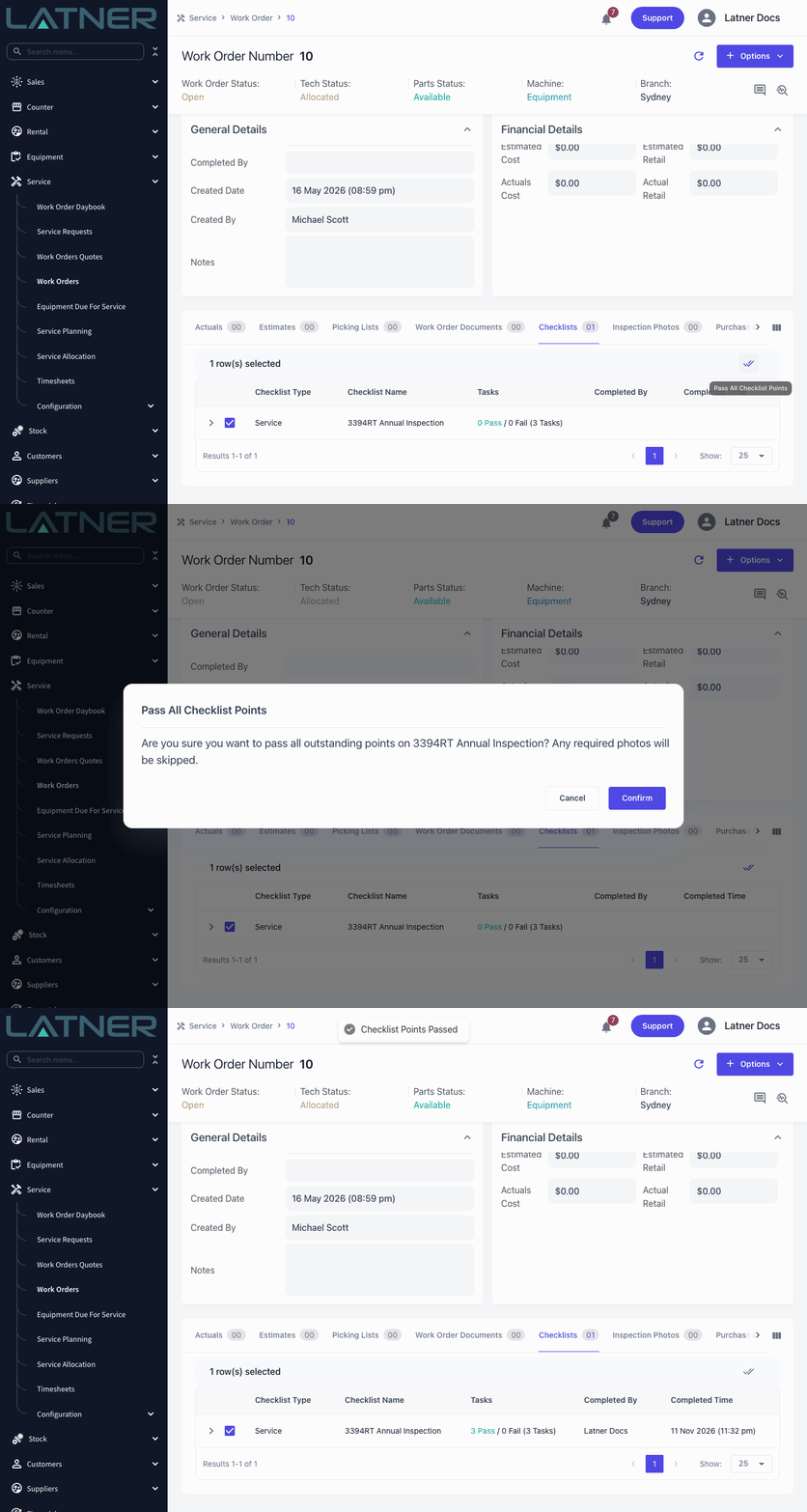
When a technician has worked through a checklist on paper - out of coverage, say - ticking every point off again in Latner is busywork. Select the checklist on a Work Order's Checklists tab and click Pass All Checklist Points to pass every outstanding point in one go, and the checklist is completed under your name. Because it skips any required photos, it sits behind the new Pass All Work Order Checklist Points permission, so you decide who can use it.
Other Updates & Improvements
-
Keep technicians to their own warehouse's stock on work orders with the new Restrict Work Order Stock to Technician Warehouse setting, with a Work Order Stock from Any Warehouse permission for those who need to override it
-
Customer Category is now included in the customer import and export
-
Rental contract document templates can now show deposit and prepayment details
-
AI Reports generate faster and no longer stop short on larger reports
-
Rental quote and rental contract document templates can now show start, delivery and off rent times
-
Change the equipment on a package line without deleting and re-adding it
-
Returning equipment from a contract with a package now works in the mobile app
-
Transport charges on rental contract dockets now stay in step with their charge lines when a docket is partly cancelled or completed
-
The Equipment Utilisation daily view now loads on days with no chargeable equipment, such as weekends for a five-day charge week
-
Create a Rental Quote or Rental Contract straight from a customer's Options menu, with the customer already filled in
-
Operator-priced lines on a Rental Contract now have an Instructions field, shown to the operator on their Operator Docket
-
Confirming equipment on the mobile app is one tap for single-unit lines - Confirmed Quantity now defaults to 1
-
Customer deposits synced to Xero now carry the branch tracking category, so you can report deposits by branch
-
Press Enter to apply a filter in the filter bar, and clear a set filter with its X
-
AI Reports can now have a search box at the front of the filter bar that matches every word you type, so "19ft scissor" finds a 19ft tall scissor lift
-
A whole Rental Contract or Rental Quote discount no longer applies on top of a customer or site special rate - those lines show Special rate in the Disc % column
-
Make a Delivery or Pick Up Charge mandatory on internal transport dockets too, with the new Require Transport Charges for Internal Transports setting
-
Return Branch on the Return dialog and mobile Rental Return now starts blank when you're at a different branch from the contract, and a note under it shows whether it's the hire branch
-
Right-click a line on an Additional Item and use Move To to move it to a specific line number, as on Rental Contracts
-
A futile Sanitation Docket is now charged $0 when its line has no futile price, rather than the full sanitation price
-
The Sanitation, Transport, Inspection and Rental Allocation boards now show a docket's new status when you go back to them after actioning it
-
Move a customer or supplier to another branch with the new Update Branch option, controlled by the new Update Customer Branch and Update Supplier Branch permissions
-
Keep drivers to their own dockets on Mobile Transport and Mobile Sanitation, as on Mobile Work Orders - take the new View All Mobile Transport or View All Mobile Sanitation permission away from their group to switch it on
-
Stock Types, Stock Groups and Stock Sub Groups can now be exported and imported
-
Set the Sales Rep on contracts in the rental contract import
-
Adjust a stock item's quantity straight from its Options menu with Stock Adjustment
-
Equipment service schedules now show who created them
-
Create a new site from the Site dropdown while creating an activity
-
Options menus on detail pages are now grouped into sections and submenus for everyone, with the options a closed record can no longer use tucked away
-
Void a customer payment or refund with Void Payment - it stays listed as Voided with your reason instead of disappearing, and needs the new Void Customer Payment permission (payment gateway payments are refunded instead)
-
The Invoice Rental Contract preview now warns you when stand downs apply to the period you are billing
-
Cancelling or completing a Rental Contract that still holds a deposit now warns you how much is remaining
-
Logging back in after your session ends now takes you back to the page you were on
-
Lines on an open Sales Order or Work Order Picking List, including Qty Fulfilled, are now locked while they are being picked
-
Start and end meter readings are now available on invoice lines in PDF templates and on the Cycle Billing download preview
-
Create a purchase order straight from a Rental Contract with Options › Create Purchase Order
-
The Unreturned Off Hire tables in Rental Daybook now show the Pick Up Address
-
Inspections now show who completed them, and Equipment Work Order History has a new Tech Completed Datetime column
-
Mobile Work Order cards are more compact, with the full site address under the customer
-
The Mobile Sanitation My Routes, Today and Completed tabs now combine, so drivers can see just their own routes for the day
-
Users kept to their own work can no longer open other people's dockets and Work Orders from the mobile Equipment tabs
-
The Daily and Weekly rate types now fill themselves in when only one option is allowed
-
The Customer Contacts list loads faster
-
AI Reports can now report on checklists
-
Plus a range of smaller fixes and performance improvements