
Welcome to the August 2025 release of Latner Software. We introduced Supplier Credit Notes, Customer Daybook, Finance Dashboards, and Rental Quote Approvals. Alongside these, we delivered major improvements to reporting, work orders, inspections, and integration syncs. Please see below for the details of our changes.
New Features
Supplier Credit Notes
Added ability to manage supplier credit notes directly in the system.
A supplier credit note records money a supplier owes back to you, and raising it from the invoice itself means Latner copies the charges across for you rather than making you key them in again.
Overview
Suppliers get it wrong too. A pallet arrives damaged, a hire runs on paper long after the machine came back, a rate is billed at list instead of the price you agreed. Once the invoice has been completed you cannot simply edit it, so the correction goes on a separate document - a credit note - which sits against the supplier until you use it.
-
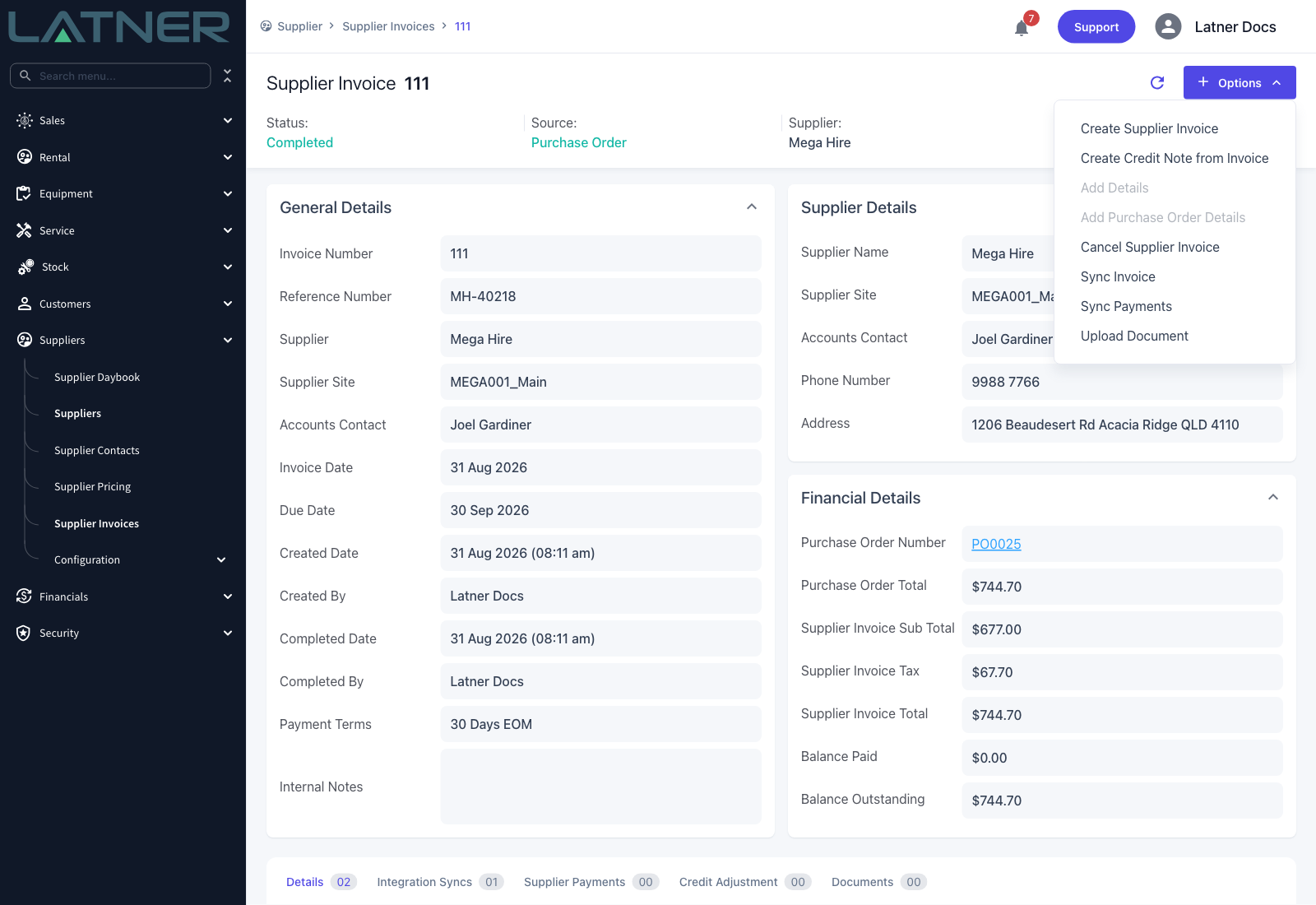
Options › Create Credit Note from Invoice on a Supplier Invoice creates a credit note for the same supplier, site and branch, and copies every line off the invoice.
-
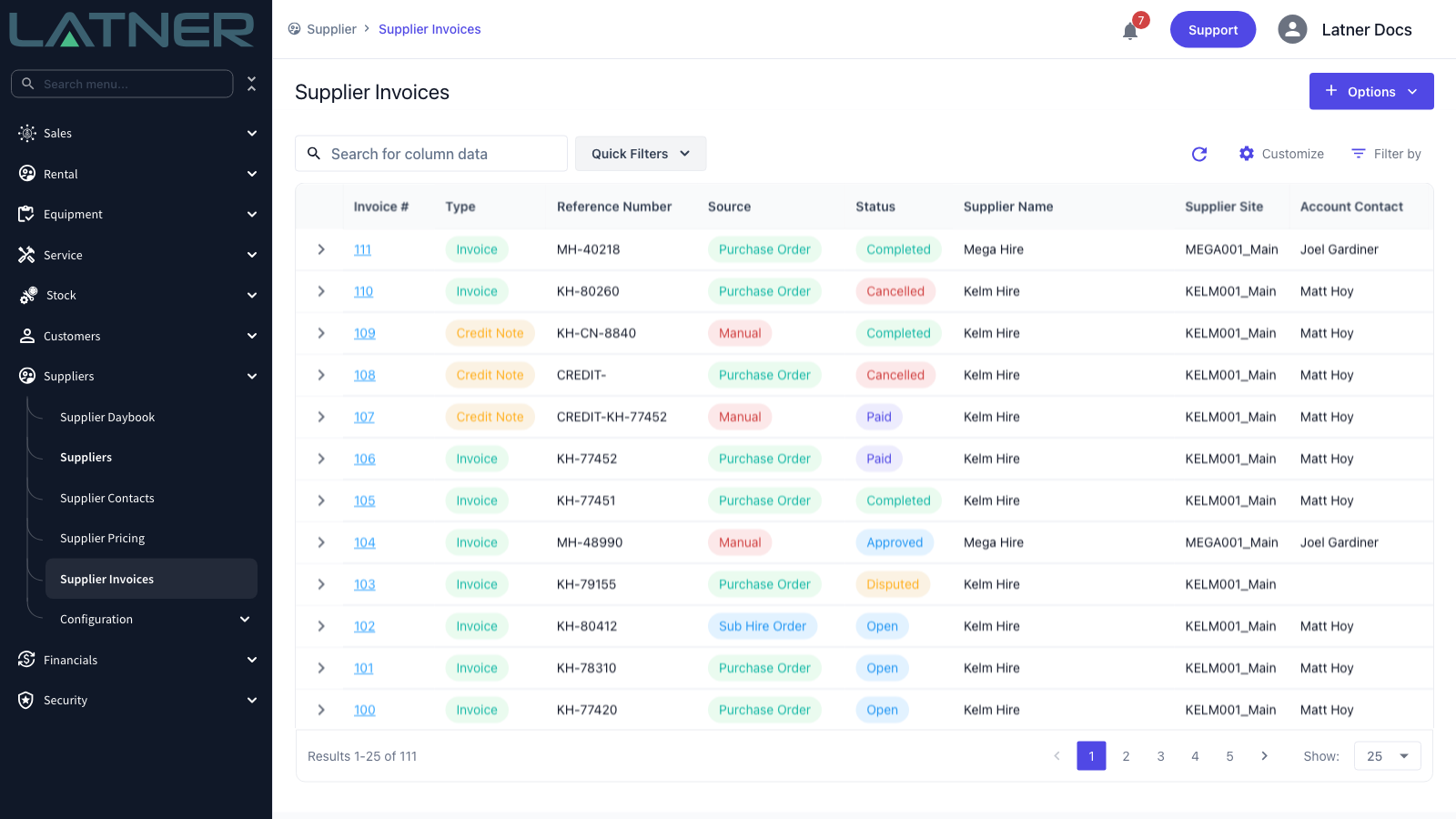
Latner only offers it once the invoice is Completed or Paid. An invoice still open can be corrected directly, so it does not need a credit note.
-
The credit note opens in Open status. That is your chance to change quantities and costs, delete lines and add new ones, so you can credit part of an invoice as easily as all of it.
-
Complete Credit Note locks the lines and makes the credit available to use. Until then it is only a draft.
-
A completed credit note does not reduce what you owe on the invoice by itself. You still have to allocate it, which is a separate step covered in its own article.
-
Credit notes share the supplier invoice numbering sequence and appear in the Supplier Invoices list alongside invoices, told apart by the Type column.
Before You Begin
Make sure the following are in place.
|
Requirement |
Where to Find It |
|---|---|
|
A supplier invoice in Completed or Paid status |
Suppliers › Supplier Invoices. The option is greyed out on any other status. |
|
Supplier Invoice permission |
Security › Configuration › Permission Groups, then Suppliers › Screen. Needed to open the invoice and the credit note at all. |
|
Create Supplier Credit Note permission |
Security › Configuration › Permission Groups, then Suppliers › Option. Without it the menu item is hidden. |
|
Edit Supplier Invoice Detail and Delete Supplier Invoice Detail permissions |
Security › Configuration › Permission Groups, then Suppliers › Option. Only needed if you want to trim the copied lines before completing. |
|
Edit Supplier Invoice permission |
Security › Configuration › Permission Groups, then Suppliers › Option. This is what lets you complete the credit note. |
|
The supplier's own credit note |
Whatever the supplier sent you. You will want its number for the Reference Number field. |
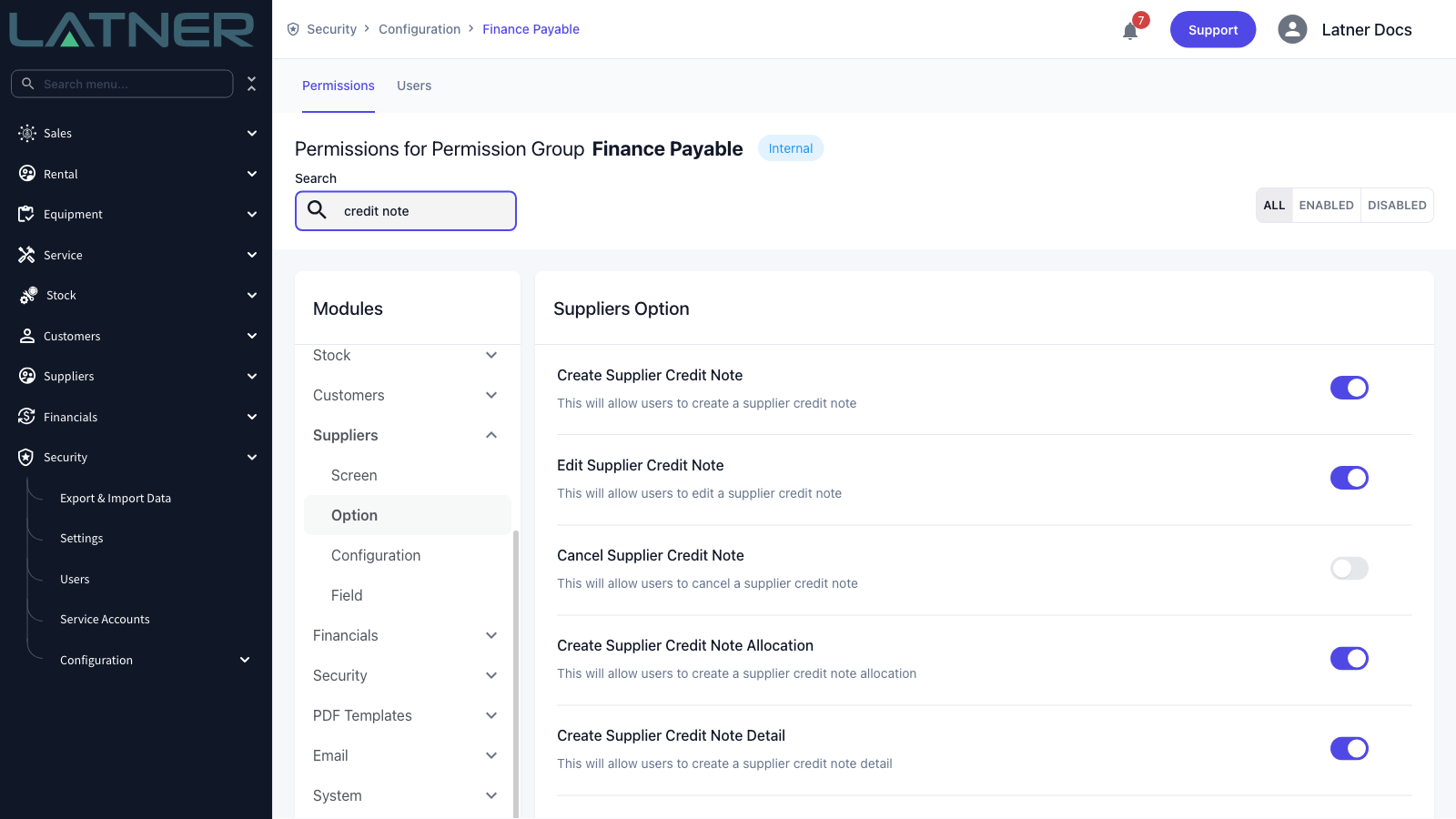
Permissions in Latner are granted per branch. A credit note is created against the branch of the invoice it came from, so if you can raise credit notes in Sydney but not in Brisbane, it is the branch on the invoice - not the invoice itself - that is stopping you.
Creating the Credit Note
Step 1 - Open the supplier invoice
Go to Suppliers › Supplier Invoices and open the invoice the supplier is crediting. The Type column tells invoices and credit notes apart, and Status tells you whether the invoice is far enough along to credit - you are looking for Completed or Paid.
Step 2 - Select Create Credit Note from Invoice
On the invoice, select Options › Create Credit Note from Invoice. Check the Financial Details card before you do - the Supplier Invoice Total is the most you can credit on this document, and Balance Outstanding is what is still unpaid.
Step 3 - Confirm the header and save
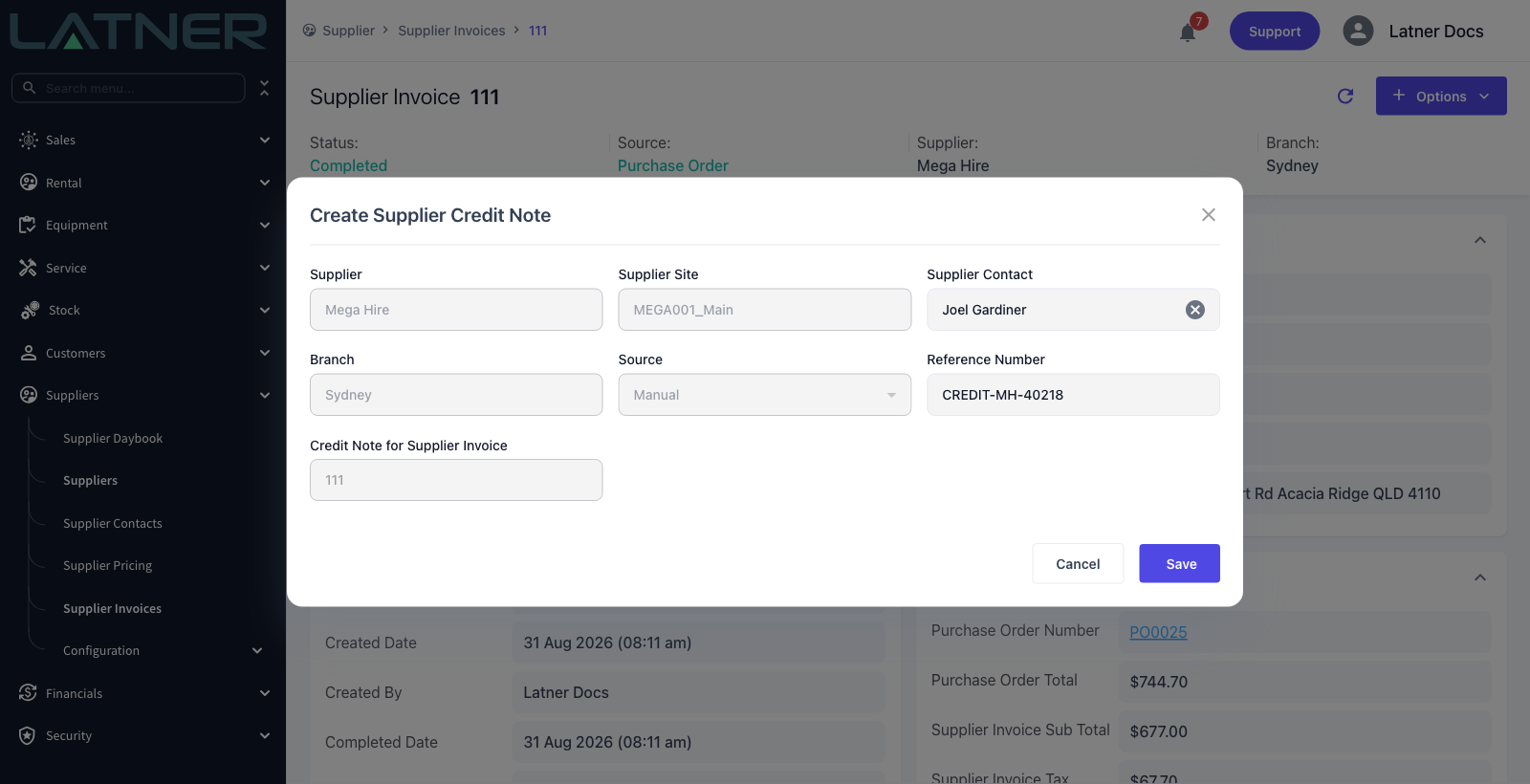
The Create Supplier Credit Note window opens with almost everything already filled in from the invoice. Only two fields are yours to change.
-
Supplier, Supplier Site and Branch - taken from the invoice and locked, so a credit note can never drift onto a different supplier.
-
Source - locked to Manual, even where the invoice itself came from a purchase order.
-
Credit Note for Supplier Invoice - the invoice you started from, locked. It becomes the Credit Note for Invoice link on the finished credit note.
-
Supplier Contact - required, and defaulted to the contact on the invoice. Change it if a different person in accounts issued the credit.
-
Reference Number - defaulted to CREDIT- followed by the invoice's reference number. Replace it with the number on the supplier's own credit note if they gave you one.
Select Save. Latner takes you straight to the new Supplier Credit Note screen.
Reference numbers have to be unique for a supplier, ignoring cancelled documents. If the invoice you started from had no reference number, the default is a bare CREDIT-, and the second time you do that for the same supplier Latner will refuse to save. Type something meaningful in instead.
Step 4 - Review the copied lines
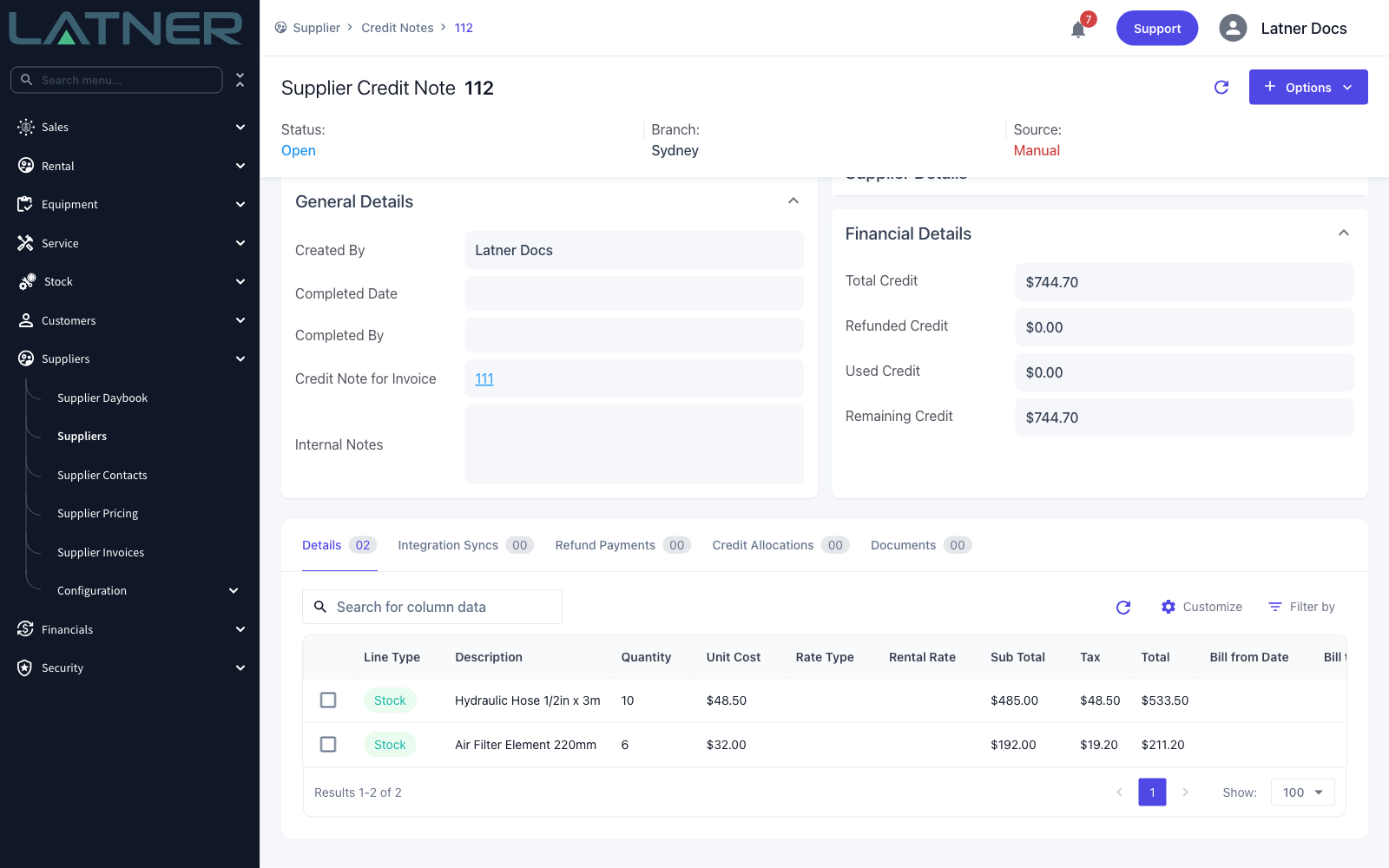
The credit note opens in Open status with one line for every line on the invoice, carrying the same line type, item, description, quantity, unit cost, tax and total. Total Credit in Financial Details therefore matches the invoice total to begin with - a full credit, which is rarely what the supplier is actually giving you.
Step 5 - Correct the quantity or cost on a line
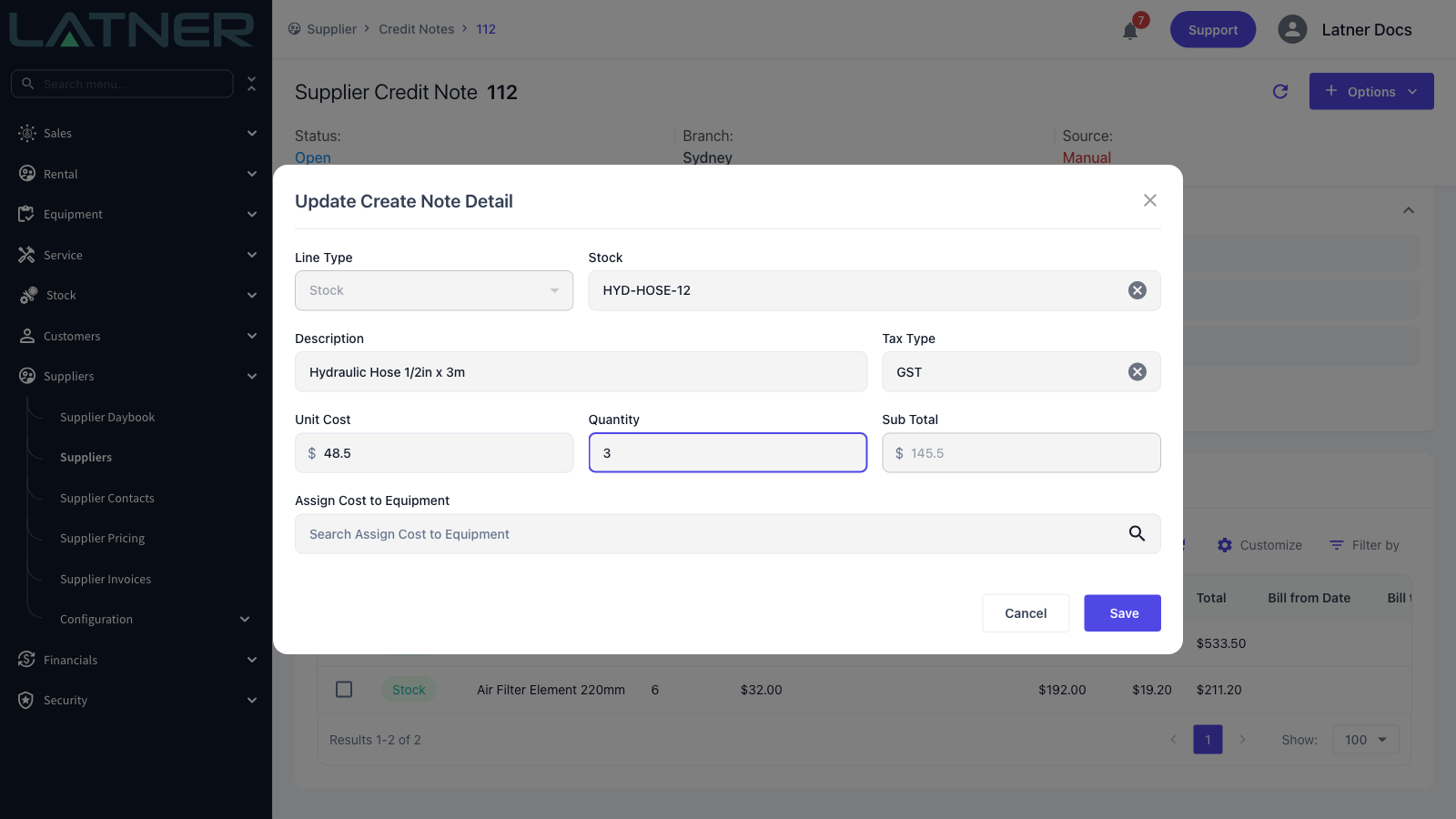
Double-click a line on the Details tab to open it. Quantity and Unit Cost are both editable, and Sub Total recalculates itself from the two, so you cannot put a credit line out of step with its own arithmetic. Tax follows from the Tax Type on the line.
In this example the supplier delivered ten hoses and three arrived damaged, so the quantity comes down from 10 to 3 and the sub total falls from $485.00 to $145.50.
Step 6 - Remove the lines you are not being credited for
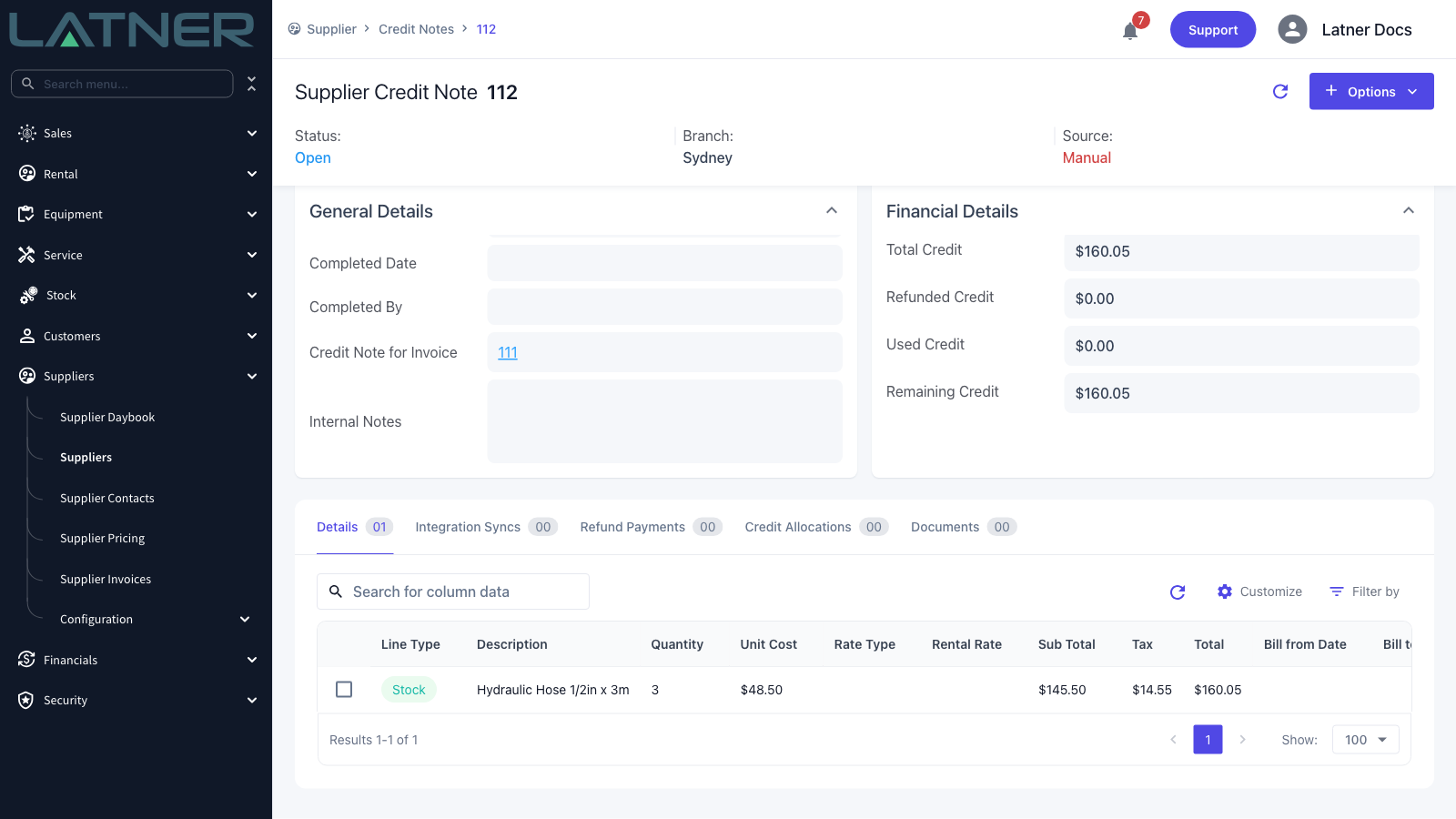
Tick the row's checkbox and a pencil and a bin appear above the table. The bin deletes the line from the credit note; it does nothing to the invoice. Repeat for every line the supplier is not crediting, and use Options › Add Details if the credit covers something that was not on the original invoice at all.
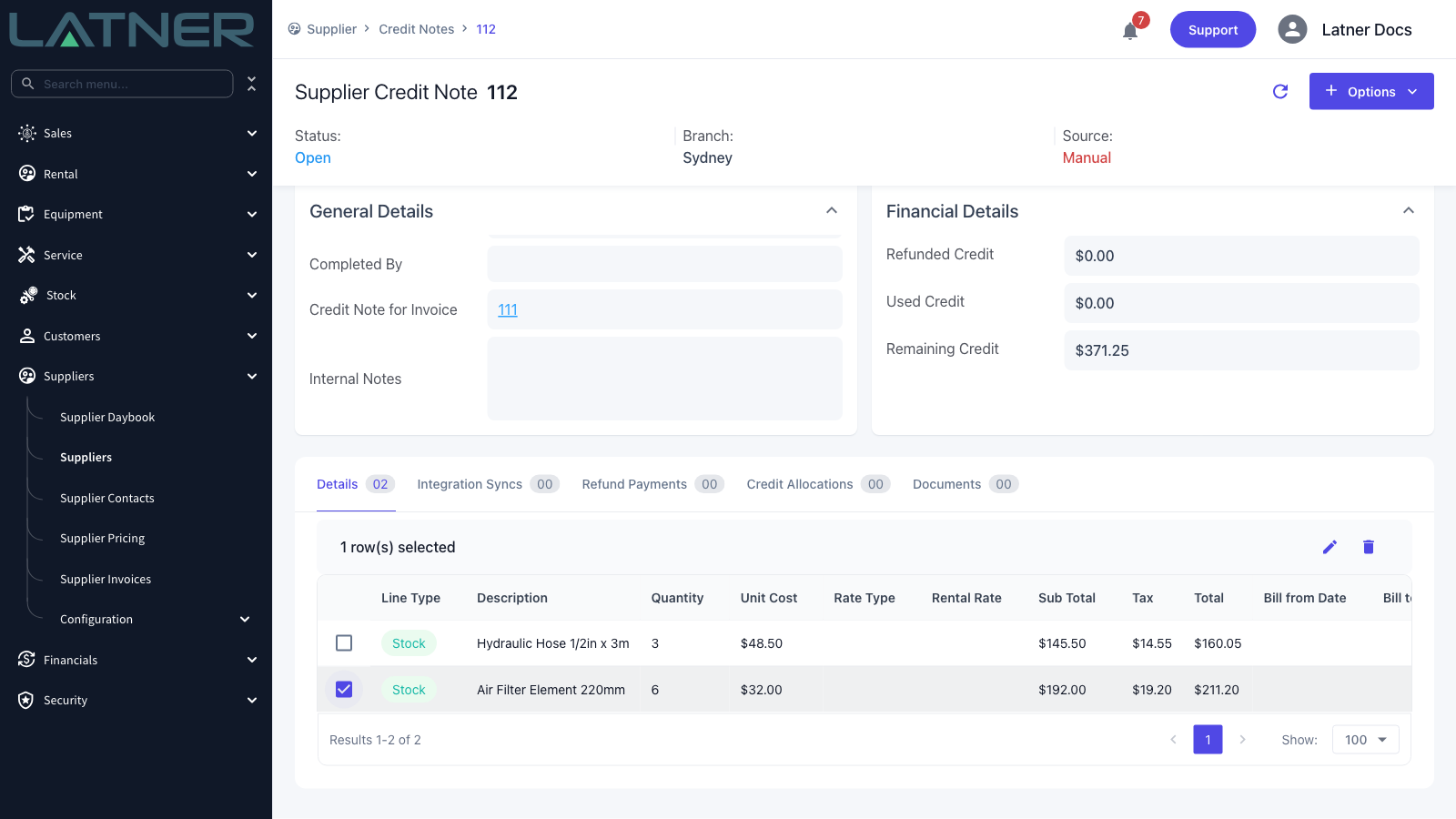
Total Credit and Remaining Credit re-add themselves from the lines each time you save one, so the header always shows what the credit note is currently worth.
Step 7 - Complete the credit note
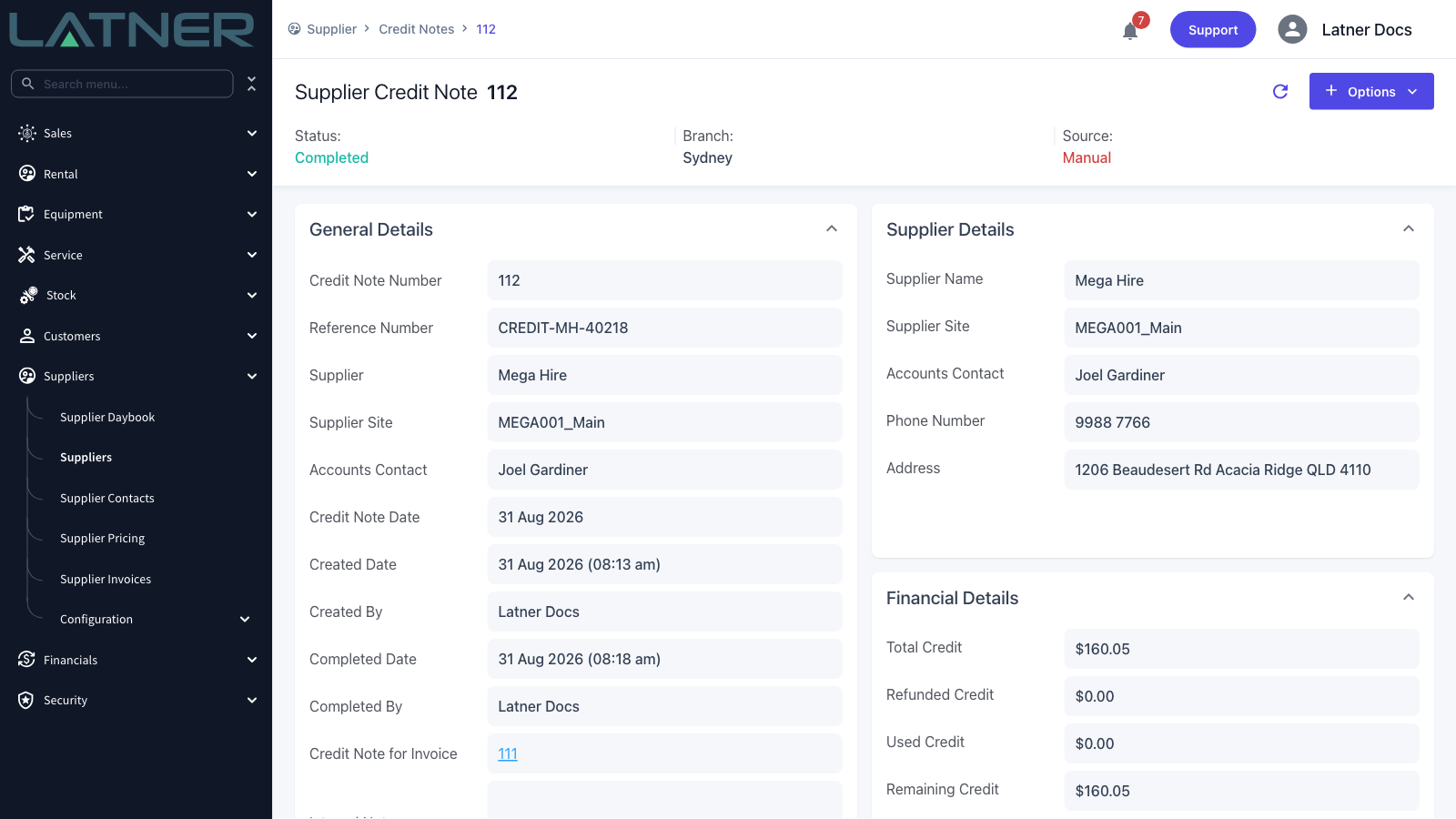
When the lines match the supplier's credit, select Options › Complete Credit Note. There has to be at least one line - the option is disabled on an empty credit note. Latner stamps Completed Date and Completed By, moves the status to Completed, and sends the credit note to any accounting integration you have switched on.
After Creation
-
The credit note appears in Suppliers › Supplier Invoices with Type of Credit Note, and opens on its own Supplier Credit Note screen rather than the invoice screen.
-
Credit Note for Invoice on the credit note links back to the invoice it was raised from.
-
Options › Allocate Credit becomes available now that the credit note is completed. That is the step that actually reduces what you owe - see How to Allocate Credit Note to a Supplier Invoice.
-
As you allocate it, Used Credit goes up and Remaining Credit comes down. Once nothing is left, the credit note moves to Paid.
-
Completing the credit note writes a row on the Integration Syncs tab. If your accounting integration is not fully configured the row will show as failed, and Options › Sync Credit Note lets you try again once it is.
-
The credit note is not linked to the purchase order behind the invoice. Receipted and invoiced quantities on the purchase order are left exactly as they were, and no stock is moved. If goods went back to the supplier, see the returned goods question under FAQs.
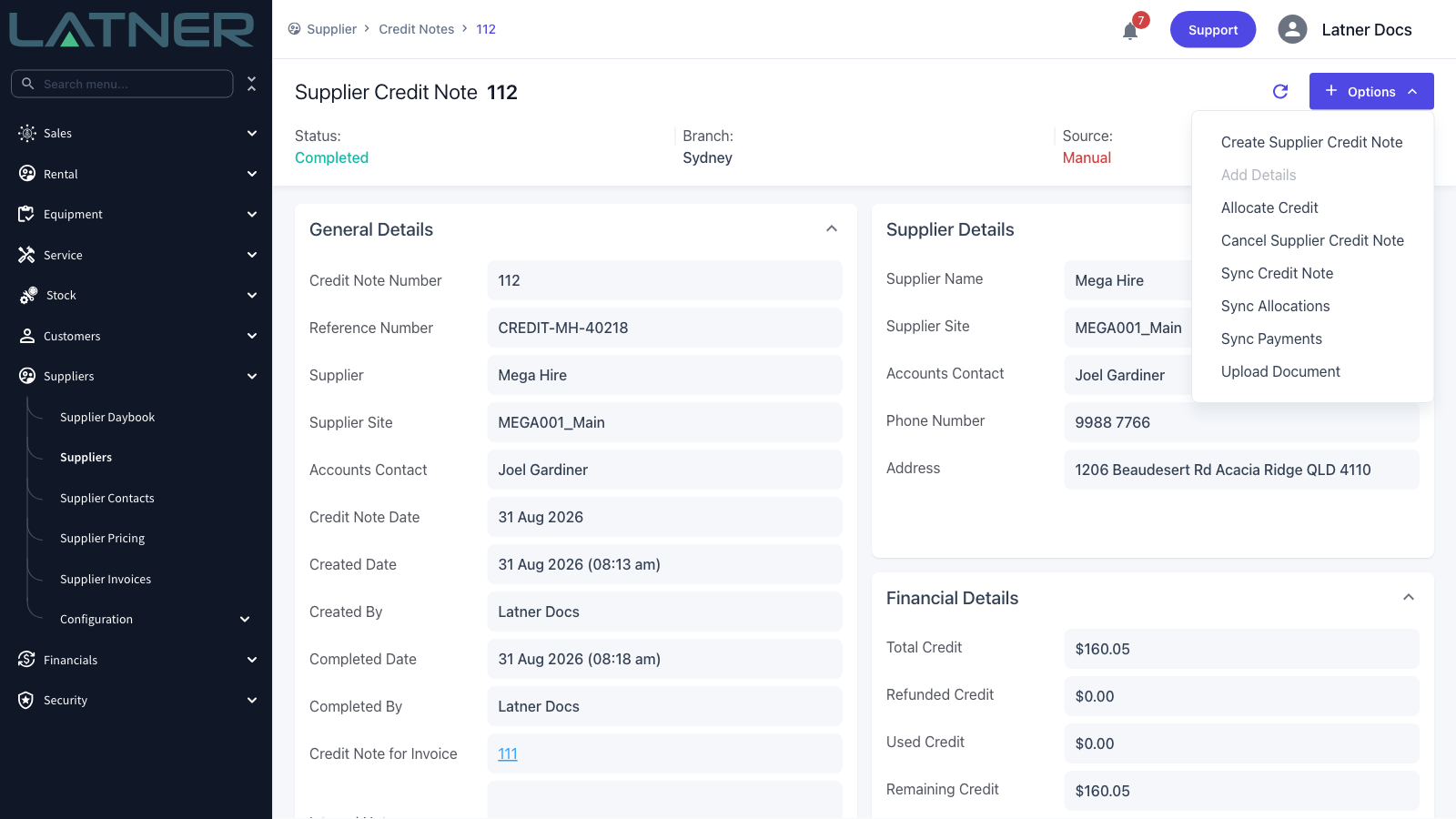
A credit note cannot be edited once it is completed, and it cannot be cancelled at all once it has been fully used and moved to Paid. If a completed credit note is wrong, use Options › Cancel Supplier Credit Note - which asks for a cancellation note and needs the Cancel Supplier Credit Note permission - and raise a fresh one. Cancelling a credit note does not touch the invoice it came from.
FAQs
Watch the Demo
Prefer to watch it? Step through the same flow here.
Equipment Transfer Inspection
Introduced inspections for equipment transfers. This can be set up from the Class or Model level too.
Cancel Purchase Order Receipts
Users can now cancel purchase order receipts when required. This will roll back their receipts to their previous state and consider them unreceived.
Site Move Transport from Rental Contract
Added option to create site move transports directly from a rental contract. This is used for creating transport dockets for site changes and will optionally let you change the address for the contract too. The Equipment will remain On Rent.
Finance Repayments Dashboard
New dashboard to track and manage finance repayments. This is found in the Financial Dashboard.
Customer Approve Rental Quote
Customers can now approve rental quotes electronically.
Customer Daybook
Introduced a dedicated daybook for managing customer‑related activities. Grouped into tabs of:
-
Customer Insurance
-
Customers Pending Approval
-
Recent COD Customers
-
Customers on Credit Hold
Other Updates & Improvements
-
Request approval for Rental Contract discounts
-
Run Up Inspection from Rental Contract for Sub Hire Equipment
-
Cycle Billing warning prompt before invoicing
-
On Rent Report improvements
-
Convert Work Order Quote to existing Work Order
-
Convert Inspection to Work Order Quote
-
Toggle Workshop / Field Service for Work Orders
-
Write‑off option for Depreciation Types
-
Disposal of written‑off assets
-
Customer payment sync efficiency improvements
-
Improved eWay payment integration
-
MYOB sync for Customers and Suppliers
-
Plus a range of smaller fixes and performance improvements