
The Supplier Invoice Inbox reads the supplier invoices you upload or email in, matches each one to its supplier and purchase order, and creates the Supplier Invoice once the match is confirmed, so your accounts team checks the exceptions instead of keying in every bill.
Overview
Typing supplier invoices in line by line is slow, and it's where the typos creep in. The inbox does the reading for you: it picks the supplier, order number, invoice number, dates, totals and lines off each PDF, checks them against the purchase order you raised, and tells you exactly what (if anything) needs a person.
-
Documents arrive two ways: upload PDFs (or drag them onto the inbox), or have suppliers email them to your inbox address.
-
Each document is matched to a supplier (by ABN, by a trading name you've taught it, or by the supplier's name) and to the purchase orders or sub hire order printed on it. When an order number is found, the supplier is taken from that order.
-
The invoice total is compared with what the order can still invoice, within a tolerance you set, and each invoice line is matched to a purchase order line.
-
A document only becomes a Supplier Invoice once the match is confirmed - by a reviewer, or automatically if you switch that on. Until then nothing is created or posted.
-
The invoice is created through the normal supplier invoice process, linked to the purchase order lines, with the PDF attached.
-
A document moves to the inbox of the branch whose order it matches, whichever branch it was uploaded or emailed to.
The inbox sorts documents into tabs. Hover a tab name in Latner to see the same description.
|
Tab |
What it holds |
|---|---|
|
Needs Review |
Documents that need a person. Status Needs Review means something couldn't be matched; Pending Approval means the match is there and is waiting for someone to approve it. |
|
Processing |
Documents being read right now. They move to another tab within seconds. |
|
Processed |
Documents that created a Supplier Invoice, automatically or by approval. |
|
Duplicates |
The same file uploaded again, or an invoice number that already exists for that supplier. Nothing is created from them. |
|
Failed |
Documents that couldn't be read. Rescan them or upload a clearer copy. |
|
Rejected |
Documents a reviewer rejected, with the reason recorded. |
|
Emails |
Every email received at your inbox address, and what happened to each attachment. |
Before You Begin
Make sure the feature is on and the right people have the right permissions.
|
Requirement |
Where to Find It |
|---|---|
|
Supplier invoice scanning switched on for your company |
Switched on by Latner - contact Latner support. Once it's on, Suppliers › Supplier Invoice Inbox appears in the menu. |
|
Supplier Invoice Inbox permission (to see the inbox) |
Security › Configuration › Permission Groups, Suppliers module |
|
Upload Supplier Invoice Scan (upload, Rescan, Re-parse Stored Result) |
Security › Configuration › Permission Groups |
|
Review Supplier Invoice Scan (correct scanned values, link suppliers and orders, set quantities, Send to Branch, scan held email attachments) |
Security › Configuration › Permission Groups |
|
Approve Supplier Invoice Scan and Create Supplier Invoice (both are needed to approve) |
Security › Configuration › Permission Groups |
|
Reject Supplier Invoice Scan |
Security › Configuration › Permission Groups |
|
Optional: the Scanned Supplier Documents Need Attention notification |
Security › Configuration › Notification Groups |
The inbox works out of the box. These settings, under Security › Settings (Suppliers module), tune how it behaves:
-
Automatically Create Supplier Invoices from Scanned Documents - off by default. When on, a document that fully matches its purchase order creates the Supplier Invoice by itself. When off, every match waits in the inbox for approval.
-
Automatically Complete Scanned Supplier Invoices - marks automatically created invoices as Completed (and syncs them to accounting) when the purchase order has been receipted.
-
Scanned Invoice Tolerance Amount and Scanned Invoice Tolerance Percentage - how far the invoice total can be from the purchase order and still count as a match (defaults $1.00 and 0.5%; the larger of the two applies).
-
Allowed Senders for Emailed Supplier Documents, Automatically Create Supplier Invoices from Emailed Documents, Send Receipts for Emailed Supplier Documents, the two daily limits and Retention of Emails Received at the Inbox - see Receiving Invoices by Email below.
-
Quiet Period for Scanned Document Notifications - documents landing in Needs Review or Failed within this many minutes are counted into one notification per branch (default 15).
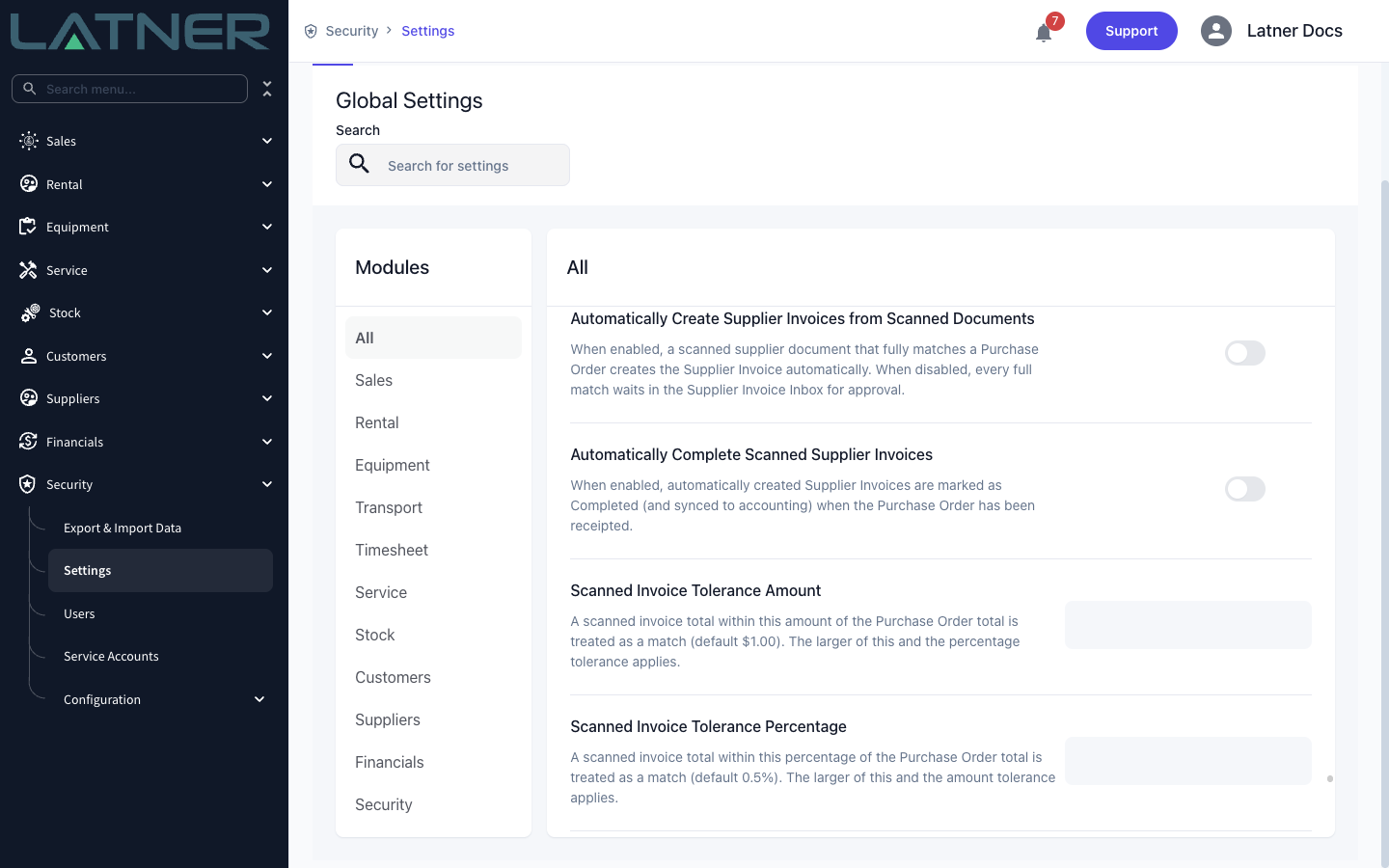
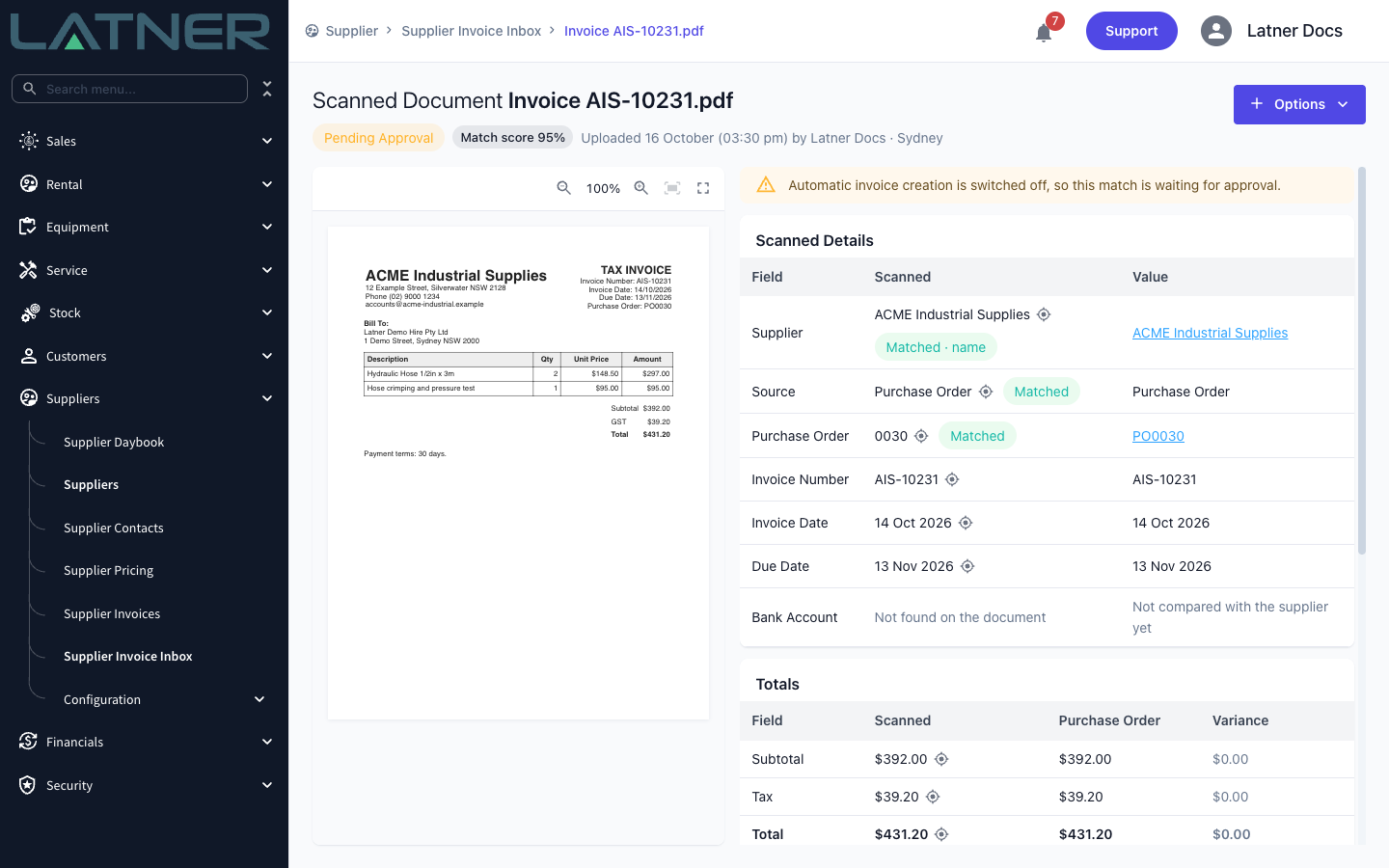
With Automatically Create Supplier Invoices from Scanned Documents off, even a perfect match shows as Pending Approval with the message "Automatic invoice creation is switched off, so this match is waiting for approval." That's a good way to start: approve documents by hand for a while, and once you trust the matches, switch automatic creation on. Whether unreceipted goods can be invoiced follows your existing Allow Invoices for Unreceived Purchase Orders setting (Financials module), exactly as it does for invoices you create by hand.
Processing Supplier Invoices
Step 1 - Open the Supplier Invoice Inbox
Go to Suppliers › Supplier Invoice Inbox. The inbox opens on the Needs Review tab, and the number beside each tab shows how many documents it holds.
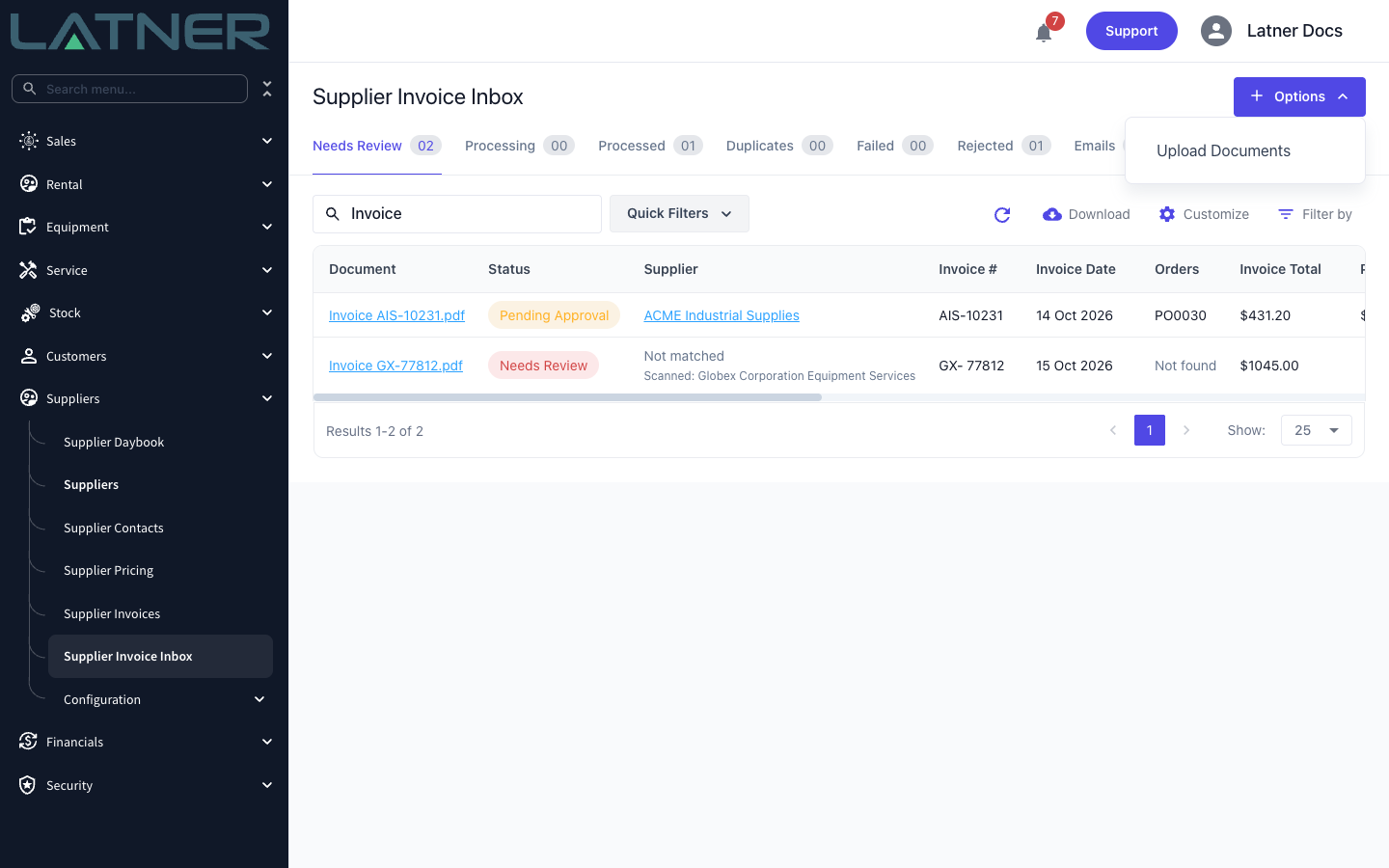
Step 2 - Upload your supplier invoices
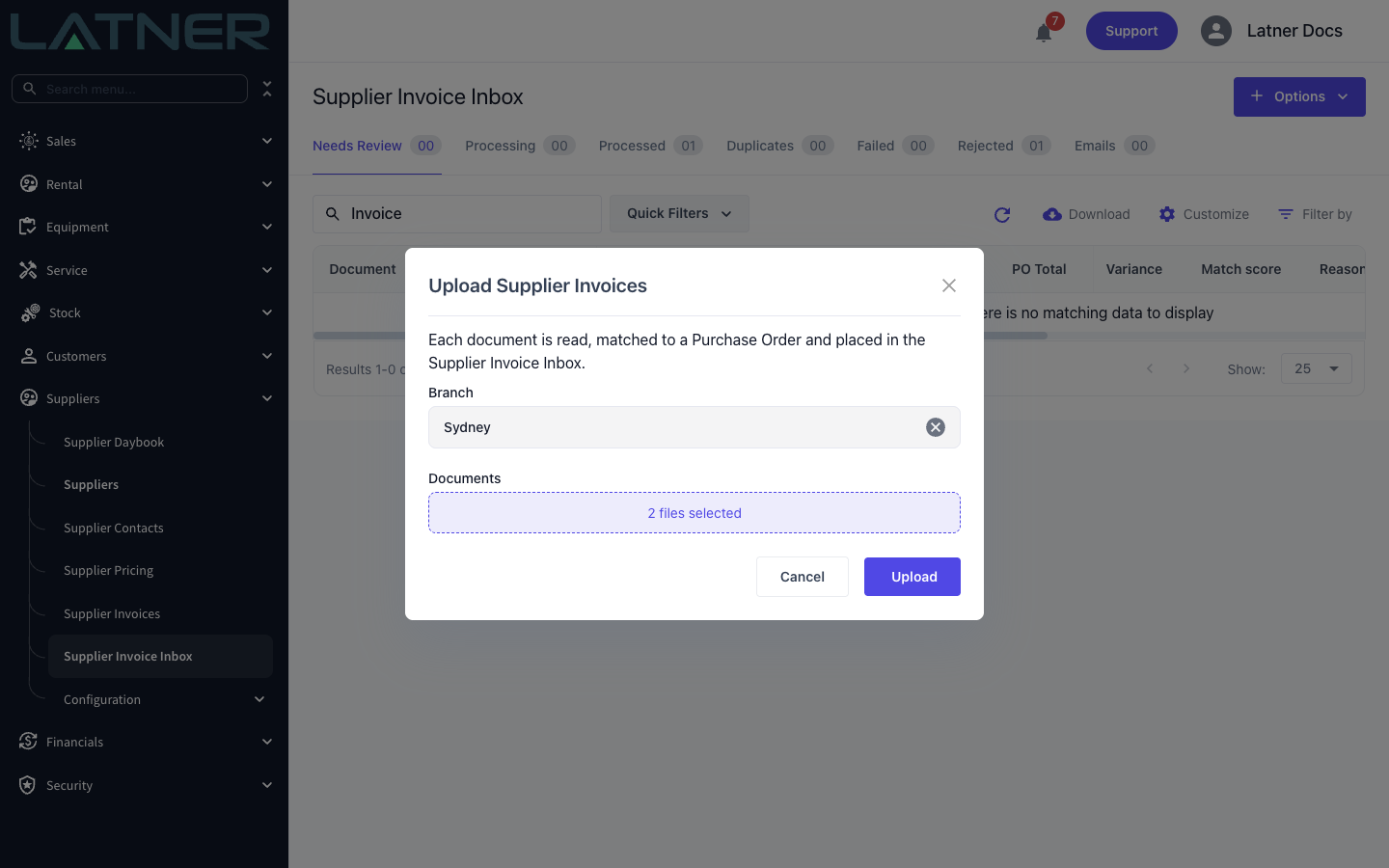
Click Options › Upload Documents and fill in the Upload Supplier Invoices dialog:
-
Branch (required) - defaults to your own branch. Once a document matches an order it moves to that order's branch, so this only matters for documents that don't match.
-
Documents (required) - drop PDFs here or click to choose them. You can pick several at once; each becomes its own document in the inbox.
Click Upload. You can also skip the dialog and drag PDFs straight onto the inbox page - they're uploaded to your own branch.
Each file must be a PDF of up to 25 MB holding a single invoice. A file that contains several invoices lands in Needs Review asking you to upload them separately.
Step 3 - Wait for the documents to be read
After uploading, the inbox switches to the Processing tab, which refreshes itself while you watch. Reading and matching takes a few seconds per document, after which each one moves to the tab that fits it.
Step 4 - Work through the Needs Review tab
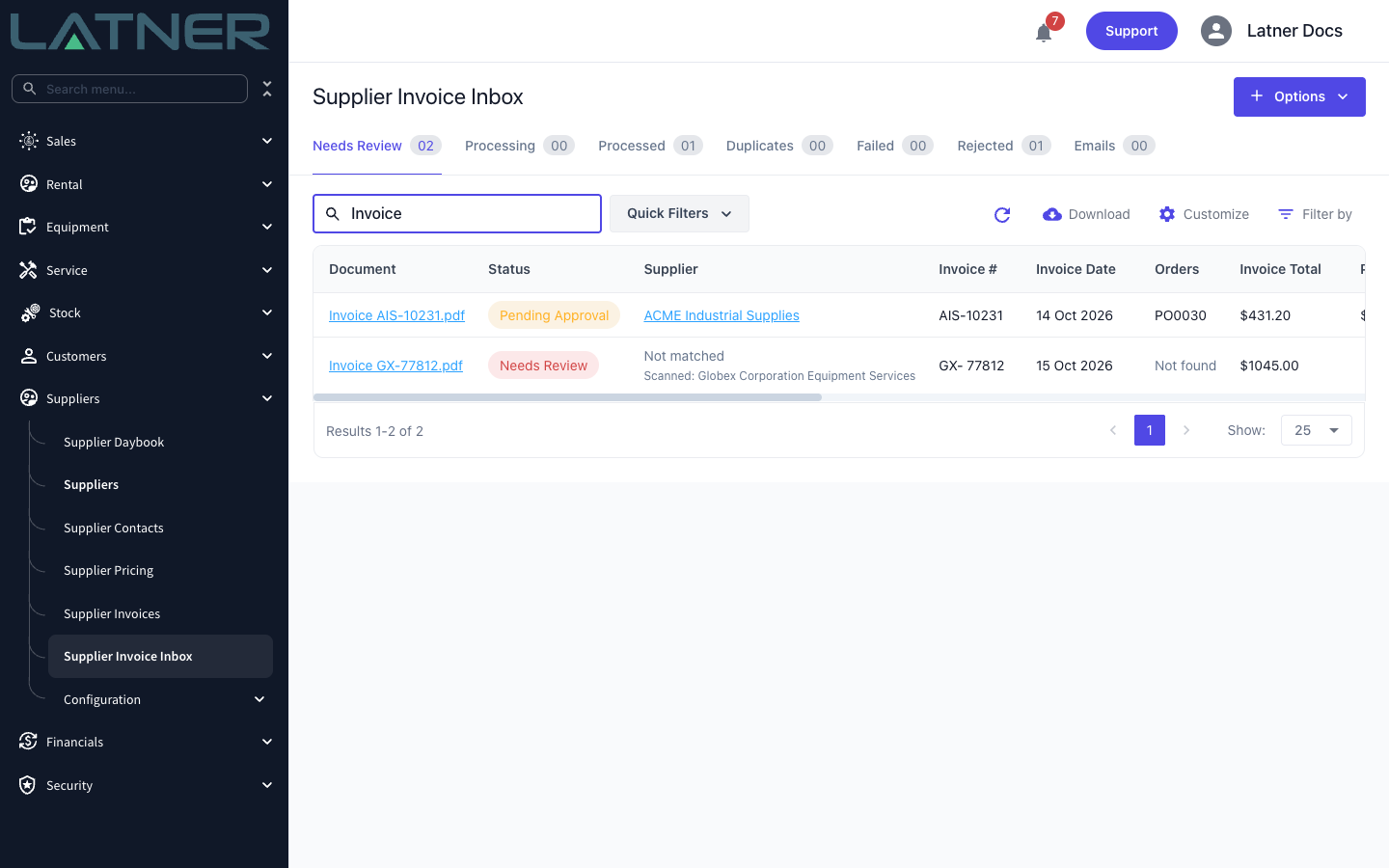
Open the Needs Review tab. Each row shows the scanned supplier, invoice number and date, the order it matched, the invoice total against the purchase order total, the variance and the reasons it's waiting. The Status column tells the two kinds of document apart:
-
Needs Review - something has to be fixed first, such as an unknown supplier or a missing order number.
-
Pending Approval - the document matched; it's waiting for someone to approve it, or for something to happen to the order (such as goods being receipted).
The Match score shows how completely a document matched (the totals add up, a supplier and purchase order were found, the lines matched). It orders the list but never decides the tab. Use Quick Filters › My Branch to see only your branch's documents, then click a document name to open it.
Step 5 - Check the scanned document
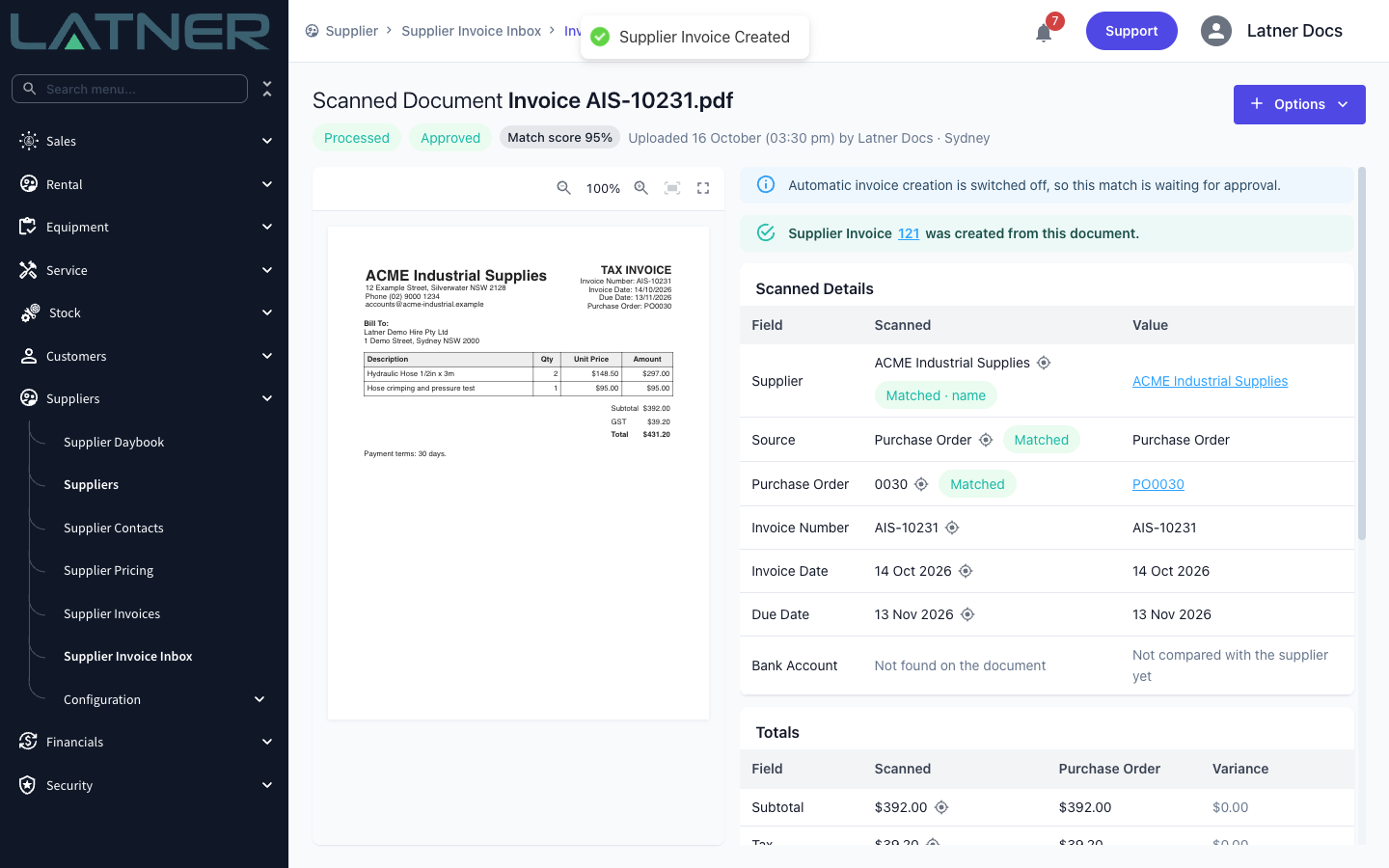
The document opens side by side with what Latner read from it. Any message at the top explains why it's waiting. Below that:
-
Scanned Details - each field shows what was read from the document (Scanned) and the value Latner will use (Value), with a badge saying whether it matched. Click the target icon beside a scanned value to highlight where it sits on the document. Bank details printed on the invoice are shown for reference; they aren't compared with the supplier's record.
-
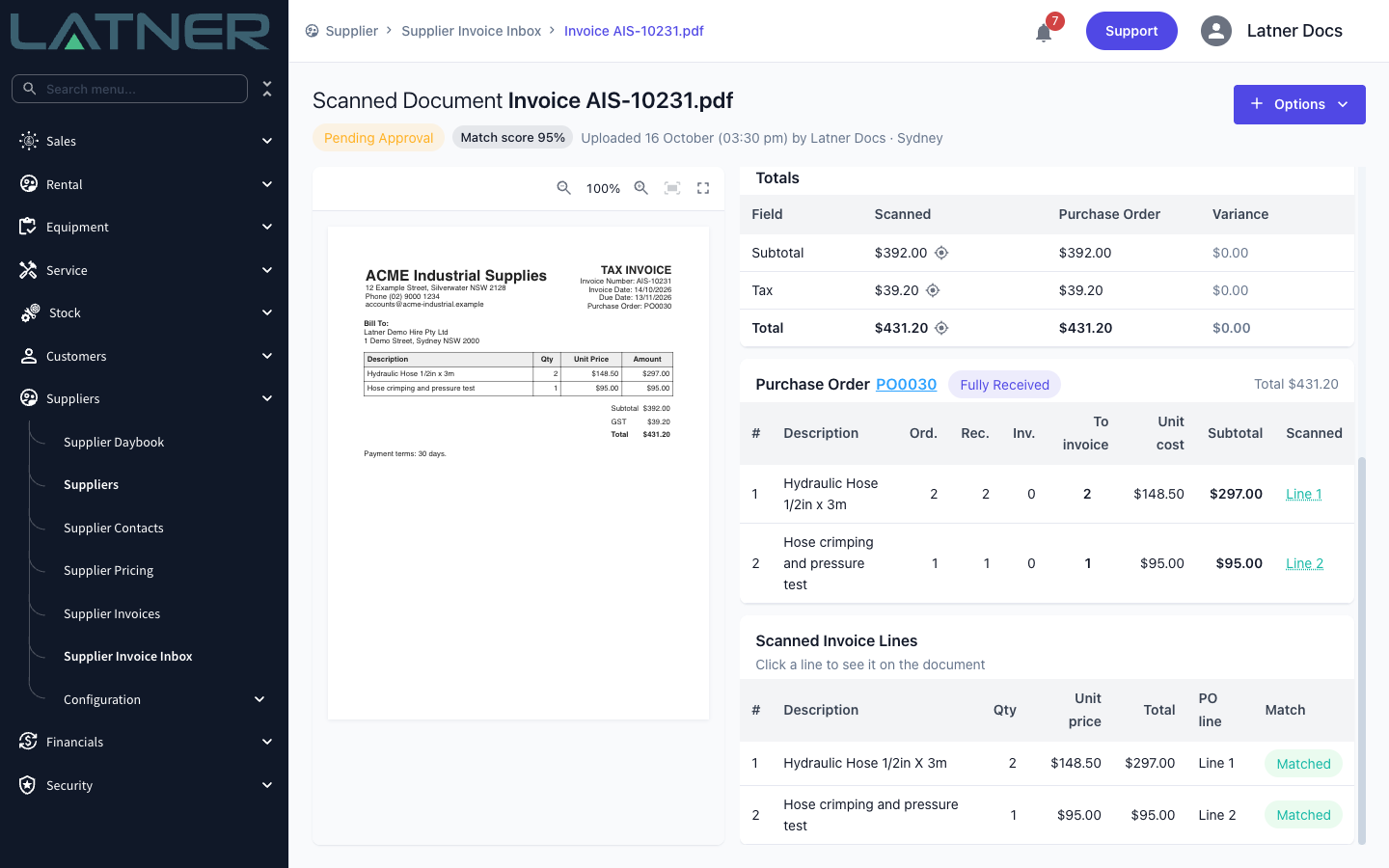
Totals - the scanned subtotal, tax and total against the purchase order, with the variance.
-
Purchase Order - each order line with its quantity ordered, received and already invoiced, and the quantity To invoice from this document.
-
Scanned Invoice Lines - the lines read from the document and the purchase order line each one matched. Click a line to see it on the document.
Step 6 - Fix anything that needs review
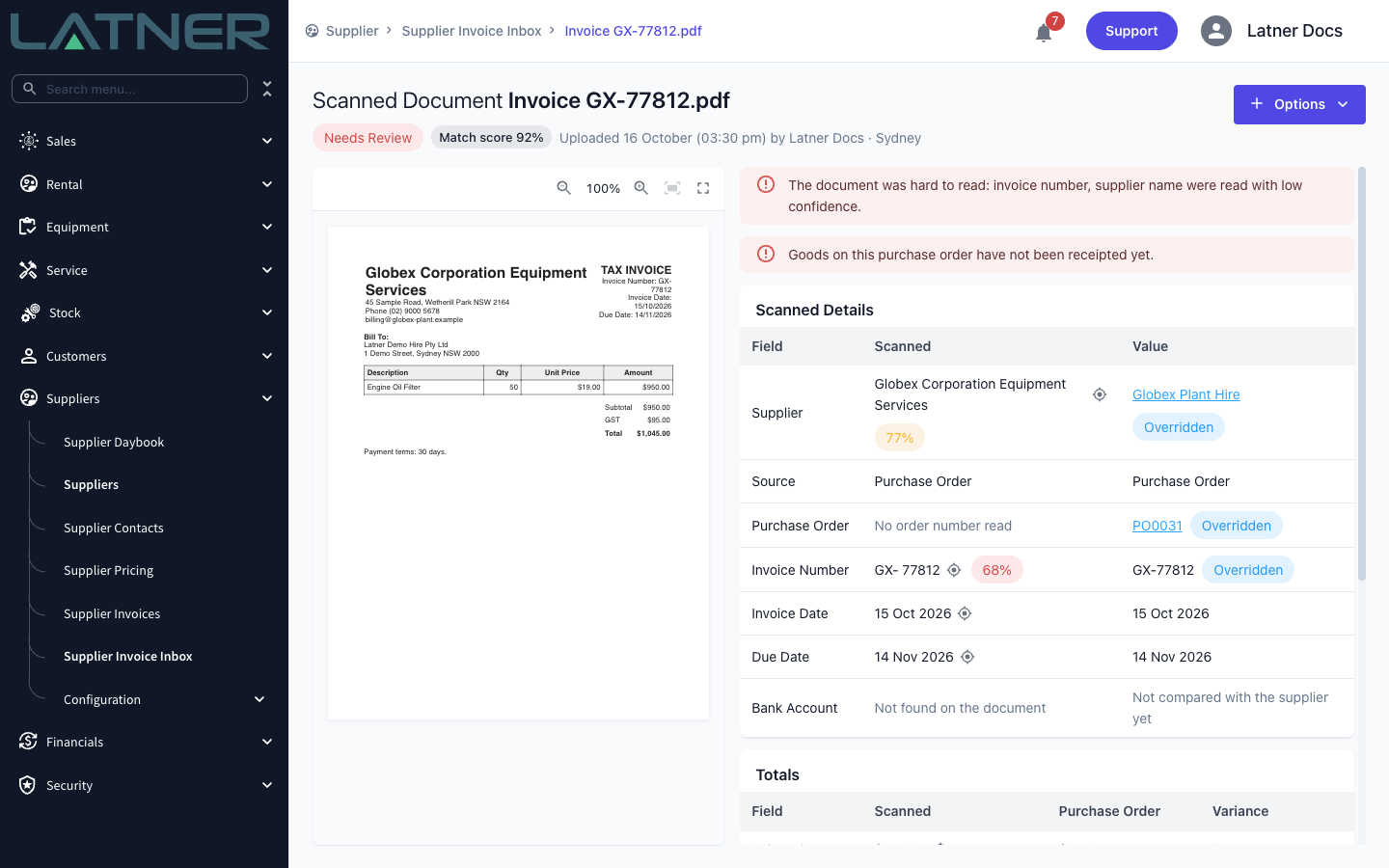
When a document is in Needs Review, the red messages at the top tell you what's missing. In this example the supplier prints a trading name Latner doesn't know, the invoice number was hard to read, and there's no purchase order number on the invoice.
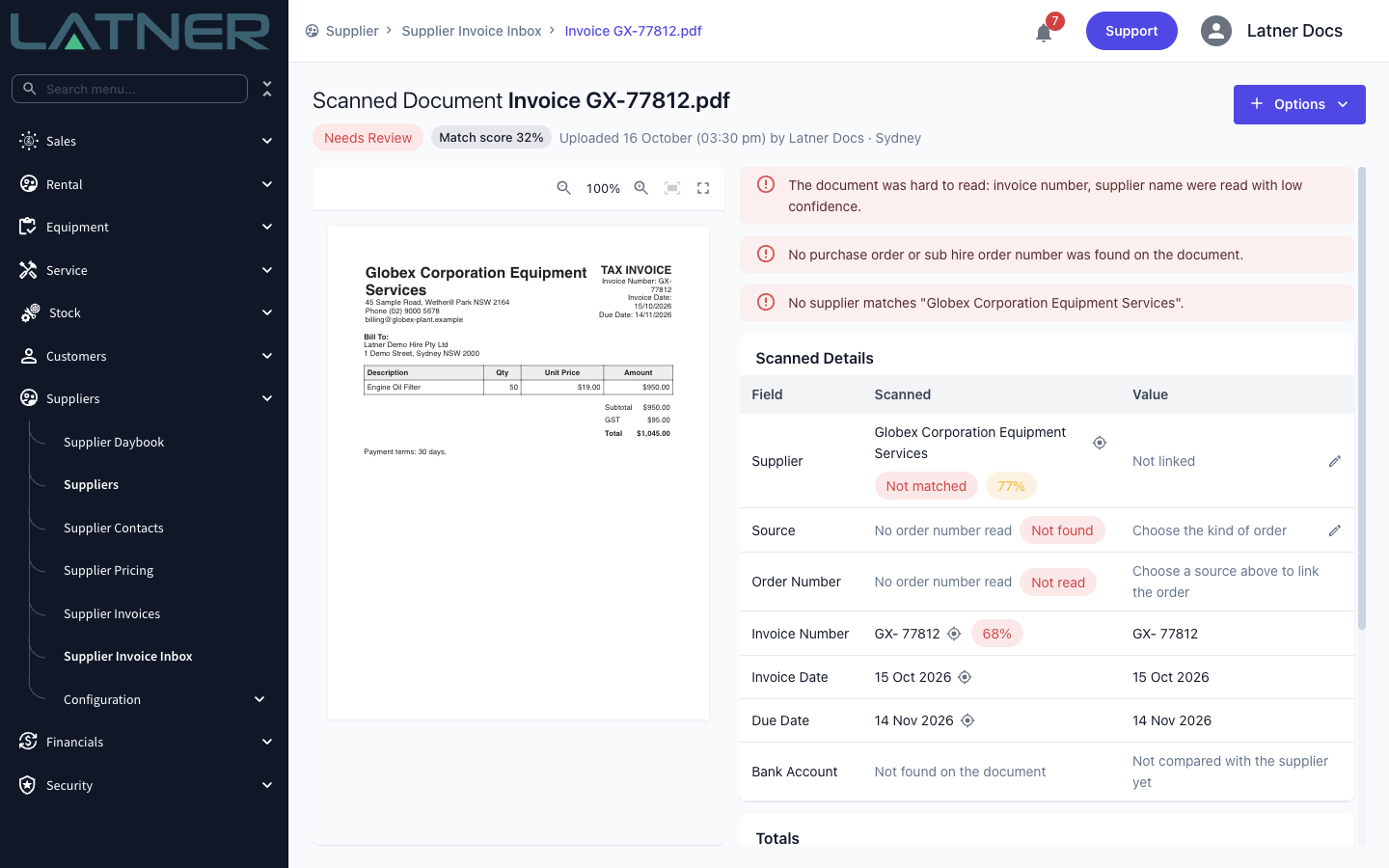
Click a value in the Value column to change it:
-
Supplier - search for and choose the supplier.
-
Source - the kind of order the invoice is for: Purchase Order or Sub Hire Order.
-
Purchase Order (or Sub Hire Order) - choose the order. One invoice can cover several purchase orders, so tick every order it bills. All of them must be for the same branch.
-
Invoice Number, Invoice Date, Due Date - correct anything that was misread. Sub hire invoices also show Bill From and Bill To for the hire period.
Changed values are tagged Overridden. Click Save to keep them (or Discard changes to start again).
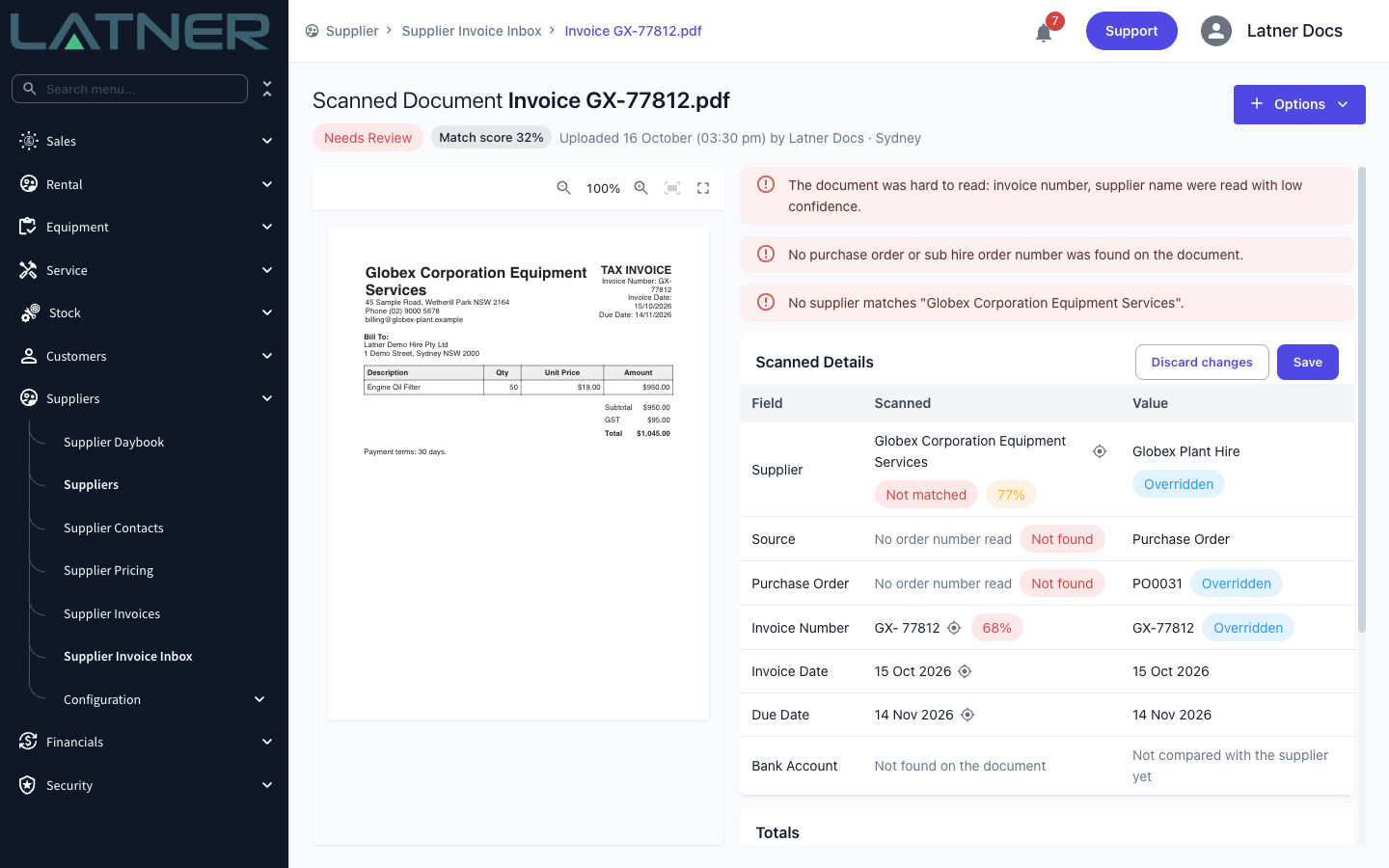
If the name printed on the invoice is different from the supplier you chose, Latner asks whether to remember it. Click Yes and future documents carrying that name match the supplier automatically.
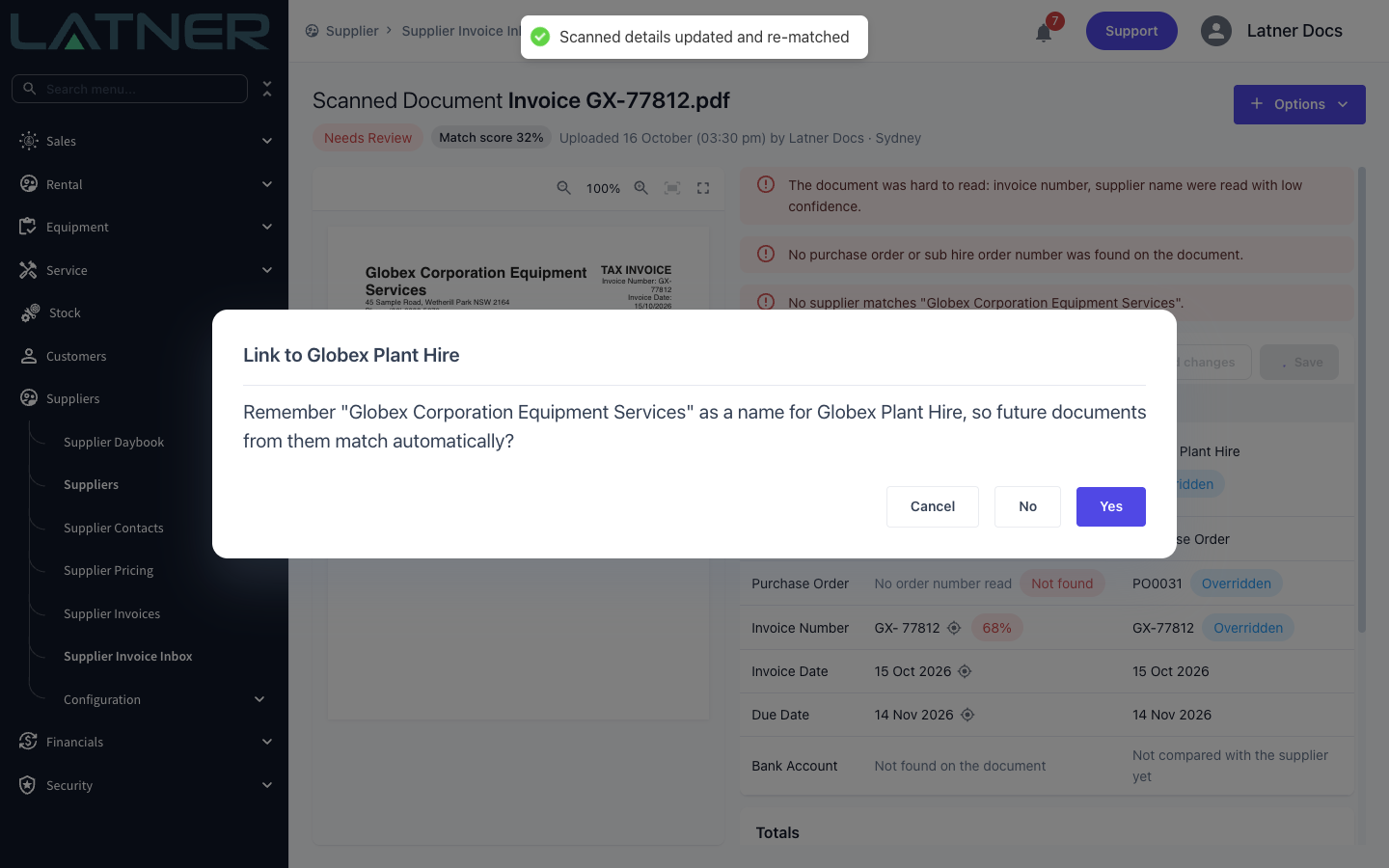
Latner re-matches the document straight away and updates its status and messages. A "The document was hard to read" message stays even after you've corrected the values, because it describes how clearly the original was read - treat it as a reminder to check the values against the document. Once you have, you can approve the document from Needs Review.
To change how much of a purchase order line this invoice bills, click the quantity in the To invoice column of the Purchase Order card and type the new quantity. It can't exceed what the line can still invoice; leave it blank to go back to the matched quantity.
Step 7 - Approve and create the invoice
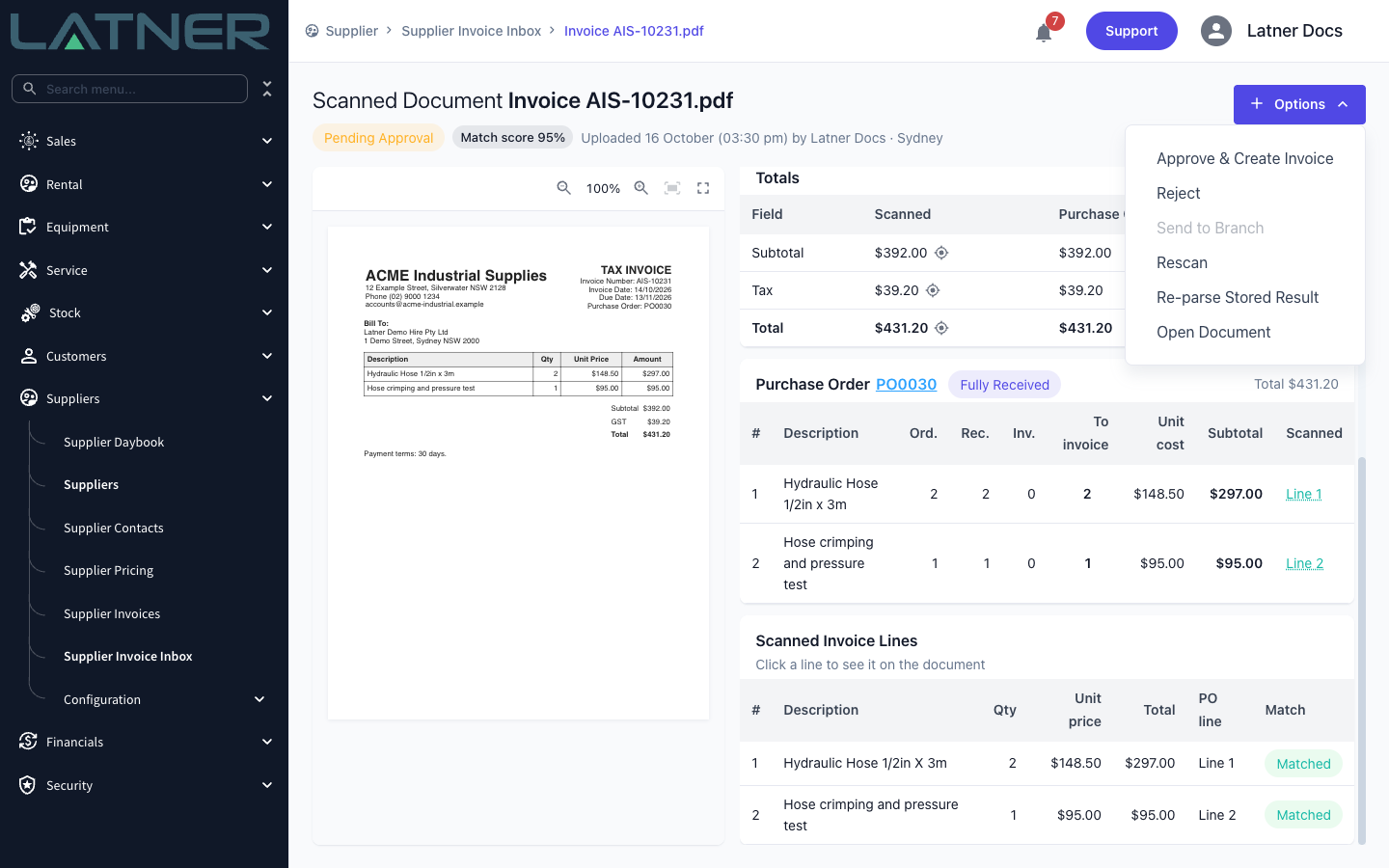
When a document has matched (it shows Pending Approval, or Needs Review with only a reminder left) and you're happy with it, click Options › Approve & Create Invoice. The option is greyed out, with the reason as its tooltip, until a supplier and an order are linked and the purchase order has been confirmed.
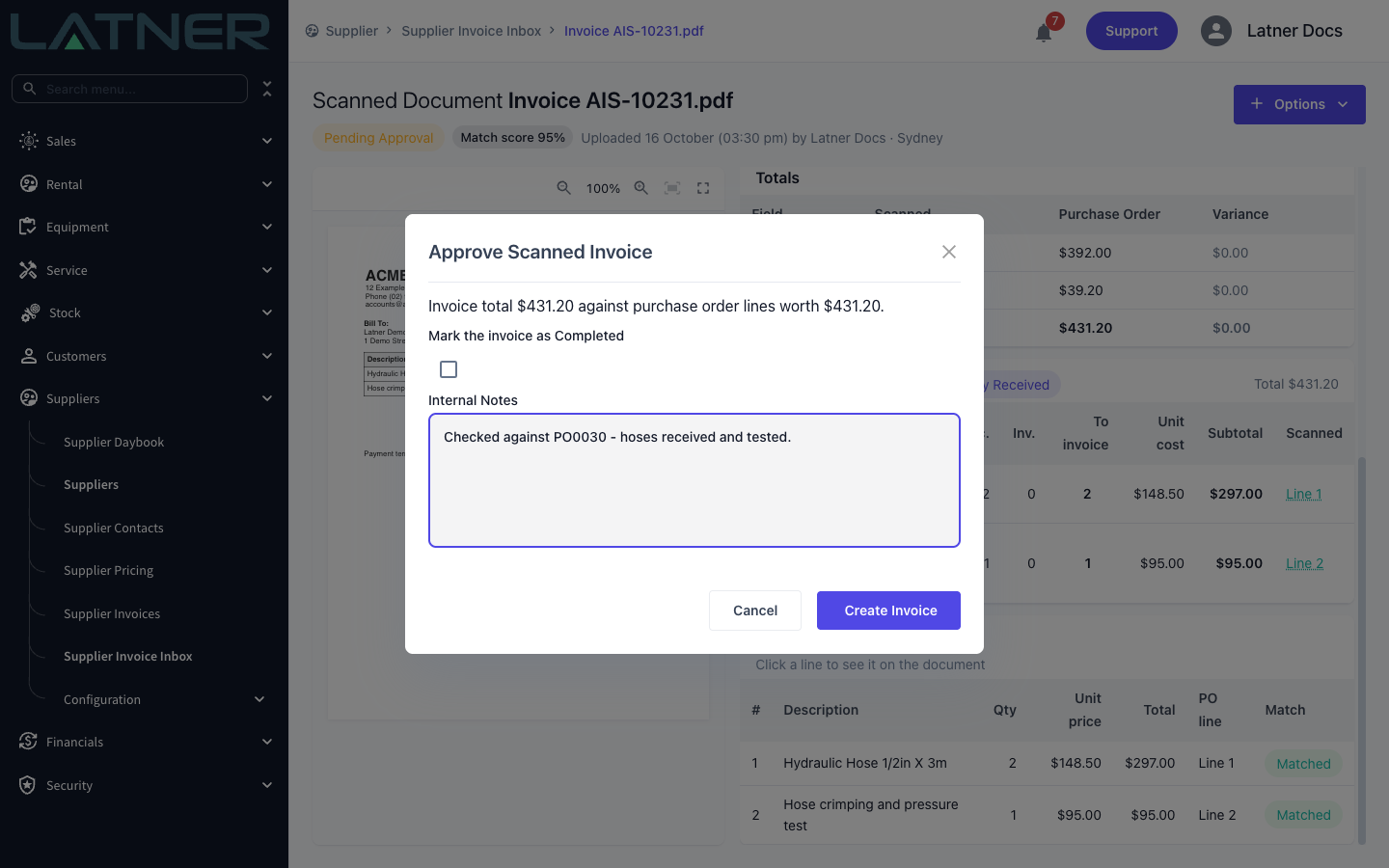
The Approve Scanned Invoice dialog opens with the invoice total against the purchase order lines it bills:
-
Create the invoice using - only shown when the totals differ. Choose Purchase Order amounts or Invoice amounts (as billed by the supplier).
-
Mark the invoice as Completed - tick to complete the invoice straight away. Only available once the purchase order has been receipted.
-
Internal Notes - optional. Left blank, the invoice is noted "Created from scanned document" with the file name.
Click Create Invoice.
Step 8 - Check the result
The document is now Processed and Approved, and a green message links to the new Supplier Invoice. It also moves to the Processed tab of the inbox.
Other Actions on a Document
The Options menu on a document also offers:
-
Reject - for a document that should never become an invoice (a statement, a quote, an invoice you've already entered). A reason is required. The document is kept for reference on the Rejected tab.
-
Send to Branch - move a document to another branch's inbox, for example when its purchase order is in a branch you can't see. Only available while no order is linked; a linked document always sits in its order's branch.
-
Rescan - read the document again from scratch. Any links and corrections you made are cleared.
-
Re-parse Stored Result - re-run matching from the reading already stored, without reading the document again. Corrections to scanned values are replaced, but supplier and order links are kept.
-
Open Document - open the original PDF in a new tab. Once an invoice exists, View Supplier Invoice takes you to it.
Receiving Invoices by Email
Instead of uploading, suppliers (or your own accounts mailbox) can email invoices straight to your company's inbox address. Contact Latner support to get the address.
-
Only allowed senders are scanned. List the addresses or domains you accept in Allowed Senders for Emailed Supplier Documents (one per line or comma separated, or
*for anyone). A listed sender must also pass email authentication (SPF or DKIM), so a forged From address isn't enough. Emails from anyone else are logged but not scanned. -
Choose the branch with the address. Add a plus sign and the branch name before the @ (for example
+sydney) to send to that branch's inbox. Without it, documents go to your first branch, and in either case they move to the branch of the order they match. -
PDF attachments only. Each PDF attachment becomes its own document. Other attachments and images embedded in the email are skipped and recorded as such.
-
Emailed documents wait for approval unless both Automatically Create Supplier Invoices from Scanned Documents and Automatically Create Supplier Invoices from Emailed Documents are on.
-
Daily limits. Daily Limit for Emailed Documents (default 200) and Daily Limit for Emailed Documents per Sender (default 50) cap how many emailed documents are scanned in a day. Documents over the limit are kept and shown as held.
-
The Emails tab lists every email received and what happened to each attachment. Double-click an email to see its documents and to scan one that was skipped or held.
-
Send Receipts for Emailed Supplier Documents replies to each email saying which documents were queued and which were skipped. Replies only go to allowed senders.
-
Retention of Emails Received at the Inbox (default 90 days) controls how long the emails are kept. Emails that produced a scan are kept as the record of where the document came from, without their message text.
After Creation
-
The Supplier Invoice is created against the linked purchase order lines, with the scanned invoice number as its reference number and the scanned invoice date. It appears in Suppliers › Supplier Invoices like any other.
-
The original PDF is attached to the Supplier Invoice.
-
The invoice stays open unless you ticked Mark the invoice as Completed (or Automatically Complete Scanned Supplier Invoices completed it), so you can approve and complete it through your usual process.
-
The document stays in the Processed tab, labelled Approved or Auto Matched.
-
Documents still waiting on an order re-match on their own when that purchase order is confirmed, receipted, cancelled or reopened - so a document held back for receipting moves on as soon as the goods are booked in.
-
Members of a notification group subscribed to Scanned Supplier Documents Need Attention get one notification per branch when documents land in Needs Review or fail to read.
A processed document is final: it can't be rejected, relinked or rescanned. If the invoice created from it needs changing, open it with View Supplier Invoice and edit, dispute or cancel it there like any other supplier invoice.