
Disputing a supplier invoice puts it on hold and hands it to a named person to sort out, so an invoice you disagree with can't quietly be completed and paid while the question is still open.
Overview
Not every invoice a supplier sends you is right. A freight charge that was never agreed, a quantity that doesn't match what turned up on the truck, a rate that isn't the one on the purchase order - raising a dispute is how you flag that in Latner instead of in someone's inbox.
-
Only an Open supplier invoice can be disputed. Once it's Completed, Paid or Cancelled the option disappears.
-
Disputing moves the invoice to Disputed status and blocks it from being completed, so it can't be paid by accident.
-
Every dispute is assigned to one person, and Latner tells them straight away - both as a notification inside Latner and as an email to the address on their user record. They don't have to be watching the Supplier Daybook to find out.
-
The reason you type is stored on the invoice permanently, in a Dispute Details panel that stays there even after the dispute is resolved.
-
A dispute ends in one of three ways: it's approved (the invoice was right after all), the invoice is reopened so it can be corrected, or the invoice is cancelled.
Before You Begin
No setting needs to be turned on for disputes - it's controlled entirely by permissions.
|
Requirement |
Where to Find It |
|---|---|
|
Dispute Supplier Invoice permission |
Security › Configuration › your permission group › Suppliers › Option |
|
Approve Disputed Supplier Invoice permission (for whoever resolves it) |
Security › Configuration › your permission group › Suppliers › Option |
|
Reopen Disputed/Approved Supplier Invoice permission (to send it back for correction) |
Security › Configuration › your permission group › Suppliers › Option |
|
A supplier invoice in Open status |
Suppliers › Supplier Invoices |
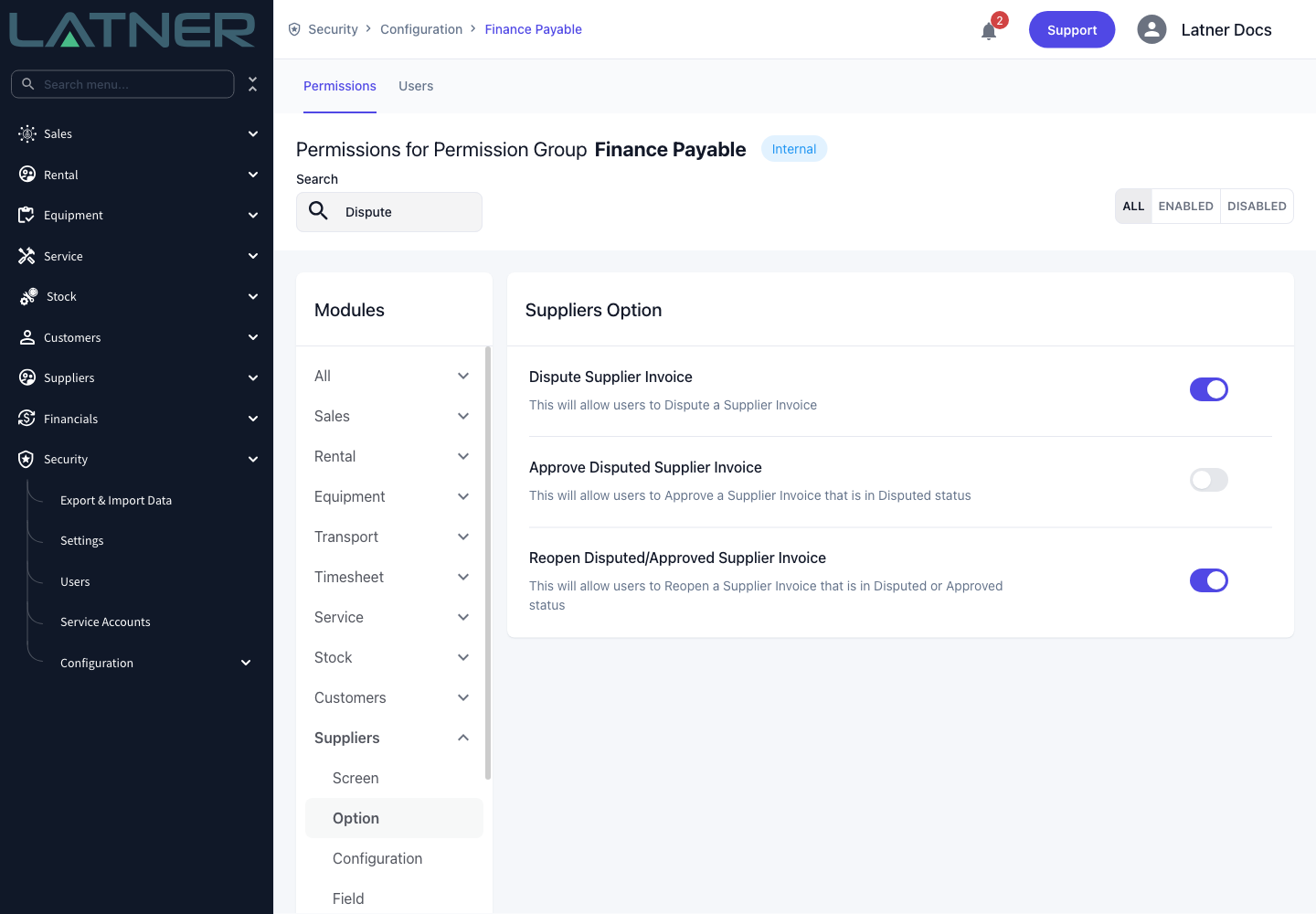
These permissions are checked against the invoice's branch. If your permission group grants Dispute Supplier Invoice for some branches only, an invoice raised in another branch will refuse the action with "You do not have permission to perform this action in this branch".
Raising the Dispute
Step 1 - Open the invoice
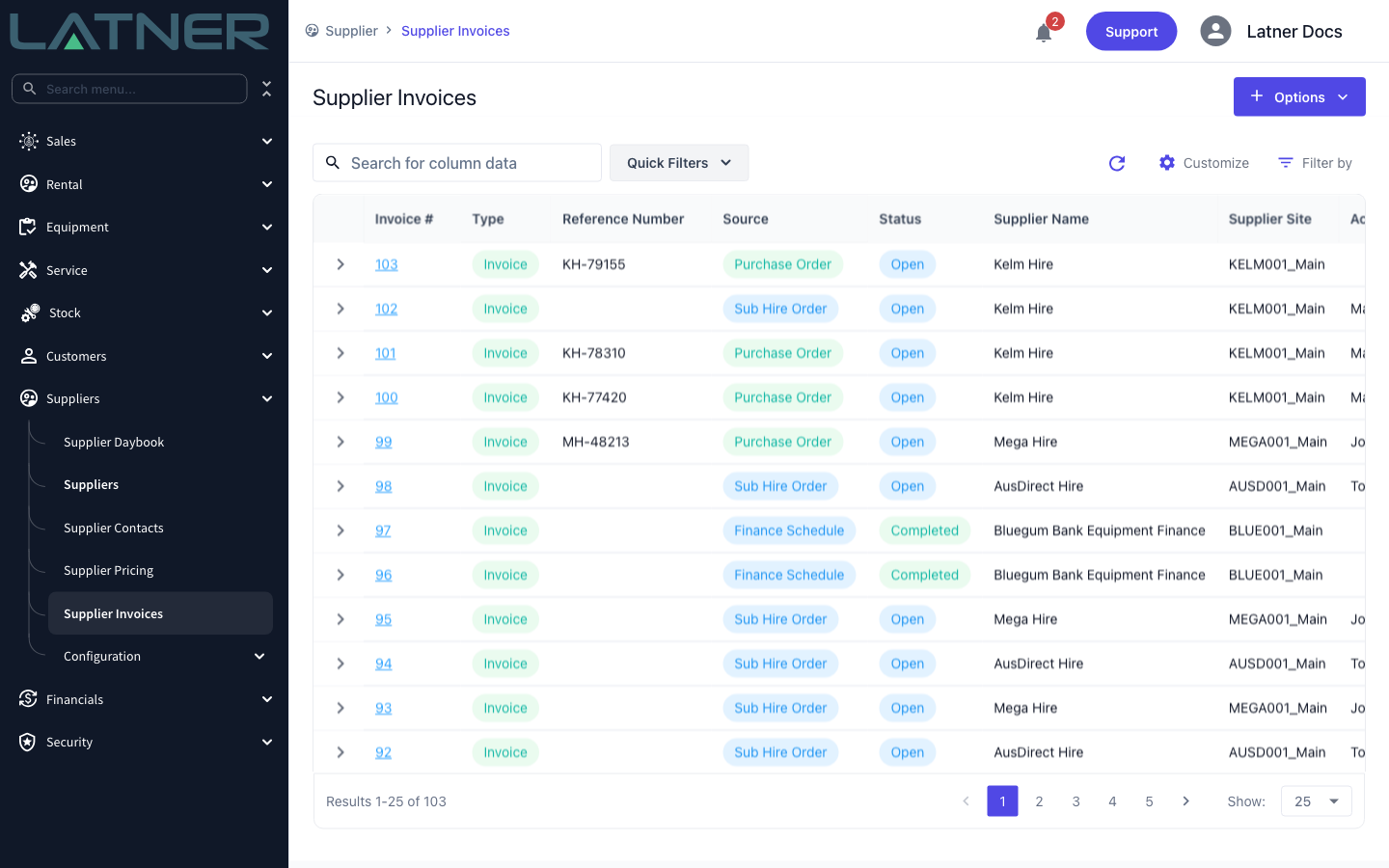
Go to Suppliers › Supplier Invoices and open the invoice you want to query. Check its Status first: the dispute option only appears while the invoice is Open.
Step 2 - Choose Dispute Invoice
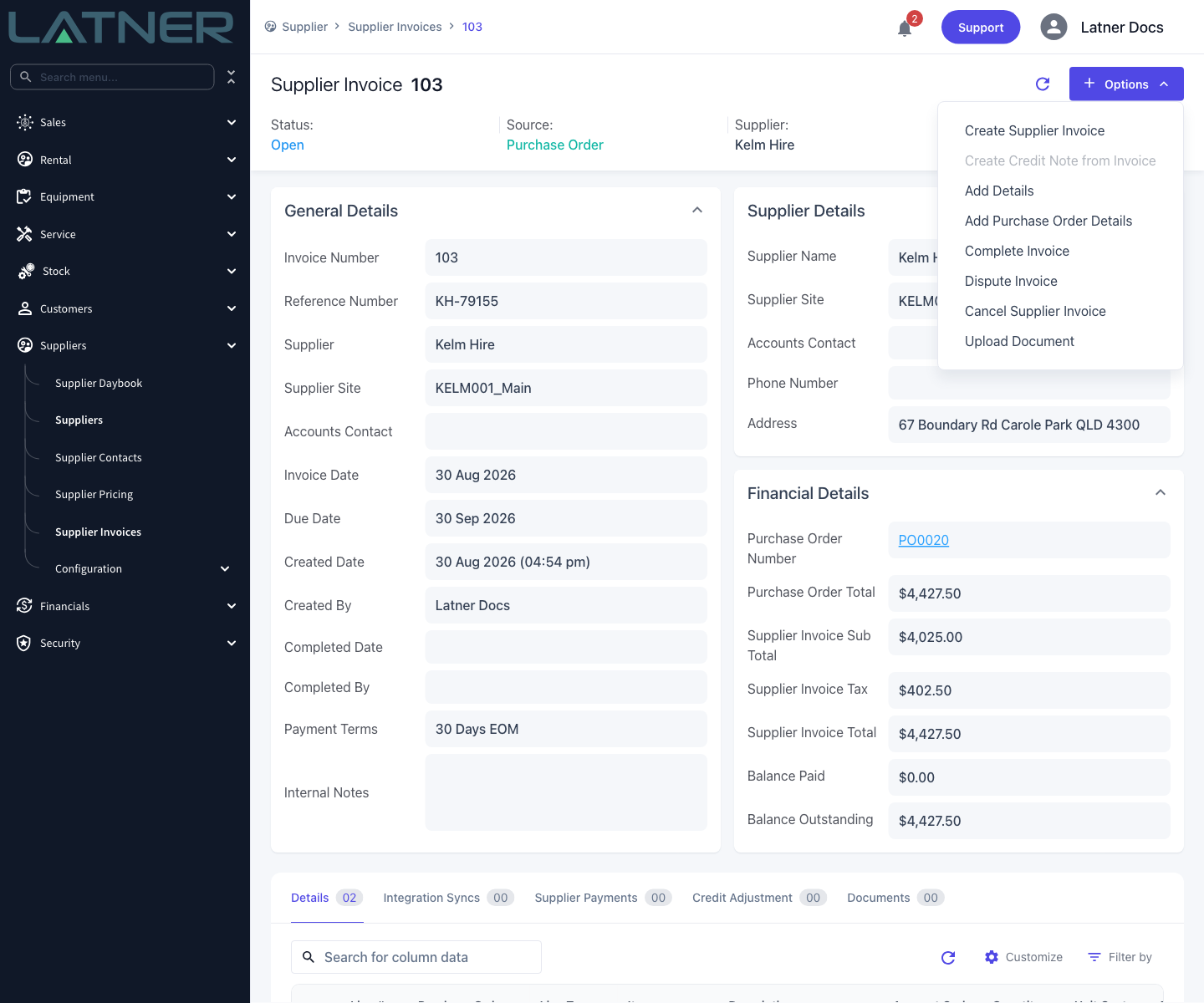
Select Options › Dispute Invoice.
Step 3 - Fill in the dispute
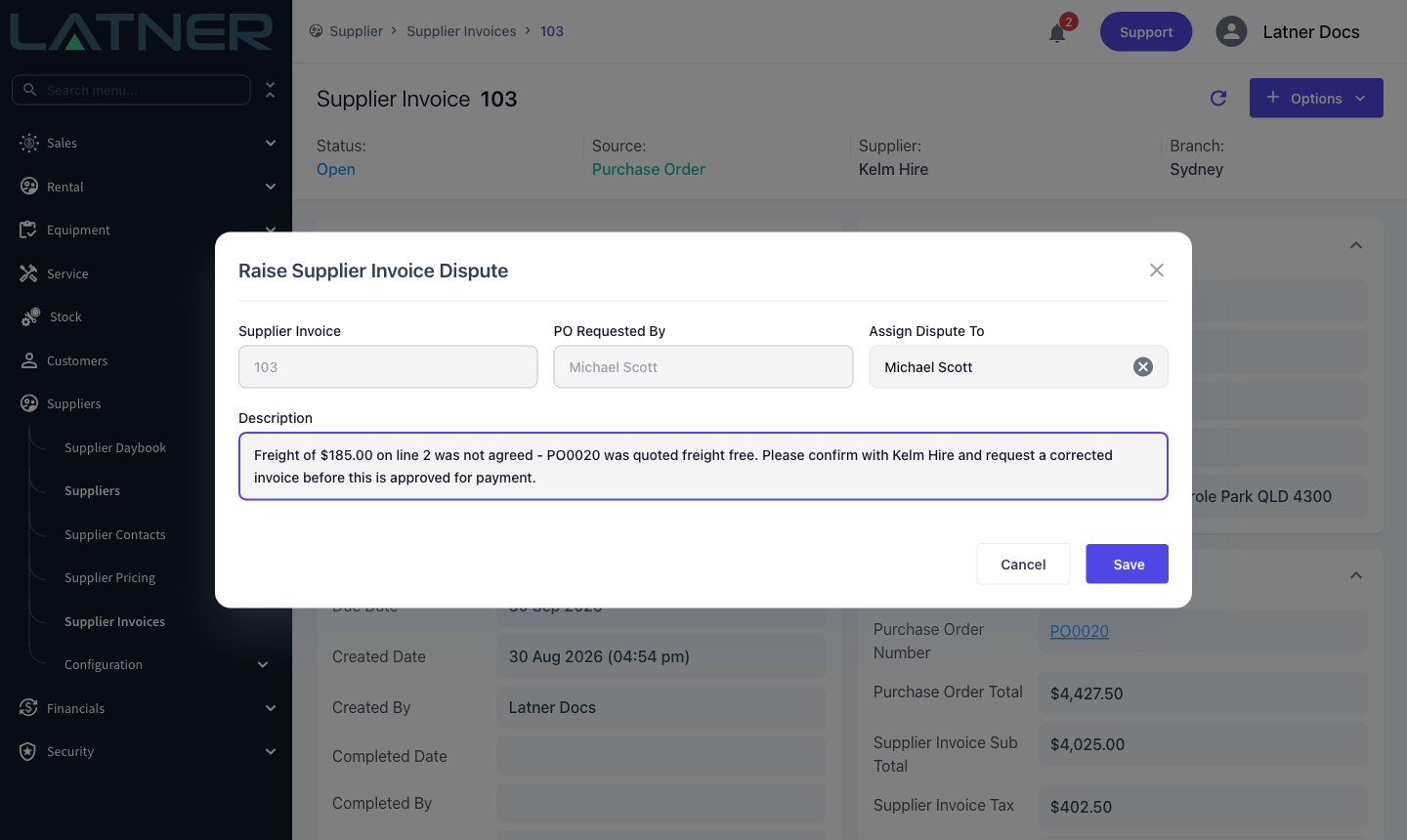
The Raise Supplier Invoice Dispute form opens. Two fields are yours to fill in; the rest are context Latner fills in for you and you can't edit.
-
Supplier Invoice - the invoice you're disputing. Read-only.
-
PO Requested By - read-only, and shown only when the invoice came from a purchase order. It's the person who requested that order.
-
Sub Hire Requested By - read-only, and shown only when the invoice came from a sub hire order. It's the person who created that order.
-
Assign Dispute To - required. Who owns the dispute from here. Latner pre-fills this with whoever raised the underlying order (the sub hire order's creator, then the purchase order's requester, then the purchase order's creator), so on an order-sourced invoice you can usually accept the suggestion. Change it if someone else should chase it. Whoever is named here is emailed the moment you save, so pick the person who can actually resolve the query.
-
Description - required. Why you're disputing the invoice. This is the only place the reason is recorded, and the person approving the dispute later sees exactly this text, so write it for them: which line, which amount, and what you want done about it.
Step 4 - Save
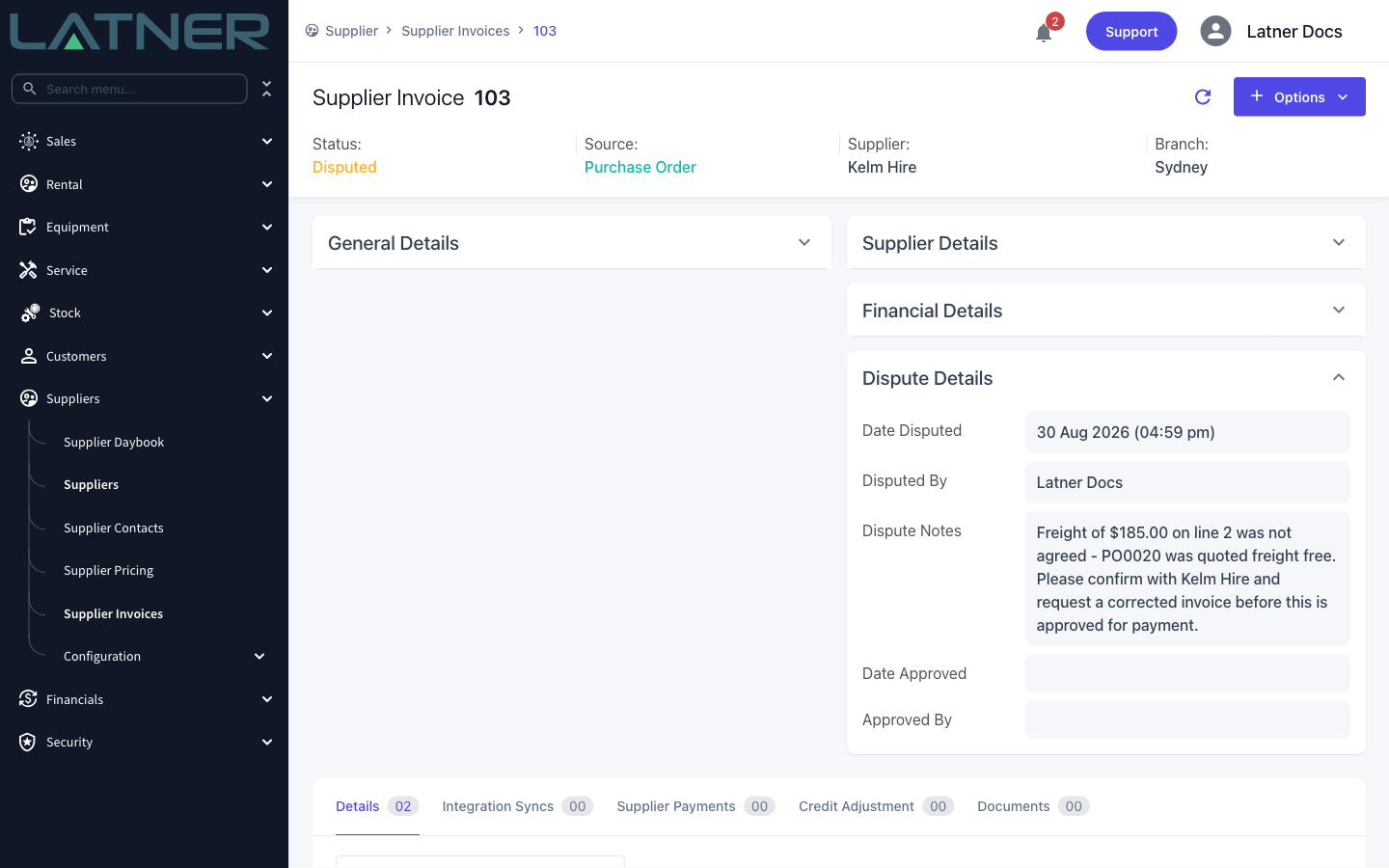
Select Save. The invoice moves to Disputed straight away and a Dispute Details panel appears on the invoice recording the date, who raised it and the description you typed.
The person you assigned the dispute to is emailed automatically. As soon as you save, Latner sends them an email from Latner (no-reply@latnersoftware.com) with the subject Latner Notification - Supplier Invoice Disputed. It greets them by name, names the supplier, and links straight to the disputed invoice so they can open it and read your description without hunting for it. The email goes to the address on their user record, and they get the matching in-app notification at the same time - the email is on top of it, not instead of it.
After the Dispute
-
The invoice status becomes Disputed, and the Dispute Assigned To field on the invoice is set to the person you chose.
-
That person gets a Supplier Invoice Disputed notification inside Latner, telling them the invoice has been disputed and requires approval.
-
They are also emailed, at the address on their user record, with a link to the invoice. Both go to them personally rather than to a team.
-
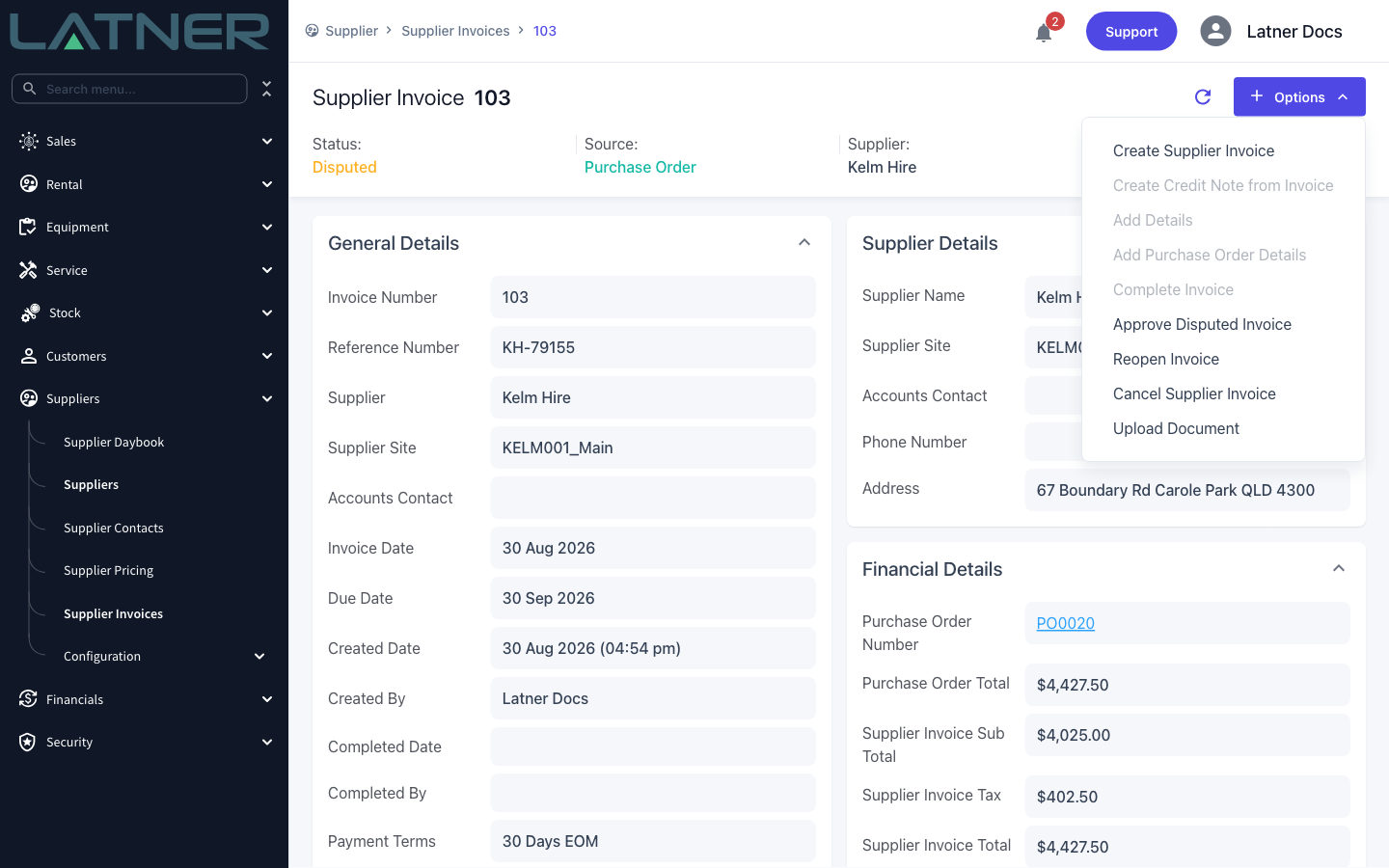
Complete Invoice, Add Details and Add Purchase Order Details are all switched off while the dispute is open.
-
Existing invoice lines can still be edited and deleted, so a line that's simply wrong can be corrected in place.
-
Approve Disputed Invoice and Reopen Invoice replace Dispute Invoice in the Options menu.
-
Cancel Supplier Invoice is still available if the invoice should never have been raised at all.
Raising a dispute doesn't stop a supplier invoice from being cancelled, and cancelling is not reversible. If the invoice is wrong but the goods or hire were genuinely received, reopen it and correct the lines instead of cancelling and starting again.
Tracking Disputed Invoices
Disputes aren't something you have to remember to check. There are two ready-made places to find them.
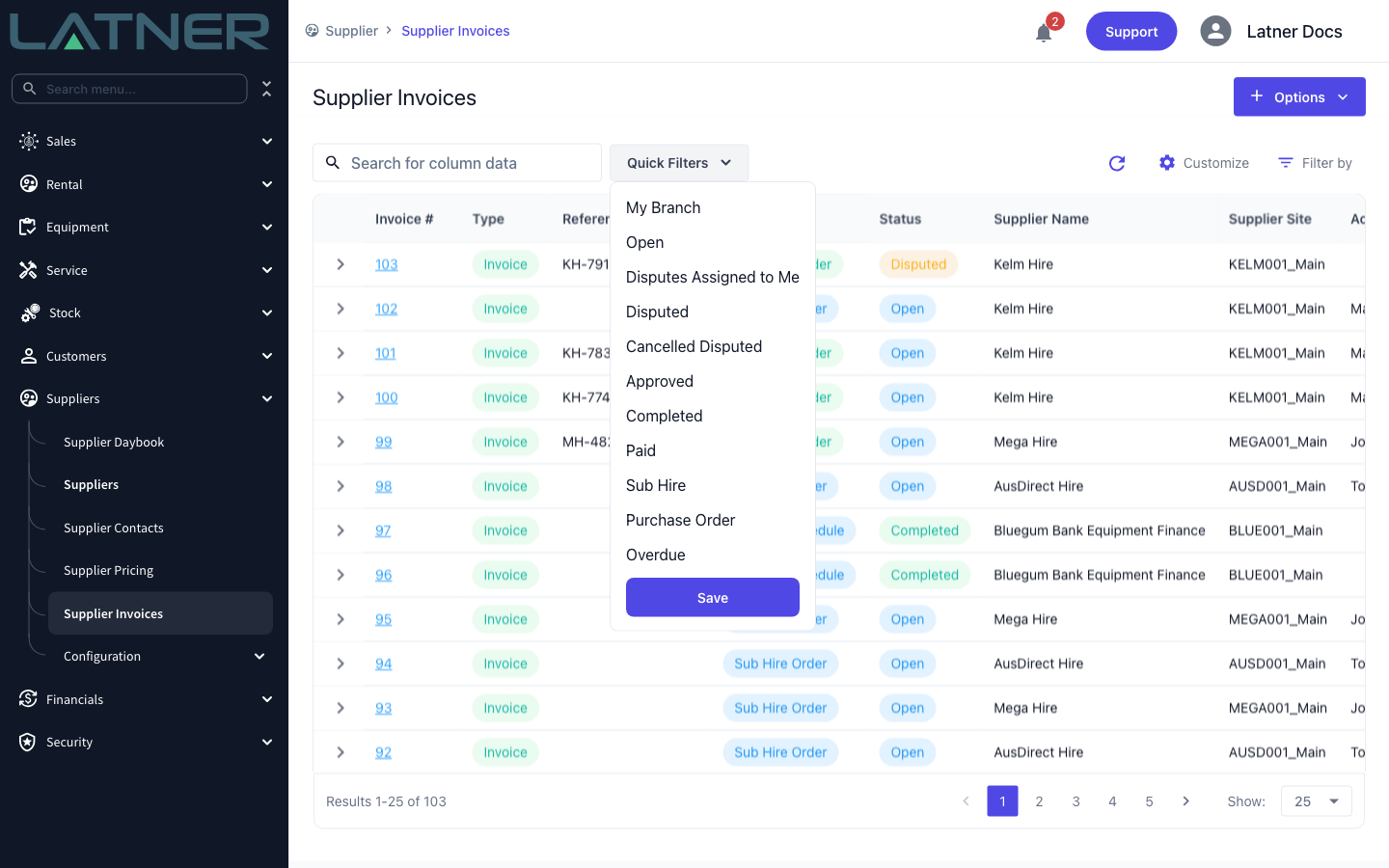
On Suppliers › Supplier Invoices, the Quick Filters list includes Disputes Assigned to Me, Disputed, Cancelled Disputed (invoices that were disputed and ended up cancelled) and Approved. The list also has a Dispute Assigned To column you can sort and filter on.
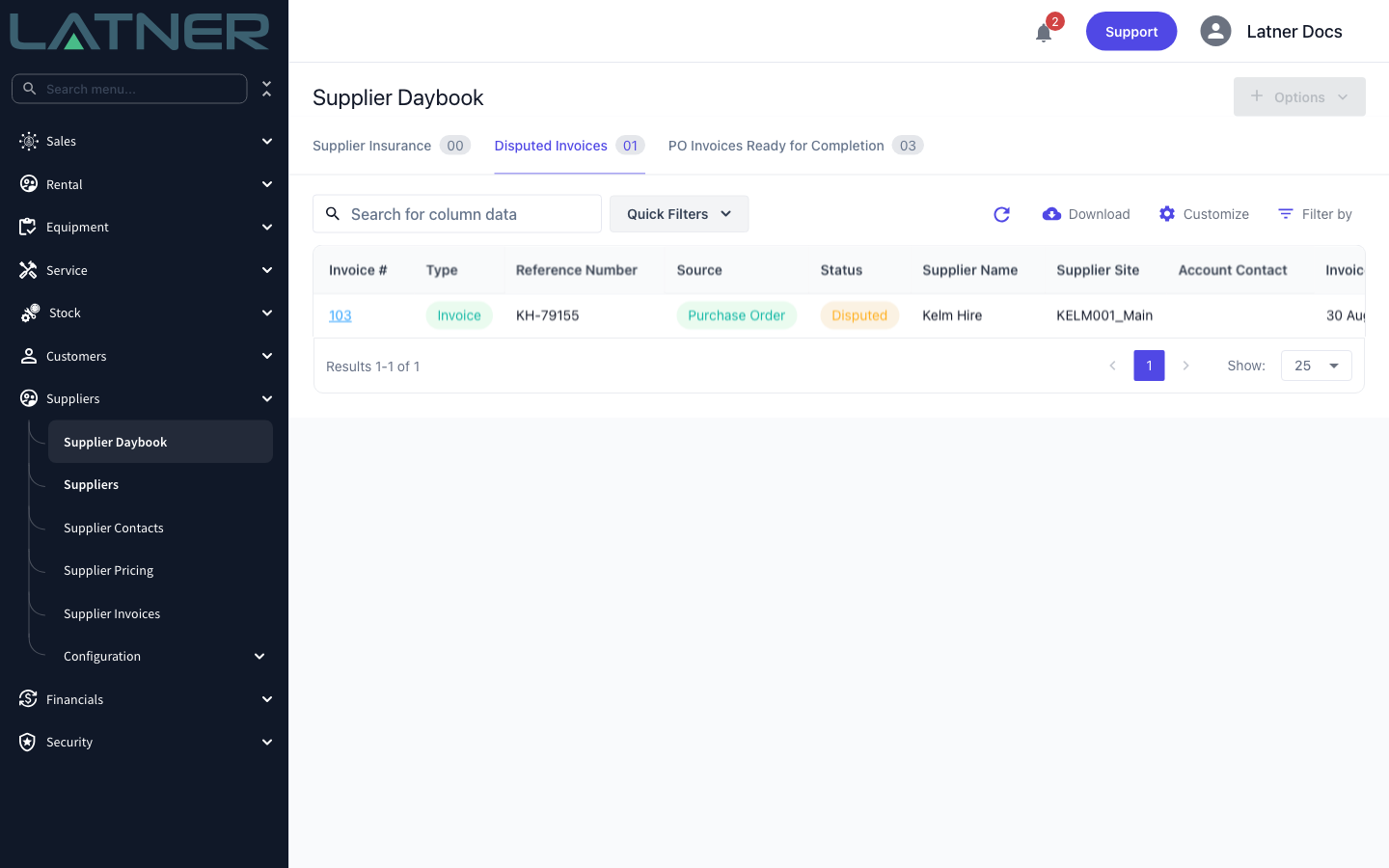
The Suppliers › Supplier Daybook screen has a Disputed Invoices tab that counts every disputed invoice and opens filtered to the ones assigned to you, oldest dispute first. Clear the Assigned to Me quick filter to see the whole branch's disputes.
FAQs
Watch the Demo
Prefer to watch it? Step through the same flow here.