
Invoicing a Sub Hire Order turns the equipment, transport and expense lines you have agreed with a hire supplier into a Supplier Invoice, so the cost of sub hired gear lands against the rental contract it was hired for.
Overview
When you sub hire a machine you owe someone else money for it. Latner keeps that cost on the Sub Hire Order until you are ready to bill it, then builds the Supplier Invoice for you from the rates and charges already on the order - no re-keying, and no guessing which days have already been paid for.
-
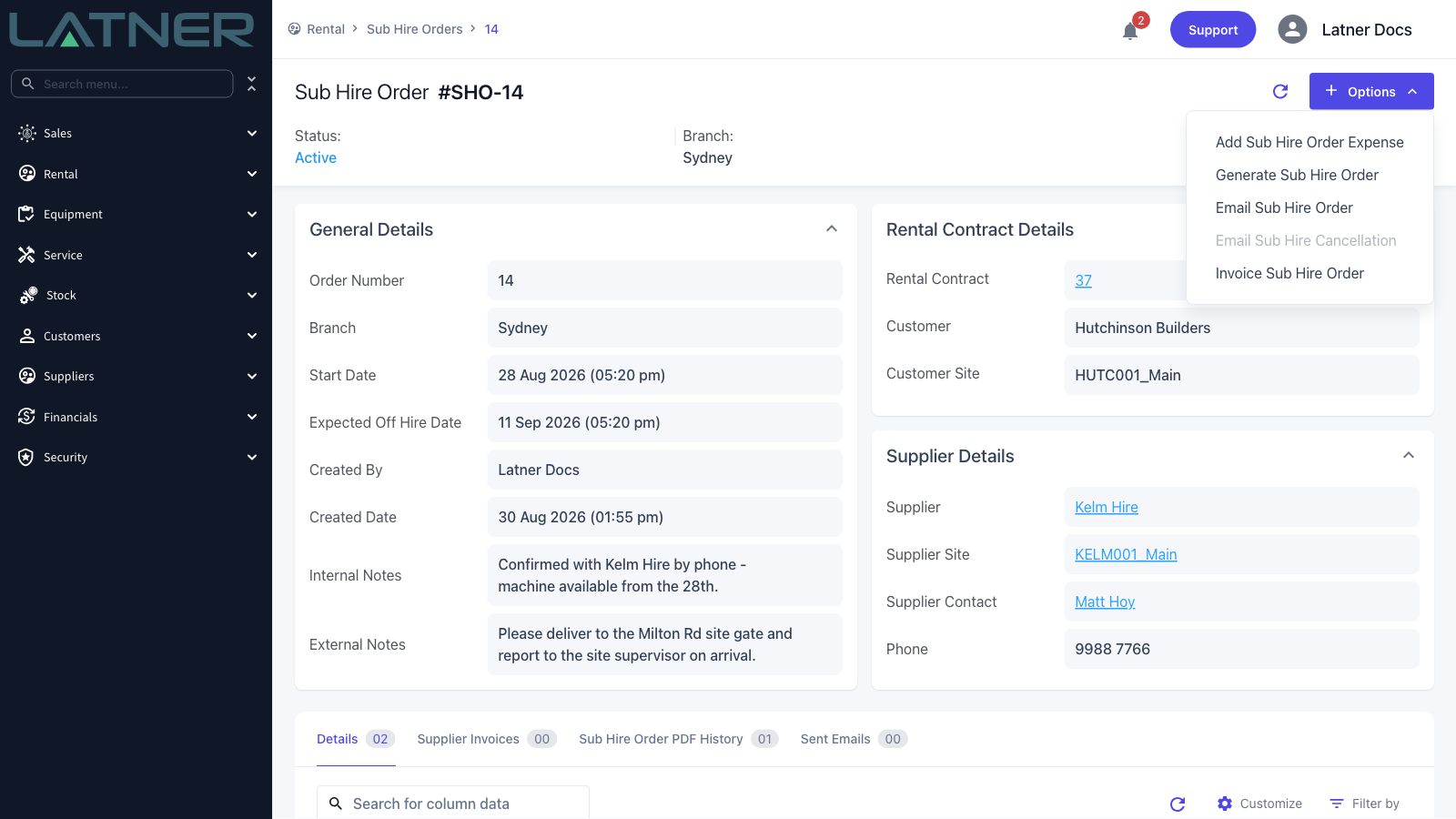
The invoice is raised from the Sub Hire Order itself, using Options › Invoice Sub Hire Order.
-
Preview calculates the lines first so you can check them. Nothing is saved until you select Create Supplier Invoice.
-
Sub hire equipment lines are priced from the supplier rates on the rental contract line; transport and expense lines are priced from their quantity and item charge.
-
You can leave lines off an invoice and bill them later - they stay on the order.
-
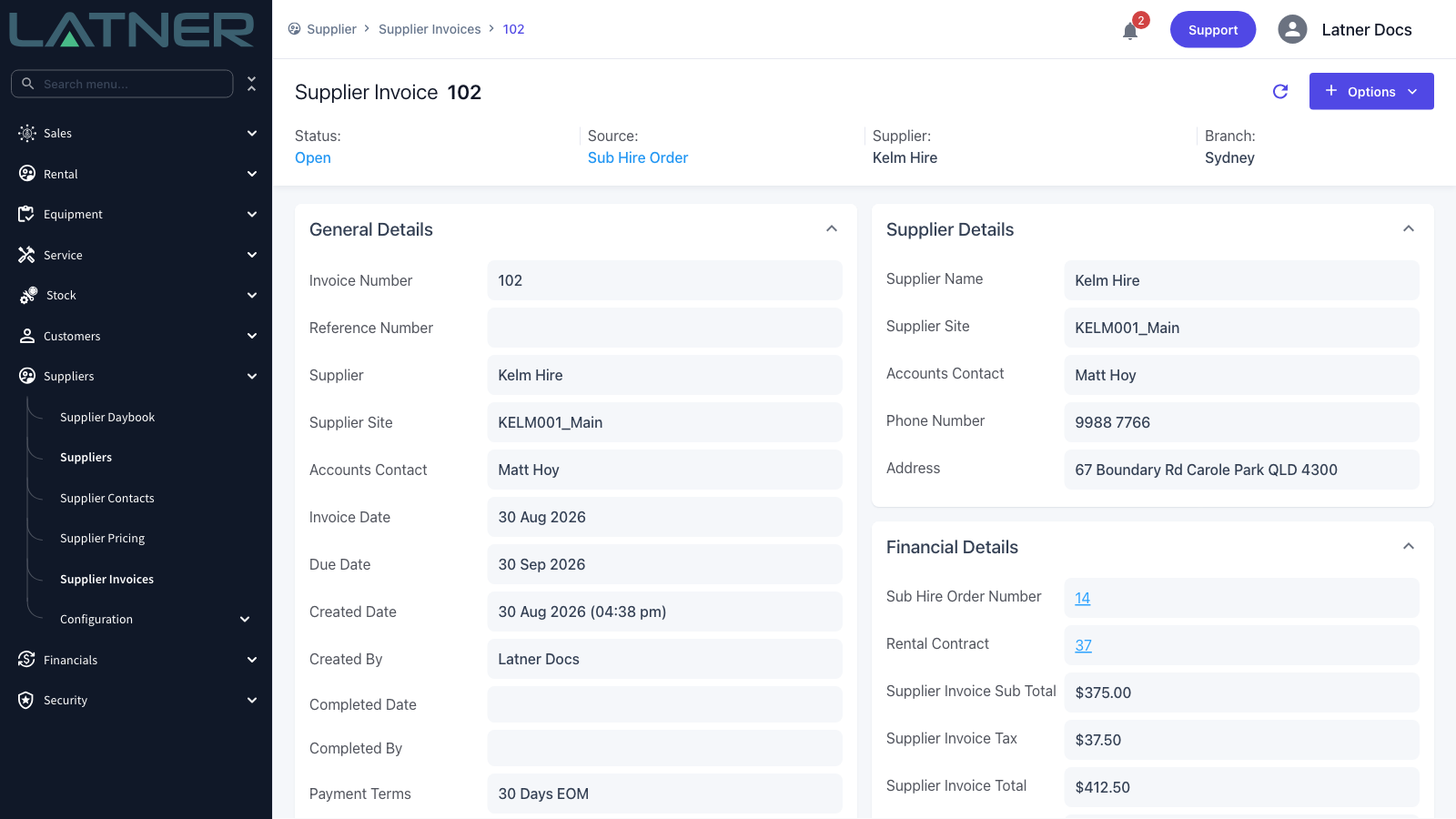
The new Supplier Invoice is created with a status of Open and a source of Sub Hire Order, linked back to both the order and the rental contract.
-
A Sub Hire Order can be invoiced many times as the hire runs on, and each invoice picks up only what has not been billed yet.
-
If the Auto Create Sub Hire Order Invoices setting is switched on, Latner also raises these invoices for you whenever the customer is invoiced for the rental contract. This article covers doing it by hand.
Before You Begin
Make sure the following are in place.
|
Requirement |
Where to Find It |
|---|---|
|
Sub Hire Orders permission |
Security › Configuration › Permission Groups, then Rental › Screen. This one permission covers both viewing the order and invoicing it. |
|
Supplier Invoice permission |
Security › Configuration › Permission Groups, then Suppliers › Screen. Needed to open the invoice once it has been created. |
|
An Active Sub Hire Order with lines that have not been fully invoiced |
Rental › Sub Hire Orders |
|
Payment terms on the supplier |
Suppliers › Suppliers. If the supplier has none, Latner falls back to the Default Supplier Payment Term setting under Security › Settings › Supplier. |
|
Auto Create Sub Hire Order Invoices setting |
Security › Settings › Rental. Worth knowing which way it is set before you invoice by hand. |
|
Tax Rounding Method |
Security › Settings › Financials. Decides whether tax is rounded per line and summed, or calculated once on the invoice sub total. |
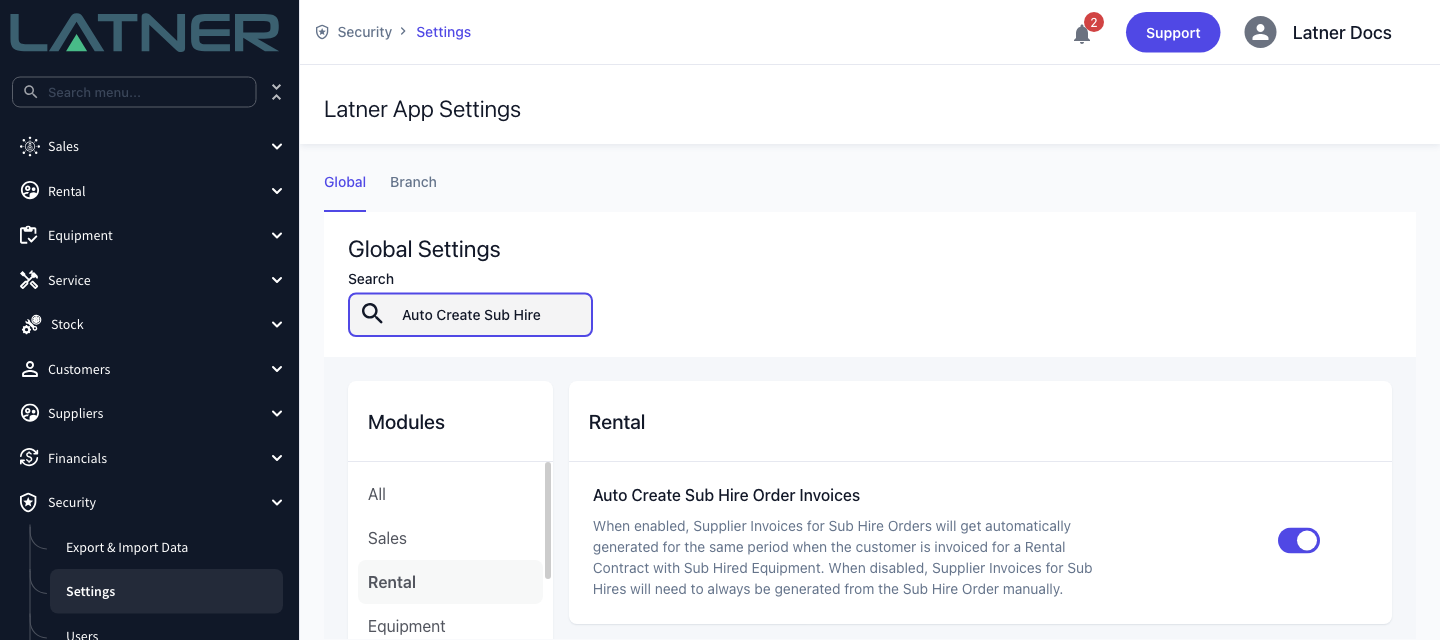
With Auto Create Sub Hire Order Invoices switched on, a supplier invoice is generated for the same period each time the customer is invoiced for a rental contract carrying sub hired equipment. Invoicing from the order by hand still works alongside it - use it to bill outside the customer's billing cycle, or to pick up transport and expense lines the customer is not being charged for. With the setting off, every sub hire supplier invoice has to be raised from the order this way.
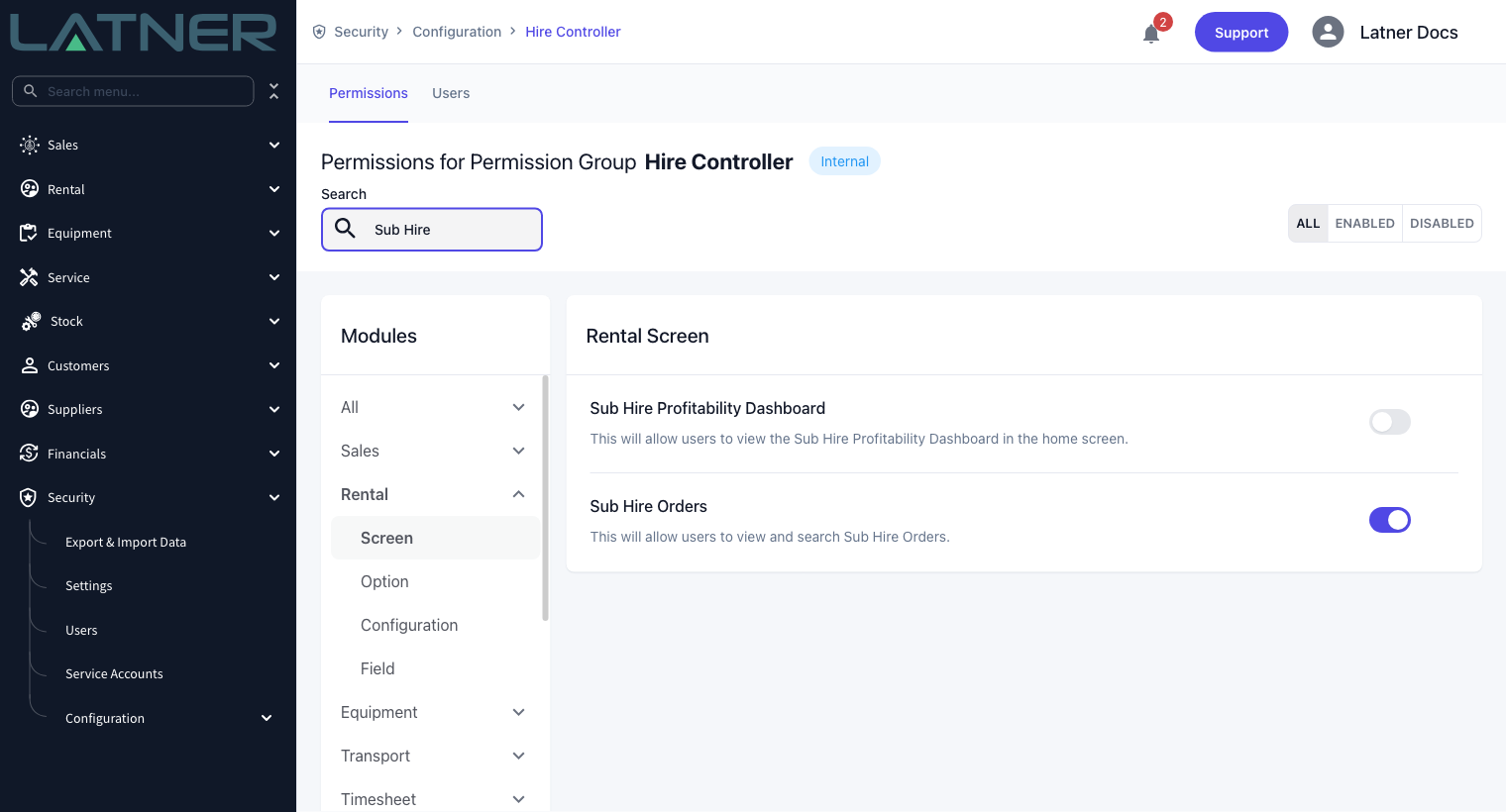
You do not need the separate Create Supplier Invoice permission to invoice a Sub Hire Order. That permission governs raising a supplier invoice by hand from the Supplier Invoices screen; invoicing from a Sub Hire Order is controlled by the Sub Hire Orders permission instead.
Creating the Supplier Invoice
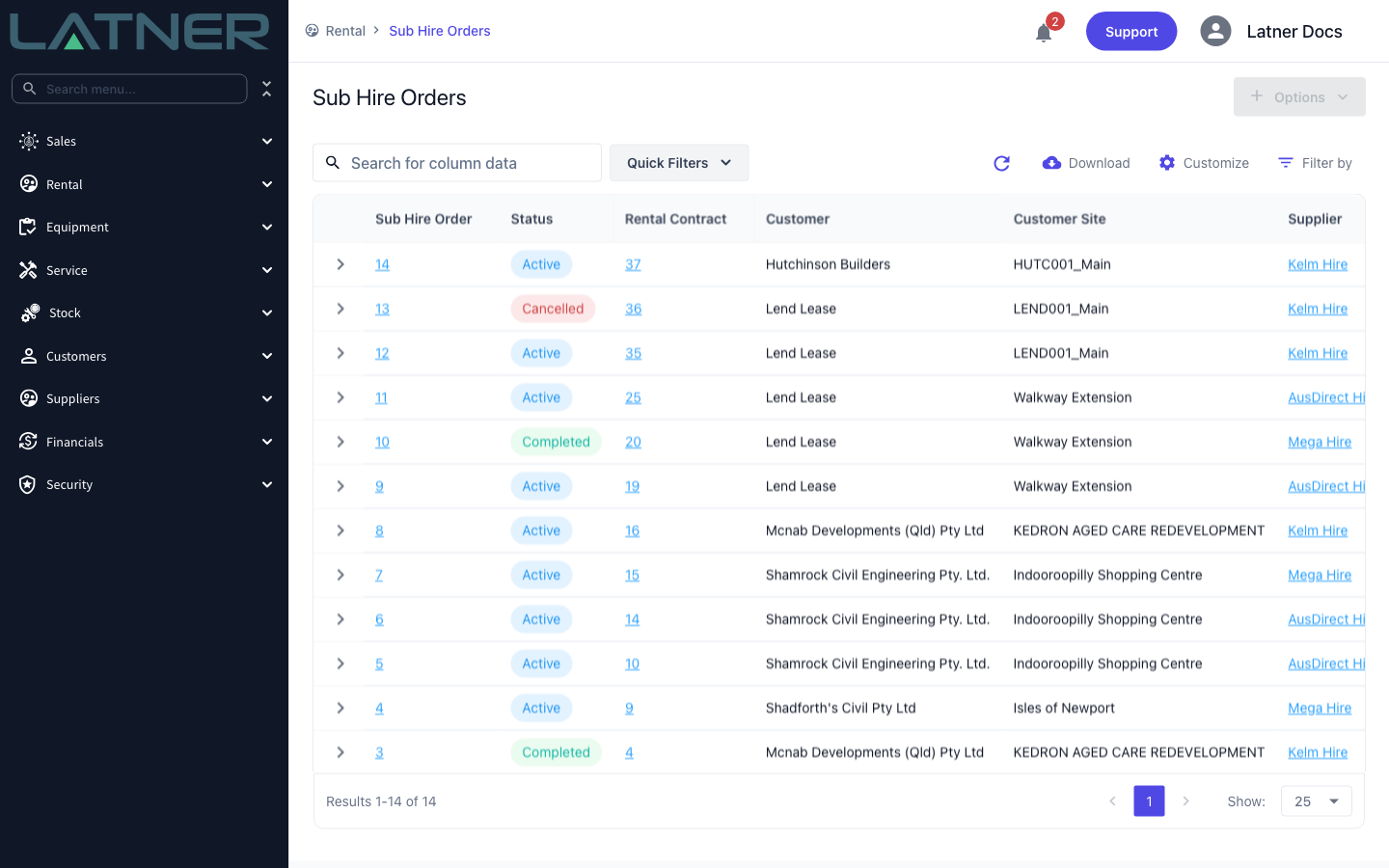
Step 1 - Open the Sub Hire Order
Go to Rental › Sub Hire Orders and select the order you want to invoice. Orders with a status of Cancelled or Completed cannot be invoiced.
Step 2 - Choose Invoice Sub Hire Order
Select Options in the top right of the order, then Invoice Sub Hire Order.
Step 3 - Set the dates
Sub Hire Order, Supplier, Site and Branch are read-only - they come from the order you opened. Two dates are required and both can be changed.
-
Invoice Date - the date shown on the invoice, and the date the Due Date is calculated from. It defaults to today in the branch's timezone.
-
Bill To - the date the sub hire is billed up until. It defaults to today, unless the supplier is on cash on delivery terms and the order's expected off hire date is still in the future, in which case it defaults to that expected off hire date.
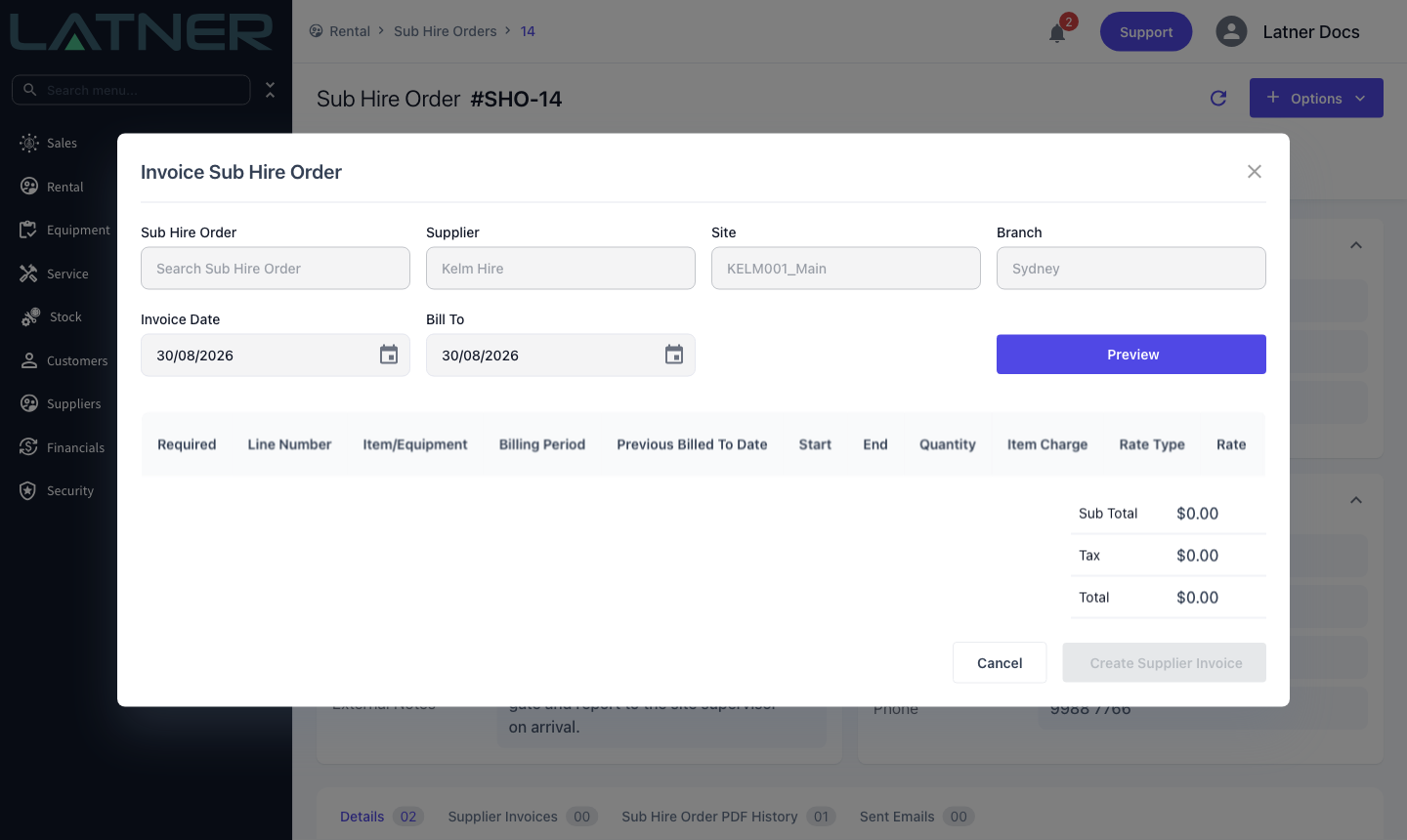
Step 4 - Select Preview
Preview calculates the lines that would be invoiced up to the Bill To date and lists them, with running Sub Total, Tax and Total figures below. Nothing is written to the database at this point, so you can change a date and preview again as often as you like.
Each line shows where its amount came from:
-
Billing Period and Billable Days - the days being charged on this invoice. Billing starts the day after the line's Previous Billed To Date, or at the hire start date the first time round.
-
Rate Type, Rate and Calc. Daily Rate - the supplier rate selected from the Sub Hire Rental Rates on the rental contract line, and the daily rate it works out to.
-
Item Charge - used instead of a rate for transport and expense lines, which are charged as quantity multiplied by item charge.
-
Stand Down Days - days inside the billing period that the equipment was stood down.
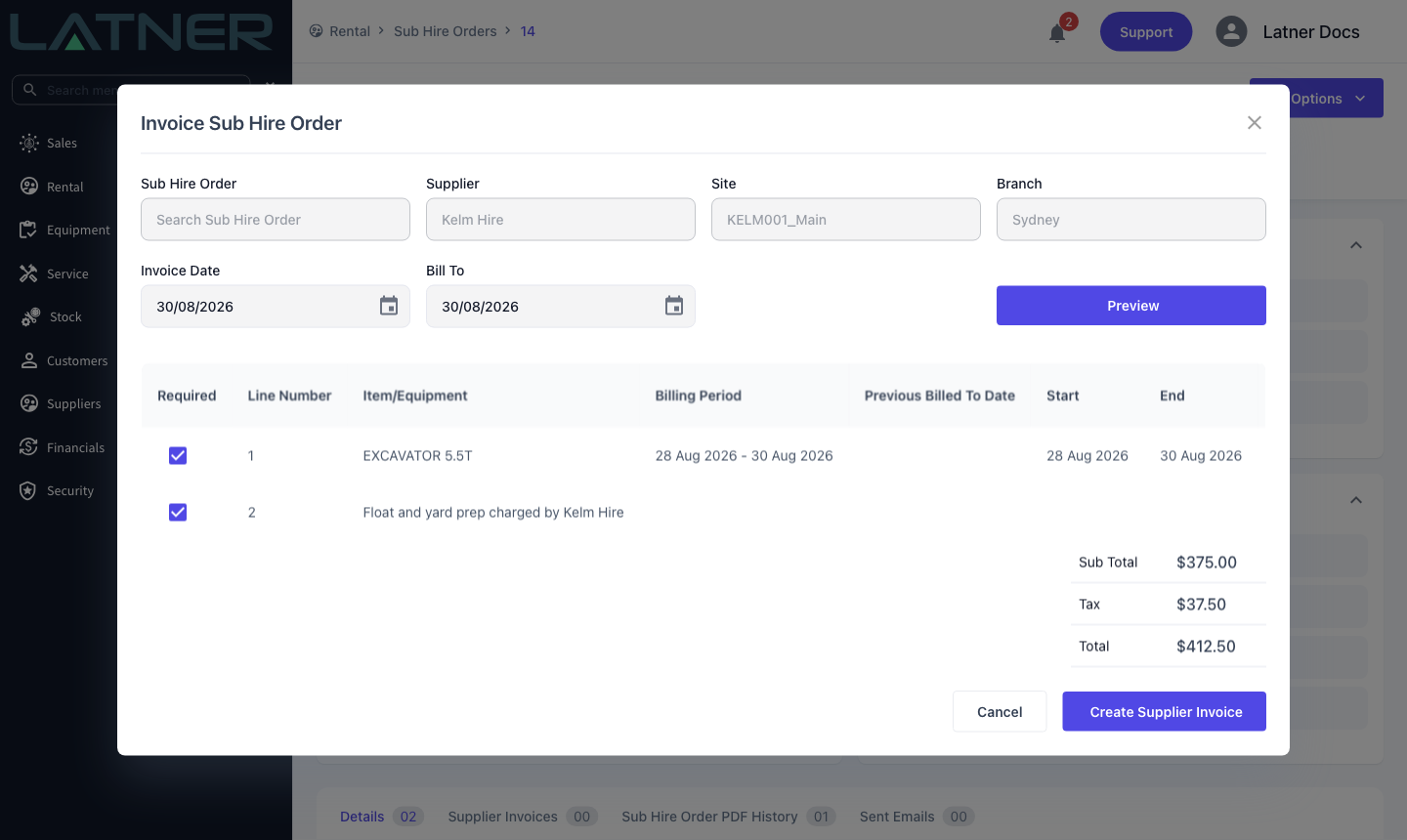
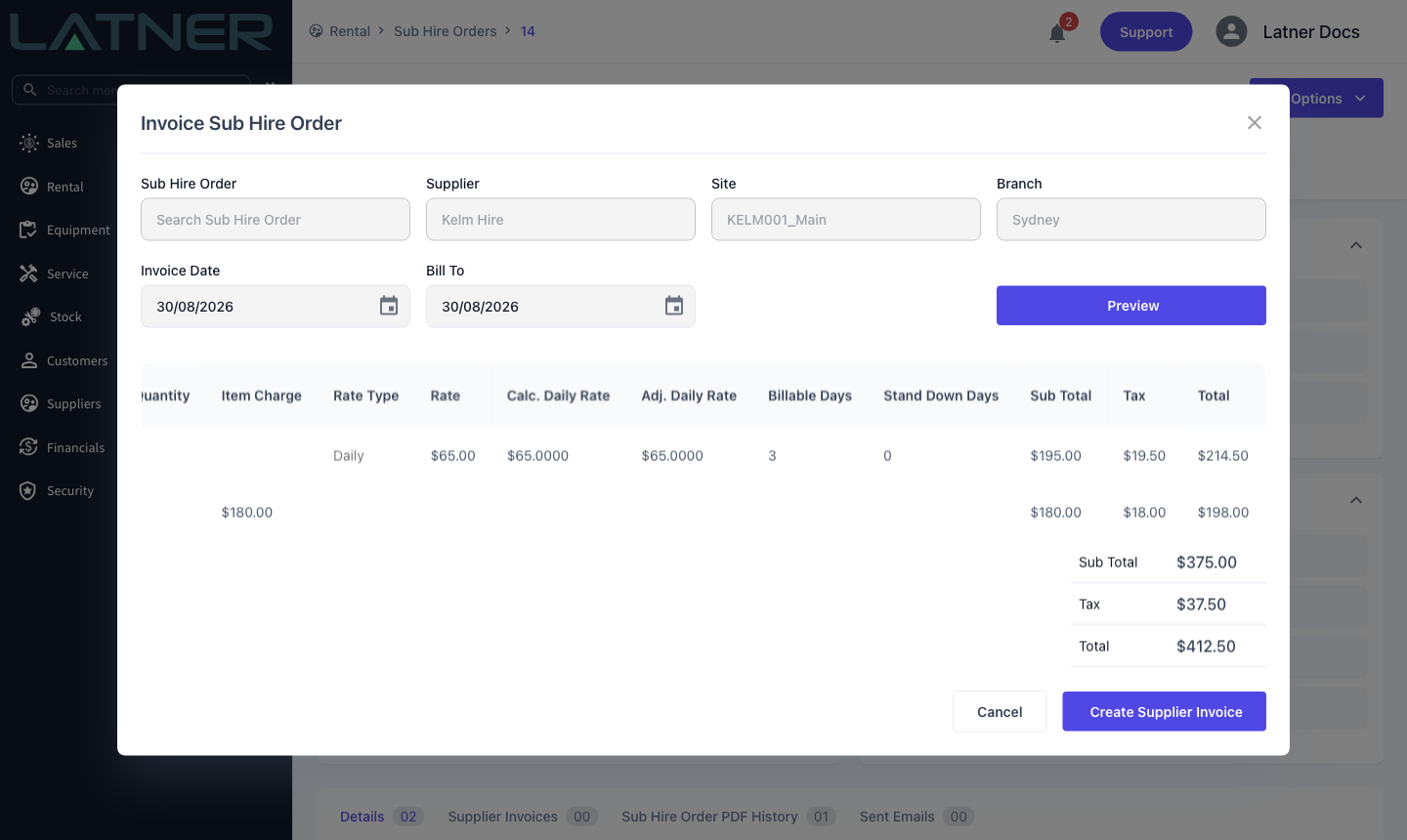
If the preview comes back empty you will see a Nothing to Invoice message. That means every line is already billed up to the Bill To date you entered - move the date forward and preview again.
Step 5 - Choose which lines to invoice
Every previewed line is ticked in the Required column by default. Untick anything you do not want on this invoice; the totals at the bottom update as you go, and the unticked lines stay on the Sub Hire Order for a later invoice. At least one line has to stay ticked.
Step 6 - Select Create Supplier Invoice
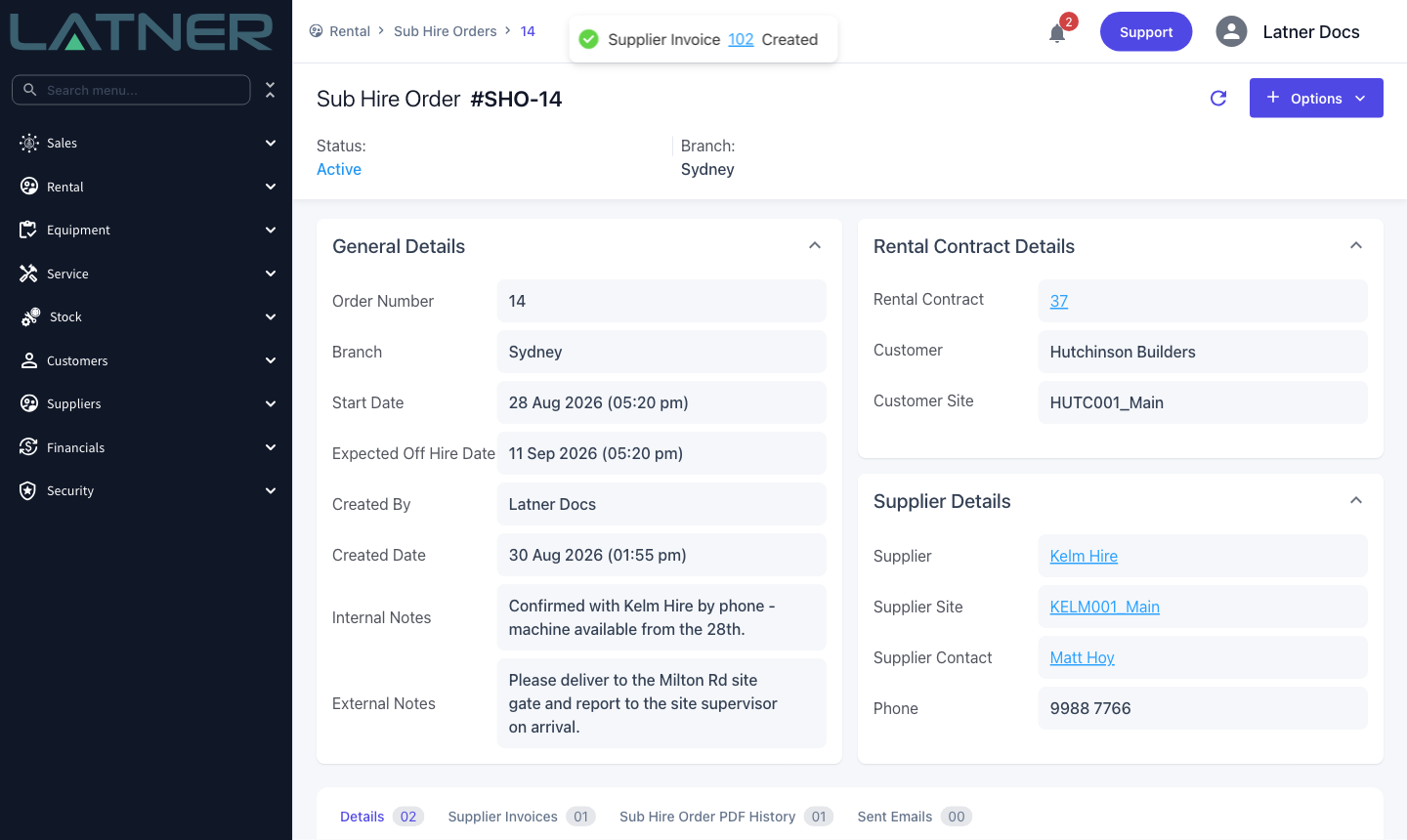
Latner creates the Supplier Invoice and confirms with a message containing a link straight to it.
After Creation
-
A new Supplier Invoice is created with a status of Open, a source of Sub Hire Order, and one detail line for each line you invoiced.
-
Payment Terms and Due Date are taken from the supplier's payment terms, or from the Default Supplier Payment Term setting when the supplier has none.
-
Reference Number is left blank. Type the supplier's own invoice number into it on the invoice's General Details card - Latner will not accept the same reference number twice for the same supplier.
-
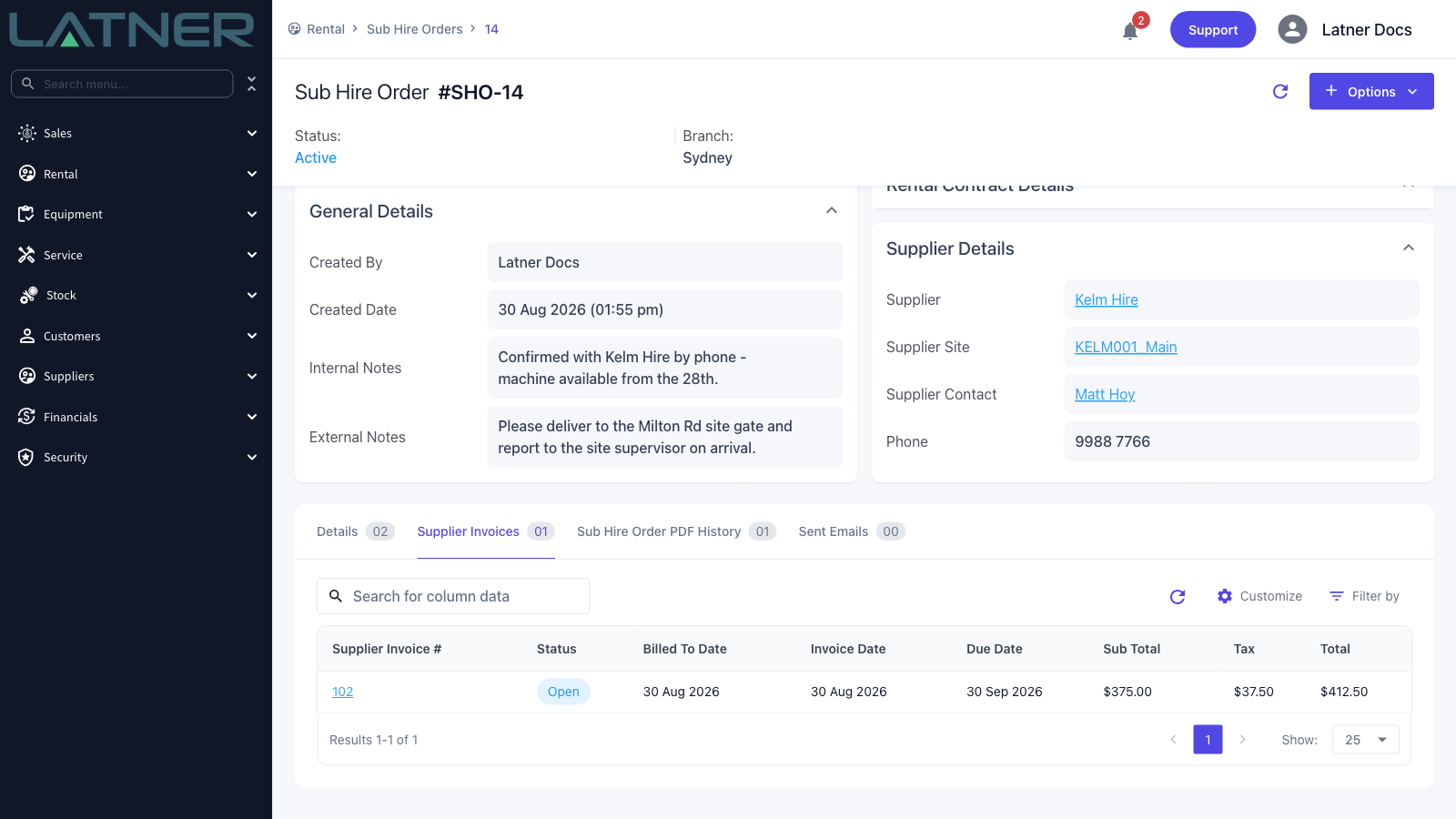
The invoice appears on the Sub Hire Order's Supplier Invoices tab, and on the Supplier Invoices screen under Suppliers.
-
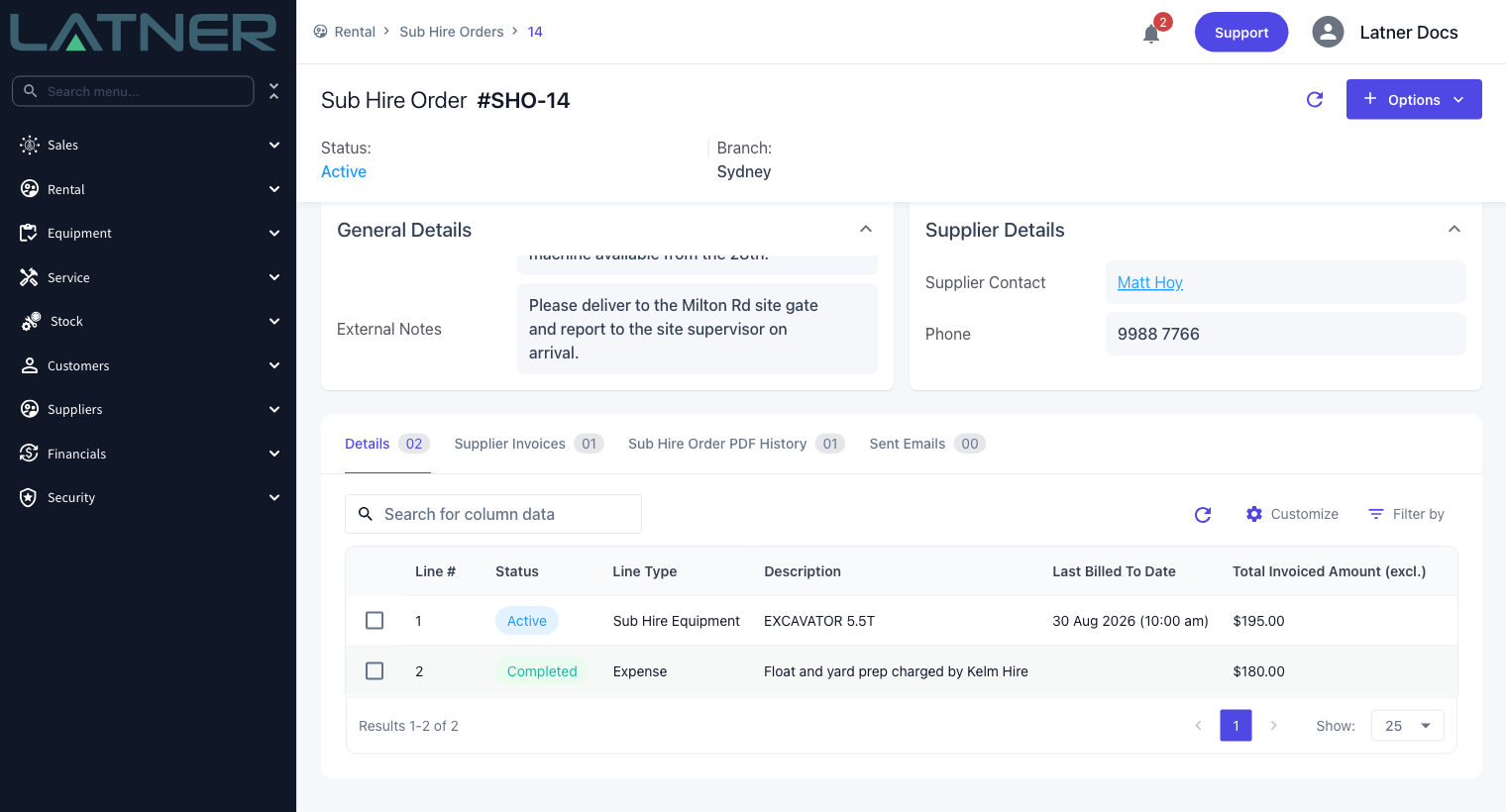
Each invoiced line on the order has its Last Billed To Date and Total Invoiced Amount (excl.) updated, so the next preview only picks up what is left.
-
Transport and expense lines move to Completed as soon as they are fully invoiced. A sub hire equipment line stays Active until the equipment has been returned and billed all the way to its off hire date.
-
The Sub Hire Order itself moves to Completed once no active lines remain on it.
-
The cost flows through to the Sub Hire Profitability dashboard, where it is compared against what you invoiced the customer for the same equipment.
Once a Sub Hire Order has been invoiced it can no longer be cancelled, and an invoiced expense line can no longer be edited or deleted. If the invoice was raised in error, cancel the Supplier Invoice: that puts the invoiced lines back to Active and clears their invoiced totals, so the order can be worked on again.
FAQs
Watch the Demo
Prefer to watch it? Step through the same flow here.