
Creating a Supplier Invoice for a Purchase Order records the bill your supplier sends you against the order it belongs to, so the goods you receipted and the money you owe stay tied together.
Overview
A Purchase Order says what you asked for. A receipt says what turned up. The Supplier Invoice is the third piece - what you have actually been charged - and Latner builds it straight from the order so nobody has to retype a line.
-
The invoice is raised from the Purchase Order itself, so the supplier, site, contact and branch are all inherited and cannot be changed on the way through.
-
Latner writes one invoice line for every Purchase Order line that still has quantity left to invoice, carrying across the description, unit cost, purchase tax and line type.
-
By default only quantity that has been received gets invoiced. A setting can relax this so confirmed-but-not-yet-received quantity is invoiced too.
-
Each invoice line stays linked to the Purchase Order line it came from, and the order's Qty Invoiced goes up to match.
-
The new invoice is created in Open status. It is not posted to your accounting system until it is completed.
-
A Purchase Order can carry more than one Supplier Invoice - part-invoice it now, invoice the rest when the balance of the goods arrives.
Before You Begin
Check the following before you raise the invoice.
|
Requirement |
Where to Find It |
|---|---|
|
Create Supplier Invoice permission |
Security › Configuration › Permission Groups, under the Suppliers module |
|
Supplier Invoice screen permission |
Security › Configuration › Permission Groups, under the Suppliers module - needed to open the invoice once it is created |
|
A Purchase Order in Confirmed, Partly Received or Fully Received status |
Financials › Purchase Orders |
|
Allow Invoices for Unreceived Purchase Orders |
Security › Settings › Financials - controls whether unreceived quantity can be invoiced |
|
Default Supplier Payment Term |
Security › Settings › Suppliers - used to work out the invoice due date when the supplier has no payment term of its own |
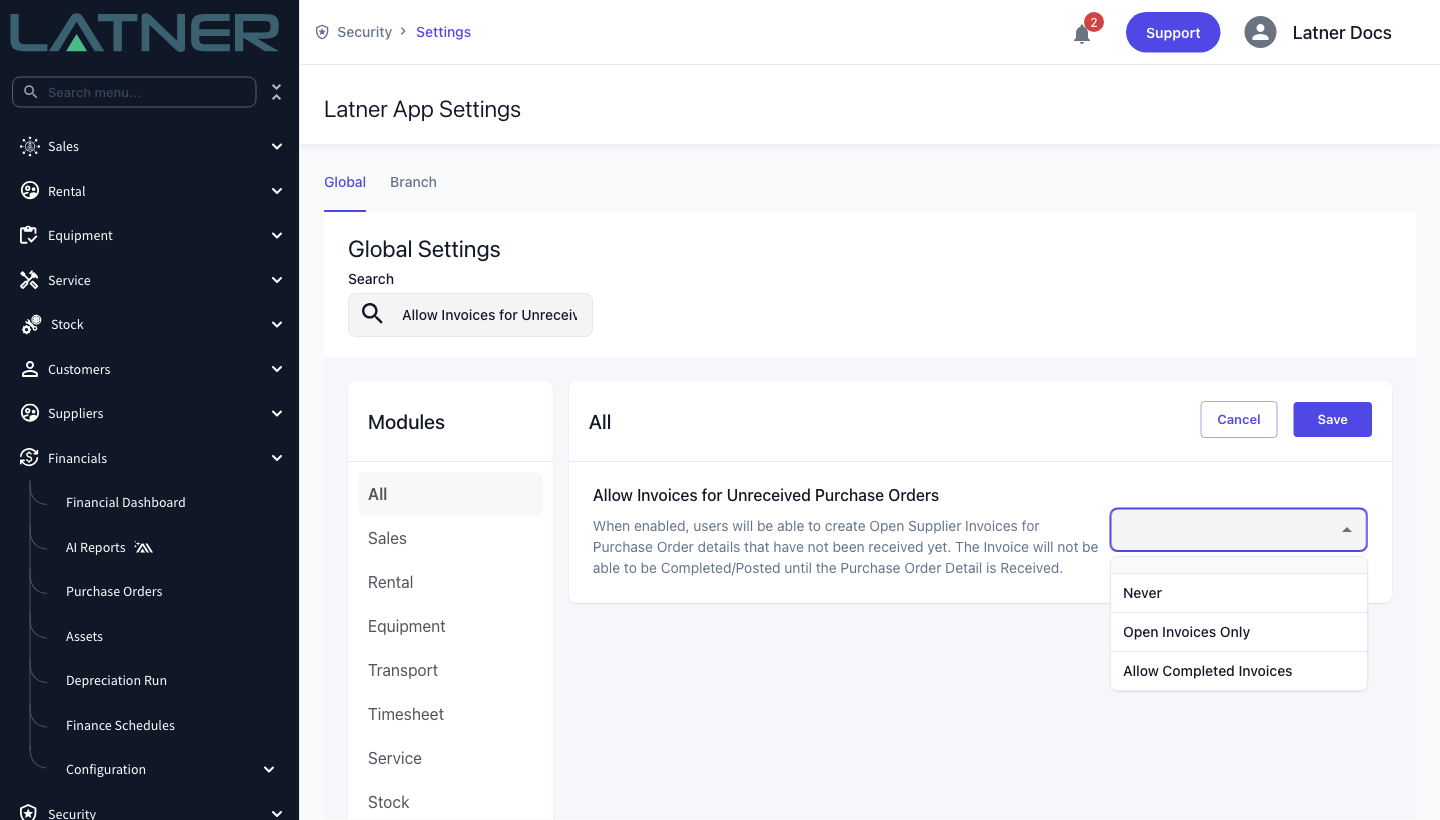
Allow Invoices for Unreceived Purchase Orders decides how much of the order you are allowed to bill. Left at Never, Latner only invoices quantity that has been receipted. Set to Open Invoices Only, you can raise the invoice against confirmed quantity before it arrives, but you cannot complete it until the goods are received. Set to Allow Completed Invoices, you can complete it as well, as long as you have not invoiced more than was ordered.
Creating the Supplier Invoice
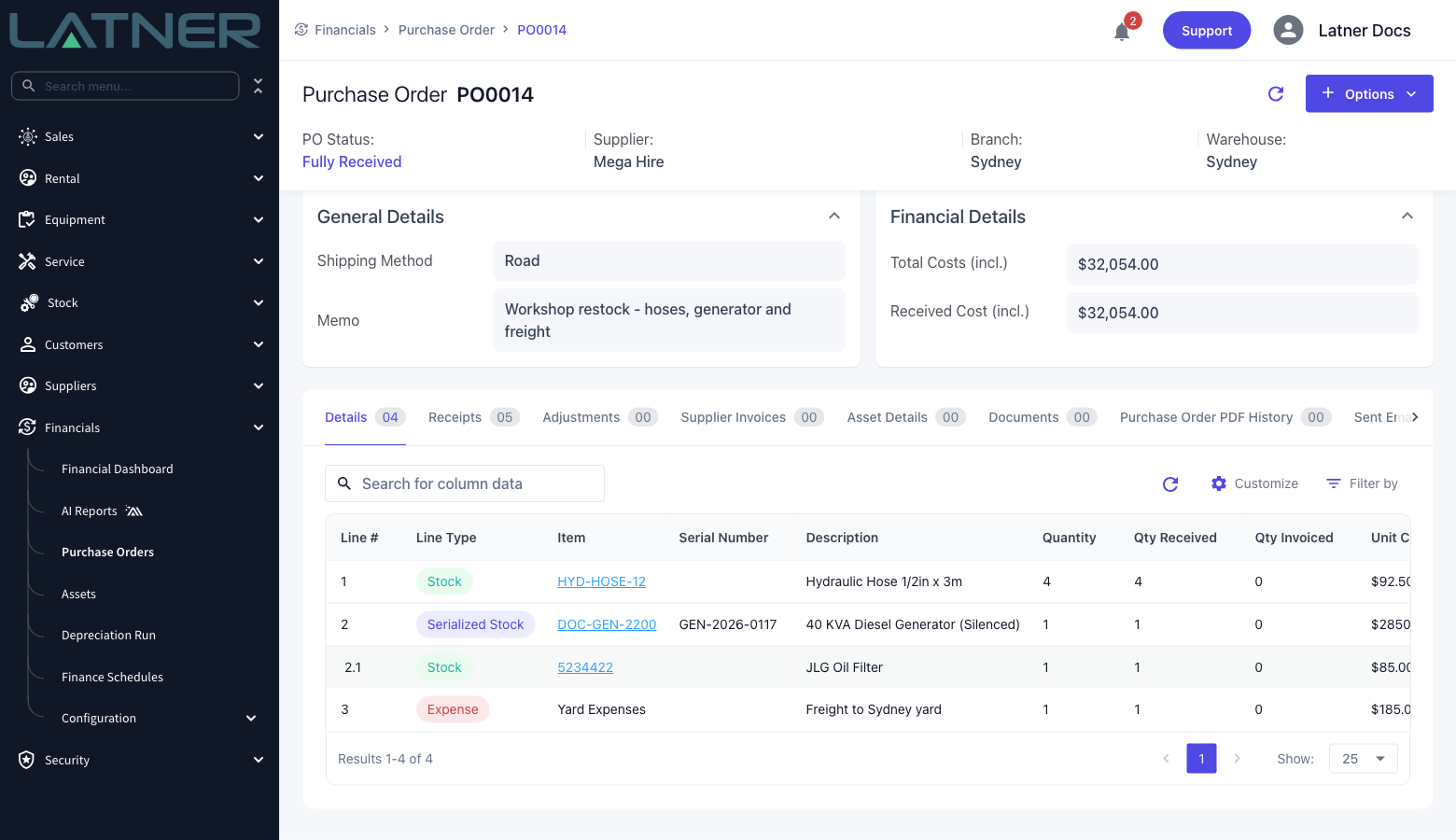
Step 1 - Open the Purchase Order
Go to Financials › Purchase Orders and open the order you want to invoice. Check the Details tab: the lines you are about to be billed for should show a Qty Received higher than their Qty Invoiced. Those are the lines Latner will pick up.
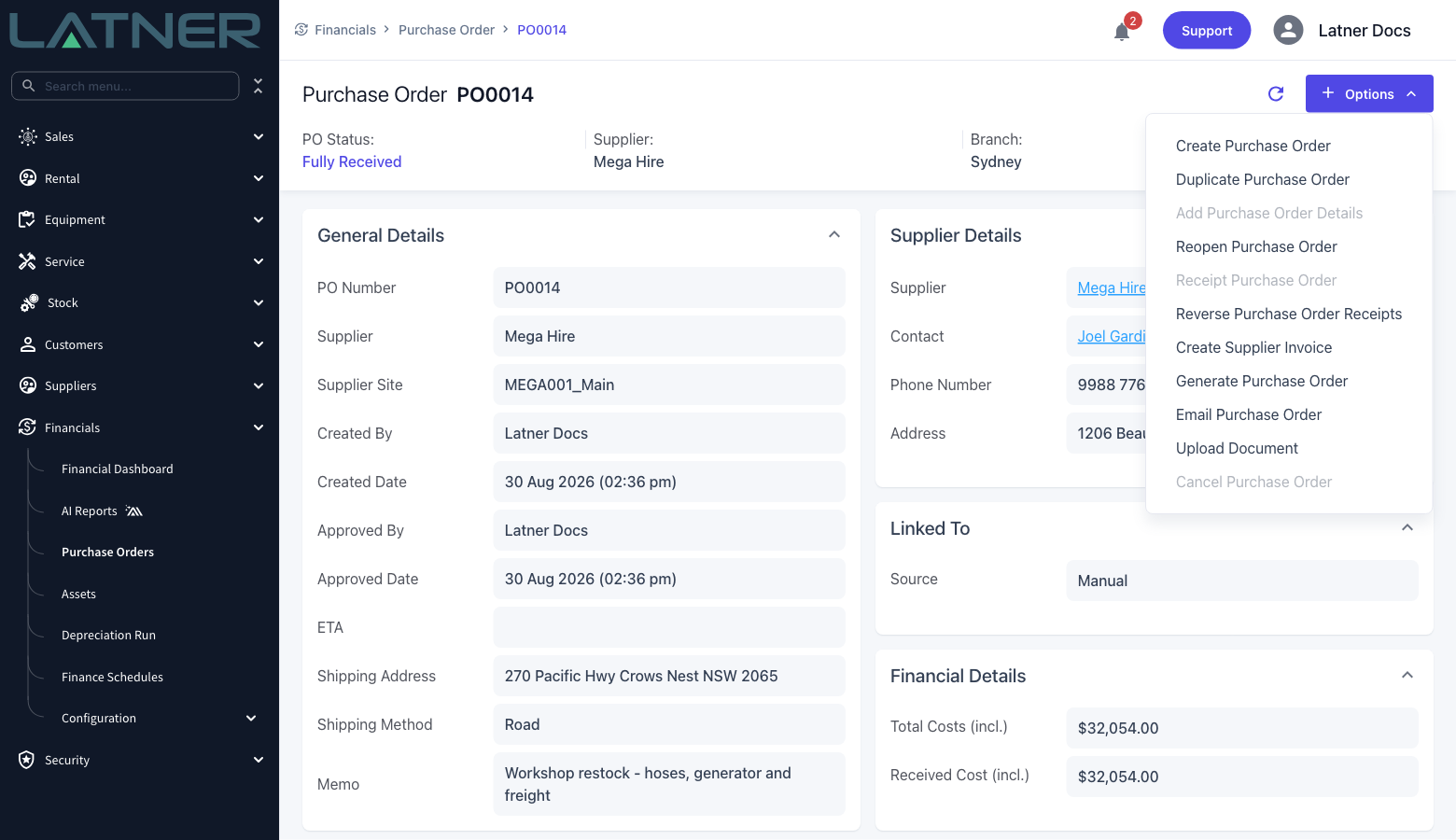
Step 2 - Choose Create Supplier Invoice
Select Options › Create Supplier Invoice. The option only appears once the order is Confirmed, Partly Received or Fully Received, and it is greyed out with the tooltip No details to be invoiced when there is nothing left to bill.
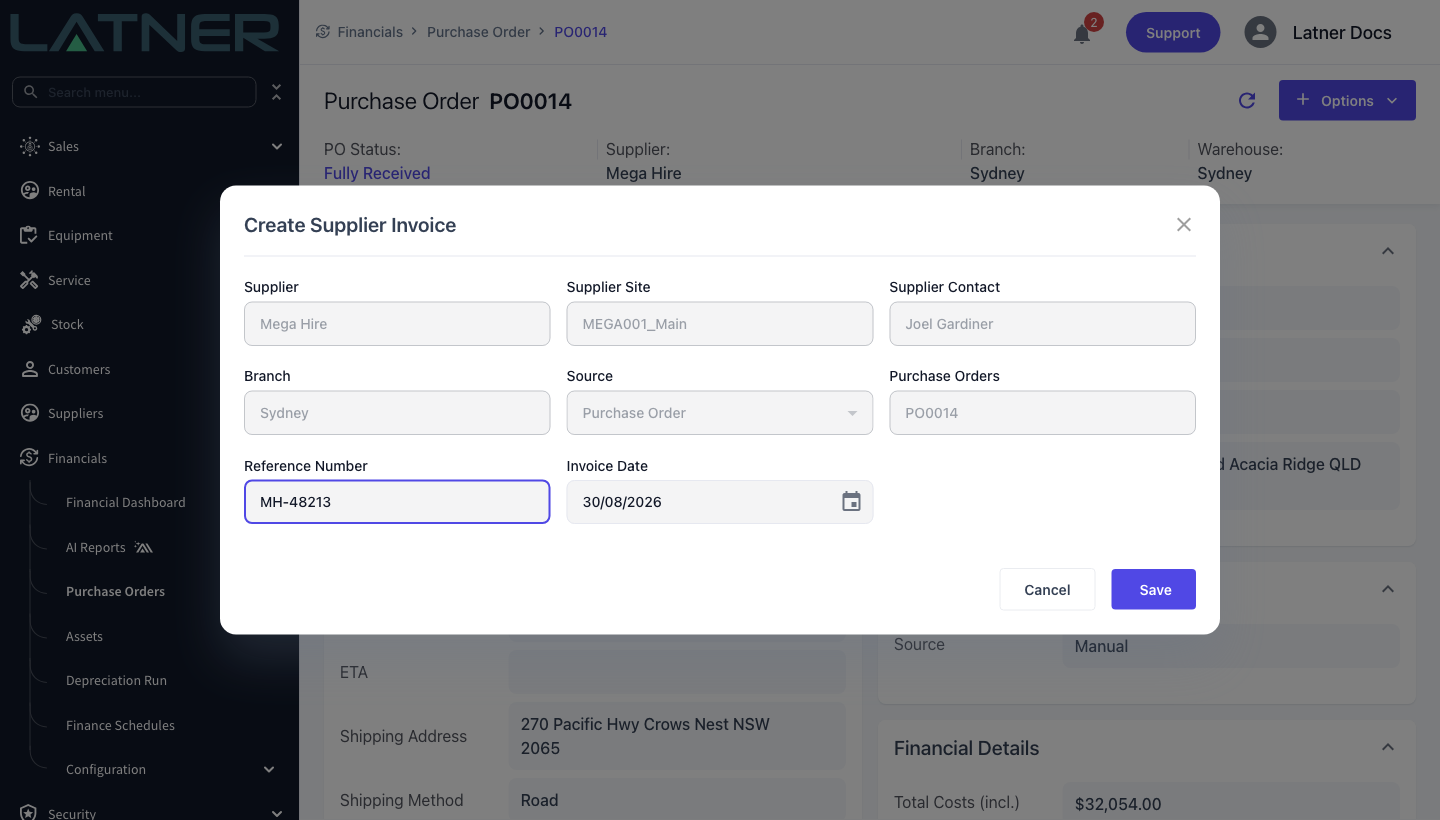
Step 3 - Complete the invoice header
Most of the form is filled in for you from the order and locked, so there is very little to type.
-
Supplier, Supplier Site, Supplier Contact, Branch - inherited from the Purchase Order and read only.
-
Source - fixed to Purchase Order.
-
Purchase Orders - the order you started from, also read only.
-
Reference Number - the supplier's own invoice number. Optional, but worth entering: it is what you will search on later, and Latner uses it to stop the same bill being entered twice.
-
Invoice Date - defaults to today. Change it to the date printed on the supplier's invoice; the due date is calculated from it.
Step 4 - Save
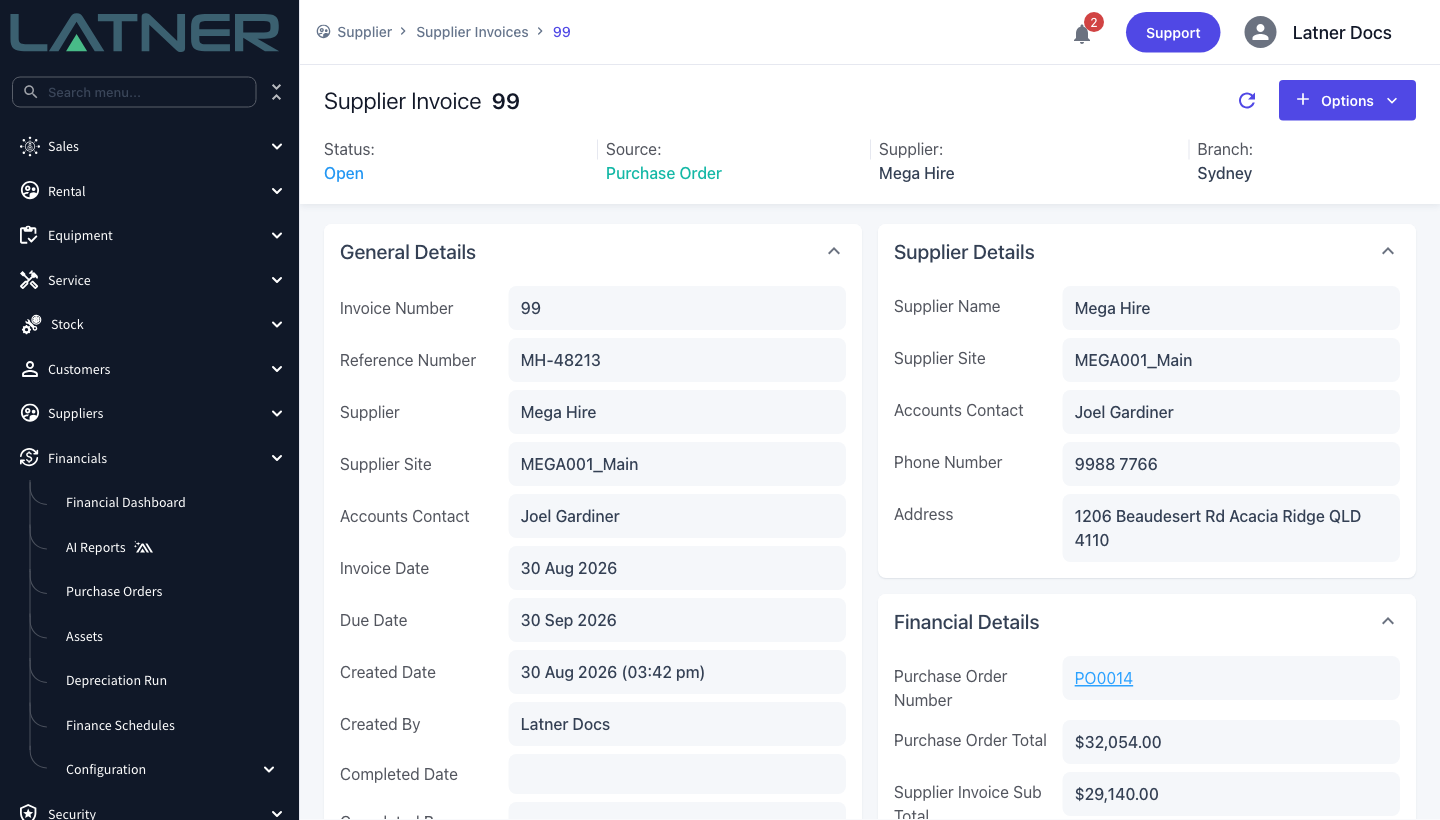
Select Save. Latner creates the invoice, builds its lines from the order and takes you straight to the new Supplier Invoice.
After Creation
-
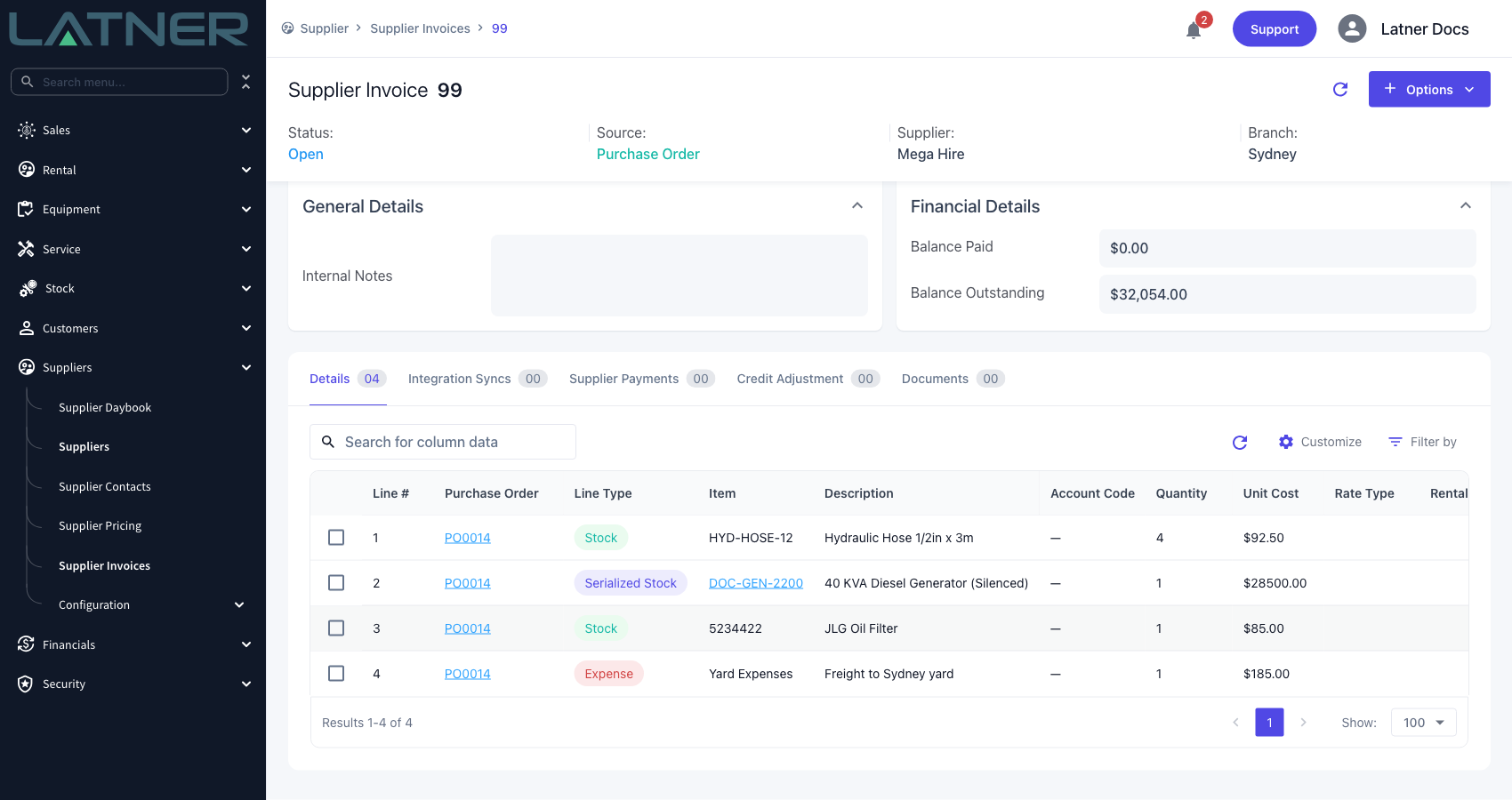
The invoice is created in Open status with a Source of Purchase Order.
-
Its Due Date comes from the supplier's payment terms, falling back to the Default Supplier Payment Term setting.
-
The Details tab holds one line per invoiced Purchase Order line, renumbered from 1, each showing the Purchase Order it came from. Stock and expense lines that originated on a Work Order are recorded as separate line types so they can be reported on - and given their own account code - separately.
-
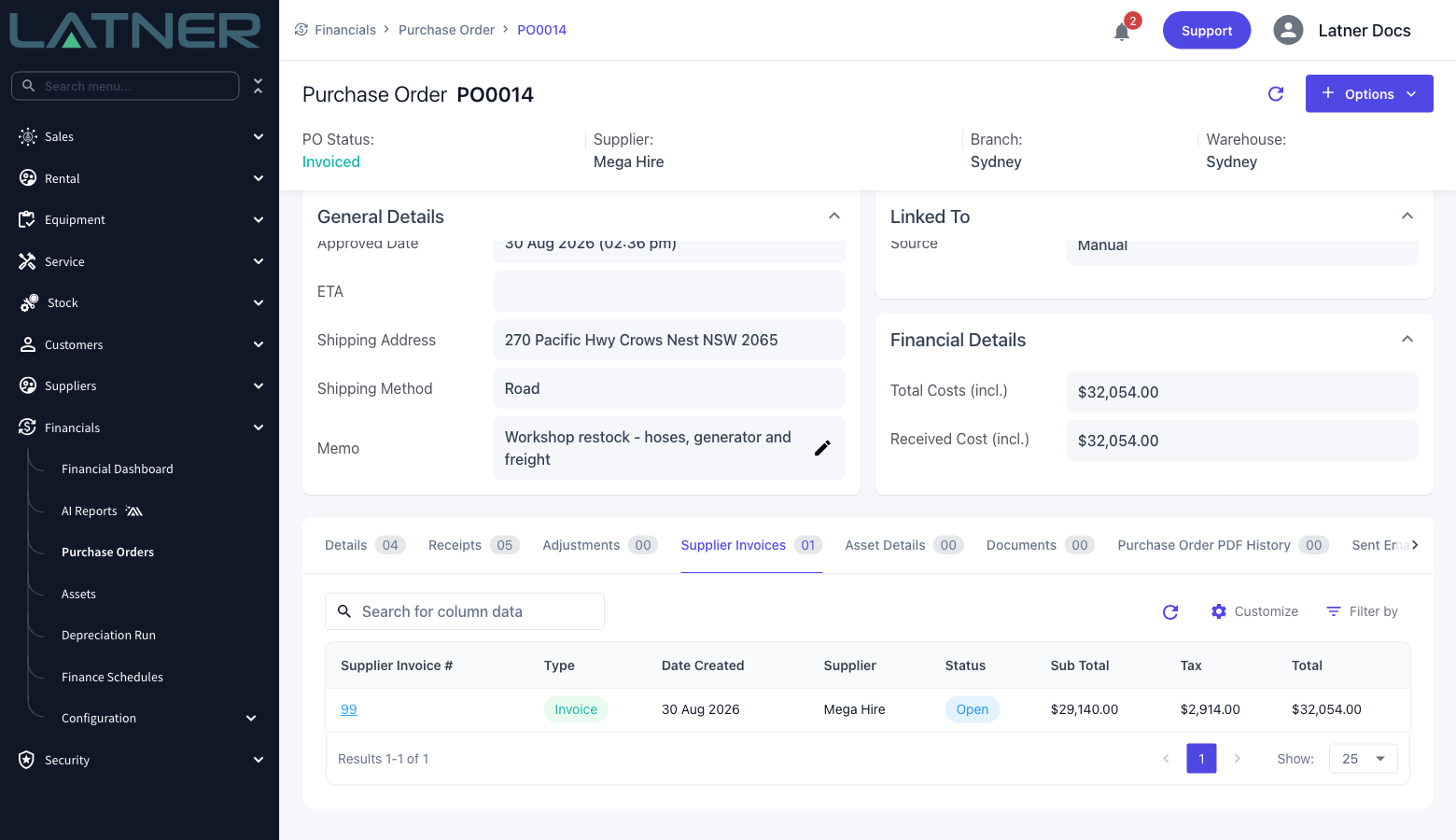
The Purchase Order's Qty Invoiced is increased by the quantity billed, and the invoice appears on its Supplier Invoices tab.
-
Once every line on the order is fully received and fully invoiced, the order moves to Invoiced. A partly received order stays Partly Received until the rest of the goods arrive.
-
The invoice is not sent anywhere yet. Completing it is what pushes it to an active accounting integration - see How to Approve and Complete Supplier Invoice.
An Open invoice can still be corrected - you can edit a line's quantity, delete a line, or cancel the whole invoice, and the Purchase Order's Qty Invoiced is wound back to match. Once the invoice is Completed that door closes. If a completed invoice turns out to be wrong, raise a credit note against it rather than trying to unpick it.
FAQs
Watch the Demo
Prefer to watch it? Step through the same flow here.