
Reopening a purchase order takes a confirmed order back to Open status so you can correct a quantity, a cost or a missing line before the goods arrive, then confirm it again.
Overview
A purchase order stops being editable the moment it is confirmed, and that is deliberate - once the order has gone to the supplier, Latner treats the lines as a commitment. Reopening is the controlled way to unwind that commitment when something on the order turns out to be wrong.
-
Reopen Purchase Order sets the status back to Open and clears the Approved By and Approved Date fields.
-
It is available on purchase orders in Pending Approval, Confirmed, Partly Received and Fully Received status.
-
It is not available on an Open order (there is nothing to reopen), it is greyed out on an Invoiced order, and a Cancelled order cannot be reopened.
-
Reopening releases the outstanding backorder that confirming the order created against your stock, and removes any serialised stock items that were still on order.
-
Quantities that have already been received are kept. Reopening does not reverse a receipt.
-
Nothing else about the order changes - the PO number, supplier, lines, documents and receipt history all stay as they are.
Before You Begin
Reopening is an option on the purchase order itself, so there is nothing to switch on first - you just need the right permission and an order in a status that allows it.
|
Requirement |
Where to Find It |
|---|---|
|
Purchase Orders permission |
Security › Configuration › Permission Groups › <group> › Financials › Screen. Lets the user search and view purchase orders. |
|
Confirm Purchase Order permission |
Security › Configuration › Permission Groups › <group> › Financials › Option. The same permission covers confirming, reopening and cancelling. |
|
A purchase order in the right status |
Financials › Purchase Orders. The order must be Pending Approval, Confirmed, Partly Received or Fully Received. |
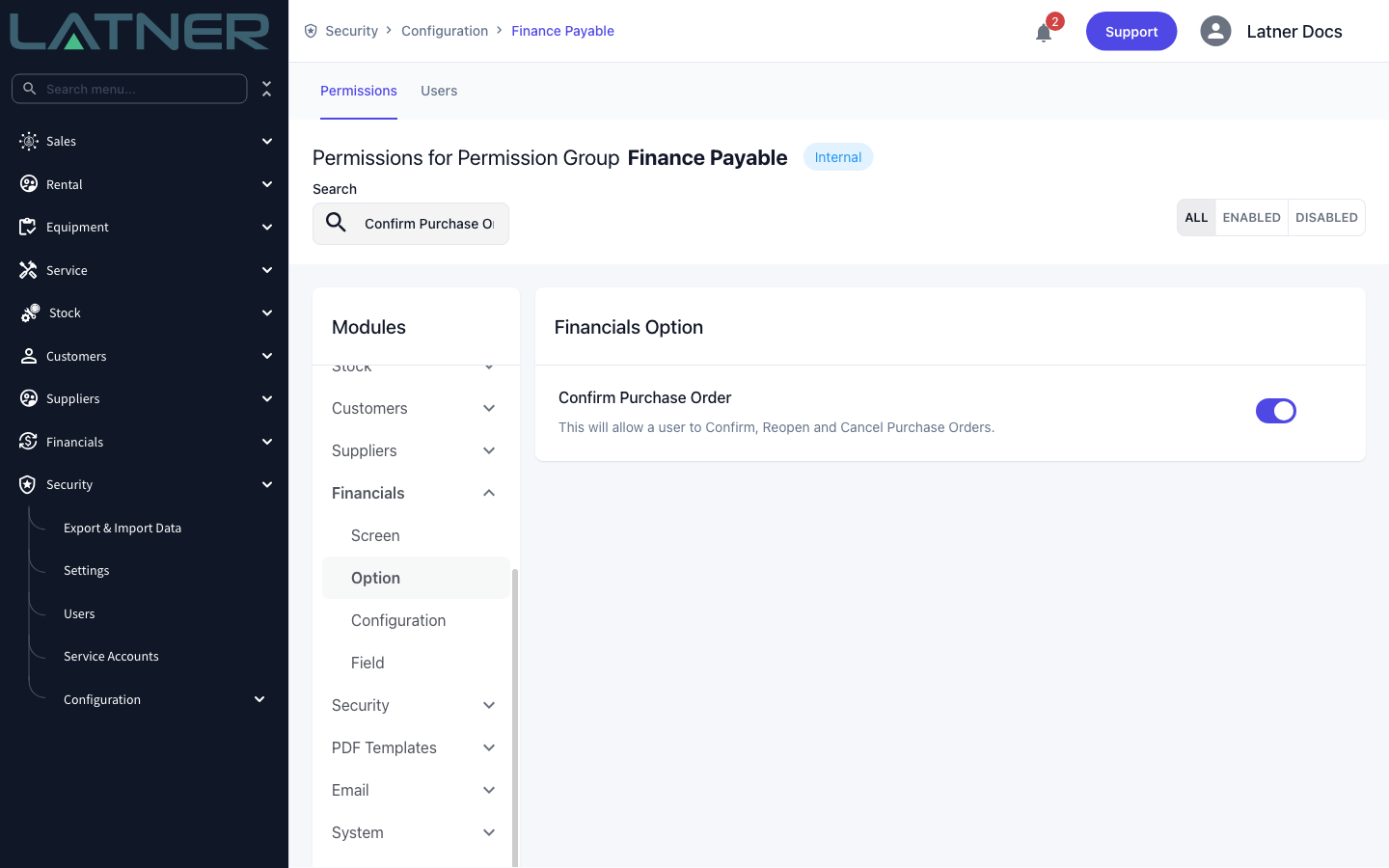
There is no separate "Reopen Purchase Order" permission. If a user can confirm purchase orders, they can also reopen and cancel them. If you need to stop someone reopening orders, you have to take Confirm Purchase Order off their permission group entirely.
Which Correction to Use
Reopening is only one way to correct a purchase order, and the right one depends on how far the order has got. Find the order's stage first, then use the correction for that stage.
|
Stage of the order |
Correction to use |
|---|---|
|
Confirmed, nothing received yet |
Reopen it with Options › Reopen Purchase Order, fix the lines, then confirm it again - the steps below. A purchase order raised against the wrong work order (and so the wrong machine) cannot be relinked - the work order link is fixed when the order is created. Cancel it with Options › Cancel Purchase Order and raise a new one from the right work order, as in How to Raise a Purchase Order From a Work Order. |
|
Partly Received or Fully Received |
Reverse the receipt, as in How to Reverse Receipt for a Purchase Order - but only when the receipt should not have happened (the goods were booked in by mistake or miscounted) or the goods are going back to the supplier. Never reverse a genuine receipt because the plan changed. The receipt records goods that really arrived, so it stays. |
|
Invoiced |
The order stays closed - Reopen Purchase Order is greyed out. Correct the supplier invoice instead:
Then, if a line still has to change, reopen the order. A line can only be deleted once nothing on it is received or invoiced. |
Reopening a Purchase Order
Step 1 - Open the purchase order
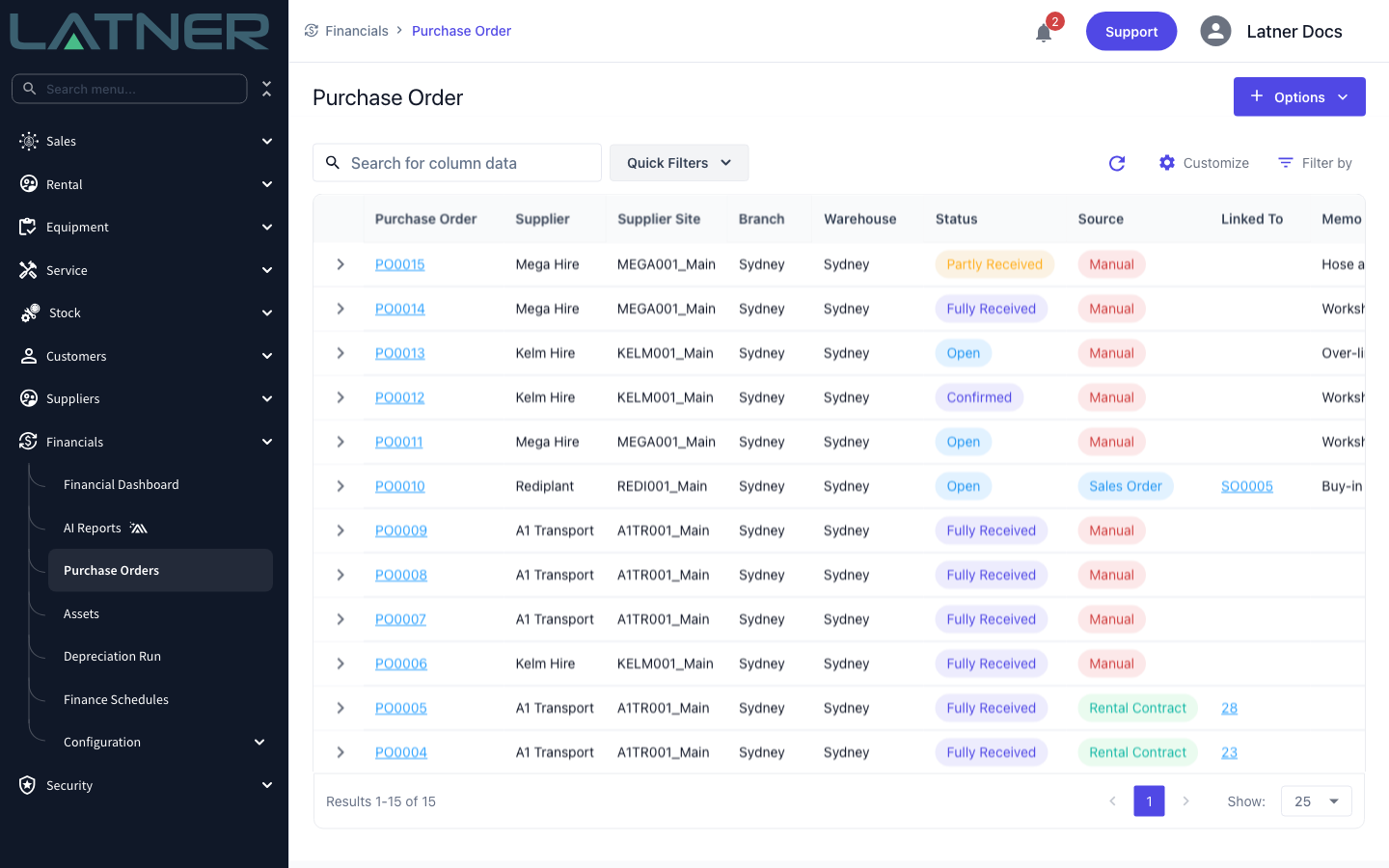
Go to Financials › Purchase Orders and click the purchase order number you need to amend. The Status column tells you at a glance which orders can be reopened.
Step 2 - Check the status and what is locked
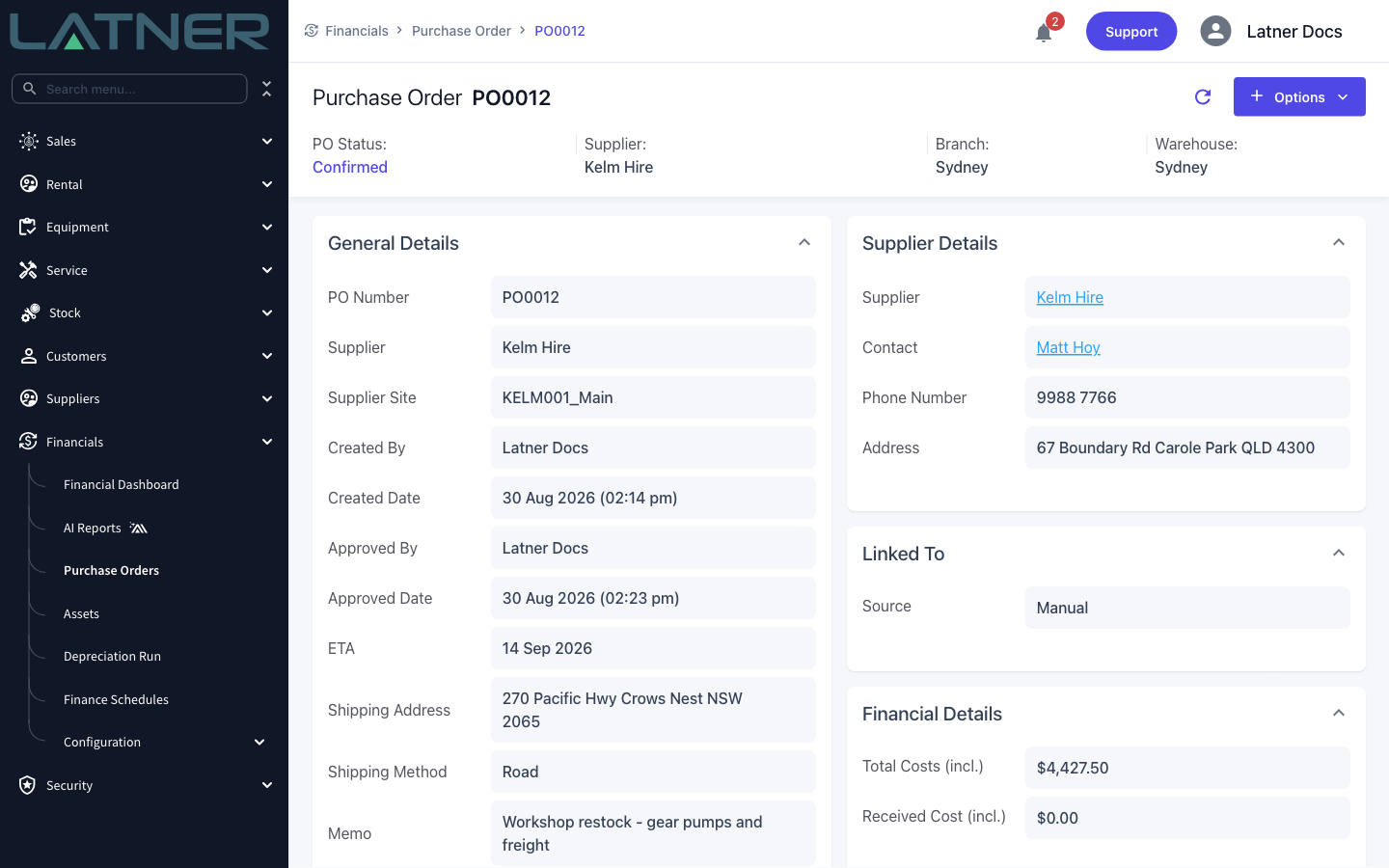
The header shows PO Status, and General Details shows who confirmed the order and when. These are the two fields reopening will clear.
-
PO Status - must be Pending Approval, Confirmed, Partly Received or Fully Received.
-
Approved By - the user who confirmed the order. Cleared on reopen.
-
Approved Date - when it was confirmed. Cleared on reopen.
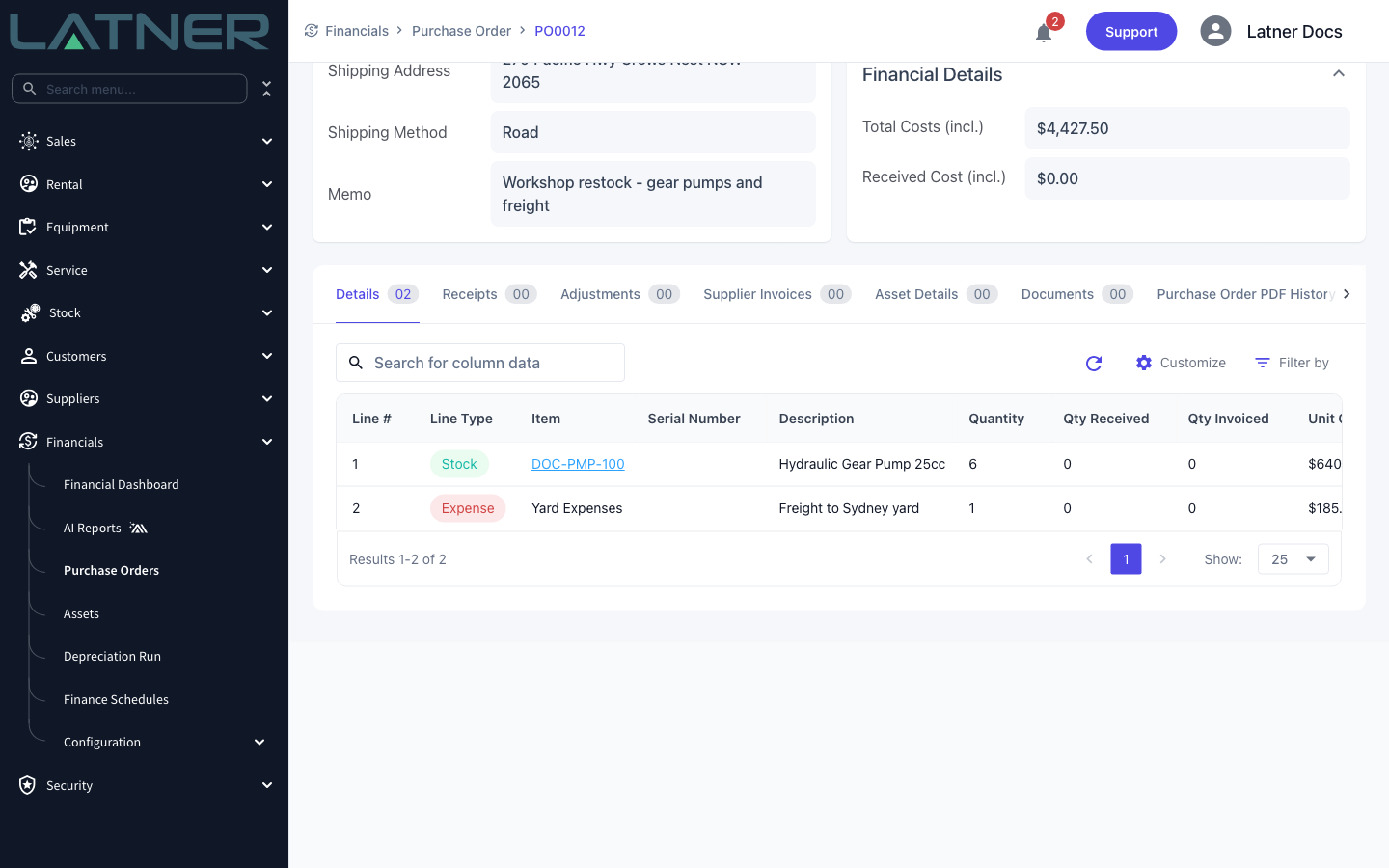
Scroll down to the Details tab and you will see why reopening matters. While the order is not Open, the lines have no selection column, so there is no way to edit or delete one, and Add Purchase Order Details is greyed out on the Options menu.
Step 3 - Choose Reopen Purchase Order
Click Options in the top right, then Reopen Purchase Order.
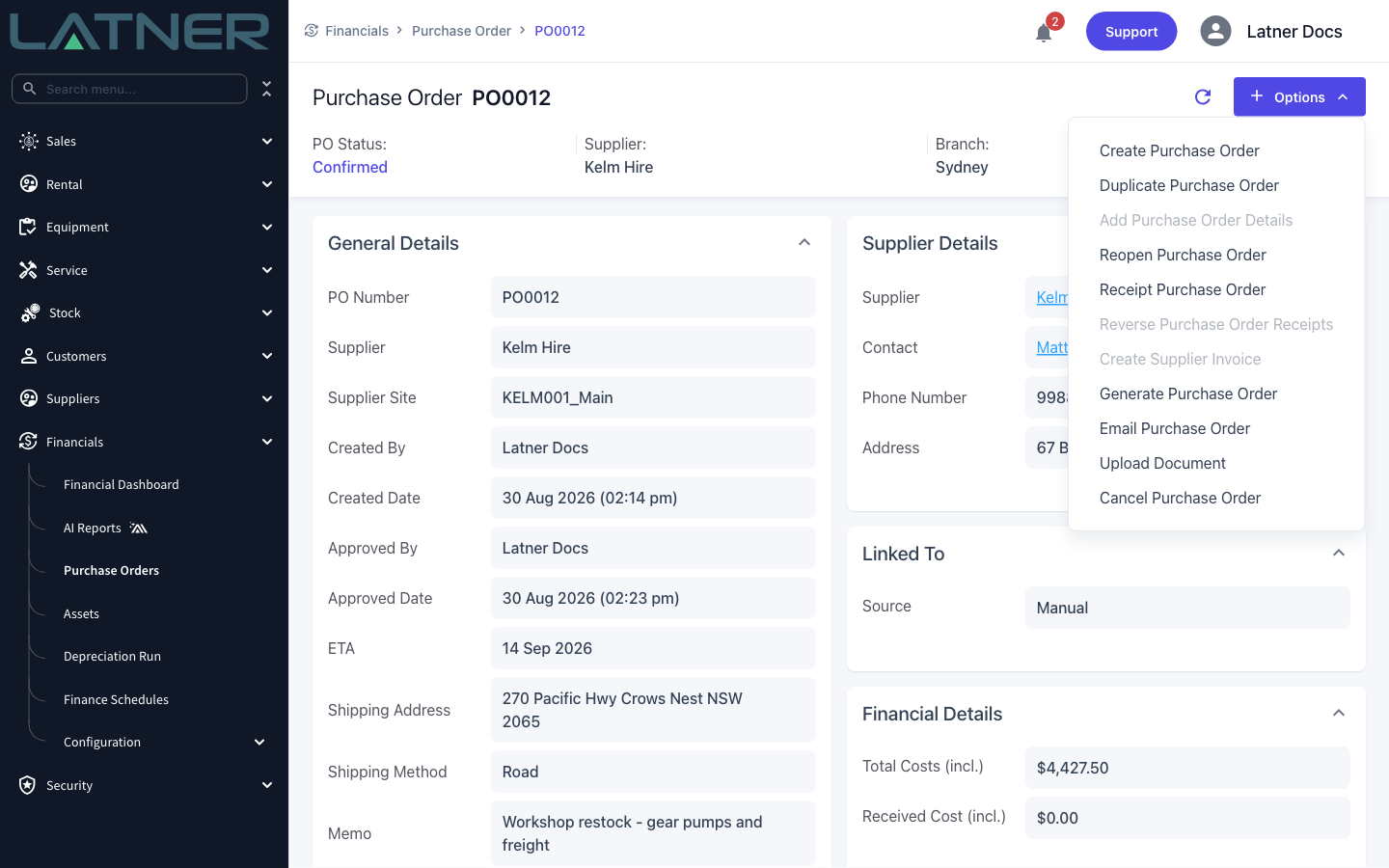
Reopening happens as soon as you click - there is no confirmation prompt and no undo. If you only wanted to look at the order, close the menu instead.
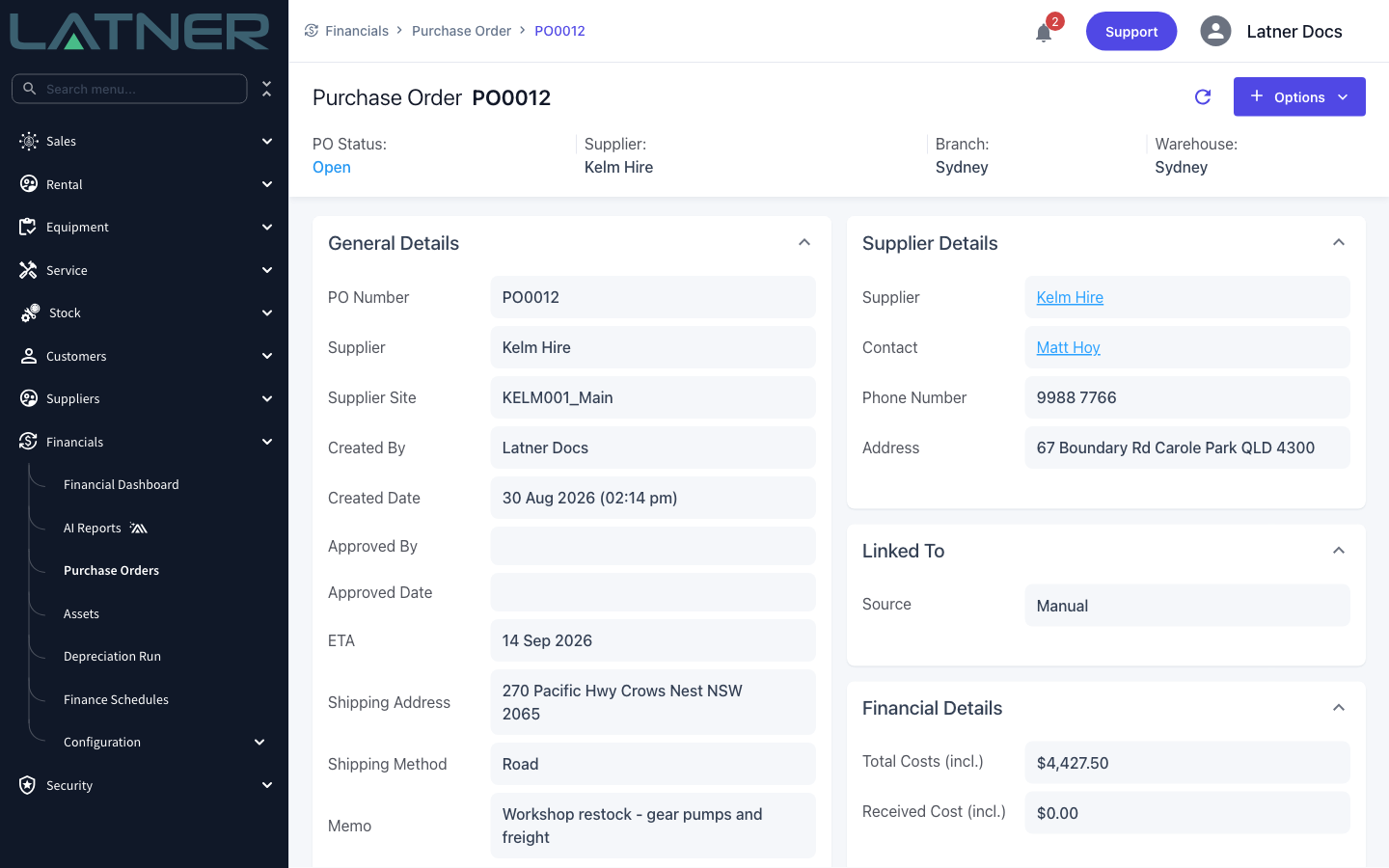
Step 4 - Check the order is back to Open
Latner confirms with a Purchase Order Reopened message. The header now reads Open, and Approved By and Approved Date are empty.
Step 5 - Make your amendments
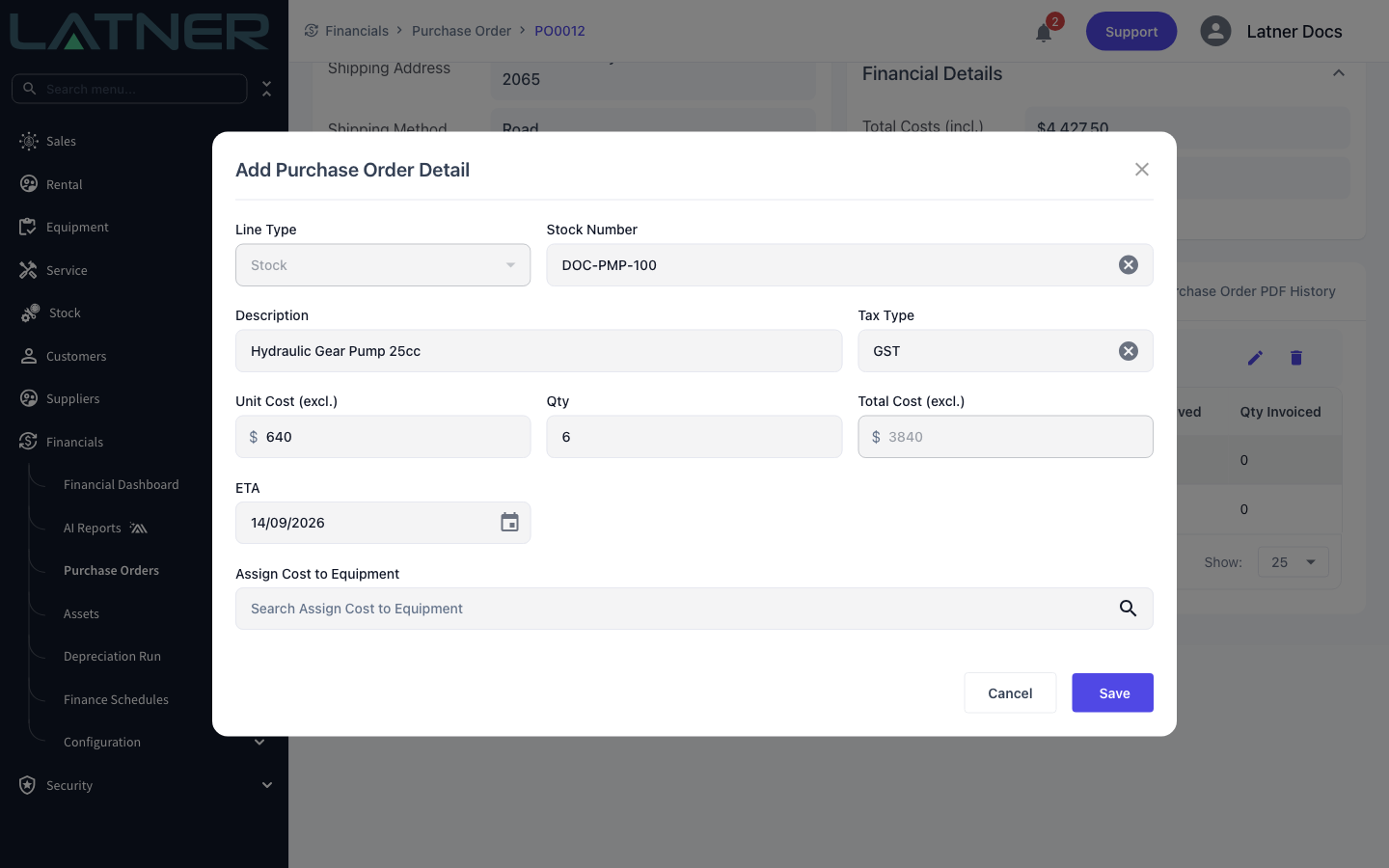
With the order Open, the Details tab gets its selection column back. Tick a line and use the pencil icon to edit it, or the bin icon to delete it. Options › Add Purchase Order Details is available again for new lines.
-
Qty - editable again, but it cannot be set lower than the quantity already received or invoiced on that line.
-
Unit Cost (excl.) - editable again, but not on a line that has already been invoiced.
-
Description, Tax Type, ETA and Assign Cost to Equipment - editable as normal.
Step 6 - Confirm the purchase order again
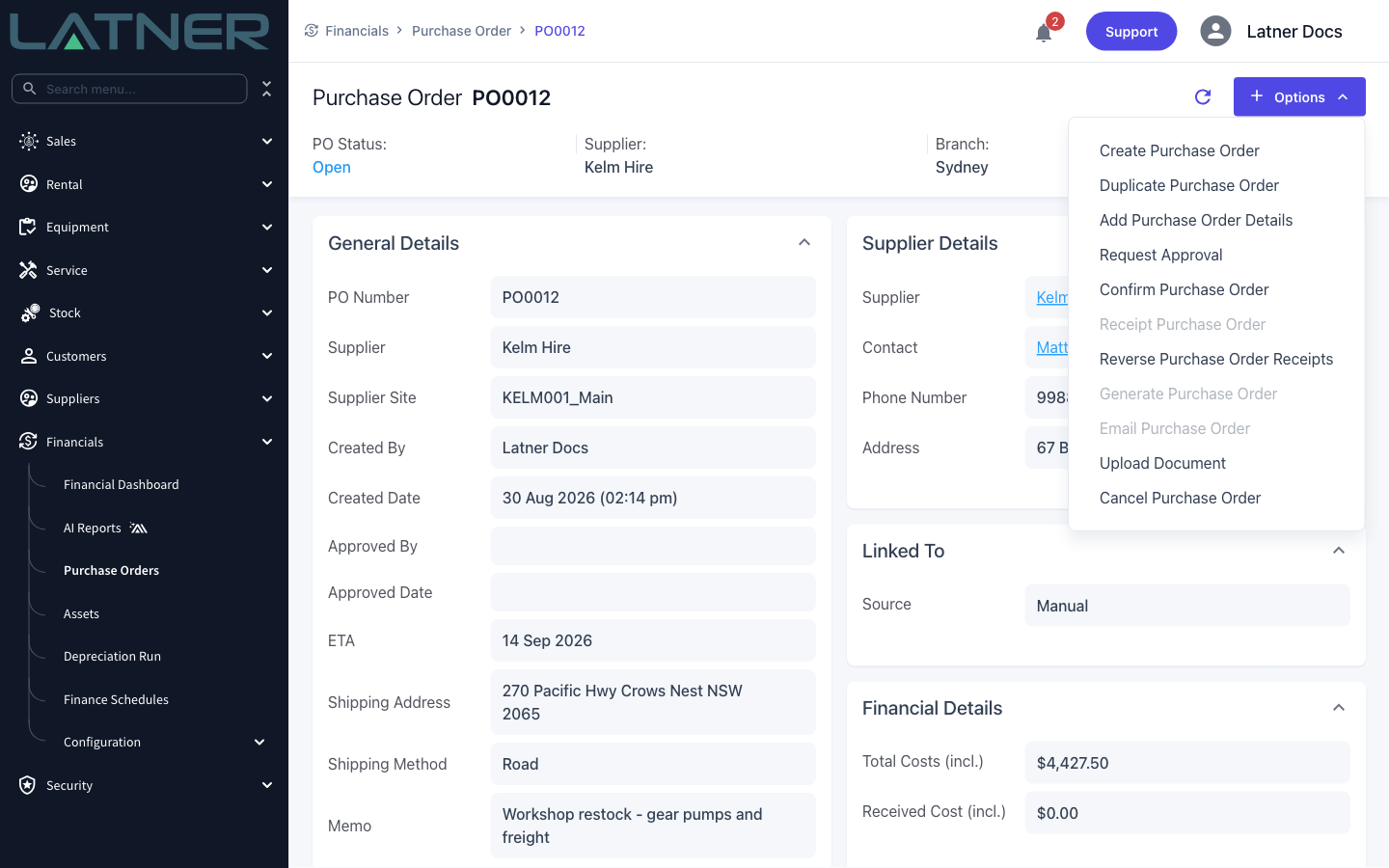
An Open purchase order is not on order with anyone, so finish the job: choose Options › Confirm Purchase Order, or Options › Request Approval if it has to go back through an approver first. Confirming stamps Approved By and Approved Date with your name and reinstates the backorder against your stock.
Reopening an Order That Has Been Received
You can reopen a Partly Received or Fully Received purchase order, and Latner protects everything that has already come in. The Options menu shows a tooltip warning about received quantities, but the option itself stays available.
-
Received quantities, receipts and stock movements are untouched, and Received Cost (incl.) stays as it was.
-
Only the outstanding balance is released - if 4 of 6 units have been received, 2 come off backorder.
-
Serialised stock items that have already been received are kept. Only the ones still sitting at Ordered status are removed.
-
You still cannot reduce a line's quantity below what has already been received.
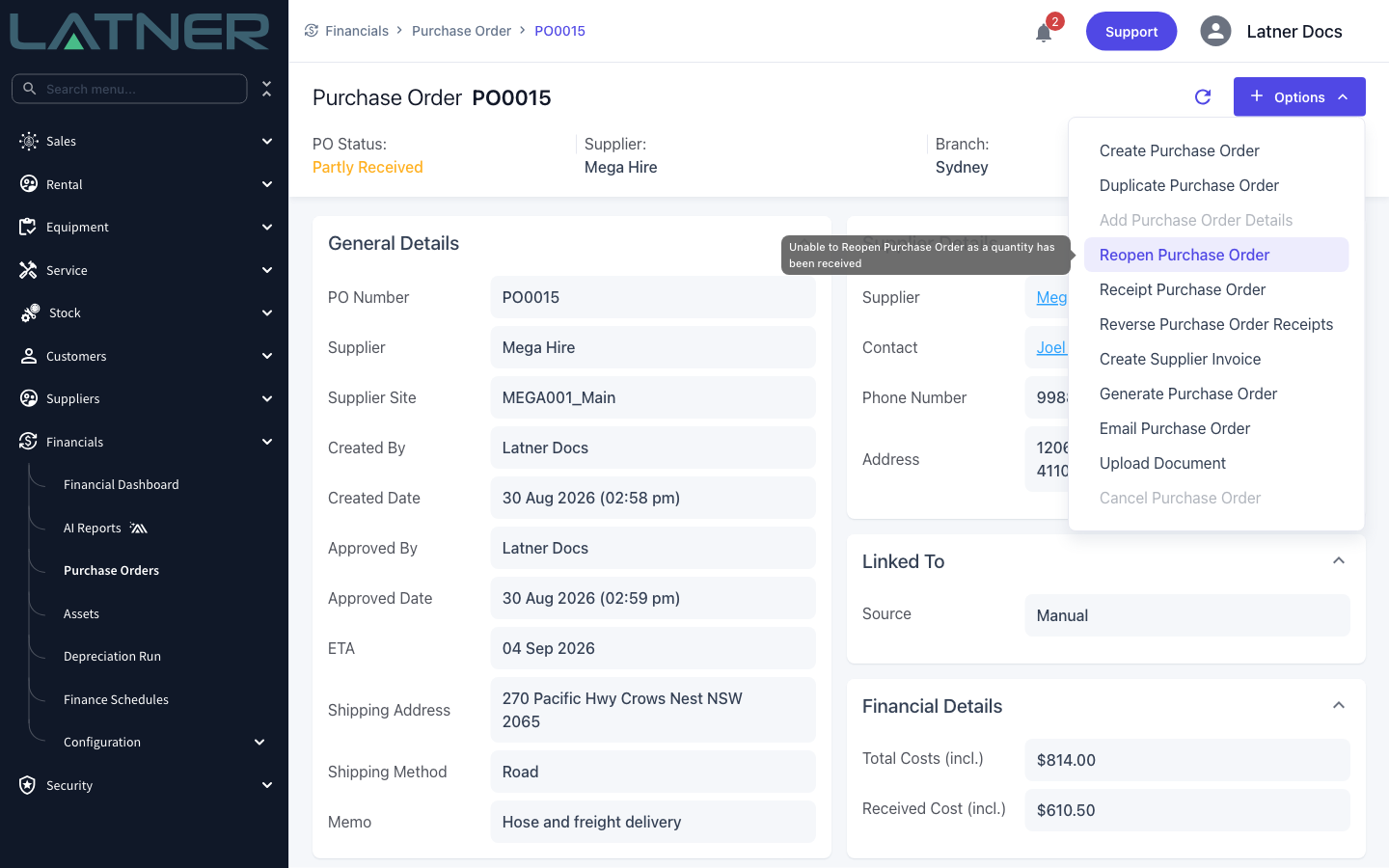
Reopening is not how you undo a receipt. If the goods were receipted in error, use Options › Reverse Purchase Order Receipts instead - that is the action that puts the quantity back.
After Reopening
-
The order shows as Open on the Purchase Order list, and Approved By and Approved Date are blank on the header.
-
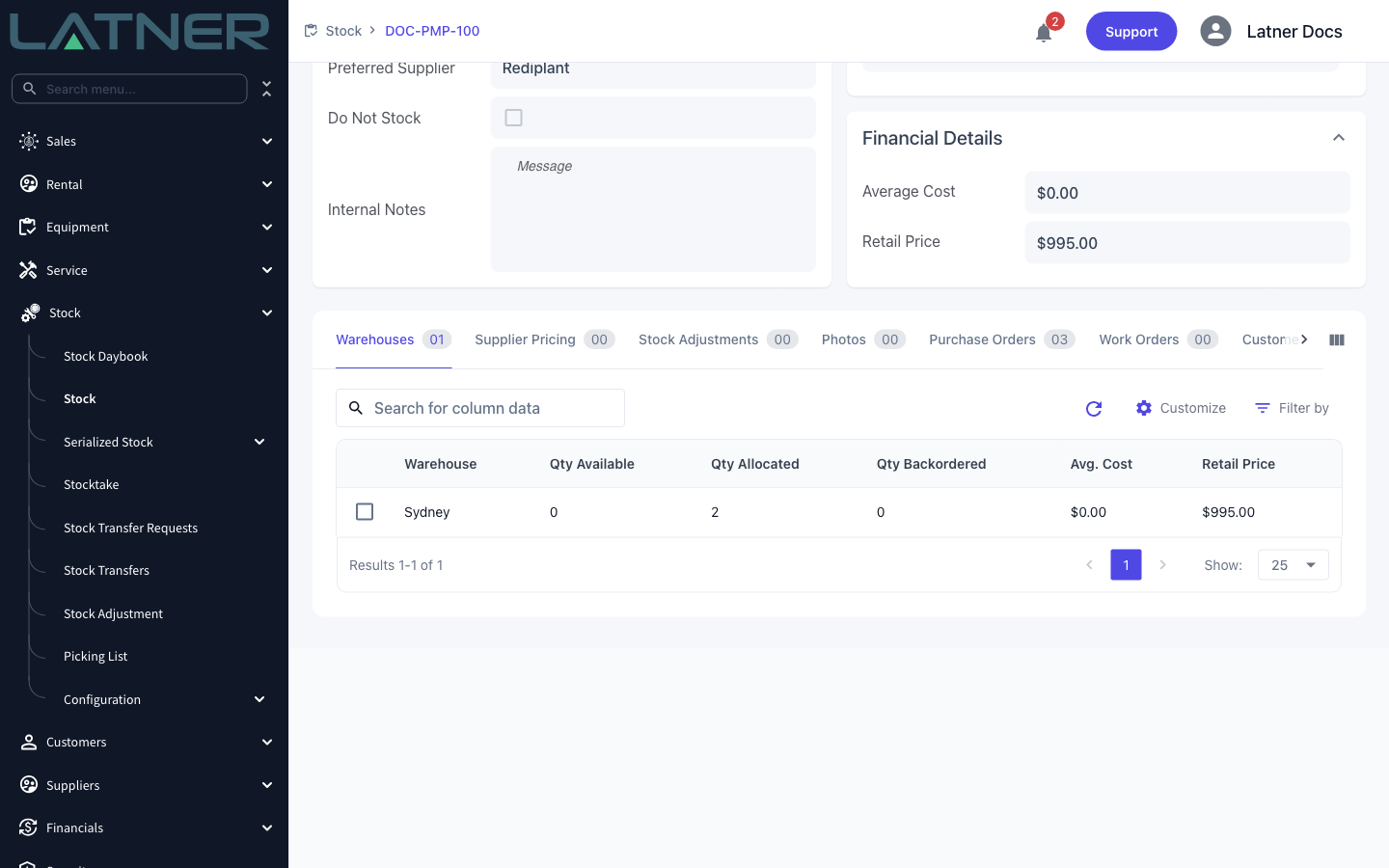
For each stock line, the outstanding quantity comes off Qty Backordered on the stock item's Warehouses tab, and the warehouse Avg. Cost is recalculated without that backordered value. Both are restored when you confirm the order again.
-
Serialised stock items created at confirmation that are still at Ordered status are deleted. Confirming again recreates them for whatever is still outstanding.
-
Receipt Purchase Order is unavailable until the order is confirmed again, so the goods cannot be booked in while it sits Open.
-
Generating and emailing the purchase order PDF are both greyed out while the order is Open. Previously generated PDFs stay on the Purchase Order PDF History tab.
A reopened purchase order is no longer approved, so nobody downstream is expecting the goods. Reopen it, amend it and confirm it again in one sitting - an order left sitting in Open cannot be receipted, and the supplier has no idea the order changed until you resend it.
FAQs
Watch the Demo
Prefer to watch it? Step through the same flow here.