
Receipting a Purchase Order records what has physically turned up from your supplier, so stock comes on hand, new equipment and assets are created, and the order becomes ready to invoice.
Overview
A Purchase Order tells your supplier what you want. Receipting tells Latner what actually arrived. Deliveries rarely land in one piece, so you can receipt an order as many times as you need to, a few lines at a time.
-
Receipting is done line by line. You enter a quantity against each line that has arrived and leave the rest at zero.
-
Each time you receipt, Latner creates its own numbered Purchase Order Receipt record, dated and stamped with your name.
-
The Purchase Order sits at Partly Received while anything is still outstanding, and moves to Fully Received once every line has been received in full.
-
What receipting does depends on the line type. Stock comes off backorder and onto hand, serialized stock items move to In Stock, and equipment and asset records are created for you.
-
By default nothing can be invoiced until it has been received, so receipting is the step that unlocks the supplier invoice.
Before You Begin
You'll need the following before you can receipt an order.
|
Requirement |
Where to Find It |
|---|---|
|
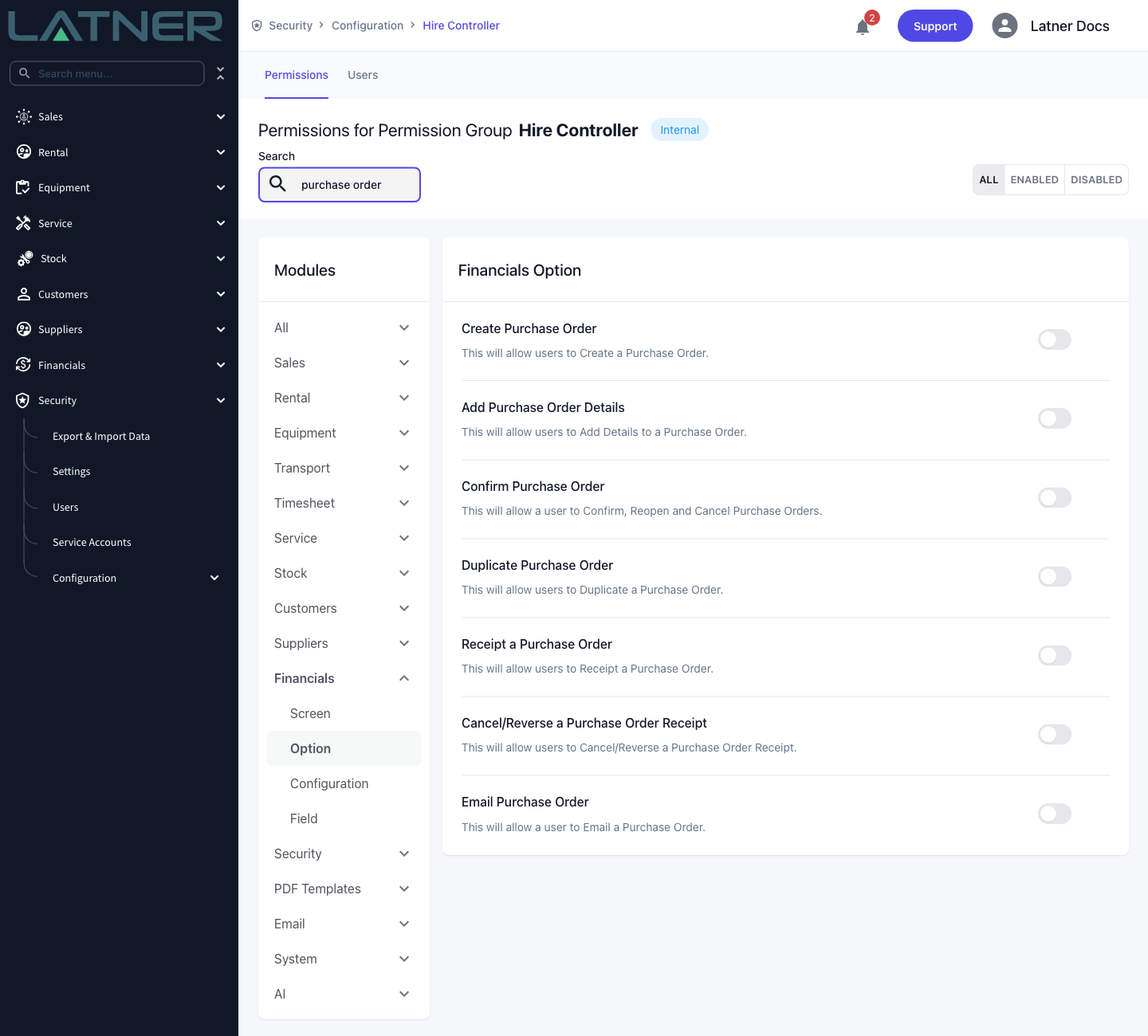
Purchase Orders permission |
Security › Configuration › Permission Groups › Financials › Screen |
|
Receipt a Purchase Order permission |
Security › Configuration › Permission Groups › Financials › Option |
|
A Purchase Order at Confirmed or Partly Received status |
Financials › Purchase Orders |
No system setting has to be turned on to receipt an order, but the Purchase Order does have to be confirmed first. Receipt Purchase Order stays greyed out while the order is Open or Pending Approval.
Receipting the Purchase Order
Step 1 - Open the Purchase Order
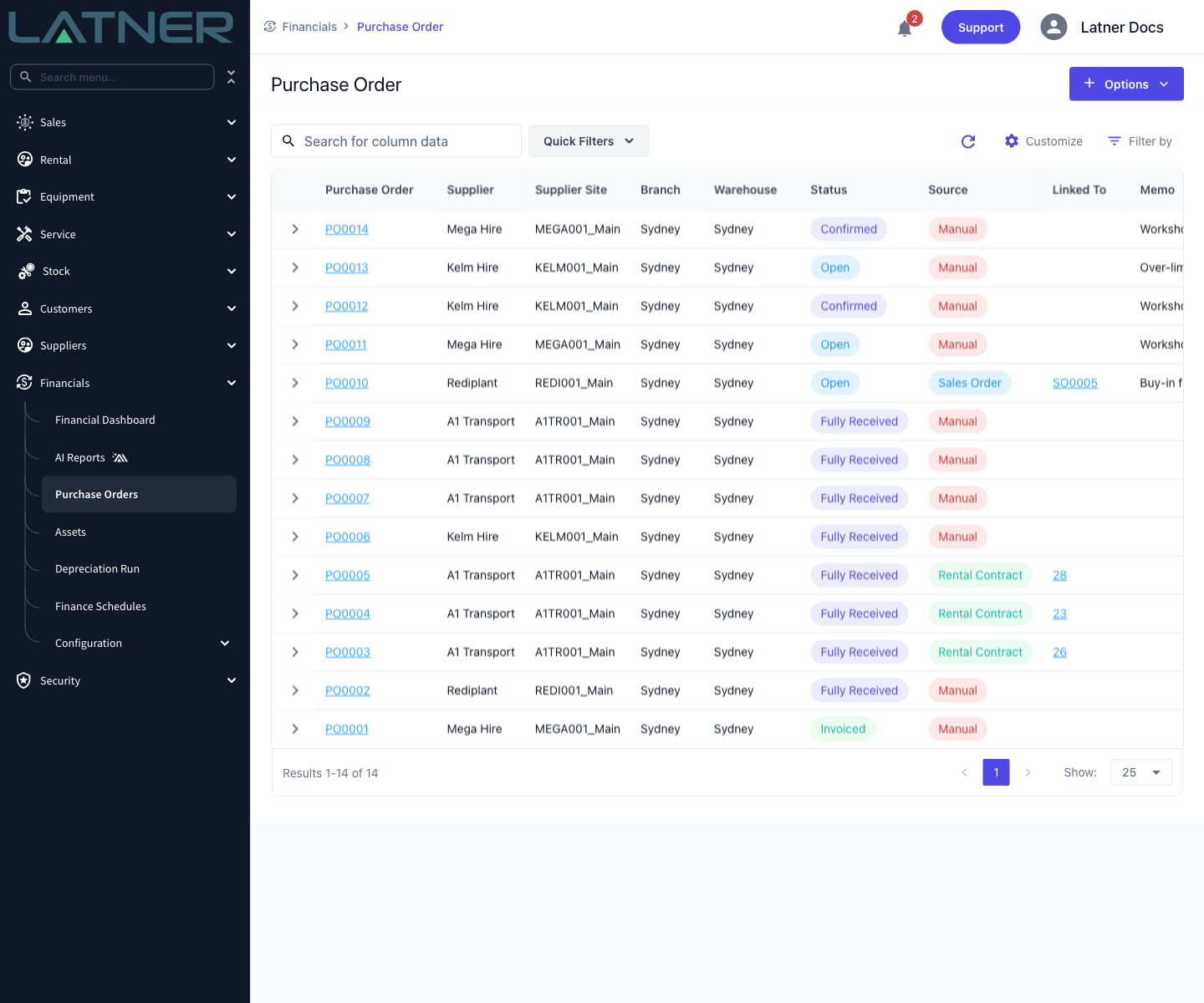
Go to Financials › Purchase Orders and open the order the delivery belongs to. The Status column tells you at a glance which orders are ready to receipt.
Step 2 - Choose Receipt Purchase Order
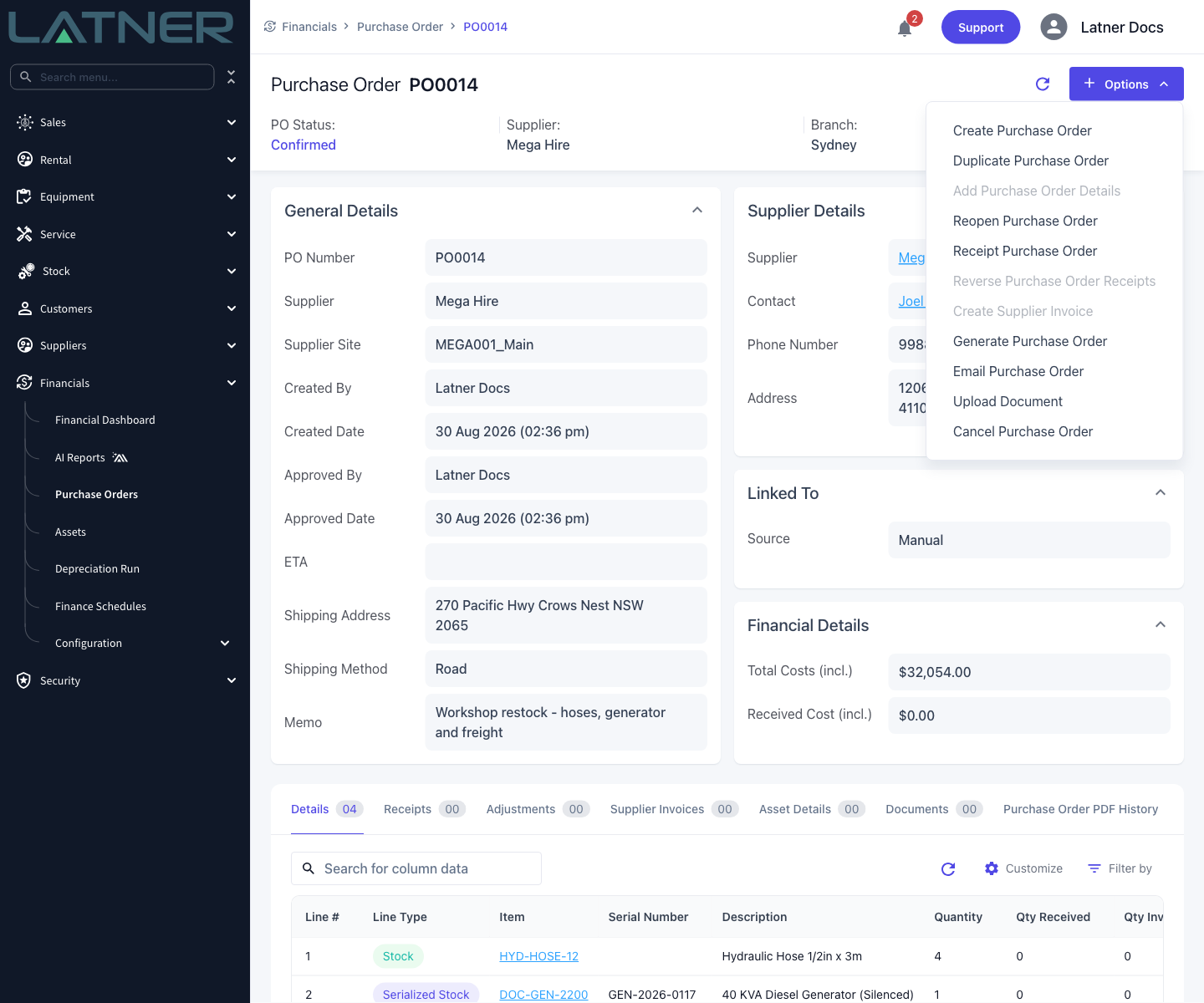
Select Options › Receipt Purchase Order.
Step 3 - Check the Receive Purchase Order details
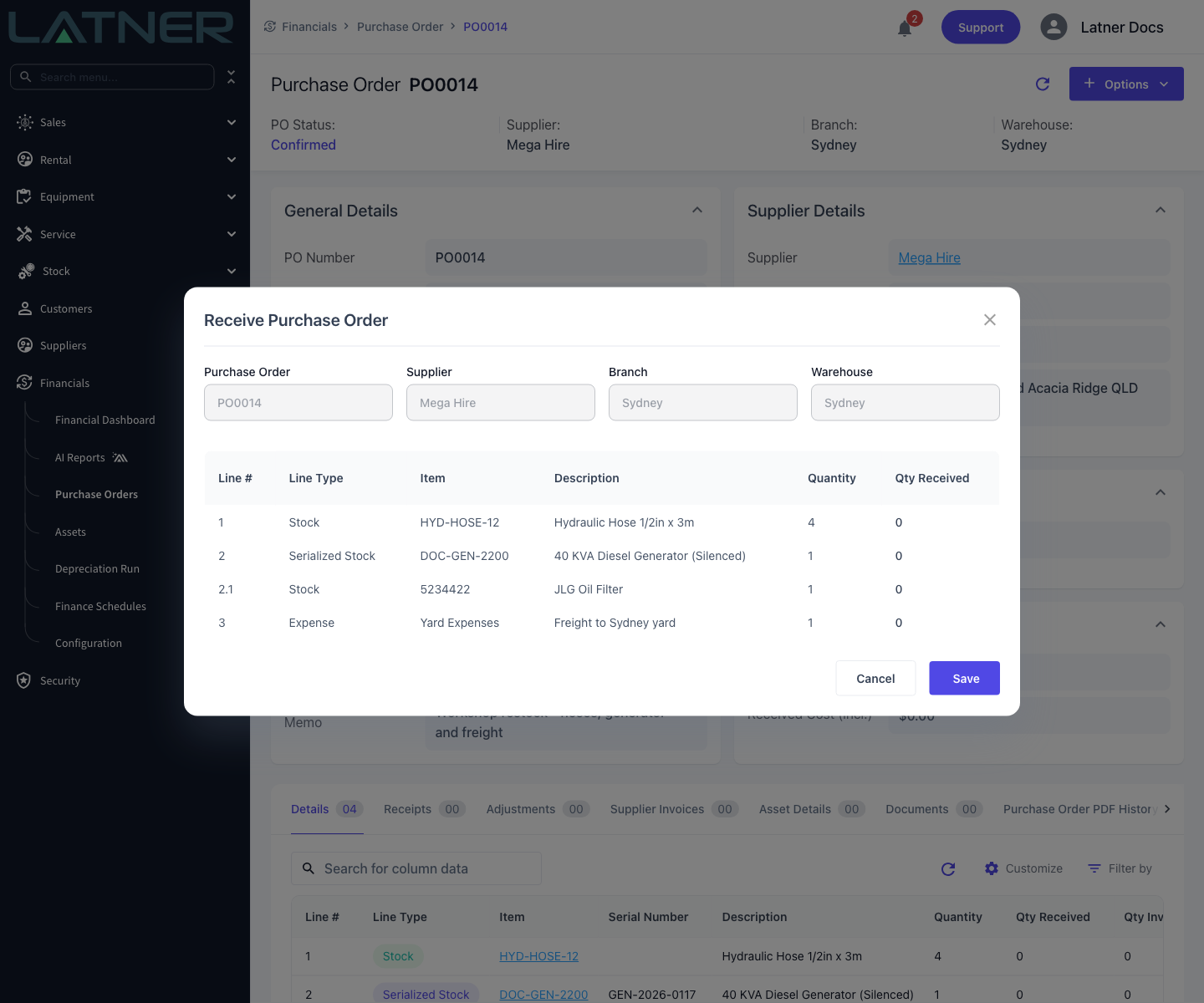
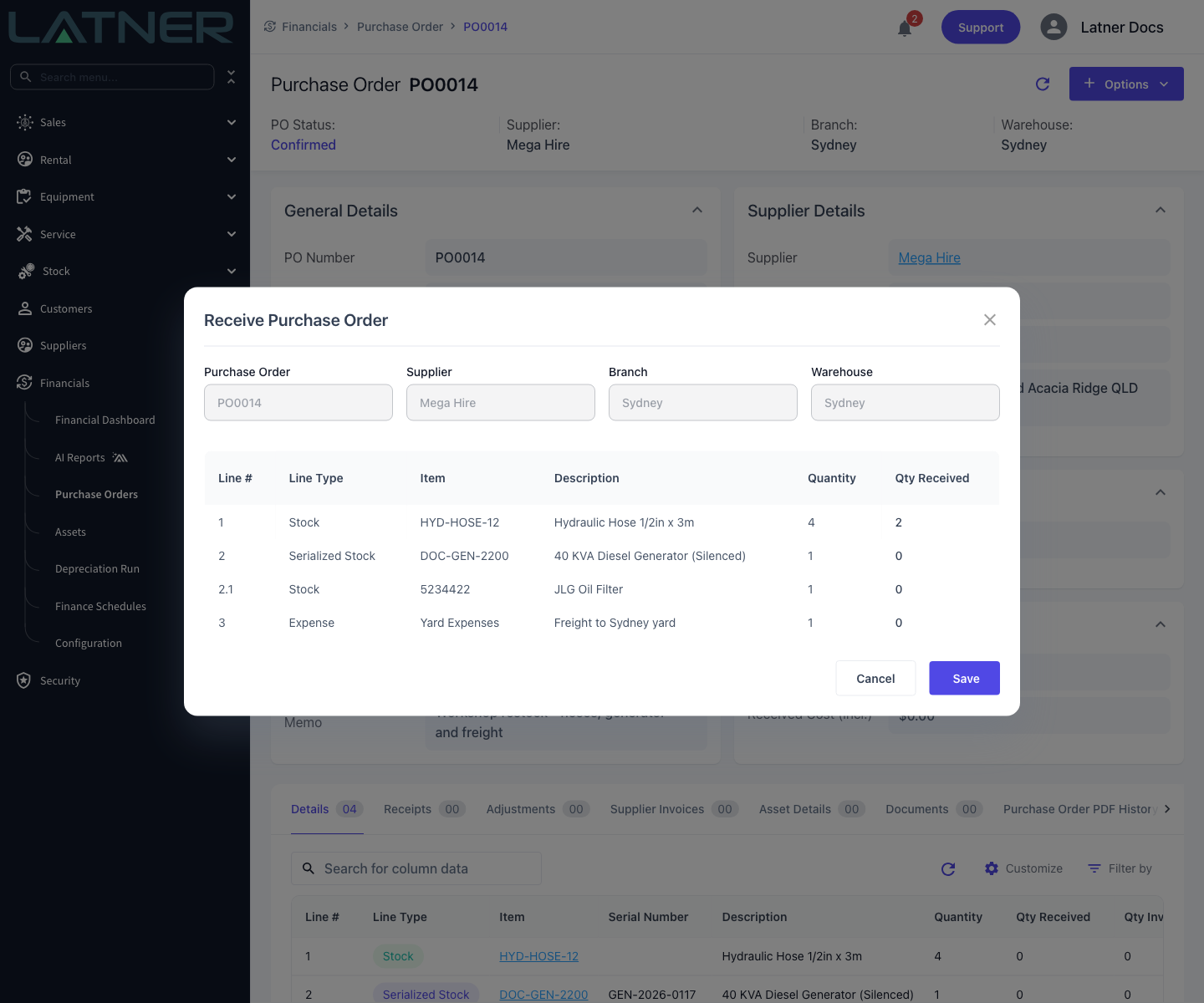
The Receive Purchase Order window opens. The four fields across the top are read-only and come from the Purchase Order itself, so there is nothing to fill in - but do check the Warehouse, because that is where any stock you receipt will land.
Underneath, Latner lists every line that still has something outstanding. Lines you have already received in full drop off the list.
-
Line # - the Purchase Order line number. Accessory sub-lines added alongside a serialized stock item show as 2.1, 2.2 and so on.
-
Line Type - Stock, Serialized Stock, Equipment, Asset, Expense or Transport.
-
Item and Description - what was ordered.
-
Quantity - how much of that line is still outstanding, not the quantity originally ordered.
-
Qty Received - how much has turned up. This is the only field you edit.
Step 4 - Enter the quantities received
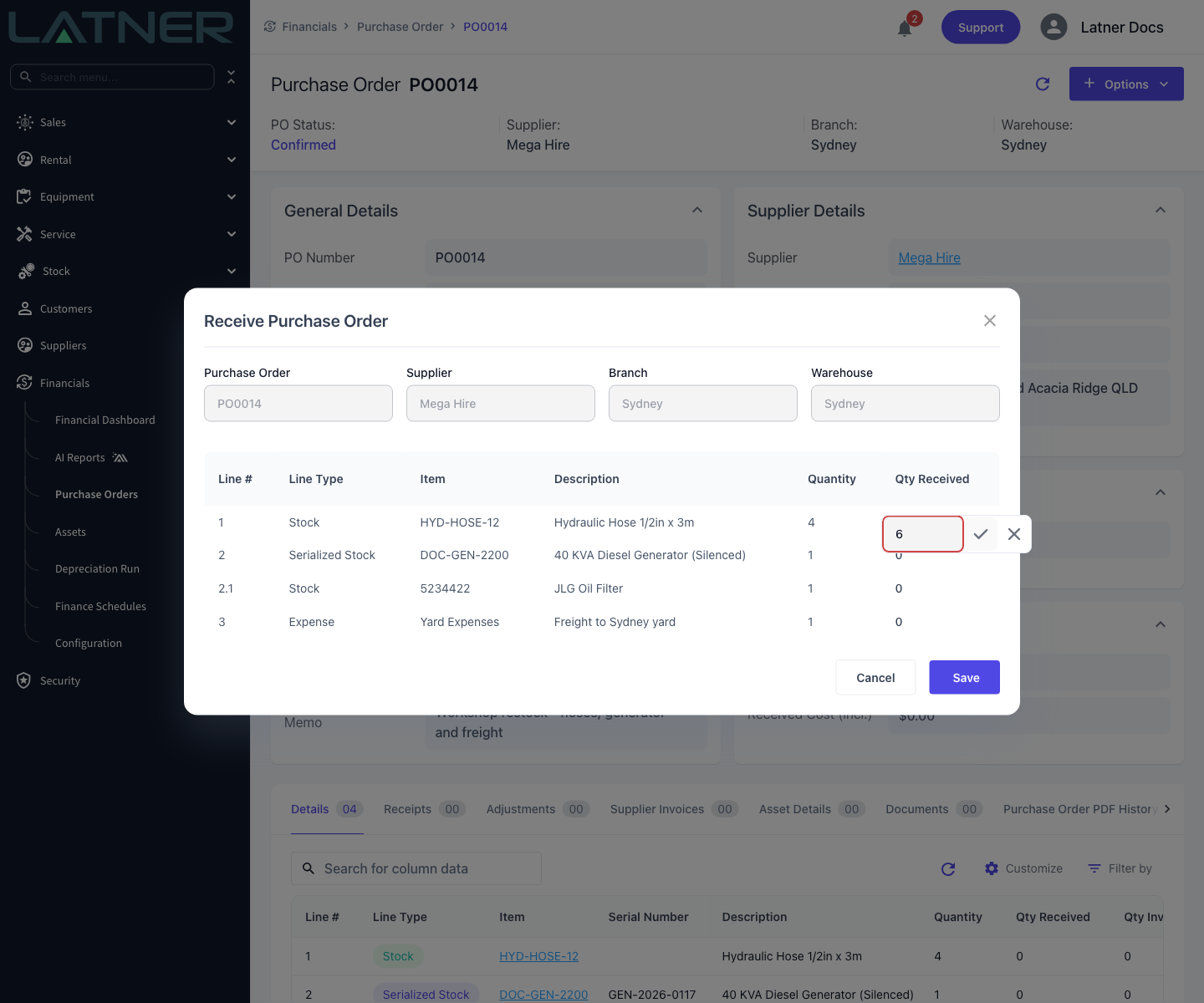
Hover over the Qty Received cell on a line, click the pencil, type the quantity and confirm with the tick. Leave anything that hasn't arrived at 0 - you'll come back for it later.
A few rules apply to what you can type:
-
You can't receipt more than the outstanding quantity. Go over it and the field turns red.
-
Stock, Serialized Stock, Equipment and Asset lines must be whole numbers. Only Expense and Transport lines accept a part quantity, to two decimal places.
-
At least one line needs a quantity. Saving with everything left at 0 gives you No quantities entered to receipt.
Step 5 - Save
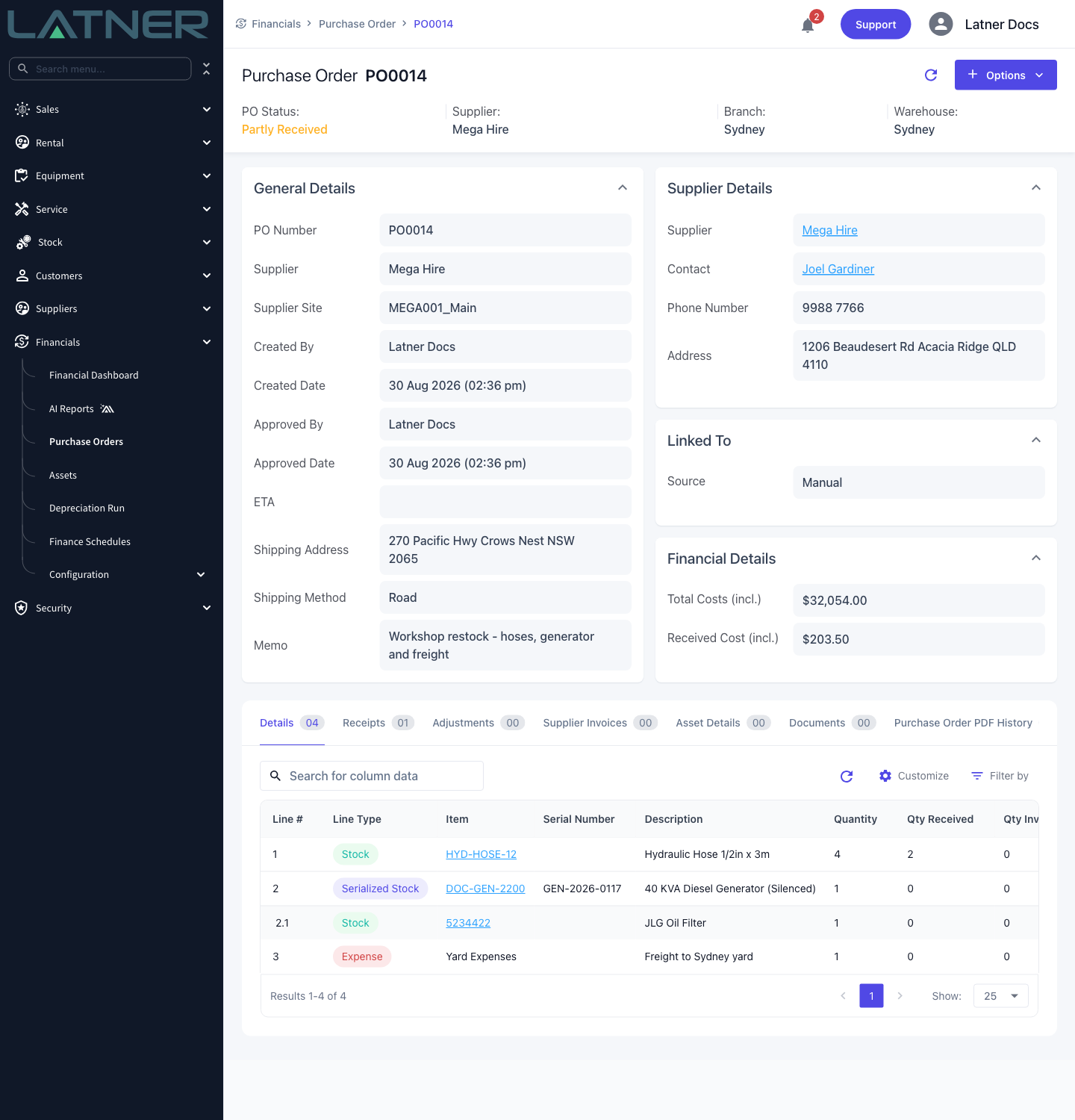
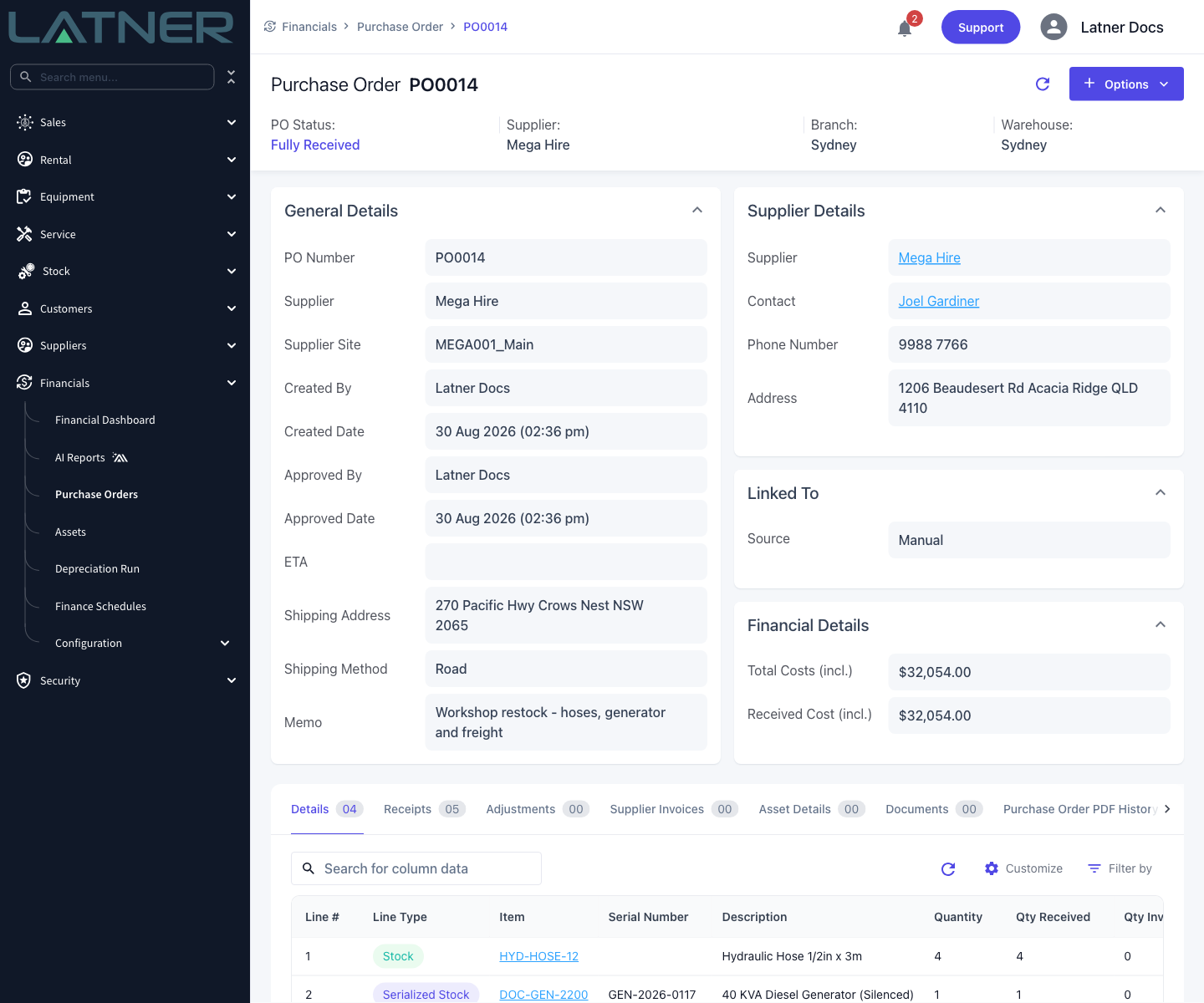
Click Save. Latner confirms with Purchase Order Receipt Created and the Purchase Order updates straight away: the status moves to Partly Received, Qty Received on the line goes up, and Received Cost (incl.) in Financial Details picks up the value of what you've taken in.
Step 6 - Receipt the rest when it arrives
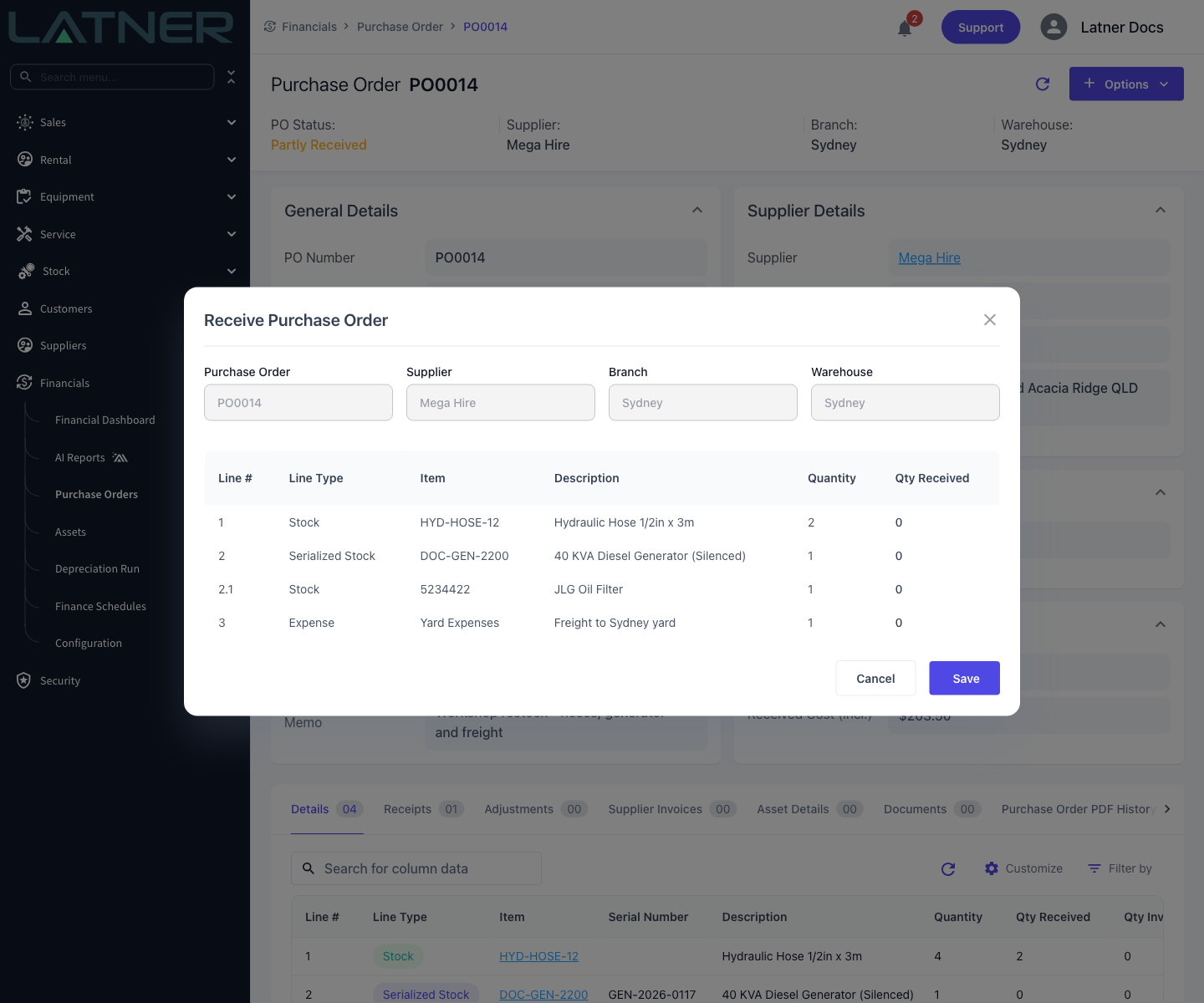
When the balance of the delivery turns up, run Options › Receipt Purchase Order again. The Quantity column now shows only what is still outstanding, so line 1 reads 2 rather than the 4 originally ordered.
Once every line has been received in full, the order moves to Fully Received and Received Cost (incl.) matches Total Costs (incl.).
After Receipting
Each receipt leaves a record, and each line type does something different behind the scenes.
-
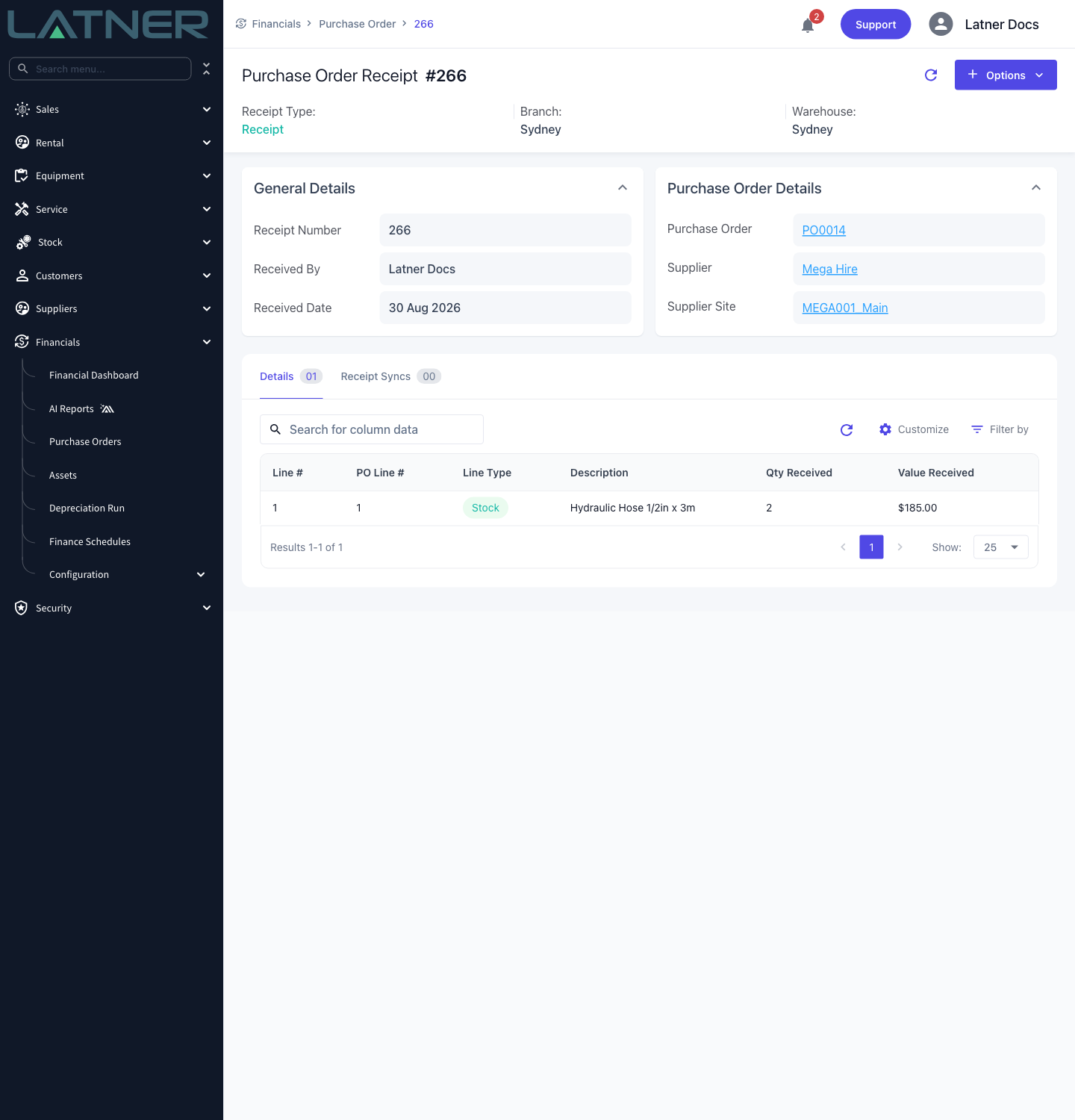
A numbered Purchase Order Receipt is created against the order. It carries today's date in the branch's timezone and your name as Received By, and it appears on the Receipts tab.
-
Stock lines move the quantity from backordered to available in the Purchase Order's warehouse and record a Purchase Order Receipt stock movement. The average cost was already set when the order was confirmed, so receipting doesn't change it.
-
Serialized Stock lines take the items that were raised when the order was confirmed and move them from Ordered to In Stock.
-
Equipment lines create a new serialized equipment record for each unit, in the Purchase Order's branch, at Pending Activation for both rental and service status, with the receipt date as the purchase date and the line's unit cost as the purchase price. Where the line was raised against existing bulk equipment, a New Purchase adjustment tops up the quantity available instead.
-
Asset lines create asset records with a temporary number, which you'll find on the Asset Details tab.
-
Expense and Transport lines don't bring anything on hand - receipting simply marks them as received so they can be invoiced.
-
Lines raised from a Work Order add the received stock or expense onto that Work Order, and lines raised from a Sales Order fulfil the originating Sales Order line.
-
If your organisation runs an active Sage accounting integration, the receipt is pushed across as a journal. You can follow it on the Receipt Syncs tab of the receipt.
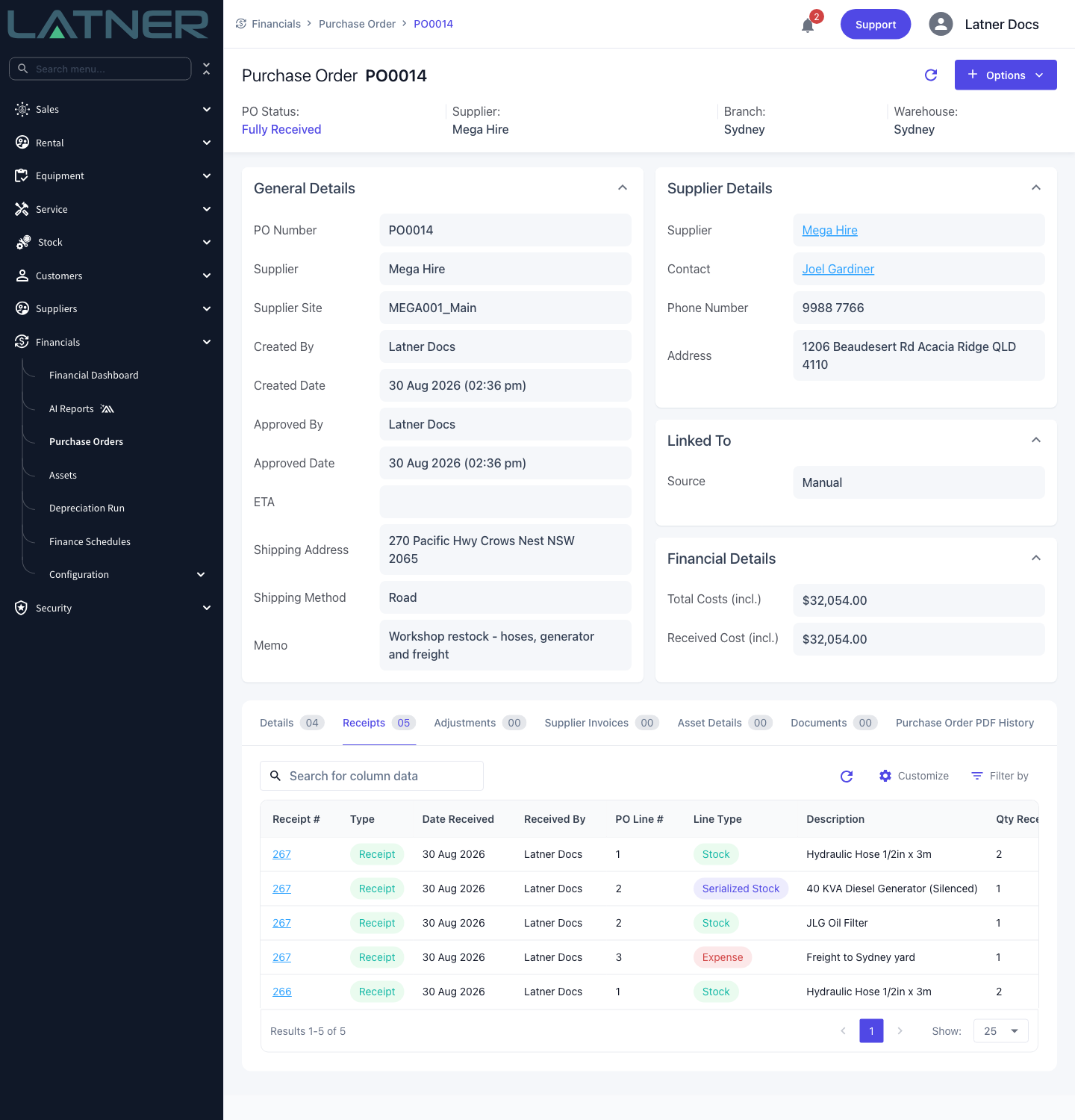
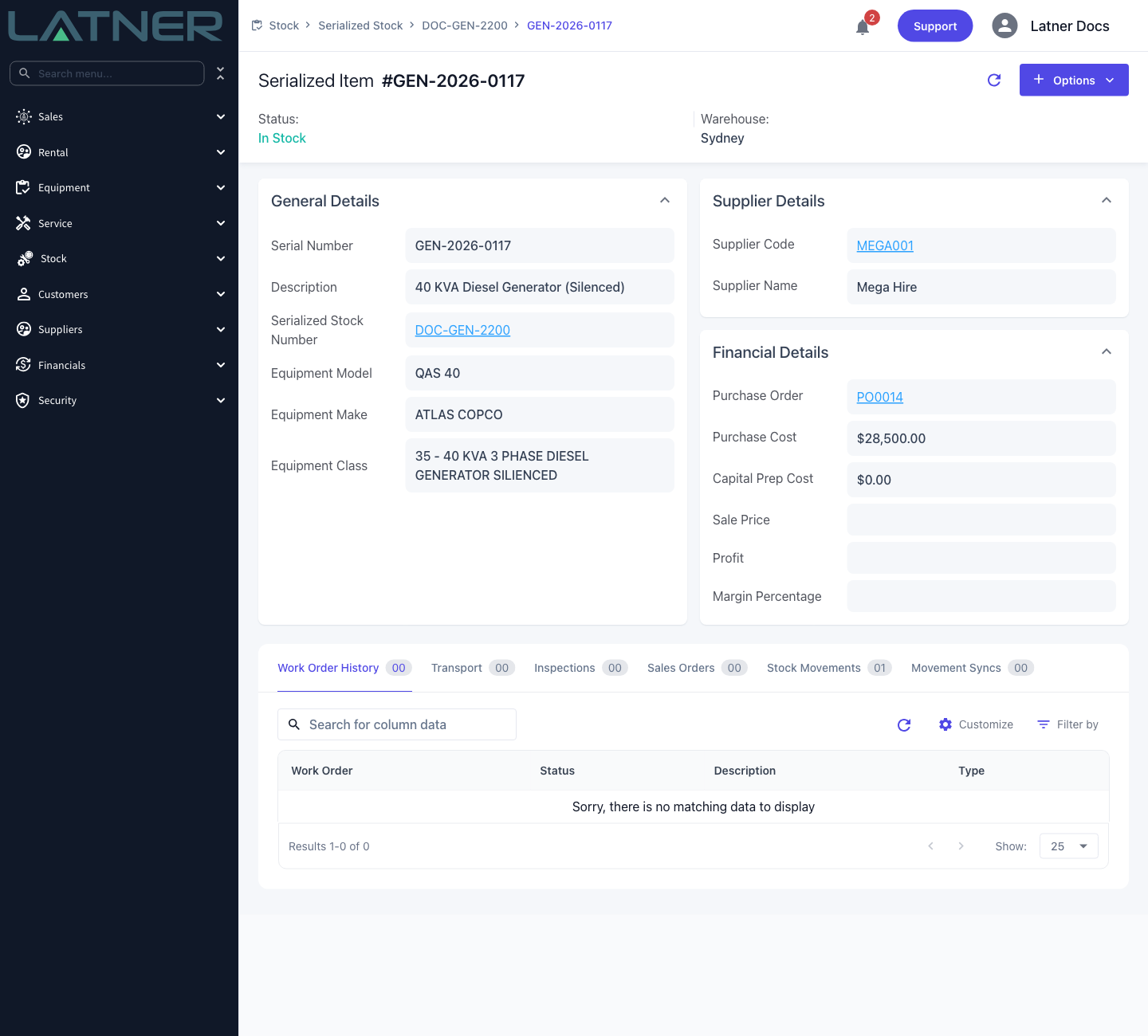
Receipts for Equipment, Asset and Serialized Stock lines cannot be reversed, because they create records that go on to live a life of their own. Check the line and the quantity before you save. Stock, Expense and Transport receipts can be undone with Options › Reverse Purchase Order Receipts; for the other three line types, contact us.
FAQs
Watch the Demo
Prefer to watch it? Step through the same flow here.