
Reopening a supplier invoice puts a disputed or approved invoice back into Open status, so you can correct the lines, add the ones that were missed, and take it through the process again.
Overview
A dispute usually ends with something needing to change on the invoice - a freight line that shouldn't be there, a quantity that doesn't match the delivery, a purchase order line that was never picked up. Reopening is the switch that lets you make those changes, because most of what you need is only available while an invoice is Open.
-
Reopen Invoice only appears on invoices in Disputed or Approved status. It is hidden on Open, Completed, Paid and Cancelled invoices.
-
Reopening does one thing: it sets the status back to Open. Lines, totals, documents and the link to the purchase order or sub hire order are all left exactly as they were.
-
It is what gets you back to Add Details, Add Purchase Order Details and Complete Invoice, which are only offered while an invoice is Open.
-
Nobody is notified when an invoice is reopened. Disputing and approving both send a notification; reopening is silent.
-
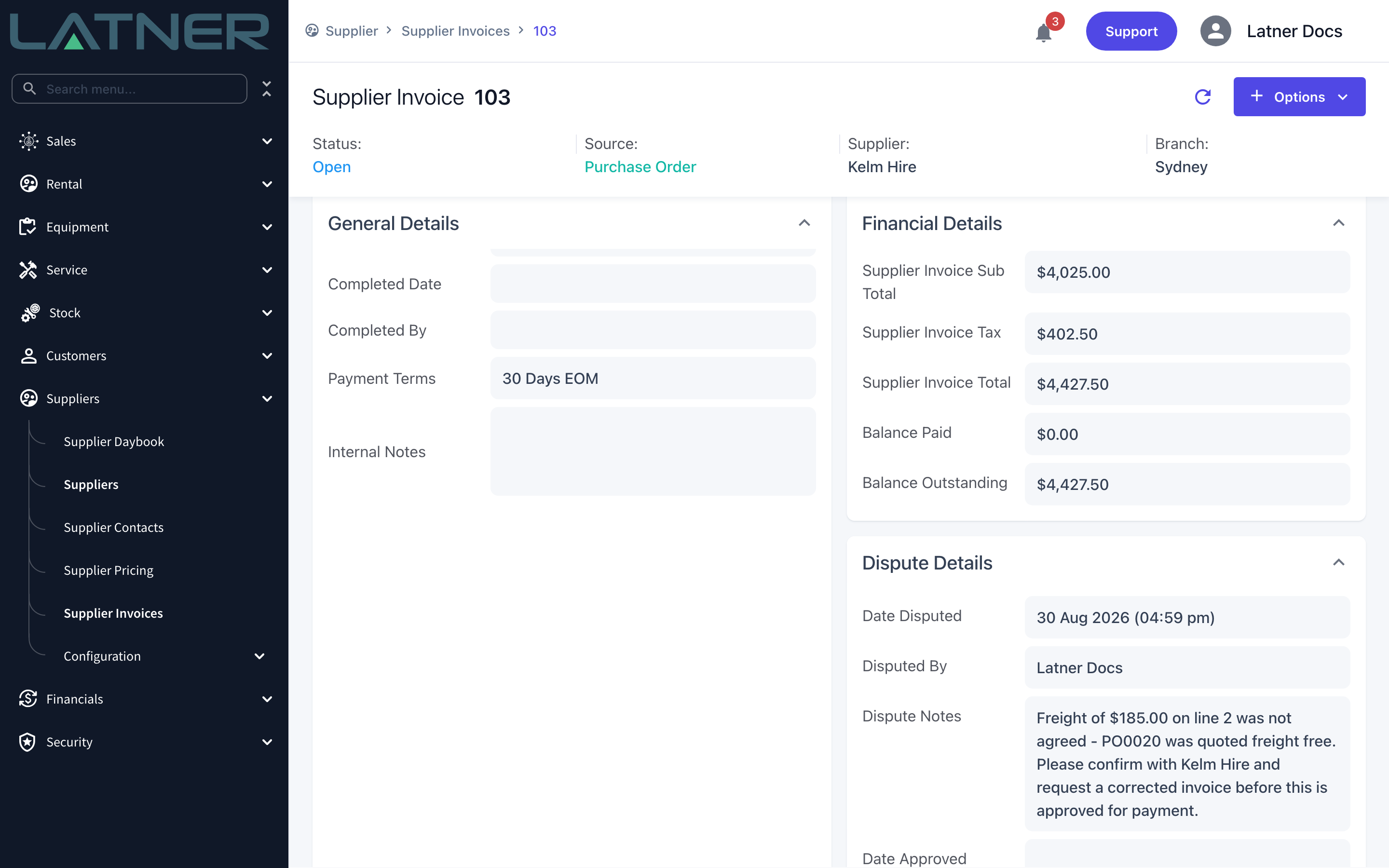
The Dispute Details panel is not cleared. The original dispute - and the approval, if there was one - stays on the invoice.
-
You can reopen an invoice as often as you need to, whatever it was created from (manual, purchase order, sub hire order or finance schedule).
Before You Begin
No setting turns this on - reopening is controlled entirely by permissions.
|
Requirement |
Where to Find It |
|---|---|
|
Reopen Disputed/Approved Supplier Invoice permission |
Security › Configuration › your permission group › Suppliers › Option |
|
A supplier invoice in Disputed or Approved status |
Suppliers › Supplier Invoices |
|
Create Supplier Invoice Detail and Edit Supplier Invoice permissions, if you plan to change the invoice once it's open |
Security › Configuration › your permission group › Suppliers › Option |
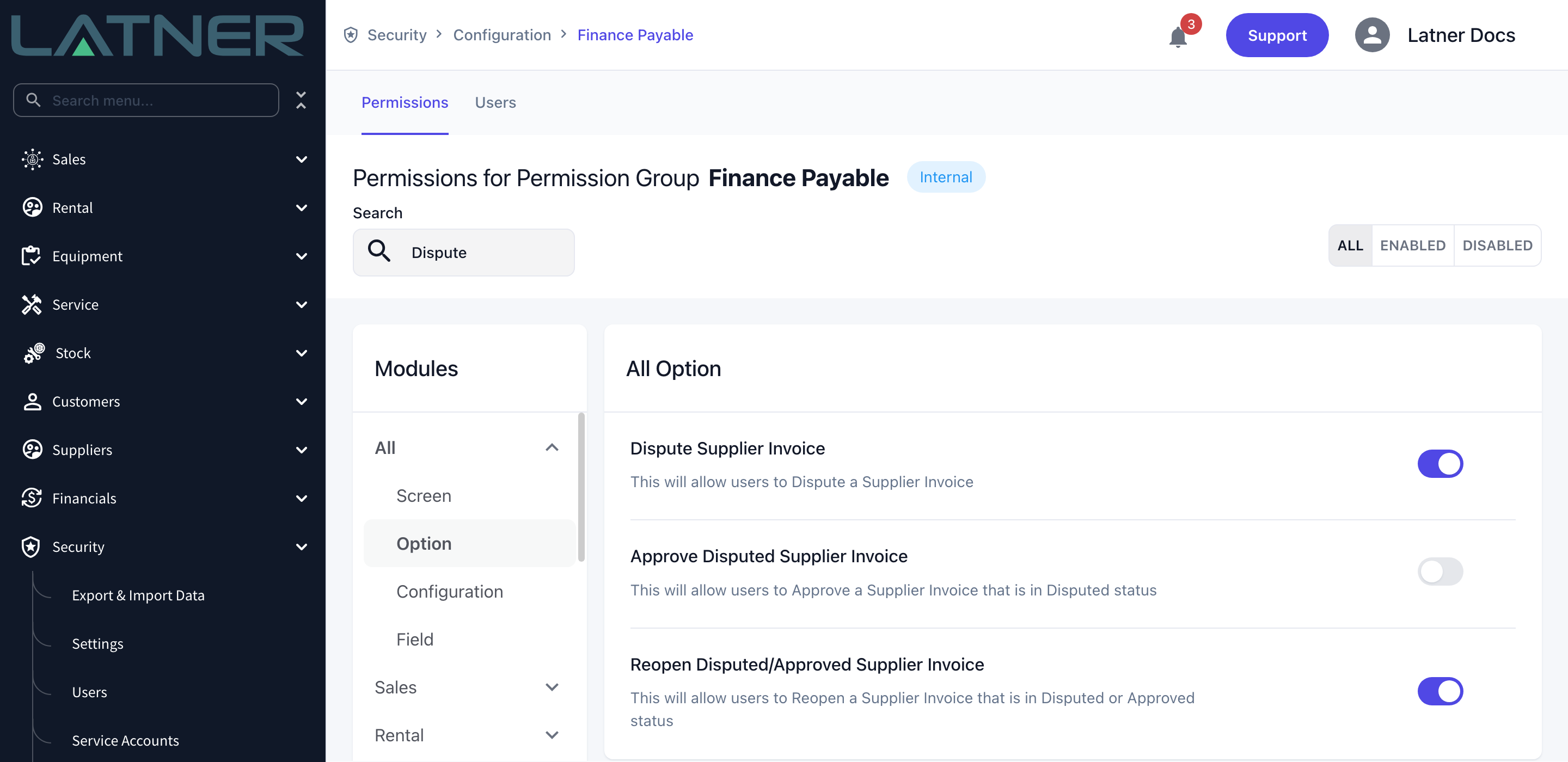
The permission is checked against the invoice's branch. If your permission group grants Reopen for some branches only, an invoice raised in another branch refuses the action with "You do not have permission to perform this action in this branch".
Reopening the Invoice
Step 1 - Find the invoice
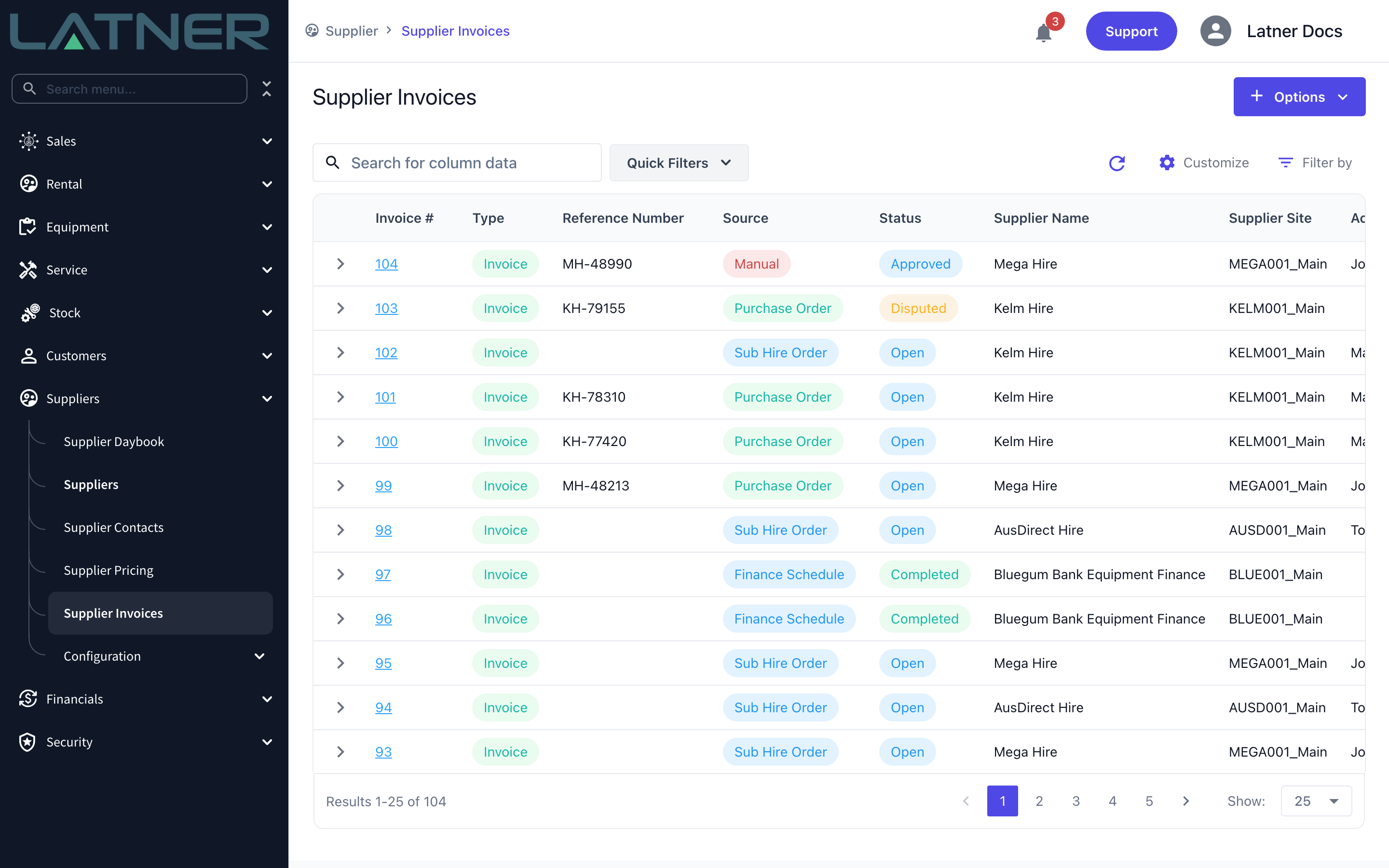
Go to Suppliers › Supplier Invoices. The Quick Filters menu has a Disputed and an Approved filter, which between them cover everything that can be reopened; Disputes Assigned to Me narrows it to the ones you are meant to be resolving. If disputes are your job day to day, the Suppliers › Supplier Daybook screen has a Disputed Invoices tab that lists them oldest first.
Step 2 - Open it and read the dispute
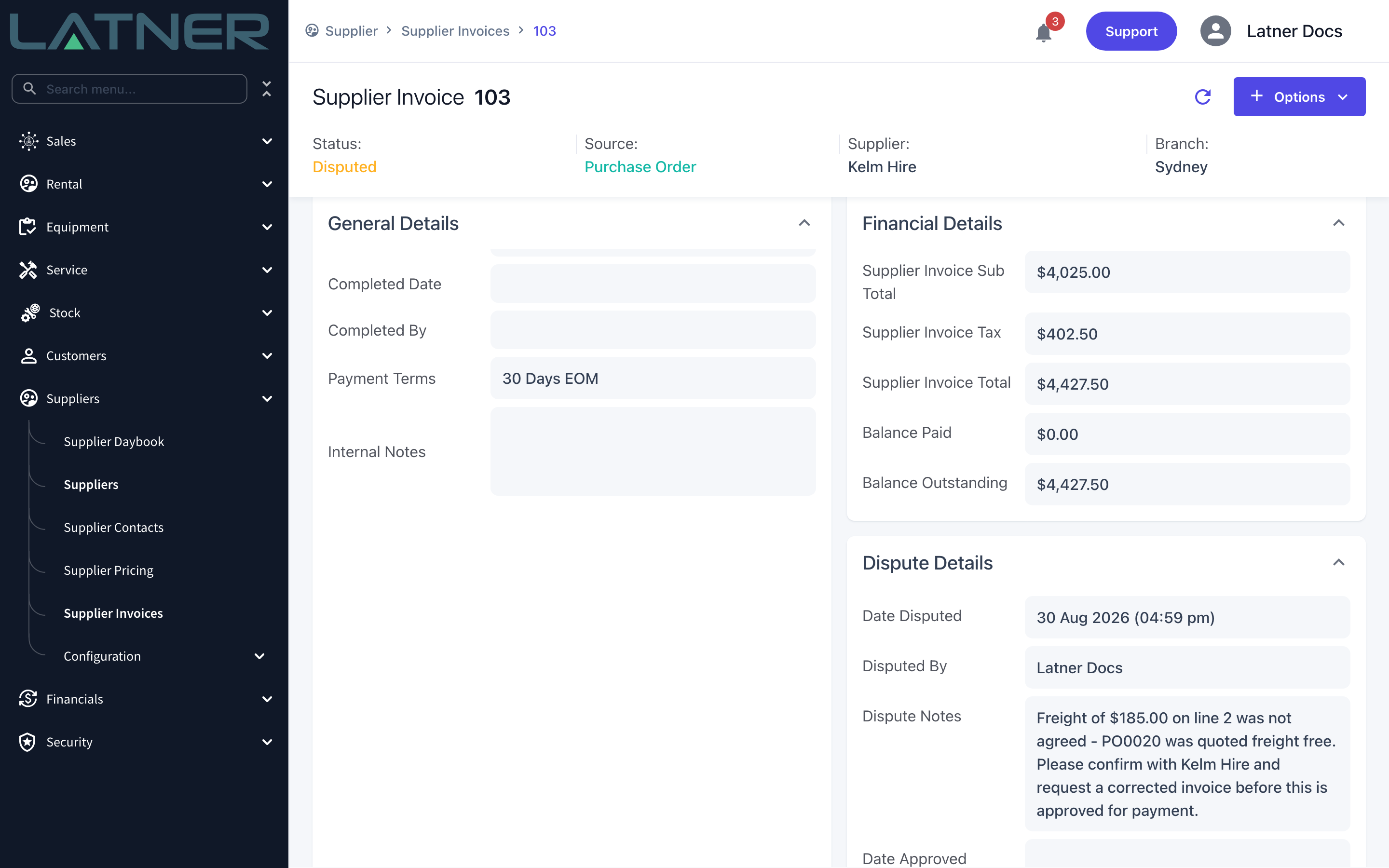
Open the invoice and check the Status at the top of the page, then read the Dispute Details panel on the right. It holds the Date Disputed, Disputed By and Dispute Notes that were recorded when the dispute was raised, plus Date Approved and Approved By if it has since been approved. That note is usually the description of what you are about to change.
Step 3 - Choose Reopen Invoice
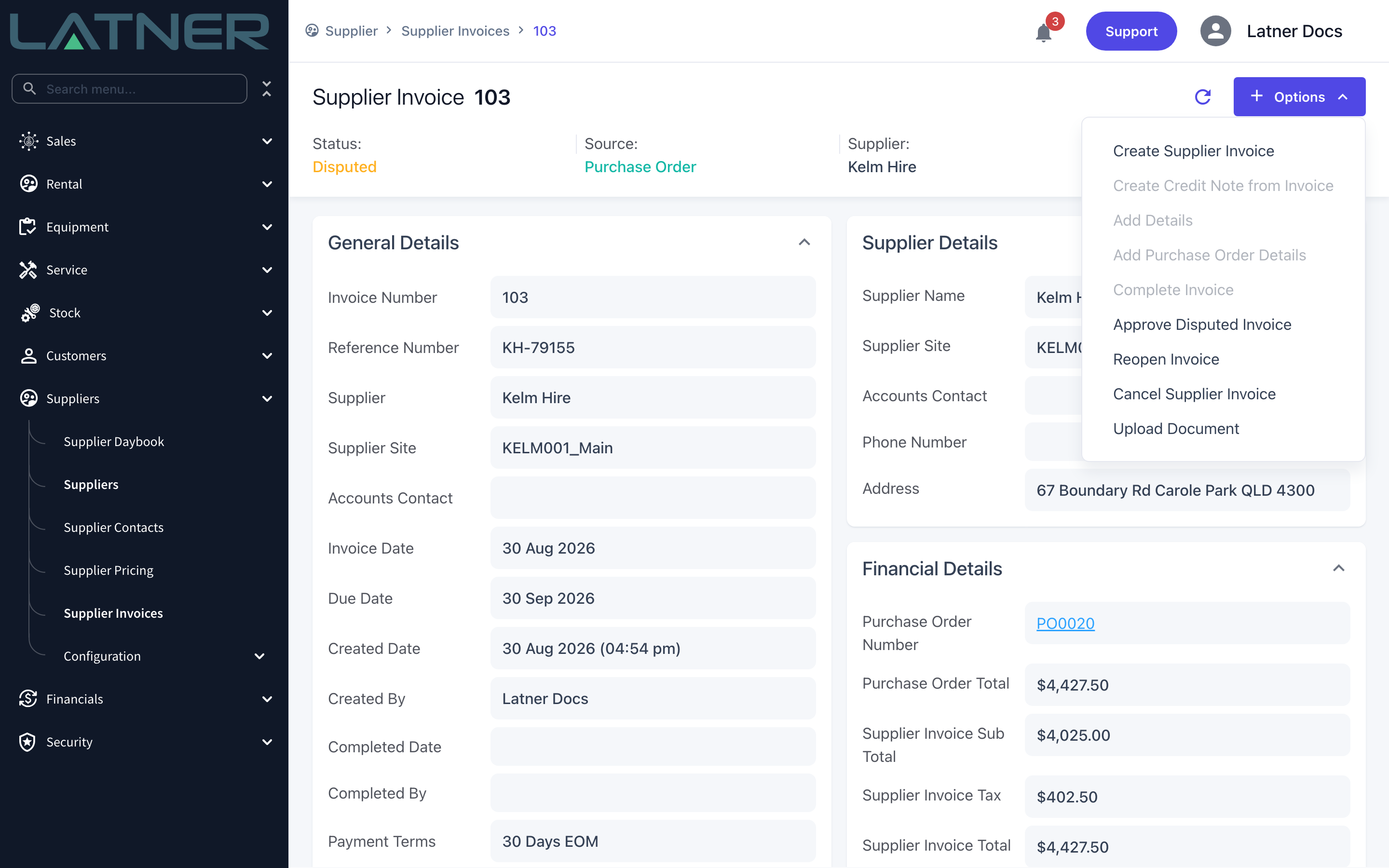
Select Options › Reopen Invoice. On a disputed invoice you'll see the alternative next to it: Approve Disputed Invoice, for when the invoice turns out to have been right. Notice what is greyed out while the invoice sits in Disputed - Add Details, Add Purchase Order Details and Complete Invoice are all unavailable, which is the reason you're reopening.
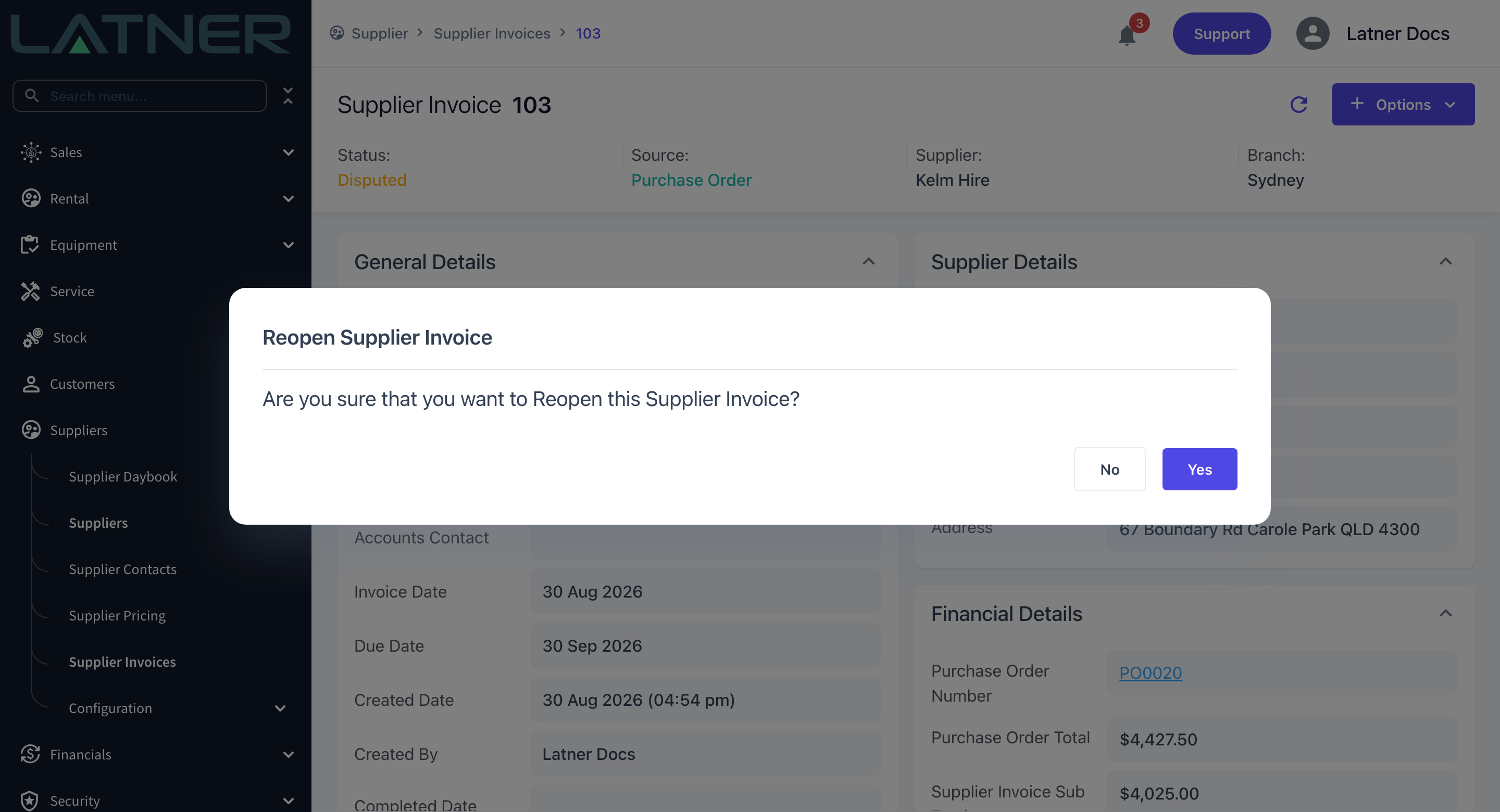
Step 4 - Confirm
Latner asks Are you sure that you want to Reopen this Supplier Invoice? Choose Yes. There is nothing to fill in - no reason, no note - so if you want the reason recorded, put it in Internal Notes on the invoice before or after you reopen.
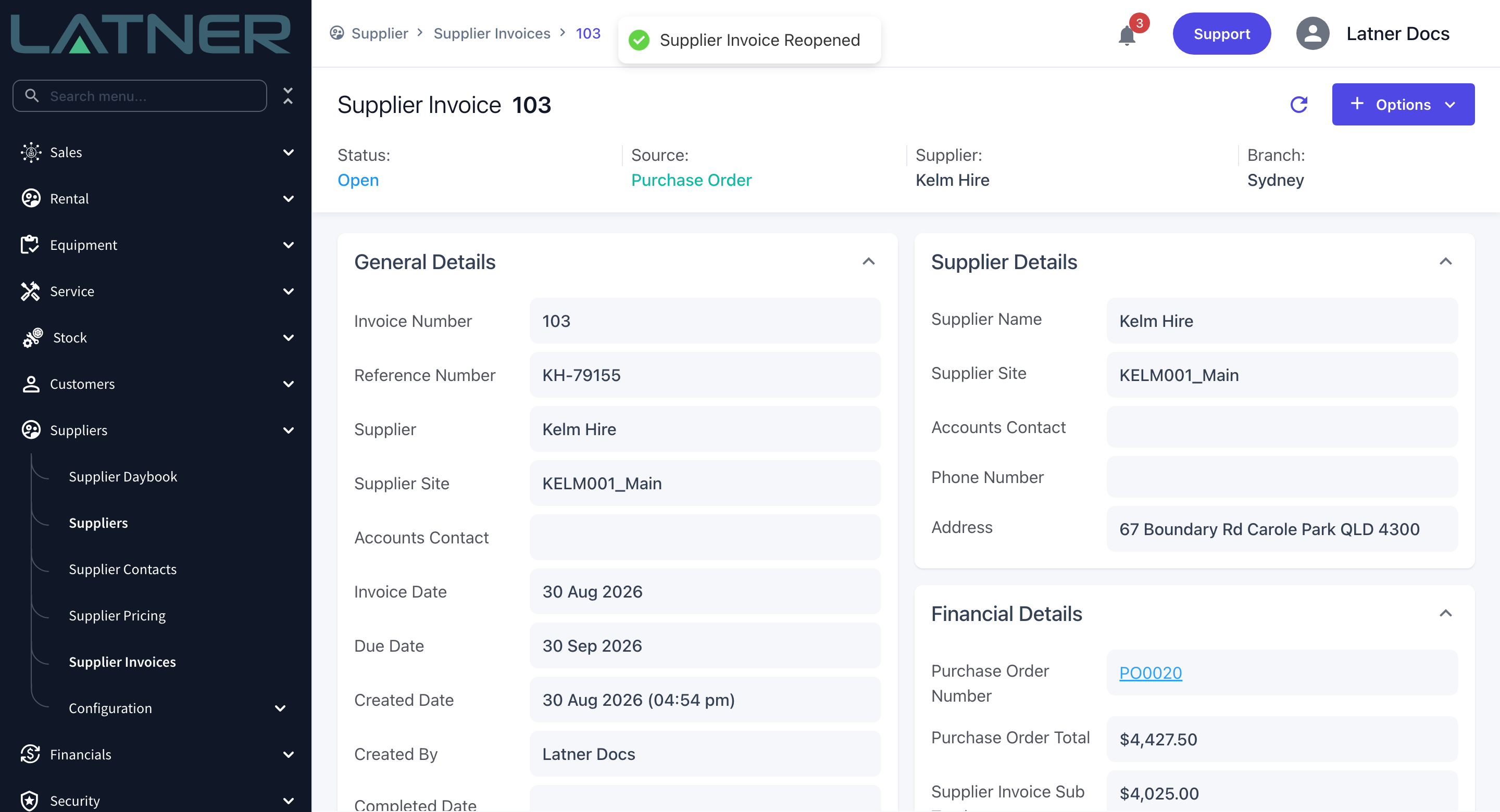
Step 5 - Check the status
The invoice reports Supplier Invoice Reopened and the Status at the top of the page changes to Open. That's the whole change - nothing on the invoice itself has moved.
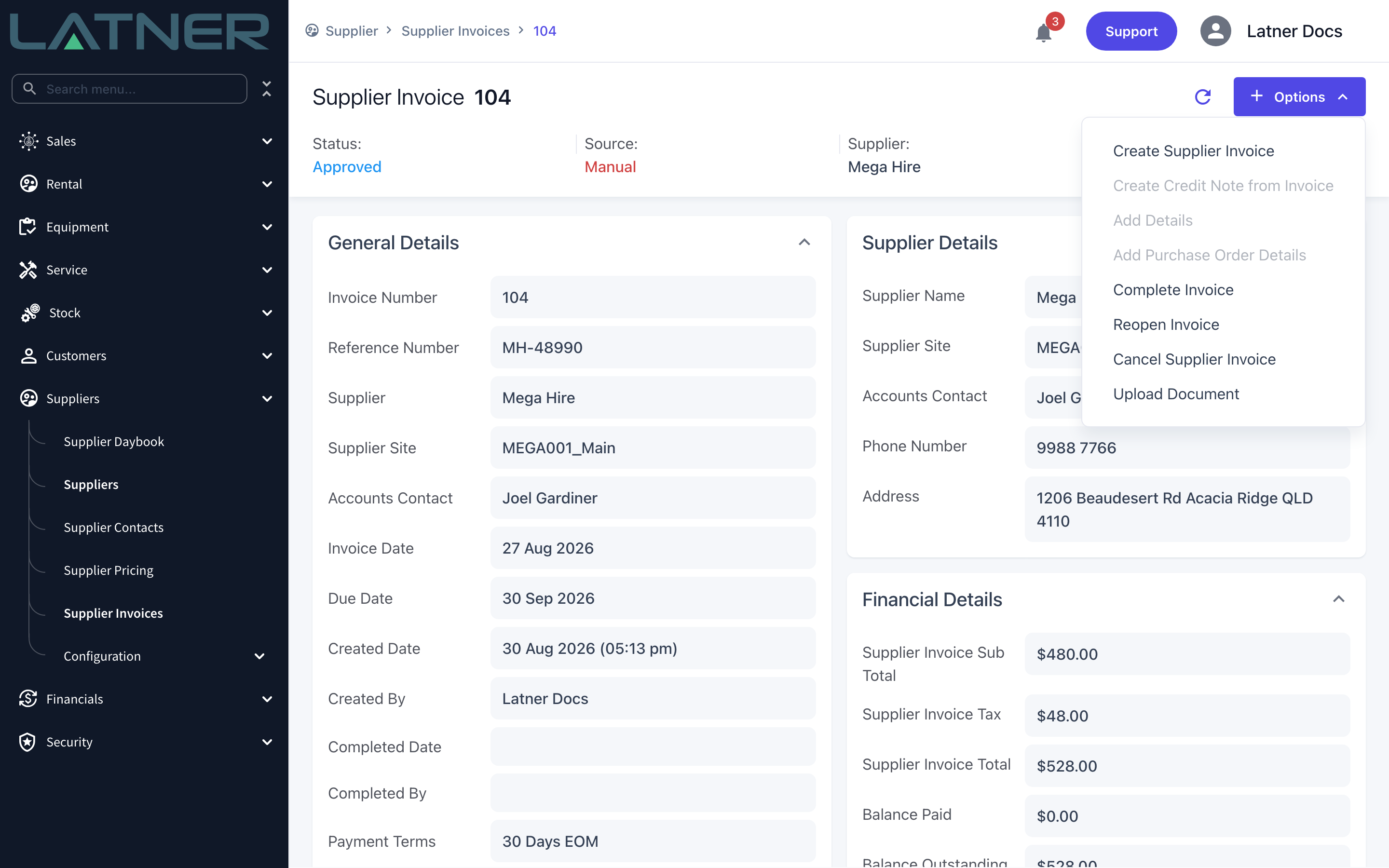
Reopening an Approved Invoice
An approved invoice reopens exactly the same way, and for the same reason: the lines still can't be changed while it sits in Approved. The Options menu looks slightly different - Dispute Invoice and Approve Disputed Invoice are both gone, and Complete Invoice is available, because an approved invoice is meant to be completed. Reopen it only if the lines themselves need work; if the invoice is right, complete it instead.
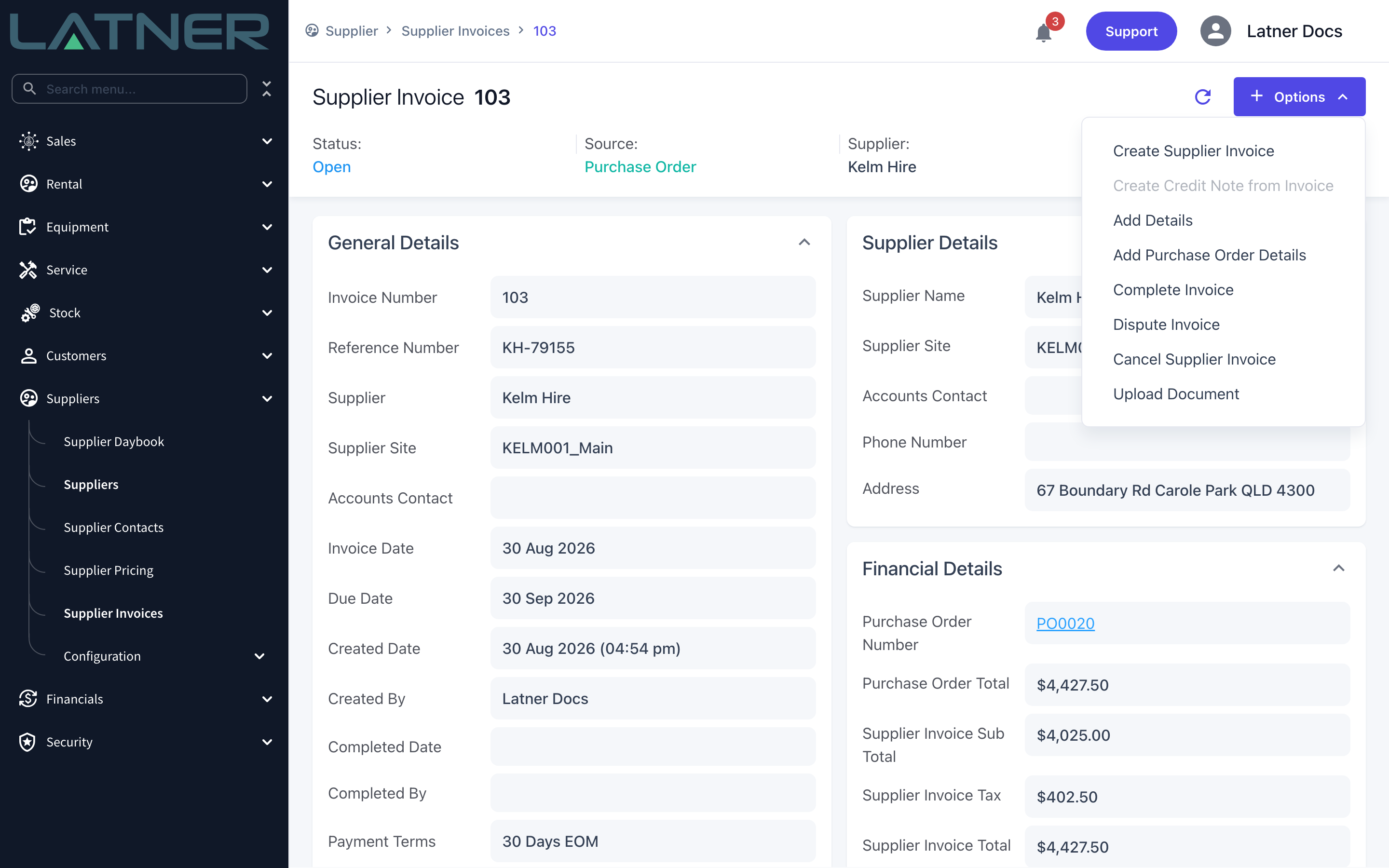
After Reopening
-
The invoice is Open, so Add Details, Add Purchase Order Details and Complete Invoice are available again, and Dispute Invoice comes back for when the supplier's answer isn't good enough.
-
The invoice drops out of the Disputed quick filter and off the Supplier Daybook's Disputed Invoices tab, so it no longer reads as an open query.
-
The Dispute Details panel stays on the invoice, including Date Approved and Approved By on an invoice that had already been approved.
-
Nobody is notified. If the person who raised the dispute needs to know it's been sent back, tell them.
-
Nothing is sent to your accounting system. Supplier invoices are only pushed to an integration when they're completed, and a completed invoice can't be reopened.
Reopening an approved invoice cannot be undone by re-approving it. Approve Disputed Invoice only works on an invoice in Disputed status, so the only way back to Approved is to raise a fresh dispute and approve that one - which overwrites the original dispute's assignee, date and notes. If the approval trail matters, copy the existing Dispute Notes somewhere first.
FAQs
Watch the Demo
Prefer to watch it? Step through the same flow here.