
Creating a Supplier Invoice for multiple Purchase Orders lets you record one bill from a supplier against several of their orders at once, so a consolidated invoice is entered once rather than split into a separate invoice per order.
Overview
Suppliers rarely bill the way we order. Three orders go out over a fortnight and one invoice comes back covering the lot. Latner handles that directly: pick the supplier, pick the orders, and every line still waiting to be invoiced is pulled onto a single Supplier Invoice.
-
The flow starts from the Supplier Invoices screen, not from a Purchase Order. Starting from an order locks that order in, so it can only ever produce a single-order invoice.
-
You choose the supplier first. The Purchase Orders list then only offers that supplier's orders, for the chosen supplier site and branch, that still have something left to invoice.
-
Latner writes one invoice line for every eligible line on every order you select, carrying across the description, unit cost, purchase tax and line type. There is no line picking at this stage - it is all of them or none.
-
By default only quantity that has been received is invoiced. A setting can relax this so confirmed-but-not-yet-received quantity is invoiced too.
-
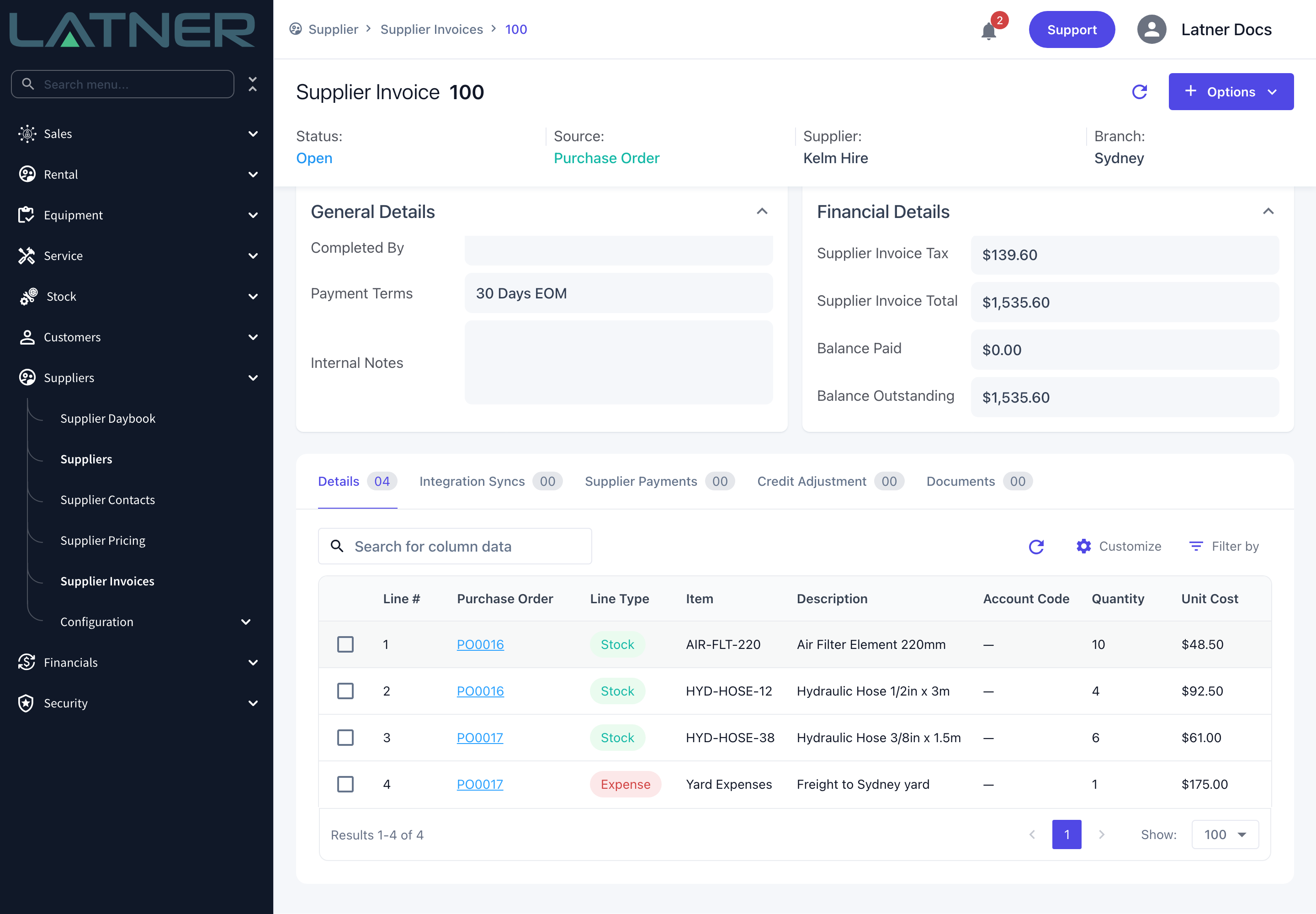
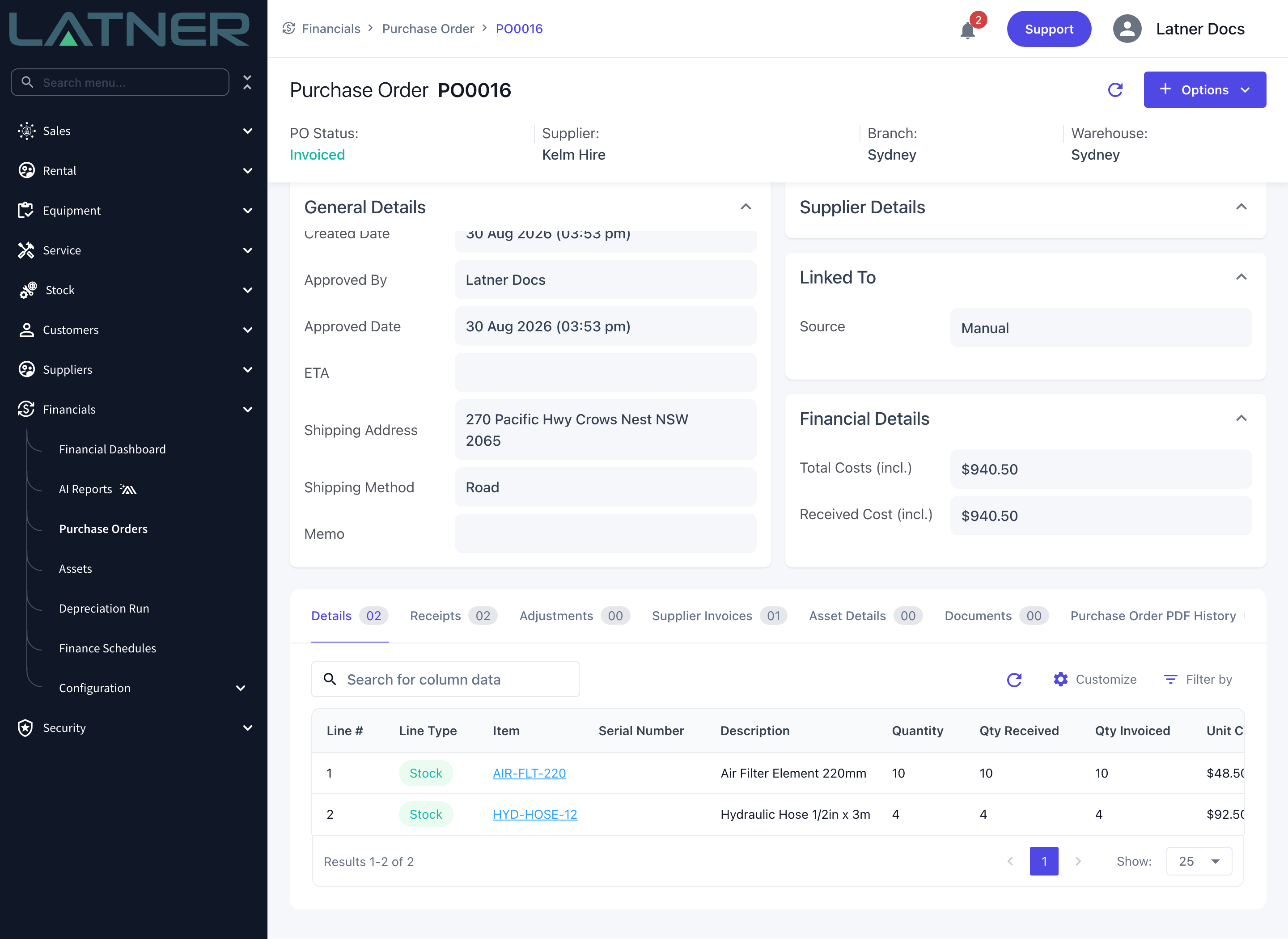
Each invoice line stays linked to the Purchase Order line it came from, and that order's Qty Invoiced goes up to match. The Purchase Order column on the invoice shows which order each line came from.
-
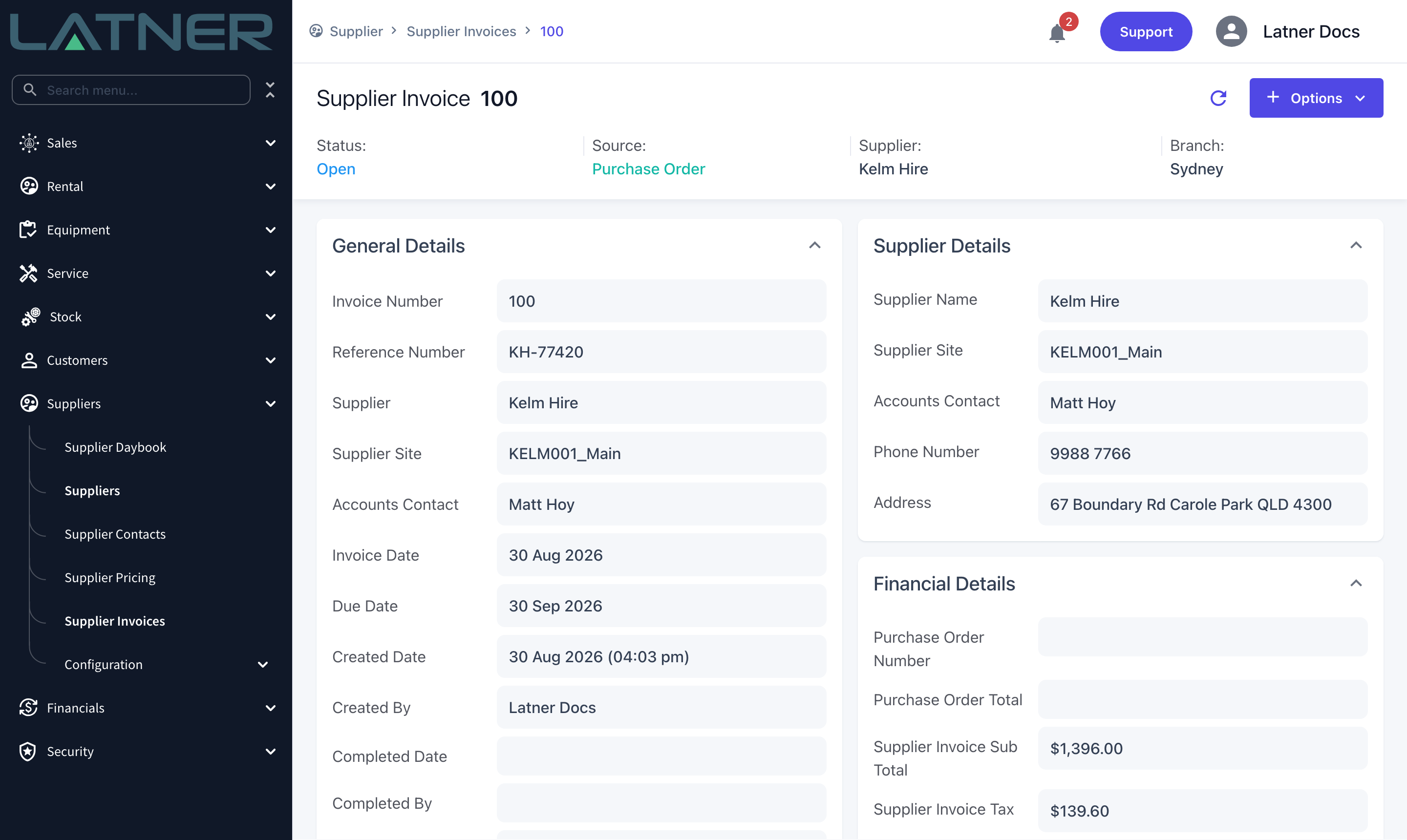
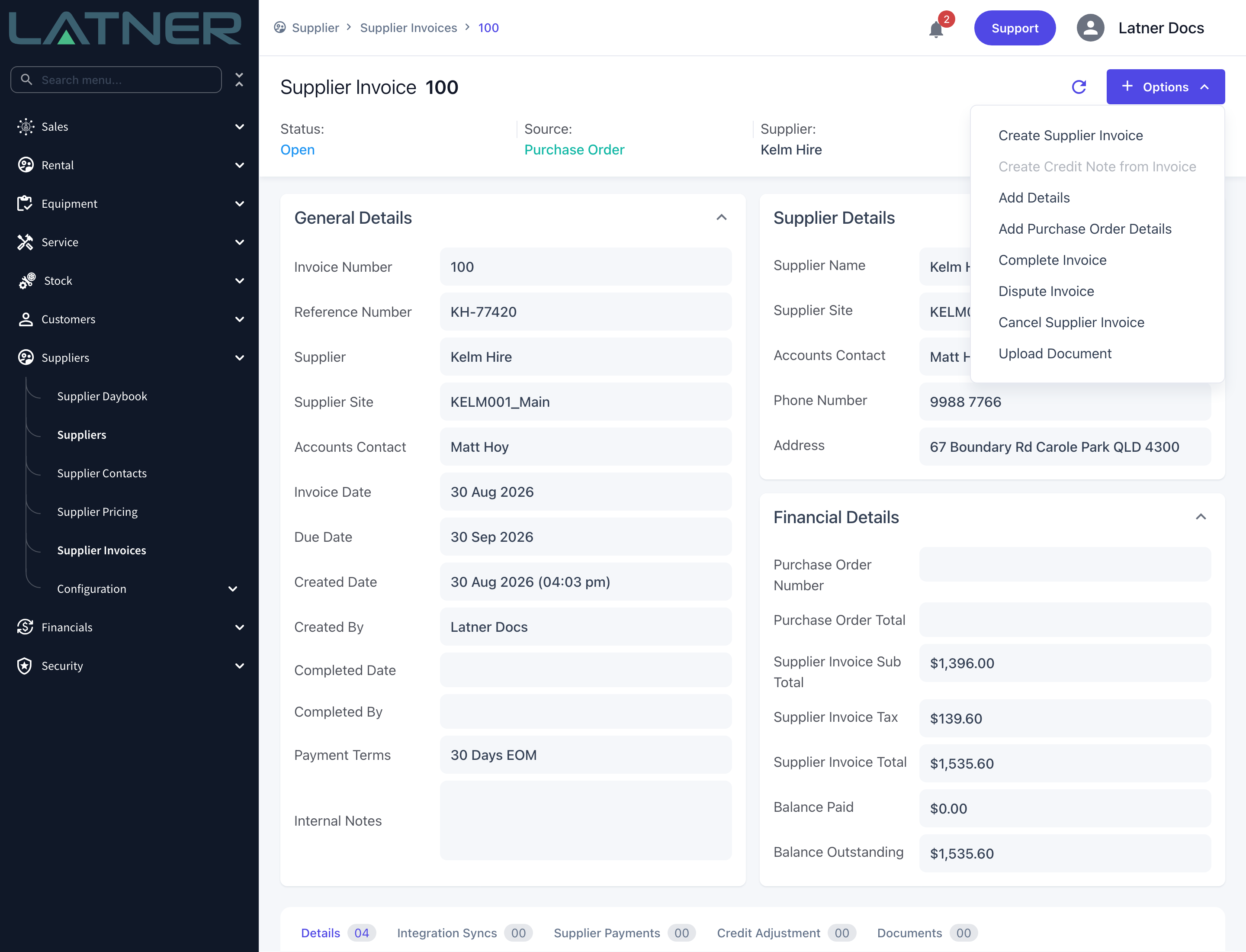
Because the invoice spans several orders, the header is not tied to any one of them - Purchase Order Number and Purchase Order Total in Financial Details stay blank. That is expected, not a fault.
-
The new invoice is created in Open status and is not posted to your accounting system until it is completed.
Before You Begin
Check the following before you raise the invoice.
|
Requirement |
Where to Find It |
|---|---|
|
Supplier Invoice screen permission |
Security › Configuration › Permission Groups, Suppliers module, Screen |
|
Create Supplier Invoice permission |
Security › Configuration › Permission Groups, Suppliers module, Option |
|
Two or more Purchase Orders for the same supplier, same supplier site and same branch, each with quantity still to invoice |
Financials › Purchase Orders |
|
Allow Invoices for Unreceived Purchase Orders - decides whether unreceived quantity can be invoiced |
Security › Settings › Financials |
|
Payment terms on the supplier, or a Default Supplier Payment Term |
The supplier record, or Security › Settings › Suppliers |
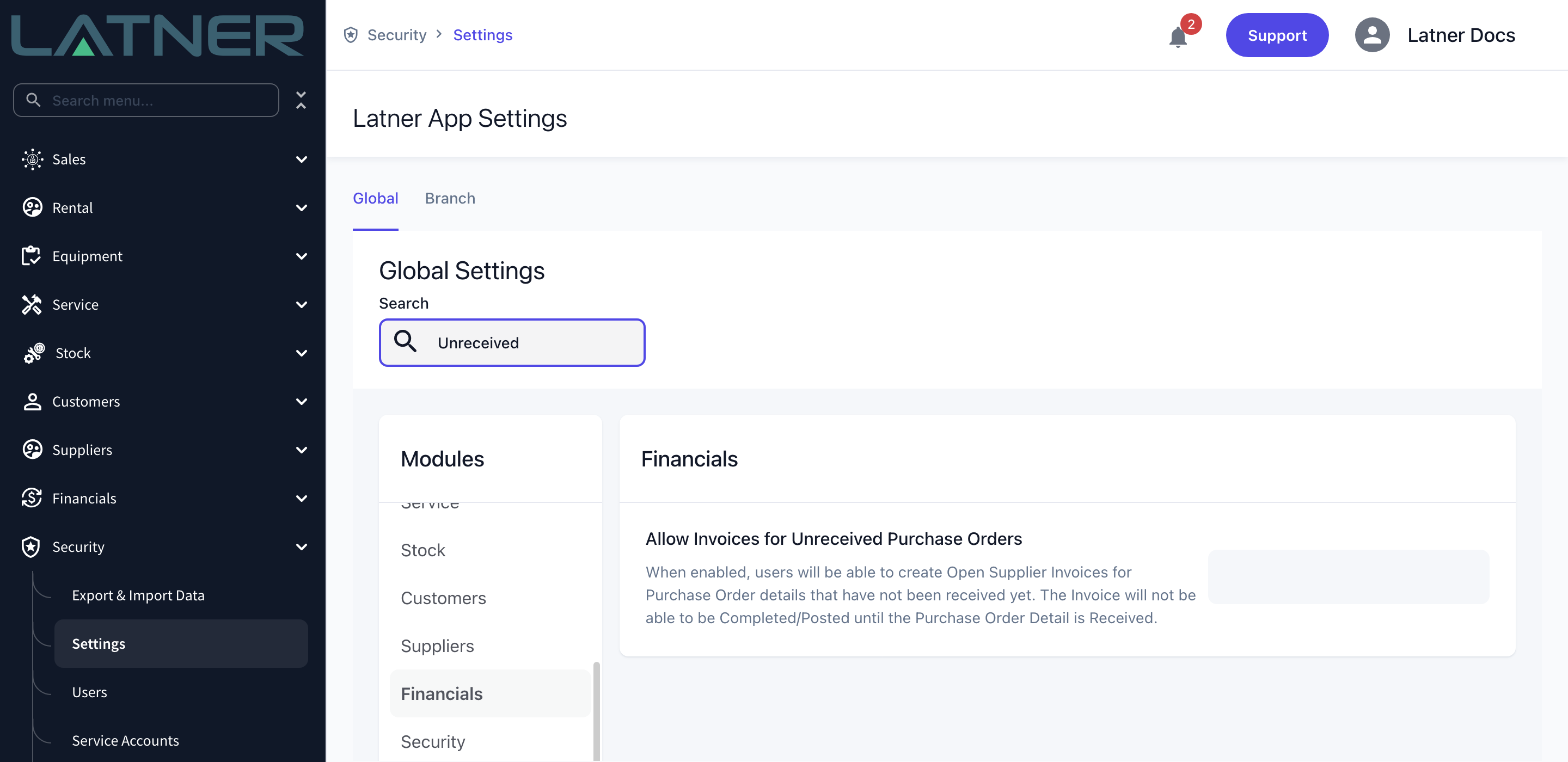
Allow Invoices for Unreceived Purchase Orders decides which orders you can even see in the list. Left at Never, an order only appears once some of it has been receipted. Set to Open Invoices Only or Allow Completed Invoices, any Confirmed, Partly Received or Fully Received order with quantity still to invoice appears - but on Open Invoices Only you will not be able to complete the invoice until that quantity is received.
Creating the Supplier Invoice
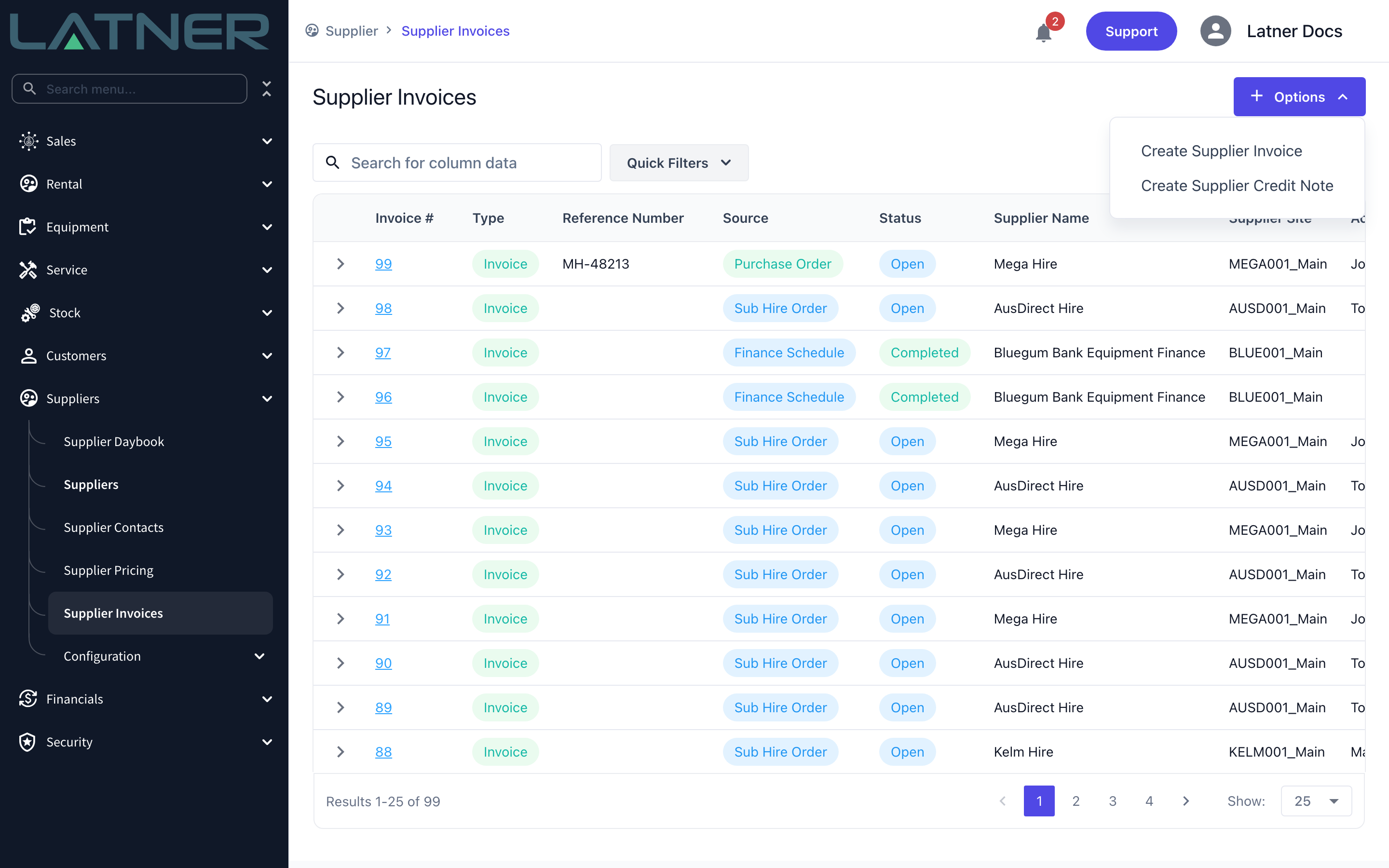
Step 1 - Open the Supplier Invoices screen
Go to Suppliers › Supplier Invoices and select Options › Create Supplier Invoice. Start here rather than on a Purchase Order: the same option on an order pre-fills that one order and locks the field, so it cannot cover a second order.
Step 2 - Choose the supplier
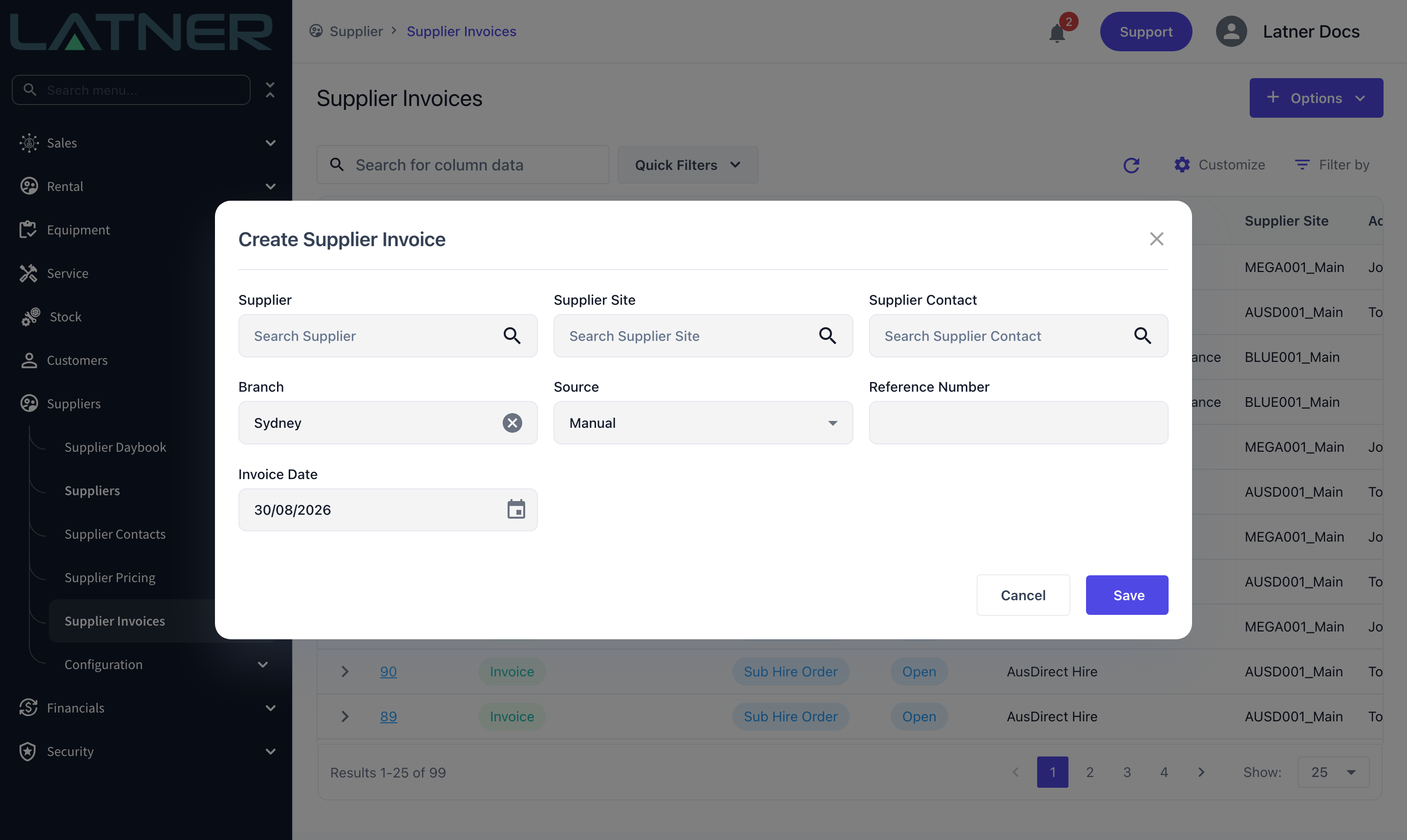
The dialog opens with Branch set to your own branch and Source set to Manual. Search for the supplier in the Supplier field and select it.
-
Supplier - required. Only active suppliers are listed.
-
Supplier Site - required. Filled in automatically from the supplier's first site; change it if the bill relates to a different site.
-
Supplier Contact - required. Filled in automatically from the supplier's billing contact.
-
Branch - required. Filled in from the supplier's branch.
Step 3 - Set the Source to Purchase Order
Change Source from Manual to Purchase Order. A Purchase Orders field appears alongside it. These are the only two sources you can pick here - sub hire and finance schedule invoices are raised from their own records.
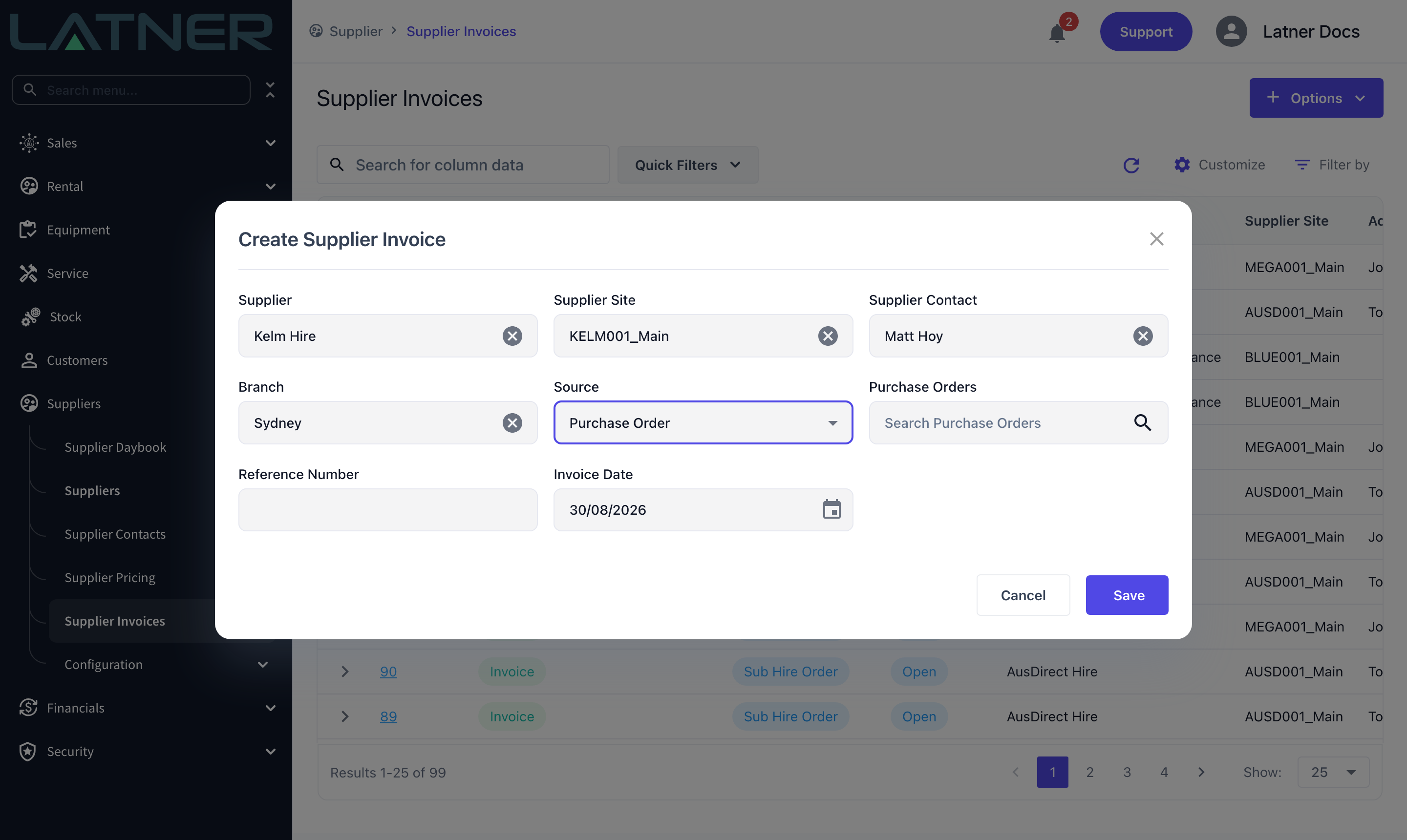
Step 4 - Select the Purchase Orders
Select the Purchase Orders field and tick every order the supplier has billed you for. The list shows each order's number, sub total, supplier and branch, and only offers orders that still have quantity left to invoice.
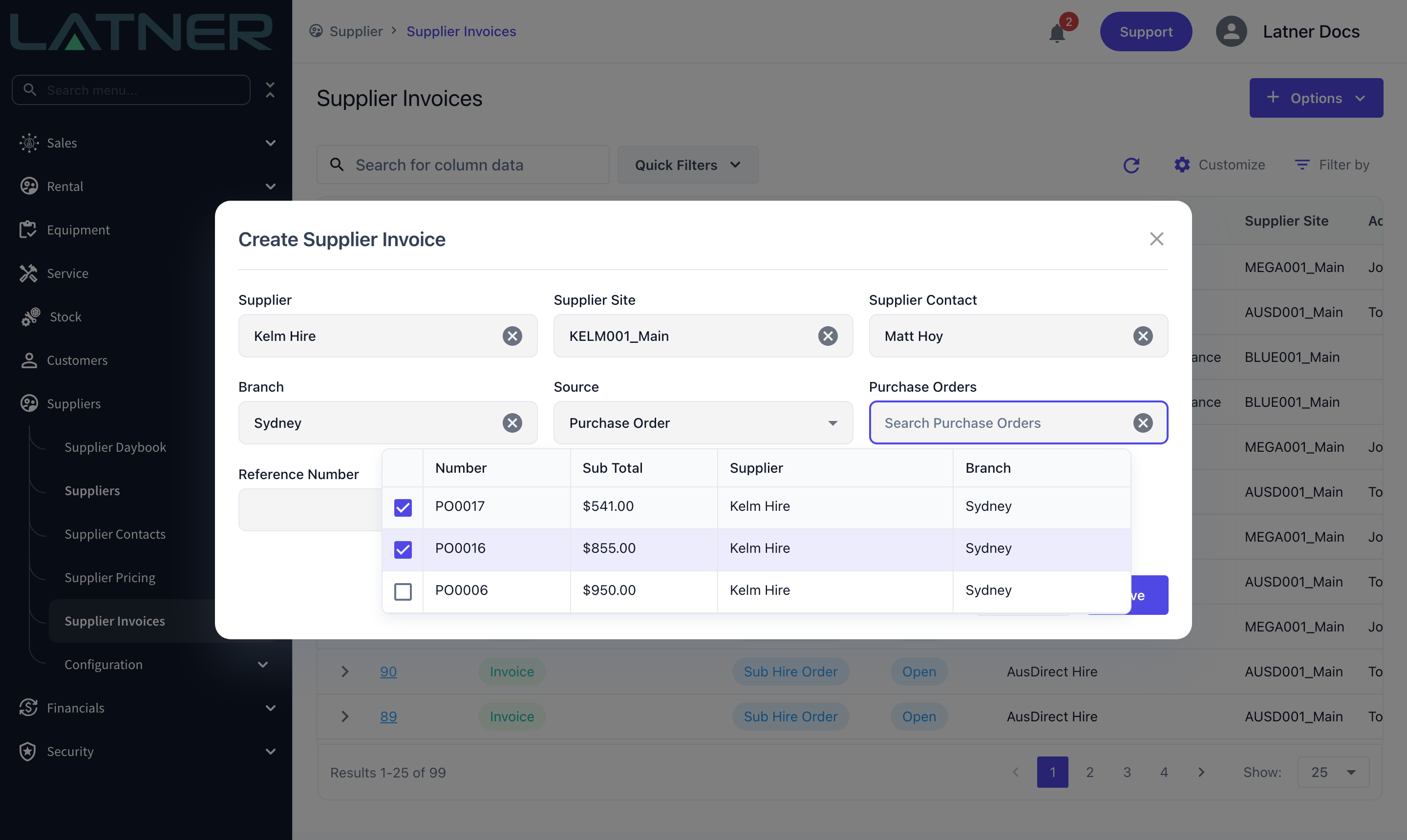
Change the supplier after picking orders and the selection is cleared, because the orders on the list belong to the old supplier. Pick the supplier first and the orders second.
Step 5 - Add the supplier's reference and save
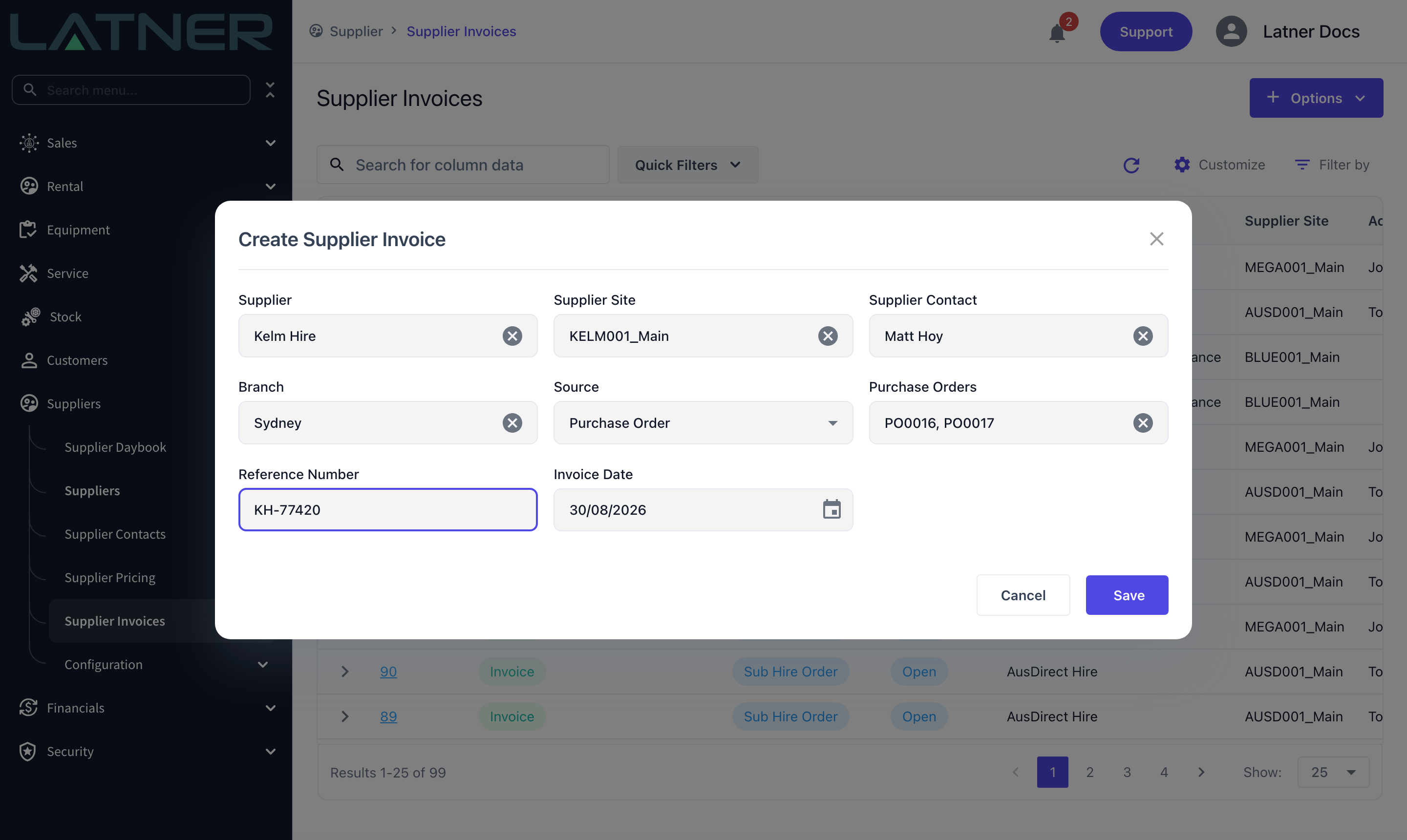
Close the order list, then finish the header and select Save.
-
Reference Number - the supplier's own invoice number. Optional, but worth entering: Latner rejects a second invoice using the same reference for the same supplier, which is what stops one bill being paid twice.
-
Invoice Date - defaults to today. The Due Date is worked out from this date and the supplier's payment terms, or from the Default Supplier Payment Term setting if the supplier has none.
Step 6 - Check the new invoice
Latner creates the invoice and opens it. It is in Open status with Source of Purchase Order, and the totals are the sum of everything invoiced across all the orders you selected.
After Creation
-
The Details tab holds one line per invoiced Purchase Order line, and the Purchase Order column names the order each line came from.
-
Each source order's Qty Invoiced goes up by what was invoiced, and an order with nothing left to invoice moves to Invoiced status.
-
The new invoice appears on each order's Supplier Invoices tab, so the trail runs both ways.
-
Purchase Order Number and Purchase Order Total on the invoice stay blank. A multi-order invoice belongs to no single order - the link lives on the lines.
-
While the invoice is Open you can still edit line quantities and unit costs, add manual lines with Options › Add Details, or pull in another order's lines with Options › Add Purchase Order Details.
-
Nothing reaches your accounting system until you select Options › Complete Invoice.
Completing the invoice is the point of no return. While it is Open a line can be deleted or the whole invoice cancelled, and each order's Qty Invoiced is wound back. Once it is Completed it has been posted, and a mistake has to be corrected with a credit note rather than unpicked.
FAQs
Watch the Demo
Prefer to watch it? Step through the same flow here.