
A Sub Hire Order is the order you place on a supplier when you hire a machine in for a customer, and Latner raises it for you the moment you add the sub hire line to the rental contract.
Overview
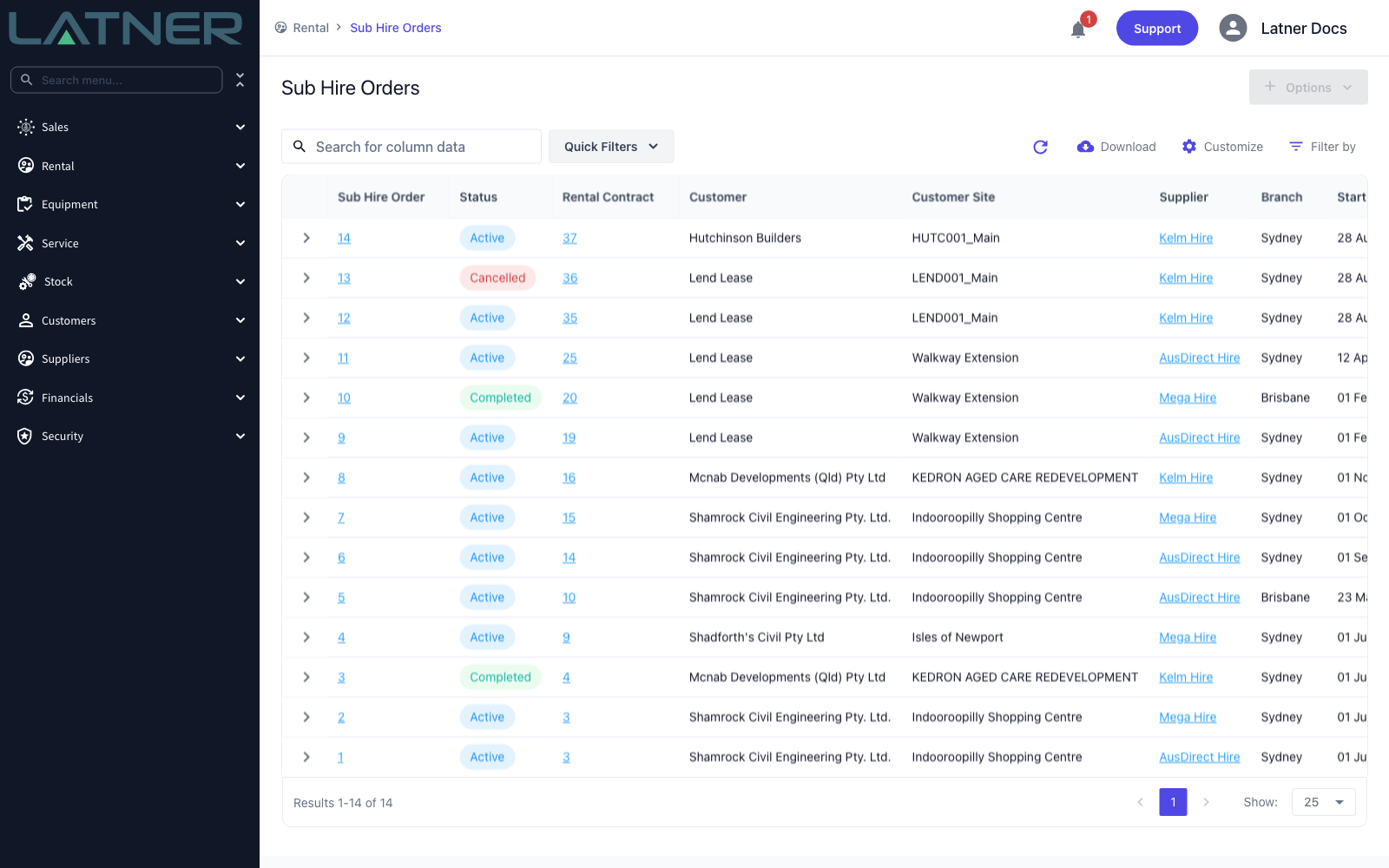
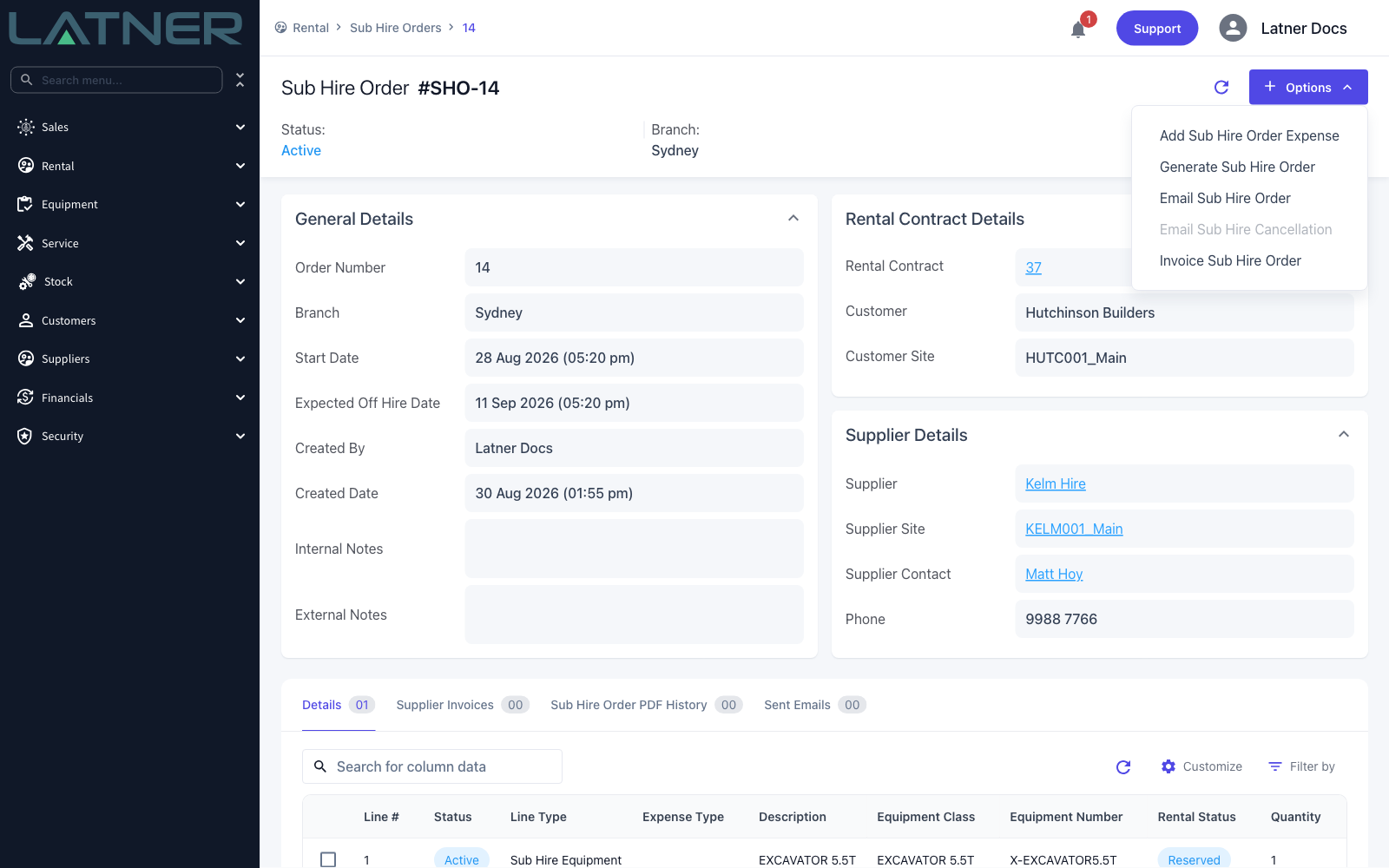
Go looking for a New button on the Sub Hire Orders screen and you won't find one, and that's deliberate. A sub hire only exists because a customer needed something you didn't have, so the order starts life on the rental contract and the Sub Hire Orders screen is where you find and work the orders that already exist. Unlike a Purchase Order, a Sub Hire Order is built for rentals: it carries the supplier's hire rates and the dates the machine is on hire, so the supplier's invoices can be raised for the right period alongside the ones you send the customer.
-
Adding a Sub Hire Equipment line with a supplier on it either raises a new Sub Hire Order for that supplier or adds the line to one that's already open.
-
Latner keeps one Active order per combination of rental contract, supplier, supplier site and branch, so several machines hired from the one supplier for the one job land on the one order.
-
The order's Start Date and Expected Off Hire Date stretch to cover the earliest start and the latest expected off hire of its lines.
-
Supplier Contact defaults to the contact on the supplier site you chose, and is the address the order is emailed to.
-
From the order you send the order to the supplier, add expenses they pass on, and record their invoices.
Before You Begin
You'll need the following in place before you can raise a Sub Hire Order.
|
Requirement |
Where to Find It |
|---|---|
|
Add Rental Contract Details permission, to add the line that creates the order |
Security › Configuration › Permission Groups › Rental › Option |
|
Sub Hire Orders or Rental Contracts permission, to open the order once it exists |
Security › Configuration › Permission Groups › Rental › Screen |
|
Add Sub Hire Order Expense Details and Email Sub Hire Order permissions, for the last two steps |
Security › Configuration › Permission Groups › Rental › Option |
|
An active supplier with an active site, and a contact on that site |
Suppliers › Suppliers |
|
A rental contract that is still open, for the customer you're hiring the machine for |
Rental › Rental Contracts |
|
Global Sub Hire Minimum Markup and Auto Create Sub Hire Order Invoices (both optional) |
Security › Settings › Rental |
|
Sub Hire Order PDF Template ID, if you want to send the order as a PDF |
Security › Settings › PDF Templates |
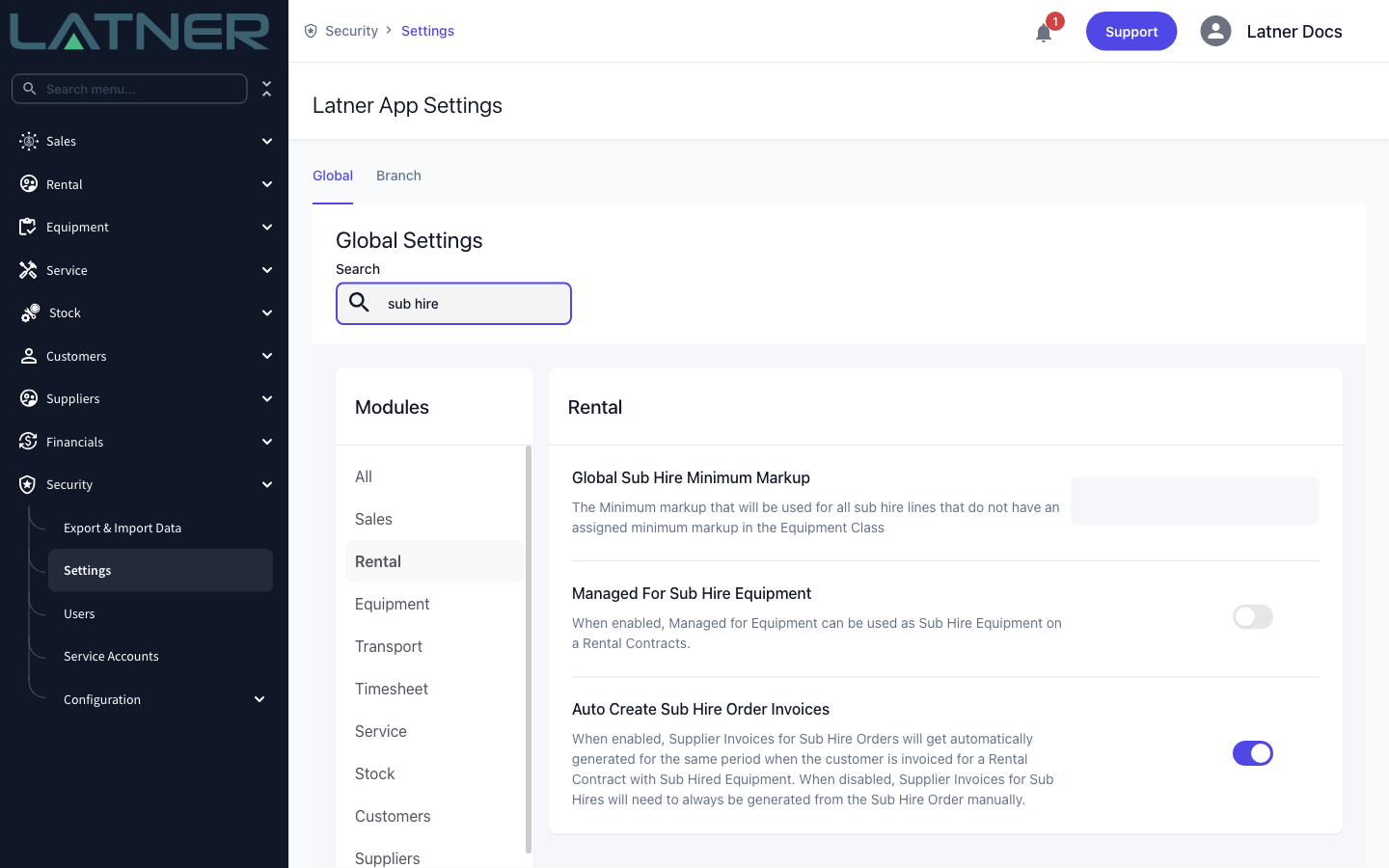
If Global Sub Hire Minimum Markup is set, Latner checks every sub hire line against it and refuses to save one that falls short. An equipment class can carry its own minimum markup, which takes precedence over the global figure. Users with the Allow Rates below Sub Hire Minimum Markup permission aren't checked.
Creating the Sub Hire Order
Step 1 - Add a Sub Hire Equipment line to the contract
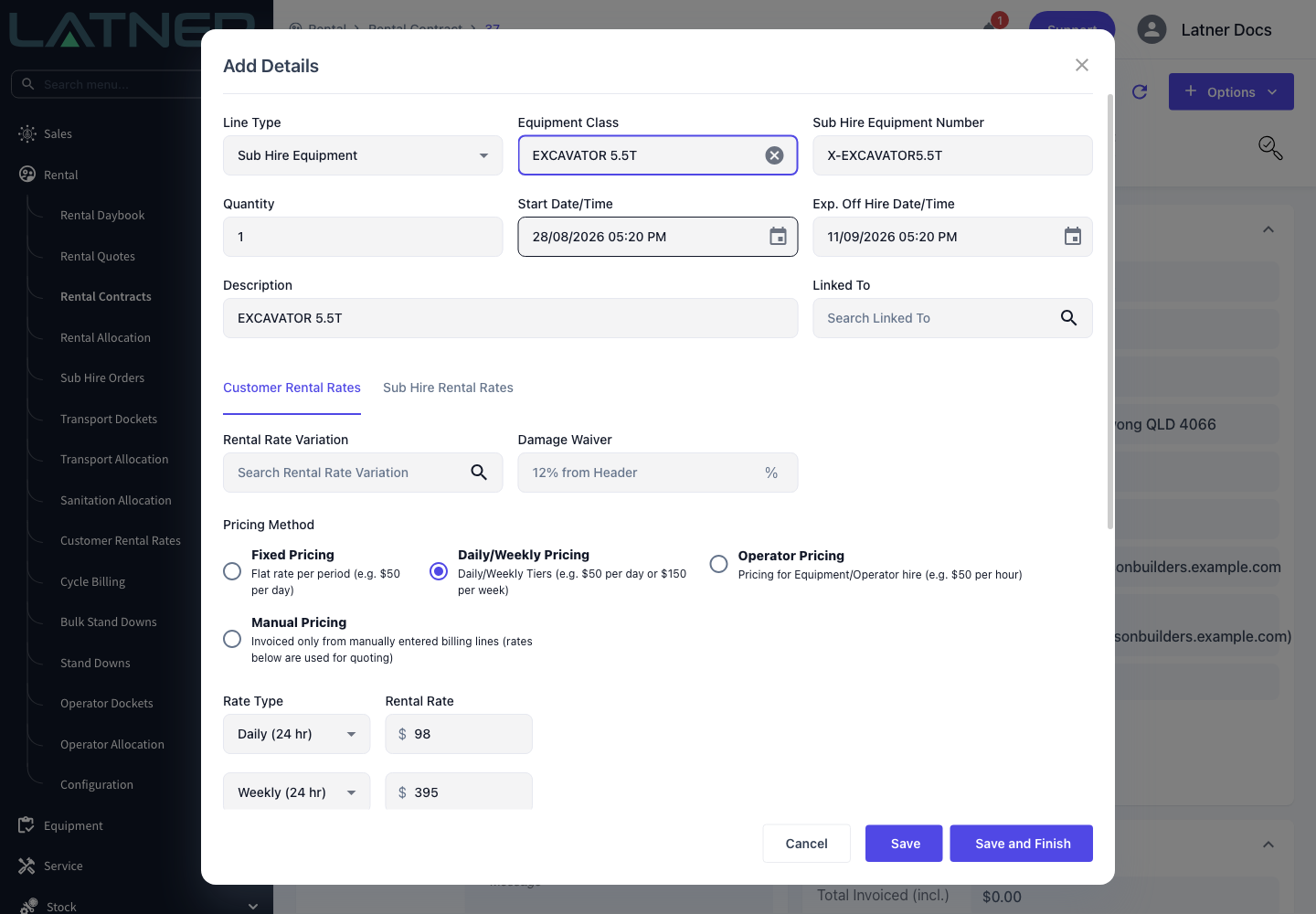
Open the rental contract from Rental › Rental Contracts, choose Options › Add Details, and set Line Type to Sub Hire Equipment. The form changes shape: the Equipment Model and Equipment Number pickers disappear, because you aren't allocating a machine out of your own fleet.
-
Equipment Class - required. It drives the description, the customer rates and any class-level minimum markup.
-
Sub Hire Equipment Number - free text, pre-filled from the equipment class. Replace it with the supplier's fleet number as soon as you know it.
-
Quantity, Start Date/Time and Exp. Off Hire Date/Time - default from the contract header, and set the dates the Sub Hire Order will cover.
-
Description - filled from the equipment class, and editable.
The Customer Rental Rates tab is what your customer pays, and Latner fills it from the customer's rate book for that equipment class as soon as you pick the class.
For the full detail on the line itself, see How to Add Sub Hire Equipment to a Rental Contract.
Step 2 - Choose the supplier and enter their rates
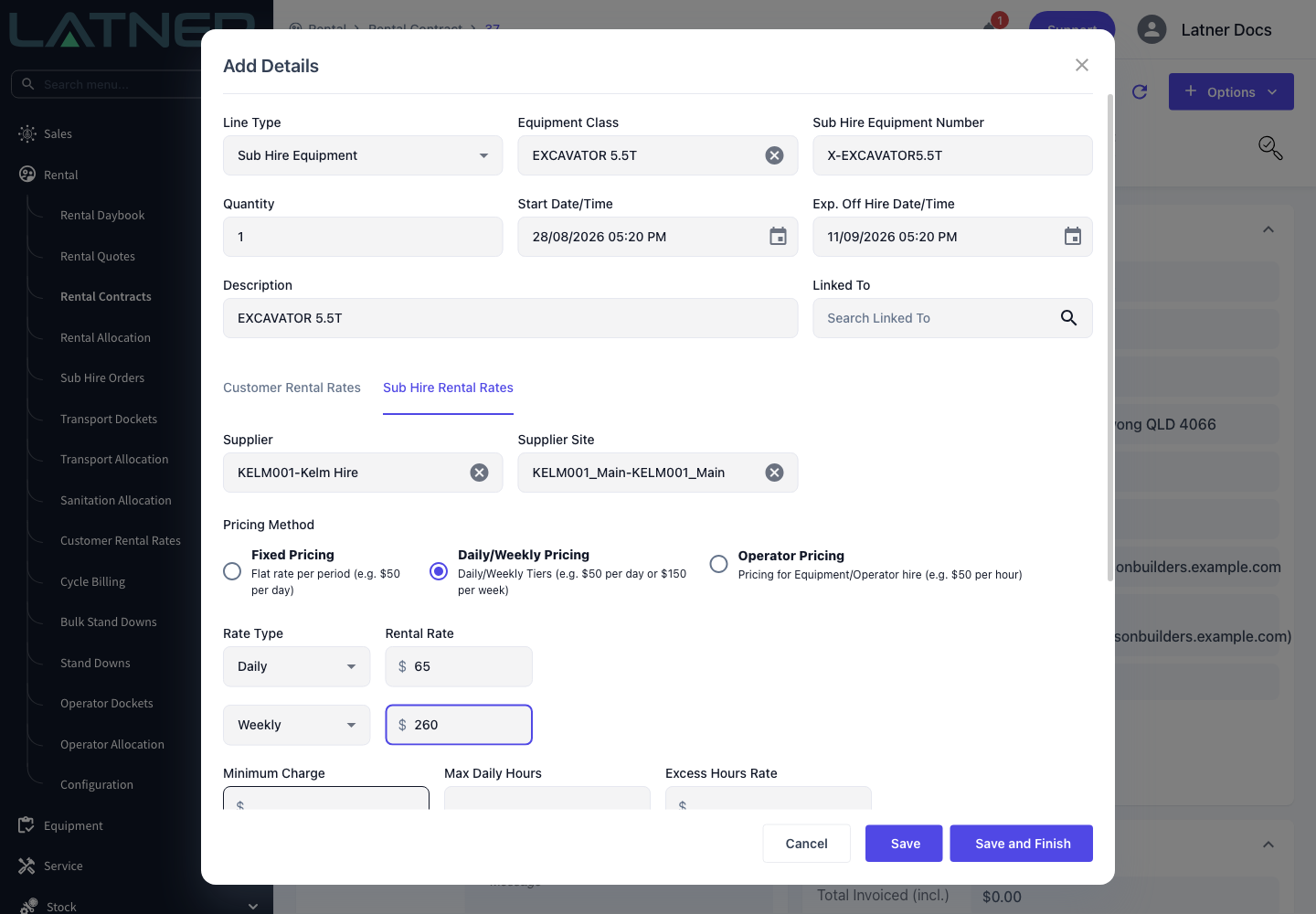
Switch to the Sub Hire Rental Rates tab. This is the only place the supplier fields appear, and choosing a supplier here is what decides which Sub Hire Order the line lands on.
-
Supplier - required. Only active suppliers are listed.
-
Supplier Site - required, and pre-filled with the supplier's first site. It stays disabled until a supplier is chosen, and you can create a new site from the field if the one you need doesn't exist yet. The site's contact becomes the Supplier Contact on the order.
-
Pricing Method and rates - if the supplier has Sub Hire Rental Rates set up for that equipment class, Latner fills them in when you pick the supplier. If they don't, enter what the supplier quoted you.
Step 3 - Check the markup
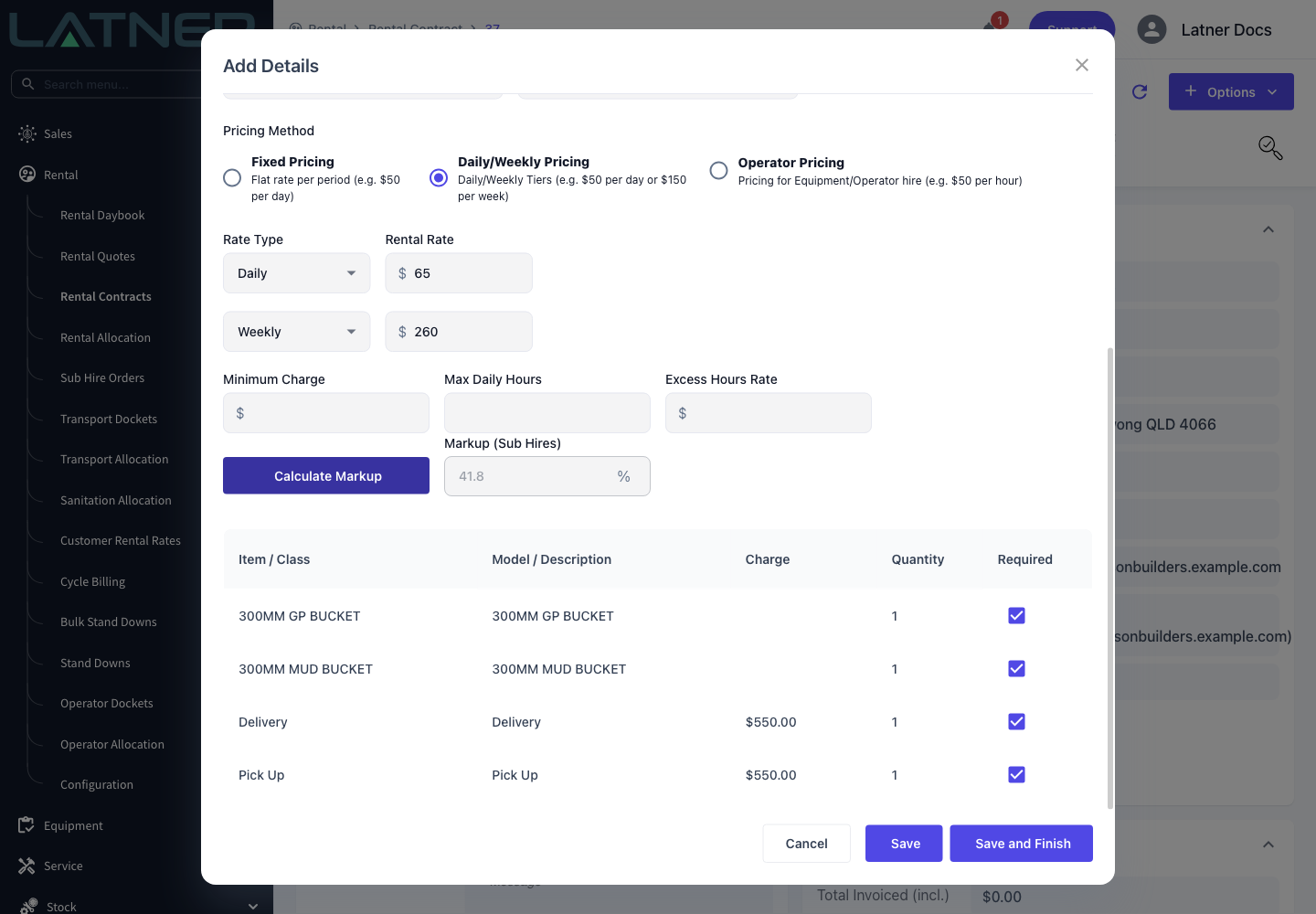
Select Calculate Markup. Latner prices both sides of the line for the dates on it and shows the difference as a percentage in Markup (Sub Hires). The button and the field are hidden when either side uses Operator Pricing, which markup isn't calculated for.
Step 4 - Save the line
Save adds the line and reopens the form so you can add the next one. Save and Finish adds the line and closes the form. Either way, saving is the moment the Sub Hire Order is created.
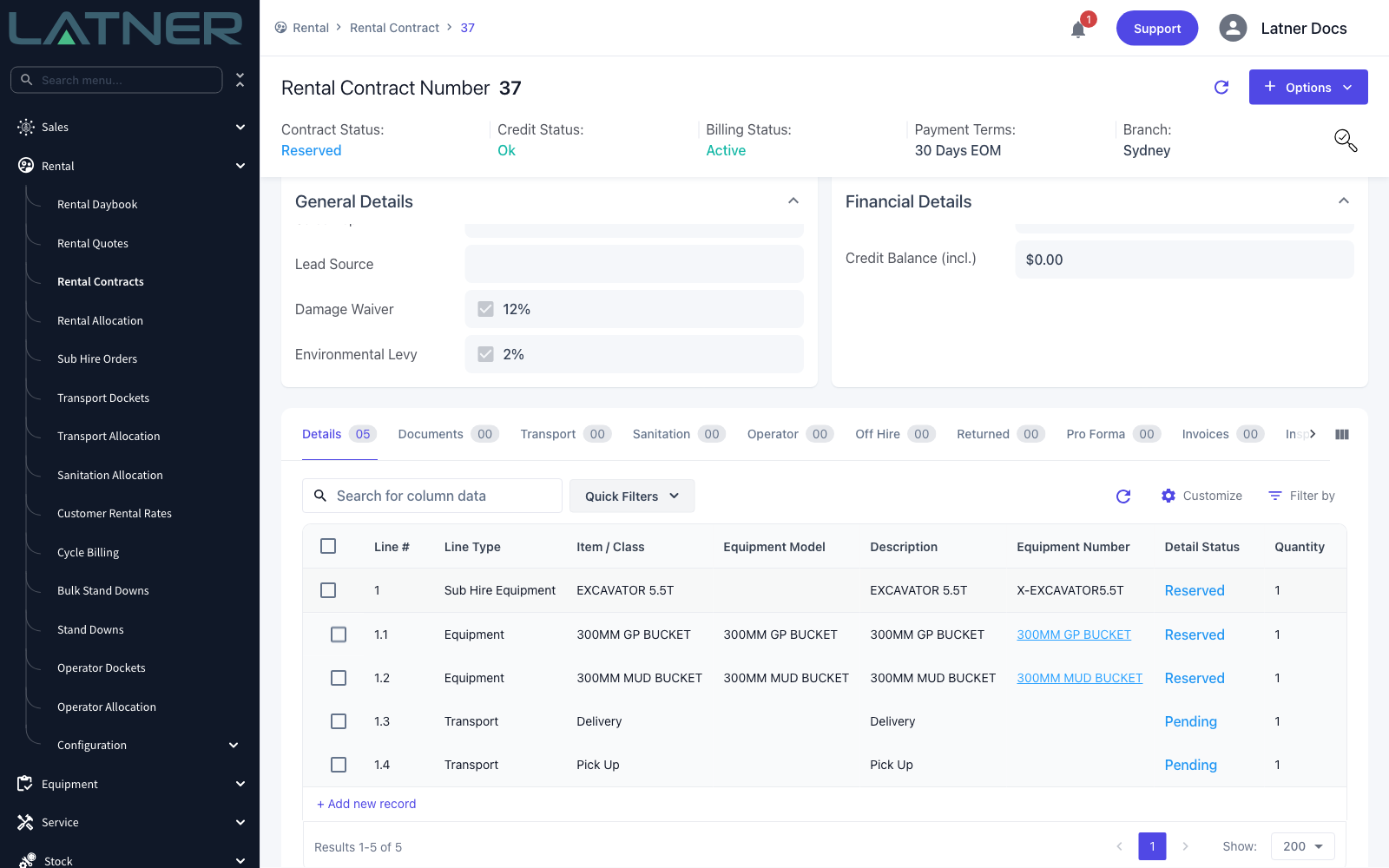
Step 5 - Open the Sub Hire Order
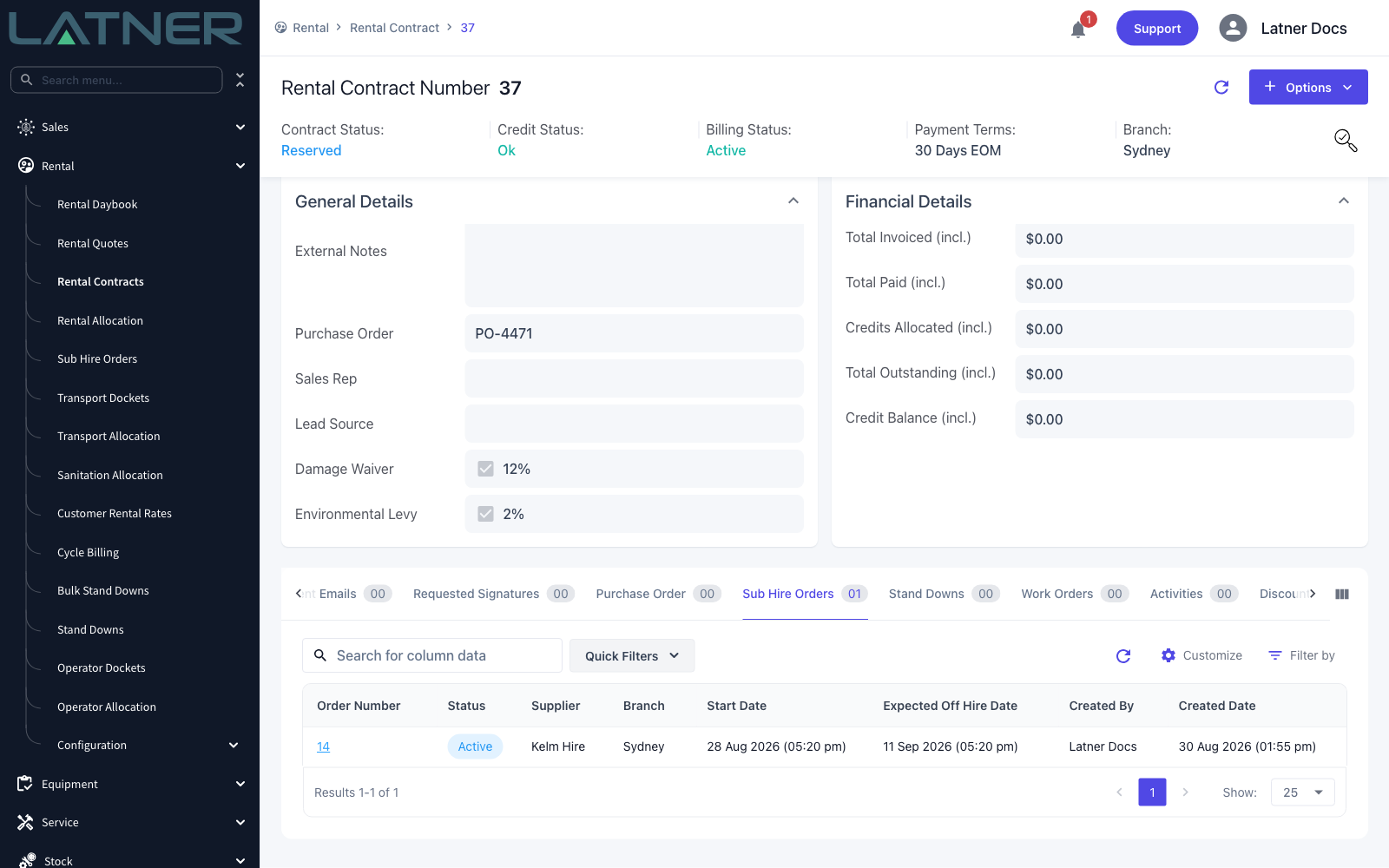
The contract's Sub Hire Orders tab now lists an Active order for that supplier. Select the order number to open it. You can also reach every order from Rental › Sub Hire Orders, which is the screen to use when you're working from the supplier's end rather than the customer's.
Step 6 - Check the order and add your notes
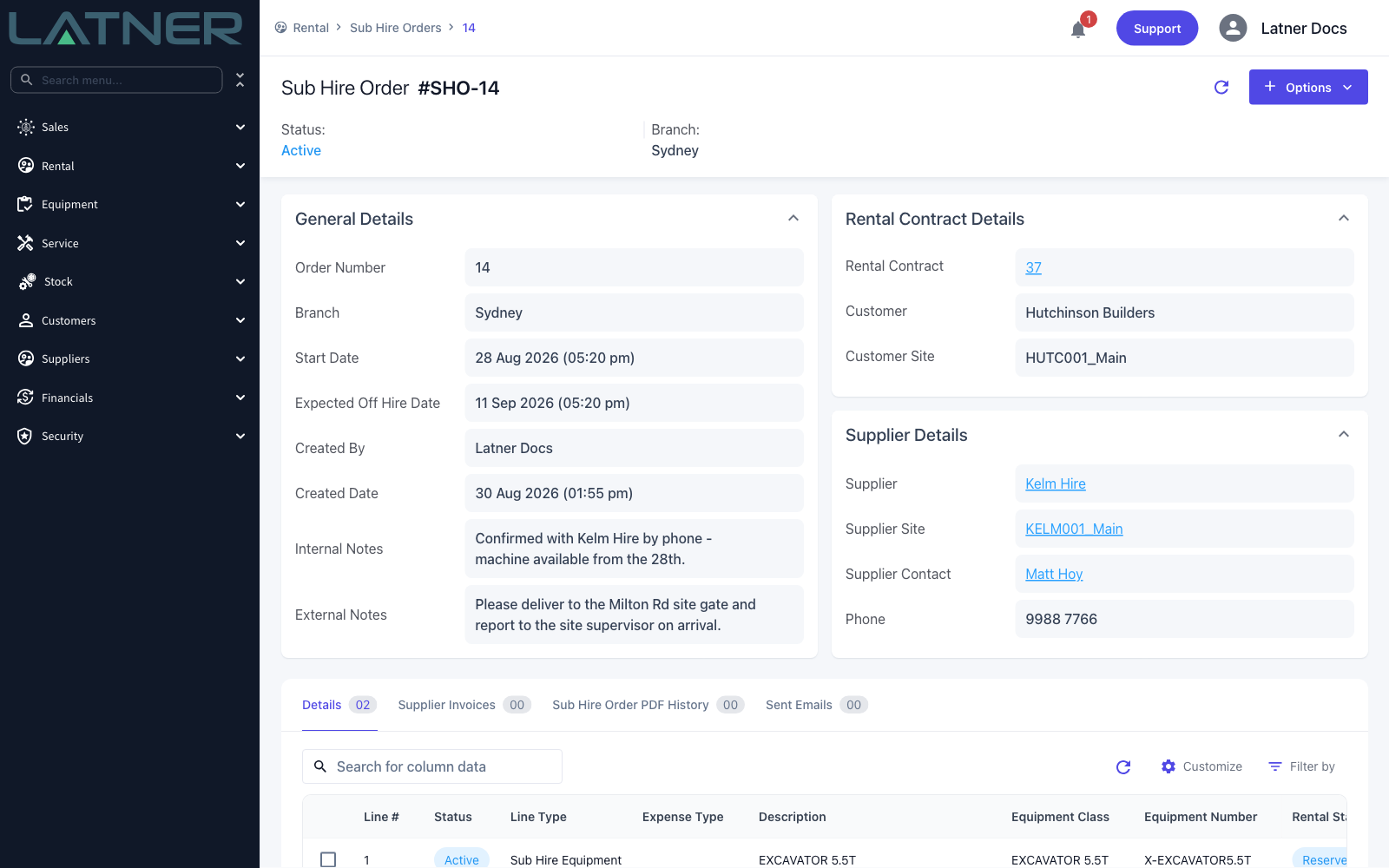
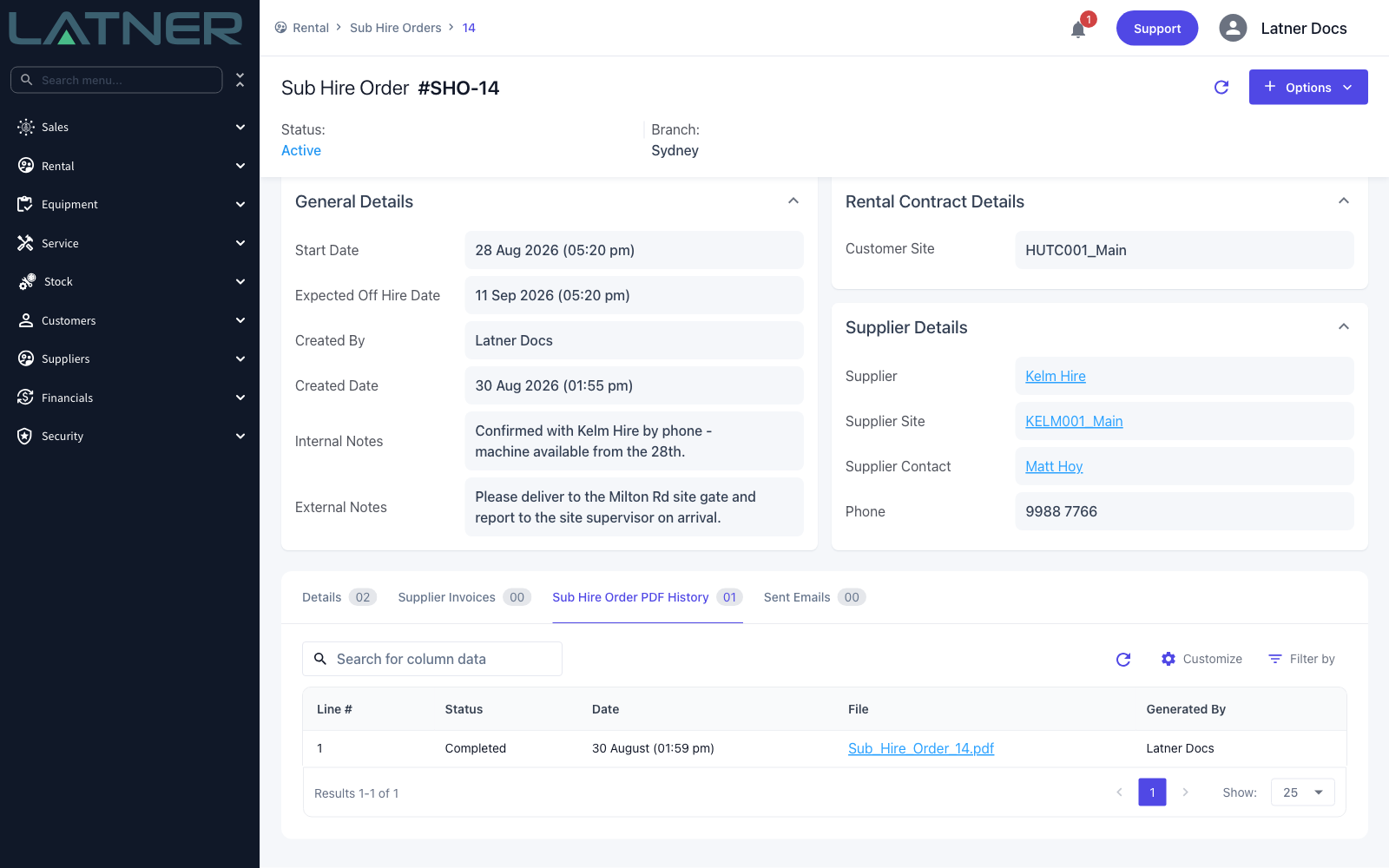
The order carries the branch, the rental contract it was raised for, the supplier, supplier site and supplier contact, and the dates spanning its lines. Three things are worth setting before you send it:
-
Supplier Contact - change it if the order should go to someone other than the site's default contact. Their phone number follows automatically.
-
Internal Notes - for your own team. These stay in Latner.
-
External Notes - for the supplier. These are the notes that belong on the order you send them.
Step 7 - Add any expenses the supplier is passing on
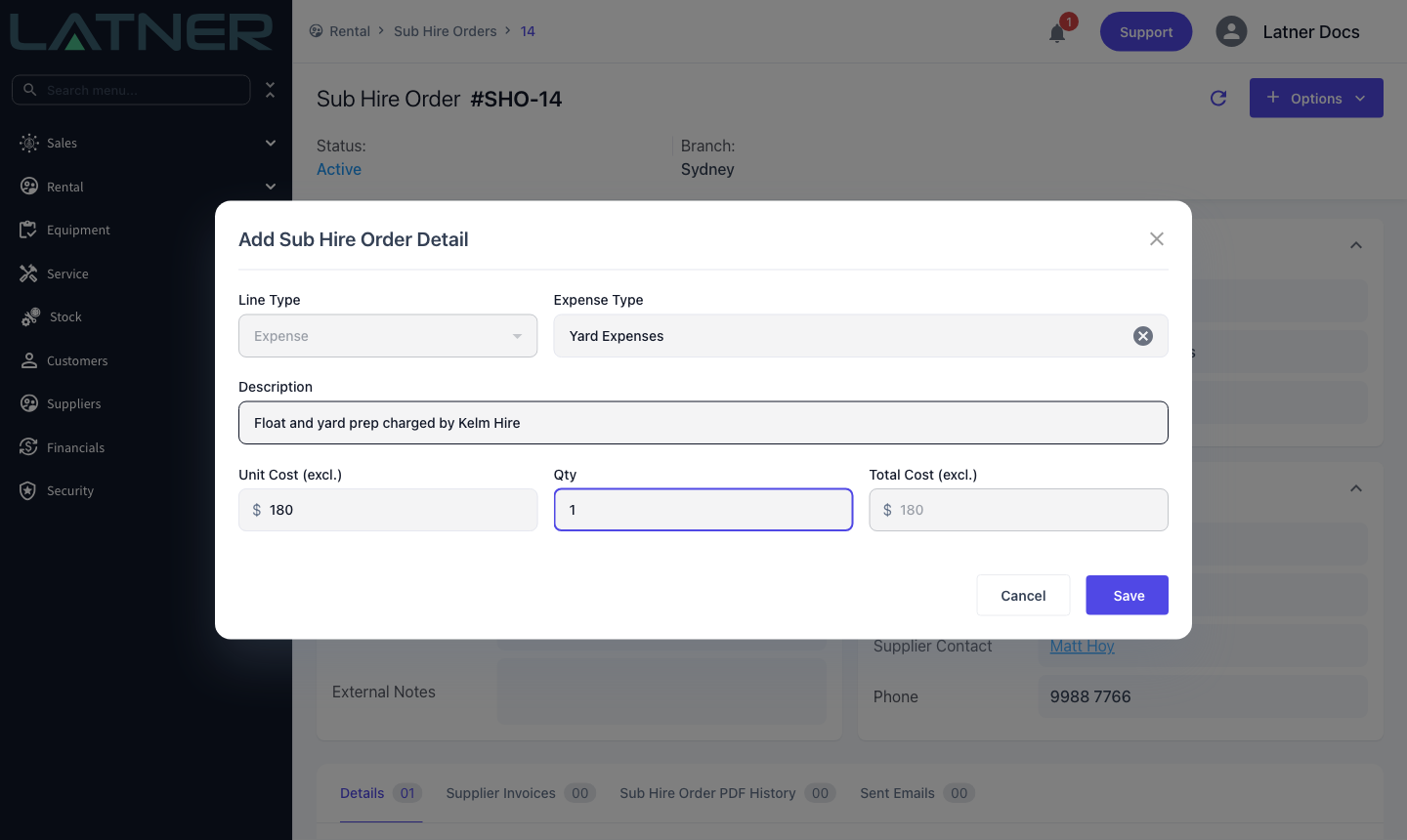
Float fees, yard charges and the like aren't part of the hire rate, so add them as their own lines with Options › Add Sub Hire Order Expense. Pick an Expense Type, which fills the Description for you, then enter Unit Cost (excl.) and Qty - Total Cost (excl.) calculates itself.
Step 8 - Generate the PDF
Choose Options › Generate Sub Hire Order PDF. The PDF is rendered in the background and appears on the Sub Hire Order PDF History tab once it's done, so every version you've ever produced stays on the order.
Step 9 - Email the order to the supplier
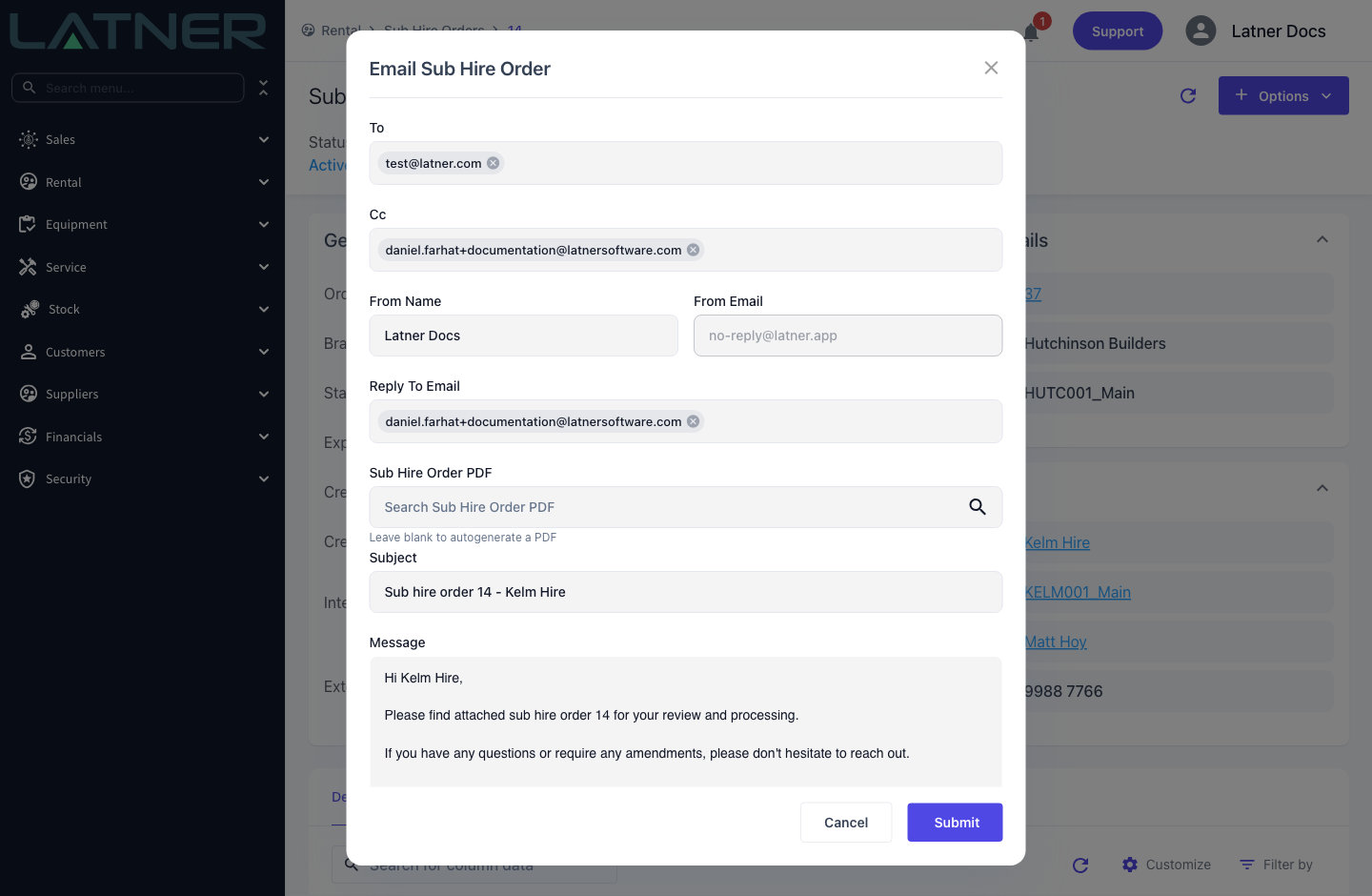
Choose Options › Email Sub Hire Order. The supplier contact's email is filled into To, and the subject and message come from your branch's Sub Hire Order email settings. Leave Sub Hire Order PDF blank and Latner generates a fresh PDF and attaches it; pick one from the list to send a version you generated earlier. Select Submit to send.
After Creation
-
The order shows on the contract's Sub Hire Orders tab and on Rental › Sub Hire Orders, with the status Active.
-
Add another sub hire line for the same supplier, site and branch and it joins this order rather than starting a new one, widening the order's dates if it needs to.
-
Sent emails are listed on the Sent Emails tab, and generated PDFs on Sub Hire Order PDF History.
-
Creating an external transport docket for a sub hired machine offers to add the transport to the existing Sub Hire Order, which puts the freight on the same order as the hire.
-
Supplier invoices raised against the order are listed on the Supplier Invoices tab. With Auto Create Sub Hire Order Invoices enabled, invoicing the customer generates the matching supplier invoice for the same period; with it disabled, you raise each one yourself with Options › Invoice Sub Hire Order.
-
Returning the equipment on the rental contract completes the matching line on the order, once there's nothing left to invoice the supplier for. When every line is completed or cancelled, the order moves to Completed.
-
Margins across your sub hires are reported on the Sub Hire Profitability tab of the home screen dashboard.
Once a supplier has invoiced a line, that line can no longer be cancelled or moved to a different order, and the order itself can't be cancelled. If you've picked the wrong supplier, change it on the rental contract line before the first supplier invoice is raised - Latner will then move the line onto the right supplier's order and create one if there isn't an active one already.