
Checking a supplier invoice against a Sub Hire Order means comparing what your hire supplier has billed you with what Latner has worked out for the same equipment and the same period, so you only pay for the days you actually hired.
Overview
Sub hire is money going out the door on someone else's paperwork. The supplier decides what to send you, and the only way to know whether it is right is to hold it up against the order you placed and the days the machine was actually on hire. Latner keeps all of that on the Sub Hire Order, so the check is a comparison rather than a recalculation.
-
Every Supplier Invoice raised from a Sub Hire Order carries a source of Sub Hire Order and links straight back to the order and the rental contract it was hired for.
-
Each invoice line records the billing period, billable days, stand down days and the rate it was priced from, so you can see exactly where the amount came from.
-
The Sub Hire Order holds the agreed supplier rates, the Last Billed To Date and the Total Invoiced Amount (excl.) for each line, which together tell you what has already been paid for.
-
Options › Invoice Sub Hire Order › Preview recalculates the charge for any date you choose without saving anything, so it doubles as a checking tool.
-
Sub hire equipment is priced over the whole hire and then reduced by what has already been invoiced on that line, so a rate that steps down as the hire runs on corrects itself on the next invoice.
-
If Latner has it wrong you can correct the line while the invoice is Open. If the supplier has it wrong, raise a dispute against the invoice instead.
Before You Begin
Make sure the following are in place.
|
Requirement |
Where to Find It |
|---|---|
|
Supplier Invoice permission |
Security › Configuration › Permission Groups, then Suppliers › Screen. Needed to open the invoice at all. |
|
Sub Hire Orders permission |
Security › Configuration › Permission Groups, then Rental › Screen. Needed to open the order behind the invoice and to run a preview. |
|
Edit Supplier Invoice Detail permission |
Security › Configuration › Permission Groups, then Suppliers › Option. Only needed if you have to correct a line. |
|
Dispute Supplier Invoice permission |
Security › Configuration › Permission Groups, then Suppliers › Option. Only needed if you have to put the invoice into dispute. |
|
The supplier's own invoice or statement |
Whatever the supplier sent you. You are checking Latner against that document, so have it open. |
|
Tax Rounding Method |
Security › Settings › Financials. Decides whether tax is rounded per line and summed, or calculated once on the invoice sub total. |
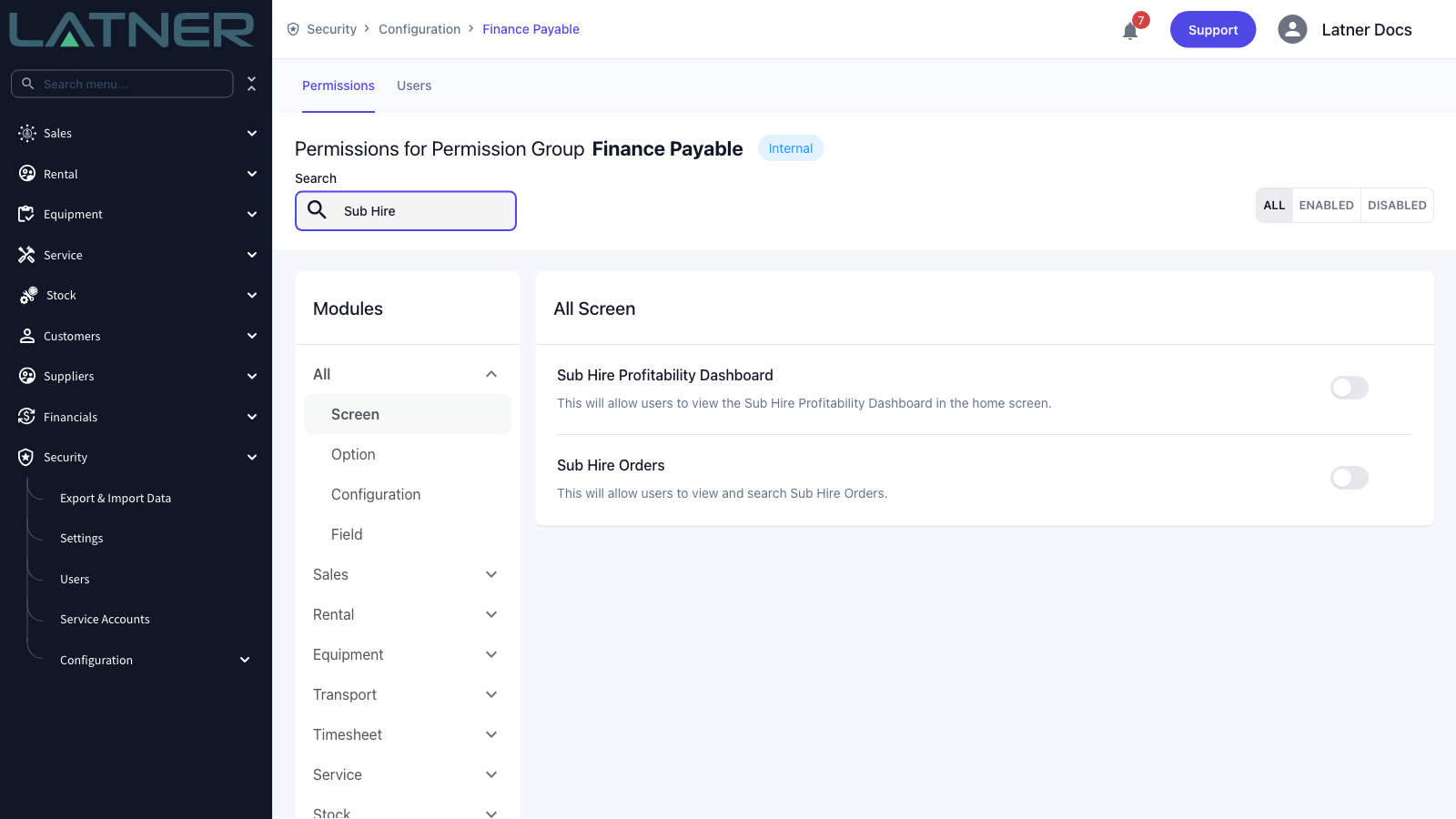
Accounts payable roles are often set up without the Sub Hire Orders permission, because the order itself belongs to the rental side of the business. If you can open the invoice but the Sub Hire Order Number link does nothing, that permission is the reason - ask for it rather than working around it, because the order is where the agreed rates live.
Checking the Invoice
Step 1 - Find the Supplier Invoice
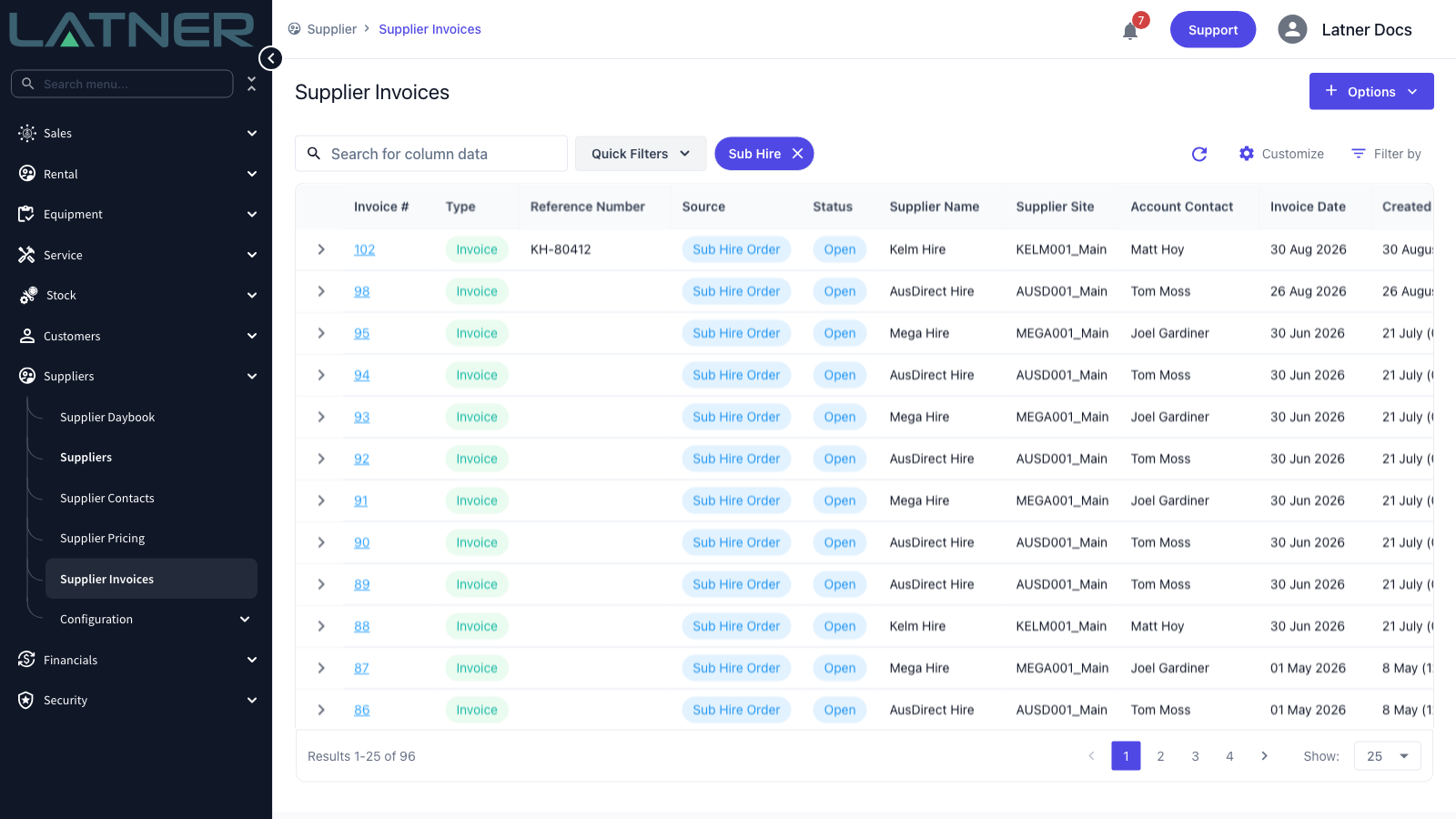
Go to Suppliers › Supplier Invoices and select Quick Filters › Sub Hire to narrow the list to invoices raised from a Sub Hire Order. The Source column confirms it on each row - invoices keyed in by hand show Manual instead.
Step 2 - Check the header against the supplier's document
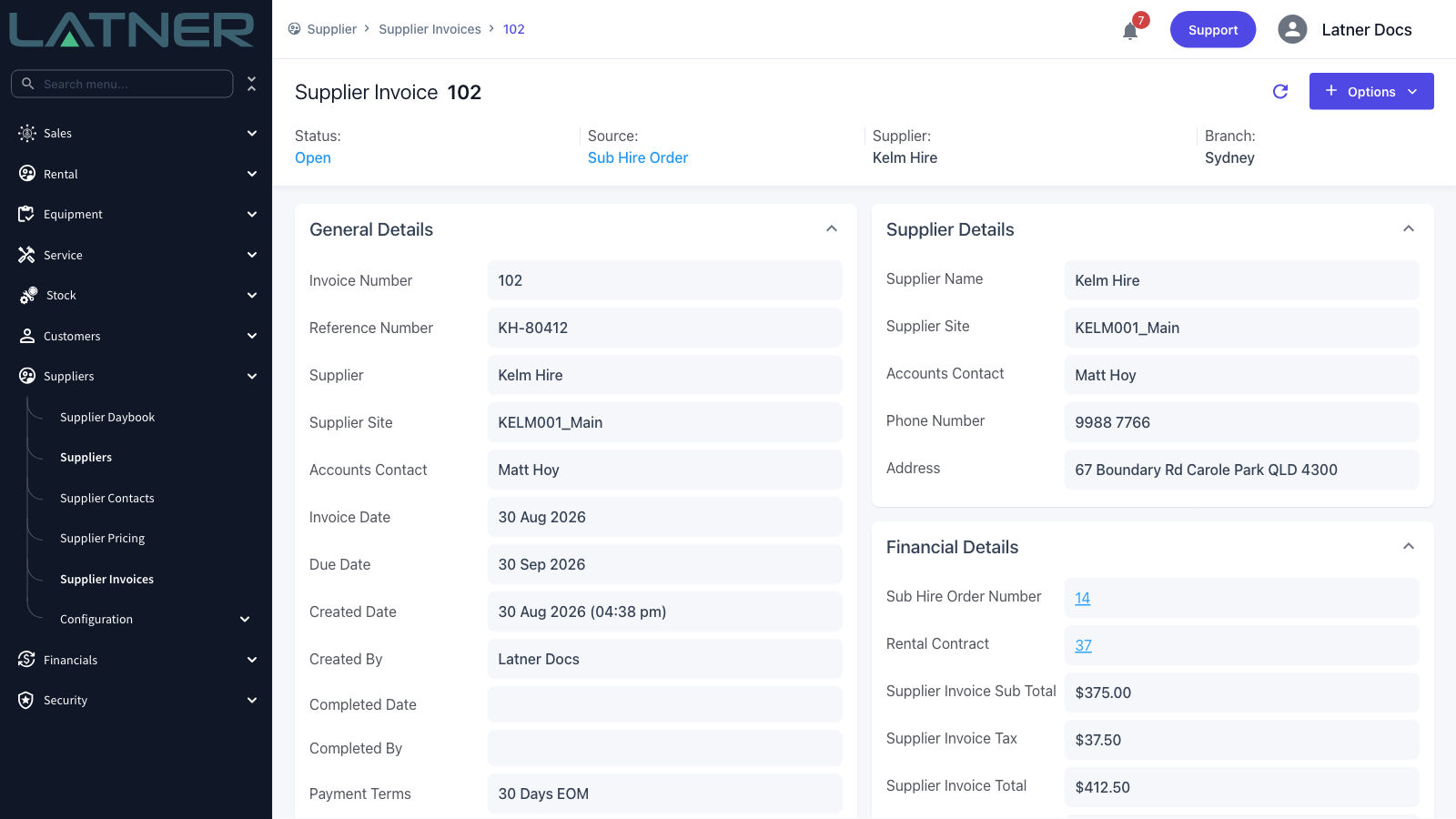
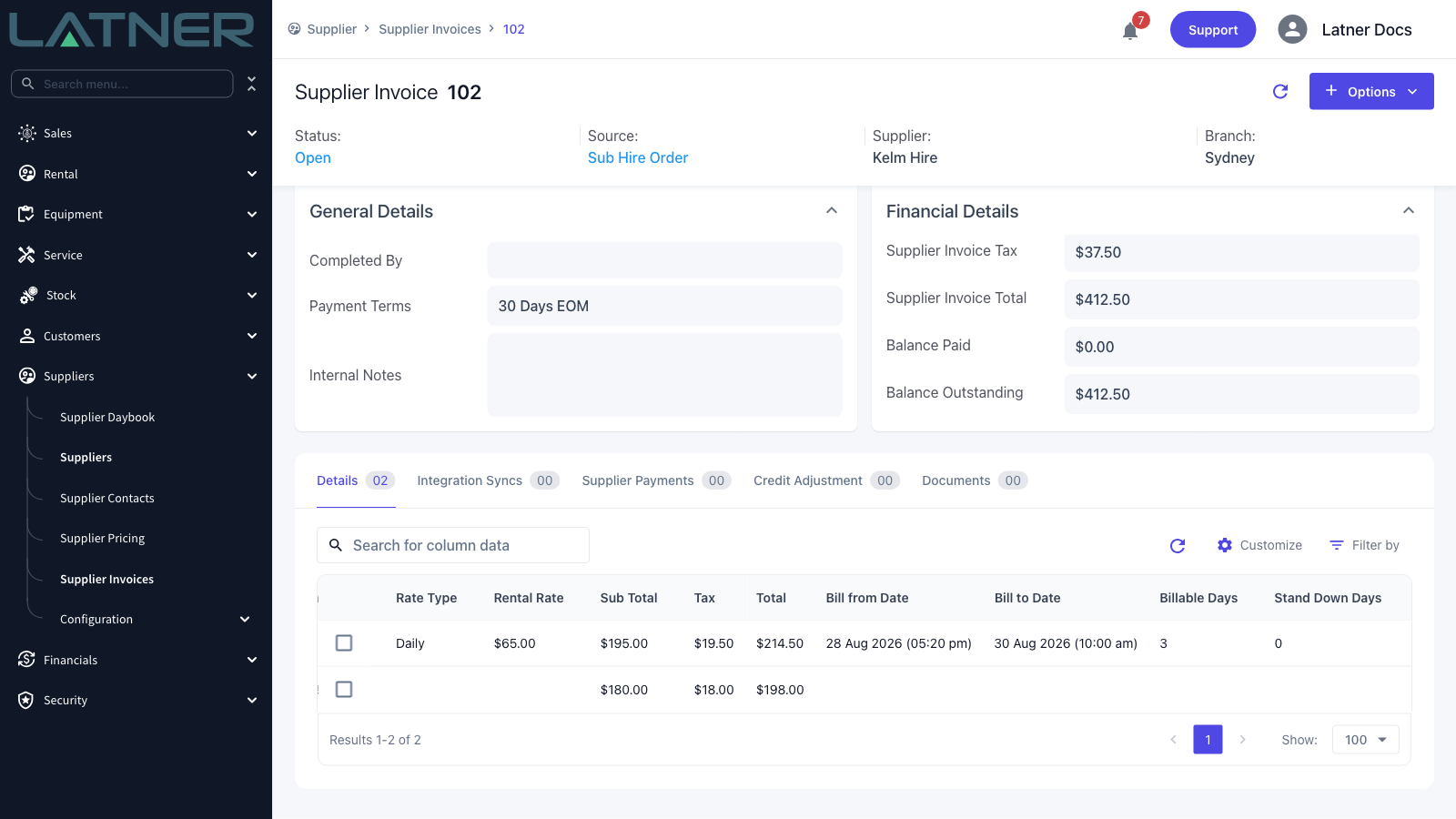
Open the invoice and work down the General Details and Financial Details cards. Four things are worth a look before you go anywhere near the lines.
-
Supplier and Supplier Site - the branch of the supplier you actually hired from. A supplier with several depots can easily bill you from the wrong one.
-
Invoice Date and Due Date - the due date is calculated from the invoice date and the supplier's payment terms, so if the supplier's document shows a different due date, the terms on the supplier record are the place to look.
-
Reference Number - type the supplier's own invoice number in here. It is left blank when Latner raises the invoice, because only the supplier's paperwork can tell you what it should be, and it is what lets anyone match the two documents up later.
-
Sub Hire Order Number and Rental Contract - both are links. They tell you which hire the cost belongs to and give you the two screens you need for the rest of the check.
Latner checks for a duplicate Reference Number against the same supplier when an invoice is created with a supplier and a reference number together, and it ignores cancelled invoices when it does. Typing a reference number onto an invoice that already exists does not re-run that check, so if you suspect the supplier has sent the same invoice twice, search the Supplier Invoices list for the number yourself.
Step 3 - Check the invoice lines
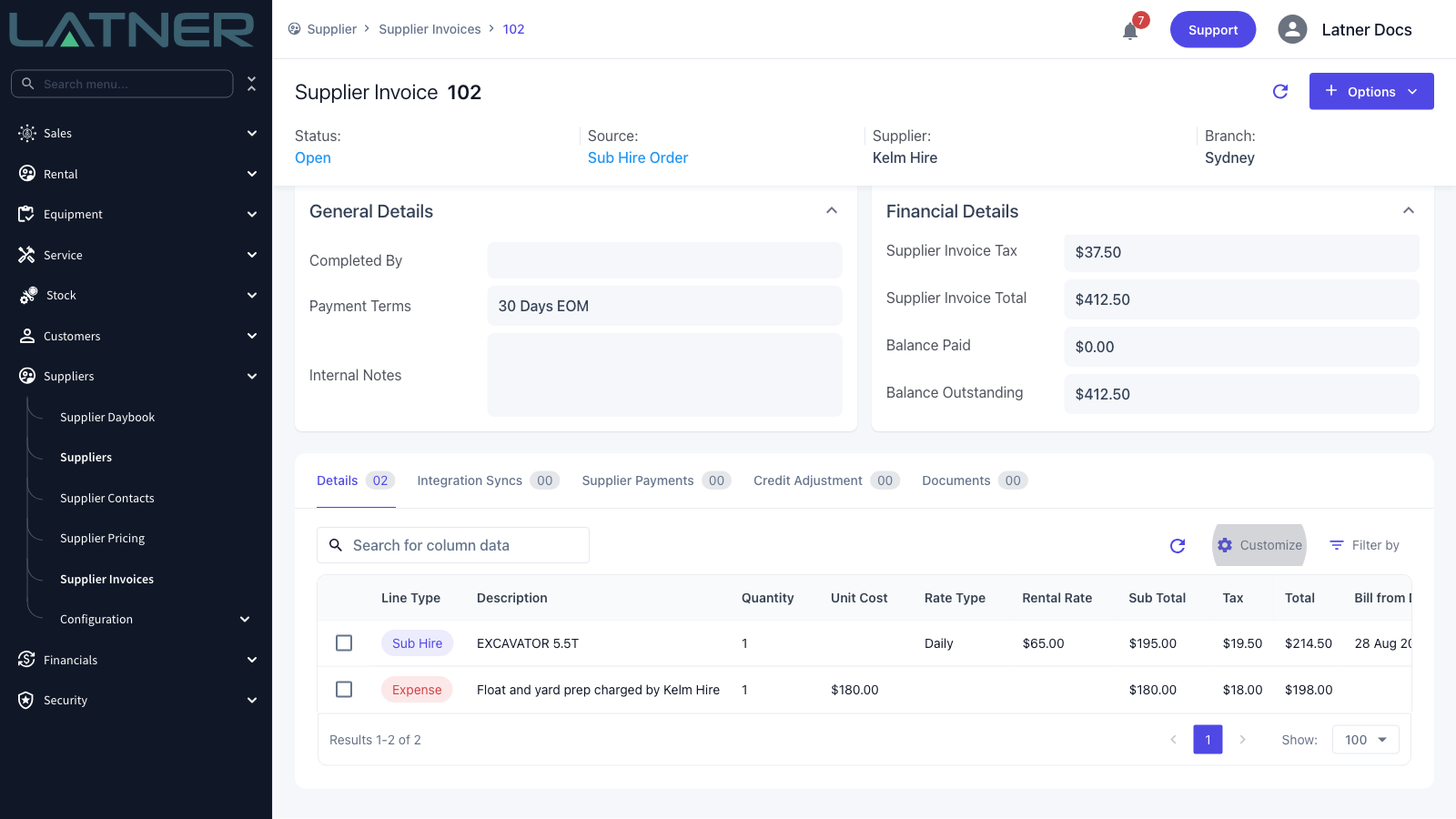
The Details tab lists one line per charge. Select Customize to show or hide columns - the table carries more than fits on screen, and the ones that matter for a sub hire check are usually hidden behind a scroll.
-
Line Type - Sub Hire for the equipment itself, Transport for a float charge, Expense for anything else the supplier charged.
-
Quantity and Unit Cost - used for transport and expense lines, which are simply quantity multiplied by item cost. A sub hire equipment line leaves Unit Cost blank and is priced from its rate instead.
-
Rate Type, Rental Rate, Calc. Daily Rate and Adj. Daily Rate - the supplier rate the line was priced at, the daily rate it works out to, and the effective daily rate once stand downs are taken off.
-
Sub Total, Tax and Total - what you are being asked to pay for that line.
Scroll the table right and you get the part the supplier's invoice rarely spells out: the period actually being charged.
-
Bill from Date and Bill to Date - the window this line covers. Billing starts the day after the line was last billed, or at the hire start date the first time round.
-
Billable Days - how many days inside that window are chargeable, after the rental contract line's charge days per week are applied. A machine on a five day week is not charged for the weekend.
-
Stand Down Days - days inside the window the equipment was stood down, and so taken off the charge.
Step 4 - Open the Sub Hire Order behind the invoice
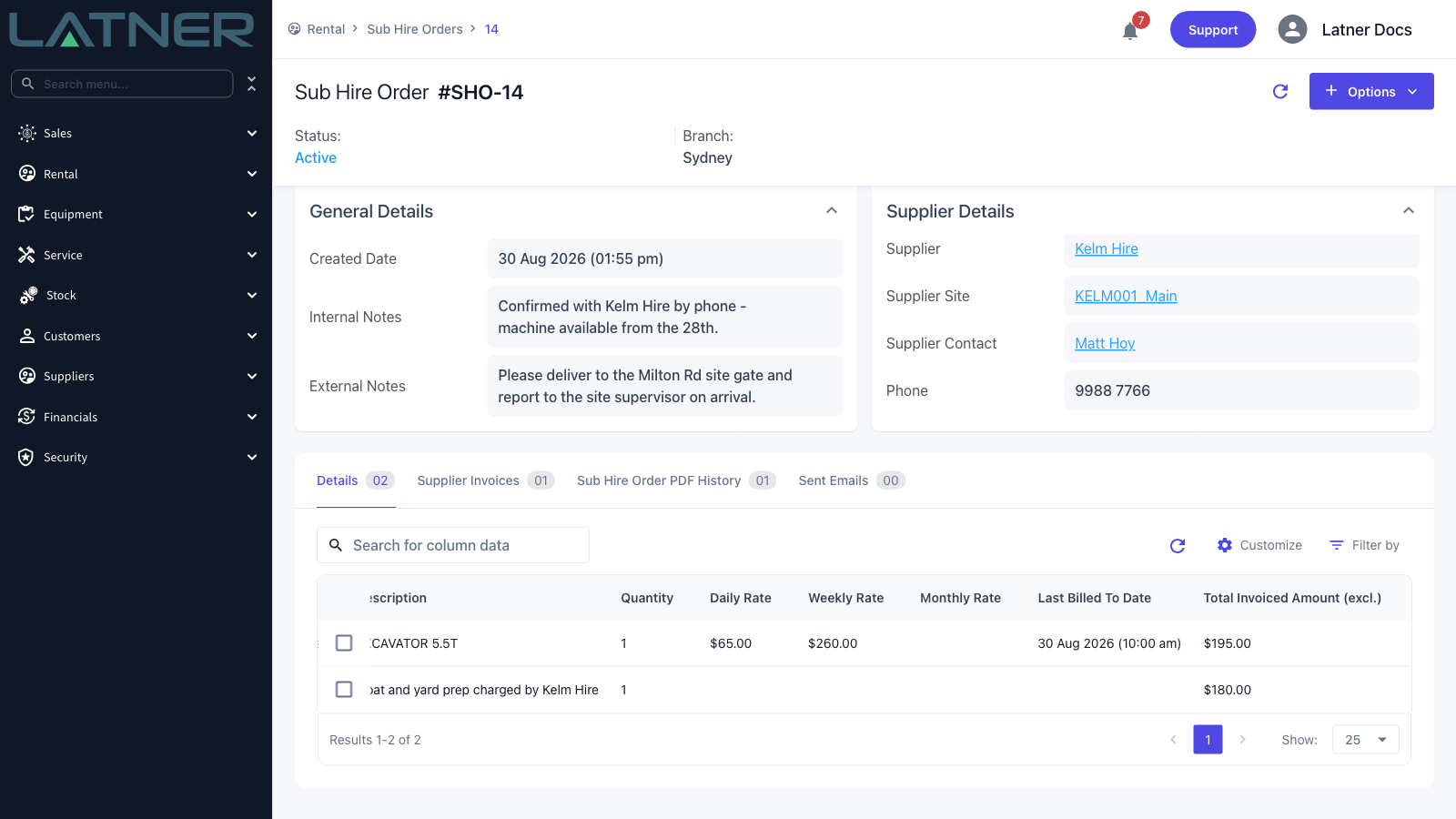
Select the Sub Hire Order Number link in Financial Details. The order's Details tab is where the rates you agreed with the supplier live, so it is the answer to "should it be this rate at all?". Use Customize to switch on Daily Rate, Weekly Rate and Monthly Rate if they are not already showing.
-
Daily Rate, Weekly Rate and Monthly Rate - the sub hire rates on the rental contract line. Hover over a rate to see the rate breaks behind it.
-
Start Date, Exp. Off Hire Date and Actual Off Hire Date - the hire window Latner believes in. A supplier billing past your actual off hire date is the single most common overcharge.
-
Last Billed To Date - the last day already paid for on that line.
-
Total Invoiced Amount (excl.) - everything invoiced against that line so far, excluding tax.
Step 5 - Check what has already been billed
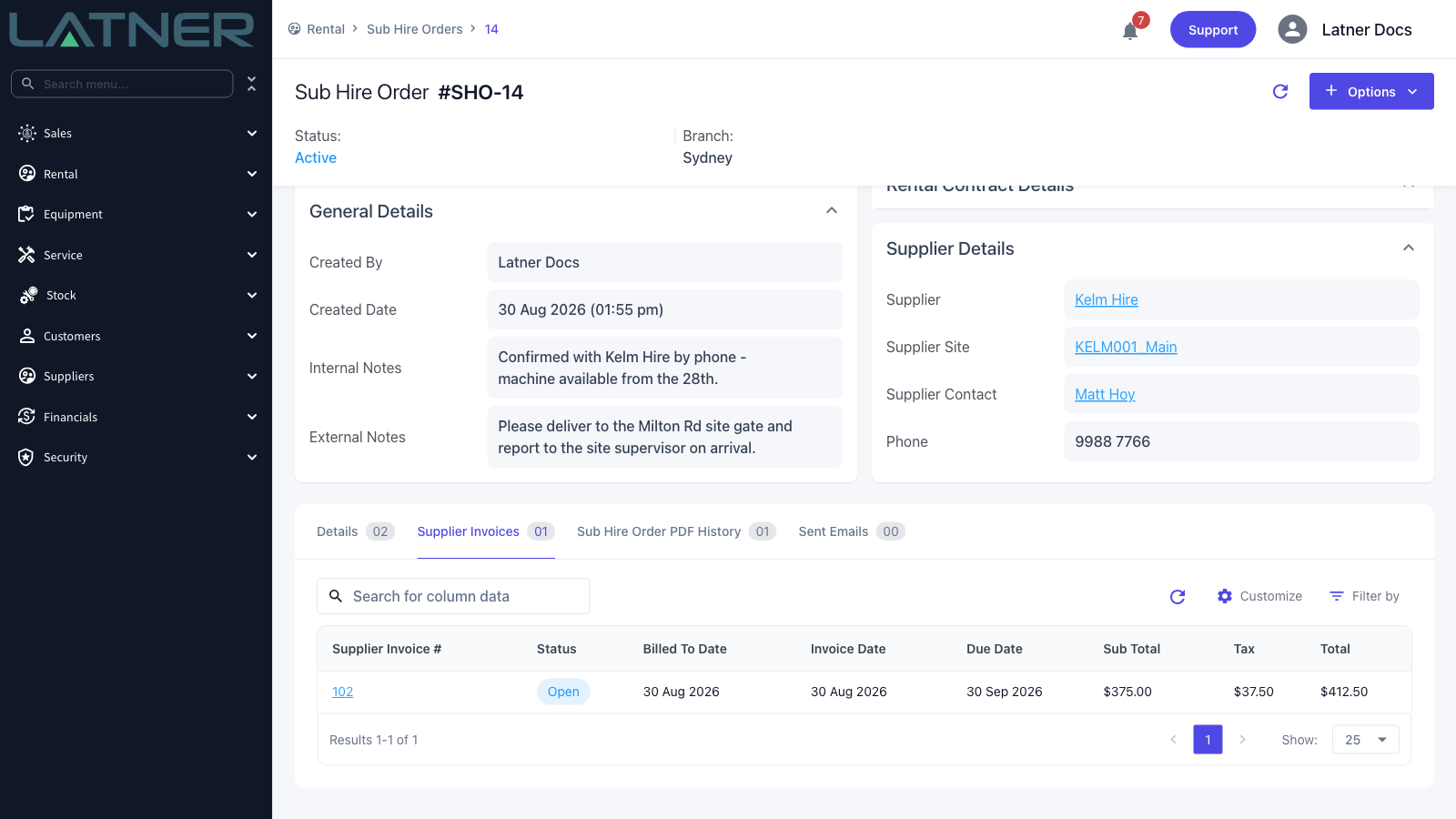
Move to the order's Supplier Invoices tab. It lists every invoice raised against this order with its Billed To Date, Invoice Date and totals, which is the quickest way to catch a supplier billing the same period twice. If the document in front of you covers a period that already appears here, stop and check the reference numbers before you go any further.
Step 6 - Re-run the calculation with Preview
Select Options › Invoice Sub Hire Order. This is the screen that raises a supplier invoice, but nothing is written until you select Create Supplier Invoice, so you can use it purely to recalculate. Set Bill To to the date the supplier has billed you up to and select Preview.
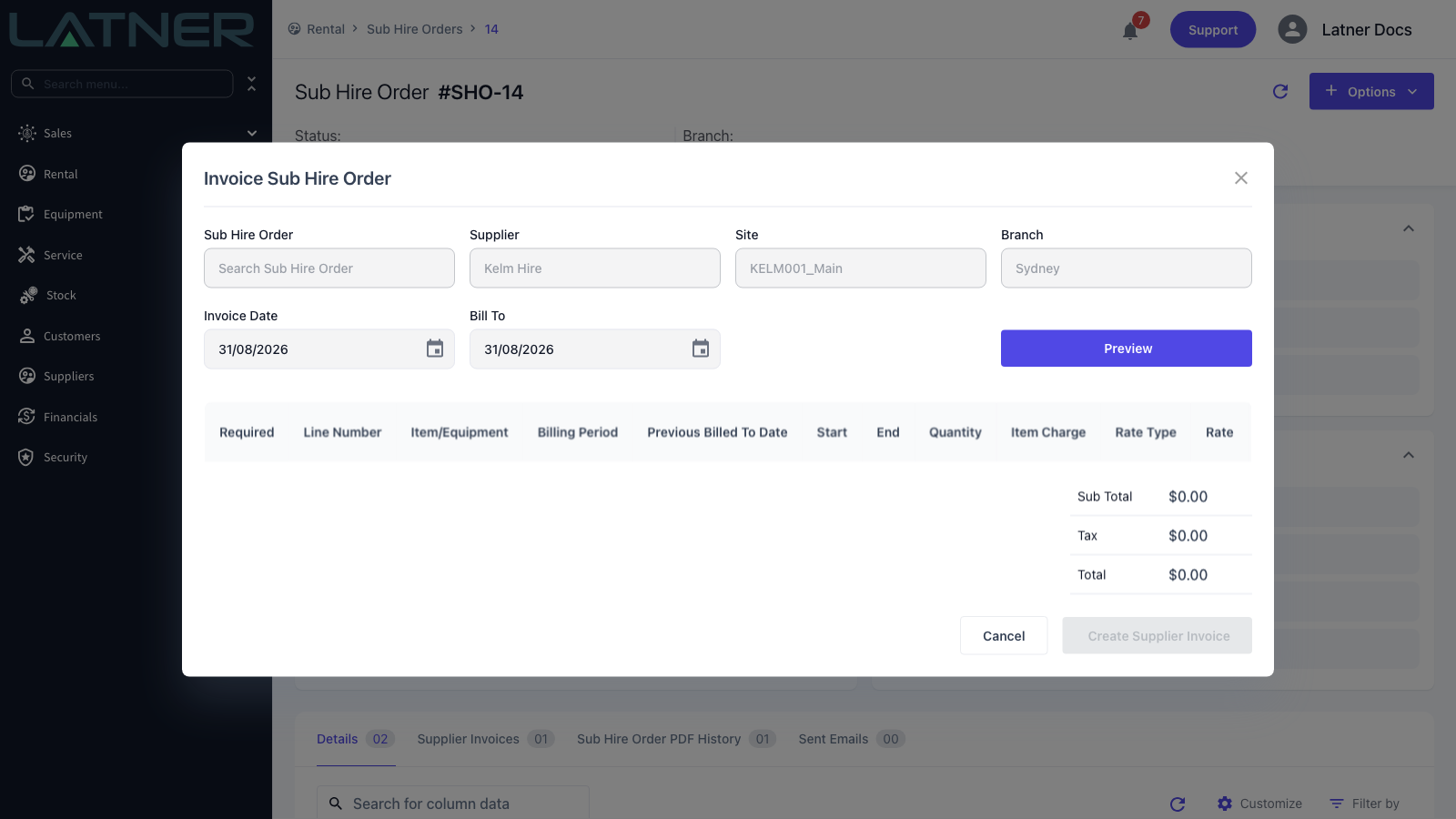
Latner works each line out from scratch and lists it with its billing period, days and amount. Compare that against the supplier's document line by line.
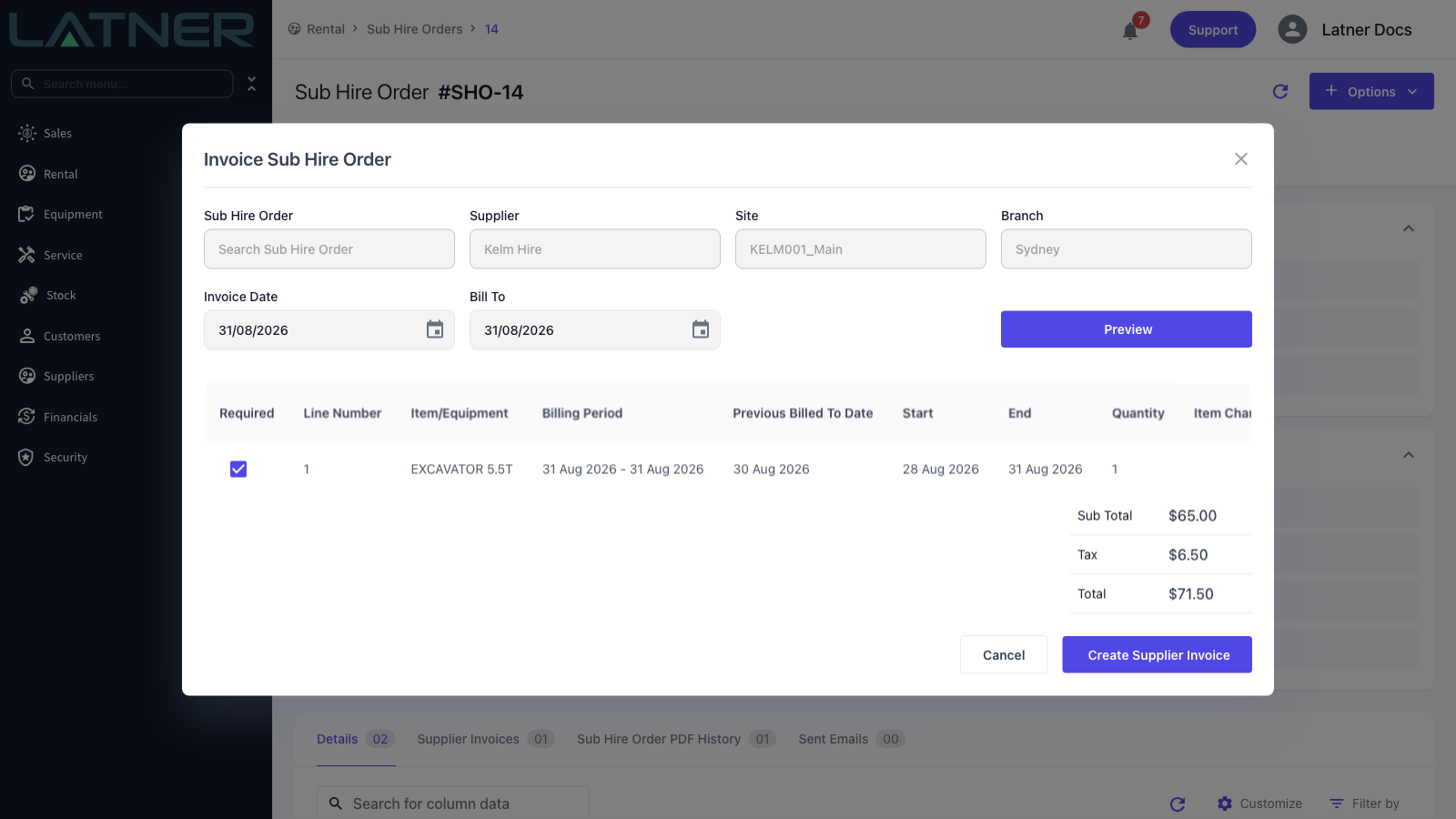
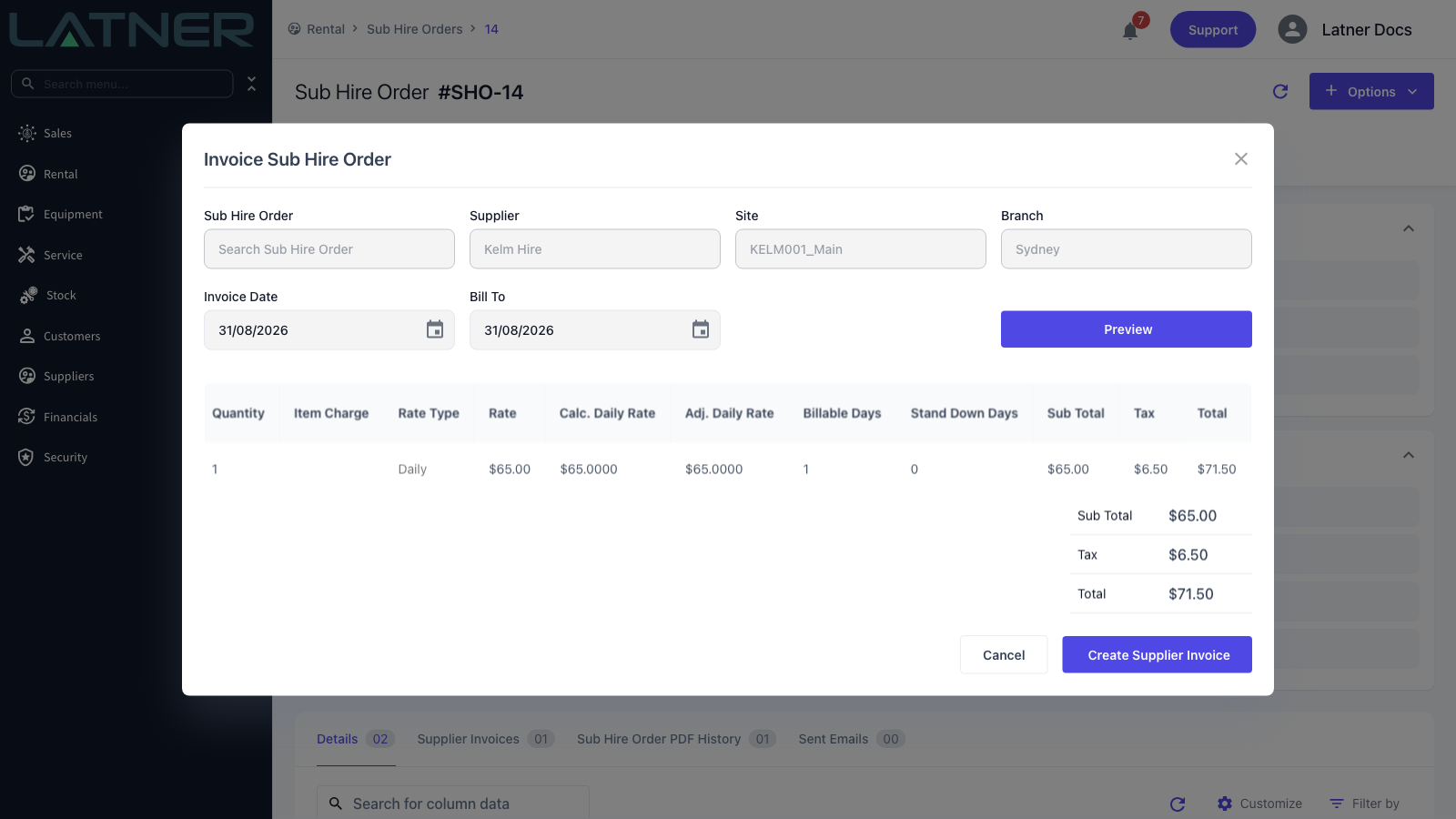
It helps to know how Latner arrives at the number, because that is usually where the difference is:
-
A sub hire equipment line is priced over the whole hire, from the contract line's start date up to the bill to date, and then reduced by the Total Invoiced Amount (excl.) already on that line. It never goes below zero.
-
The bill to date is capped at the Actual Off Hire Date, so once the machine is back, extending the date changes nothing.
-
A minimum charge on the contract line is only applied once the hire is being billed right up to its actual off hire date.
-
Transport and expense lines are quantity multiplied by item cost, less anything already invoiced, so they only ever appear once.
-
Cancelled lines are left out, and any line that works out to zero is dropped from the preview.
If the preview comes back empty you will see a Nothing to Invoice message. That means every line is already billed up to the date you entered - which, when you are checking a supplier's invoice, usually means they have billed you for a period you have already paid.
Step 7 - Attach the supplier's document
Select Options › Upload Document on the Supplier Invoice, or drag the file onto the Documents tab. Whoever approves or queries the invoice later gets the supplier's original alongside Latner's figures, which is the difference between a two minute check and a phone call to the supplier.
When the Figures Don't Agree
A difference is either Latner's or the supplier's. Work out which before you touch anything.
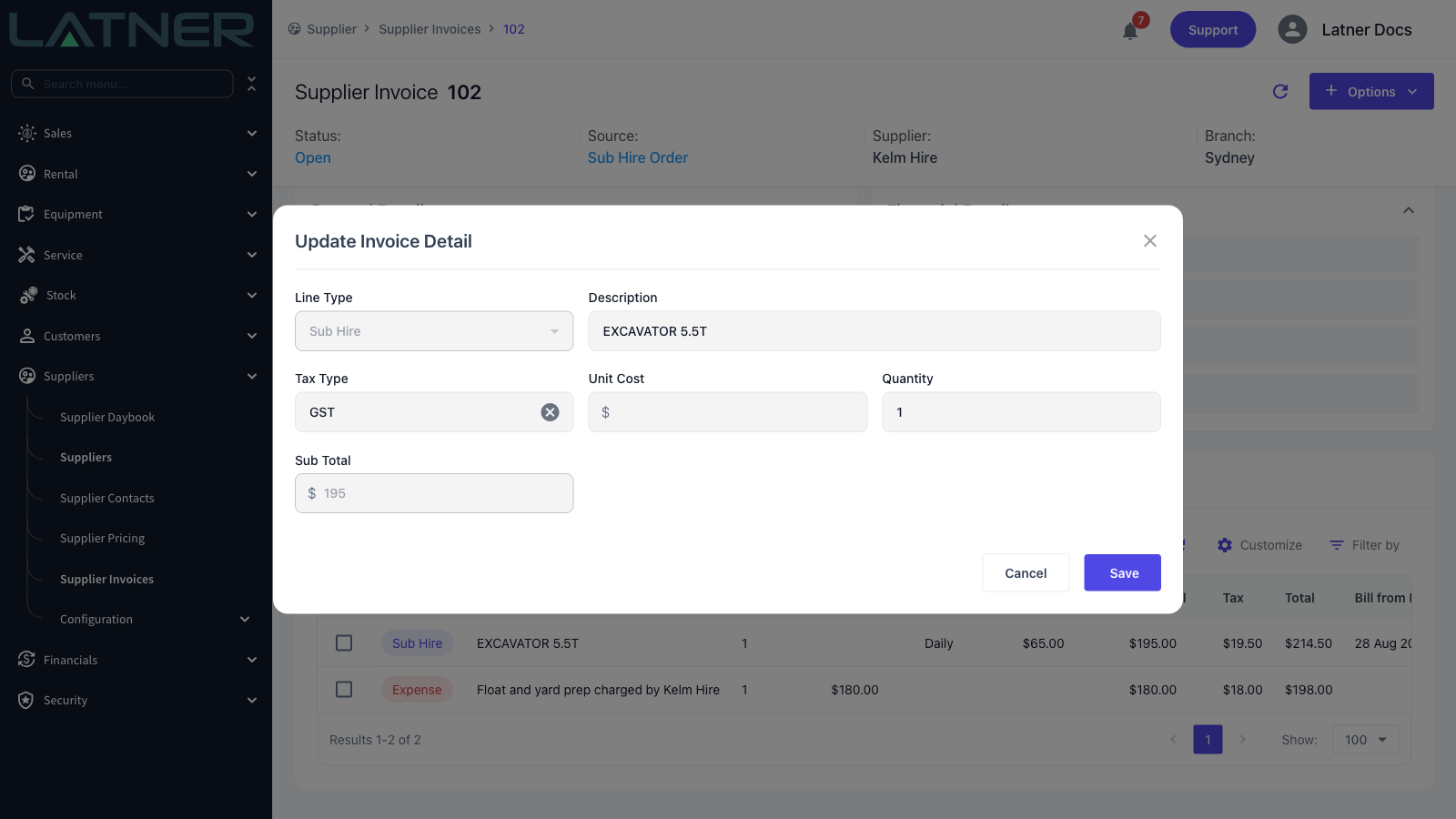
Latner has it wrong. The rate on the rental contract line was never updated, or an off hire was recorded late. While the invoice is still Open, double-click a line to open Update Invoice Detail and correct it. You can change the Description, Tax Type, Unit Cost and Quantity; Sub Total is read only and recalculates as quantity multiplied by unit cost. Quantity has to be a whole number on a sub hire line.
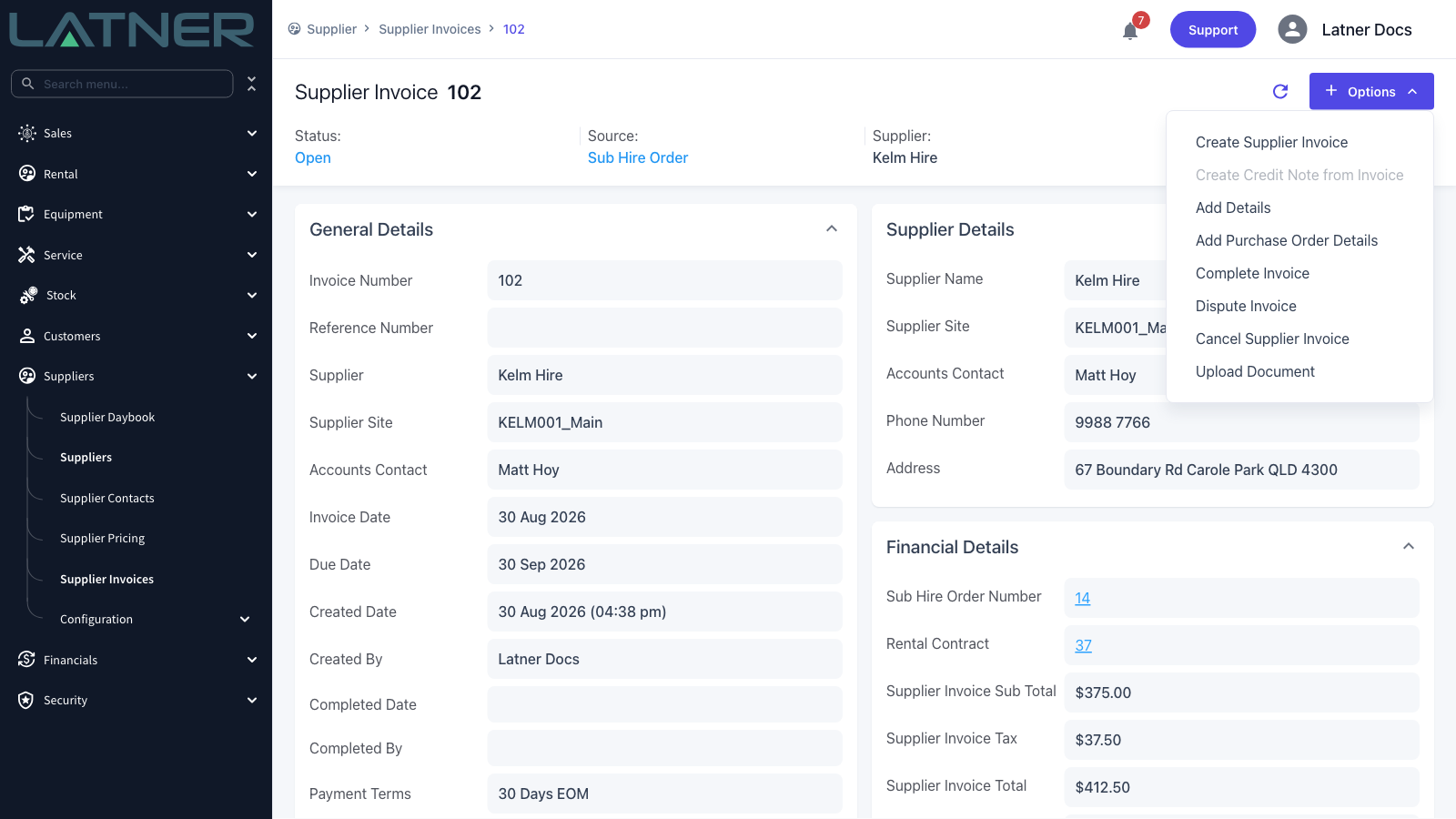
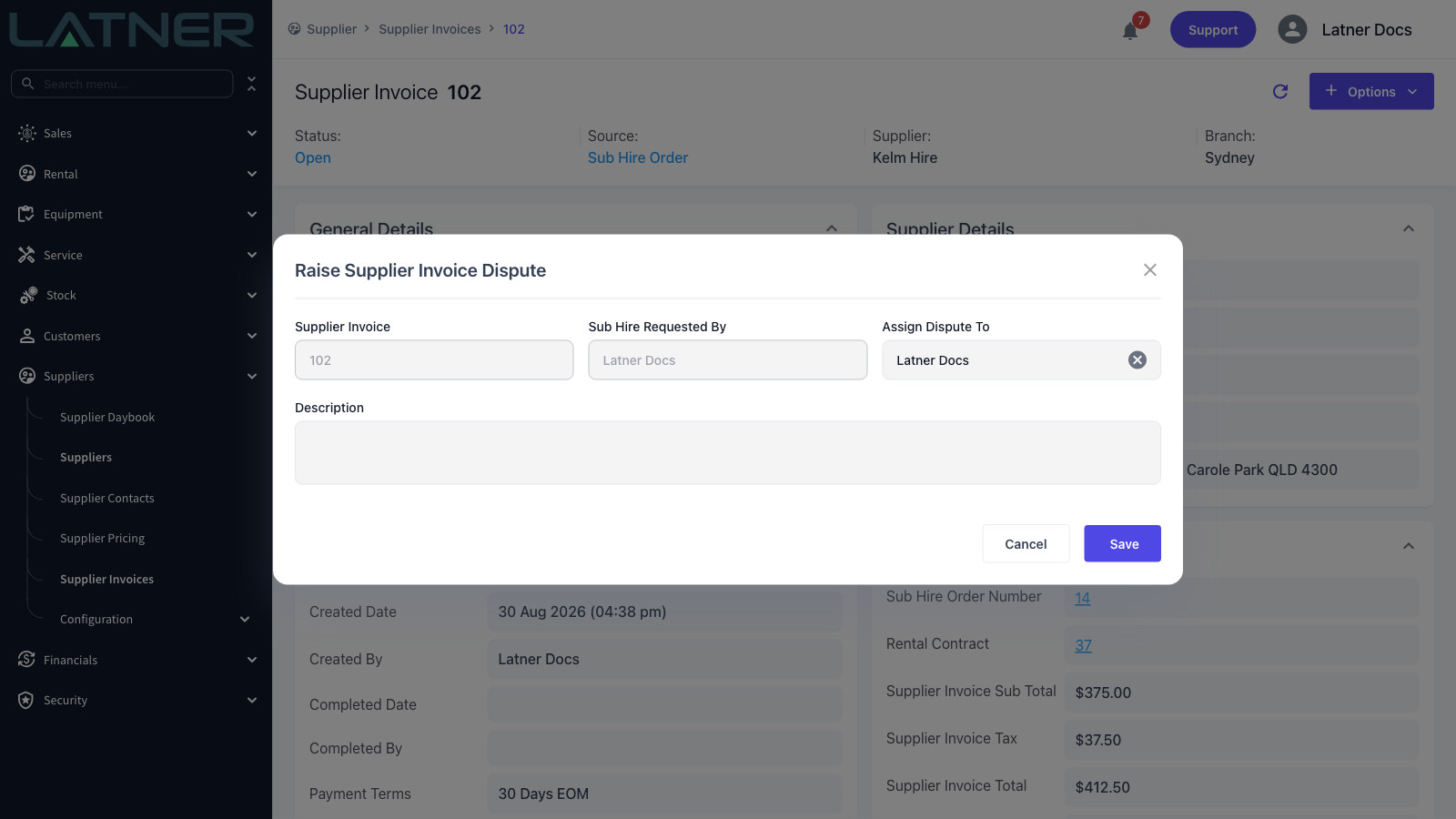
The supplier has it wrong. Don't edit the line to match a figure you disagree with. Select Options › Dispute Invoice, assign the dispute to whoever will chase it and describe what is wrong. Both fields are required. The invoice moves to Disputed, the assignee is notified, and it cannot be completed until the dispute is resolved.
Editing a line on the invoice does not feed back to the Sub Hire Order. Last Billed To Date and Total Invoiced Amount (excl.) are captured when the line is created, so after an edit the order still shows the original amount and the next preview will be calculated from it. Where the amount is materially wrong, cancel the invoice and raise it again from the order rather than editing the line - cancelling puts the order's lines back to Active and recalculates their billed to date and invoiced total from the invoices that remain.
After the Check
-
If the figures agree, Options › Complete Invoice moves the invoice to Completed and pushes it to any active accounting integration. It needs at least one detail line, and it is unavailable while the invoice is disputed.
-
If you disputed it, the invoice sits in Disputed until someone with the Approve Disputed Supplier Invoice permission approves it, or it is reopened for editing with Reopen Invoice.
-
Only the most recent uncancelled invoice on a Sub Hire Order can be cancelled, and a cancellation note is required. A paid invoice cannot be cancelled at all.
-
The cost flows through to the Sub Hire Profitability dashboard, where it is compared against what you invoiced the customer for the same equipment. A hire that suddenly looks unprofitable there is often a supplier invoice that was never checked.