
Adding Purchase Order detail to an existing Open Supplier Invoice lets you pull uninvoiced lines from another order onto an invoice you have already started, so one supplier bill covering several orders stays as one invoice in Latner.
Overview
Suppliers rarely bill the way you order. One invoice turns up covering two orders, or a line you forgot to receipt when you raised the invoice finally lands. Rather than raising a second invoice, you can add those Purchase Order lines to the invoice that is already open.
-
The action lives on the Supplier Invoice, not the Purchase Order, and only while the invoice is Open.
-
You can only pull from Purchase Orders belonging to the same supplier as the invoice. Latner filters the picker to that supplier and rejects a mismatch on save.
-
Only lines with quantity still left to invoice are offered. By default that means quantity that has been received; a setting can relax this to quantity that has only been confirmed.
-
Every offered line starts ticked at its full uninvoiced quantity. You choose which lines to include and how much of each to invoice.
-
Each new invoice line stays linked to the Purchase Order line it came from, and that order's Qty Invoiced goes up to match.
-
You can run it as many times as you need, so an invoice can carry lines from several Purchase Orders.
Before You Begin
Check the following before you open the invoice.
|
Requirement |
Where to Find It |
|---|---|
|
Create Supplier Invoice Detail permission |
Security › Configuration › Permission Groups, under the Suppliers module. It is checked against the invoice's branch, so you need it for the branch the invoice belongs to |
|
A Supplier Invoice in Open status |
Suppliers › Supplier Invoices |
|
A Purchase Order for the same supplier with quantity left to invoice |
Financials › Purchase Orders - check that a line's Qty Received is higher than its Qty Invoiced |
|
Allow Invoices for Unreceived Purchase Orders |
Security › Settings › Financials - decides whether unreceived quantity can be invoiced |
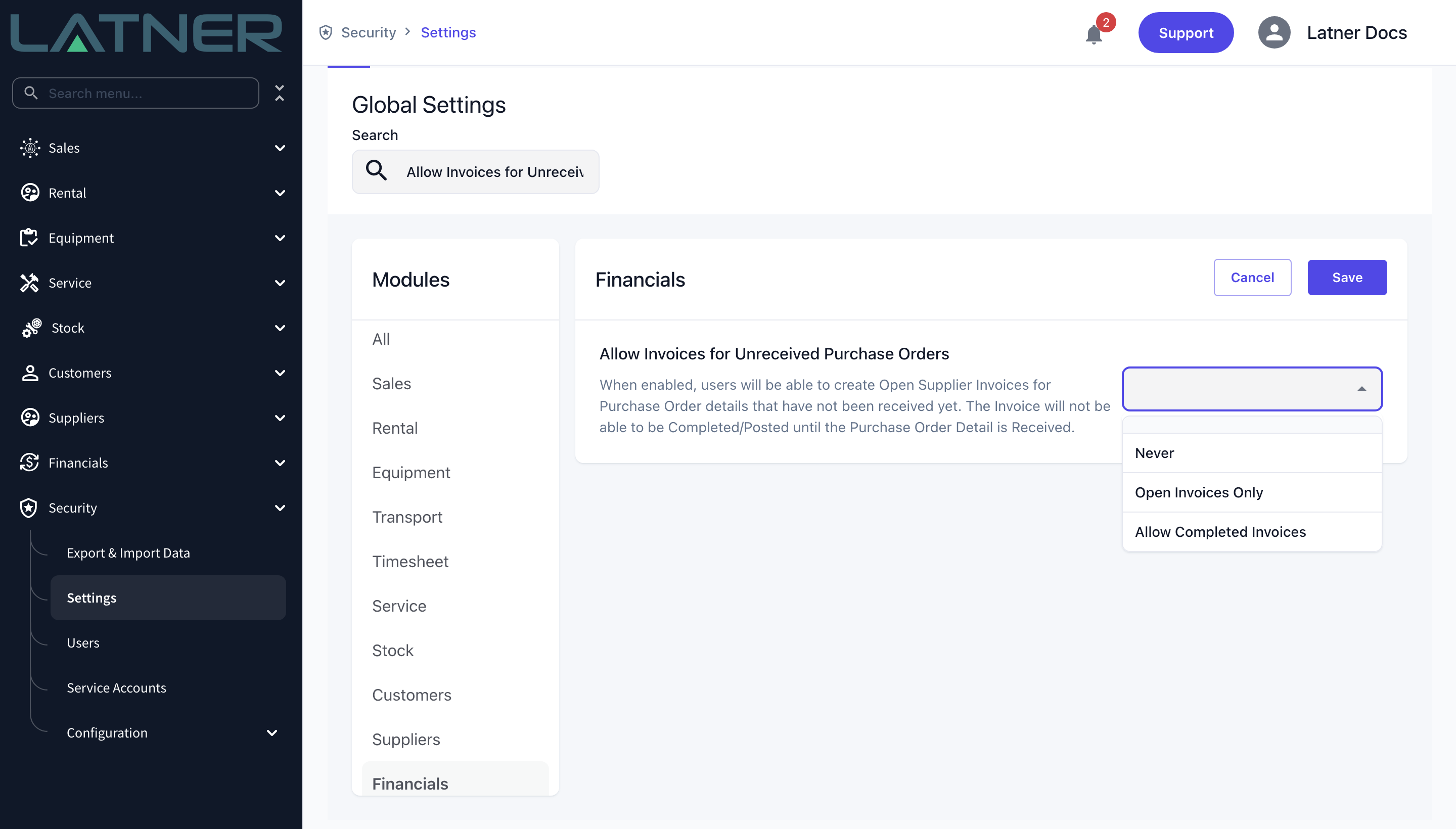
Allow Invoices for Unreceived Purchase Orders decides how much of an order you are allowed to bill. Left at Never, only receipted quantity is offered. Set to Open Invoices Only, confirmed quantity is offered too, but you cannot complete the invoice until the goods arrive. Set to Allow Completed Invoices, you can complete it as well, as long as you have not invoiced more than was ordered.
Adding the Purchase Order Details
Step 1 - Open the Supplier Invoice
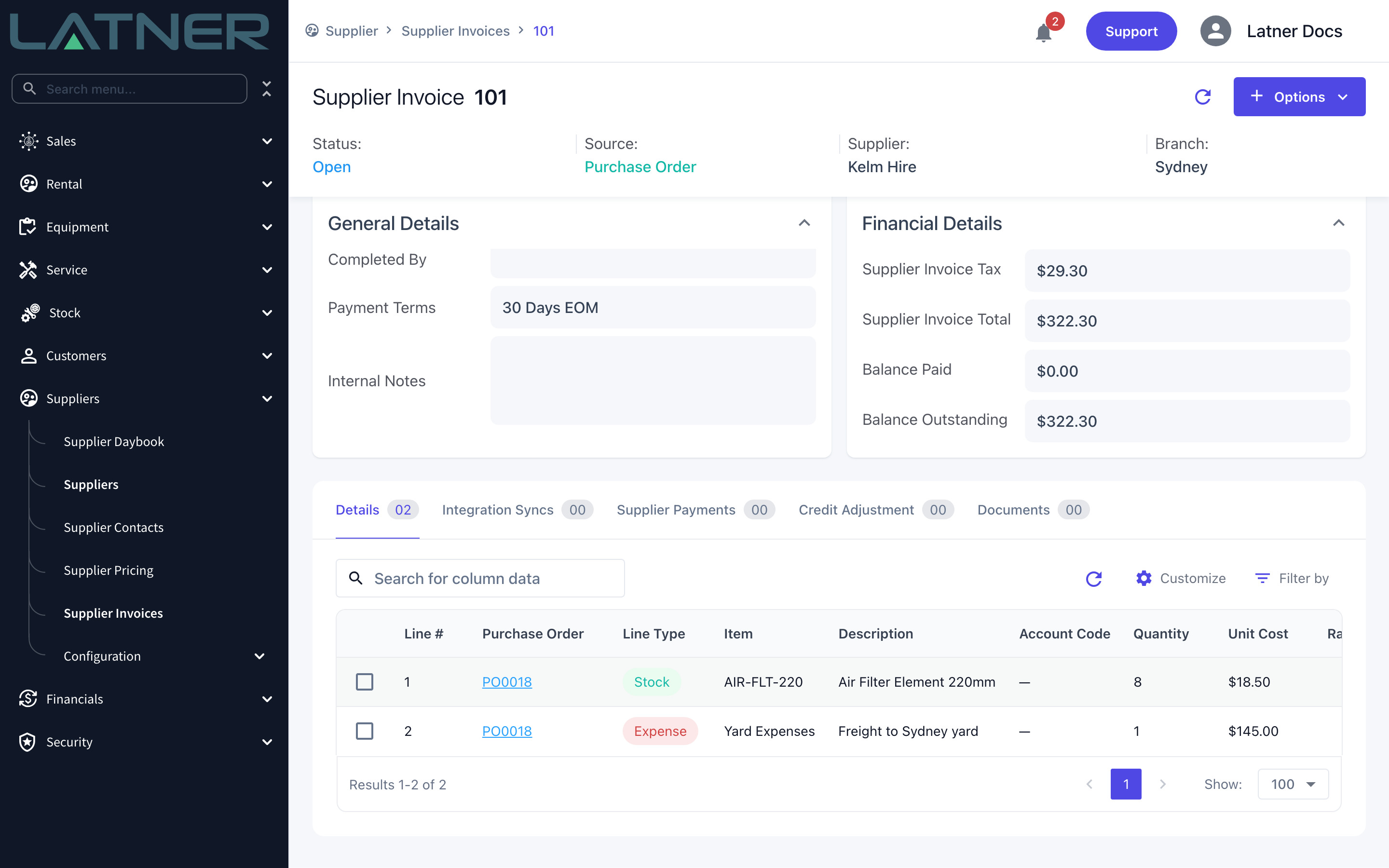
Go to Suppliers › Supplier Invoices and open the invoice you want to add to. Check the status reads Open and note which supplier it belongs to - that is the only supplier whose orders you will be offered.
Step 2 - Choose Add Purchase Order Details
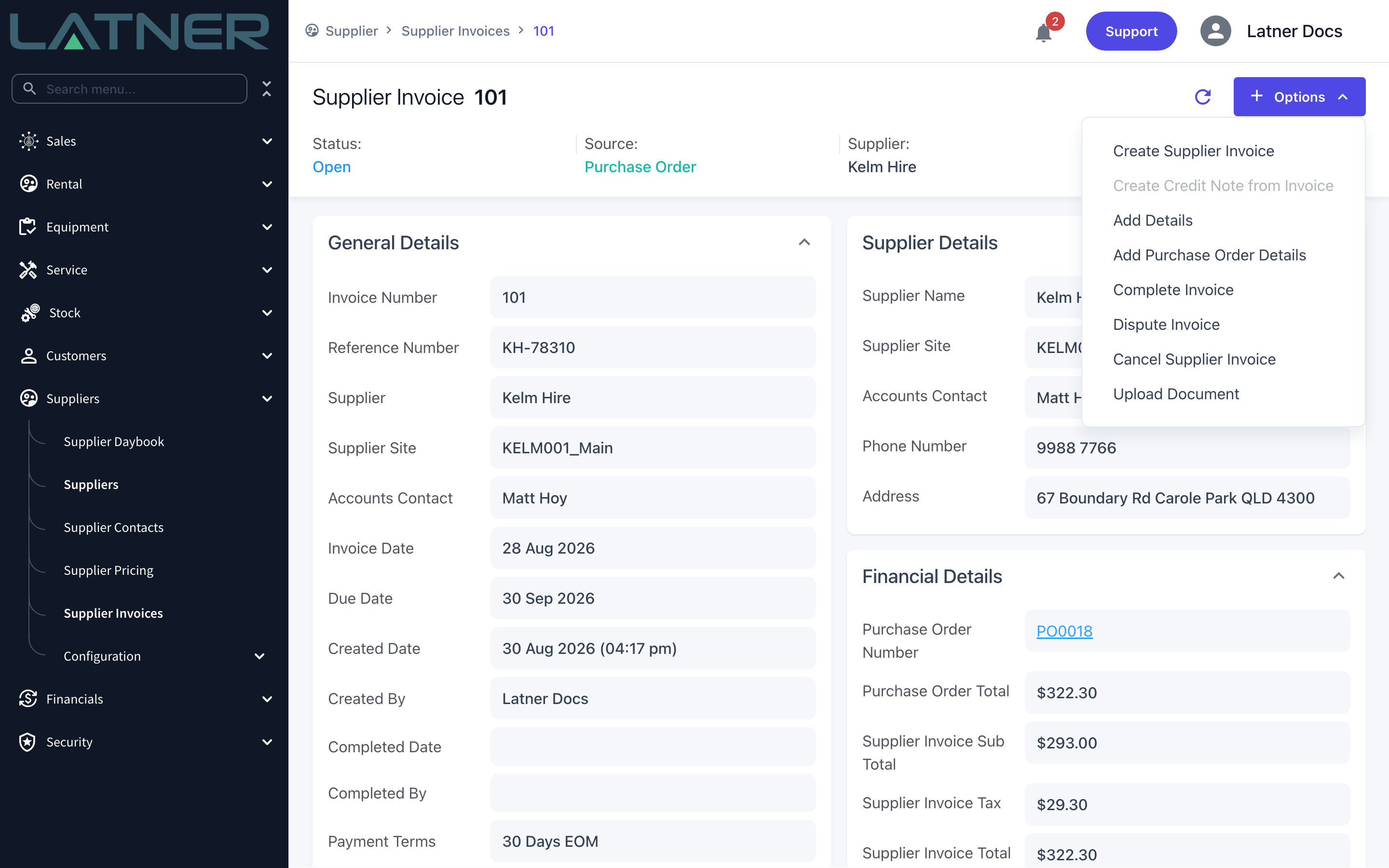
Select Options › Add Purchase Order Details. The option is greyed out on any invoice that is not Open, so a Completed, Paid, Disputed or Cancelled invoice cannot take new lines this way.
Step 3 - Pick the Purchase Order
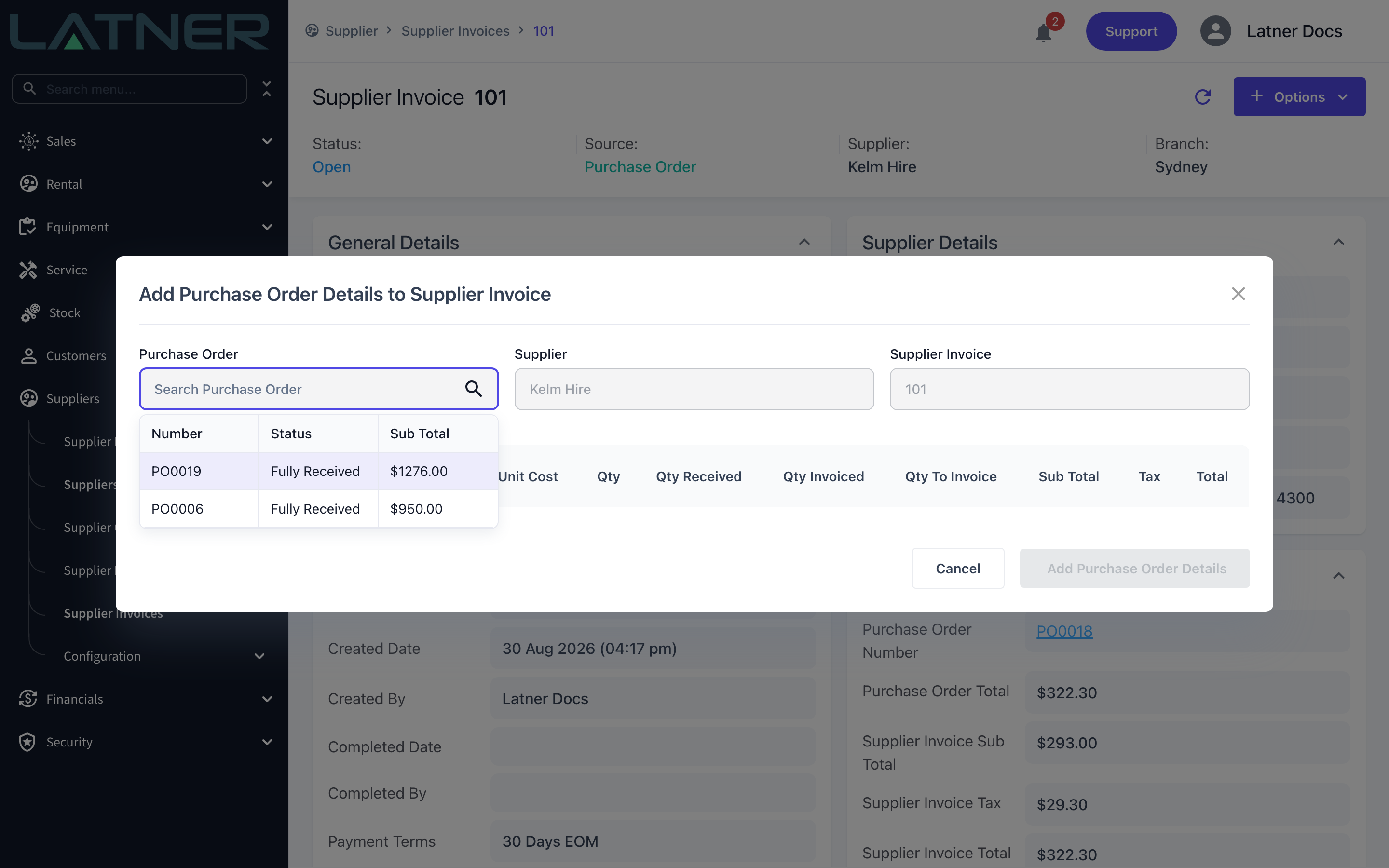
The dialog opens with the supplier and the invoice already filled in and locked - you started from the invoice, so there is nothing to choose there. Select the Purchase Order field and pick the order the new lines belong to.
-
Purchase Order - required. The list is limited to that supplier's orders that still have something left to invoice, and shows each order's number, status and sub total.
-
Supplier - inherited from the invoice and read only.
-
Supplier Invoice - the invoice you started from, also read only.
Step 4 - Check the lines Latner offers
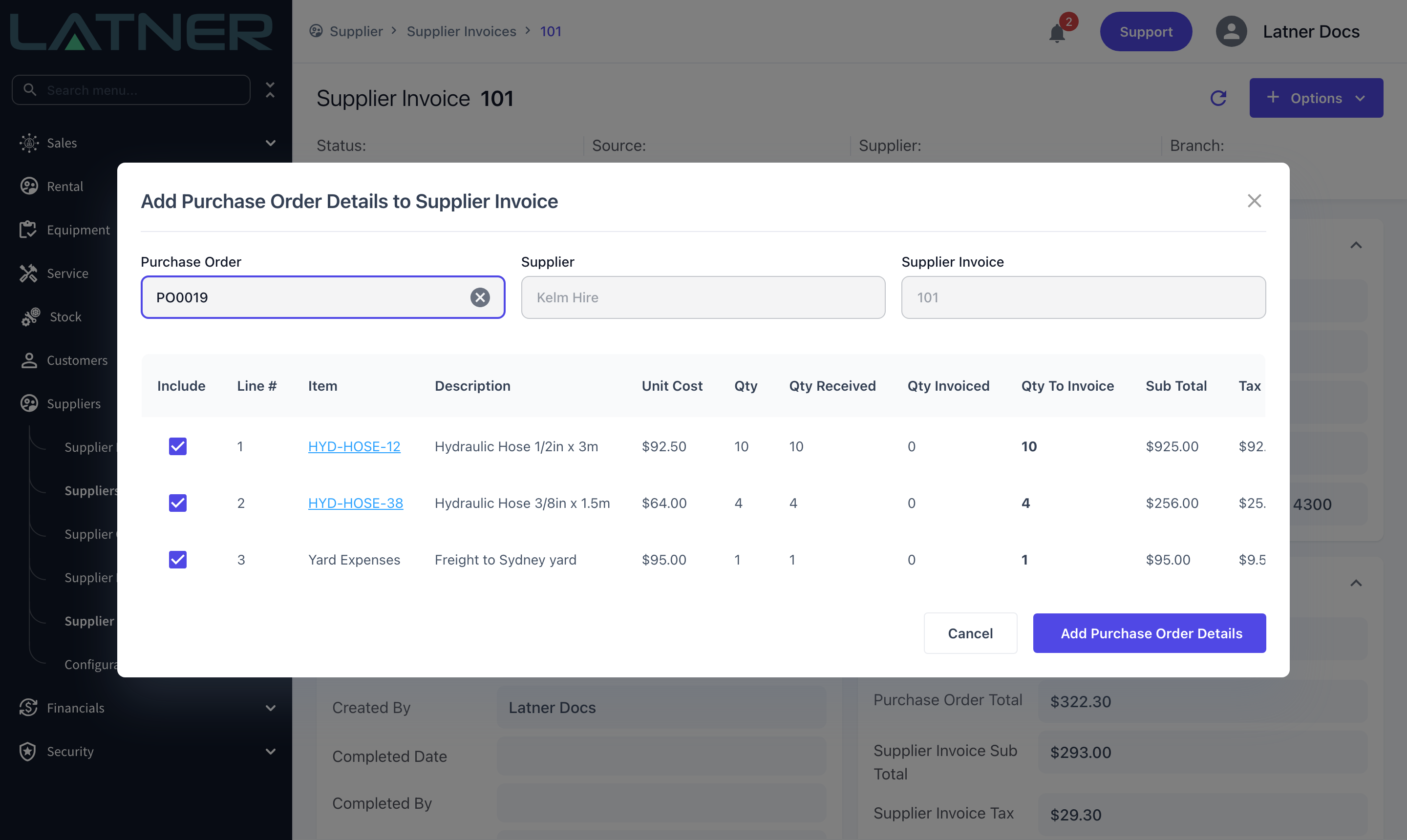
Choosing the order loads its uninvoiced lines. Each row shows what was ordered, what arrived and what has already been billed, so you can reconcile the invoice in front of you against the order before you commit.
-
Include - ticked by default on every line.
-
Qty, Qty Received, Qty Invoiced - the order's own figures, read only.
-
Qty to Invoice - editable, and defaults to everything not yet invoiced.
-
Sub Total, Tax and Total - worked out from the order's unit cost and purchase tax, and recalculated as you change a quantity.
Step 5 - Choose what to invoice
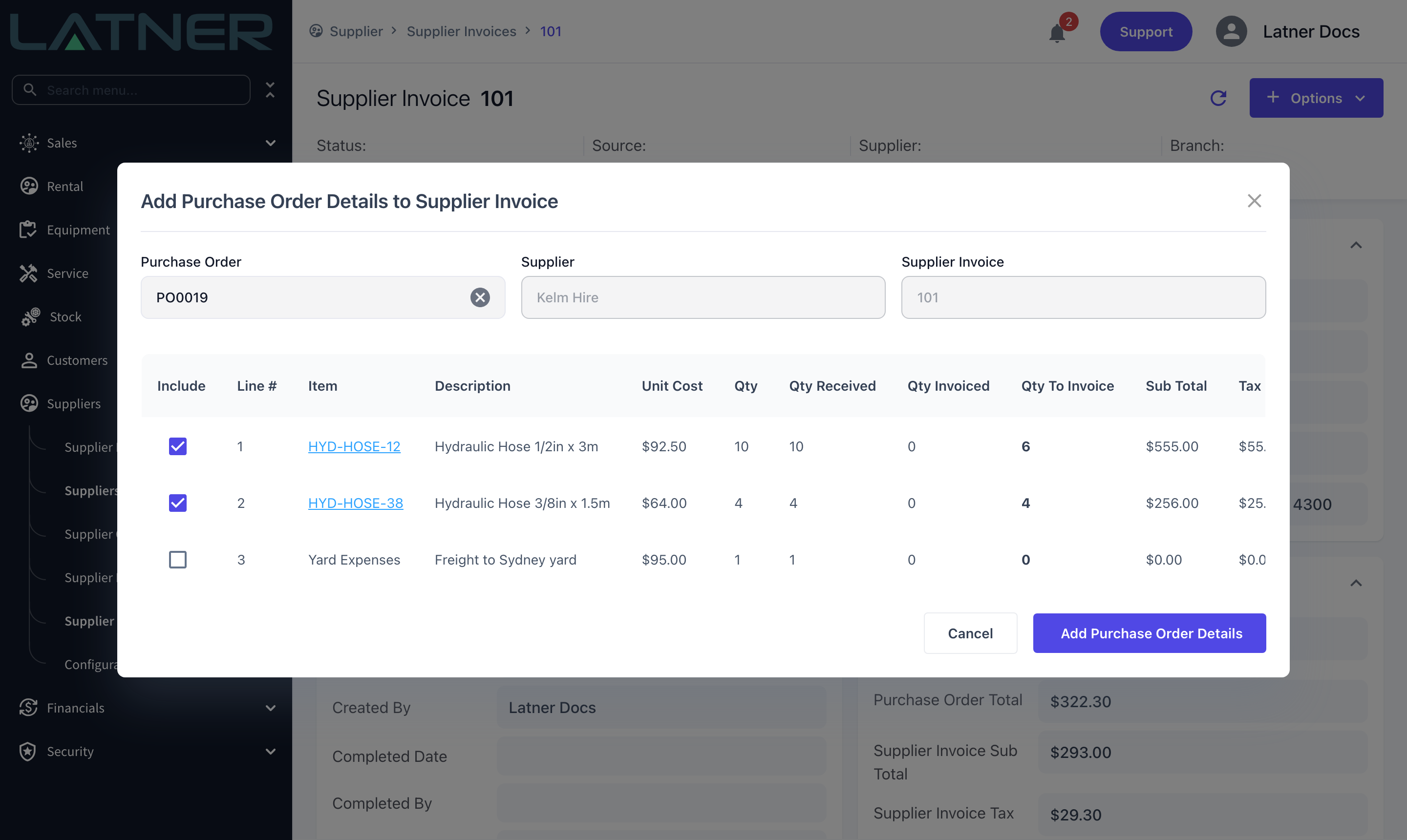
Adjust the rows so they match the bill you are entering. The two controls work together: unticking Include sets that line's Qty to Invoice to zero, and typing a quantity of zero unticks the line.
-
Untick Include on anything the supplier has not billed you for yet. It stays on the order, uninvoiced, ready for next time.
-
Reduce Qty to Invoice to part-invoice a line. You cannot enter more than the uninvoiced quantity shown on the row.
-
Stock, equipment, asset and sub hire lines must be whole numbers. Only transport and expense lines accept a decimal quantity.
Step 6 - Add the details
Select Add Purchase Order Details. Latner writes one invoice line per included row and confirms with Purchase Order Details added to Supplier Invoice. If every line is unticked you will be told to select details to create the invoice, and nothing is written.
After Adding
-
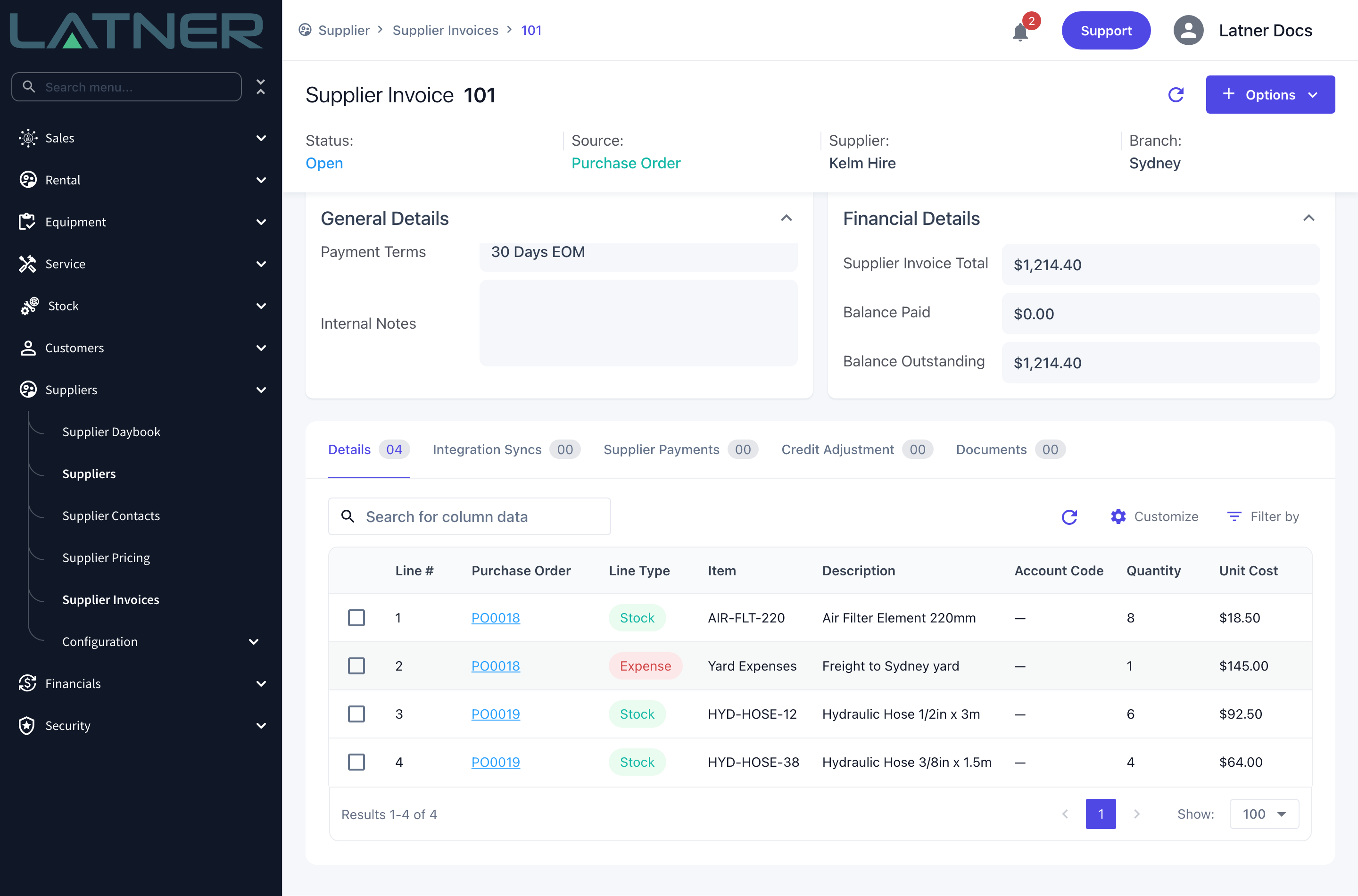
The new lines are appended to the invoice's Details tab, numbered on from the lines already there, and each shows the Purchase Order it came from.
-
Description, unit cost, purchase tax and line type all come across from the Purchase Order line, along with any assigned equipment or CRM project. Stock and expense lines that originated on a Work Order are recorded as separate line types so they can be reported on - and given their own account code - separately.
-
The invoice's Sub Total, Tax and Total are recalculated across all its lines. The header cards refresh when you next load the invoice.
-
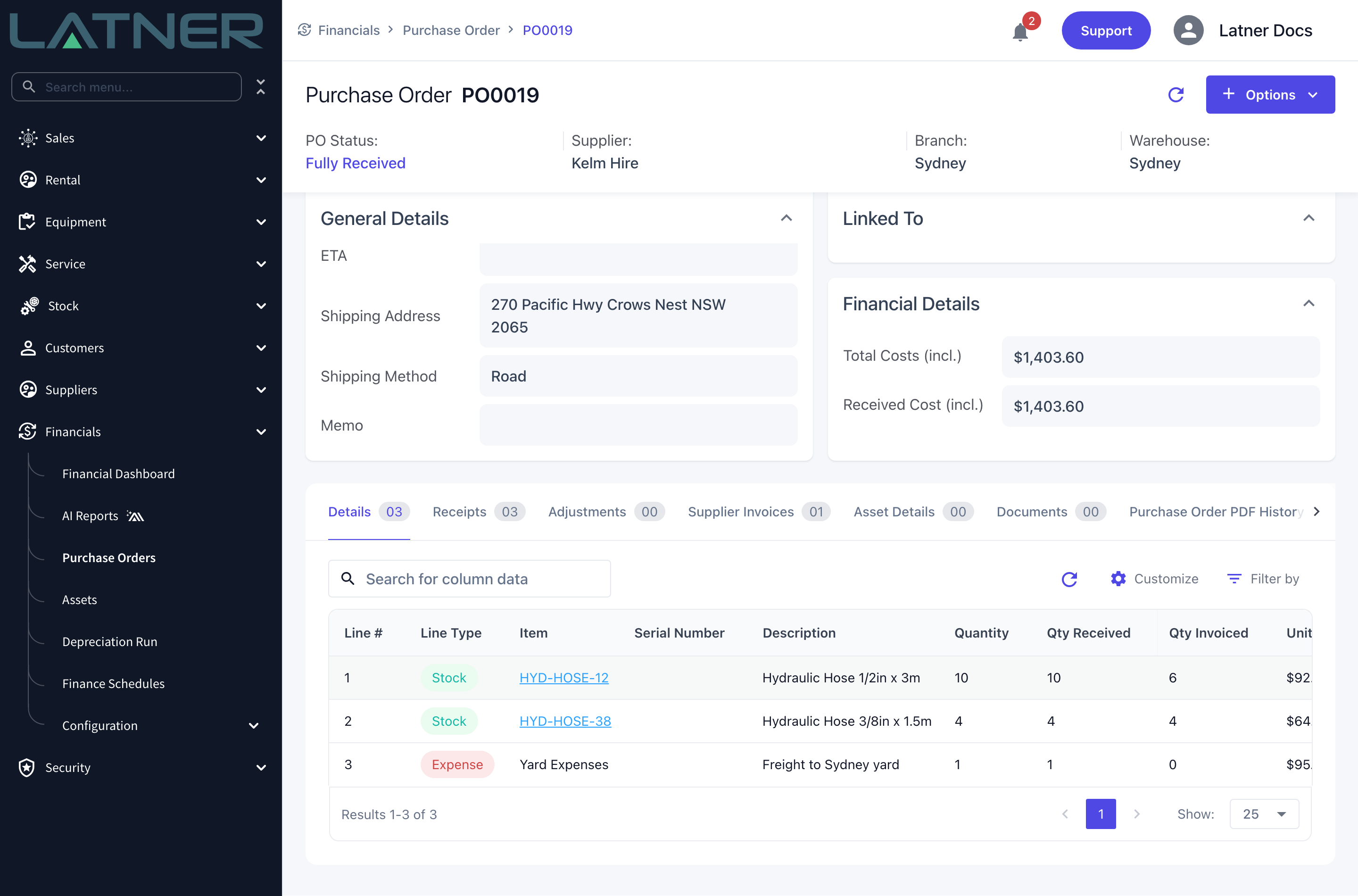
The Purchase Order's Qty Invoiced goes up by what you billed, and the invoice appears on its Supplier Invoices tab. The order only moves to Invoiced once every line is fully invoiced; part-invoice it and it stays where it was.
-
Purchase Order Number in the invoice's Financial Details still names the order the invoice was created from. It is a single field, so it does not change when you add lines from a second order - the Purchase Order column on each detail line is the reliable record.
Adding lines does not check whether the goods have arrived - completing the invoice does. If you invoice quantity that has not been received, Latner blocks the completion with You cannot Complete an Invoice for Purchase Order quantities that have not been received until the receipt is entered. While the invoice is still Open you can correct a line's quantity or delete it outright, and the Purchase Order's Qty Invoiced is wound back to match. Once the invoice is Completed that door closes, and a mistake has to be put right with a credit note.
FAQs
Watch the Demo
Prefer to watch it? Step through the same flow here.