
Reversing a receipt undoes a Purchase Order receipt that should not have happened, putting the quantity back on order and taking the goods back off hand.
Overview
Deliveries get counted wrong. Someone receipts six hoses when four turned up, or ticks off the whole order before anyone opened the pallet. Reversing a receipt is how you put that right without deleting anything.
-
Reversing is done line by line, in quantities. You enter how much of each line to put back and leave the rest at zero.
-
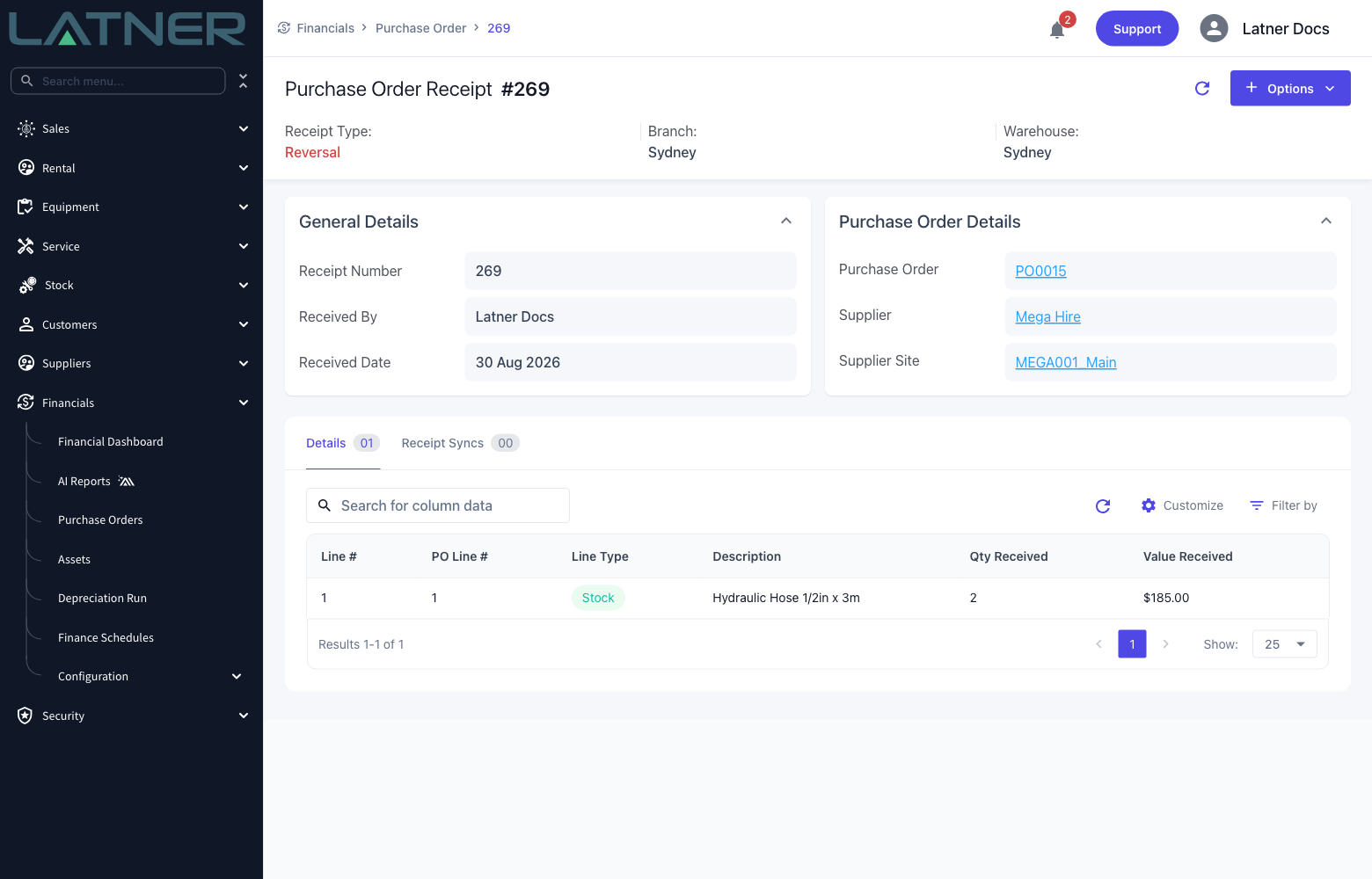
Latner never deletes the original receipt. It creates a second Purchase Order Receipt of type Reversal, dated and stamped with your name, so the record of what was counted and when stays intact.
-
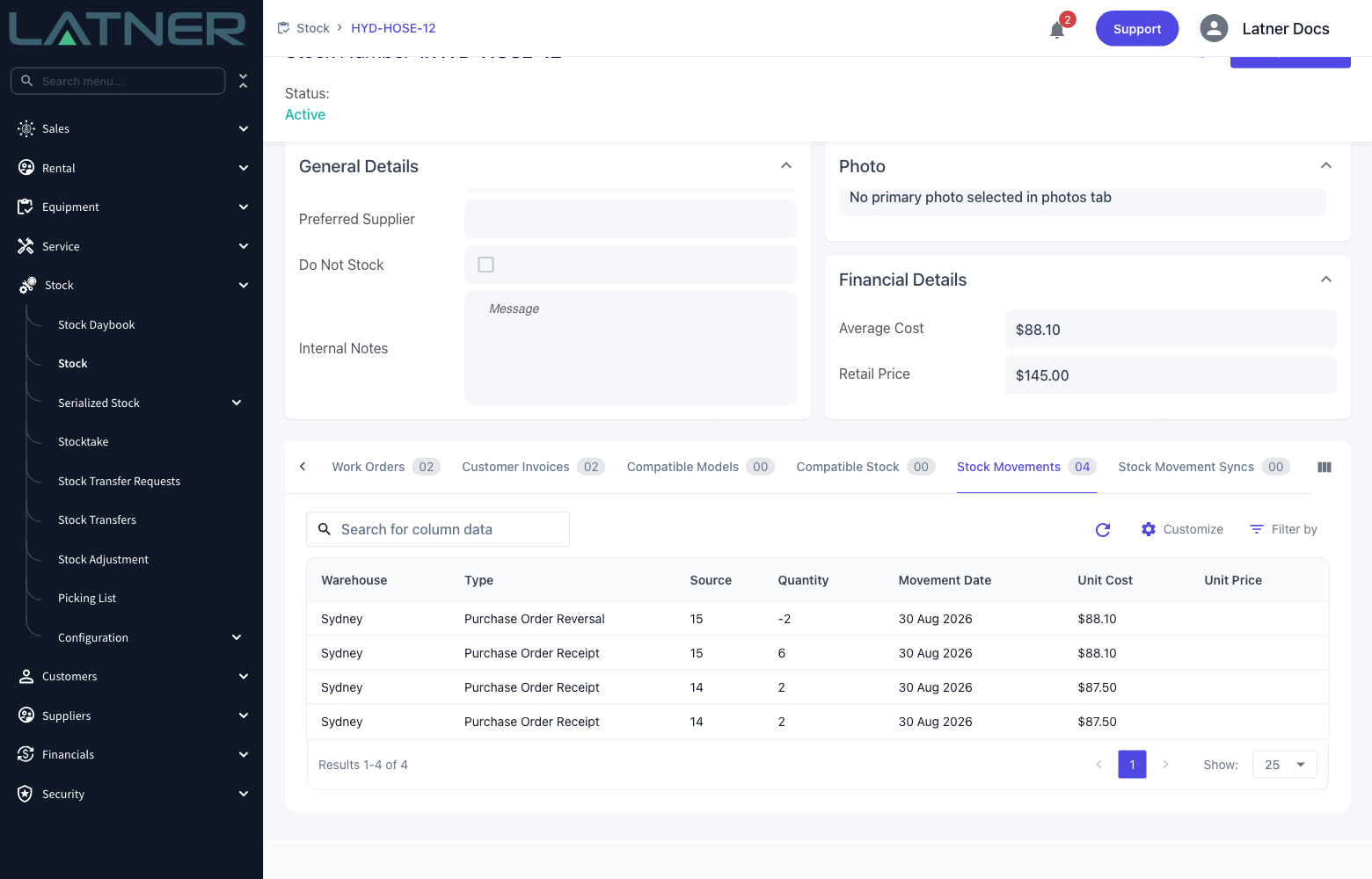
Reversing a Stock line takes the quantity back off hand and puts it back on backorder, and writes a Purchase Order Reversal movement against the stock item.
-
The order's status and Received Cost recalculate. A Fully Received order drops back to Partly Received, and an order with nothing left received goes back to Confirmed.
-
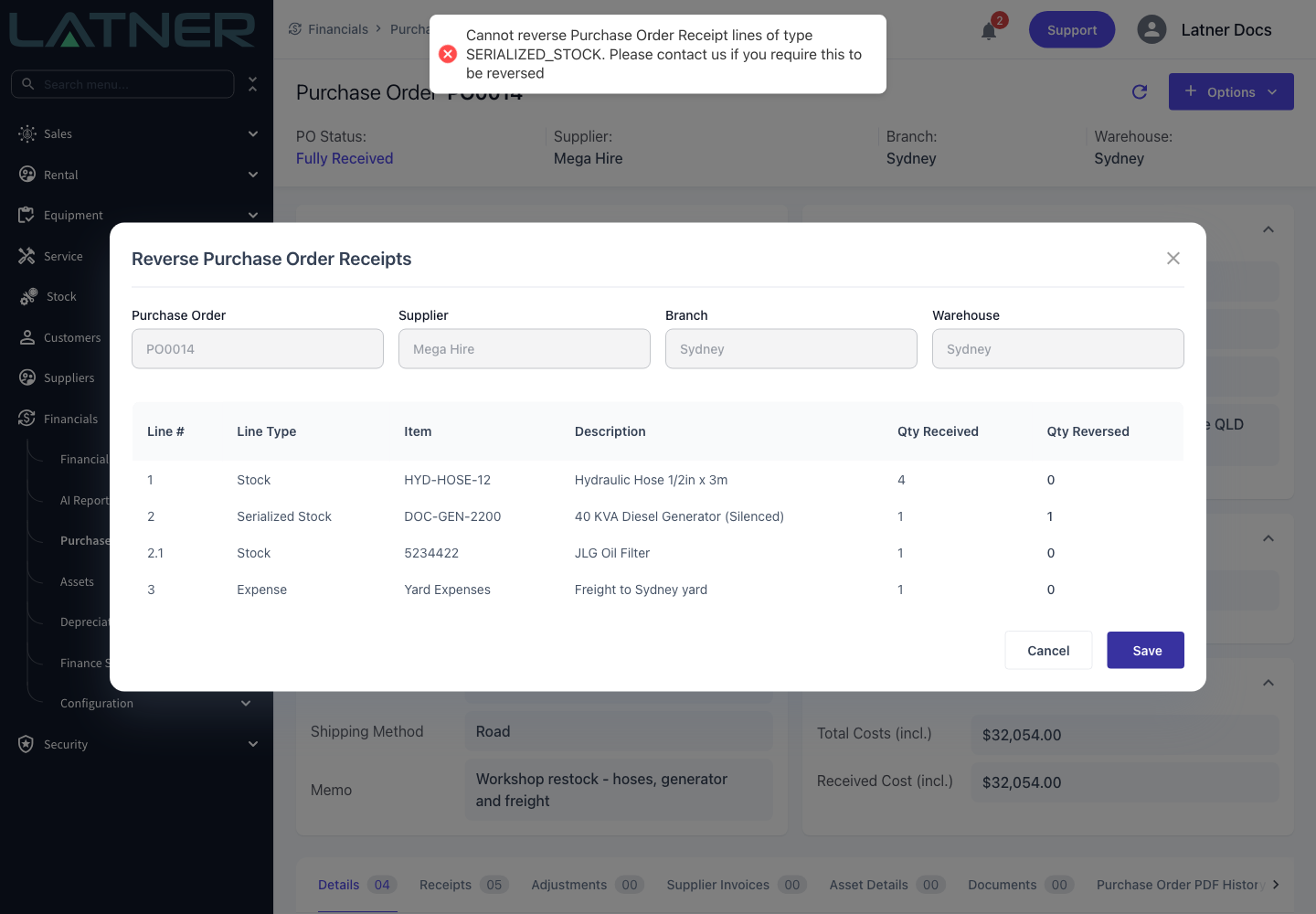
Only Stock, Expense and Transport lines can be reversed. Equipment, Asset and Serialized Stock lines cannot.
-
Anything already invoiced is locked. You can reverse down to the invoiced quantity and no further.
Before You Begin
You'll need the following before you can reverse a receipt.
|
Requirement |
Where to Find It |
|---|---|
|
Purchase Orders permission |
Security › Configuration › Permission Groups › Financials › Screen |
|
Receipt a Purchase Order permission |
Security › Configuration › Permission Groups › Financials › Option |
|
Cancel/Reverse a Purchase Order Receipt permission |
Security › Configuration › Permission Groups › Financials › Option |
|
A Purchase Order at Partly Received or Fully Received status |
Financials › Purchase Orders |
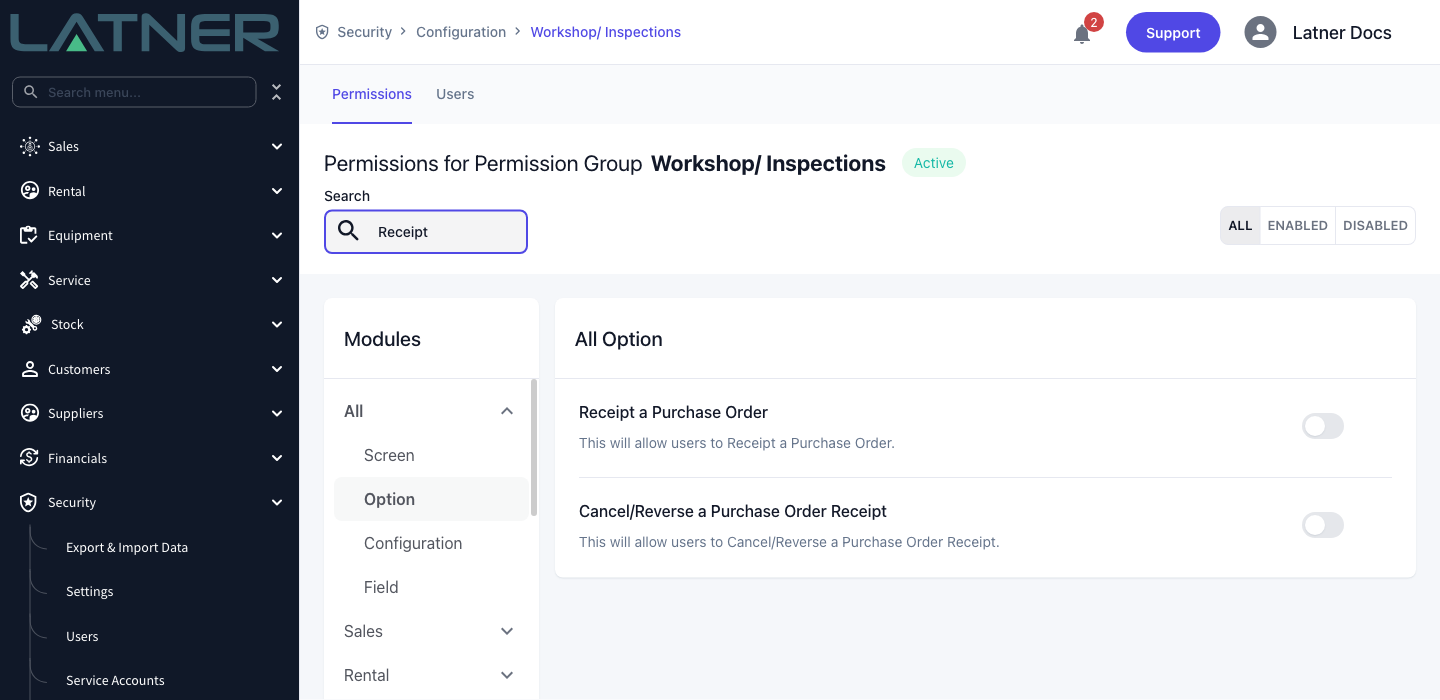
Those two permissions do different jobs. Receipt a Purchase Order decides whether Reverse Purchase Order Receipts appears in the Options menu at all, while Cancel/Reverse a Purchase Order Receipt is checked when you save. If you have the first but not the second, the option is there and the reversal is refused when you press Save - ask your administrator for both.
No system setting has to be turned on to reverse a receipt.
Reversing the Receipt
Step 1 - Open the Purchase Order
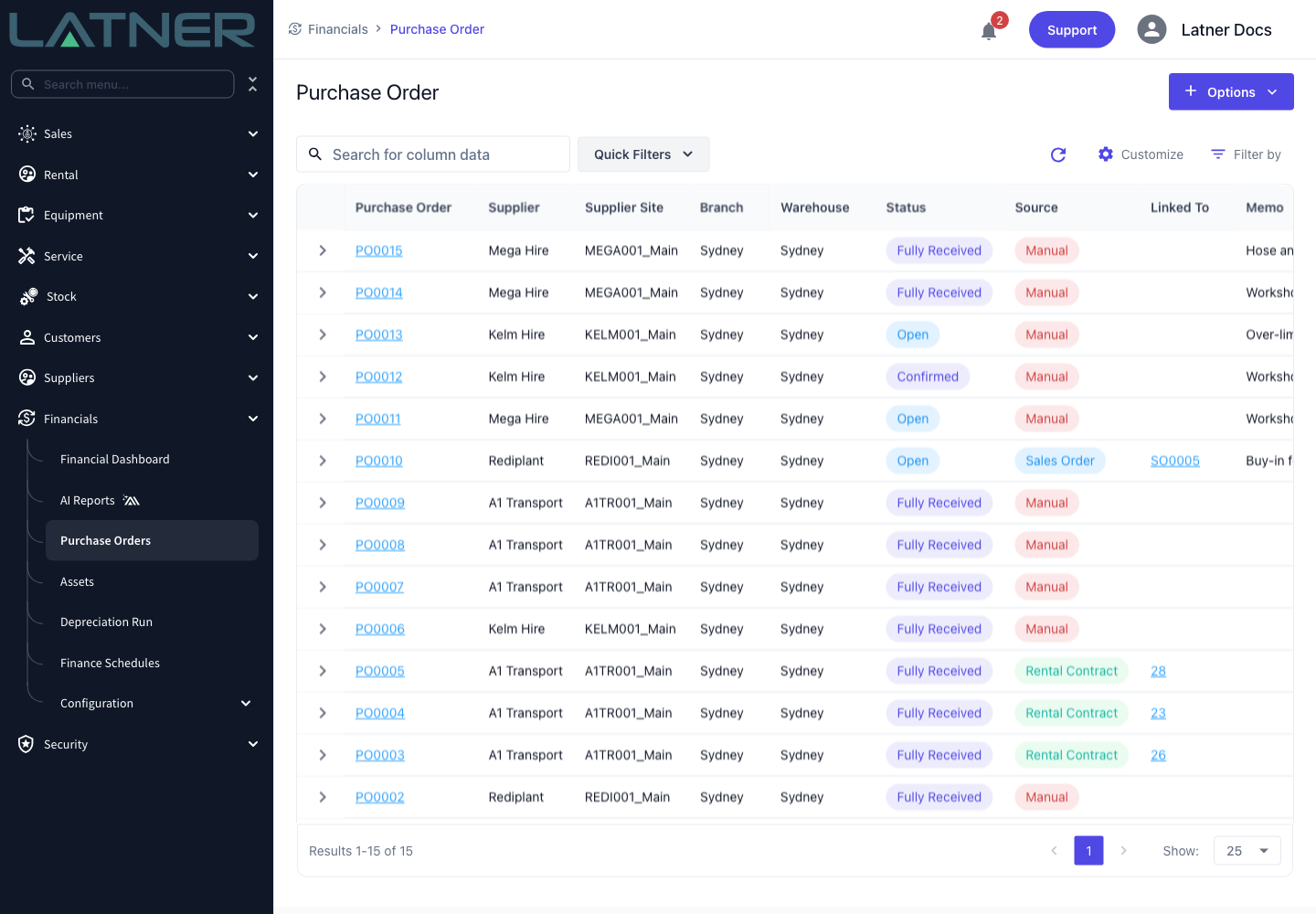
Go to Financials › Purchase Orders and open the order the receipt belongs to. The Status column tells you which orders have something received against them.
Step 2 - Choose Reverse Purchase Order Receipts
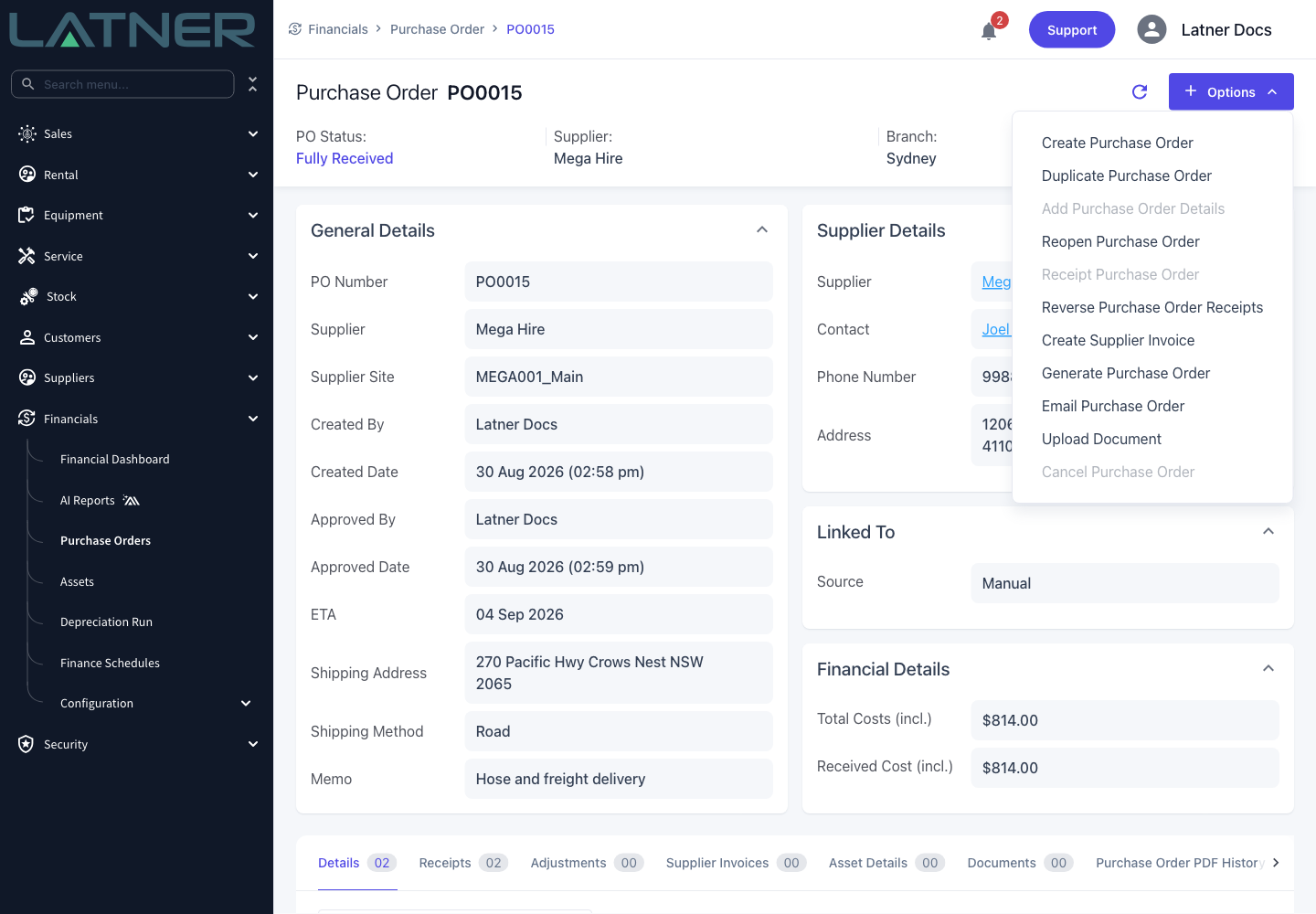
Select Options › Reverse Purchase Order Receipts.
Step 3 - Check the lines you can reverse
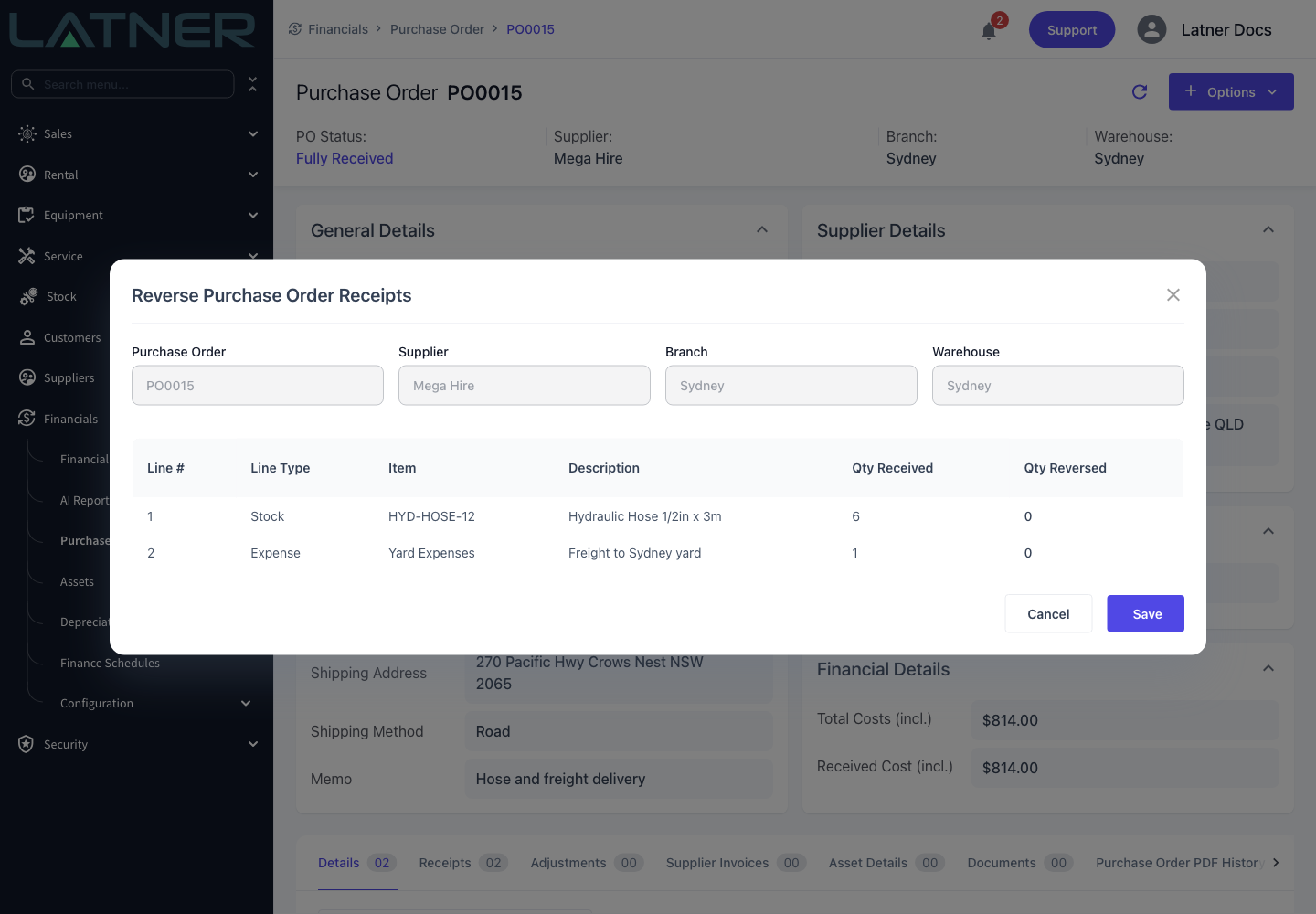
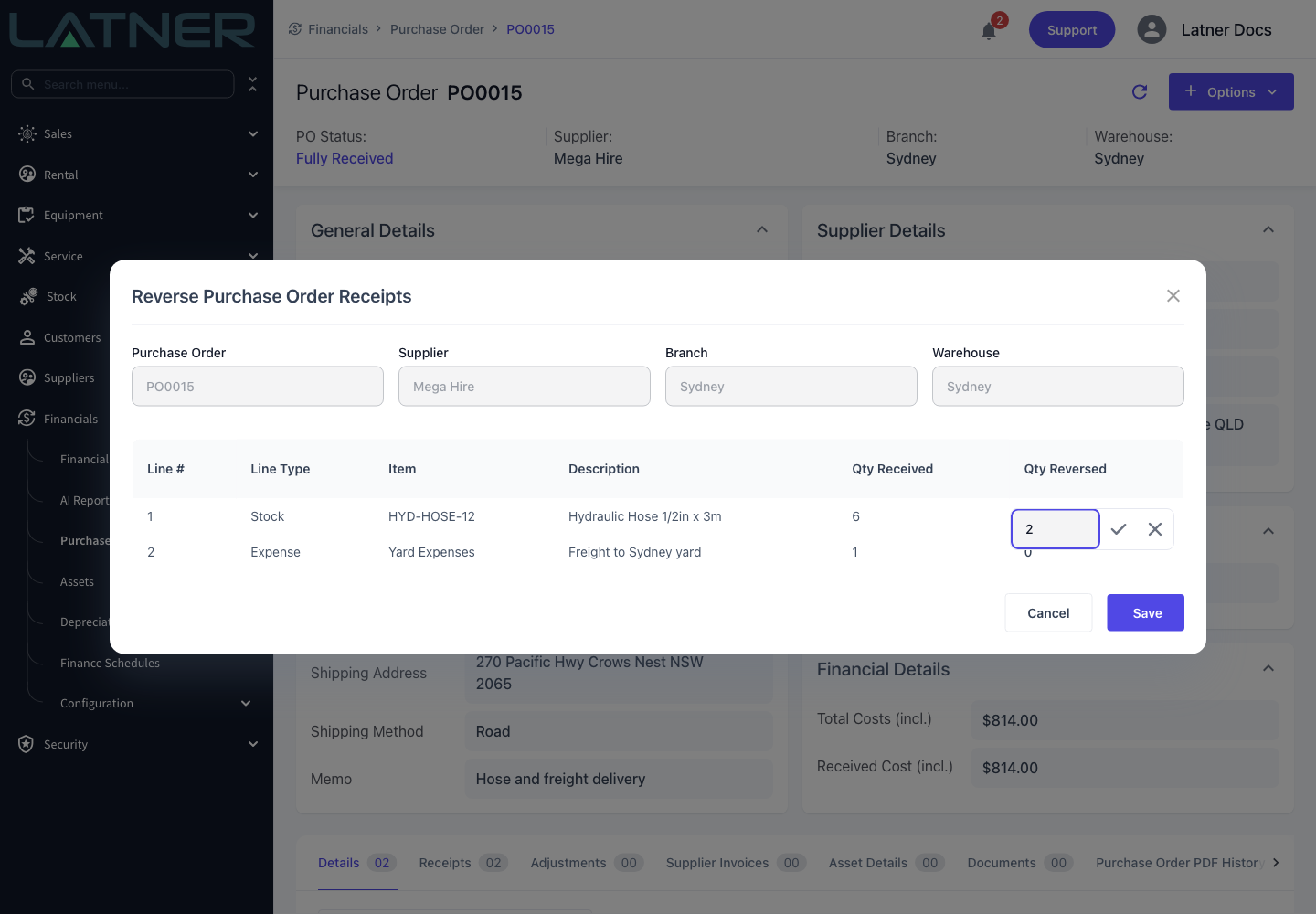
The Reverse Purchase Order Receipts dialog opens. Purchase Order, Supplier, Branch and Warehouse are shown for reference and cannot be changed.
The table lists only the lines that have a received quantity, so a line nobody has receipted yet never appears. Each row shows:
-
Line # - the Purchase Order line, including sub-lines such as an accessory that came in under a parent line.
-
Line Type - Stock, Serialized Stock, Equipment, Asset, Expense or Transport.
-
Item and Description - what was ordered.
-
Qty Received - how much is currently receipted against the line. This is the ceiling for the reversal.
-
Qty Reversed - the quantity you want to put back. Every row starts at zero.
Step 4 - Enter the quantity to put back
Click the Qty Reversed cell on the line you want to correct, type the quantity and confirm it with the tick. Leave every other line at zero.
-
You cannot enter more than the line's Qty Received.
-
Negative quantities are rejected, and quantities are limited to two decimal places.
-
Entering a quantity on several lines reverses them all together, as one reversal.
Step 5 - Check the quantities
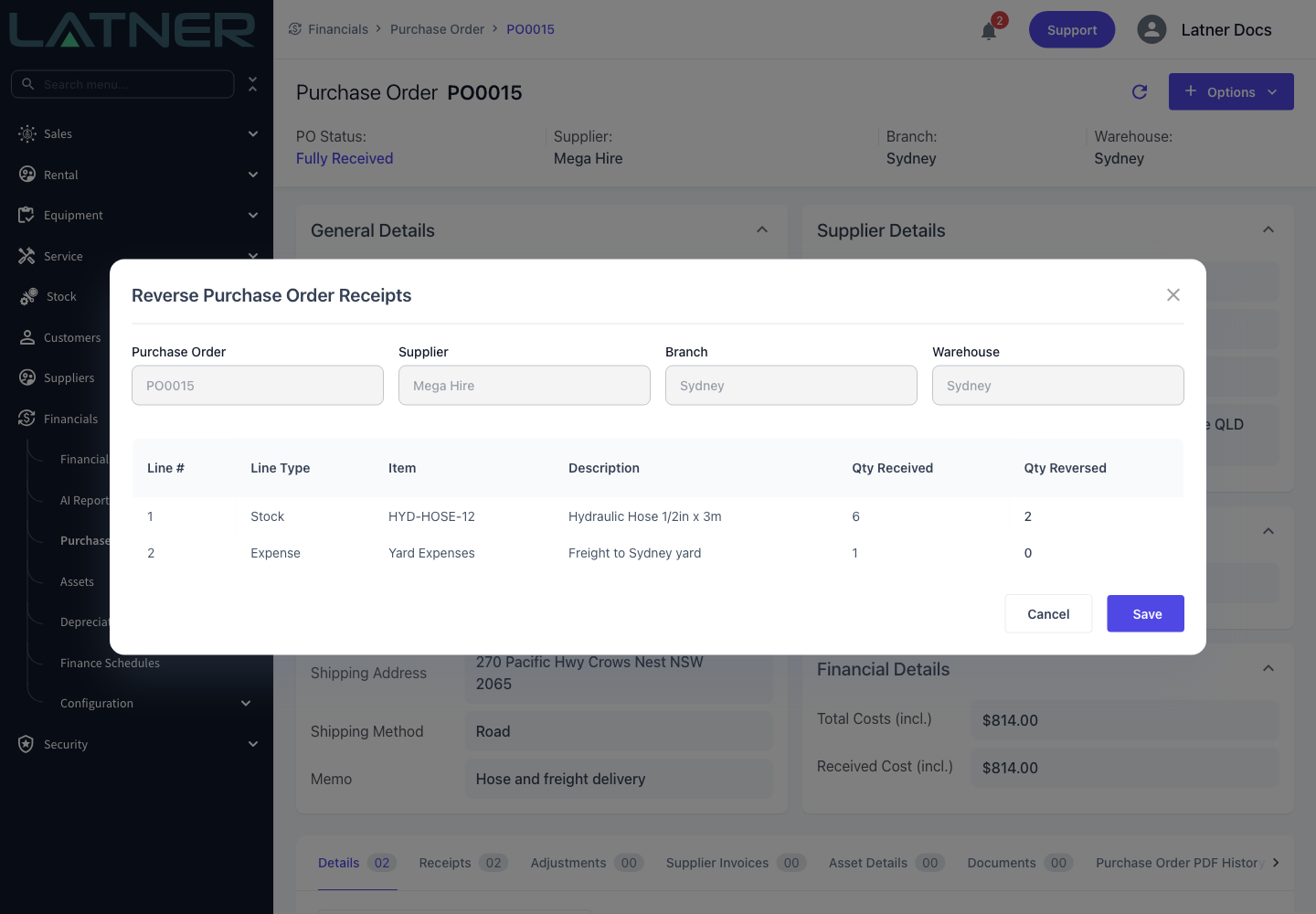
Read the Qty Reversed column back before you commit. This is the last point at which the reversal costs you nothing to abandon - Cancel closes the dialog and changes nothing.
Step 6 - Save
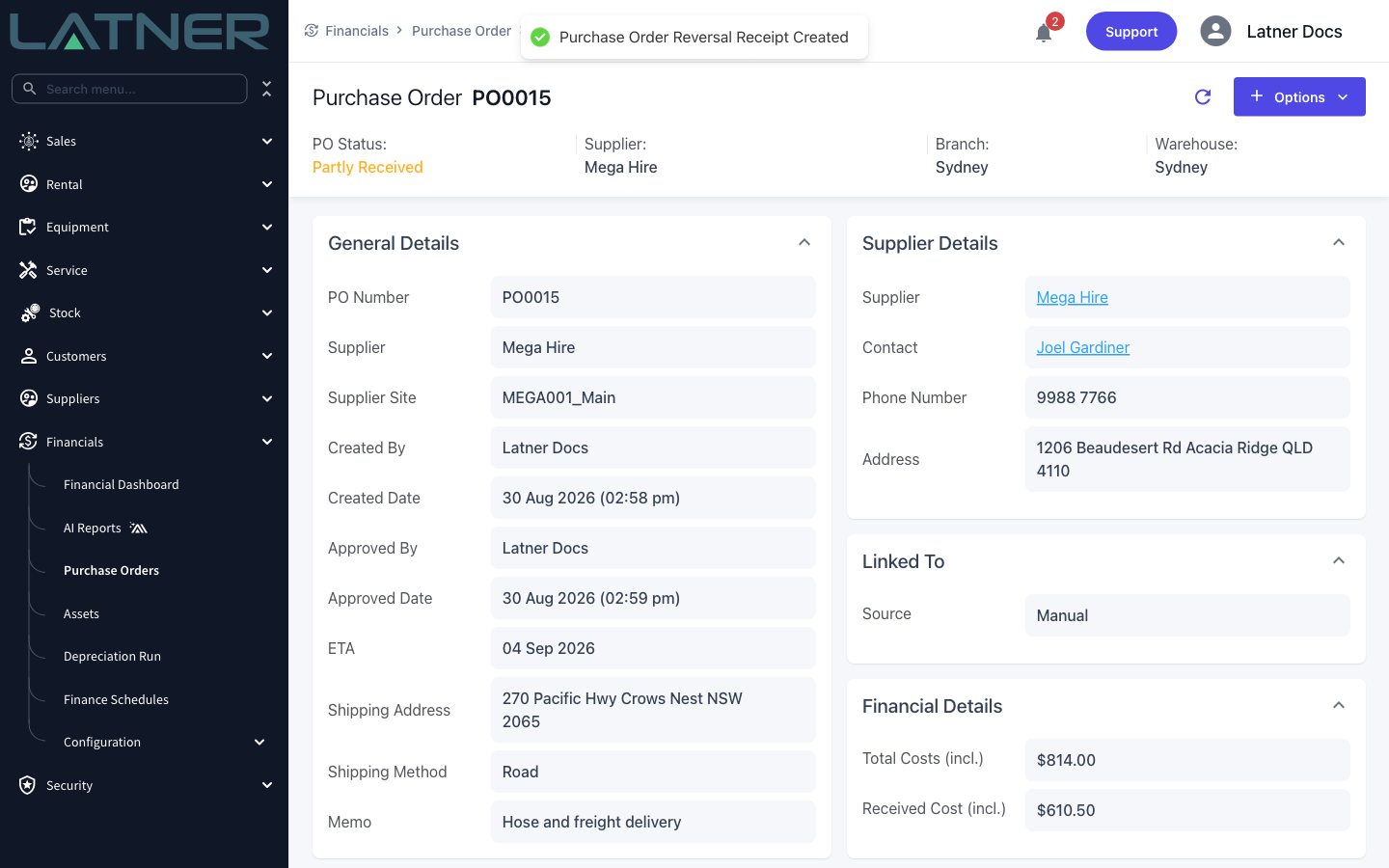
Select Save. Latner confirms with Purchase Order Reversal Receipt Created, and the order's status and Received Cost update straight away.
After the Reversal
-
The line's Qty Received drops by the quantity you reversed, and its received cost is recalculated from the new quantity.
-
The order's status is recalculated: still Fully Received if every line remains fully received, Partly Received while anything is outstanding, and back to Confirmed once nothing is received at all.
-
A new row appears on the Receipts tab with type Reversal. The quantity and value on it are shown as positives - it is the type that tells you the movement went the other way.
-
Reversed Stock comes off Qty Available and goes back onto Qty Backordered at the order's warehouse, because it is on order again.
-
Reversing a line that was raised for a Work Order removes the part or expense from that Work Order.
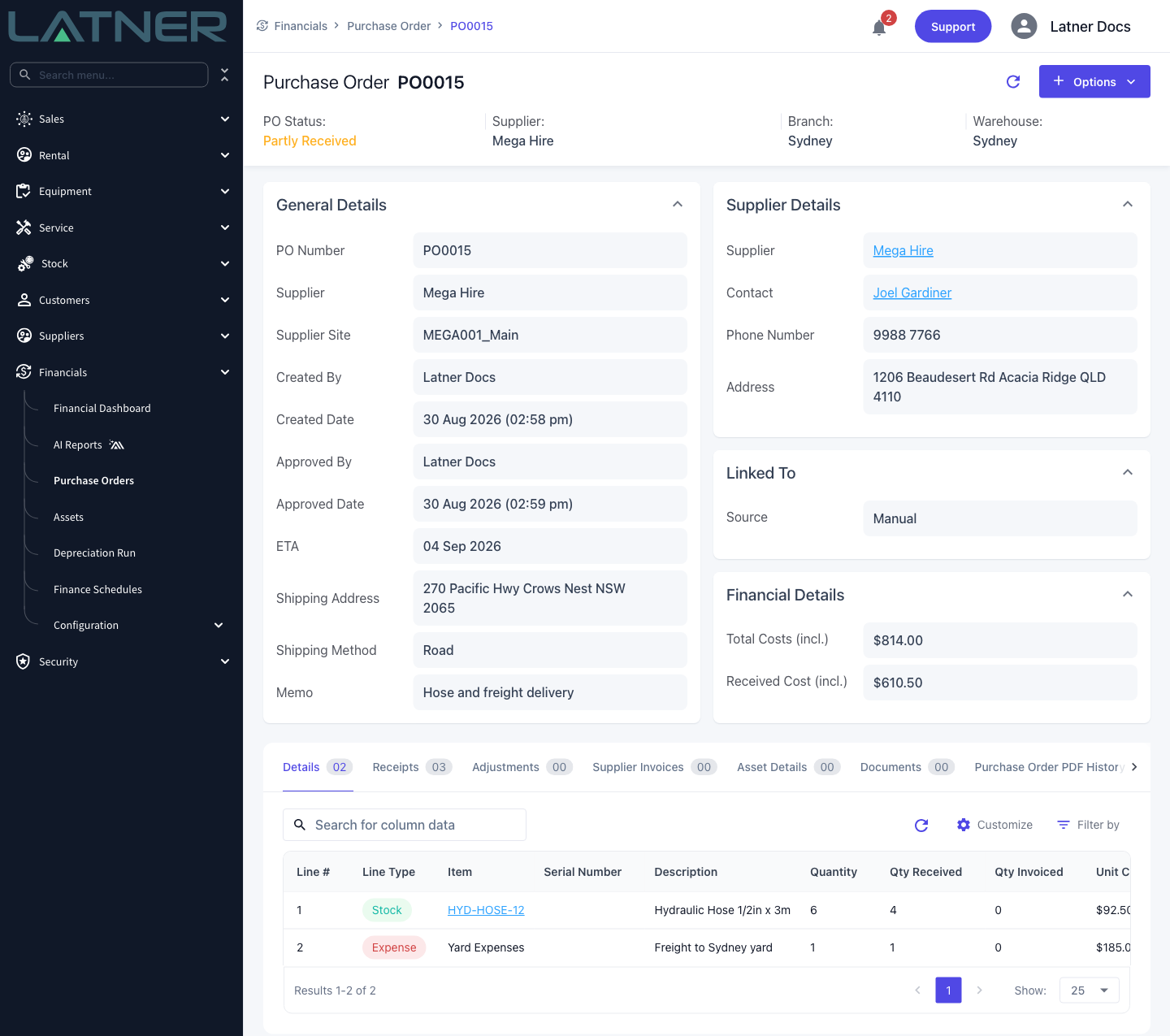
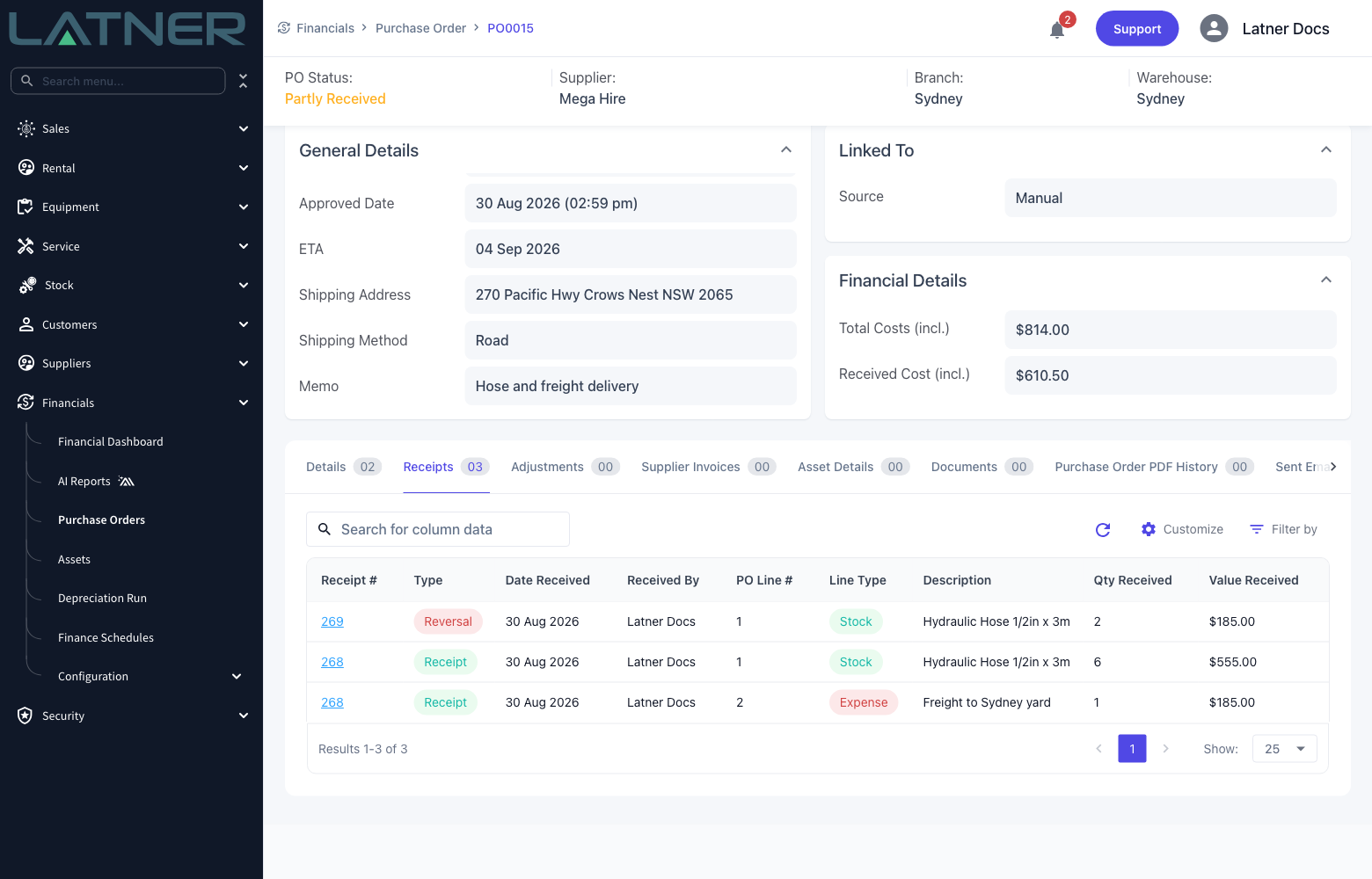
Selecting the Receipt # opens the reversal as a record in its own right, with its own detail lines and its own Receipt Syncs tab for accounting integrations.
On a Stock line, the Stock Movements tab of the stock item records the correction as well, so the part's history explains why the count changed.
Reversing does not put the Purchase Order back the way it was before anyone touched it. The original receipt stays on the order, the reversal sits beside it, and both are visible to anyone reading the history later. If the delivery never arrived at all and the order should not exist, cancel the Purchase Order instead of reversing line by line.
What You Cannot Reverse
Three line types are refused outright, because receipting them created records elsewhere in Latner that cannot simply be unwound.
-
Equipment - receipting creates the equipment record.
-
Asset - receipting creates the asset record.
-
Serialized Stock - receipting brings the serial number into stock.
If you enter a quantity against one of those lines, the whole reversal is rejected and nothing on the order changes - including the quantities you entered against lines that were allowed.
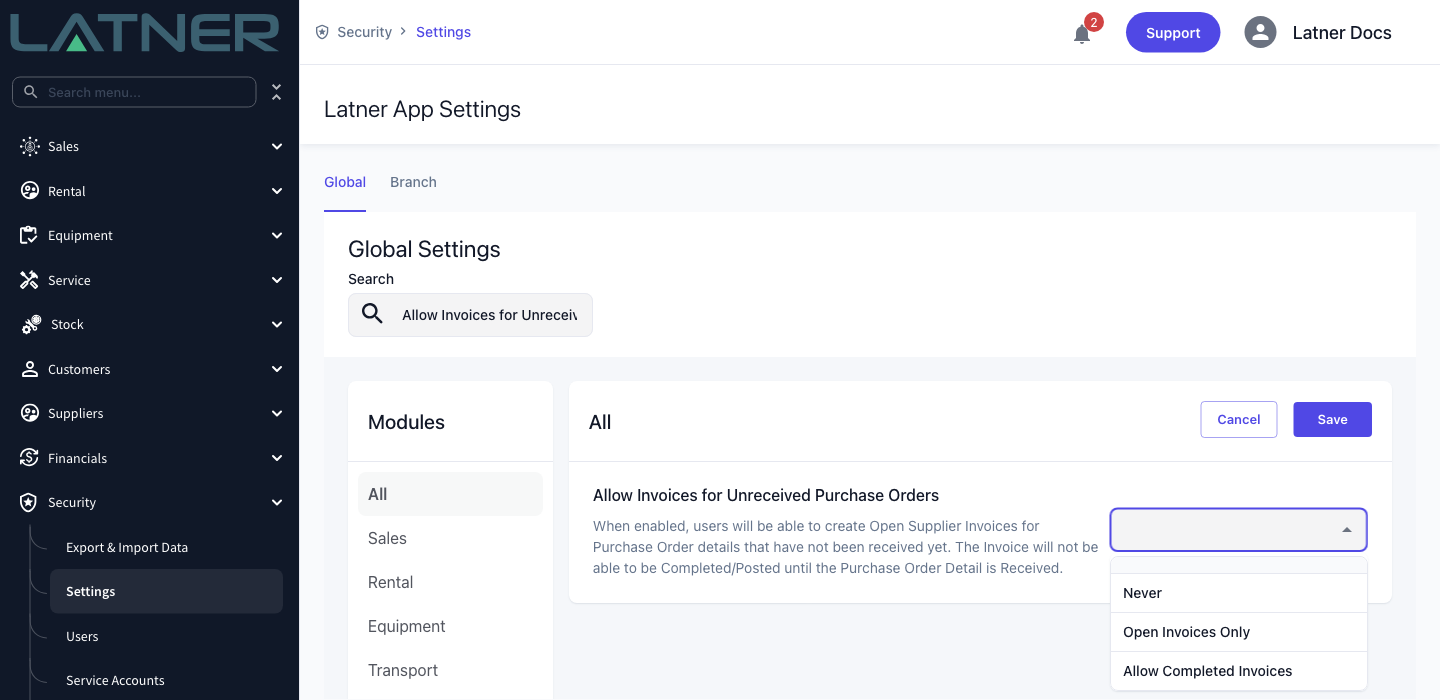
Invoiced quantities are the other blocker. A reversal cannot take a line below the quantity that has been invoiced against it, so a line received six and invoiced four can only be reversed by two. Exactly which invoices count is controlled by Allow Invoices for Unreceived Purchase Orders under Security › Settings › Financials.
-
Never - every supplier invoice line counts, whatever status the invoice is at.
-
Open Invoices Only - only Completed and Paid supplier invoices count, so a line sitting on an Open invoice can still be reversed.
-
Allow Completed Invoices - invoiced quantities are not checked at all, and a receipt can be reversed even after the supplier invoice has been posted.
FAQs
Watch the Demo
Prefer to watch it? Step through the same flow here.