
Completing a Supplier Invoice is the point where Latner accepts the supplier's charge as payable and pushes it out to your accounting system, and approving is how a disputed invoice gets released so it can be completed.
Overview
Every supplier invoice starts life as Open, whether you keyed it in by hand or Latner raised it from a Purchase Order, a Sub Hire Order or a Finance Schedule. Open means nothing has been committed yet: you can still add lines, change the reference number, or hand it back to whoever ordered the goods. Completing it draws the line under all of that.
-
Open invoices can be edited, have lines added or removed, be disputed, or be completed.
-
Complete Invoice stamps the invoice with the date and the user who completed it, and pushes it to every active accounting integration on the invoice's company.
-
A Disputed invoice cannot be completed. It has to be approved first, or reopened back to Open.
-
Approve Disputed Invoice moves the invoice to Approved and offers to complete it in the same breath.
-
Once an invoice is Completed, Paid or Cancelled, the Complete Invoice option disappears - a completed invoice can only be reversed by cancelling it.
-
An invoice moves from Completed to Paid on its own, once supplier payments cover the balance outstanding.
Before You Begin
Completing and approving are separate permissions, so check you have the right one for the job.
|
Requirement |
Where to Find It |
|---|---|
|
Supplier Invoice screen permission |
Security › Configuration › Permission Groups - Supplier › Screen. Needed to open the Supplier Invoices screen at all. |
|
Edit Supplier Invoice permission |
Security › Configuration › Permission Groups - Supplier › Option. This is the permission that controls Complete Invoice. |
|
Approve Disputed Supplier Invoice permission |
Security › Configuration › Permission Groups - Supplier › Option. Controls Approve Disputed Invoice. |
|
Reopen Disputed/Approved Supplier Invoice permission |
Security › Configuration › Permission Groups - Supplier › Option. Only needed if you want to send an invoice back to Open instead of approving it. |
|
Allow Invoices for Unreceived Purchase Orders setting |
Security › Settings › Financials. Decides whether a Purchase Order invoice can be completed before the goods are receipted. |
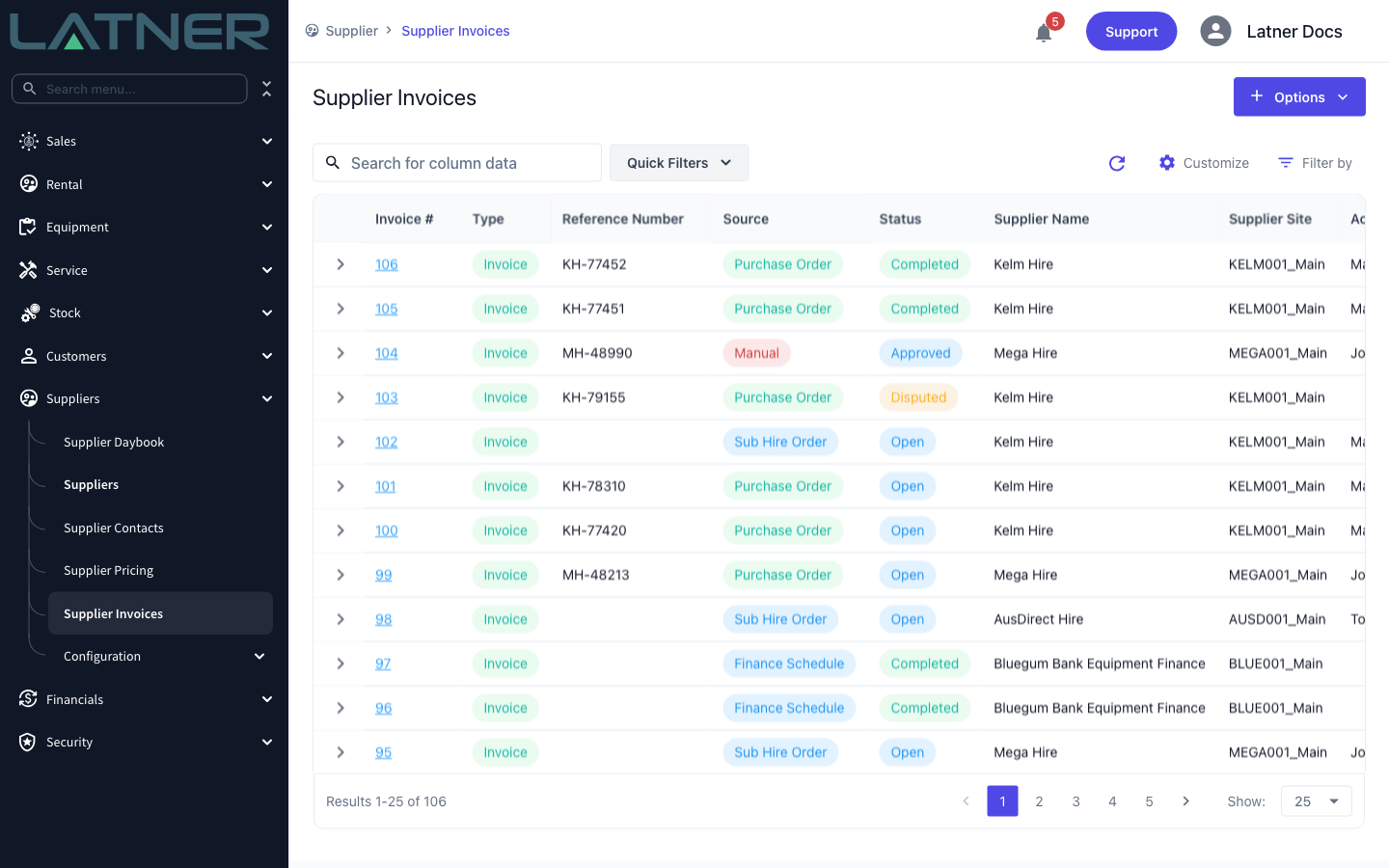
The Allow Invoices for Unreceived Purchase Orders setting has three values. Never and Open Invoices Only both mean an invoice can only be completed for quantities that have actually been receipted against the Purchase Order. Allow Completed Invoices relaxes that to the quantity ordered, so you can complete an invoice ahead of the goods arriving - but you still cannot invoice more than was ordered. If the setting has never been set, Latner behaves as though it were Never.
Completing an Open Supplier Invoice
Step 1 - Open the Supplier Invoices screen
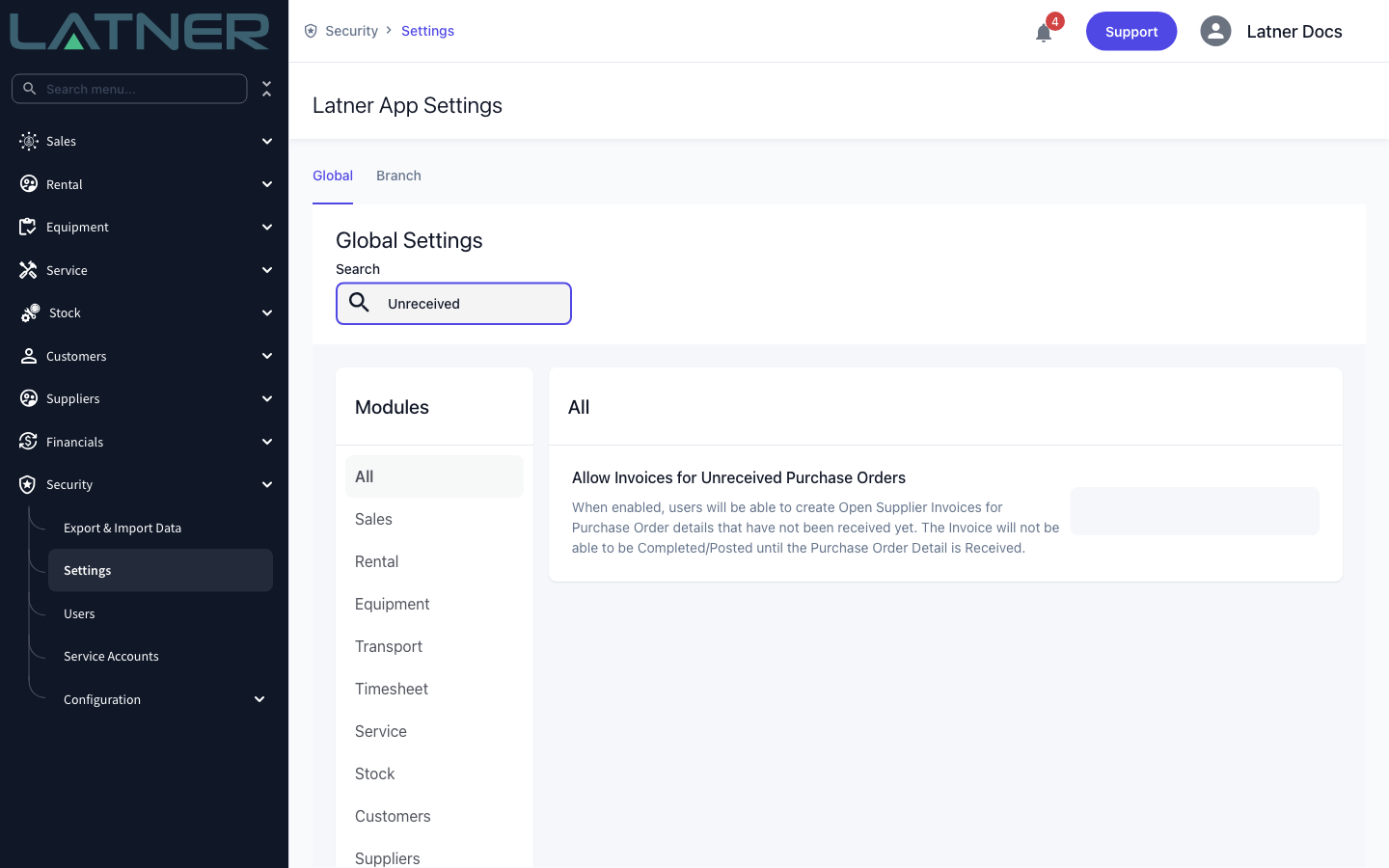
Go to Suppliers › Supplier Invoices. The list shows every invoice and credit note with its Status and Source, so you can see at a glance which ones are still sitting Open and which are already Completed. Use Quick Filters or Filter by to narrow the list down to Open invoices for a single supplier.
Step 2 - Open the invoice and check it
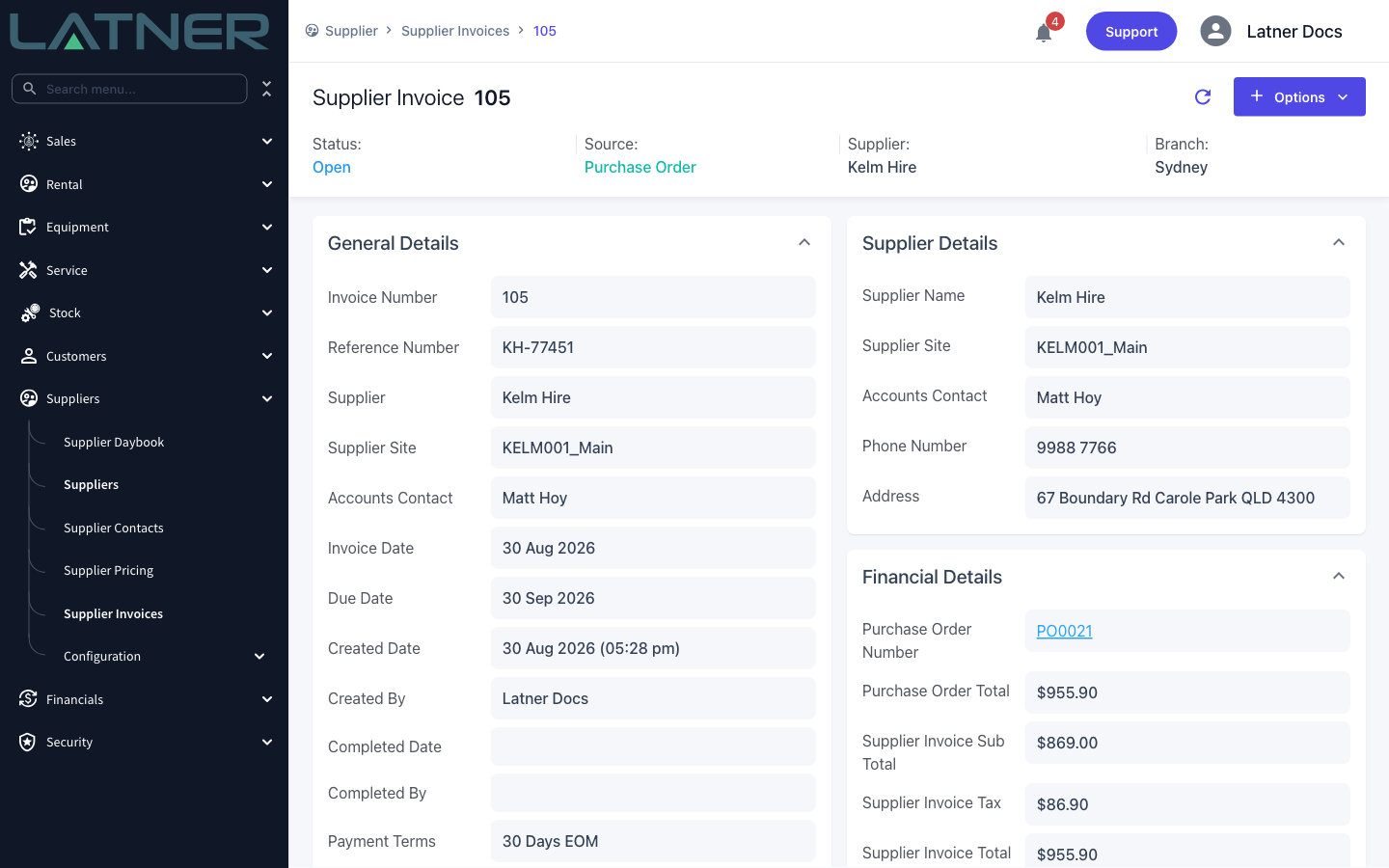
Click the invoice number to open it. Confirm the Status reads Open and that the header is right before you commit to it:
-
Reference Number - the supplier's own invoice number. It has to be unique for the supplier, so if the supplier has sent you the same number twice, Latner will have stopped you at creation.
-
Invoice Date and Due Date - the due date is worked out from the supplier's payment terms.
-
Supplier Invoice Total - compare it against the Purchase Order Total shown just above it.
Step 3 - Check the invoice lines
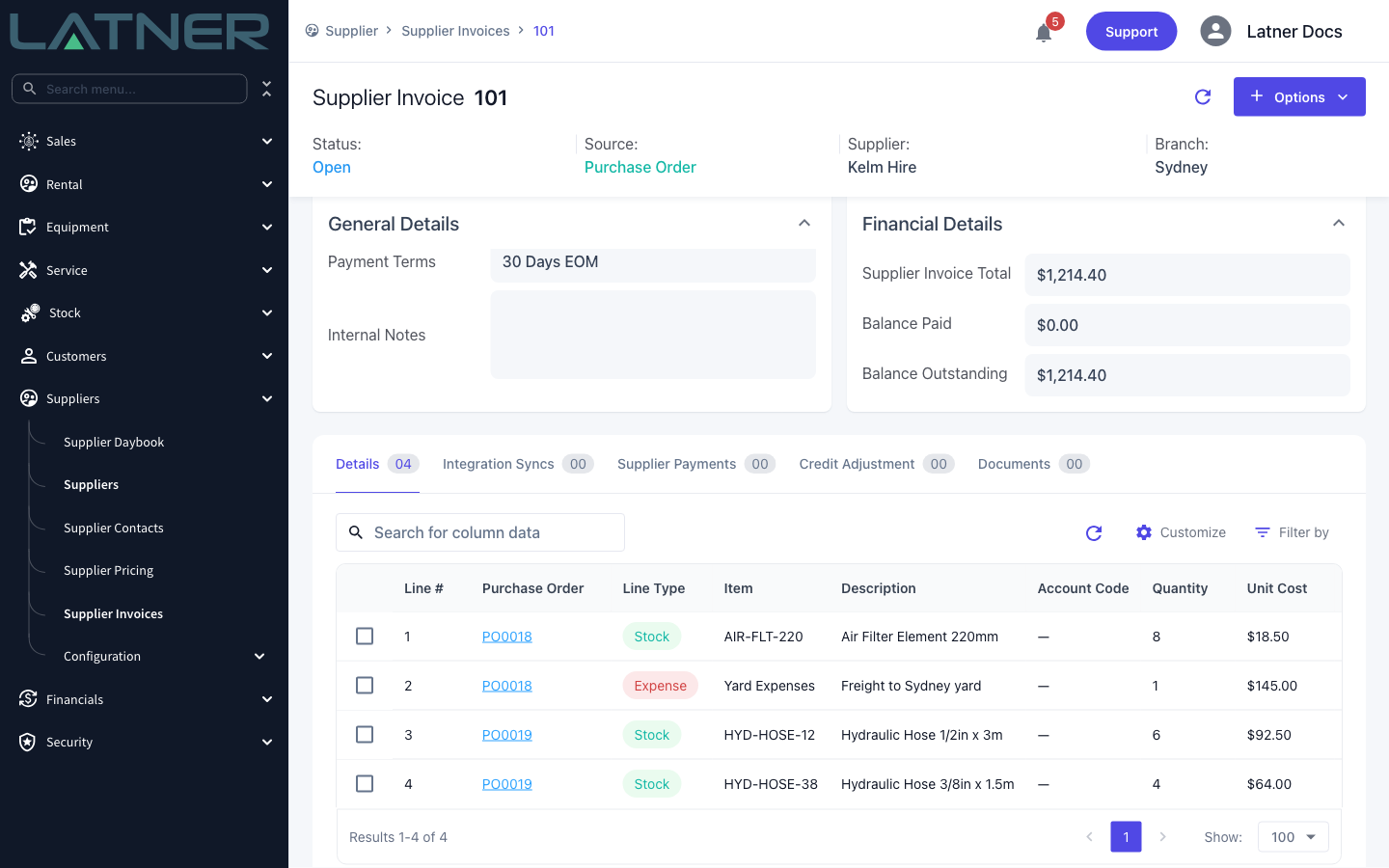
Scroll down to the Details tab. Every line the invoice will post is here, with the Purchase Order it came from, the quantity, the unit cost and the tax. This is your last chance to fix anything: while the invoice is Open you can still use Options › Add Details or Options › Add Purchase Order Details to bring more lines on, or edit and delete the lines that are already there.
Step 4 - Complete the invoice
Click Options › Complete Invoice. There is no confirmation prompt, so be sure before you click - the invoice is completed straight away and you'll see a Supplier Invoice Completed message.
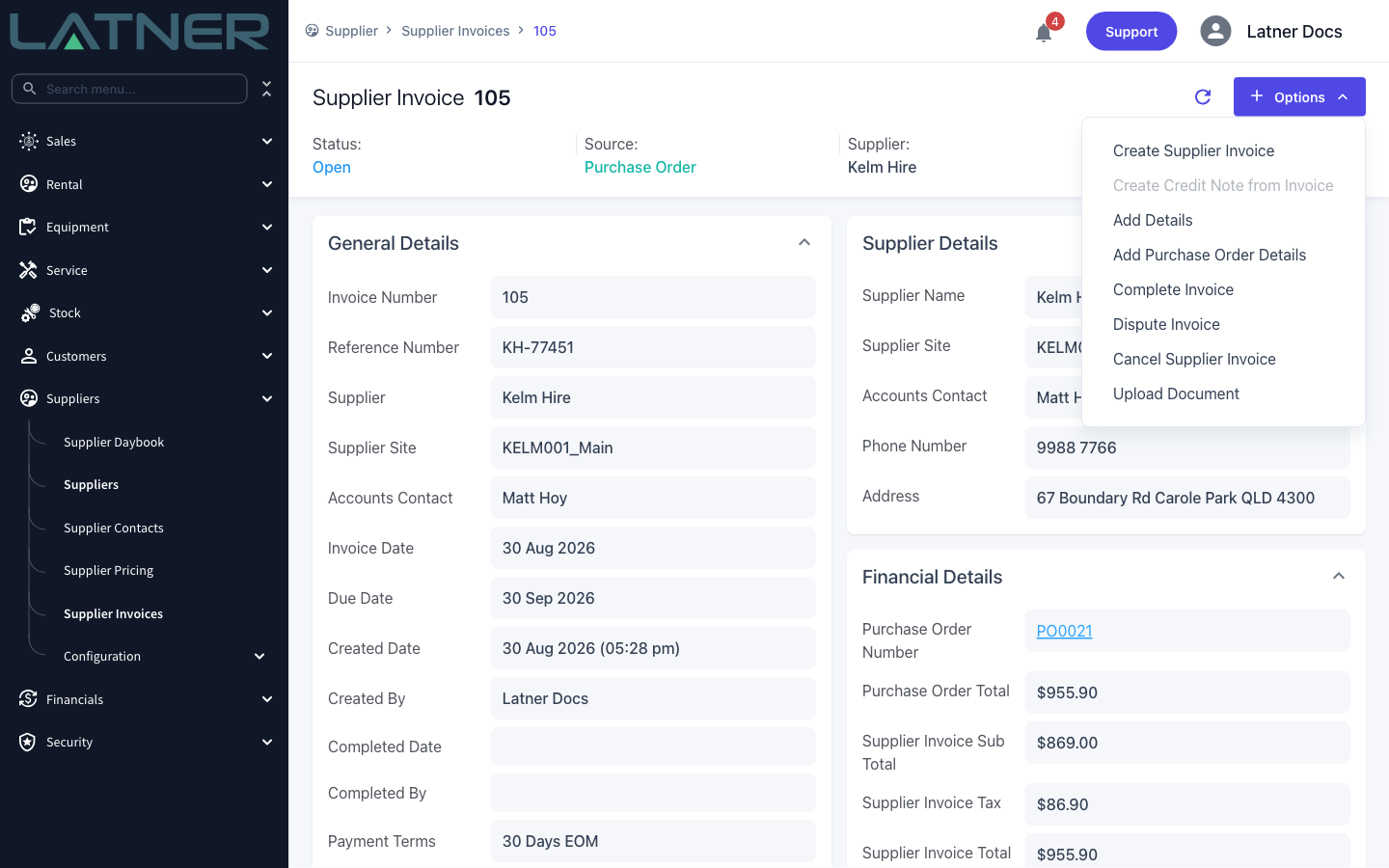
Complete Invoice is greyed out when the invoice has no detail lines - the tooltip reads "Invoice details are required to complete an Invoice". It is also greyed out while the invoice is Disputed. Add the lines, or approve the dispute, and the option comes back.
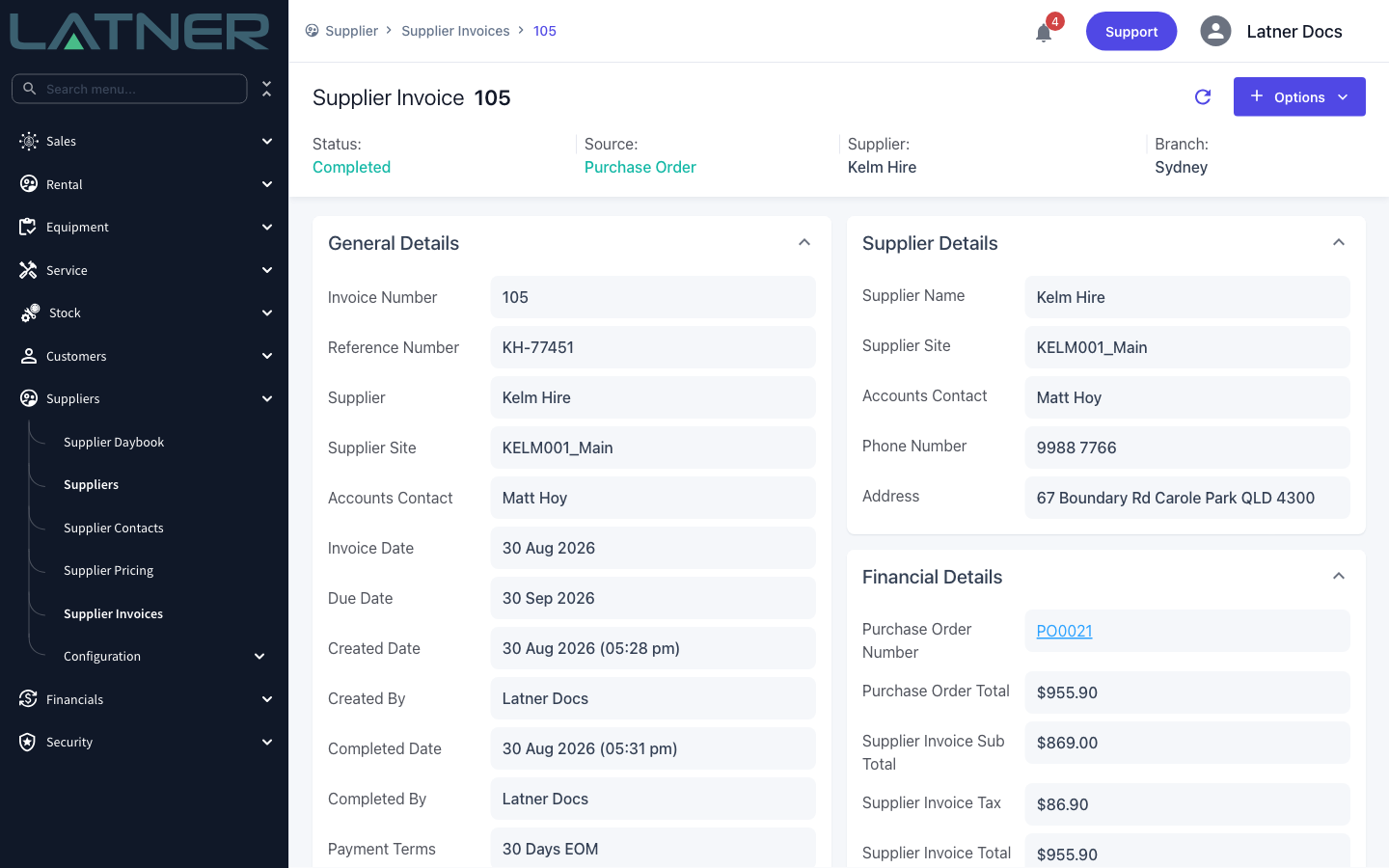
The status changes to Completed, and Completed Date and Completed By are filled in with the moment you clicked and your own name.
Approving a Disputed Supplier Invoice
When Accounts Payable disputes an invoice, it goes to Disputed status and is assigned to someone to look into - usually whoever raised the Purchase Order. Once that person is satisfied the charge is fair, the invoice needs approving before it can be completed.
Step 1 - Open the disputed invoice and read the dispute
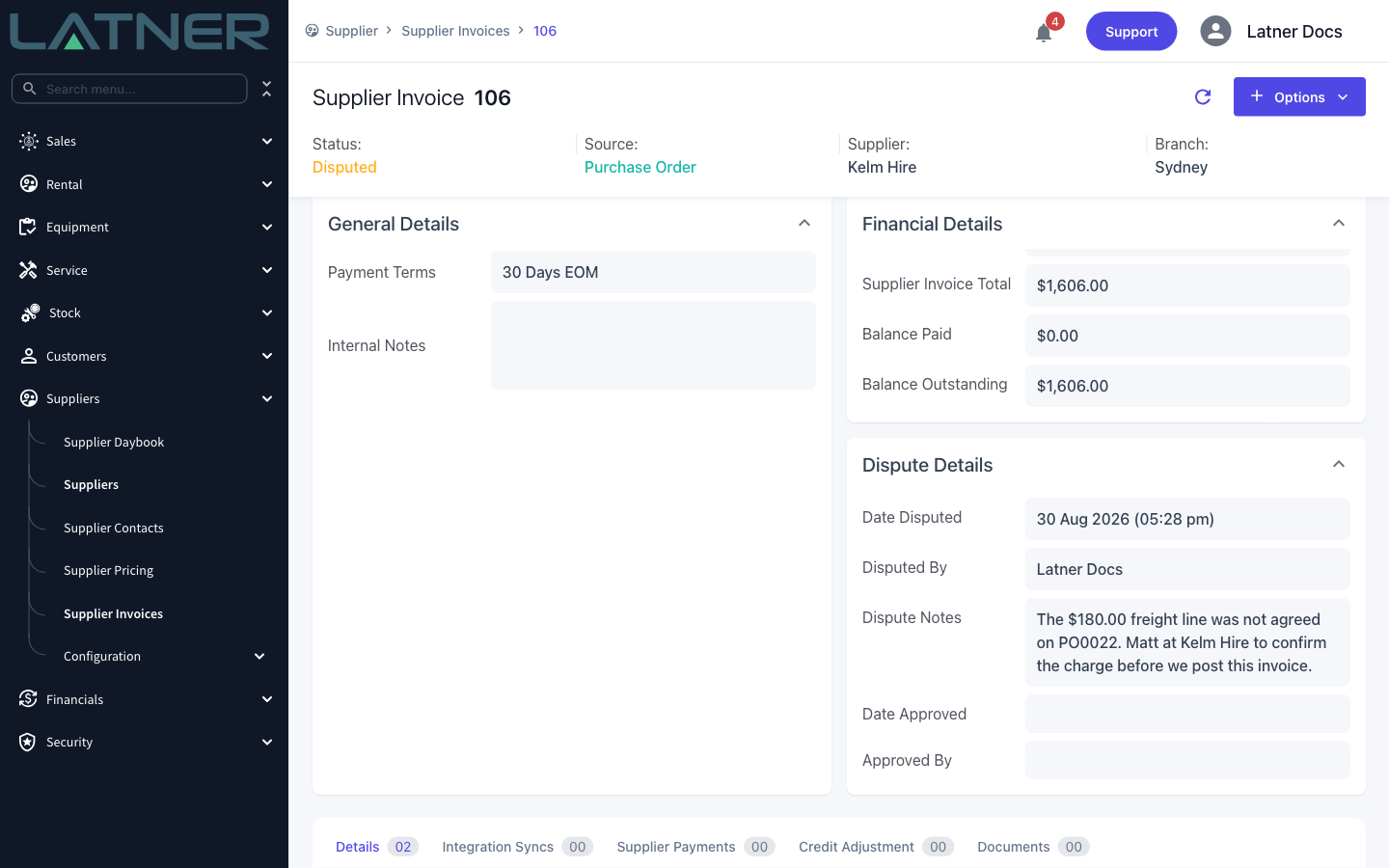
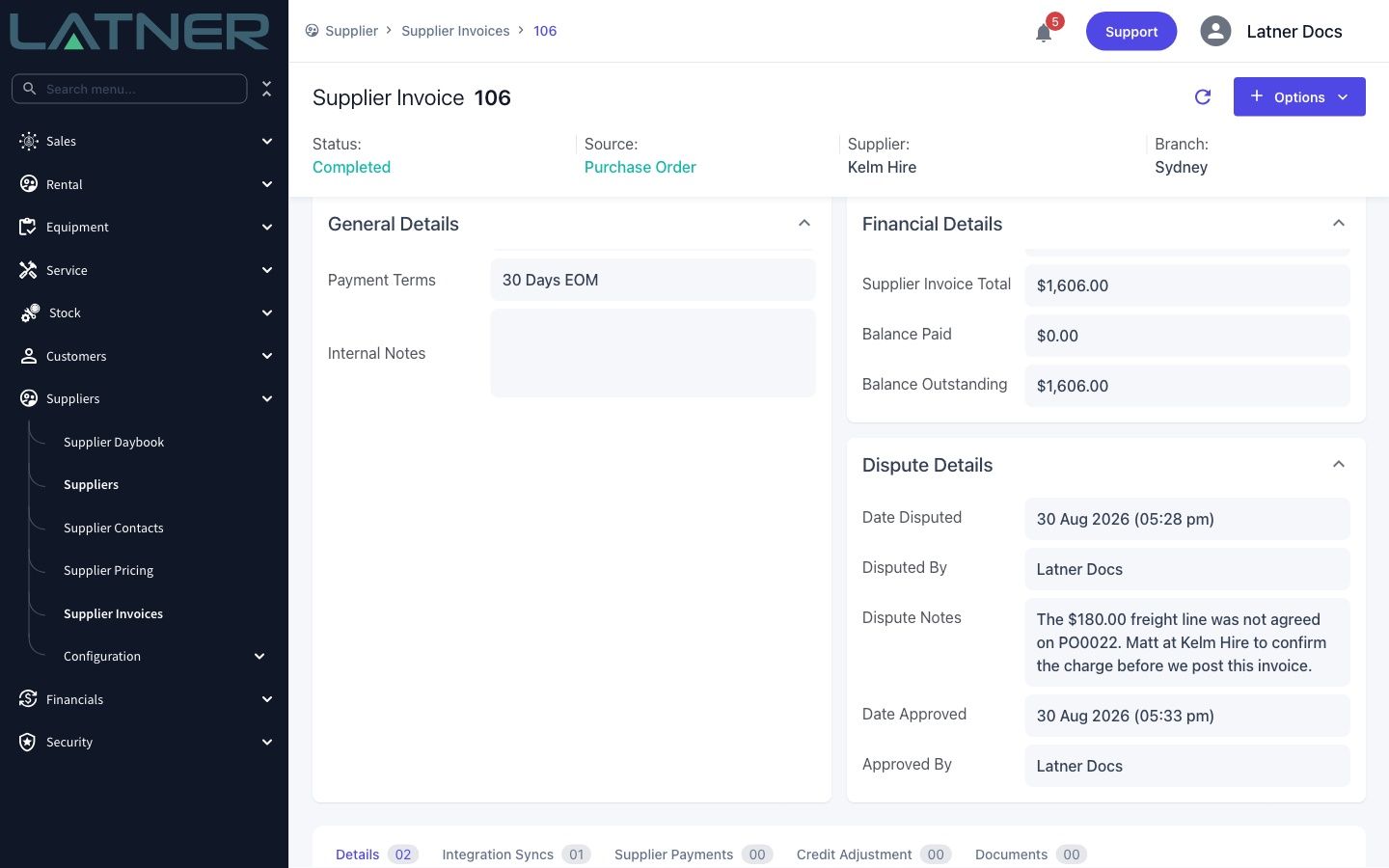
Open the invoice from Suppliers › Supplier Invoices. A disputed invoice grows an extra Dispute Details card showing Date Disputed, Disputed By and the Dispute Notes that explain what the argument was about. Date Approved and Approved By are still empty.
Step 2 - Open the Options menu
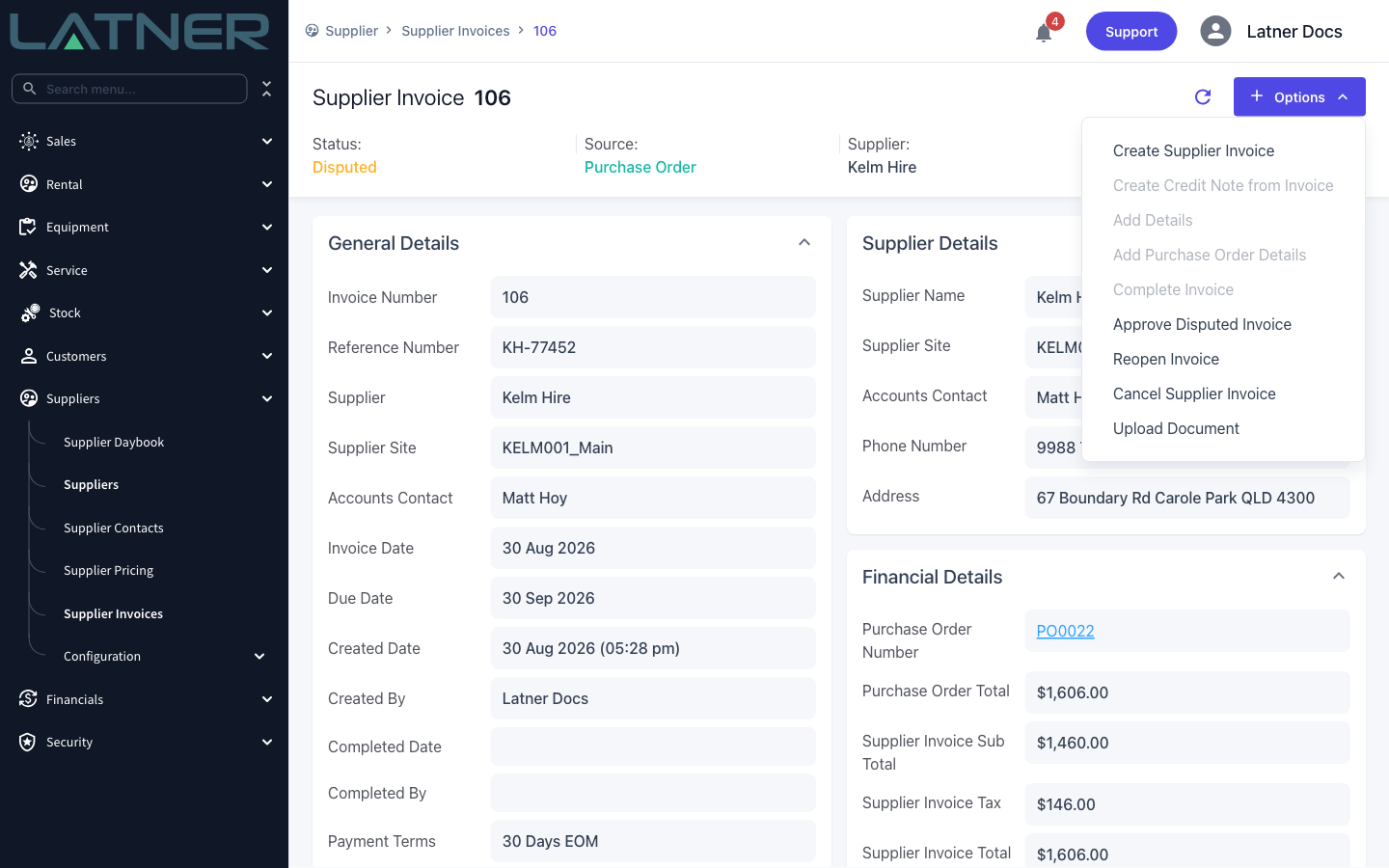
Click Options. On a disputed invoice the menu changes shape: Complete Invoice, Add Details and Add Purchase Order Details are all greyed out, and two new options appear - Approve Disputed Invoice and Reopen Invoice.
Approving is not the only way out. If the invoice genuinely needs changing - a line removed, a quantity corrected - use Reopen Invoice instead. That sends it back to Open so it can be edited, and it works from both Disputed and Approved.
Step 3 - Approve the dispute
Click Approve Disputed Invoice. Latner shows an Approve Supplier Invoice prompt that repeats the dispute notes back to you, so you can check you're approving the thing you think you are. Click Yes.
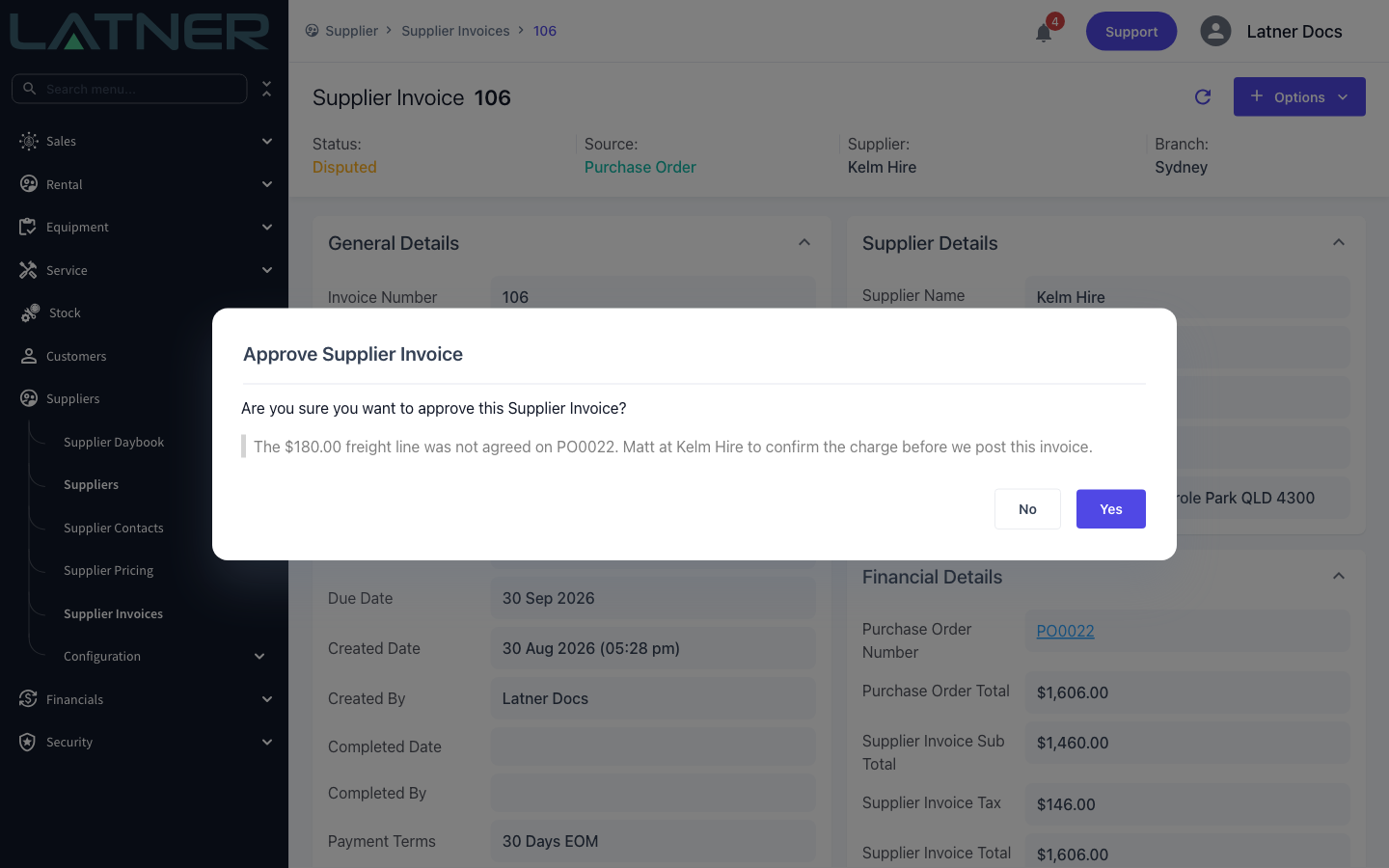
The invoice moves to Approved, Date Approved and Approved By are stamped, and the person who raised the dispute gets a Supplier Invoice Dispute Approved notification.
Step 4 - Complete it
Straight after the approval, Latner asks Would you also like to Complete the Supplier Invoice? Click Yes and the invoice is completed in the same go.
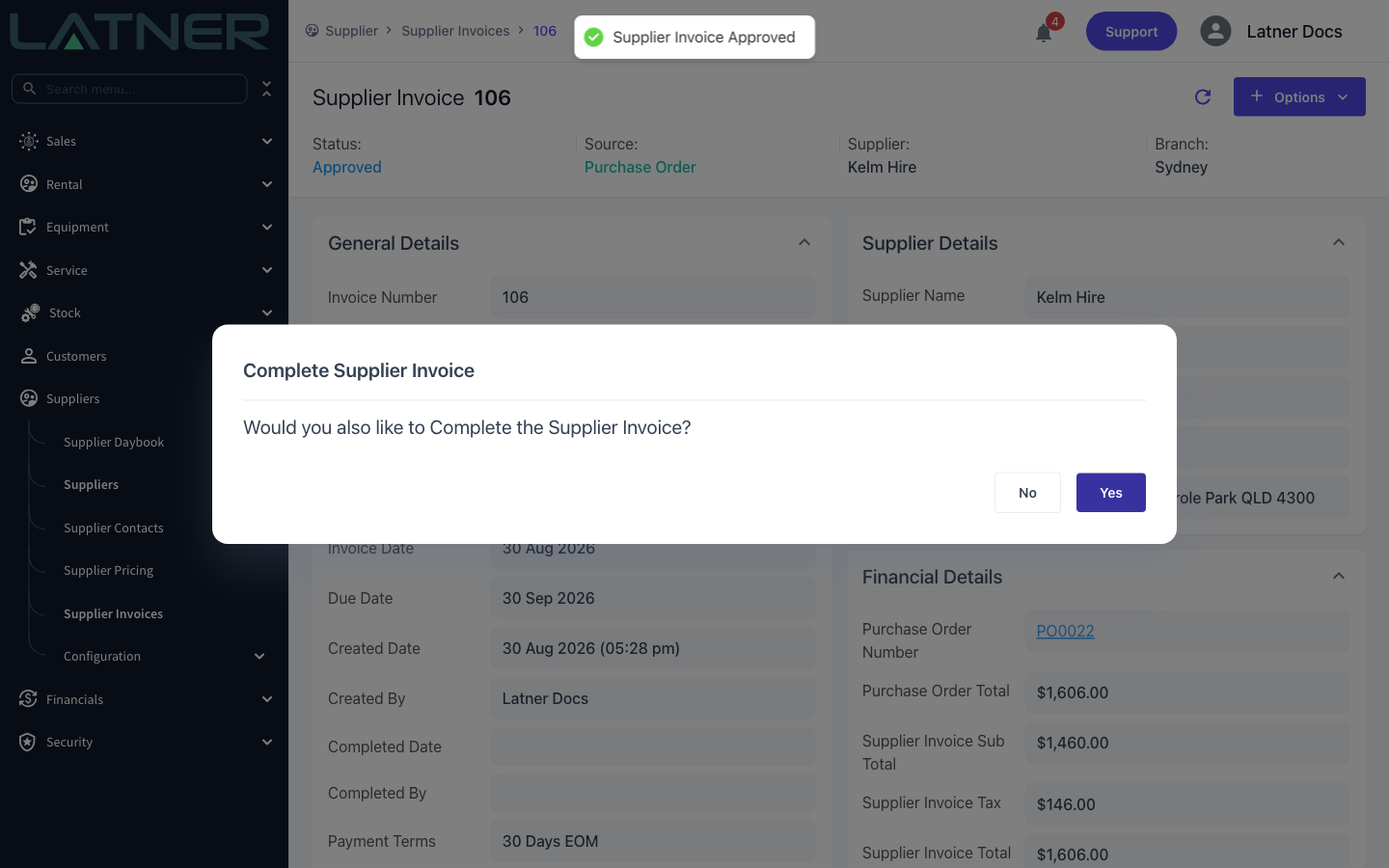
Answering No leaves the invoice sitting at Approved, which is perfectly valid - you can come back later and use Options › Complete Invoice, which is available again now the dispute is settled.
After Completing
-
The invoice status becomes Completed, and Completed Date and Completed By are recorded on the General Details card.
-
Latner pushes the invoice to every Active accounting integration on the invoice's company. The attempt is recorded on the Integration Syncs tab with its type, status and the user who triggered it.
-
If a sync fails, Options › Sync Invoice retries it. That option only appears once the invoice is Completed or Paid.
-
Create Credit Note from Invoice becomes available - credit notes can only be raised against a Completed or Paid invoice.
-
The Purchase Order's invoiced quantities were already updated when the invoice lines were created, not when you completed it, so the Purchase Order may well have moved to Invoiced before this point. Cancelling the invoice releases those quantities again.
-
If Allow Invoices for Unreceived Purchase Orders is set to Open Invoices Only, completing the invoice also locks the receipt: a Purchase Order receipt cannot be reversed once its quantity sits on a Completed or Paid invoice.
-
When supplier payments cover the Balance Outstanding, the invoice moves itself to Paid. If a refund later leaves a balance again, it drops back to Completed.
There is no "uncomplete". Reopen Invoice only works on Disputed and Approved invoices, not Completed ones. If you complete an invoice in error, the only way back is Options › Cancel Supplier Invoice, which needs a cancellation note and will also void the invoice in your accounting system if it synced. A Paid invoice cannot be cancelled at all - you'll need to reverse the payment first.
FAQs
Watch the Demo
Prefer to watch it? Step through the same flow here.