
Cancelling a supplier invoice unwinds everything the invoice did - the billing it applied to a purchase order or sub hire order, and the bill it created in your accounting system - so you can start again from a clean slate when a supplier bills you incorrectly.
Overview
Suppliers send the wrong invoice more often than anyone would like: the wrong order, the wrong quantities, the wrong reference number. Cancelling is how you take that invoice back out of Latner without leaving the purchase order stuck at Invoiced.
-
You can cancel a supplier invoice at any status except Paid and Cancelled - so Open, Completed, Disputed and Approved invoices can all be cancelled.
-
Cancelling rolls back Qty Invoiced on every linked purchase order line, which normally moves the order back from Invoiced to Fully Received so it can be invoiced again.
-
On a sub hire order, the invoiced lines go back to Active, their invoiced totals are recalculated from the invoices that remain, and the sub hire order itself is reopened.
-
On a finance schedule, the instalment the invoice covered goes back to Uninvoiced.
-
If the invoice was successfully synced to Xero or MYOB, Latner deletes or voids the matching bill in that system too.
-
Cancellation Notes are compulsory, and they are kept on the invoice alongside who cancelled it and when.
-
Cancelling is one-way. The invoice keeps its number and stays on the Supplier Invoices list at status Cancelled - there is no un-cancel.
Before You Begin
Cancelling is permission-controlled, and the permission is checked against the branch the invoice belongs to.
|
Requirement |
Where to Find It |
|---|---|
|
Cancel Supplier Invoice permission, for the invoice's branch |
Security › Configuration › Permission Groups › your group › Suppliers › Option |
|
Cancel Supplier Credit Note permission, if you are cancelling a credit note rather than an invoice |
Security › Configuration › Permission Groups › your group › Suppliers › Option |
|
A supplier invoice that is not already Paid or Cancelled |
Suppliers › Supplier Invoices |
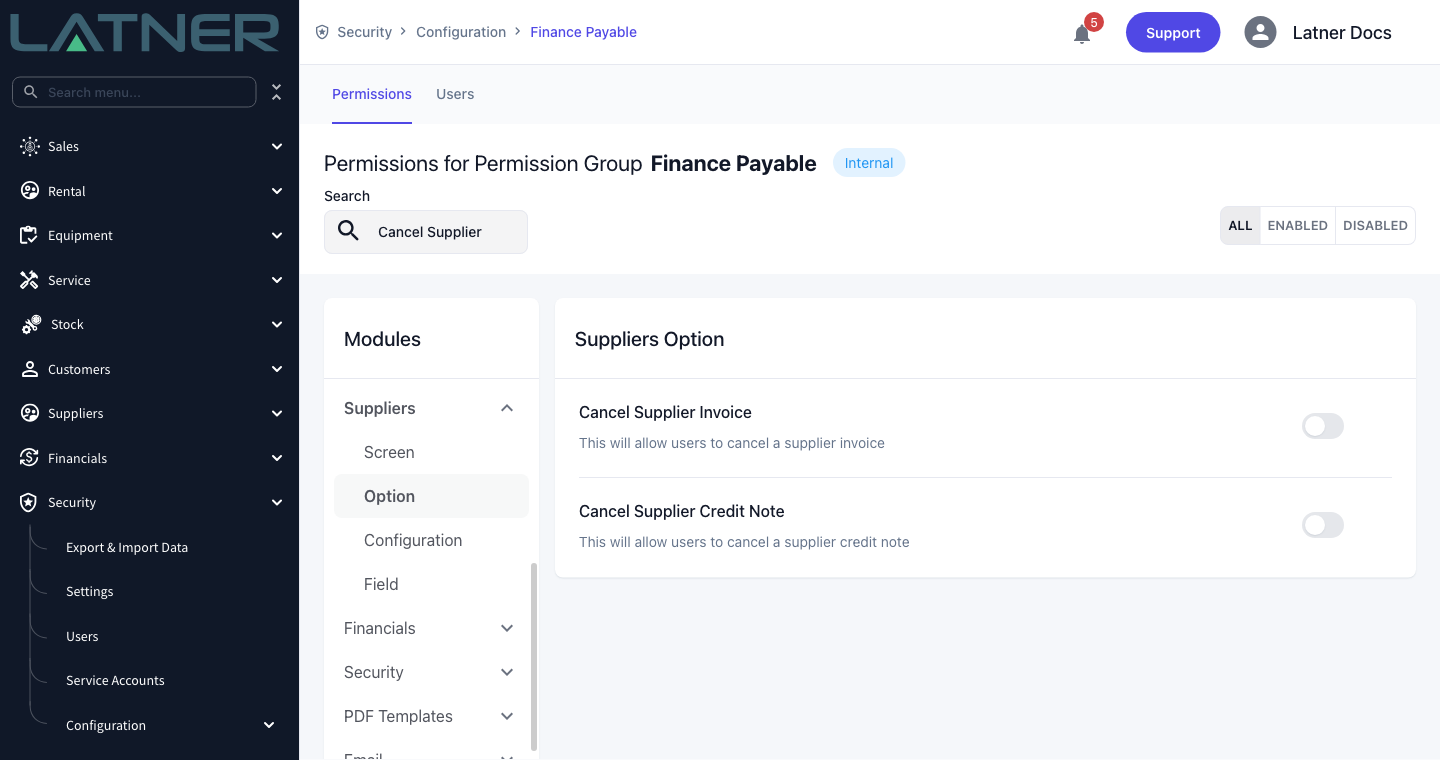
Out of the box only the Administrator, Finance Manager and Branch Manager groups hold Cancel Supplier Invoice. If your accounts payable team needs it, switch it on for their group rather than moving people into a finance manager group.
Cancelling the Supplier Invoice
Step 1 - Open the Supplier Invoices screen
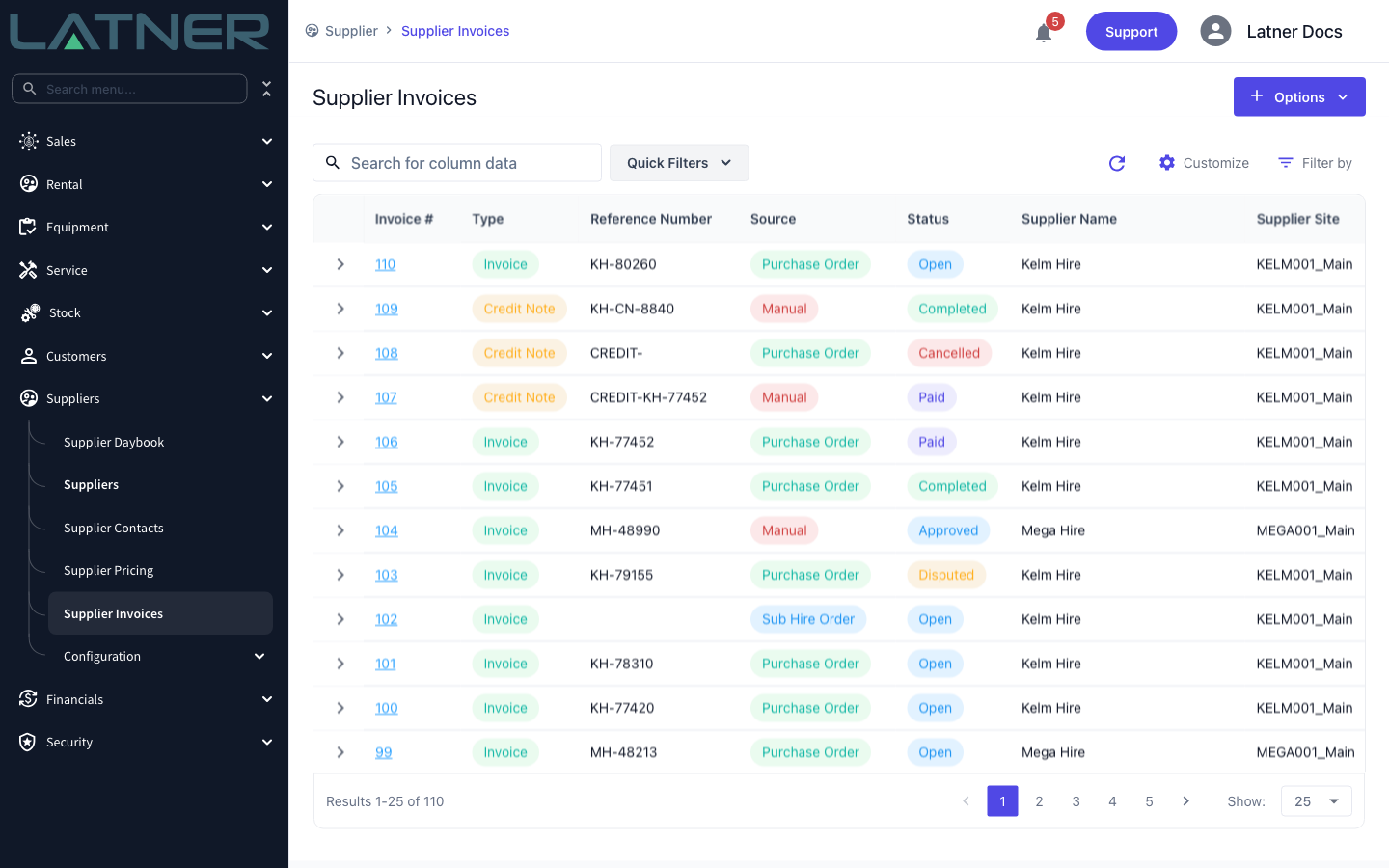
Go to Suppliers › Supplier Invoices and find the invoice you need to cancel. The Status column tells you straight away whether cancelling is still possible - anything showing Paid or Cancelled is out of reach. Click the Invoice # to open it.
Step 2 - Check the invoice before you cancel it
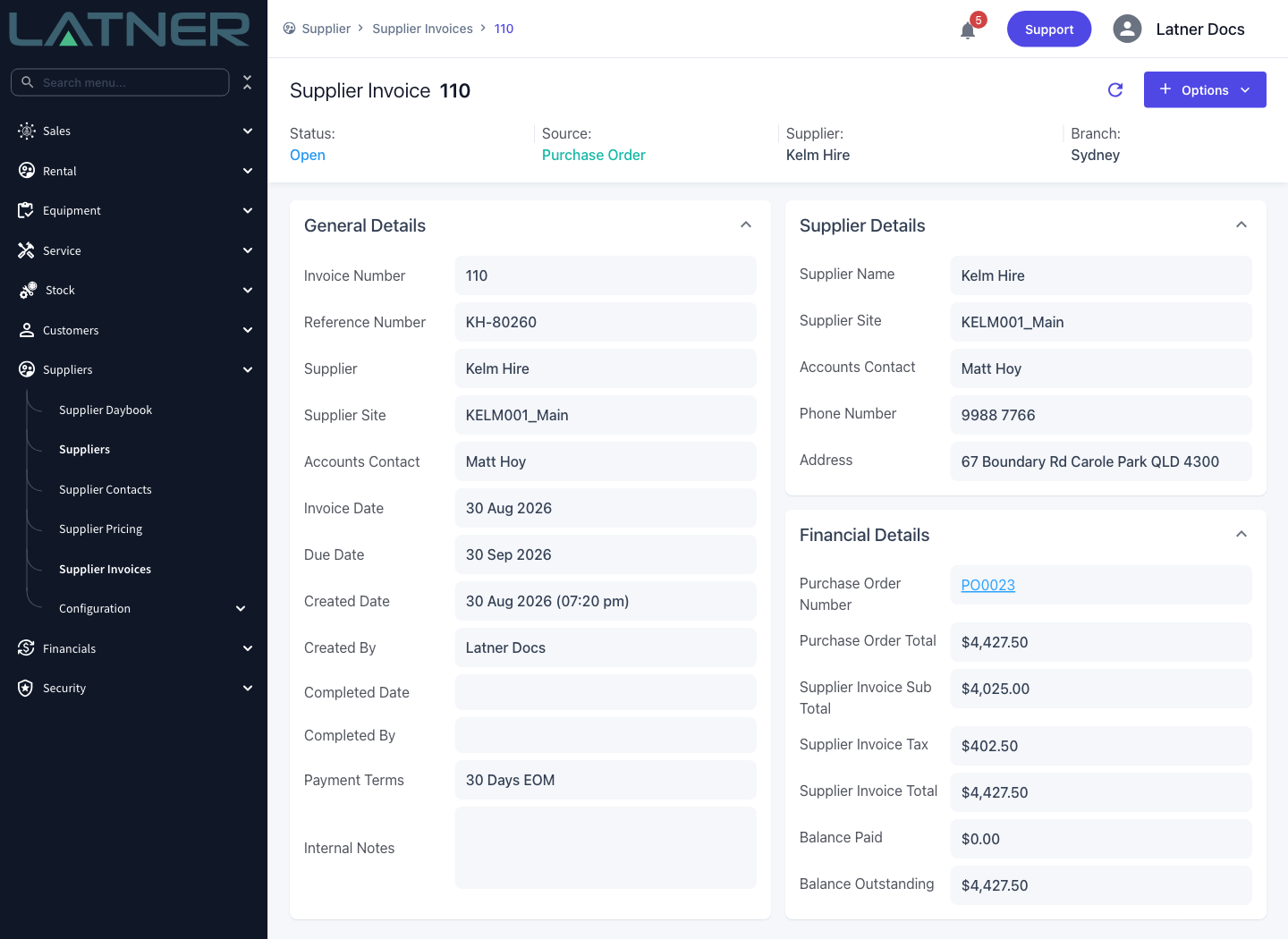
Open the invoice and read Financial Details. The Purchase Order Number tells you which order the cancellation will roll back, and Balance Paid tells you whether any money has already been recorded against it. The Details tab lists the lines that will be reversed.
Step 3 - Choose Cancel Supplier Invoice
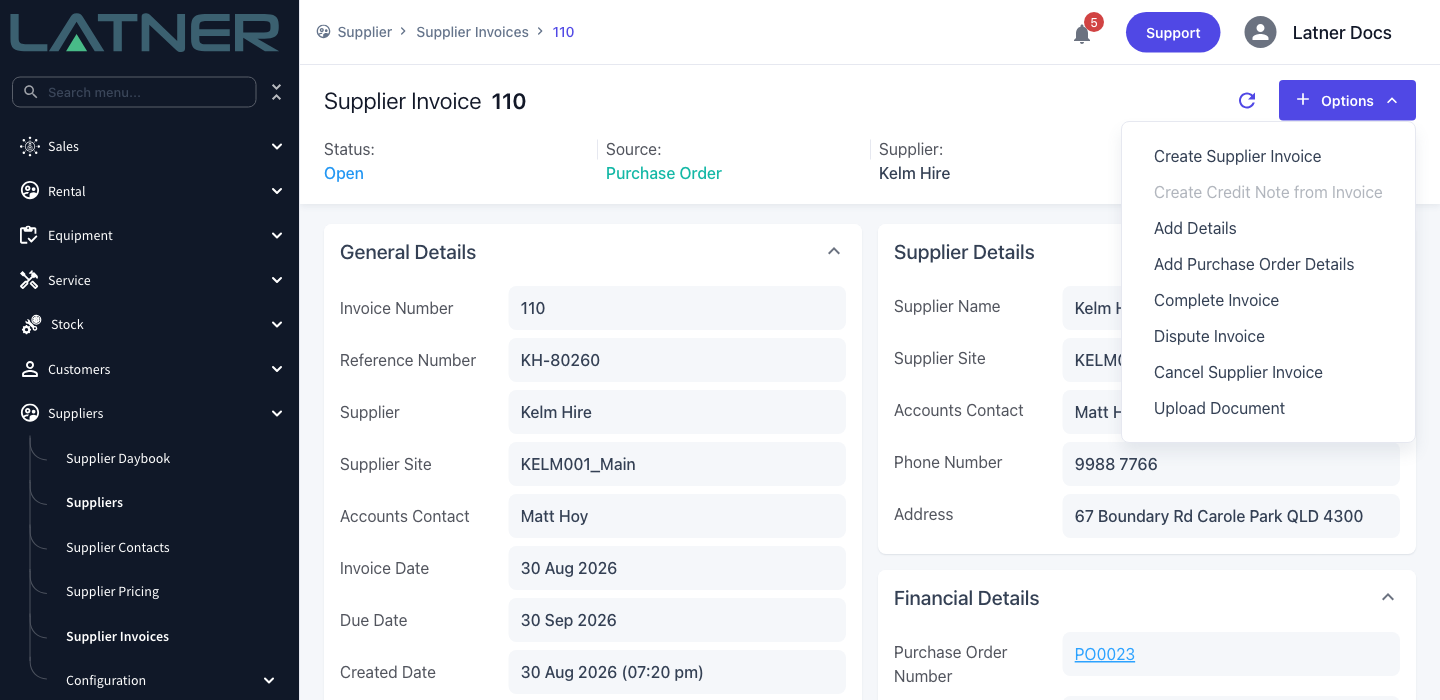
Click Options in the top right and choose Cancel Supplier Invoice. If you can't see the item at all, the invoice is Paid or already Cancelled, or your permission group doesn't hold the permission for that branch.
Step 4 - Read the warning
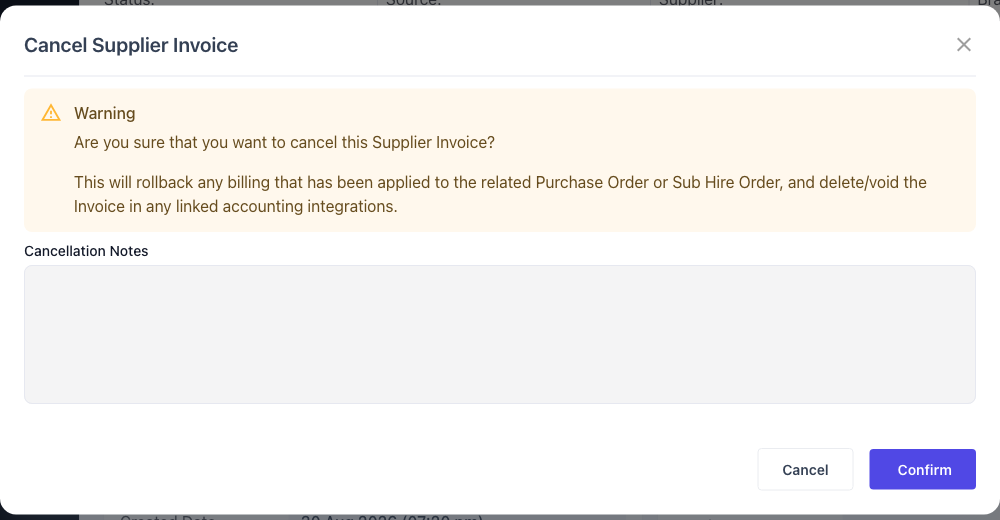
The Cancel Supplier Invoice dialog spells out what is about to happen: the billing applied to the related purchase order or sub hire order is rolled back, and the invoice is deleted or voided in any linked accounting integration. Nothing has changed yet at this point - Cancel closes the dialog and leaves the invoice alone.
Step 5 - Enter the cancellation notes and confirm
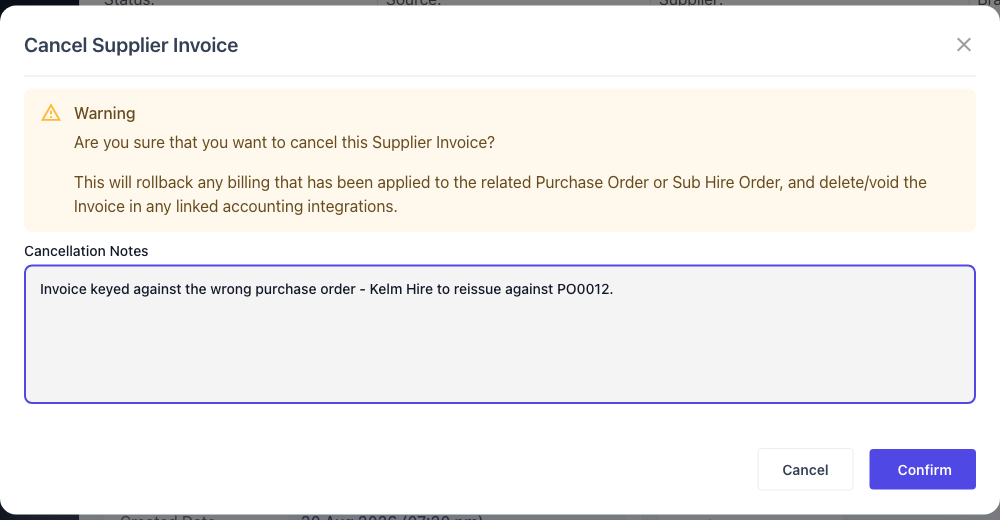
Type your reason into Cancellation Notes and click Confirm.
-
Cancellation Notes - required. The form won't submit without it, and the backend rejects the request as well. Write what a colleague reading the invoice in six months would need: which invoice replaces it, or why the supplier is reissuing.
After Cancelling
Latner confirms with a Supplier Invoice Cancelled toast and reloads the invoice.
-
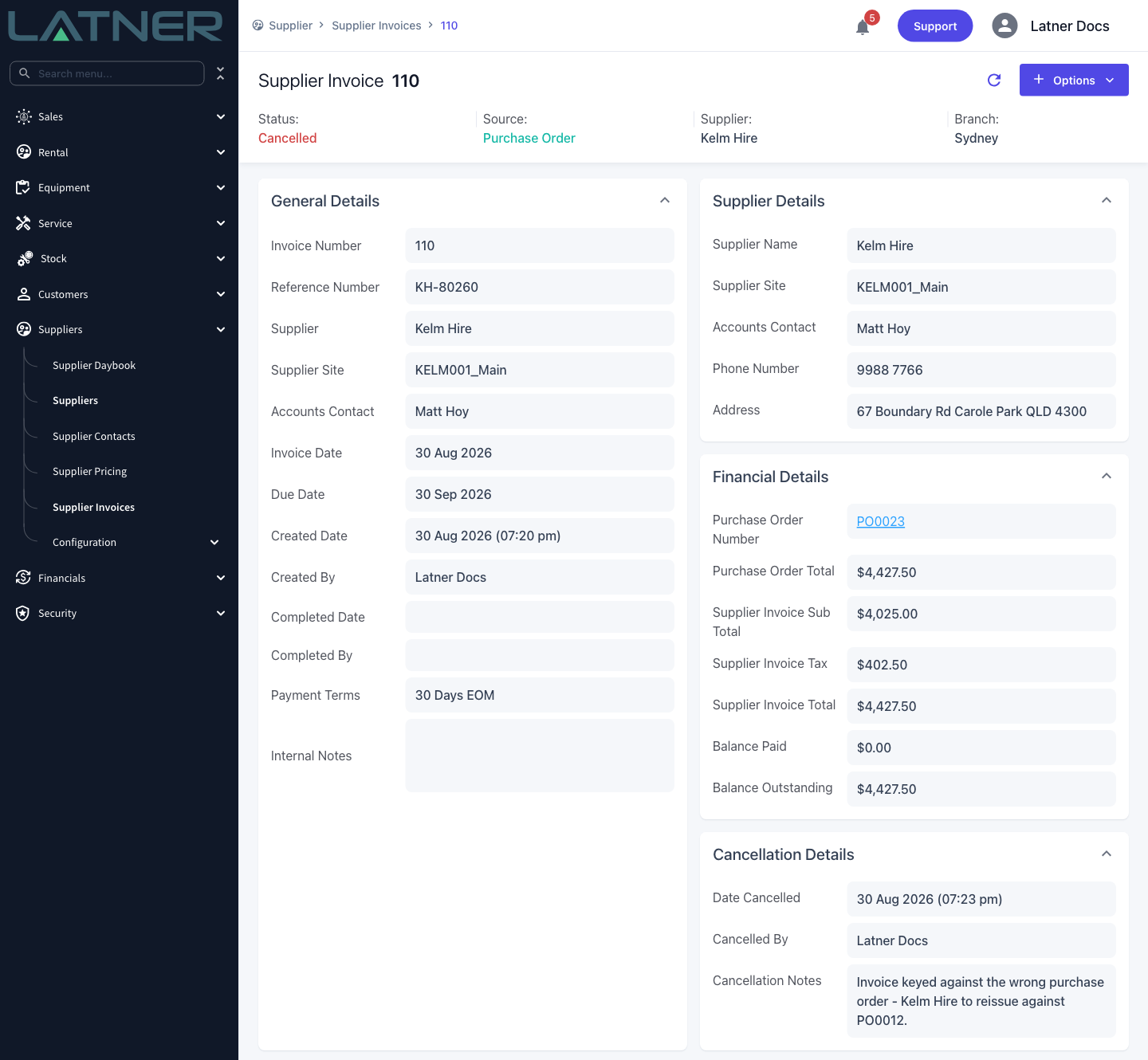
The invoice status changes to Cancelled and a Cancellation Details panel appears with Date Cancelled, Cancelled By and your Cancellation Notes.
-
Cancel Supplier Invoice, Complete Invoice and Dispute Invoice disappear from the Options menu, and Add Details and Add Purchase Order Details are greyed out - a cancelled invoice can no longer be edited.
-
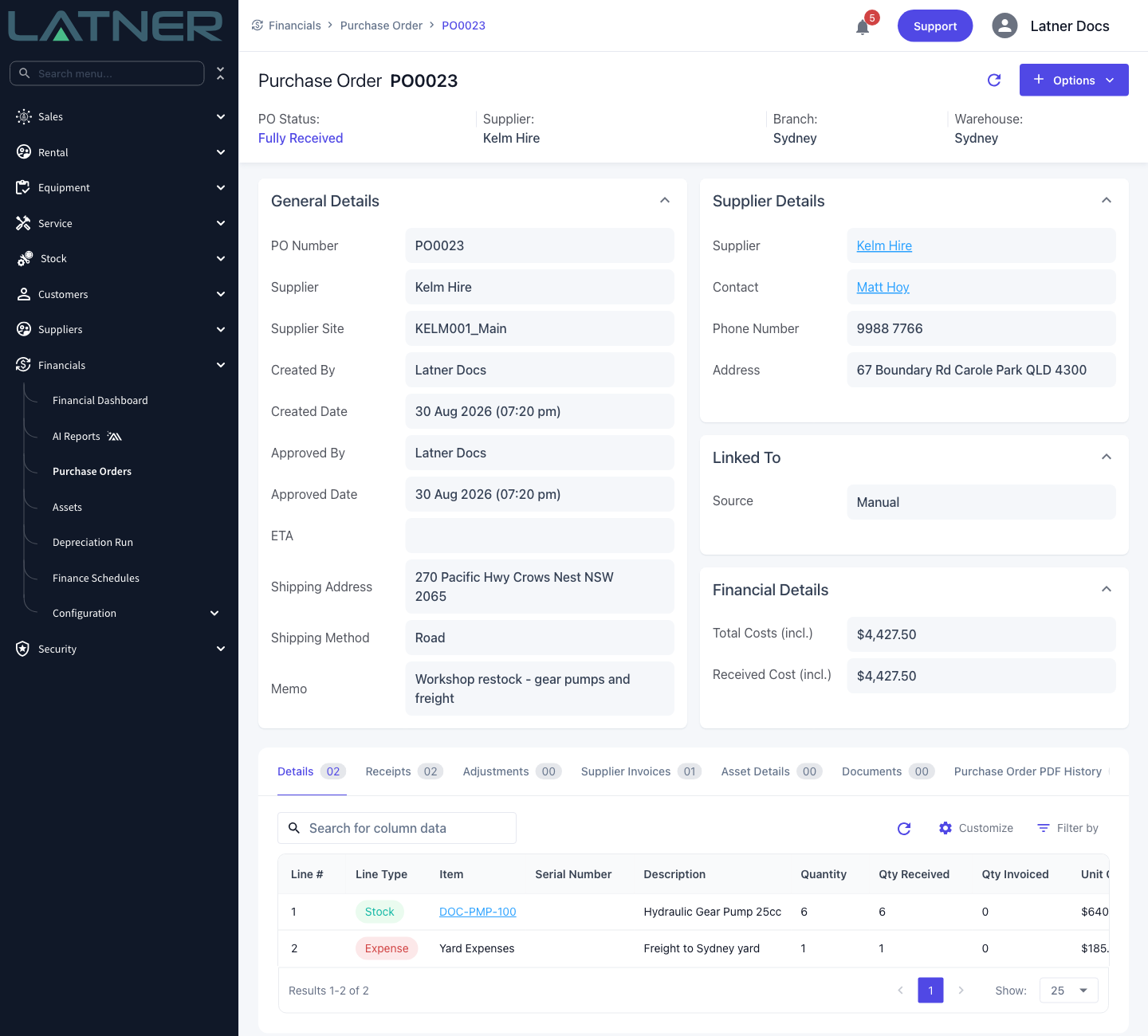
The linked purchase order's Qty Invoiced goes back to what it was before the invoice, and the order's status is recalculated - typically back from Invoiced to Fully Received, ready to be invoiced again.
-
The cancelled invoice still appears on the purchase order's Supplier Invoices tab and on the Supplier Invoices list. It is a permanent audit record, not a deletion.
-
If the invoice had reached your accounting system, the bill there is deleted or voided in the same step.
There is no un-cancel. A cancelled supplier invoice stays cancelled, and its lines cannot be edited or reinstated. If the supplier reissues the bill, raise a new supplier invoice against the same purchase order - the reference number is free to reuse once the original is cancelled.
FAQs
Watch the Demo
Prefer to watch it? Step through the same flow here.