
When a machine leaves your fleet - sold to a customer, scrapped, or entered by mistake - you take it off your active equipment list from the equipment's Options menu. This article covers all three exits and which one to use.
Overview
Latner never deletes equipment. All three exits move the record to the Archived Equipment tab, so its rental history, work orders and invoices are kept for reporting and audit. Pick the exit that matches what actually happened:
-
Sell or Dispose Equipment › Sold - the machine was sold to a customer.
-
Sell or Dispose Equipment › Disposed - the machine was scrapped, written off or lost.
-
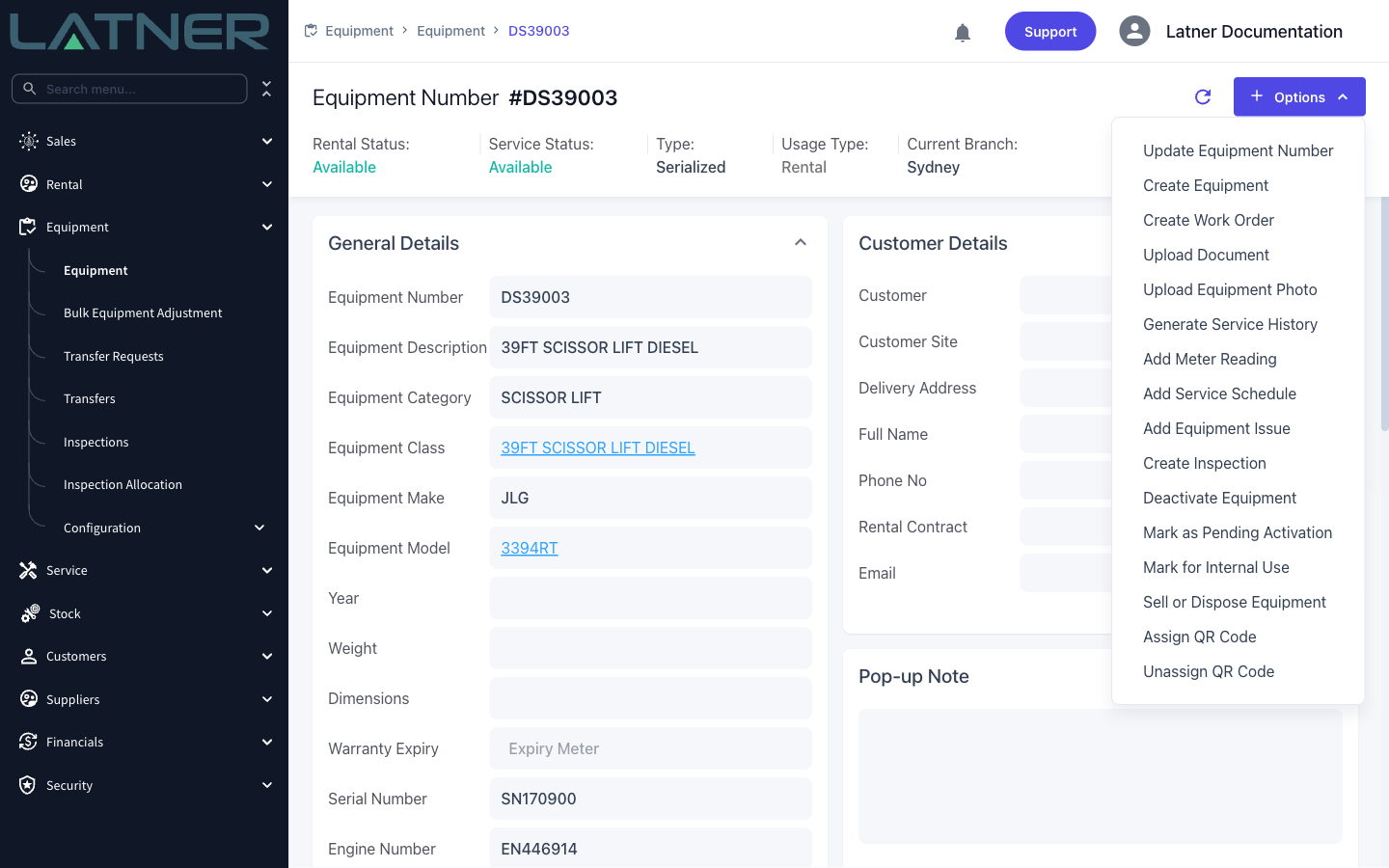
Deactivate Equipment - the record was entered by mistake, or the machine is out of the fleet but you don't want to record a sale or disposal.
Deactivating is the reversible one: Activate Equipment brings the record straight back. Use it whenever you are tidying up data rather than recording a real event.
Before You Begin
All three actions need the equipment to be sitting in Available rental status with Available service status. If either says something else the menu item is greyed out, with a tooltip telling you why.
The usual blockers are:
-
An open work order - opening a work order puts the machine Out of Service. Complete or cancel the work order first.
-
On rent, off hired, reserved or in transfer - finish the hire and return the machine first.
-
Reserved for Sale - it is already on a sales order. Invoice or cancel that order first.
You will also need the matching permission: Sell or Dispose Equipment, Deactivate Equipment, or Activate Equipment.
Selling Equipment
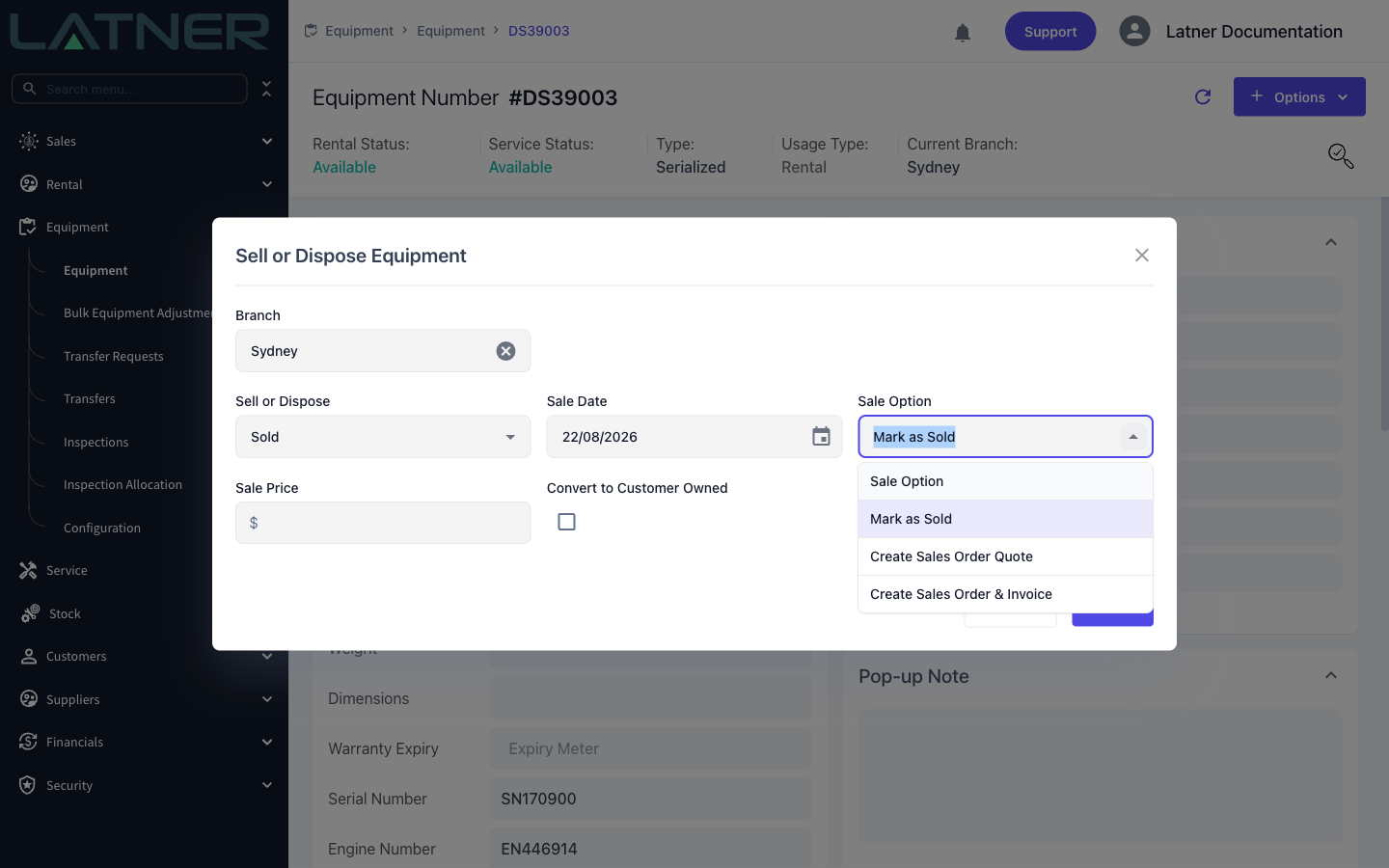
Choose Options › Sell or Dispose Equipment and leave Sell or Dispose set to Sold. Set the Sale Date and Sale Price, then pick a Sale Option:
-
Mark as Sold - records the sale against the machine with no paperwork. Use it for historical clean-up.
-
Create Sales Order Quote - raises a sales order you can quote to the customer and invoice later.
-
Create Sales Order & Invoice - raises the sales order and invoices it immediately.
Either sales-order option asks for Customer, Customer Site (Delivery) and Sale Contact, because a real order needs someone to bill.
Sale Option starts on Mark as Sold. Mark as Sold only marks the machine Sold - it doesn't ask for a customer and never creates a sales order or a tax invoice. If you need to bill someone for the machine, change Sale Option to Create Sales Order & Invoice (or Create Sales Order Quote) before you save. Already saved it as Mark as Sold? See I sold equipment but wasn't asked for a customer and no tax invoice was created in the FAQs below.
Behind the scenes both sales-order options create an actual sales order with a single line, "Sale of Equipment <number>". That order is what lets you quote the sale to the customer, and it is also your way back: cancel the invoice or reopen the order and the sale is reversed. That is why selling asks for a customer while disposing does not.
If you will keep servicing the machine for its new owner, tick Convert to Customer Owned - see Keeping a Sold Machine for Servicing below.
Selling Equipment on a Sales Order
You don't have to start from the machine. If the sale is part of a larger deal - a machine plus stock, transport or labour - build it as a sales order instead. Go to Sales › Sales Orders, create the order for the customer, then use Options › Add Sales Order Detail and set the line type to Asset/Equipment to put the machine on the order alongside everything else you are charging for.
Adding the machine to the order reserves it, so it shows as Reserved for Sale and cannot be hired out while the sale is being agreed. The sale completes when you invoice the order with Options › Invoice Sales Order, or with Options › Sell without Invoice if the machine is changing hands without being billed from Latner. Either way the machine ends up in the same place as a sale started from the equipment record.
This route is also your way out if the deal falls through: Options › Cancel Sales Order releases the machine back to Available.
Keeping a Sold Machine for Servicing
Selling a machine doesn't have to mean losing sight of it. If you will keep servicing it for the customer who bought it, mark it as customer owned as part of the sale:
-
Selling from the equipment record - tick Convert to Customer Owned in the Sell or Dispose Equipment window.
-
Selling on a sales order - tick Convert to Customer Owned on the Asset/Equipment line before the order is invoiced.
The machine then stays in Latner as customer owned equipment rather than being archived: it keeps its full history, appears on the Customer Owned Equipment tab, keeps its service schedules, and any work order raised against it is automatically charged to its new owner. It is never available for hire again. This applies to serialised machines only.
Disposing of Equipment
Choose Options › Sell or Dispose Equipment and set Sell or Dispose to Disposed. You then supply a Disposed Date and a Disposal Reason - the reasons come from your own configured list, so your reporting can distinguish a write-off from a theft or a trade-in.
Disposals cannot be reversed. If there is any chance the machine will come back, deactivate it instead - Activate Equipment restores a deactivated record at any time.
Deactivating Equipment
Choose Options › Deactivate Equipment. There is no dialog - the machine moves straight to Inactive and off your working lists. This is the right choice for equipment created in error, duplicates, or anything you want out of sight without asserting that it was sold or scrapped.
To bring it back, open the record and choose Options › Activate Equipment. It returns to Available and reappears on the Equipment tab.
Finding Archived Equipment
Sold, disposed, deactivated and converted machines all live on the Archived Equipment tab at Equipment › Equipment. Their full history stays intact, and you can still open the record to see its movements, rentals, work orders and invoices.
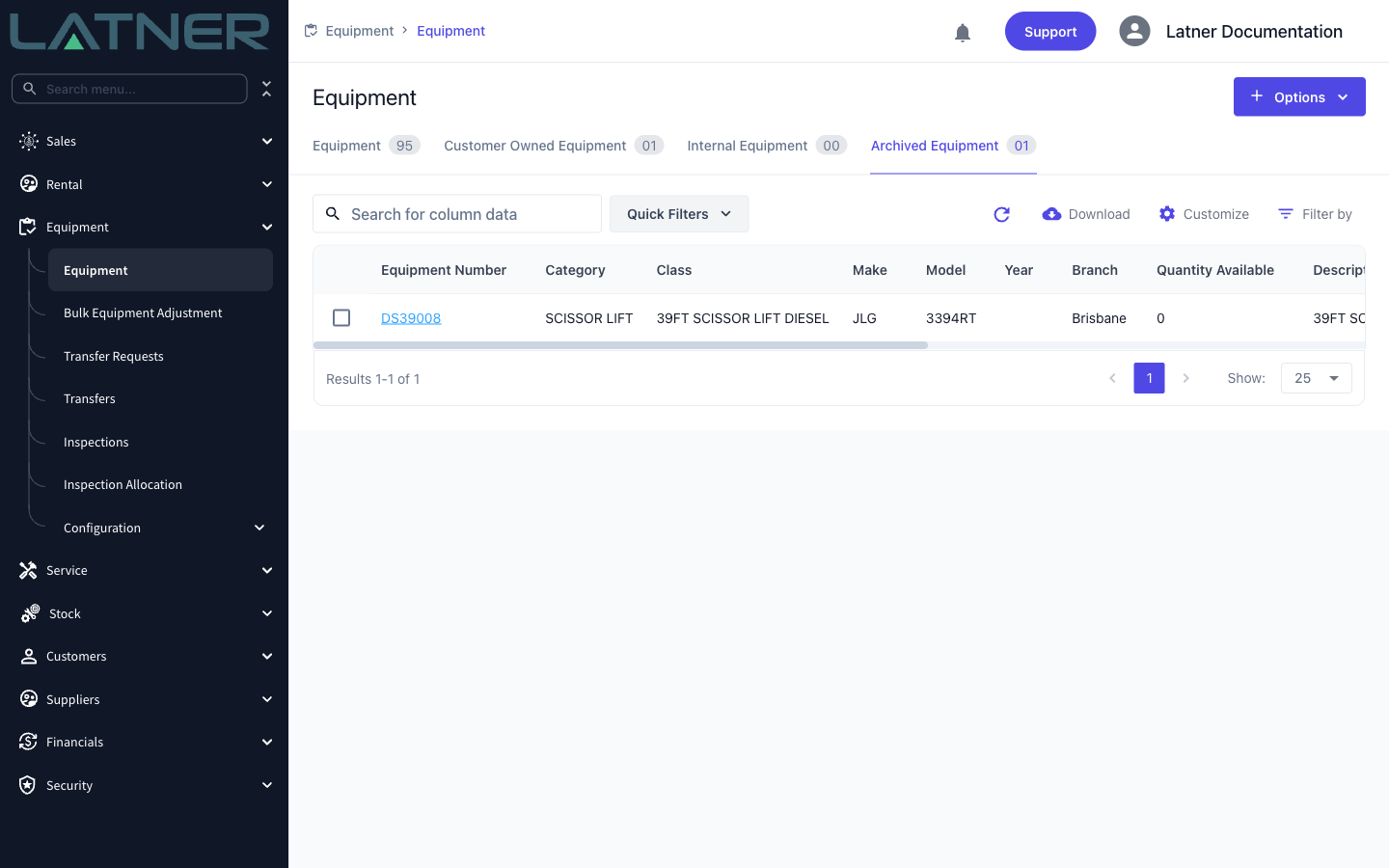
Note: the tab opens with the My Branch quick filter applied. If you can't find an archived machine, deselect My Branch - it is most likely archived against another branch.