
Convert Equipment turns one or more items in your fleet into different equipment, carrying their written-down value across, so both your fleet list and your asset register stay accurate when a machine is rebuilt, split up or tracked a different way.
Overview
Equipment doesn't always stay the shape you bought it in. A pair of general-purpose buckets gets re-profiled, a machine is stripped and rebuilt as two smaller units, or a bulk item you've been counting by the dozen now needs to be tracked one by one. Convert Equipment handles all of those in a single step, rather than disposing of one record and creating another with no link between them.
-
One conversion can take several items in (Convert From) and produce several items out (Convert To).
-
Everything you convert from is disposed of. Bulk quantity moves from available to disposed, and a serialized machine's Rental Status and Service Status both become Converted.
-
Everything you convert to is either added as quantity onto an existing bulk equipment record, or created as a brand-new serialized equipment record.
-
You choose how the value carries across by giving each Convert To line a Value Proportion. Whatever is left of 100% is written off as scrapped.
-
The conversion is irreversible, so the lines are worth checking twice before you save.
Before You Begin
Convert Equipment needs no settings turned on, but it does need a permission and equipment in the right state.
|
Requirement |
Where to Find It |
|---|---|
|
Convert Equipment permission |
Security › Configuration › Permission Groups › your group › Equipment › Option › Convert Equipment |
|
Equipment in Available status |
Equipment › Equipment - both Rental Status and Service Status must read Available |
|
Available quantity at the branch you're converting at |
Equipment › Equipment - the branch line must have quantity available |
|
A bulk equipment record to convert into (if converting to bulk) |
Equipment › Equipment |
|
An equipment model to convert into (if converting to serialized) |
Equipment › Configuration › Equipment Models |
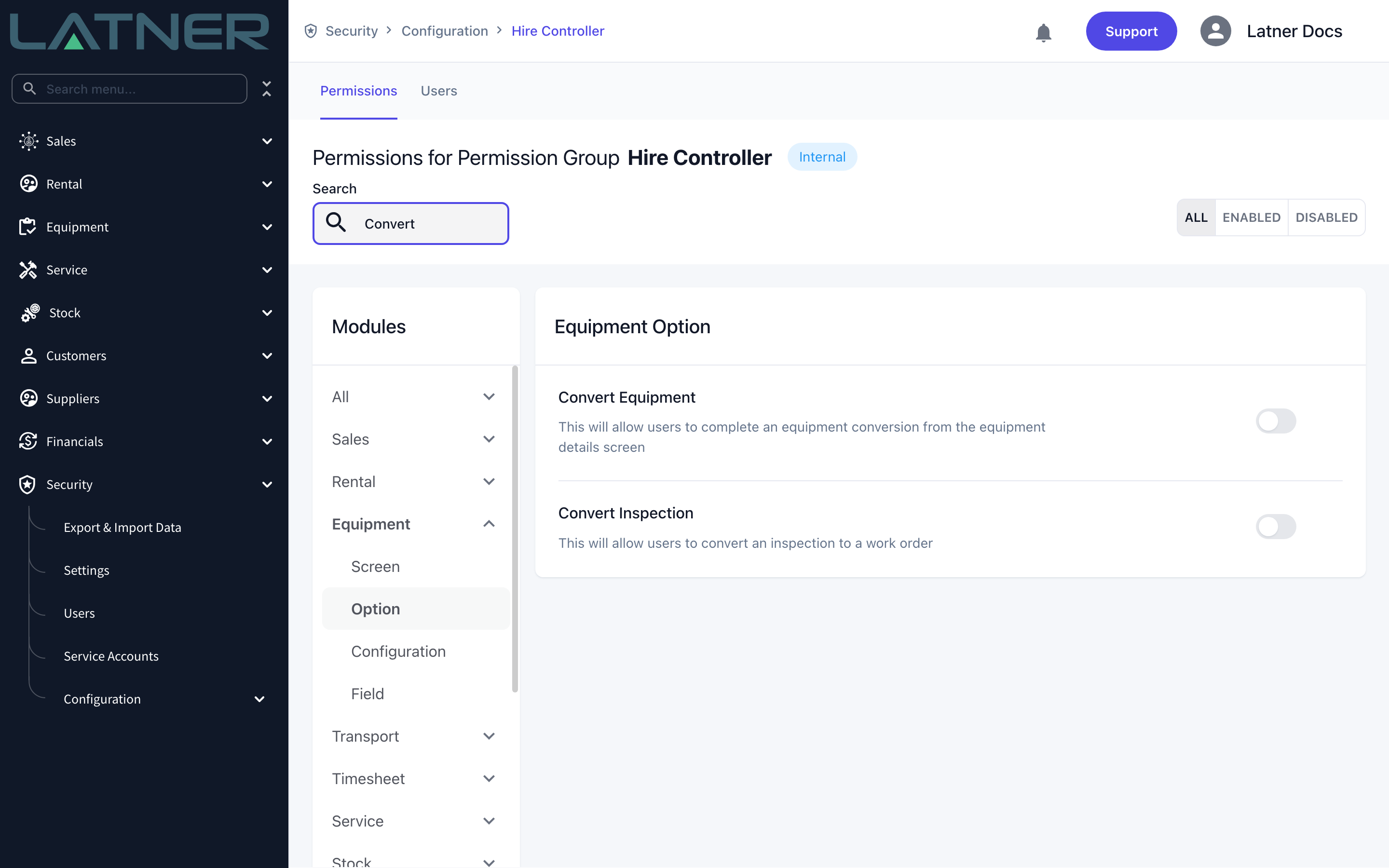
Convert Equipment runs from the Equipment list screen, not from an individual equipment record, and you pick the equipment inside the dialog rather than by selecting a row first.
Converting the Equipment
Step 1 - Open Convert Equipment
Go to Equipment › Equipment, then choose Options › Convert Equipment.
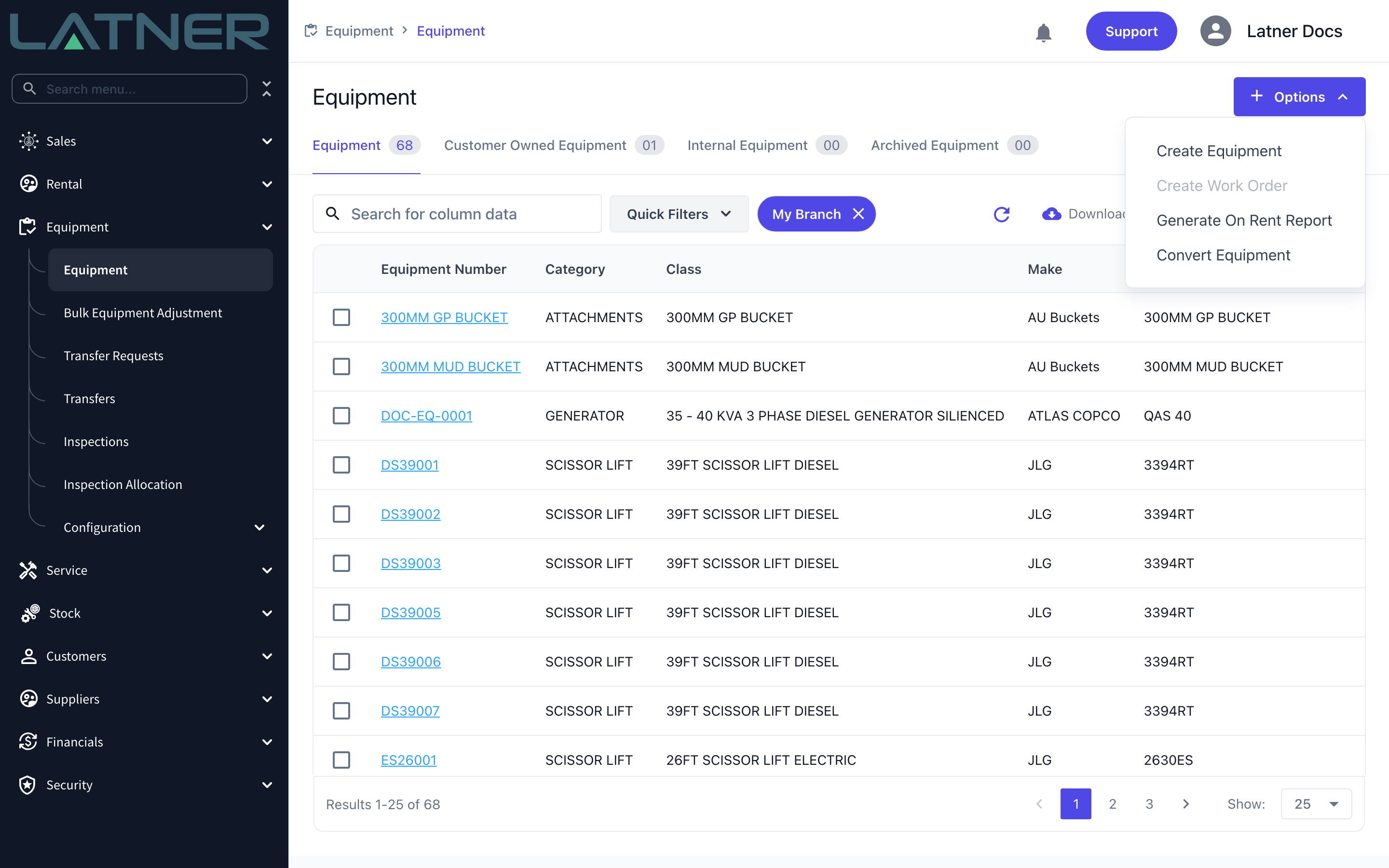
Step 2 - Set the branch and converted date
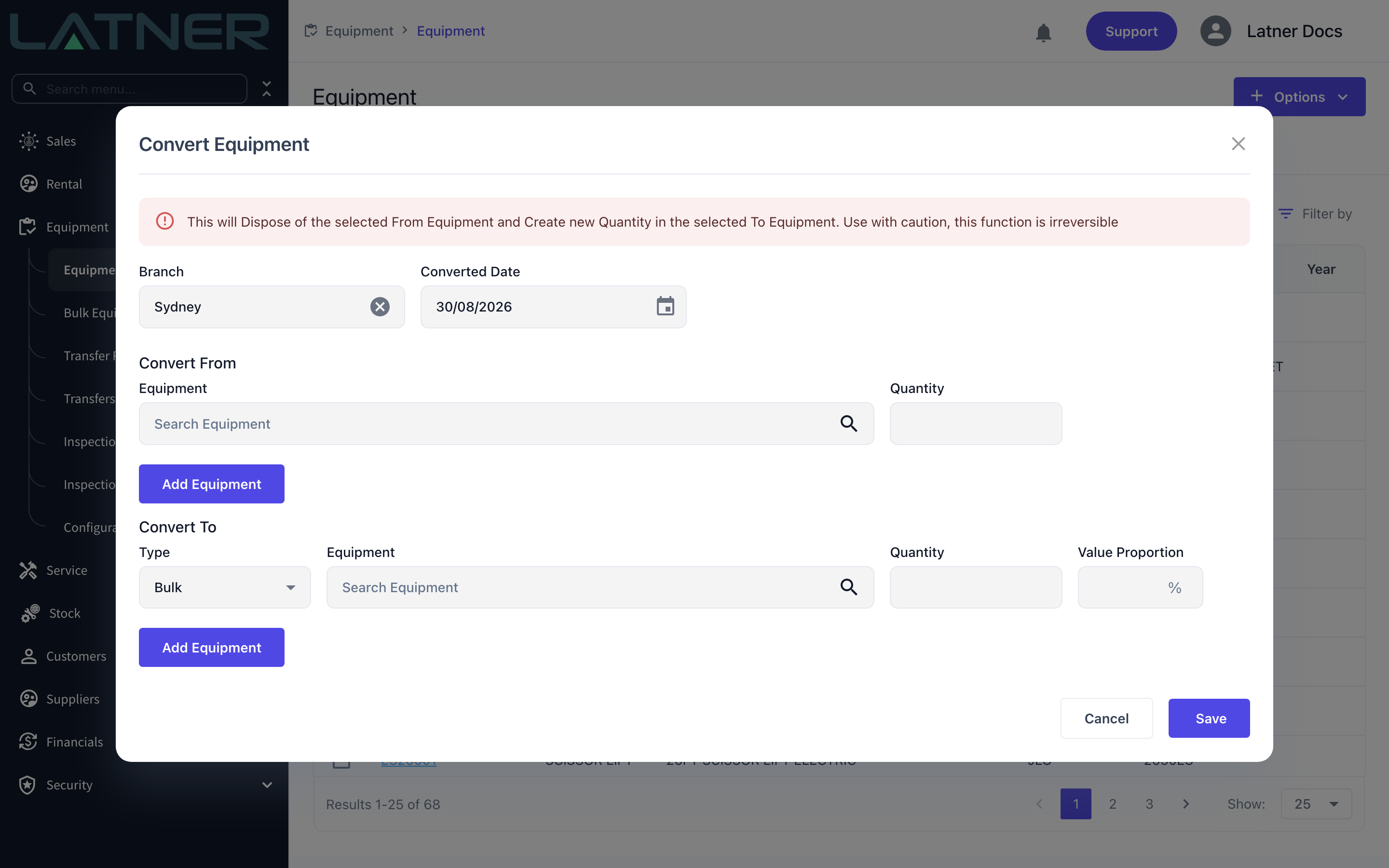
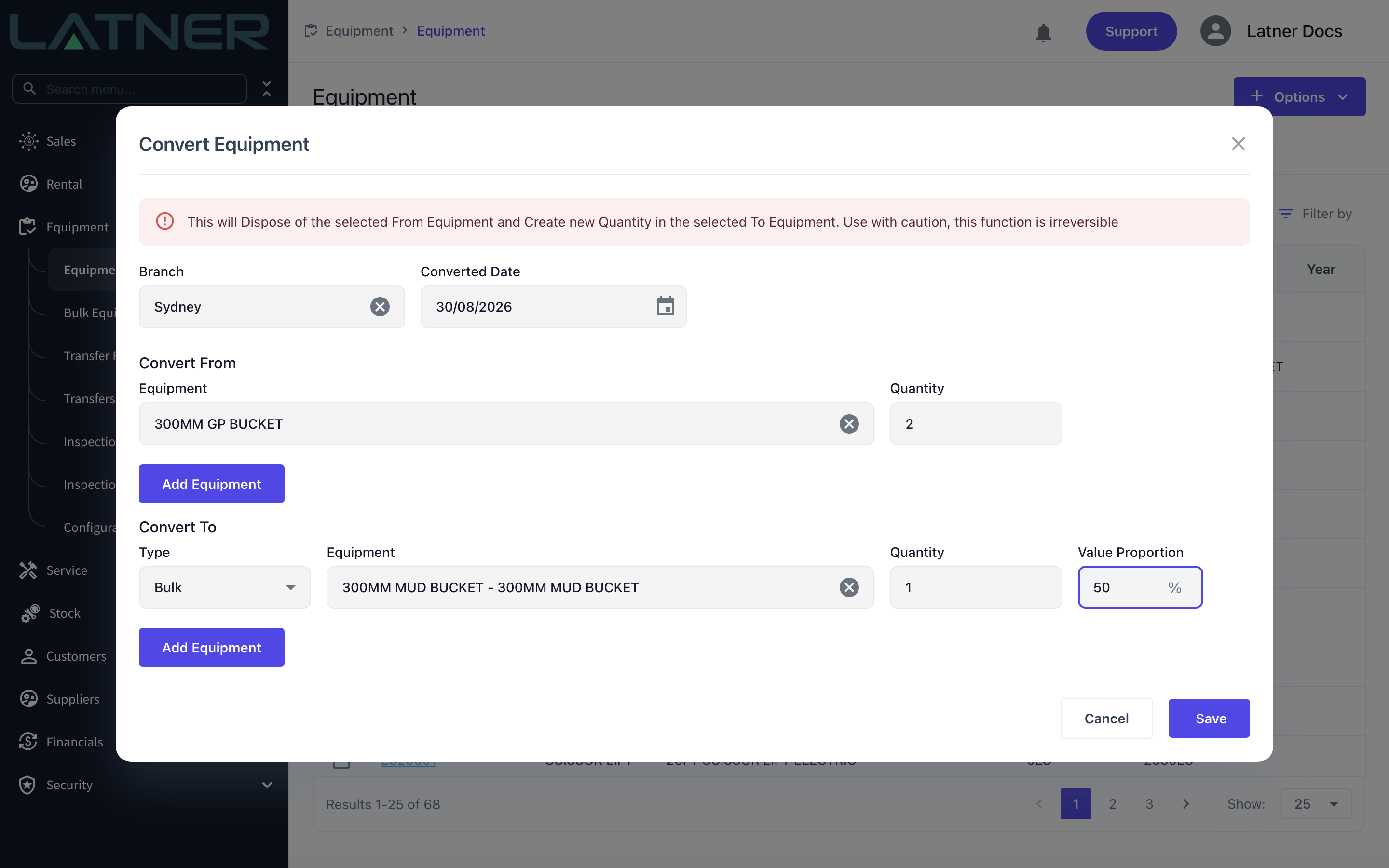
The dialog opens with a red banner reminding you that the conversion disposes of the From equipment and cannot be undone.
-
Branch - required, and defaults to your own branch. Both the Convert From search and the new equipment you create are tied to it. Changing it clears any lines you've already entered, so set it first.
-
Converted Date - required, and defaults to today. This is the date the equipment movements are recorded against, and the date the outgoing equipment's value is depreciated up to.
Step 3 - Choose what you're converting from
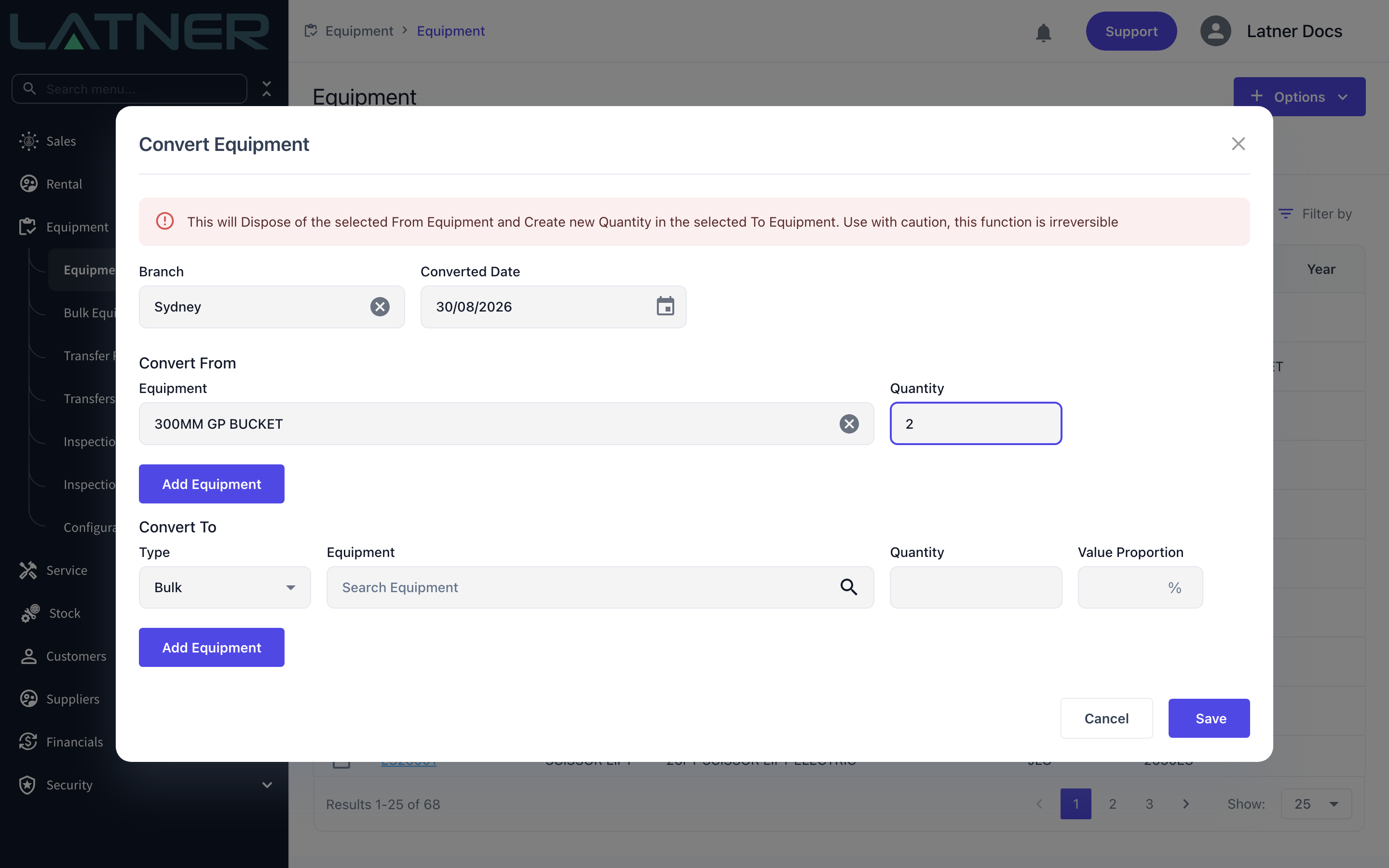
Under Convert From, search for the equipment you're taking out of the fleet and set the quantity. Use Add Equipment to add more lines if the conversion draws on several items.
-
Equipment - required. The search only returns equipment at the selected branch whose Rental Status and Service Status are both Available and which still has quantity available.
-
Quantity - required. It fills in as 1 as soon as you pick the equipment, and is locked at 1 for serialized equipment because there's only ever one of it.
Step 4 - Add the equipment you're converting to
Under Convert To, each line is one thing the conversion produces. Type starts as Bulk, which adds quantity to an equipment record you already have.
-
Type - required. Bulk or Serialized.
-
Equipment - required for a Bulk line. Only bulk equipment is listed, and it doesn't have to have stock at your branch already; the branch line is created for you if it doesn't exist.
-
Quantity - required. How many units this line adds.
-
Value Proportion - required. The share of the outgoing equipment's value that this line takes with it, as a percentage.
Step 5 - Add a serialized result, if you need one
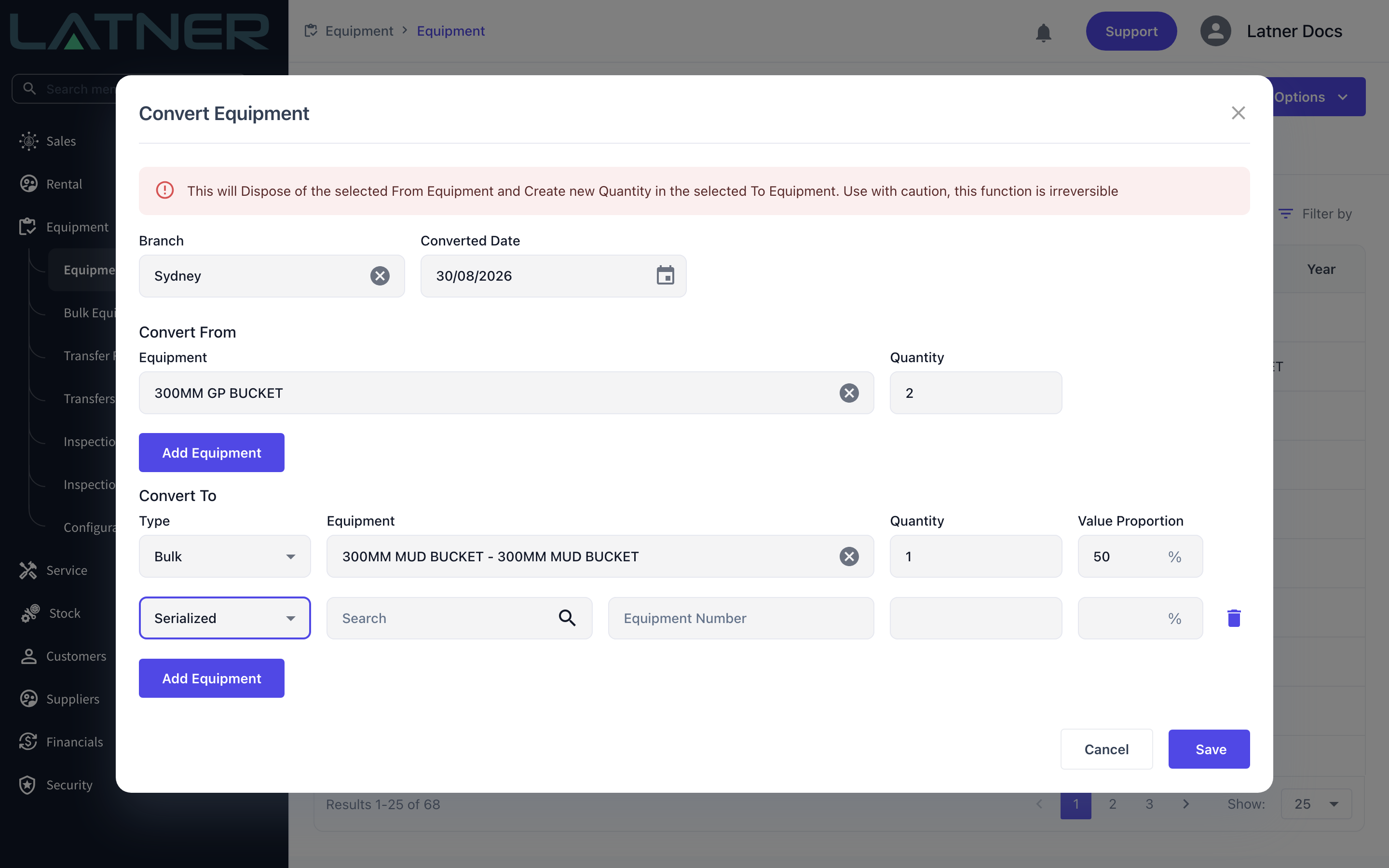
Click Add Equipment under Convert To and set Type to Serialized. The Equipment search is replaced by two fields, because the equipment doesn't exist yet and Latner creates it for you.
-
An equipment model search - required. The new record inherits its category, class, make and description from the model you pick.
-
Equipment Number - required, and must not already be in use by another item of equipment.
Set Quantity to 1 on a serialized line - it produces a single equipment record.
Step 6 - Check the proportions and save
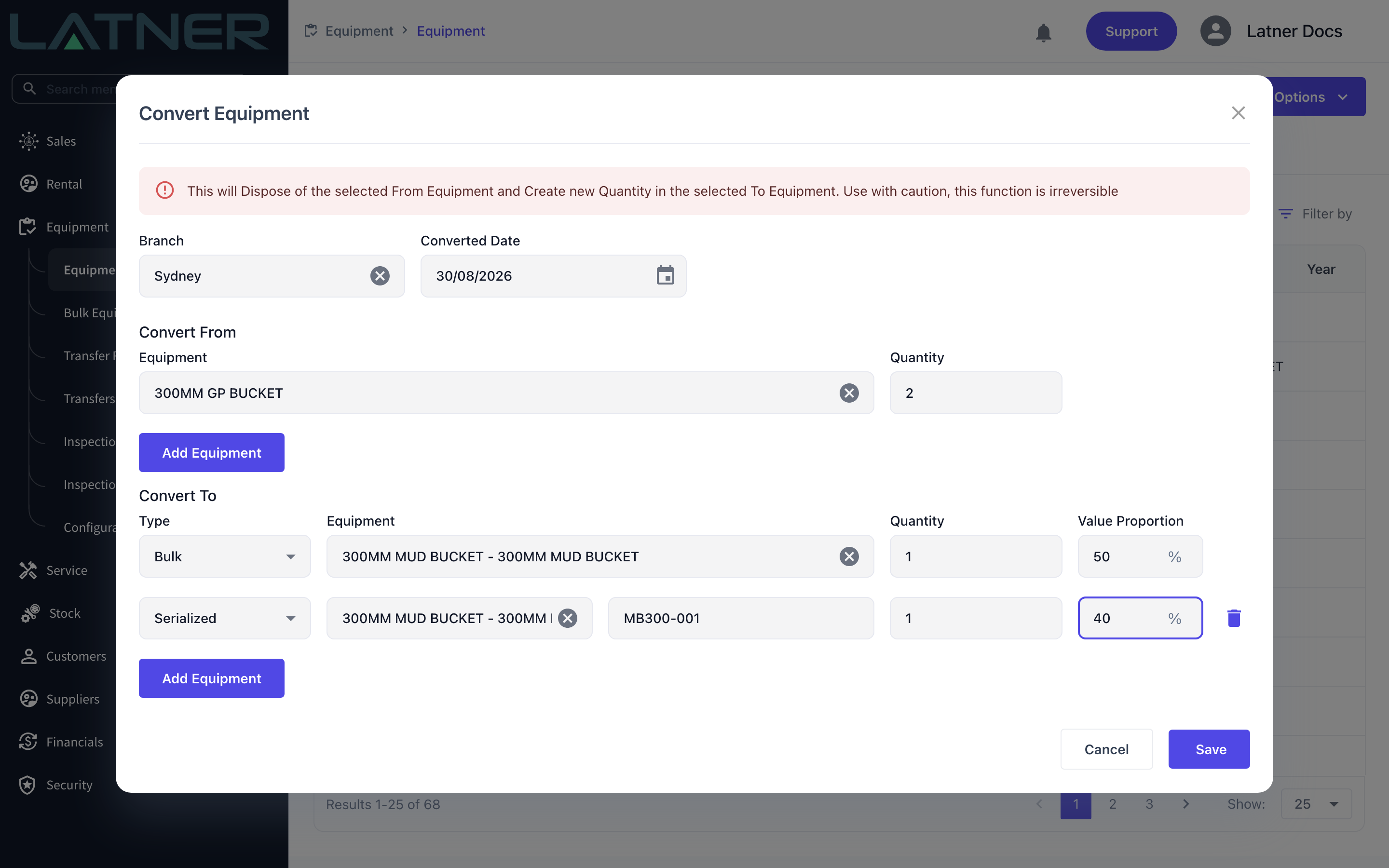
Add up the Value Proportion column before you click Save. Anything over 100% is rejected with Total Value cannot exceed 100%. Anything under 100% is accepted, and the shortfall is treated as scrapped - written off against the outgoing equipment's book value rather than carried into anything new. In the example below, 50% goes to the bulk line and 40% to the new serialized unit, so 10% of the value is scrapped.
Click Save. Latner confirms with Equipment Converted Successfully and refreshes the Equipment list.
After the Conversion
-
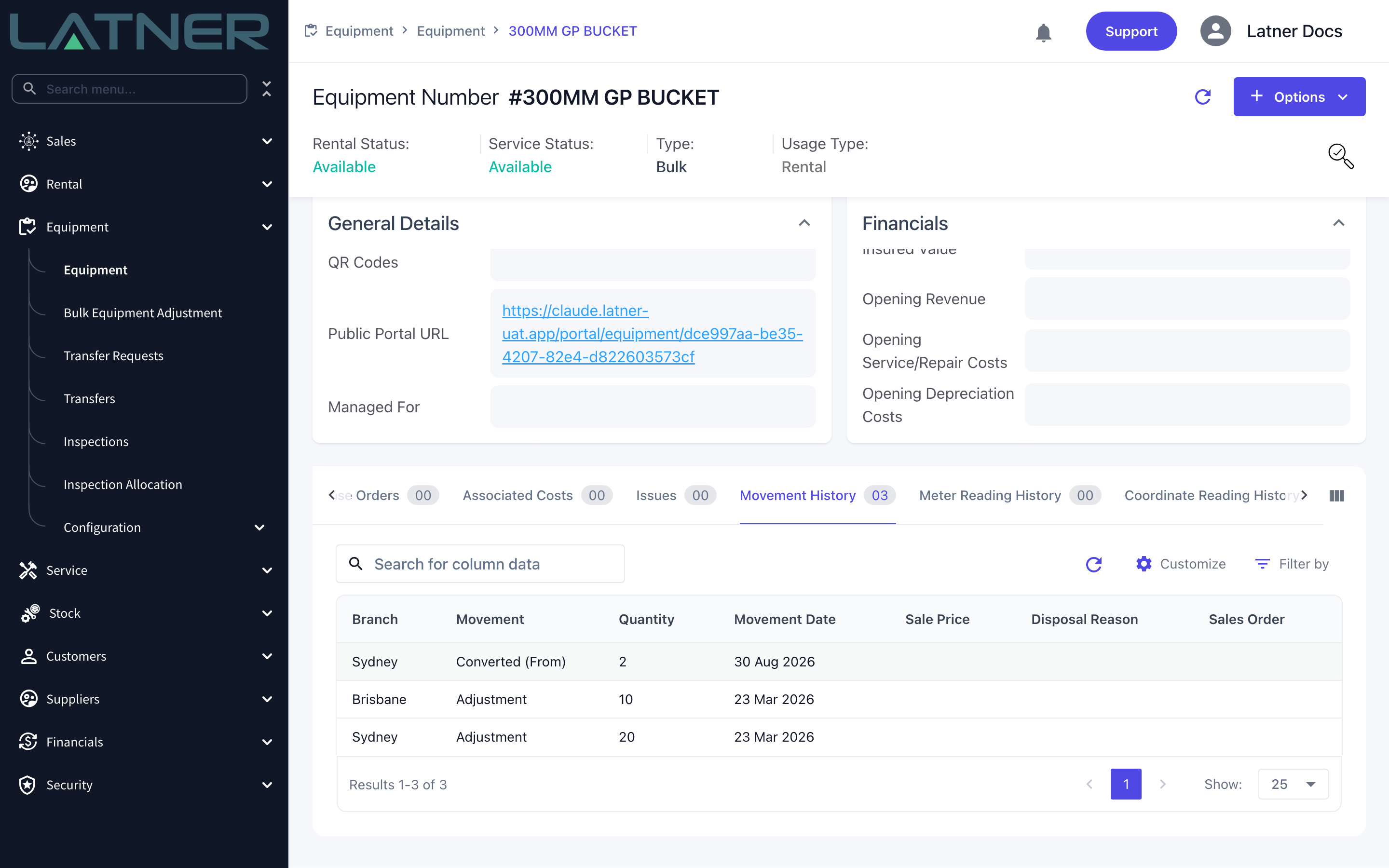
Each Convert From line has its quantity moved from available to disposed, and picks up a Converted (From) movement dated the converted date.
-
A serialized machine you converted from has its Rental Status and Service Status set to Converted, drops off the Equipment tab and appears under Archived Equipment. It can no longer be rented, allocated, pre-allocated or put on a work order.
-
Bulk equipment you converted from keeps its status worked out from what's left, so it stays Available while there's still stock at any branch.
-
Each Bulk line under Convert To has its quantity added at the branch and picks up a Converted (To) movement, along with a new asset record holding its share of the value.
-
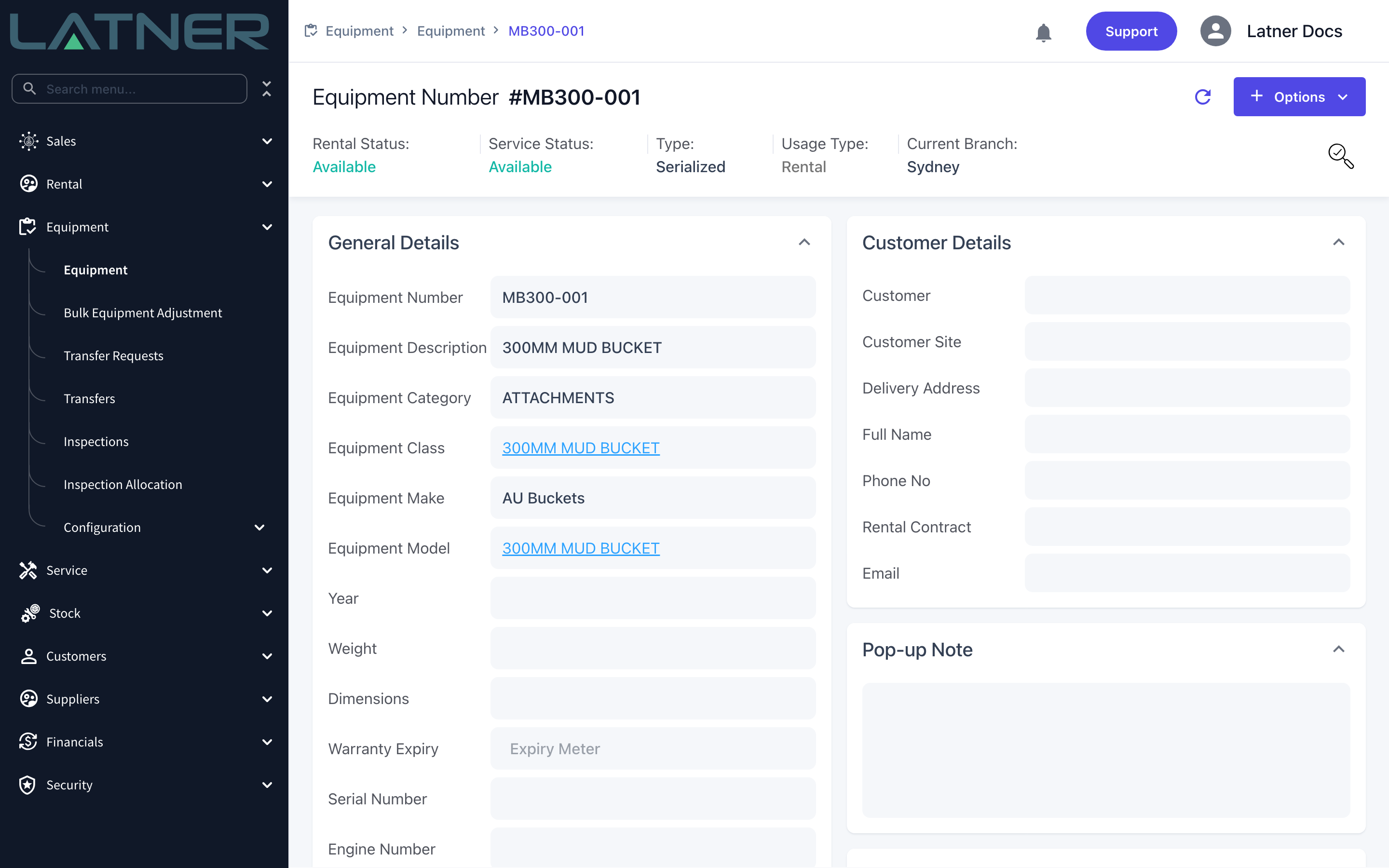
Each Serialized line under Convert To becomes a new equipment record in Available status at the branch, numbered as you typed and described from the equipment model.
-
Value carries across on the date you set: the outgoing assets are depreciated up to the converted date, each new record takes its Value Proportion of that written-down amount as its book value and tax book value, and its purchase price is the same share of what the originals originally cost. The new asset's purchase date is the earliest purchase date among the equipment you converted from, falling back to the converted date, and its depreciation restarts from the day before the conversion.
-
You can see both sides on the Movement History tab of each equipment record.
A conversion cannot be reversed. Latner can reverse a sale, but not a conversion, so putting the quantity back means a bulk equipment adjustment and tidying up the records the conversion created by hand. If you're unsure whether an item should leave the fleet at all, use Sell or Dispose Equipment instead - a sale can be reversed.
FAQs
Watch the Demo
Prefer to watch it? Step through the same flow here.