
The Equipment screen is where you find any machine in the fleet, and its search box, quick filters and column filters let you cut a list of thousands down to the one unit you are after.
Overview
Most days you already know roughly what you are looking for - a fleet number on a delivery docket, a serial number on a compliance plate, or just "whatever 26 foot scissor lifts we have free in Sydney". The Equipment screen is built for all three.
-
Equipment is split across four tabs - Equipment (your rental fleet), Customer Owned Equipment, Internal Equipment and Archived Equipment. Each tab is a separate permission, so you only see the tabs you are entitled to.
-
Equipment is listed per branch, so a unit that is held at more than one branch appears once for each branch, with its own Branch and Quantity Available.
-
The search box searches many fields at once - number, description, class, model, make, serial and registration numbers, QR code, notes, branch and the customer currently renting the machine.
-
Quick Filters are one-click presets such as My Branch and On Rent. Filter by lets you pick exact values column by column.
-
Your search term is kept in the page address, so a filtered list can be bookmarked or pasted to a colleague.
-
Download exports every row that matches your search and filters, not just the page you are looking at.
Before You Begin
There are no system settings to turn on - searching equipment only depends on your permissions.
|
Requirement |
Where to Find It |
|---|---|
|
Equipment permission - lets you search and view equipment |
Security › Configuration › Permission Groups › [group] › Equipment › Screen |
|
Customer Owned Equipment permission - shows the Customer Owned Equipment tab |
Security › Configuration › Permission Groups › [group] › Equipment › Screen |
|
Internal Use Equipment permission - shows the Internal Equipment tab |
Security › Configuration › Permission Groups › [group] › Equipment › Screen |
|
Download Equipment permission - shows the Download button |
Security › Configuration › Permission Groups › [group] › Equipment › Option |
|
Mobile Equipments permission - for the Search Equipment screen on a phone |
Security › Configuration › Permission Groups › [group] › Equipment › Screen |
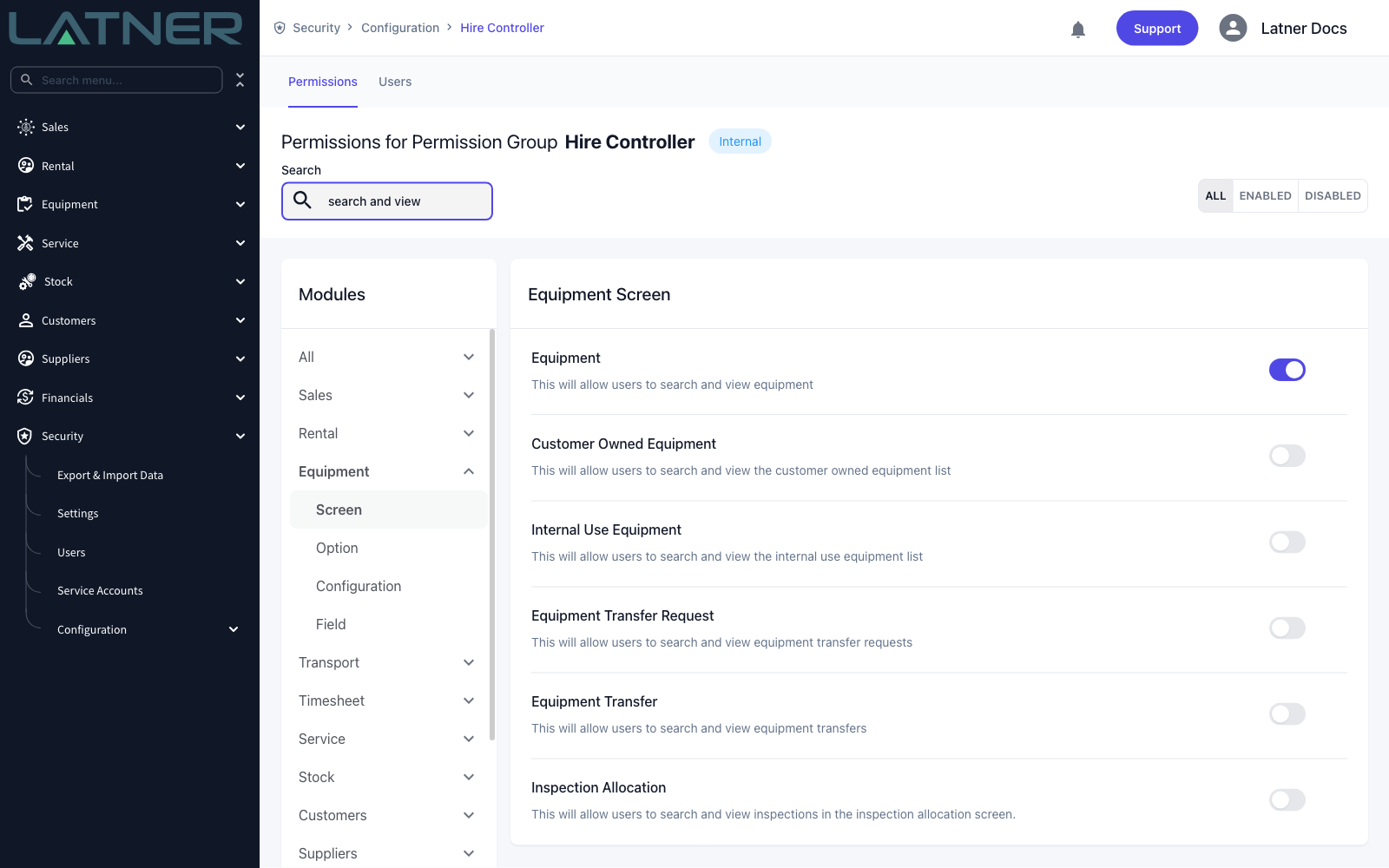
If a tab is missing rather than empty, it is a permission, not a data problem. A tab you cannot see is one your permission group does not grant.
Searching the Equipment List
Step 1 - Open the Equipment screen
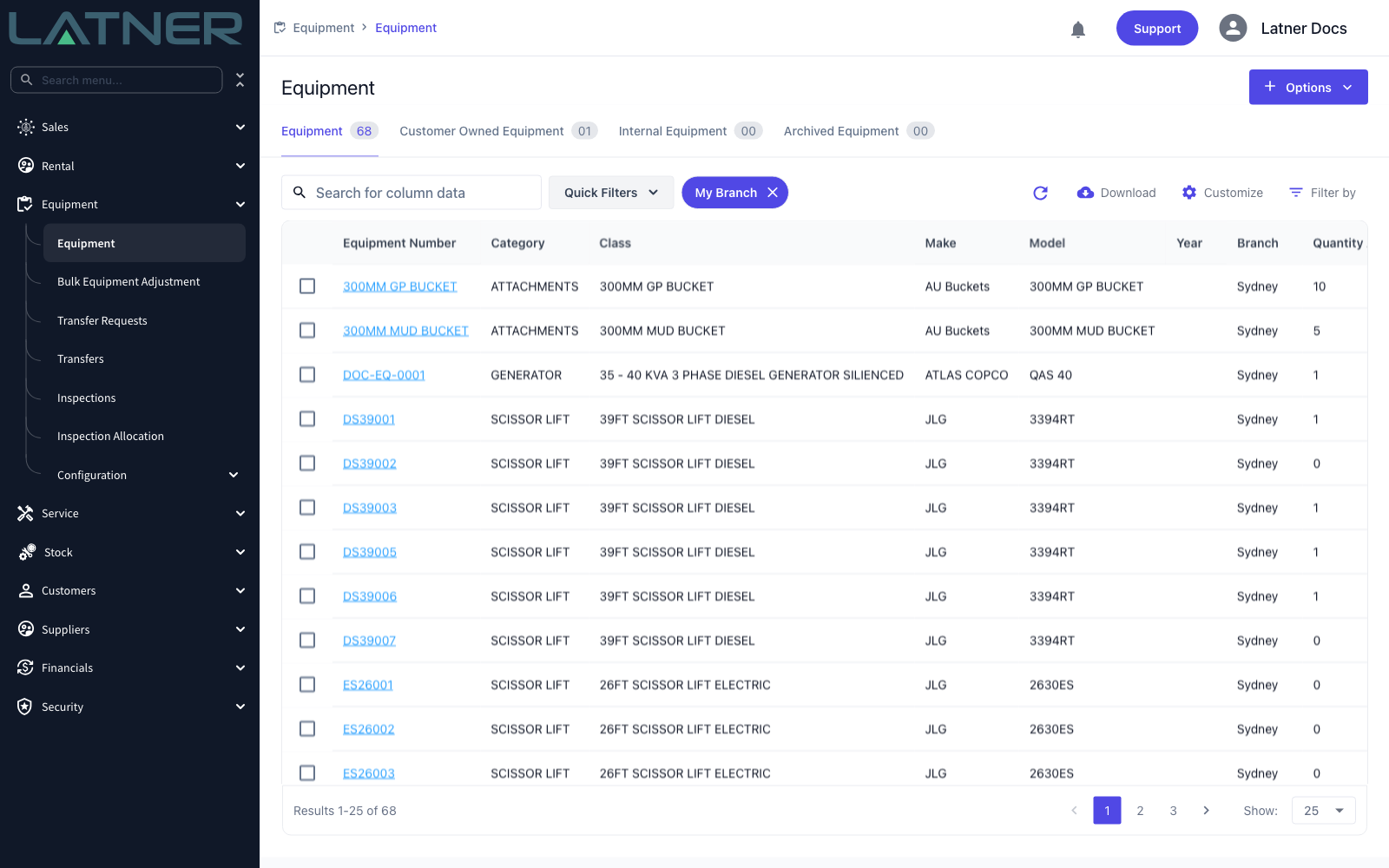
Go to Equipment › Equipment. The screen opens on the Equipment tab with the My Branch quick filter already switched on, so you start with the fleet at your own branch rather than the whole company.
Step 2 - Choose the right tab
The four tabs hold different populations of equipment, so the tab you are on decides what can be found at all.
-
Equipment - your own rental fleet.
-
Customer Owned Equipment - machines owned by a customer that you service or manage.
-
Internal Equipment - equipment your business uses itself rather than renting out.
-
Archived Equipment - anything sold, disposed of, deactivated or converted. These records are deliberately kept out of the first three tabs so day-to-day searches are not cluttered by machines you no longer have.
Step 3 - Search
Type into the Search for column data box. The list refreshes about half a second after you stop typing, and the results are matched on a partial match, so 3394 finds model 3394RT.
The search covers all of these at once:
-
Equipment Number and Description
-
Category, Class, Make and Model
-
Serial #, engine number and Registration #
-
The equipment's QR code
-
Rental Status and Service Status
-
Notes and Branch
-
The owning customer, for customer owned equipment
-
The customer on the rental contract the equipment is currently out on
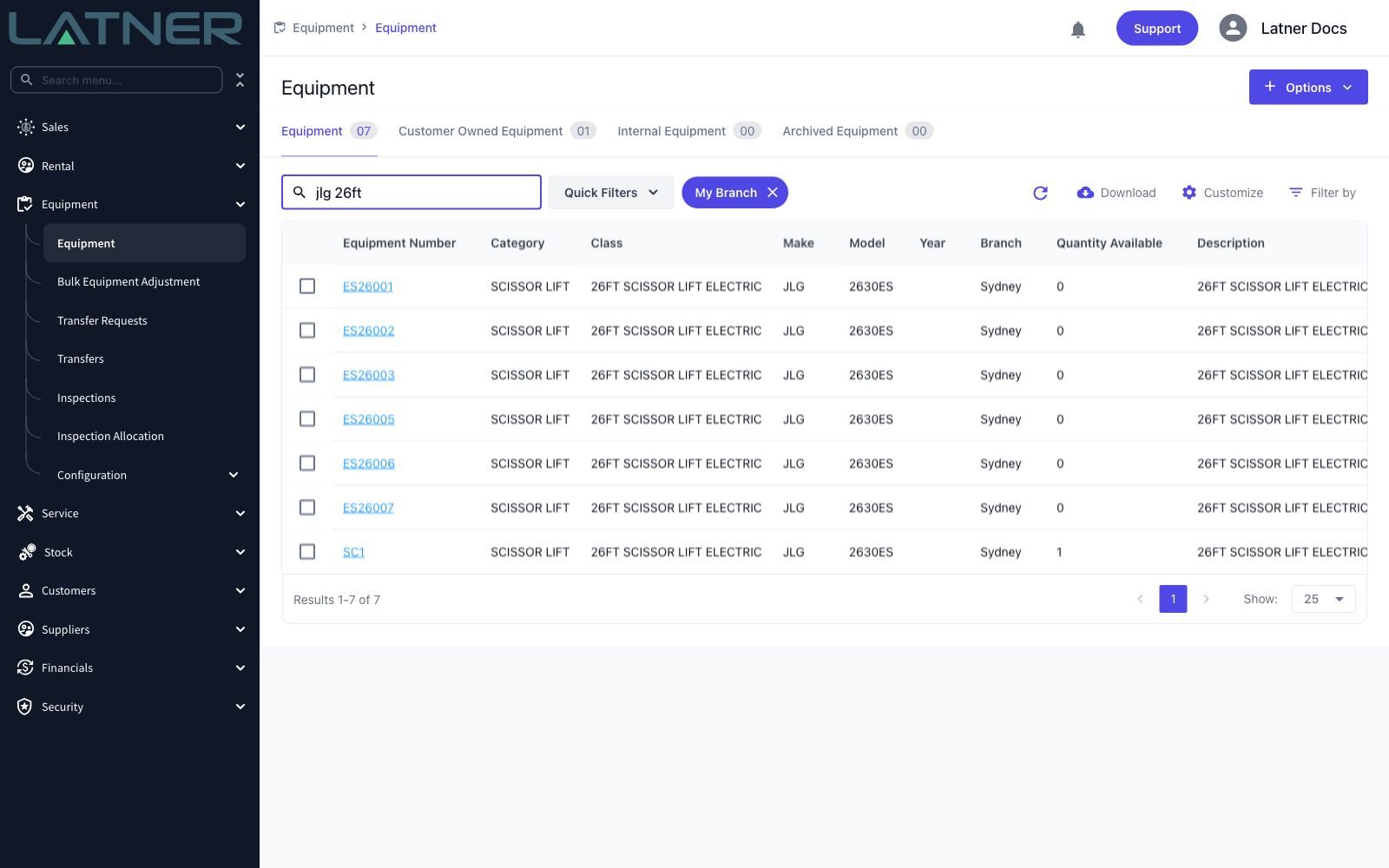
Type more than one word and every word has to match, though each one may match a different field. Searching jlg 26ft returns only JLG machines whose class is a 26 foot lift.
Step 4 - Narrow it down with Quick Filters
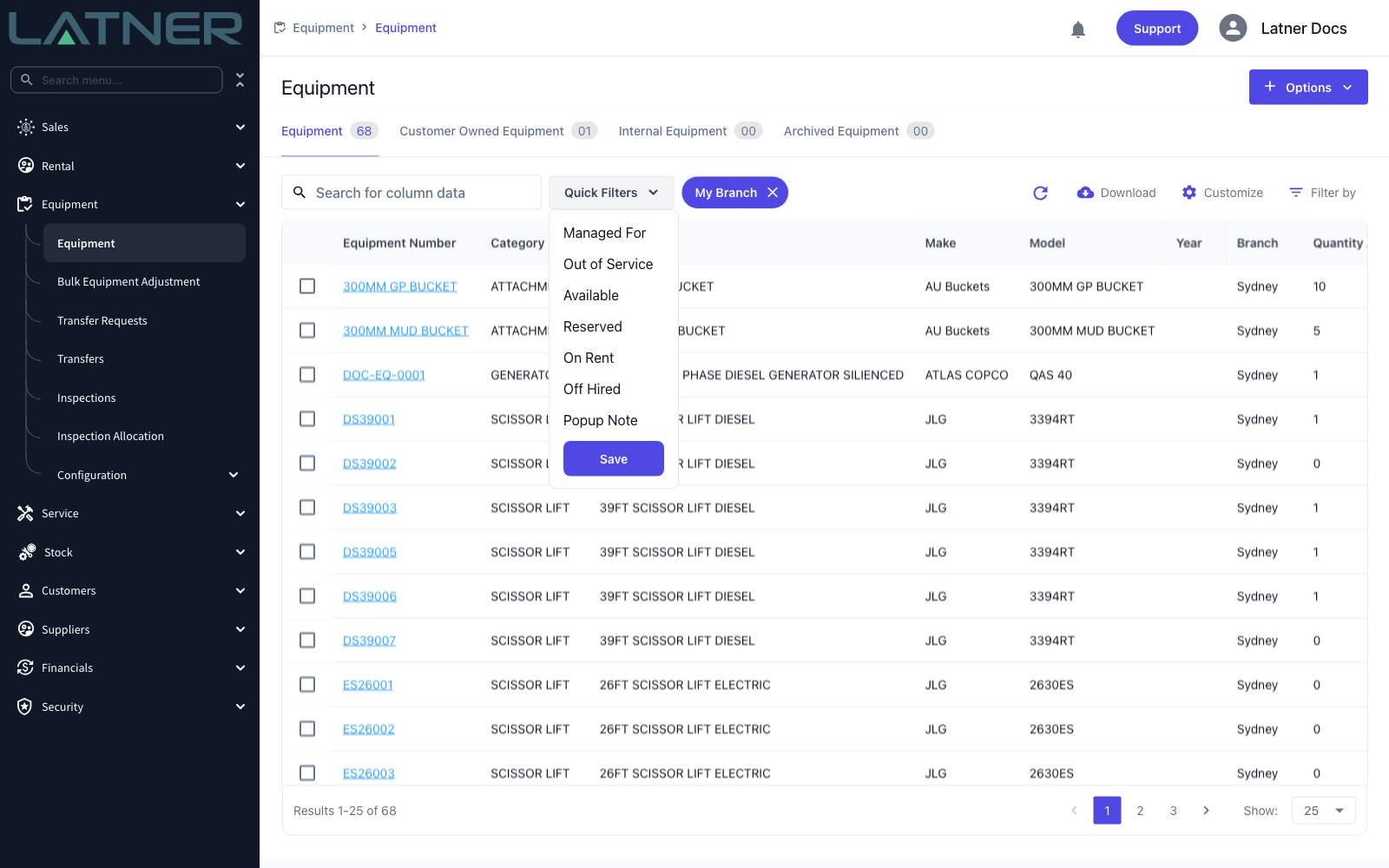
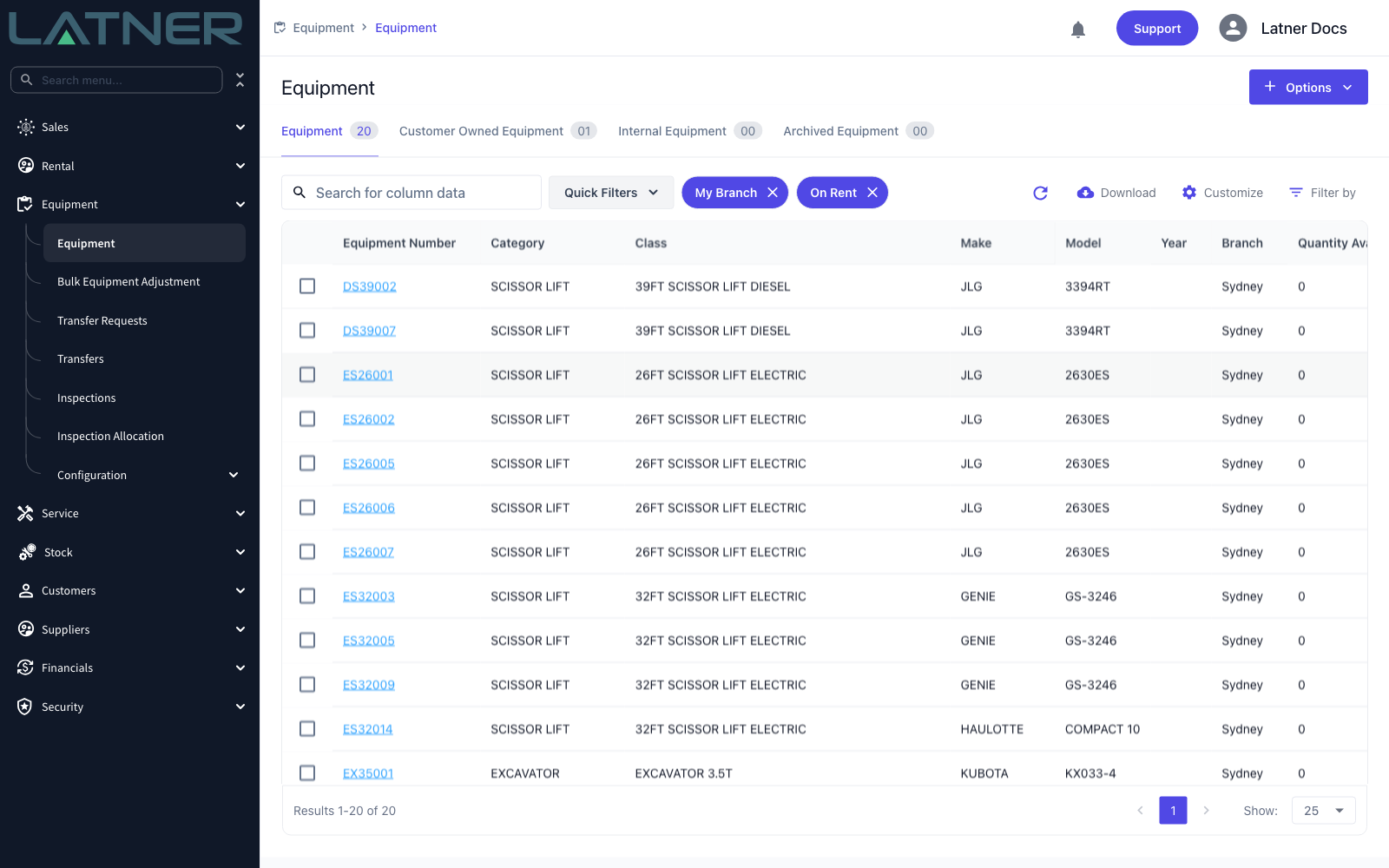
Click Quick Filters and pick a preset. Each one you turn on becomes a chip beside the button, and chips combine, so My Branch plus On Rent gives you the machines out on hire from your branch. Remove a chip by clicking its X.
On the Equipment tab you get My Branch, Managed For (equipment you manage on behalf of a supplier), Out of Service, Available, Reserved, On Rent, Off Hired and Popup Note. The other tabs offer a smaller set.
Save at the bottom of the menu stores the chips you currently have on, so the screen opens that way next time you visit it. It is saved against your own login and per tab, so it does not affect anyone else.
Step 5 - Filter by a column value
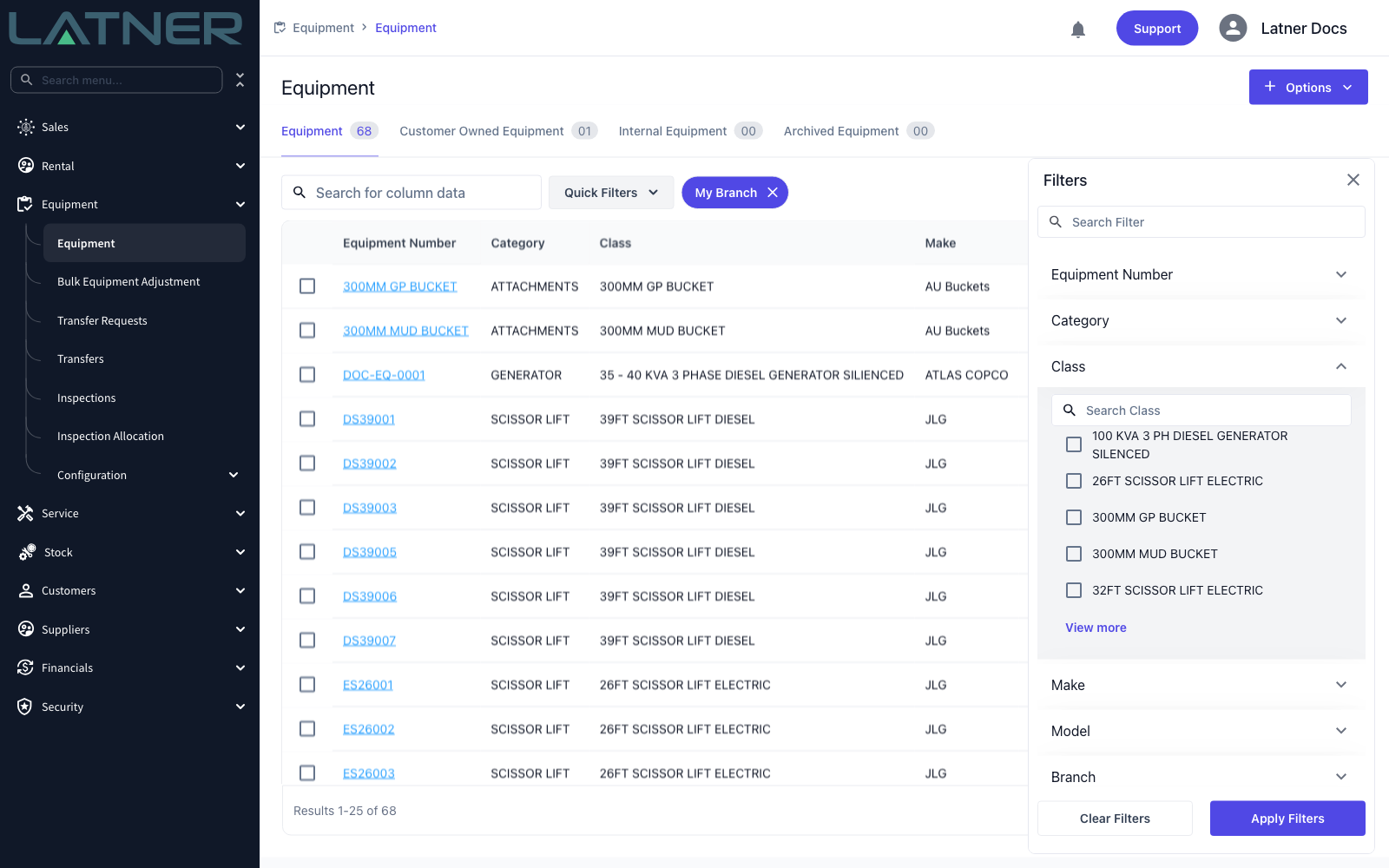
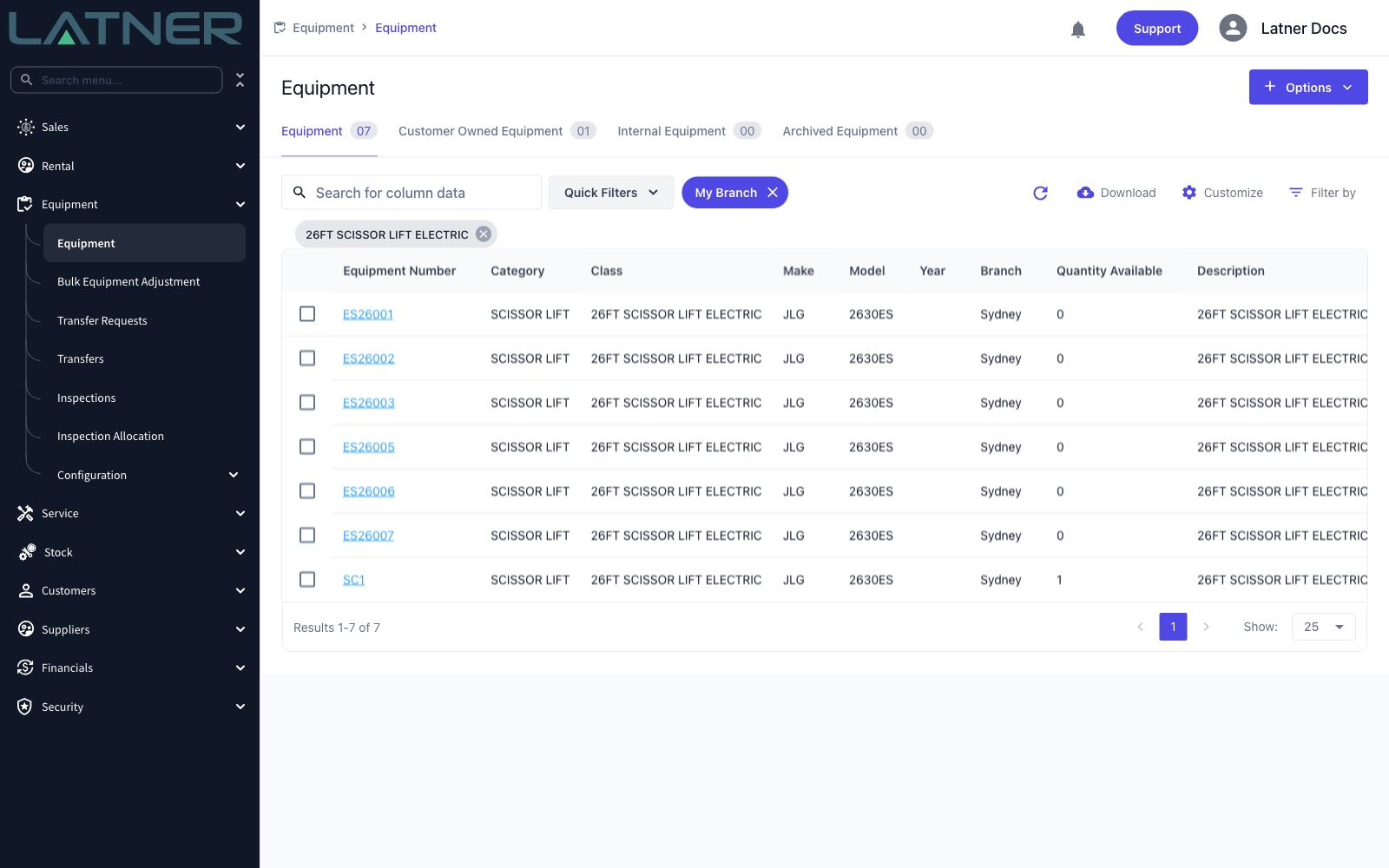
Click Filter by to open the Filters panel on the right, then expand the column you want. Tick one or more values and click Apply Filters. Applied filters appear as chips above the grid, and Clear Filters removes them all at once.
Each expanded column has its own search box and a View more link, which matters on long lists such as Class or Model - only the first few values are shown until you search or ask for more. The Search Filter box at the top of the panel finds a column by name rather than a value.
You can filter on Equipment Number, Category, Class, Make, Model, Branch, Serial #, Registration #, Rental Status, Service Status, Managed For, Rental Contract, Customer Name and Customer Site.
Step 6 - Sort and choose your columns
Click a column heading to sort by it, and click again to reverse the order. Sorting is applied across the whole result set, not just the rows on screen.
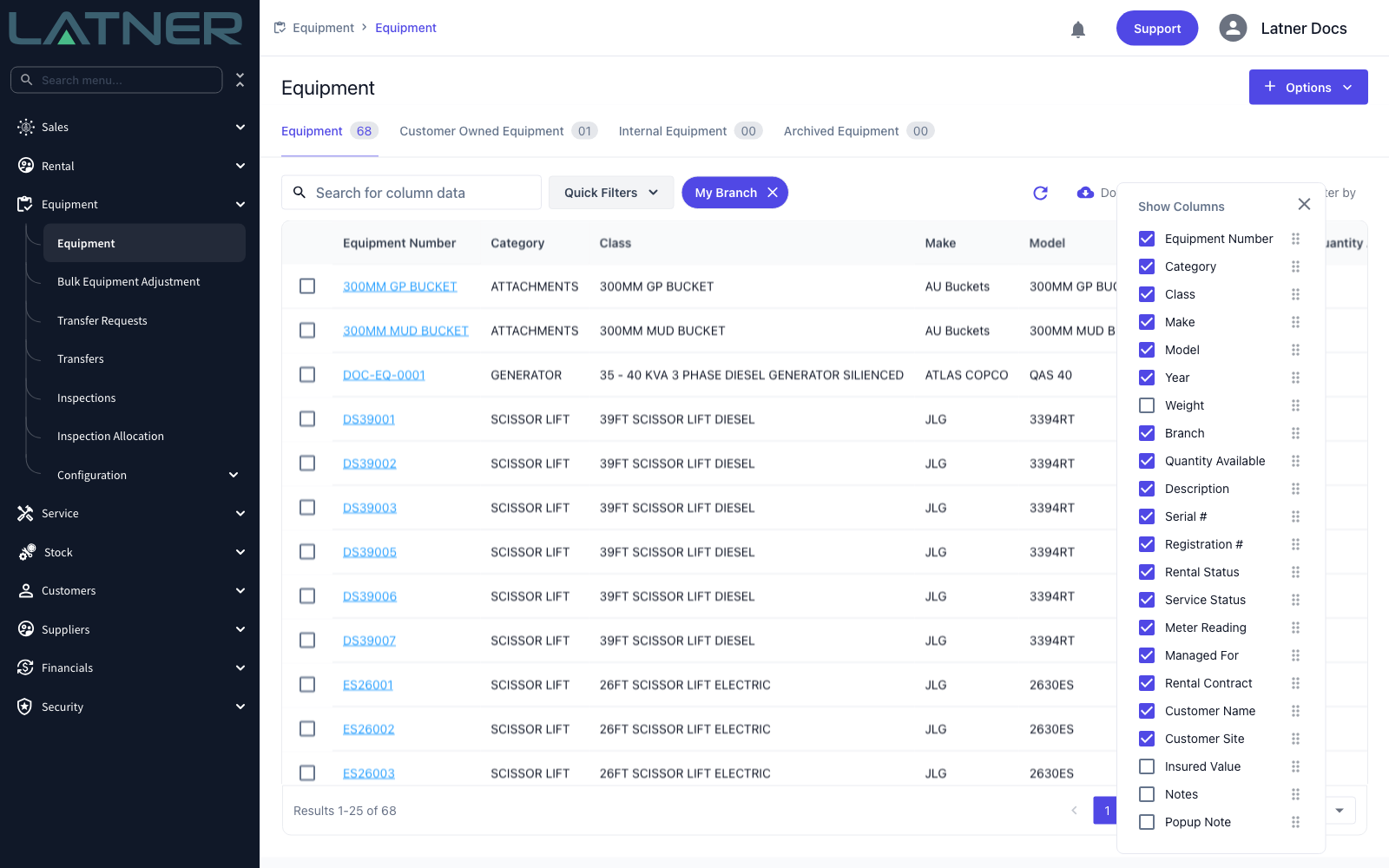
Customize opens Show Columns. Untick a column to hide it, or drag its handle to move it. Several useful columns are hidden until you turn them on, including Weight, Insured Value, Notes and Popup Note. Your layout is saved against your login and comes back the next time you open the screen.
At the bottom of the grid, Show sets how many rows appear per page - 10, 25, 50, 100 or 200 - and that choice is remembered too.
Step 7 - Open or export the result
Click the equipment number, or double-click anywhere on the row, to open the equipment record. Tick a row instead and Options › Create Work Order raises a work order against that machine without leaving the list.
Download produces a CSV of every row matching your current search and filters, in the columns you currently have displayed - so hide the columns you do not want before you export. Large exports are fetched in batches and the progress is shown as it goes.
After You Find the Equipment
-
The search term stays in the page address (for example /equipment?search=jlg 26ft), so you can bookmark it or send the link on. Quick filters and column filters are not part of the address.
-
Quick filters, column layout and page size are remembered against your login; column filters and the search term are not, and reset when you leave the screen.
-
The count on the tab you are viewing follows your search and filters, so it doubles as a "how many match" answer.
Quantity Available is per branch, not per company. A unit showing 0 available at your branch may still be sitting available at another one - clear the My Branch quick filter to see every branch holding it.
Searching on a Mobile Device
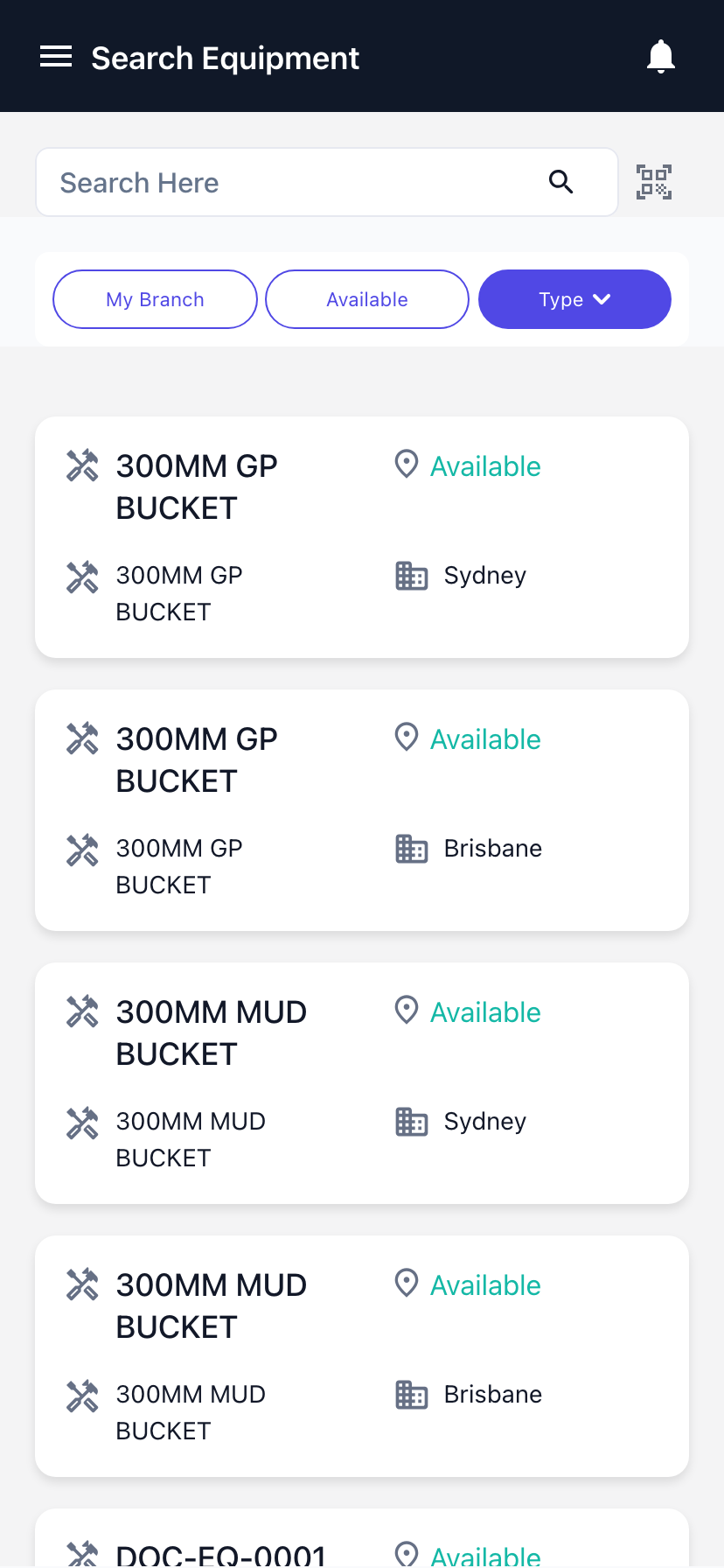
On a phone the same list appears as Search Equipment, with a single search box, filter chips for My Branch, Available and Type, and a QR scanner button beside the search box. Scanning an equipment QR code drops the scanned value straight into the search box, which is the fastest way to identify a machine in the yard.
FAQs
Watch the Demo
Prefer to watch it? Step through the same flow here.