
A fuel type tells Latner what a machine runs on and what a litre of it is worth, so that when equipment comes back light on fuel the refuelling charge lands on the rental contract by itself.
Overview
Every machine that burns something has to be refuelled before it can go out again, and someone has to pay for it. In Latner that starts one level up from the machine, on the equipment model.
-
A fuel type is a configuration record with a Name, a Description, a Cost Price and a Retail Price.
-
Fuel types are assigned to equipment models, not to individual machines, so every unit built on that model shares the same fuel type.
-
The fuel type is optional. Electric equipment and attachments are normally left blank.
-
When someone records Fuel to Bill (Litres) on a rental return or a return inspection, Latner adds a Fuel line to the rental contract, priced at the fuel type's Retail Price.
-
Without a fuel type on the model there is nothing to price the fuel against, so Latner stops the return rather than guessing.
Before You Begin
You need the permissions to maintain the configuration screens, and it's worth knowing which settings decide where fuel is recorded.
|
Requirement |
Where to Find It |
|---|---|
|
Fuel Type permission - lets you view and create fuel types |
Security › Configuration › Permission Groups, under Equipment › Configuration |
|
Equipment Model permission - lets you reach the Models screen |
Security › Configuration › Permission Groups, under Equipment › Configuration |
|
Create Equipment Model permission - required to save a change to a model, including its fuel type |
Security › Configuration › Permission Groups, under Equipment › Option |
|
Record Fuel to Bill in - decides whether fuel is recorded on the Rental Return, the Return Inspection, or both |
Security › Settings › Rental |
|
Rental Return Fuel to Bill Required and Return Inspection Fuel to Bill Required - make the entry mandatory |
Security › Settings › Rental |
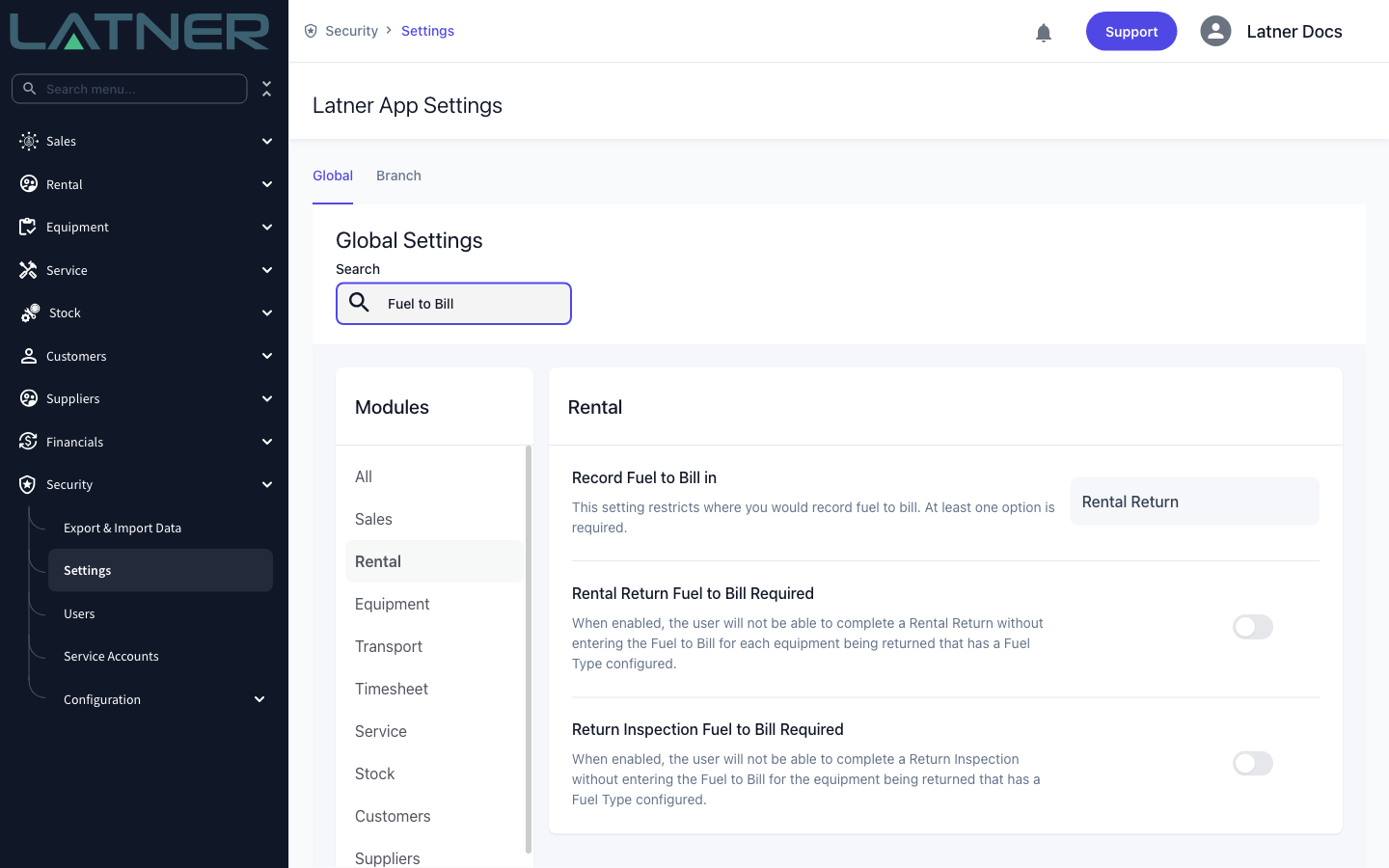
The two Required settings only apply to equipment whose model has a fuel type. Equipment with no fuel type is returned exactly as it is today, with no fuel prompt at all, so you can roll fuel types out model by model without holding up returns for the rest of the fleet.
Creating and Assigning the Fuel Type
Step 1 - Open the Fuel Types screen
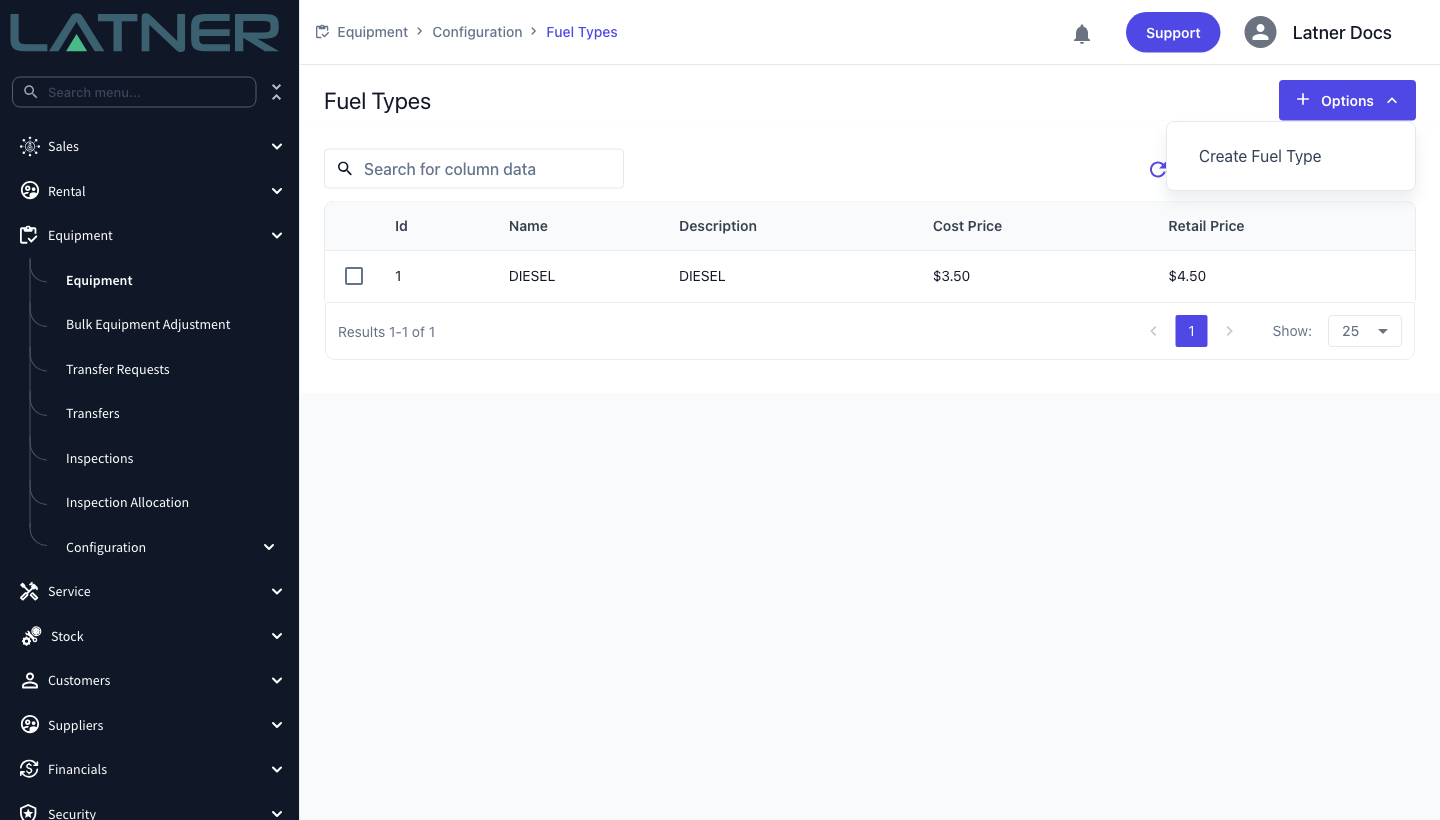
Go to Equipment › Configuration › Fuel Types. This is the master list of everything you can put in a tank, and most sites need only a handful. If the fuel type you want is already there, skip to Step 3.
Step 2 - Create the fuel type
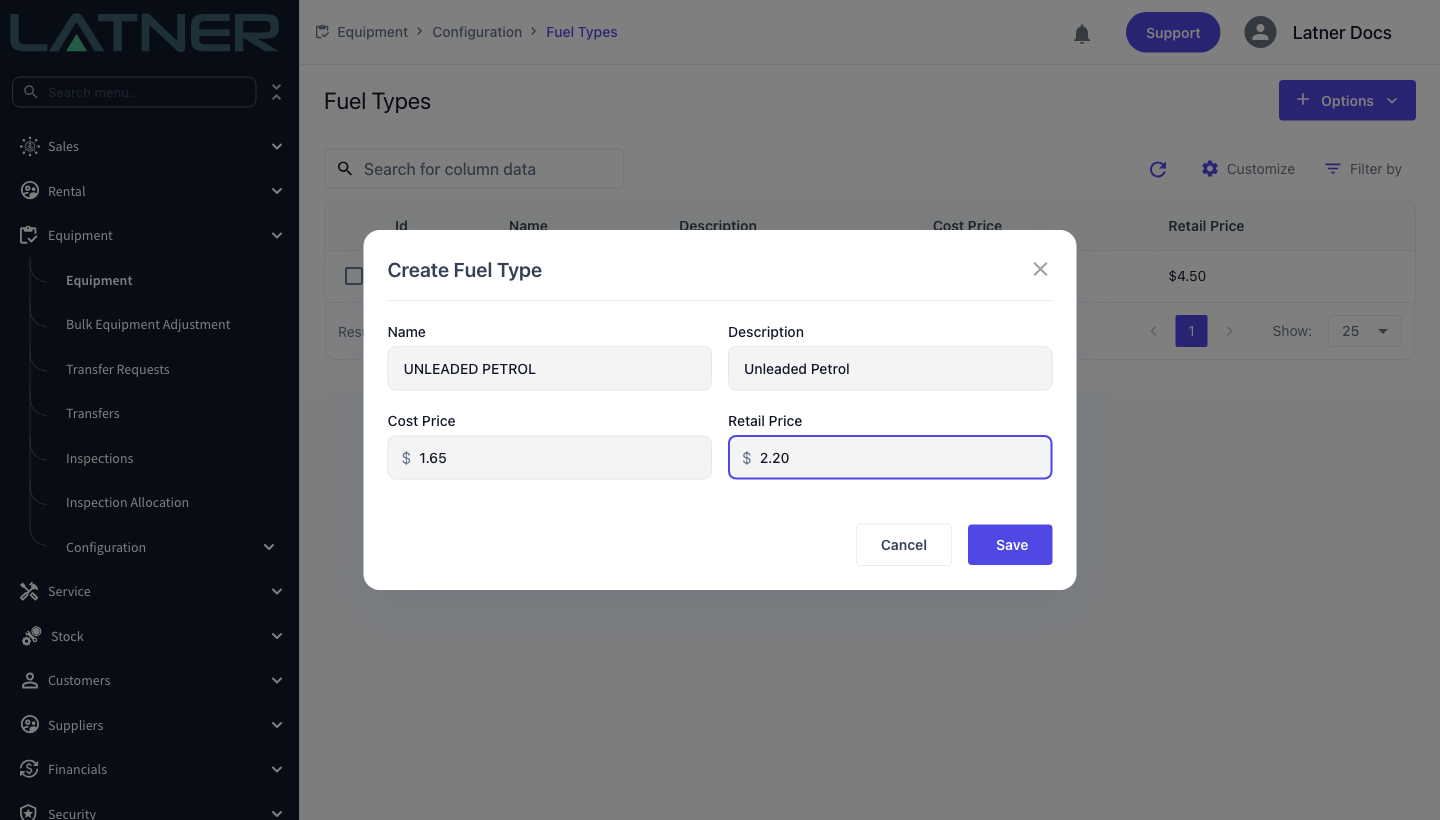
Choose Options › Create Fuel Type and fill in all four fields. Every one of them is required.
-
Name - the short code you'll pick from the list, for example DIESEL or UNLEADED PETROL. Names must be unique.
-
Description - the wording that ends up on the customer's invoice. Latner builds the fuel line description as the fuel type's description followed by the equipment it was for, so write it the way you want a customer to read it.
-
Cost Price - what a litre costs you. Latner records it for reference; it is not what the customer is charged.
-
Retail Price - what a litre is charged out at. This is the price that goes onto the fuel line.
Click Save. The new fuel type appears in the list straight away.
Step 3 - Open the equipment model
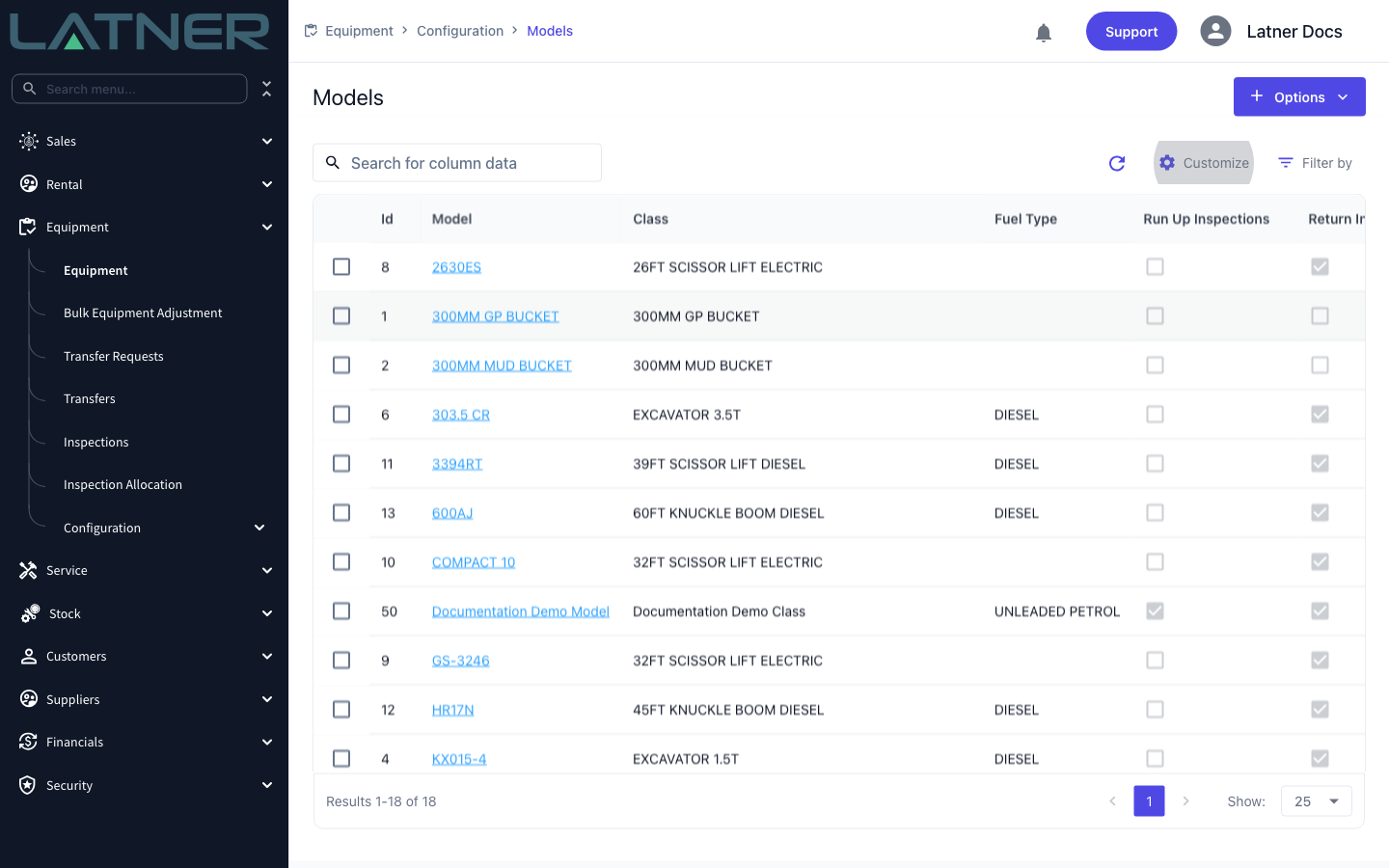
Go to Equipment › Configuration › Models and click the model you want to set up. The Fuel Type column on this list is the quickest way to see which models are still missing one.
Step 4 - Choose the fuel type in General Details
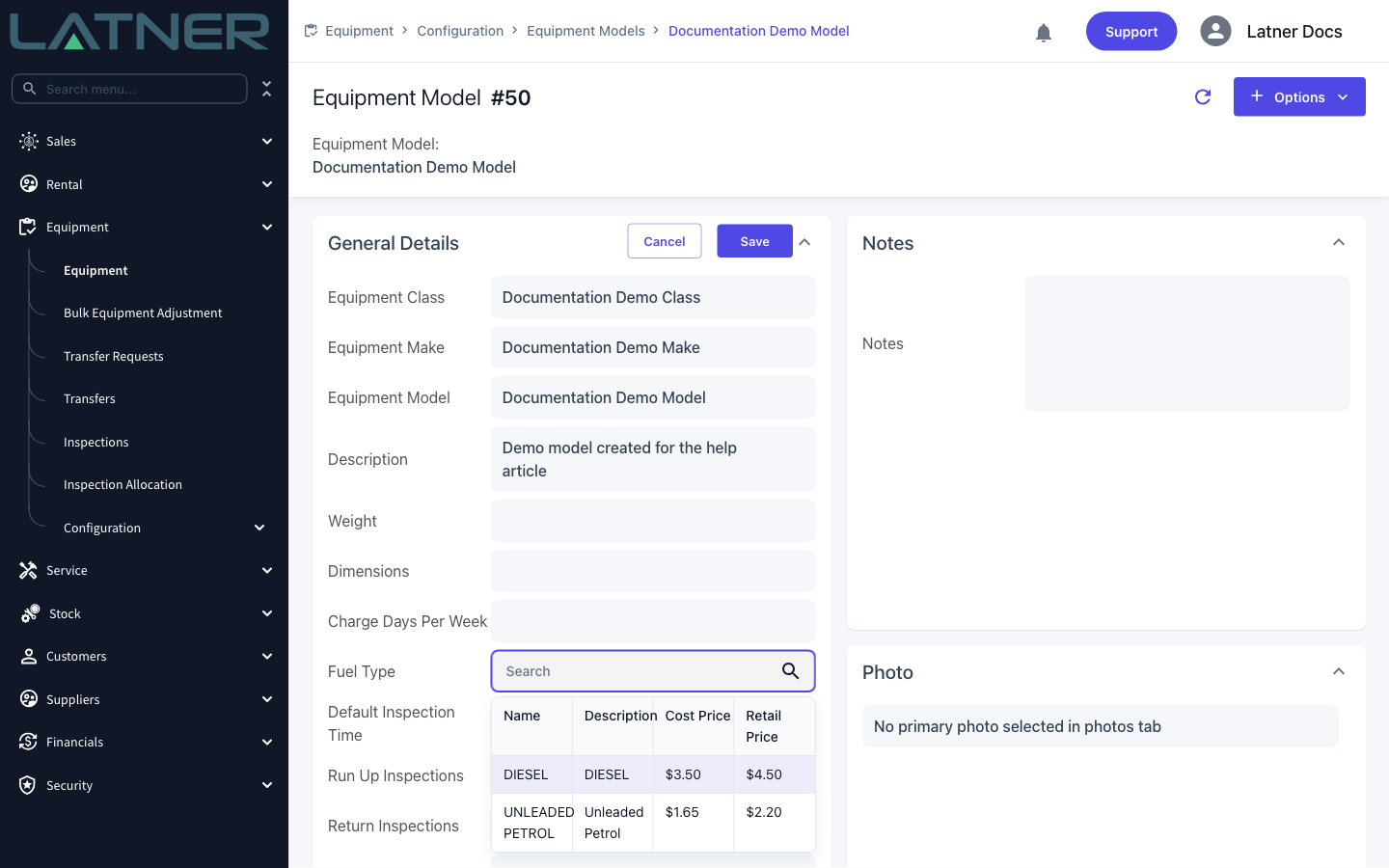
On the model's General Details card, click the value box beside Fuel Type. The whole card switches into edit mode and the field becomes a search box. Start typing, or just browse the list that drops down - it shows each fuel type's name, description, cost price and retail price so you can confirm you're picking the right one.
Step 5 - Save
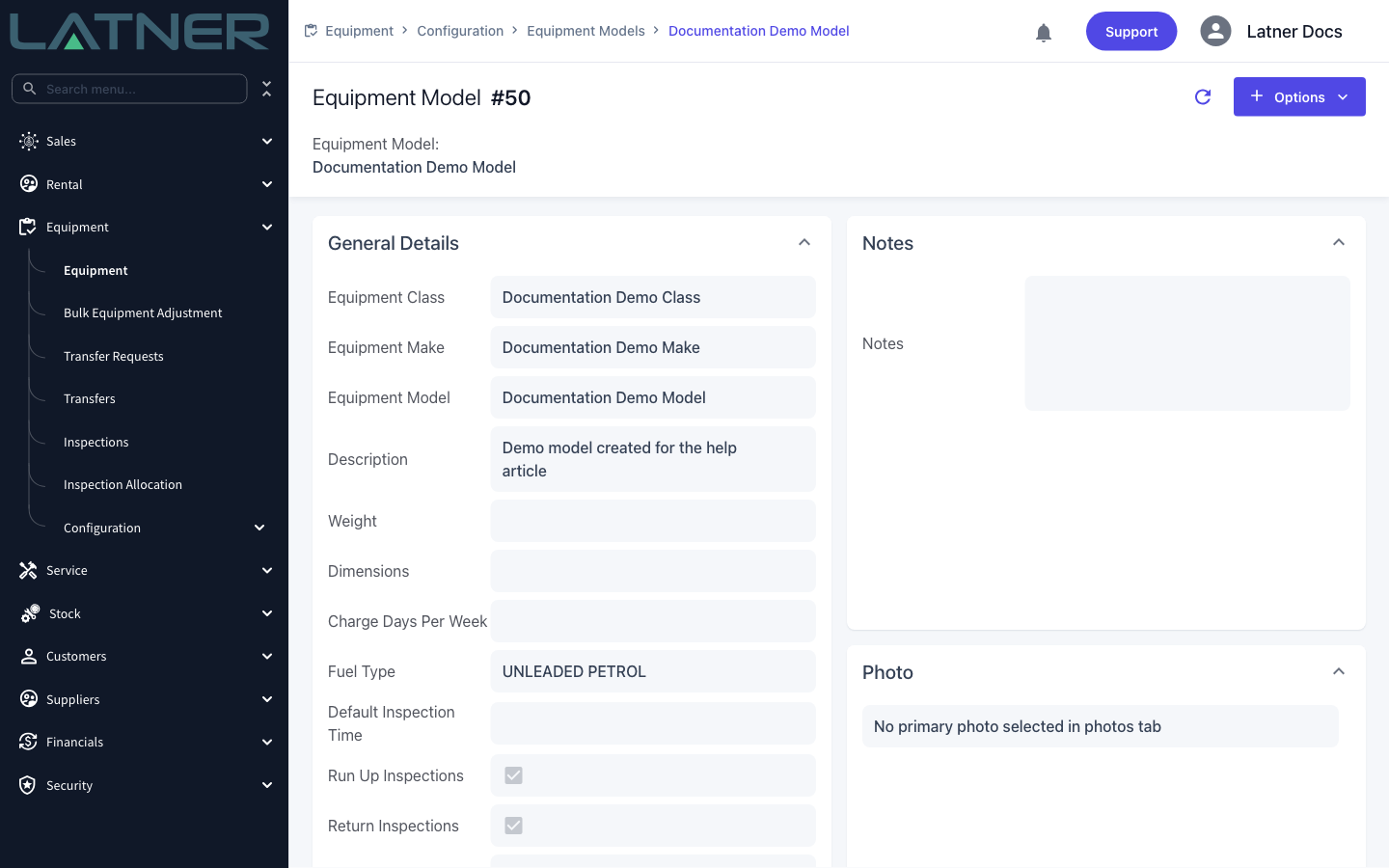
Click Save in the General Details card header. The card returns to read-only with the fuel type showing against the model.
After You Assign It
-
Every existing and future machine on that model is covered immediately. There is nothing to set on the individual equipment records.
-
Fuel to Bill (Litres) becomes available for that equipment on the rental return, the return inspection, or both, depending on the Record Fuel to Bill in setting.
-
When litres are entered, Latner adds a Fuel line to the rental contract with the litres as the quantity and the fuel type's Retail Price as the unit price. The line is described as the fuel type's description followed by the equipment line it belongs to, and it starts life as a Pending line ready to be invoiced.
-
Fuel is also a line type you can add to a rental quote or contract by hand. A fuel line always needs a fuel type, and it takes its description from the one you choose.
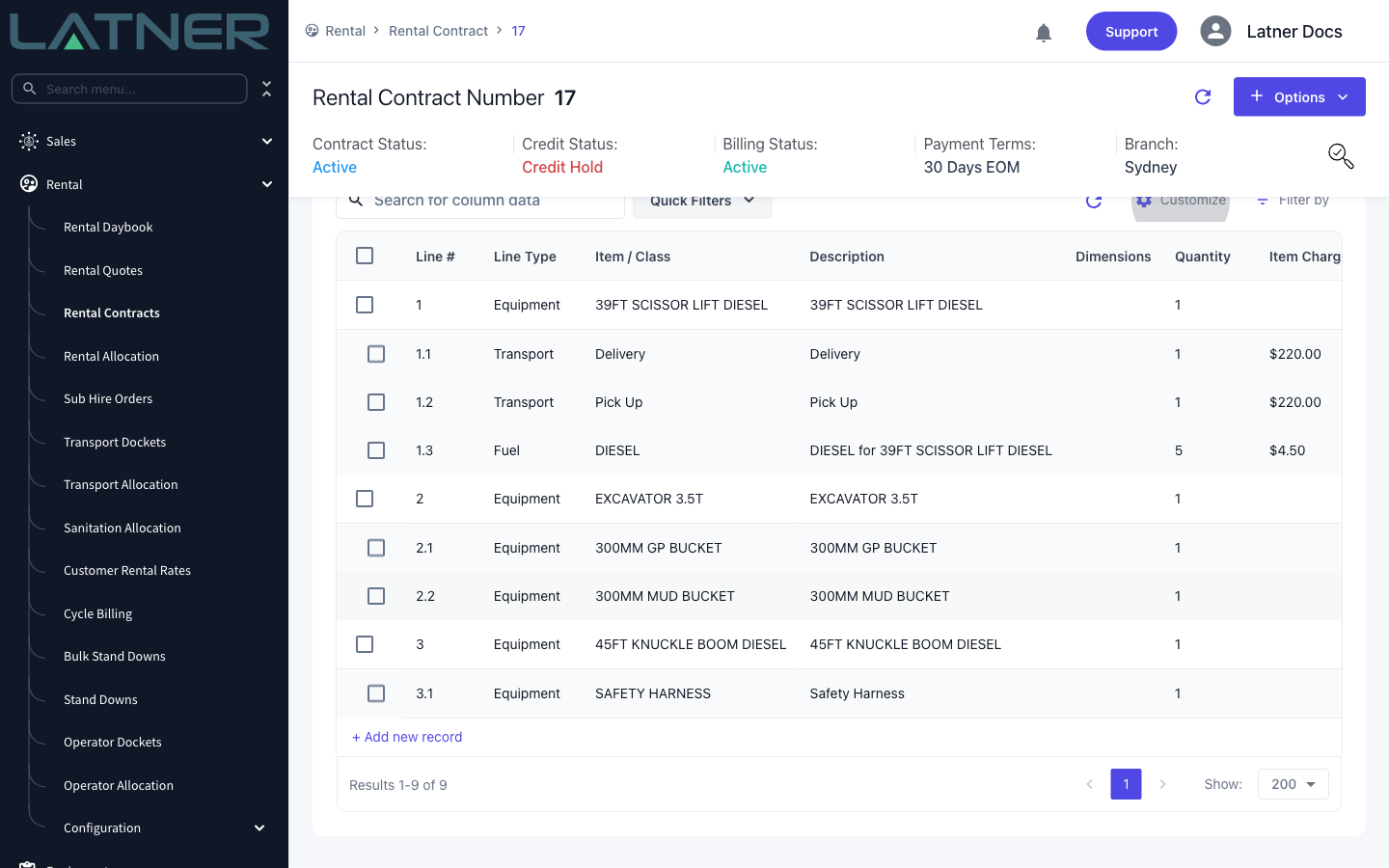
If someone enters fuel to bill for equipment whose model has no fuel type, Latner refuses the return with No fuel type configured against the equipment model. Nothing is saved, so no half-finished return is left behind. Assign the fuel type to the model and run the return again.
FAQs
Watch the Demo
Prefer to watch it? Step through the same flow here.