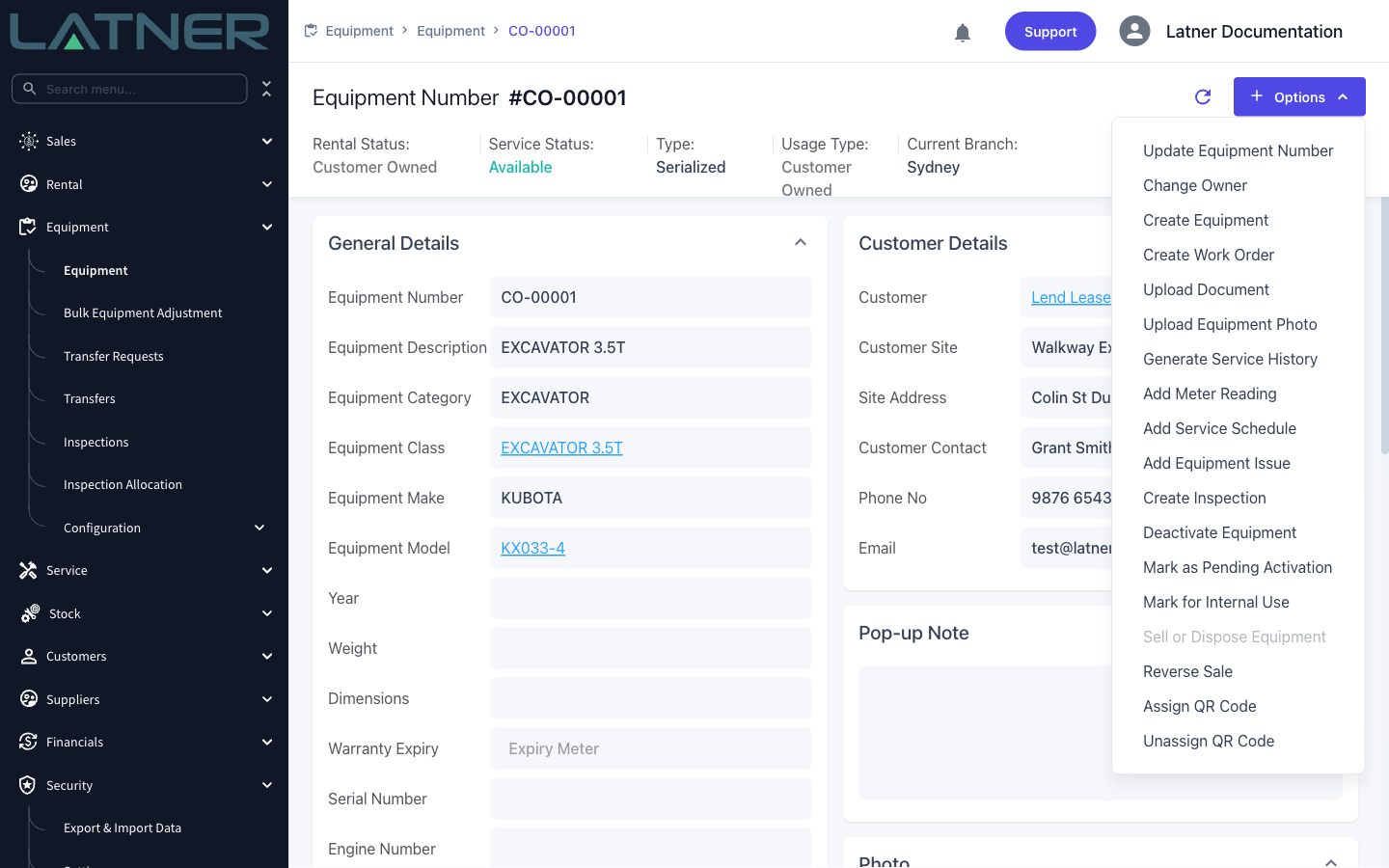
Customer Owned Equipment lets you manage machines that belong to your customers - not your rental fleet - so you can run service schedules against them and charge the customer for work orders.
Overview
Not every machine in Latner has to be yours. When a customer asks you to service and maintain gear they own, you can bring that gear into Latner as Customer Owned Equipment. Customer owned equipment:
-
Is never shown as available for hire and cannot be added to rental quotes or contracts.
-
Keeps its own service schedules, inspections and meter readings, just like your fleet.
-
Can have work orders raised against it, with the costs charged back to the owning customer.
-
Appears under its own Customer Owned Equipment tab on the Equipment screen, so it never mixes with your rental fleet.
Before You Begin
Creating customer owned equipment requires both a system setting and a user permission:
|
Requirement |
Where to Find It |
|---|---|
|
Allow Users to Create Customer Owned Equipment setting is enabled |
Security › Settings › Equipment |
|
Create Customer Owned Equipment permission on your permission group |
Security › Configuration › Permission Groups - Equipment module. The permission is branch based, so you need it for the branch the equipment is created in. |
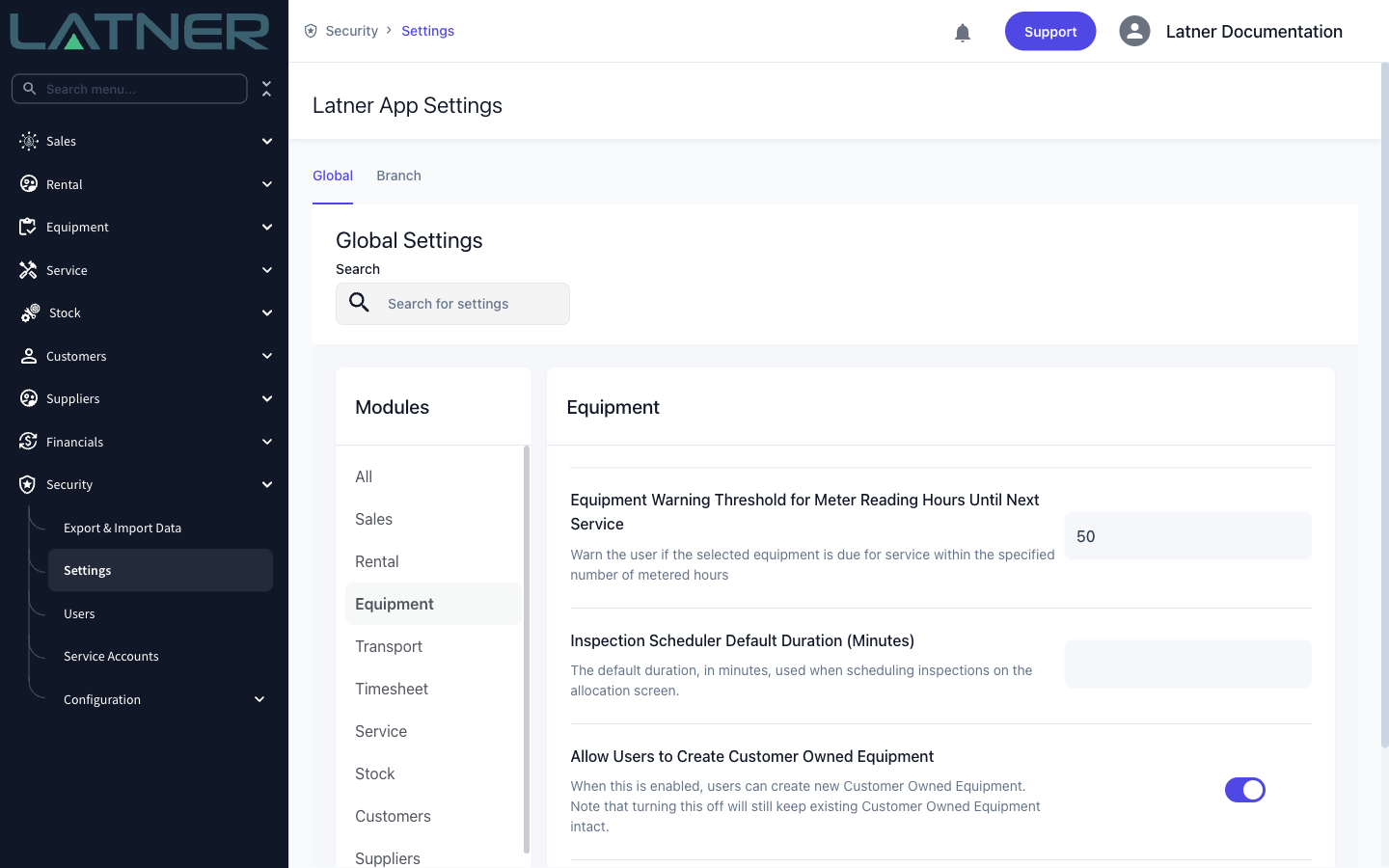
Turning this setting off later will not remove any existing customer owned equipment - it only stops new ones from being created.
Creating the Equipment
Step 1 - Open the Equipment screen
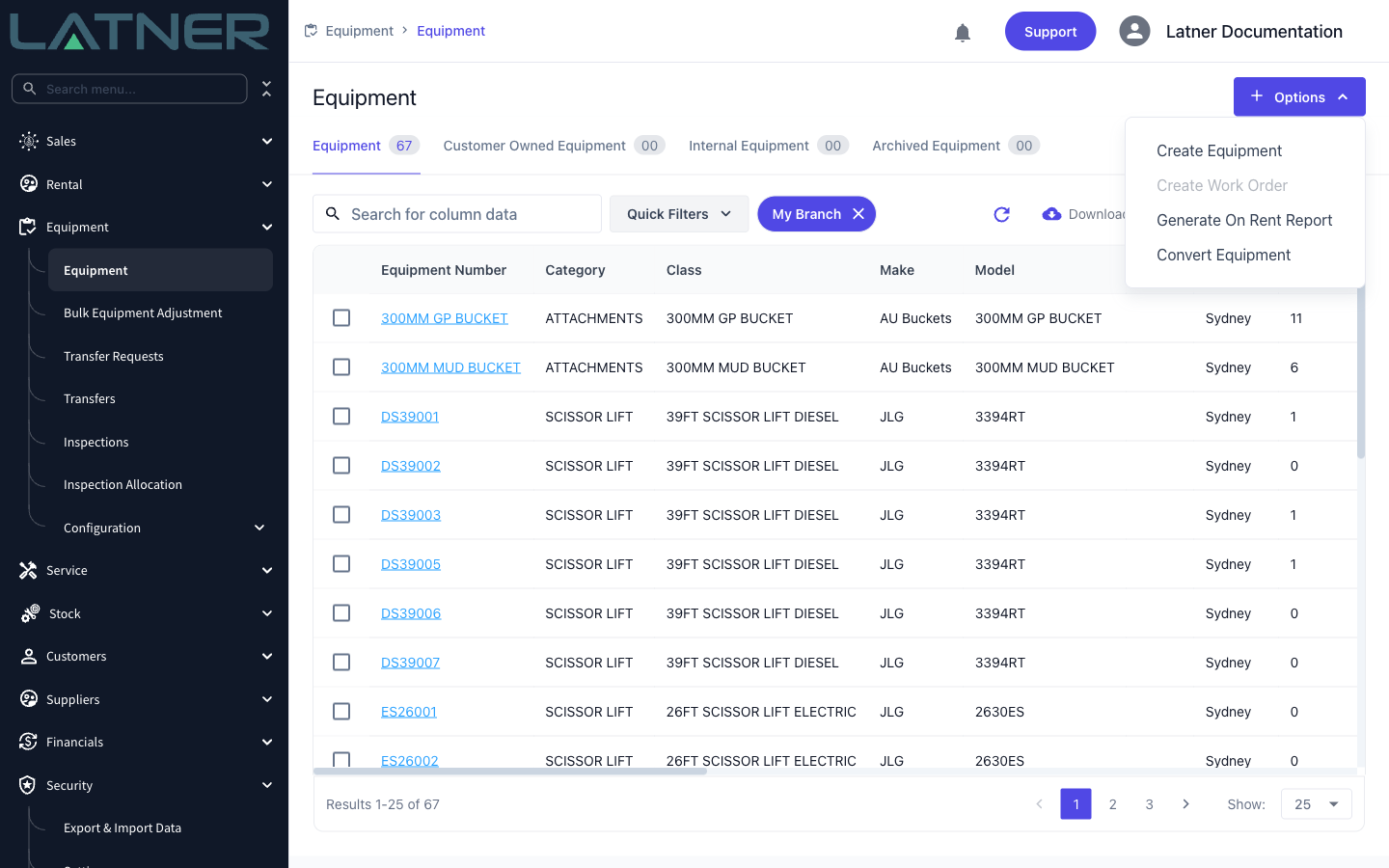
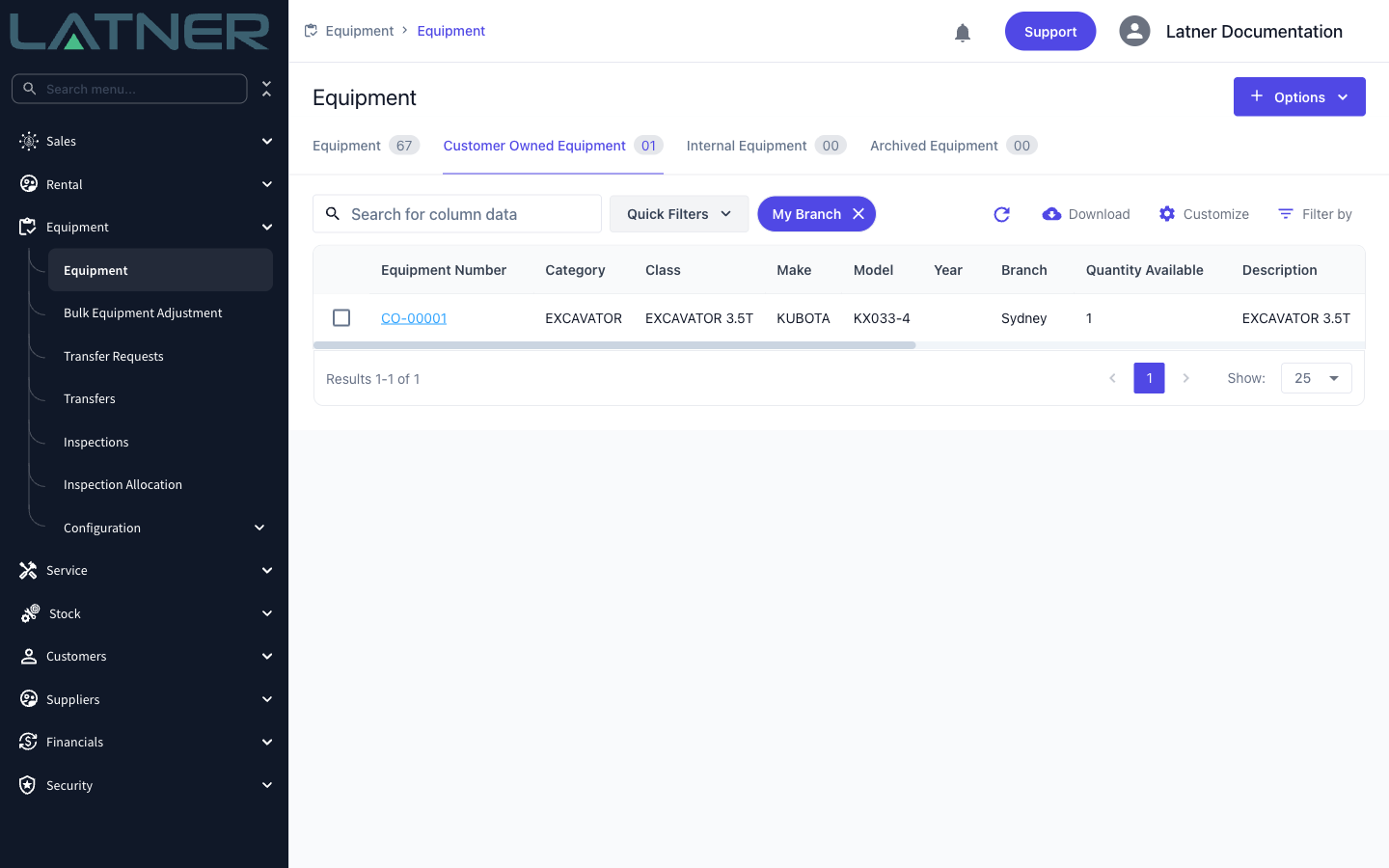
From the main menu, go to Equipment › Equipment. Existing customer owned equipment is listed under the Customer Owned Equipment tab.
Step 2 - Select Options › Create Equipment
Click the Options button in the top right of the screen, then select Create Equipment.
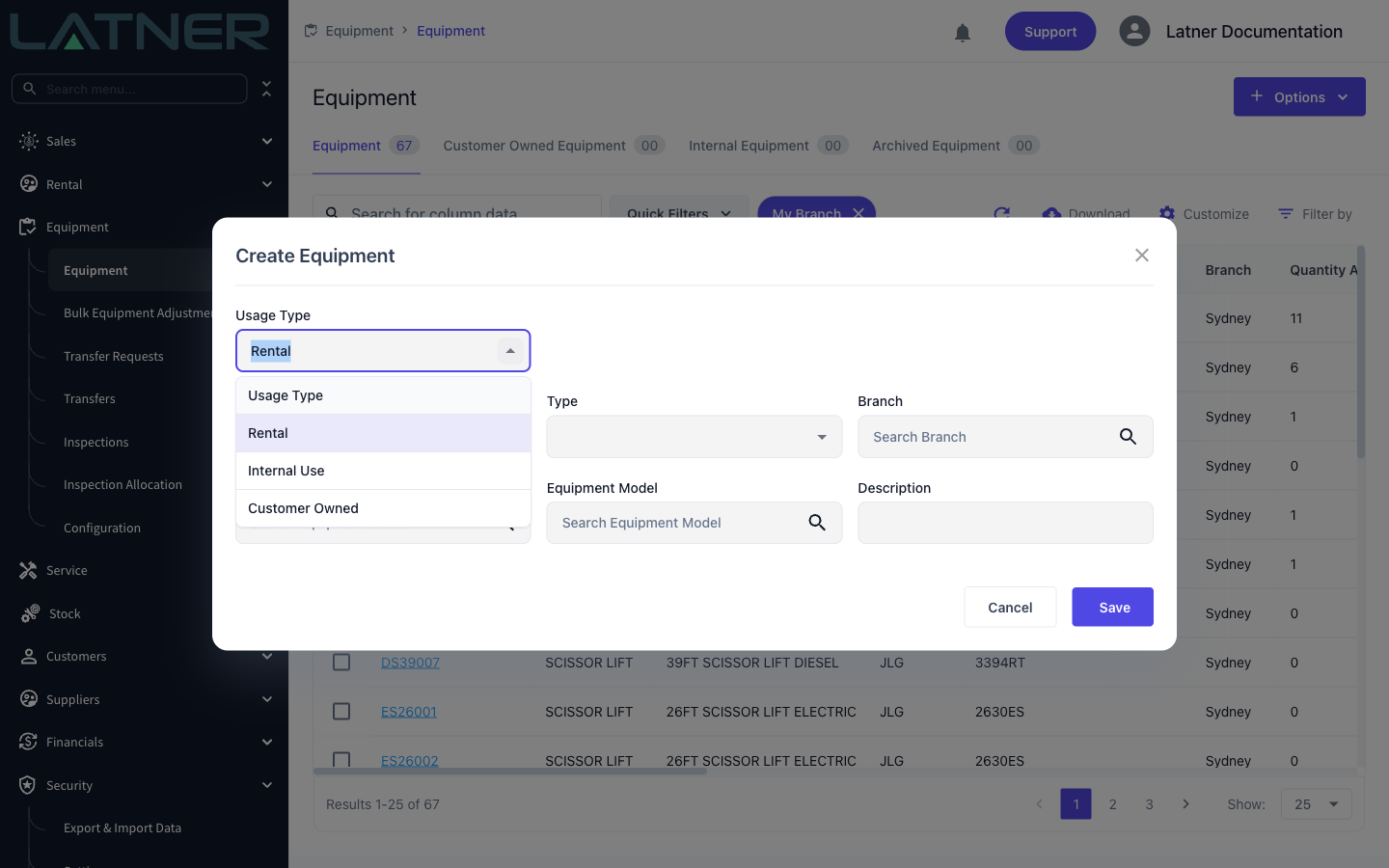
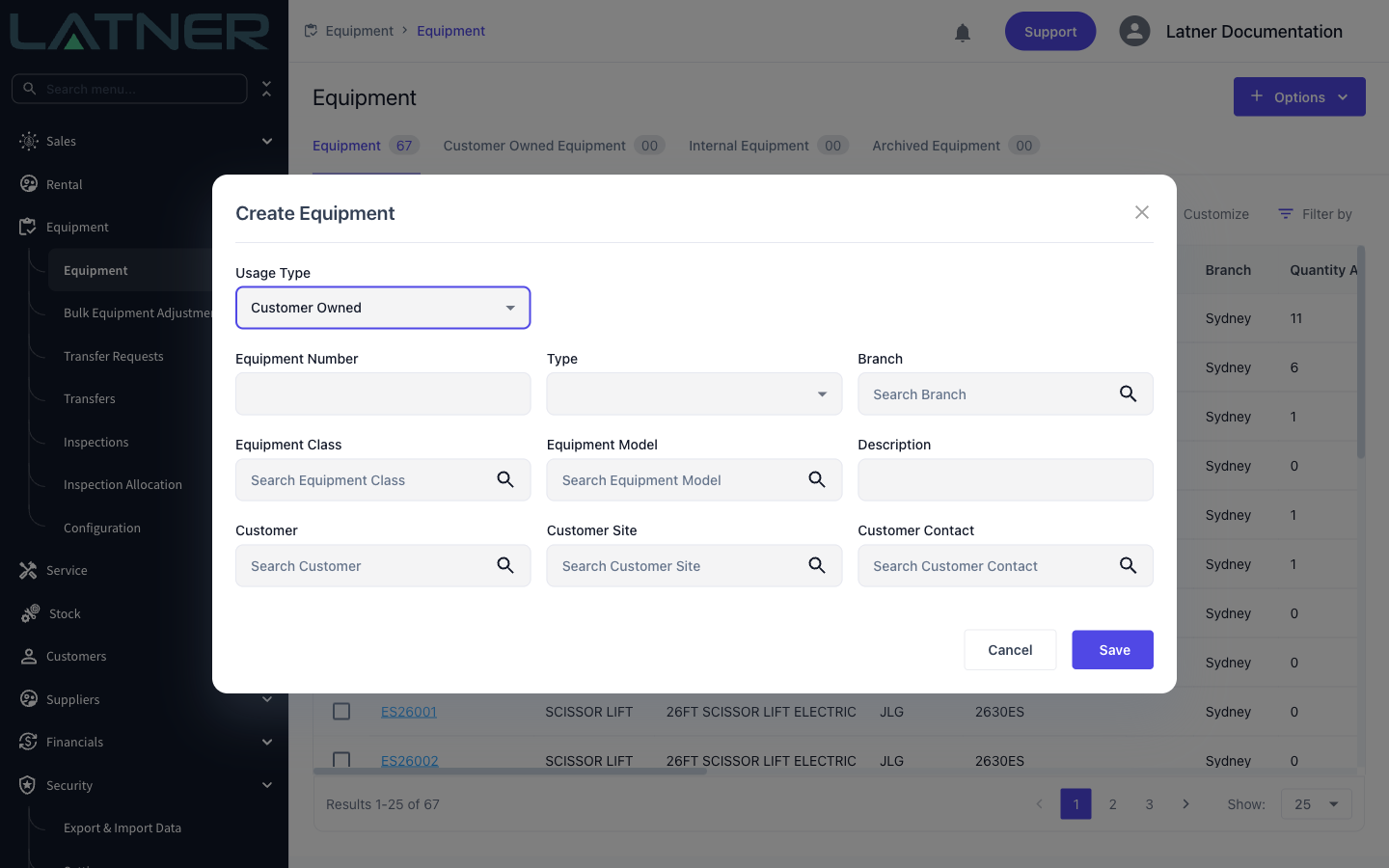
Step 3 - Set the Usage Type to Customer Owned
In the Create Equipment dialog, change Usage Type from Rental to Customer Owned. The dropdown only lists the usage types you're allowed to create, so if Customer Owned is missing, check the setting and permission above.
Step 4 - Fill in the equipment details
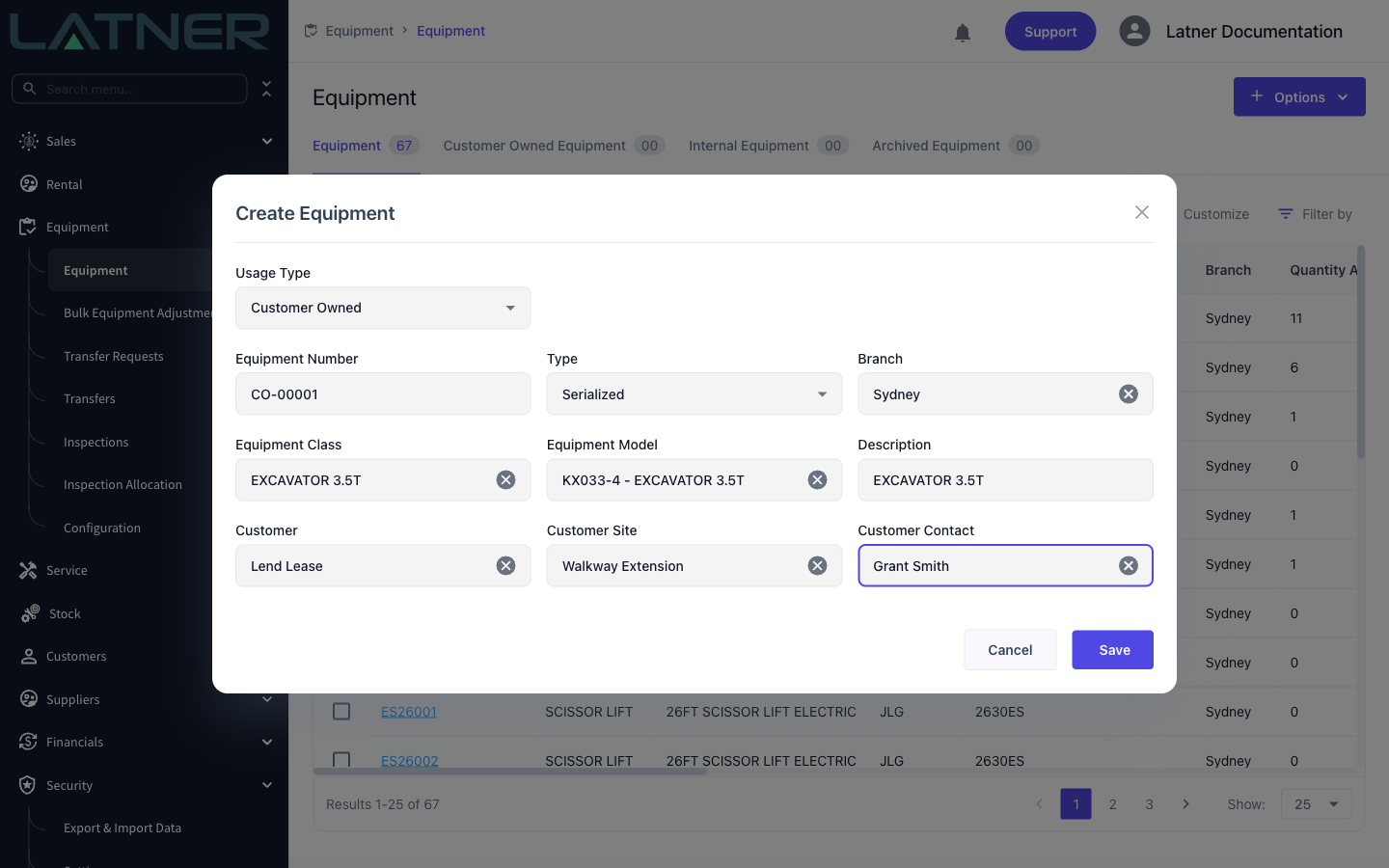
Once the Usage Type is Customer Owned, three additional fields appear: Customer, Customer Site and Customer Contact. All three are required. Complete the standard equipment fields first:
-
Equipment Number / Prefix - if sequential equipment numbering is enabled, enter a prefix and Latner will append the next sequential number. Otherwise, enter the equipment number directly.
-
Type - Serialized for individual machines, or Bulk for quantity-tracked gear.
-
Branch - the branch responsible for servicing this equipment.
-
Equipment Class and Model - selecting a model fills in the class automatically, and the description defaults from the class.
Step 5 - Select the owning customer
Search for and select the Customer, then their Customer Site (where the equipment is located) and Customer Contact. The site and contact lists only show entries belonging to the selected customer. If the customer, site or contact doesn't exist yet, use Create New at the bottom of each dropdown to create them without leaving the dialog.
Step 6 - Save
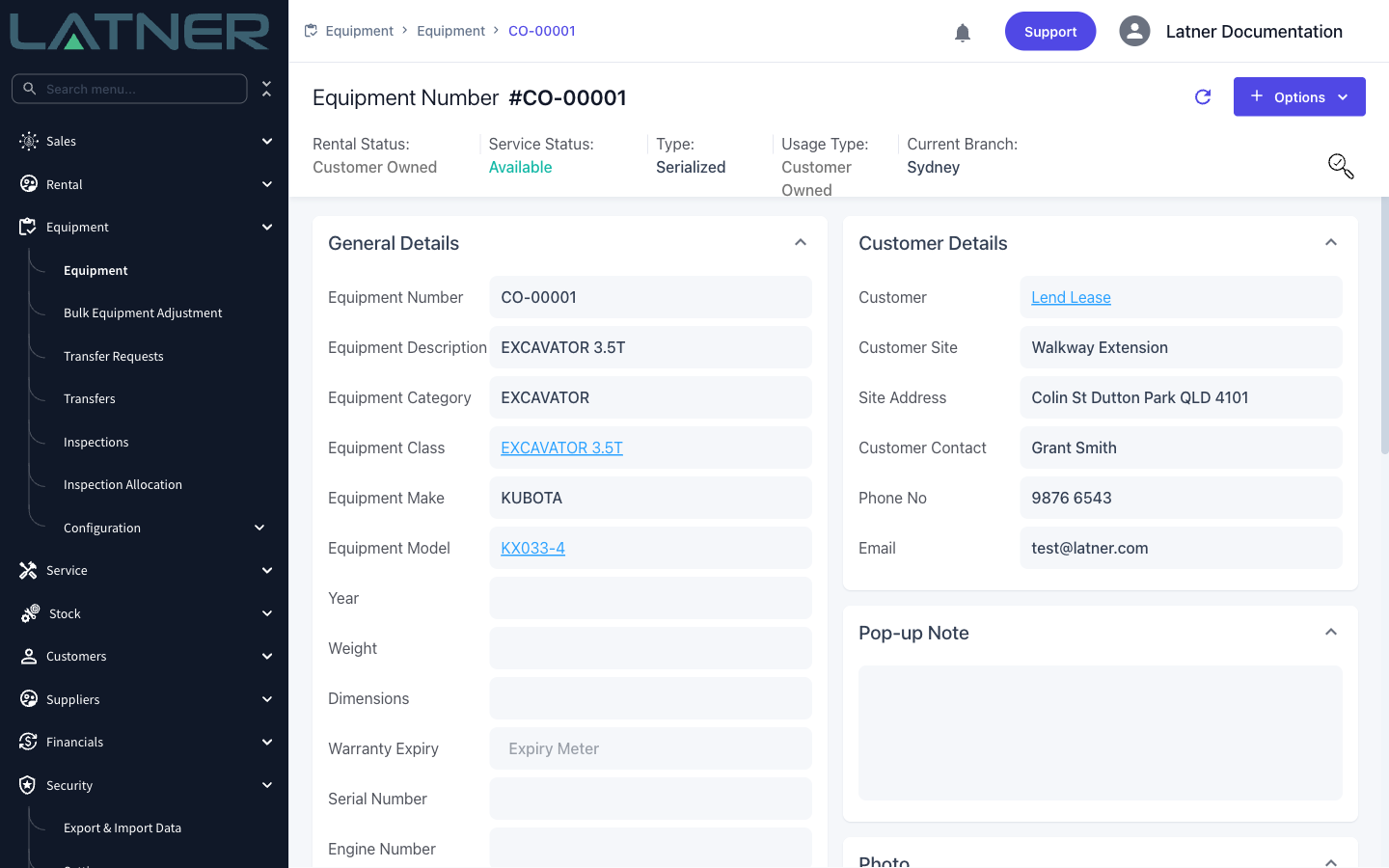
Click Save. You'll be taken to the new equipment's detail page, with both the Rental Status and Usage Type showing Customer Owned, and the owner's details shown in the Customer Details panel.
After Creation
-
The equipment's rental status is locked to Customer Owned - it will never appear as available on allocation or rental screens.
-
For serialized equipment, service schedules are created automatically from the schedules configured on its equipment model and class, so upcoming services appear straight away.
-
Work orders raised against the equipment automatically default the customer, site and contact to the equipment's owner, ready to be charged back - and cannot be assigned to a different customer.
-
The equipment appears under the Customer Owned Equipment tab on the Equipment screen.
Customer owned equipment can be deactivated, but it cannot be moved back into your rental fleet. If the equipment changes hands between customers, use the Change Owner option instead of recreating it.