
Selling or disposing of equipment records the moment a machine leaves your fleet, so your rental availability, asset register and reporting all stay honest without you ever deleting a record.
Overview
Every machine eventually stops earning. Some get sold to the customer who has been hiring them for two years, some get written off after a bad day on site. Sell or Dispose Equipment handles both from the equipment record itself.
-
Sold records a sale. You can simply mark it as sold, or have Latner raise a sales order (and optionally an invoice) for you.
-
Disposed records a write-off, a scrapping or a loss, against a reason you have configured.
-
Nothing is ever deleted. The machine keeps its rental history, work orders, invoices and movements, and moves to the Archived Equipment tab.
-
Serialised machines go out whole. Bulk equipment goes out by quantity, so you can sell or dispose of part of a line and leave the rest available.
-
A sale can be reversed if it was recorded with Mark as Sold. A disposal cannot be reversed at all.
Before You Begin
A few things need to be in place before the option will work.
|
Requirement |
Where to Find It |
|---|---|
|
Sell or Dispose Equipment permission |
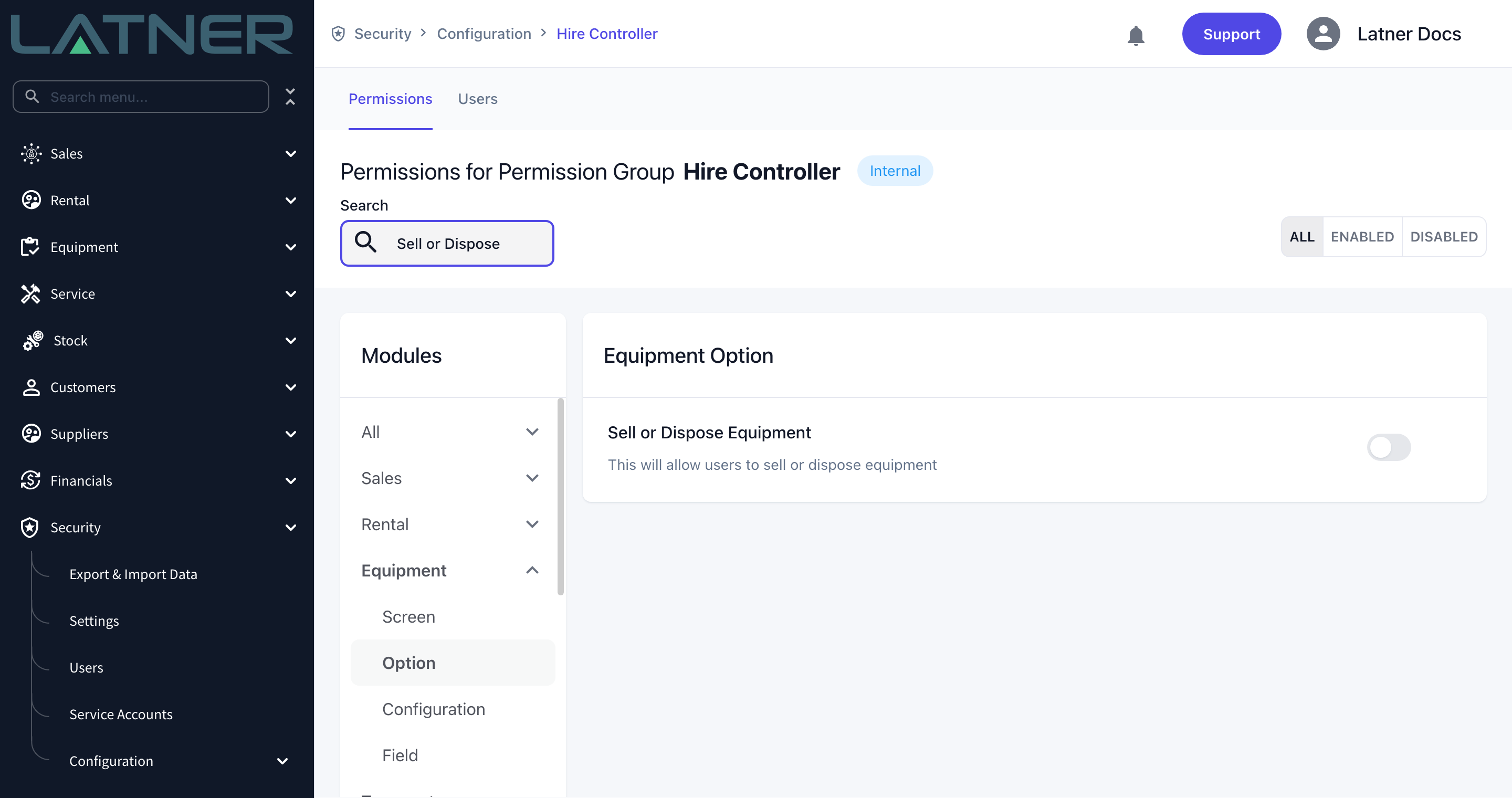
Security › Configuration › Permission Groups › your group › Equipment › Option |
|
Reverse Sale or Disposal of Equipment permission (only if you need to undo a sale) |
Security › Configuration › Permission Groups › your group › Equipment › Option |
|
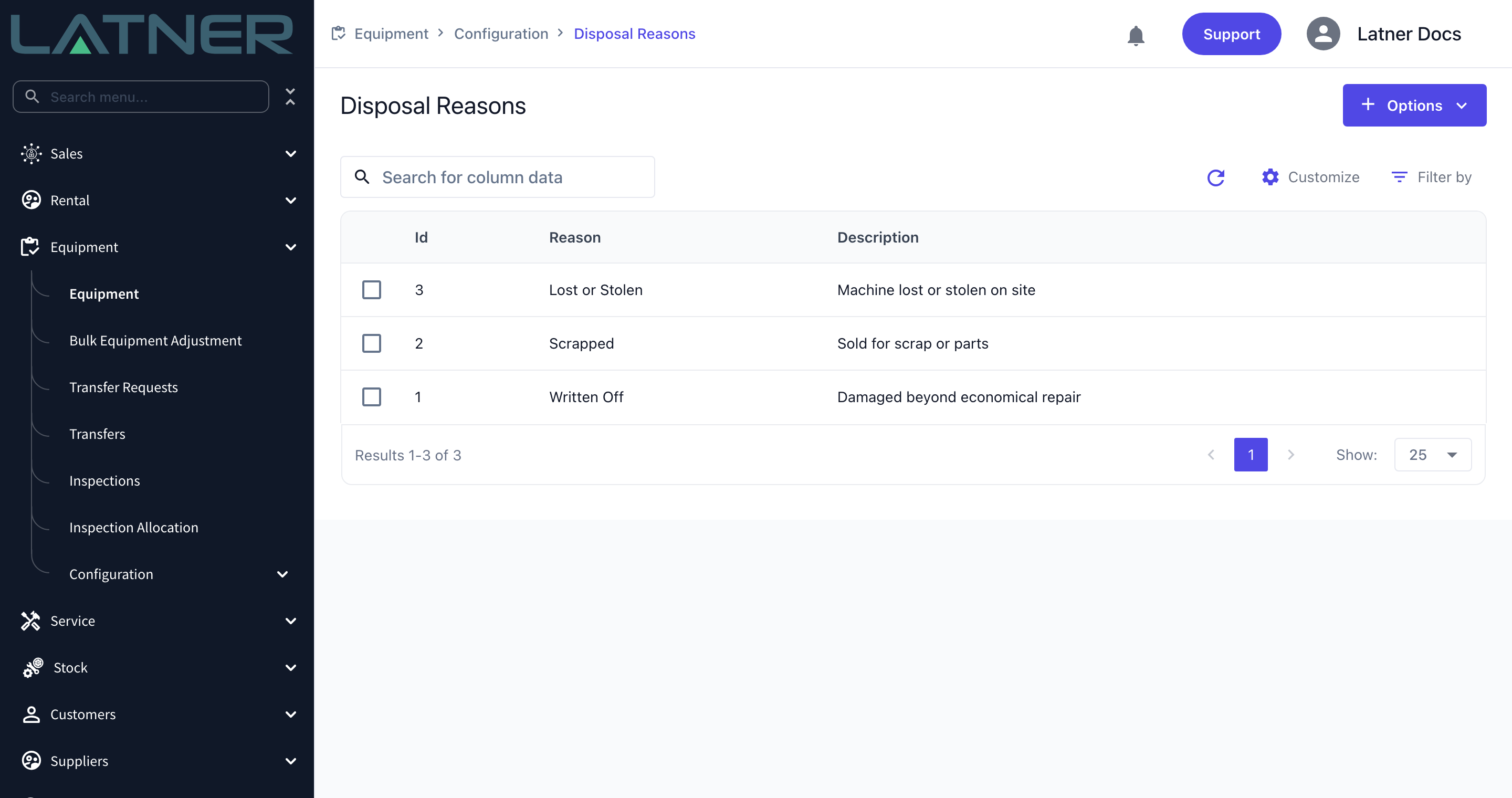
At least one Disposal Reason (only needed for disposals) |
Equipment › Configuration › Disposal Reasons |
|
The machine sitting in Available rental status (or Internal Use) with Available service status |
The status strip at the top of the equipment record |
Disposal reasons are your own list, so set them up to match how you want to report on write-offs. Create them from Options › Create Disposal Reason on the Disposal Reasons screen.
If Sell or Dispose Equipment is greyed out, the machine isn't in Available status. The usual causes are an open work order (which puts it Out of Service), an active hire, a transfer in progress, or an existing sales order that has already reserved it. Clear the blocker first - the tooltip on the greyed-out menu item tells you which status is in the way.
Selling or Disposing of a Machine
Step 1 - Open the equipment record and choose the option
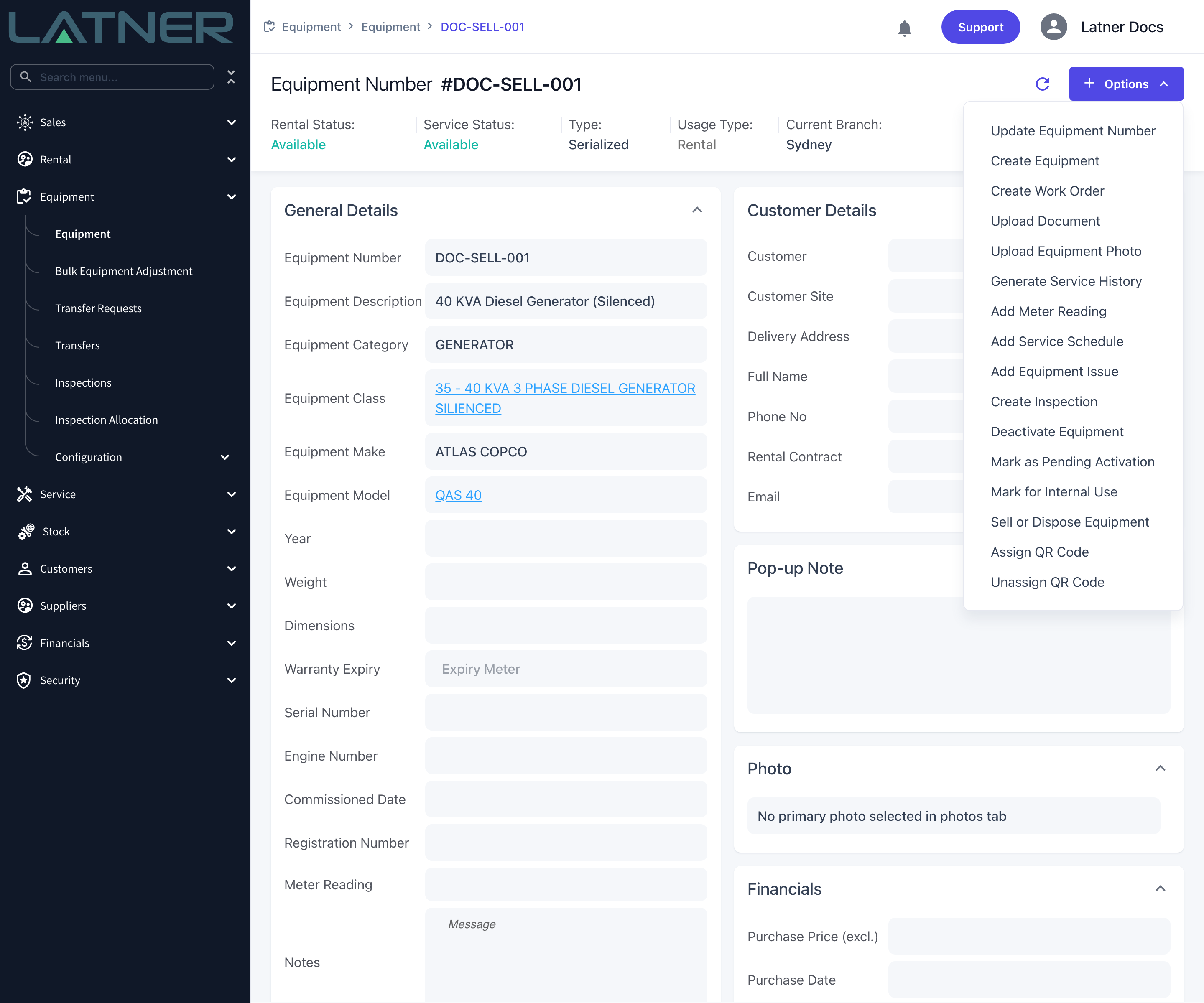
Go to Equipment › Equipment, open the machine, then choose Options › Sell or Dispose Equipment.
Step 2 - Choose Sold or Disposed and set the date
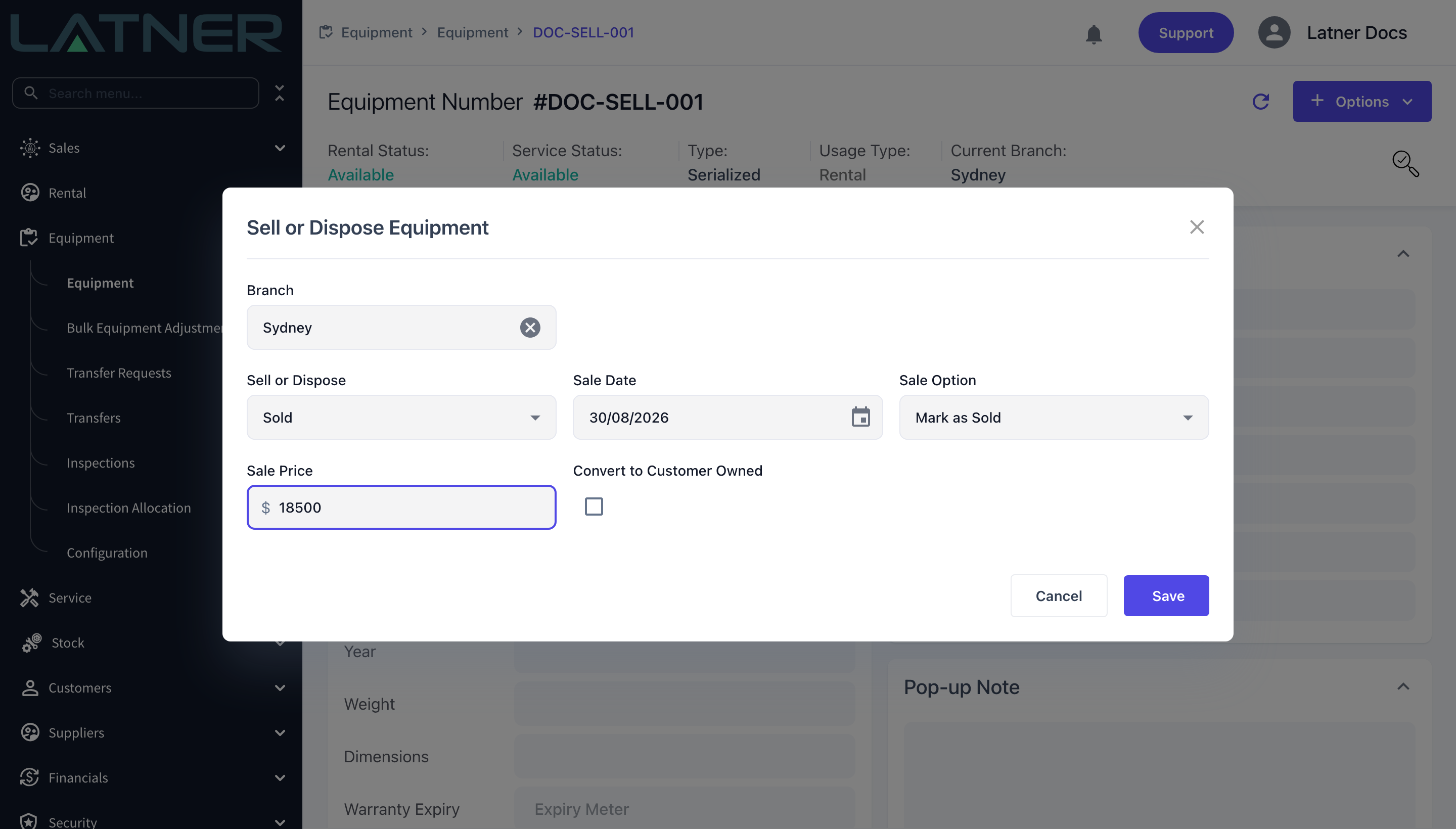
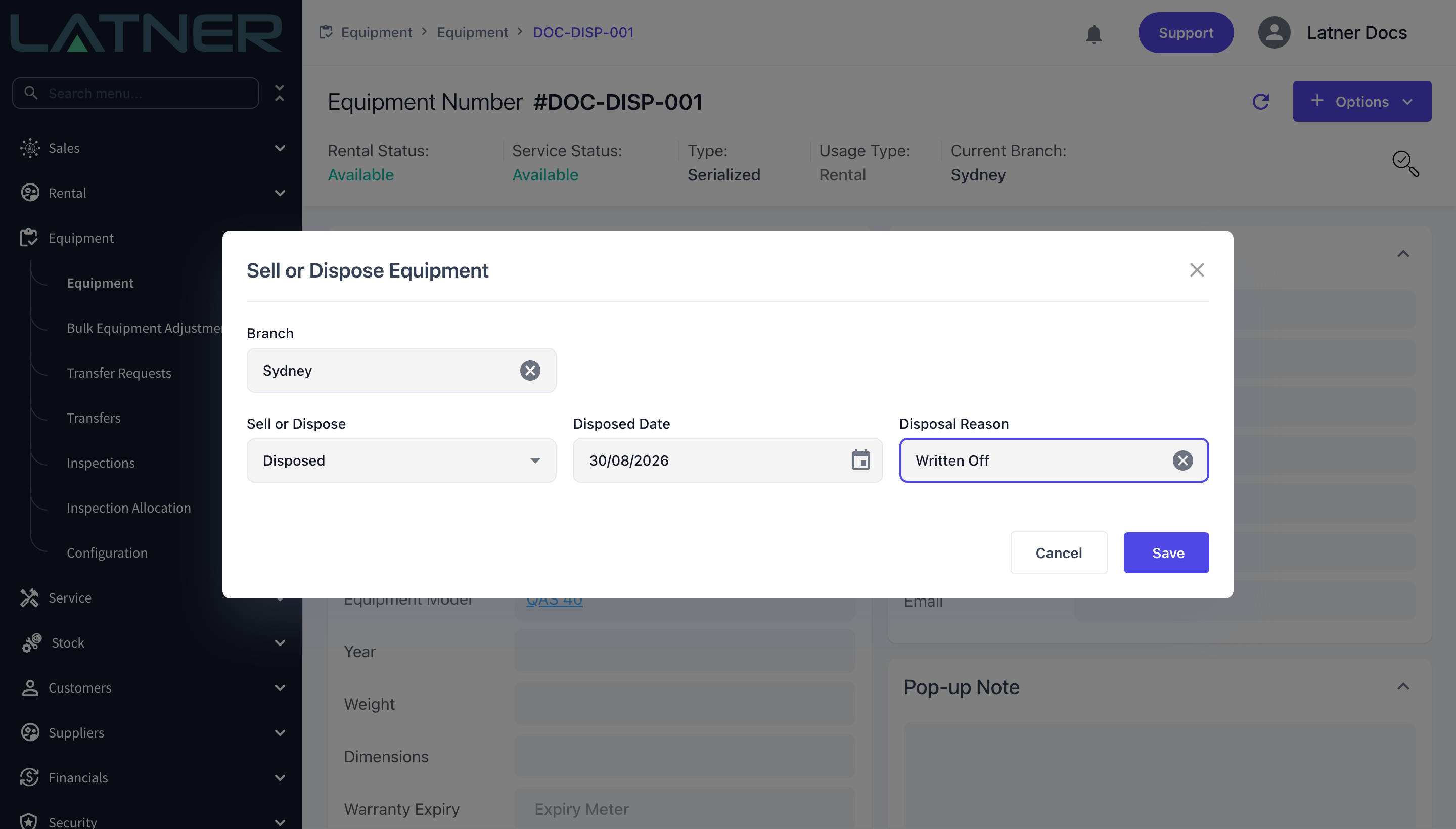
The window opens on Sold, with today's date and the machine's current branch already filled in. Change Sell or Dispose to Disposed if the machine is being written off rather than sold.
-
Branch - the branch the machine is going out of. Required, and it must have the quantity available.
-
Sell or Dispose - Sold or Disposed. Everything below changes with this choice.
-
Sale Date / Disposed Date - the date the machine actually left. Required.
-
Quantity - bulk equipment only. Serialised machines are always quantity 1, so the field is hidden.
Step 3 - If you are selling, pick a Sale Option
Sale Price is required for a sale (per unit, for bulk equipment). Sale Option then decides how much paperwork Latner raises:
-
Mark as Sold - records the sale straight onto the machine with no sales order and no invoice. The machine goes to Sold immediately. Use it for historical clean-up, or when the paperwork was raised somewhere else.
-
Create Sales Order Quote - raises a sales order you can quote and invoice later. Latner takes you to the new sales order.
-
Create Sales Order & Invoice - raises the sales order and invoices it in the same step. Latner takes you to the new invoice.
Either sales order option also asks for Customer, Customer Site (Delivery) and Sale Contact, and offers GST Inclusive - tick it when the price you typed already includes GST and Latner will work the tax back out of it.
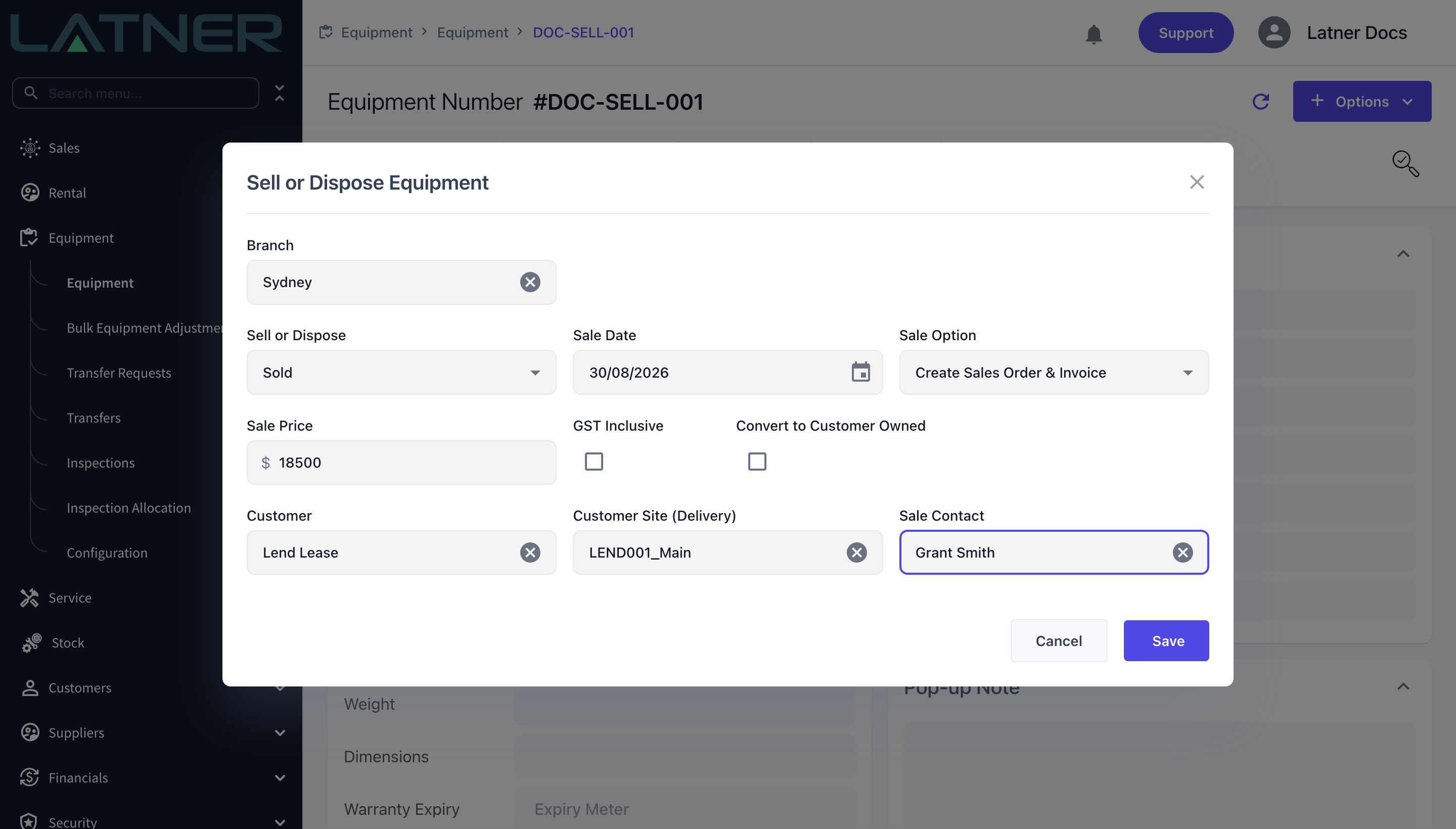
With either sales order option the machine does not go straight to Sold. It moves to Reserved for Sale and only becomes Sold when the sales order is invoiced (or sold without an invoice). Mark as Sold is the only option that completes the sale on the spot.
If you are selling the machine to a customer you'll keep servicing, tick Convert to Customer Owned. Instead of being archived, the machine stays in Latner as customer owned equipment under its new owner, keeps its service schedules, and appears on the Customer Owned Equipment tab. This is available for serialised machines only - bulk equipment can't be converted.
Step 4 - If you are disposing, pick a Disposal Reason
Switch Sell or Dispose to Disposed and the sale fields are replaced by a single required Disposal Reason, chosen from your configured list. There is no price on a disposal.
Step 5 - Save
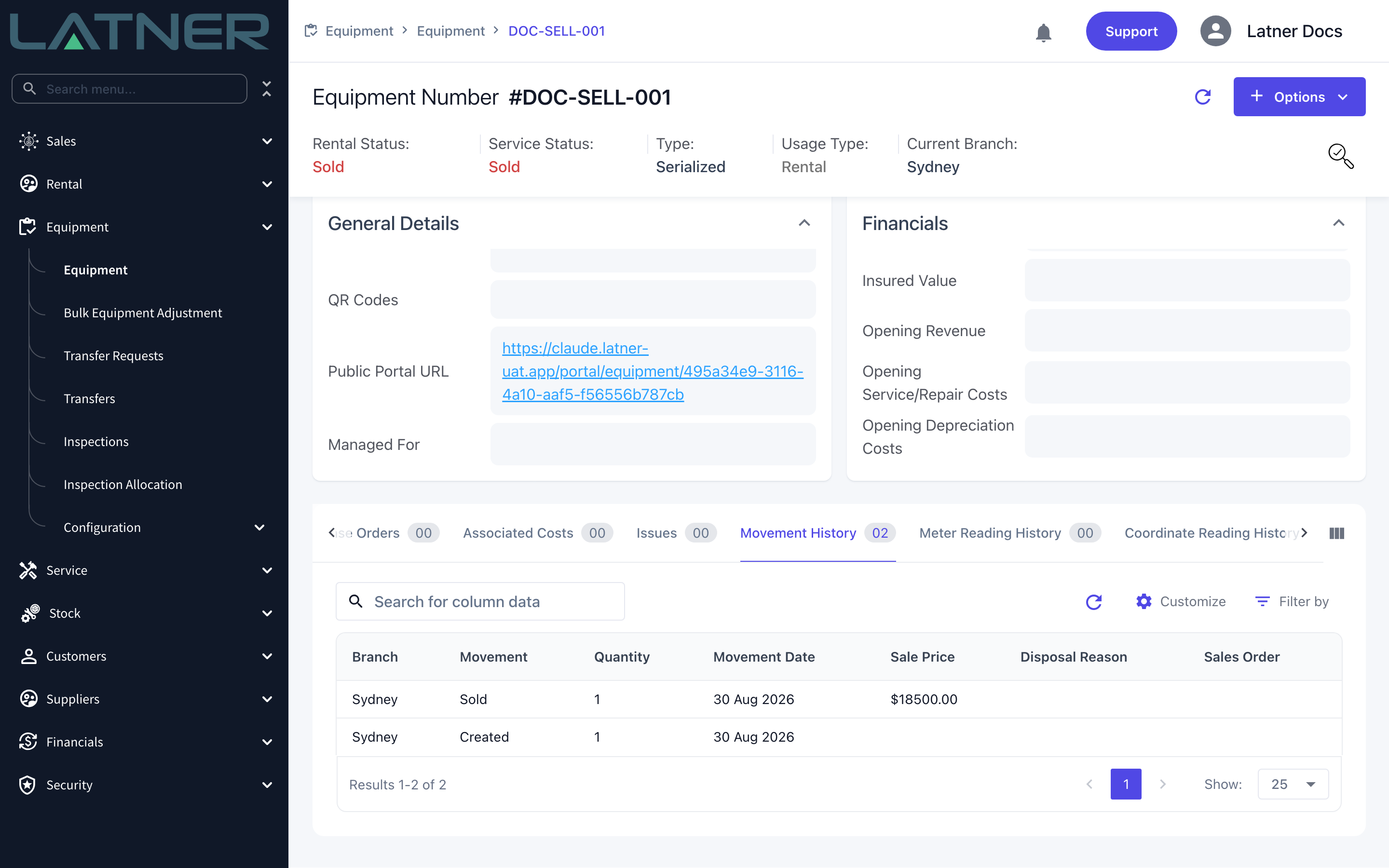
Click Save. For Mark as Sold and for disposals you stay on the equipment record, and the status strip updates immediately. For the sales order options you are taken to the sales order or invoice that was just created.
After the Sale or Disposal
-
An equipment movement is written, recording the branch, quantity, date, and the sale price or disposal reason. You'll find it on the machine's Movement History tab.
-
The branch's available quantity drops, and the quantity sold or disposed goes up on the Quantities tab.
-
The machine's linked asset is marked Sold or Disposed with the movement date as its sold or disposed date, so the next depreciation run stops depreciating it and reports the sold or disposed value.
-
Serialised machines move to the Archived Equipment tab on Equipment › Equipment. Bulk equipment only archives once the last of its quantity is gone.
-
The record keeps everything - rental history, work orders, invoices, documents and photos are all still there.
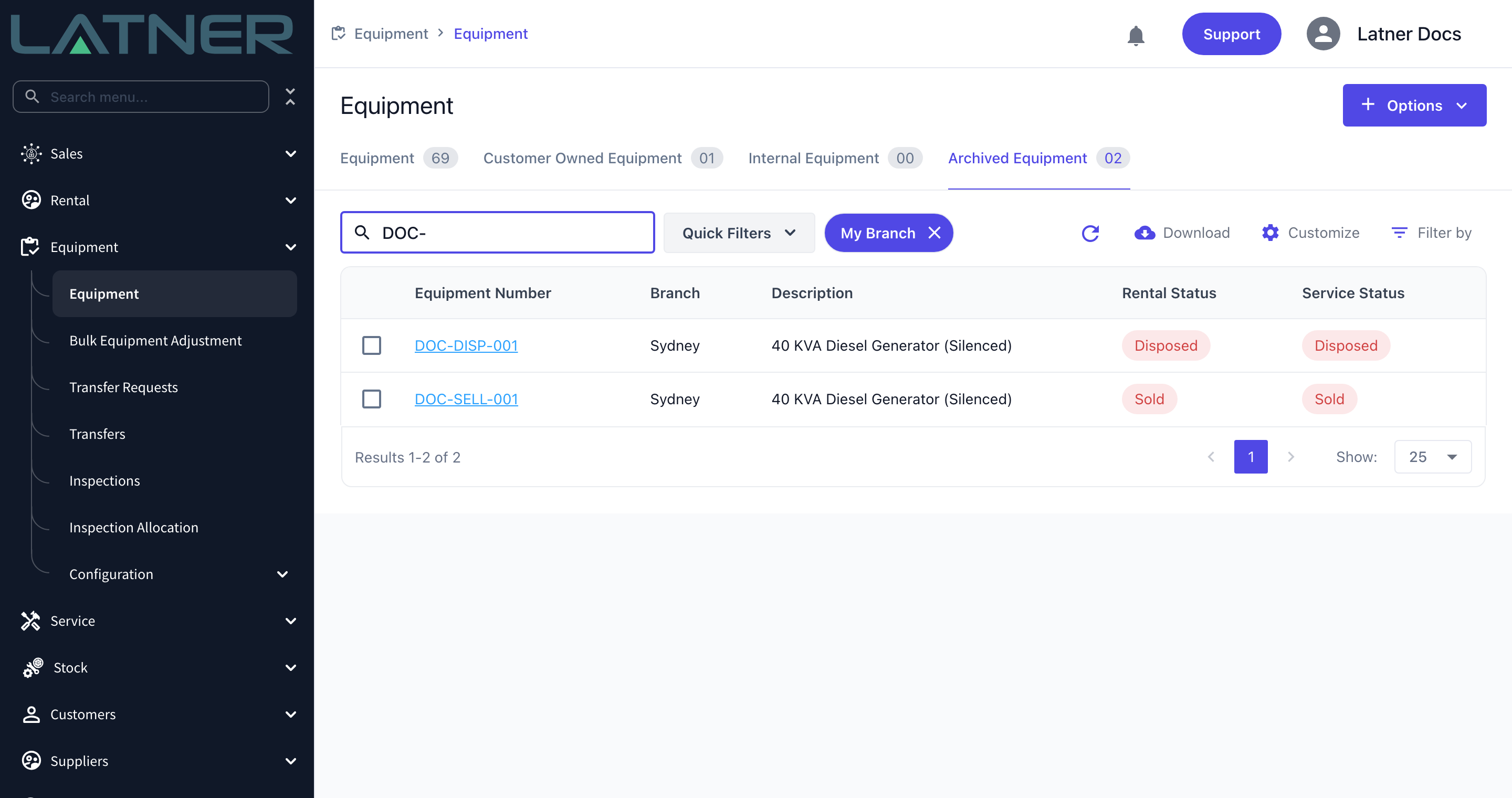
A disposal cannot be undone. If there is any chance the machine will come back - it is only off the road, or you are tidying up a record entered by mistake - use Options › Deactivate Equipment instead, which Activate Equipment reverses at any time.
Reversing a Sale
If a sale was recorded with Mark as Sold and shouldn't have been, open the machine and choose Options › Reverse Sale, then pick the sale from the list. Each entry shows its date, quantity, sale price and branch, so you can tell two sales of the same bulk line apart.
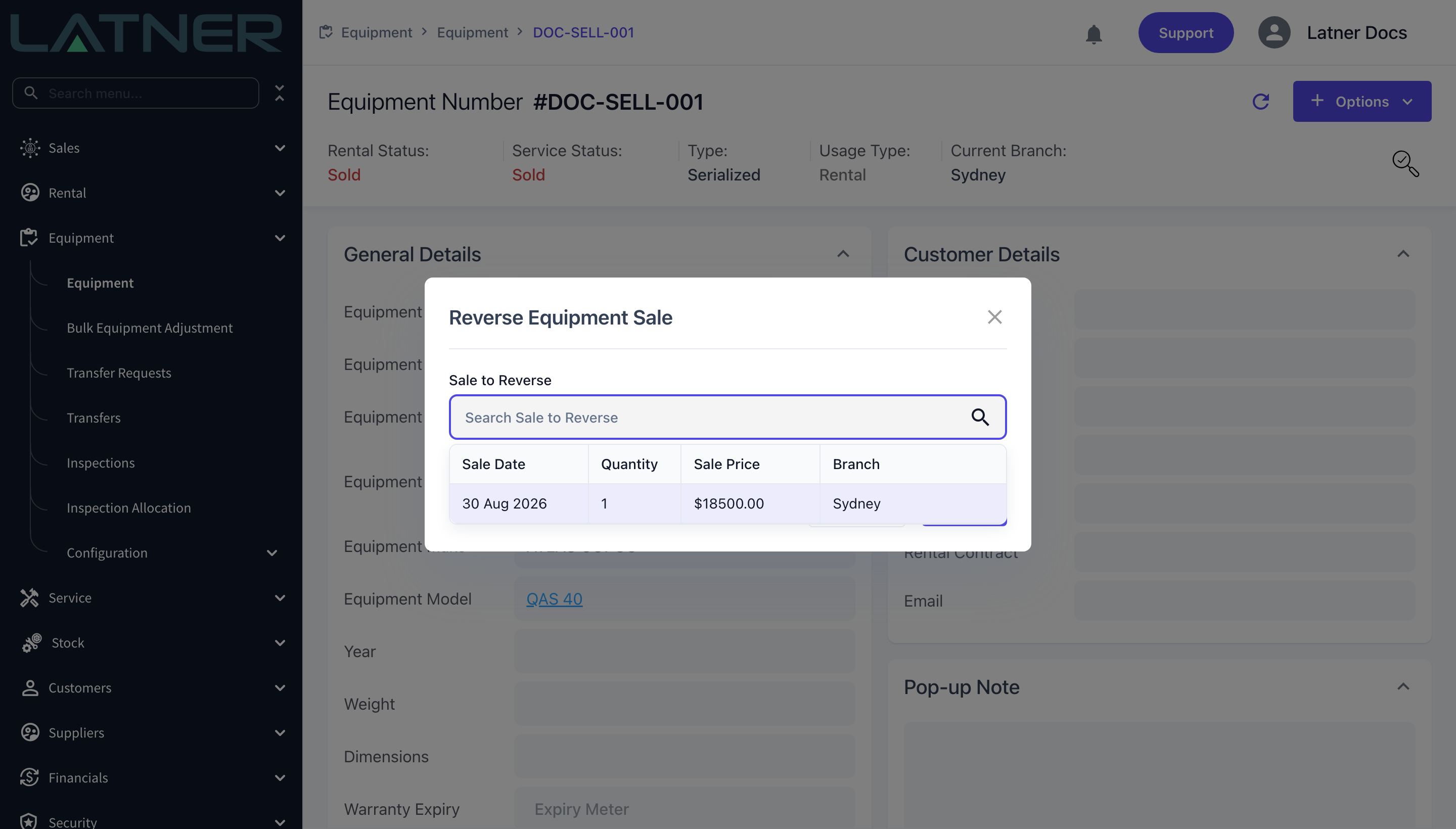
Reversing puts the quantity back to available, returns the machine to Available, deletes the sale movement, and restores the linked asset. If the sale had converted the machine to customer owned, that is undone too and the machine returns to your rental fleet.
Only sales recorded with Mark as Sold can be reversed here. A sale that went out on a sales order is unwound through the sales order or its invoice instead, and disposals cannot be reversed at all.
FAQs
Watch the Demo
Prefer to watch it? Step through the same flow here.