
A QR code sticker on a machine lets anyone with a phone reach that machine's information instantly - no login, no app. The same code system drives two things: a customer documentation portal, and public pre-start operator checks.
Overview
You order or print durable QR labels, then assign each label to one equipment record in Latner. A label carries a short code, and Latner resolves that code to the machine when it is scanned - so one sticker always means one machine.
There are two kinds of code, and a machine can carry one of each:
-
Portal - opens the customer equipment portal: documentation, inspection history and service history for that machine.
-
Pre-Start - opens a public pre-start checklist for the operator to complete before using the machine.
Scanning also works for your own staff: if the person scanning is logged in to Latner, a Portal code takes them straight to the internal equipment record instead of the customer view.
Before You Begin
|
Requirement |
Where to Find It |
|---|---|
|
Assign Equipment QR Code permission |
Security › Configuration › Permission Groups - Equipment module, under Options |
|
Printed QR labels |
Any durable-label supplier (many customers use Certags). Latner does not supply labels - you choose the code text, so plan a simple scheme such as your equipment number. |
|
Pre-Start feature enabled |
Pre-Start operator checklists are a paid add-on that Latner must switch on for your account. Contact Latner support to request it. QR codes and the customer portal are part of the standard product. |
Assigning a Code to a Machine
Open the equipment record and choose Options › Assign QR Code. Set Type to Portal or Pre-Start, then enter the label's code in New QR Code Text - you can scan the sticker with your device camera instead of typing it. Leave Current QR Codes blank to add a code, or select an existing one to replace it (handy when a sticker is damaged and you fit a new one).
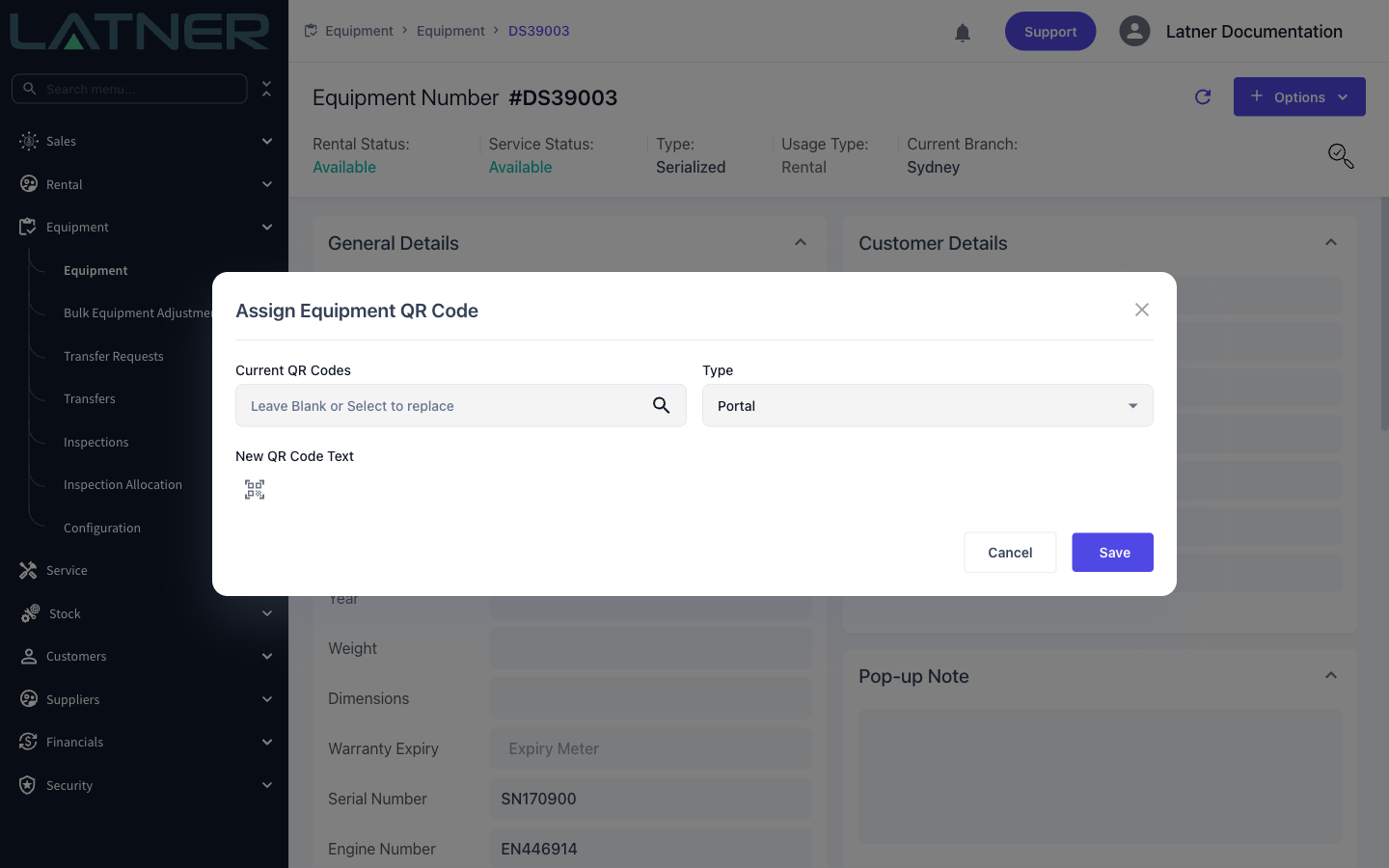
Once assigned, the equipment record shows its codes under QR Codes, along with the Public Portal URL you can use to test a scan from a desktop browser. Codes are unique across your whole system, so if you try to reuse one you'll be told it is already assigned to another machine. To remove a code, use Options › Unassign QR Code.
Your scanned codes are also searchable: type or scan a code into the equipment search and Latner finds the machine.
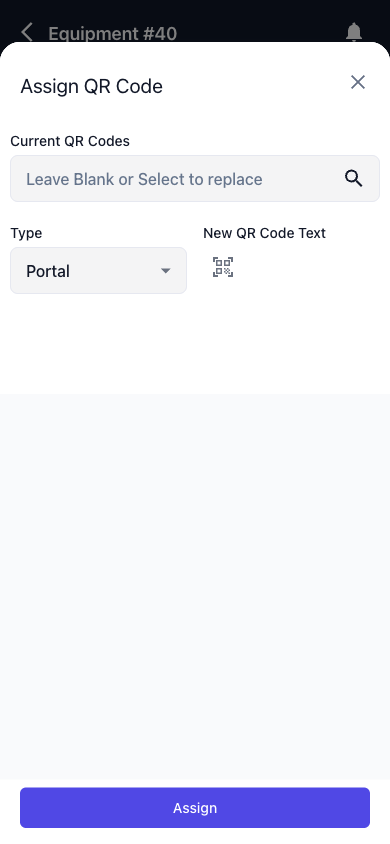
In practice you will usually be doing this in the yard with the sticker in your hand, so the same job works from the Latner app on your phone. Open the machine under Equipment, tap Actions › Assign QR Code, set the Type, then tap the scan icon next to New QR Code Text to read the label with your camera rather than typing the code. Tap Assign to save.
Choosing What Customers See
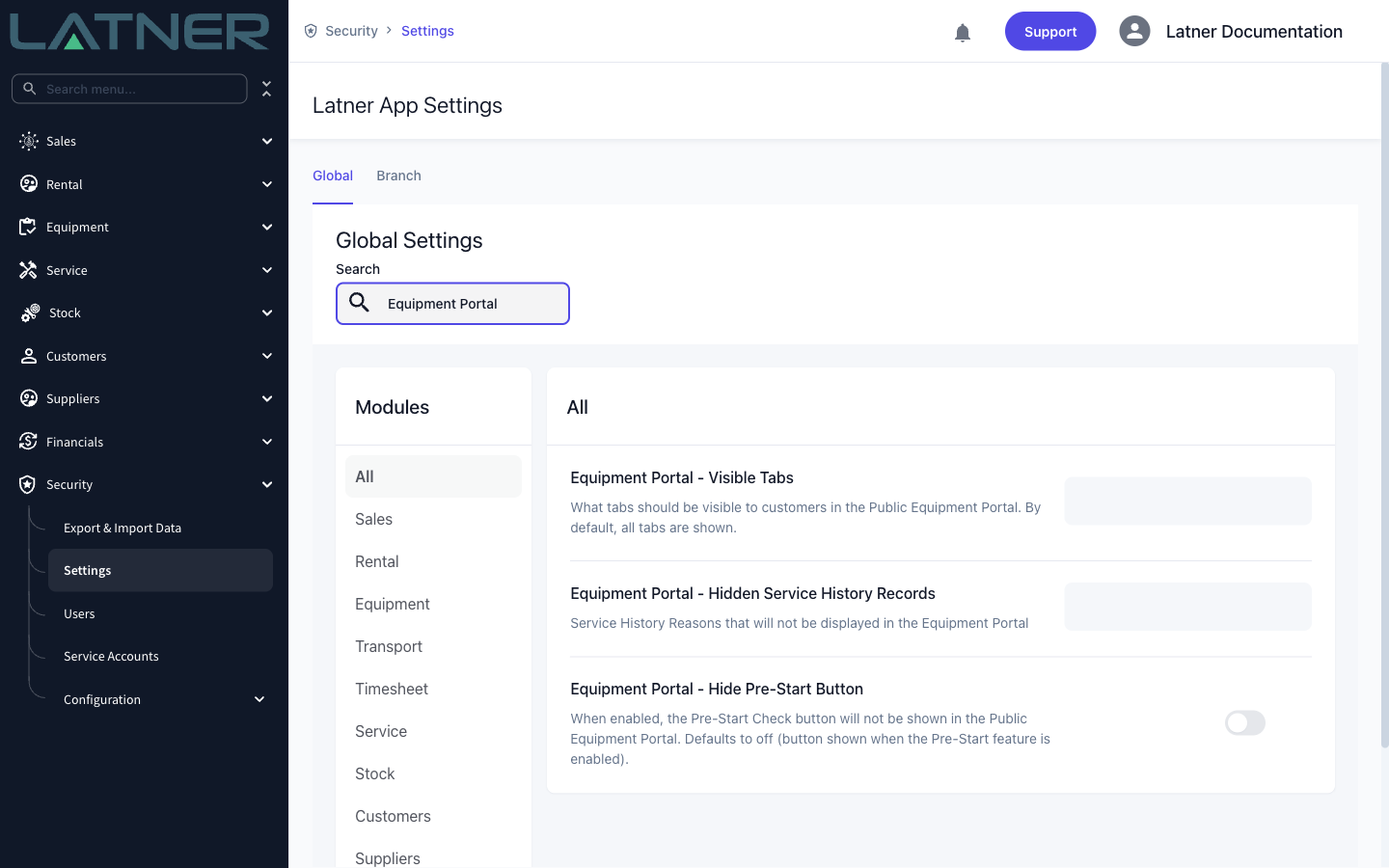
The customer portal has four possible tabs - Documentation, Inspection History, Service History and Pre-Start. By default all of them are shown. To limit that, go to Security › Settings › Equipment and set Equipment Portal - Visible Tabs, choosing only the tabs you want customers to see.
Two related settings sit alongside it: Equipment Portal - Hidden Service History Records lets you exclude particular service reasons from the customer's view, and Equipment Portal - Hide Pre-Start Button hides the pre-start entry point while keeping the history visible.
Loading Documentation for the Portal
The Documentation tab only shows files you have uploaded against a portal documentation type - operator manuals, SWMS, certification and so on. Latner seeds a standard list, and you can add your own at Equipment › Configuration › Portal Documentation Types.
To attach a file, open either the equipment record or its equipment model, go to the Portal Documentation tab, expand the document type you want and upload the file. Uploading against the model is the efficient route - every machine of that model inherits the file, so one operator manual covers the whole class. Use the individual equipment record only for documents specific to that unit, such as its certification.
Note: if a customer says the specifications or manual are missing, it is almost always because no file has been uploaded against that document type yet - the tab lists every active type whether or not it holds a file.
What the Customer Sees
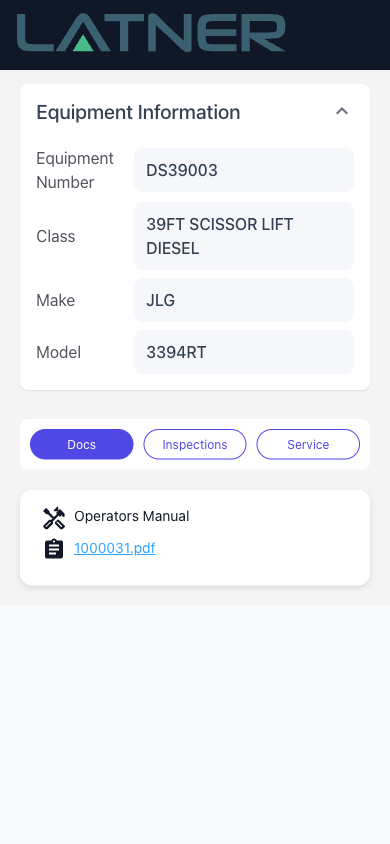
Because most scans happen on a phone in the yard, the portal is designed for mobile. The customer gets the machine's identity and details at the top and the tabs you enabled underneath - no login required.
Setting Up Pre-Start Checks
Pre-start checks let the operator complete a safety checklist on their own phone before using a machine, with the result recorded in Latner. Setting it up takes three things:
-
A checklist template. Go to Equipment › Configuration › Checklist Templates and create a template with type Pre Start, adding the tasks the operator must confirm.
-
The template assigned to your fleet. Open an Equipment Class or Equipment Model and set its Pre Start Checklist field. Latner looks at the model first and falls back to the class, so set it on the class for a general check and on a model only where that model needs something different. There is no per-machine override.
-
A Pre-Start QR label on the machine, assigned with Type set to Pre-Start as above.
The operator scans the label, verifies themselves once with their name and mobile number (a code is texted to them - no Latner login needed), then works through the checklist, with a Pass All shortcut, free-text notes and up to five photos. Completed checks appear against the machine and on the portal's Pre-Start tab.
Note: a pre-start can only be completed while the machine is on an active rental contract, and only if a checklist template is configured for its model or class. This keeps checks tied to a real hire.
Pre-Hire and Pre-Start Are Different Things
These two are easy to confuse:
-
QR Pre-Hire inspections are part of your standard Latner product - your own staff inspecting a machine before it goes out.
-
Pre-Start operator checklists are the public, customer-facing check described above, completed by the operator using the machine. This is a paid add-on that Latner enables for your account.
If the Pre-Start feature is not enabled you will not see a Pre-Start Portal URL on equipment records, and pre-start links will not open. Contact Latner support to have it switched on.