
Equipment Documents let you store the paperwork for a single machine - its registration, insurance certificate, risk assessment or specification sheet - against the equipment record itself, with a document type and an expiry date so nothing quietly lapses.
Overview
Every machine collects paperwork, and most of it belongs to that machine alone. Latner keeps those files on the equipment record, tagged with a document type so you can tell a registration from a lifting certificate at a glance.
-
Documents are attached to one equipment record and live on its Documents tab, not on the equipment class or model.
-
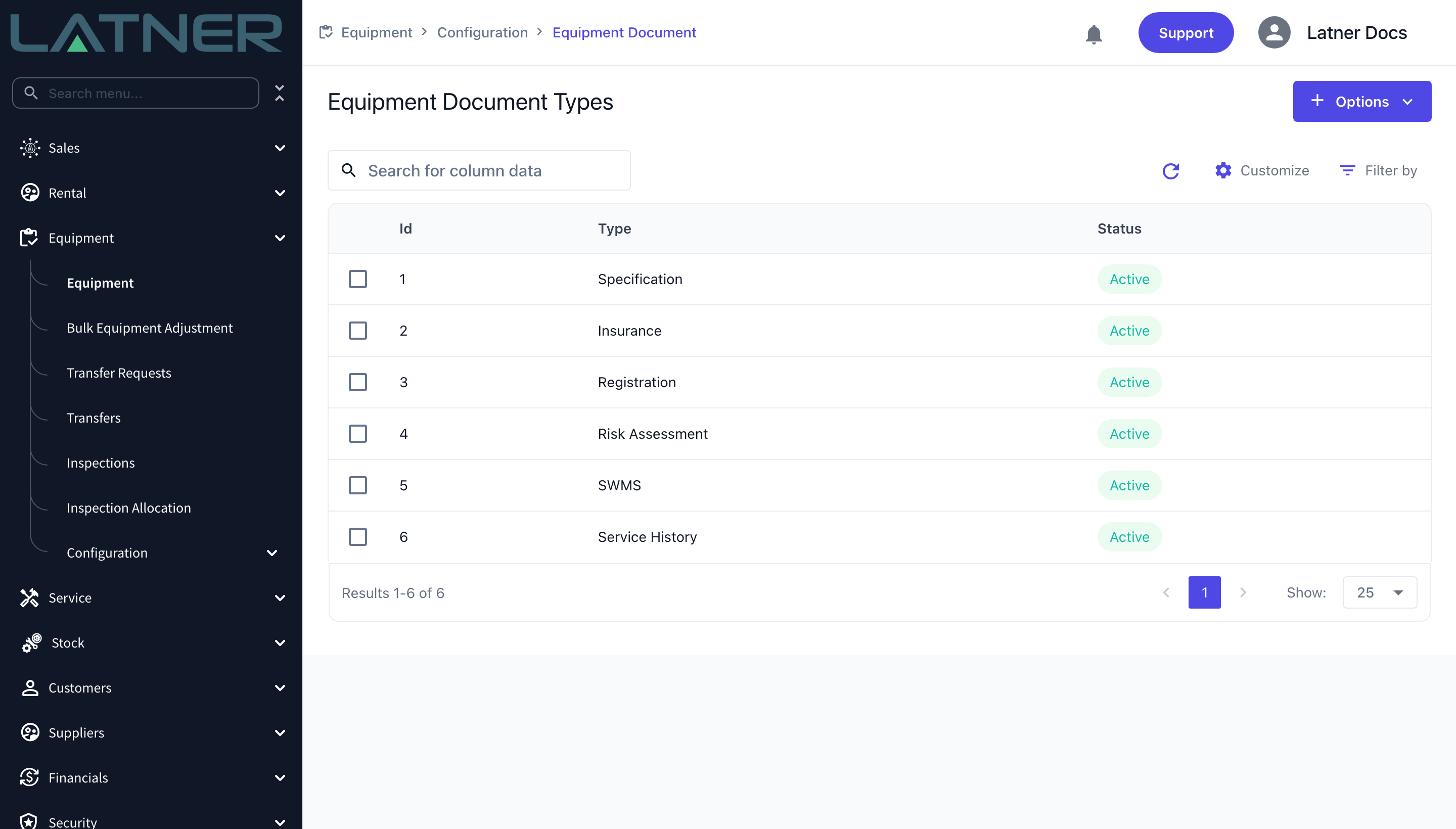
Every document must have a Document Type. Latner ships with six - Specification, Insurance, Registration, Risk Assessment, SWMS and Service History - and you can add your own.
-
An optional Expiry Date drives the document's status: Active until the expiry date arrives, Expired from that date onwards.
-
You can upload the same document type more than once against the same machine, which is what you want when a certificate is renewed.
-
Documents that are no longer current can be deactivated, which keeps the file and its history on the record.
-
Equipment documents are internal. They are not the files your customers see in the equipment portal - those are Portal Documentation, which is configured separately.
Before You Begin
Check that you have the following in place.
|
Requirement |
Where to Find It |
|---|---|
|
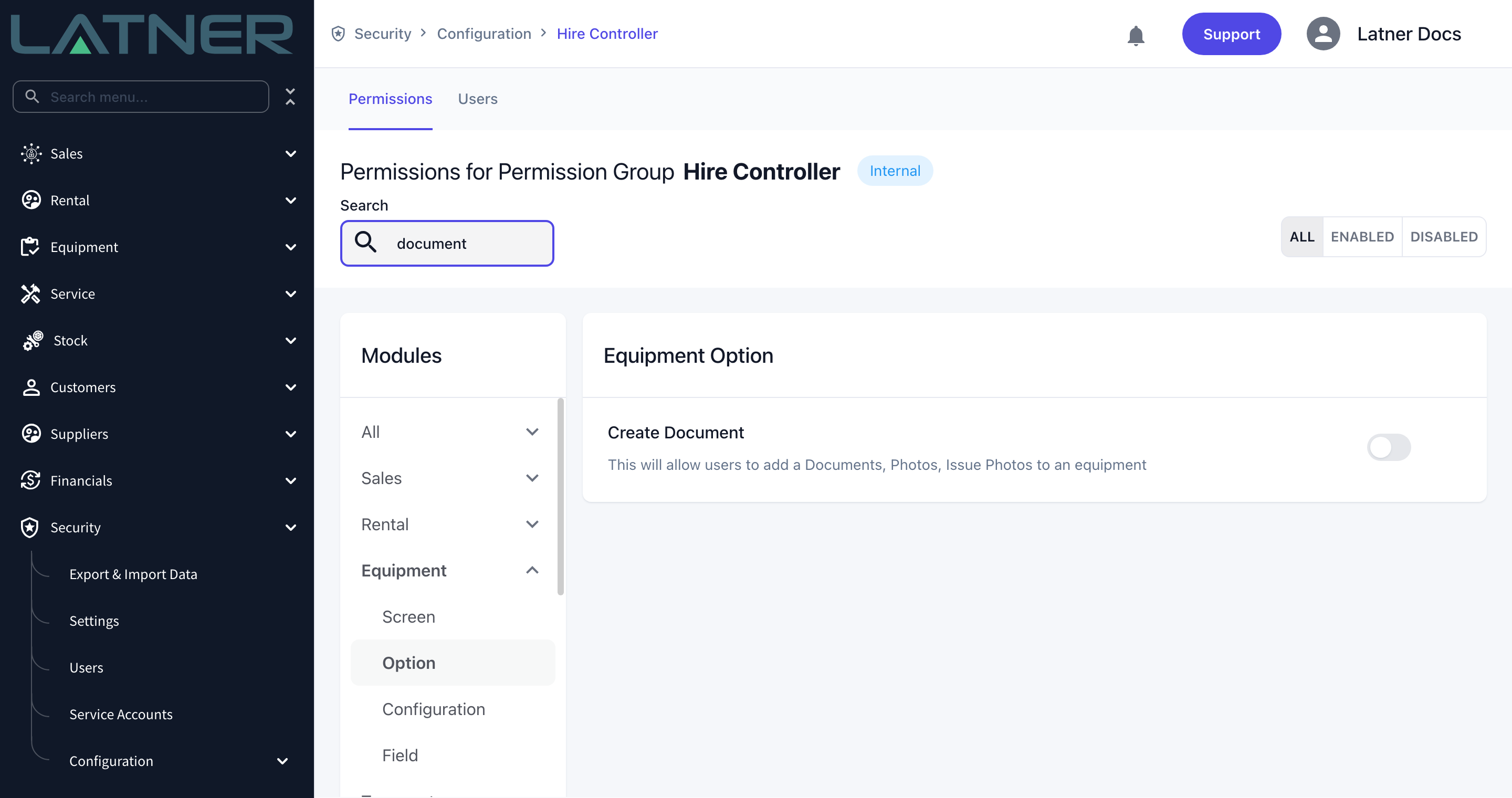
Create Document permission |
Security › Configuration › Permission Groups › [your group] › Equipment › Option. This covers uploading, editing, deleting and deactivating equipment documents. |
|
Equipment Document Type permission |
Security › Configuration › Permission Groups › [your group] › Equipment › Configuration. Only needed if you have to create a new document type. |
|
An equipment record that is not Inactive or Pending Activation |
Equipment › Equipment. The Upload Document option is disabled on equipment with either of those rental statuses. |
|
A file in a supported format |
Images (jpg, jpeg, png), PDF, Office and text files (csv, xls, xlsx, txt, doc, docx), and machine files (mch, machine, mx3). |
The document types you create are shared across the whole business, so it is worth agreeing on names before you start adding them. A type cannot be deleted once it exists - it can only be made Inactive.
Creating the Document Type
Skip to the next section if the type you need is already on the list.
Step 1 - Open the Equipment Document Types screen
Go to Equipment › Configuration › Equipment Document Types. The screen lists every type with its status.
Step 2 - Add the new type
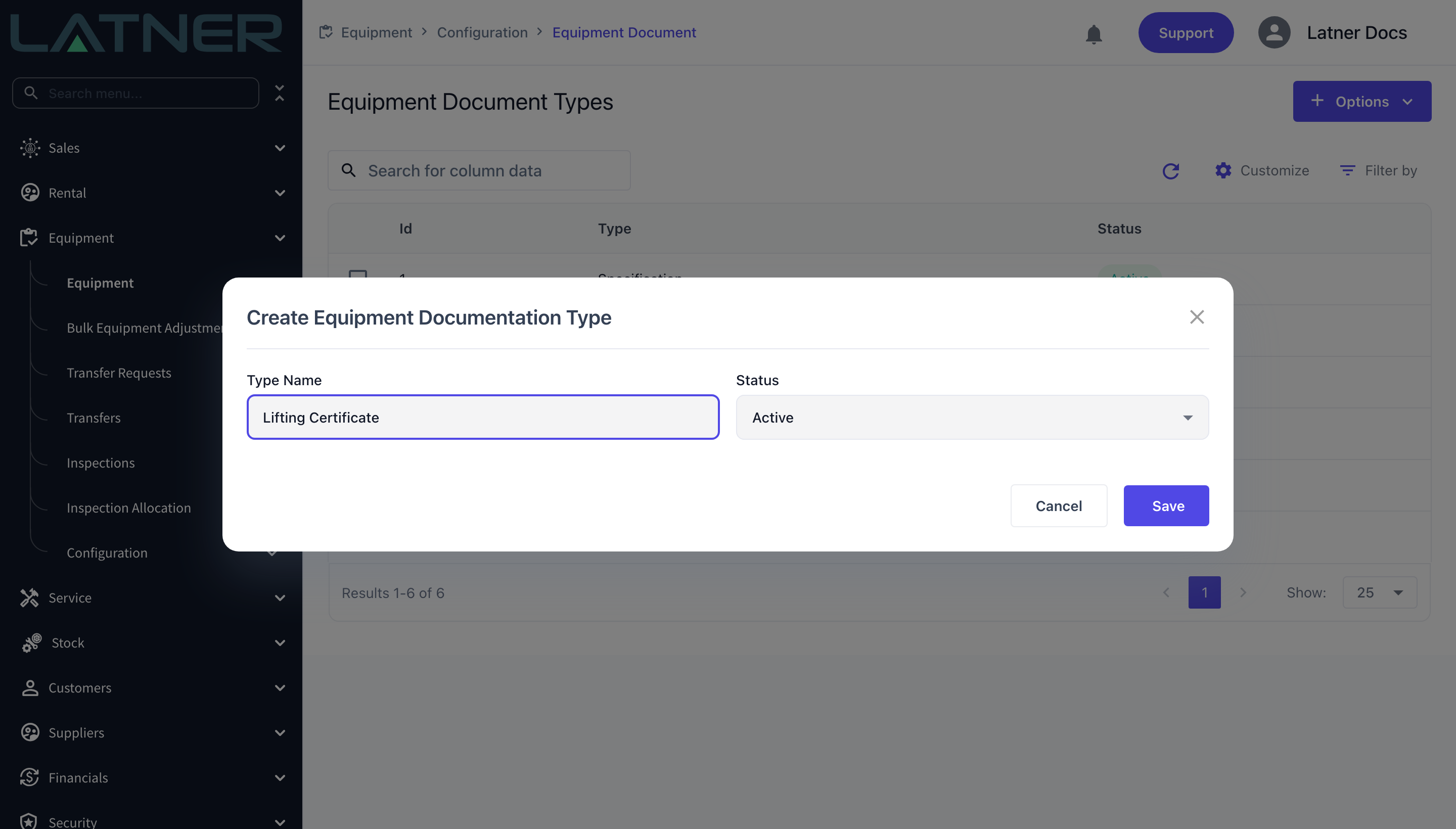
Select Options › Create Equipment Document Type and complete the Create Equipment Documentation Type dialog.
-
Type Name - required, and must be unique. This is the name people will pick from when they upload a file, so keep it short and specific ("Lifting Certificate" rather than "Certificate").
-
Status - required, and defaults to Active. Only Active types can be selected when uploading a document.
Step 3 - Save
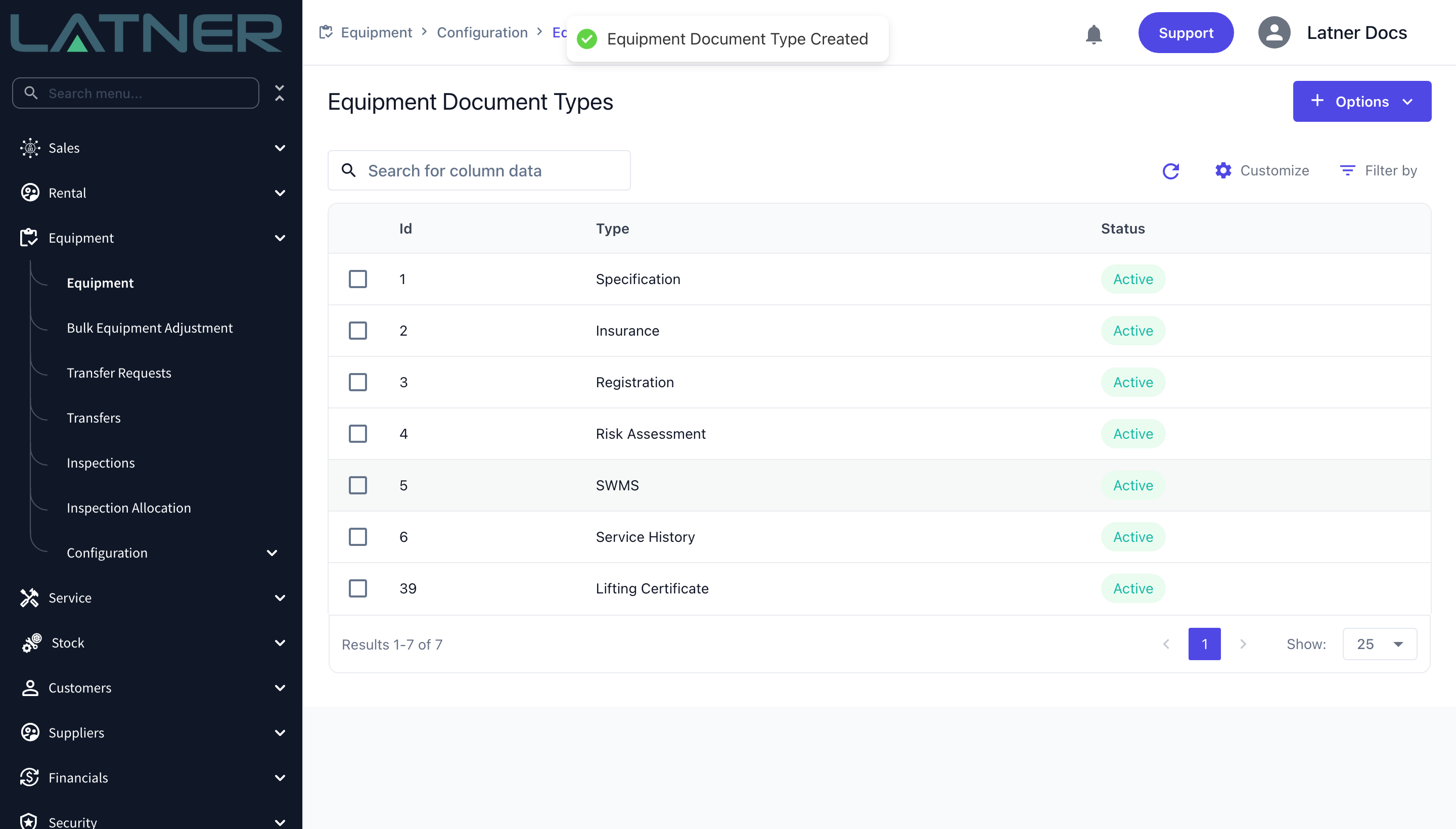
Select Save. The new type appears at the bottom of the list and is immediately available on every equipment record.
Adding the Document to the Equipment
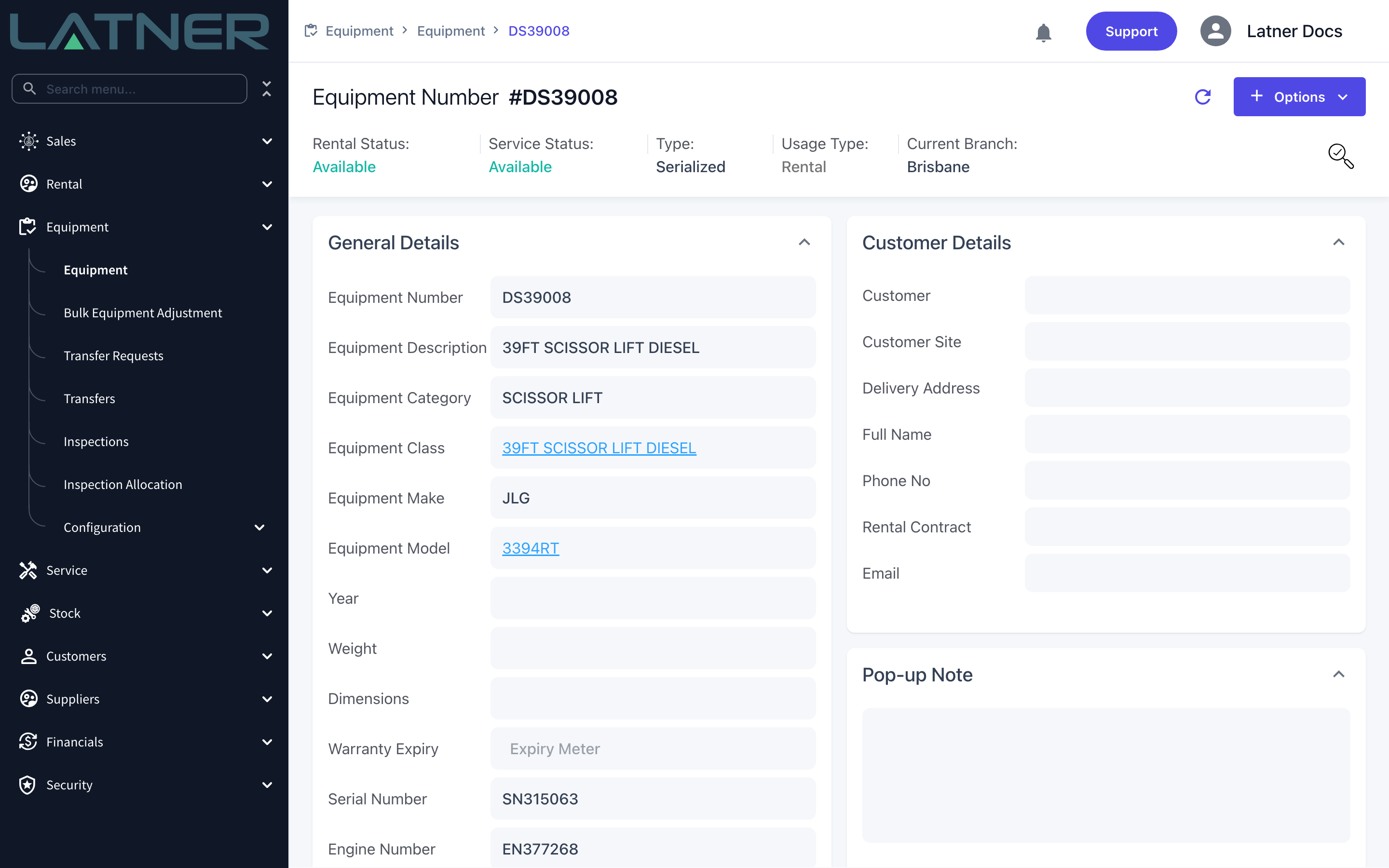
Step 4 - Open the equipment record
Go to Equipment › Equipment and open the machine you want to attach the file to.
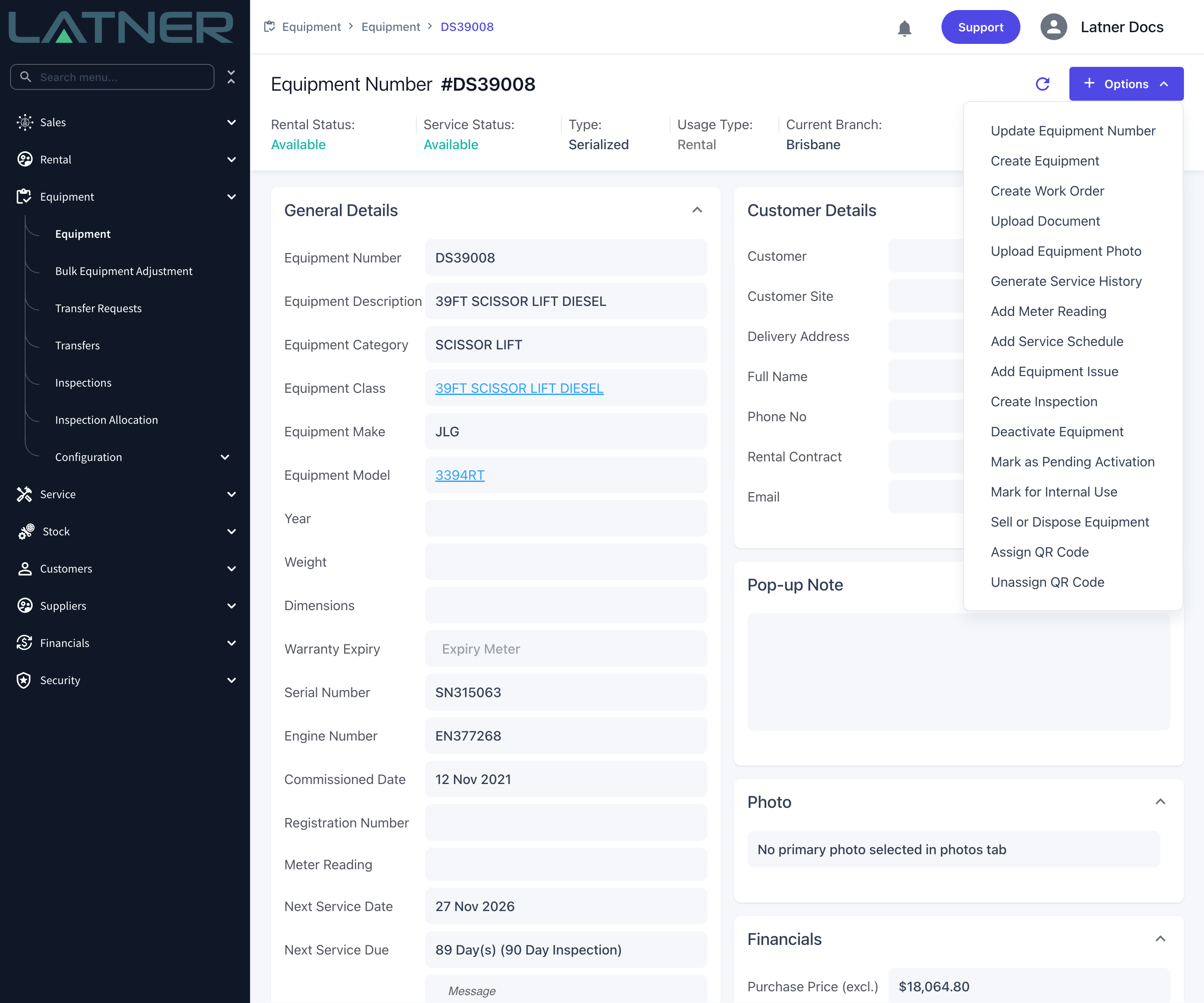
Step 5 - Choose Upload Document
Select Options › Upload Document.
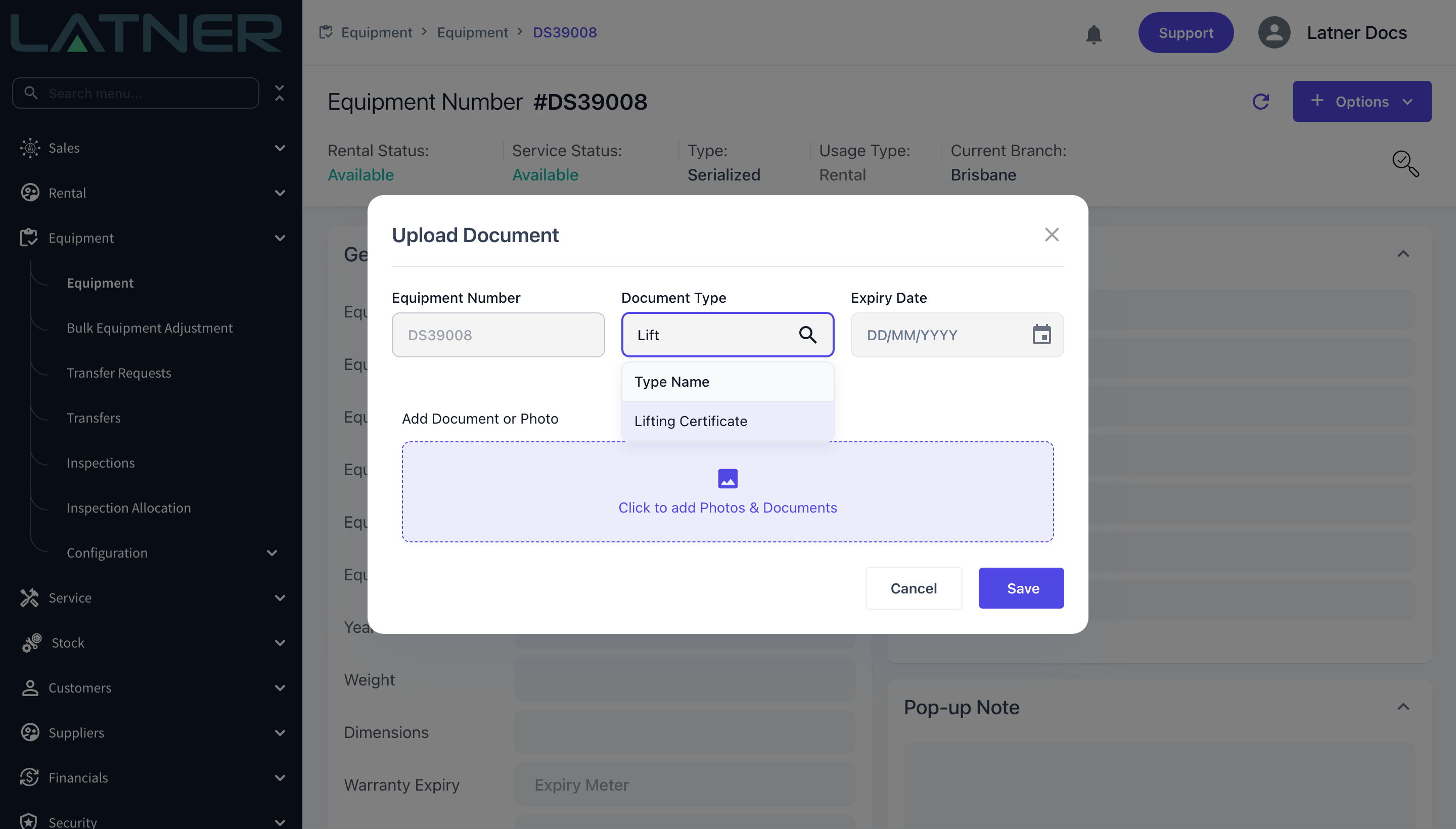
Step 6 - Pick the document type
Equipment Number is filled in for you and cannot be changed - it confirms which machine you are attaching the file to. In Document Type, start typing and select the type from the list.
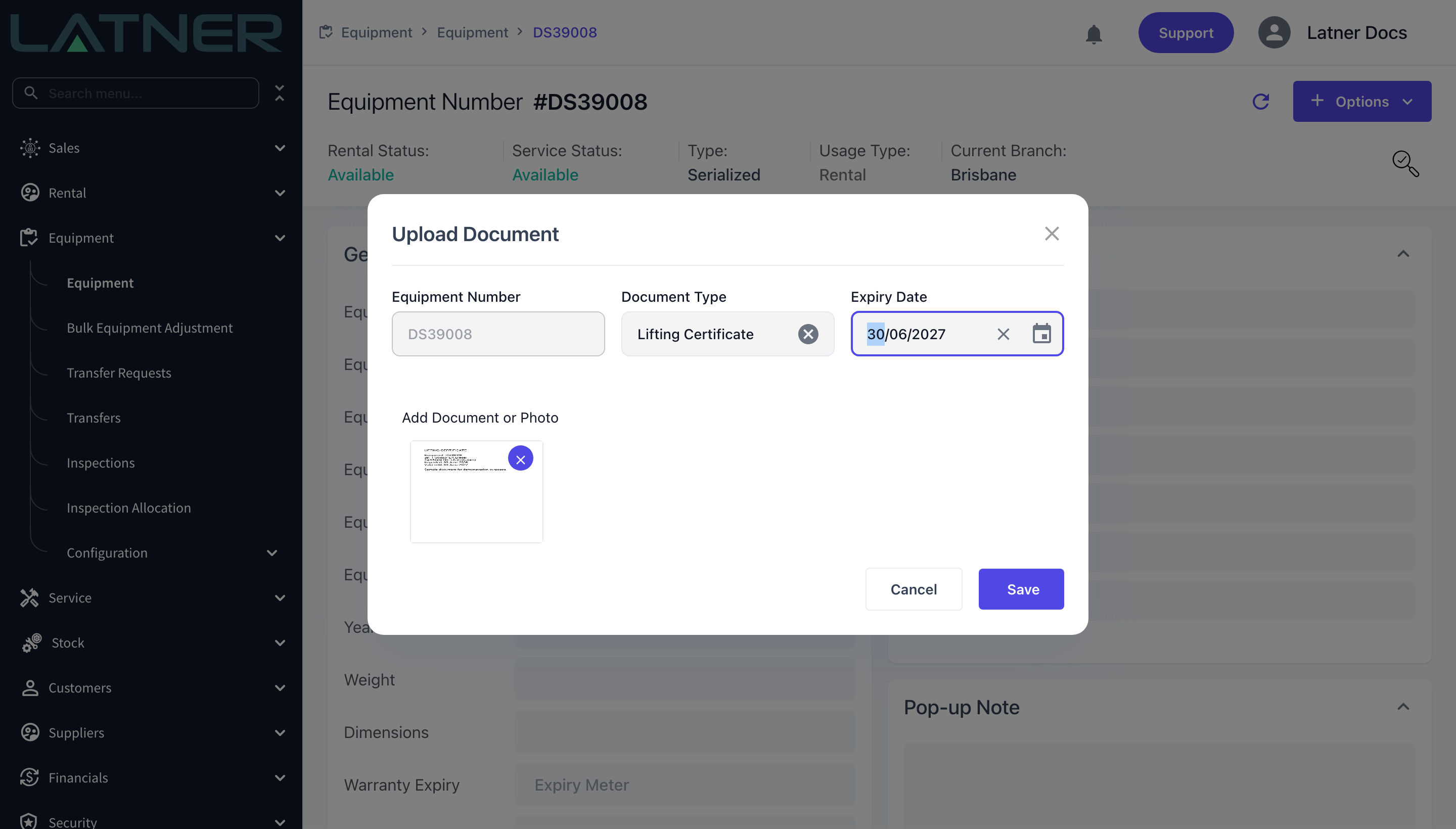
Step 7 - Set an expiry date and attach the file
Fill in the rest of the dialog.
-
Expiry Date - optional, in DD/MM/YYYY format. Set it for anything that lapses (registration, insurance, certification) and leave it blank for reference documents such as a specification sheet.
-
Add Document or Photo - select Click to add Photos & Documents and choose the file. One file per document line.
Step 8 - Save
Select Save. Latner confirms with a Document Uploaded message and the file appears on the Documents tab of the equipment record.
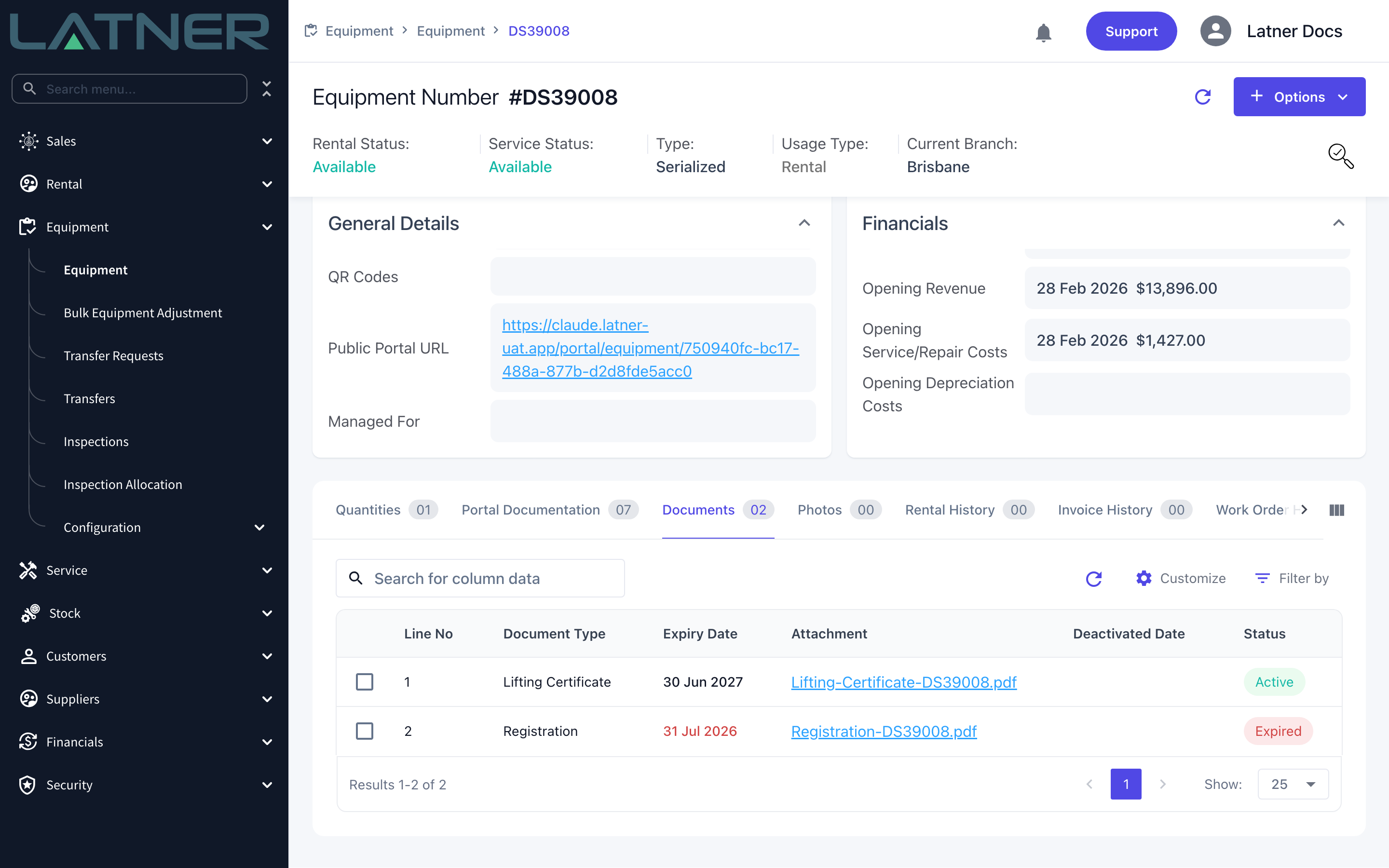
You can skip the Options menu entirely: drag a file onto the Documents tab and Latner opens the same dialog with the file already attached, so you only have to pick the type and the expiry date.
After Uploading
-
The document is listed on the equipment's Documents tab with its line number, type, expiry date, attachment link and status. Select the file name to open it.
-
Status is worked out for you: Active for a current document, Expired once the expiry date is today or earlier, and Inactive once the document has been deactivated.
-
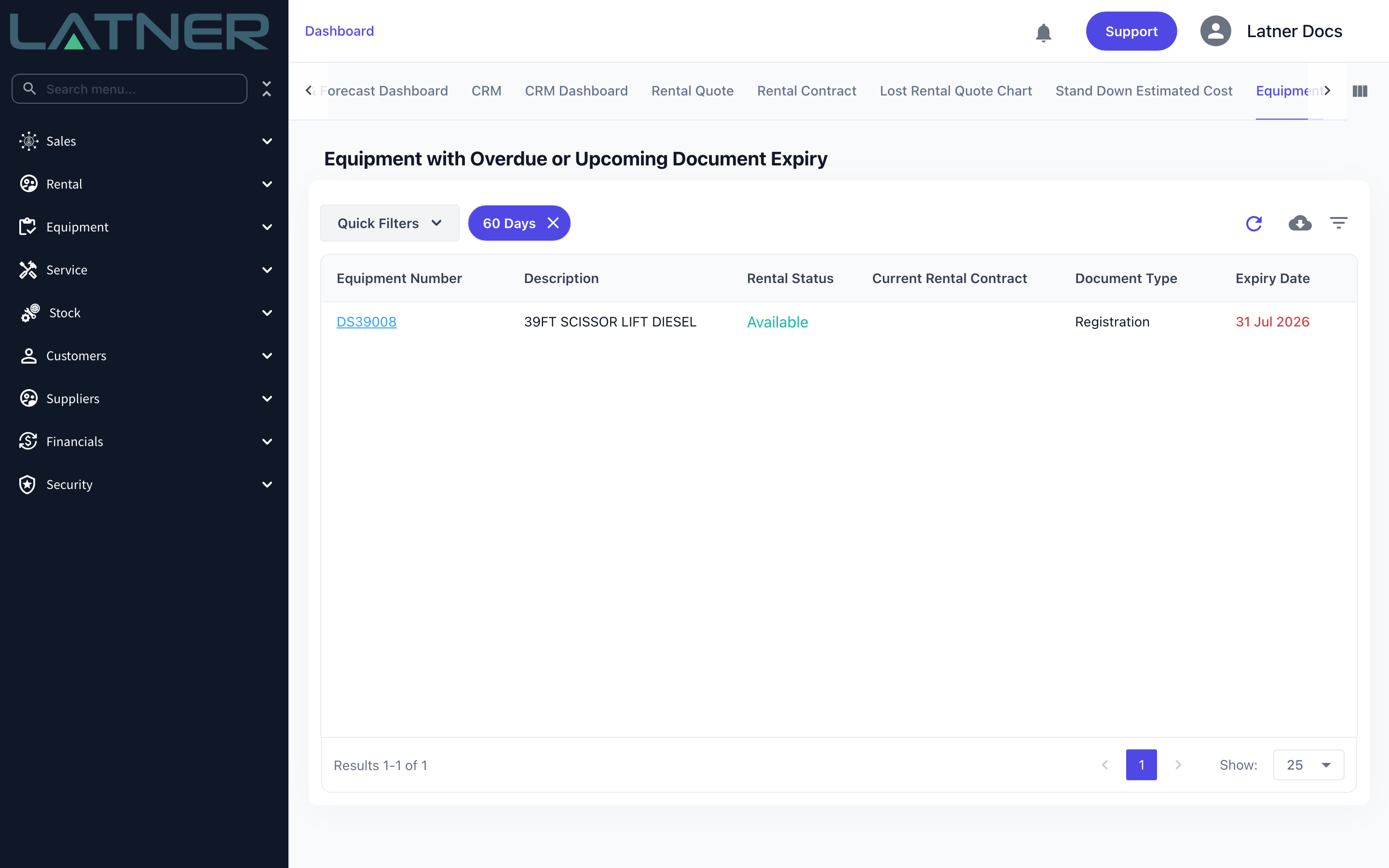
Equipment with a document expiring soon (or already expired) is listed on Dashboard › Equipment under Equipment with Overdue or Upcoming Document Expiry, with quick filters for 60 Days, 90 Days, Registration, Internal Equipment and On Rent.
-
That dashboard shows only the latest document of each type per machine, ignores deactivated documents, and leaves out equipment that is Inactive, Sold, Disposed, Converted or Pending Activation.
-
To take a document out of circulation, tick its row on the Documents tab and select the Deactivate Document icon. The row stays, with a deactivated date and a status of Inactive.
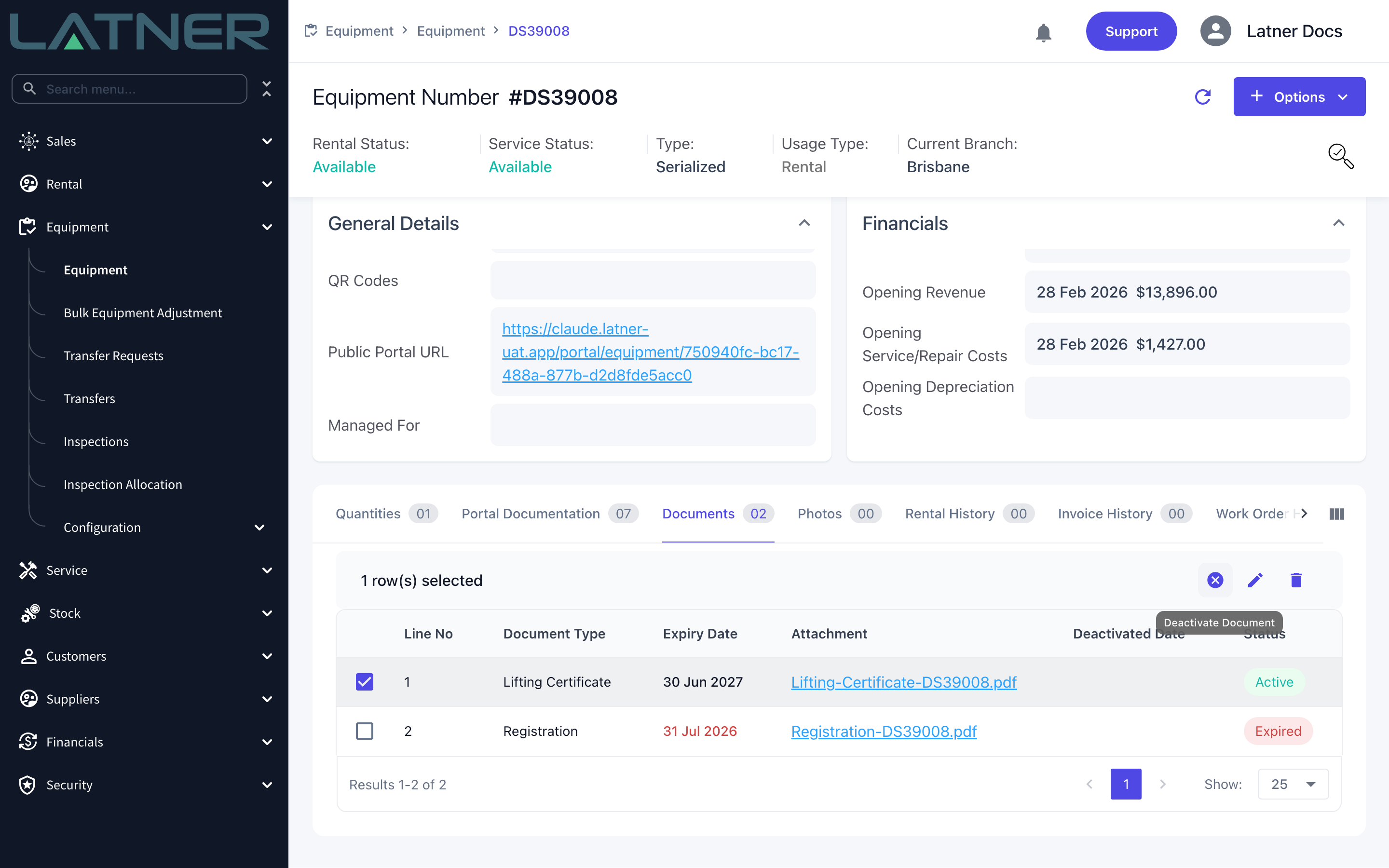
Deactivating a document cannot be undone, and deleting a row removes the file for good. If a certificate has simply been renewed, upload the new one against the same document type instead - the Documents tab keeps both, and the dashboard follows the latest expiry date.
FAQs
Watch the Demo
Prefer to watch it? Step through the same flow here.