
Managed For equipment lets you record a machine that a supplier owns but you look after, so you can hire it out on a rental contract and have the sub hire order raised back to its owner automatically.
Overview
Not every machine in your yard has to be yours. When you regularly hire in a unit from another supplier and keep it on site, you can bring it into Latner as ordinary equipment and then record who actually owns it using the Managed For field. Managed For equipment:
-
Is created exactly like your own rental equipment, then linked to its owner afterwards - there is no separate usage type for it.
-
Gets its own equipment number, service schedules, inspections and meter readings, so you can track the physical unit as if it were fleet.
-
Can be added to a rental contract as a Sub Hire Equipment line with an Equipment Type of Internal, which raises a sub hire order to the owning supplier.
-
Is reserved and given a run-up inspection when it goes on a contract, just like your own equipment.
-
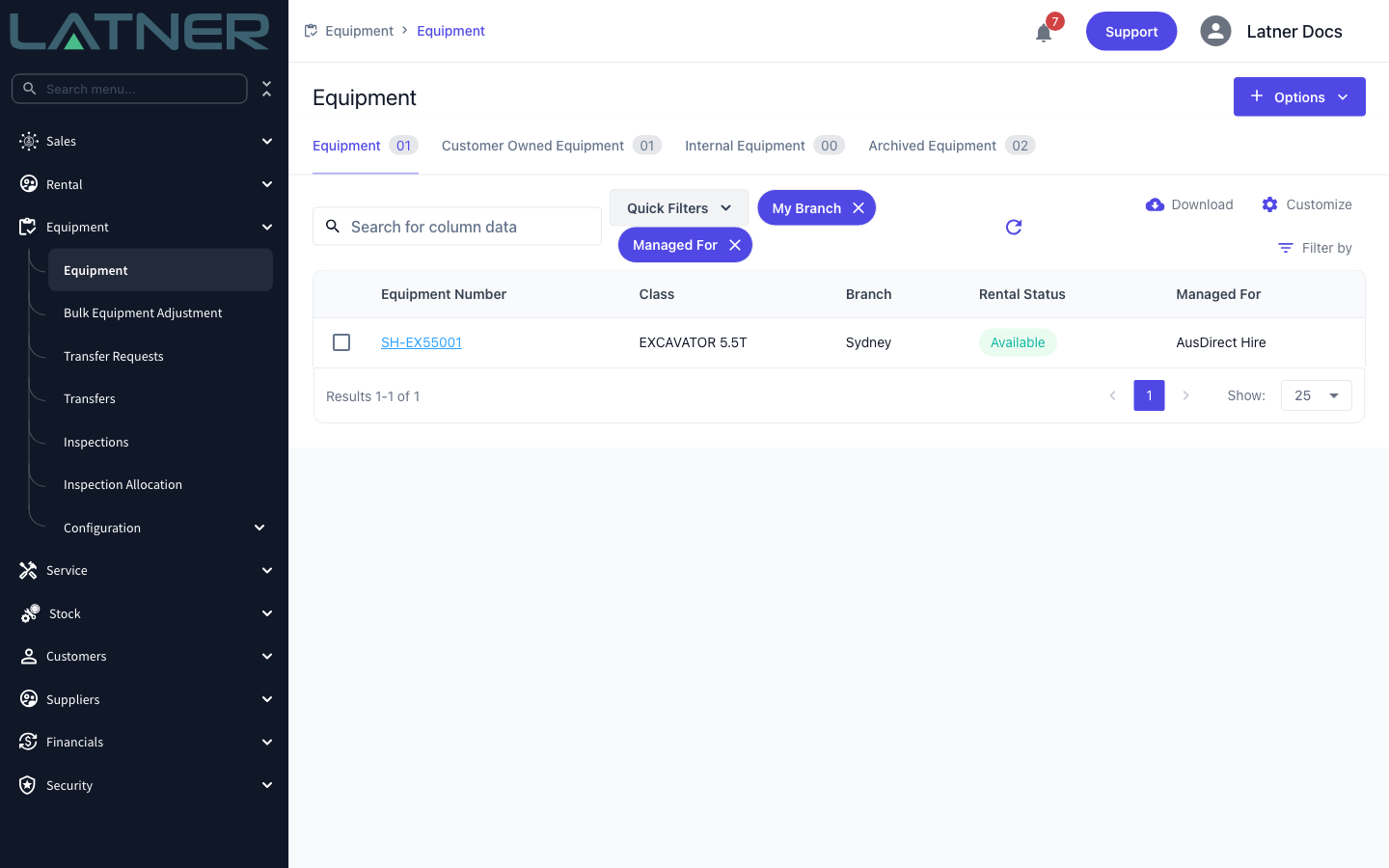
Has its own Managed For quick filter and column on the Equipment screen, so you can see at a glance which gear isn't yours.
Managed For equipment is not the same as Customer Owned Equipment. Use Managed For for a machine a supplier owns that you hire out to your customers. Use Customer Owned for a machine your customer owns that you only service. See How to Create Customer Owned Equipment for that flow.
Before You Begin
Recording the owner is always available, but hiring the equipment out as sub hire needs a system setting, and both steps need equipment permissions:
|
Requirement |
Where to Find It |
|---|---|
|
Managed For Sub Hire Equipment setting is enabled |
Security › Settings › Rental. Only needed to use the equipment as sub hire on a rental contract - the Managed For field itself is always there. |
|
Create Rental Equipment permission |
Security › Configuration › Permission Groups - Equipment › Option |
|
Edit Rental Equipment permission |
Security › Configuration › Permission Groups - Equipment › Option. Needed to set Managed For on the saved record. |
|
The owning supplier exists, is Active and has at least one site |
Suppliers › Suppliers |
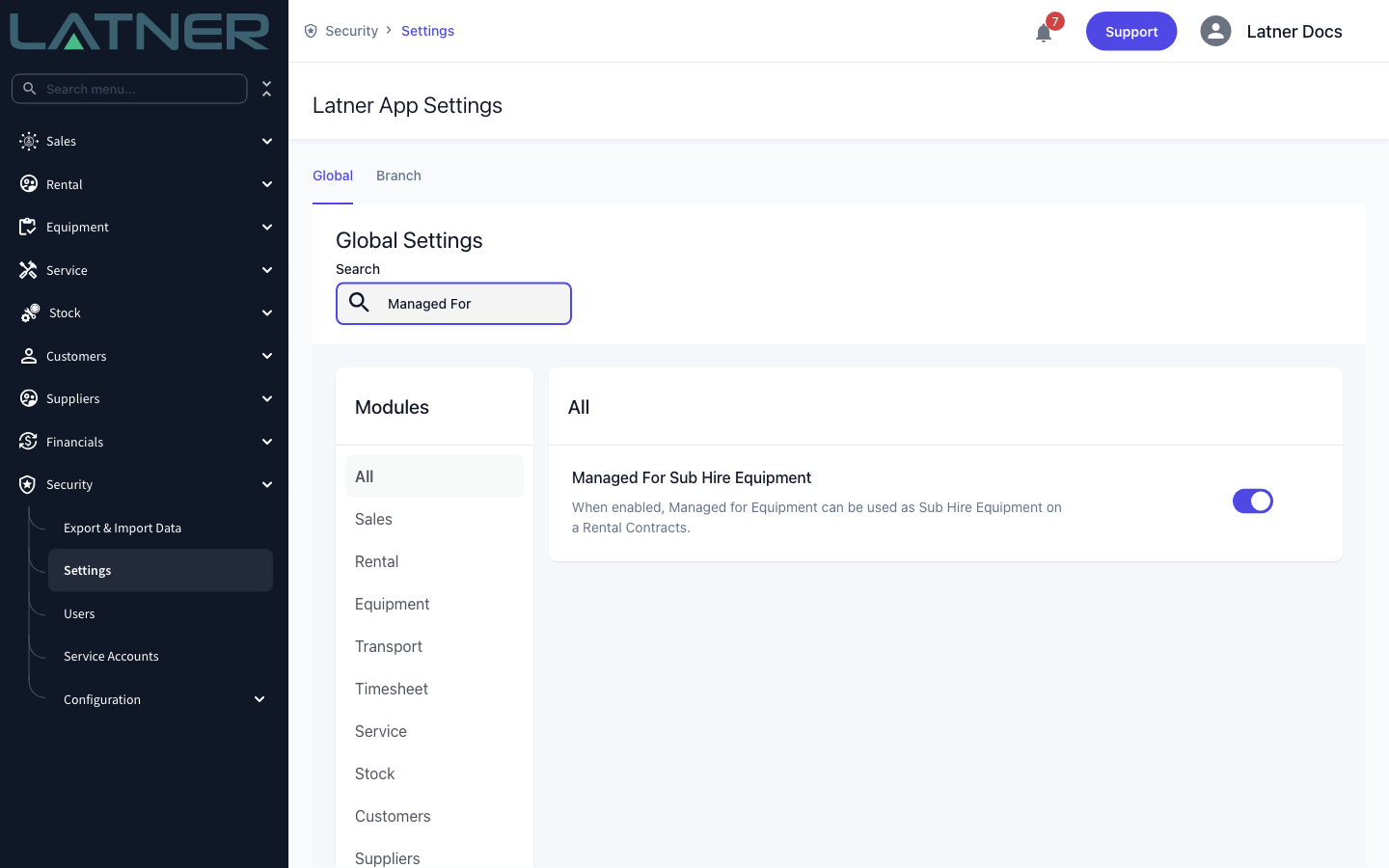
Turning the setting off later doesn't unlink any equipment. The Managed For value stays on the record and the quick filter keeps working - you just lose the Internal option when adding a sub hire line.
Creating the Equipment
Step 1 - Open the Equipment screen
From the main menu, go to Equipment › Equipment. Managed For equipment lives on the main Equipment tab alongside your own fleet - it doesn't get a tab of its own.
Step 2 - Select Options › Create Equipment
Click Options in the top right of the screen, then select Create Equipment.
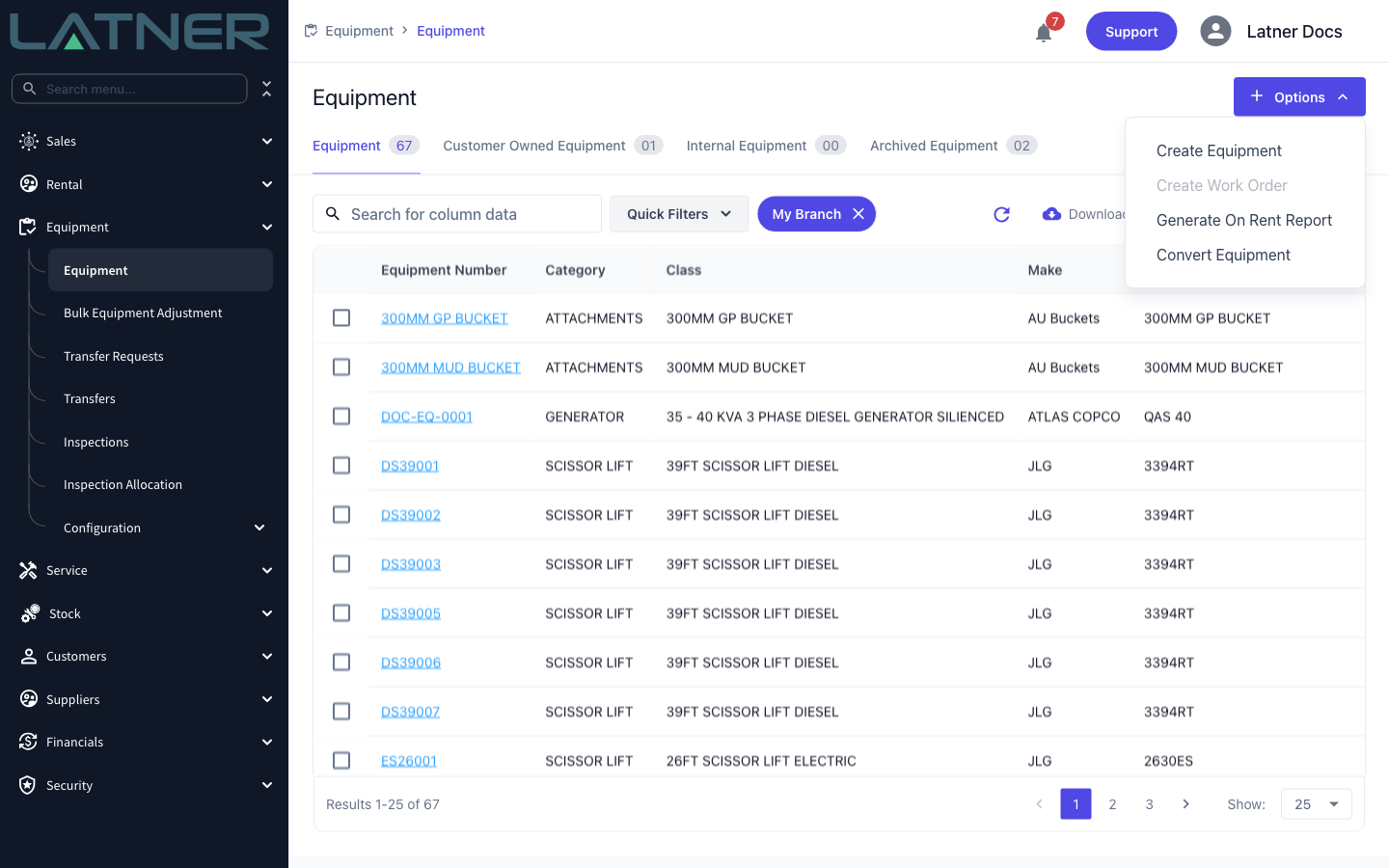
Step 3 - Fill in the equipment details
Leave Usage Type as Rental. Managed For equipment is rental equipment - it has to be hire-able to go on a contract, so don't set it to Internal Use or Customer Owned. Complete the rest of the form:
-
Equipment Number - the number you'll use for the unit. If sequential equipment numbering is enabled you'll be asked for a prefix instead, and Latner appends the next number. It's worth using a prefix or pattern that makes hired-in units obvious in a list.
-
Type - Serialized for an individual machine, or Bulk for quantity-tracked gear.
-
Branch - the branch the unit sits at. This matters later: the sub hire equipment picker on a rental contract only offers equipment from the contract's branch.
-
Equipment Class and Equipment Model - picking a model fills in the class automatically, and the description defaults from the class.
-
Description - required, and pre-filled from the class.
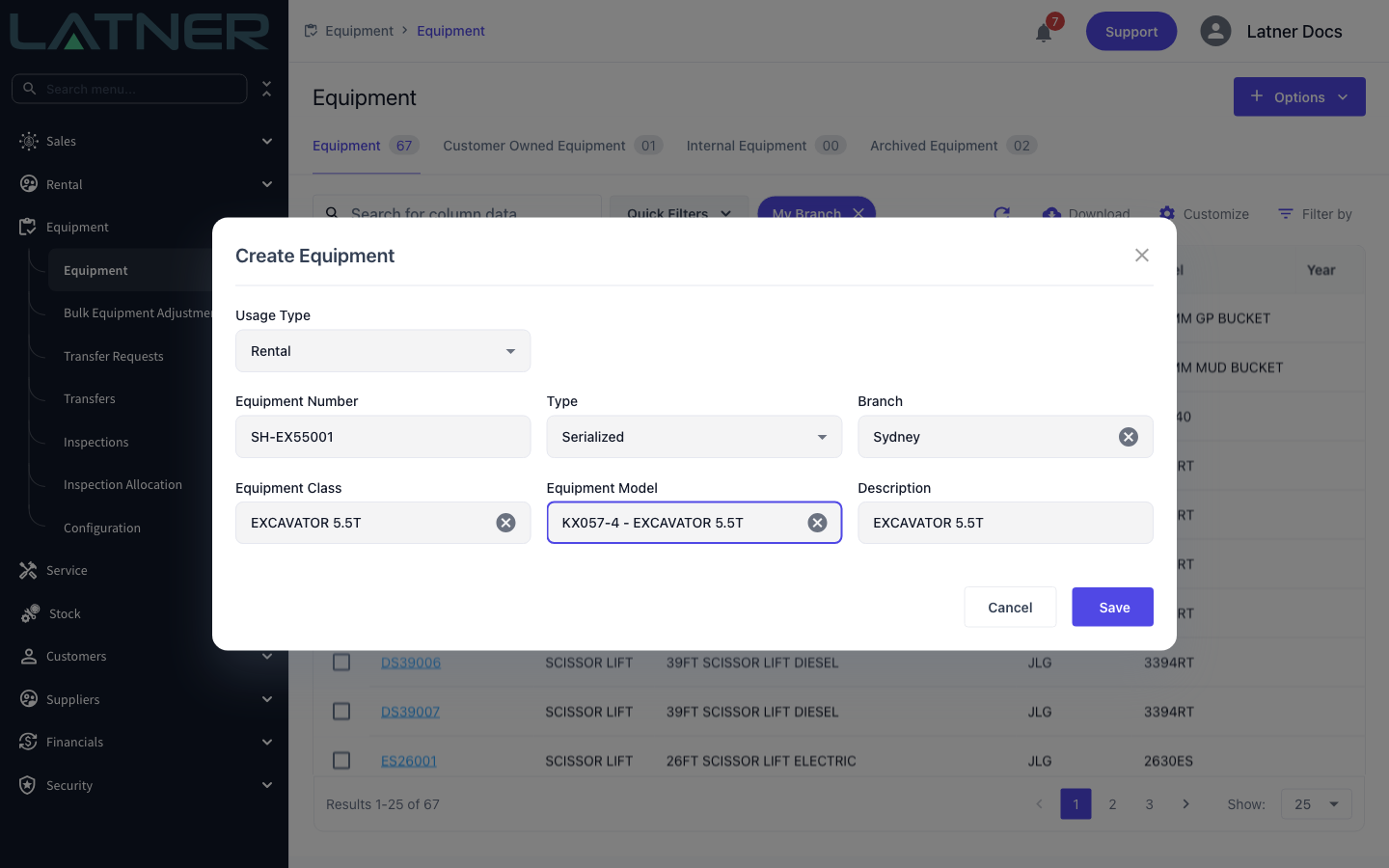
Click Save. Latner creates the equipment and takes you straight to its detail page.
Step 4 - Set Managed For on the new record
The Create Equipment dialog has no owner field, so this is where you record who the machine belongs to. On the equipment's detail page, scroll to the bottom of the General Details panel and click the Managed For box. Search for the supplier that owns the unit and select it, then click Save in the panel header.
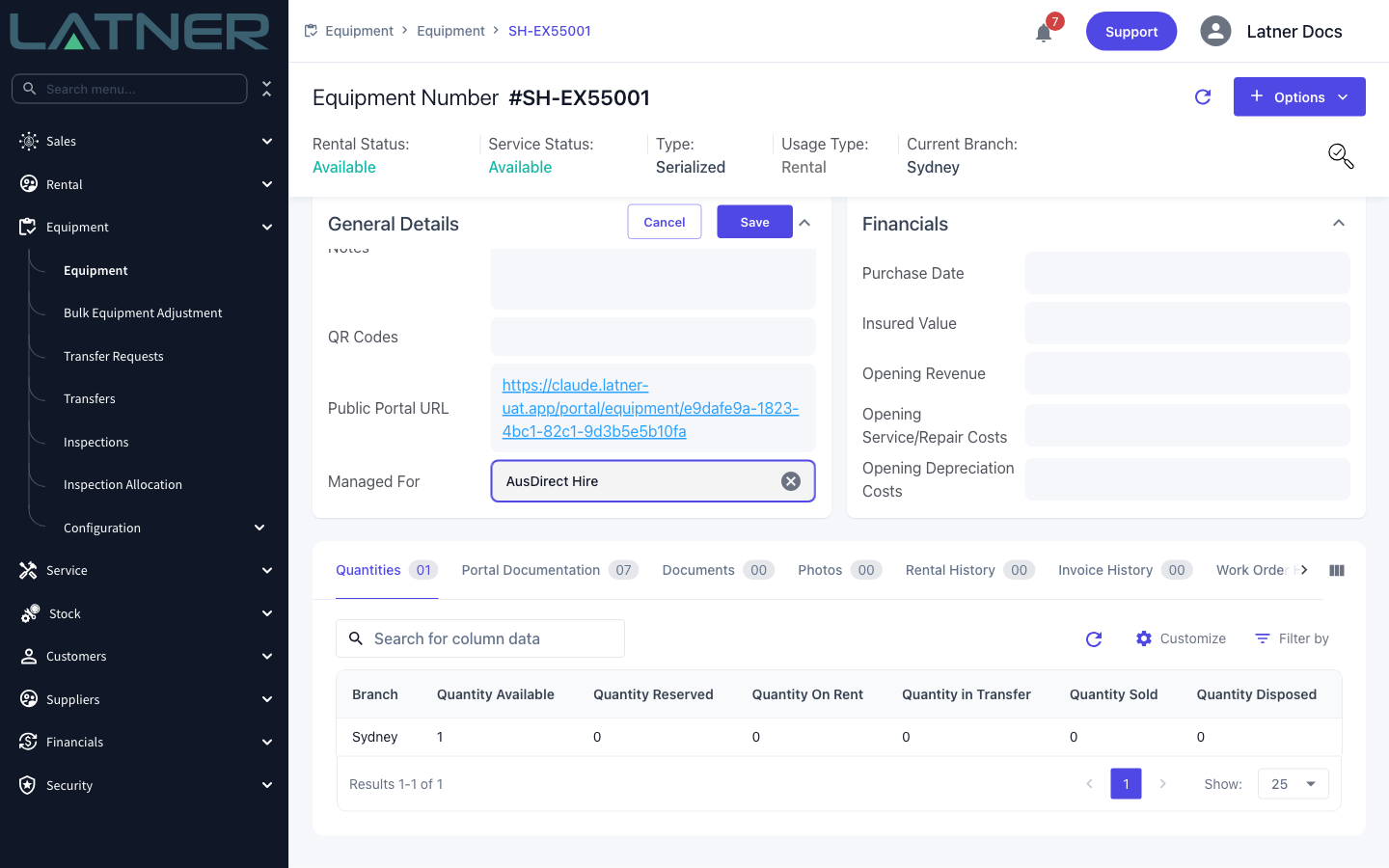
Only Active suppliers appear in the list. If the owner isn't there yet, create them under Suppliers › Suppliers first - they also need a site, because the sub hire order is raised against a supplier site.
Step 5 - Confirm it with the Managed For filter
Go back to Equipment › Equipment, open Quick Filters and tick Managed For, then click Save. The list narrows to equipment that has an owner recorded against it.
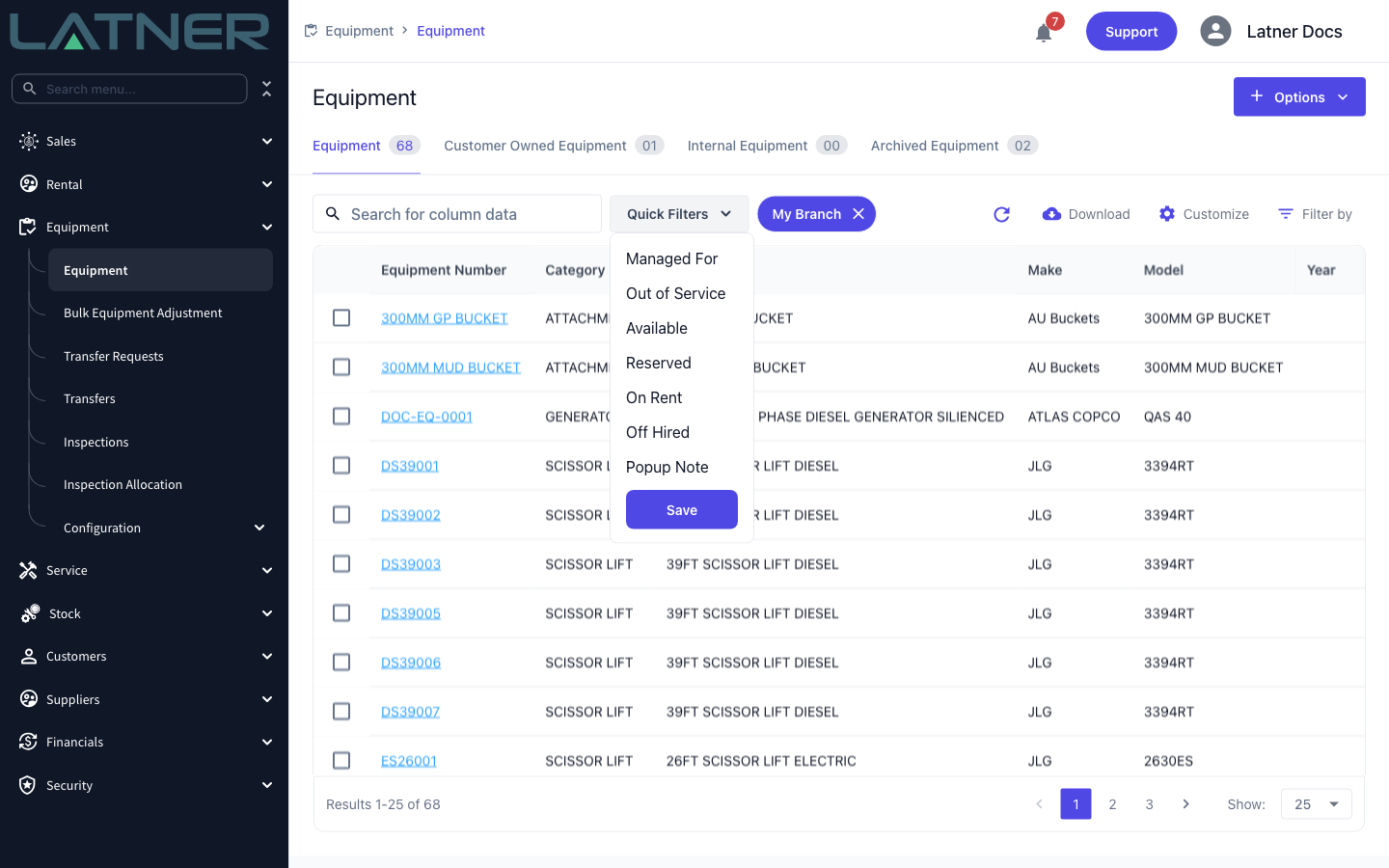
You can also add the Managed For column through Customize to see each unit's owner in the grid, and filter that column by supplier.
After Creation
-
The equipment behaves exactly like your own fleet everywhere else in Latner - service schedules, inspections, meter readings, work orders and transfers all work the same way.
-
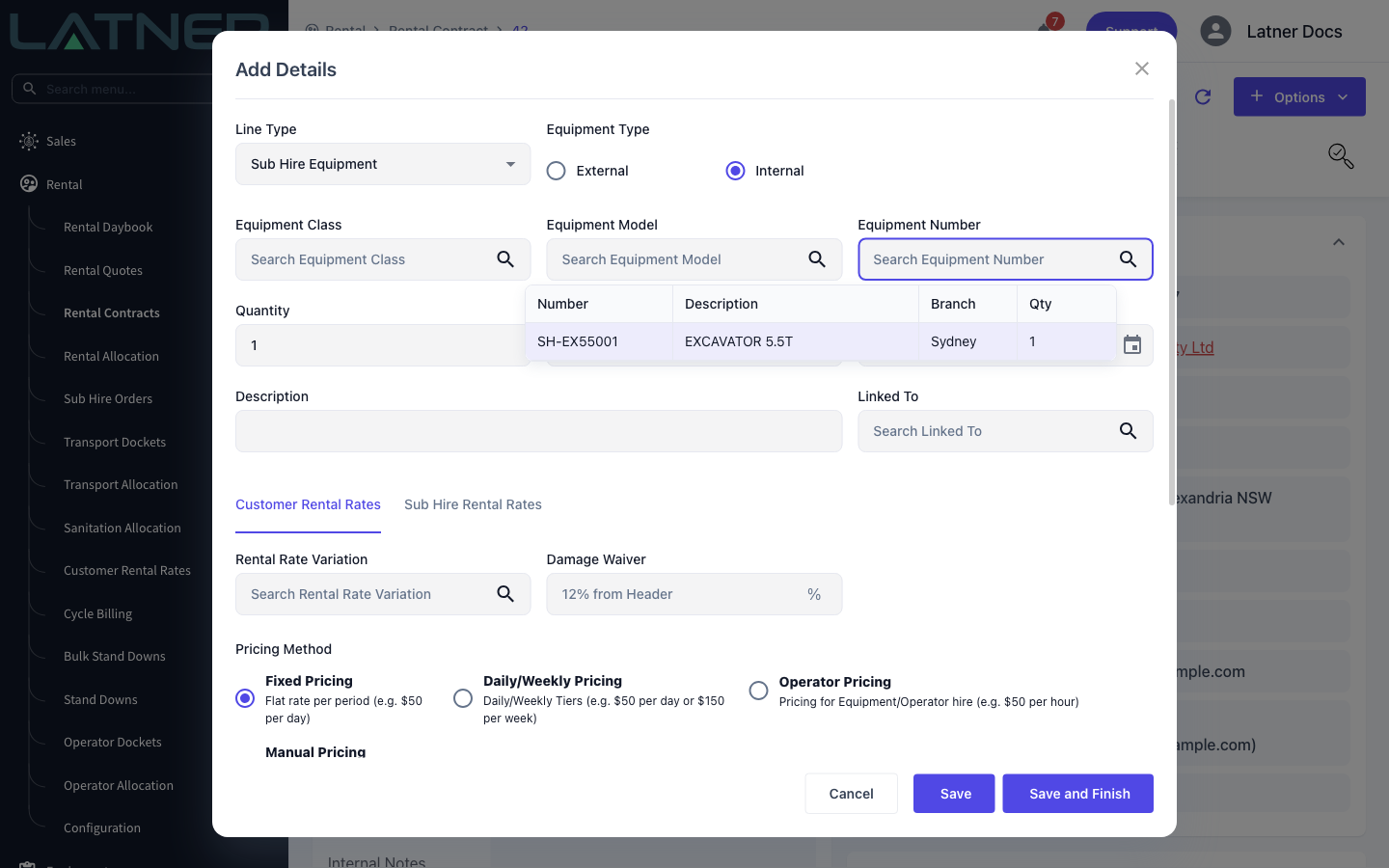
On a rental contract, add it through Options › Add Details with a Line Type of Sub Hire Equipment, then set Equipment Type to Internal. The form swaps the free-text Sub Hire Equipment Number for the usual Equipment Class, Equipment Model and Equipment Number pickers, and the number picker only lists Managed For equipment.
-
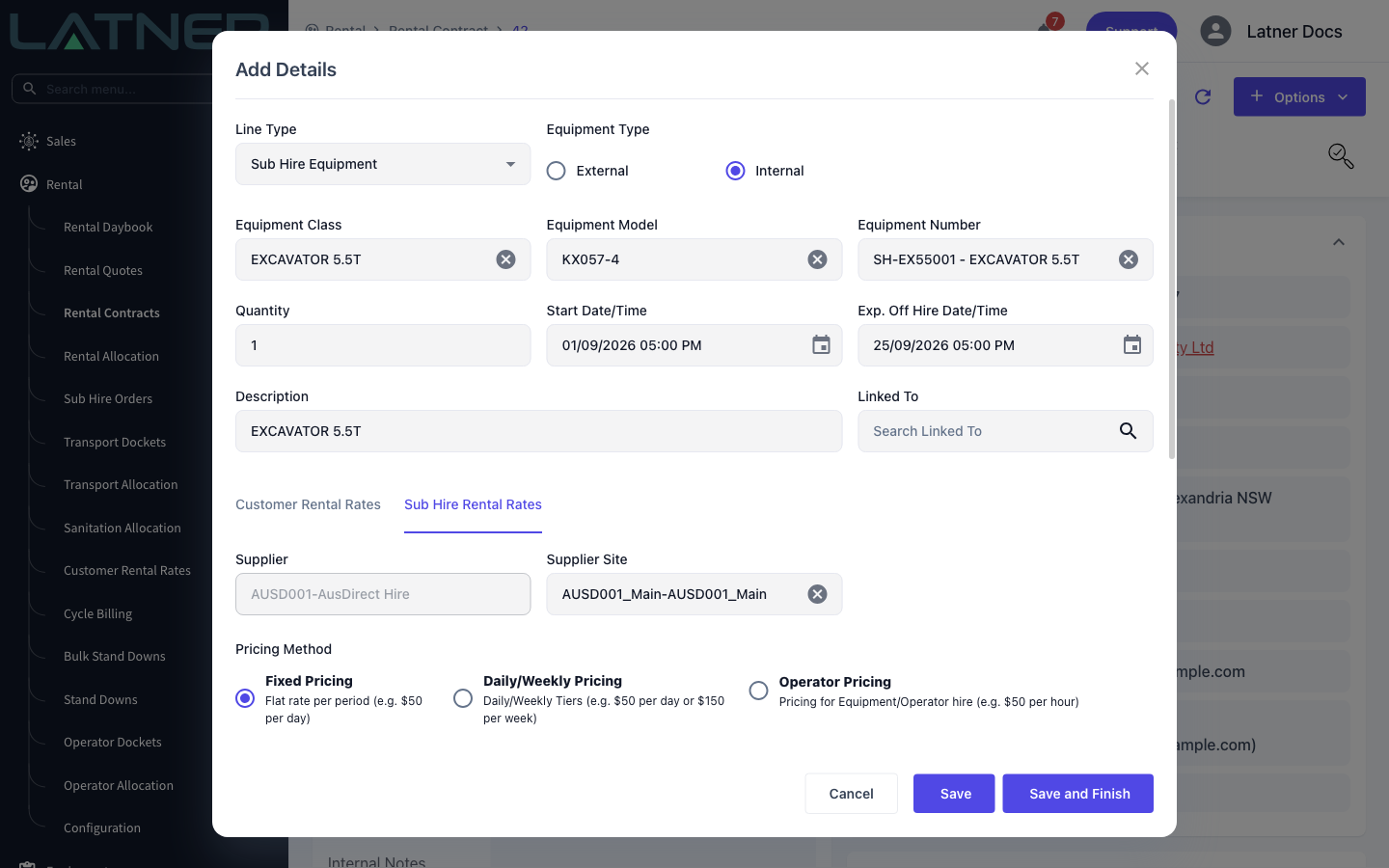
Picking the equipment fills in the class, model and description, and sets the Supplier on the Sub Hire Rental Rates tab from the equipment's owner. That field is then locked - you can't sub hire a Managed For unit from anyone but its recorded owner.
-
Supplier Site defaults to the supplier's first site and can be changed.
-
Saving the line reserves the equipment and creates a run-up inspection, exactly as an ordinary equipment line does, and raises a Sub Hire Order to that supplier and site. Later lines for the same supplier, site and branch are added to the same open order rather than starting a new one.
Changing or clearing Managed For only affects new lines. Sub hire orders already raised keep the supplier they were created with, so if a machine changes hands, update Managed For before you add it to another contract rather than expecting existing orders to follow it.