
Approving an operator docket is the office's sign-off on a day of wet hire: you check the hours the operator recorded, approve them, and only then can they reach the customer's invoice.
Overview
Nothing on a wet hire job gets charged on trust. The operator records the day, someone in the office checks it against what was actually agreed on site, and approval is the moment those hours turn into money.
-
A docket has to be Pending Approval before it can be approved. It gets there when someone chooses Complete Docket, either in the office or from the operator's phone.
-
Approving stamps Approved By and Approved Date, and generates the docket PDF automatically.
-
Approving locks the timesheets already on the docket - they can no longer be edited or deleted.
-
Only approved dockets are picked up by invoicing, and each timesheet becomes its own invoice line.
-
Dockets are approved one at a time, from the docket itself. There is no bulk approve.
-
An approval can be undone with Reopen Docket, right up until the docket has been invoiced.
Before You Begin
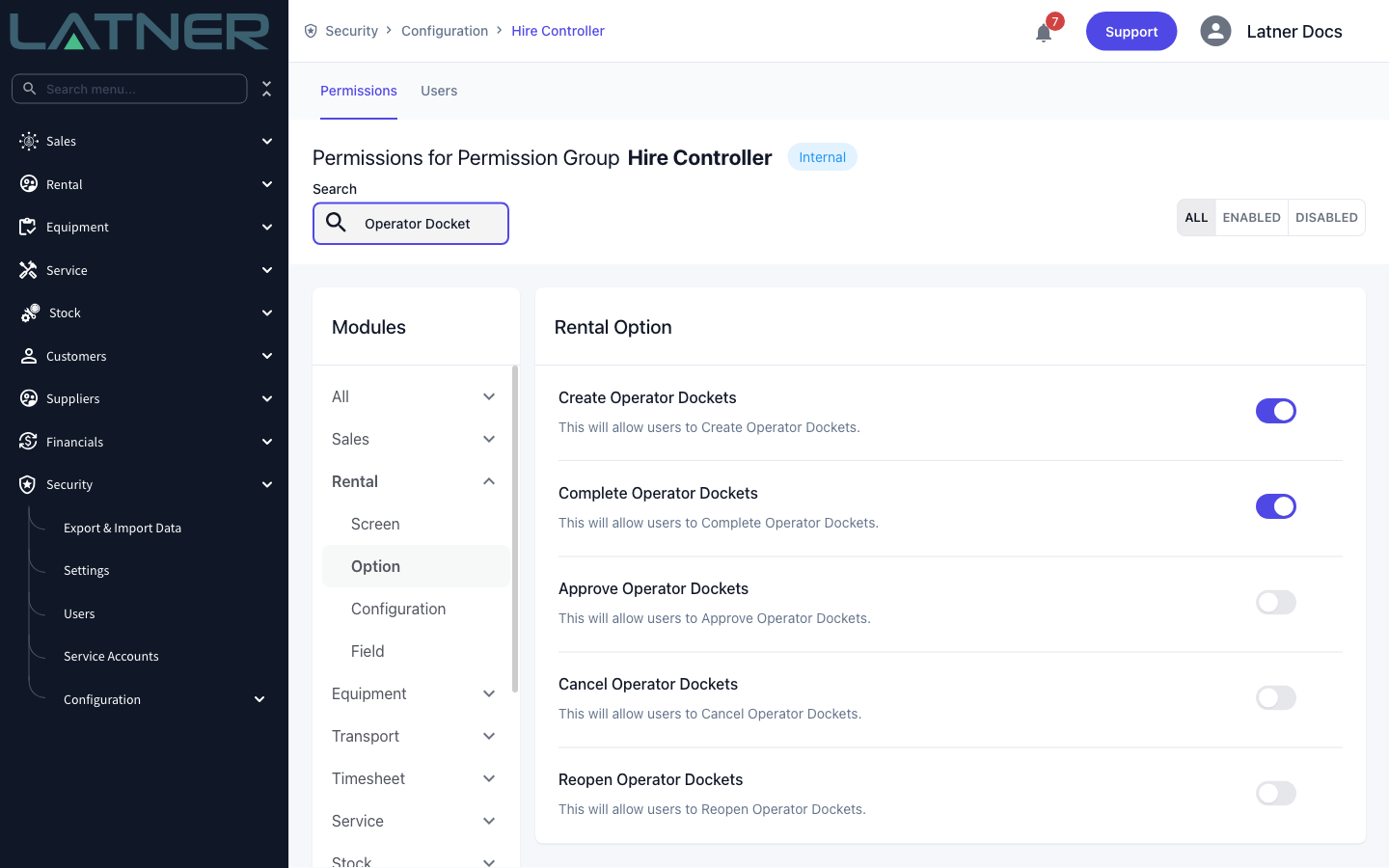
Approval is a permission of its own, and it only applies to a docket that has already been completed.
|
Requirement |
Where to Find It |
|---|---|
|
A docket in Pending Approval |
Rental › Operator Dockets, or the Operator tab of the rental contract |
|
Operator Dockets permission (to see the screen) |
Security › Configuration › Permission Groups › Rental › Screen |
|
Approve Operator Dockets permission |
Security › Configuration › Permission Groups › Rental › Option |
|
Complete Operator Dockets permission, if you also finish dockets off yourself |
Security › Configuration › Permission Groups › Rental › Option |
|
Reopen Operator Dockets permission, to undo an approval |
Security › Configuration › Permission Groups › Rental › Option |
|
Create Timesheet permission, to correct the hours before you approve |
Security › Configuration › Permission Groups › Service › Option |
Operator dockets are filtered to the branches you have access to. A docket raised at a branch you aren't set up for won't appear in your list, even with the Approve Operator Dockets permission.
Approving the Docket
Step 1 - Find the dockets waiting on you
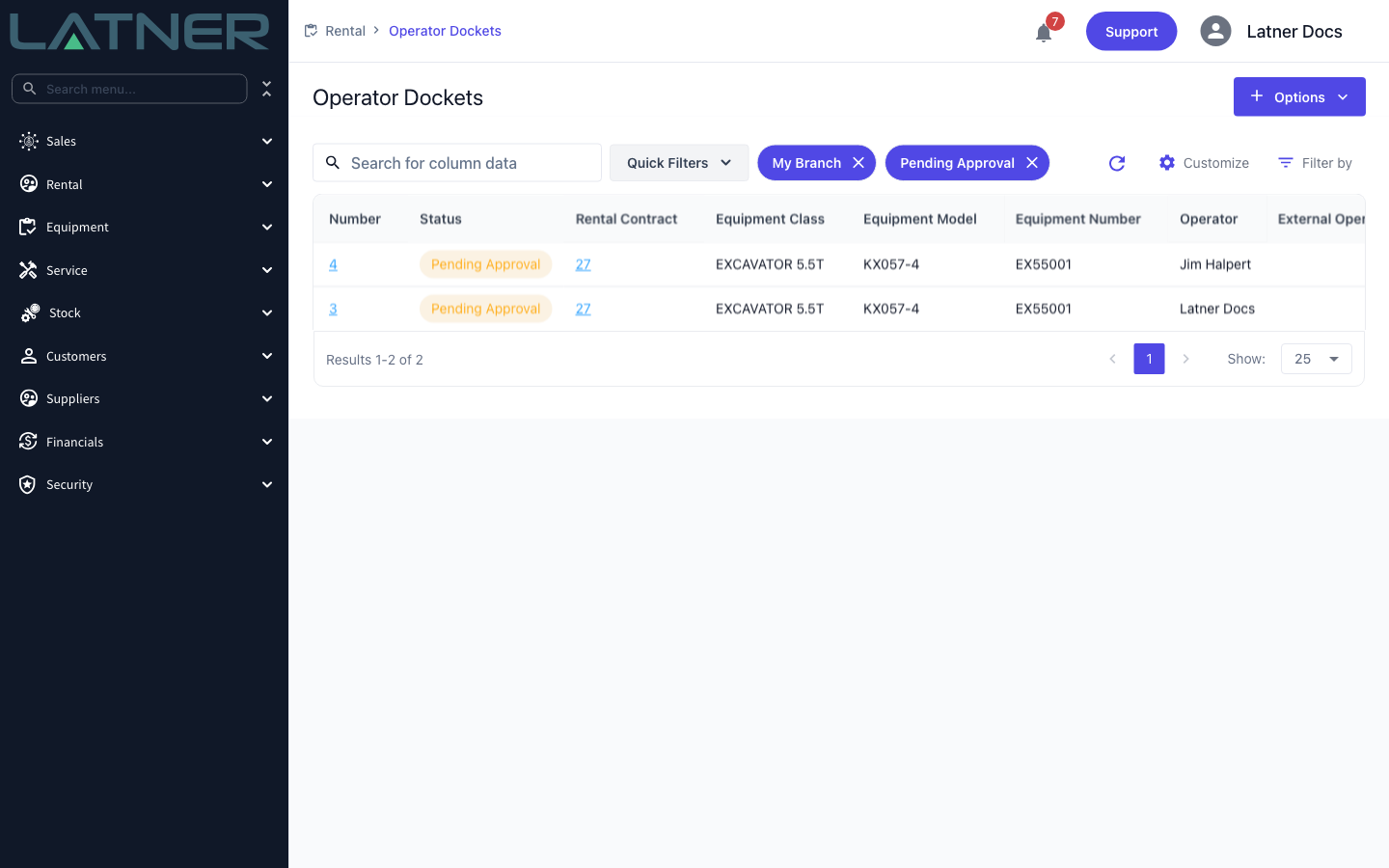
Go to Rental › Operator Dockets and open Quick Filters. Pending Approval is the approver's working list: dockets that have been completed and are waiting on a decision. Today and Yesterday filter on the day that was worked, and My Branch is switched on for you when the screen opens.
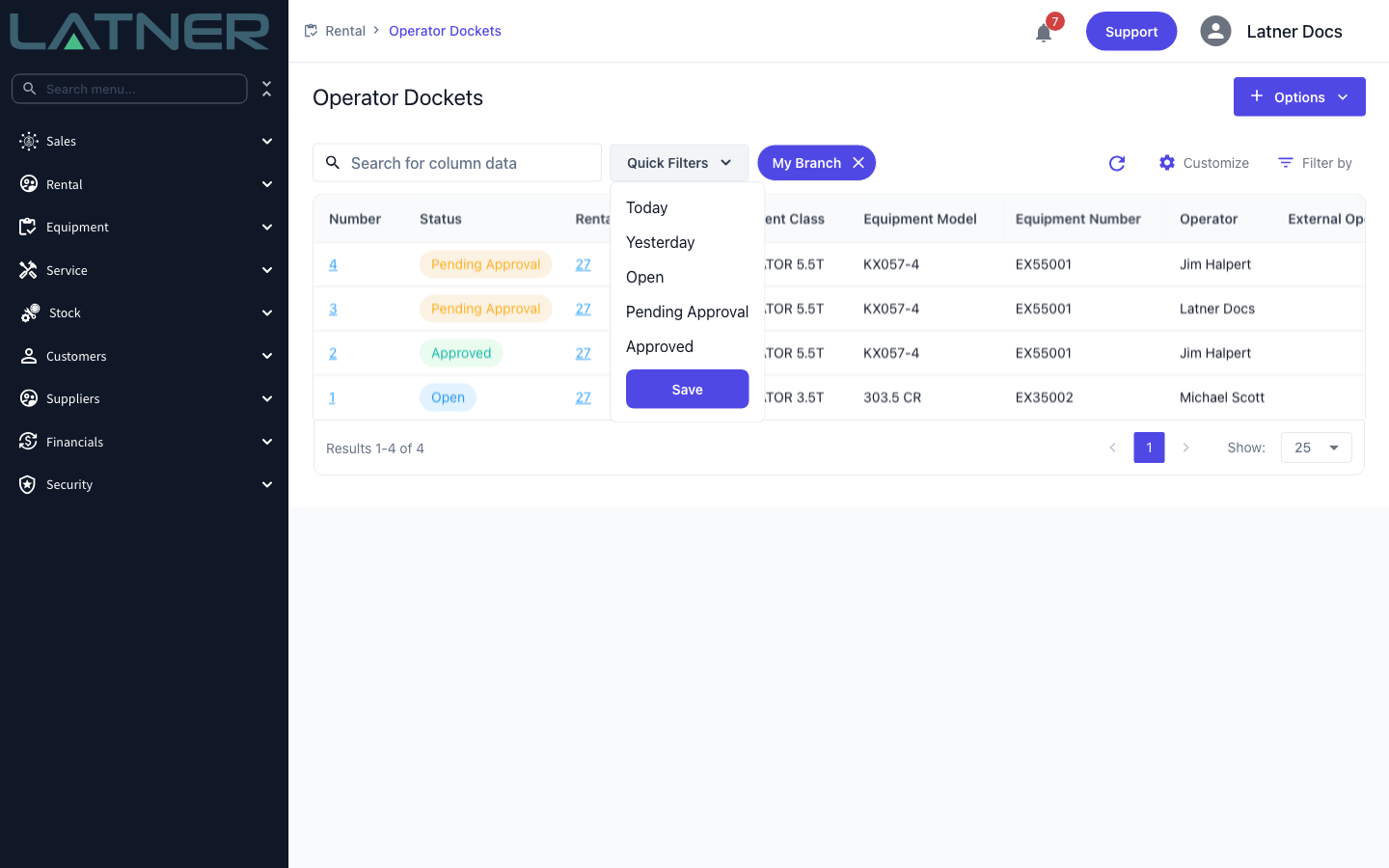
The Status column tells you where each docket sits, and Operator, Equipment Number and Date are usually enough to recognise the job. You can also reach the same dockets from the rental contract's Operator tab if you'd rather work contract by contract.
Step 2 - Open the docket and check what it covers
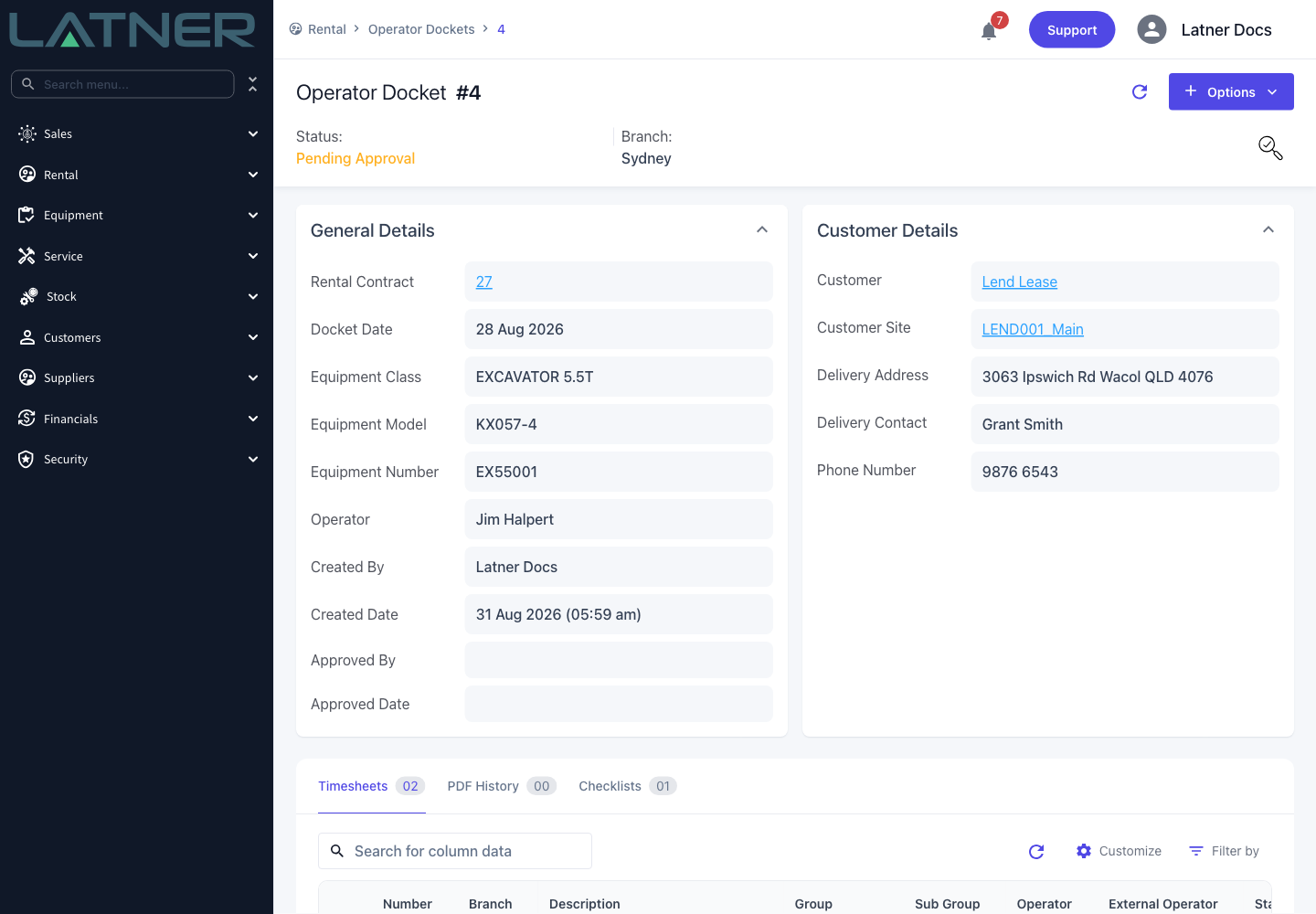
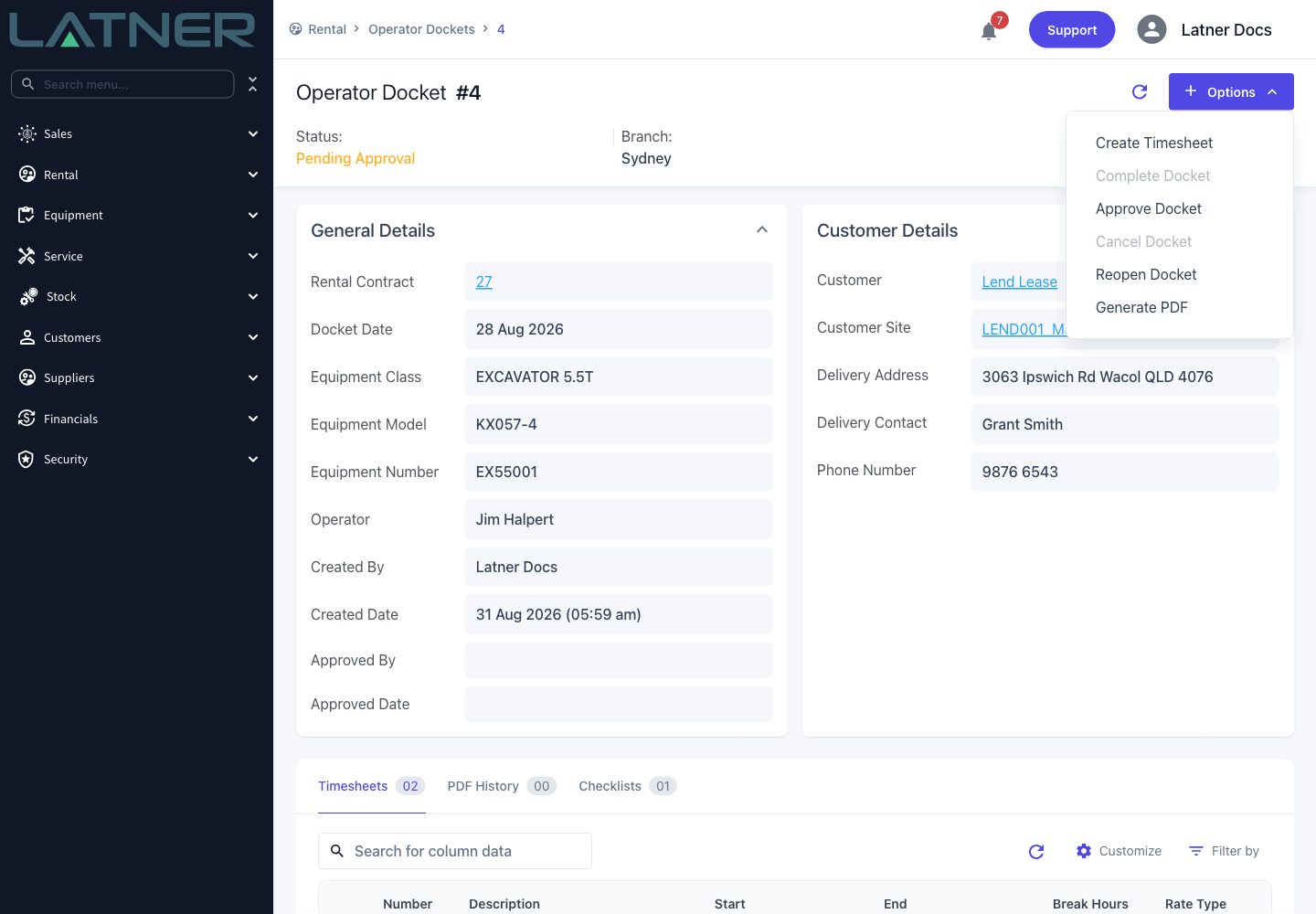
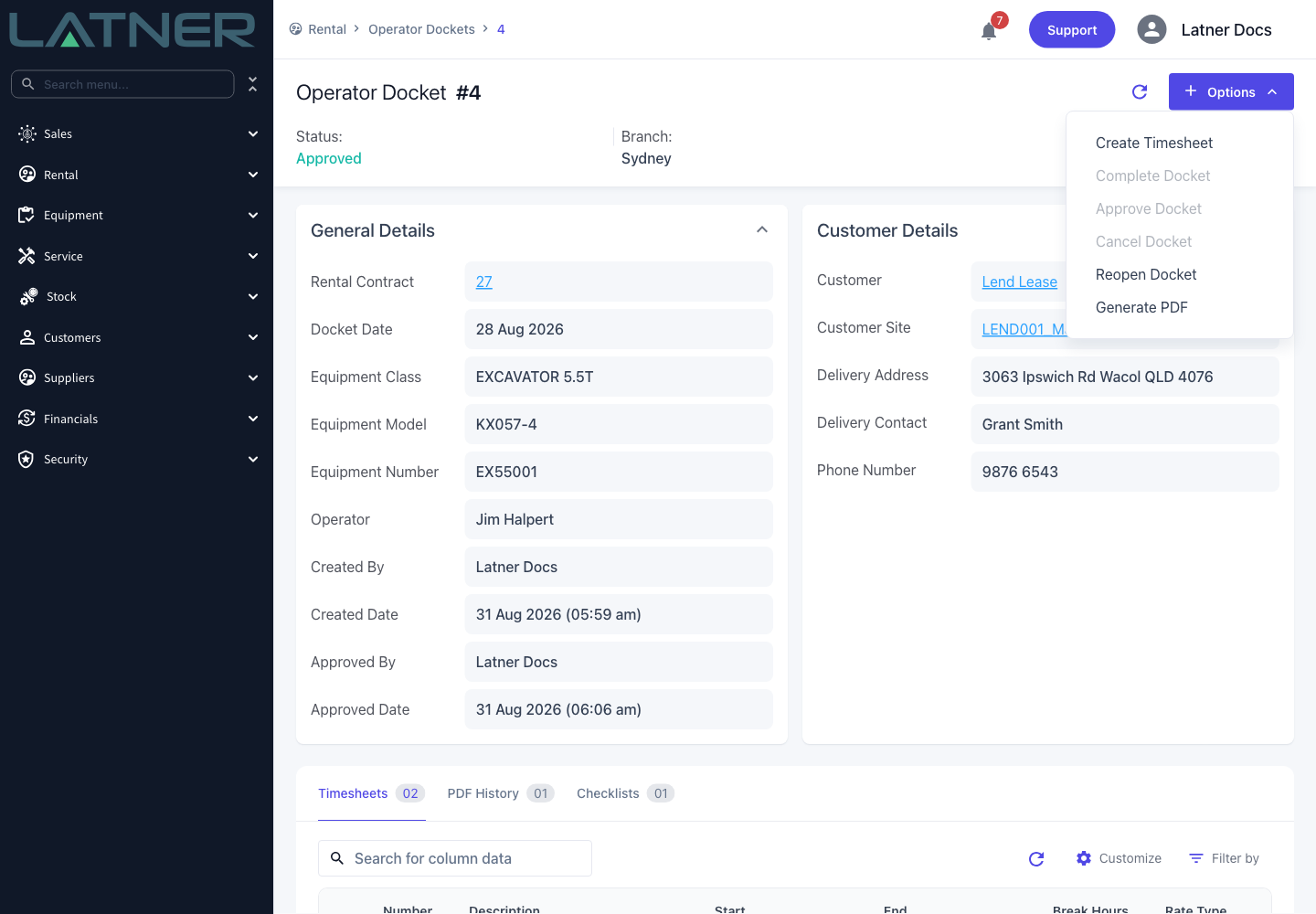
Click the docket's Number. The header shows the status and the branch, and General Details carries the rental contract, the docket date, the equipment and the operator across from the contract line. Approved By and Approved Date are still empty.
Check the date and the equipment against the job you're expecting to charge. Everything on this card except the date and the operator is read from the rental contract line, and once the docket is Pending Approval even those two are locked - so if the date is wrong, the docket has to be reopened rather than edited.
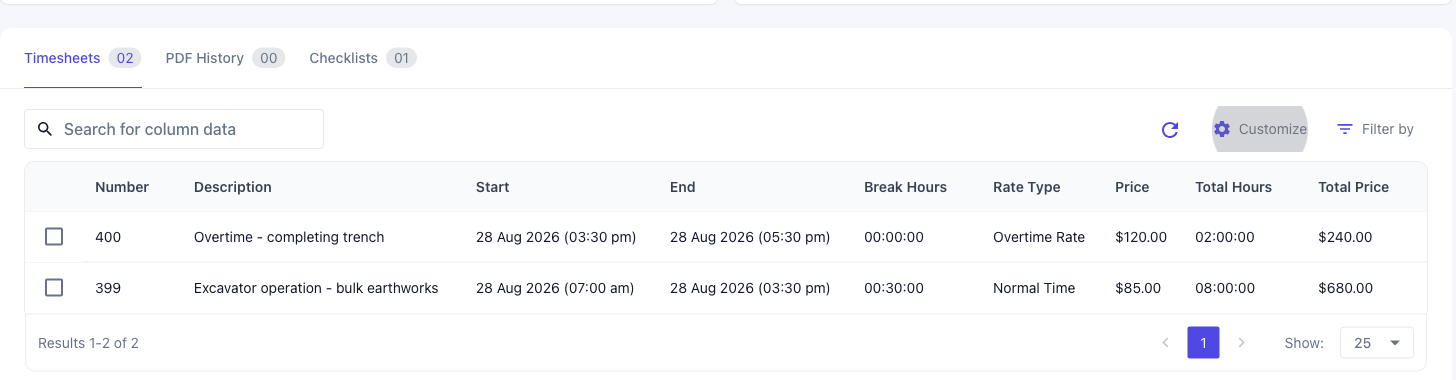
Step 3 - Check the hours
The Timesheets tab is the part that actually gets charged. Each row is one block of work and becomes one line on the customer's invoice.
-
Start and End - when the block began and finished.
-
Break Hours - unpaid breaks, already deducted from the total.
-
Rate Type - Normal Time or Overtime Rate. A day that ran long is normally two timesheets, not one long one.
-
Price and Total Price - the hourly rate charged to the customer, and the hours multiplied by it. Total Price is the figure that reaches the invoice.
If a line is wrong, fix it before you approve. Double-click the row to reopen it, or tick it and use the delete icon. Both are refused once the docket has been approved.
Step 4 - Check the pre-start checklist
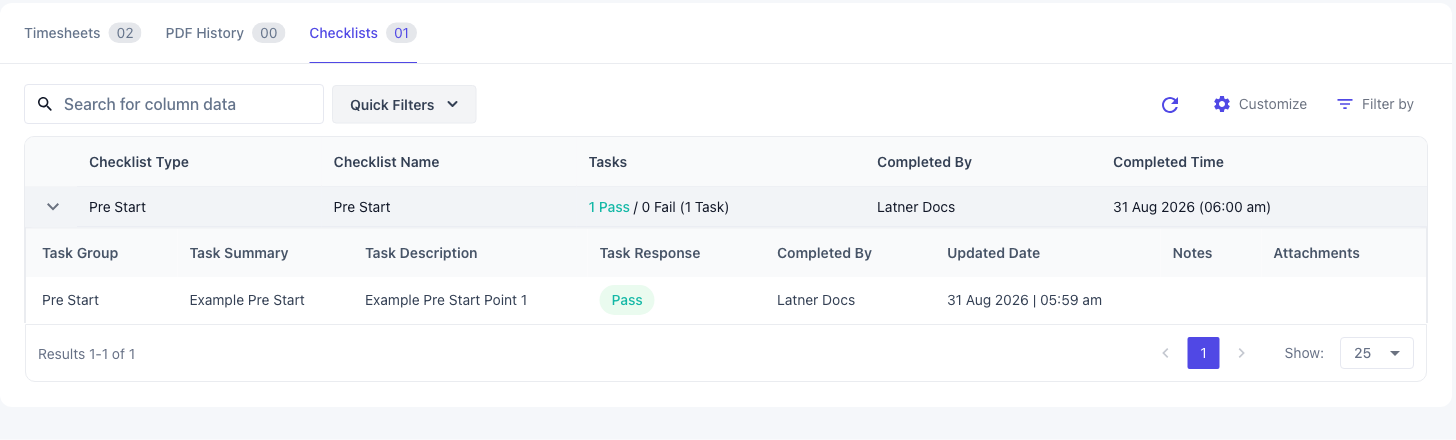
A docket that came in from the field usually carries more than hours. The Checklists tab holds the pre-start checklist completed before the machine was started - expand the row to see how each task was answered. Anything answered Fail is worth chasing before you sign off the day. If the operator signed the docket on their phone, that signature is kept on the docket and appears on the generated PDF.
Step 5 - Approve the docket
Choose Options › Approve Docket. There is no confirmation dialog - the docket is approved as soon as you click. Approve Docket is only available while the docket is Pending Approval; on an Open docket it's greyed out and Complete Docket comes first.
Step 6 - Confirm the approval landed
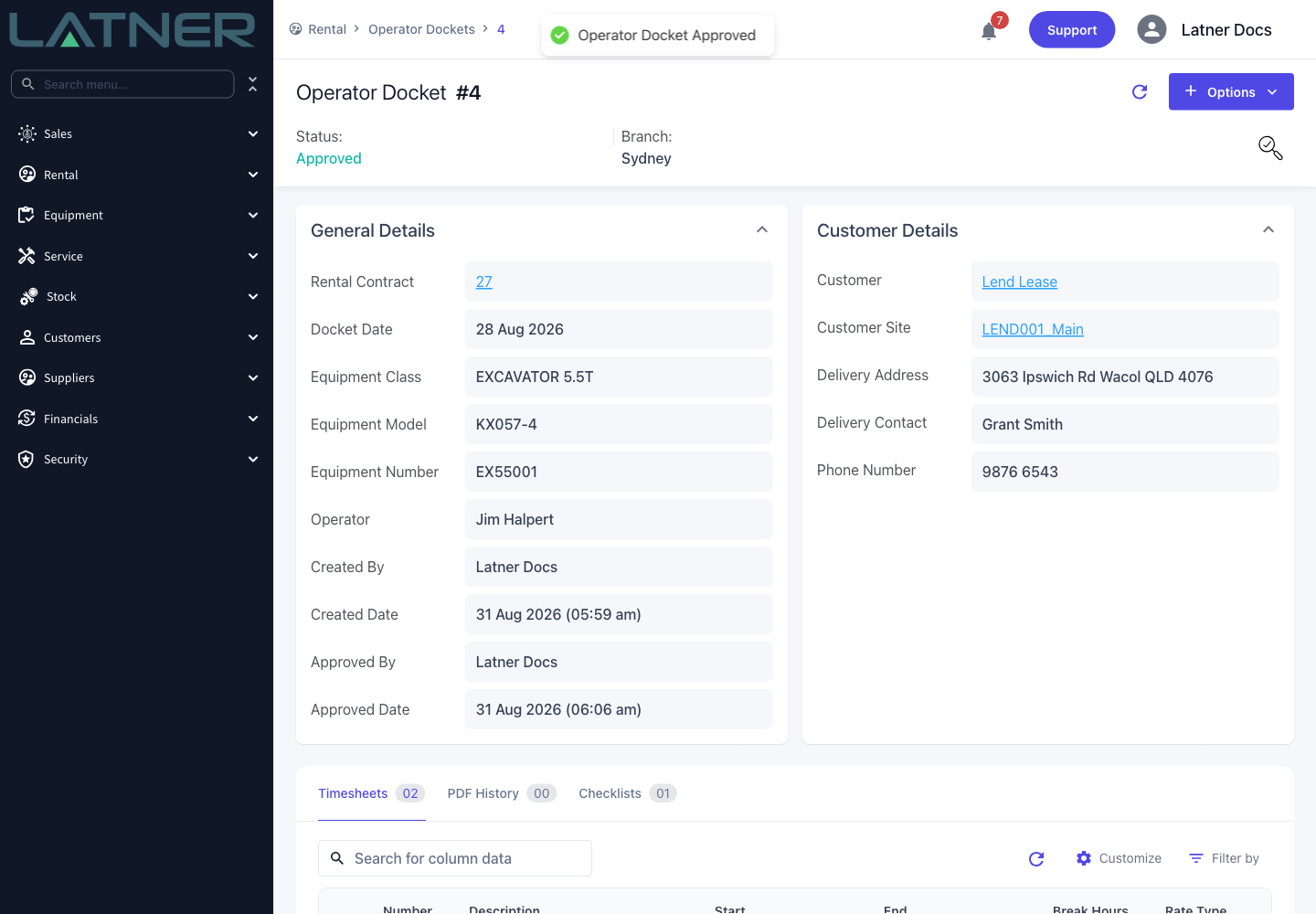
The status changes to Approved, and Approved By and Approved Date fill in with your name and the moment you approved. From here the hours are billable and the timesheets are locked.
After Approval
-
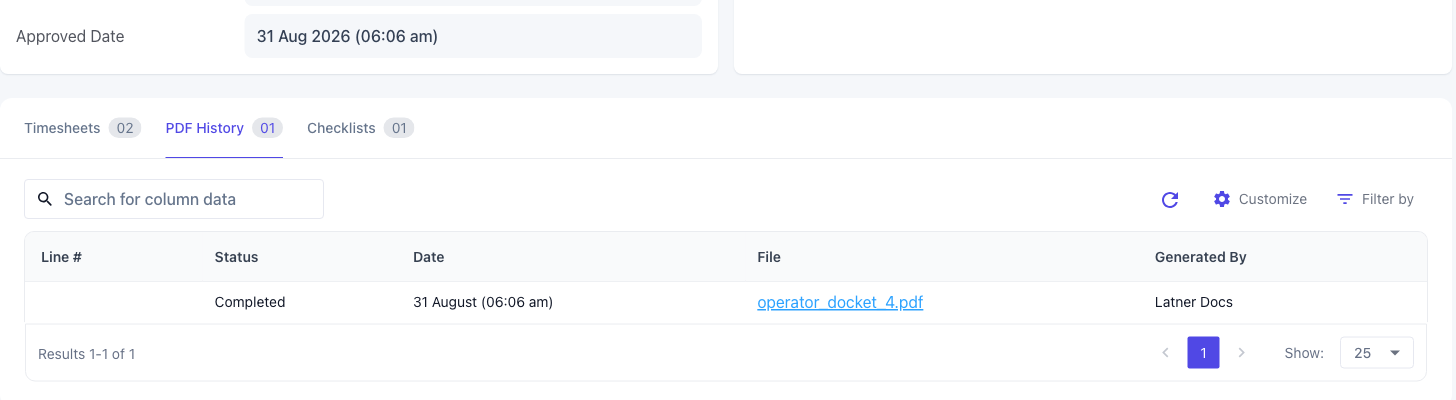
The docket PDF is generated as part of approving, and lands on the PDF History tab. If the PDF can't be produced the approval still stands - use Options › Generate PDF to try again.
-
The timesheets already on the docket are read-only. Editing or deleting one is refused with Cannot update timesheets for an approved/invoiced Operator Docket.
-
Options › Create Timesheet is still available, and a timesheet added to an approved docket is billed on the next invoice run. If you simply missed a block of hours, adding one is easier than reopening.
-
The next invoice run on the rental contract picks up every approved docket dated on or before the date being billed to, and writes one invoice line per timesheet: the hours as the quantity and the timesheet's price as the unit price. Advance and pro forma invoices never include operator docket hours.
-
Once an invoice line has been created for the docket it moves to Invoiced. Cancelling that invoice puts it back to Approved.
-
Options › Reopen Docket takes an approved docket back to Open and clears Approved By and Approved Date.
Reopening only works while the docket hasn't been invoiced. Once it's Invoiced, both Reopen Docket and Cancel Docket are refused. Cancel or credit the invoice first - that returns the docket to Approved - and then reopen it.