
A rental rate book is the price list your quotes and contracts draw from, and this page covers creating one, filling it in, copying it, making it the default for the whole business and assigning it to a particular customer or site.
Overview
Everything Latner knows about what a hire costs lives in a rate book - a Rental Rate record with one row per thing you price. Most businesses run a single book for everyone and are perfectly happy. The moment you need a national account on its own pricing, or one branch charging differently from another, you make a second book and point the right customers at it.
-
A rate book has a Description, a Level of All or Branch, a Review Date, an optional Expiry Date and a Status.
-
Its rows are rate details - one per Equipment Class, Equipment Model, Equipment Number, Package, Transport type, Admin Charge or Sanitation service.
-
A book only ever gets used if it is the Global Rental Rates book or it is assigned to the customer or the site on the contract. An unassigned book that is not the global one is simply never looked at.
-
Copy Rental Rates duplicates a whole book, rows and all, which is how you build next year's prices without touching this year's.
-
Books are versioned by you, not by Latner. Nothing expires or archives automatically - see the note on Review Date and Expiry Date below.
Before You Begin
|
Requirement |
Where to Find It |
|---|---|
|
Rental Rates screen permission, to see the rate books at all |
Security › Configuration › Permission Groups › Rental › Configuration |
|
Create Rental Rates permission |
Security › Configuration › Permission Groups › Rental › Configuration |
|
Add Rental Rates permission, to add rows to a book |
Security › Configuration › Permission Groups › Rental › Configuration |
|
Assign Rental Rate permission, to attach a book to a customer or site |
Security › Configuration › Permission Groups › Customers › Option |
|
Global Rental Rates - required. Latner needs a fallback book for customers with no book of their own |
Security › Settings › Rental |
Creating a Rate Book
Step 1 - Open the Rental Rates screen
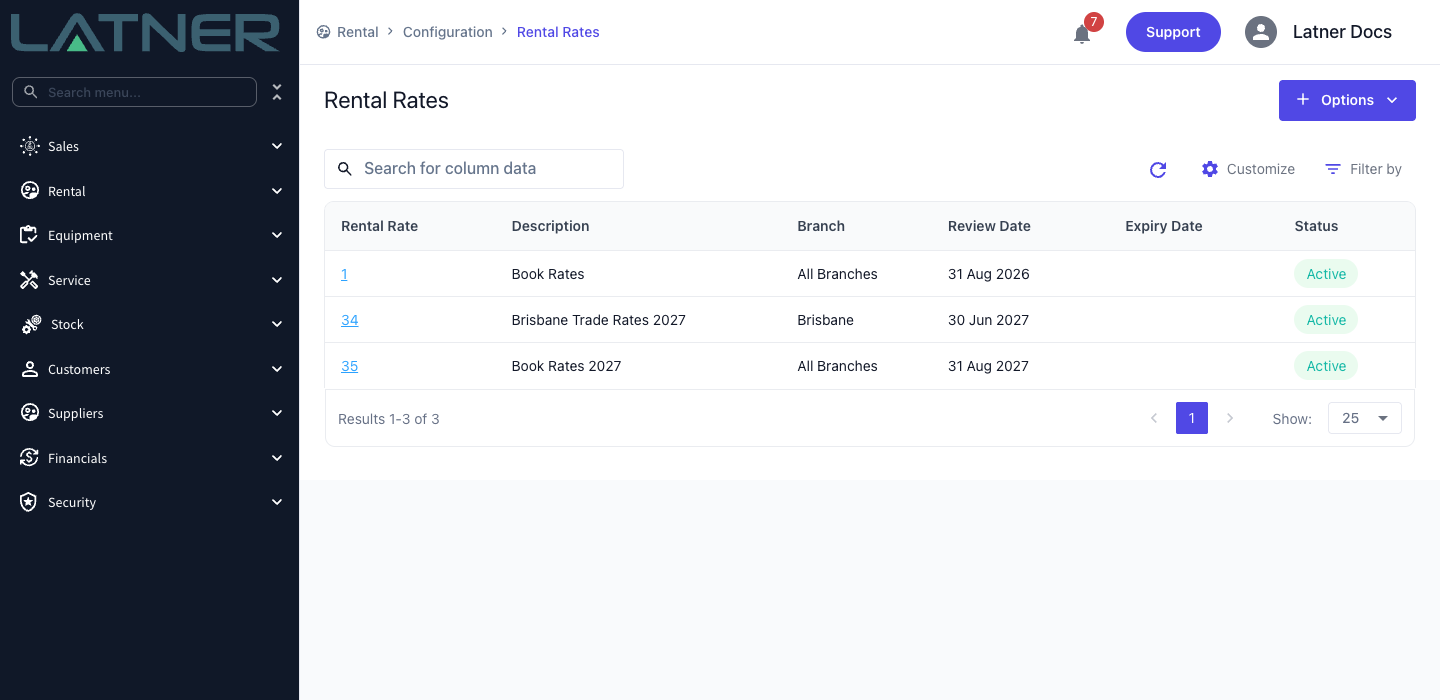
Go to Rental › Configuration › Rental Rates. Every rate book in the business is listed here with its description, level, review date, expiry date and status.
Step 2 - Choose Create Rental Rate
Click Options › Create Rental Rate.
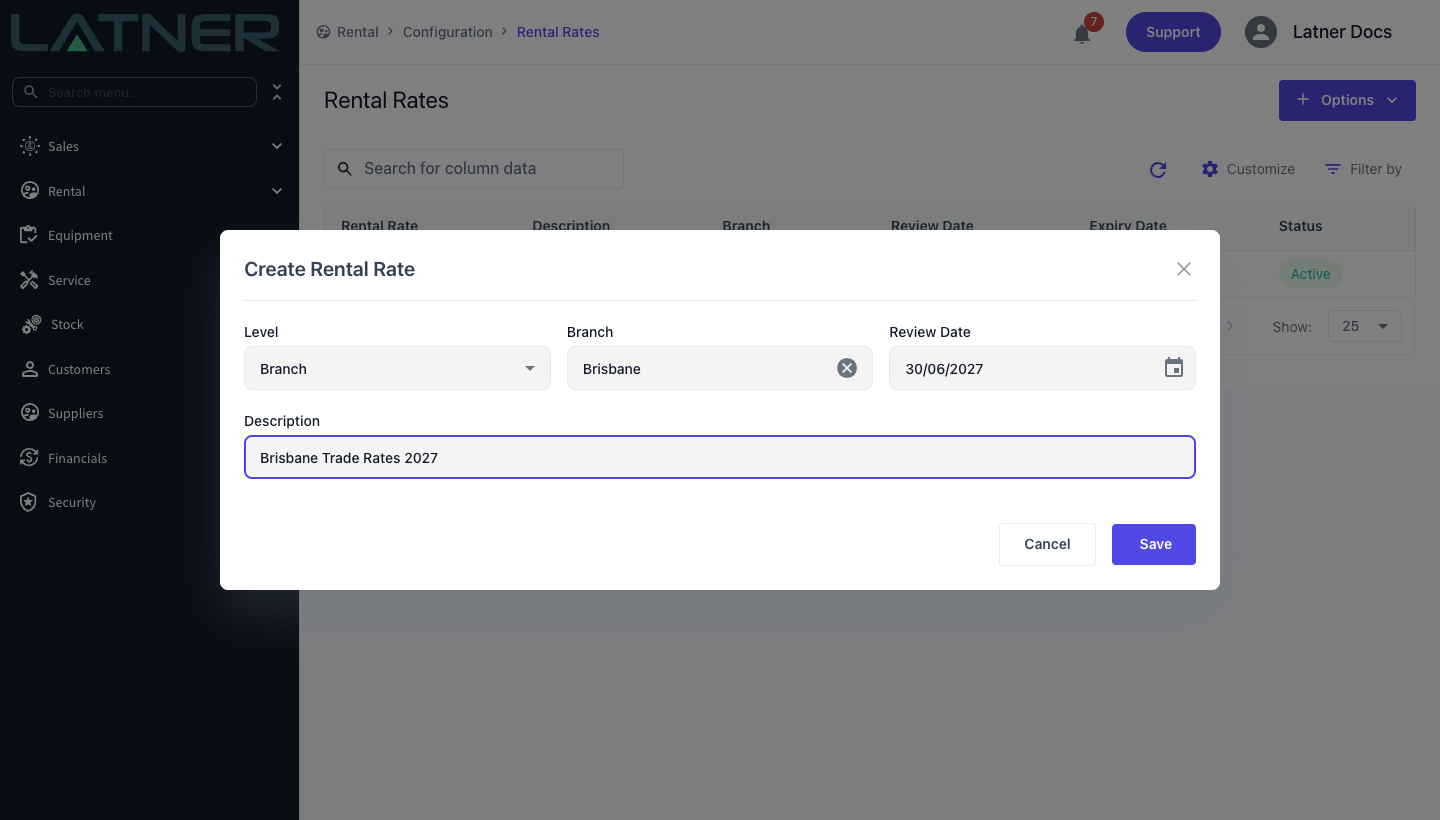
Step 3 - Fill in the header
-
Level - required. All makes the book usable from any branch; Branch ties it to one.
-
Branch - required when Level is Branch, and greyed out when Level is All. Switch back to All and any branch you picked is cleared.
-
Review Date - required. The date you want to revisit these prices.
-
Description - required. This is what people see when they pick a book, so make it say what it is: "Book Rates", "Brisbane Trade Rates 2027", "Tier 1 National Accounts".
Step 4 - Save
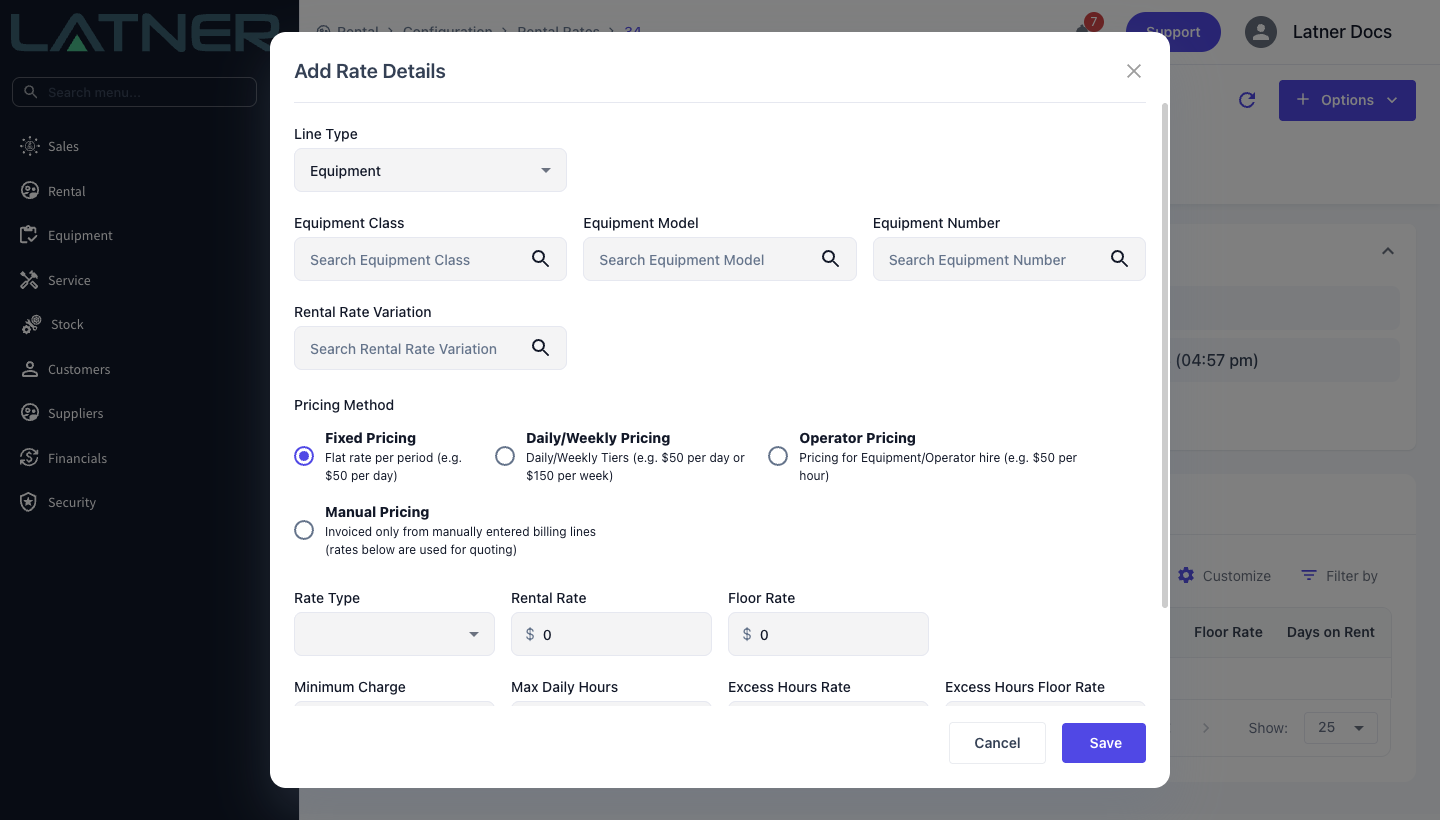
Click Save. Latner creates the book, opens it, and immediately opens Add Rate Details so you can start pricing straight away - a new book with no rows in it is no use to anyone.
Filling In the Book
Each row in a book prices one thing. Add rows from Options › Add Rate Details on the book, choosing the Line Type first:
-
Equipment - needs an Equipment Class, and optionally an Equipment Model or a specific Equipment Number when one model or one machine is priced differently from the rest of its class.
-
Package - needs a header priced Package.
-
Transport - needs a Transport Type of Delivery or Pick Up, and a simple Charge.
-
Admin - needs an active Item (an Admin Charge) and a Charge.
-
Sanitation - needs a Sanitation Type and Sanitation Frequency, a Charge, and optionally a Futile Price for a visit the driver could not complete.
Equipment and Package rows are the ones that carry a Pricing Method, rate types and modifiers. Transport, Admin and Sanitation rows are a flat charge. For how to price the equipment rows themselves, see Rental Rates and Pricing and the pricing method pages under it.
To change a row, tick it in the Details grid and click the Edit pencil, or double click the row. The bin icon deletes it, and deleting cannot be undone.
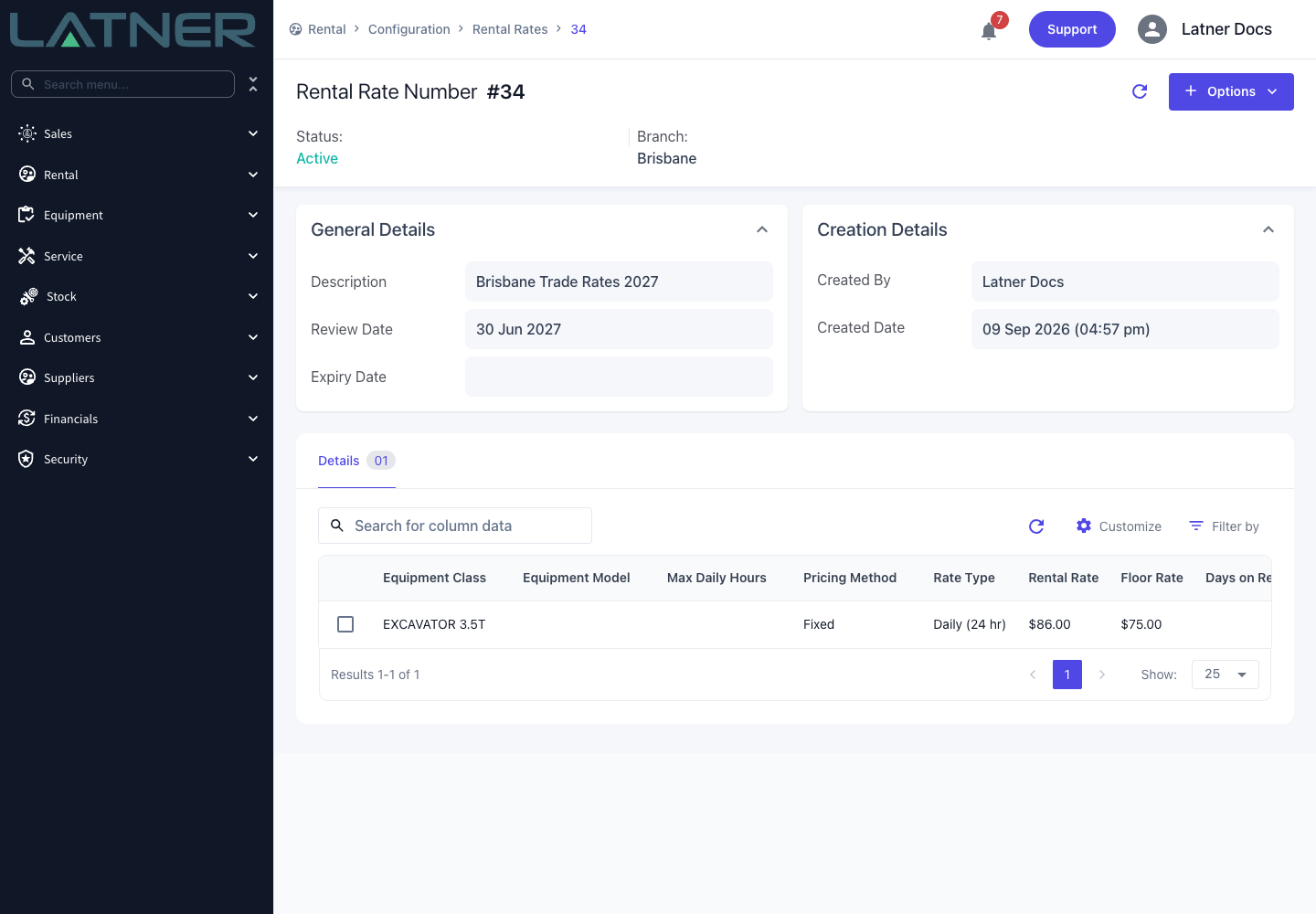
The same row cannot appear twice. Latner enforces one row per combination of book, equipment class, model, unit, transport type, admin charge, sanitation service, package and rental rate variation, and rejects a duplicate with "Duplicate rental rate detail found". Use a Rental Rate Variation when you genuinely want two prices for the same item in the same book.
Copying a Rate Book
Next year's price list is usually this year's plus a percentage, so Latner lets you clone a whole book.
Step 1 - Open the book you want to copy
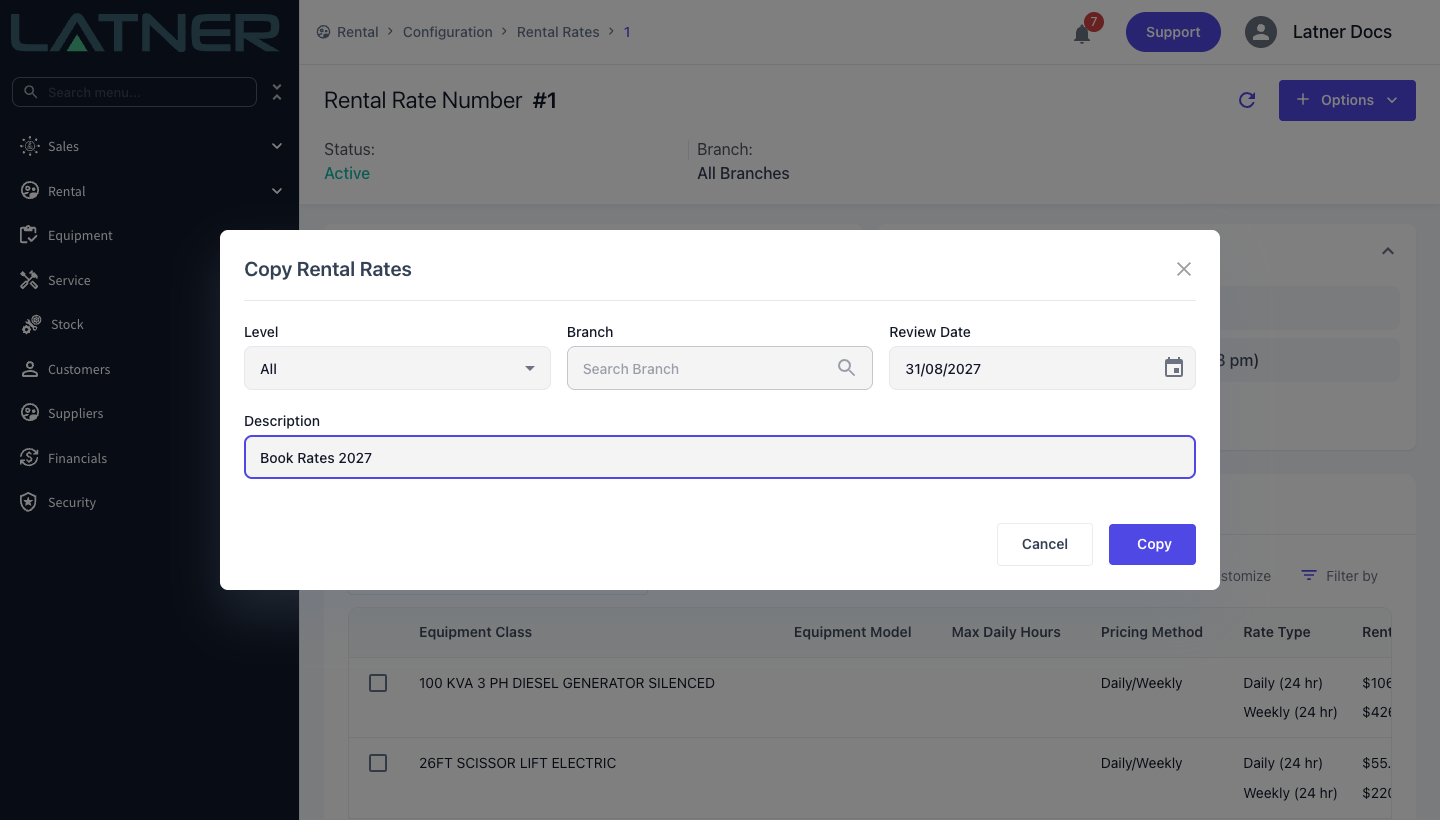
Open the source book and choose Options › Copy Rental Rates.
Step 2 - Describe the new book
The form is the same as Create Rental Rate - Level, Branch, Review Date and Description. Nothing here is inherited from the source book, so a copy can change level or branch as well as name.
Step 3 - Copy
Click Copy. Latner creates the new book and duplicates every rate row into it - pricing methods, rate types, rates, floor rates, tiers, modifiers, and the model or unit each row was against. Then edit the new book's prices; the source book is untouched.
A copy is a copy, not a link. Change a rate in the source book afterwards and the copy keeps the old figure. If two books are meant to stay identical, do not copy - assign the one book to both customers.
Making a Book the Standard for Everyone
One book acts as the default for the whole business, and it is chosen in settings rather than on the book itself.
Step 1 - Open the setting
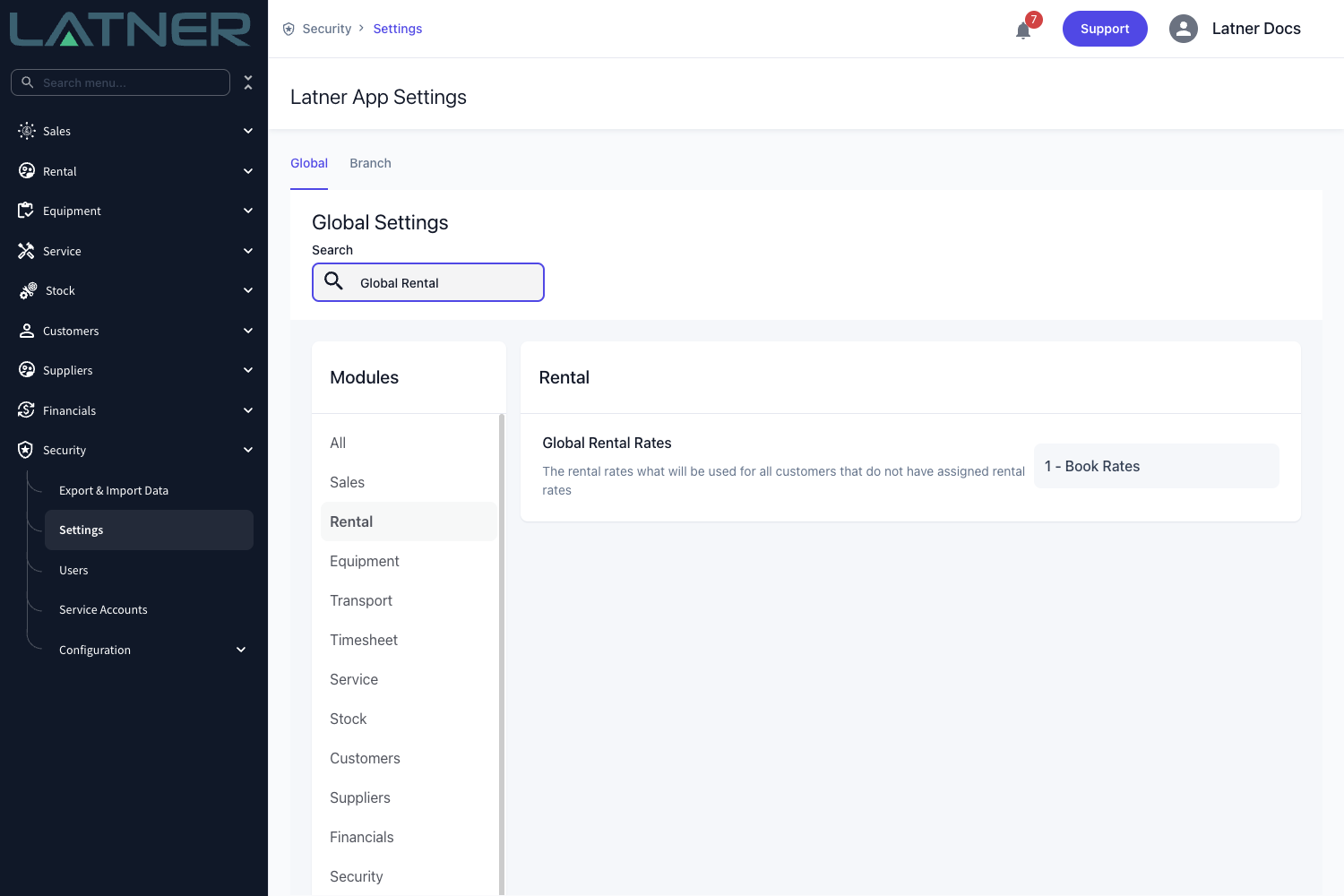
Go to Security › Settings › Rental and find Global Rental Rates - "The rental rates what will be used for all customers that do not have assigned rental rates".
Step 2 - Pick the book
Click the value and choose the book. Books are listed by id and description, so a clear description pays off here. Click Save.
The global book is also the safety net for a partly priced book. If a customer's own book has no row for the class being hired, Latner falls back to a row in the global book rather than leaving the line unpriced - so you can run a customer book that only overrides the handful of classes they have negotiated.
Assigning a Book to a Customer or Site
A customer or a single site can be pointed at a book of its own, and that is what overrides the global book.
Step 1 - Open the customer or the site
For a whole account, open the customer from Customers › Customers. For one job site only, open the site from Customers › Customers Sites.
Step 2 - Choose Assign Rental Rate
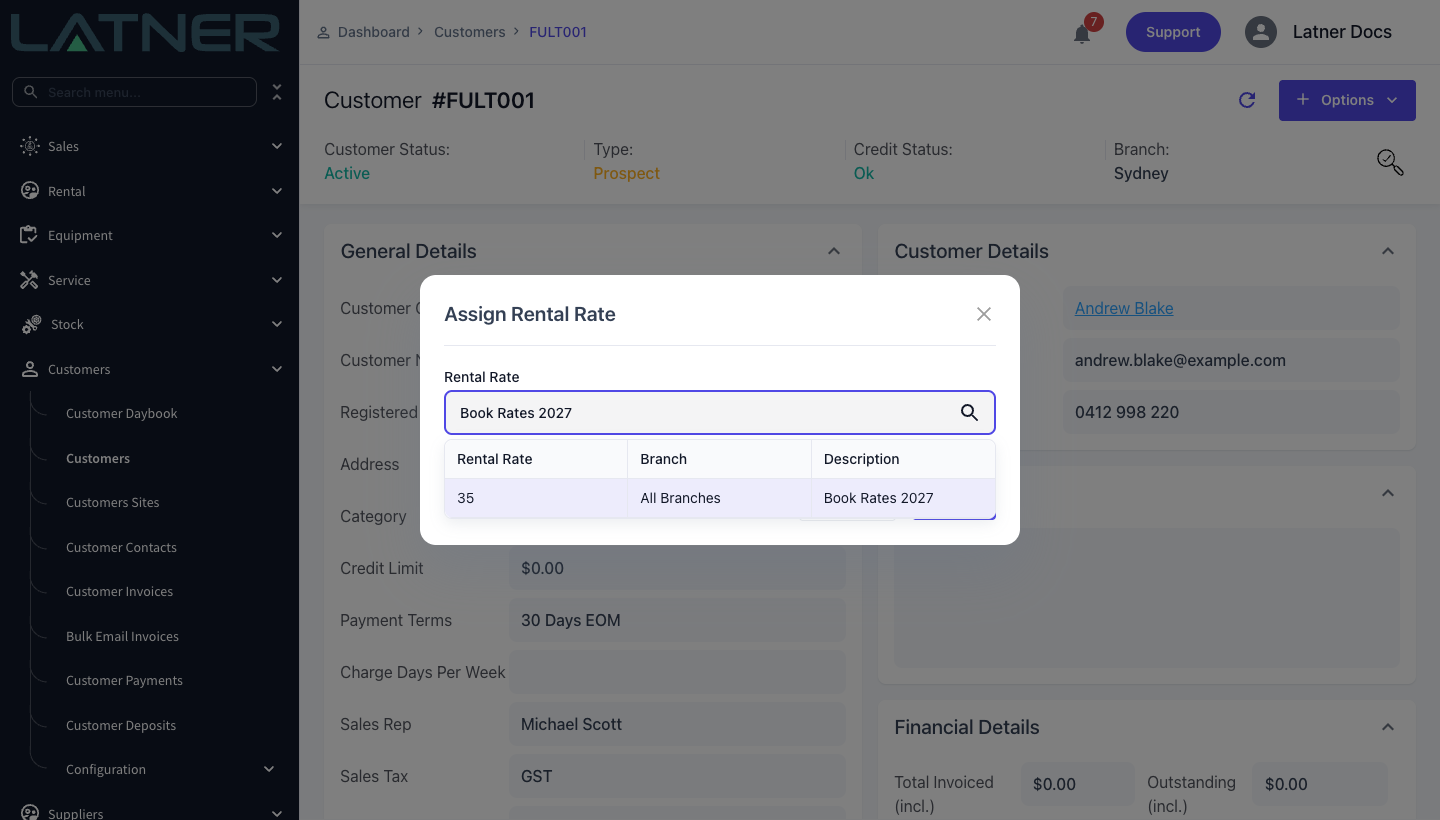
Click Options › Assign Rental Rate. The option needs the Assign Rental Rate permission.
Step 3 - Pick the book
Search the Rental Rate field and pick from the list, which shows each book's id, branch and description. Click Save and Latner confirms with Rental Rate Assigned.
Step 4 - Check the Rental Rates tab
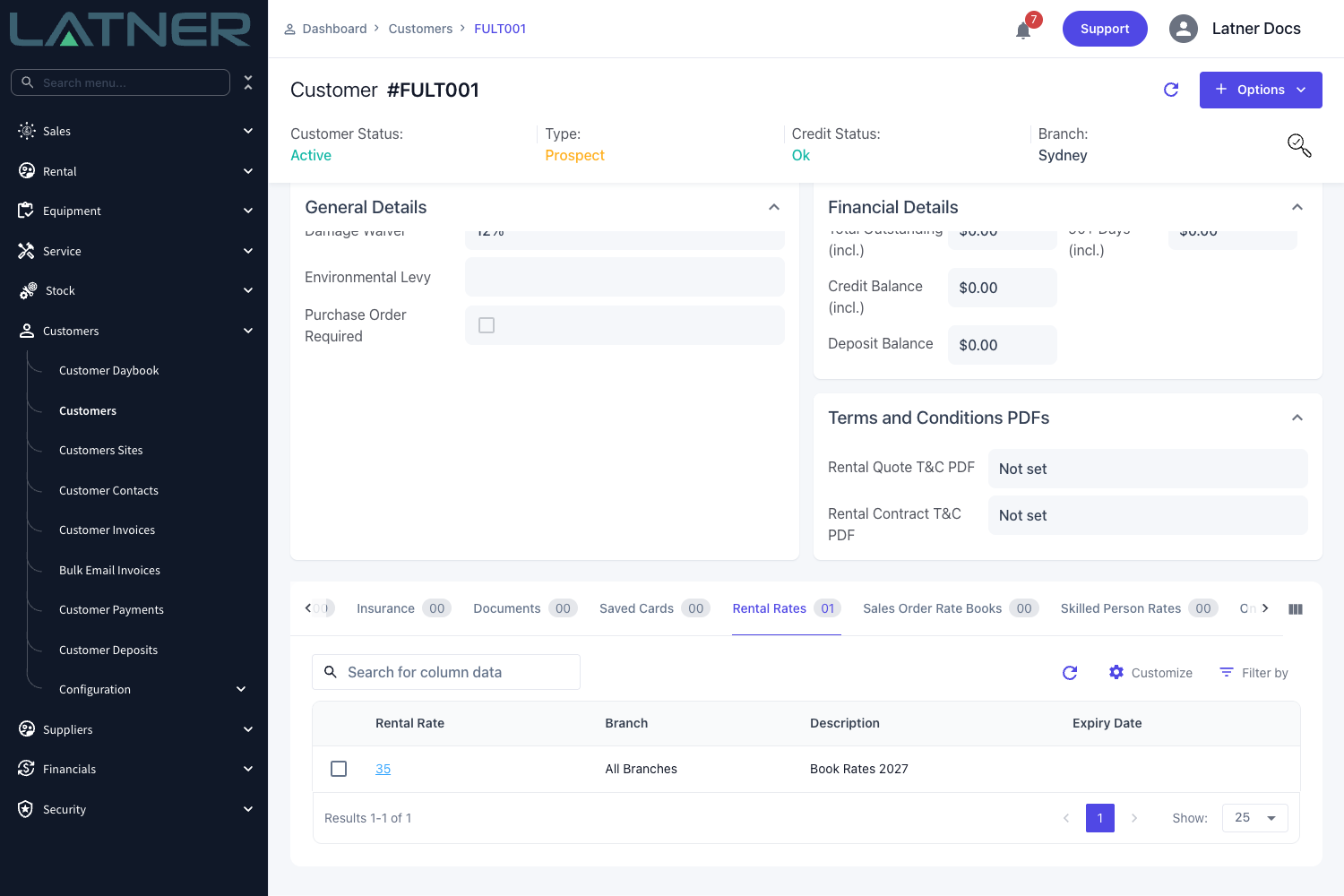
The assignment shows on the customer's (or site's) Rental Rates tab. A customer can hold more than one book, which is how a national account can carry a different book per branch. Tick a row and use the bin icon to unassign it.
Which Book Wins
When someone adds an equipment line to a quote or contract, Latner works through this in order:
-
Shortlist the candidate rows. Only rows in a book that matches the contract's branch, or is an All level book, or is the Global Rental Rates book.
-
Match the Rental Rate Variation exactly - including matching "no variation" when none was chosen.
-
Take the most specific rows available - rows against the Equipment Number first, then rows against the Equipment Model, then rows against the Equipment Class.
-
Within those rows, prefer by assignment - a book assigned to the contract's site beats one assigned to the customer, which beats the Global Rental Rates book.
Two consequences are worth knowing. A book that is neither assigned to the customer or site nor set as the global book is never used, however well it matches the branch. And step 3 runs before step 4, so a class-level row in a customer's own book will not beat a unit-level row - specificity of the row is decided first.
Once a rate is found it is copied onto the contract line. From that moment it belongs to the line: editing the book later changes what the next contract gets, never what this one bills.
To see what a given customer will actually be charged before you raise anything, use Rental › Customer Rental Rates, or Options › View Rates from the customer. Pick the customer, site, branch and variation and Latner shows the rates that would apply, with options to create a quote or contract straight from there. It is a preview screen - the assignment itself is made on the customer or site, not here.
Reviewing and Retiring a Book
Review Date and Expiry Date are reminders for your team, not switches. Latner does not stop using a book after its expiry date, and it does not change a book's status on its own - every book is created Active and stays Active.
So retiring a book is a deliberate act. To take one out of service:
-
Unassign it from every customer and site that holds it, from their Rental Rates tabs.
-
If it is the Global Rental Rates book, point that setting at the replacement first.
Once nothing points at it, the book is inert - it stays on the Rental Rates screen for reference and for copying, but no new contract line will ever price from it.
Filter the Rental Rates screen by Review Date and work through the ones coming up. Because nothing expires by itself, a book with a review date two years ago is still quietly pricing hires today.