
A credit note from a rental contract refunds a customer who was billed past the point they actually gave the equipment back, so an over-charged hire can be put right without unpicking the invoice you already sent.
Overview
Sometimes the billing runs ahead of the equipment. A machine is invoiced in advance to the end of October, the customer sends it back at the end of August, and now they have paid for two months they never used. Rather than cancel the original invoice and start again, Latner raises a credit note against the contract for the over-billed period.
-
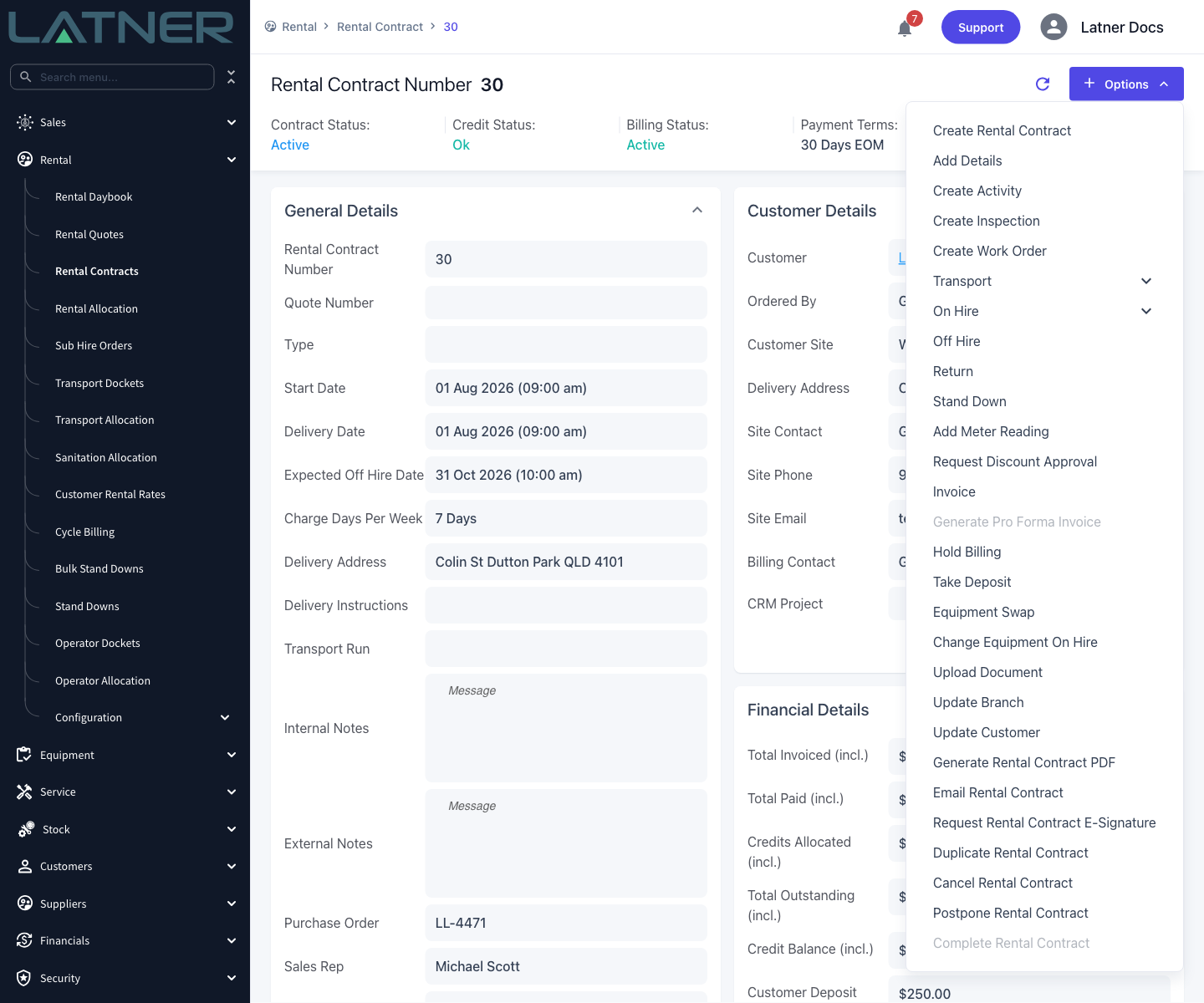
The credit is raised from the contract, not from the invoice. You use the same Options › Invoice action you would use to bill it - there is no separate "credit note" menu item.
-
Latner works out which one you are doing from the preview total. When the ticked lines add up to a negative figure, the button at the bottom changes from Create Invoice to Create Credit Note and turns red.
-
Only two invoice types can credit: Returned/Completed Items and Final Invoice. Invoice in Advance and Progress Invoice never produce a credit.
-
A credit only arises where equipment has been billed past its actual off hire date. If nothing was over-billed, there is nothing to give back.
-
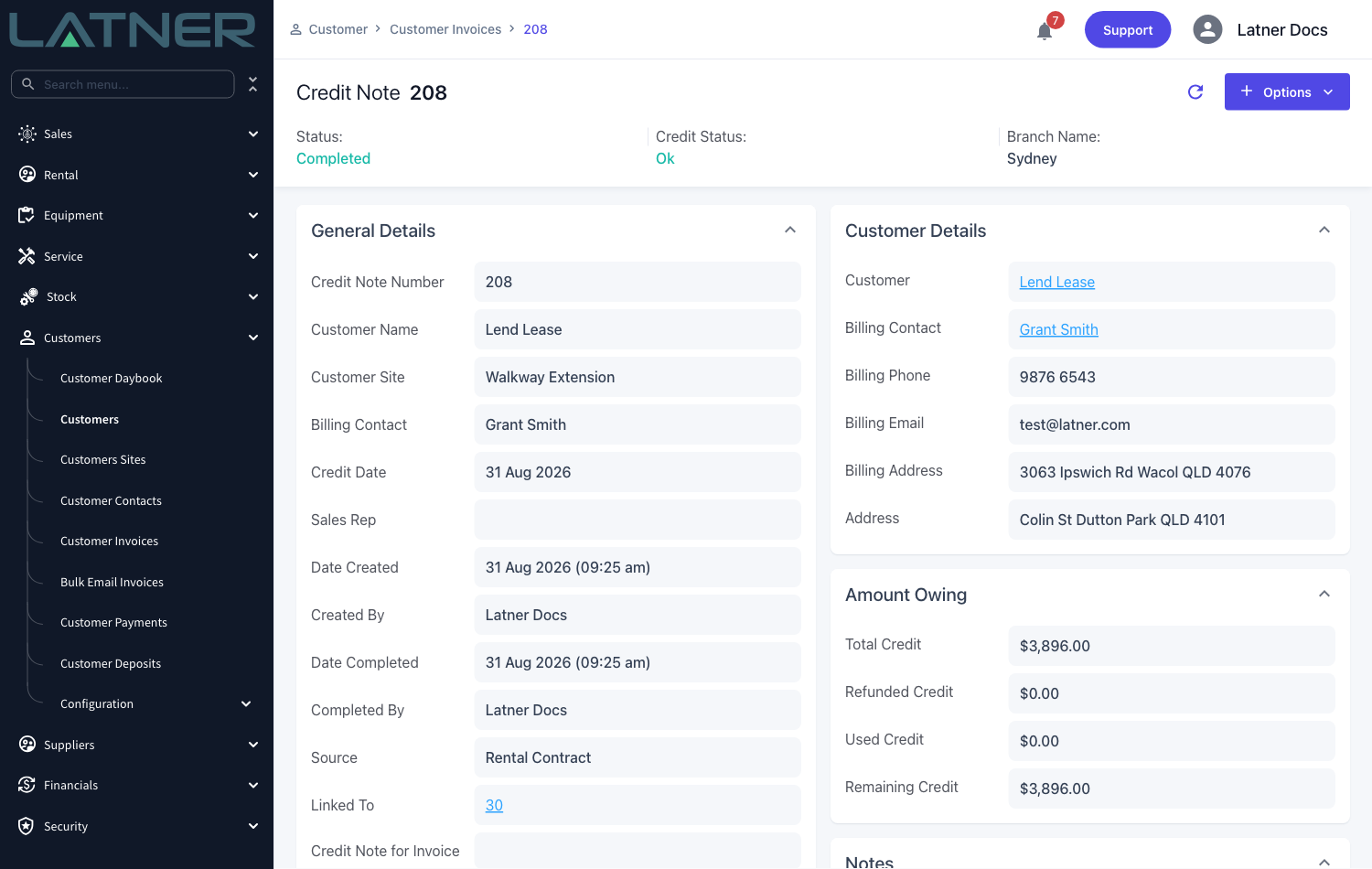
The finished record is an ordinary customer credit note with a Source of Rental Contract. Its Remaining Credit is then yours to allocate against the customer's outstanding invoices, or to refund.
Before You Begin
Crediting a rental contract has to be switched on for your business, and you need the permission that lets you invoice a contract.
|
Requirement |
Where to Find It |
|---|---|
|
Enables Crediting of a Rental Contract switched on |
Security › Settings › Rental |
|
Invoice Rental Contract permission |
Security › Configuration › Permission Groups - Rental › Option |
|
Equipment off hired and returned, with a return date earlier than the date it was billed to |
The contract's Options › Off Hire and Options › Return |
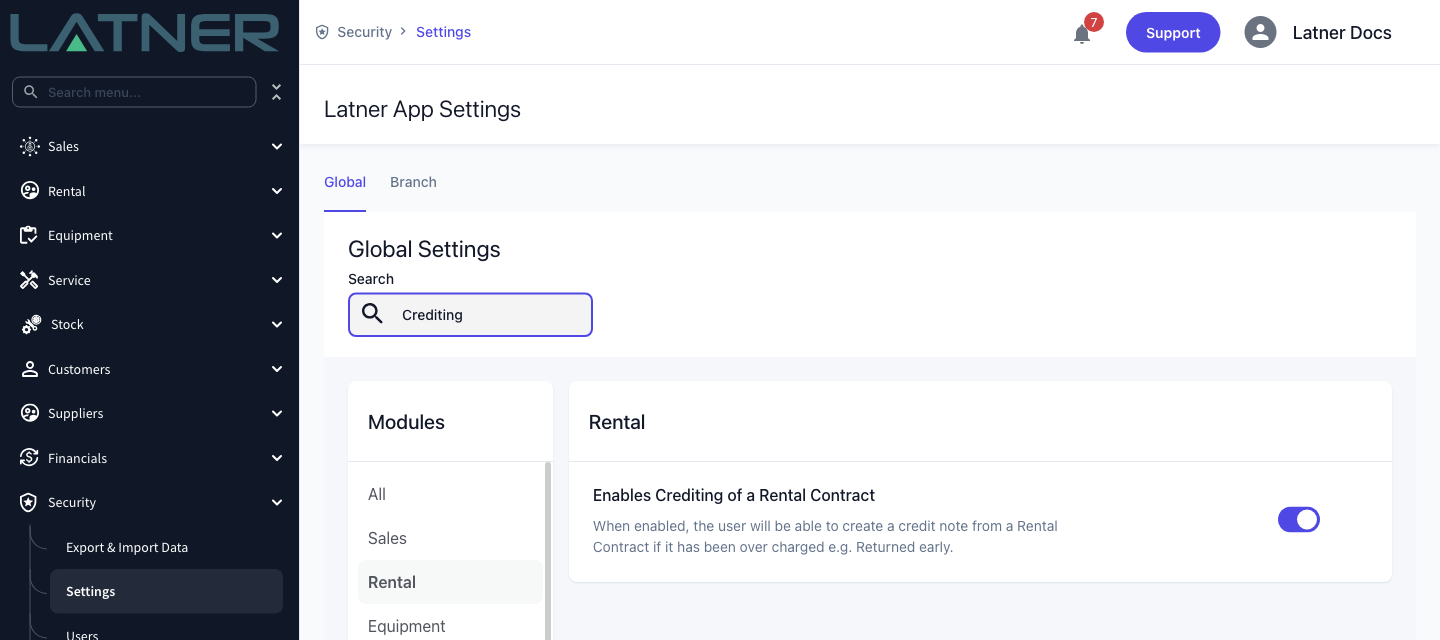
If Enables Crediting of a Rental Contract is off, there is no error message to tell you so. Latner simply drops the negative lines out of the preview, so the total can never go negative and the button never changes. If a credit you were expecting doesn't appear, check this setting before you go looking at the contract.
You do not need the Create Credit Note permission for this. That one covers manual credit notes and credit notes raised from a customer invoice. The rental contract route is governed by Invoice Rental Contract instead.
Creating the Credit Note
The walkthrough below credits a contract that was invoiced in advance to 31 October, but whose excavator came back on 31 August.
Step 1 - Check the equipment really was returned early
Open the rental contract and confirm the equipment has been through both Off Hire and Return, with the real date it came back. A credit is calculated from that off hire date up to the date the line had already been billed to, so if the equipment is only off hired and not yet returned, or the return date is wrong, the credit will be wrong too.
If the equipment is still on rent, there is nothing over-billed and the preview will come back empty.
Step 2 - Open the Invoice action
Choose Options › Invoice. This is the same action you use for any rental invoice - whether you end up with an invoice or a credit note is decided later, from the figures.
The Invoice option is unavailable once a contract is closed, that is, once its status is Completed, Cancelled or Lost.
Step 3 - Choose the invoice type
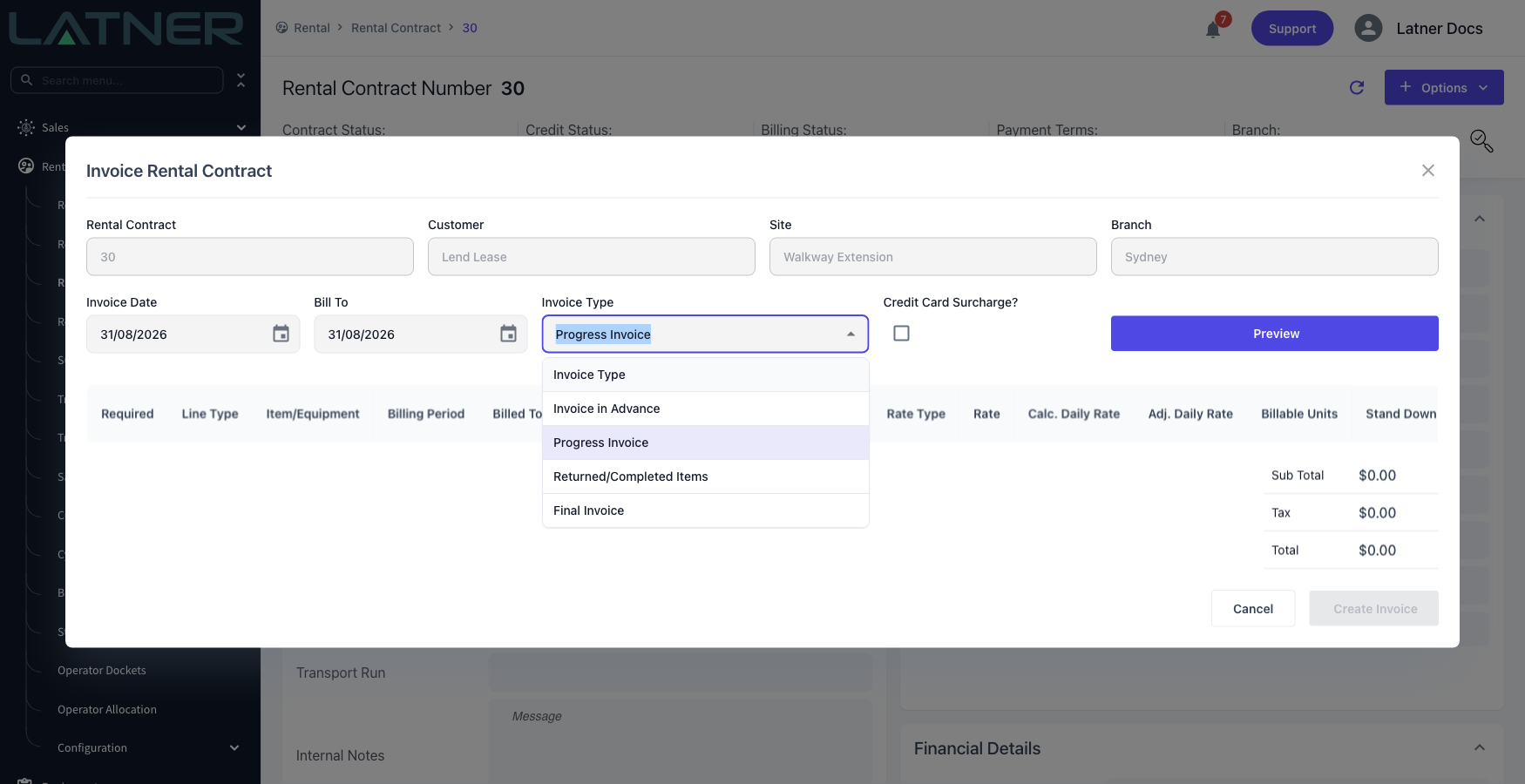
The Invoice Rental Contract window opens with the contract, customer, site and branch already filled in and locked. Set the three fields you can change:
-
Invoice Date - the date shown on the credit note, and the date the due date is calculated from. Defaults to today.
-
Bill To - the date to bill the contract up until. Defaults to today, which is normally what you want: the credited period is measured back from the date the line was already billed to, not from this field.
-
Invoice Type - choose Returned/Completed Items to credit returned equipment, or Final Invoice if you are closing the contract out at the same time. These are the only two types that can credit.
-
Credit Card Surcharge? - leave this unticked for a credit note. It is there for cash customers paying by card.
Step 4 - Preview the credit
Click Preview. Latner works out what would be billed or credited and lists it, without writing anything - you can preview as many times as you like.
Read the preview carefully before you go on:
-
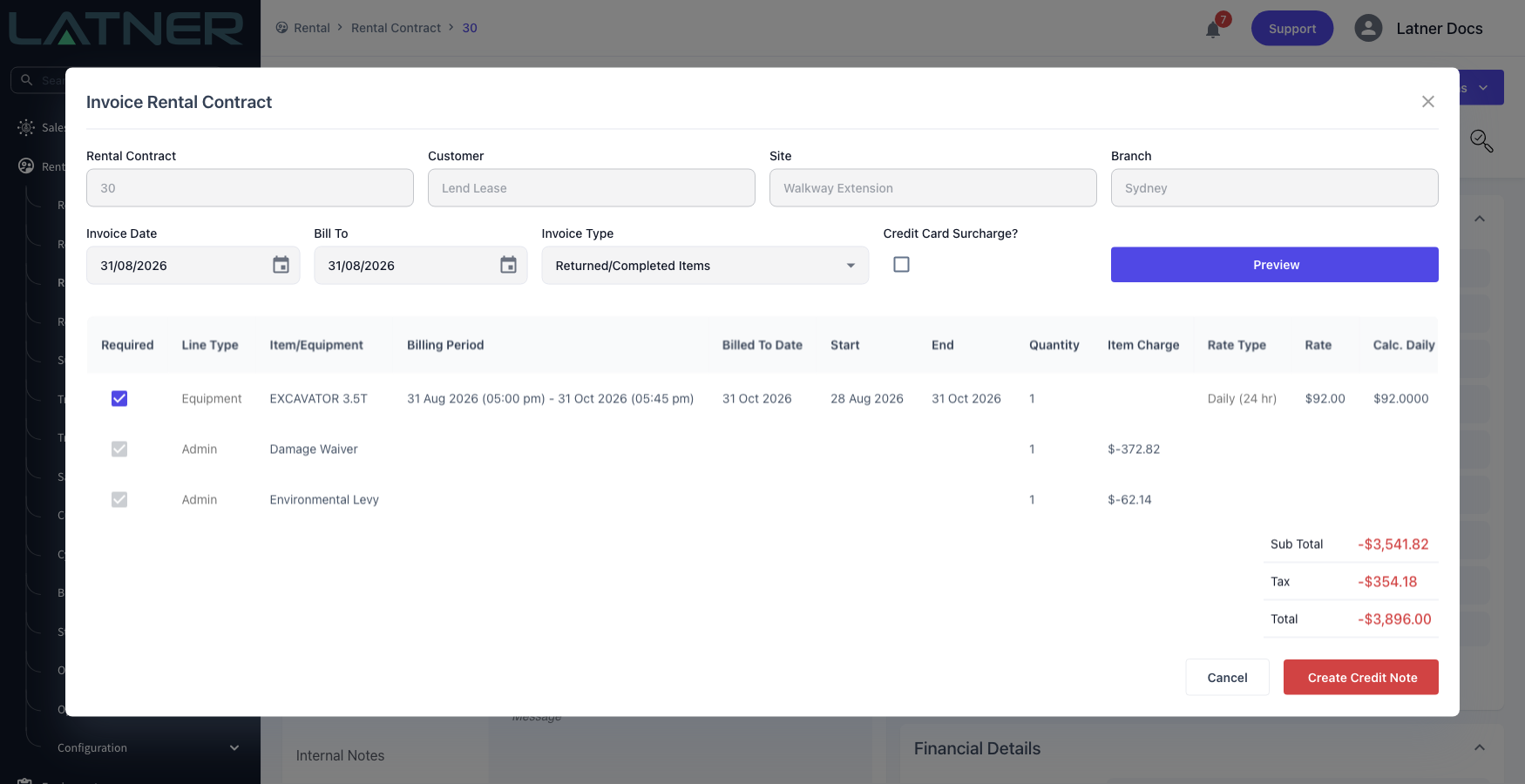
Credited lines show negative amounts, and the Sub Total, Tax and Total in the footer show in red.
-
Because the total is negative, the button now reads Create Credit Note and is red rather than blue.
-
The Billing Period column shows the span being credited, and Billed To Date shows how far the line had already been billed - the gap between the two is what you are giving back.
-
Untick Required on any line you don't want to credit. The totals recalculate immediately, and if what's left adds up to a positive figure the button changes back to Create Invoice.
-
Some tick boxes are greyed out. Percentage-based charges such as damage waiver and environmental levy follow the line they belong to ("Cannot deselect related lines"), and operator docket lines can't be dropped on their own either.
If the preview comes back empty you'll see a Nothing to Invoice message. That means nothing on this contract is either due to be billed or over-billed for the type you chose.
Step 5 - Create the credit note
Click Create Credit Note. Latner creates the credit note and confirms it with a message you can click through to open the new record.
On the credit note itself, Source reads Rental Contract and Linked To points back at the contract it came from, so the two records always find each other. Rental Invoice Type records which type you used.
After Creation
-
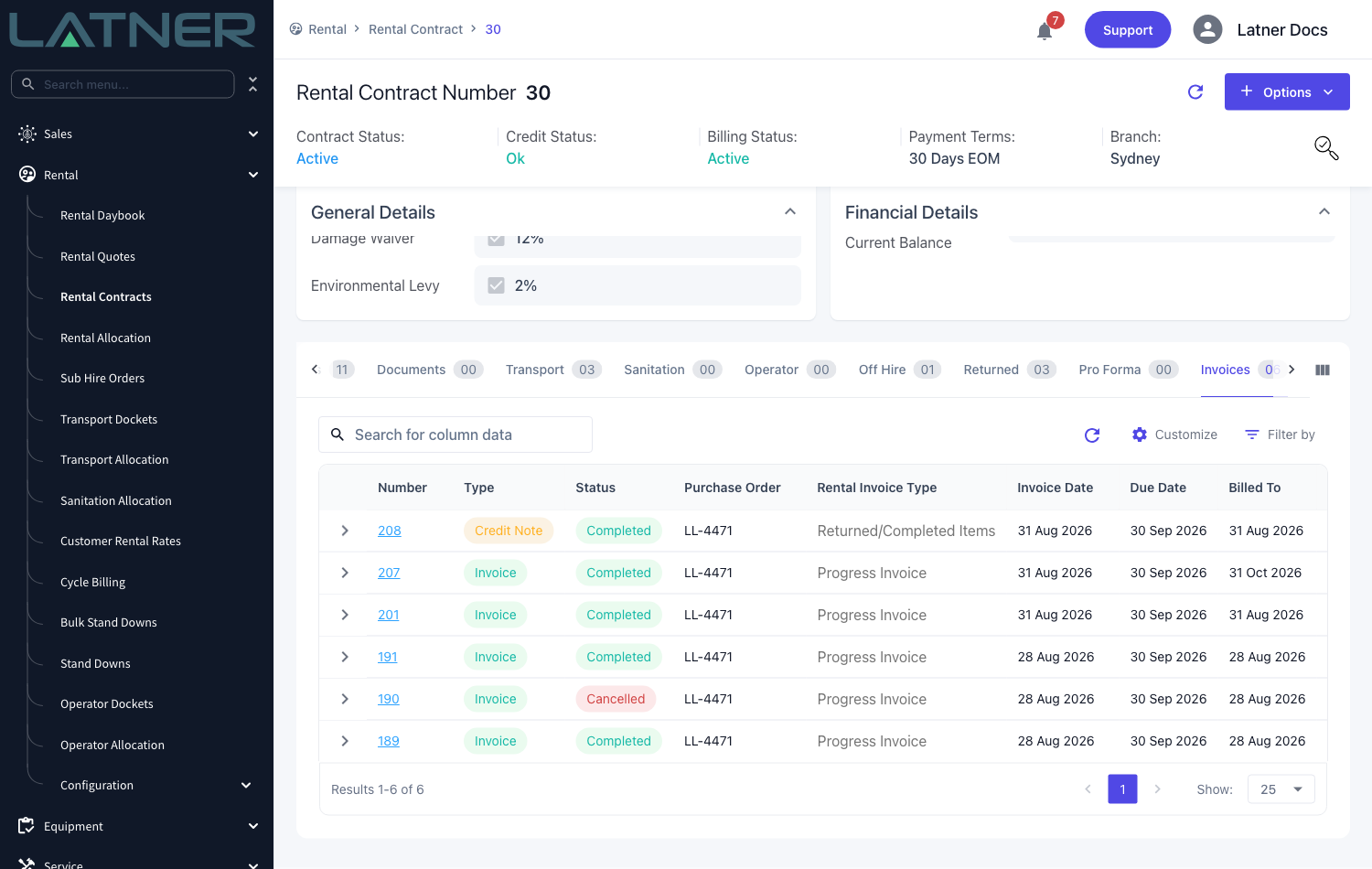
The credit note appears on the contract's Invoices tab alongside the invoices, marked with a Credit Note type chip, and on Customers › Customer Invoices. There is no separate credit notes list - invoices and credit notes share one screen and one number sequence.
-
Amounts are stored as positive figures on the credit note. The negatives you saw in the preview describe the effect on the contract; the credit note itself records what the customer is owed.
-
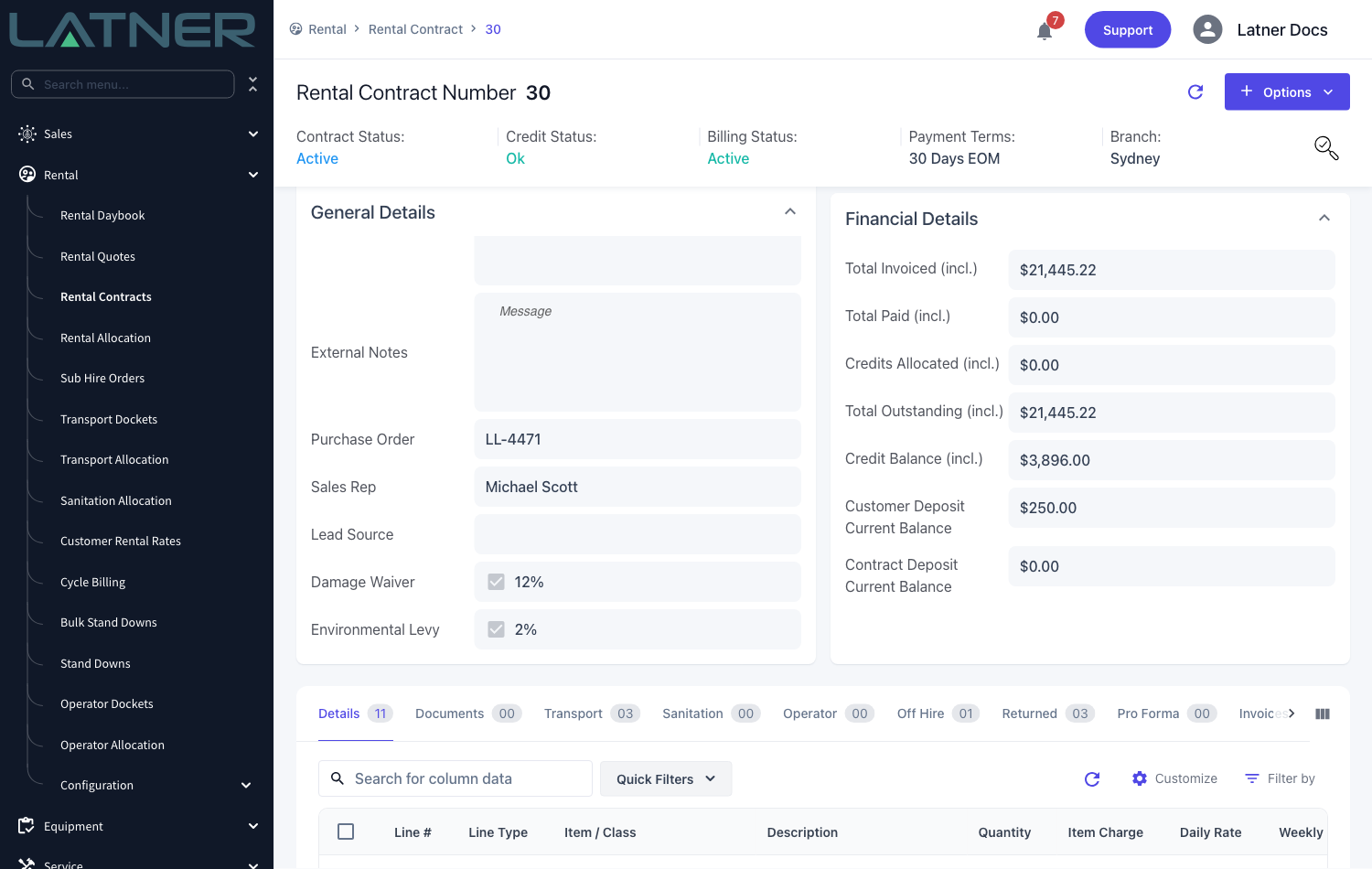
The contract's Credit Balance (incl.) goes up by the credited amount. That figure is the credit still sitting unused against this contract.
-
With Latner's usual configuration the credit note is created as Completed straight away and pushed to your accounting system. If your business has chosen to open rental records for review instead, it lands as Open and goes through approval first.
-
The credited rental lines have their billed-to date and invoiced totals wound back, so the contract's own figures stay consistent with what has actually been charged.
-
Nothing is refunded or applied yet. Use Allocate Credit on the credit note to put it against an outstanding invoice, or Refund Payment to pay it back.
A Completed credit note has already been sent to your accounting system, so it is not something to raise by accident. Undoing one means Cancel Credit Note, and only the most recent invoice or credit note on a contract can be cancelled - so if you have billed the contract again since, you have to unwind those records first. Check the return date and untick anything you don't mean to credit before you click the button.
FAQs
Watch the Demo
Prefer to watch it? Step through the same flow here.