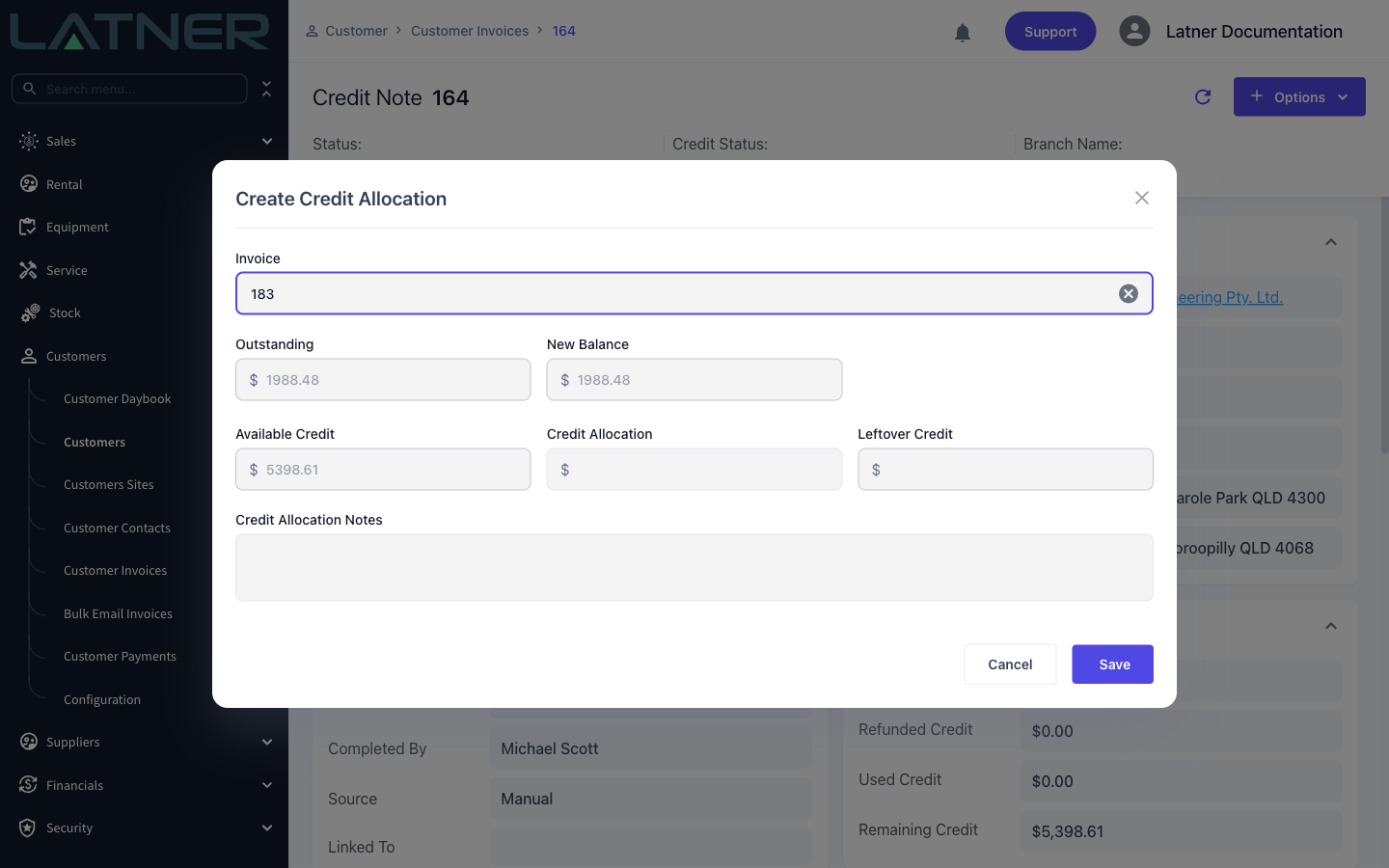
When a credit note is raised for the wrong amount, or applied to the wrong invoice, you can unwind it yourself. The steps have to be done in a set order, because each one is blocked until the one before it is finished.
Overview
Latner never deletes financial records - it reverses them. Unwinding a credit always runs in the same direction, from the most recent action back to the earliest:
-
Remove the credit allocation - the link between the credit note and the invoice it was applied to.
-
Cancel the credit note - only possible once no credit is allocated or refunded.
-
Cancel the invoice - only needed if the invoice itself is wrong, so you can correct and re-invoice.
Work in this order and each step is straightforward. Skip ahead and Latner will stop you with a message explaining what is still in the way.
Before You Begin
Removing an allocation needs the Create Customer Payment permission. Cancelling a credit note or an invoice both need Cancel Customer Invoice. If a rental contract is involved you may also need Reopen Rental Contract.
Always apply and remove credits in Latner, never directly in Xero, MYOB or Sage. Latner pushes the allocation to your accounting system and keeps both sides matched. If you allocate the credit in the accounting system instead, it attaches to the wrong document and the two records no longer agree.
Step 1 - Remove the Credit Allocation
Open the credit note and go to its Credit Allocations tab. Tick the allocation you want to remove and click the bin icon that appears above the table, then Confirm.
Do this from the credit note, not the invoice - the invoice's Credit Adjustment tab shows the same allocation but is read-only. Allocations also can't be edited, so if the amount is wrong, remove it and create a new one.
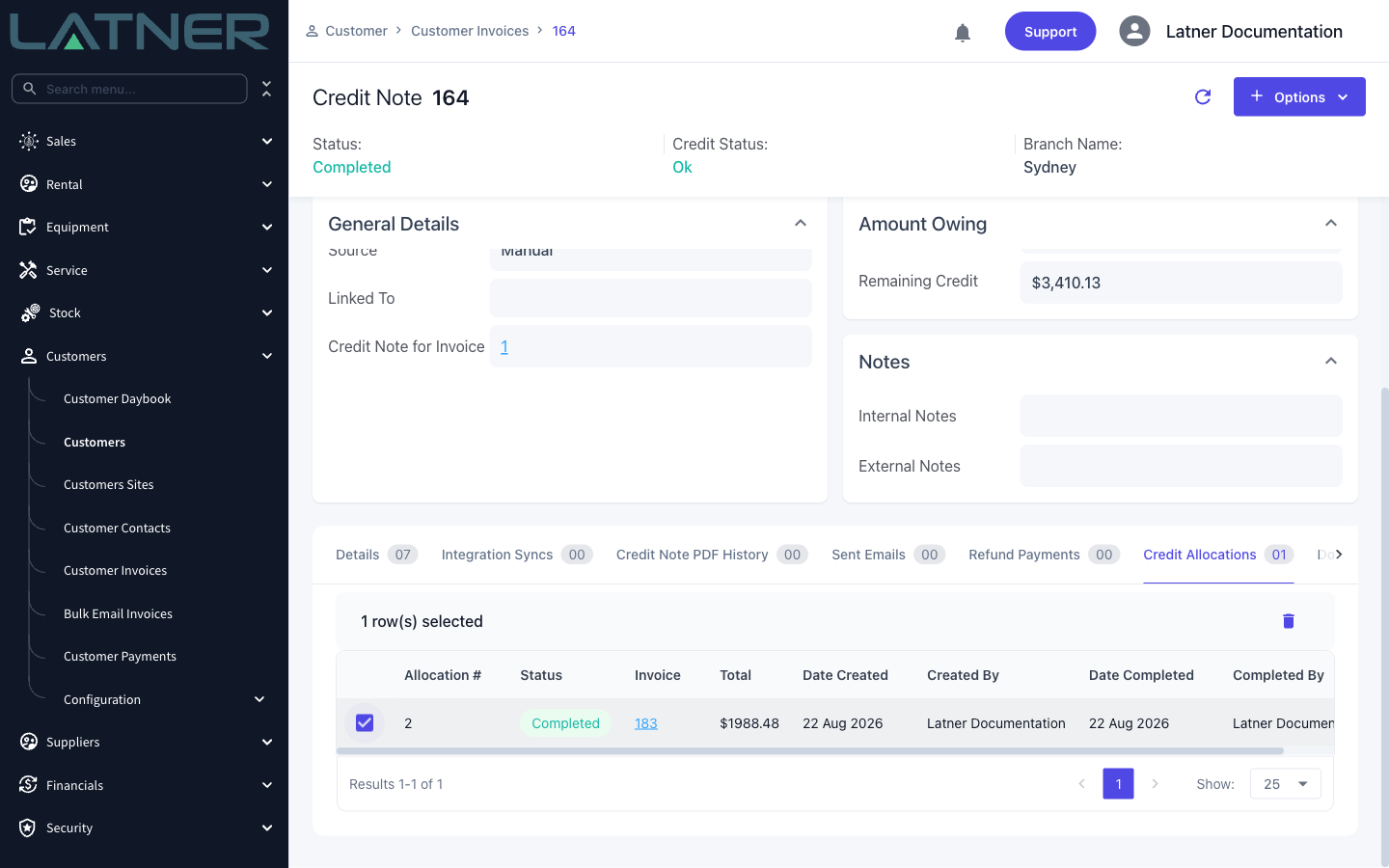
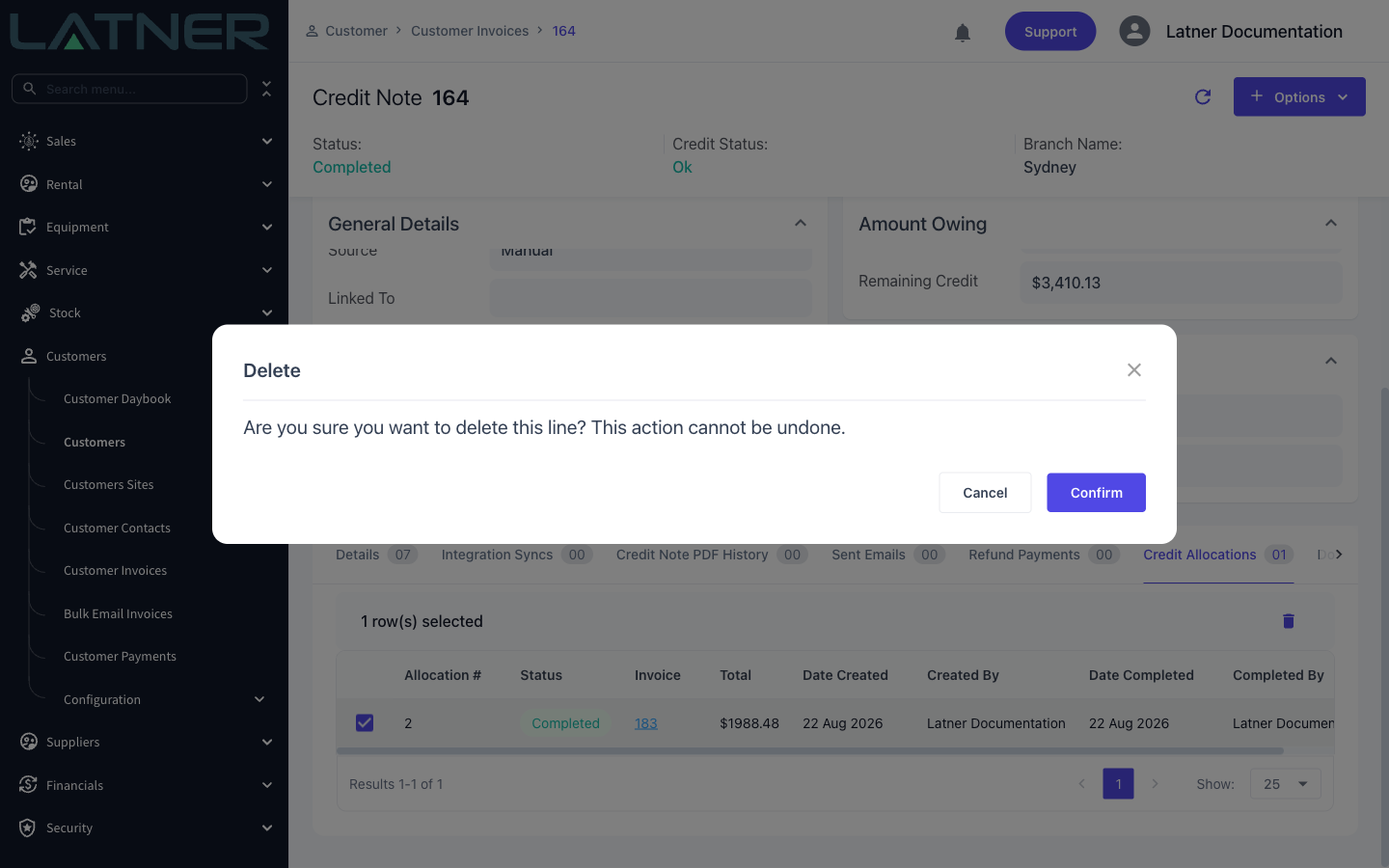
Removing the allocation frees the credit and reopens both documents: a credit note or invoice that had gone to Paid returns to Completed, and the credit shows as available again under Remaining Credit.
Step 2 - Cancel the Credit Note
With no allocation left, choose Options › Cancel Credit Note, enter Cancellation Notes explaining why, and click Confirm. Cancelling rolls back any billing the credit applied to the related rental contract, sales order or work order, and voids or deletes the credit note in your accounting system.
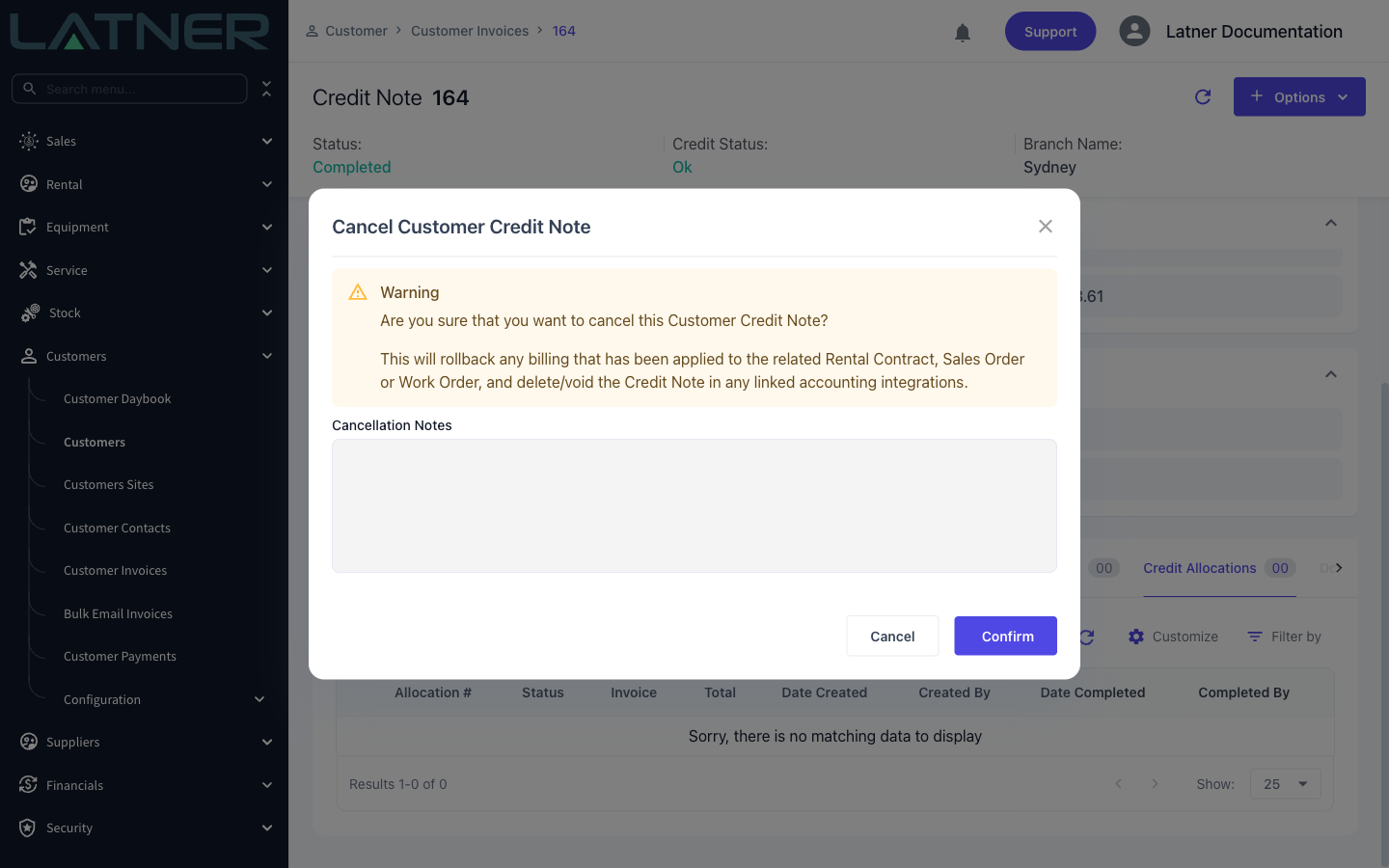
If you see "Unable to cancel a (partially) paid or credited invoice" or "Unable to cancel a PAID invoice", there is still an allocation or a refund attached - go back to step 1. A fully allocated credit note sits in Paid status, which is why the allocation has to go first.
Step 3 - Cancel and Re-Raise the Invoice
If the original invoice was wrong, cancel it with Options › Cancel Customer Invoice on the invoice, fix whatever was wrong, then invoice again. There is no "re-raise" button - correcting an invoice always means cancel, fix, re-invoice.
Cancelling puts everything the invoice consumed back into play: rental contract lines return to Pending so they can be billed again, operator dockets go back to Approved, sales order quantities are released, and a linked work order is reopened.
Note: invoices synced to Sage cannot be cancelled from Latner - you will see "Cannot Cancel Invoices Synced to SAGE". Contact Latner support for these. Xero and MYOB are handled automatically, with the invoice voided or deleted on their side.
Rental Contracts: Two Extra Wrinkles
If the credit relates to a rental contract, two things commonly get in the way.
The contract has completed. You cannot cancel an invoice attached to a completed contract - you will see "Cannot Cancel an Invoice that is linked to a Completed Rental Contract". Open the contract and choose Options › Reopen Rental Contract first, which returns it to Active. So the full sequence becomes: remove the allocation, reopen the contract, cancel the invoice, fix the contract, invoice again.
"Nothing to Invoice". After crediting a contract, pressing Preview in the Invoice Rental Contract window can report Nothing to Invoice. That means the lines are still marked as billed up to that date - crediting an invoice does not by itself release them. The message clears once the invoice that consumed those lines is cancelled, which resets them to Pending. You can also reach the same result by choosing a later Bill To date, or by using a Return or Final invoice type.
Checking It Worked
Open the invoice and look at its summary panel. Balance Credited shows how much credit has been applied and Balance Outstanding what is still owed - these also appear in the footer of the invoice PDF, which is the easiest way to show a customer that their credit has been applied. On the credit note itself the same figures are labelled Used Credit and Remaining Credit.