
Allocating a credit note applies credit you have already raised for a customer against one of their outstanding invoices, so the invoice is settled with credit instead of cash.
Overview
A credit note on its own doesn't reduce what a customer owes you. It sits against their account as available credit until you tell Latner which invoice to put it on, and that's what a credit allocation does.
-
An allocation links one Completed credit note to one Completed invoice for the same customer and moves an amount between them.
-
You can allocate part of a credit note and keep allocating the rest to other invoices until the credit runs out.
-
The most you can allocate in one go is the smaller of the credit note's remaining credit and the invoice's outstanding balance.
-
When an allocation clears the last of an invoice's balance the invoice moves to Paid; when it uses the last of the credit the credit note moves to Paid as well.
-
Completed allocations are pushed to your accounting integration automatically, so Latner and Xero, MYOB or Sage stay matched.
-
Allocations can't be edited. If you get the amount wrong, remove the allocation and create a new one.
Before You Begin
You need the right permissions and two documents in the right state.
|
Requirement |
Where to Find It |
|---|---|
|
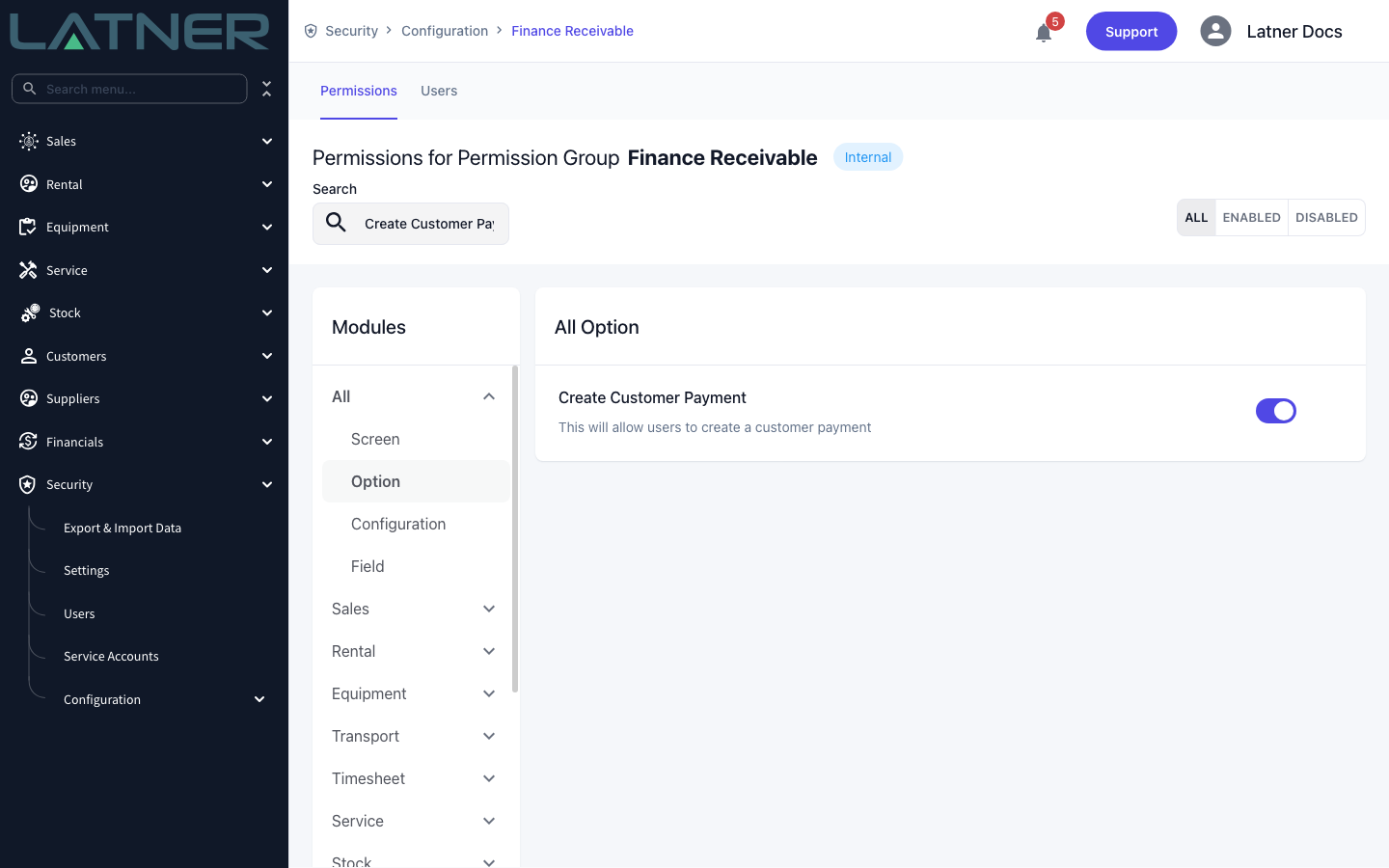
Create Customer Payment permission |
Security › Configuration › Permission Groups › your group › Permissions › Customer › Option. Of the built-in groups, only Administrator, Finance Manager, Branch Manager and Finance Receivable have it. |
|
Customer Payments permission |
Same screen, under Screen. Without it the Credit Allocations tab has nothing to show. |
|
A credit note with credit left on it |
Customers › Customer Invoices. It must be Completed and still have a Remaining Credit figure. |
|
An invoice to credit |
Same list. It must belong to the same customer, be Completed, and still have a balance outstanding. |
Allocate Credit is greyed out while a credit note is still Open or Pending Approval, with the tooltip "A Credit Allocation can only be created for Completed Credit Note". Complete the credit note first and the option becomes available.
Allocating the Credit
Step 1 - Open the credit note
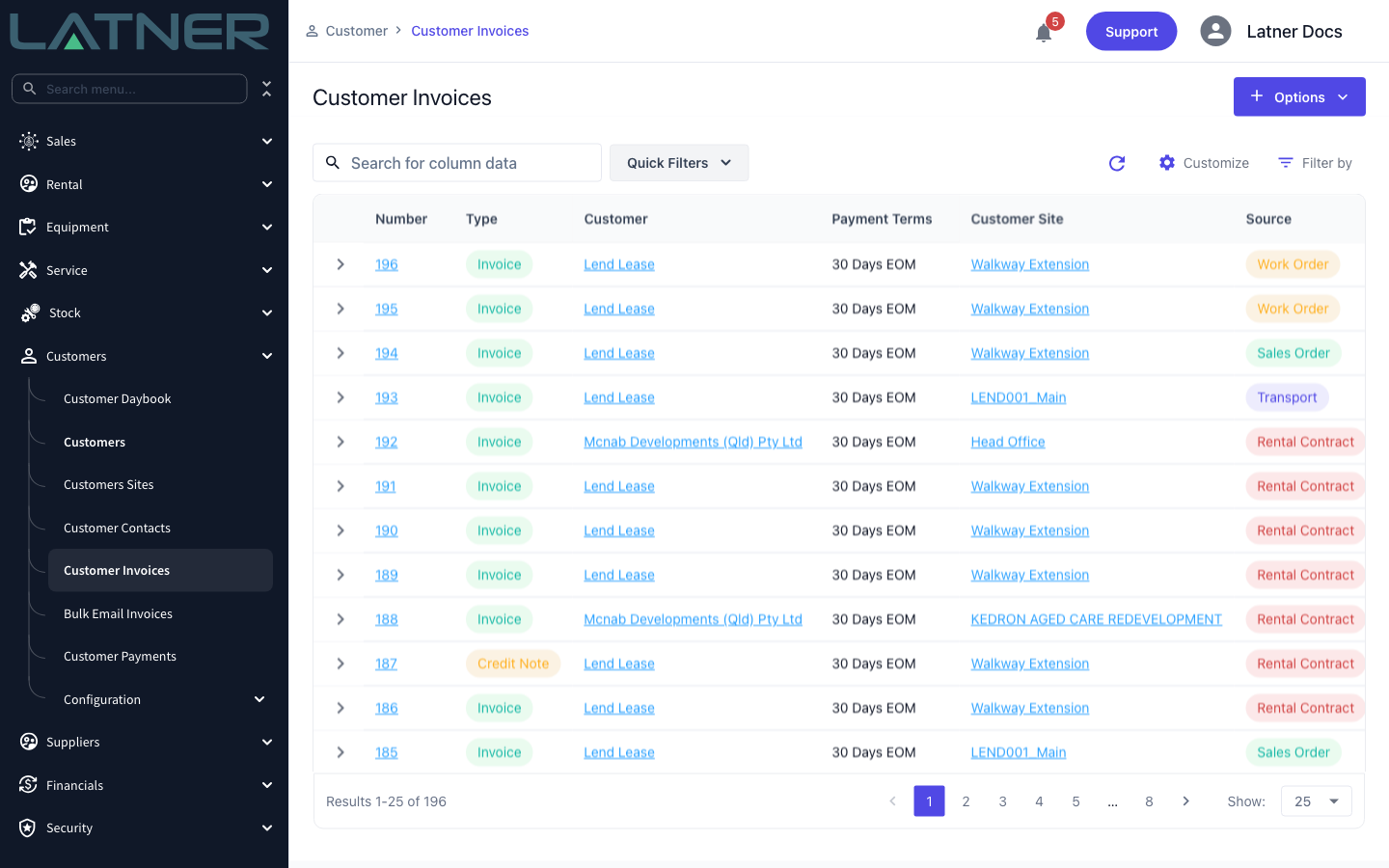
Go to Customers › Customer Invoices. Credit notes share this list with invoices, so use the Type column to pick them out, then click the number to open one.
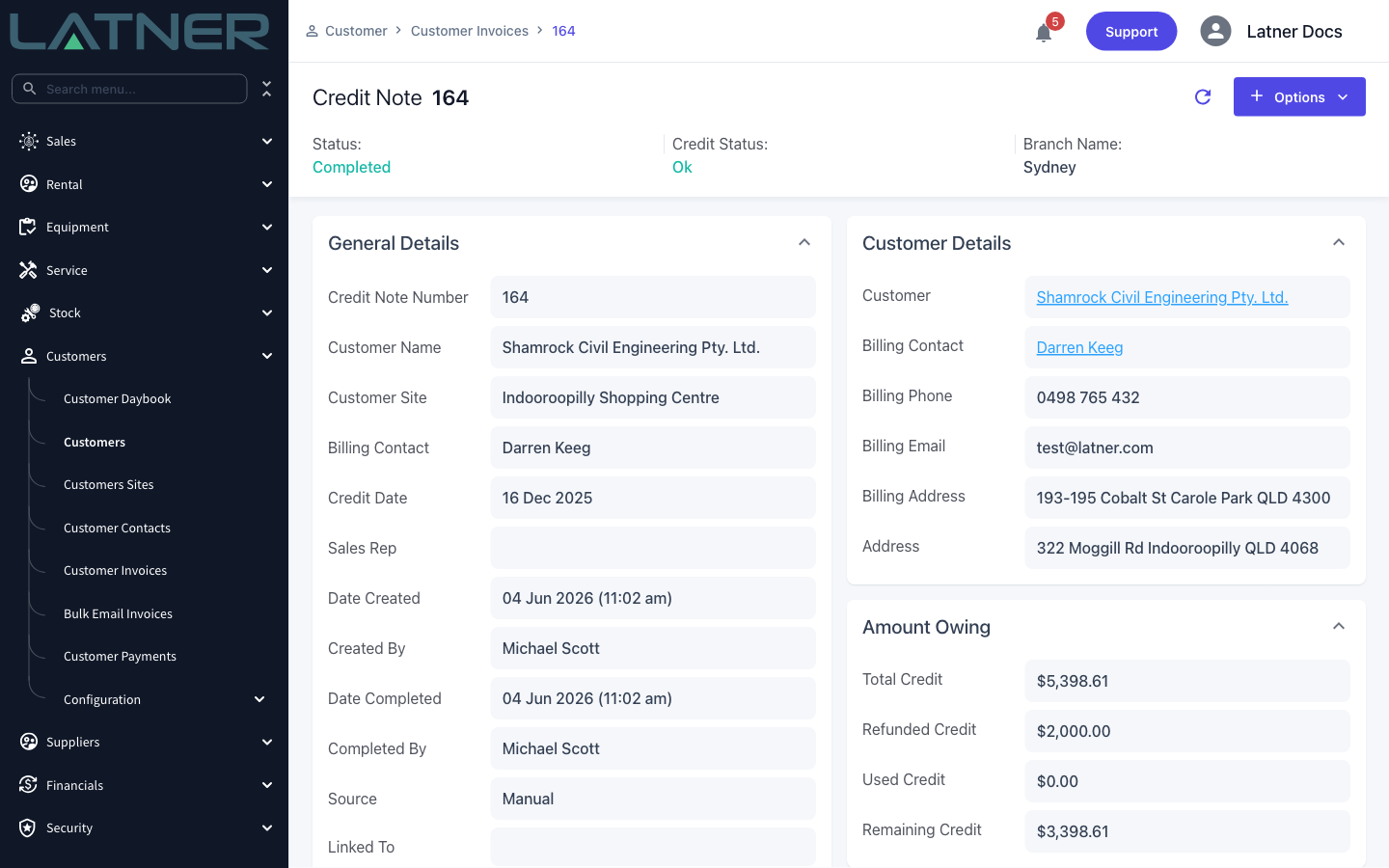
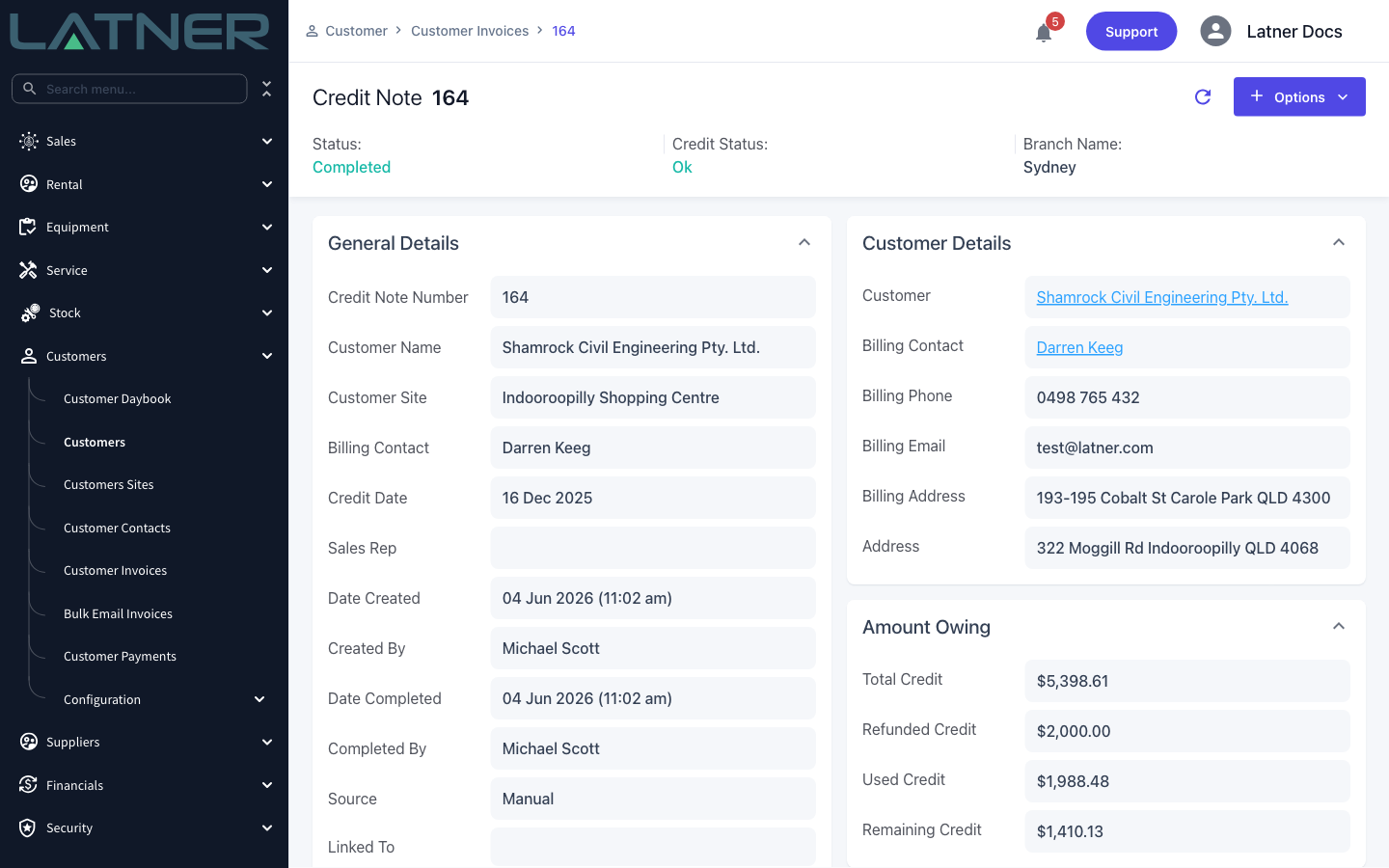
Check the Amount Owing panel before you go any further. Total Credit is the value of the credit note, Refunded Credit is what has been paid back to the customer in cash, Used Credit is what has already been allocated to invoices, and Remaining Credit is what you have left to work with.
Step 2 - Choose Options › Allocate Credit
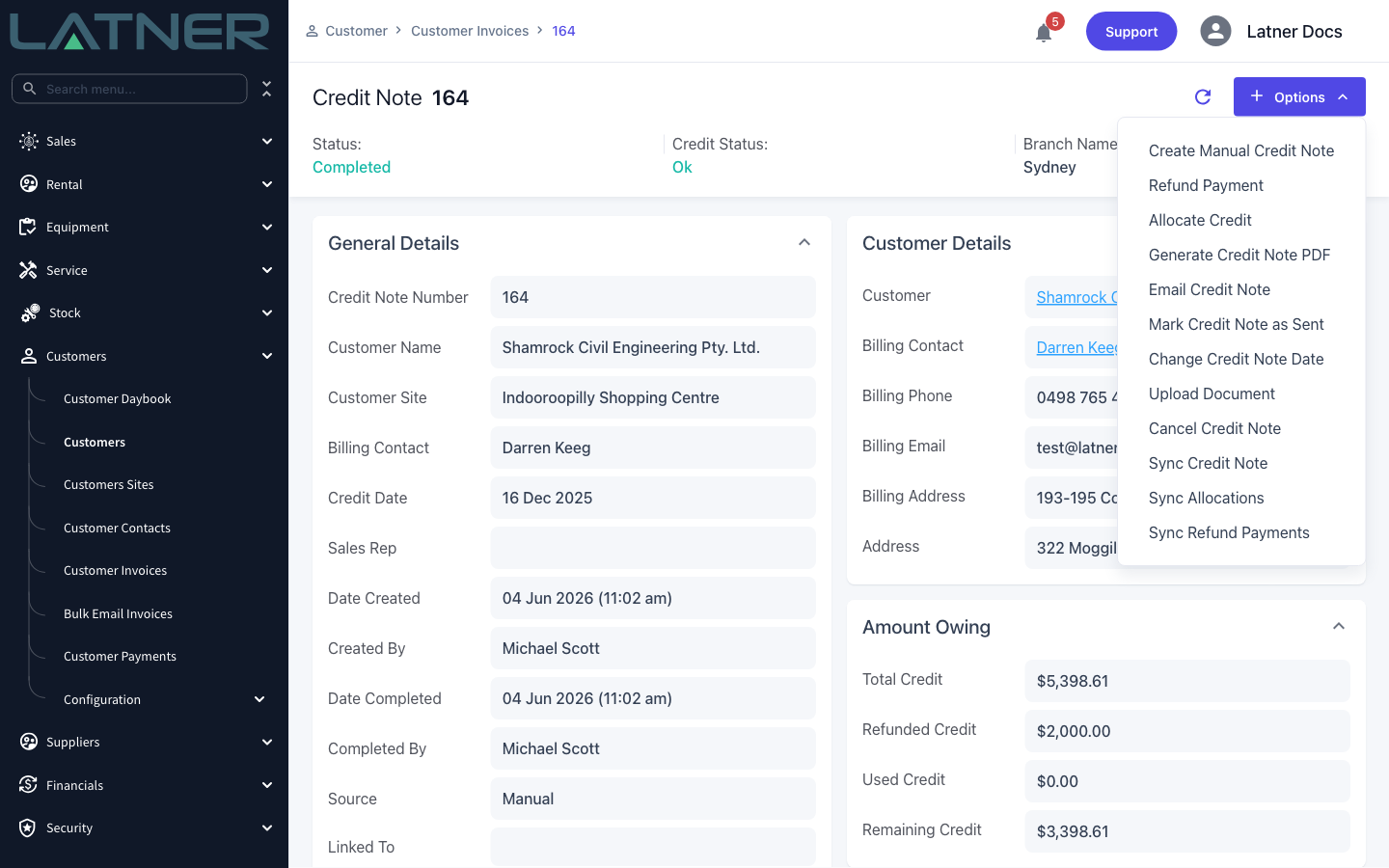
Open the Options menu at the top right of the credit note and choose Allocate Credit.
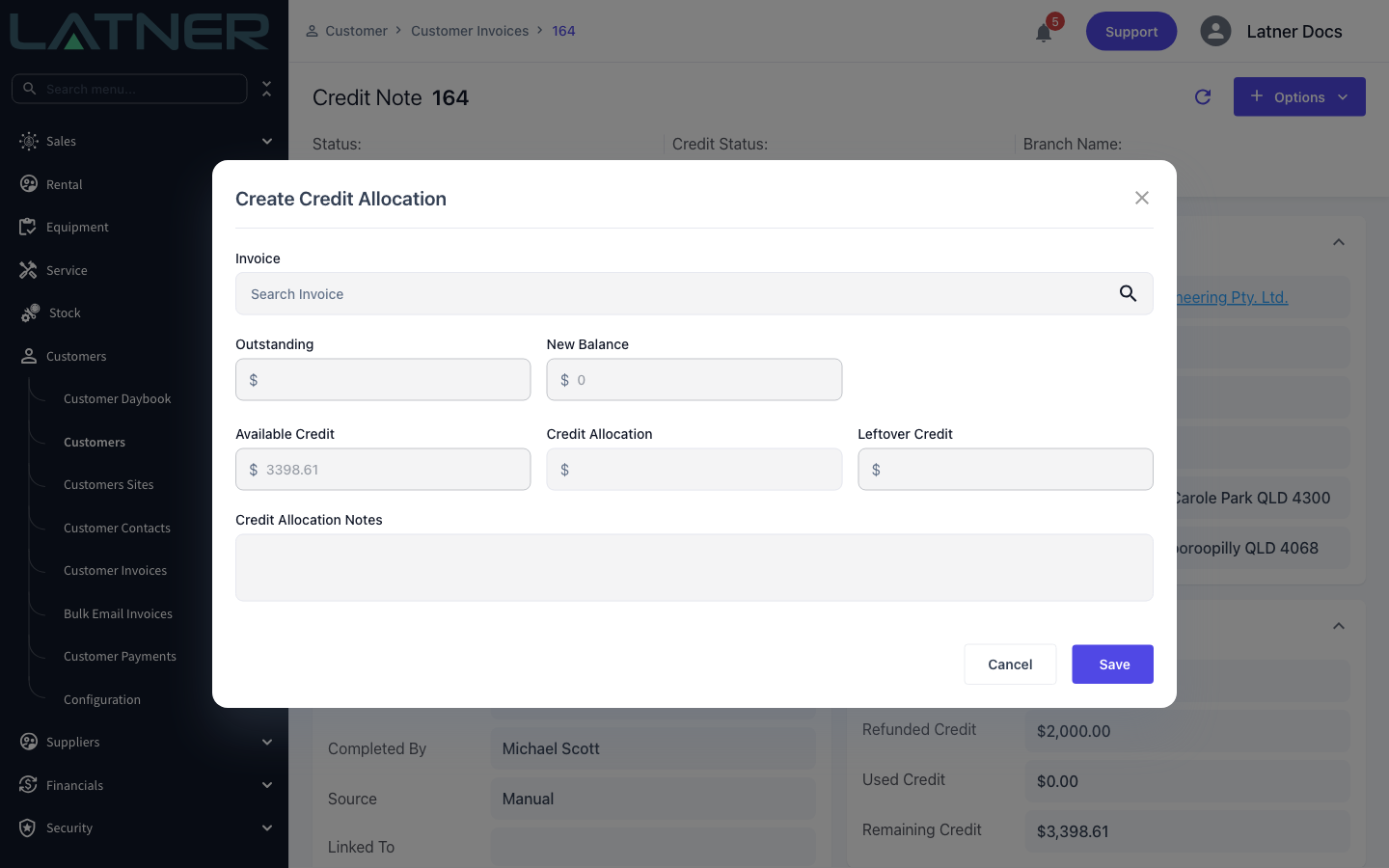
Step 3 - Read the Create Credit Allocation form
The dialog has two fields you fill in and four that Latner works out for you:
-
Invoice (required) - the invoice the credit goes on. Search picker, covered in the next step.
-
Outstanding - read-only. What the selected invoice currently owes.
-
New Balance - read-only. What the invoice will owe after this allocation.
-
Available Credit - read-only. The credit note's remaining credit, carried in from the header.
-
Credit Allocation (required) - the amount of credit to move onto the invoice.
-
Leftover Credit - read-only. What will still be sitting on the credit note afterwards.
-
Credit Allocation Notes - optional free text, stored on the allocation.
Step 4 - Pick the invoice
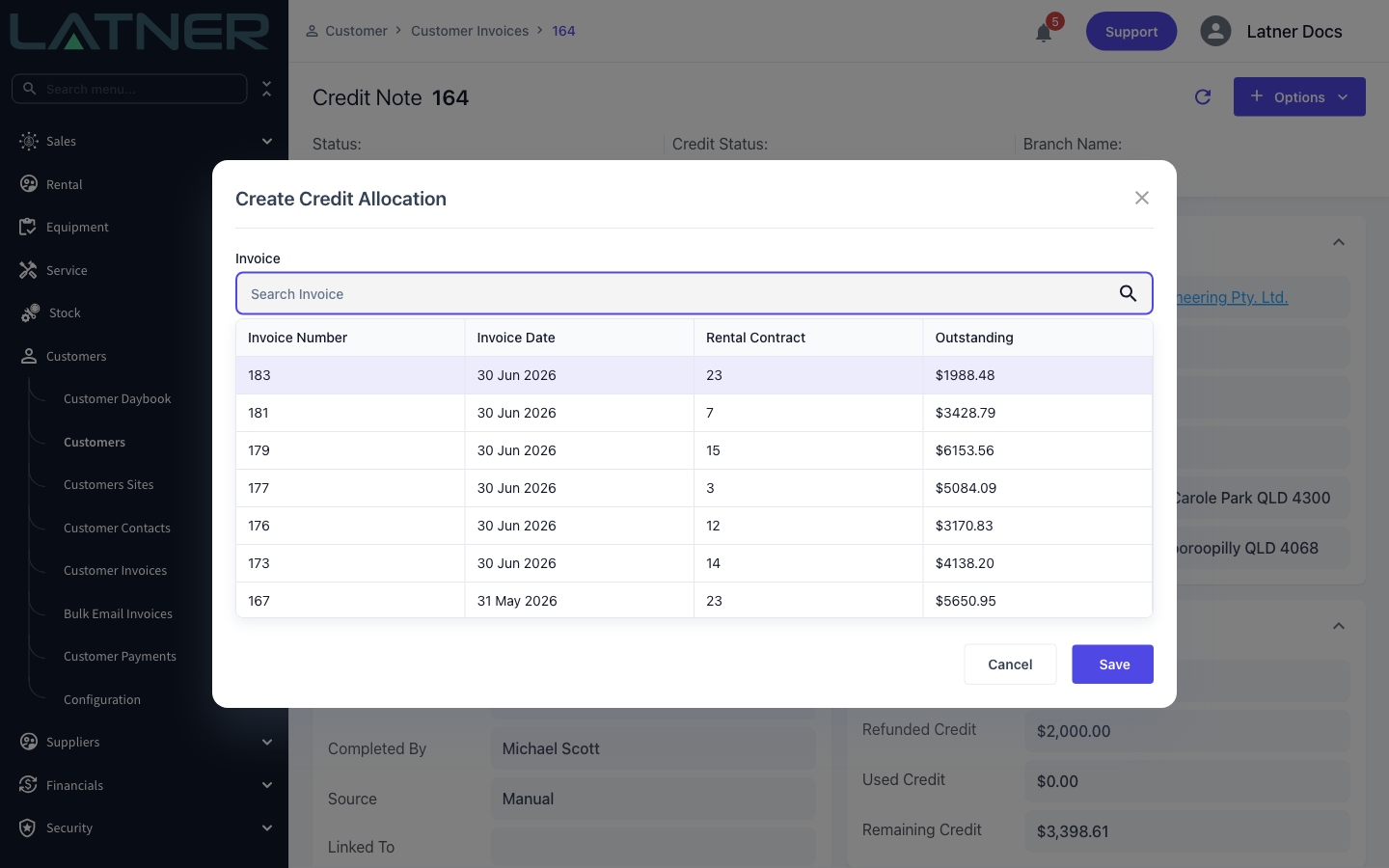
Click Search Invoice to open the picker. It lists Invoice Number, Invoice Date, Rental Contract and Outstanding, so you can choose by age or by the amount still owing without leaving the dialog. Type in the box to narrow the list.
The picker only offers invoices that belong to the same customer as the credit note, are of type Invoice rather than another credit note, and are in Completed status. Anything still Open or Pending Approval, and anything already Paid, is left out.
Step 5 - Enter the amount to allocate
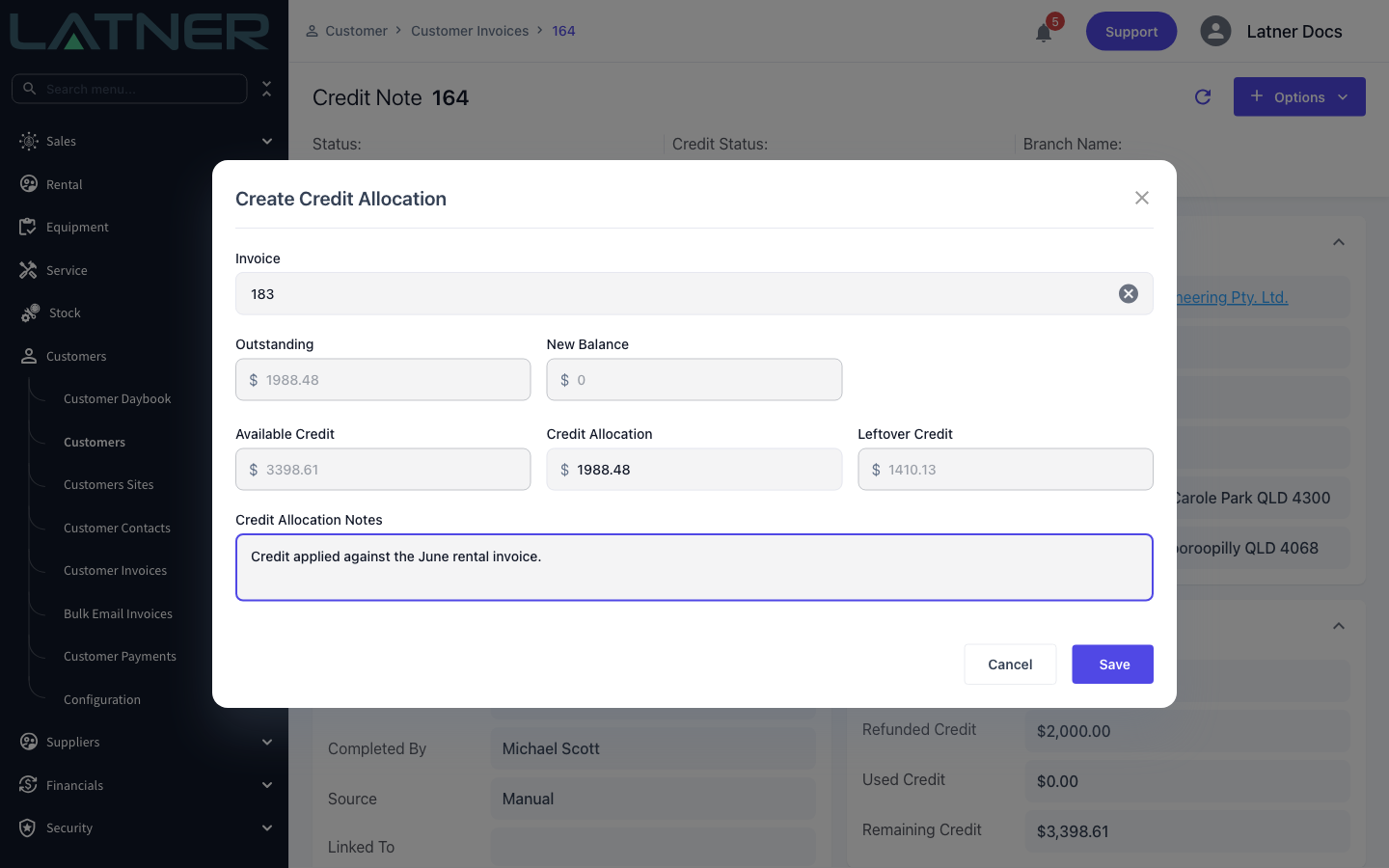
Type the amount into Credit Allocation. New Balance and Leftover Credit update as you type, so you can see both sides of the transaction before you commit to it. To settle the invoice completely, enter its Outstanding figure.
Two limits apply, and Latner checks both. Go over the credit note's remaining credit and you get "Please enter value lower than or equal to the credit outstanding"; go over the invoice's outstanding balance and you get "Please enter value lower than or equal to the balance outstanding". The amount also has to be greater than zero.
Step 6 - Save
Click Save. Latner confirms with "Credit Allocated", writes the allocation as Completed, and immediately starts pushing it to your accounting integration. The credit note header updates without a page reload.
After Allocating
-
The allocation appears on the credit note's Credit Allocations tab with its own Allocation #, and on the invoice's Credit Adjustment tab as the same record under Adjustment #. Each tab links through to the other document.
-
The invoice's balance outstanding drops by the allocated amount. If that takes it to zero the invoice moves to Paid.
-
The credit note's Used Credit and Remaining Credit move by the same amount. If the remaining credit reaches zero the credit note moves to Paid too - on a credit note, Paid means fully used up rather than fully banked.
-
If the invoice came from a rental contract, that contract's billing status is recalculated when the invoice flips to Paid.
-
Latner pushes the allocation to every active accounting integration. Xero only accepts it when Enable Sync Xero Payments is switched on in your Xero integration settings. If a sync fails you can retry from Options › Sync Allocations.
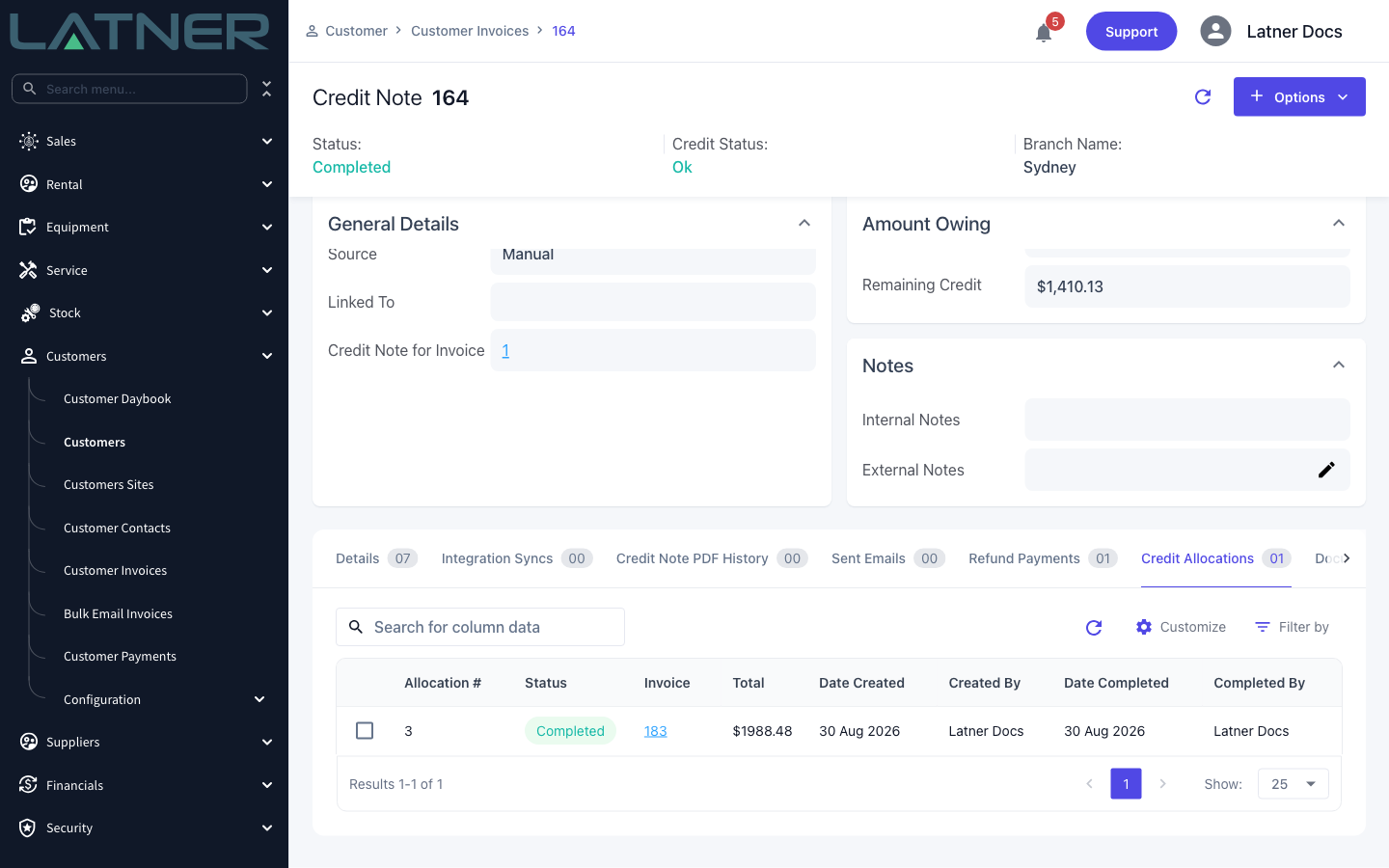
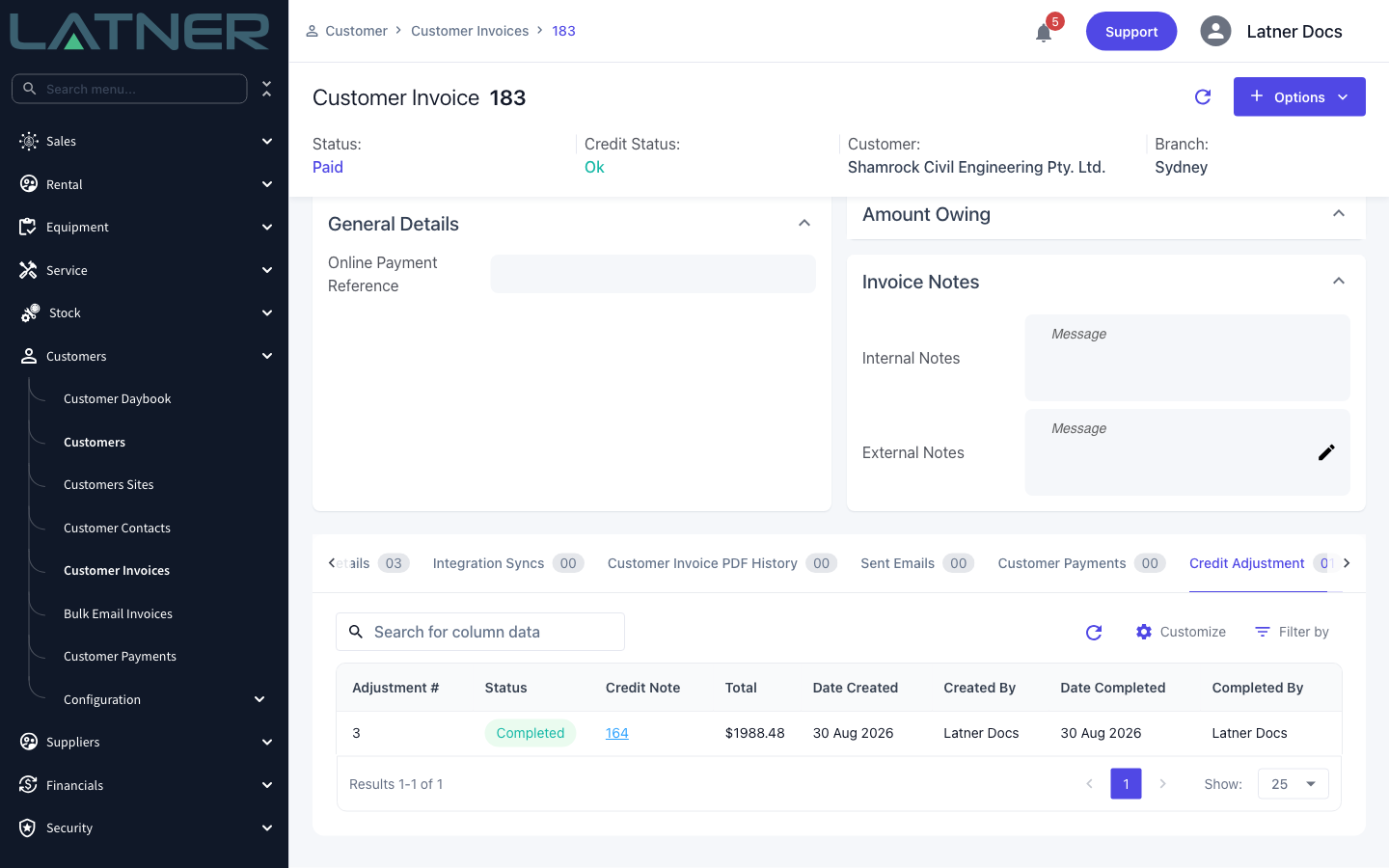
An allocation can't be edited once it is saved. If you allocated the wrong amount, or put the credit on the wrong invoice, remove the allocation from the credit note's Credit Allocations tab and create a new one. Removing it frees the credit again and returns both documents from Paid to Completed. See How to Cancel a Credit Note or Remove a Credit Allocation for the full sequence.
FAQs
Watch the Demo
Prefer to watch it? Step through the same flow here.