
Recording a payment against a customer invoice keeps your accounts receivable accurate and marks the invoice as paid once it has been settled in full.
Overview
Once an invoice has been finalised, taking payment is a quick job you do straight from the invoice itself. Latner keeps the maths honest for you, so you can only ever record what is genuinely owing.
-
Payments are taken from the invoice, and only once its status is Completed.
-
The payment amount defaults to the balance still owing and can never exceed it.
-
Paying the full balance moves the invoice to Paid; a part payment leaves it Completed with a reduced balance.
-
Each payment records the method used, an optional note, and who took it.
-
Payments flow both ways with a linked accounting system: Latner pushes the payments you take across, and pulls back payments you reconcile against bank feeds in Xero, MYOB AccountRight or Sage Intacct.
Before You Begin
You will need the right permissions and a completed invoice before you can take a payment.
|
Requirement |
Where to Find It |
|---|---|
|
Create Customer Payment permission |
Security › Users - on the user's permission group, under Customers |
|
Customer Payments permission (to view what you have taken) |
Security › Users - on the user's permission group, under Customers |
|
An invoice with the status Completed |
The invoice's Status field, at the top of the invoice |
|
Default Payment Method and Allowed Payment Methods (optional) |
Security › Settings › Financial |
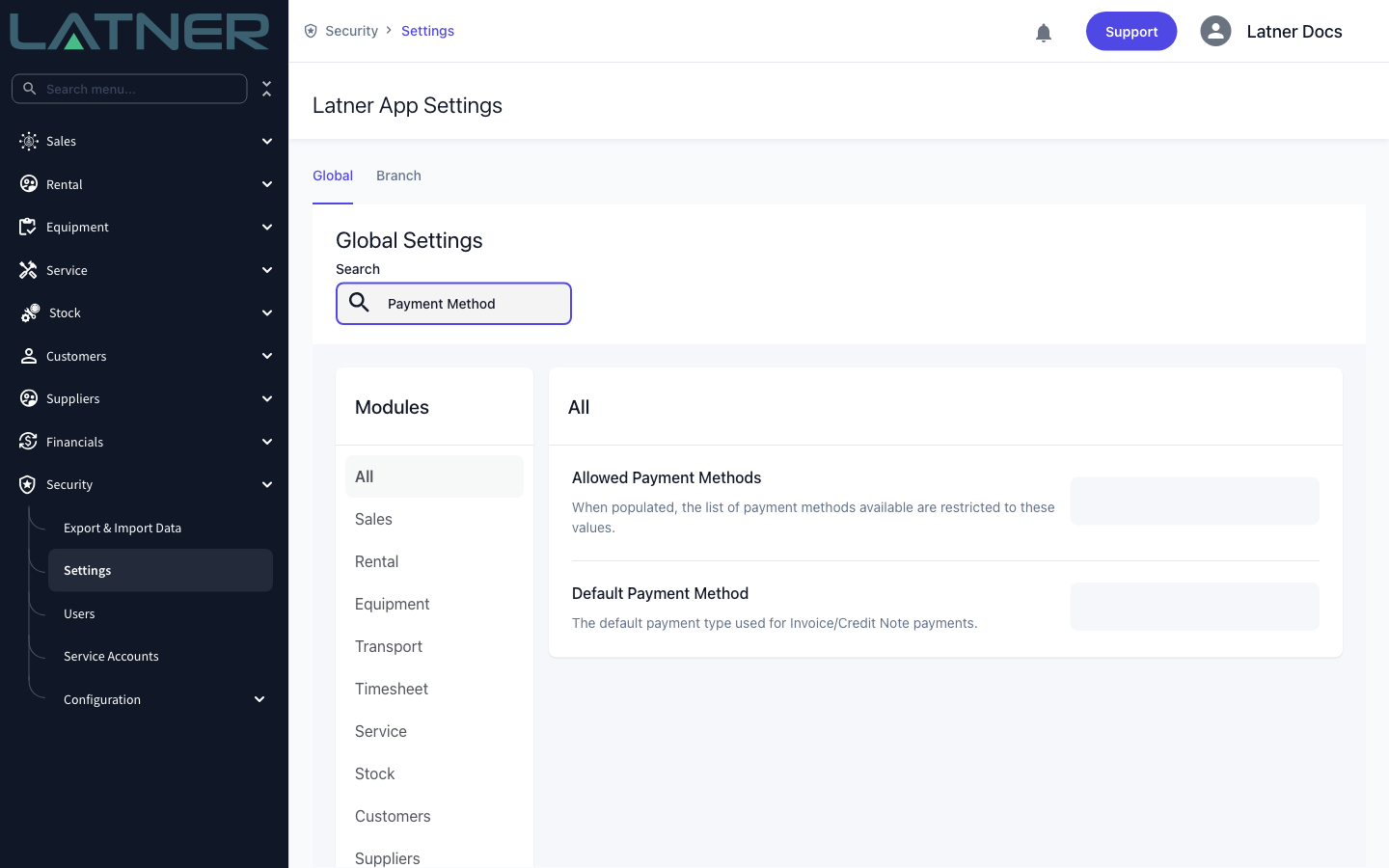
If Allowed Payment Methods is populated, only those methods appear in the Method list. Xero, MYOB and Sage are reserved for payments created by the accounting integration itself, so they never appear as manual options.
Taking a Payment
Step 1 - Open the completed invoice
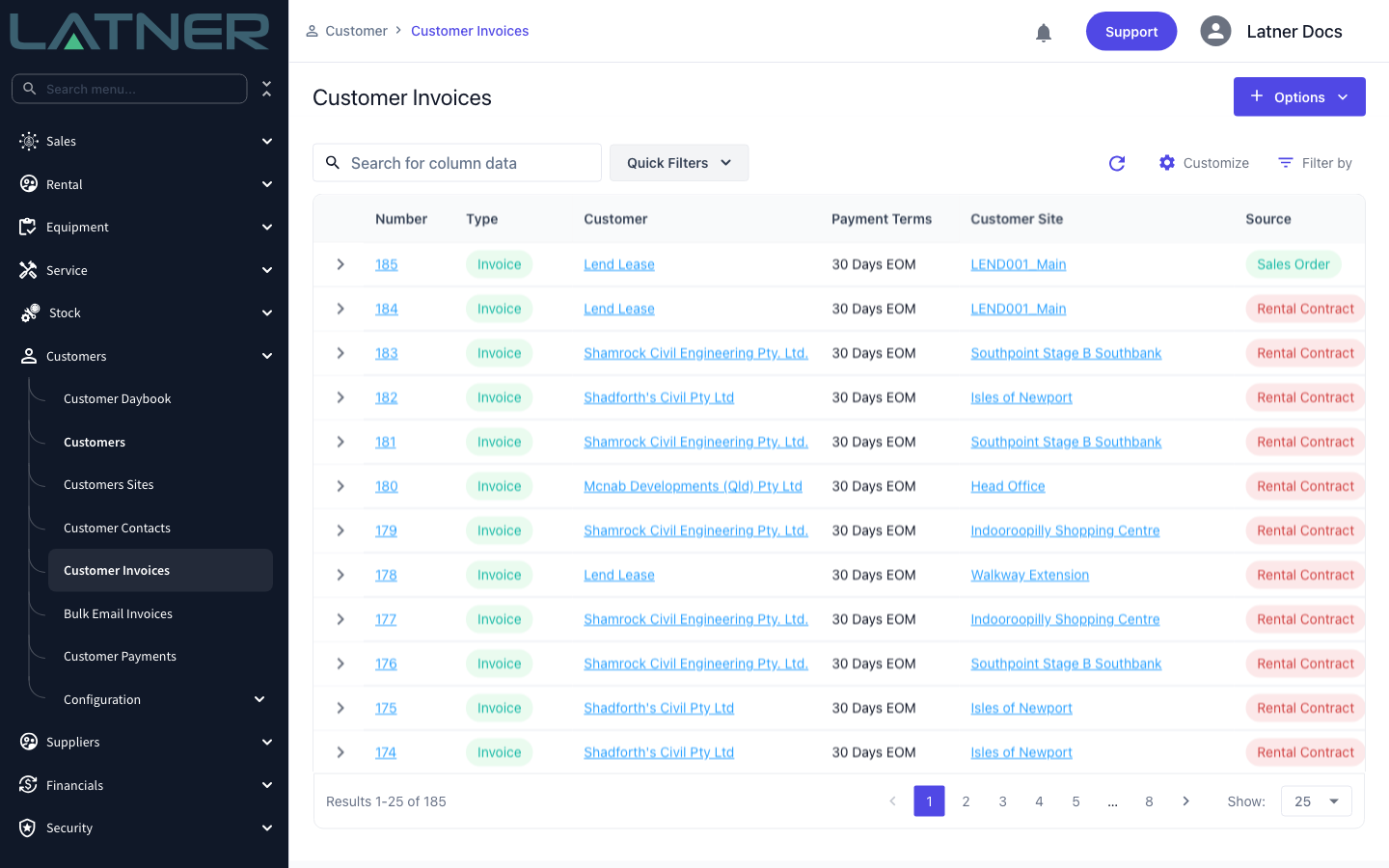
Go to Customers › Customer Invoices and open the invoice you want to settle. You can only take a payment once the invoice's Status is Completed - on any other status the Take Payment option is greyed out, with the tooltip "A Payment can only be created for Completed Invoices".
Step 2 - Choose Take Payment
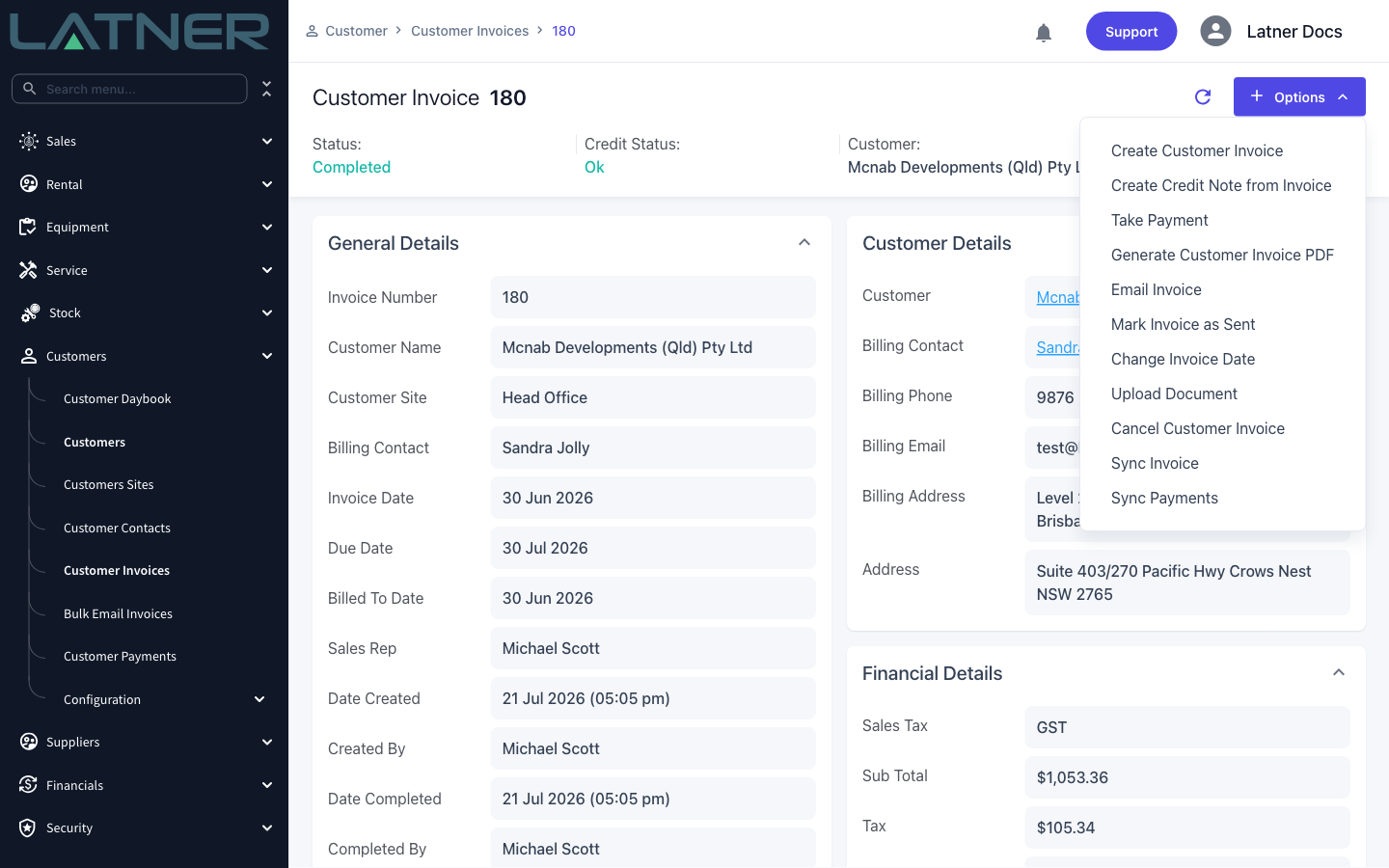
Open the Options menu at the top right of the invoice and choose Take Payment. The Create Customer Payment window opens.
Step 3 - Choose the payment method
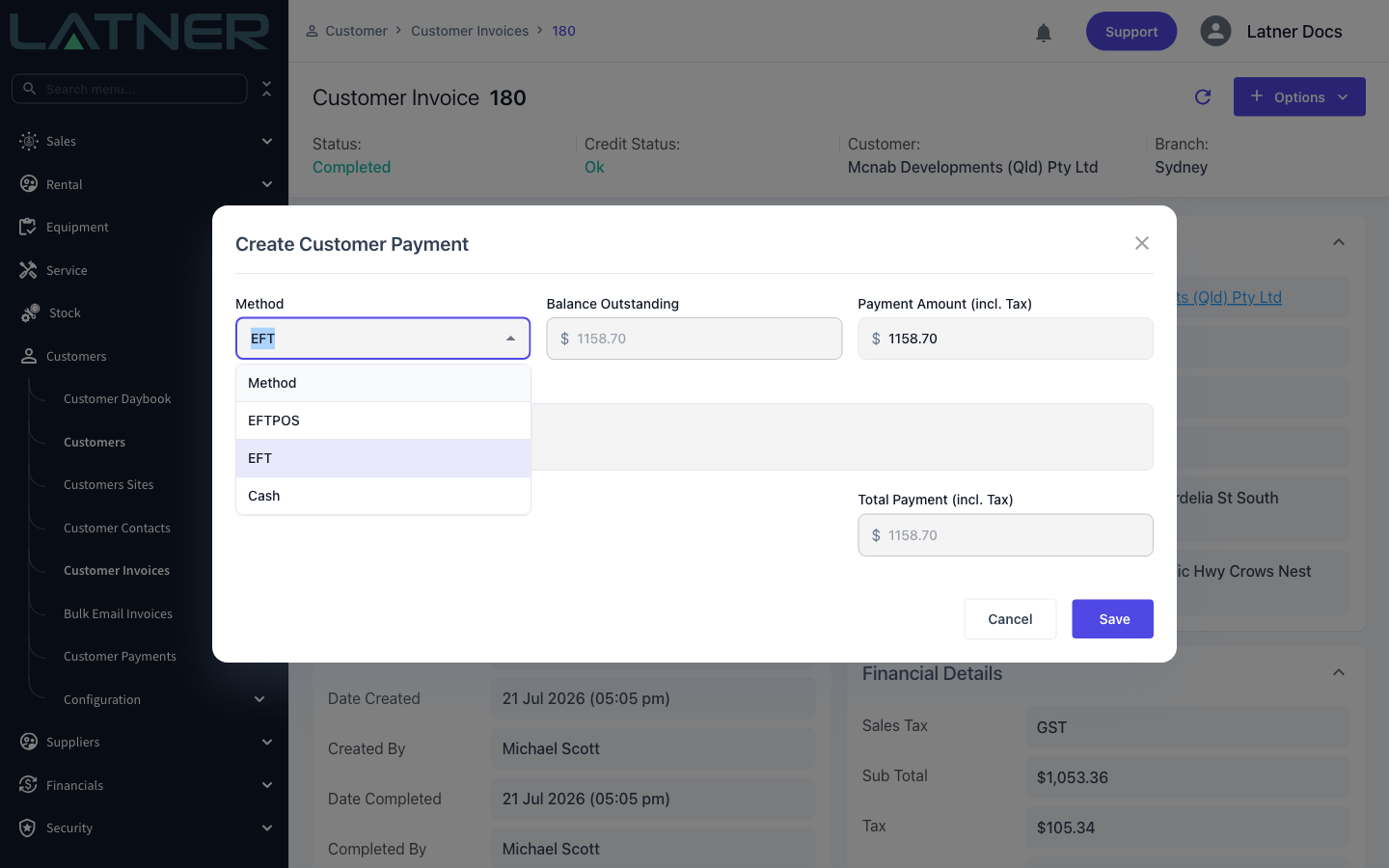
Select the Method the customer paid by. The list shows only the methods enabled for your business - typically EFT, EFTPOS and Cash, plus any card gateway you have configured. It starts on your Default Payment Method setting.
Step 4 - Confirm the amount and save
The window pre-fills the Payment Amount (incl. Tax) with the full balance owing. Leave it as is to settle the invoice, or lower it to record a part payment. Add a Payment Note if you want a record of how it was paid, then choose Save.
-
Method - required. How the customer paid.
-
Balance Outstanding - read-only. The amount still owing on the invoice.
-
Payment Amount (incl. Tax) - required. Defaults to the balance owing; must be greater than zero and no more than the Balance Outstanding.
-
Payment Notes - optional free text stored against the payment.
-
Total Payment (incl. Tax) - read-only. The total being recorded.
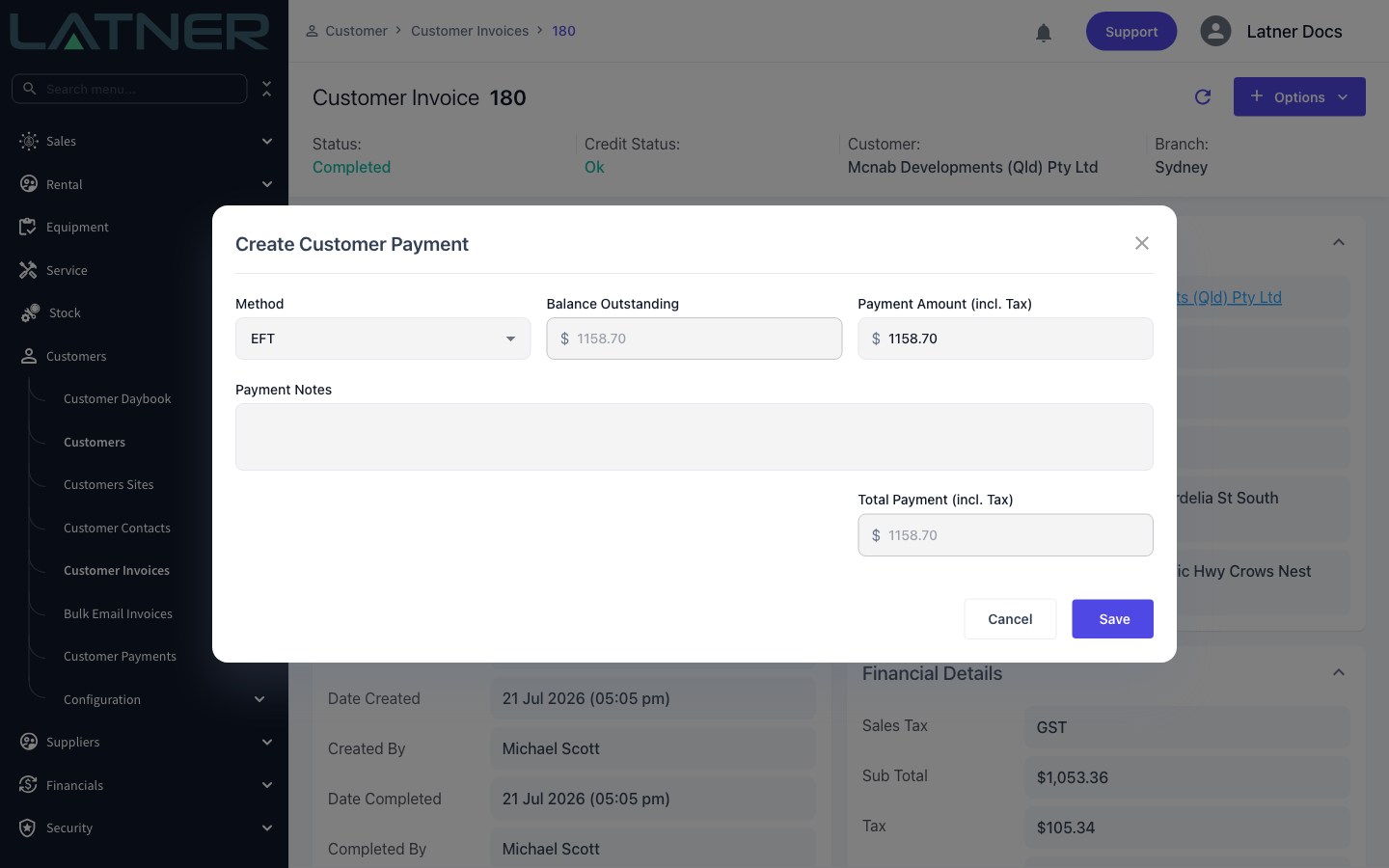
Latner will not let you record more than the balance owing - entering a higher figure returns "Please enter value lower than or equal to the balance outstanding". To take money from a customer in advance of an invoice, use a customer deposit (Drawdown) instead.
After Recording the Payment
-
The invoice's Balance Outstanding drops by the amount you recorded.
-
Settling the full balance moves the invoice's Status to Paid; a part payment leaves it Completed with the remaining balance still owing.
-
The payment appears on the invoice's Customer Payments tab, numbered and marked Completed, showing the method, amount and who took it.
-
If you have an active accounting integration, Latner attempts to push the payment across automatically (Xero and MYOB AccountRight, where payment syncing is switched on for the integration). You can re-trigger this at any time from Options › Sync Payments.
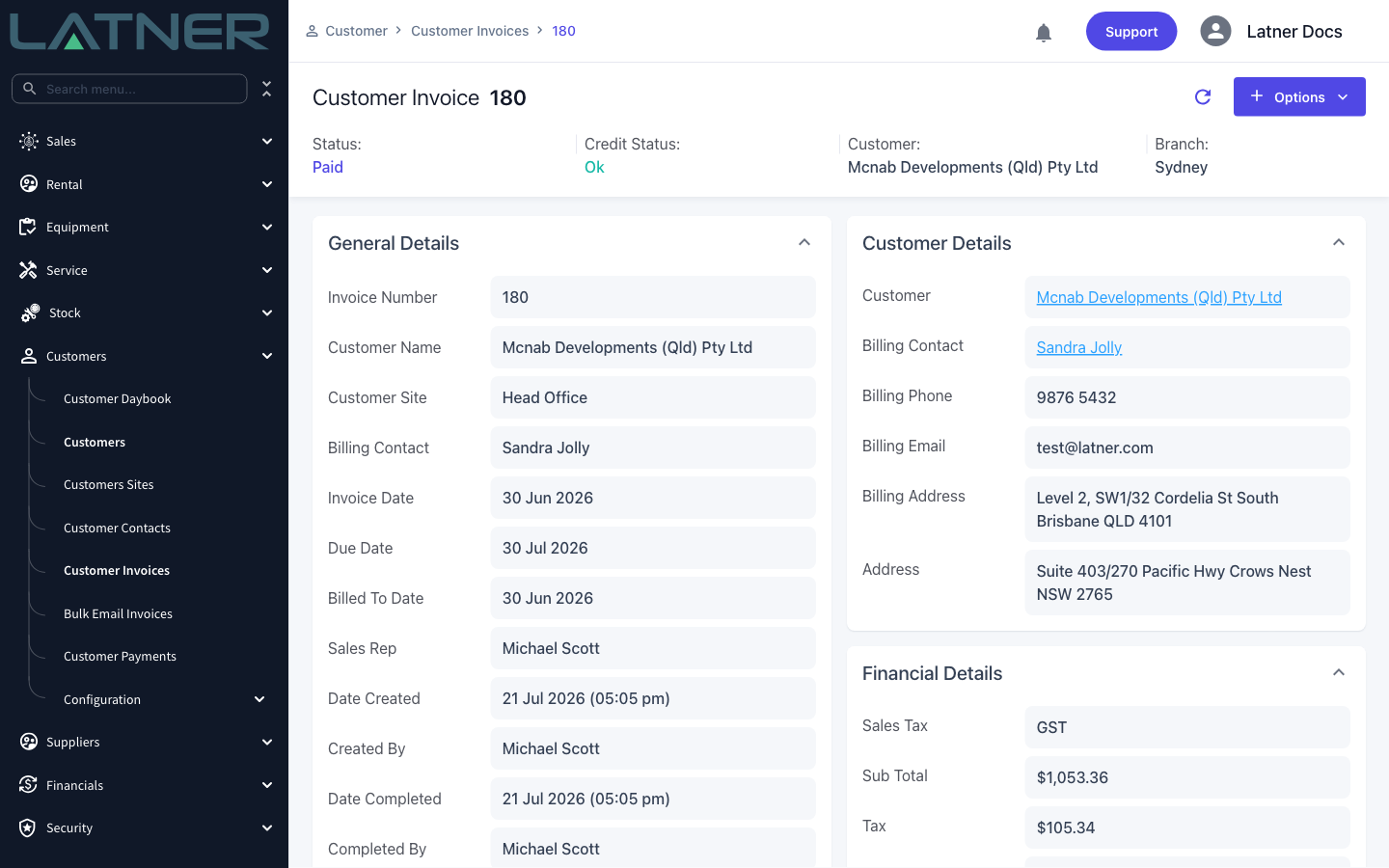
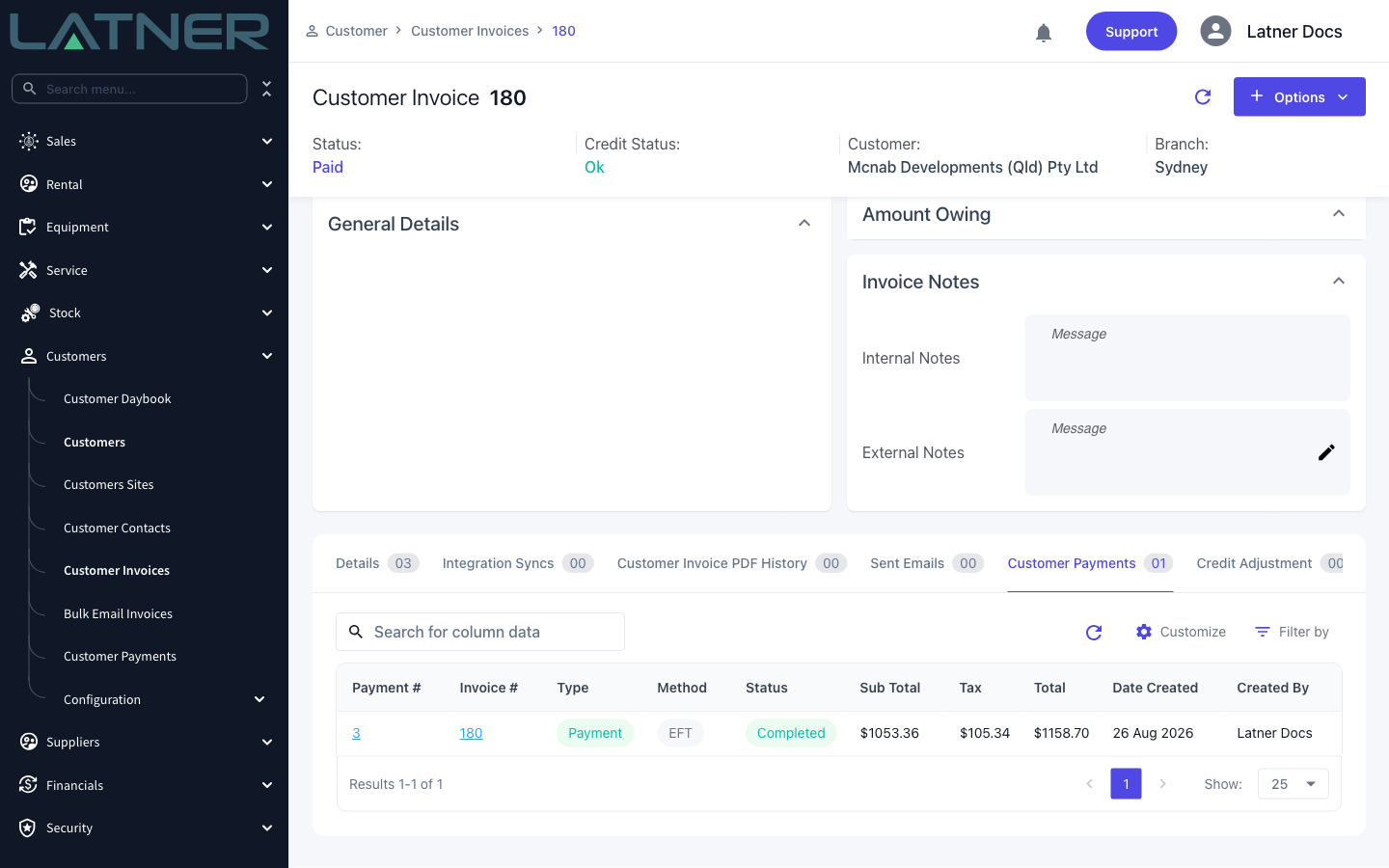
Recorded the payment against the wrong invoice, or for the wrong amount? A payment is not locked once saved. Open it from the Customer Payments tab and use Refund Payment to reverse it - this reopens the balance and returns the invoice to Completed.
Payments from Your Accounting System
Most payments never need to be entered in Latner at all. If you reconcile bank feeds in your accounting system, matching a bank transaction to an invoice there is enough - Latner pulls the payment back automatically, creates it against the matching invoice and updates the invoice status for you.
-
Xero - near real time. Xero notifies Latner as soon as the invoice changes, and the payment is pulled through within about a minute.
-
MYOB AccountRight - overnight. A scheduled job runs each night and pulls the payments recorded in MYOB, so payments matched during the day appear in Latner the next morning.
-
Sage Intacct - near real time, the same way Xero works. Sage notifies Latner when an accounts receivable payment is posted, and Latner pulls it against the matching invoice.
However the payment arrives, it lands on the invoice's Customer Payments tab like any other, with its Method showing where it came from - Xero, MYOB or Sage - and Created By showing it was brought in automatically rather than keyed by a person. Once the pulled payments cover the invoice in full, its status moves to Paid exactly as if you had taken the payment by hand.
This only applies to invoices Latner has already sent to your accounting system. A payment matched against an invoice that was never synced across has nothing to attach itself to, so it will not appear in Latner.
There is no double-up between the two directions. A payment that came in from your accounting system is never pushed back out to it, and a payment you take in Latner is not re-pulled as a second payment.
FAQs
Watch the Demo
Prefer to watch it? Step through the same flow here.